URL: https://testingbot.com/
# Cross Browser Testing on 6100+ Real Browsers & Devices
Run automated, manual, visual and AI-assisted tests on 6100+ real browsers and physical iOS and Android devices, with parallel execution and CI/CD integrations.
Trusted by some of the world's most innovative companies
[Start free](https://testingbot.com/users/sign_up)[Request a demo](https://testingbot.com/demo)
No credit card required
1+bn
Tests Executed
180k
Active Users
6100+
Browsers & Devices
testingbot.com/members
Live
Running
14
Queued
47
Avg queue
1.2s
Today
8,142
Test sessionslast 60s
PassRunQueue
Parallel workers62/100 active
EU region
3.7×
Faster than self-hosted
grids and dev machines
Boost your tests
About TestingBot
## All-in-one cross-browser, mobile and AI testing platform
TestingBot runs your Selenium, Appium, Playwright, Cypress, Puppeteer, Espresso, XCUITest and Maestro tests on 6100+ real browsers and physical iOS and Android devices.
Automated, manual, visual and AI-assisted testing with parallel execution and CI/CD integrations.
### Web Testing
Test on 6100+ real browsers across Windows, macOS and Linux.
[
#### Live / Manual
Interactive browser testing
](https://testingbot.com/features/manual-browser-testing)[
#### Automated
Selenium, Playwright, Puppeteer & Cypress
](https://testingbot.com/features)[
#### AI Testing
AI-driven testing & MCP integration
](https://testingbot.com/features/ai-testing)[
#### Visual Testing
Screenshot comparison of websites
](https://testingbot.com/features/screenshot-testing)
### Mobile App Testing
Test on real physical iOS and Android devices.
[
#### Live / Manual
Interactive device testing
](https://testingbot.com/features/manual-mobile-testing)[
#### Automated
Appium, Espresso, XCUITest & Maestro
](https://testingbot.com/real-device-testing)[
#### AI Testing
AI-driven testing on real devices
](https://testingbot.com/features/ai-testing)[
#### Visual Testing
App screenshot comparison
](https://testingbot.com/features/screenshot-testing)
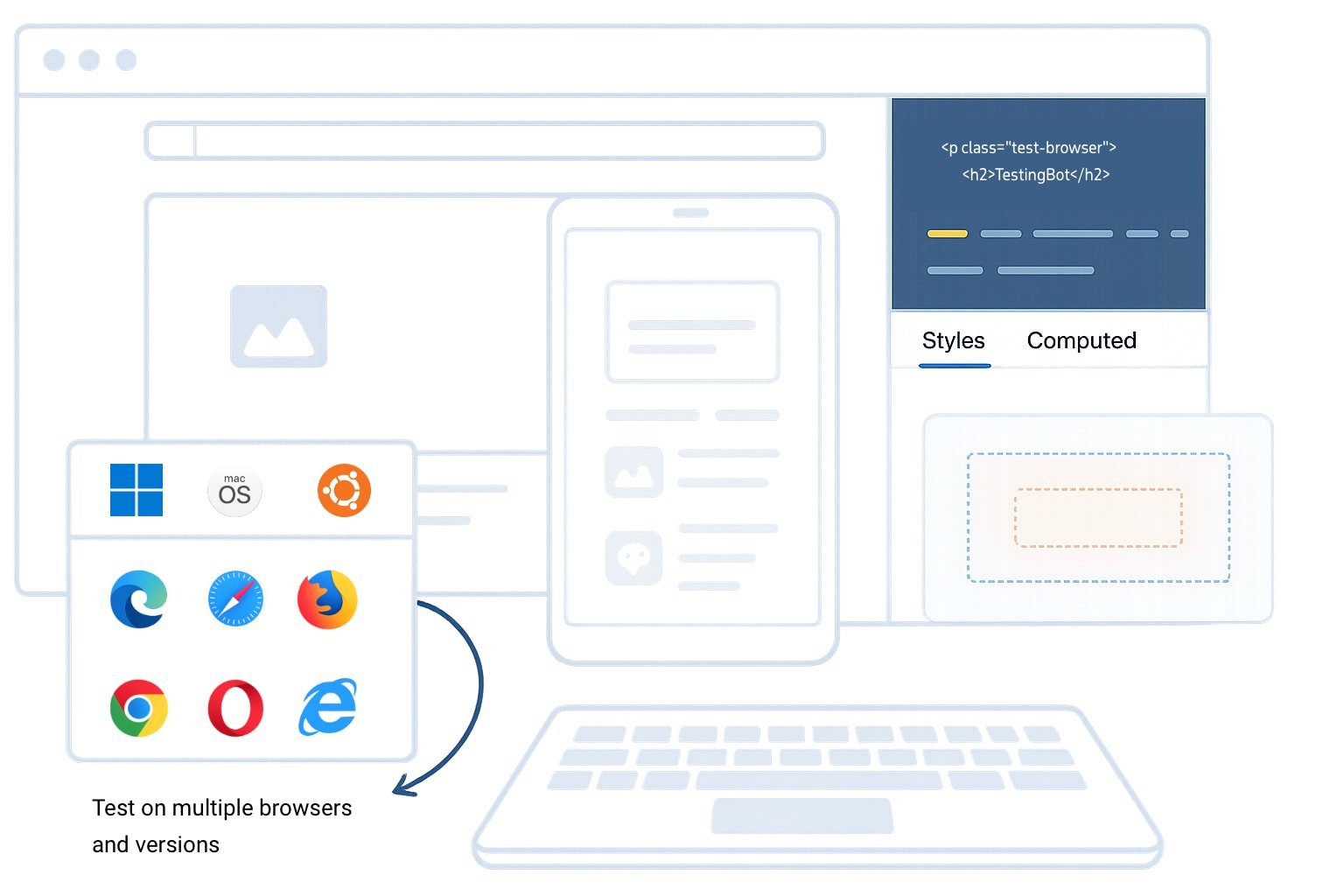
## Cross-Browser Testing Made Simple
Get one-click access to real browsers running on macOS, Windows and Linux platforms. Switch platforms, locations and screen resolutions instantly.
Test across all versions of Internet Explorer (IE8 to IE11), Edge, Chrome, Safari, Firefox and Opera.
Chrome
Safari
Firefox
Edge
[Start Testing](https://testingbot.com/features/manual-browser-testing)
## Why teams choose TestingBot
### Improve test coverage
Cross-browser, real device and visual testing on 6100+ browser and device combinations.
### Boost productivity with AI
AI-powered test creation and execution. Write tests in natural language, let AI do the rest.
### Accelerate testing cycles
Run tests in parallel across multiple browsers and devices. Ship faster with confidence.
## Works with your favorite testing frameworks
Native support for all major web and mobile testing frameworks. Get started in minutes.
### Web Testing
[ Selenium ](https://testingbot.com/features/automation/selenium)[ Playwright ](https://testingbot.com/features/automation/playwright)[ Cypress ](https://testingbot.com/features/automation/cypress)[ Puppeteer ](https://testingbot.com/features/automation/puppeteer)[WebdriverIO](https://testingbot.com/support/web-automate/selenium/nodejs/webdriverio)[ RobotFramework ](https://testingbot.com/support/web-automate/selenium/robotframework)
### Mobile Testing
[ Appium ](https://testingbot.com/features/automation/appium)[ Espresso ](https://testingbot.com/features/automation/espresso)[ XCUITest ](https://testingbot.com/features/automation/xcuitest)[ Maestro ](https://testingbot.com/features/automation/maestro)[Flutter](https://testingbot.com/support/app-automate/appium/flutter)[React Native](https://testingbot.com/features/automation/appium)
### Languages & SDKs
[Java](https://testingbot.com/support/web-automate/selenium/java)[Python](https://testingbot.com/support/web-automate/selenium/python)[NodeJS](https://testingbot.com/support/web-automate/selenium/nodejs)[C# / .NET](https://testingbot.com/support/web-automate/selenium/csharp)[Ruby](https://testingbot.com/support/web-automate/selenium/ruby)[php PHP](https://testingbot.com/support/web-automate/selenium/php)
[View all documentation](https://testingbot.com/support)
Real Device Cloud
## Test on real iOS & Android devices
Access hundreds of real physical devices for manual and automated testing. iPhones, iPads, Samsung Galaxy, Pixel, Smart TVs and more.
[

Appium ](https://testingbot.com/features/automation/appium)[

Espresso ](https://testingbot.com/features/automation/espresso)[

XCUITest ](https://testingbot.com/features/automation/xcuitest)[

Maestro ](https://testingbot.com/features/automation/maestro)
[Explore device cloud](https://testingbot.com/real-device-testing)

AI-Powered Testing
## AI Test Agent
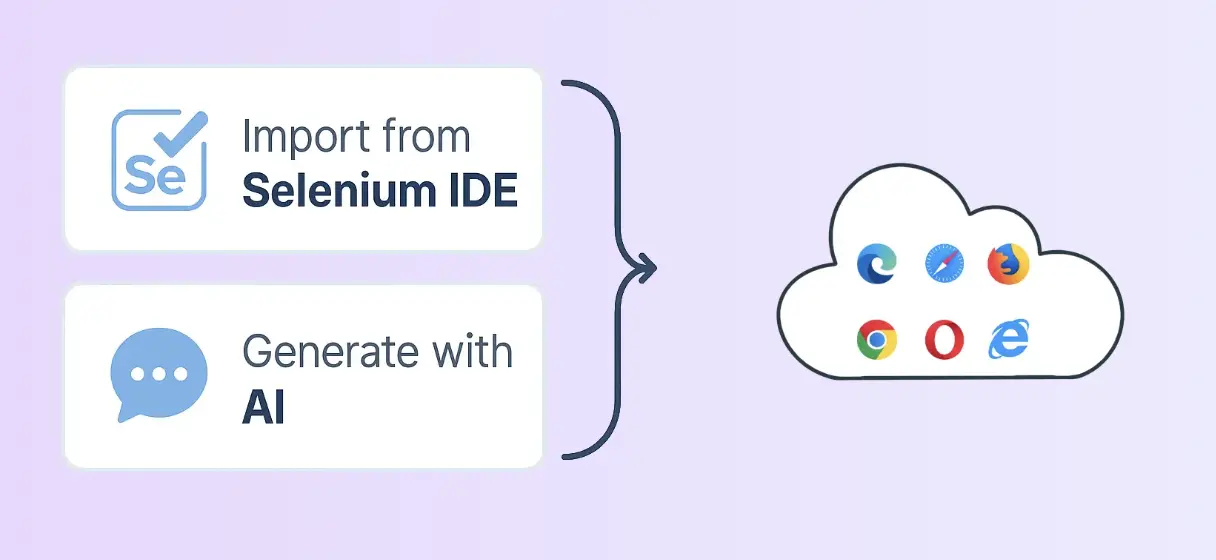
Create and run tests without writing code. Simply describe what you want to test in plain language.
TestingBot AI understands your application and generates reliable test steps automatically.
[Try AI Testing](https://testingbot.com/features/ai-testing)
Accessibility Testing
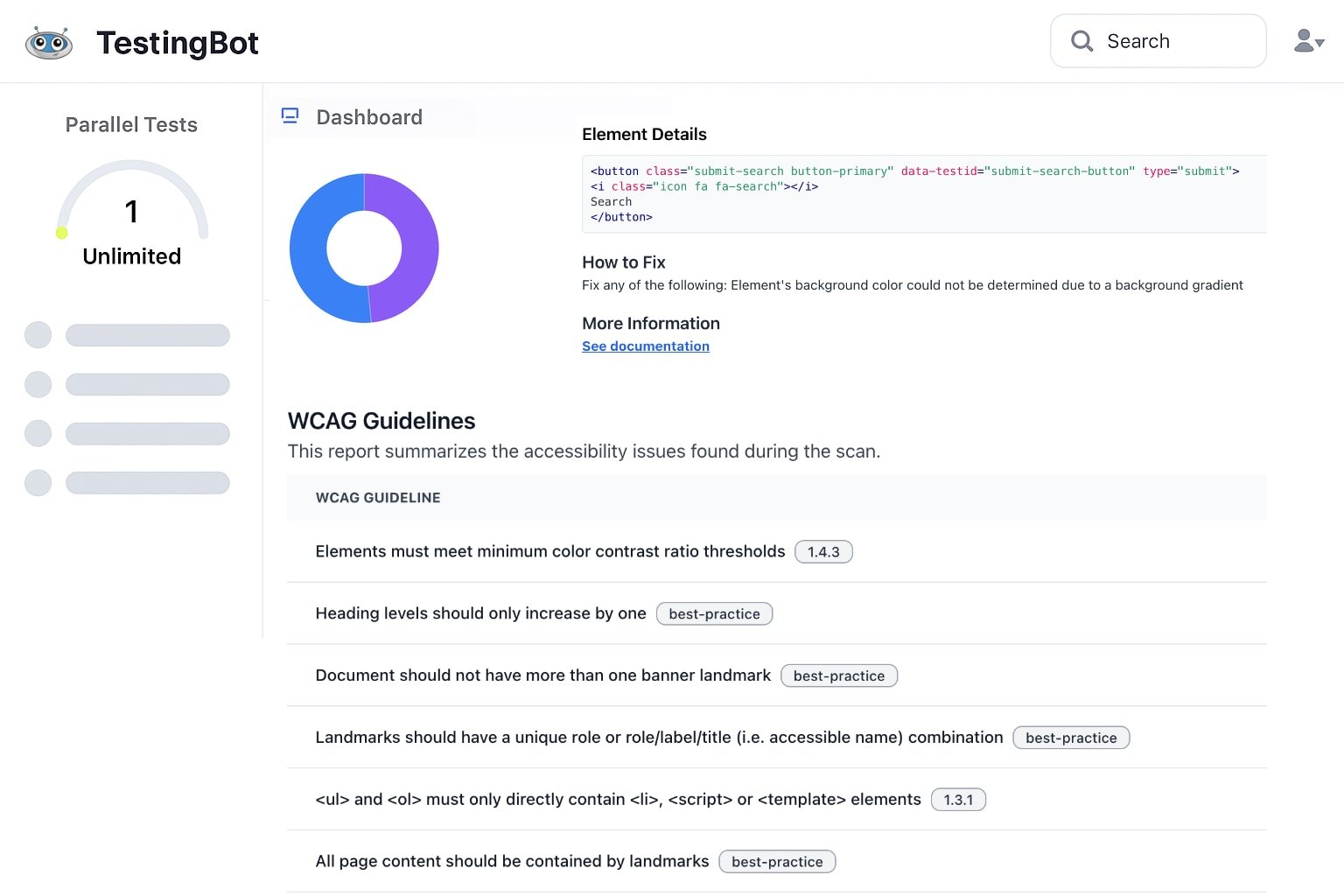
## WCAG Compliance Testing
Identify and fix accessibility issues across your websites. Ensure WCAG compliance and deliver an inclusive experience for all users.
Meet legal requirements like the European Accessibility Act (EAA), reach a broader audience and improve SEO with accessibility best practices.
WCAG 2.1 Compliance
Scheduled Testing
Detailed Reports
Severity Classification
[Explore Accessibility Testing](https://testingbot.com/features/accessibility-testing)
## Trusted by teams worldwide
Join thousands of companies shipping better software with TestingBot
1B+
Tests Executed
180,000+
Active Users
6,100+
Browsers & Devices
106
Countries
GDPR
Compliant
SAML SSO
Single Sign-On
Star Level 1
Certified
99.99%
Uptime SLA
## Seamlessly integrate into your workflow
Connect TestingBot with your CI/CD pipeline, issue trackers and communication tools.
[ Jenkins ](https://testingbot.com/support/integrations/ci-cd/jenkins)[ GitHub ](https://testingbot.com/support/integrations/ci-cd/github-actions)[ GitLab ](https://testingbot.com/support/integrations/ci-cd/gitlab)[ CircleCI ](https://testingbot.com/support/integrations/ci-cd/circleci)[ Travis CI ](https://testingbot.com/support/integrations/ci-cd/travis-ci)[ Slack ](https://testingbot.com/support/integrations/slack)[ Jira ](https://testingbot.com/support/integrations/jira)[Azure](https://testingbot.com/support/integrations/ci-cd/azure)[ Bitbucket ](https://testingbot.com/support/integrations/ci-cd/bitbucket)[ TeamCity ](https://testingbot.com/support/integrations/ci-cd/teamcity)[ Bamboo ](hhttps://testingbot.com/support/integrations/ci-cd/bamboo)[ App Center ](https://testingbot.com/support/integrations/appcenter)
[View all integrations](https://testingbot.com/integrations)
FAQ
## Frequently Asked Questions
What is cross-browser testing?
Cross-browser testing verifies that a website or web application works correctly across different browsers (Chrome, Safari, Firefox, Edge, Internet Explorer), browser versions, operating systems and screen sizes. It catches rendering inconsistencies, JavaScript compatibility issues and CSS bugs before users encounter them. TestingBot runs your tests on 6100+ real browser and OS combinations in parallel.
How do I test a website on multiple browsers?
Use a cross-browser testing platform like TestingBot. Sign up, point your Selenium, Playwright, Cypress or Puppeteer test scripts at the TestingBot grid by changing the WebDriver URL, and your tests run in parallel across thousands of real browsers and devices. You can also start live, interactive sessions on any browser without writing code.
Which test automation frameworks does TestingBot support?
TestingBot natively supports Selenium, Appium, Playwright, Cypress, Puppeteer, Espresso, XCUITest and Maestro. SDKs are available for Java, JavaScript, TypeScript, Python, Ruby, C#, PHP and Go. AI assistants like Claude Code and Cursor can also access the TestingBot REST API via a [Model Context Protocol (MCP) server](https://testingbot.com/support/ai/mcp) to inspect test runs and debug failures from your editor.
Does TestingBot support real iOS and Android devices?
Yes. TestingBot operates a cloud of physical iOS and Android devices, including iPhones (from iPhone 6s to iPhone 17 Pro), iPads, Samsung Galaxy phones, Pixel devices and tablets. You can run automated Appium, Espresso, XCUITest or Maestro tests on real hardware, or take manual control via the [live testing interface](https://testingbot.com/features/manual-mobile-testing).
How is TestingBot different from BrowserStack, Sauce Labs and LambdaTest?
TestingBot is more affordable than BrowserStack and Sauce Labs (typically 30 to 40 percent cheaper), includes real device testing in every paid plan, hosts data in the European Union for GDPR compliance, and ships features faster, Apple Silicon support arrived more than ten months before Sauce Labs. See the dedicated comparisons: [BrowserStack alternative](https://testingbot.com/browserstack-alternative), [Sauce Labs alternative](https://testingbot.com/saucelabs-alternative), [LambdaTest alternative](https://testingbot.com/lambdatest-alternative).
Does TestingBot support AI-driven testing?
Yes. TestingBot offers [codeless AI testing](https://testingbot.com/support/ai/codeless), describe in plain language what you want to test, and an AI agent creates and runs the test on the browsers you choose, reporting back any failures. TestingBot also exposes its REST API via a [Model Context Protocol (MCP) server](https://testingbot.com/support/ai/mcp) so AI assistants like Claude Code and Cursor can inspect test runs, fetch logs and debug failures from your editor. See the full [AI testing overview](https://testingbot.com/support/ai) for integrations with Magnitude, Stagehand and Notte.
Where is TestingBot data hosted?
TestingBot is built and hosted in the European Union. All test data, video recordings and logs are stored on EU-based infrastructure, making TestingBot a strong choice for GDPR-compliant testing programs and for teams with European data-residency requirements.
Is there a free trial?
Yes. TestingBot offers a free plan and a free trial of paid features. No credit card is required to start. During the trial you can run automated tests, live manual sessions, screenshot tests and visual comparisons on browsers and real devices.
No credit card required
## Ready to get started?
Join thousands of teams shipping better software with TestingBot
[Start Free Trial](https://testingbot.com/users/sign_up)[View pricing](https://testingbot.com/pricing)
Free 14-day trial
5-minute setup
24/7 support
---
URL: https://testingbot.com/features
# All-in-One Cross Browser & Mobile Testing Platform
TestingBot is a cloud testing platform that runs your Selenium, Appium, Playwright, Cypress, Puppeteer, Espresso, XCUITest and Maestro tests on 6100+ real desktop browsers and physical iOS and Android devices. Test in parallel, debug with video and screenshot recording and integrate with any CI/CD system.
[Start free](https://testingbot.com/users/sign_up)[Request a demo](https://testingbot.com/demo)
Browsers & devices6100+
Uptime SLA99.99%
testingbot.com/members
Live
14Running
8+Frameworks
6100+Browsers
Chrome 146
macOS
Safari 26
macOS
Firefox 132
Win 11
Edge 146
Win 11
Chrome dev
Linux
Safari TP
Sequoia
iPhone 17
iOS 18
iPad Pro
iPadOS
Galaxy S26
Android
Pixel 10
Android
Galaxy S25
Android
IE 11
Win 10
Test framework launchers EU region

Selenium

Appium

Cypress

Puppeteer

Playwright

Espresso

XCUITest

Maestro
Tests in parallel
## Trusted by some of the world's most innovative companies
## All-in-one cross browser testing platform
The TestingBot cloud brings you the power to test your website and mobile app on [+6100 browsers & devices](https://testingbot.com/support/web-automate/browsers).
Test on the latest Chrome, Firefox, Edge and Safari, plus legacy versions like Internet Explorer 11, all running on real Windows, macOS and Linux machines.
Let us handle your testing infrastructure while you focus on development.
Run tests effortlessly on our maintained cloud of desktop and mobile platforms.
[Start free](https://testingbot.com/users/sign_up)
Live cloud grid
uptime 99.99% · ready


















6100+combinations
Built for scale
## 6100+ real desktop and mobile browser combinations
Test on the widest range of desktop and mobile devices in our real device cloud. We handle setup, procurement and maintenance, so you can focus entirely on testing.
### Windows, macOS & Linux
One-click access to every macOS, Linux and Windows version. From Yosemite to macOS Tahoe, and Windows 7 to Windows 11. We've got you covered.
### Every browser, all versions
Edge, Safari, Firefox, Chrome, Opera and IE, constantly updated and instantly available.
### Security
Single-Use VMs and real devices, reset after each use.
### Real Android and iOS devices
Test across real iPhone, iPads, Google, OnePlus, Xiaomi and Samsung phones and tabs.
### No setup and maintenance
Instantly access 6100+ devices and browsers. Experience zero setup or maintenance hassles, and focus only on testing.
### Performance
Our infrastructure is built for performance to eliminate test flakiness and latency.
Automation frameworks
## Test Automation Frameworks
TestingBot supports these popular Test Automation Frameworks:
-
[](https://testingbot.com/features/automation/selenium)
### [Selenium](https://testingbot.com/features/automation/selenium)
Popular Browser Automation Framework, using WebDriver, which supports all major browsers.
Best for: enterprise-grade browser automation across every major language.
[Try with Selenium](https://testingbot.com/features/automation/selenium)
-
[](https://testingbot.com/features/automation/appium)
### [Appium](https://testingbot.com/features/automation/appium)
Mobile Automation Framework, using WebDriver, runs on physical devices and simulators/emulators.
Best for: native mobile app automation on real iOS & Android devices.
[Try with Appium](https://testingbot.com/features/automation/appium)
-
[](https://testingbot.com/features/automation/cypress)
### [Cypress](https://testingbot.com/features/automation/cypress)
Javascript based E2E testing on Chrome and Firefox.
Best for: fast JavaScript-only end-to-end testing.
[Try with Cypress](https://testingbot.com/features/automation/cypress)
-
[](https://testingbot.com/features/automation/puppeteer)
### [Puppeteer](https://testingbot.com/features/automation/puppeteer)
Chrome DevTools based Automation Framework by Google. Supports Chrome and Edge browsers.
Best for: Chromium DevTools-based automation and scraping.
[Try with Puppeteer](https://testingbot.com/features/automation/puppeteer)
-
[](https://testingbot.com/features/automation/playwright)
### [Playwright](https://testingbot.com/features/automation/playwright)
Similar to Puppeteer, built by Microsoft, with support for Chrome and Edge.
Best for: modern multi-browser testing in TypeScript, Python and .NET.
[Try with Playwright](https://testingbot.com/features/automation/playwright)
-
[](https://testingbot.com/features/automation/espresso)
### [Espresso](https://testingbot.com/features/automation/espresso)
Android Automation Framework, runs on physical devices and emulators.
Best for: Android-only UI testing inside the app process.
[Try with Espresso](https://testingbot.com/features/automation/espresso)
-
[](https://testingbot.com/features/automation/xcuitest)
### [XCUITest](https://testingbot.com/features/automation/xcuitest)
iOS Automation Framework, runs on physical devices and simulators.
Best for: iOS-only UI testing with Apple's native framework.
[Try with XCUITest](https://testingbot.com/features/automation/xcuitest)
-
[](https://testingbot.com/features/automation/maestro)
### [Maestro](https://testingbot.com/features/automation/maestro)
Maestro is a mobile UI testing framework, which supports testing on both iOS and Android.
Best for: declarative mobile flows without writing code.
[Try with Maestro](https://testingbot.com/features/automation/maestro)
Comparing frameworks? See [Playwright vs Selenium](https://testingbot.com/playwright-vs-selenium) for a head-to-head breakdown.
Buy vs build
## TestingBot vs a DIY in-house grid
Building and maintaining your own browser and device lab is expensive and slow. Here is how a hosted cloud compares to running the infrastructure yourself.
| Capability | TestingBot | DIY in-house grid |
| --- | --- | --- |
| Browser & device coverage |
6100+ ready to use
|
You buy and maintain
|
| Setup time |
Minutes
|
Weeks to months
|
| Maintenance burden |
None, managed for you
|
Constant patching, OS upgrades and capacity planning
|
| Real iOS devices |
iPhone, iPad, real hardware
|
Hard (Apple licensing & MDM)
|
| Parallel sessions |
Scale to hundreds in parallel
|
Capped by your hardware
|
| EU data residency |
Hosted in the EU
|
Build it yourself
|
| Video & screenshot recording |
Recorded automatically on every test
|
Build it yourself
|
| CI/CD integrations |
Jenkins, GitHub Actions, CircleCI, GitLab, Azure DevOps
|
DIY scripts and plugins
|
| Live debugging |
Built-in
|
Custom VNC tooling
|
| Support |
24/7 included
|
Internal team only
|
Live mobile testing
## Take control of a device
Interact with the remote mobile device, just as you would with a device in hand. Tap, scroll, zoom, swipe and more.
Open a real device anywhere in the world and drive it from your browser. Tap, scroll, swipe, install your APK or IPA, capture network logs and reproduce a customer issue in real time.
[Try Live Mobile Testing](https://testingbot.com/features/manual-mobile-testing)
Live device · iPhone 17 Pro · iOS 18.2
connected
Builds5
checkout-2.4.1.ipa
24.3 MB · just now
checkout-2.4.0.ipa
23.8 MB · 2 days
payment-1.2.0.ipa
18.1 MB · 5 days
profile-3.0.0.apk
32.5 MB · 1 week
admin-0.9.0.ipa
14.7 MB · 2 weeks
drop .ipa / .apk
Install on device
9:41
checkout-2.4.1
codesign · verify · launch
Checkout
v2.4.1 · staging
order #4291
Pay
€12.40
Cancel
Item added
Headphones · Pro
Promo applied
WELCOME10 · -€2
Address
Brussels, BE
Console·checkout-2.4.1
allinfowarnerr
18:45:01.123ℹAppDelegatedidFinishLaunchingWithOptions
18:45:01.187ℹLifecyclewillEnterForeground
18:45:01.234→URLSessionGET /v1/cart → 200 (123ms)
18:45:01.305→URLSessionGET /v1/promo → 200 (88ms)
18:45:01.412ℹCartloaded 3 items, total €12.40
18:45:01.498ℹFeatureFlagscheckout.v2 = on
18:45:01.567✎TextFieldsearch.text = "order #4291"
18:45:01.612→URLSessionPOST /v1/search → 200 (74ms)
18:45:01.701⚠ImageCacheevicted 12 entries (32.4 MB)
18:45:01.789✓AuthServicetoken refreshed (exp 14:00)
18:45:01.834👆UItap PayButton (40,520)
18:45:01.892→URLSessionPOST /v1/checkout → 201 (212ms)
18:45:01.945✓Paymentauth ok · stripe\_id=ch\_3Q9…
18:45:02.012ℹAnalyticslogEvent("checkout\_done")
18:45:02.078→URLSessionGET /v1/orders → 200 (96ms)
18:45:02.134ℹRoutingpush OrderConfirmationVC
18:45:02.201✓Memorystable · 124 MB
18:45:01.123ℹAppDelegatedidFinishLaunchingWithOptions
18:45:01.187ℹLifecyclewillEnterForeground
18:45:01.234→URLSessionGET /v1/cart → 200 (123ms)
18:45:01.305→URLSessionGET /v1/promo → 200 (88ms)
18:45:01.412ℹCartloaded 3 items, total €12.40
18:45:01.498ℹFeatureFlagscheckout.v2 = on
18:45:01.567✎TextFieldsearch.text = "order #4291"
18:45:01.612→URLSessionPOST /v1/search → 200 (74ms)
18:45:01.701⚠ImageCacheevicted 12 entries (32.4 MB)
18:45:01.789✓AuthServicetoken refreshed (exp 14:00)
18:45:01.834👆UItap PayButton (40,520)
18:45:01.892→URLSessionPOST /v1/checkout → 201 (212ms)
18:45:01.945✓Paymentauth ok · stripe\_id=ch\_3Q9…
18:45:02.012ℹAnalyticslogEvent("checkout\_done")
18:45:02.078→URLSessionGET /v1/orders → 200 (96ms)
18:45:02.134ℹRoutingpush OrderConfirmationVC
18:45:02.201✓Memorystable · 124 MB
18:45:01.123ℹAppDelegatedidFinishLaunchingWithOptions
18:45:01.187ℹLifecyclewillEnterForeground
18:45:01.234→URLSessionGET /v1/cart → 200 (123ms)
18:45:01.305→URLSessionGET /v1/promo → 200 (88ms)
18:45:01.412ℹCartloaded 3 items, total €12.40
18:45:01.498ℹFeatureFlagscheckout.v2 = on
18:45:01.567✎TextFieldsearch.text = "order #4291"
18:45:01.612→URLSessionPOST /v1/search → 200 (74ms)
18:45:01.701⚠ImageCacheevicted 12 entries (32.4 MB)
18:45:01.789✓AuthServicetoken refreshed (exp 14:00)
18:45:01.834👆UItap PayButton (40,520)
18:45:01.892→URLSessionPOST /v1/checkout → 201 (212ms)
18:45:01.945✓Paymentauth ok · stripe\_id=ch\_3Q9…
18:45:02.012ℹAnalyticslogEvent("checkout\_done")
18:45:02.078→URLSessionGET /v1/orders → 200 (96ms)
18:45:02.134ℹRoutingpush OrderConfirmationVC
18:45:02.201✓Memorystable · 124 MB
18:45:01.123ℹAppDelegatedidFinishLaunchingWithOptions
18:45:01.187ℹLifecyclewillEnterForeground
18:45:01.234→URLSessionGET /v1/cart → 200 (123ms)
18:45:01.305→URLSessionGET /v1/promo → 200 (88ms)
18:45:01.412ℹCartloaded 3 items, total €12.40
18:45:01.498ℹFeatureFlagscheckout.v2 = on
18:45:01.567✎TextFieldsearch.text = "order #4291"
18:45:01.612→URLSessionPOST /v1/search → 200 (74ms)
18:45:01.701⚠ImageCacheevicted 12 entries (32.4 MB)
18:45:01.789✓AuthServicetoken refreshed (exp 14:00)
18:45:01.834👆UItap PayButton (40,520)
18:45:01.892→URLSessionPOST /v1/checkout → 201 (212ms)
18:45:01.945✓Paymentauth ok · stripe\_id=ch\_3Q9…
18:45:02.012ℹAnalyticslogEvent("checkout\_done")
18:45:02.078→URLSessionGET /v1/orders → 200 (96ms)
18:45:02.134ℹRoutingpush OrderConfirmationVC
18:45:02.201✓Memorystable · 124 MB
● streaming 17 lines/s · syslog
Developer experience
## Test in your favorite language
Use the SDK of your choice. TestingBot integrates with Jest, Mocha, PyTest, NUnit, RSpec and other popular test frameworks, plus every major CI/CD system.
hub.testingbot.com Copy
JavaScript Python Java Ruby C# PHP
// Run a Selenium test on the TestingBot gridconstwd=require('selenium-webdriver');constdriver=awaitnewwd.Builder().usingServer('https://hub.testingbot.com/wd/hub').withCapabilities({'tb:options': {name:'Checkout flow'},browserName:'chrome',browserVersion:'latest',platformName:'Windows 11'}).build();awaitdriver.get('https://example.com');awaitdriver.quit();
# Run a Selenium test on the TestingBot gridfromseleniumimportwebdriveroptions=webdriver.ChromeOptions()options.set\_capability('tb:options', {'name':'Checkout flow'})options.set\_capability('browserVersion','latest')options.set\_capability('platformName','Windows 11')driver=webdriver.Remote(command\_executor='https://hub.testingbot.com/wd/hub',options=options)driver.get('https://example.com')driver.quit()
// Run a Selenium test on the TestingBot gridDesiredCapabilitiescaps=newDesiredCapabilities();caps.setCapability("browserName","chrome");caps.setCapability("browserVersion","latest");caps.setCapability("platformName","Windows 11");WebDriverdriver=newRemoteWebDriver(newURL("https://hub.testingbot.com/wd/hub"),caps);driver.get("https://example.com");driver.quit();
# Run a Selenium test on the TestingBot gridrequire'selenium-webdriver'caps=Selenium::WebDriver::Remote::Capabilities.chrome(browserVersion:'latest',platformName:'Windows 11','tb:options'=\>{name:'Checkout flow'})driver=Selenium::WebDriver.for(:remote,url:'https://hub.testingbot.com/wd/hub',capabilities:caps)driver.get'https://example.com'driver.quit
// Run a Selenium test on the TestingBot gridvaroptions=newChromeOptions();options.AddAdditionalOption("browserVersion","latest");options.AddAdditionalOption("platformName","Windows 11");IWebDriverdriver=newRemoteWebDriver(newUri("https://hub.testingbot.com/wd/hub"),options);driver.Navigate().GoToUrl("https://example.com");driver.Quit();
// Run a Selenium test on the TestingBot grid$capabilities=DesiredCapabilities::chrome();$capabilities-\>setCapability('browserVersion','latest');$capabilities-\>setCapability('platformName','Windows 11');$driver=RemoteWebDriver::create('https://hub.testingbot.com/wd/hub',$capabilities);$driver-\>get('https://example.com');$driver-\>quit();
Connected· [View documentation](https://testingbot.com/support/web-automate/selenium/nodejs) [View documentation](https://testingbot.com/support/web-automate/selenium/python) [View documentation](https://testingbot.com/support/web-automate/selenium/java) [View documentation](https://testingbot.com/support/web-automate/selenium/ruby) [View documentation](https://testingbot.com/support/web-automate/selenium/csharp) [View documentation](https://testingbot.com/support/web-automate/selenium/php)

## Test on real mobile and desktop devices
TestingBot only runs real browsers on real Windows, macOS and Linux machines, never simulators. Tests on TestingBot match what your customers actually see, so your results are always accurate.
Test on the latest Chrome, Firefox, Edge and Safari, plus legacy versions like Internet Explorer 11, all running on real Windows, macOS and Linux machines.
Test across all versions of Internet Explorer (IE8 to IE11), Edge, Chrome, Safari, Firefox and Opera.
[Start free](https://testingbot.com/users/sign_up)
Secure tunnel
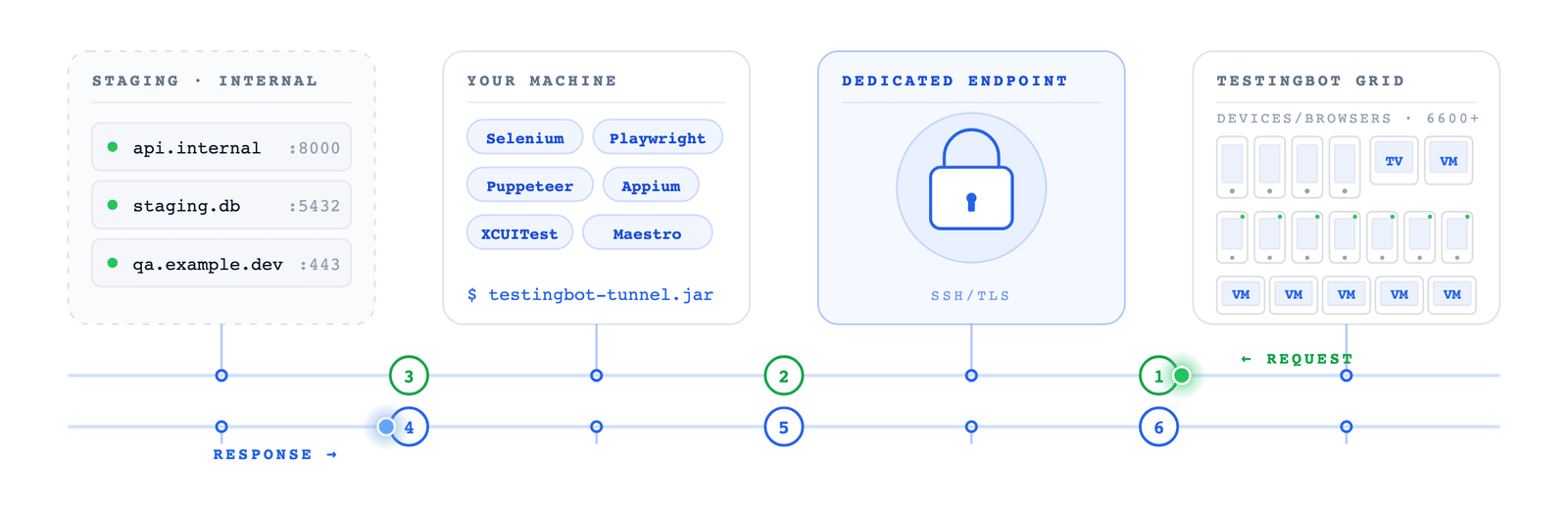
## Test Staged Websites
Use the secure TestingBot Tunnel to easily test your staging and development environments across all browsers, ensuring seamless access behind firewalls or private networks. Test data and websites from behind your firewall on the TestingBot cloud.
[Read more](https://testingbot.com/support/tunnel)
FAQ
## Frequently asked questions about TestingBot features
What testing frameworks does TestingBot support?
TestingBot natively supports **Selenium, Appium, Playwright, Cypress, Puppeteer, Espresso, XCUITest and Maestro**. SDKs ship for Java, JavaScript, TypeScript, Python, Ruby, C#, PHP and Go. AI assistants like Claude Code and Cursor can also drive TestingBot through a [Model Context Protocol (MCP) server](https://testingbot.com/support/ai/mcp).
Can I run automated tests in parallel?
Yes. Run automated Selenium, Appium, Playwright, Cypress, Puppeteer, Espresso, XCUITest and Maestro tests in parallel, from a handful of concurrent sessions on the free plan up to hundreds of parallel sessions on Enterprise. Parallel execution typically reduces total test runtime by 10× to 50× compared to a single-machine grid.
Does TestingBot support real iOS and Android devices?
Yes. TestingBot operates a cloud of physical iOS and Android devices, including iPhones (from iPhone 6s to the latest iPhone), iPads, Samsung Galaxy phones, Pixel devices and tablets. You can run automated Appium, Espresso, XCUITest or Maestro tests on real hardware, or take manual control via the [live testing interface](https://testingbot.com/features/manual-mobile-testing).
How do I test internal or staging applications with TestingBot?
Use the [TestingBot Tunnel](https://testingbot.com/support/tunnel) to expose a staging or internal application to the TestingBot cloud over a secure connection. The tunnel is encrypted end-to-end, requires no firewall changes, and lets every browser and device in the cloud reach hostnames behind your VPN.
What CI/CD integrations does TestingBot offer?
TestingBot ships first-party plugins and integrations for Jenkins, GitHub Actions, GitLab CI, CircleCI, Azure DevOps, Bamboo, TeamCity and Travis CI. The platform also exposes a REST API and webhook system, so any CI/CD tool can launch tests, fetch results and react to failures.
Can I do manual or live browser testing on TestingBot?
Yes. [Live browser testing](https://testingbot.com/features/manual-browser-testing) and [live mobile testing](https://testingbot.com/features/manual-mobile-testing) let you remote-control any real browser, device, or simulator from inside your own browser: type, click, scroll, pinch and inspect. There is no SDK to install, and sessions launch in seconds.
Is TestingBot GDPR-compliant and secure?
TestingBot is built and hosted in the European Union, GDPR-compliant by design and CSA STAR Level 1 registered. The infrastructure is single-tenant per test session: virtual machines and devices are wiped after every test.
### Sign up for a Free Trial
Start testing your apps with TestingBot.
[Start a free trial](https://testingbot.com/users/sign_up)
---
URL: https://testingbot.com/real-device-testing
Real Device Cloud · iOS & Android
# Real Device Testing on iOS & Android
Real device testing means running your automated and manual tests on physical phones and tablets, not emulators. TestingBot provides a cloud of real iOS and Android devices, hosted in a secure EU datacenter, ready to run your tests in seconds.
- Real iOS & Android devices
- EU-hosted, GDPR-compliant
- [Appium](https://testingbot.com/features/automation/appium), [XCUITest](https://testingbot.com/features/automation/xcuitest), [Espresso](https://testingbot.com/features/automation/espresso), [Maestro](https://testingbot.com/features/automation/maestro)
- Pristine, never jailbroken
[Start free](https://testingbot.com/users/sign_up)[Request a demo](https://testingbot.com/demo)
9:41
RUNNING
it('logs in') { await tap(...); expect(user) ✓ login OK// session setit('opens cart') { scroll('list'); ✓ cart visibleit('checkout') { type('4242'); ✓ pay OK
10:24
APPIUM
9:42
XCUITEST
42ms
81ms
17ms
…
11:08
ESPRESSO
9:43
MAESTRO
login.yaml8
browse.yaml5
add\_to\_cart.yaml7
checkout.yaml12
profile.yaml4
logout.yaml3
14:02
UPLOAD APK
1
2
3
Trusted by some of the world's most innovative companies
Built for scale
## Reliable Device Farm
Get instant access to a fast, reliable device infrastructure.
### 24/7 device availability
Physical iOS and Android devices, available at any time of the day.
### Zero setup & Maintenance
Focus on testing instead of worrying about setup and maintenance of a mobile device farm.
### Security
Devices located in a datacenter in Europe. Each test runs on a secure and pristine device.
### Real Android and iOS devices
Test across real iPhone, iPads, Google, OnePlus, Xiaomi and Samsung phones & tabs.
### Variety of devices
Test on any device — flagship or budget — with support for the newest and legacy iOS and Android versions.
### Performance
Our infrastructure is built for performance to eliminate test flakiness and latency.
Automation frameworks
## Test Automation Frameworks
Works instantly with the most popular mobile automation frameworks:
-
[](https://testingbot.com/features/automation/appium)
### [Appium](https://testingbot.com/features/automation/appium)
Mobile Automation Framework, using WebDriver, runs on physical devices and simulators/emulators.
[Try with Appium](https://testingbot.com/features/automation/appium)
-
[](https://testingbot.com/features/automation/espresso)
### [Espresso](https://testingbot.com/features/automation/espresso)
Android Automation Framework, runs on physical devices and emulators.
[Try with Espresso](https://testingbot.com/features/automation/espresso)
-
[](https://testingbot.com/features/automation/xcuitest)
### [XCUITest](https://testingbot.com/features/automation/xcuitest)
iOS Automation Framework, runs on physical devices and simulators.
[Try with XCUITest](https://testingbot.com/features/automation/xcuitest)
-
[](https://testingbot.com/features/automation/maestro)
### [Maestro](https://testingbot.com/features/automation/maestro)
Maestro is a mobile UI testing framework, which supports testing on both iOS and Android.
[Try with Maestro](https://testingbot.com/features/automation/maestro)
Speed up your suite
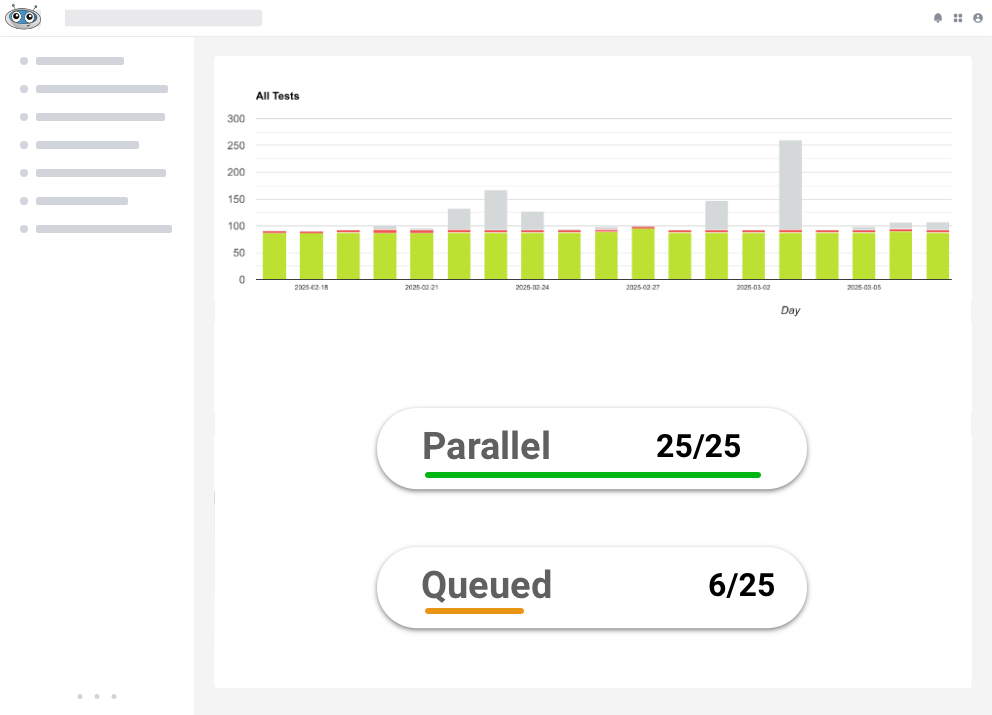
## Cut suite time from hours to minutes
Drastically shorten your total app test duration by running tests simultaneously. TestingBot provides a variety of devices, ready to run your tests in parallel.
[Start free](https://testingbot.com/users/sign_up)
Debug faster
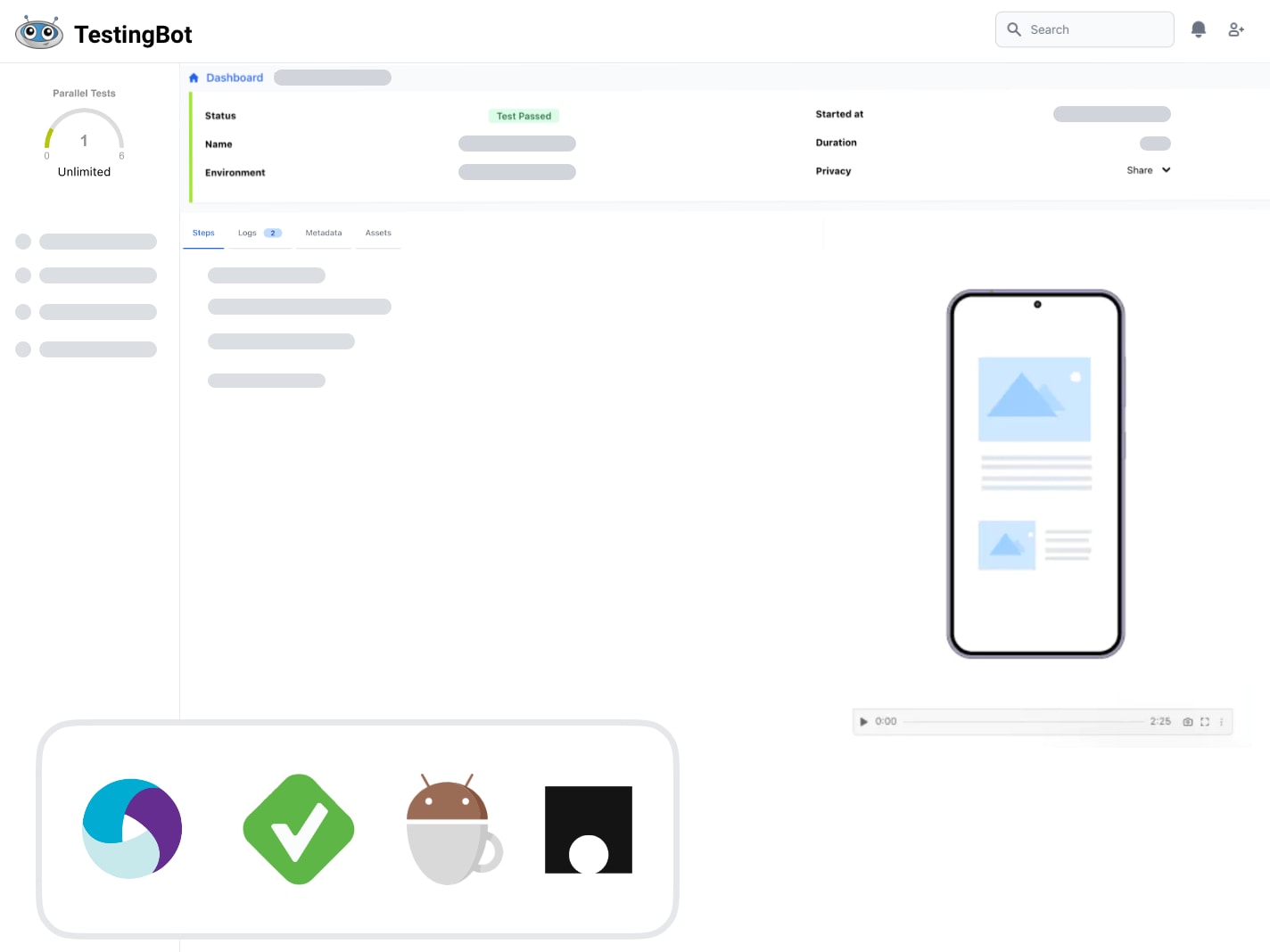
## Video, screenshots & logs
Every mobile test comes with access to generated logs, videos and screenshots.
[Start free](https://testingbot.com/users/sign_up)
Upload & test in seconds
## TestingBot Storage
Upload your native mobile app, as an .apk or .ipa, to [TestingBot Storage](https://testingbot.com/support/api#upload) and start testing immediately.
[Start free](https://testingbot.com/users/sign_up)

How we compare
## Real Device Testing: Quick Comparison
How TestingBot's real device cloud compares to other major providers.
| Capability | TestingBot | BrowserStack | SauceLabs |
| --- | --- | --- | --- |
| Real iOS & Android devices |
|
|
|
| EU-hosted devices (data residency) |
Yes
|
US primary
|
US primary
|
| GDPR + CSA STAR certified |
|
|
|
| Appium / XCUITest / Espresso / Maestro |
|
|
No Maestro
|
| Free for open source |
Yes
|
|
|
| Dedicated private device cloud |
|
|
|
| Secure tunnel for private/staging apps |
|
|
|
| Transparent flat-rate pricing |
Yes
|
Custom quote
|
Custom quote
|
See more on the [SauceLabs alternative](https://testingbot.com/saucelabs-alternative), [BrowserStack alternative](https://testingbot.com/browserstack-alternative) and [LambdaTest alternative](https://testingbot.com/lambdatest-alternative) pages.
Real-world conditions
## Test native device features
Access and modify device features to test your app in various real-world conditions.
### Network Simulation
Test for scenarios like connectivity, fluctuating network & many more.
### Localization testing
Test your apps across different timezones, languages and geolocations.
### Dark Mode
Test your app's UI with a dark background to ensure a smooth user experience.
### App Orientation
Test your app in the landscape or portrait mode. Switch between orientations to test your app's response.
### Audio
Record and hear in realtime the audio generated on the device.
### Settings
Control various settings on the device.
Private device cloud
## Your very own Mobile Devices
Choose your own iOS and Android devices. We will purchase these devices, install and configure them in our secure datacenter.
These devices will be only available to you, 24x7.
Private devices can be customised to your needs. Have us install specific profiles and apps, or change specific settings of the device. You decide.
[Learn more](https://testingbot.com/enterprise/private-device-cloud)

Secure Tunnel
## Test Staged Websites
Use the secure TestingBot Tunnel to easily test your staging and development environments across all browsers, ensuring seamless access behind firewalls or private networks.
Test data and websites from behind your firewall on the TestingBot cloud.

[Read more](https://testingbot.com/support/tunnel)
FAQ
## Frequently Asked Questions
Common questions about real device testing on TestingBot.
What is real device testing?
Real device testing is the practice of running automated or manual tests on physical smartphones and tablets, as opposed to emulators or simulators. It surfaces hardware-specific issues like CPU/RAM constraints, battery behaviour, real network conditions and device-specific rendering quirks that emulators or simulators cannot reproduce.
Should I use a real device or an emulator?
Use emulators for fast feedback during early development and unit-style flows. Use real devices for release validation, performance testing, biometric flows, camera/sensor logic, push notifications and final acceptance testing. Most teams run both: emulators in CI on every commit, real devices on the release branch.
Where are TestingBot's real devices located?
All TestingBot devices are hosted in a secure datacenter in Belgium, Europe. Every device is wiped and re-imaged after each test session. None are jailbroken or rooted.
Which test frameworks does the real device cloud support?
Appium (iOS and Android), XCUITest (iOS), Espresso (Android), Maestro (iOS and Android) and any WebDriver-compatible framework. You can also drive devices manually from your browser, or use TestingBot's codeless AI test creator to generate tests from plain English.
Can I test apps that are not yet on the App Store or Google Play?
Yes. Upload an .ipa or .apk build to TestingBot Storage and install it on any real device. You can also test apps already published to the App Store or Google Play, or connect to staging environments behind a corporate firewall using TestingBot Tunnel.
What's the difference between the public and private device cloud?
Public-cloud devices are shared across customers and are wiped between sessions. Private-cloud devices are dedicated phones we purchase, configure and host exclusively for your account, with optional persistence between tests, custom profiles and pre-installed apps.
How does TestingBot compare to BrowserStack and SauceLabs for real device testing?
TestingBot offers EU-hosted real devices (BrowserStack and SauceLabs are primarily US-hosted), GDPR and CSA STAR compliance, transparent flat-rate pricing, free for open source, and identical Appium/XCUITest/Espresso APIs. Customers usually migrate for the EU data residency, faster device allocation and direct support from the engineering team.
Looking for hands-on details? See the [live mobile app testing](https://testingbot.com/features/manual-mobile-testing) page or browse our [supported devices](https://testingbot.com/support/app-automate/devices).
Start in seconds
### Sign up for a Free Trial
Start testing your apps with TestingBot.
[Start a free trial](https://testingbot.com/users/sign_up)[Request a demo](https://testingbot.com/demo)
Resources you may like
[](https://testingbot.com/resources/articles/appium-flutter-app-testing)
### [Testing Flutter Apps with Appium](https://testingbot.com/resources/articles/appium-flutter-app-testing)
Learn how to do automated mobile app testing with Flutter and Appium.
[Read more](https://testingbot.com/resources/articles/appium-flutter-app-testing)
[](https://testingbot.com/resources/articles/localized-testing-mobile-app)
### [How to do localisation testing for mobile apps](https://testingbot.com/resources/articles/localized-testing-mobile-app)
Find out how to perform localisation testing with mobile apps. Change your language or locale with Appium, XCUITest and Espresso.
[Read more](https://testingbot.com/resources/articles/localized-testing-mobile-app)
[](https://testingbot.com/resources/articles/dark-mode-testing)
### [Dark Mode Testing with Appium](https://testingbot.com/resources/articles/dark-mode-testing)
Perform dark mode automated testing on iOS and Android with Appium.
[Read more](https://testingbot.com/resources/articles/dark-mode-testing)
---
URL: https://testingbot.com/playwright-vs-selenium
Framework comparison · 2026
# Playwright vs Selenium
Playwright and Selenium are the two dominant browser automation frameworks. This guide compares them head-to-head — speed, language support, browser coverage, debugging, and which to pick — with code samples and a verdict you can act on in five minutes.
[Run both on TestingBot](https://testingbot.com/users/sign_up)[Jump to comparison](https://testingbot.com#comparison)
Browsers & devices6100+
Cloud parallelism100×
Uptime SLA99.99%
Playwright·login.spec.ts
// playwrighttest('login',async({page}) => {awaitpage.goto('/login');awaitpage.fill('#user','jane');awaitpage.fill('#pwd','••••');awaitpage.click('#go');awaitexpect(page)
.toHaveURL(/dash/);
});
chromium · firefox · webkit ✓ 1.2s
Selenium·test\_login.py
# seleniumdeftest\_login(d):
d.get('/login')
d.find('#user').send('jane')
d.find('#pwd').send('••••')
d.find('#go').click()
Wait(d,10).until(url\_contains('/dash'))
chrome · safari · edge · ie11 ✓ 1.6s
Same TestingBot grid · 6100+ browsers & devices
parallel:10x
## Trusted by some of the world's most innovative companies
30-second answer
## Which one should you pick?
Pick Playwright if…
You're starting a new web project, your team writes JavaScript or TypeScript, and you want fast tests, auto-waiting and built-in tracing out of the box.
Pick Selenium if…
Your team writes Java, C# or Ruby, you need legacy browser support (Internet Explorer, older Safari), or you have an existing Selenium suite and a strong Page Object library.
Pick both if…
You have separate frontend and backend test suites, you're migrating gradually, or you want Playwright for new code and Selenium for the long-tail of legacy browsers. TestingBot runs both on the same grid.
Background
## What are Playwright and Selenium?
Two frameworks, two philosophies. The same goal: drive a real browser to automate end-to-end testing.

### Playwright
Released 2020 · Microsoft · Apache 2.0
Playwright is an end-to-end testing framework built by Microsoft that controls Chromium, Firefox and WebKit through a single API. It was designed by the team that originally built Puppeteer at Google, with cross-browser support and modern web app needs in mind.
It uses the browser's DevTools protocol (or its own bridge for Firefox/WebKit) instead of WebDriver, which lets it auto-wait for elements, intercept network traffic and capture rich traces by default.
- TypeScript / JavaScript / Python / Java / C# bindings
- Auto-wait, network interception, fixtures, traces
- Chromium, Firefox, WebKit · no IE / legacy Safari

### Selenium
Released 2004 · Open Source · Apache 2.0
Selenium is the original browser automation framework and the foundation of the W3C WebDriver standard. Selenium WebDriver drives any browser through a vendor-supplied driver (chromedriver, geckodriver, safaridriver, edgedriver, IEDriverServer) using the same wire protocol.
Twenty years of ecosystem maturity means deep IDE integration, mature Page Object patterns, and bindings for every major language. Selenium 4 added Chrome DevTools support, BiDi events and bidirectional protocols.
- Java / Python / C# / Ruby / JavaScript / Kotlin
- W3C WebDriver standard — works with every browser
- Chrome, Firefox, Safari, Edge, IE 11 — full coverage
Head to head
## Playwright vs Selenium: side-by-side comparison
Across the dimensions that matter for picking, migrating or running both in CI.
| Dimension | Playwright | Selenium |
| --- | --- | --- |
| First release | 2020 | 2004 |
| Maintained by | Microsoft | Open-source community + W3C |
| Languages | TS, JS, Python, Java, C# | Java, Python, C#, Ruby, JS, Kotlin |
| Browsers | Chromium, Firefox, WebKit | Chrome, Firefox, Safari, Edge, IE 11 |
| Mobile testing | Mobile emulation only | Real iOS + Android via Appium |
| Wire protocol | CDP + custom (Firefox/WebKit) | W3C WebDriver standard |
| Auto-waiting | Built in everywhere | Manual waits or WebDriverWait |
| Network interception | First-class API | BiDi (Selenium 4) or proxy |
| Multiple tabs / origins | Native — same context | Window switching API |
| Test runner | Built-in (@playwright/test) | Bring your own (JUnit, pytest, Mocha…) |
| Parallel execution | Built-in worker pool | Selenium Grid or test-runner level |
| Trace / replay | Built-in Trace Viewer | Screenshots + manual logs |
| Debugging | Inspector + UI mode | IDE + driver logs |
| Speed (typical suite) | ≈30–40% faster on Chromium | Mature, predictable |
| Ecosystem maturity | Growing fast since 2020 | 20 years of integrations |
| Page Object pattern | Supported, less common | Industry standard |
| Free for open source on TestingBot | ✓ | ✓ |
Speed numbers from public benchmarks; vary by application. Both frameworks run on TestingBot's cloud with identical APIs to local execution.
The same test in both
## Filling a form, asserting the result
A login flow with auto-wait (Playwright) versus an explicit wait (Selenium). Both pass on the same TestingBot grid.
Playwright + TypeScriptlogin.spec.ts
// playwright.config.ts → set TestingBot endpointimport{test,expect}from'@playwright/test';test('login redirects to dashboard',async({page}) => {awaitpage.goto('https://app.example.com/login');// auto-wait — no explicit wait neededawaitpage.getByLabel('Username').fill('jane@example.com');awaitpage.getByLabel('Password').fill('••••••••');awaitpage.getByRole('button', {name:'Sign in'}).click();awaitexpect(page).toHaveURL(/\/dashboard/);awaitexpect(page.getByRole('heading', {name:/welcome, jane/i})).toBeVisible();
});
Selenium + Pythontest\_login.py
# Driver points at TestingBot remote URLfromseleniumimportwebdriverfromselenium.webdriver.common.byimportByfromselenium.webdriver.support.uiimportWebDriverWaitfromselenium.webdriver.supportimportexpected_conditionsasECdeftest\_login\_redirects\_to\_dashboard(driver):
driver.get('https://app.example.com/login')
driver.find_element(By.NAME,'username').send_keys('jane@example.com')
driver.find_element(By.NAME,'password').send_keys('••••••••')
driver.find_element(By.CSS_SELECTOR,'button[type=submit]').click()# explicit waitWebDriverWait(driver,10).until(EC.url_contains('/dashboard'))
welcome = driver.find_element(By.TAG_NAME,'h1')assert'Welcome, Jane'inwelcome.text
Both tests are pointed at the same [Playwright](https://testingbot.com/features/automation/playwright) / [Selenium](https://testingbot.com/features/automation/selenium) endpoint on TestingBot's cloud. Same browsers, same parallelism, same dashboard.
Decision matrix
## When to choose which

### Choose Playwright when
- You're starting a green-field test suite, no migration cost to weigh.
- Your stack is JavaScript / TypeScript-first and you want the test runner that ships with the framework.
- You need network mocking, multi-tab flows, file uploads or geolocation overrides without bolt-on tools.
- You want trace-based debugging; record, save, scrub through a failed run frame-by-frame.
- Your target browsers are Chromium, Firefox and WebKit. No Internet Explorer 11 or older Safari requirement.
[Run Playwright on TestingBot](https://testingbot.com/features/automation/playwright)

### Choose Selenium when
- Your team writes Java, C# or Ruby — Playwright's bindings exist but the JS-first ergonomics get diluted.
- You need to test on Internet Explorer 11, older Safari, or unusual browser builds where only WebDriver works.
- You have a mature Page Object library, custom locators, or BDD framework (Cucumber, SpecFlow) you don't want to throw away.
- You're standardising across web AND real mobile devices. Selenium's API is the closest thing to a unified WebDriver story (with Appium for mobile).
- Stability and ecosystem maturity outweigh fewer features. Selenium has been battle-tested for 20 years.
[Run Selenium on TestingBot](https://testingbot.com/features/automation/selenium)
TestingBot supports both
## Stop choosing — run both on the same grid
Point Playwright at the TestingBot endpoint, point Selenium at the same one, and your tests share the same 6100+ browsers and devices, the same dashboard, the same parallel slots and the same EU data residency.
- Same auth, same project, same billing
- Side-by-side test history for both frameworks
- Free for open source — both frameworks
[Start free](https://testingbot.com/users/sign_up)[Request a demo](https://testingbot.com/demo)
testingbot.com / endpoint
// Playwright
use: { wsEndpoint: 'wss://cloud.testingbot.com/playwright' }
# Selenium
webdriver.Remote(
command\_executor='https://hub.testingbot.com/wd/hub'
)
FAQ
## Frequently Asked Questions
The questions teams ask before picking — or migrating between — these frameworks.
Is Playwright faster than Selenium?
Generally yes, on Chromium-based browsers. Typical suites run 30–40% faster on Playwright thanks to the DevTools protocol bypassing WebDriver's HTTP round-trips. The gap closes for Firefox and Safari (where Playwright uses its own bridges) and disappears once your tests are network-bound. Selenium 4's BiDi support narrows the gap further. For most teams the speed difference is real but not the deciding factor.
Should I migrate from Selenium to Playwright?
Only if the cost is justified. If your existing Selenium suite is stable, in a non-JavaScript language, and uses Page Objects extensively, migrating is rarely worth the effort. If your suite is flaky, JS-based and lacks tracing, Playwright's auto-wait and Trace Viewer alone usually pay for the migration. Pragmatic teams keep both: Selenium for what's already working, Playwright for new test suites.
Does Playwright support all browsers Selenium does?
No. Playwright supports Chromium (and Chrome/Edge by extension), Firefox and WebKit (which is close to Safari but not identical). Selenium drives the actual browser builds, including Internet Explorer 11, older Safari versions and rare browsers, using vendor-shipped drivers. If you need to test on IE 11 or a specific legacy Safari, Selenium is your only option.
Can Playwright test mobile apps?
Not natively. Playwright offers mobile browser emulation (you can simulate a mobile viewport and user agent in Chromium), but it cannot drive native iOS or Android apps. For real mobile app testing you need [Appium](https://testingbot.com/features/automation/appium), [XCUITest](https://testingbot.com/features/automation/xcuitest), [Espresso](https://testingbot.com/features/automation/espresso) or [Maestro](https://testingbot.com/features/automation/maestro). Selenium can drive mobile via Appium, which is built on the WebDriver protocol. TestingBot supports all of these on real iOS and Android devices.
Which is better for cross-browser testing?
For modern Chromium / Firefox / WebKit, Playwright's single API gives you faster, more reliable cross-browser runs out of the box. For comprehensive coverage including legacy browsers (IE 11, older Safari, Edge Legacy), Selenium is still the only option that drives the real browser binaries. Either way, running across many real browsers in parallel benefits hugely from using TestingBot's cloud. Both frameworks integrate with TestingBot's cloud with a one-line config change.
Do I need to learn JavaScript to use Playwright?
No, but Playwright's ergonomics are JS/TS-first. The Python, Java and C# bindings are first-class but lag the JS API on new features by weeks. If your team already writes Python or Java, Playwright is still a strong choice, but Selenium's binding parity makes it the more natural fit for non-JS stacks.
Can I run Playwright and Selenium on TestingBot?
Yes, both run on the same TestingBot cloud. Playwright connects via the wsEndpoint config to `wss://cloud.testingbot.com/playwright`, Selenium connects to `https://hub.testingbot.com/wd/hub` via `webdriver.Remote`. Tests show up in the same dashboard, share parallel slots, and benefit from the same EU data residency, video recording, live debugging and CI/CD integrations. Both are free for open source projects.
Going deeper? See the dedicated [Playwright](https://testingbot.com/features/automation/playwright) and [Selenium](https://testingbot.com/features/automation/selenium) pages.
### Sign up for a Free Trial
Run Playwright, Selenium, or both, on TestingBot's cloud.
[Start a free trial](https://testingbot.com/users/sign_up)
Resources you may like
[](https://testingbot.com/resources/articles/playwright-visual-regression-testing)
### [Visual Testing with Playwright](https://testingbot.com/resources/articles/playwright-visual-regression-testing)
Playwright provides automated browser testing. It offers a built-in feature to perform visual regression testing for your website.
[Read more](https://testingbot.com/resources/articles/playwright-visual-regression-testing)
[](https://testingbot.com/resources/articles/generative-ai-selenium)
### [Selenium and Generative AI](https://testingbot.com/resources/articles/generative-ai-selenium)
Generate realistic looking test data to be used with your Selenium Automated Tests.
[Read more](https://testingbot.com/resources/articles/generative-ai-selenium)
[](https://testingbot.com/resources/articles/playwright-recorder)
### [Record tests with Playwright](https://testingbot.com/resources/articles/playwright-recorder)
Learn how to use a Playwright Recorder to easily record tests.
[Read more](https://testingbot.com/resources/articles/playwright-recorder)
---
URL: https://testingbot.com/pricing
# Plans for Every Team Size
From solo testers to large enterprises: get instant access to **6100+ real browsers and devices**. No setup. No maintenance. Just testing.
- Trusted by 100,000+ developers
- GDPR & CSA STAR
## Subscription plans
### Live
Manual testing of websites and apps
$20/month
Billed annually
Or $30 month-to-month
1 User 2 Users 4 Users 10 Users 25 Users
-
**Unlimited** Live Testing
-
**Unlimited** Visual Testing
-
Real iOS & Android devices
-
24x7 Active Support via Email, Chat & Slack
[Upgrade Plan](https://testingbot.com/pricing/1)
### Automated
Automated web and app testing
$50/month
Billed annually
Or $70 month-to-month
1 Parallel Test - 1,000 minutes 2 Parallel Tests - 2,000 minutes 4 Parallel Tests - 4,000 minutes 8 Parallel Tests - 6,000 minutes 16 Parallel Tests - 10,000 minutes 24 Parallel Tests - 20,000 minutes
-
**1000** minutes Automated / month
-
**Unlimited** Live testing
-
**Unlimited** Visual Testing
-
Real iOS & Android devices
-
24x7 Active Support via Email, Chat & Slack
[Upgrade Plan](https://testingbot.com/pricing/6)
MOST POPULAR
### Automated Pro
Unlimited web and app testing
$90/month
Billed annually
Or $120 month-to-month
1 Parallel Test - Unlimited 2 Parallel Tests - Unlimited 4 Parallel Tests - Unlimited 8 Parallel Tests - Unlimited 16 Parallel Tests - Unlimited 24 Parallel Tests - Unlimited
-
**Unlimited** Live Testing
-
**Unlimited** Visual Testing
-
**Unlimited** Automated
-
Real iOS & Android devices
-
24x7 Active Support via Email, Chat & Slack
[Upgrade Plan](https://testingbot.com/pricing/12)
### Enterprise
Enterprise-grade testing for large teams
For Premium features & Enterprise-grade security
10+ Parallel Tests
-
**Unlimited** Testing
-
Single Sign On
-
Priority Support
-
[other Enterprise Features](https://testingbot.com/enterprise)
[Contact us](https://testingbot.com/contact/new)
## Pay As You Go
Need testing minutes without a monthly commitment? Purchase credits once and use them whenever you need.
One-Time Purchase
### Pay As You Go
Buy testing minutes once, use them whenever you need. No subscription required.
1,000 minutes - $602,000 minutes - $1205,000 minutes - $25015,000 minutes - $600
$60
One-time payment
[Buy Now](https://testingbot.com/payg/checkout/starter)
#### Your plan includes
Testing Minutes
1,000
Parallel Sessions
1
Cost per Minute
$0.06
Validity
Never Expires
- All desktop browsers
- iOS & Android devices + sim/emu
- Video recordings included
- 24/7 Support
- Local testing supported
- Automated, Manual, Visual, AI testing
## Compare plans
Detailed Plan Comparison
Feature
Live$20/monthBilled annually
[Upgrade Plan](https://testingbot.com/pricing/1)
Automated$50/monthBilled annually
[Upgrade Plan](https://testingbot.com/pricing/6)
Pro$90/monthBilled annually
[Upgrade Plan](https://testingbot.com/pricing/12)
EnterpriseFor Premium features & Enterprise-grade security
[Contact us](https://testingbot.com/contact/new)
### General
FeatureLiveAutomatedProEnterprise
Testing Minutes
Unlimited
Starts at 1000 minutes / month
Unlimited
Unlimited
Users
—
Unlimited
Unlimited
Unlimited
Desktop Browsers
Mobile Devices
Visual Testing
Automated Testing
—
AI Testing
Run tests without writing any code. The AI Agent will create and run tests for you.
—
Accessibility Testing
—
Test Analytics
—
Single-Use Machines
TestingBot provides single-use machines: you always start secure, with a clean machine.
REST API Access
Customizations
—
—
—
High Volume Testing
—
—
—
### Local & network
FeatureLiveAutomatedProEnterprise
Test Local Websites
High Availability Mode
—
—
—
Mobile DevTools
Access to Native DevTools on real browsers and devices.
GPS Geolocation Testing from 100+ countries
Geolocation Testing
Test your application from over 15 geographic locations around the world.
Network Throttling
Simulate various network conditions, such as 3G, 4G and offline modes, to test your application's performance under different connectivity scenarios.
### Integrations
FeatureLiveAutomatedProEnterprise
Slack
JIRA
GitHub
[CI/CD](https://testingbot.com/support/integrations/ci-cd)
### Administration & security
FeatureLiveAutomatedProEnterprise
2-Factor Authentication (2FA)
SAML 2.0 Single sign-on (SSO)
—
—
Analytics per team & team-member
—
—
—
Auto User Provisioning
—
—
—
IP Whitelisting (inbound & outbound)
—
—
—
### Support
FeatureLiveAutomatedProEnterprise
24x7 Availability
Email Support
Priority Support
—
—
—
## All plans include
-
**Over [6100+ real desktop browsers](https://testingbot.com/support/web-automate/browsers) and [physical mobile devices](https://testingbot.com/support/app-automate/devices)**
-
**Real Browsers on Windows, macOS and Linux**
-
**Range of screen resolutions**
-
**Videos and screenshots of your tests**
-
**Team management**
-
**Local testing**
-
**Android/iOS Native App Testing**
-
**Tech support and Documentation**
-
**Unlimited Screenshots & Manual tests**
## Frequently asked questions
### Do I need a credit card to register?
No, you do not need a credit card. Our 14-day free plan lets you try the service without paying anything. When you are ready to upgrade you can pay by credit card or wire transfer.
### Can I cancel my subscription at any time?
Yes. Subscriptions can be cancelled at any time. If you cancel mid-month you will be charged for that month.
### What is a parallel test?
Parallel tests are how many tests you can run at the same time. More parallel tests means a shorter total test run. Use our [Parallel Test Calculator](https://testingbot.com/support/parallel-calculator) to estimate the right number for your suite.
### Do you have a free open-source plan?
Yes, open-source projects can apply for a free TestingBot plan. [Sign up for our open-source plan](https://testingbot.com/open-source).
### What happens if I exceed my monthly testing time?
Once you reach your monthly testing time you can no longer run tests until your next billing month, or you can upgrade to a larger plan.
### What forms of payment do you accept?
We accept credit cards and wire transfers. EU customers also have access to additional payment options. [Contact us](https://testingbot.com/contact/new) for wire transfer.
### Can I get a private cloud or on-prem deployment?
Our Enterprise plan supports private cloud. We do not yet support on-premise deployments. [See enterprise features](https://testingbot.com/enterprise) or contact us for a custom quote.
### Do you offer high-volume packages?
Yes, for very large test suites we offer custom high-volume packages with discounted per-minute rates. [Contact us](https://testingbot.com/contact/new) with your expected monthly volume.
## Need help finding the right solution for your needs?
Contact us and we'll help you find the right plan for your needs.
[Contact us](https://testingbot.com/contact/new)
---
URL: https://testingbot.com/enterprise
Enterprise plan
# Test at enterprise scale, secured for the way you ship.
TestingBot powers cross-browser, mobile and AI-driven testing for global engineering teams. Single-use firewalled VMs, SSO, auto-provisioning and a private device cloud, on EU-hosted infrastructure with a 99.99% uptime SLA.
[Contact Sales](https://testingbot.com/contact/new)[Book a demo](https://testingbot.com/demo)
Browsers & devices6100+
Uptime SLA99.99%
Years in business14
Enterprise features
1. Priority SLA
2. Security
3. Data privacy
4. Private devices
Priority support · 24/7 SLA
Response\< 1 hour
Uptime SLA99.99 %
ChannelsSlack · Chat · Email
SK
Customer Success Manager
INC-2917 · acknowledged in 2 min
custom SLA · dedicated CSM · custom legal terms
Your network10.0.0.0/16
TestingBot grid
TLS 1.3IP whitelistedTunnel up
Data residency · EU
session-2917.mp4
12.4 MB
console.log
238 KB
screenshots/\*.png
4.1 MB
encrypted at rest · per-test retention
Private device cloud
Reserved iPhone 17iOS 26
Reserved iPad ProiPadOS 18
Reserved Galaxy S26Android 16
dedicated to your team · never shared
Custom SLA · 24/7 priority support · dedicated CSM Encrypted tunnel · IP whitelisting · inbound + outbound EU-hosted · GDPR · per-test retention windows Reserved exclusively for your team, never shared
Trusted by engineering teams worldwide
Built for security & scale
## Everything large engineering teams need from a testing cloud.
Enterprise-grade controls layered on top of every TestingBot session: security, identity, governance and uninterrupted scale.
-
### Single-Use VMs
Every test runs on a fresh, isolated, firewalled VM that is wiped immediately after the session. Customize the OS or pre-installed software per run.
-
### Network Security
IP whitelisting (inbound and outbound) and the encrypted TestingBot Tunnel keep test traffic between your private network and our grid fully secured.
-
### Data Control & Privacy
Disable logging or recording per test. Pick exact data retention windows per asset type. All test artefacts stay on EU-hosted infrastructure.
-
### SSO & 2FA
SAML 2.0 SSO with Okta, Azure AD, OneLogin and any custom SAML provider. Enforce 2FA across your entire organisation.
-
### Auto-provisioning
Onboard and offboard team members through your Identity Provider. Roles, teams and product access stay in sync automatically.
-
### Sub-teams & Quotas
Group testers by squad, project or geography. Allocate parallel session quotas, enforce 2FA and share Tunnels per sub-team with granular usage analytics.
Compliance & assurance
## Built and operated to standards procurement teams already trust.
Independent attestations, EU data residency and a public Trust Center keep your security review on the fast track.
[Trust Center](https://trust.testingbot.com)
- 
CSA STAR Level 1
Cloud Security Alliance
- 
GDPR
EU data protection
- 
CCPA
California privacy
- ISO
ISO 27001
Aligned controls
- SOC 2
SOC 2 aligned
Type II practices
-
EU-hosted
Data stays in the EU
Dedicated devices
## Private Device Cloud
With Private Device Cloud, we take care of the setup, configuration and maintenance of dedicated devices exclusively for your company.
- Unlike our Public Device Cloud, these devices are reserved only for your team, ensuring full control and privacy.
- Select your preferred devices, and we will make them available in our data center for seamless testing.
- Run both automated and manual tests on your private iOS and Android devices with full control and security.
[Learn more](https://testingbot.com/enterprise/private-device-cloud)

Side by side
## How TestingBot for Enterprise compares.
Everything in Standard, plus the security, governance and support large teams need.
| Feature | Standard Plans | Enterprise Plans Recommended |
| --- | --- | --- |
| Security & Compliance |
| IP Whitelisting (inbound & outbound) | – | |
| Single-Use VMs + Firewalled | | |
| 2FA enforcement | – | |
| Administration |
| SAML 2.0 Single sign-on (SSO) | – | |
| Sub-teams, parallel sessions per team | – | |
| Analytics per team & team-member | – | |
| Support |
| Dedicated Support person & Customer Success Manager | – | |
| Custom SLA | – | |
| 24/7 priority support via phone and e-mail | – | |
| Custom Legal Terms | – | |
| Product |
| Customize OS / Pre-installed Software | – | |
| Early access to beta features | – | |
| Unlimited Users | – | |
### Ready to roll out TestingBot across your organisation?
Talk to our enterprise team about SSO, sub-teams, dedicated devices and a deployment plan that fits your security review.
[Contact Sales](https://testingbot.com/contact/new)[Book a demo](https://testingbot.com/demo)
---
URL: https://testingbot.com/enterprise/private-device-cloud
Dedicated devices
# Private Real Device Cloud, dedicated to your team.
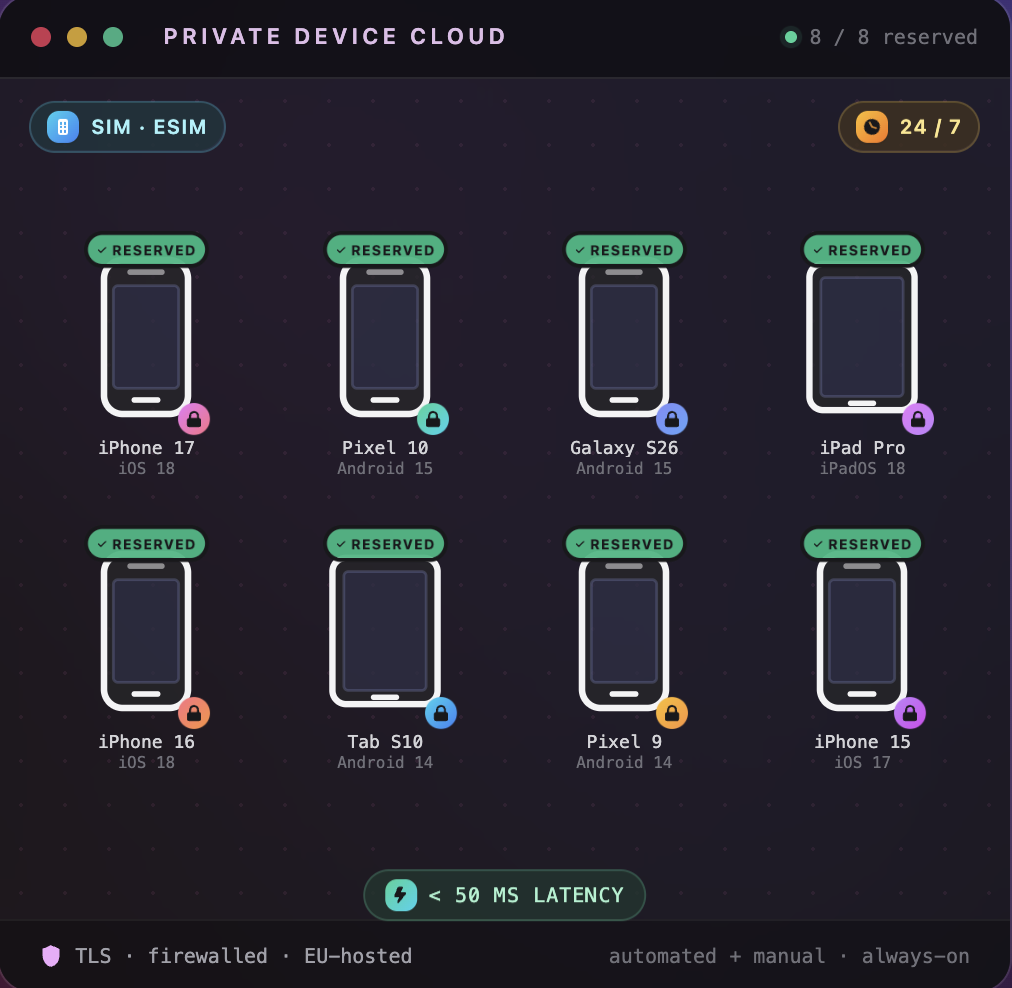
Pick the exact iOS and Android devices you want and we provision them in our datacenter. Reserved 24/7 for your team, customised to your testing needs and reachable on real carrier networks.
[Contact Sales](https://testingbot.com/contact/new)[Book a demo](https://testingbot.com/demo)
Devices on offerAny iOS / Android
Availability24/7
Trusted by engineering teams worldwide
What dedicated devices unlock
## The exact device matrix your customers use: at your fingertips, around the clock.
We buy, configure and host the iOS and Android devices you choose. Reserved exclusively for your team and customised to fit how you actually test.
-
### Pick the exact devices
Choose the iPhone, iPad, Pixel, Galaxy or any other device that matches your customer base. We source it, image it and install it for you.
-
### Reserved for your team
Your devices are never shared with other customers. No waiting in queues, guaranteed availability.
-
### Real carrier networks
Equip devices with a physical SIM or eSIM to test scenarios Wi-Fi cannot reach: SMS flows, phone calls, mobile-data behaviour and roaming.
-
### Custom device profiles
We pre-install your apps, profiles, certificates and beta builds. Keep persistent state across runs when you need it.
-
### Available 24 / 7
Your dedicated devices are reachable around the clock from any region for both automated runs and manual live sessions.
-
### Secure & EU-hosted
Devices live in our locked, EU-hosted datacenter. Network access stays inside your tunnel; logs and recordings stay on EU infrastructure.

How we host your devices
## Real devices, in our secure EU datacenter.
We purchase the iOS and Android devices you specify, install and configure them in our EU-hosted datacenter, and connect them to our cloud so your team can run automated and manual tests around the clock.
- Your model list, sourced and provisioned by us, including legacy or hard-to-find devices.
- Custom OS settings, certificates, profiles, beta apps and persistent state, set up once and re-applied automatically.
- Devices stay reachable 24/7.
Carrier connectivity
## Test on real carrier networks with SIM and eSIM.
Equip your dedicated devices with physical SIMs or eSIMs and exercise the full set of mobile-network behaviours your customers actually depend on.
- Send and receive real SMS, including 2FA codes, magic links and OTP flows.
- Place and receive real phone calls; verify in-app calling, voicemail and call-state UI.
- Validate mobile-data, low-signal and roaming behaviours that Wi-Fi can't reproduce.

Frequently asked
## Private Device Cloud: questions teams ask us.
Everything procurement, security and engineering tend to want to know before rolling out dedicated devices.
What is a Private Device Cloud?
A Private Device Cloud is a set of real iOS and Android devices that TestingBot purchases, hosts and maintains in our EU datacenter exclusively for your team. The devices are reachable 24/7 over the same Selenium and Appium endpoints you already use, but no other customer can ever run a test on them.
Can we choose the exact device models we want?
Yes. You pick the exact iPhone, iPad, Pixel, Galaxy or other models you need, including specific OS versions, regional variants and legacy devices that have left our public cloud. If we don't already stock the model, we will source it for you.
Do dedicated devices support real carrier networks?
Yes. We can equip your devices with physical SIMs or eSIMs from your preferred carriers, so you can test SMS, phone calls, mobile data, low-signal and roaming behaviour just like an end user would experience them.
Can we customise OS, profiles or pre-installed apps?
We pre-install your apps and beta builds, deploy custom configuration profiles, certificates and entitlements, and adjust device-level settings to match your needs. By default we wipe state between tests, but on private devices we can keep persistent state when that's useful.
Where are the devices hosted and how are they secured?
All Private Device Cloud devices are hosted in our EU-based datacenter. Devices are physically locked, network access is restricted, and logs, screenshots and video recordings stay on EU infrastructure. We are GDPR compliant and CSA STAR Level 1 registered.
How is the Private Device Cloud priced?
Pricing is custom and depends on the number of devices, models, carrier connectivity and the support tier you need. Talk to our enterprise team, we will put together a quote that fits your scope and timeline.
### Tell us which devices you need.
Share the device matrix, the testing scenarios and the timeline. Our enterprise team will draft a Private Device Cloud setup that fits.
[Contact Sales](https://testingbot.com/contact/new)[Book a demo](https://testingbot.com/demo)
---
URL: https://testingbot.com/partners
# Partner with TestingBot
Join our partner ecosystem to expand your business opportunities and enhance your product capabilities with TestingBot's next generation testing platform.
[Technology Partners](https://testingbot.com/partners/technology-partners)[Reseller Partners](https://testingbot.com/partners/reseller-partners)
-
1+bn
Tests Executed
-
180k
Active Users
-
5,500+
Browsers & Devices

        
        
## Partner Programs
Choose the partnership that best fits your business needs and goals.
### Technology Partners
TestingBot platform integrates with tools that developers use daily. Partner with us to enhance your product capabilities, reduce interruptions for developers and expand customer reach.
- API integration support
- Co-marketing opportunities
- Technical support and documentation
[Learn More](https://testingbot.com/partners/technology-partners)
### Reseller Partners
Expand your business by partnering with TestingBot. Join our Partner Program and earn lucrative commissions, receive dedicated support and gain recognition for your sales success.
- Competitive commission rates
- Dedicated partner support
- Sales and marketing materials
[Learn More](https://testingbot.com/partners/reseller-partners)
### Ready to Partner with Us?
Join TestingBot's growing partner ecosystem and unlock new opportunities for your business.
[See existing integrations](https://testingbot.com/integrations)
---
URL: https://testingbot.com/partners/technology-partners
# Technology Partners
TestingBot platform integrates with tools that developers use daily. Partner with us to enhance your product capabilities, reduce interruptions for developers and expand customer reach.
[Apply now](https://testingbot.com#apply)[All Partner Programs](https://testingbot.com/partners)

        
        
## Partner Benefits
Join our technology partner program and unlock powerful integrations with TestingBot's comprehensive testing platform.
### API Integration Support
Get comprehensive technical documentation, SDKs and dedicated engineering support for seamless integration.
### Co-Marketing Opportunities
Joint marketing initiatives, case studies, webinars and placement in our partner directory to expand your reach.
### Technical Documentation
Access to comprehensive technical resources, integration guides and best practices documentation.
### Partner Portal Access
Dedicated partner portal with resources, training materials and integration tracking tools.
### Priority Support
Dedicated technical support channel with priority response times for integration issues.
### Partner Recognition
Featured placement in our partner ecosystem, case studies and recognition at industry events.
## Integration Opportunities
Partner with TestingBot to create powerful integrations that enhance developer workflows and provide seamless testing experiences.
-
**Integrate into your product:** Embed our testing capabilities into your app. Offer automated testing to your customers through TestingBot's whitelabel automated testing offerings, or embed realtime live testing in your product.
-
**Developer Advocate:** Help developers use TestingBot's platform. We supply you with documentation, tools and free extended trial credits.
-
**Integrate your product with TestingBot:** Create an integration between TestingBot and your product.

## Apply to Become a Technology Partner
Ready to integrate with TestingBot? Fill out the form below and our partnership team will be in touch.
Company Name \*
Email Address \*
Tell us about your integration \*
Submit Application
---
URL: https://testingbot.com/partners/reseller-partners
# Reseller Partners
Expand your business by partnering with TestingBot. Resellers in the Partner Program enjoy lucrative commissions, dedicated support and recognition for their sales excellence.
[Apply now](https://testingbot.com#apply)[All Partner Programs](https://testingbot.com/partners)

        
        
## Reseller Benefits
Join our reseller program and unlock revenue opportunities with comprehensive support and competitive commission structures.
### Competitive Commissions
Earn attractive commission rates on all TestingBot subscriptions you refer, with performance-based bonuses for top performers.
### Dedicated Support
Get priority access to our partner success team for sales support, technical questions, and customer assistance.
### Sales & Marketing Materials
Access to professional sales collateral, presentations, case studies, and co-branded marketing materials.
### Training & Certification
Comprehensive product training, sales certification programs, and ongoing education to maximize your success.
### Partner Portal
Access to a comprehensive partner portal with commission tracking, customer management, and resource library.
### Partner Recognition
Top performers receive recognition awards, conference invitations, and exclusive networking opportunities.
## Who We're Looking For
We partner with organizations that share our commitment to quality and customer success. There is no partnership fee.
### Ideal Partner Profile
-
Software consultancies and development agencies
-
QA and testing service providers
-
DevOps and infrastructure consultants
-
Technology solution providers
## Apply to Become a Reseller Partner
Ready to join our reseller program? Fill out the form below and our partnerships team will review your application.
Company Name \*
Email Address \*
Tell us about your business \*
Submit Application
---
URL: https://testingbot.com/open-source
# Free Testing for Open-Source Projects
We think it's important to support open-source projects. That's why TestingBot offers an Open-Source plan which is **completely free** and offers **Unlimited Testing** with **2 concurrent tests**.
## Sign up for an Open Source account
Please [Sign Up](https://testingbot.com/users/sign_up) first for a free trial.
Once logged in, you will be able to submit a request on this page to convert your account to an open-source account.
### Browser/OS Combinations
Run your Automated tests on [+6100 Browser/device combinations](https://testingbot.com/support/web-automate/browsers). Make sure your project works on all major browsers and devices.
### CI Testing
Using [Travis-CI](https://testingbot.com/support/integrations/ci-cd/travis-ci), [Circle CI](https://testingbot.com/support/integrations/ci-cd/circleci) or any other Continuous Integration system to build and test your project?
It's easy to use TestingBot in combination with any CI system. Simply modify your tests to use TestingBot's Selenium grid.
### Video/Screenshots/Meta-Data
With every test you have access to the video showing the test, screenshots and additional meta-data (log files).
We provide all these assets to make sure you can easily debug any potential problems during your tests.
### Status Badges & Matrix
We provide [status badges](https://testingbot.com/support/other/status-badges) to display your test results on your project's website.
Together with status badges, we also offer a badge that displays on which browsers your test succeeded/failed: [Browser Matrix](https://testingbot.com/support/other/browser-matrix) .
---
URL: https://testingbot.com/about
# About Us
Founded in 2011, TestingBot aims to provide an easy-to-use platform for cross-browser and mobile testing. By leveraging the power of cloud computing, we can scale effortlessly to meet your testing needs.
We offer flexible plans tailored for both startups and large enterprises, enabling you to test your website across hundreds of real browser and mobile device combinations. Together with **excellent customer service** , we're confident you will enjoy testing your websites with TestingBot.

## Trusted by some of the world's most innovative companies
## Helping developers and teams test. Reliably and at scale.
TestingBot provides a powerful online testing grid with a wide range of real browsers and physical mobile devices.
Our entire infrastructure is hosted in multiple European data centers, located in Belgium, Germany and Finland, ensuring optimal security, performance and reliability.
At TestingBot, we take pride in delivering a stable, fast and secure testing environment for our customers.
+6 million
Tests each month
99.99%
Uptime
12,000
New users annually
## What drives us
The principles that shape how we build, host and support the TestingBot platform.
### Security
Security is a first-class feature at TestingBot. We guarantee single-use machines and wiped devices for each test.
[Visit our Trust Center](https://trust.testingbot.com)
### European infrastructure
Our platform runs from our own infrastructure across Europe. No third-party cloud providers, no data leaving the EU. Your tests and test data stay safe.
### Customer-first support
Real engineers answer every support ticket, fast. We've been building TestingBot since 2011 and we still treat every customer like our first.
## Our journey
TestingBot was founded in 2011 to solve a personal need: the founder wanted an easy way to run automated tests using Selenium on a website. Automated web testing was a tedious task, and the only solution was to set up a Selenium Grid on your own server.
We wanted to change that and started TestingBot to provide a simple solution for automated web testing. Over the years, we've continuously expanded our platform with new features. Explore the timeline below for a complete overview of our journey.
1.
2011
🚀 TestingBot is released to the public as one of the first cloud-based Selenium grids.
2.
2012
Realtime manual testing was added for Desktop browsers.
3.
2013
🖥️ macOS based testing was released: the first company providing test access to remote Safari browsers.
4.
2014
iOS Simulators & Android Emulators are added for mobile testing.
5.
2015
TestingBot Tunnel is released: test websites running on your own computer or private network.
6.
2016
📱 We make our real device farm available to the public. Test your website on physical iOS and Android devices.
7.
2017
🗺️ This year we added geolocation testing, headless testing and various integrations with Slack, TeamCity etc.
8.
2018
We launch codeless automation. Import recorded tests from Selenium IDE and run the tests at specific intervals.
9.
2019
Live App Testing is launched: test your mobile app manually on (physical) mobile devices.
10.
2020
📈 Introducing Test Analytics: keep track of your test analytics. Release Cypress automation support, run your Cypress tests on TestingBot.
11.
2021
We've added Puppeteer Playwright testing to our features. Connect your Puppeteer scripts to the remote TestingBot browser grid.
12.
2022
Android Espresso and XCUITest support. Run tests against native apps on TestingBot's device grid.
13.
2023
Connect your Playwright scripts to the remote TestingBot browser grid.
14.
2024
🔎 Visual Regression Testing is launched: compare snapshots of your website or mobile app against baselines.
15.
2025
✨ Introducing AI-based testing: describe in natural language what you would like to test. TestingBot will monitor your website for failures.
16.
2026
🎭 Maestro mobile testing support: run Maestro flows against iOS simulators, Android emulators and physical devices on TestingBot's device cloud.
## Our team
[
### Jochen
Founder ](https://testingbot.com/about/jochen-d)

#### Laura
Support

#### Sander
Marketing
## Want to join our team?
Interested in working on exciting technologies?
[We're hiring](https://testingbot.com/careers)
---
URL: https://testingbot.com/about/jochen-d

# Jochen Delabie
Founder & CEO
Moerbeke-Waas, Belgium
Founder of TestingBot. Building cloud testing infrastructure since 2011.
Jochen Delabie founded TestingBot in 2011 to make cross-browser and mobile testing
approachable for development teams. Over the past 15+ years he has worked on test
automation, infrastructure and developer tooling around Selenium, Appium and
Playwright. He writes regularly on the TestingBot blog about browser automation,
mobile testing and AI-driven testing workflows.
## Areas of expertise
Cross browser testingSelenium WebDriverAppiumPlaywrightAI-driven testingMobile app testingTest automationContinuous integration
## Recent blog posts by Jochen
[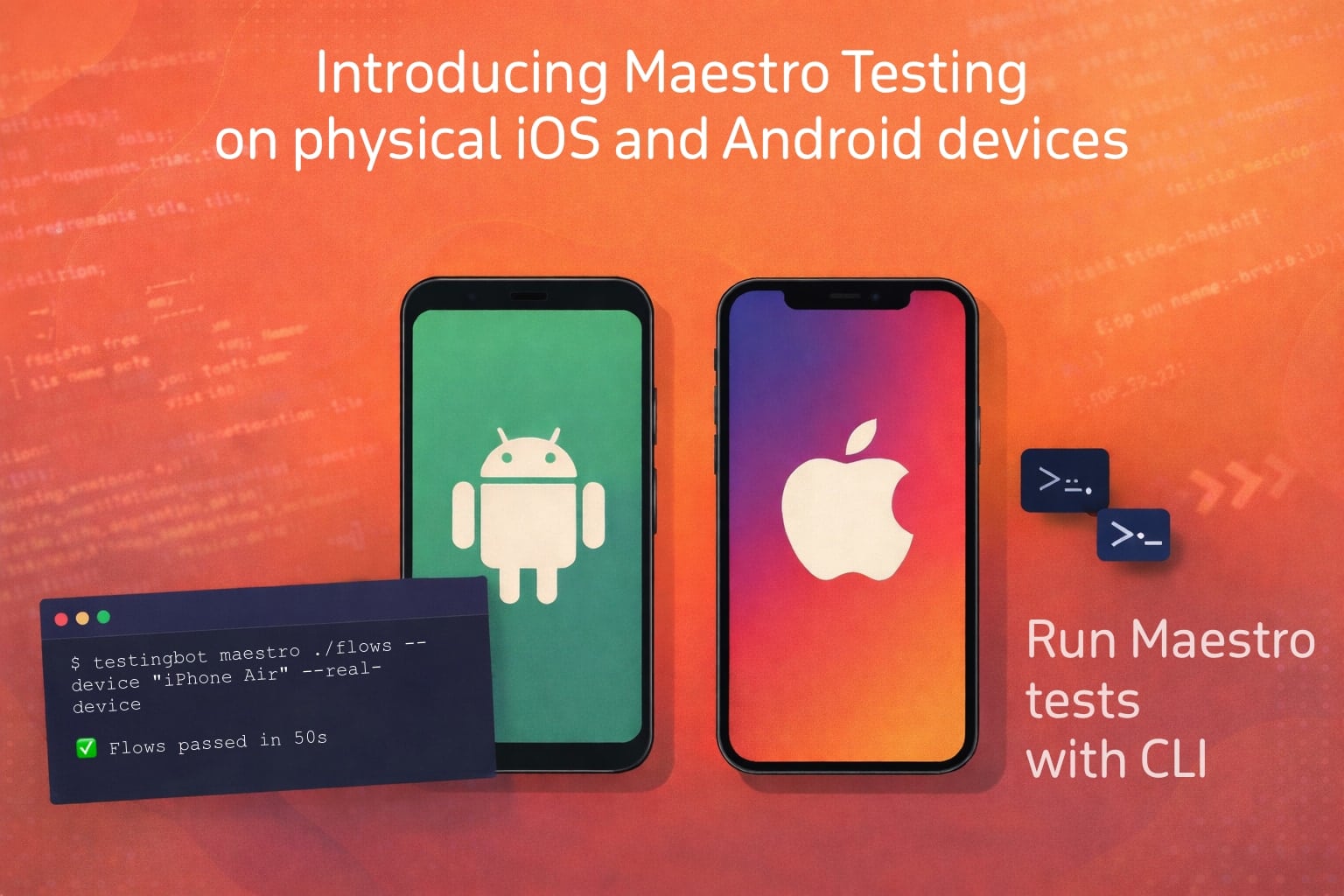 ](https://testingbot.com/blog/maestro-physical-device-testing)
Jan 19, 2026
### [Maestro Physical Device Testing](https://testingbot.com/blog/maestro-physical-device-testing)
Maestro testing in parallel on physical Android and iOS devices.
[Read more](https://testingbot.com/blog/maestro-physical-device-testing)
[ ](https://testingbot.com/blog/tvos-automated-testing)
Oct 15, 2025
### [tvOS Physical Device Testing](https://testingbot.com/blog/tvos-automated-testing)
Run automated tvOS tests on physical AppleTV devices.
[Read more](https://testingbot.com/blog/tvos-automated-testing)
[ ](https://testingbot.com/blog/macos-tahoe-beta-testing)
Jun 10, 2025
### [MacOS Tahoe Cloud Testing](https://testingbot.com/blog/macos-tahoe-beta-testing)
Test your websites and apps on Apple's upcoming macOS Tahoe (macOS 26).
[Read more](https://testingbot.com/blog/macos-tahoe-beta-testing)
[ ](https://testingbot.com/blog/chromeos-testing)
Jun 10, 2025
### [ChromeOS Cloud Testing](https://testingbot.com/blog/chromeos-testing)
ChromeOS Manual and Automated testing in the cloud.
[Read more](https://testingbot.com/blog/chromeos-testing)
[ ](https://testingbot.com/blog/maestro-cloud-testing)
Jun 2, 2025
### [Maestro testing in the cloud with TestingBot](https://testingbot.com/blog/maestro-cloud-testing)
Run Maestro tests in the cloud with TestingBot.
[Read more](https://testingbot.com/blog/maestro-cloud-testing)
[ ](https://testingbot.com/blog/accessibility-web-testing)
May 26, 2025
### [Accessibility testing with TestingBot](https://testingbot.com/blog/accessibility-web-testing)
TestingBot offers automated accessibility testing for your websites.
[Read more](https://testingbot.com/blog/accessibility-web-testing)
[ ](https://testingbot.com/blog/shopify-store-monitoring)
Feb 27, 2025
### [Monitor your Shopify Store](https://testingbot.com/blog/shopify-store-monitoring)
Protect your Shopify Store from downtime: automated monitoring of Shopify Stores with real browsers.
[Read more](https://testingbot.com/blog/shopify-store-monitoring)
[ ](https://testingbot.com/blog/testingbot-ai-agent)
Feb 18, 2025
### [Generative AI test agent](https://testingbot.com/blog/testingbot-ai-agent)
TestingBot has launched an AI Test Agent that will help you to create automated tests
[Read more](https://testingbot.com/blog/testingbot-ai-agent)
[ ](https://testingbot.com/blog/testing-holiday-season)
Nov 19, 2024
### [Automated Testing with TestingBot during the Holiday Season](https://testingbot.com/blog/testing-holiday-season)
Augment your testing this holiday season with TestingBot.
[Read more](https://testingbot.com/blog/testing-holiday-season)
[ ](https://testingbot.com/blog/selenium-20-years)
Oct 29, 2024
### [Selenium 20th birthday](https://testingbot.com/blog/selenium-20-years)
Celebrate Selenium's 20th birthday. An overview of the years.
[Read more](https://testingbot.com/blog/selenium-20-years)
## Articles by Jochen
Sep 18, 2025
### [Top Web Development Tools in 2025](https://testingbot.com/resources/articles/web-development-tools)
A top 10 list of the most popular and useful web development tools.
Jun 22, 2025
### [Most popular Screen Resolutions](https://testingbot.com/resources/articles/common-screen-resolutions)
An overview of the most popular screen resolutions in 2025 for desktop and mobile.
May 26, 2025
### [Selenium Python Tutorial](https://testingbot.com/resources/articles/python-selenium-web-automation-test)
A quick introduction in using Python with Selenium WebDriver
May 22, 2025
### [How to Change Browser Settings](https://testingbot.com/resources/articles/how-to-change-browser-settings)
Find out how to change browser settings on Chrome, Firefox and Microsoft Edge.
May 17, 2025
### [What is isolation testing?](https://testingbot.com/resources/articles/isolation-test)
Isolation Testing means verifying the functionality of a specific part of software on its own, free from outside influences.
May 7, 2025
### [Why is accessibility testing important in web design?](https://testingbot.com/resources/articles/why-accessibility-testing)
Find out why it's important to think about accessibility when designing your webpages.
Mar 14, 2025
### [Protect your Shopify store](https://testingbot.com/resources/articles/shopify-store-monitoring)
Learn how to monitor your Shopify store with the TestingBot App.
Mar 13, 2025
### [Top 15 AI Testing Tools](https://testingbot.com/resources/articles/top-15-ai-testing-tools)
Learn about the top 15 AI testing tools.
Dec 18, 2024
### [Run Maestro tests in the cloud](https://testingbot.com/resources/articles/maestro-cloud-testing)
Maestro cloud testing allows you to run Maestro flows on remote iOS and Android devices.
Nov 29, 2024
### [Handling Exceptions with Selenium Webdriver](https://testingbot.com/resources/articles/exception-handling-with-selenium)
Learn about the different types of Selenium Exceptions and how to prevent these.
## Get in touch with Jochen
Questions about cross-browser testing, mobile automation, or working with TestingBot? Reach out.
[Contact us](https://testingbot.com/contact/new)
---
URL: https://testingbot.com/contact/new
Talk to TestingBot
# Contact TestingBot
If you need support, have questions, or are interested in purchasing a plan, feel free to reach out, we'll get back to you promptly.
Name
Work email
How can we help?
The more context you share, the faster we can route your message to the right person.
By sending this message you agree to our [privacy policy](https://testingbot.com/privacy). We use your details only to reply to your request.
Send message
Need a faster path?
Skip the form for these common tasks.
[Book a 15-minute demo Live walkthrough by an engineer](https://testingbot.com/demo)[Browse documentation Setup guides for every framework](https://testingbot.com/support)[Check system status Live uptime & incidents](https://status.testingbot.com)[Join our Slack community Get help from devs and our team](https://join.slack.com/t/testingb0t/shared_invite/zt-3bcw9xch-jk19~6XPs_xBrsAgAedkCw)
Other ways to reach us
[Phone (US toll-free) +1 (855) 410-0024](tel:+18554100024)[Email info@testingbot.com](mailto:info@testingbot.com)
Address
TestingBotVlinderhof 18 9180 Moerbeke BelgiumVAT BE 0842.864.474
## Frequently Asked Questions
Quick answers about contacting our team, demos, trials and security.
How quickly will TestingBot respond to my message?
Our team replies to most contact form messages within a few hours during European business hours, and within 24 hours otherwise. Paid customers get priority support around the clock.
Should I contact sales or support?
Use this form for sales, billing, partnership and general questions. For technical issues with a running test or your account, signed-in users can also reach support directly from the dashboard.
Can I try TestingBot before talking to sales?
Yes. You can sign up for a free trial that includes 60 minutes of automated and manual testing on real browsers and devices, with no credit card required.
Where is TestingBot hosted and is my data safe?
TestingBot is built and hosted in the European Union (Belgium). All test data, video recordings and logs stay on EU infrastructure. We are GDPR compliant and a CSA STAR Level 1 registered cloud provider.
Can I schedule a live demo?
Yes. Use the Book a Demo button on this page to pick a 15-minute slot. We will walk you through automated, manual and AI-driven testing on real browsers and devices.
Do you offer enterprise plans, dedicated devices or on-premise?
Yes. We offer enterprise plans with dedicated browsers and devices, single sign-on, custom contracts and a dedicated private cloud option. Mention your needs in the message and our enterprise team will reach out.
---
URL: https://testingbot.com/careers
# Careers
Join our team in maintaining, optimizing and improving our testing cloud.

## Open Positions
- [Technical Content Writer](https://testingbot.com#writer)
## Technical Content Writer
TestingBot is looking for a technical content writer, with experience in Selenium, Cypress, Puppeteer and Playwright.
You will be adding content to our [Blog](https://testingbot.com/blog) and [Resources](https://testingbot.com/resources) section.
### Responsibilities
- Write articles, tutorials and courses about Selenium, Cypress, Puppeteer and Playwright.
- Research interesting topics to write about, related to the online testing ecosystem.
- Add code examples, screenshots and tips & tricks to the articles you write.
### Key Skills
- English writer
- Previous content writing experience
- Faultless grammar and spelling
- IT technical knowledge an advantage, especially if you have knowledge about either of these topics: Selenium, Cypress, Puppeteer or Playwright
- Excellent attention to detail
### Benefits
- Competitive salary
- Flexible schedule
- Work from home (remotely)
Interested? Please send us a brief introduction and resume.
[Apply now](https://testingbot.com/contact/new)
---
URL: https://testingbot.com/terms
# Terms of Service
PLEASE READ CAREFULLY.
THESE TERMS AND CONDITIONS ("THE AGREEMENT") IS A LEGALLY BINDING AGREEMENT BETWEEN YOU ("YOU" OR "YOUR") AND TESTINGBOT. ("TESTINGBOT", "WE" OR "OUR"). BY CHECKING THE APPROPRIATE BOX INDICATING THAT YOU AGREE DURING REGISTRATION OR OTHERWISE ACCESSING THE TESTINGBOT WEBSITE, SERVICES, SOFTWARE OR MATERIALS (COLLECTIVELY THE "SERVICE"), YOU ARE INDICATING THAT YOU HAVE READ THIS AGREEMENT, THAT YOU UNDERSTAND IT, AND THAT YOU CONSENT TO BE BOUND BY ALL OF ITS TERMS AND CONDITIONS. IF YOU DO NOT AGREE WITH ALL OF THE FOLLOWING TERMS AND CONDITIONS, PLEASE DO NOT CONTINUE THE REGISTRATION PROCESS OR USE THE SERVICE.
IF YOU WISH TO USE TESTINGBOT AS AN EMPLOYEE, CONTRACTOR, OR AGENT OF A CORPORATION, PARTNERSHIP OR SIMILAR ENTITY, THEN YOU MUST BE AUTHORIZED TO SIGN FOR AND BIND THE ENTITY IN ORDER TO ACCEPT THE TERMS OF THIS AGREEMENT. THE LICENSES GRANTED AND SERVICES PROVIDED UNDER THIS AGREEMENT ARE EXPRESSLY CONDITIONED UPON ACCEPTANCE BY SUCH AUTHORIZED PERSONNEL.
This End User License Agreement ("Agreement") is entered into by and between TestingBot and the customer (individual or entity) that has procured the TestingBot products or services for use as an end user ("Customer"). "Effective Date" means the date on which accepts the terms and conditions of this Agreement. TestingBot reserves the right, at its sole discretion, to modify or replace this Agreement, or change, suspend, or discontinue any TestingBot Product(s) or Service Descriptions (as those terms are defined below), including without limitation, the availability of any feature, database, or content) at any time by posting a notice on the TestingBot Product(s) or by sending you an email. It is your responsibility to check this Agreement periodically for changes. Your continued use of any TestingBot Product following the posting of any changes to this Agreement constitutes acceptance of those changes.
## 1. Provision of Products
Welcome to TestingBot.com. We provide our customers with online software-as-a-service/platform-as-a-service products.
We use Selenium, an open-sourced browser testing framework to test websites in multiple browsers in an automated way.
We offer several plans according to the needs of the customer. Each plan is provided on a subscription basis for a set term designated at the time of purchase (each, as “Subscription Term”). Customer shall purchase and TestingBot shall provide the specific product and plan as specified at the time of purchase.
Some elements of the Service are available to any User, while other elements ("Subscription Services") are only available to Users who have purchased a subscription from TestingBot according to these terms and conditions. TestingBot may at any time, in its sole discretion, change a freely available element of the Service to a Subscription Service, and vice versa. TestingBot may, it its sole discretion, offer Users a one-time, free trial period during which you may use Subscription Service(s) for free. The time period of any such free trial period may vary from time to time, and will be indicated at the time you register as a User.
Please note that TestingBot does not provide any internet connectivity services, nor does TestingBot provide any computer equipment for Users. You are entirely responsible for securing and paying for any such services and equipment, and for ensuring that such services and equipment meet the minimum requirements for the use of the Services.
General Restrictions; Acceptable Use. Customer shall not: (a) rent, lease, copy, provide access to or sublicense any TestingBot Product to a third party; (b) use any TestingBot Product to provide or incorporate any TestingBot Product into any product or service provided to a third party, (c) reverse engineer, decompile, disassemble, or otherwise seek to obtain the source code or non-public APIs to TestingBot Products, including the Video Playback, except to the extent such restriction is prohibited by applicable law (and only upon advance notice to TestingBot), (d) modify any TestingBot Product or any Documentation, or create any derivative product from any of the foregoing, (e) remove or obscure any proprietary or other notices contained in any TestingBot Product (including any reports or data printed from TestingBot Products) or (f) publicly disseminate information regarding the performance of TestingBot Products.
## 2. Accounts/Customer Data
You may establish one (1) User account (the "Account") per email address you supply to TestingBot. You may not share the Account with anyone. You are liable for all uses of the Account.
If you would like to have several accounts for co-workers or friends, please consider using a sub-account.
Storage of Customer Data. TestingBot does not provide an archiving service. TestingBot agrees only that it shall not intentionally delete any Customer Data which is less than 30 days old from TestingBot Products prior to termination of Customer’s applicable Subscription except as directed by Customer or its Permitted Users. TestingBot expressly disclaims all other obligations with respect to storage. If specified at the time of purchase, TestingBot may charge Customer a fee for storing the Customer Data.
## 3. Registration
During the registration process prior to using the Service, you may be requested to provide certain information (e.g. your birthdate, gender, zip code, name, e-mail address, country or territory of residence, and for paid services, credit card and billing information, such as your telephone number), and you agree to provide true, accurate, current and complete information about yourself as prompted by such process (such information being "Personal Information"). If you open an Account, and any of your Personal Information changes (e.g., new credit card number, expiration date, new address or email address, new phone number, etc.), you must update that information in your Account.
## 4. Subscription Services
If you elect to subscribe to Subscription Services, the fee therefor will be the price specified at the time of purchase. You hereby agree to pay all charges incurred by the Account, including applicable taxes, in accordance with billing terms for access to the Service that are in effect at the time that the fee or charge becomes payable. Your right to access the Service is subject to any limits established by TestingBot or by your credit card issuer, billing service, or other payment methods authorized by TestingBot. TestingBot may, in its sole and absolute discretion, suspend or terminate your access to the Service and disable or delete the Account, if: (i) payment cannot be charged to your credit or debit card; or (ii) your charge is returned to TestingBot for any reason. If at any time you have a balance due on the Account, you agree that TestingBot can charge these unpaid fees to your credit card or debit them from your debit card, as applicable. You agree to reimburse TestingBot for all costs and expenses incurred by TestingBot in collecting payment due hereunder, including without limitation all bank or service charges, and any reasonable attorneys' fees.
By subscribing to any Subscription Service you are representing to us that you are authorized to use the credit card you submit for payment. You agree to take such steps as are appropriate to ensure such compliance and will indemnify and hold TestingBot and TestingBot's affiliates and distribution and syndication partners harmless from any breach of this Agreement.
Your subscription will last for the period chosen in the subscription process (the "Term"). Unless notifying us of your decision to terminate your subscription, your subscription will automatically be renewed at the end of each Term according to the then-current billing terms. TestingBot reserves the right to change the amount of, or basis for determining, any fees it charges, and to institute new fees, effective immediately upon notice to you. You may cancel your automatic membership renewal by contacting info@testingbot.com . Cancellation of your subscription will take effect upon the end of the then-current Term, at which time you will no longer have access to any Subscription Services.
Our payment provider (Stripe or FastSpring) will automatically renew your paid subscription. Payment details such as your credit card number are not saved on this website.
## 5. TestingBot Materials
The Service may require that you install plugins to report back test results to TestingBot. That software, and all new versions, updates, upgrades, bug fixes, modifications and derivative works that TestingBot may make available from time to time are referred to collectively as the "Software." All Software, designs, text, images, photographs, illustrations, audio clips, video clips, artwork, graphic materials, other copyrightable elements, and the selection and arrangements thereof, and all trademarks, service marks, trade dress, trade names, logos and designs and all intellectual property rights therein, provided by TestingBot via the Service (collectively the "Materials") are the property of TestingBot and/or its business partners, affiliates, assigns, licensors or other respective owners and are protected by intellectual property laws, including without limitation, U.S. and international patent, copyright and trademark laws. TestingBot may include in some Materials or in conjunction with your User Supplied Content third party advertisements that appear or are played when those Materials or User Supplied Content are viewed. You hereby consent to the display and playback of these advertisements in conjunction with your User Supplied Content. To the extent you elect to use or access TestingBot Materials or User-Supplied Content from other Users, you also consent to the display of advertisements in those Materials and that User Supplied Content. Content generated during testing like logs, screenshots and videos will stay available for 30 days. After this period, TestingBot will remove the content.
## 6. License from TestingBot
Subject to all of the terms and conditions of this Agreement, TestingBot hereby grants you a personal, limited, non-exclusive, non-transferable, revocable right to (a) view or play back Materials on, your compatible computer or device.
All rights not expressly granted to you are reserved. For the avoidance of doubt, your use of the Service and the Materials is under license and will terminate if this Agreement terminates, regardless of whether the relevant Service or Materials is free or you have paid for it; you will not obtain any ownership interest in any Materials through this Agreement or otherwise.
## 7. Usage Restrictions
You agree not to use, download, reproduce, modify, create derivative works from, display, perform, publish, distribute, disseminate, transmit, broadcast or circulate any Materials to any third party, except as expressly authorized by TestingBot in connection with the Service. The source code and/or object code to the Materials contains confidential and trade secret information belonging to TestingBot and its licensors, and you shall at all times take reasonable steps to protect the confidentiality of such information. You further agree that you will not disassemble, decompile or reverse engineer the Materials (except to the extent that this restriction is expressly prohibited by law, and then only upon providing TestingBot with prior written notice and opportunity to respond). Any unauthorized or prohibited use may subject the offender to civil liability and criminal prosecution under applicable federal and state laws.
As between you and TestingBot, TestingBot owns all elements of the Account. Except as specifically permitted and enabled within the Service, you may not transfer your Account, or any component of your User-Supplied Content to any other person. Through the use of the Service you may not impair or violate the rights of TestingBot or any other party with respect to trademarks, logos, or other intellectual property or rights. You may not display or perform Materials or User Supplied Content in a manner or in a context that is, in TestingBot's sole discretion, unlawful, misleading, defamatory, infringing, libelous, disparaging, obscene, an endorsement of any unrelated product or service, an unauthorized parody, or otherwise objectionable.
## 8. Code of Conduct
You may not: (i) post any User Supplied Content that is illegal, abusive, deceptive, pornographic, obscene, defamatory, slanderous, offensive, or otherwise inappropriate or harmful to any person (including any minor) or entity; (ii) sell, rent, lease, or otherwise assign any rights to any Materials or Service to any third party; (iii) remove any proprietary notices or labels on the Materials or Service; (iv) use the Materials or Service in conjunction with any device or service designed to circumvent technological measures employed to control access to, or the rights in, any content protected by the copyright laws of any jurisdiction; (v) use the Materials or Service for any commercial or illegal purpose or to harm minors in any way; (vi) use the Materials or Service to invade the privacy of, or obtain personal information about, any User, or to obtain a list of Users, or to access or use any User's User Supplied Content in a manner not specifically authorized by such User; (vii) except as expressly permitted by TestingBot, copy, modify, erase or damage any Materials or information contained on any TestingBot or third party servers; (viii) use the Materials or Service to violate any law or legal right of any third party, including any publicity or privacy right, copyright, other intellectual property right, or any contractual, fiduciary or confidentiality obligation or duty, or to take any action that is harassing, libelous, defamatory, abusive, tortious, threatening, harmful or otherwise objectionable; (ix) use the Materials or Service to post or transmit any unsolicited advertising, campaigning or promotional materials or to send any Materials from an anonymous or false address; (x) access or use any password protected, secure or non-public areas of the Service except as specifically authorized in writing by TestingBot (unauthorized individuals attempting to access these areas of the Service may be subject to prosecution); (xi) distribute any software viruses or other computer code designed to interfere with the functionality of the Service or any computer systems, software or hardware; (xii) use any data mining, robots, or similar data gathering, spoofing, or extraction tools in connection with the Materials Service; (xiii) mislead other Users or third parties as to your identity or to the origin of a message or content; or (xiv) frame or link to the Service or Materials except as expressly permitted in writing by TestingBot.
## 9. Objectionable or Explicit Content
TestingBot has the right, but not the obligation, to monitor, modify and/or remove any Materials and/or User Supplied Content in the Service. TestingBot may monitor, modify and remove any Materials and/or User Supplied Content in its sole discretion. TestingBot is not responsible to you for any content or materials constituting all or part of any Materials, any User Supplied Content, or any other aspect of the Service that you might find objectionable. By viewing the Service, you may be exposed to content that you consider offensive. You take sole responsibility for such exposure.
## 10. Privacy
For information regarding TestingBot's use of information collected in connection with the Service, please refer to the [TestingBot Privacy Policy.](https://testingbot.com/privacy)
## 11. Active Participation; Storage and Bandwidth Limits
If you do not have a currently active subscription to the Subscription Service, a condition of your access to the Service is your "Active Participation" in the Service. Active Participation is defined as accessing the Service, including displaying Materials or sending User Supplied Content through the Service, at least once every 180 days. If you do not maintain Active Participation, TestingBot may, with or without providing you with notice, terminate your Account (or any part thereof) and/or your use of the Service, and may remove and discard any content, including any of your User Supplied Content and any related Materials within the Service. Additionally, with or without providing you with notice, we may place a maximum limit on the amount of User Supplied Content that you are allowed to upload into the Service, or the maximum bandwidth that you may utilize each day. We may change these limits in our sole discretion upon providing you with notice. If you exceed these limits, we may refuse to accept and/or remove any User Supplied Content, or we may suspend certain functions of the Service for your Account.
## 12. Changes to the Agreement
We reserve the right, at our sole discretion, to change, modify or otherwise alter these terms and conditions at any time. Such changes and/or modifications shall become effective immediately upon posting. Please review the terms and conditions periodically. If you do not agree to be bound by (or cannot comply with) the Agreement as amended, your only remedy is to cancel your TestingBot Account and to cease using the Service. You will be deemed to have accepted the Agreement as amended thirty (30) days after the amended agreement is posted if you continue to use the Service. All other terms of this Agreement will continue in effect.
## 13. Notices
TestingBot may provide you with any notices under this Agreement by means of a posting on the Service, by e-mail, or by sending a message to you through the Service.
A. A physical or electronic signature of the owner (or person authorized to act on behalf of the owner) of an exclusive right that is allegedly infringed.
B. Specific identification of the copyrighted work claimed to have been infringed, or if multiple copyrighted works are covered by a single notification, a list of each copyrighted work claimed to have been infringed.
C. Information related to the work(s) reasonably sufficient for TestingBot to promptly locate the work (e.g. title of work, location within the Service, etc.).
D. Information reasonably sufficient to permit TestingBot to directly contact the complaining party, such as a complete name and address, telephone number, and an email address.
E. A statement that the complaining party has a good TestingBot belief that use of the work(s) in the manner complained of is not authorized by the copyright owner, its agent, or the law.
F. A statement requesting that TestingBot take a specific act with respect to the alleged infringement (e.g., removal, access restricted or disabled), and
G. A statement that the information in the notification is accurate, and under penalty of perjury, that the complaining party is authorized to act on behalf of the owner of an exclusive right that is allegedly infringed.
## 14. Trademarks
Except as expressly set forth in this Agreement, all trademarks, service marks, trade names, domain names, slogans, logos, and other indicia of origin that appear on or in connection with the Service and Materials are the property of TestingBot and/or its affiliates and licensors. You may not copy, display or use any of these marks without prior written permission of the mark owner.
## 15. International
You agree to abide by U.S and other applicable export control laws and not to transfer, by electronic transmission, the Service, or otherwise, any content or software subject to restrictions under such laws to a national destination or person prohibited under such laws.
## 16. Promotions and Advertising
TestingBot and/or its business partners may present advertisements and promotional materials on or through the Service. Your participation in any TestingBot promotional event is subject to the terms and conditions associated with that event. Your correspondence or business dealings with, or participation in promotions of, any third-party advertisers on or through the Service, including payment and delivery of related goods or services, and any other terms, conditions, warranties or representations associated with such dealings, are solely between you and such third-party. You agree that neither TestingBot nor its business partners shall be responsible or liable for any loss or damage of any sort incurred as the result of any such dealings or as the result of the presence of such third parties on the Service.
## 17. The Website and Links to Third Party Sites
The Website means this web site, as accessed by any of the following domain names: testingbot.com, \*.testingbot.com and any web site owned or controlled by TestingBot (except as otherwise provided on such other site). However, the Website does not refer to any other web site linked to or from the Website, or to any third party site on which the Service may appear. The Service may present links to retailers and/or other third-party websites not owned or operated by TestingBot. Neither TestingBot nor its business partners are responsible for the availability of these outside sites or their contents. You understand and agree that neither TestingBot nor its business partners are responsible or liable, directly or indirectly, for any damage or loss caused or alleged to be caused by or in connection with your use of or reliance on any content of any such site or goods or services available through any such site or from any such advertiser. You should direct any concerns regarding these third-party sites to those sites' administrators.
## 18. Modifications to Service and Materials
TestingBot may, without liability or obligation, in its sole discretion and at any time: (i) make modifications to, or discontinue, any Materials and/or the Service, including deleting any Downloaded Materials we may have placed on your computer, with or without providing you with notice (except as we may expressly agree to provide you with notice elsewhere in this Agreement); and/or (ii) require you to use modified Materials and/or Service (e.g. Software updates) in order to have continued access to the Service and Materials. The modifications may result in certain Materials being unavailable, or incompatible with certain devices. Other Users may similarly delete or cease offering their User Supplied Materials at any time without notice.
Upon TestingBot giving you notice, you shall promptly cease the use of, and destroy, all copies of any specified Materials, or otherwise modify your usage as directed by TestingBot. You agree that neither TestingBot nor the TestingBot Affiliates shall be liable to you or to any third party for any modification, suspension or discontinuance of the Service or Materials.
## 19. Remedies
You understand and agree that any unauthorized use of the Service or the Materials would result in irreparable injury to TestingBot and/or the TestingBot Affiliates for which money damages would be inadequate, and in such event TestingBot and the TestingBot Affiliates, shall have the right, in addition to other remedies available at law and in equity, to immediate injunctive relief against you. Nothing contained in this paragraph or elsewhere in this Agreement shall be construed to limit remedies or relief available pursuant to statutory or other claims that TestingBot and the TestingBot Affiliates may have under separate legal authority, including but not limited to, any claim for intellectual property infringement. You understand and agree that your cancellation of your Account is your sole right and remedy with respect to any dispute with TestingBot. You can cancel your Account by delivering notice to TestingBot at info@testingbot.com.
## 20. Indemnity
You agree to indemnify, and hold harmless, TestingBot, the TestingBot Affiliates, and each of their respective officers, directors, employees, agents, licensors, representatives, and third party providers from and against all claims, actions, demands, causes of action, and other proceedings, and all losses, expenses, fees, fines, damages and costs, including reasonable attorneys' fees and court costs, arising out of or relating to your breach of this Agreement or improper use of the Service or Materials. TestingBot reserves the right to assume, at its sole expense, the exclusive defense and control of any matter subject to indemnification by you, in which event you will fully cooperate with TestingBot in asserting any available defenses.
## 21. Suspension or Termination
TestingBot may, in its sole discretion, terminate this Agreement or suspend your Account at any time with or without notice to you in the event that you breach (or TestingBot reasonably suspects that you have breached) any provision of this Agreement. If TestingBot terminates this Agreement, or suspends your Account for any of the reasons set forth in this paragraph, TestingBot shall have no liability or responsibility to you, and you agree that you forfeit any amounts you have paid TestingBot. TestingBot may terminate this Agreement and your Account for any reason or no reason at the end of the then-current Term by providing notice to you.
You may cancel your Account (including Subscription Services) at any time by contacting info@testingbot.com. All fees paid and charges made prior to termination as provided herein are nonrefundable, including any advance charge or payment for the subscription term during which you terminate your subscription. Termination of your subscription shall not relieve you of any obligations to pay accrued charges.
Upon termination of this Agreement for any reason, all of your rights to use the Service and materials shall immediately terminate, and you shall immediately cease using and destroy all Materials.
## 22. Disclaimers
You understand and agree that your use of the Service and the Materials is at your own sole risk. TestingBot is not responsible or liable for any infections or contamination of your system, or delays, inaccuracies, errors, or omissions arising out of your use of the Service or Materials. The entire risk as to the quality, accuracy, adequacy, completeness, correctness and validity of any Materials rests with you. THE SERVICE AND THE MATERIALS ARE PROVIDED "AS IS" AND "AS AVAILABLE," AND WITHOUT WARRANTY BY TESTINGBOT AND THE TESTINGBOT AFFILIATES, AND, TO THE MAXIMUM EXTENT ALLOWED BY APPLICABLE LAW, TESTINGBOT AND THE TESTINGBOT AFFILIATES EXPRESSLY DISCLAIM ALL WARRANTIES, EXPRESS AND IMPLIED, INCLUDING, BUT NOT LIMITED TO, THE IMPLIED WARRANTIES OF MERCHANTABILITY AND FITNESS FOR A PARTICULAR PURPOSE AND ANY WARRANTY OF NONINFRINGEMENT. THERE IS NO WARRANTY THAT THE SERVICE OR THE MATERIALS WILL MEET YOUR REQUIREMENTS, OR THAT YOUR ACCESS TO THE SAME WILL BE UNINTERRUPTED OR ERROR-FREE. TESTINGBOT AND THE TestingBot AFFILIATES DO NOT WARRANT, GUARANTEE, OR MAKE ANY REPRESENTATIONS REGARDING THE USE OR THE RESULTS OF THE USE OF THE SERVICE OR THE MATERIALS WITH RESPECT TO PERFORMANCE, ACCURACY, RELIABILITY, SECURITY CAPABILITY, CURRENTNESS OR OTHERWISE. YOU WILL NOT HOLD TESTINGBOT AND/OR THE TESTINGBOT AFFILIATES RESPONSIBLE FOR ANY DAMAGES THAT RESULT FROM YOU ACCESSING THE SERVICE OR USING THE SERVICE AND/OR THE MATERIALS. NO ORAL OR WRITTEN INFORMATION OR ADVICE GIVEN BY ANY PERSON SHALL CREATE A WARRANTY IN ANY WAY WHATSOEVER RELATING TO TESTINGBOT AND/OR THE TESTINGBOT AFFILIATES.
UNDER NO CIRCUMSTANCES SHALL TESTINGBOT AND/OR THE TESTINGBOT AFFILIATES BE LIABLE FOR ANY UNAUTHORIZED USE OF THE SERVICE AND/OR THE MATERIALS.
## 23. LIMITATION OF LIABILITY
TO THE FULLEST EXTENT PERMISSIBLE PURSUANT TO APPLICABLE LAW, UNDER NO CIRCUMSTANCES SHALL TESTINGBOT AND/OR THE TESTINGBOT AFFILIATES BE LIABLE TO YOU FOR ANY CONSEQUENTIAL, INCIDENTAL, INDIRECT, SPECIAL OR SIMILAR DAMAGES (INCLUDING, WITHOUT LIMITATION, DAMAGES FOR LOSS OF BUSINESS PROFITS, BUSINESS INTERRUPTION, LOSS OF BUSINESS INFORMATION, AND THE LIKE) ARISING OUT OF THE USE OR INABILITY TO USE THE SERVICE AND/OR THE MATERIALS, EVEN IF TESTINGBOT AND/OR THE TESTINGBOT AFFILIATES, HAVE BEEN ADVISED OF THE POSSIBILITY OF SUCH DAMAGES. BECAUSE SOME JURISDICTIONS DO NOT ALLOW THE EXCLUSION OR LIMITATION OF LIABILITY FOR CONSEQUENTIAL OR INCIDENTAL DAMAGES, THE ABOVE LIMITATION MAY NOT APPLY TO YOU. TO THE EXTENT THAT IN A PARTICULAR CIRCUMSTANCE ANY DISCLAIMER OR LIMITATION ON DAMAGES OR LIABILITY SET FORTH HEREIN IS PROHIBITED BY APPLICABLE LAW, THEN, INSTEAD OF THE PROVISIONS HEREOF IN SUCH PARTICULAR CIRCUMSTANCE, TESTINGBOT AND/OR THE TESTINGBOT AFFILIATES, SHALL BE ENTITLED TO THE MAXIMUM DISCLAIMERS AND/OR LIMITATIONS ON DAMAGES AND LIABILITY AVAILABLE AT LAW OR IN EQUITY BY SUCH APPLICABLE LAW IN SUCH PARTICULAR CIRCUMSTANCE, AND IN NO EVENT SHALL SUCH DAMAGES OR LIABILITY EXCEED TWENTY FIVE DOLLARS ($25). Notwithstanding the foregoing, in no event shall TestingBot's liability to you for any and all claims, damages, losses, and causes of action (whether in contract, tort or otherwise) exceed the amount paid by you, if any, for accessing the Service.
## 24. Claims and Arbitration
Any action hereunder by a User must be brought, if at all, within one (1) year from the accrual of the cause of action. You agree that the all disputes and claims arising out of, or relating to, this Agreement, the Service or Materials, your use of the Service or Materials (including the arbitrability of any claim or dispute and the enforceability of this paragraph), or to any other alleged act or omission by you or TestingBot, shall be determined exclusively by final and binding arbitration. Provided however, that you agree that the terms of this paragraph do not apply to any breach or alleged breach of the ownership or license rights of TestingBot or any of its licensors with respect to any Materials and/or Service, or your (or any third party's) misuse of the Materials and/or Service, and that, in the event of any such breach of alleged breach, TestingBot and its licensors will be irreparably harmed and entitled to equitable and injunctive relief in addition to all other remedies provided by this Agreement or available at law. Except as expressly set forth above in this paragraph, you and TestingBot may litigate in court only to compel arbitration under this Agreement or to confirm, modify, vacate or enter judgment on the award rendered by the arbitrators. To the extent that you have breached or have indicated your intention to breach this Agreement in any manner which violates or may violate TestingBot's or any of its licensor's intellectual property rights, or may cause continuing or irreparable harm to TestingBot (including, but not limited to, any breach that may impact TestingBot's or its licensor's intellectual property rights, or a breach by reverse engineering), TestingBot may seek injunctive relief, or any other appropriate relief, in any court of competent jurisdiction. To the fullest extent permitted by applicable law: no arbitration under this Agreement shall be joined to an arbitration involving any other current or former licensee of TestingBot, whether through class arbitration proceedings or otherwise; no finding or stipulation of fact in any other arbitration, judicial or similar proceeding may be given preclusive or collateral estoppel effect in any arbitration hereunder (unless determined in another proceeding between you and TestingBot); and no conclusion of law in any other arbitration may be given any weight in any arbitration hereunder (unless determined in another proceeding between you and TestingBot).
## 25. Miscellaneous
This Agreement and any other terms or documents referred to herein represent your entire agreement with TestingBot with respect to your use of the Service and Materials. As used in this Agreement the term "licensor" shall not refer to the person at that time entering into the Agreement. You understand and agree that, except as expressly set forth herein, this Agreement is not intended to confer and does not confer any rights or remedies upon any person other than the parties to this Agreement. If any part of this Agreement is held invalid or unenforceable, that portion shall be construed in a manner consistent with applicable law to reflect, as nearly as possible, the original intentions of the parties, and the remaining portions shall remain in full force and effect. TestingBot's failure to pursue any available claim or defense pursuant to this Agreement or otherwise will not be a waiver of such claim or defense. The headings used in this Agreement are for convenience only, and will have no effect on the interpretation or legal enforceability of the terms herein. This Agreement is personal to you and may not be transferred, assigned or delegated to anyone. Any attempt by you to assign, transfer or delegate this Agreement shall be null and void.
Last updated: May 9, 2017
---
URL: https://testingbot.com/privacy
# Privacy Policy
TestingBot knows that you care how information about you is used and shared, and we appreciate your trust that we will do so carefully and sensibly.
By visiting testingbot.com, you are accepting the practices described in this Privacy Policy.
TestingBot knows that you care how information about you is used and shared, and we appreciate your trust that we will do so carefully and sensibly. We process personal information contained in Customer Data on behalf of our customers under the terms and conditions of our [TestingBot Customer Data Processing Addendum](https://trust.testingbot.com).
- [What's your policy about Cookies?](https://testingbot.com#cookies)
- [What personal information does TestingBot gather?](https://testingbot.com#personal)
- [Which information do you share?](https://testingbot.com#information)
- [What Data Subject Rights Do I Have?](https://testingbot.com#rights)
- [How Long Do We Retain Your Personal Data?](https://testingbot.com#duration)
- [Is my information safe on this website?](https://testingbot.com#secure)
- [Which information can I access?](https://testingbot.com#access)
- [Are children allowed to use TestingBot?](https://testingbot.com#children)
- [How can I remove all my information from TestingBot?](https://testingbot.com#delete)
- [Who is the Data Controller?](https://testingbot.com#controller)
- [What Are Our Legal Bases for Processing Personal Data?](https://testingbot.com#legal)
- [Conditions of use, notices, and revisions](https://testingbot.com#changes)
- [Implemented Technologies](https://testingbot.com#technologies)
## What's your policy about Cookies?
Please consult our [Cookie Policy](https://testingbot.com/cookie-policy).
## What personal information does TestingBot gather?
The information we learn from customers helps us personalize and continually improve your experience at testingbot.com.
During signup, you are asked for your first name and last name, together with an e-mail address.
When upgrading your plan, you may be asked for a telephone number and address by our billing provider.
Information from Other Sources: We might receive information about you from other sources and add it to our account information.
You are not required to provide any personal data to us, but if you do not provide any personal data to us, you may not be able to use certain features of our Services...
## Which information do you share?
- **Subcontractors, sub-processors and service providers:** We share your firstname, lastname and email address with our payment providers Stripe and PayPal and with our online chat widget Drift.
- A third party, in order to enforce or defend our rights, or to address financial or reputational risks.
- A third party to respond to requests relating to a criminal investigation or alleged or suspected illegal activity.
- Other recipients where we are authorised or required by law to do so.
- A purchaser or prospective purchaser of all or part of our assets or our business...
## What Data Subject Rights Do I Have?
- **Right of access:** You have the right to obtain from us confirmation as to whether your personal data is being processed...
- **Right to rectification:** You have the right to obtain from us the rectification of inaccurate personal data...
- **Right to erasure:** You have the right to ask us to erase your personal data...
- **Right to restriction of processing:** You have the right to request restriction of processing...
- **Right to data portability:** You have the right to receive your personal data in a structured, commonly used...
- **Right to object:** You have the right to object, on grounds relating to your particular situation...
- **Right to Submit Complaints:** You have a right to lodge a complaint with a supervisory authority.
## How Long Do We Retain Your Personal Data?
If you register for an account on our Services, we retain your personal data for as long as you have an account with us...
## Is my information safe on this website?
TestingBot uses SSL (HTTPs) on all parts of its service/website. SSL encrypts information between you and our website.
Payment data is handled by our payment provider (Stripe/PayPal)...
All sensitive data is encrypted in our database and in our log files. Passwords and security tokens are stripped before they are logged into our system.
We will notify serious data breaches...
We restrict access to Account-Related Information and other Personal Information...
## Are children allowed to use TestingBot?
We do not sell products for purchase by children. If you are under 18, you may use TestingBot only with the involvement of a parent or guardian.
## Which information can I access?
You can access and modify your personal information in our member area.
## How can I remove all my information from TestingBot?
Please log into our member area, click "Account" and click the "Remove account" button.
## Who is the Data Controller?
If you are using our Services, the data controller is TestingBot - Belgium, +1 (855) 410-0024...
## What Are Our Legal Bases for Processing Personal Data?
- **Contract Performance:** We process the personal data of users of our Services as necessary to perform our contractual obligations...
- **Legitimate Interests:** To provide users with a good user experience, to maintain and secure our Services...
- **Legal Obligations:** If we are subject to a lawful access request, engaged in a legal proceeding...
- **Consent:** If we are required to obtain your consent to send you marketing communications...
- **Vital Interests:** In extenuating circumstances, we may need to process your personal data to protect the vital interests...
## Conditions of use, notices, and revisions
If you choose to visit testingbot.com, your visit and any dispute over privacy is subject to this Notice...
We may periodically alter this policy and our Terms of service. Please check these pages frequently to see the most recent changes.
**Last updated: April 9, 2024**
## Implemented Technologies
If you have any questions, complaints or remarks about this Privacy Policy, you can contact our Data Protection Officer at [info@testingbot.com](mailto:info@testingbot.com).
TestingBot
Attn: Data Protection Officer
[info@testingbot.com](mailto:info@testingbot.com)
Telephone number: +1 (855) 410-0024
[Contact TestingBot](https://testingbot.com/contact/new)
---
URL: https://testingbot.com/cookie-policy
# Cookie Policy
TestingBot uses cookies to improve your user experience.
## What's a cookie?
A cookie is a small file which is placed on your computer to remember your preferences.
You can read more about cookies on [AllAboutCookies](https://allaboutcookies.org).
## How are you using cookies?
When you first visit our website, our partner Google Analytics will set a cookie to track which pages you visit.
Next to that, we will set a cookie to determine if you're logged in or not (session cookie). Once you log out, this cookie is destroyed.
We offer online chat as a way to help you with your questions. This 3rd party provider also sets cookies to enhance your user experience.
## Cookie List
Below is the list of cookies we use on TestingBot:
### Strictly Necessary Cookies
These cookies are necessary for the website to function and cannot be switched off in our systems...
#### Cookies used
| Cookie Name | Description | Expiration |
| --- | --- | --- |
| \_testingbot\_gsession | Keep track of whether you're signed in on TestingBot | Until you close your browser |
| remember\_user\_token | If you enabled "Remember me" during login, we will use this cookie to remember your session. | 14 days |
| \_\_stripe\_mid | Used by Stripe. More info on [Stripe's Cookie Policy](https://stripe.com/cookies-policy/legal). | 1 year |
### Performance Cookies
These cookies allow us to count visits and traffic sources so we can measure and improve the performance of our site...
#### Cookies used
| Cookie Name | Description | Expiration |
| --- | --- | --- |
| \_gid | Used by Google Analytics. [More info](https://www.en.advertisercommunity.com/t5/Google-Analytics-Code/Information-about-a-cookie-of-Google-Analytics-named-gid/td-p/1127468). | 30 days |
| \_ga | Used by Google Analytics to identify unique sessions. | 30 days |
### Targeting Cookies
These cookies may be set through our site by our advertising partners...
#### Cookies used
| Domain | Cookies |
| --- | --- |
| youtube.com |
- SID
- HSID
- demographics
- VISITOR\_INFO1\_LIVE
- PREF
- APISID
- SSID
- LOGIN\_INFO
- YSC
- SAPISID
|
| google.com |
- APISID
- SSID
- NID
- PREF
- SID
- SAPISID
- HSID
|
### Social Media Cookies
These cookies are set by a range of social media services that we have added to the site...
#### Cookies used
| Cookie Name | Description | Expiration |
| --- | --- | --- |
| intercom-id-[app\_id] | Anonymous visitor identifier for the online chat functionality. | 9 months |
| intercom-session-[app\_id] | Keeps track of chat sessions. Gives users access to their previous conversations and identifies them in the Messenger. | 1 week |
| intercom-device-id-[app\_id] | Identifier for each unique device that interacts with the Messenger. | 9 months |
This policy was last updated on October 8, 2025.
Please see our [Terms & Conditions](https://testingbot.com/terms) and our [Privacy Policy](https://testingbot.com/privacy) for additional information.
---
URL: https://testingbot.com/features/smart-tv-testing
# Online Test Automation On Smart TVs
OTT test automation on living room devices such as Apple TV, Amazon Fire TV and Chromecast with TestingBot. Manual and automated crossplatform testing on real Apple TV (tvOS) and Android TV devices.
[Start free](https://testingbot.com/users/sign_up)[Request a demo](https://testingbot.com/demo)

Trusted by some of the world's most innovative companies
## Automated Testing for Smart TV apps
Run Appium tests on TV apps running on Apple TV 4K, Chromecast and more.
Get access to raw video and audio generated from the Smart TV device. Test DRM-protected content, by accessing a device via manual or automated testing.
[Read SmartTV Testing Documentation](https://testingbot.com/support/app-automate/smart-tv)
### Automated Testing with Appium
Upload your Smart TV app and run automated tests with Appium on the remote device.
### Connect to a remote TV device
Access live video and audio generated from the device, through your own browser and control the remote as if it was in your hand.
### Device Coverage
Test on various devices such as Apple TV 4K, Chromecast and more.
## Frequently Asked Questions
### What competitive edge does TestingBot offer with Smart TV testing, compared to its peers?
TestingBot offers both manual and automated testing of apps on Smart TVs. View DRM-protected content, hear live audio of the device under test and manually send remote control (IR signals) to the device.
### How can I test Smart TV applications on a remote Smart TV device?
Simply upload your app to TestingBot Storage and pick a device to test on. TestingBot provides a high quality video and audio stream of the device.
### Manual and Automated Testing on AppleTV and Chromecast
Manually control a device such as Apple TV 4K or ChromeCast device, through your own browser. Run automated tests with Appium on remote smart-tv devices.
### Sign up for a Free Trial
Start testing your apps with TestingBot.
[Start a free trial](https://testingbot.com/users/sign_up)
---
URL: https://testingbot.com/features/manual-browser-testing
Live cross-browser testing
# Real browsers, streamed to your screen
Take control of any real Chrome, Safari, Firefox, Edge or Internet Explorer running on real macOS, Windows or Linux. No VM, no plugin, no install. Open a tab, click a browser, start testing in seconds.
[Start free](https://testingbot.com/users/sign_up)[Request a demo](https://testingbot.com/demo)
Combinations6100+
Platforms5
Uptime99.99%
macOS Tahoe · Safari
testingbot.com/demo
Live
Real browsers,
streamed to your tab
Buy now 96 × 20Pricing
ElementsConsoleSourcesNetwork0 err
\
\Real...\
\
.primary {
background: gradient
padding: 6px 10px
radius: 6px
}
96 × 20
Windows 11 · Edge
testingbot.com/demo
Beta
Test real Edge on Windows 11
Native devtools. Native input.
Get startedDocs
ElementsConsoleSourcesNetwork⋯
\
\Beta\
\
Test real Edge...
\
\
h1 {
font-weight: 800
font-size: 14px
color: #111827
}
180 × 18
Ubuntu · Firefox
\_▢×
testingbot.com/demo
Every browser. Every OS.
Real Firefox on Ubuntu, in a tab.
Free trial
PrivacyTermsStatus
InspectorConsoleNetworkStorage↻
\
\
Privacy
\
\Terms\
\
a {
color: #e11d48
font-weight: 600
text-decoration: none
}
38 × 12
Windows 7 · IE 11
testingbot.com/demo
Legacy
IE 8, 9, 10 and 11
without a VM
Compliance, banking, government.
document.documentMode = 11
DOM ExplorerConsoleDebuggerNetworkF12
\
\
\
\
\> document.documentMode
11
\> navigator.userAgent
Mozilla/5.0 ... MSIE 11.0; Win7
no errors · 1 warning
Trusted by some of the world's most innovative companies
30-second tour
## Why teams pick TestingBot for live browser testing
Real, never emulated
Every session runs on a real macOS, Windows or Linux VM with the real browser binary. No headless shims, no fake Internet Explorer. The DOM, the JS engine and the cipher suite are exactly what your customer sees.
From IE 8 to the latest beta
Chrome, Safari, Firefox, Edge, Opera and every Internet Explorer back to IE 8. macOS Tahoe through Yosemite, Windows 11 through Windows 7, and Linux. The full matrix, always patched.
Zero install, zero setup
No browser extensions, no Java applet, no agent on your machine. Click a browser, our cloud streams a live, interactive desktop into the tab you already have open.
Capabilities
## Everything a real browser session gives you
A live cross-browser test should feel like sitting at the customer's machine. Native dev tools, real input, real audio, real network conditions.
-
### Native DevTools
Open the same DevTools your developers use locally. Chrome DevTools, Safari Web Inspector, Firefox DevTools and the F12 tools in Edge and IE, fully interactive over the live stream.
-
### Streamed audio
Hear video playback, autoplay policies, Web Audio output and HTML5 media events the way the customer would. Audio streams from the remote VM straight into your tab.
-
### Real keyboard and mouse
Type, scroll, drag, right-click and use modifier keys. The remote browser sees the same input events as a local one, so hover menus and keyboard traps behave normally.
-
### Two-way clipboard
Paste credentials, JSON fixtures or long URLs from your machine into the remote browser. No plugin to install. Copy data back out the same way.
-
### Any resolution, on the fly
Switch between 1280x720, 1920x1080, 4K and custom resolutions mid-session to validate responsive breakpoints without restarting the browser.
-
### Geolocation testing
Run a session that exits from the United States, the EU, the UK, Australia, Japan or other regions. Validate currency, language detection, GDPR banners and CDN behaviour.
-
### Network throttling
Simulate Edge, 2G, 3G, 4G and offline conditions. Catch perceived-performance bugs before they hit users on a train or in an elevator.
-
### Mobile browsers
Live sessions on real iPhones, iPads and Android phones from Samsung, Google, Xiaomi and OnePlus. Mobile Safari, Chrome on Android, Samsung Internet, no emulator in sight.
-
### Screenshots & video
Every session records a full video and lets you snap, annotate and share screenshots in two clicks. Send bugs straight to Jira, Slack or GitHub.
-
### Beta and dev builds
Reproduce bugs on Chrome Beta, Firefox Nightly, Safari Technology Preview and Edge Dev within hours of upstream release.
Browser and OS coverage
## A real cross-browser matrix, not a wish list
Real Chrome, Safari, Firefox, Edge, IE and Opera on real macOS, Windows and Linux. Live, on demand, with versions going back as far as IE 8 for legacy regression coverage.
### Desktop browsers
-
Chrome
-
Safari
-
Firefox
-
Edge
-
Opera
-
IE 11
-
IE 10
-
IE 9
-
IE 8
-
Chrome Beta
Updated within hours of every Chromium and Firefox stable release. Beta and Nightly channels available on request.
[View the full browser matrix](https://testingbot.com/support/web-automate/browsers)
### Operating systems
-
macOS Tahoe (26)
-
macOS Sequoia (15)
-
macOS Sonoma (14)
-
macOS Ventura (13)
-
macOS Monterey (12)
-
macOS Big Sur (11)
-
Windows 11
-
Windows 10
-
Windows 8.1
-
Windows 7
-
Linux
macOS Yosemite through macOS Tahoe, Windows 7 through 11, plus Linux images for headless-style regression.
Real browsers vs. local VMs
## Why developers stop running their own browser farm
Maintaining your own VirtualBox image of IE 11 on Windows 7 was already painful in 2018. Here is what teams get back when they move to TestingBot.
| Capability | TestingBot | Local VM / BrowserStack snapshot |
| --- | --- | --- |
| Browser engine |
Real Chrome, Safari, Firefox, Edge or IE running on a real OS
|
VM image that drifts out of date the moment you snapshot it
|
| Version coverage |
IE 8 to the latest stable, plus Beta and Dev channels
|
Whatever you had time to download and license
|
| Setup |
Sign in, click a browser, you are testing
|
VM tooling, license keys, network bridging, disk space
|
| Legal IE licensing |
Covered by TestingBot's Microsoft licensing
|
You source and license each Windows image yourself
|
| Sharing a repro |
One link, video, screenshots and logs included
|
Screen-record locally, upload to a chat tool, hope it plays
|
| Clean state |
VM is wiped after every session, no carry-over cookies
|
Whatever the previous test left behind
|
Native browsers
## Real browsers on real macOS, Windows and Linux
TestingBot does not ship a custom-patched Chrome or a "Chromium-based" Safari clone. Every browser runs on the real operating system it shipped for, with the real binary from Apple, Microsoft, Mozilla and Google. The CSS engine, the JS engine, the TLS stack, even font rendering match what your customer sees.
- Real Chrome on real macOS, not Chromium on Linux
- Real Safari on real macOS Tahoe through Yosemite
- Real Internet Explorer 8, 9, 10 and 11 on the right Windows release
- Real Edge on Windows, Linux and macOS
Chrome
Safari
Firefox
Edge
IE 8 to 11
Opera
macOSYosemite to Tahoe
Windows7 to 11
LinuxUbuntu
Mobile Safari
iPhone, iPad
Chrome for Android
Google, Samsung, OnePlus
Samsung Internet
Galaxy S, A
Firefox for Android
Optional
Real devices and simulators/emulators Tap, pinch, rotate, scroll
Mobile browsers
## Real iPhones, iPads and Android phones from the same tab
Switch from a desktop Chrome session to a real iPhone running Mobile Safari, or a real Galaxy running Chrome on Android, without changing tools. Tap, scroll, pinch-zoom, rotate, and inspect the page with the real device's Safari Web Inspector or Chrome DevTools.
[iPhone testing](https://testingbot.com/test-on-iphone)[iPad testing](https://testingbot.com/test-on-ipad)[Galaxy testing](https://testingbot.com/test-on-galaxy)
Live exit nodes
10+ countries
🇺🇸United States
🇬🇧United Kingdom
🇩🇪Germany
🇫🇷France
🇪🇸Spain
🇧🇪Belgium
🇦🇺Australia
🇨🇳China
🇯🇵Japan
Network throttling sits alongside geolocation: simulate Edge, 2G, 3G, 4G or offline in the same session.
Geolocation testing
## Test from where your customers actually are
Route a live session through an exit node in the United States, the UK, Germany, France, Japan, Australia or other regions. Validate currency, language detection, ad bidding, GDPR consent flows and edge CDN behaviour without flying anywhere.
Secure tunnel
## Test staging and internal apps behind your firewall
TestingBot Tunnel opens a secure, encrypted route from our cloud browsers to _your_ local server, staging environment or internal network. No VPN, no firewall changes, full control of the proxy and policies.
Start the tunnel from your laptop or your CI runner. The session loads your staging URL exactly the way the user will see it in production, with cookies, auth and SSO intact.

[Read more](https://testingbot.com/support/tunnel)
Security
## Pristine VMs, wiped after every session
Each live test gets its own isolated virtual machine. We do not share state between customers. The instant you close the session, the disk is destroyed and the next test starts on a clean image.
TestingBot is SOC 2 aligned, GDPR compliant, and supports SAML SSO on enterprise plans.
- One customer per VM, never co-tenanted
- Datacenter-hosted, not residential proxies
- Disk and memory wiped at session end
1 customerper VM
Datacenterhosted
Wipedafter each session
SOC 2aligned
GDPRcompliant
SAML SSOenterprise
From any OS
## Need Safari from Windows? IE from a Mac? Just open a tab.
Designers on Macs need to check Internet Explorer. Windows devs need to check Safari. Linux engineers need to check Edge. TestingBot gives every machine in your company access to every browser, without anyone installing a VM.
The browser runs in our datacenter. You interact with it through a normal browser tab using HTML5. There is nothing to download.
[Start free](https://testingbot.com/users/sign_up)
Your machine
macOS
Windows
Linux
TestingBot cloud
Chrome
Safari
IE 11
Collaboration
## Report bugs without leaving the session
Take and annotate screenshots, share the live session with a co-worker, and download the automatic video recording when the test ends. Each bug ships with the metadata an engineer actually needs: browser, OS, screen size, network conditions and console output.
JiraSlackGitHub
Bug · Checkout button overflows on Safari
Safari 17· macOS Sonoma·1280x720
P1
https://shop.example.com/checkout
PLACE ORDER
OVERFLOW · 14px
cuts off the CTA
Captures
Console2 errors
▶ TypeError: cannot read 'price' of undefined
at Checkout.jsx:42
⚠ Layout shift detected (CLS 0.34)
Network1 failed
POST /api/checkout500
GET /assets/cart.js200
GET /img/logo.svg200
video.mp4 · 2:14
JS Share link
FAQ
## Frequently Asked Questions
Do I need to install anything?
No. Live browser sessions run entirely in your existing browser tab using HTML5. There is no agent, no Java applet, no browser extension and no Flash. Sign in, click a browser, and the live desktop streams straight into the tab.
Can I hear audio from the remote browser?
Yes. Audio from the remote VM is streamed over the same WebRTC connection as the video, so video playback, autoplay policies, Web Audio output and media events behave the way they do on a customer's machine.
Can I change the screen resolution mid-test?
Yes. Switch between common breakpoints (mobile, tablet, laptop, 1080p, 4K) or set a custom resolution at any point in the session. The remote browser resizes without restarting, so responsive design work does not lose context.
Which browser versions are available?
TestingBot covers Chrome, Safari, Firefox, Edge, Opera and Internet Explorer 8, 9, 10 and 11 across macOS Yosemite through Tahoe, Windows 7 through 11, and Linux. New stable releases land within hours of upstream availability. Beta, Dev and Nightly channels are available on request.
Do I get the native developer tools?
Yes. Chrome DevTools, Safari Web Inspector, Firefox DevTools and the F12 tools in Edge and IE are fully interactive over the live stream. You inspect, profile, edit and debug exactly the way you do locally.
Can I test a site running on my laptop or staging?
Yes. Start [TestingBot Tunnel](https://testingbot.com/support/tunnel) on your machine or in CI. The cloud browsers see your localhost, staging URL or internal-network site over an encrypted route, with no VPN or firewall change required.
Does TestingBot record the session?
Yes. Every live session is recorded as a downloadable video, plus screenshots, console logs and network HARs. Sharing a bug is one link, not a re-run.
Is my data safe?
Each session uses its own isolated VM that is destroyed after you disconnect. TestingBot is SOC 2 aligned and GDPR compliant. Enterprise plans add SAML SSO and dedicated infrastructure.
Do I need a credit card to try it?
No. The free trial does not require a credit card. Sign up with an email address and you can start a live browser session immediately.
### More reasons to love TestingBot
### 24/7 support
Got questions? Ask in the 24/7 in-app customer [chat support](https://testingbot.com#) or [send us an email](https://testingbot.com/contact/new). We are here to help you!
TestingBot Support
Hey 👋 How can we help?
I need support
### Trusted by over 14,000 teams
6M+
Tests
120k+
Users
400+
Enterprises
106
Countries
[Request a demo](https://testingbot.com/demo)
### Developer Documentation
Everything you need to integrate TestingBot into your workflow. Browse guides, API references and SDKs for web and mobile testing.
- [Quickstart tutorials for Selenium](https://testingbot.com/support/web-automate/selenium)
- [Appium Examples](https://testingbot.com/support/app-automate/appium)
- [Integrations](https://testingbot.com/support/integrations)
- [List of browsers & devices](https://testingbot.com/support/web-automate/browsers)
[Explore Documentation](https://testingbot.com/support)
### Enterprise-grade Security
STAR Level 1
Certified
GDPR
Compliant
SAML SSO
Single Sign-On
99.99%
Uptime SLA
[Visit TestingBot Trust Center](https://trust.testingbot.com/)
Ready in 60 seconds
## Start a live browser session in 60 seconds
No credit card. No install. Real Chrome, Safari, Firefox, Edge and IE running in our cloud, ready when you are.
No credit card No install, no VMs Cancel anytime
[Start a free trial](https://testingbot.com/users/sign_up)[Request a demo](https://testingbot.com/demo)
---
URL: https://testingbot.com/features/manual-mobile-testing
Live mobile app testing
# Live Mobile App Testing
Manually control [a physical mobile device](https://testingbot.com/support/app-automate/devices) in our cloud to test your mobile app. Upload your iOS or Android app and test it on a real device, directly from your own browser.
[Start free](https://testingbot.com/users/sign_up)[Request a demo](https://testingbot.com/demo)
Real devices200+
PlatformsiOS & Android
Uptime99.99%
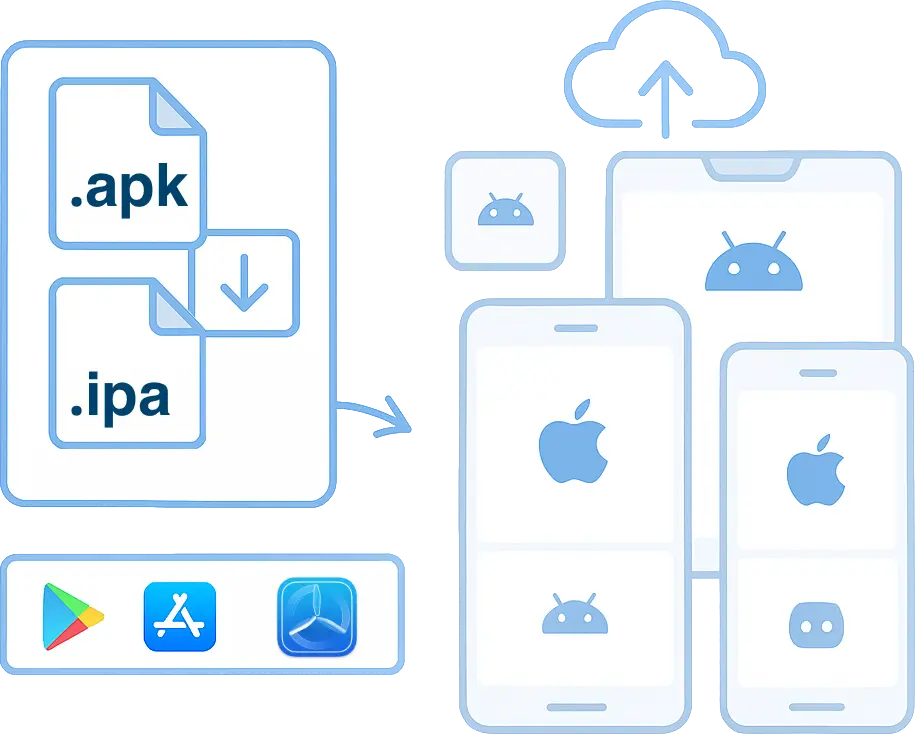
Trusted by some of the world's most innovative companies
## Reliable Device Farm
Get instant access to a fast, reliable device infrastructure.
### 24/7 device availability
Physical iOS and Android devices, available at any time of the day.
### Zero setup & Maintenance
Focus on testing instead of worrying about setup and maintenance of a mobile device farm.
### Security
Devices located in a datacenter in Europe. Each test runs on a secure and pristine device.
### Real Android and iOS devices
Test across real iPhone, iPads, Google, OnePlus, Xiaomi and Samsung phones and tabs.
### Variety of devices
Test on any device — flagship or budget — with support for the newest and legacy iOS and Android versions.
### Performance
Our infrastructure is built for performance to eliminate test flakiness and latency.
## Take control of a device
Interact with the remote mobile device, just as you would with a device in hand. Tap, scroll, zoom, swipe and more.

## Test native device features
Access and modify device features to test your app in various real-world conditions.
### Network Simulation
Test for scenarios like connectivity, fluctuating network & many more.
### Localization testing
Test your apps across different timezones, languages and geolocations.
### Dark Mode
Test your app's UI with a dark background to ensure a smooth user experience.
### App Orientation
Test your app in the landscape or portrait mode. Switch between orientations to test your app's response.
### Audio
Record and hear in realtime the audio generated on the device.
### Settings
Control various settings on the device.
## Control device
See realtime generated logs from the remote iOS/Android device.
Rotate the device, change its GPS location, modify the system language and more.
Inspect the logs for errors, crashes or stacktraces.
[Start free](https://testingbot.com/users/sign_up)
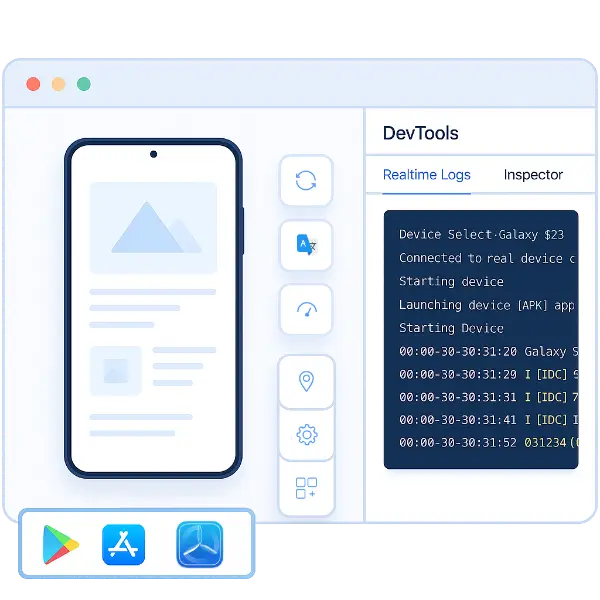
## Inspect your app
Find locators to use in your Automated Tests. TestingBot highlights the area in your layout while you go over the different elements in the layout hierarchy.
Easily locate XPath, XCUITest and Espresso locators which you can then use for Automated Testing.
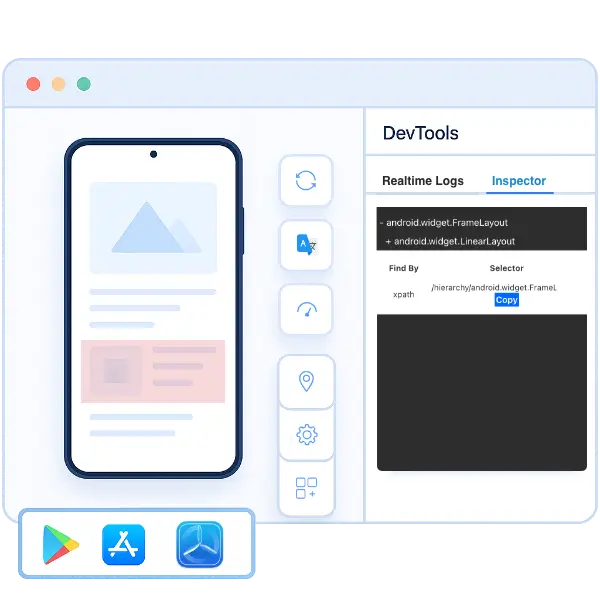
## TestingBot Storage
Upload your native mobile app, as an .apk or .ipa, to [TestingBot Storage](https://testingbot.com/support/api#upload) and start testing immediately.
[Start free](https://testingbot.com/users/sign_up)

## Your very own Mobile Devices
Choose your own iOS and Android devices. We will purchase these devices, install and configure them in our secure datacenter.
These devices will be only available to you, 24x7.
Private devices can be customised to your needs. Have us install specific profiles and apps, or change specific settings of the device. You decide.
[Learn more](https://testingbot.com/enterprise/private-device-cloud)

Secure Tunnel
## Test Staged Websites
Use the secure TestingBot Tunnel to easily test your staging and development environments across all browsers, ensuring seamless access behind firewalls or private networks.
Test data and websites from behind your firewall on the TestingBot cloud.

[Read more](https://testingbot.com/support/tunnel)
## Frequently Asked Questions
### Should I use a real device or an emulator?
TestingBot provides both emulators/simulators, as well as physical devices.
Emulators are good if you want to test basic functionality, but they do not provide the same experience as a real device.
We recommend using both real devices and emulators, depending on your needs.
### Where are the devices located?
TestingBot offers physical devices located in Belgium (Europe).
### Which apps can I test?
You can test any app that is available in the Apple App Store or Google Play Store.
You can also upload your own app (.ipa or .apk) and test it on a real device.
### More reasons to love TestingBot
### 24/7 support
Got questions? Ask in the 24/7 in-app customer [chat support](https://testingbot.com#) or [send us an email](https://testingbot.com/contact/new). We are here to help you!
TestingBot Support
Hey 👋 How can we help?
I need support
### Trusted by over 14,000 teams
6M+
Tests
120k+
Users
400+
Enterprises
106
Countries
[Request a demo](https://testingbot.com/demo)
### Developer Documentation
Everything you need to integrate TestingBot into your workflow. Browse guides, API references and SDKs for web and mobile testing.
- [Live Mobile App Testing documentation](https://testingbot.com/support/app-live)
- [Upload your mobile app](https://testingbot.com/support/app-automate/help/upload)
- [Preparing your app for testing](https://testingbot.com/support/app-automate/help/prepare)
- [List of mobile devices](https://testingbot.com/support/app-automate/devices)
[Explore Documentation](https://testingbot.com/support)
### Enterprise-grade Security
STAR Level 1
Certified
GDPR
Compliant
SAML SSO
Single Sign-On
99.99%
Uptime SLA
[Visit TestingBot Trust Center](https://trust.testingbot.com/)
### Sign up for a Free Trial
Start testing your apps with TestingBot.
[Start a free trial](https://testingbot.com/users/sign_up)
---
URL: https://testingbot.com/features/ai-testing
# AI Test Automation
Create automated tests in a fast and easy way. Generate tests in natural language with Gen AI. Generate your tests, replay on 6100+ browsers and mobile devices.
[Start free](https://testingbot.com/users/sign_up)[Request a demo](https://testingbot.com/demo)
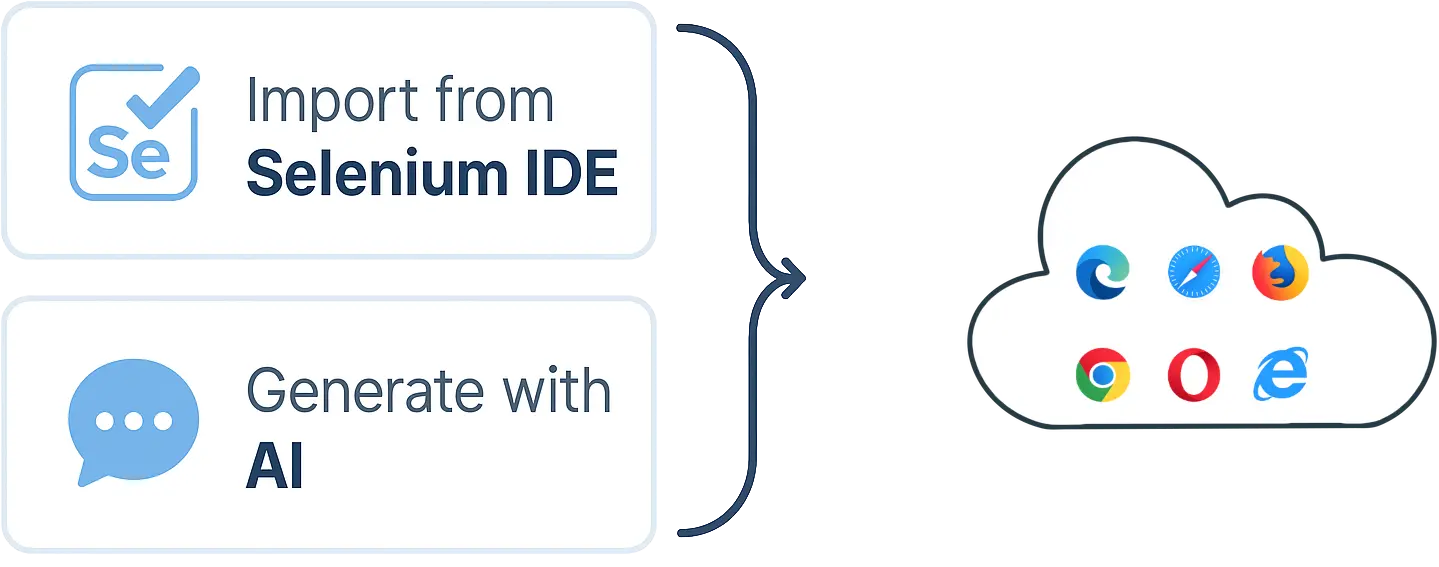
Trusted by some of the world's most innovative companies
## AI Testing
Describe in natural language what your test should do and let Gen AI create the test for you. Save time and resources from your developers and QA engineers by using AI to run tests against your website.
The AI Testing Agent will convert your prompt into an automated test, which you can then schedule to run periodically on remote browsers.
[Start free](https://testingbot.com/users/sign_up)
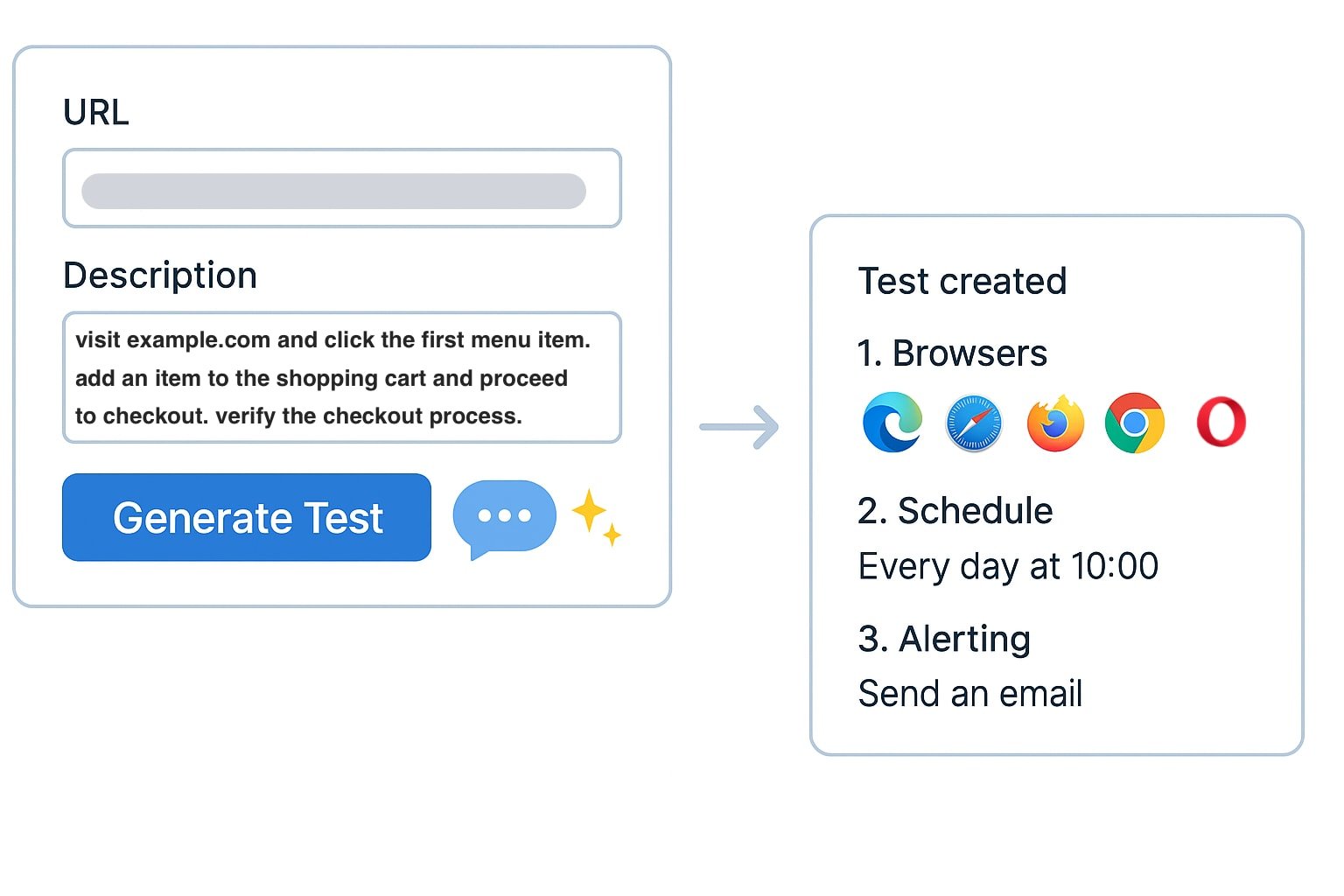
## Example AI usecases to Test Your Website
Use natural language prompts to check critical elements and flows on your site, using Generative AI.
### Shopping Cart
Prompt: Add a product to the shopping cart. Verify on the checkout page that the product is in the shopping cart.
### Handle OCR/Captcha's
Use the AI to handle OCR and captcha's. The AI will perform the necessary actions and validations.
### Skip Locators
The AI will not depend on locators such as XPath or CSS selectors. Simply define elements by their text, such as "Click the button that says 'Submit'".
### Conditional Actions
The AI will be able to perform conditional actions, such as "If the login is successful, check if the user is redirected to the dashboard page".
### Verify video playback
Check if a video is playing correctly on the page. The AI agent will verify the video playback and check for any errors.
### Graph Check
Prompt: Check that the page contains an image of a graph showing positive growth.
### Logo Presence
Prompt: Verify that the company's logo is visible in the page header.
### CTA Button Check
Prompt: Confirm the presence of a “Get Started” button that links to the signup page.
### Form Validation
Prompt: Ensure that submitting an empty form displays an error message.
## AI Chat
Chat with the AI Test Agent and instruct it to perform actions, such as clicking buttons, filling out forms, and verifying elements on the page.
Ask the AI to generate automated test scripts from the actions you specified. Export to Java, Kotlin, Python, C#, Selenium IDE, JavaScript, Ruby and more.
## Record tests
Import your recorded tests from Selenium IDE. TestingBot will run the tests periodically on the remote browsers you specified.
[Start free](https://testingbot.com/users/sign_up)
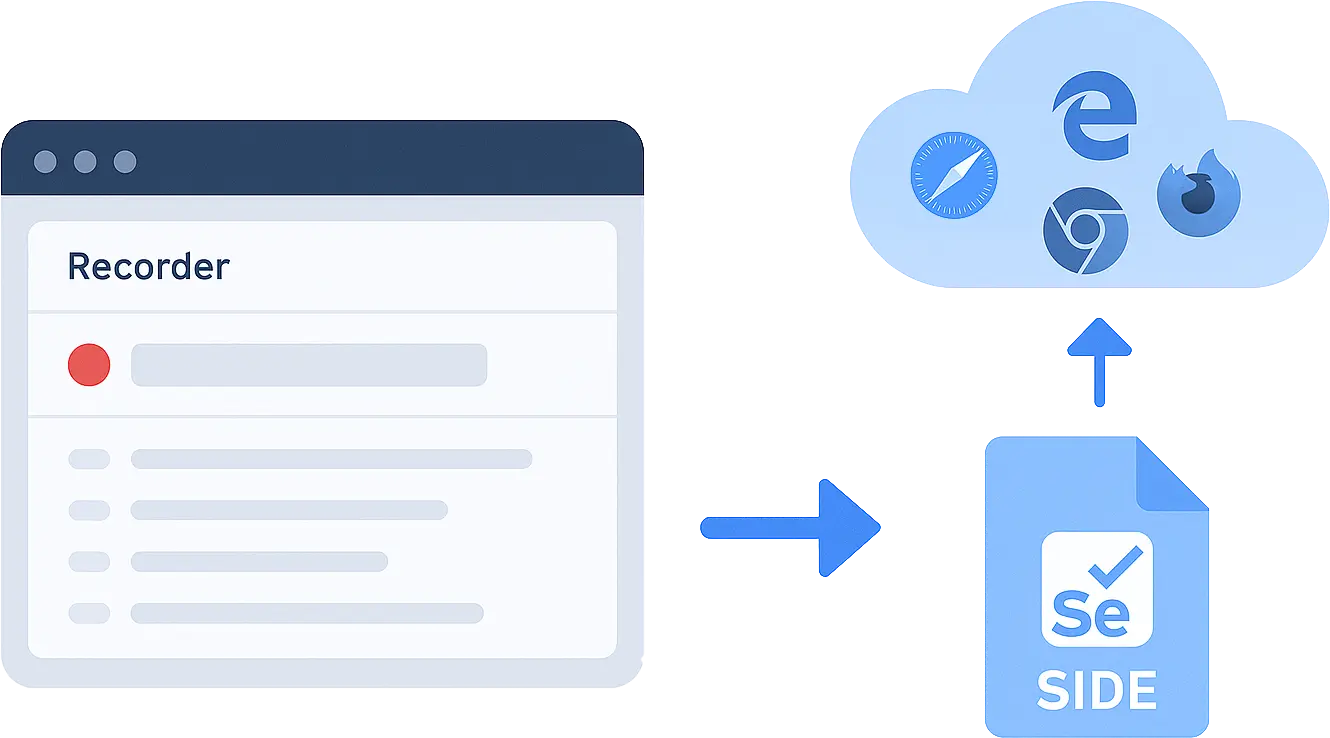
## AI Test Automation
Run tests without writing any code on the TestingBot platform.
### Browsers & OS
Select one or more browsers running on a specific operating system. Specify browser versions to target specific test environments.
### Schedule
Run tests periodically; every minute, hour, day or at a custom interval.
### Alert
When a test fails, you will receive email notifications or text messages.
### Reports
Receive daily reports on the progress of your tests.
### Settings
Set specific settings such as geolocation, screen resolution and more.
### Performance
The tests will run in parallel on TestingBot's performant browser grid.
## Schedule Tests
Schedule your tests to run on specific days and intervals.
Set a cron format to define the exact days and hours you want your tests to run in parallel on our browsers.
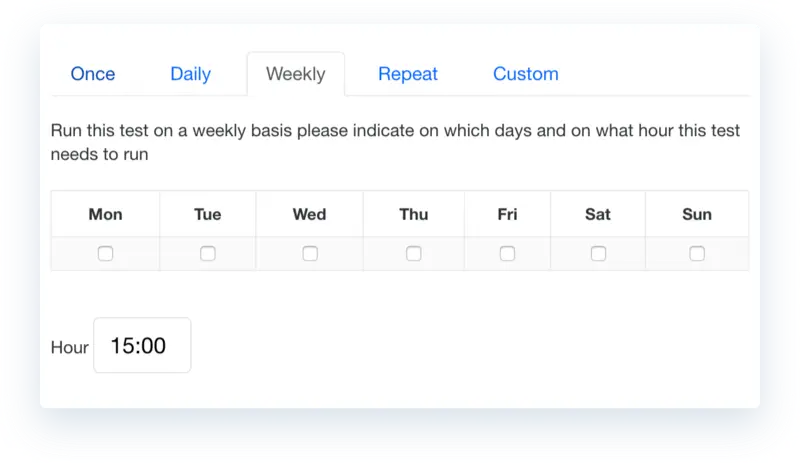
## Frequently Asked Questions
### How can I use AI to create automated tests?
TestingBot allows you to use LLMs to create automated tests in natural language. Simply describe what you want to test, and the AI will generate the test for you.
The AI will generate the test and instruct a remote browser to perform the necessary actions and validations.
### How can I record automated tests?
You can use the official Selenium IDE browser plugin to record your test flow. The recorded test can be imported into TestingBot for execution.
Once imported, you can choose the browsers and devices you want to run the test on, and schedule it to run periodically.
### What are some example AI prompts I can use to create tests?
You can use prompts like "Create a test that logs into my website" or "Create a test that checks if the homepage loads correctly".
Or check if an item can be added to a shopping cart - "Create a test that adds an item to the shopping cart and checks if the cart is updated correctly".
### Why should I use AI to create automated tests?
You can write tests in plain English. Some customers even import their user stories from other platforms such as TestRail, PractiTest or Zephyr into TestingBot AI. It is very easy to explain and understand what is being tested.
Because the TestingBot AI tests are not dependent on XPath or other brittle locators, they are ultra-stable. Customers are running hundreds of tests multiple times a day without a single failure.
### Ready to start AI Testing?
Check out the [codeless testing documentation](https://testingbot.com/support/web-automate/codeless-automation/add-test) to get started.
[View documentation](https://testingbot.com/support/web-automate/codeless-automation/add-test)
Resources you may like
[](https://testingbot.com/blog/testingbot-ai-agent)
### [Generative AI test agent](https://testingbot.com/blog/testingbot-ai-agent)
TestingBot has launched an AI Test Agent that will help you to create automated tests
[Read more](https://testingbot.com/blog/testingbot-ai-agent)
[](https://testingbot.com/blog/codeless-automation-ios-android)
### [Codeless Web Automation on iOS and Android](https://testingbot.com/blog/codeless-automation-ios-android)
We now offer Codeless Automation for websites on iOS Simulators and Android Emulators.
[Read more](https://testingbot.com/blog/codeless-automation-ios-android)
### More reasons to love TestingBot
### 24/7 support
Got questions? Ask in the 24/7 in-app customer [chat support](https://testingbot.com#) or [send us an email](https://testingbot.com/contact/new). We are here to help you!
TestingBot Support
Hey 👋 How can we help?
I need support
### Trusted by over 14,000 teams
6M+
Tests
120k+
Users
400+
Enterprises
106
Countries
[Request a demo](https://testingbot.com/demo)
### Developer Documentation
Everything you need to integrate TestingBot into your workflow. Browse guides, API references and SDKs for web and mobile testing.
- [Quickstart tutorials for Selenium](https://testingbot.com/support/web-automate/selenium)
- [Appium Examples](https://testingbot.com/support/app-automate/appium)
- [Integrations](https://testingbot.com/support/integrations)
- [List of browsers & devices](https://testingbot.com/support/web-automate/browsers)
[Explore Documentation](https://testingbot.com/support)
### Enterprise-grade Security
STAR Level 1
Certified
GDPR
Compliant
SAML SSO
Single Sign-On
99.99%
Uptime SLA
[Visit TestingBot Trust Center](https://trust.testingbot.com/)
---
URL: https://testingbot.com/features/accessibility-testing
# Web Accessibility Testing
TestingBot provides automated accessibility testing to help ensure your web applications comply with WCAG standards and are accessible to all users.
Schedule recurring tests, receive detailed reports with actionable insights, and improve your application's accessibility with ease.
[Start free](https://testingbot.com/users/sign_up)[Request a demo](https://testingbot.com/demo)

Trusted by some of the world's most innovative companies
## Automated Accessibility Testing
Identify and fix accessibility issues across your websites and web apps.
Ensure WCAG compliance and deliver an inclusive experience for all users.
### WCAG Compliance
Test your web applications against Web Content Accessibility Guidelines (WCAG) to ensure compliance.
### Scheduled Testing
Configure one-time or recurring tests on a daily, weekly, or monthly basis to catch accessibility issues early.
### Detailed Reports
Receive comprehensive reports with detailed information about each accessibility violation and recommended fixes.
### Customizable Alerts
Set up notifications via email, webhooks, or SMS when accessibility issues are detected.
### Severity Classification
Prioritize accessibility issues with clear severity labels to focus on the most critical problems first.
### Secure Testing
Test locally hosted and authenticated pages securely using the [TestingBot Tunnel](https://testingbot.com/support/tunnel).
## Accessibility Testing is Essential
Make your web applications accessible to all users and comply with regulations.
### Legal Compliance
Meet legal requirements, such as the European Accessibility Act (EAA) to avoid any penalties.
### Broader Audience
Reach more users by making your applications accessible to people with disabilities, who represent about 15% of the global population.
### Improved SEO
Boost your search engine rankings as accessibility improvements often align with SEO best practices.
### Better User Experience
Create a better experience for all users by implementing accessibility best practices that often improve usability for everyone.
## Detailed Accessibility Reports
Receive comprehensive reports that identify accessibility issues with detailed information about each violation, its severity and recommendations for fixing the issue.
[Start free](https://testingbot.com/users/sign_up)


## WCAG Compliance Testing
Automatically test your web applications against WCAG guidelines to ensure they are accessible to users with disabilities and comply with international standards.
[Read more](https://testingbot.com/support/accessibility/web/rules)
## Scheduled Accessibility Tests
Configure one-time or recurring accessibility tests on a daily, weekly, or monthly basis to continuously monitor your web applications for accessibility issues.
[Read more](https://testingbot.com/support/accessibility/web/scheduled)
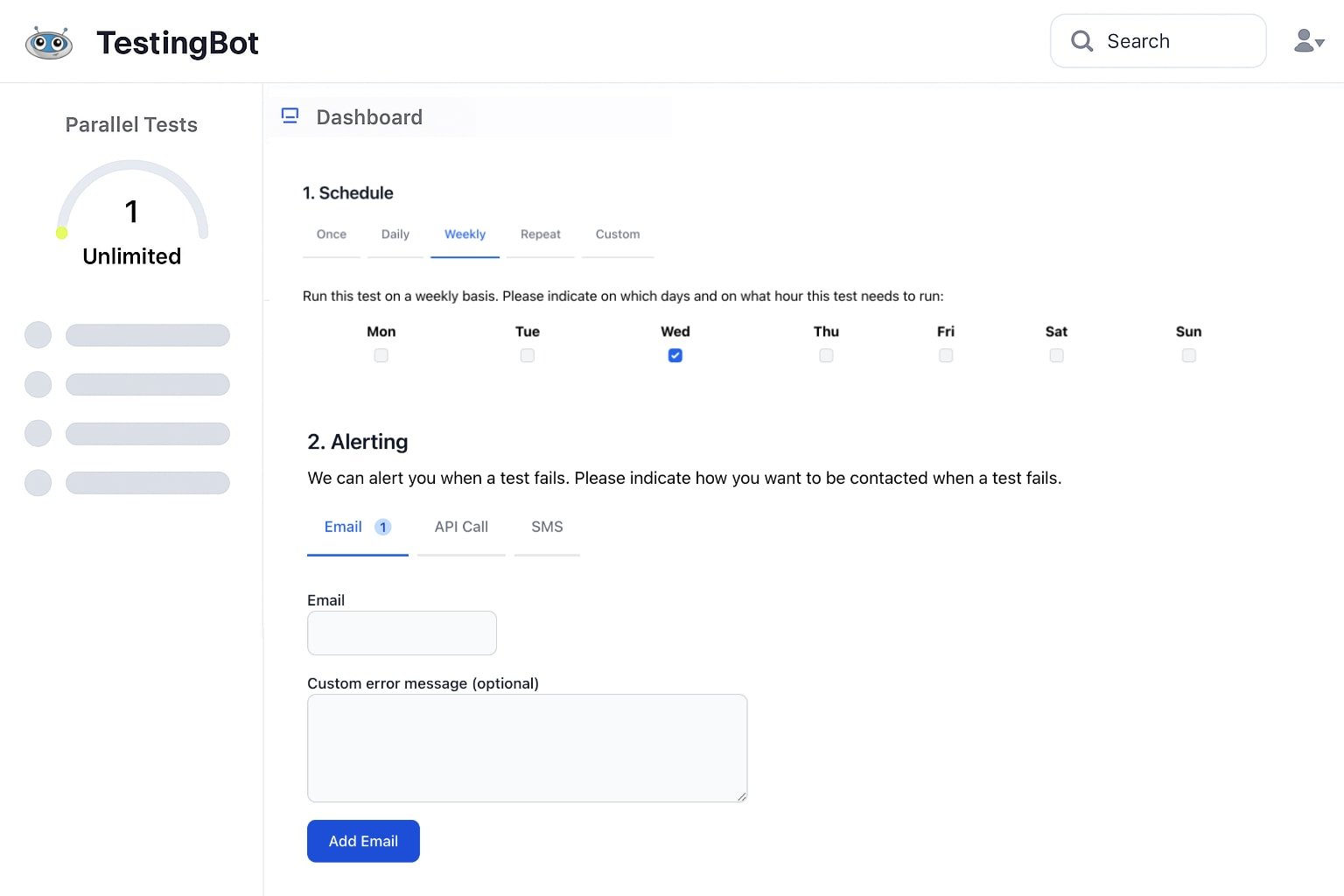
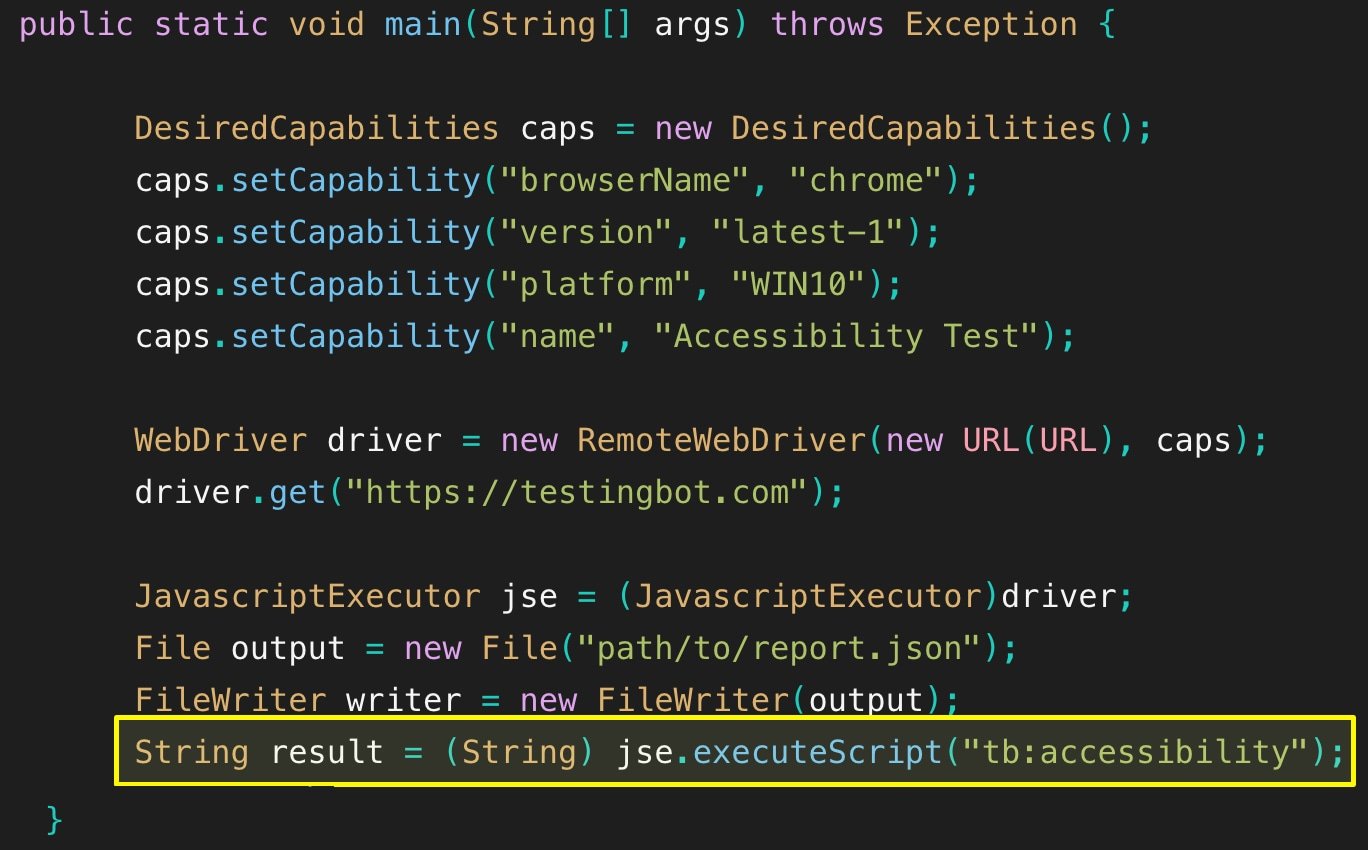
## Integrate into your existing tests
With a few lines of code, you can check for accessibility issues during your automated Selenium tests. No custom SDK, library or framework required.
[Read more](https://testingbot.com/support/accessibility/web/selenium)
### Sign up for a Free Trial
Start testing your apps with TestingBot.
[Start a free trial](https://testingbot.com/users/sign_up)
Resources you may like
[](https://testingbot.com/resources/articles/why-accessibility-testing)
### [Why is accessibility testing important in web design?](https://testingbot.com/resources/articles/why-accessibility-testing)
Find out why it's important to think about accessibility when designing your webpages.
[Read more](https://testingbot.com/resources/articles/why-accessibility-testing)
[](https://testingbot.com/blog/automated-accessibility-testing)
### [Automated Accessibility Testing with TestingBot](https://testingbot.com/blog/automated-accessibility-testing)
Start testing for accessibility issues with TestingBot and Axe.
[Read more](https://testingbot.com/blog/automated-accessibility-testing)
---
URL: https://testingbot.com/features/headless
# Headless Browsers
Connect AI agents and test scripts to remote, headless browsers.
Perform automated browser actions, simulate user interactions or perform data-driven tasks with full browser capabilities and zero setup.
[Start free](https://testingbot.com/users/sign_up)[Request a demo](https://testingbot.com/demo)
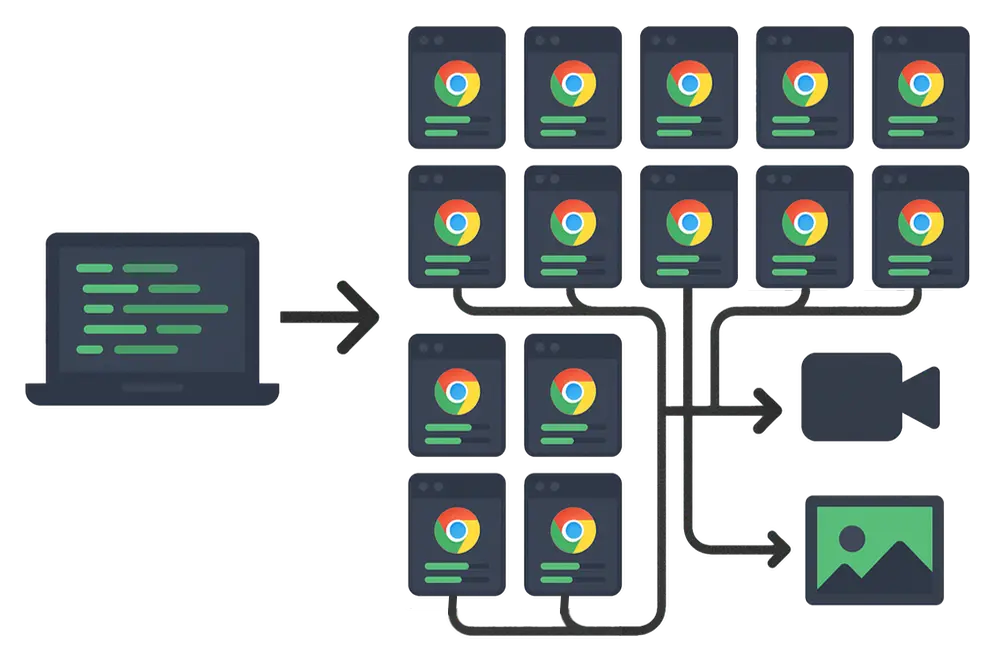
Trusted by some of the world's most innovative companies
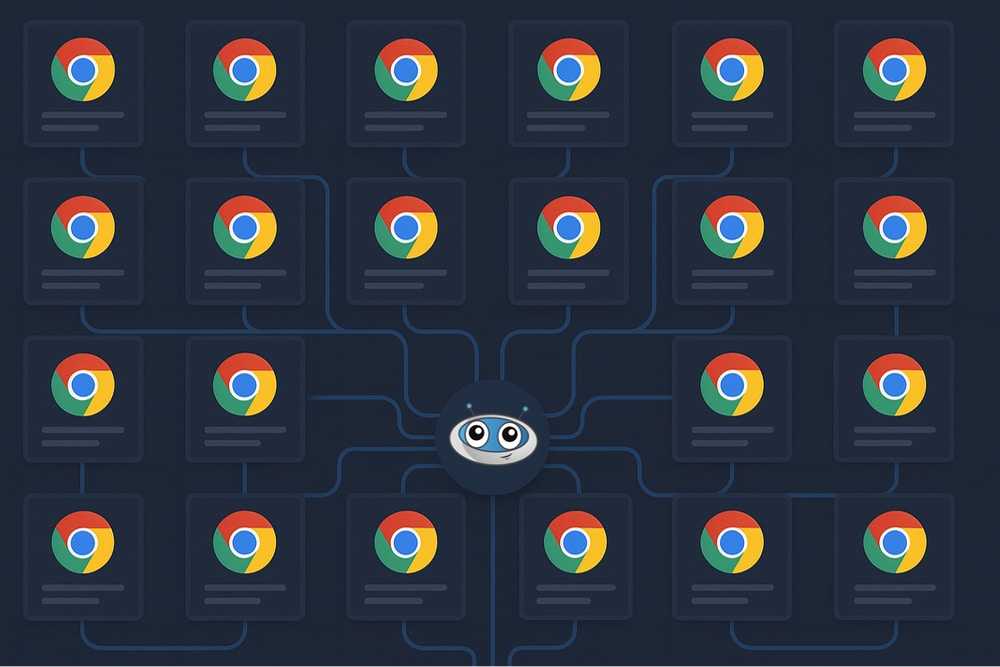
## How it works
TestingBot takes care of the setup and maintenance of the headless browsers. Run your sessions in parallel on our cloud-based grid, optimized for speed and performance.
Take advantage of a high performance platform, with low latency and fast browser startup times.
Extract HTML, bypass bot detectors and use user-in-the-loop functionality with Hybrid Automations.
[Start free](https://testingbot.com/users/sign_up)
## Browser Frameworks
These automation frameworks support running headless sessions.
[](https://testingbot.com/features/automation/selenium)
### [Selenium](https://testingbot.com/features/automation/selenium)
Popular Browser Automation Framework, using WebDriver, which supports all major browsers.
[](https://testingbot.com/features/automation/puppeteer)
### [Puppeteer](https://testingbot.com/features/automation/puppeteer)
Chrome DevTools based Automation Framework by Google. Supports Chrome and Edge browsers.
[](https://testingbot.com/features/automation/playwright)
### [Playwright](https://testingbot.com/features/automation/playwright)
Similar to Puppeteer, built by Microsoft, with support for Chrome and Edge.

## Instrument native, remote browsers with speed.
Take advantage of increased performance and speed with headless browsers. Test, scrape or fetch information from websites with real browsers. Feed data to your AI agents.
[Start free](https://testingbot.com/users/sign_up)
## Parallel Sessions
Drastically improve your workflow by running sessions simultaneously. TestingBot provides single-use machines on Windows, Linux and macOS, optimized for speed and stability.
[Start free](https://testingbot.com/users/sign_up)

## Video, screenshots & logs
Every browser comes with access to generated logs, monitoring, videos and screenshots.
[Start free](https://testingbot.com/users/sign_up)


## Remote Browser Functions
Use TestingBot Functions to easily scrape URLs, automate actions, generate PDFs/screenshots and more.
[Read more](https://testingbot.com/support/functions)
### More reasons to love TestingBot
### 24/7 support
Got questions? Ask in the 24/7 in-app customer [chat support](https://testingbot.com#) or [send us an email](https://testingbot.com/contact/new). We are here to help you!
TestingBot Support
Hey 👋 How can we help?
I need support
### Trusted by over 14,000 teams
6M+
Tests
120k+
Users
400+
Enterprises
106
Countries
[Request a demo](https://testingbot.com/demo)
### Developer Documentation
Everything you need to integrate TestingBot into your workflow. Browse guides, API references and SDKs for web and mobile testing.
- [Quickstart for Playwright](https://testingbot.com/support/web-automate/playwright)
- [Run Puppeteer on TestingBot](https://testingbot.com/support/web-automate/puppeteer)
- [Functions: scrape, take screenshots and serverless functions](https://testingbot.com/support/functions)
- [Playwright Recorder](https://testingbot.com/support/web-automate/playwright/recorder)
[Explore Documentation](https://testingbot.com/support)
### Enterprise-grade Security
STAR Level 1
Certified
GDPR
Compliant
SAML SSO
Single Sign-On
99.99%
Uptime SLA
[Visit TestingBot Trust Center](https://trust.testingbot.com/)
### Ready to start your first headless browser session?
Please see the [Playwright documentation](https://testingbot.com/support/web-automate/playwright) to get started.
[View documentation](https://testingbot.com/support/web-automate/playwright)
Resources you may like
[](https://testingbot.com/resources/articles/automated-testing-with-puppeteer)
### [Automated Testing with Puppeteer](https://testingbot.com/resources/articles/automated-testing-with-puppeteer)
Puppeteer combined with a test framework provides a great way to run automated browser tests. Follow this guide for more information.
[Read more](https://testingbot.com/resources/articles/automated-testing-with-puppeteer)
[](https://testingbot.com/resources/articles/playwright-visual-regression-testing)
### [Visual Testing with Playwright](https://testingbot.com/resources/articles/playwright-visual-regression-testing)
Playwright provides automated browser testing. It offers a built-in feature to perform visual regression testing for your website.
[Read more](https://testingbot.com/resources/articles/playwright-visual-regression-testing)
[](https://testingbot.com/blog/puppeteer-cloud-testing)
### [Puppeteer Testing in the Cloud](https://testingbot.com/blog/puppeteer-cloud-testing)
Start running Puppeteer tests in the cloud with TestingBot.
[Read more](https://testingbot.com/blog/puppeteer-cloud-testing)
---
URL: https://testingbot.com/features/screenshot-testing
# Automated Visual UI Regression Testing
Detect and fix visual issues on your webpages and mobile apps before they impact users. Leverage TestingBot's codeless visual UI testing to get instant alerts whenever a visual discrepancy is detected on your site.
[Start free](https://testingbot.com/users/sign_up)[Request a demo](https://testingbot.com/demo)

Trusted by some of the world's most innovative companies
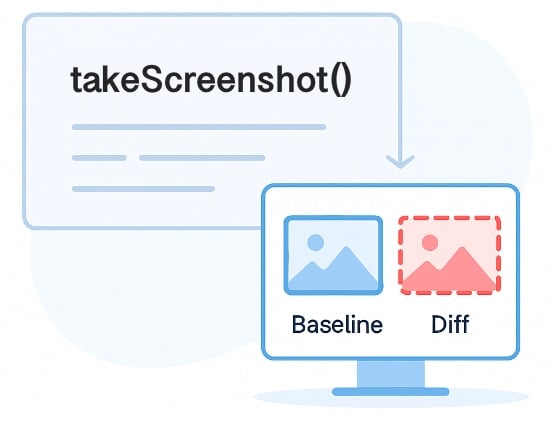
## Effortless Visual Regression Testing
Enable visual regression testing in your existing test framework with a single line of code. Quickly detect layout shifts, UI inconsistencies and visual regressions during your test.
Or enter the URLs you would like to monitor. TestingBot will take screenshots on regular intervals and alert you when a change is detected.
[Start free](https://testingbot.com/users/sign_up)
## Review and Approve Visual Regressions
You and your team can review visual test results, approving or rejecting specific UI changes. Use a slider to compare the baseline and new screenshots or analyze a diff image highlighting the differences.
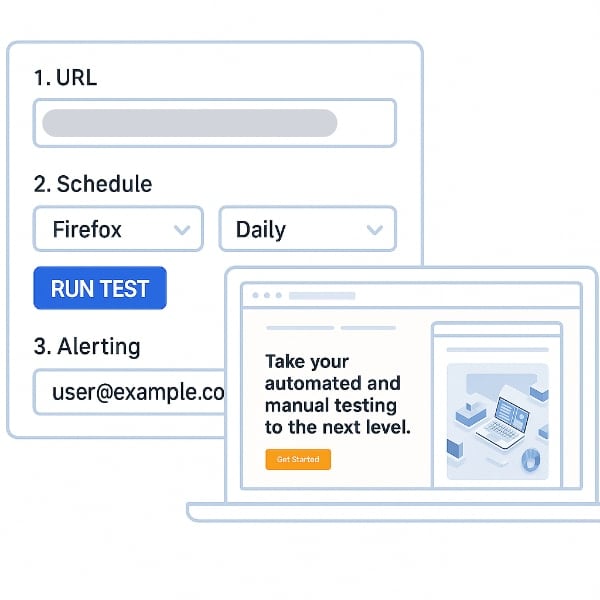
## Codeless Visual UI Testing
Start identifying UI defects on your website in minutes. Just enter your URL, select the browsers you want to test on, and set the testing frequency. Customize alerts to get notified instantly when issues are detected.
When a visual change occurs, you'll receive an instant alert with a screenshot and a diff image highlighting the differences. Keep your UI and UX flawless by catching unexpected changes early.
[Start free](https://testingbot.com/users/sign_up)
## Optimized for accuracy
We built visual testing with accuracy in mind, preventing false-positives during the UI verification process.
### Freeze animations and videos
Animations and videos are temporarily frozen during the visual snapshot, to prevent false positives.
### Ignore UI elements
We ignore certain UI elements that are prone to change and are irrelevant to the screenshot.
### Pixel Perfect Screenshots
Take full-page, above the fold or chromeless screenshots of your website across hundreds of browsers and devices at once.
## Test Automation Frameworks
TestingBot's UI testing seamlessly integrates with Selenium, Appium, Puppeteer and Playwright. Just add a single line of code to enhance your existing tests with automated visual regression testing.
[](https://testingbot.com/support/visual-testing/automated/selenium)
### [Selenium](https://testingbot.com/support/visual-testing/automated/selenium)
Popular Browser Automation Framework, using WebDriver, which supports all major browsers.
[](https://testingbot.com/support/visual-testing/automated/appium)
### [Appium](https://testingbot.com/support/visual-testing/automated/appium)
Mobile Automation Framework, using WebDriver, runs on physical devices and simulators/emulators.
[](https://testingbot.com/support/visual-testing/automated/playwright)
### [Playwright](https://testingbot.com/support/visual-testing/automated/playwright)
Similar to Puppeteer, built by Microsoft, with support for Chrome and Edge.
[](https://testingbot.com/support/visual-testing/automated/puppeteer)
### [Puppeteer](https://testingbot.com/support/visual-testing/automated/puppeteer)
Chrome DevTools based Automation Framework by Google. Supports Chrome and Edge browsers.
## Frequently Asked Questions
### How can I use this to spot visual defects?
TestingBot performs automated pixel-by-pixel comparisons between an image that you marked as correct and a new screenshot that was just taken. If the amount of different pixels exceeds the threshold, the test is considered as failed.
This can happen when you deploy a new version of your website that has an incorrect CSS styling, positioning or is missing from the page. Catch visual bugs before these cause harm to the UX of your webpages.
### Why can’t functional tests cover visual problems?
You can test for dimensions, positioning and styling with regular functional tests. The disadvantage is that it will soon become a huge burden of checkpoints in your code.
Instead of doing the visual checks in your code, it is much more efficient to take snapshots and compare these. The visual results are also much more easily interpreted by developers and QA.
### When Should I Use Visual Testing?
Ideally you would run visual checks as part of your CI/CD pipeline. It could be run after each check-in of front-end code, making sure new code does not negatively impact your product.
### Can AI be used for visual testing?
Machine learning algorithms can be trained to discover visual differences. AI depends on trained data, so it may report false positives/negatives. It is not a Not a One-Size-Fits-All solution and often fails in comparison with exact pixel matching.
### How does Snapshot Testing work?
Snapshot Testing in the context of visual testing for UI on webpages, captures screenshots of the initial state of a webpage. It then compares them against subsequent renders. Tests are considered failed when one or more changes in visual appearance occur. This helps to ensure that UI elements remain consistent.
### Sign up for a Free Trial
Start visually testing your apps and websites with TestingBot.
[Start a free trial](https://testingbot.com/users/sign_up)
Resources you may like
[](https://testingbot.com/resources/articles/python-visual-testing)
### [Visual Regression Testing with Python](https://testingbot.com/resources/articles/python-visual-testing)
Find out how to do automated visual UI testing with the power of Python and TestingBot.
[Read more](https://testingbot.com/resources/articles/python-visual-testing)
[](https://testingbot.com/resources/articles/angular-ui-testing)
### [Angular UI Testing](https://testingbot.com/resources/articles/angular-ui-testing)
Learn more about using Visual UI Testing in combination with Cypress to test Angular UI apps.
[Read more](https://testingbot.com/resources/articles/angular-ui-testing)
[](https://testingbot.com/blog/visual-regression-testing)
### [Visual Regression Testing](https://testingbot.com/blog/visual-regression-testing)
Learn about TestingBot's visual testing feature, allowing you to easily compare layouts across browsers and devices.
[Read more](https://testingbot.com/blog/visual-regression-testing)
---
URL: https://testingbot.com/features/automation/puppeteer
Puppeteer cloud
# Run Puppeteer on a real browser cloud
Point your existing Puppeteer scripts at TestingBot's grid and run them across real Chrome and Edge on Windows, macOS and Linux. Massive parallelism, video & log artifacts, GDPR-compliant with EU data residency.
[Start free](https://testingbot.com/users/sign_up)[Request a demo](https://testingbot.com/demo)
Browsers & OSesChrome · Edge
Parallel sessions100
Uptime SLA99.99%
Puppeteer·test.spec.js
cloud.testingbot.com
// Connect Puppeteer to TestingBot's cloudconstpuppeteer=require('puppeteer-core');constcaps={browserName:'chrome',browserVersion:'latest',platform:'WIN11','tb:options': {key:'KEY',secret:'SECRET'},
};constbrowser=awaitpuppeteer.connect({browserWSEndpoint:`wss://cloud.testingbot.com?caps=${encodeURIComponent(JSON.stringify(caps))}`,
});
chrome · edge parallel sessions:10 ✓ tests passed
Trusted by some of the world's most innovative companies
30-second answer
## Why run Puppeteer on TestingBot?
Real Chrome and Edge
TestingBot runs your Puppeteer scripts against real Chrome and Edge on real Windows, macOS and Linux machines. No more "works in headless Chromium on my laptop" surprises.
Massive parallelism
Fan out to up to 100 concurrent Puppeteer sessions, each in its own single-use VM. Headless or headful, your choice per session.
Recorder & extras
Use the Puppeteer Recorder to generate scripts without writing a line of code. Test browser extensions, web scrape and run cross-browser parallel suites from the same dashboard.
What is Puppeteer?
## Puppeteer in 60 seconds

### Puppeteer
Released 2017 · Chrome DevTools team · Apache 2.0
Puppeteer is a Node.js library from the Chrome DevTools team that drives Chrome and Chromium through the DevTools Protocol. It was the original "headless Chrome" automation library and remains the fastest way to script Chrome from JavaScript.
Puppeteer ships first-class APIs for screenshots, PDFs, network interception, performance traces and page metrics. It is the canonical choice for Chrome-first end-to-end testing, web scraping and headless rendering pipelines.
- Node.js library, JavaScript / TypeScript
- Chrome, Chromium and Edge via the DevTools Protocol
- First-class screenshots, PDFs and network interception
- Headless and headful, single API
- Maintained by the Chrome DevTools team
5-line setup
## Point your scripts at the TestingBot grid
Reuse your existing Puppeteer code. Connect to TestingBot's WebSocket endpoint and your scripts run on real Chrome and Edge in parallel.
connect.jsstep 1
// Connect Puppeteer to TestingBot's cloudconstpuppeteer=require('puppeteer-core');constcaps={browserName:'chrome',browserVersion:'latest',platform:'WIN11','tb:options': {key:'KEY',secret:'SECRET'},
};constbrowser=awaitpuppeteer.connect({browserWSEndpoint:`wss://cloud.testingbot.com?caps=${encodeURIComponent(JSON.stringify(caps))}`,
});
login.spec.jsstep 2
// Your existing Puppeteer script, unchangedconstpage=awaitbrowser.newPage();awaitpage.goto('https://app.example.com/login');awaitpage.type('#user','jane');awaitpage.type('#pwd','••••');awaitPromise.all([page.click('#go'),page.waitForNavigation(),
]);awaitpage.screenshot({path:'dashboard.png'});awaitbrowser.close();
See the full [Puppeteer on TestingBot documentation](https://testingbot.com/support/web-automate/puppeteer) for capabilities, video recording and parallel options.
Local vs cloud
## Local Puppeteer vs TestingBot
Puppeteer is fast on a laptop until you need scale, multiple OSes or real Edge. Here is how a hosted cloud compares.
| Capability | TestingBot | Local Puppeteer |
| --- | --- | --- |
| Browser coverage |
Real Chrome and Edge across versions
|
Whatever you have installed locally
|
| Operating systems |
Real Windows, macOS and Linux
|
Your single dev machine
|
| Parallel scaling |
Up to 100 concurrent sessions, on demand
|
Capped by your CPU and RAM
|
| Video & logs |
HD video, console logs, screenshots included
|
Roll your own recording & log capture
|
| Test private & staging environments |
Built-in secure tunnel
|
Direct access only, no secure remote sharing
|
| EU data residency |
Yes, GDPR-compliant
|
Whatever country your laptop is in
|
| Reliability |
99.99% uptime SLA, 24/7 monitoring
|
Crashes when you close the lid
|
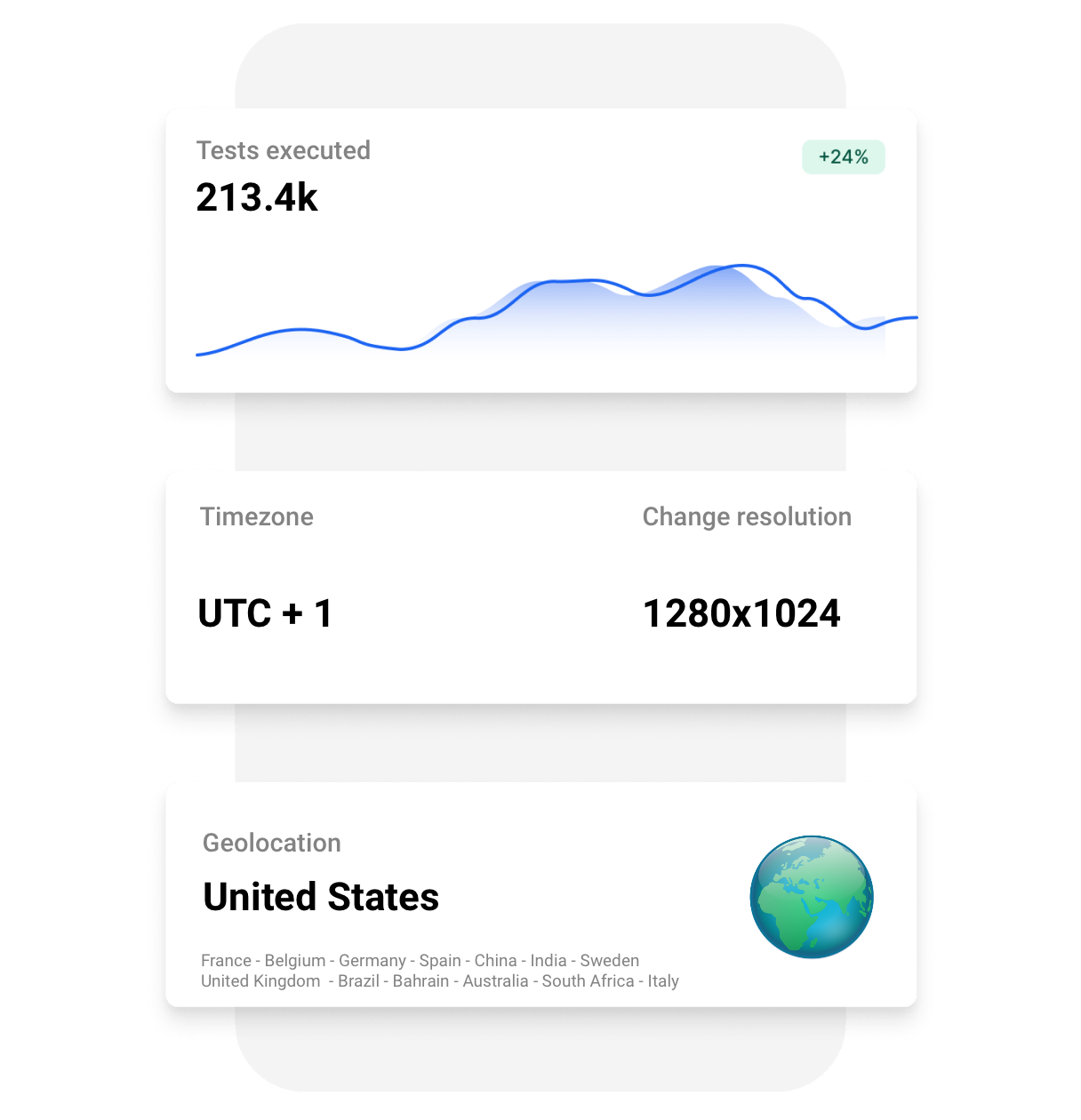
Test artifacts
## Video, screenshots and logs out of the box
Every Puppeteer session ships with a full HD video, browser console log and screenshots. Inspect a failure without re-running the test.
Mark sessions as passed or failed from your script, fetch artifacts via our [REST API](https://testingbot.com/support/api), and ship results back to Jira, Slack or your CI of choice.
- Full HD video for every session
- Console and DevTools logs
- Screenshots and PDFs on demand
- Custom screen resolution, timezone and locale
- Browser startup flags and [many more options](https://testingbot.com/support/web-automate/puppeteer/options)
Languages & runners
## Puppeteer integrations for every stack
Puppeteer is Node-first, but the same scripts run from Jest, WebDriverIO and CodeceptJS, plus Python via Pyppeteer and Go via chromedp. All point at the same TestingBot endpoint.
-
### [Node.js](https://testingbot.com/support/web-automate/puppeteer/capabilities)
- [Quickstart](https://testingbot.com/support/web-automate/puppeteer)
- [Capabilities](https://testingbot.com/support/web-automate/puppeteer/capabilities)
- [Browser flags](https://testingbot.com/support/web-automate/puppeteer/options)
- [Test results](https://testingbot.com/support/web-automate/puppeteer/test-results)
-
### [Jest](https://testingbot.com/support/web-automate/puppeteer/jest)
- [Jest with Puppeteer](https://testingbot.com/support/web-automate/puppeteer/jest)
-
### [WebDriverIO](https://testingbot.com/support/web-automate/puppeteer/webdriverio)
- [WebDriverIO + Puppeteer](https://testingbot.com/support/web-automate/puppeteer/webdriverio)
-
### [CodeceptJS](https://testingbot.com/support/web-automate/puppeteer/codeceptjs)
- [CodeceptJS setup](https://testingbot.com/support/web-automate/puppeteer/codeceptjs)
-
### [Python · PyTest](https://testingbot.com/support/web-automate/puppeteer/pytest)
- [PyTest with Pyppeteer](https://testingbot.com/support/web-automate/puppeteer/pytest)
-
### [Go · chromedp](https://testingbot.com/support/web-automate/puppeteer/chromedp)
- [chromedp setup](https://testingbot.com/support/web-automate/puppeteer/chromedp)
Looking for use-case guides? Read our [Puppeteer Recorder](https://testingbot.com/support/web-automate/puppeteer/recorder), [web scraping](https://testingbot.com/support/web-automate/puppeteer/scraping), [browser extension testing](https://testingbot.com/support/web-automate/puppeteer/browser-extension-testing) and [parallel testing](https://testingbot.com/support/web-automate/puppeteer/puppeteer-parallel-testing) guides.
Massive parallelism
## Cut Puppeteer suite time from hours to minutes
Run hundreds of Puppeteer sessions in parallel across single-use VMs. Headless or headful, same scripts, a fraction of the wall-clock time.
- Up to 100 concurrent Puppeteer sessions
- Sessions start in seconds, no warm-up
- Headless or headful, switchable per session
[Read more](https://testingbot.com/support/web-automate/puppeteer/puppeteer-parallel-testing)

Live exit nodes
10+ countries
🇺🇸United States
🇬🇧United Kingdom
🇩🇪Germany
🇫🇷France
🇪🇸Spain
🇧🇪Belgium
🇦🇺Australia
🇨🇳China
🇯🇵Japan
Geolocation testing
## Test Puppeteer scripts from 10+ countries
Run Puppeteer scripts from real exit nodes around the world. Verify **geo-targeting** , **geo-blocking** and **localisation** from the United States, the United Kingdom, Germany, France, Spain, Belgium, Australia, China, Japan and more.
Secure infrastructure
## Real machines. Single-use. Zero leaks.
Each Puppeteer session runs in a brand-new, single-use virtual machine on a real operating system. The VM is destroyed the moment your script ends: nothing is reused, nothing leaks across customers.
SOC 2-aligned, GDPR-compliant with EU data residency, SAML SSO and audit logs available for enterprise teams.
- Single-use VMs, wiped after every session
- GDPR-compliant, EU data residency available
- SAML SSO, audit logs and SCIM provisioning
[Visit TestingBot Trust Center](https://trust.testingbot.com/)
1. 1
Script connects to `cloud.testingbot.com`
A pristine VM is provisioned in seconds, just for your session.
2. 2
Puppeteer drives a real Chrome or Edge
Real Windows, macOS or Linux, never simulated, never shared.
3. 3
VM destroyed the moment your script ends
Cookies, files, browser state, all wiped. Nothing is ever reused.
Continuous integration
## Plug Puppeteer into your CI/CD in minutes
TestingBot integrates with every major CI/CD tool. Trigger Puppeteer runs on every commit and stream videos and logs back into your build dashboards.
[

### Jenkins
](https://testingbot.com/support/integrations/ci-cd/jenkins)[

### Bamboo
](https://testingbot.com/support/integrations/ci-cd/bamboo)[

### TeamCity
](https://testingbot.com/support/integrations/ci-cd/teamcity)[

### CircleCI
](https://testingbot.com/support/integrations/ci-cd/circleci)[

### GitLab CI
](https://testingbot.com/support/integrations/ci-cd/gitlab)[

### GitHub
](https://testingbot.com/support/integrations/ci-cd/github-actions)
Secure Tunnel
## Test internal & staging apps securely
Use our [secure tunnel](https://testingbot.com/support/tunnel) to run Puppeteer scripts against firewalled staging sites, internal dashboards or apps still on localhost.
Encrypted end-to-end, no inbound firewall rules required, ready out of the box for popular CI providers.

[Read more](https://testingbot.com/support/tunnel)
FAQ
## Puppeteer on TestingBot — frequently asked questions
Why run Puppeteer on TestingBot instead of locally?
Locally you are capped by your laptop or CI runner. TestingBot gives you up to 100 parallel Puppeteer sessions on real Chrome and Edge across real Windows, macOS and Linux machines, with HD video and console logs collected automatically.
Which Puppeteer versions are supported?
TestingBot supports every supported Puppeteer release. You can pin a specific Puppeteer version per-test using capabilities.
Can I run Puppeteer tests in parallel?
Yes. Plans on TestingBot include up to 100 parallel Puppeteer sessions. Each session runs in its own single-use VM, so scripts do not interfere with one another.
Can I use Puppeteer with Jest, WebDriverIO or CodeceptJS?
Yes. We have dedicated guides for [Jest](https://testingbot.com/support/web-automate/puppeteer/jest), [WebDriverIO](https://testingbot.com/support/web-automate/puppeteer/webdriverio) and [CodeceptJS](https://testingbot.com/support/web-automate/puppeteer/codeceptjs), plus Python via [PyTest](https://testingbot.com/support/web-automate/puppeteer/pytest) and Go via [chromedp](https://testingbot.com/support/web-automate/puppeteer/chromedp).
How is Puppeteer different from Selenium and Playwright?
Puppeteer is Chrome-first and Node-first, with a smaller, snappier API than Selenium and a narrower scope than Playwright. Pick Puppeteer when you only need Chrome/Edge and want speed, screenshots, PDFs and network control with minimum ceremony. TestingBot supports all three on the same grid.
Can I record Puppeteer scripts without writing code?
Yes, use the [Puppeteer Recorder](https://testingbot.com/support/web-automate/puppeteer/recorder) to capture clicks, types and assertions, then run the resulting script on the TestingBot grid.
Can I test internal or staged sites?
Yes, install our [secure tunnel](https://testingbot.com/support/tunnel) and your Puppeteer scripts can reach staging environments, localhost or anything else behind your firewall.
Is the Puppeteer cloud GDPR / SOC 2 compliant?
TestingBot is GDPR-compliant with EU data residency, ISO 27001 aligned and STAR Level 1 certified. We offer SAML SSO, SCIM and audit logs on enterprise plans.
## Ready to scale your Puppeteer testing?
Read our [Puppeteer Cloud Testing](https://testingbot.com/support/web-automate/puppeteer) documentation and run your first script in under 5 minutes.
[Start a free trial](https://testingbot.com/users/sign_up)
Resources you may like
[](https://testingbot.com/resources/articles/automated-testing-with-puppeteer)
### [Automated Testing with Puppeteer](https://testingbot.com/resources/articles/automated-testing-with-puppeteer)
Puppeteer combined with a test framework provides a great way to run automated browser tests. Follow this guide for more information.
[Read more](https://testingbot.com/resources/articles/automated-testing-with-puppeteer)
[](https://testingbot.com/blog/puppeteer-cloud-testing)
### [Puppeteer Testing in the Cloud](https://testingbot.com/blog/puppeteer-cloud-testing)
Start running Puppeteer tests in the cloud with TestingBot.
[Read more](https://testingbot.com/blog/puppeteer-cloud-testing)
---
URL: https://testingbot.com/features/automation/playwright
Playwright cloud
# Run Playwright testing on a real browser cloud
Point your existing Playwright suite at TestingBot's grid for cross-browser Playwright testing across 6100+ real browsers and Android devices. Massive parallelism, test artifacts, GDPR-compliant with EU data residency.
Choosing a framework? See [Playwright vs Selenium](https://testingbot.com/playwright-vs-selenium) for a head-to-head breakdown.
[Start free](https://testingbot.com/users/sign_up)[Request a demo](https://testingbot.com/demo)
Browsers & devices6100+
Parallel sessions20+
Uptime SLA99.99%
Playwright·playwright.config.ts
cloud.testingbot.com
// playwright.config.tsimport{defineConfig}from'@playwright/test';export defaultdefineConfig({use: {connectOptions: {wsEndpoint:'wss://cloud.testingbot.com/playwright?key=KEY&secret=SECRET&browser=chrome',
},
},projects: [
{name:'chrome'},
{name:'edge'},
{name:'firefox'},
{name:'webkit'},
],workers:10,trace:'on',
});
chrome · edge · firefox · webkit parallel sessions:10 ✓ tests passed
Trusted by some of the world's most innovative companies
30-second answer
## Why run Playwright on TestingBot?
Real browsers, not just Chromium
TestingBot runs your Playwright suite against real Chrome, Firefox, Edge and WebKit on real Windows, macOS and Linux machines. Microsoft Playwright Testing caps you at Chromium on Linux.
Predictable pricing
Plans include unlimited test minutes. No per-minute meter, no separate reporting fee, no surprise bills the morning after a flaky CI run.
Real Android devices
Move past Playwright's mobile emulation and run your flows on real Android phones in our cloud, alongside the same desktop suite.
What is Playwright?
## Playwright in 60 seconds

### Playwright
Released 2020 · Microsoft · Apache 2.0
Playwright is an end-to-end testing framework built by Microsoft that drives Chromium, Firefox and WebKit through one API. It was created by the team that originally built Puppeteer, with cross-browser support and modern web app needs in mind.
Auto-waiting, network interception, multi-tab support and browser contexts come out of the box. The official @playwright/test runner ships with the framework, so you do not need to bolt on Mocha, Jest or PyTest unless you want to. Teams use Playwright for end-to-end testing, cross-browser testing, visual regression testing, API testing, accessibility testing and component testing across a single codebase.
- TypeScript / JavaScript / Python / Java / .NET bindings
- Auto-wait, network interception, fixtures, traces
- Chrome, Firefox, WebKit · headed and headless
- Built-in test runner, parallel workers, retries
- Video, screenshots and logs
5-line setup
## Point your tests at the TestingBot grid
Reuse your existing Playwright code. Set the wsEndpoint to TestingBot's cloud and your tests run on real browsers, real OSes, in parallel.
playwright.config.tsstep 1
// Connect to TestingBot's Playwright cloudimport{defineConfig}from'@playwright/test';export defaultdefineConfig({use: {connectOptions: {wsEndpoint:'wss://cloud.testingbot.com/playwright?key=KEY&secret=SECRET&browser=chrome',
},
},workers:10,trace:'on',
});
login.spec.tsstep 2
// Your existing Playwright test, unchangedimport{test,expect}from'@playwright/test';test('login redirects to dashboard',async({page}) => {awaitpage.goto('https://app.example.com/login');awaitpage.getByLabel('Username').fill('jane');awaitpage.getByLabel('Password').fill('••••');awaitpage.getByRole('button').click();awaitexpect(page).toHaveURL(/\/dashboard/);
});
See the full [Playwright on TestingBot documentation](https://testingbot.com/support/web-automate/playwright) for capabilities, video recording and options.
TestingBot vs MPT
## TestingBot vs Microsoft Playwright Testing
Microsoft Playwright Testing (MPT) is a useful service if you live entirely in the Microsoft stack. For everything else, TestingBot is the more complete cloud.
| Capability | TestingBot | Microsoft Playwright Testing |
| --- | --- | --- |
| Browsers |
Real Chrome, Firefox, Edge, WebKit on real OSes
|
Chromium on Linux only
|
| Operating systems |
Real Windows, macOS and Linux
|
Windows and Linux only
|
| Pricing |
Flat plans with unlimited test minutes
|
Per-minute, separate reporting fees
|
| Real mobile devices |
Real Android phones, on demand
|
Emulation only
|
| Test private & staging environments |
Built-in secure tunnel
|
Not available
|
| EU data residency |
Yes, GDPR-compliant
|
US-region only
|
| Vendor history |
Cross-browser cloud since 2012
|
New product within Microsoft
|

Test artifacts
## Video, screenshots and logs out of the box
Every Playwright session ships with a full HD video, Playwright logs, browser console log and network HAR.
Mark sessions as passed or failed from your test code, fetch artifacts via our [REST API](https://testingbot.com/support/api), and ship results back to Jira, Slack or your CI of choice.
- Full HD video for every test
- Built for speed and reliability
- Console, network HAR and Playwright server logs
- Custom screen resolution, timezone and locale
- Browser startup flags and [many more options](https://testingbot.com/support/web-automate/playwright/options)
Languages & runners
## Playwright integrations for every stack
Playwright ships official client libraries for JavaScript, TypeScript, Python, Java and .NET. Drop them in alongside your test runner of choice.
-
### [TypeScript / JavaScript](https://testingbot.com/support/web-automate/playwright/playwright-test)
- [@playwright/test](https://testingbot.com/support/web-automate/playwright/playwright-test)
- [Jest](https://testingbot.com/support/web-automate/playwright/jest)
- [Mocha](https://testingbot.com/support/web-automate/playwright/mocha)
- [CodeceptJS](https://testingbot.com/support/web-automate/playwright/codeceptjs)
-
### [Python](https://testingbot.com/support/web-automate/playwright/pytest)
- [PyTest](https://testingbot.com/support/web-automate/playwright/pytest)
- [Robot Framework](https://testingbot.com/support/web-automate/playwright/robotframework)
-
### [Java](https://testingbot.com/support/web-automate/playwright/java)
- [Java quickstart](https://testingbot.com/support/web-automate/playwright/java)
-
### [.NET](https://testingbot.com/support/web-automate/playwright/dotnet)
- [.NET quickstart](https://testingbot.com/support/web-automate/playwright/dotnet)
-
### [Ruby](https://testingbot.com/support/web-automate/playwright/ruby)
- [Ruby quickstart](https://testingbot.com/support/web-automate/playwright/ruby)
-
### [Recorder & extras](https://testingbot.com/support/web-automate/playwright/recorder)
- [Recorder](https://testingbot.com/support/web-automate/playwright/recorder)
- [Visual regression](https://testingbot.com/support/web-automate/playwright/visual-regression-testing)
- [Performance](https://testingbot.com/support/web-automate/playwright/performance)
Don't write tests manually? Use the [Playwright Recorder](https://testingbot.com/support/web-automate/playwright/recorder) to generate scripts and run them on the TestingBot grid.
Massive parallelism
## Cut Playwright suite time from hours to minutes
Fan out your Playwright workers across hundreds of single-use VMs running in parallel. Same test code, a fraction of the wall-clock time, no flakiness.
- Up to 100 concurrent Playwright sessions
- Sessions start in seconds, no warm-up
- Auto-retry, smart sharding and per-worker artifacts
[Start free](https://testingbot.com/users/sign_up)

Live exit nodes
10+ countries
🇺🇸United States
🇬🇧United Kingdom
🇩🇪Germany
🇫🇷France
🇪🇸Spain
🇧🇪Belgium
🇦🇺Australia
🇨🇳China
🇯🇵Japan
Geolocation testing
## Test Playwright flows from 10+ countries
Run Playwright tests from real exit nodes around the world. Verify **geo-targeting** , **geo-blocking** and **localisation** from the United States, the United Kingdom, Germany, France, Spain, Belgium, Australia, China, Japan and more.
Secure infrastructure
## Real machines. Single-use. Zero leaks.
Each Playwright session runs in a brand-new, single-use virtual machine on a real operating system. The VM is destroyed the moment the test ends, so nothing is reused and nothing leaks across customers.
SOC 2-aligned, GDPR-compliant with EU data residency, SAML SSO and audit logs available for enterprise teams.
- Single-use VMs, wiped after every session
- GDPR-compliant, EU data residency available
- SAML SSO, audit logs and SCIM provisioning
[Visit TestingBot Trust Center](https://trust.testingbot.com/)
1. 1
Test connects to `cloud.testingbot.com`
A pristine VM is provisioned in seconds, just for your session.
2. 2
Playwright drives a real browser
Real Chrome, Firefox, Edge or WebKit, never simulated, never shared.
3. 3
VM destroyed the moment your test ends
Cookies, files, browser state, all wiped. Nothing is ever reused.
Continuous integration
## Plug Playwright into your CI/CD in minutes
TestingBot integrates with every major CI/CD tool. Trigger Playwright suites on every commit and stream traces, videos and logs back into your build dashboards.
[

### Jenkins
](https://testingbot.com/support/integrations/ci-cd/jenkins)[

### Bamboo
](https://testingbot.com/support/integrations/ci-cd/bamboo)[

### TeamCity
](https://testingbot.com/support/integrations/ci-cd/teamcity)[

### CircleCI
](https://testingbot.com/support/integrations/ci-cd/circleci)[

### GitLab CI
](https://testingbot.com/support/integrations/ci-cd/gitlab)[

### GitHub
](https://testingbot.com/support/integrations/ci-cd/github-actions)
Real mobile
## Playwright mobile testing on real Android devices
Skip the emulators. Run Playwright mobile testing against Chrome on real Android devices in our cloud, with the same Playwright APIs, real hardware and real sensors.
[View available devices](https://testingbot.com/support/web-automate/playwright/mobile)
 
Same Playwright APIs, real Android Chrome.
Secure Tunnel
## Test internal & staging apps securely
Use our [secure tunnel](https://testingbot.com/support/tunnel) to run Playwright tests against firewalled staging sites, internal dashboards or apps still on localhost.
Encrypted end-to-end, no inbound firewall rules required, ready out of the box for popular CI providers.

[Read more](https://testingbot.com/support/tunnel)
FAQ
## Playwright on TestingBot, frequently asked questions
Why run Playwright on TestingBot instead of locally?
Locally you are capped by your laptop or CI runner, usually 2–4 parallel browsers and only the OSes you have installed. TestingBot gives you up to 100 parallel Playwright sessions across real Chrome, Firefox, Edge and WebKit on real Windows, macOS and Linux machines, with the video and logs collected automatically.
How is TestingBot different from Microsoft Playwright Testing (MPT)?
TestingBot runs Playwright on real Chrome, Firefox, Edge and WebKit on real Windows, macOS and Linux. MPT runs Chromium on Linux only. TestingBot offers flat plans with unlimited test minutes, real Android devices and EU data residency. See [the comparison](https://testingbot.com#mpt) on this page.
Which Playwright versions does TestingBot support?
TestingBot supports every supported Playwright version, including the latest releases the day they ship. You can pin a specific Playwright version per-test using capabilities.
Can I run Playwright tests in parallel?
Yes. Plans on TestingBot include up to 100 parallel Playwright sessions. Each session runs in its own single-use VM, so tests do not interfere with one another.
Does TestingBot provide test assets?
Fully. Every session comes with a video recording, screenshots and logs.
How do I migrate my existing Playwright tests?
Set the `wsEndpoint` in your `playwright.config.ts` to `wss://cloud.testingbot.com/playwright`, add your TestingBot credentials, and pick a browser, OS or device through capabilities. See our [migration guide](https://testingbot.com/support/web-automate/playwright#update) for full examples.
Can I test internal or staged sites?
Yes, install our [secure tunnel](https://testingbot.com/support/tunnel) and your Playwright tests can reach staging environments, localhost or anything else behind your firewall, with no inbound rules required.
Is the Playwright grid GDPR / SOC 2 compliant?
TestingBot is GDPR-compliant with EU data residency, ISO 27001 aligned and STAR Level 1 certified. We offer SAML SSO, SCIM and audit logs on enterprise plans.
What is Playwright?
Playwright is an open-source end-to-end testing framework built by Microsoft that drives Chromium, Firefox and WebKit through a single API. It supports JavaScript, TypeScript, Python, Java and .NET, with auto-waiting, network interception, fixtures and a built-in test runner. Teams use Playwright for cross-browser testing, visual regression testing, API testing, accessibility testing and mobile-web testing. TestingBot runs Playwright on real browsers, real operating systems and real Android devices in the cloud, so you can scale Playwright testing without managing infrastructure.
Is Playwright free?
Yes, Playwright itself is free. Microsoft releases it under the Apache 2.0 license, so you can install it, write tests and run them locally at no cost. The cost question for teams is usually how to run Playwright at scale across real browsers, devices and parallel workers, which is what TestingBot provides on flat plans with unlimited test minutes.
Is Playwright open source?
Playwright is open source. The framework is maintained by Microsoft on GitHub under the Apache 2.0 license, with a public roadmap and active community. TestingBot complements the open-source framework with a managed cloud grid for real-browser, real-device and parallel Playwright testing.
Can Playwright be used for visual, accessibility and API testing?
Yes. Playwright is a general-purpose automation framework, so the same scripts that drive end-to-end UI tests can also be used for visual regression testing, accessibility audits, API testing and performance checks. On TestingBot you get full HD video, Playwright traces, console and network HAR logs for every session, which makes visual and behaviour comparisons easier.
## Ready to scale your Playwright testing?
Read our [Playwright Cloud Testing](https://testingbot.com/support/web-automate/playwright) documentation and run your first test in under 5 minutes.
[Start a free trial](https://testingbot.com/users/sign_up)
Resources you may like
[](https://testingbot.com/resources/articles/playwright-visual-regression-testing)
### [Visual Testing with Playwright](https://testingbot.com/resources/articles/playwright-visual-regression-testing)
Playwright provides automated browser testing. It offers a built-in feature to perform visual regression testing for your website.
[Read more](https://testingbot.com/resources/articles/playwright-visual-regression-testing)
[](https://testingbot.com/resources/articles/playwright-recorder)
### [Record tests with Playwright](https://testingbot.com/resources/articles/playwright-recorder)
Learn how to use a Playwright Recorder to easily record tests.
[Read more](https://testingbot.com/resources/articles/playwright-recorder)
---
URL: https://testingbot.com/features/automation/selenium
Selenium WebDriver
# Selenium Cloud Automation
Run your Selenium WebDriver tests on 6100+ real browsers and physical iOS & Android devices. Massive parallelism, video & log artifacts, and battle-tested infrastructure with a 99.99% uptime SLA.
Comparing frameworks? See [Playwright vs Selenium](https://testingbot.com/playwright-vs-selenium) for a head-to-head breakdown.
[Start free](https://testingbot.com/users/sign_up)[Request a demo](https://testingbot.com/demo)
Browsers & devices6100+
Selenium versionsAll
Uptime SLA99.99%








hub.testingbot.com
Trusted by some of the world's most innovative companies
5-line setup
## Point your existing tests at our hub
One URL change is all it takes. Reuse your current Selenium WebDriver code, run it on our cloud, and pick any browser, OS or device through capabilities.
hub.testingbot.com Copy
JavaScript Python Java Ruby C# PHP
// Run a Selenium test on the TestingBot gridconstwd=require('selenium-webdriver');constdriver=awaitnewwd.Builder().usingServer('https://hub.testingbot.com/wd/hub').withCapabilities({'tb:options': {name:'Checkout flow'},browserName:'chrome',browserVersion:'latest',platformName:'Windows 11'}).build();awaitdriver.get('https://example.com');awaitdriver.quit();
# Run a Selenium test on the TestingBot gridfromseleniumimportwebdriveroptions=webdriver.ChromeOptions()options.set\_capability('tb:options', {'name':'Checkout flow'})options.set\_capability('browserVersion','latest')options.set\_capability('platformName','Windows 11')driver=webdriver.Remote(command\_executor='https://hub.testingbot.com/wd/hub',options=options)driver.get('https://example.com')driver.quit()
// Run a Selenium test on the TestingBot gridDesiredCapabilitiescaps=newDesiredCapabilities();caps.setCapability("browserName","chrome");caps.setCapability("browserVersion","latest");caps.setCapability("platformName","Windows 11");WebDriverdriver=newRemoteWebDriver(newURL("https://hub.testingbot.com/wd/hub"),caps);driver.get("https://example.com");driver.quit();
# Run a Selenium test on the TestingBot gridrequire'selenium-webdriver'caps=Selenium::WebDriver::Remote::Capabilities.chrome(browserVersion:'latest',platformName:'Windows 11','tb:options'=\>{name:'Checkout flow'})driver=Selenium::WebDriver.for(:remote,url:'https://hub.testingbot.com/wd/hub',capabilities:caps)driver.get'https://example.com'driver.quit
// Run a Selenium test on the TestingBot gridvaroptions=newChromeOptions();options.AddAdditionalOption("browserVersion","latest");options.AddAdditionalOption("platformName","Windows 11");IWebDriverdriver=newRemoteWebDriver(newUri("https://hub.testingbot.com/wd/hub"),options);driver.Navigate().GoToUrl("https://example.com");driver.Quit();
// Run a Selenium test on the TestingBot grid$capabilities=DesiredCapabilities::chrome();$capabilities-\>setCapability('browserVersion','latest');$capabilities-\>setCapability('platformName','Windows 11');$driver=RemoteWebDriver::create('https://hub.testingbot.com/wd/hub',$capabilities);$driver-\>get('https://example.com');$driver-\>quit();
Connected· [View documentation](https://testingbot.com/support/web-automate/selenium/nodejs) [View documentation](https://testingbot.com/support/web-automate/selenium/python) [View documentation](https://testingbot.com/support/web-automate/selenium/java) [View documentation](https://testingbot.com/support/web-automate/selenium/ruby) [View documentation](https://testingbot.com/support/web-automate/selenium/csharp) [View documentation](https://testingbot.com/support/web-automate/selenium/php)

Test Results
## Rich test results out of the box
Every Selenium session produces a full HD video, step-by-step command log, browser & Selenium logs and screenshots.
Mark sessions as passed or failed from your test code, fetch artifacts via our [REST API](https://testingbot.com/support/api), and ship results back to Jira, Slack or your CI of choice.
Every Selenium session is fully customizable, including:
- All Selenium versions supported (3.x, 4.x, BiDi)
- Custom screen resolution
- Custom timezone
- Change geolocation
- Browser startup flags and [many more options](https://testingbot.com/support/web-automate/selenium/test-options)
Languages & frameworks
## Selenium integrations for every stack
TestingBot integrates with every major Selenium binding and test framework. Drop in your existing tests, no rewrites needed.
-
### [Java](https://testingbot.com/support/web-automate/selenium/java)
- [JUnit](https://testingbot.com/support/web-automate/selenium/java/junit)
- [Parallel JUnit](https://testingbot.com/support/web-automate/selenium/java/parallel-junit)
- [TestNG](https://testingbot.com/support/web-automate/selenium/java/testng)
- [Selenide](https://testingbot.com/support/web-automate/selenium/java/selenide)
-
### [Python](https://testingbot.com/support/web-automate/selenium/python)
- [PyTest](https://testingbot.com/support/web-automate/selenium/python/pytest)
- [PyUnit](https://testingbot.com/support/web-automate/selenium/python/pyunit)
- [Behave](https://testingbot.com/support/web-automate/selenium/python/behave)
- [Helium](https://testingbot.com/support/web-automate/selenium/python/helium)
-
### [JavaScript](https://testingbot.com/support/web-automate/selenium/nodejs)
- [WebDriverIO](https://testingbot.com/support/web-automate/selenium/nodejs/webdriverio)
- [Nightwatch](https://testingbot.com/support/web-automate/selenium/nodejs/nightwatch)
- [Protractor](https://testingbot.com/support/web-automate/selenium/nodejs/protractor)
- [TestCafe](https://testingbot.com/support/web-automate/selenium/nodejs/testcafe)
-
### [Ruby](https://testingbot.com/support/web-automate/selenium/ruby)
- [RSpec](https://testingbot.com/support/web-automate/selenium/ruby/rspec)
- [Cucumber](https://testingbot.com/support/web-automate/selenium/ruby/cucumber)
- [Minitest](https://testingbot.com/support/web-automate/selenium/ruby/minitest)
- [Test::Unit](https://testingbot.com/support/web-automate/selenium/ruby/testunit)
-
### [C#](https://testingbot.com/support/web-automate/selenium/csharp)
- [NUnit](https://testingbot.com/support/web-automate/selenium/csharp/nunit)
- [MSTest](https://testingbot.com/support/web-automate/selenium/csharp/mstest)
- [xUnit](https://testingbot.com/support/web-automate/selenium/csharp/xunit)
- [SpecFlow](https://testingbot.com/support/web-automate/selenium/csharp/specflow)
-
### [PHP](https://testingbot.com/support/web-automate/selenium/php)
- [PHPUnit](https://testingbot.com/support/web-automate/selenium/php/phpunit)
- [Codeception](https://testingbot.com/support/web-automate/selenium/php/codeception)
- [Behat](https://testingbot.com/support/web-automate/selenium/php/behat-mink)
- [SimpleTest](https://testingbot.com/support/web-automate/selenium/php/simpletest)
Looking to run tests without writing code? Record tests with [Selenium IDE](https://testingbot.com/support/web-automate/codeless-automation/add-test) and upload them to our Codeless Automation for scheduled execution.
Massive parallelism
## Cut suite time from hours to minutes
Fan out your Selenium suite across hundreds of single-use VMs running in parallel. Same test code, a fraction of the wall-clock time, all on Windows, Linux and macOS optimised for speed and stability.
- Up to 100 concurrent Selenium sessions
- No queue, no warm-up. Sessions start in seconds
- Auto-retry and intelligent test sharding
[Start free](https://testingbot.com/users/sign_up)

Live exit nodes
10+ countries
🇺🇸United States
🇬🇧United Kingdom
🇩🇪Germany
🇫🇷France
🇪🇸Spain
🇧🇪Belgium
🇦🇺Australia
🇨🇳China
🇯🇵Japan
Geolocation testing
## Test from 10+ countries
Run Selenium tests from real exit nodes around the world. Verify **geo-targeting** , **geo-blocking** and **localisation** from Australia, Belgium, the United Kingdom, the United States, Germany, France, Spain, China and more.
Secure infrastructure
## Real machines. Single-use. Zero leaks.
Each Selenium session runs in a brand-new, single-use virtual machine on a real operating system. The VM is destroyed the moment the test ends, nothing is reused, nothing leaks across customers.
SOC 2-aligned, GDPR-compliant, with SAML SSO and audit logs for teams.
- Single-use VMs, wiped after every session
- GDPR-compliant, EU data residency available
- SAML SSO, audit logs and SCIM provisioning
[Visit TestingBot Trust Center](https://trust.testingbot.com/)
1. 1
Test connects to `hub.testingbot.com`
A pristine VM is provisioned in seconds, just for your session.
2. 2
Your Selenium commands run on real hardware
Real Windows, macOS or Linux — never simulated, never shared.
3. 3
VM destroyed the moment your test ends
Cookies, files, browser state — all wiped. Nothing is ever reused.
Continuous integration
## Plug into your CI/CD in minutes
TestingBot integrates with every major CI/CD tool. Trigger Selenium suites on every commit and stream results back into your build dashboards.
[

### Jenkins
](https://testingbot.com/support/integrations/ci-cd/jenkins)[

### Bamboo
](https://testingbot.com/support/integrations/ci-cd/bamboo)[

### TeamCity
](https://testingbot.com/support/integrations/ci-cd/teamcity)[

### CircleCI
](https://testingbot.com/support/integrations/ci-cd/circleci)[

### GitLab CI
](https://testingbot.com/support/integrations/ci-cd/gitlab)[

### GitHub
](https://testingbot.com/support/integrations/ci-cd/github-actions)
Mobile Selenium
## Mobile web Selenium on real devices
Drive Mobile Safari on real iPhones and iPads, and Chrome on real Android devices using the same Selenium WebDriver protocol. Real hardware, real sensors, accurate results.
[View all devices](https://testingbot.com/support/app-automate/devices)

iPhone 17 Pro

iPhone 17 Pro Max

iPhone 16 Pro

iPad (9th generation)

Galaxy S26

Huawei P40
Secure Tunnel
## Test internal & staging apps securely
Use our [secure tunnel](https://testingbot.com/support/tunnel) to run Selenium tests against firewalled staging sites, internal dashboards or apps still on localhost.
Encrypted end-to-end, no inbound firewall rules required, and built-in support for popular CI providers.

[Read more](https://testingbot.com/support/tunnel)
Buy vs build
## TestingBot vs a self-hosted Selenium grid
Running your own Selenium grid sounds cheap until you account for the maintenance, the flakiness and the missing devices. Here is how a hosted Selenium cloud compares.
| Capability | TestingBot | Self-hosted Selenium Grid |
| --- | --- | --- |
| Browser coverage |
6100+ browsers, all major versions, refreshed weekly
|
Limited to what you provision and patch yourself
|
| Time to first test |
Minutes, change one URL in your code
|
Days to weeks of grid setup and tuning
|
| Real iOS & Android |
Real physical devices on demand
|
Requires a separate device lab
|
| Parallel scaling |
Up to 100 concurrent sessions, on demand
|
Capped by your hardware budget
|
| Video & logs |
Video, network, browser & Selenium logs included
|
Roll your own recording & log aggregation
|
| Reliability |
99.99% uptime SLA, 24/7 monitoring
|
You are the on-call engineer
|
| Support |
24/7 human support and dedicated CSM
|
Stack Overflow and your own logs
|
FAQ
## Selenium on TestingBot: frequently asked questions
What is a cloud-based Selenium grid?
A cloud-based Selenium grid is a managed pool of browser nodes that you connect to via the `https://hub.testingbot.com/wd/hub` endpoint. Your existing Selenium WebDriver code stays the same, only the remote URL and a few capabilities change. TestingBot handles the OS images, browser installs, scaling and recording for you.
Which Selenium versions does TestingBot support?
TestingBot supports every Selenium version still in active use, from Selenium 2.x and 3.x through Selenium 4 and Selenium BiDi. You can pin a specific server version per-test using the `se:options` or `tb:options` capability.
Can I run Selenium tests in parallel?
Yes. Plans on TestingBot include up to 100 parallel Selenium sessions. Each session runs in its own single-use VM, so tests do not interfere with one another and parallelism does not introduce flakiness.
Does TestingBot work with Selenium 4 and BiDi?
Fully. Our hub speaks Selenium 4 W3C WebDriver and supports the new [Selenium BiDi protocol](https://testingbot.com/support/web-automate/selenium/selenium-bidi) for advanced features like real-time logs, network interception and authentication handling.
How do I migrate existing Selenium tests to TestingBot?
Change the remote URL to `https://hub.testingbot.com/wd/hub`, add your TestingBot credentials, and pick a browser/OS via capabilities. See our [migration guide](https://testingbot.com/support/web-automate/selenium/migrate-existing-tests) for step-by-step examples in every language.
Can I test internal or staged sites?
Yes, install our [secure tunnel](https://testingbot.com/support/tunnel) and your Selenium tests can reach staging environments, localhost servers or anything else behind your firewall, with no inbound rules required.
Does TestingBot record videos and logs of my Selenium tests?
Every Selenium session is recorded as full HD video alongside step-by-step Selenium commands, browser console logs, network HAR files and screenshots. Artifacts are accessible from the dashboard or via the REST API for CI integrations.
Is the Selenium grid SOC 2 / GDPR compliant?
TestingBot is GDPR-compliant with EU data residency, ISO 27001 aligned and STAR Level 1 certified. We offer SAML SSO, SCIM and audit logs on enterprise plans.
## More reasons to love TestingBot
### 24/7 support
Got questions? Ask in the 24/7 in-app customer [chat support](https://testingbot.com#) or [send us an email](https://testingbot.com/contact/new). We are here to help you!
TestingBot Support
Hey 👋 How can we help?
I need support
### Trusted by over 14,000 teams
6M+
Tests
120k+
Users
400+
Enterprises
106
Countries
[Request a demo](https://testingbot.com/demo)
### Developer Documentation
Everything you need to integrate TestingBot into your workflow. Browse guides, API references and SDKs for web and mobile testing.
- [Selenium Quickstart Documentation](https://testingbot.com/support/web-automate/selenium)
- [Selenium 4](https://testingbot.com/support/web-automate/selenium/selenium4)
- [Selenium BiDi](https://testingbot.com/support/web-automate/selenium/selenium-bidi)
- [CI/CD integration](https://testingbot.com/support/integrations/ci-cd)
[Explore Documentation](https://testingbot.com/support)
### Enterprise-grade Security
STAR Level 1
Certified
GDPR
Compliant
SAML SSO
Single Sign-On
99.99%
Uptime SLA
[Visit TestingBot Trust Center](https://trust.testingbot.com/)
## Ready to scale your Selenium testing?
Read our [Selenium Cloud Testing](https://testingbot.com/support/web-automate/selenium) documentation and run your first test in under 5 minutes.
[Start a free trial](https://testingbot.com/users/sign_up)
Resources you may like
[](https://testingbot.com/resources/articles/generative-ai-selenium)
### [Selenium and Generative AI](https://testingbot.com/resources/articles/generative-ai-selenium)
Generate realistic looking test data to be used with your Selenium Automated Tests.
[Read more](https://testingbot.com/resources/articles/generative-ai-selenium)
[](https://testingbot.com/blog/selenium-4)
### [Selenium 4: what's new](https://testingbot.com/blog/selenium-4)
Learn more about what is new Selenium 4.
[Read more](https://testingbot.com/blog/selenium-4)
[](https://testingbot.com/blog/webdriver-bidi)
### [Selenium WebDriver BiDi](https://testingbot.com/blog/webdriver-bidi)
WebDriver BiDi support is now available on TestingBot. Learn how to use this exciting new improvement with your Selenium tests.
[Read more](https://testingbot.com/blog/webdriver-bidi)
---
URL: https://testingbot.com/features/automation/cypress
Cypress cloud
# Run Cypress on a real browser cloud
Point your existing Cypress suite at TestingBot's grid and run it across real Chrome, Firefox and Edge on Windows, macOS and Linux. Massive parallelism, video & log artifacts, GDPR-compliant with EU data residency.
[Start free](https://testingbot.com/users/sign_up)[Request a demo](https://testingbot.com/demo)
Browsers & OSesChrome · Firefox · Edge
Parallel sessions100
Uptime SLA99.99%
testingbot-cypress·run
cloud.testingbot.com
# Install the open-source CLI$npminstalltestingbot-cypress-cli# Generate config (one-off) and run on the cloud$testingbot-cypressinit$testingbot-cypressrun--parallel10› chrome · Windows 11 …✓› firefox · macOS Sonoma …✓› edge · Linux …✓
chrome · firefox · edge parallel:10 ✓ specs passed
Chrome
Firefox
Edge
Trusted by some of the world's most innovative companies
30-second answer
## Why run Cypress on TestingBot?
Real cross-browser coverage
Cypress runs on real Chrome, Firefox and Edge in our cloud, on real Windows, macOS and Linux. Same specs, every browser your customers use.
Massive parallelism
Fan out to up to 100 concurrent Cypress sessions, each in its own single-use VM. Cut suite time from hours to minutes.
Drop-in CLI swap
Install our open-source `testingbot-cypress-cli`, point it at your `cypress.config.js`, and run.
What is Cypress?
## Cypress in 60 seconds

### Cypress
Open source · MIT · JavaScript / TypeScript
Cypress is a JavaScript end-to-end testing framework that runs in the browser, in the same JavaScript runtime as your app. Tests get direct access to every object, the DOM, network requests, timers and the framework's own state, without the cross-process bridge that WebDriver-based tools use.
That gives Cypress its trademark fast feedback loop, automatic waiting, time-travel debugging and built-in spy / stub APIs. It is the canonical choice for JavaScript-first teams that want a fast feedback loop and modern DX.
- JavaScript / TypeScript-first, runs in-browser
- Real Chrome, Firefox and Edge
- Auto-wait, time-travel debugger, network stubbing
- Built-in spy, stub and clock APIs
- Parallel via the testingbot-cypress-cli
Two-line CLI
## Run Cypress on the cloud with one command
Install our open-source CLI, run testingbot-cypress init to generate a config, then testingbot-cypress run to fan out across real browsers in parallel.
install & initstep 1
# Install the open-source CLI$npminstalltestingbot-cypress-cli# Generate testingbot.json (one-off)$testingbot-cypressinit# Edit the generated testingbot.json:# "cypress\_project\_dir": "./cypress",# "browsers": ["chrome", "firefox", "edge"],# "build\_name": "ci-build-${BUILD\_NUMBER}"
run on the cloudstep 2
# Run your specs on real cloud browsers$testingbot-cypressrun--parallel10# Pin a specific supported Cypress version$testingbot-cypressrun\
--cypress-version"14.2.0"# → live results in your TestingBot dashboard# → video and console logs via REST API
See the full [Cypress on TestingBot documentation](https://testingbot.com/support/web-automate/cypress) for advanced flags, parallel options and CI integration.
Local vs cloud
## Local Cypress vs TestingBot
Cypress is fast on a laptop until you need scale, multiple browsers or real WebKit. Here is how a hosted cloud compares.
| Capability | TestingBot | Local Cypress |
| --- | --- | --- |
| Browser coverage |
Real Chrome, Firefox and Edge
|
Whatever you have installed locally
|
| Operating systems |
Real Windows, macOS and Linux
|
Your single dev machine
|
| Parallel scaling |
Up to 100 concurrent sessions, on demand
|
Capped by your CPU and RAM
|
| Video & logs |
HD video and console logs included
|
Built-in video, but no central dashboard
|
| Test private & staging environments |
Built-in secure tunnel
|
Direct access only
|
| EU data residency |
Yes, GDPR-compliant
|
Whatever country your laptop is in
|
| Reliability |
99.99% uptime SLA, 24/7 monitoring
|
Crashes when you close the lid
|

Test artifacts
## Video, screenshots and logs out of the box
Every Cypress run ships with a full HD video, browser console log and screenshots. Inspect a failure without re-running the suite.
Mark sessions as passed or failed from your tests, fetch artifacts via our [REST API](https://testingbot.com/support/api), and ship results back to Jira, Slack or your CI of choice.
- Full HD video for every spec run
- Browser console output and Cypress logs
- Screenshots on demand
- Custom screen resolution, timezone and locale
- Browser startup flags and [many more capabilities](https://testingbot.com/support/web-automate/cypress/capabilities)
Capabilities
## Everything Cypress needs in the cloud
Beyond running tests, TestingBot exposes the full set of Cypress capabilities you would set in your config, plus cloud-only features like geolocation and timezone.
-
### [Capabilities](https://testingbot.com/support/web-automate/cypress/capabilities)
Browser, OS, version, screen resolution and every capability the cloud accepts.
-
### [Authentication](https://testingbot.com/support/web-automate/cypress/authentication)
Pass credentials, environment variables and login fixtures into your specs.
-
### [Specs & filters](https://testingbot.com/support/web-automate/cypress/specs)
Pick which specs run per build, group by tag or shard automatically.
-
### [TypeScript](https://testingbot.com/support/web-automate/cypress/typescript)
Run TypeScript-based Cypress specs out of the box, no extra setup.
-
### [Geolocation & timezone](https://testingbot.com/support/web-automate/cypress/geolocation)
Spoof GPS and timezone per session for App Store, store-front and back-end checks.
-
### [Reporting](https://testingbot.com/support/web-automate/cypress/reporting)
JUnit XML, mochawesome and integrations with Jenkins, GitHub and GitLab.
Massive parallelism
## Cut Cypress suite time from hours to minutes
Run hundreds of Cypress sessions in parallel across single-use VMs. Same specs, a fraction of the wall-clock time, with smart spec sharding handled by the CLI.
- Up to 100 concurrent Cypress sessions
- Sessions start in seconds, no warm-up
- Smart spec sharding via testingbot-cypress-cli
[Start free](https://testingbot.com/users/sign_up)

Live exit nodes
10+ countries
🇺🇸United States
🇬🇧United Kingdom
🇩🇪Germany
🇫🇷France
🇪🇸Spain
🇧🇪Belgium
🇦🇺Australia
🇨🇳China
🇯🇵Japan
Geolocation testing
## Test Cypress flows from 10+ countries
Run Cypress tests from real exit nodes around the world. Verify **geo-targeting** , **geo-blocking** and **localisation** from the United States, the United Kingdom, Germany, France, Spain, Belgium, Australia, China, Japan and more.
Secure infrastructure
## Real machines. Single-use. Zero leaks.
Each Cypress session runs in a brand-new, single-use virtual machine on a real operating system. The VM is destroyed the moment your run ends, nothing is reused, nothing leaks across customers.
SOC 2-aligned, GDPR-compliant with EU data residency, SAML SSO and audit logs available for enterprise teams.
- Single-use VMs, wiped after every run
- GDPR-compliant, EU data residency available
- SAML SSO, audit logs and SCIM provisioning
[Visit TestingBot Trust Center](https://trust.testingbot.com/)
1. 1
Test connects to the TestingBot grid
A pristine VM is provisioned in seconds, just for your session.
2. 2
Cypress drives a real browser
Real Chrome, Firefox or Edge, never simulated, never shared.
3. 3
VM destroyed the moment your run ends
Cookies, files, browser state, all wiped. Nothing is ever reused.
Continuous integration
## Plug Cypress into your CI/CD in minutes
TestingBot integrates with every major CI/CD tool. Trigger Cypress runs on every commit and stream videos and logs back into your build dashboards.
[

### Jenkins
](https://testingbot.com/support/integrations/ci-cd/jenkins)[

### Bamboo
](https://testingbot.com/support/integrations/ci-cd/bamboo)[

### TeamCity
](https://testingbot.com/support/integrations/ci-cd/teamcity)[

### CircleCI
](https://testingbot.com/support/integrations/ci-cd/circleci)[

### GitLab CI
](https://testingbot.com/support/integrations/ci-cd/gitlab)[

### GitHub
](https://testingbot.com/support/integrations/ci-cd/github-actions)
Secure Tunnel
## Test internal & staging apps securely
Use our [secure tunnel](https://testingbot.com/support/tunnel) to run Cypress tests against firewalled staging sites, internal dashboards or apps still on localhost.
Encrypted end-to-end, no inbound firewall rules required, ready out of the box for popular CI providers.

[Read more](https://testingbot.com/support/tunnel)
FAQ
## Cypress on TestingBot: frequently asked questions
Why run Cypress on TestingBot instead of locally?
Locally Cypress runs on whatever browser you have installed. TestingBot gives you up to 100 parallel Cypress sessions on real Chrome, Firefox and Edge across real Windows, macOS and Linux machines, with HD video and console logs collected automatically.
Which Cypress versions are supported?
TestingBot currently supports Cypress `14.2.0`, `13.17.0`, `13.3.3` (default), `12.5.1`, `10.0.0`, `9.1.0` and `8.0.0`. Pin a specific version per-run via the `cypress_version` field in your `testingbot.json`.
Can I run Cypress in parallel?
Yes. Plans on TestingBot include up to 100 parallel Cypress sessions, with automatic spec sharding handled by the testingbot-cypress-cli. Each session runs in its own single-use VM.
How is TestingBot different from Cypress Cloud?
TestingBot runs Cypress on real Chrome, Firefox and Edge across real Windows, macOS and Linux. Cypress Cloud is a results dashboard, not a browser cloud. The two can coexist, many teams record to Cypress Cloud and execute on TestingBot.
Does TestingBot support TypeScript and the Cypress component runner?
Yes, see the [TypeScript guide](https://testingbot.com/support/web-automate/cypress/typescript). Component runs work the same way as e2e specs.
How do I migrate my existing Cypress suite?
Install our open-source `testingbot-cypress-cli`, run `testingbot-cypress init`, point it at your `cypress.config.js`, and run `testingbot-cypress run`. Your specs, plugins and fixtures stay unchanged.
Can I test internal or staged sites?
Yes, install our [secure tunnel](https://testingbot.com/support/tunnel) and your Cypress tests can reach staging environments, localhost or anything else behind your firewall.
Is the Cypress grid GDPR / SOC 2 compliant?
TestingBot is GDPR-compliant with EU data residency, ISO 27001 aligned and STAR Level 1 certified. We offer SAML SSO, SCIM and audit logs on enterprise plans.
## Ready to scale your Cypress testing?
Read our [Cypress Cloud Testing](https://testingbot.com/support/web-automate/cypress) documentation and run your first spec in under 5 minutes.
[Start a free trial](https://testingbot.com/users/sign_up)
Resources you may like
[](https://testingbot.com/resources/articles/how-to-debug-cypress-tests)
### [Tutorial on debugging Cypress tests](https://testingbot.com/resources/articles/how-to-debug-cypress-tests)
This article will focus on how to debug your Cypress tests with Cypress debugger and other developer tools.
[Read more](https://testingbot.com/resources/articles/how-to-debug-cypress-tests)
[](https://testingbot.com/resources/articles/cypress-cucumber-testing)
### [Cypress and Cucumber Browser Testing](https://testingbot.com/resources/articles/cypress-cucumber-testing)
Cypress and Cucumber is a great combination to write clean and precise end-to-end browser tests.
[Read more](https://testingbot.com/resources/articles/cypress-cucumber-testing)
[](https://testingbot.com/blog/testingbot-cypress)
### [Run Cypress tests on TestingBot's Browser Grid](https://testingbot.com/blog/testingbot-cypress)
Run Cypress Automated tests on TestingBot's Browser grid.
[Read more](https://testingbot.com/blog/testingbot-cypress)
---
URL: https://testingbot.com/features/automation/espresso
Espresso cloud
# Run Espresso on real Android devices
Run your Espresso suite on real Galaxy, Pixel, OnePlus and Xiaomi devices from Android 4.4 through Android 15 with a single CLI command. Massive parallelism, video & log artifacts and a 99.99% uptime SLA.
Looking at all platforms? See the [full automation framework lineup](https://testingbot.com/features).
[Start free](https://testingbot.com/users/sign_up)[Request a demo](https://testingbot.com/demo)
Real Android devices200+
Android versions4.4 → 15
Uptime SLA99.99%
testingbot·espresso
api.testingbot.com
# Install the TestingBot CLI$npminstall -gtestingbot-cli# Run Espresso on a real Android device in the cloud$testingbotespressoapp.apk app-test.apk \
--device"Pixel 8"\
--platform-version"14"\
--real-device› uploading app.apk …✓› running on Pixel 8, Android 14 …✓› fetching results, video & logs …✓
Galaxy · Pixel · OnePlus · Xiaomi parallel:10 ✓ tests passed
Pixel 8
Galaxy S24
OnePlus 12
Trusted by some of the world's most innovative companies
30-second answer
## Why run Espresso on TestingBot?
Real Android devices
Run on a fleet of real Galaxy, Pixel, OnePlus and Xiaomi devices, not just emulators. Latest flagships on day one, plus a deep legacy fleet from Android 4.4.
Replace your in-house Android lab
Skip the cabinet of dusty phones, the swollen batteries and the OEM update treadmill. TestingBot has run Android tests on real devices for 5+ years.
Native Java & Kotlin
Use the same Espresso framework Google ships with Android Studio. Same APIs, same JUnit assertions, real native performance.
What is Espresso?
## Espresso in 60 seconds

### Espresso
Google · built into Android Studio · Java / Kotlin
Espresso is Google's official UI testing framework for Android, built into Android Studio and the Android SDK. It uses the AndroidJUnitRunner instrumentation runner, and lets you script taps, swipes, scrolls, intents and view assertions against your app's real UI.
Because Espresso runs in the same process as your app, tests are fast and reliable, with automatic synchronisation between the test and the UI thread. It is the canonical choice for fast, in-process Android UI tests.
- Native Google framework, built into Android Studio
- Java and Kotlin bindings
- Real Galaxy, Pixel, OnePlus, Xiaomi and emulators
- View matchers, view actions, view assertions, intents
- AndroidJUnitRunner, JUnit XML output for CI
One-line CLI
## Run Espresso on real devices with one command
Install the TestingBot CLI, point it at your app APK and your test APK, pick a device — done. Uploads, capabilities and result polling are all handled for you.
install the CLIstep 1
# Install the TestingBot CLI$npminstall -gtestingbot-cli# Authenticate (once) — set your KEY and SECRET$exportTESTINGBOT_KEY=your-key$exportTESTINGBOT_SECRET=your-secret# Build app + Espresso test APKs (one-off)$./gradlew assembleDebug \
assembleDebugAndroidTest
run Espressostep 2
# Run Espresso on a real Pixel — one command$testingbotespressoapp.apk app-test.apk \
--device"Pixel 8"\
--platform-version"14"\
--real-device# Or, on a Galaxy$testingbotespressoapp.apk app-test.apk \
--device"Galaxy S24"\
--real-device# → live results in your TestingBot dashboard# → JUnit XML, video and logcat via REST API
See the full [Espresso on TestingBot documentation](https://testingbot.com/support/app-automate/espresso) for advanced flags, parallel runs and CI integration.
Buy vs build
## TestingBot vs an in-house Android device lab
Maintaining your own Android device lab is expensive. Devices break, OEMs ship updates on their own schedule, and Samsung's Knox controls keep changing. Here is how a hosted Android device cloud compares.
| Capability | TestingBot | In-house Android lab |
| --- | --- | --- |
| Device coverage |
Galaxy, Pixel, OnePlus, Xiaomi from Android 4.4 to 15
|
Limited to what you can buy and rack
|
| Time to first test |
Minutes, one CLI command and you are running
|
Weeks of provisioning, ADB, MDM and tethering
|
| Parallel scaling |
Up to 100 concurrent Espresso sessions
|
Capped by the number of devices you own
|
| Video & logs |
Video, logcat, screenshots and JUnit XML
|
Roll your own recording & log aggregation
|
| Reliability |
99.99% uptime SLA, 24/7 monitoring
|
You replace dead batteries and broken screens
|
| Security |
Devices wiped between every session
|
Manual cleanup, leftover state risks
|
| Support |
24/7 human support and dedicated CSM
|
Stack Overflow and your own logs
|
Capabilities
## Everything Espresso needs in the cloud
Beyond running tests, TestingBot exposes the full set of Espresso capabilities you would set in Android Studio, plus cloud-only features like geolocation and network throttling.
-
### [Instrumentation](https://testingbot.com/support/app-automate/espresso/instrumentation)
Configure AndroidJUnitRunner instrumentation arguments per run.
-
### [Test filters](https://testingbot.com/support/app-automate/espresso/filter)
Run a subset of your Espresso suite without rebuilding the bundle.
-
### [Test reports](https://testingbot.com/support/app-automate/espresso/test-reports)
Video, logcat, screenshots and JUnit XML for every run.
-
### [Screenshots](https://testingbot.com/support/app-automate/espresso/screenshots)
Take in-test screenshots and pull them via the REST API.
-
### [Network throttling](https://testingbot.com/support/app-automate/espresso/simulate-network-conditions)
Simulate 3G, 4G, lossy WiFi and offline conditions per session.
-
### [Localization & geo](https://testingbot.com/support/app-automate/espresso/set-localization-options)
Set device locale, language and GPS coordinates for store-front and back-end checks.
Real Android devices
## Galaxy, Pixel, OnePlus & Xiaomi on demand
A fleet of real Android devices spanning Android 4.4 through Android 15, refreshed every release. Latest flagship phones available the day OEMs ship them.
[View all devices](https://testingbot.com/support/app-automate/devices)

Galaxy S26

Huawei P40

Pixel 10

Pixel 9

Galaxy S25

Redmi Note 13

Test reports
## Video, screenshots and JUnit XML for every run
Every Espresso run ships with a video screencast, logcat output, viewport screenshots and a JUnit XML report compatible with every major CI parser.
Mark sessions as passed or failed from your tests, fetch artifacts via our [REST API](https://testingbot.com/support/api), and ship results into Jira, Slack or your CI dashboard.
- Full HD video for every test run
- logcat output, app logs and crash reports
- Viewport screenshots on demand
- JUnit XML for Jenkins, GitHub Actions, GitLab CI
Continuous integration
## Plug Espresso into your CI/CD in minutes
TestingBot integrates with every major CI/CD tool. Trigger Espresso runs on every build and stream device videos and JUnit reports back into your build dashboards.
[

### Jenkins
](https://testingbot.com/support/integrations/ci-cd/jenkins)[

### Bamboo
](https://testingbot.com/support/integrations/ci-cd/bamboo)[

### TeamCity
](https://testingbot.com/support/integrations/ci-cd/teamcity)[

### CircleCI
](https://testingbot.com/support/integrations/ci-cd/circleci)[

### GitLab CI
](https://testingbot.com/support/integrations/ci-cd/gitlab)[

### GitHub
](https://testingbot.com/support/integrations/ci-cd/github-actions)
Spoof device GPS
20+ regions
🇺🇸United States
🇬🇧United Kingdom
🇩🇪Germany
🇫🇷France
🇪🇸Spain
🇧🇪Belgium
🇦🇺Australia
🇨🇳China
🇯🇵Japan
Geolocation testing
## Test your Android app from 20+ regions
Spoof the device GPS to anywhere in the world and verify **localisation** , **geo-targeting** and **Play Store store-front rules** from any country your customers live in.
Secure devices
## Real devices. Wiped after every session.
Each Espresso session locks one real Android device for your test only. The moment your test ends, the device is wiped, all installed apps are deleted, caches are cleared, and the device is returned to the pool ready for the next customer.
SOC 2-aligned, GDPR-compliant, with SAML SSO and audit logs available for enterprise teams.
- One real device per session, never shared
- Wiped between every session
- Encrypted .apk uploads with per-app retention controls
[Visit TestingBot Trust Center](https://trust.testingbot.com/)
1. 1
Your Espresso run locks one real device
A pristine Galaxy, Pixel, OnePlus or Xiaomi is reserved for your session only.
2. 2
Tests run natively on real Android hardware
Real sensors, real fingerprint reader, real OEM customisations.
3. 3
Device wiped on release
Apps removed, caches cleared, accounts wiped. Returned clean to the pool.
Secure Tunnel
## Test apps that talk to internal backends
Use our [secure tunnel](https://testingbot.com/support/tunnel) so Espresso runs can reach private APIs, staging environments and services running on localhost.
Encrypted end-to-end, no inbound firewall rules required, ready out of the box for popular CI providers.

[Read more](https://testingbot.com/support/tunnel)
FAQ
## Espresso on TestingBot — frequently asked questions
What is Espresso and why run it on TestingBot?
Espresso is Google's native UI testing framework for Android. TestingBot runs your Espresso builds on a fleet of real Galaxy, Pixel, OnePlus and Xiaomi devices, so you do not have to maintain devices, OEM updates and ADB tunnels in-house. Upload your `.apk` and `.apk` test bundle through the TestingBot CLI and trigger runs in seconds.
Which Android versions are supported?
TestingBot supports real Android devices from Android 4.4 through Android 15, refreshed every Google and OEM release. We carry the latest flagship Galaxy, Pixel and OnePlus phones plus a deep legacy fleet for backwards-compat coverage.
Can I run on real devices and emulators?
Yes. Plans on TestingBot include both real Android devices and Android emulators with Google Play APIs. Toggle per-test with the --real-device flag in the TestingBot CLI.
Can I run Espresso in parallel?
Yes. Plans on TestingBot include up to 100 parallel Espresso sessions on real devices and emulators. Each session locks a dedicated device, so tests do not interfere with one another.
Can I filter which tests run?
Yes — use the [test filters API](https://testingbot.com/support/app-automate/espresso/filter) to run a subset of your Espresso suite without rebuilding the bundle.
How do I see results?
Live in the TestingBot dashboard with HD video, logcat output and screenshots. Programmatically via the [REST API](https://testingbot.com/support/api). Plus a JUnit XML report compatible with every major CI parser.
Can Espresso reach my staging backend?
Install our [secure tunnel](https://testingbot.com/support/tunnel) and your Espresso runs can reach staging APIs, internal services and localhost without any inbound firewall rules.
Is the device cloud GDPR / SOC 2 compliant?
TestingBot is GDPR-compliant with EU data residency, ISO 27001 aligned and STAR Level 1 certified. Devices are wiped between sessions, app uploads are encrypted, and SAML SSO and audit logs are available on enterprise plans.
## Ready to scale your Espresso runs?
Read our [Espresso documentation](https://testingbot.com/support/app-automate/espresso) and run your first test on a real Android device in under 5 minutes.
[Start a free trial](https://testingbot.com/users/sign_up)
Resources you may like
[](https://testingbot.com/resources/articles/android-espresso-testing)
### [Android Espresso Tutorial](https://testingbot.com/resources/articles/android-espresso-testing)
Learn more about Android Espresso Testing in this tutorial.
[Read more](https://testingbot.com/resources/articles/android-espresso-testing)
---
URL: https://testingbot.com/features/automation/maestro
Maestro Cloud alternative, drop-in CLI
# Maestro Cloud Testing on Real iOS and Android Devices
TestingBot Maestro Cloud runs your Maestro flow files on real iOS and Android devices, simulators and emulators. Every test executes 2x faster than Maestro Cloud at a third of the cost, with a single CLI swap.
[Start free](https://testingbot.com/users/sign_up?utm_medium=feature_page&utm_source=maestro)[Request a demo](https://testingbot.com/demo)
30 days free for Maestro users
Real devices & sims200+
Faster than Maestro Cloud2x
Cost vs Maestro Cloud1/3
https://www.youtube.com/embed/MMWCkBgXFOU
Trusted by some of the world's most innovative companies
Drop-in CLI swap
## A drop-in replacement for Maestro Cloud
Switch from Maestro Cloud CLI to TestingBot in seconds. Replace `maestro cloud` with `testingbot maestro`. Same flows, same YAML, same arguments.
Maestro Cloud
`maestro cloud upload android.apk flows/`
TestingBot
`testingbot maestro android.apk flows/`
### Quick start
$ npm install -g testingbot-cli
$ testingbot maestro app.apk ./flows \
--device "Pixel 8" \
--deviceVersion "14"
### Advanced options
$ testingbot maestro app.apk ./flows \
-e API_URL=https://staging.example.com \
--include-tags "smoke,critical" \
--real-device
### CLI options
| Option | Description |
| --- | --- |
| --device | Device name (e.g. "Pixel 8", "iPhone 15") |
| --real-device | Target a physical device (iOS or Android) |
| --deviceVersion | OS version (e.g. "14" for Android, "17.0" for iOS) |
| --maestro-version | Pin a Maestro version (e.g. "2.0.10") |
| -e, --env | Pass environment variables to your tests |
| --include-tags | Run only flows with the given tags |
| --exclude-tags | Skip flows with the given tags |
| --name | Custom name for your test run |
| --locale | Set the device locale (e.g. "de\_DE", "fr\_FR") |
[View all CLI options](https://testingbot.com/support/app-automate/maestro/options)
[Get started free](https://testingbot.com/users/sign_up?utm_medium=feature_page&utm_source=maestro)
How it works
## From local CLI to cloud results in three steps
1
### Upload your mobile app
Push your .apk, .aab or .ipa via the TestingBot CLI or REST API. Builds are stored in your account for fast re-runs.
2
### Point at your Maestro flows
Reuse the same Maestro flow YAML you run locally. No rewrites, no plugins.
3
### Watch results stream in
Flows run in parallel across real devices and surface in your TestingBot dashboard with live video, logs and step-by-step screenshots.
Side-by-side
## TestingBot vs Maestro Cloud vs DeviceCloud
A side-by-side look at the leading Maestro cloud providers. TestingBot is the cheaper, faster real device cloud with iPhones, iPads, Galaxy and Pixel devices on demand.
| Feature |
TestingBot✨ Best value
| Maestro Cloud | DeviceCloud |
| --- | --- | --- | --- |
| 💰 Pricing | 1/3 the cost | 3x more expensive | Pay per test run |
| 📱 Real physical devices (iOS and Android) | | | |
| 📲 iPhone & iPad simulators | | | Pay extra for specific iOS versions |
| 🤖 Android emulators with Google Play APIs | Full support | Limited | Pay extra |
| 💳 In-app purchase testing | Available on Android | | |
| 🔄 Portrait & landscape mode | Full control | Basic | |
| 🌍 Geolocation testing | Any location | | |
| 🌐 Device locale testing | 20+ locales | Limited | 9 locales |
| 📹 Real-time video streaming | Live streaming | Post-test only | Live streaming |
| 📊 Real-time logs | Live streaming | Basic | Live streaming |
| ⚡ Performance | 2x faster (Mac Silicon + ARM) | Standard speed | Standard speed |
[Start testing with TestingBot](https://testingbot.com/users/sign_up?utm_medium=feature_page&utm_source=maestro)
[Request a demo](https://testingbot.com/demo) or [view pricing](https://testingbot.com/pricing)
Deep dive: [Maestro Cloud alternative](https://testingbot.com/maestro-cloud-alternative) · [devicecloud.dev alternative](https://testingbot.com/devicecloud-alternative)
Massive parallelism
## Cut Maestro suite time from hours to minutes
Run hundreds of Maestro flows in parallel across real devices, simulators and emulators. Same flows, a fraction of the wall-clock time.
- Up to 100 concurrent Maestro sessions
- Sessions start in seconds, no device queue
- Auto-retry and intelligent flow sharding
[Start free](https://testingbot.com/users/sign_up?utm_medium=feature_page&utm_source=maestro)

Real-time insights
## Watch flows execute in real time
Stream live video, see steps as they run, and pull logs from the TestingBot dashboard or via the REST API. No waiting for tests to finish.
[Start free](https://testingbot.com/users/sign_up?utm_medium=feature_page&utm_source=maestro)
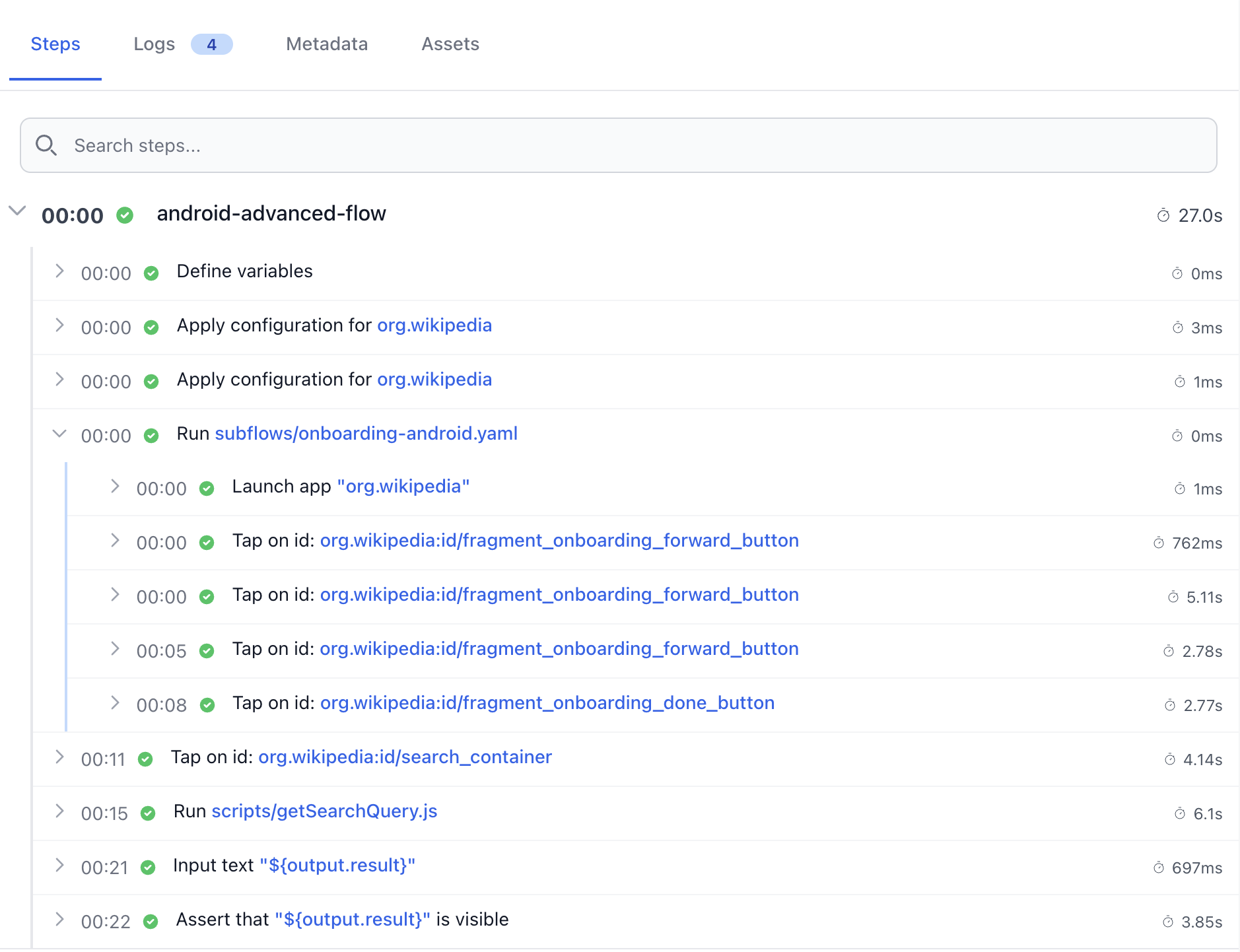
Spoof device GPS
20+ regions
🇺🇸United States
🇬🇧United Kingdom
🇩🇪Germany
🇫🇷France
🇪🇸Spain
🇧🇪Belgium
🇦🇺Australia
🇨🇳China
🇯🇵Japan
Geolocation testing
## Test your app from 20+ regions
Spoof the device GPS to anywhere in the world and verify **localisation** , **geo-targeting** and **store-front rules** from any country your customers live in.
Real device cloud
## A real device cloud for Maestro flows
TestingBot is a real device cloud built for Maestro. Test on real iPhones, iPads, Galaxy and Pixel devices, plus iOS Simulators and Android Emulators with Google Play APIs. iOS 16 to 26, Android 10 to 16. Latest flagships on day one.
[View all devices](https://testingbot.com/support/app-automate/devices)

iPhone 17 Pro

iPhone 17 Pro Max

iPhone 16 Pro

iPad (9th generation)

Galaxy S26

Huawei P40
Continuous integration
## Plug Maestro into your CI/CD in minutes
Trigger Maestro flows on every commit and stream device videos and logs back into Jenkins, GitHub Actions, GitLab CI, CircleCI and more.
[

### Jenkins
](https://testingbot.com/support/integrations/ci-cd/jenkins)[

### Bamboo
](https://testingbot.com/support/integrations/ci-cd/bamboo)[

### TeamCity
](https://testingbot.com/support/integrations/ci-cd/teamcity)[

### CircleCI
](https://testingbot.com/support/integrations/ci-cd/circleci)[

### GitLab CI
](https://testingbot.com/support/integrations/ci-cd/gitlab)[

### GitHub
](https://testingbot.com/support/integrations/ci-cd/github-actions)
Secure Tunnel
## Test apps that talk to internal backends
Use our [secure tunnel](https://testingbot.com/support/tunnel) so Maestro flows can reach private APIs, staging environments and services running on localhost.
Encrypted end-to-end, no inbound firewall rules required, ready out of the box for popular CI providers.

[Read more](https://testingbot.com/support/tunnel)
FAQ
## Maestro on TestingBot, frequently asked questions
What is Maestro and why run it on TestingBot?
Maestro is the open-source mobile UI testing framework from mobile.dev, used for native iOS, Android, Flutter and React Native automation testing. TestingBot runs the same Maestro flows you run locally on real iPhones, iPads and Android devices in the cloud. Swap `maestro cloud` for `testingbot maestro` and your existing flows just work.
Is TestingBot really a drop-in replacement for Maestro Cloud?
Yes. The CLI signature is identical (app + flows + flags), so any script or CI job that calls Maestro Cloud can call TestingBot instead. Same YAML flows, same arguments, same exit codes.
Which Maestro versions are supported?
TestingBot supports every recent Maestro release, and you can pin a specific Maestro server version per-test using the `--maestro-version` flag. Newer versions are typically available within days of release.
Can I run Maestro flows in parallel?
Yes. Plans on TestingBot include up to 100 parallel Maestro sessions on real devices, simulators and emulators. Use `--include-tags` / `--exclude-tags` to shard intelligently and the dashboard will roll the results back together.
Real devices, simulators or both?
All three. TestingBot runs Maestro flows on real iPhones, iPads, Galaxy and Pixel devices, plus iOS Simulators on Apple Silicon and Android Emulators with Google Play APIs. Pick per-flow with the `--real-device` flag.
How do I see results?
Live in the TestingBot dashboard with video streaming, step-by-step screenshots and Maestro logs. Programmatically via our [REST API](https://testingbot.com/support/api). Or piped into Jenkins, GitHub Actions, GitLab CI and any CI that consumes JSON.
Can Maestro flows reach my staging backend?
Install our [secure tunnel](https://testingbot.com/support/tunnel) and your Maestro flows can reach staging APIs, internal services and localhost without any inbound firewall rules.
Is the device cloud GDPR / SOC 2 compliant?
TestingBot is GDPR-compliant with EU data residency, ISO 27001 aligned and STAR Level 1 certified. Devices are factory-reset between sessions, app uploads are encrypted, and SAML SSO and audit logs are available on enterprise plans.
What is Maestro?
Maestro is an open-source mobile UI testing framework built by mobile.dev. It lets you write declarative YAML flows that drive native iOS and Android apps, plus Flutter and React Native, with built-in retries, auto-waiting and screenshots. Teams use Maestro for end-to-end testing, smoke tests and regression coverage. TestingBot runs the same Maestro flows on real iPhones, iPads, Galaxy and Pixel devices, simulators and emulators in the cloud, with parallel execution and CI/CD integration.
Is Maestro free?
Yes, the Maestro CLI and framework are free. Mobile.dev releases Maestro under the Apache 2.0 license, so you can install it, write flows and run them locally at no cost. The cost question for teams is usually how to run Maestro at scale across real devices and parallel workers, which is what TestingBot provides on flat plans at a third of the cost of Maestro Cloud.
Is Maestro open source?
Maestro is open source. The framework is maintained by mobile.dev on GitHub under the Apache 2.0 license, with a public roadmap and active community. TestingBot complements the open-source framework with a managed device cloud for real iPhones, iPads and Android devices, parallel runs and detailed reporting.
Which platforms and frameworks does Maestro support?
Maestro supports native iOS apps, native Android apps, Flutter and React Native, and works on real devices, iOS Simulators and Android Emulators. The same YAML flow runs across platforms with minor selector differences. TestingBot exposes all of these targets through the standard Maestro CLI, so you can pick a real iPhone, an iOS Simulator on Apple Silicon, an Android Emulator with Google Play APIs or a real Galaxy or Pixel device per flow.
What is the best Maestro Cloud alternative?
Maestro Cloud (run by Mobile Dev Inc. at maestro.dev) is the official managed cloud for Maestro flows. TestingBot is the leading independent Maestro Cloud alternative, with an identical CLI, real iPhones, iPads, Galaxy and Pixel devices alongside iOS Simulators and Apple Silicon Android Emulators, roughly a third of the cost per run on flat plans with no per-test surprises, plus parallel execution, geolocation testing in 20+ countries, secure tunnel access for staging environments, real-time video streaming and CI/CD integrations out of the box.
How does TestingBot compare to DeviceCloud?
DeviceCloud is a Maestro-focused cloud that runs flows on parallel iOS Simulators and Android Emulators only, with no real-device support, on subscription plans where extra runs are billed per test. TestingBot offers a true real device cloud, with real iPhones, iPads, Galaxy and Pixel devices alongside the same iOS Simulators and Android Emulators, on flat plans with predictable pricing, real-time video and logs, geolocation testing in 20+ countries, device locale testing in 20+ locales, and Apple Silicon performance for iOS Simulators. Both expose a Maestro-compatible CLI, so migrating between them is a one-line change.
## More reasons to love TestingBot
### 24/7 support
Got questions? Ask in the 24/7 in-app customer [chat support](https://testingbot.com#) or [send us an email](https://testingbot.com/contact/new). We are here to help you!
TestingBot Support
Hey 👋 How can we help?
I need support
### Trusted by over 14,000 teams
6M+
Tests
120k+
Users
400+
Enterprises
106
Countries
[Request a demo](https://testingbot.com/demo)
### Developer Documentation
Everything you need to integrate TestingBot into your workflow. Browse guides, API references and SDKs for web and mobile testing.
- [Maestro Quickstart](https://testingbot.com/support/app-automate/maestro)
- [Maestro CLI options](https://testingbot.com/support/app-automate/maestro/options)
- [CI/CD integration guides](https://testingbot.com/support/integrations/ci-cd)
[Explore Documentation](https://testingbot.com/support)
### Enterprise-grade Security
STAR Level 1
Certified
GDPR
Compliant
SAML SSO
Single Sign-On
99.99%
Uptime SLA
[Visit TestingBot Trust Center](https://trust.testingbot.com/)
## Ready to scale your Maestro testing?
Read our [Maestro Cloud Testing](https://testingbot.com/support/app-automate/maestro) documentation and run your first flow in under 5 minutes.
[Start a free trial](https://testingbot.com/users/sign_up?utm_medium=feature_page&utm_source=maestro)
---
URL: https://testingbot.com/maestro-cloud-alternative
TestingBot vs Maestro Cloud
# The real-device Maestro Cloud alternative
Run your existing Maestro flow files on real iPhones, iPads, Android phones and tablets, plus simulators and emulators. Flat monthly pricing instead of negotiated quotes. EU data residency for procurement.
Switching from Maestro Cloud? Maestro users get a **30-day free trial** , no credit card required.
[Start your free trial](https://testingbot.com/users/sign_up?utm_medium=maestro_cloud_alternative&utm_source=maestro)[Request a demo](https://testingbot.com/demo)
Real devices & sims200+
EU hosted since2012
Frameworks8+
testingbot.com/members
Live
Running
14
Queued
47
Avg queue
1.2s
Today
8,142
Test sessionslast 60s
PassRunQueue
Parallel workers62/100 active
EU region
2×
Faster than Maestro Cloud
on real iOS & Android devices
Boost your tests
Trusted by some of the world's most innovative companies
At a glance
## Why teams pick TestingBot over Maestro Cloud
Six concrete differences that show up in the first sprint after switching.
-
### Real iPhones and Android devices
Run flows on actual hardware with biometrics, push, camera and sensors. Maestro Cloud's public offering is configurable models, not your real device matrix.
-
### Every framework, one place
Same account runs Maestro, Appium, XCUITest, Espresso, Playwright and Selenium. Maestro Cloud is Maestro-only by design.
-
### Published flat pricing
Public monthly tiers by concurrent sessions. No per-test meter, no sales-led negotiation. Maestro Cloud pricing is quote-only.
-
### EU hosted, GDPR ready
Test data, video and logs stay within EU borders. ISO 27001, GDPR, STAR L1, SAML SSO included. Maestro Cloud is US-hosted.
-
### Tunnel to internal backends
TestingBot Tunnel exposes staging and pre-prod backends to the cloud devices over a secure connection. Maestro Cloud has no documented equivalent.
-
### Drop-in CLI swap
Same flow files, same YAML, same arguments. Replace maestro cloud with testingbot maestro and your suite runs on TestingBot in minutes.
Compare
## TestingBot vs Maestro Cloud, feature by feature
Capabilities side by side, based on publicly documented Maestro Cloud features as of May 2026.
TestingBot vs Maestro Cloud, feature comparison.| Capability |
Real devices
TestingBot
|
Maestro Cloud
|
| --- | --- | --- |
| Starting price |
Published tiers
See [pricing](https://testingbot.com/pricing)
|
Not published
Sales-led quote
|
| Real iPhones and iPads | Yes | Not publicly offered |
| Real Android phones and tablets | Yes | Limited |
| iOS simulators and Android emulators | Yes | Yes |
| Appium, XCUITest, Espresso | Yes | – |
| Playwright and Selenium for web | Yes | – |
| Local tunnel to internal backends | TestingBot Tunnel | – |
| Biometrics, camera, push, sensors | Real device support | Not on simulators |
| CI/CD integrations | GitHub, GitLab, Jenkins, CircleCI, Bitbucket | GitHub Actions, Bitrise |
| Pricing transparency | Published monthly tiers | Sales-led quote |
| Free trial | 30 days, no card | 7 days |
| EU data residency | Yes | – |
| Compliance | ISO 27001, GDPR, STAR L1, SAML SSO | SOC 2 (per public claims) |
Migrate in under an hour
## Switch from Maestro Cloud in four steps
Your flow files do not change. The migration is a CLI swap and a credentials update.
1.
1
### Create a free account
Sign up at testingbot.com and grab your TB\_KEY and TB\_SECRET from the account dashboard.
2.
2
### Install the CLI
`npm install -g @testingbot/cli`. Works alongside your existing Maestro CLI install.
3.
3
### Swap the run command
Replace `maestro cloud upload` with `testingbot maestro`. Add `--real-device --device "iPhone 15"` to target physical hardware.
4.
4
### Run your suite
Trigger a smoke test, watch the live video, fetch results via the [REST API](https://testingbot.com/support/app-automate/maestro/api) or dashboard.
Coverage
## Real iPhones, Pixels and Galaxys ready for your flows
A grid of physical iPhones, iPads, Android phones and tablets sits behind every `testingbot maestro --real-device` command. Pin a specific model or use a regex like `".*Pixel.*"` to allocate any available match.
Simulators and emulators are included on the same account for fast pre-merge smoke runs. Drop `--real-device` and the same flow runs in seconds on a clean simulator.
[See supported devices](https://testingbot.com/support/app-automate/devices)
Real iOS devicesiPhone 6 → 17 Pro Max
Real Android devicesPixel, Galaxy, Huawei
iOS simulatorsiOS 12 → 26
Android emulatorsAPI 24 → 36
Frameworks
## Maestro is one of many on TestingBot
Engineering managers consolidate Maestro, Appium, XCUITest, Espresso, Playwright and Selenium in one place. Maestro Cloud is Maestro-only by design.
[](https://testingbot.com/features/automation/maestro)
### [Maestro](https://testingbot.com/features/automation/maestro)
YAML-driven mobile UI testing. Run flows on real devices, simulators and emulators.
[](https://testingbot.com/features/automation/appium)
### [Appium](https://testingbot.com/features/automation/appium)
Mobile automation on real iOS and Android devices for deeper white-box scenarios.
[](https://testingbot.com/features/automation/xcuitest)
### [XCUITest](https://testingbot.com/features/automation/xcuitest)
Apple's native iOS UI testing framework. Runs against real iPhones and iPads.
[](https://testingbot.com/features/automation/espresso)
### [Espresso](https://testingbot.com/features/automation/espresso)
Google's instrumentation framework for native Android apps. Same device fleet.
[](https://testingbot.com/features/automation/playwright)
### [Playwright](https://testingbot.com/features/automation/playwright)
Cross-browser automation with auto-waits, network interception and trace viewer.
[](https://testingbot.com/features/automation/selenium)
### [Selenium](https://testingbot.com/features/automation/selenium)
Industry-standard browser automation. Java, Python, Ruby, JavaScript, C# and more.
[](https://testingbot.com/features/automation/cypress)
### [Cypress](https://testingbot.com/features/automation/cypress)
Modern JavaScript end-to-end testing on Chrome, Firefox and Edge in parallel.
[](https://testingbot.com/features/automation/puppeteer)
### [Puppeteer](https://testingbot.com/features/automation/puppeteer)
Headless Chrome and Edge automation, ideal for fast scripted browser tasks.
Speed
## Parallel Maestro runs by concurrent sessions
Cut total Maestro suite duration by sharding flows across concurrent sessions. Each shard runs on its own device or simulator, fully isolated. The TestingBot CLI handles `--shard-split` and `--shard-all` identically to the Maestro CLI.
Predictable flat tiers, not per-test credits. Add concurrency by upgrading the plan, not by buying ad-hoc credit packs.
[See pricing](https://testingbot.com/pricing)
parallel-shards.sh
$ testingbot maestro app.apk ./flows \
--real-device \
--device "Pixel 8" \
--shard-split 4
shard 1 of 4 → Pixel 8 ✓ 12 flows · 3m 24s
shard 2 of 4 → Pixel 8 ✓ 12 flows · 3m 18s
shard 3 of 4 → Pixel 8 ✓ 12 flows · 3m 31s
shard 4 of 4 → Pixel 8 ✓ 12 flows · 3m 20s
Total: 48 flows · 3m 31s wall clock
Why switch
## Why teams move from Maestro Cloud to TestingBot
### They need real hardware
Payment, KYC, biometrics, push, camera. Simulators report synthetic results. Real iPhones and Android devices surface the bugs that ship to App Store and Play Store users.
### They need more than Maestro
Legacy Appium and XCUITest suites still exist. Running them on the same vendor as Maestro flows simplifies billing, security review and SSO.
### Procurement asks for EU
GDPR, ISO 27001 and CSA STAR are table stakes for European fintech, health and govtech buyers. TestingBot has been EU-hosted since 2012.
### Pricing predictability
Flat monthly tiers that scale by concurrency, not per-test credits. Finance can budget. Engineering can scale without raising a ticket.
### Tunnel to internal backends
Maestro suites that need to hit staging or pre-prod backends behind the firewall use TestingBot Tunnel without exposing services publicly.
### Documentation that ships
Working YAML examples for GitHub Actions, GitLab CI, Jenkins, CircleCI and Bitbucket Pipelines, plus a full REST API reference and a step-by-step Maestro guide.
FAQ
## Frequently asked questions
What is the difference between TestingBot and Maestro Cloud?
Maestro Cloud is the cloud service operated by mobile-dev-inc, the maintainers of the Maestro framework. It executes Maestro flows in their own infrastructure with configurable device models. TestingBot is an independent cloud test platform that runs Maestro flows on real iPhones and Android devices, simulators and emulators, alongside Appium, XCUITest, Espresso and Playwright, on a flat monthly plan with EU data residency.
Can I keep my Maestro .flow files when moving to TestingBot?
Yes. TestingBot supports the standard Maestro YAML flow syntax. Your existing .flow files run unchanged. The migration is a CLI swap: replace maestro cloud upload with testingbot maestro and your suite executes on TestingBot's grid.
Does TestingBot support real iPhones and iPads for Maestro?
Yes. TestingBot provides physical iPhones, iPads, Android phones and tablets, plus iOS simulators and Android emulators, all from the same CLI. Use --real-device to target physical hardware, or omit the flag to run on a simulator or emulator.
How does pricing compare to Maestro Cloud?
TestingBot publishes flat monthly plans based on the number of concurrent sessions you need. There is no per-test charge and no execution-minute meter. Maestro Cloud pricing is not published publicly; teams typically negotiate per workspace. The TestingBot pricing page lists the current concurrent-session tiers.
What about Appium, XCUITest and other frameworks?
On TestingBot, the same account covers Maestro plus Appium, XCUITest, Espresso, Playwright and Selenium. Engineering managers running mixed mobile and web suites can consolidate on one vendor instead of one per framework.
Is TestingBot hosted in the EU? Is it GDPR compliant?
Yes. TestingBot is operated from the European Union and has been EU-hosted since 2012. We are ISO 27001 certified, GDPR-compliant, Cloud Security Alliance STAR Level 1 registered, and support SAML SSO on team plans.
How long does it take to migrate from Maestro Cloud?
Most teams migrate in under an hour. The Maestro .flow files do not change. Replace the CLI command, swap two environment variables, and run.
Does TestingBot offer a free trial for Maestro users?
Yes. TestingBot offers a 30-day free trial for teams coming from Maestro Cloud, no credit card required. Run your existing flow files immediately on real iPhones, Pixels, simulators and emulators.
Can I run Maestro tests from GitHub Actions on TestingBot?
Yes. TestingBot has dedicated CI/CD integration docs with working YAML examples for GitHub Actions, GitLab CI, Jenkins, CircleCI and Bitbucket Pipelines. Parallel sharding works out of the box.
Does TestingBot support tunneling to internal staging backends?
Yes. TestingBot Tunnel exposes your local or staging backends to the cloud devices over a secure connection. Maestro flows can hit internal services without exposing them publicly.
## Run Maestro on real devices for 30 days
No credit card. Your flow files run unchanged. Real iPhones, Android devices, simulators and emulators.
[Start free trial](https://testingbot.com/users/sign_up?utm_medium=maestro_cloud_alternative_cta&utm_source=maestro)
---
URL: https://testingbot.com/devicecloud-alternative
TestingBot vs devicecloud.dev
# The real-device devicecloud.dev alternative
devicecloud.dev runs Maestro on iOS simulators and Android emulators. TestingBot runs Maestro on the same simulators and emulators, plus real iPhones, Pixels and Galaxys with biometrics, push, camera and sensors.
Flat monthly pricing instead of per-test credits. EU data residency. **30-day free trial** , no credit card required.
[Start your free trial](https://testingbot.com/users/sign_up?utm_medium=devicecloud_alternative&utm_source=maestro)[Request a demo](https://testingbot.com/demo)
Real iOS & Android200+
EU hosted since2012
Pricing modelFlat
testingbot.com/members
Live
Running
14
Queued
47
Avg queue
1.2s
Today
8,142
Test sessionslast 60s
PassRunQueue
Parallel workers62/100 active
EU region
2×
Faster than Maestro Cloud
on real iOS & Android devices
Boost your tests
Trusted by some of the world's most innovative companies
At a glance
## Six reasons to pick TestingBot over devicecloud.dev
Each one shows up in the first sprint after switching.
-
### Real iPhones and Pixels
Real biometrics, real APNs and FCM push, real camera and sensors. devicecloud.dev cannot reproduce any of these because its cloud is simulators and emulators only.
-
### Flat monthly pricing
Published tiers by concurrent sessions. No per-test credit meter, no surprise top-ups when a long-running suite eats the credit pool.
-
### Tunnel to internal backends
TestingBot Tunnel exposes staging and pre-prod backends to the cloud devices over a secure connection. devicecloud.dev has no documented equivalent.
-
### EU hosted, GDPR ready
Test data, video and logs stay within EU borders. ISO 27001, GDPR, STAR L1, SAML SSO included. devicecloud.dev is operated from the UK and US.
-
### Every framework, one place
Maestro alongside Appium, XCUITest, Espresso, Playwright and Selenium. devicecloud.dev is Maestro-only.
-
### Drop-in CLI swap
Replace dcd cloud with testingbot maestro. Same flow files, same YAML, same arguments. Migration is a single shell line.
Compare
## TestingBot vs devicecloud.dev, feature by feature
Capabilities and pricing side by side, as of May 2026.
TestingBot vs devicecloud.dev, feature and pricing comparison.| Capability |
Real devices
TestingBot
|
devicecloud.dev
|
| --- | --- | --- |
| Entry price |
Published tiers
See [pricing](https://testingbot.com/pricing)
|
$25 / month
Pro plan + $25 credit
|
| Max plan |
Flat by concurrency
|
$200 / month
20 + 20 parallel, sims only
|
| Real iPhones and iPads | Yes | – |
| Real Android phones and tablets | Yes | – |
| iOS simulators and Android emulators | Yes | Yes |
| Biometrics, camera, push, sensors | Real device support | – |
| Pricing model | Flat monthly | Monthly + credits |
| Local tunnel to internal backends | TestingBot Tunnel | – |
| Multi-framework support | Appium, XCUITest, Espresso, Playwright, Selenium | Maestro only |
| EU data residency | Yes | – |
| Compliance | ISO 27001, GDPR, STAR L1, SAML SSO | Not published |
| CI/CD integrations | GitHub, GitLab, Jenkins, CircleCI, Bitbucket | GitHub Actions |
| Free trial | 30 days, no card | $20 starter credit |
Why real devices
## What emulators and simulators cannot verify
Maestro is the same framework on both clouds. What changes is the surface the .flow file runs against. Emulators and simulators cover most layout, navigation and form bugs, but they cannot reproduce these failure modes:
- ● **Biometrics:** Face ID, Touch ID, Android BiometricPrompt. Simulators can fake a result, but they cannot reproduce the OS-level interstitial, the timing or the fallback paths.
- ● **Push notifications:** Real APNs and FCM delivery, foreground vs background handling, deep links from a real payload. Simulators cannot register with the real push services.
- ● **Camera, microphone, sensors:** QR scanning, document capture, gyroscope, accelerometer, real GPS. Emulators report fixed or synthetic values.
- ● **Real network behaviour:** Carrier handover, captive portals, IPv6, real WebView versions across OEMs. Emulators run a vanilla AOSP WebView.
- ● **OEM Android skins:** Samsung One UI, Xiaomi HyperOS, Pixel stock all render and gesture differently. Emulators ship vanilla AOSP only.
Payment flows, onboarding with KYC, login with biometrics and any feature behind a push notification typically fail or pass differently on real hardware. Running a Maestro suite that includes those flows on emulators only means those tests are not actually being exercised.
Migrate in under an hour
## Switch from devicecloud.dev in four steps
Your flow files do not change. The migration is a CLI swap and a credentials update.
1.
1
### Create a free account
Sign up at testingbot.com and grab your TB\_KEY and TB\_SECRET from the account dashboard.
2.
2
### Install the CLI
`npm install -g @testingbot/cli`. Works alongside your existing Maestro and dcd CLI installs.
3.
3
### Swap the run command
Replace `dcd cloud` with `testingbot maestro`. Add `--real-device --device "Pixel 8"` for physical hardware.
4.
4
### Run your suite
Trigger a smoke test, watch the live video, fetch results via the [REST API](https://testingbot.com/support/app-automate/maestro/api) or dashboard.
Coverage
## 200+ real iPhones, Pixels and Galaxys
A grid of physical iPhones, iPads, Android phones and tablets sits behind every `testingbot maestro --real-device` command. Pin a specific model or use a regex like `".*Galaxy.*"` to allocate any available matching device.
Simulators and emulators are included on the same account for fast pre-merge smoke runs. Drop `--real-device` and the same flow runs in seconds on a clean simulator, just like on devicecloud.dev.
[See supported devices](https://testingbot.com/support/app-automate/devices)
Real iOS devicesiPhone 6 → 15 Pro
Real Android devicesPixel, Galaxy, Xiaomi
iOS simulatorsiOS 12 → 17
Android emulatorsAPI 24 → 34
parallel-shards.sh
$ testingbot maestro app.apk ./flows \
--real-device \
--device "Pixel 8" \
--shard-split 4
shard 1 of 4 → Pixel 8 ✓ 12 flows · 3m 24s
shard 2 of 4 → Pixel 8 ✓ 12 flows · 3m 18s
shard 3 of 4 → Pixel 8 ✓ 12 flows · 3m 31s
shard 4 of 4 → Pixel 8 ✓ 12 flows · 3m 20s
Total: 48 flows · 3m 31s wall clock
Speed
## Parallel Maestro on real devices, not just emulators
Shard flows with `--shard-split` or `--shard-all` across concurrent real devices, simulators or emulators. The TestingBot CLI uses the same shard semantics as the Maestro CLI.
Add concurrency by upgrading the plan, not by buying ad-hoc credit packs. devicecloud.dev's per-test credit model penalises long suites and short flows alike.
[See pricing](https://testingbot.com/pricing)
Why switch
## Why teams move from devicecloud.dev to TestingBot
### They need real hardware
Payment, KYC, biometrics, push, camera. Simulators report synthetic results. Real iPhones and Pixels surface the bugs that ship to App Store and Play Store users.
### Predictable pricing
Flat monthly tiers that scale by concurrency, not per-test credits. Finance can budget. Engineering can scale without raising a top-up ticket.
### Procurement asks for EU
GDPR, ISO 27001 and CSA STAR are table stakes for European fintech, health and govtech buyers. devicecloud.dev is operated from the UK and US.
### More than just Maestro
Legacy Appium and XCUITest suites coexist with new Maestro flows. One vendor, one billing relationship, one SSO.
### Tunnel to internal backends
Maestro suites that hit staging or pre-prod backends behind the firewall use TestingBot Tunnel without exposing services publicly.
### Mature CI/CD
Working YAML examples for GitHub Actions, GitLab CI, Jenkins, CircleCI and Bitbucket Pipelines, plus a documented REST API.
FAQ
## Frequently asked questions
What is the difference between TestingBot and devicecloud.dev?
TestingBot runs Maestro flows on real iPhones, iPads, Android phones and tablets, plus iOS simulators and Android emulators, in a managed EU and US cloud, with flat monthly pricing. devicecloud.dev runs Maestro flows on iOS simulators and Android emulators only, and charges per test credit on top of a monthly plan.
Does devicecloud.dev support real devices?
No. devicecloud.dev's cloud is iOS simulators and Android emulators only. TestingBot supports both simulators/emulators and a fleet of real physical iPhones, iPads and Android phones.
Can I keep my Maestro flow files as they are?
Yes. Your existing Maestro YAML .flow files run unchanged on TestingBot. Replace dcd cloud or maestro cloud with the testingbot maestro CLI command and your existing flows execute against TestingBot's grid.
How does pricing compare?
TestingBot publishes flat monthly plans based on concurrent sessions. There is no per-test credit metering. devicecloud.dev's Pro plan starts at $25/month with $25 of credit and 5 parallel iOS plus 5 Android. The Max plan is $200/month with 20 parallel iOS plus 20 Android. Heavy users on devicecloud.dev typically burn through credits and add packs.
Is TestingBot hosted in the EU?
Yes. TestingBot has been EU-hosted since 2012 and is ISO 27001 certified, GDPR-compliant, Cloud Security Alliance STAR Level 1 registered, and supports SAML SSO. devicecloud.dev runs from the UK and US.
How do I migrate from devicecloud.dev to TestingBot?
Install the TestingBot CLI (npm install -g @testingbot/cli), set your TB\_KEY and TB\_SECRET environment variables, then replace dcd cloud with testingbot maestro in your run script. No flow file changes required.
What about CI/CD?
TestingBot has dedicated CI/CD integration docs with examples for GitHub Actions, GitLab CI, Jenkins, CircleCI and Bitbucket Pipelines. Parallel sharding works out of the box on real devices, simulators and emulators.
Does TestingBot offer a free trial?
Yes. Maestro users get a 30-day free trial on TestingBot, no credit card required. Run your existing flow files immediately on real iPhones, Pixels, simulators and emulators.
Why does running on real devices matter for Maestro?
Emulators and simulators cannot reproduce biometrics (Face ID, Touch ID, BiometricPrompt), real APNs and FCM push delivery, camera, microphone, real sensor data, OEM Android skins (One UI, HyperOS), or real carrier and network behaviour. Payment flows, KYC and biometric login frequently pass on emulators and fail on real hardware.
## Try Maestro on real devices for 30 days
No credit card. Your flow files run unchanged. Real iPhones, Pixels, simulators and emulators in one parallel suite.
[Start free trial](https://testingbot.com/users/sign_up?utm_medium=devicecloud_alternative_cta&utm_source=maestro)
---
URL: https://testingbot.com/features/automation/xcuitest
XCUITest cloud
# Run XCUITest on real iPhones & iPads
Run your XCUITest builds on real iPhones and iPads from iOS 12 through iOS 26 with a single CLI command. Massive parallelism, video & log artifacts and a 99.99% uptime SLA.
Looking at all platforms? See the [full automation framework lineup](https://testingbot.com/features).
[Start free](https://testingbot.com/users/sign_up)[Request a demo](https://testingbot.com/demo)
Real Apple devices100+
iOS versions12 → 26
Uptime SLA99.99%
testingbot·xcuitest
api.testingbot.com
# Install the TestingBot CLI$npminstall -gtestingbot-cli# Run XCUITest on a real iPhone in the cloud$testingbotxcuitestMyApp.ipa MyAppUITests-Runner.zip \
--device"iPhone 16"\
--version"26"\
--real-device› uploading MyApp.ipa …✓› running on iPhone 16, iOS 26 …✓› fetching results, video & logs …✓
iPhone · iPad · tvOS parallel sessions:10 ✓ tests passed
Trusted by some of the world's most innovative companies
30-second answer
## Why run XCUITest on TestingBot?
Real iPhones and iPads
Run on a fleet of real Apple devices, not the iOS Simulator. Latest iPhone the day Apple ships it, plus a deep legacy fleet for backwards-compat coverage.
Replace your in-house Apple lab
Skip the cabinet of dusty iPhones, the swollen batteries and the MDM headache. TestingBot has run iOS tests on real devices for 5+ years.
Native Swift & Objective-C
Use the same XCUITest framework Apple ships with Xcode. Same APIs, same XCTest assertions, real native performance.
What is XCUITest?
## XCUITest in 60 seconds

### XCUITest
Apple · built into Xcode · Swift / Objective-C
XCUITest is Apple's official UI testing framework for iOS, iPadOS and tvOS. It is built into Xcode, runs natively on the device through XCTest, and lets you script taps, swipes, scrolls, predicates and accessibility queries against your app's real UI.
Because XCUITest runs on the device itself, tests have full access to native gestures, accessibility identifiers and Apple's official element hierarchy. There is no cross-process bridge, XCUITest is the most accurate way to drive a real iPhone.
- Native Apple framework, built into Xcode
- Swift and Objective-C bindings
- Real iPhones, iPads and tvOS. No simulator drift
- Predicates, accessibility identifiers, native gestures
- XCTest assertions, JUnit XML output for CI
One-line CLI
## Run XCUITest on real devices with one command
Install the TestingBot CLI, point it at your .ipa and your test bundle, pick a device and you're done. Uploads, capabilities and result polling are all handled for you.
install the CLIstep 1
# Install the TestingBot CLI$npminstall -gtestingbot-cli# Authenticate (once) — set your KEY and SECRET$exportTESTINGBOT_KEY=your-key$exportTESTINGBOT_SECRET=your-secret# Build your XCUITest bundle with Xcode (one-off)$xcodebuild build-for-testing \
-scheme MyApp \
-destination'generic/platform=iOS'
run XCUITeststep 2
# Run XCUITest on a real iPhone — one command$testingbotxcuitestMyApp.ipa MyAppUITests-Runner.zip \
--device"iPhone 16"\
--version"26"\
--real-device# → live results in your TestingBot dashboard# → JUnit XML, video and logs via REST API
See the full [XCUITest on TestingBot documentation](https://testingbot.com/support/app-automate/xcuitest) for advanced flags, parallel runs and CI integration.
Buy vs build
## TestingBot vs an in-house Apple device lab
Maintaining your own iPhones and iPads is expensive. Devices break, batteries swell, iOS updates ship every few weeks. Here is how a hosted Apple device cloud compares.
| Capability | TestingBot | In-house Apple lab |
| --- | --- | --- |
| Device coverage |
Real iPhones and iPads from iOS 12 to 26
|
Limited to what you can buy and rack
|
| Time to first test |
Minutes, upload your .ipa and trigger via API
|
Weeks of provisioning, MDM, certificates, tethering
|
| Parallel scaling |
Up to 100 concurrent XCUITest sessions
|
Capped by the number of devices you own
|
| Video & logs |
Video, device logs, screenshots and JUnit XML
|
Roll your own recording & log aggregation
|
| Reliability |
99.99% uptime SLA, 24/7 monitoring
|
You replace dead batteries and broken screens
|
| Security |
Devices wiped between every session
|
Manual cleanup, leftover state risks
|
| Support |
24/7 human support and dedicated CSM
|
Stack Overflow and your own logs
|
Capabilities
## Everything XCUITest needs in the cloud
Beyond running tests, TestingBot exposes the full set of XCUITest capabilities you would set in Xcode, plus cloud-only features like geolocation and network throttling.
-
### [Build & upload](https://testingbot.com/support/app-automate/xcuitest/build-testsuite)
Compile your .ipa and .xctest with Xcode, then push to TestingBot Storage.
-
### [Test reports](https://testingbot.com/support/app-automate/xcuitest/test-reports)
Video, device logs, screenshots and JUnit XML for every run.
-
### [Screen orientation](https://testingbot.com/support/app-automate/xcuitest/change-screen-orientation)
Force portrait or landscape per test, mid-test rotations included.
-
### [Network throttling](https://testingbot.com/support/app-automate/xcuitest/simulate-network-conditions)
Simulate 3G, 4G, lossy WiFi and offline conditions per session.
-
### [Localization & geo](https://testingbot.com/support/app-automate/xcuitest/set-localization-options)
Set device locale, language and GPS coordinates for App Store and back-end checks.
Real Apple devices
## iPhone and iPad fleet on demand
A fleet of real Apple devices spanning iOS 12 through iOS 26, refreshed every release. Latest flagship iPhones and iPads available the day Apple ships them.
[View all devices](https://testingbot.com/support/app-automate/devices)

iPhone 17 Pro

iPhone 17 Pro Max

iPhone 16 Pro

iPad (9th generation)

iPhone Air

iPhone 17

Test reports
## Video, screenshots and JUnit XML for every run
Every XCUITest run ships with a video screencast, device logs, viewport screenshots and a JUnit XML report compatible with every major CI parser.
Mark sessions as passed or failed from your tests, fetch artifacts via our [REST API](https://testingbot.com/support/api), and ship results into Jira, Slack or your CI dashboard.
- Full HD video for every test run
- Device logs, app logs and crash reports
- Viewport screenshots on demand
- JUnit XML for Jenkins, GitHub Actions, GitLab CI
Continuous integration
## Plug XCUITest into your CI/CD in minutes
TestingBot integrates with every major CI/CD tool. Trigger XCUITest runs on every build and stream device videos and JUnit reports back into your build dashboards.
[

### Jenkins
](https://testingbot.com/support/integrations/ci-cd/jenkins)[

### Bamboo
](https://testingbot.com/support/integrations/ci-cd/bamboo)[

### TeamCity
](https://testingbot.com/support/integrations/ci-cd/teamcity)[

### CircleCI
](https://testingbot.com/support/integrations/ci-cd/circleci)[

### GitLab CI
](https://testingbot.com/support/integrations/ci-cd/gitlab)[

### GitHub
](https://testingbot.com/support/integrations/ci-cd/github-actions)
Spoof device GPS
20+ regions
🇺🇸United States
🇬🇧United Kingdom
🇩🇪Germany
🇫🇷France
🇪🇸Spain
🇧🇪Belgium
🇦🇺Australia
🇨🇳China
🇯🇵Japan
Geolocation testing
## Test your iOS app from 20+ regions
Spoof the device GPS to anywhere in the world and verify **localisation** , **geo-targeting** and **App Store store-front rules** from any country your customers live in.
Secure devices
## Real devices. Wiped after every session.
Each XCUITest session locks one real iPhone or iPad for your test only. The moment your test ends, the device is wiped, all installed apps are deleted, caches are cleared, and the device is returned to the pool ready for the next customer.
SOC 2-aligned, GDPR-compliant, with SAML SSO and audit logs available for enterprise teams.
- One real device per session, never shared
- Wiped between every session
- Encrypted .ipa uploads with per-app retention controls
[Visit TestingBot Trust Center](https://trust.testingbot.com/)
1. 1
Your XCUITest run locks one real device
A pristine iPhone or iPad is reserved for your session only.
2. 2
Tests run natively on real Apple hardware
Real sensors, real accelerometer, real Touch ID and Face ID flows.
3. 3
Device wiped on release
Apps removed, caches cleared, accounts wiped. Returned clean to the pool.
Secure Tunnel
## Test apps that talk to internal backends
Use our [secure tunnel](https://testingbot.com/support/tunnel) so XCUITest runs can reach private APIs, staging environments and services running on localhost.
Encrypted end-to-end, no inbound firewall rules required, ready out of the box for popular CI providers.

[Read more](https://testingbot.com/support/tunnel)
FAQ
## XCUITest on TestingBot — frequently asked questions
What is XCUITest and why run it on TestingBot?
XCUITest is Apple's native UI testing framework for iOS, iPadOS and tvOS. TestingBot runs your XCUITest builds on a fleet of real iPhones and iPads, so you do not have to maintain devices, certificates and MDM in-house. Upload your `.ipa` and `.xctest` through our REST API and trigger runs in seconds.
Which iOS versions are supported?
TestingBot supports real iOS devices from iOS 12 through iOS 26, refreshed every Apple release. We carry both the latest flagship iPhones and a deep legacy fleet for backwards-compat coverage.
Do I need a Mac to use XCUITest on TestingBot?
You need Xcode to build your .ipa and .xctest bundle, but the actual test run happens on TestingBot. Many teams build in CI on a Mac runner, then push the artifacts to TestingBot for the device run.
Can I run XCUITest in parallel?
Yes. Plans on TestingBot include up to 100 parallel XCUITest sessions on real devices. Each session locks a dedicated iPhone or iPad, so tests do not interfere with one another.
Do you provide physical devices?
Yes, we provide physical iPhones and iPads, not simulators. Each test run locks a real device for your session only, with native performance and access to real sensors, Touch ID and Face ID. After your session ends, the device is wiped and returned clean to the pool.
How do I see results?
Live in the TestingBot dashboard with HD video, screenshots and device logs. Programmatically via the [REST API](https://testingbot.com/support/api). Plus a JUnit XML report compatible with every major CI parser.
Can XCUITest reach my staging backend?
Install our [secure tunnel](https://testingbot.com/support/tunnel) and your XCUITest runs can reach staging APIs, internal services and localhost without any inbound firewall rules.
Is the device cloud GDPR / SOC 2 compliant?
TestingBot is GDPR-compliant with EU data residency, ISO 27001 aligned and STAR Level 1 certified. Devices are wiped between sessions, app uploads are encrypted, and SAML SSO and audit logs are available on enterprise plans.
## Ready to scale your XCUITest runs?
Read our [XCUITest documentation](https://testingbot.com/support/app-automate/xcuitest) and run your first test on a real iPhone in under 5 minutes.
[Start a free trial](https://testingbot.com/users/sign_up)
Resources you may like
[](https://testingbot.com/resources/articles/automate-native-ios-apps-xcuitest)
### [Automate native iOS Apps with XCUITest](https://testingbot.com/resources/articles/automate-native-ios-apps-xcuitest)
Looking to automate native iOS apps? Read our XCUITest tutorial on how to use code for iOS automation.
[Read more](https://testingbot.com/resources/articles/automate-native-ios-apps-xcuitest)
[](https://testingbot.com/blog/ios-18-testing)
### [Test your website and mobile apps on iOS 18.](https://testingbot.com/blog/ios-18-testing)
Ready to start testing on iOS 18? Get started today with TestingBot: run automated, visual and manual tests on iOS 18.
[Read more](https://testingbot.com/blog/ios-18-testing)
---
URL: https://testingbot.com/features/automation/appium
Appium 1, 2 & 3 ready
# Appium Cloud Automation
Run your Appium tests on real iOS and Android devices. Native, hybrid and mobile web apps. Massive parallelism, video & log artifacts and a 99.99% uptime SLA.
Looking at all platforms? See the [full automation framework lineup](https://testingbot.com/features).
[Start free](https://testingbot.com/users/sign_up)[Request a demo](https://testingbot.com/demo)
Real devices200+
Appium versions1, 2 & 3
Uptime SLA99.99%






hub.testingbot.com
Trusted by some of the world's most innovative companies
5-line setup
## Run your existing Appium scripts on real devices
Point your Appium driver at the TestingBot hub, supply your app and capabilities, and your test runs on a real iPhone or Android phone in seconds.
hub.testingbot.com Copy
JavaScript Python Java Ruby C# PHP
// Run an Appium test on a real iPhone in the TestingBot cloudconst{ remote }=require('webdriverio');constdriver=awaitremote({hostname:'hub.testingbot.com',port:443,protocol:'https',capabilities: {'platformName':'iOS','appium:deviceName':'iPhone 15','appium:platformVersion':'18','appium:app':'tb://YOUR\_APP\_ID','tb:options': {name:'Checkout flow',realDevice:true}}});awaitdriver.deleteSession();
# Run an Appium test on a real Android device in the TestingBot cloudfromappiumimportwebdriverfromappium.options.androidimportUiAutomator2Optionsoptions=UiAutomator2Options()options.platform\_version='14'options.device\_name='Galaxy S24'options.app='tb://YOUR\_APP\_ID'options.set\_capability('tb:options', {'name':'Checkout flow', realDevice: True})driver=webdriver.Remote('https://hub.testingbot.com/wd/hub',options=options)driver.quit()
// Run an Appium test on a real iPhone in the TestingBot cloudXCUITestOptionsoptions=newXCUITestOptions().setPlatformVersion("18").setDeviceName("iPhone 15").setApp("tb://YOUR\_APP\_ID");options.setCapability("tb:options",Map.of("realDevice",true,"name","Checkout flow"));IOSDriverdriver=newIOSDriver(newURL("https://KEY:SECRET@hub.testingbot.com/wd/hub"),options);driver.quit();
# Run an Appium test on a real Android device in the TestingBot cloudrequire'appium\_lib'caps={'platformName'=\>'Android','appium:deviceName'=\>'Pixel 9','appium:platformVersion'=\>'15','appium:app'=\>'tb://YOUR\_APP\_ID','tb:options'=\>{name:'Checkout flow',realDevice:true}}driver=Appium::Driver.new({caps:caps,appium\_lib: {server\_url:'https://hub.testingbot.com/wd/hub'} },true).start\_driver
// Run an Appium test on a real iPhone in the TestingBot cloudvaroptions=newAppiumOptions();options.PlatformName="iOS";options.AddAdditionalAppiumOption("deviceName","iPhone 15");options.AddAdditionalAppiumOption("platformVersion","18");options.AddAdditionalAppiumOption("app","tb://YOUR\_APP\_ID");options.AddAdditionalAppiumOption("tb:options",newDictionary\{ {"realDevice",true}, {"name","Checkout flow"} });vardriver=newIOSDriver(newUri("https://KEY:SECRET@hub.testingbot.com/wd/hub"),options);driver.Quit();
// Run an Appium test on a real Android device in the TestingBot cloud$capabilities=['platformName'=\>'Android','appium:deviceName'=\>'Galaxy S24','appium:platformVersion'=\>'14','appium:app'=\>'tb://YOUR\_APP\_ID','tb:options'=\>['realDevice'=\>true,'name'=\>'Checkout flow'],];$driver=RemoteWebDriver::create('https://KEY:SECRET@hub.testingbot.com/wd/hub',$capabilities);$driver-\>quit();
Connected· [View documentation](https://testingbot.com/support/app-automate/appium/nodejs) [View documentation](https://testingbot.com/support/app-automate/appium/python) [View documentation](https://testingbot.com/support/app-automate/appium/java) [View documentation](https://testingbot.com/support/app-automate/appium/ruby) [View documentation](https://testingbot.com/support/app-automate/appium/csharp) [View documentation](https://testingbot.com/support/app-automate/appium/php)
Same WebDriver protocol you already use, with a single endpoint switch. See the docs for [Appium on TestingBot](https://testingbot.com/support/app-automate/appium) for full examples.

Real device cloud
## Replace your in-house device lab
Skip buying, hosting and maintaining iOS and Android devices. TestingBot's mobile cloud is on-call 24/7 with hundreds of real, physical devices ready to run your Appium tests.
Every Appium session ships with a video screencast, Appium server logs, device logs, screenshots and network HAR. Pull artifacts from our [REST API](https://testingbot.com/support/api) and post them straight into Jira, Slack or your CI dashboard.
- Real iPhones, iPads, Galaxy, Pixel & OnePlus
- Native, hybrid and mobile web apps
- Pristine devices, factory-reset between sessions
- HD video, logs and HAR for every test
- Upload IPA, APK and TestFlight builds
Languages & frameworks
## Appium integrations for every stack
Appium uses the W3C WebDriver protocol, so your existing test code drops in with a single hub URL change. We support the official Appium client in every major language.
-
### [Java](https://testingbot.com/support/app-automate/appium/java)
- [TestNG](https://testingbot.com/support/app-automate/appium/java/testng)
- [JUnit](https://testingbot.com/support/app-automate/appium/java)
-
### [Python](https://testingbot.com/support/app-automate/appium/python)
- [PyTest](https://testingbot.com/support/app-automate/appium/python)
- [Robot Framework](https://testingbot.com/support/app-automate/appium/robotframework)
-
### [JavaScript](https://testingbot.com/support/app-automate/appium/nodejs)
- [WebDriverIO](https://testingbot.com/support/app-automate/appium/nodejs/webdriverio)
- [CodeceptJS](https://testingbot.com/support/app-automate/appium/nodejs/codeceptjs)
-
### [Ruby](https://testingbot.com/support/app-automate/appium/ruby)
- [RSpec](https://testingbot.com/support/app-automate/appium/ruby)
- [Cucumber](https://testingbot.com/support/app-automate/appium/ruby)
-
### [C#](https://testingbot.com/support/app-automate/appium/csharp)
- [NUnit](https://testingbot.com/support/app-automate/appium/csharp/nunit)
- [SpecFlow](https://testingbot.com/support/app-automate/appium/csharp/specflow)
-
### [PHP](https://testingbot.com/support/app-automate/appium/php)
- [PHPUnit](https://testingbot.com/support/app-automate/appium/php)
- [Codeception](https://testingbot.com/support/app-automate/appium/php)
New to Appium? Read the [Appium quickstart](https://testingbot.com/support/app-automate/appium) or jump straight into a language-specific guide below.
Massive parallelism
## Cut mobile suite time from hours to minutes
Fan out your Appium suite across hundreds of real devices in parallel. Same test code, a fraction of the wall-clock time, no flakiness from emulator drift.
- Up to 100 concurrent Appium sessions
- Sessions start in seconds, no device queue
- Auto-retry and intelligent device sharding
[Start free](https://testingbot.com/users/sign_up)

Spoof device GPS
20+ regions
🇺🇸United States
🇬🇧United Kingdom
🇩🇪Germany
🇫🇷France
🇪🇸Spain
🇧🇪Belgium
🇦🇺Australia
🇨🇳China
🇯🇵Japan
Geolocation testing
## Test your app from 20+ regions
Spoof the device GPS to anywhere in the world and verify **localisation** , **geo-targeting** and **store-front rules** in iOS App Store, Google Play and your own backend.
Secure devices
## Real devices. Wiped after every session.
Each Appium session locks one real device for your test only. The moment your test ends, the device is factory-reset, all installed apps are deleted, caches are cleared, and the device is returned to the pool ready for the next customer.
SOC 2-aligned, GDPR-compliant, with SAML SSO and audit logs for teams.
- One real device per session, never shared
- Factory-reset between every session
- Encrypted app uploads with per-app retention controls
[Visit TestingBot Trust Center](https://trust.testingbot.com/)
1. 1
Your test locks one real device
A pristine iPhone or Android phone is reserved for your session only.
2. 2
Appium drives real hardware
Real sensors, real GPS, real biometrics. Native, hybrid or mobile web.
3. 3
Device factory-reset on release
Apps removed, caches cleared, accounts wiped. Returned clean to the pool.
Continuous integration
## Plug Appium into your CI/CD in minutes
TestingBot integrates with every major CI/CD tool. Trigger Appium suites on every commit and stream device videos and logs back into your build dashboards.
[

### Jenkins
](https://testingbot.com/support/integrations/ci-cd/jenkins)[

### Bamboo
](https://testingbot.com/support/integrations/ci-cd/bamboo)[

### TeamCity
](https://testingbot.com/support/integrations/ci-cd/teamcity)[

### CircleCI
](https://testingbot.com/support/integrations/ci-cd/circleci)[

### GitLab CI
](https://testingbot.com/support/integrations/ci-cd/gitlab)[

### GitHub
](https://testingbot.com/support/integrations/ci-cd/github-actions)
Device cloud
## Real iPhones, iPads, Galaxy & Pixel devices
Test on the iPhones, iPads, Galaxy, Pixel, OnePlus and Xiaomi phones your customers actually use. Latest flagship devices on day one, plus a broad legacy fleet for backwards-compat coverage.
[View all devices](https://testingbot.com/support/app-automate/devices)

iPhone 17 Pro

iPhone 17 Pro Max

iPhone 16 Pro

iPad (9th generation)

Galaxy S26

Huawei P40
Secure Tunnel
## Test apps that talk to internal backends
Use our [secure tunnel](https://testingbot.com/support/tunnel) to let your Appium tests reach private APIs, staging environments and services running on localhost.
Encrypted end-to-end, no inbound firewall rules required, and ready out of the box for popular CI providers.

[Read more](https://testingbot.com/support/tunnel)
Buy vs build
## TestingBot vs an in-house device lab
Building and maintaining your own iOS and Android device lab is expensive. Devices break, batteries swell, OS updates ship constantly. Here is how a hosted device cloud compares.
| Capability | TestingBot | In-house device lab |
| --- | --- | --- |
| Device coverage |
Real iPhones, iPads, Galaxy, Pixel, OnePlus, Xiaomi, refreshed every release
|
Limited to what you can buy and rack yourself
|
| Time to first test |
Minutes, change one URL in your Appium driver
|
Weeks of provisioning, MDM and Appium server setup
|
| Parallel scaling |
Up to 100 concurrent sessions, on demand
|
Capped by the number of devices you own
|
| Video & logs |
Video, device logs, Appium logs and HAR included
|
Roll your own recording & log aggregation
|
| Reliability |
99.99% uptime SLA, 24/7 monitoring
|
You replace dead batteries and broken screens
|
| Security |
Devices factory-reset between every session
|
Manual cleanup, leftover state risks
|
| Support |
24/7 human support and dedicated CSM
|
Stack Overflow and your own logs
|
FAQ
## Appium on TestingBot: frequently asked questions
What is Appium and why run it on TestingBot?
Appium is the open-source automation framework for native, hybrid and mobile web apps. TestingBot hosts a fleet of real iPhones, iPads, Galaxy and Pixel devices that you can drive with your existing Appium scripts. Point your driver at `https://hub.testingbot.com/wd/hub` and your test runs on a real device in seconds.
Which Appium versions are supported?
TestingBot supports Appium 1, Appium 2 and Appium 3, including Appium 2/3 plugins and the latest XCUITest and UIAutomator2 drivers. You can pin a specific Appium server version per-test through capabilities, so you can keep legacy suites running on Appium 1 while migrating new tests to Appium 3.
Can I test native, hybrid and mobile web apps?
Yes. TestingBot supports all three Appium contexts. Native iOS apps via XCUITest, native Android apps via UIAutomator2 or Espresso, hybrid apps in WebView, and mobile web in Safari and Chrome on real devices.
How do I upload my IPA or APK?
Upload your build to [TestingBot Storage](https://testingbot.com/support/app-automate/help/upload) via the REST API or our CLI, then reference it from your Appium capabilities. Builds can be retained per-app for fast re-runs.
Can I run Appium tests in parallel?
Yes. Plans on TestingBot include up to 100 parallel Appium sessions on real devices. Each session locks a dedicated device, so tests do not interfere with one another.
Are the devices real or simulators?
TestingBot's mobile cloud uses real, physical iOS and Android devices. We also offer iOS Simulators and Android Emulators for early-stage tests, but real devices are the default and the recommended target for accuracy.
Can I test apps that need a private backend?
Install our [secure tunnel](https://testingbot.com/support/tunnel) and your Appium tests can reach staging APIs, internal services and localhost. No inbound firewall rules needed.
Is the device cloud SOC 2 / GDPR compliant?
TestingBot is GDPR-compliant with EU data residency, ISO 27001 aligned and STAR Level 1 certified. Devices are factory-reset between sessions, app uploads are encrypted and SAML SSO and audit logs are available on enterprise plans.
## More reasons to love TestingBot
### 24/7 support
Got questions? Ask in the 24/7 in-app customer [chat support](https://testingbot.com#) or [send us an email](https://testingbot.com/contact/new). We are here to help you!
TestingBot Support
Hey 👋 How can we help?
I need support
### Trusted by over 14,000 teams
6M+
Tests
120k+
Users
400+
Enterprises
106
Countries
[Request a demo](https://testingbot.com/demo)
### Developer Documentation
Everything you need to integrate TestingBot into your workflow. Browse guides, API references and SDKs for web and mobile testing.
- [Appium Quickstart](https://testingbot.com/support/app-automate/appium)
- [App uploads (IPA / APK)](https://testingbot.com/support/app-automate/help/upload)
- [Available devices](https://testingbot.com/support/app-automate/devices)
- [CI/CD integration](https://testingbot.com/support/integrations/ci-cd)
[Explore Documentation](https://testingbot.com/support)
### Enterprise-grade Security
STAR Level 1
Certified
GDPR
Compliant
SAML SSO
Single Sign-On
99.99%
Uptime SLA
[Visit TestingBot Trust Center](https://trust.testingbot.com/)
## Ready to scale your Appium testing?
Read our [Appium Cloud Testing](https://testingbot.com/support/app-automate/appium) documentation and run your first test in under 5 minutes.
[Start a free trial](https://testingbot.com/users/sign_up)
Resources you may like
[](https://testingbot.com/resources/articles/touch-actions-appium)
### [Using Touch Actions with Appium](https://testingbot.com/resources/articles/touch-actions-appium)
Find out how to use Touch Actions with Appium.
[Read more](https://testingbot.com/resources/articles/touch-actions-appium)
[](https://testingbot.com/resources/articles/appium-2-migration)
### [Migrate from Appium 1.x to Appium 2.x](https://testingbot.com/resources/articles/appium-2-migration)
Learn how to migrate from Appium 1 to the new Appium 2.
[Read more](https://testingbot.com/resources/articles/appium-2-migration)
[](https://testingbot.com/resources/articles/dark-mode-testing)
### [Dark Mode Testing with Appium](https://testingbot.com/resources/articles/dark-mode-testing)
Perform dark mode automated testing on iOS and Android with Appium.
[Read more](https://testingbot.com/resources/articles/dark-mode-testing)
---
URL: https://testingbot.com/test-in-internet-explorer
# Internet Explorer Testing
Easily test on Internet Explorer Online! Instant access to any IE Browser versions (7-11). Test your website on real IE browsers. No IE Emulators or Simulators.
Signup & Start Testing for Free!
[Start free](https://testingbot.com/users/sign_up)[Request a demo](https://testingbot.com)

Trusted by some of the world's most innovative companies
Interactive Testing
## Interactive Testing On Internet Explorer Browsers
### IE 11, IE 10, IE 9, IE 8, IE 7
Run tests on any version of internet explorer, on real Windows desktops.
### Responsive Testing
Each test on TestingBot comes with a video screencast of the device, logs and other generated artifacts.
### No more VMs
No more VMs to be maintained or software to be installed. TestingBot has you covered.
### +6100 combinations
Instant access to any browser on Mac, Linux, Windows and Mobile.
Real Browsers
## IE Emulators vs Real Internet Explorer Browsers
Internet Explorer emulators do not always show correct results. Test on real IE browsers, running on a real Windows operating system.
No Emulators, Simulators or Virtual Machines, try TestingBot and get instant access to a real IE browser.
[Start free](https://testingbot.com/users/sign_up)
Global Testing
## Geolocation Testing on IE
Run Selenium tests from real exit nodes around the world. Verify **geo-targeting** , **geo-blocking** and **localisation** from Australia, Belgium, the United Kingdom, the United States, Germany, France, Spain, China and more.
Visual Testing
## Automated IE Screenshots
Take automated screenshots of your website on various IE versions. Rapidly test your webpages for visual differences across multiple IE browsers.
Secure Tunnel
## Test internal & staging apps in Internet Explorer
Use the secure [TestingBot Tunnel](https://testingbot.com/support/tunnel) to quickly and easily test your staging website on any IE browser version.

[Read more](https://testingbot.com/support/tunnel)
FAQ
## Frequently Asked Questions
### Why do I need to test my website on Internet Explorer?
Internet Explorer (IE) has a market share of about 5% in the global browser market. Some organizations or websites are designed to only allow IE, while blocking other browsers for security reasons.
IE is the default browser on most of the (older) Windows editions, which means a large portion of Windows users will use this browser.
### What is an Internet Explorer (IE) emulator?
An Internet Explorer emulator acts as if it is an Internet Explorer browser. It tries to help developers and testers to test their websites on Internet Explorer.
Because this is an emulator, it is not accurate enough to use this for testing.
TestingBot recommends using its IE browsers running on real desktops, no emulator.
### Why should I not test with an IE emulator?
IE Emulators only mimic an Internet Explorer browser screen and User-Agent. It runs slower than a real IE browser and is not as accurate.
You cannot accurately test the CSS support of IE with an emulator. If you are using macOS or Linux, your choices are to install a Windows VM or use a cloud service such as TestingBot.
### How does TestingBot help with internet browser testing?
TestingBot provides a grid of real browsers, including IE7 up to IE11, which you can use for automated and manual testing.
Run a manual IE test on Windows 8, 8.1 or 7. Or perform automated tests on IE7 up to IE11.
### Can I use macOS or Linux to test on IE?
If your computer is a macOS or Linux device, we recommend using TestingBot's cloud service to access a IE browser instance.
No need to download, install and maintain a Windows VM. Use TestingBot's interactive, browser-based, remote IE service.
### More reasons to love TestingBot
### 24/7 support
Got questions? Ask in the 24/7 in-app customer [chat support](https://testingbot.com#) or [send us an email](https://testingbot.com/contact/new). We are here to help you!
TestingBot Support
Hey 👋 How can we help?
I need support
### Trusted by over 14,000 teams
6M+
Tests
120k+
Users
400+
Enterprises
106
Countries
[Request a demo](https://testingbot.com/demo)
### Developer Documentation
Everything you need to integrate TestingBot into your workflow. Browse guides, API references and SDKs for web and mobile testing.
- [Quickstart tutorials for Selenium](https://testingbot.com/support/web-automate/selenium)
- [Appium Examples](https://testingbot.com/support/app-automate/appium)
- [Integrations](https://testingbot.com/support/integrations)
- [List of browsers & devices](https://testingbot.com/support/web-automate/browsers)
[Explore Documentation](https://testingbot.com/support)
### Enterprise-grade Security
STAR Level 1
Certified
GDPR
Compliant
SAML SSO
Single Sign-On
99.99%
Uptime SLA
[Visit TestingBot Trust Center](https://trust.testingbot.com/)
### Ready to start IE Testing?
Start testing your apps with TestingBot.
[Start a free trial](https://testingbot.com/users/sign_up)
---
URL: https://testingbot.com/test-edge-browser
# Online Cross Browser Testing On Microsoft Edge Browser
Easily test on Microsoft Edge Online! Make sure your website works on the latest Edge browser versions that come with Microsoft Windows. Test your website on real Edge browsers.
Signup & Start Testing for Free!
[Start free](https://testingbot.com/users/sign_up)[Request a demo](https://testingbot.com/demo)

Trusted by some of the world's most innovative companies
Interactive Testing
## Interactive Testing On Internet Explorer Browsers
### Legacy versions up to the latest version
Run tests on various Microsoft Edge versions, on real Windows and macOS desktops.
### Responsive Testing
Each test on TestingBot comes with a video screencast of the device, logs and other generated artifacts.
### No more VMs
No more VMs to be maintained or software to be installed. TestingBot has you covered.
### +6100 combinations
Instant access to multiple Microsoft Edge browsers, on Windows and macOS.
Real Browsers
## Microsoft Edge Emulators vs Real Microsoft Edge Browsers
Microsoft Edge emulators do not always show correct results. Test on real Microsoft Edge browsers, running on a real Windows operating system.
No Emulators, Simulators or Virtual Machines, try TestingBot and get instant access to a real Microsoft Edge browser.
[Start free](https://testingbot.com/users/sign_up)

Global Testing
## Geolocation Testing on Microsoft Edge
Perform \geolocation testing\ in various regions across the world. Test Geo Targeting, Geo Blocking and Geo Localization in 10 countries, including Australia, Belgium, United Kingdom, United States, Germany, France, Spain, China and more.
Visual Testing
## Automated Microsoft Edge Screenshots
Take automated screenshots of your website on various Microsoft Edge versions. Rapidly test your webpages for visual differences across multiple Microsoft Edge browsers.
Secure Tunnel
## Test internal & staging apps in Edge
Use the secure [TestingBot Tunnel](https://testingbot.com/support/tunnel) to quickly and easily test your staging website on any Microsoft Edge browser version.

[Read more](https://testingbot.com/support/tunnel)
FAQ
## Frequently Asked Questions
### Why do I need to test my website on Microsoft Edge?
Microsoft Edge is a popular browser that comes by default on new Microsoft Windows installations. It has a market percentage of 6% globally.
It's important to make sure your website looks and behaves correctly on this web browser.
### How does TestingBot help with Microsoft Edge testing?
TestingBot provides an online cloud of Microsoft Edge browsers, running on Windows and macOS machines.
You can run manual tests on Edge browsers, or use WebDriver automation to automatically test your website.
### Can I use Microsoft Edge on macOS?
TestingBot provides macOS machines equipped with multiple versions of Microsoft Edge.
### More reasons to love TestingBot
### 24/7 support
Got questions? Ask in the 24/7 in-app customer [chat support](https://testingbot.com#) or [send us an email](https://testingbot.com/contact/new). We are here to help you!
TestingBot Support
Hey 👋 How can we help?
I need support
### Trusted by over 14,000 teams
6M+
Tests
120k+
Users
400+
Enterprises
106
Countries
[Request a demo](https://testingbot.com/demo)
### Developer Documentation
Everything you need to integrate TestingBot into your workflow. Browse guides, API references and SDKs for web and mobile testing.
- [Quickstart tutorials for Selenium](https://testingbot.com/support/web-automate/selenium)
- [Appium Examples](https://testingbot.com/support/app-automate/appium)
- [Integrations](https://testingbot.com/support/integrations)
- [List of browsers & devices](https://testingbot.com/support/web-automate/browsers)
[Explore Documentation](https://testingbot.com/support)
### Enterprise-grade Security
STAR Level 1
Certified
GDPR
Compliant
SAML SSO
Single Sign-On
99.99%
Uptime SLA
[Visit TestingBot Trust Center](https://trust.testingbot.com/)
### Ready to start Microsoft Edge Testing?
Start testing your apps with TestingBot.
[Start a free trial](https://testingbot.com/users/sign_up)
---
URL: https://testingbot.com/test-on-safari
Safari cloud
# Test on real Safari, online in the cloud
Run your manual, automated and visual tests on real Safari, from Safari 8 through Safari 26 on macOS, plus Mobile Safari on real iPhones and iPads from iOS 12 to 26. The modern Safari browser testing solution, with no emulators, no simulators, only real Apple hardware.
[Start free](https://testingbot.com/users/sign_up)[Request a demo](https://testingbot.com/demo)
Safari versions8 → 26
macOS + iOS devicesReal
Uptime SLA99.99%

Trusted by some of the world's most innovative companies
30-second answer
## Why test Safari on TestingBot?
Real Safari, real Apple hardware
TestingBot streams real Safari running on real macOS and real iPhones / iPads. No simulators, no emulated WebKit, no "looks-like-Safari" surprises.
Every Safari since Safari 8
Test on every Safari version that still ships, from Safari 8 on Yosemite through Safari 26 on Tahoe. Match what your customers actually use.
Manual, automated, visual
Drive Safari live from your browser, automate it via Selenium, Playwright or Appium, or capture screenshots for visual regression, same grid, same login.
What is Safari?
## Safari in 60 seconds

### Safari
Apple · WebKit · macOS, iOS, iPadOS
Safari is Apple's web browser, built on the WebKit rendering engine. It is the default browser on every macOS, iOS and iPadOS device, and it is the only engine permitted on iOS, so any iPhone or iPad user, on any browser, is effectively running Safari.
That makes Safari coverage non-optional for any consumer-facing site. WebKit's quirks around CSS, ITP (Intelligent Tracking Prevention), date/time inputs and PWAs catch teams off guard if they only test in Chromium during development.
- Built on WebKit, maintained by Apple
- Default browser on macOS, iOS and iPadOS
- ITP, ATS and the strictest cookie policy on the web
- Only browser engine allowed on iOS
- Safari Technology Preview & Safari Beta available
What you can do
## Everything Safari testing needs
Live debugging, automated CI runs, visual regression, extension testing, geolocation — all on the same fleet of real Apple devices.
-
### Live & manual testing
Drive Safari interactively from your browser. Native Web Inspector, network panel, console — same as if you were on a real Mac.
-
### Automated testing
Run Selenium, Playwright or Appium suites against Safari in parallel. Native Safaridriver on desktop, Appium on real iPhones and iPads.
-
### Visual & screenshot testing
Take pixel-perfect screenshots across every Safari version, then diff them automatically with our visual testing service.
-
### Extension testing
Load unsigned Safari App Extensions, Web Extensions (Xcode) and Safari Web Extensions 18.4+ in manual sessions and CI.
-
### Geolocation & ITP
Test from 20+ regions and validate Safari's Intelligent Tracking Prevention behaviour on real exit nodes.
-
### Tech Preview & Beta
Run today's site against tomorrow's Safari. Both Safari Technology Preview and Safari Beta are available alongside stable releases.
Safari versions
## Test On Different Safari Browsers Online
Real Safari shipping with real macOS releases — and Mobile Safari on real iPhones and iPads.
### macOS Desktop
- macOS TahoeSafari 26
- macOS SequoiaSafari 18
- macOS SonomaSafari 17
- macOS VenturaSafari 16
- macOS MontereySafari 15
- macOS Big SurSafari 14
- macOS CatalinaSafari 13
- macOS MojaveSafari 12

### Mobile Safari
- iOS 26
- iOS 18
- iOS 17
- iOS 16
- iOS 15
- iOS 14
- iOS 13
- iOS 12
Real device vs simulator
## Real Safari beats simulators every time
A WebKit emulator can render most pages, but a Safari emulator does not behave like the Safari your customers run. Here is how a real-Safari cloud compares to the alternatives.
| Capability | TestingBot · real Safari | WebKit emulator / simulator |
| --- | --- | --- |
| Browser engine |
Real Safari, real WebKit shipped by Apple
|
Open-source WebKit, drifts from shipped Safari
|
| Operating system |
Real macOS Yosemite through macOS Tahoe
|
Linux container or your dev machine
|
| Mobile Safari |
Real iPhones and iPads from iOS 12 to 26
|
Mobile-emulated user agent only
|
| ITP & cookie policy |
Real Apple ITP behaviour
|
Inconsistent or absent
|
| Safari extensions |
Load unsigned Safari Web Extensions
|
Not supported
|
| Version coverage |
Safari 8 → 26, plus Tech Preview & Beta
|
Latest WebKit only
|
Live exit nodes
10+ countries
🇺🇸United States
🇬🇧United Kingdom
🇩🇪Germany
🇫🇷France
🇪🇸Spain
🇧🇪Belgium
🇦🇺Australia
🇨🇳China
🇯🇵Japan
Geolocation testing
## Geolocation Testing on Safari
Test your website with Safari from different regions in the world.
Secure Tunnel
## Test internal & staging apps in Safari
Use the secure [TestingBot Tunnel](https://testingbot.com/support/tunnel) to quickly and easily test your staging website on any Safari browser version on macOS and iOS.

[Read more](https://testingbot.com/support/tunnel)
Mobile Safari · Appium
## Automated Mobile Safari Testing with Appium
Use [Appium](https://testingbot.com/features/automation/appium) to connect to our grid of physical iOS devices and run automated mobile Safari tests against your website.
[Read more](https://testingbot.com/features/automation/appium)
 
Same Appium APIs, real Mobile Safari on real iPhones.
Test from Windows
## Test Safari on Windows, no Mac required
On Windows and need to test something in Safari? You don't have to buy a Mac, set up a virtual machine or chase down a borrowed laptop. TestingBot streams a real macOS desktop straight to your browser, so you can drive any Safari version: from Safari 8 on Yosemite through Safari 26 on Tahoe, directly from Windows 11, 10, or any older PC. Looking for a Safari emulator for Windows? TestingBot is the better alternative, with real Safari running on real macOS instead of a Windows-based simulator that drifts from what Apple ships.
Open the Web Inspector, switch tabs, validate Intelligent Tracking Prevention, run extensions, every developer tool the real Safari ships with, available from Edge, Chrome or Firefox on your Windows machine.
[Start free](https://testingbot.com/users/sign_up)
Windows

Real macOS
No VMto set up
No Macto buy
Real Safaridev tools
FAQ
## Frequently Asked Questions
Which Safari versions are supported?
TestingBot supports every Safari from Safari 8 (OS X Yosemite) through Safari 26 (macOS Tahoe), plus Safari Technology Preview and Safari Beta. On mobile, Mobile Safari is available on real iPhones and iPads from iOS 12 through iOS 26.
Can I use Safari on Windows?
Apple discontinued Safari for Windows in 2012, so there is no modern Safari version that installs natively on a Windows PC. The supported way to test on Safari from Windows today is to drive a real macOS desktop in the cloud. With TestingBot you can stream a real Mac running any Safari version from Safari 8 through Safari 26 directly to Windows 11, 10 or older, with no virtual machine, no Mac purchase, and a Safari emulator alternative that runs real Safari rather than a WebKit simulation.
How can I test Safari without a Mac?
TestingBot streams real macOS desktops to any Windows or Linux browser, so you can test on Safari without owning or maintaining a Mac. You get the actual Safari developer tools, real WebKit rendering and full version coverage from Safari 8 to Safari 26, a cloud replacement for both a Safari emulator and an in-house Mac fleet.
Why do I need to test my website on Safari?
Safari has a market share of about 4% in the global browser market. This browser is built and maintained by Apple and supports all the latest browser technologies. Safari is the default browser on all macOS operating systems, which means a large portion of macOS users will use this browser for their day-to-day browsing. Test Safari's private browsing capabilities, open multiple tabs or test the cross site tracking prevention.
How can I automate Mobile Safari?
We recommend using Appium, which has built-in support to communicate with iOS Safari. Simply run your Appium scripts against the TestingBot device grid. TestingBot will instruct the iOS device to open Safari. Your Appium script will then instrument the mobile Safari browser in an automated way.
What is Safaridriver?
Safaridriver is a utility, shipped by default in every macOS operating system, which allows Selenium to automate Safari through a HTTP based API. To use Safaridriver, you need to make sure it is enabled by running this command in a terminal window: `safaridriver --enable`
How can I test on Mobile Safari?
TestingBot provides access to both iOS simulators and physical iOS devices. Use the developer tools to inspect webpages running on Mobile Safari, straight from TestingBot's Manual Testing service.
Can I test Safari on iPhone and iPad?
TestingBot provides access to physical iOS devices, located in our datacenter. You can run your automated or manual tests against iOS Mobile Safari on our iPhones and iPads.
How to test on older Safari versions?
TestingBot provides access to Safari versions from Safari 8 up to Safari 26.
Why is TestingBot the preferred choice for Safari Testing?
TestingBot provides real Safari browsers, ranging from Safari 8 up to Safari 26. You can use the developer tools that come with Safari to debug webpages, inspect elements and run performance tests. You can test the intelligent tracking prevention, test Safari extensions, open multiple tabs and perform all other actions on a remote Safari instance.
## Ready to start Safari Testing?
Get started with Safari testing today. Run your tests on real Safari browsers and real Apple devices in the TestingBot cloud.
[Start a free trial](https://testingbot.com/users/sign_up)
---
URL: https://testingbot.com/test-on-chrome
Chrome cloud
# Test on real Chrome, online in the cloud
An online Chrome browser for manual, automated, responsive and visual testing on real Google Chrome, the cloud-based Chrome emulator alternative. From Chrome 35 to the latest, plus Chrome Beta, Dev and Canary on Windows, macOS, Linux and real Android phones.
[Start free](https://testingbot.com/users/sign_up)[Request a demo](https://testingbot.com/demo)
Chrome versions35 → latest
PlatformsWin · macOS · Linux · Android
Uptime SLA99.99%

Trusted by some of the world's most innovative companies
30-second answer
## Why test Chrome on TestingBot?
Real Chrome, not a Chrome emulator
TestingBot streams unmodified Google Chrome straight from Google, on real Windows, macOS, Linux and Android. No headless mode, no Chromium drift, no online Chrome simulator surprises.
Stable, Beta, Dev, Canary
Test on Chrome Stable, Chrome Beta, Chrome Dev and Chrome Canary side by side. Catch regressions before Google rolls them out to your customers.
Manual, automated, responsive, visual
Drive Chrome live from your browser, resize on the fly for responsive testing, automate via Selenium, Playwright or Puppeteer, or capture screenshots for visual regression. Same grid, same login.
What you can do
## Everything Chrome testing needs
Live debugging, automated CI runs, responsive testing, visual regression, extension testing, geolocation, ChromeOS, performance profiling. All on the same fleet of real Chrome browsers.
-
### Live & manual testing
Drive Chrome interactively from your browser. Native DevTools, console, network panel, same as if you were on your own machine.
-
### Automated testing
Run Selenium, Playwright, Puppeteer or Cypress against Chrome in parallel. Native Chromedriver auto-matched to every browser version.
-
### Responsive testing
Resize the browser on the fly during a manual session, or set any viewport from your automation script. Validate breakpoints, mobile menus and fluid layouts on real Chrome, no device-emulator approximations.
-
### Visual & screenshot testing
Take pixel-perfect screenshots across every Chrome version, then diff them automatically with the visual testing service.
-
### Extension testing
Side-load unpacked Chrome extensions and CRX bundles in manual sessions and automated runs. Manifest v2 and v3 supported.
-
### Performance & Lighthouse
Capture HAR files, Lighthouse reports and DevTools performance traces. Throttle CPU and network to validate slow-3G behaviour.
-
### Camera, microphone & WebGL
Test getUserMedia with dummy camera and microphone streams, plus full WebGL support for 3D and canvas-heavy apps.
-
### ChromeOS testing
Run a ChromeOS emulator hosted on an Android emulator to verify Chromebook behaviour, ChromeOS-specific Chrome quirks and progressive web apps. A practical Chrome OS emulator when you do not have a Chromebook on your desk.
Chrome coverage
## Test On Different Chrome Versions Online
Real Chrome on real Windows, macOS and Linux desktops, plus Chrome on real Android phones.
### Channels & versions
- Chrome Stablelatest
- Chrome Betanext
- Chrome Devfuture
- Chrome Canarydaily
- Older majors35 → latest
- Auto-updated weeklyGoogle
### Platforms
- Windows 11
- Windows 10
- macOS Tahoe
- macOS Sequoia
- macOS Sonoma
- macOS Ventura
- Linux
- Real Android phones
- ChromeOS (Android emulator)
Real Chrome vs Chrome emulator
## Real Chrome beats a Chrome emulator every time
Headless Chrome and a generic Chrome emulator on a Linux container will render most pages, but neither behaves like the Chrome your customers actually run. Here is how a real-Chrome cloud compares to running Chrome locally or driving a Chrome emulator.
| Capability | TestingBot · real Chrome | Chrome emulator / headless |
| --- | --- | --- |
| Browser binary |
Real Google Chrome, signed by Google
|
Headless Chrome, Chromium build or browser-based emulator
|
| Operating system |
Real Windows, macOS and Linux
|
One Linux container or your dev machine
|
| Mobile Chrome |
Real Chrome on real Android phones
|
Mobile-emulated user agent only
|
| Version coverage |
Chrome 35 → latest, plus Beta, Dev and Canary
|
Whatever Chrome happens to be installed
|
| Camera, mic & WebGL |
Dummy media streams and full WebGL support
|
Often disabled or stubbed
|
| Video, logs & HAR |
HD video, browser logs, HAR and screenshots
|
Roll your own recording and capture
|
Live exit nodes
10+ countries
🇺🇸United States
🇬🇧United Kingdom
🇩🇪Germany
🇫🇷France
🇪🇸Spain
🇧🇪Belgium
🇦🇺Australia
🇨🇳China
🇯🇵Japan
Geolocation testing
## Geolocation Testing on Chrome
Run Chrome from real exit nodes around the world to verify geo-targeting, geo-blocking and localisation from the United States, United Kingdom, Germany, France, Spain, Belgium, Australia, China, Japan and more.
Secure Tunnel
## Test internal & staging Chrome apps securely
Use our [secure tunnel](https://testingbot.com/support/tunnel) to run Chrome tests against firewalled staging sites, internal dashboards or apps still on localhost.
Encrypted end-to-end, no inbound firewall rules required, and built-in support for popular CI providers.

[Read more](https://testingbot.com/support/tunnel)
Mobile Chrome
## Real Chrome on real Android devices
Drive Chrome on real Pixel, Galaxy, OnePlus and Xiaomi devices using Selenium WebDriver, Playwright or Appium. Real hardware, real sensors, accurate results.
[View all devices](https://testingbot.com/support/app-automate/devices)
 
Same WebDriver APIs, real Chrome on real Android phones.
Camera, Microphone & WebGL
## Camera, Microphone and WebGL Testing on Chrome
Test getUserMedia flows with a dummy camera and microphone in real Chrome. No plug-ins, no extra permissions to wire up. Run WebGL tests in the cloud against the same GPU stack Chrome ships to your customers.
### Dummy camera
Drive Chrome with a fake-camera flag so getUserMedia returns a deterministic video stream. Perfect for testing video calls, KYC and webcam-test pages without real hardware.
### Dummy microphone
Use a synthetic audio source for getUserMedia, ideal for chrome microphone test flows, voice recording, audio chat and accessibility scenarios. No real mic required.
### Full WebGL support
Run real WebGL tests in Chrome with hardware-accelerated graphics. 3D, canvas-heavy SPAs and games render exactly as they do on a real Chromebook or PC.
Test from anywhere
## Test Chrome from any OS, even old PCs
Don't have a clean Chrome install? Stuck on a corporate VM, an old PC or a Mac that won't update? TestingBot streams a real desktop running Chrome on Windows 11, 10, macOS or Linux directly to any browser, so you can test on any Chrome version from any device. No installs, no admin rights required.
The streamed Chrome session is the real thing, with full DevTools, profile switching, extension support and Lighthouse audits. You drive it from any browser on your local machine, without installing Chrome or running it locally.
[Start free](https://testingbot.com/users/sign_up)
No installrequired
No adminrights
Real ChromeDevTools
FAQ
## Frequently Asked Questions
Which Chrome versions are supported?
TestingBot supports every Chrome from Chrome 35 through the current Stable, refreshed within hours of each Google release. Chrome Beta, Chrome Dev and Chrome Canary are available alongside Stable, on Windows, macOS, Linux and real Android devices.
Why do I need to test my website on Chrome?
Chrome is the most popular web browser on the planet, with over 60% market share globally. You want to make sure that your website looks and functions correctly on this browser. The browser is built and maintained by Google and is used all around the world, on Windows, macOS, Linux, ChromeOS and Android. Test cookie behaviour, ad-blockers, the third-party cookie phase-out and Chrome's progressive Privacy Sandbox features.
What is the difference between Chrome, Chromium, Chrome Beta and Chrome Canary?
Chrome (Stable) is the browser everyone uses for day-to-day browsing. It is the same binary TestingBot provides for testing. Chromium uses the same browser engine but ships without Google's branding and proprietary components, and it is open-source. Chrome Beta is the next major Chrome release, roughly 4 to 6 weeks ahead of Stable. Chrome Dev sits one step further out, and Chrome Canary is the bleeding-edge daily build. TestingBot lets you run all four channels side by side so you can spot regressions before Google promotes them to Stable.
What is Chromedriver?
Chromedriver is a program that automates the Chrome browser through the W3C WebDriver protocol. Selenium, Puppeteer (over the Chrome DevTools Protocol) and Playwright all use it to drive Chrome. Chromedriver versions are tightly coupled to Chrome versions, which means you need to make sure the Chromedriver version matches the browser version. At TestingBot this is handled automatically. Pick a Chrome version and the matching Chromedriver is provisioned for you.
Can I test Chrome on real Android devices?
Yes. TestingBot ships real Pixel, Galaxy, OnePlus and Xiaomi devices running real Chrome for Android. Drive them with Selenium WebDriver or Appium and use the actual mobile rendering engine, mobile DevTools and real touch input.
Is TestingBot a Chrome emulator or a Chrome simulator?
Neither. All Chrome browsers on TestingBot are real Chrome, downloaded straight from Google and running on real operating systems. Not a Chrome emulator, not a Chrome simulator, not a headless container. Sessions run inside dedicated single-use virtual machines on Windows, macOS or Linux, with full GPU acceleration, real Chrome DevTools and the same Chrome binary your customers use. If you have been searching for an "online Chrome emulator" or a "Chrome browser online" tool to validate a site, TestingBot gives you the real thing instead.
Can I test Chrome extensions?
Yes. Side-load unpacked extensions and CRX bundles in manual sessions for click-through testing, or load them automatically in Selenium, Playwright and Puppeteer runs. Manifest v2 and v3 are both supported.
Can I run Lighthouse on TestingBot?
Yes. Run Lighthouse audits inside any Chrome session, capture the JSON report as a build artifact, and trend Core Web Vitals over time. Throttle CPU and network from the test options to simulate slow connections.
## Ready to start Chrome Testing?
Start testing your website on real Chrome in the cloud. Every version, every platform, every release channel.
[Start a free trial](https://testingbot.com/users/sign_up)
---
URL: https://testingbot.com/test-on-iphone
Real iPhone cloud
# Test on real iPhones, online
Run manual, automated, visual and responsive tests on real iPhones in the TestingBot cloud, the modern iPhone simulator alternative. From iPhone 6s through iPhone 17, with real Mobile Safari, real iOS apps and real touch input. No iPhone emulator approximations, no jailbroken devices.
[Start free](https://testingbot.com/users/sign_up)[Request a demo](https://testingbot.com/demo)
iPhone models6s to 17
iOS versions12 to 26
Uptime SLA99.99%
9:41
Test on real iPhones
Real Apple silicon, real Mobile Safari, real touch input.
Start free trial
99.99%
Uptime
iOS 26
Latest
Live device
aA
testingbot.com
Trusted by some of the world's most innovative companies
30-second answer
## Why test on real iPhones with TestingBot?
Real iPhones, not a simulator
TestingBot connects you to physical, unaltered iPhones in our datacenter. Real Apple silicon, real Mobile Safari, real touch and motion sensors. Not an iPhone simulator, not an iOS emulator, not a screenshot service.
Every iPhone since the 6s
Pick from iPhone 6s, SE, 7, 8, X, XR, XS, 11, 12, 13, 14, 15, 16 and 17 across iOS 12 through iOS 26. Match what your customers actually carry in their pockets.
Manual, automated, app & web
Drive an iPhone live from your browser, run Appium suites against the device cloud, capture screenshots for visual regression, or upload your IPA and exercise the real iOS app.
What you can do
## Everything iPhone testing needs
Live debugging, automated Appium runs, mobile-web and native-app testing, gestures, network throttling, geolocation. All on a fleet of real iPhones in our datacenter.
-
### Live & manual testing
Take an iPhone in your browser. Tap, swipe, type, rotate and inspect, with full DevTools through Mobile Safari. Same as if you were holding the phone in your hand.
-
### Appium automation
Run Appium 1, 2 and 3 suites against real iPhones in parallel. WebDriverAgent, XCUITest and full XCTest support, no Mac required on your side.
-
### Native iOS app testing
Upload your IPA, install it in seconds, and exercise it on real iPhones. App permissions, biometrics, keyboards, push and deep links all behave like real hardware.
-
### Real Mobile Safari
Test your website on Mobile Safari, the only browser engine Apple permits on iOS, on real Apple hardware. The Safari your iPhone customers actually use.
-
### Visual & screenshot testing
Capture pixel-perfect screenshots across every iPhone model and iOS version, then diff them automatically with the visual testing service.
-
### Tap, swipe, pinch and rotate
Drive every multi-touch gesture exactly as a customer would, including pinch zoom, long-press, scroll, three-finger swipes and device rotation.
-
### Network throttling
Test on WiFi, 5G, 4G, 3G, Edge and offline conditions. Catch slow-network bugs before App Store reviewers do.
-
### Responsive testing
Switch between portrait and landscape, swap between iPhone Pro Max and iPhone SE in one click, and validate breakpoints on real Safari, no device-emulator approximations.
Device coverage
## Test On Different iPhones Online
Real iPhones from iPhone 6s through the latest iPhone 17, plus iPad. Real Apple silicon, real Mobile Safari, real touch input.
### iPhone models
- [iPhone 17 Pro Max](https://testingbot.com/test-on-iphone/apple-iphone-17-pro-max)
- [iPhone 17 Pro](https://testingbot.com/test-on-iphone/apple-iphone-17-pro)
- [iPhone 16 Pro Max](https://testingbot.com/test-on-iphone/apple-iphone-16-pro-max)
- [iPhone 16](https://testingbot.com/test-on-iphone/apple-iphone-16)
- [iPhone 15 Pro](https://testingbot.com/test-on-iphone/apple-iphone-15-pro)
- [iPhone 15](https://testingbot.com/test-on-iphone/apple-iphone-15)
- [iPhone 14 Pro](https://testingbot.com/test-on-iphone/apple-iphone-14-pro)
- [iPhone 14](https://testingbot.com/test-on-iphone/apple-iphone-14)
- [iPhone 13 Pro Max](https://testingbot.com/test-on-iphone/apple-iphone-13-pro-max)
- [iPhone 13 Pro](https://testingbot.com/test-on-iphone/apple-iphone-13-pro)
- [iPhone 13](https://testingbot.com/test-on-iphone/apple-iphone-13)
- [iPhone 13 mini](https://testingbot.com/test-on-iphone/apple-iphone-13-mini)
- [iPhone 12 Pro Max](https://testingbot.com/test-on-iphone/apple-iphone-12-pro-max)
- [iPhone 12](https://testingbot.com/test-on-iphone/apple-iphone-12)
- [iPhone 12 mini](https://testingbot.com/test-on-iphone/apple-iphone-12-mini)
- [iPhone 11 Pro Max](https://testingbot.com/test-on-iphone/apple-iphone-11-pro-max)
- [iPhone 11 Pro](https://testingbot.com/test-on-iphone/apple-iphone-11-pro)
- [iPhone 11](https://testingbot.com/test-on-iphone/apple-iphone-11)
- [iPhone XR](https://testingbot.com/test-on-iphone/apple-iphone-xr)
- [iPhone XS Max](https://testingbot.com/test-on-iphone/apple-iphone-xs-max)
- [iPhone X](https://testingbot.com/test-on-iphone/apple-iphone-x)
- [iPhone SE (2022)](https://testingbot.com/test-on-iphone/apple-iphone-se-2022)
- [iPhone SE (2020)](https://testingbot.com/test-on-iphone/apple-iphone-se-2020)
- [iPhone 8 Plus](https://testingbot.com/test-on-iphone/apple-iphone-8-plus)
- [iPhone 8](https://testingbot.com/test-on-iphone/apple-iphone-8)
- [iPhone 7](https://testingbot.com/test-on-iphone/apple-iphone-7)
- [iPhone 6s Plus](https://testingbot.com/test-on-iphone/apple-iphone-6s-plus)
- [iPhone 6s](https://testingbot.com/test-on-iphone/apple-iphone-6s)
[View all iPhones and iPads](https://testingbot.com/support/app-automate/devices)

### iOS versions
- iOS 26
- iOS 18
- iOS 17
- iOS 16
- iOS 15
- iOS 14
- iOS 13
- iOS 12
Latest iOS releases land on the cloud within hours of Apple shipping them. Older majors stay around for legacy regression coverage.
Real iPhone vs iPhone simulator
## Real iPhones beat an iPhone simulator every time
An iPhone simulator running on macOS or a browser-based iPhone emulator will render most pages, but neither behaves like the iPhone in your customer's pocket. Here is how a real-iPhone cloud compares to running the iOS simulator locally.
| Capability | TestingBot, real iPhones | iPhone simulator / emulator |
| --- | --- | --- |
| Hardware |
Real Apple silicon, real iPhone in our datacenter
|
x86 or ARM Mac, no real Apple radios or sensors
|
| Mobile Safari |
Real WebKit shipped on the device by Apple
|
Simulator WebKit, drifts from shipped Safari
|
| Touch & gestures |
Real multi-touch, real haptics, real rotation
|
Mouse-faked taps, no haptics
|
| Native apps |
Real iOS, real frameworks, real ClassKit and StoreKit
|
Some Apple frameworks missing or stubbed
|
| Device coverage |
iPhone 6s through iPhone 17, iOS 12 to 26
|
Whatever Xcode you have installed
|
| Video, logs and HAR |
HD video, device logs, HAR and screenshots
|
Roll your own recording and capture
|
Native iOS apps
## Native iOS app testing
Upload your IPA and TestingBot installs it on a real iPhone in seconds. Drive the app live or via Appium, capture full HD video, syslog and crash reports, and exercise biometrics, push notifications, deep links and the iOS keyboard exactly as your customers will.
[Read more](https://testingbot.com/features/automation/appium)
upload-and-test.js
// 1) Upload your IPA to TestingBot storageconst TestingBot = require('testingbot-api'); const tb = new TestingBot({ api\_key: 'YOUR\_KEY', api\_secret: 'YOUR\_SECRET' }); tb.uploadFile('./MyApp.ipa', (err, res) =\> { // res.app\_url → "tb://..."// 2) Run your Appium test on a real iPhone driver.init({ platformName: 'iOS', 'appium:deviceName': 'iPhone 17', 'appium:platformVersion': '26', 'appium:realDevice': true, 'appium:app': res.app\_url }); });
Live exit nodes
10+ countries
🇺🇸United States
🇬🇧United Kingdom
🇩🇪Germany
🇫🇷France
🇪🇸Spain
🇧🇪Belgium
🇦🇺Australia
🇨🇳China
🇯🇵Japan
Geolocation testing
## Geolocation Testing on iPhones
Run iPhone tests from real exit nodes around the world to verify geo-targeting, geo-blocking and localisation from the United States, United Kingdom, Germany, France, Spain, Belgium, Australia, China, Japan and more.
Secure Tunnel
## Test internal & staging sites on real iPhones
Use our [secure tunnel](https://testingbot.com/support/tunnel) to run iPhone tests against firewalled staging sites, internal dashboards or apps still on localhost.
Encrypted end-to-end, no inbound firewall rules required, ready out of the box for popular CI providers.

[Read more](https://testingbot.com/support/tunnel)
Secure devices
## Real iPhones. Wiped after every session.
Each session locks a single iPhone for your test only. The moment your test ends, the device is wiped, all installed apps are deleted, caches are cleared, and the iPhone is returned to the pool ready for the next customer.
SOC 2-aligned, GDPR-compliant, with SAML SSO and audit logs available for enterprise teams.
- One real iPhone per session, never shared
- Wiped between every session
- Encrypted IPA uploads with per-app retention controls
1 customerper session
Datacenterhosted
Wipedafter each test
SOC 2aligned
GDPRcompliant
SAML SSOenterprise
Test without a Mac
## Test on iPhones from any OS, no Mac required
On Windows or Linux and need to validate something on an iPhone? You don't have to buy a Mac, set up Xcode, or chase down a borrowed iPad. TestingBot streams a real iPhone from our datacenter directly to any browser, so you can drive a physical iPhone from Windows 11, 10, Linux or any older PC.
The streamed session is the real device, with Mobile Safari, the iOS keyboard, biometrics and notifications. You drive it from any browser on your local machine, without installing Xcode or owning Apple hardware.
[Start free](https://testingbot.com/users/sign_up)
No Macto buy
No Xcodeto install
Real iPhonein your browser
FAQ
## Frequently Asked Questions
Which iPhones and iOS versions are supported?
TestingBot supports physical iPhones from iPhone 6s through iPhone 17, including the Pro and Pro Max line, plus the iPhone SE family. iOS versions range from iOS 12 through iOS 26. New flagship phones are added on or close to the day Apple ships them.
How do I test a mobile app on iPhone?
Testing your iOS app on a variety of iOS devices is important before publishing to the App Store. TestingBot lets you upload your IPA and install it on a number of different iPhones in our datacenter. Choose between various iOS versions and screen sizes to make sure your mobile app works correctly on every iPhone your customers might own.
Why is testing your website on an iPhone necessary?
iPhone has roughly a 28% global mobile market share, much higher in the United States, the United Kingdom, Japan and Australia. Your website needs to look and behave correctly on Mobile Safari for those users. Mobile Safari is the only browser engine Apple permits on iOS, so testing on Chrome, Firefox or any other browser does not represent the experience your iPhone customers actually have.
Why use a real iPhone instead of an iOS simulator?
Running an iOS simulator or iPhone emulator is slow. It is slow to start up, slow to interact with, and it pretends to be an entire iOS on top of macOS, which is never quite the same. Simulators do not match the performance of the iPhone they pretend to be. Several Apple frameworks (StoreKit, ClassKit, biometrics, push) are missing or stubbed, and the WebKit shipped by the simulator drifts from the WebKit shipped on a real iPhone.
Can I test Mobile Safari on a real iPhone?
Yes. TestingBot provides physical, unaltered iPhones, straight from the store and never jailbroken. Run your manual or automated tests against real Mobile Safari on a physical iPhone in our datacenter, with full Web Inspector, network panel and console.
Can I test on iPhone without owning a Mac?
Yes. TestingBot streams real iPhones to any Windows, macOS or Linux browser. You get the real device, real Mobile Safari and real iOS, without owning a Mac, an iPhone or a copy of Xcode.
Can I run Appium against your iPhone cloud?
Yes. TestingBot supports Appium 1, 2 and 3 against real iPhones, with full XCUITest and WebDriverAgent. Point your existing Appium suite at our hub and pick a device through capabilities.
## Ready to test on real iPhones?
Get started with iPhone testing today. Run your tests on real iPhones in the TestingBot cloud, no jailbreak, no simulator surprises.
[Start a free trial](https://testingbot.com/users/sign_up)
---
URL: https://testingbot.com/integrations
36+ Integrations
# One platform, every tool in your stack
Plug TestingBot into the CI, project management and testing tools your team already uses. From Jenkins and GitHub Actions to Jira and Slack, 36 integrations are ready to wire up in minutes.
[Start free](https://testingbot.com/users/sign_up)[Request a demo](https://testingbot.com/demo)
Integrations36+
Categories8
Time to first run\<10 min









Trusted by some of the world's most innovative companies
Most popular
## Top integrations teams set up on day one
A short list our customers wire up on day one.
-
[ ](https://testingbot.com/support/web-automate/selenium)
### [Selenium](https://testingbot.com/support/web-automate/selenium)
Run your Selenium tests on a cloud of 6100+ browsers.
[Try with Selenium](https://testingbot.com/support/web-automate/selenium)
-
[ ](https://testingbot.com/support/app-automate/appium)
### [Appium](https://testingbot.com/support/app-automate/appium)
Native, hybrid and web app testing on real iOS and Android.
[Try with Appium](https://testingbot.com/support/app-automate/appium)
-
[ ](https://testingbot.com/support/integrations/ci-cd/jenkins)
### [Jenkins](https://testingbot.com/support/integrations/ci-cd/jenkins)
Drop-in pipeline plugin with tunnel and parallel support.
[Try with Jenkins](https://testingbot.com/support/integrations/ci-cd/jenkins)
-
[ ](https://testingbot.com/support/integrations/ci-cd/github-actions)
### [GitHub Actions](https://testingbot.com/support/integrations/ci-cd/github-actions)
Launch TestingBot runs from any workflow with one action.
[Try with GitHub Actions](https://testingbot.com/support/integrations/ci-cd/github-actions)
-
[ ](https://testingbot.com/support/integrations/slack)
### [Slack](https://testingbot.com/support/integrations/slack)
Get notified in any channel when a test finishes or fails.
[Try with Slack](https://testingbot.com/support/integrations/slack)
-
[ ](https://testingbot.com/support/integrations/jira)
### [Jira](https://testingbot.com/support/integrations/jira)
Create issues with test meta-data, screenshots and video.
[Try with Jira](https://testingbot.com/support/integrations/jira)
-
[ ](https://testingbot.com/support/integrations/ci-cd/gitlab)
### [GitLab](https://testingbot.com/support/integrations/ci-cd/gitlab)
GitLab CI integration with built-in test reporting.
[Try with GitLab](https://testingbot.com/support/integrations/ci-cd/gitlab)
-
[ ](https://testingbot.com/support/integrations/ci-cd/circleci)
### [CircleCI](https://testingbot.com/support/integrations/ci-cd/circleci)
CircleCI orb for one-line setup in your config.yml.
[Try with CircleCI](https://testingbot.com/support/integrations/ci-cd/circleci)
### Categories
[Automation Framework 8](https://testingbot.com#automation)[Project Management 4](https://testingbot.com#project)[CI/CD 10](https://testingbot.com#ci)[Record and Playback 7](https://testingbot.com#record)[App Distribution 1](https://testingbot.com#distribution)[Browser Extension 1](https://testingbot.com#extension)[Marketplace 4](https://testingbot.com#marketplace)[Other 1](https://testingbot.com#other)
[Request integration](https://testingbot.com/contact/new)
## Automation Framework
Run tests with popular testing frameworks
[

### Selenium
Run tests on our grid with 6100+ browsers
](https://testingbot.com/support/web-automate/selenium)[

### Appium
Test native, hybrid and webapps on real devices
](https://testingbot.com/support/app-automate/appium)[

### Cypress
Run Cypress tests on macOS and Windows
](https://testingbot.com/support/web-automate/cypress)[

### Puppeteer
Testing with Puppeteer in the cloud
](https://testingbot.com/support/web-automate/puppeteer)[

### Playwright
Testing with Playwright in the cloud
](https://testingbot.com/support/web-automate/playwright)[

### Espresso
Mobile app testing on Android
](https://testingbot.com/support/app-automate/espresso)[

### XCUITest
Automated testing on iOS
](https://testingbot.com/support/app-automate/xcuitest)[

### Maestro
Testing on iOS and Android
](https://testingbot.com/support/app-automate/maestro)
## Project Management
Connect with your favorite project tools
[

### Slack
Get notified when tests finish or fail
](https://testingbot.com/support/integrations/slack)[

### Jira
Create issues with test meta-data
](https://testingbot.com/support/integrations/jira)[

### Bugsnag
Create issues with screenshots
](https://testingbot.com/support/integrations/bugsnag)[

### ZebRunner
Smart analysis of test results
](https://testingbot.com/support/integrations/zebrunner)
## CI/CD
Integrate with your continuous integration pipeline
[

### TeamCity
Plugin for JetBrains TeamCity
](https://testingbot.com/support/integrations/ci-cd/teamcity)[

### Jenkins
Pipeline + tunnel support
](https://testingbot.com/support/integrations/ci-cd/jenkins)[

### Bamboo
Atlassian Bamboo plugin
](https://testingbot.com/support/integrations/ci-cd/bamboo)[

### Azure DevOps
Integrate with VSTS
](https://testingbot.com/support/integrations/ci-cd/azure)[

### CircleCI
Integrate with CircleCI
](https://testingbot.com/support/integrations/ci-cd/circleci)[

### Bitbucket
Bitbucket Pipelines integration
](https://testingbot.com/support/integrations/ci-cd/bitbucket)[

### GitLab
Integrate with GitLab CI
](https://testingbot.com/support/integrations/ci-cd/gitlab)[

### Travis CI
Integrate with Travis CI
](https://testingbot.com/support/integrations/ci-cd/travis-ci)[

### GitHub Actions
Launch tests from workflows
](https://testingbot.com/support/integrations/ci-cd/github-actions)[

### Bitrise
Mobile app CI/CD integration
](https://testingbot.com/support/integrations/ci-cd/bitrise)
## Record and Playback
Create tests without writing code
[

### Selenium IDE
Record with browser extension
](https://testingbot.com/support/web-automate/codeless-automation/add-test)[

### Katalon Studio
Record and run on TestingBot
](https://testingbot.com/support/web-automate/selenium/katalon-studio)[

### Oxygen IDE
Record and playback tests
](https://testingbot.com/support/web-automate/selenium/oxygen)[

### Ranorex Studio
Record and run tests
](https://testingbot.com/support/integrations/ranorex)[

### Cerberus
Run Cerberus tests
](https://testingbot.com/support/integrations/cerberus)[

### Tricentis Tosca
Run Tosca tests
](https://testingbot.com/support/integrations/tricentis-tosca)[

### QMetry
Codeless test automation
](https://testingbot.com/support/integrations/qmetry)
## App Distribution
Test apps from distribution platforms
[

### App Center
Test apps from Microsoft App Center
](https://testingbot.com/support/integrations/appcenter)
## Browser Extension
Test instantly from your browser
[

### TestingBot Extension
Test any webpage instantly
](https://testingbot.com/support/web-live/extension)
## Marketplace
Available in popular marketplaces
[

### Shopify
Test your Shopify store
](https://apps.shopify.com/testingbot-1)[

### Semrush
Test on 100+ browser combinations
](https://www.semrush.com/apps/ai-website-testing/)[

### Wix
Test your Wix website
](https://www.wix.com/app-market/web-solution/website-testing)[

### AWS Marketplace
License through AWS
](https://aws.amazon.com/marketplace/seller-profile?id=seller-k6mxju5cqvrp4)
## Other
Additional tools and integrations
[

### Appium Inspector
Visualize and inspect mobile app elements
](https://testingbot.com/support/integrations/appium-desktop)
How it works
## From signup to first integration in under 10 minutes
1.
1
### Grab your API key
Sign up for a free account and copy your key and secret from the dashboard.
2.
2
### Pick an integration
Browse the catalog below and follow the per-tool setup guide. Most are a single config block or one CLI flag.
3.
3
### Run your first test
Trigger a build, push a commit, or click "Run" in your tool. Logs, video and screenshots stream straight back into TestingBot.
Don't see your tool?
## Build a custom integration with our REST API
Every integration on this page is built on the same public REST API and webhooks you can use. Drop us a note if you want us to ship a first-class plugin for your tool.
[Read API docs](https://testingbot.com/support/api)[Request an integration](https://testingbot.com/contact/new)
FAQ
## Common questions about integrations
Is there a public API I can build my own integration against?
Yes. Every integration on this page is built on the same REST API and webhook events that you can call. The full reference, including authentication, rate limits and webhook payloads, lives in the TestingBot support docs.
Can you build a custom integration for our internal tool?
We do build first-class integrations on request when there's broad demand. For internal tools, the public REST API plus webhooks is usually the fastest path, and most internal CI or dashboard integrations take an afternoon. Contact us with your use case and we'll point you at the right endpoints.
Do the integrations cost extra?
No. Every integration listed on this page is included in every paid plan and the free trial. There are no per-seat or per-integration fees.
How do integrations authenticate with TestingBot?
Most integrations use your TestingBot API key and secret, which you can find on the dashboard. CI plugins and the Slack/Jira/Bugsnag connectors authenticate via OAuth or signed webhooks where the target tool supports it.
Will the CI/CD plugins work with self-hosted Jenkins, GitLab or Bitbucket?
Yes. The plugins talk to our cloud over HTTPS and don't require an inbound connection. For tests that need to reach a private staging environment, install TestingBot Tunnel on the same network as your build agent.
How do I request a new integration?
Open the "Request integration" link on this page or contact support. We prioritise integrations by customer demand, so when we ship a new one, customers who asked for it are notified first.
---
URL: https://testingbot.com/test-on-ipad
Real iPad cloud
# Test on real iPads, online
Run manual, automated, visual and responsive tests on real iPads in the TestingBot cloud, the modern iPad simulator alternative. iPad Pro, iPad Air, iPad mini and iPad 6th through 11th generation, with real Mobile Safari, real iPadOS apps and real multi-touch input. No iPad emulator approximations, no jailbroken devices.
[Start free](https://testingbot.com/users/sign_up)[Request a demo](https://testingbot.com/demo)
iPad models6th gen → 11
iPadOS versions12 to 18
Uptime SLA99.99%
9:41iPad
aA
testingbot.com
Test on real iPads
Real Apple silicon, real Mobile Safari, real multi-touch input — every iPad your customers use.
Start free trial
99.99%
Uptime
iPadOS 18
Latest
Appium 3
Ready
iPad Pro 12.9"
M2, iPadOS 18
iPad mini 8.3"
A17, iPadOS 18
Live device
Trusted by some of the world's most innovative companies
30-second answer
## Why test on real iPads with TestingBot?
Real iPads, not a simulator
TestingBot connects you to physical, unaltered iPads in our datacenter. Real Apple silicon, real Mobile Safari, real multi-touch and real iPadOS. Not an iPad simulator, not a tablet emulator, not a screenshot service.
Every iPad worth testing on
Pick from iPad Pro 12.9" M2, iPad Pro 11" M4, iPad Air, iPad mini and iPad 6th through 11th generation, across iPadOS 12 through iPadOS 18. Match what your customers actually use.
Manual, automated, app & web
Drive an iPad live from your browser, run Appium suites against the device cloud, capture screenshots for visual regression across portrait and landscape, or upload your IPA and exercise the real iPadOS app.
What you can do
## Everything iPad testing needs
Live debugging, automated Appium runs, mobile-web and native-app testing, multi-touch gestures, split view, network throttling and geolocation. All on a fleet of real iPads in our datacenter.
-
### Live & manual testing
Take an iPad in your browser. Tap, swipe, pinch, rotate and inspect, with full DevTools through Mobile Safari. Same as if you were holding the iPad in your hands.
-
### Appium automation
Run Appium 1, 2 and 3 suites against real iPads in parallel. WebDriverAgent, XCUITest and full XCTest support, no Mac required on your side.
-
### Native iPadOS app testing
Upload your IPA, install it in seconds, and exercise it on real iPads. App permissions, keyboards, push notifications and deep links all behave like real hardware.
-
### Real Mobile Safari
Test your website on Mobile Safari, the only browser engine Apple permits on iPadOS, on real Apple hardware. The Safari your iPad customers actually use, including the "Request Desktop Site" path.
-
### Visual & screenshot testing
Capture pixel-perfect screenshots across every iPad model and iPadOS version, in portrait and landscape, then diff them automatically with our visual testing service.
-
### Tap, swipe, pinch & rotate
Drive every multi-touch gesture exactly as a customer would, including pinch zoom, long-press, three- and four-finger swipes, split-view drag and device rotation.
-
### Network throttling
Test on WiFi, 5G, 4G, 3G, Edge and offline conditions. Catch slow-network bugs on cellular iPads before App Store reviewers do.
-
### Portrait & landscape
Rotate the iPad in one click, switch between iPad mini 8.3" and iPad Pro 12.9", and validate every breakpoint on real Mobile Safari, no device-emulator approximations.
Device coverage
## Test On Different iPads Online
iPad Pro, iPad Air, iPad mini and iPad 6th through 11th generation. Real Apple silicon, real Mobile Safari, real multi-touch input.
### iPad models
- [iPad Pro 12.9" M2](https://testingbot.com/test-on-ipad/apple-ipad-pro-12-9-m2)
- [iPad Pro 11" M4](https://testingbot.com/test-on-ipad/apple-ipad-pro-11-m4)
- [iPad Air 13" M2](https://testingbot.com/test-on-ipad/apple-ipad-air-13-m2)
- [iPad Air 11" M2](https://testingbot.com/test-on-ipad/apple-ipad-air-11-m2)
- [iPad 11th gen](https://testingbot.com/test-on-ipad/apple-ipad-11)
- [iPad 10th gen](https://testingbot.com/test-on-ipad/apple-ipad-10)
- [iPad 9th gen](https://testingbot.com/test-on-ipad/apple-ipad-9)
- [iPad 8th gen](https://testingbot.com/test-on-ipad/apple-ipad-8)
- [iPad 7th gen](https://testingbot.com/test-on-ipad/apple-ipad-7)
- [iPad 6th gen](https://testingbot.com/test-on-ipad/apple-ipad-6)
- [iPad mini 7](https://testingbot.com/test-on-ipad/apple-ipad-mini-7)
- [iPad mini 6](https://testingbot.com/test-on-ipad/apple-ipad-mini-6)
[View all iPads and iPhones](https://testingbot.com/support/app-automate/devices)

### iPadOS versions
- iPadOS 18
- iPadOS 17
- iPadOS 16
- iPadOS 15
- iPadOS 14
- iPadOS 13
- iPadOS 12
Latest iPadOS releases land on the cloud within hours of Apple shipping them. Older majors stay around for legacy regression coverage.
Real iPad vs iPad simulator
## Real iPads beat an iPad simulator every time
An iPad simulator running on macOS or a browser-based iPad emulator will render most pages, but neither behaves like the iPad in your customer's hands. Here is how a real-iPad cloud compares to running the iPadOS simulator locally.
| Capability | TestingBot, real iPads | iPad simulator / emulator |
| --- | --- | --- |
| Hardware |
Real Apple silicon, real iPad in our datacenter
|
x86 or ARM Mac, no real Apple radios or sensors
|
| Mobile Safari |
Real WebKit shipped on the device by Apple
|
Simulator WebKit, drifts from shipped Safari
|
| Multi-touch & gestures |
Real multi-touch, split view, drag-and-drop, rotation
|
Mouse-faked taps, no real multi-touch
|
| Native apps |
Real iPadOS, real StoreKit, ClassKit and HealthKit
|
Some Apple frameworks missing or stubbed
|
| Device coverage |
iPad Pro, Air, mini and iPad 6th to 11th generation
|
Whatever Xcode you have installed
|
| Video, logs and HAR |
HD video, device logs, HAR and screenshots
|
Roll your own recording and capture
|
Native iPadOS apps
## Native iPadOS app testing
Upload your IPA and TestingBot installs it on a real iPad in seconds. Drive the app live or via Appium, capture full HD video, syslog and crash reports, and exercise push notifications, deep links and the iPadOS keyboard exactly as your customers will.
[Read more](https://testingbot.com/features/automation/appium)
upload-and-test.js
// 1) Upload your IPA to TestingBot storageconst TestingBot = require('testingbot-api'); const tb = new TestingBot({ api\_key: 'YOUR\_KEY', api\_secret: 'YOUR\_SECRET' }); tb.uploadFile('./MyApp.ipa', (err, res) =\> { // res.app\_url → "tb://..."// 2) Run your Appium test on a real iPad driver.init({ platformName: 'iOS', 'appium:deviceName': 'iPad 9th generation', 'appium:platformVersion': '26', 'appium:realDevice': true, 'appium:app': res.app\_url }); });
Live exit nodes
10+ countries
🇺🇸United States
🇬🇧United Kingdom
🇩🇪Germany
🇫🇷France
🇪🇸Spain
🇧🇪Belgium
🇦🇺Australia
🇨🇳China
🇯🇵Japan
Geolocation testing
## Geolocation Testing on iPads
Run iPad tests from real exit nodes around the world to verify geo-targeting, geo-blocking and localisation from the United States, United Kingdom, Germany, France, Spain, Belgium, Australia, China, Japan and more.
Secure Tunnel
## Test internal & staging sites on real iPads
Use our [secure tunnel](https://testingbot.com/support/tunnel) to run iPad tests against firewalled staging sites, internal dashboards or apps still on localhost.
Encrypted end-to-end, no inbound firewall rules required, ready out of the box for popular CI providers.

[Read more](https://testingbot.com/support/tunnel)
Secure devices
## Real iPads. Wiped after every session.
Each session locks a single iPad for your test only. The moment your test ends, the device is wiped, all installed apps are deleted, caches are cleared, and the iPad is returned to the pool ready for the next customer.
SOC 2-aligned, GDPR-compliant, with SAML SSO and audit logs available for enterprise teams.
- One real iPad per session, never shared
- Wiped between every session
- Encrypted IPA uploads with per-app retention controls
1 customerper session
Datacenterhosted
Wipedafter each test
SOC 2aligned
GDPRcompliant
SAML SSOenterprise
Test without a Mac
## Test on iPads from any OS, no Mac required
On Windows or Linux and need to validate something on an iPad? You don't have to buy a Mac, set up Xcode, or chase down a borrowed iPad. TestingBot streams a real iPad from our datacenter directly to any browser, so you can drive a physical iPad Pro, iPad Air, iPad mini or any older generation from Windows 11, 10, Linux or any PC.
The streamed session is the real device, with Mobile Safari, the iPadOS keyboard, gestures and notifications. You drive it from any browser on your local machine, without installing Xcode or owning Apple hardware.
[Start free](https://testingbot.com/users/sign_up)
No Macto buy
No Xcodeto install
Real iPadin your browser
FAQ
## Frequently Asked Questions
Which iPads and iPadOS versions are supported?
TestingBot supports physical iPads from iPad 6th generation through the latest iPad Pro and iPad Air models, including the iPad mini line. iPadOS versions range from iPadOS 12 through iPadOS 18. New iPads are added on or close to the day Apple ships them.
How do I test a mobile app on iPad?
Testing your iPadOS app on a variety of iPad devices is important before publishing to the App Store. TestingBot allows you to upload and test your app on a number of different iPads. Choose between various iPadOS versions and screen sizes, to make sure your mobile app works on every iPad your customers might own.
Why is testing your website on an iPad necessary?
iPads have a meaningful share of global tablet usage, and on tablets your customers use Mobile Safari. It is important to make sure your website looks and behaves correctly on iPad. Safari is the default browser on iPad, so you should test your website on Mobile Safari to make sure iPad users have a good experience. Test in portrait and landscape mode to make sure your website and apps work correctly on tablets.
Why use a real iPad device instead of an iPadOS simulator?
Running an iPadOS simulator or iPad emulator is slow to start and use. Simulators run a virtualised version of iPadOS and can not be compared to using iPadOS on a physical device. Physical devices have different chipsets and hardware. Simulators do not mimic the exact performance of the iPad they are simulating. Several Apple frameworks (StoreKit, ClassKit, biometrics, push) are missing or stubbed in the simulator. Simulators can not mimic exact device hardware configurations, so battery, GPU and sensor measurements can not be performed accurately.
Can I test Safari on iPad?
TestingBot provides access to unaltered iPads. These come straight from the store and are not jailbroken. Run your tests on real Mobile Safari, on physical iPad devices in our datacenter.
Can I test on iPad without owning a Mac or iPad?
Yes. TestingBot streams real iPads to any Windows, macOS or Linux browser. You get the real device, real Mobile Safari and real iPadOS, without owning a Mac, an iPad or a copy of Xcode.
Can I run Appium against your iPad cloud?
Yes. TestingBot supports Appium 1, 2 and 3 against real iPads, with full XCUITest and WebDriverAgent. Point your existing Appium suite at our hub and pick an iPad model and iPadOS version through capabilities.
## Ready to test on real iPads?
Get started with iPad testing today. Run your tests on real iPads in the TestingBot cloud, no jailbreak, no simulator surprises.
[Start a free trial](https://testingbot.com/users/sign_up)
---
URL: https://testingbot.com/test-on-galaxy
Real Samsung Galaxy cloud
# Test on real Galaxy phones, online
Run manual, automated, visual and responsive tests on real Samsung Galaxy phones and tablets in the TestingBot cloud, the modern Android emulator alternative. From Galaxy S8 through the new Galaxy S26, plus Galaxy A and Galaxy Tab, with real Chrome on Android, real apps and real touch input. No Android emulator approximations, no rooted devices.
[Start free](https://testingbot.com/users/sign_up)[Request a demo](https://testingbot.com/demo)
Galaxy modelsS8 to S26
Android versions9 to 16
Uptime SLA99.99%
9:41
testingbot.com
3
Test on real Galaxy
Real Samsung Galaxy, real Chrome on Android, real touch input.
Start free trial
99.99%
Uptime
Android 16
Latest
Live device
Trusted by some of the world's most innovative companies
30-second answer
## Why test on real Samsung Galaxy with TestingBot?
Real Samsung devices, not an emulator
TestingBot connects you to physical, unmodified Samsung Galaxy phones and tablets in our datacenter. Real Samsung hardware, real Chrome on Android, real touch and sensors. Not a Galaxy emulator, not an Android simulator, not a screenshot service.
Every Galaxy worth testing on
Pick from Galaxy S26, S25, S24, S23, S21, S20, S10 and S8, plus Galaxy A55, A12 and Galaxy Tab A, across Android 9 through Android 16 and Samsung One UI. Match what your customers actually carry.
Manual, automated, app & web
Drive a Galaxy live from your browser, run Appium, Espresso or UiAutomator2 suites against the device cloud, capture screenshots for visual regression, or upload your APK and exercise the real Android app.
What you can do
## Everything Samsung Galaxy testing needs
Live debugging, automated Appium and Espresso runs, mobile-web and native-app testing, gestures, network throttling, geolocation. All on a fleet of real Samsung Galaxy devices in our datacenter.
-
### Live & manual testing
Take a real Galaxy in your browser. Tap, swipe, type, rotate and inspect, with full Chrome DevTools through the Android browser. Same as if you were holding the phone in your hand.
-
### Appium automation
Run Appium 1, 2 and 3 suites against real Galaxy phones and tablets in parallel. UiAutomator2 driver, full XPath and accessibility locators, no signing certificates to wrangle.
-
### Espresso & UiAutomator2
Upload your APK plus instrumentation APK and TestingBot runs Espresso or UiAutomator2 on a real Galaxy from any CI runner, no local Android SDK required.
-
### Native Android app testing
Upload your APK or AAB, install it in seconds, and exercise it on real Galaxy devices. Permissions, biometrics, keyboards, push notifications and deep links all behave like real hardware.
-
### Real Chrome on Android
Test your website on Chrome for Android, the browser most of your mobile users actually use, on a real Samsung Galaxy with real Android WebView behavior.
-
### Visual & screenshot testing
Capture pixel-perfect screenshots across every Galaxy model and Android version, then diff them automatically with our visual testing service.
-
### Tap, swipe, pinch & rotate
Drive every multi-touch gesture exactly as a customer would, including pinch zoom, long-press, scroll, three-finger swipes and device rotation.
-
### Network throttling
Test on WiFi, 5G, 4G, 3G, Edge and offline conditions. Catch slow-network bugs before Play Store reviewers do.
-
### Phones & tablets
Switch between portrait and landscape, swap between a flagship Galaxy S26 and a Galaxy Tab A in one click, and validate every breakpoint on real Chrome for Android.
Device coverage
## Test On Galaxy Devices Online
Galaxy S26, S25, S24, S23, S21, S20, S10, S8, plus Galaxy A55, A12 and Galaxy Tab A. Real Samsung hardware, real Chrome on Android, real touch input.
### Galaxy models
-
Galaxy S26
-
Galaxy S25
-
Galaxy S24
-
Galaxy S23
-
Galaxy S21
-
Galaxy S20
-
Galaxy S10
-
Galaxy S8
-
Galaxy A55
-
Galaxy A12
-
Galaxy Tab A
[View all Galaxy devices](https://testingbot.com/support/app-automate/devices)
### Android versions
- Android 16
- Android 15
- Android 14
- Android 13
- Android 11
- Android 10
- Android 9
Latest Android releases land on the cloud within hours of Samsung shipping the One UI update. Older majors stay around for legacy regression coverage.
Real Galaxy vs Android emulator
## Real Galaxy devices beat an Android emulator every time
An Android emulator running on your laptop or a browser-based Galaxy simulator will render most pages, but neither behaves like the phone in your customer's pocket. Here is how a real-Galaxy cloud compares to running the Android emulator locally.
| Capability | TestingBot, real Galaxy devices | Android emulator / simulator |
| --- | --- | --- |
| Hardware |
Real Samsung Galaxy phone in our datacenter
|
x86 host CPU, no real Samsung radios or sensors
|
| Chrome on Android |
Real Chrome and Android WebView shipped on the device
|
Emulator Chrome, drifts from shipped Android Chrome
|
| Touch & gestures |
Real multi-touch, real rotation, real haptics
|
Mouse-faked taps, no haptics
|
| Native apps |
Real Android, real Play Services, real Samsung One UI
|
Generic AOSP, missing or stubbed Samsung-specific behaviour
|
| Device coverage |
Galaxy S8 through Galaxy S26, plus Galaxy A and Galaxy Tab A
|
Whatever system images you have installed
|
| Video, logs and HAR |
HD video, logcat, HAR and screenshots
|
Roll your own recording and capture
|
Native Android apps
## Native Android app testing
Upload your APK or AAB and TestingBot installs it on a real Galaxy in seconds. Drive the app live or via Appium, Espresso or UiAutomator2, capture full HD video, logcat and crash reports, and exercise biometrics, push notifications, deep links and the Samsung keyboard exactly as your customers will.
[Read more](https://testingbot.com/features/automation/appium)
upload-and-test.js
// 1) Upload your APK to TestingBot storageconst TestingBot = require('testingbot-api'); const tb = new TestingBot({ api\_key: 'YOUR\_KEY', api\_secret: 'YOUR\_SECRET' }); tb.uploadFile('./MyApp.apk', (err, res) =\> { // res.app\_url → "tb://..."// 2) Run your Appium test on a real Galaxy driver.init({ platformName: 'Android', 'appium:deviceName': 'Samsung Galaxy S26', 'appium:platformVersion': '16', 'appium:realDevice': true, 'appium:app': res.app\_url }); });
Live exit nodes
10+ countries
🇺🇸United States
🇬🇧United Kingdom
🇩🇪Germany
🇫🇷France
🇪🇸Spain
🇧🇪Belgium
🇦🇺Australia
🇨🇳China
🇯🇵Japan
Geolocation testing
## Geolocation Testing on Galaxy
Run Galaxy tests from real exit nodes around the world to verify geo-targeting, geo-blocking and localisation from the United States, United Kingdom, Germany, France, Spain, Belgium, Australia, China, Japan and more.
Secure Tunnel
## Test internal & staging sites on real Galaxy devices
Use our [secure tunnel](https://testingbot.com/support/tunnel) to run Galaxy tests against firewalled staging sites, internal dashboards or apps still on localhost.
Encrypted end-to-end, no inbound firewall rules required, ready out of the box for popular CI providers.

[Read more](https://testingbot.com/support/tunnel)
Secure devices
## Real Galaxy devices. Wiped after every session.
Each session locks a single Samsung Galaxy for your test only. The moment your test ends, the device is wiped, all installed apps are deleted, caches are cleared, and the device is returned to the pool ready for the next customer.
SOC 2-aligned, GDPR-compliant, with SAML SSO and audit logs available for enterprise teams.
- One real Samsung Galaxy per session, never shared
- Wiped between every session
- Encrypted APK uploads with per-app retention controls
1 customerper session
Datacenterhosted
Wipedafter each test
SOC 2aligned
GDPRcompliant
SAML SSOenterprise
Test from any OS
## Test on Galaxy from any OS, no Android device required
On Windows, macOS or Linux and need to validate something on a Samsung Galaxy? You don't have to buy the hardware, set up Android Studio, or chase down a borrowed device. TestingBot streams a real Galaxy from our datacenter directly to any browser.
The streamed session is the real device, with Chrome for Android, the Samsung keyboard, biometrics and notifications. You drive it from any browser on your local machine, without installing Android Studio or owning a Samsung phone.
[Start free](https://testingbot.com/users/sign_up)
No deviceto buy
No SDKto install
Real Galaxyin your browser
FAQ
## Frequently Asked Questions
Which Samsung Galaxy models and Android versions are supported?
TestingBot supports physical Samsung Galaxy phones from Galaxy S8 through the new Galaxy S26, plus Galaxy A55, A12 and Galaxy Tab A. Android versions range from Android 9 through Android 16, and we keep Samsung One UI majors current. New flagship Galaxy phones are added on or close to the day Samsung ships them.
Why should I test on Samsung Galaxy devices?
Samsung Galaxy devices have roughly 28% global mobile market share, and meaningfully higher in markets like Brazil, India and South Korea. Your Android coverage is incomplete without them. TestingBot lets you test on the most popular Galaxy phones and tablets, with real Samsung One UI behaviour and the same Chrome for Android your users are running.
Why use TestingBot to test on Samsung Galaxy?
TestingBot provides physical Samsung devices, ranging from Galaxy S8 through Galaxy S26, plus Galaxy A55, A12 and Galaxy Tab A, hosted in our EU datacenter. You instantly interact with a remote, physical device, including full Chrome DevTools, Android logcat and a downloadable video of the session.
Should I use a Samsung Galaxy emulator?
Emulators do not mimic the full user experience. They are laggy, they ship a generic AOSP system image, and they drift from the Chrome for Android shipped on real Samsung hardware. Google explicitly recommends testing apps on real Android devices before submitting to the Play Store. Emulators miss key behaviour such as biometrics, Samsung One UI quirks, push notifications and real-network performance.
Can I test Chrome on Android with Samsung Galaxy?
Yes. Every Samsung Galaxy device in the TestingBot cloud ships with Chrome for Android and the Samsung Internet browser, both unmodified and up-to-date. Devices are not rooted and come with Google Play Services and Chrome for Android, just like a retail device. Run Mobile-Web tests on real Chrome, not on a desktop browser pretending to be one.
Can I run Appium and Espresso against your Galaxy cloud?
Yes. TestingBot supports Appium 1, 2 and 3 with the UiAutomator2 driver, plus native Espresso runs. Point your existing Android suite at our hub and pick a Galaxy model and Android version through capabilities.
Can I test on Galaxy without owning the device?
Yes. TestingBot streams real Galaxy phones to any Windows, macOS or Linux browser. You get the real device, real Chrome for Android and real Samsung One UI, without buying the hardware or installing Android Studio.
## Ready to test on real Samsung Galaxy?
Get started with Galaxy testing today. Run your tests on real Samsung devices in the TestingBot cloud, no root, no emulator surprises.
[Start a free trial](https://testingbot.com/users/sign_up)
---
URL: https://testingbot.com/support
Developer platform
# Documentation
TestingBot is a cloud testing platform with 6100+ real browsers and physical iOS and Android devices. Use this guide to install your test framework, run your first test, then scale to CI.
## Explore by testing type
### [Automated Web Testing](https://testingbot.com/support/web-automate/selenium/nodejs)
Get started with automated testing of websites.
- [ Selenium ](https://testingbot.com/support/web-automate/selenium)
- [ Cypress ](https://testingbot.com/support/web-automate/cypress)
- [ Puppeteer ](https://testingbot.com/support/web-automate/puppeteer)
- [ Playwright ](https://testingbot.com/support/web-automate/playwright)
[Browse all 6100+ remote browsers →](https://testingbot.com/support/web-automate/browsers)
### [Automated App Testing](https://testingbot.com/support/app-automate)
Run automated tests against native mobile apps.
- [ Appium ](https://testingbot.com/support/app-automate/appium)
- [ Espresso ](https://testingbot.com/support/app-automate/espresso)
- [ XCUITest ](https://testingbot.com/support/app-automate/xcuitest)
- [ Maestro ](https://testingbot.com/support/app-automate/maestro)
[Browse all physical iOS and Android devices →](https://testingbot.com/support/app-automate/devices)
### [AI Testing](https://testingbot.com/support/ai)
Use AI to test. Connect remote browsers with LLM frameworks.
- [Codeless tests with AI](https://testingbot.com/support/ai/codeless)
- [Generate tests with LLM](https://testingbot.com/support/ai/chat)
- [Test Recorder](https://testingbot.com/support/web-automate/codeless-automation/add-test)
- [Functions](https://testingbot.com/support/functions)
[AI Integrations →](https://testingbot.com/support/ai/integrations)
### [Manual Web & App Testing](https://testingbot.com/support/web-live)
Control a remote browser or device interactively.
- [Manual Web Testing](https://testingbot.com/support/web-live)
- [Manual App Testing](https://testingbot.com/support/app-live)
[About live testing →](https://testingbot.com/features/manual-browser-testing)
### [Visual Website Testing](https://testingbot.com/support/visual-testing)
Capture and compare screenshots across browsers.
- [Automated Visual Testing](https://testingbot.com/support/visual-testing/automated)
- [Codeless Visual Testing](https://testingbot.com/support/visual-testing/codeless)
[About visual testing →](https://testingbot.com/features/screenshot-testing)
### [Accessibility Web Testing](https://testingbot.com/support/accessibility)
Test your URLs against WCAG accessibility rules.
- [Selenium + Accessibility](https://testingbot.com/support/accessibility/web/selenium)
- [Scheduled Testing](https://testingbot.com/support/accessibility/web/scheduled)
[About accessibility testing →](https://testingbot.com/features/accessibility-testing)
## What's new
### [Latest from the blog](https://testingbot.com/resources/articles)
Tutorials, deep dives and release notes for TestingBot.
- [Top Web Development Tools in 2025](https://testingbot.com/resources/articles/web-development-tools)Sep 18, 2025
- [Most popular Screen Resolutions](https://testingbot.com/resources/articles/common-screen-resolutions)Jun 22, 2025
- [Selenium Python Tutorial](https://testingbot.com/resources/articles/python-selenium-web-automation-test)May 26, 2025
- [How to Change Browser Settings](https://testingbot.com/resources/articles/how-to-change-browser-settings)May 22, 2025
[See all product updates](https://testingbot.com/product-updates)
### Platform info
[
All systems operational
Live service statusView →
](https://status.testingbot.com)
[Trust Center](https://trust.testingbot.com)Compliance
- GDPR
- CSA STAR
- EU hosted
Resources
- [Changelog Latest releases](https://testingbot.com/product-updates)
- [REST API Endpoint reference](https://testingbot.com/support/api)
- [Configuration Capabilities reference](https://testingbot.com/support/other/configuration)
- [FAQ Common questions](https://testingbot.com/support/faq)
- [llms.txt Sitemap for AI agents](https://testingbot.com/llms.txt)
### Looking for more help?
Have questions or need more information? Reach out via email or Slack.
[Email us](https://testingbot.com/contact/new)[Slack Join our Slack](https://join.slack.com/t/testingb0t/shared_invite/zt-3bcw9xch-jk19~6XPs_xBrsAgAedkCw)
---
URL: https://testingbot.com/support/analytics
# Analytics
TestingBot provides a suite of graphs and data tables to help you understand and improve the quality of your tests.
- [Guide](https://testingbot.com/support/analytics/guide)
- [Test Insights](https://testingbot.com/support/analytics/insights)
- [Build Analytics](https://testingbot.com/support/analytics/builds)
### Looking for more help?
Have questions or need more information? Reach out via email or Slack.
[Email us](https://testingbot.com/contact/new)[Slack Join our Slack](https://join.slack.com/t/testingb0t/shared_invite/zt-3bcw9xch-jk19~6XPs_xBrsAgAedkCw)
---
URL: https://testingbot.com/support/analytics/insights
# Test Insights
The Test Insights page provides, for each test you run on TestingBot, a scatter-plot visualization.
This is a great way to visualize how your test is doing with regards to **performance** and **flakiness** over time.
You'll get a visual overview of how the test has been running the previous weeks and months.
Discover trends and outliers and find out how robust your test has run over time.
The only prerequisite is that you've [annotated your webdriver sessions with the same name](https://testingbot.com/support/api#updatetest).
Only then can we track how your test has been performing over time.
## Viewing Test Insights for a test
In our [member dashboard](https://testingbot.com/members), navigate to the test details page of a test session.
Click the `test name` on the `test details page` to open the Test Insights page for this test.
**Important:** Only tests that have a name (and not `unnamed test...`) will show this option.
## Reading the Scatter Plot Visualization
On this page you'll find a scatter plot with some additional metrics on top of the graph.
Performance metrics include:
- **Total Runs:** how many times you've run this test in the past.
- **Total Failures:** how many times in the past did this test fail.
- **Fastest Runtime:** how many seconds did the fastest run of this test take in the past.
- **Slowest Runtime:** how many seconds was the slowest execution of this test in the past.
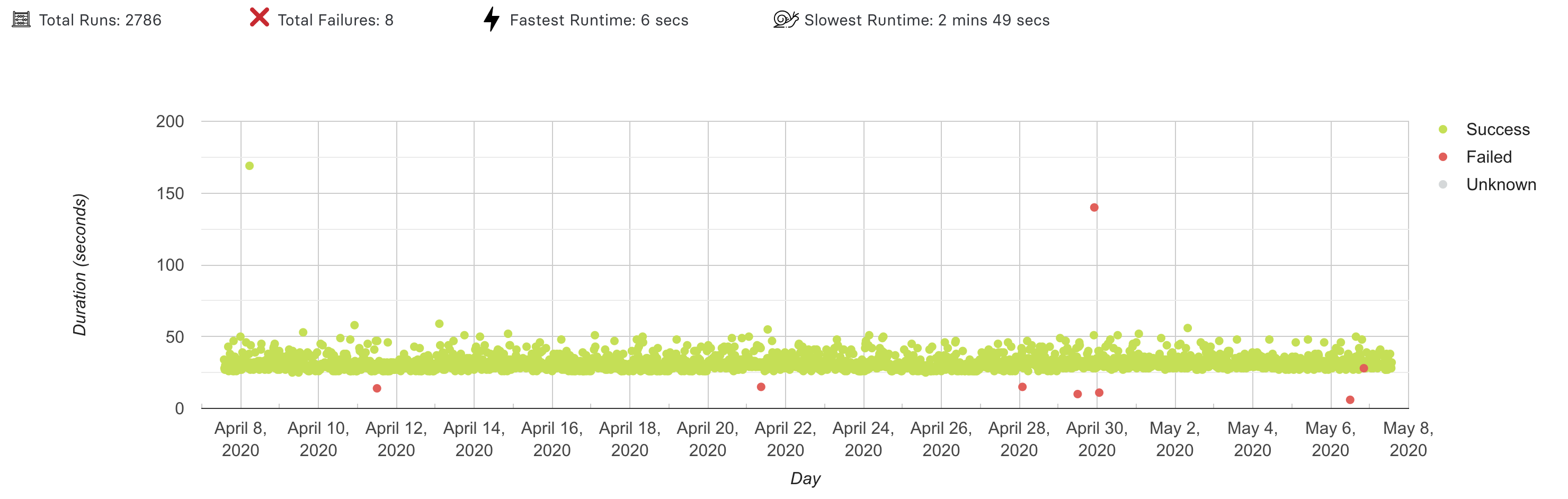
The example graph above shows what to expect from the Test Insights page.
This is a scatter plot, where each dot represents a session with the identical name.
The `X-axis` indicates a time range (which you can specify in the filter below the graph).
The `Y-axis` indicates the duration (in seconds) of each test.
The color of the dot indicates if the test passed (green), failed (red) or unknown (gray).
TestingBot does not know your test status by default, you need to [annotate your tests with a success parameter](https://testingbot.com/support/api#updatetest).
## Interpreting results
You can pan the graph to zoom in or out, and use the filter below the graph to change the time range.
Clicking a dot will navigate to the test details page of that test session.
The example above shows a very consistent graph, with a high pass rate and a couple of (failed) outliers.
Other graphs may show a different story. For example, a flaky test will show a scatter plot with `failures` on first run and `passes` on re-runs.
### Looking for more help?
Have questions or need more information? Reach out via email or Slack.
[Email us](https://testingbot.com/contact/new)[Slack Join our Slack](https://join.slack.com/t/testingb0t/shared_invite/zt-3bcw9xch-jk19~6XPs_xBrsAgAedkCw)
---
URL: https://testingbot.com/support/analytics/builds
# Test Builds
Test Builds are group of tests. This term is usually used in a CI/CD context.
Whenever you want to deploy to production, you'll run a group of tests to verify the build.
It is possible to [annotate your Selenium WebDriver tests with a build identifier](https://testingbot.com/support/web-automate/selenium/test-options#build).
When TestingBot sees a `build identifier` in the desired capabilities of your test, we will add the test to the group you specified.
## Build Graph
In our [member dashboard](https://testingbot.com/members), navigate to the build overview page and click a build name.
You will see a page with a pie-chart of the build's success rate and a table with all tests included in this build.
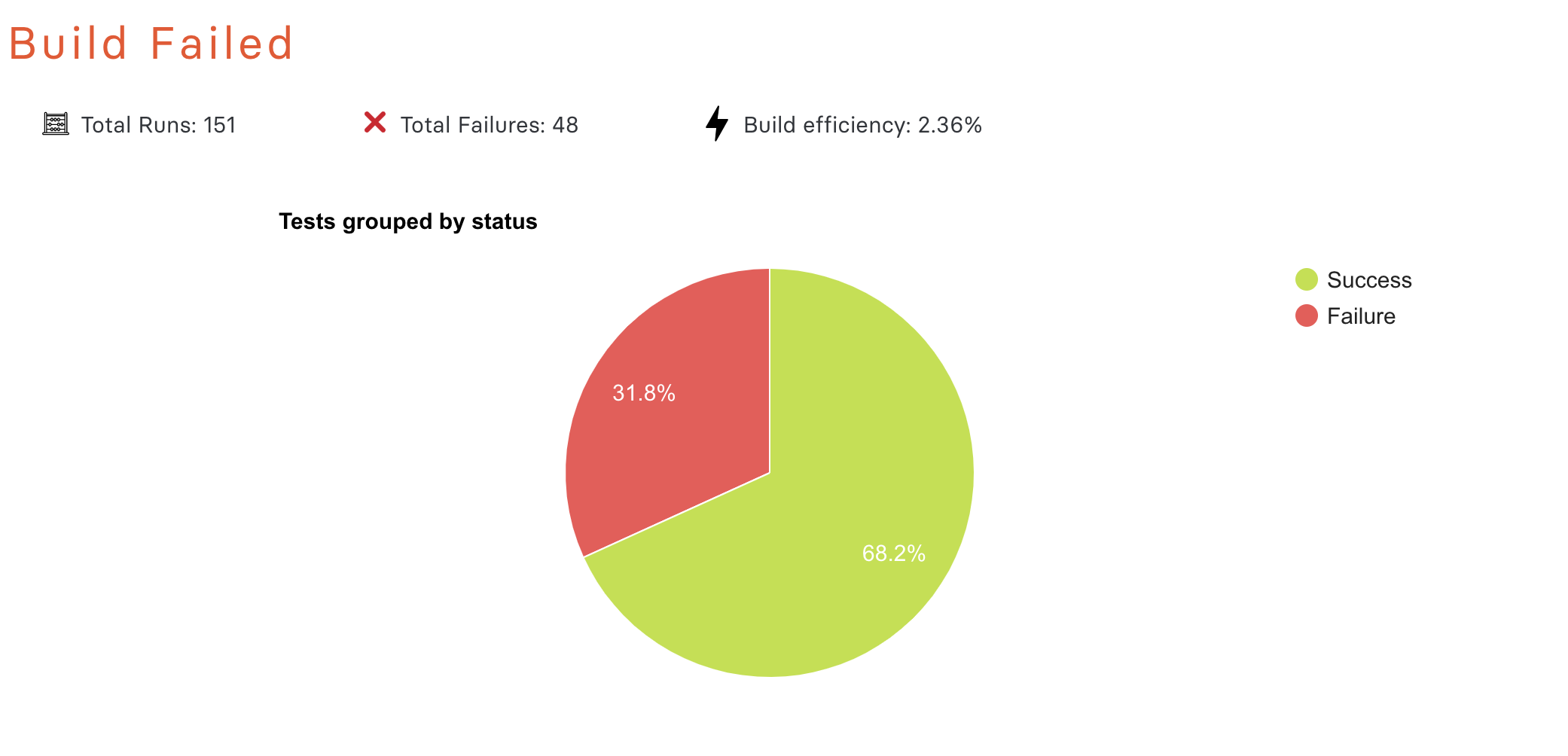
Click the `green` or `red` slice of the pie-chart to see a list of `passed` or `failed` tests.
## Build Efficiency
For each build, we calculate an `efficiency percentage`.
This number indicates how well your test runner has been using `parallelization` to shorten the total test duration of the test build.
One of the advantages of using TestingBot is its `concurrency`: run multiple tests simultaneously to drastically shorten the total time required to run all your tests.
For example:
- Running 10 tests in the build `sequentially`, where each test takes 30 seconds, would result in a total test build duration of **300 seconds**.
- Running these 10 tests in `parallel`, where each test still takes 30 seconds, would result in a total test build duration of **30 seconds**.
The `efficiency percentage` is calculated as a percentage. It is based on how long the build took to run, compared to the duration of the longest test in the build.
Efficiency Percentage | Degree of Parallelization | Description || 0%-20% | Sequential | All your tests have been running sequentially. Consider speeding up your build time with parallelization. |
| 20%-90% | Semi-Parallel | Some of your tests are running in parallel. There is still room for improvement: add more parallelization to run all tests in your build simultaneously. |
| 90%-100% | Full Parallel | You are taking full advantage of parallelization and your test build is optimised for the fastest build time. |
### Looking for more help?
Have questions or need more information? Reach out via email or Slack.
[Email us](https://testingbot.com/contact/new)[Slack Join our Slack](https://join.slack.com/t/testingb0t/shared_invite/zt-3bcw9xch-jk19~6XPs_xBrsAgAedkCw)
---
URL: https://testingbot.com/support/analytics/guide
# Analytics
TestingBot provides detailed analytics about your test sessions. We provide you with graphs and metrics, allowing you to:
- Reduce time spent analyzing test results
- Locate bottlenecks in your test performance
- See for which browsers and platforms your tests are flaky and more prone to failure
- Determine if a build is release quality
## Filters
Our analytics filters allow you to drill down on your metrics and visualize the information you need.
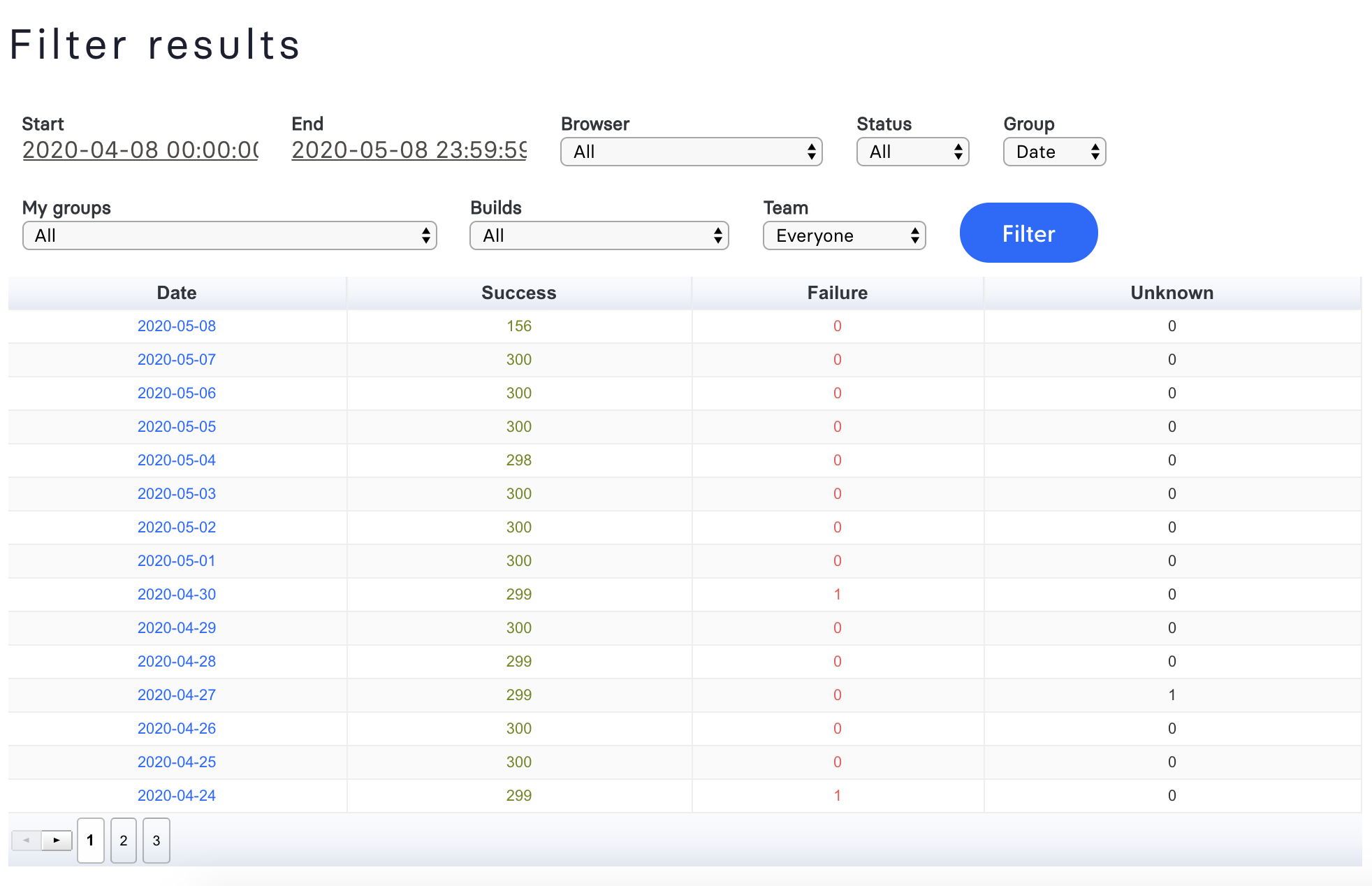
You can filter on several things, including:
- Start/End time of the test
- Browser/Device
- Status (Passed, Failed, Unknown)
- Group by date/status
- Filter by [Build](https://testingbot.com/support/web-automate/selenium/test-options#build)
- Filter by groups: only show tests that have a [group (tag)](https://testingbot.com/support/web-automate/selenium/test-options#grouping) included in their desired capability.
- Filter by [team member](https://testingbot.com/support/team/sub-accounts)
## Graphs
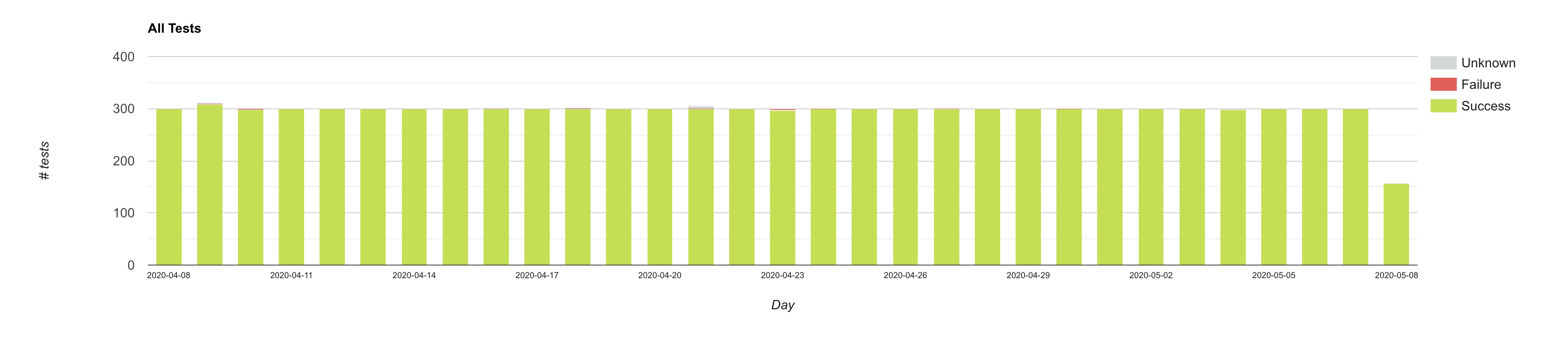
One of the first graphs you'll see is the graph above. This Column Chart shows an overview of the pass/fail rate for all your tests, grouped by day, for the last 31 days.
Each column represents a day, and may include:
- **Passed/Success:** all tests marked as passed
- **Failure:** all tests marked as failed
- **Unknown:** we don't know the status about this test. Please use our API to mark this test as passed/failed.
Using the filter, you can change the date range and filter by various things (see above).
If you click part of the graph, you'll navigate to an overview of all tests for that specific part.
### Looking for more help?
Have questions or need more information? Reach out via email or Slack.
[Email us](https://testingbot.com/contact/new)[Slack Join our Slack](https://join.slack.com/t/testingb0t/shared_invite/zt-3bcw9xch-jk19~6XPs_xBrsAgAedkCw)
---
URL: https://testingbot.com/support/billing
# Billing
- [Payment Options](https://testingbot.com/support/billing/payment-options)
- [Charges](https://testingbot.com/support/billing/charges)
- [Upgrading](https://testingbot.com/support/billing/upgrading)
- [Invoices](https://testingbot.com/support/billing/invoices)
- [Cancel](https://testingbot.com/support/billing/cancel)
### Looking for more help?
Have questions or need more information? Reach out via email or Slack.
[Email us](https://testingbot.com/contact/new)[Slack Join our Slack](https://join.slack.com/t/testingb0t/shared_invite/zt-3bcw9xch-jk19~6XPs_xBrsAgAedkCw)
---
URL: https://testingbot.com/support/billing/payment-options
# Payment Options
You can see the list of our prices on our [pricing page](https://testingbot.com/pricing).
We accept the following payment options:
- Credit card payment
- PayPal (via Stripe)
- Wire Transfer ([contact us for wire details](https://testingbot.com/contact/new))
- EU customers: additional local payment methods such as SEPA Direct Debit and iDEAL through Stripe
- [AWS Marketplace](https://aws.amazon.com/marketplace/pp/prodview-yv6ds4mf77fao)
TestingBot is PCI compliant. Please view our [SAQ A](https://testingbot.com/pci.pdf).
## Credit Card

Billing occurs as a subscription and is handled by Stripe.com.

All payments happen on a HTTPS secured page.
**Your payment data is never stored or logged on our website.**
### Looking for more help?
Have questions or need more information? Reach out via email or Slack.
[Email us](https://testingbot.com/contact/new)[Slack Join our Slack](https://join.slack.com/t/testingb0t/shared_invite/zt-3bcw9xch-jk19~6XPs_xBrsAgAedkCw)
---
URL: https://testingbot.com/support/billing/charges
# Charges
Billing occurs as a monthly subscription. This means that every month your account will be recharged with testing minutes. How many test minutes are added depends on the subscription you choose.
You can see the various subscriptions on our [pricing page](https://testingbot.com/pricing).
## What if I use more than the provided test minutes?
You will no longer be able to run your tests until the end of the month.
Please consider upgrading to a plan with more capacity.
**We will never automatically re-charge your subscription for extra minutes, no hidden costs.**
## When will I be billed?
You will be billed on the same day of each month. If you started your subscription on the 11th day, then you will be charged the 11th day the next month.
### Looking for more help?
Have questions or need more information? Reach out via email or Slack.
[Email us](https://testingbot.com/contact/new)[Slack Join our Slack](https://join.slack.com/t/testingb0t/shared_invite/zt-3bcw9xch-jk19~6XPs_xBrsAgAedkCw)
---
URL: https://testingbot.com/support/billing/upgrading
# Upgrading subscription
At any time you can [upgrade your current subscription](https://testingbot.com/pricing).
You will not lose your remaining testing minutes for that month.
Minutes will be transferred over immediately when you upgrade your plan.
The number of simultaneous VMs allowed will be automatically increased after your upgrade.
### Looking for more help?
Have questions or need more information? Reach out via email or Slack.
[Email us](https://testingbot.com/contact/new)[Slack Join our Slack](https://join.slack.com/t/testingb0t/shared_invite/zt-3bcw9xch-jk19~6XPs_xBrsAgAedkCw)
---
URL: https://testingbot.com/support/billing/invoices
# Invoices
We provide invoices for all customers with an active subscription.
You can find monthly/yearly invoices (depending on the subscription) in the member area under [Billing](https://testingbot.com/members/invoices).
Each invoice can be downloaded as a PDF from the Invoices table.
If you are a sub-account in a team account, you will not be able to see the invoices. Only parent accounts or standalone accounts can see invoices.
## Changing Billing Details
To change your billing details (Company name, address, VAT number, ...) please go to [Account Settings](https://testingbot.com/members/user/edit) and update the fields on the Profile tab.
When you update your billing details, future invoices will reflect the new information. Re-download the invoice from the Billing page to get the updated copy.
## VAT number
If your company is located in Europe, please provide your VAT number on the Profile tab of your [Account Settings](https://testingbot.com/members/user/edit).
### Looking for more help?
Have questions or need more information? Reach out via email or Slack.
[Email us](https://testingbot.com/contact/new)[Slack Join our Slack](https://join.slack.com/t/testingb0t/shared_invite/zt-3bcw9xch-jk19~6XPs_xBrsAgAedkCw)
---
URL: https://testingbot.com/support/billing/cancel
# Cancel Subscription
You can stop your subscription at any time.
Go to [Billing](https://testingbot.com/members/invoices) in the member area and click the **Cancel Subscription** button under "Manage your Subscription". Your account remains active until the end of your current billing period — you keep access to all features until then.
Customers who subscribed through [AWS Marketplace](https://aws.amazon.com/marketplace/pp/prodview-yv6ds4mf77fao) should cancel through their AWS Marketplace subscription page.
Sorry to see you go. Please [let us know](https://testingbot.com/contact/new) how we can improve our service.
### Looking for more help?
Have questions or need more information? Reach out via email or Slack.
[Email us](https://testingbot.com/contact/new)[Slack Join our Slack](https://join.slack.com/t/testingb0t/shared_invite/zt-3bcw9xch-jk19~6XPs_xBrsAgAedkCw)
---
URL: https://testingbot.com/support/parallel-calculator
# Parallel Testing Calculator
Parallel testing allows you to run multiple tests simultaneously across various browsers, devices, and OS combinations. This approach enables more tests to be run at once, significantly decreasing overall testing time. Faster build times mean faster releases and less time spent waiting for builds to complete.
Use this calculator to understand how parallel testing can help you achieve your test coverage and build execution time goals. Simply input your current testing setup and desired build time to calculate the optimal number of parallel tests needed.
| Team | Current State | Desired Future State | Recommendation |
| --- | --- | --- | --- |
| # of Browsers
and/or Devices
(Current) | # of Parallel
Tests | Build Time
(hours) | # of Browsers
and/or Devices
(Desired) | Build Speed |
| --- | --- | --- | --- | --- |
| Team 1 | | | | |
Select...Supersonic (15m)Fast (30m)Basic (2h)Custom
| - |
| + Add Team | Total Recommendation: - |
Calculate Save & Share
Use this URL to view & share these results:
Copy
## Understanding the Calculator
# of Browsers and/or DevicesThe number of unique desktop browser and/or mobile device combinations to test.
# of Parallel TestsThe number of parallel tests you are currently running.
Build TimeTime taken for your entire build to complete.
---
URL: https://testingbot.com/support/team
# TestingBot Team Management
TestingBot provides team accounts, allowing you to share test results with your colleagues.
- [Account Settings](https://testingbot.com/support/team/account)
- [Team & Sub-Accounts](https://testingbot.com/support/team/sub-accounts)
- [Audit Logs](https://testingbot.com/support/team/audit-logs)
- [2FA](https://testingbot.com/support/team/2fa)
- [SSO](https://testingbot.com/support/team/sso)
- [Microsoft Entra](https://testingbot.com/support/team/sso/microsoft-entra)
- [Okta](https://testingbot.com/support/team/sso/okta)
---
URL: https://testingbot.com/support/team/sub-accounts
# Managing Sub-Accounts
Sub-accounts are accounts that can be linked to your account. They're a great way to share your subscription and test results with your team members.
- Everyone in the same group can see each other's tests.
- Each sub-account has its own login credentials to log into our TestingBot member dashboard, and they have their own key/secret credentials to run tests on our Selenium grid.
A sub-account can create/run/delete tests, see test results and interact with the member dashboard. The things **sub-accounts can't do** :
- Access any subscription related items: payment information, invoices, accounting details, ...
- Add/remove any other sub-accounts
## Adding Sub-Accounts
Go to [My Account \> Add Team Members](https://testingbot.com/members/sub/new) to add a new sub-account.
You can choose to either:
- **Invite Someone** : create a new account with email/password combination.
We'll send an activation link to this person's email address so they can immediately log in with the newly created sub-account.
- **Add existing TestingBot User** : in case the person you'd like to add to your group already has an account on TestingBot,
then simply fill in the email address they use on TestingBot. They'll receive an invite to join your group account as a sub-account.
## Modifying Sub-Accounts
To remove or edit a sub-account, go to [My Account \> Team Members](https://testingbot.com/members/sub).
### Disconnecting a sub-account
From there, you can **disconnect a sub-account** (clicking the red cross icon).
This disconnects the sub-account from your group.
The account will not be removed from our system, but it will no longer be associated with your account or other sub-accounts.
## Read-Only Sub-Accounts
Making a sub-account Read-Only means the account can only view tests, not modify or remove any results from the team account.
## Permissions
You can choose to create a sub-account with either **USER** permissions or **ADMIN** permissions.
- **USER:** a sub-account does not have any rights to add/remove other team members to the team account.
- **ADMIN:** an admin account can add/remove other users to the team account.
## Concurrency Limit
The Concurrency Limit indicates how many tests a user can run simultaneously. The more tests you run concurrently, the faster you can process all your tests.
By default, a sub-account will have the same amount of concurrency as the parent account (which depends on the pricing plan that the parent account is subscribed to).
It is possible to change the concurrency limit per user. This way, you can for example divide the amount of concurrency you have across various team members.
For example: you have an Enterprise plan with 30 parallel tests: You can assign 10 parallel tests to team member **A** , 15 to team member **B** and 5 to team member **C**. A user can not run more tests concurrently than the maximum amount assigned. If the user tries to run more tests, the tests will be queued in our system, waiting for a slot to free up.
If you do not change this setting for any of the sub-accounts, then all sub-accounts will have access to the maximum amount of concurrency. Whenever this threshold is reached, extra tests for any sub-account will be queued until a slot frees up.
## Tests Overview for Sub-Accounts
To see a list of tests created by a sub-account, click "Tests run by this user".
The list contains tests run by this sub-account (with their own key/secret).
## Team Activity Log
Team admins are able to see an overview of the actions performed by their team members in the Team Activity Log overview page. On the Team Management page, please click the **Activity Log** tab to open the overview.
In this activity log we will show the following events for your team members:
- A user from your team logged in
- A user from your team logged out
- A user was added to your team
- A user was removed from your team
- A team member's user level was upgraded or downgraded
### Looking for more help?
Have questions or need more information? Reach out via email or Slack.
[Email us](https://testingbot.com/contact/new)[Slack Join our Slack](https://join.slack.com/t/testingb0t/shared_invite/zt-3bcw9xch-jk19~6XPs_xBrsAgAedkCw)
---
URL: https://testingbot.com/support/team/2fa
# Why Two-Factor Authentication (2FA)
Two Factor Authentication adds an extra layer of security to your TestingBot account. After entering your email and password, you'll also need to supply a one-time verification code.
TestingBot supports two methods for generating that code: a time-based authenticator app (TOTP) or an SMS message to your mobile phone. We recommend an authenticator app — it works without cell coverage and is generally more secure than SMS.
With 2FA enabled, even if your password is compromised, an attacker would still need access to your authenticator app or phone to sign in.
## Enable 2FA
Log into your TestingBot account and go to [Security](https://testingbot.com/members/user/security) in your account settings.
Click the [Enable 2FA](https://testingbot.com/members/2fa/enable) button to begin the setup.
On the setup page, you can choose either method:
- **Authenticator app (recommended):** scan the QR code with any TOTP-compatible app such as Google Authenticator, Authy, 1Password or Microsoft Authenticator, then enter the 6-digit code it generates to verify.
- **SMS:** enter your mobile phone number with country code (for example, a US number starts with `+1`). We'll send a verification code via SMS that you enter to verify.
Once 2FA is enabled, every subsequent login will prompt you for a verification code after your email and password.
## Authenticator App
Any TOTP-compatible authenticator app will work with TestingBot 2FA, including Google Authenticator, Authy, 1Password, and Microsoft Authenticator.
Scan the QR code shown on the [Enable 2FA](https://testingbot.com/members/2fa/enable) page to register TestingBot with your app. The app will then generate a new 6-digit code every 30 seconds, which you enter when signing in.
## Disabling 2FA
Log into your TestingBot account and go to [Security](https://testingbot.com/members/user/security) in your account settings.
Click the **Disable 2FA** button to turn off two-factor authentication for your account.
### Looking for more help?
Have questions or need more information? Reach out via email or Slack.
[Email us](https://testingbot.com/contact/new)[Slack Join our Slack](https://join.slack.com/t/testingb0t/shared_invite/zt-3bcw9xch-jk19~6XPs_xBrsAgAedkCw)
---
URL: https://testingbot.com/support/team/account
# How to update my account details?
You can update your account details (email, first name, last name) by going to [Members \> Account](https://testingbot.com/members/user/edit).
In the form "Edit your account details" you can update your personal details.
## Resetting Security Tokens
You can find your Security Tokens (`Key` + `Secret`) by going to [Members \> Manage Credentials](https://testingbot.com/members/user/security).
These two identifiers are necessary to authenticate to our Selenium grid.
It is possible to reset these security tokens by clicking the "Generate new keys" link.
**Caution:** resetting these tokens means your existing tests with older key/secret credentials will stop running.
## Change Password
You can change your current password by logging into TestingBot and going to [Members \> Security](https://testingbot.com/members/user/security).
Click "Change Password". You will be asked to fill in your current password and a new password.
## Active Sessions
On the [Security page](https://testingbot.com/members/user/security) you can find an overview of the active sessions for your account.
Each entry contains the logged-in IP address, device name and last active time.
You can sign out of individual sessions, or sign out everywhere.
### Looking for more help?
Have questions or need more information? Reach out via email or Slack.
[Email us](https://testingbot.com/contact/new)[Slack Join our Slack](https://join.slack.com/t/testingb0t/shared_invite/zt-3bcw9xch-jk19~6XPs_xBrsAgAedkCw)
---
URL: https://testingbot.com/support/team/audit-logs
# TestingBot Audit Logs
Audit logs provide a comprehensive record of all activities performed by team members in your TestingBot organization. These logs help you maintain security, ensure compliance and monitor user behavior across your testing infrastructure.
Only organization administrators can view and manage audit logs. Audit logs are retained for a maximum of 60 days.
## How to Access Audit Logs
To view your organization's audit logs:
1. Log into your TestingBot account
2. Navigate to [Members → Team Activity](https://testingbot.com/members/sub/activity)
3. View the comprehensive activity log for your organization
The audit log interface provides filtering options to help you find specific events by date range, event type or team member.
## Event Types
TestingBot tracks the following types of activities in your audit logs:
| Category | Event | Description |
| --- | --- | --- |
| Authentication | Login | User successfully logged into the TestingBot platform |
| Authentication | Logout | User logged out of the TestingBot platform |
| Account Management | Add Account | New team member was added to the organization |
| Account Management | Remove Account | Team member was removed from the organization |
| Account Management | Profile Update | User updated their profile information (name, email, etc.) |
| Plan & Configuration | Upgrade Level | Account plan was upgraded to a higher tier |
| Plan & Configuration | Downgrade Level | Account plan was downgraded to a lower tier |
| Plan & Configuration | Max Parallel Changed | Maximum parallel test sessions limit was modified |
| Plan & Configuration | Max Parallel Device Changed | Maximum parallel device sessions limit was modified |
| Security | Password Changed | User changed their account password |
| Security | Change Keys | User regenerated their API access keys (Key + Secret) |
| Security | 2FA Enabled | Two-factor authentication was enabled for the account |
| Security | 2FA Disabled | Two-factor authentication was disabled for the account |
| Team Invitations | Invite Sent | Team invitation was sent to a new member |
| Team Invitations | Invite Accepted | Team member accepted their invitation and joined the organization |
| Team Invitations | Invite Denied | Team invitation was declined or rejected |
## Filtering and Searching
The audit log interface provides several filtering options to help you find specific events:
- **Filter by Event Type:** Select specific event types to view only those activities
- **Filter by User:** Show activities performed by a specific team member
- **Filter by Date Range:** Specify a custom date range to narrow down the results
## Data Retention and Export
You can export all audit logs in `.CSV` format.
For compliance and record-keeping purposes, we recommend regularly exporting your audit logs if you need to maintain historical records beyond the 60-day retention period.
### Looking for more help?
Have questions or need more information? Reach out via email or Slack.
[Email us](https://testingbot.com/contact/new)[Slack Join our Slack](https://join.slack.com/t/testingb0t/shared_invite/zt-3bcw9xch-jk19~6XPs_xBrsAgAedkCw)
---
URL: https://testingbot.com/support/team/sso
# Setting Up Single Sign On (SSO)
TestingBot supports Identity Provider (IdP)-initiated and Service Provider (SP)-initiated Single Sign-On (SSO) via the SAML 2.0 protocol. This allows your authorized employees to access TestingBot in a moderated fashion, as an alternative to using passwords.
To start using SSO, please make sure you have an [Identity Provider (IdP)](https://testingbot.com#idp) set up.
## Setting Up Identity Provider
TestingBot provides preconfigured SAML applications for a selection of Identity Providers (IdPs). These applications allow you to integrate SSO with TestingBot in a very easy way. Below is a list of SAML applications available:
- [Microsoft Entra](https://testingbot.com/support/team/sso/microsoft-entra)
- [Okta](https://testingbot.com/support/team/sso/okta)
To set up a custom Identity Provider, such as Salesforce, ForgeRock, Auth0 or others, please follow the steps below.
1. Retrieve the [SAML metadata](https://testingbot.com/users/saml/metadata) from TestingBot.
2. Log in to your identity provider's administrator panel.
3. If your IdP does not allow you to upload the metadata file, you can set up the integration manually.
4. Export SAML metadata of your newly created SAML application. Please [email it to us](https://testingbot.com/contact/new) so that we can set up the connection for you.
## Service Provider SAML Requirements
Below is a list of settings that are required by the TestingBot Service Provider:
| Setting Name | Value |
| --- | --- |
| Entity ID | `https://testingbot.com/users/saml/metadata` |
| Assertion Consumer Service (ACS URL, Reply URL) | `https://testingbot.com/users/saml/auth` |
| Name ID (Unique User Identifier) | `email` |
| Name ID format/policy | `urn:oasis:names:tc:SAML:2.0:nameid-format:transient` |
| Binding | `urn:oasis:names:tc:SAML:2.0:bindings:HTTP-POST` |
| Idp Cert Fingerprint Algorithm | `http://www.w3.org/2000/09/xmldsig#sha256` |
| Login URL | `https://testingbot.com/users/saml/sign_in` |
### SAML Claims
TestingBot Service Provider supports the following SAML custom claims:
- `email`
- `http://schemas.xmlsoap.org/ws/2005/05/identity/claims/emailaddress`
- `http://schemas.xmlsoap.org/ws/2005/05/identity/claims/email`
- `first_name`
- `http://schemas.xmlsoap.org/ws/2005/05/identity/claims/givenname`
- `last_name`
- `http://schemas.xmlsoap.org/ws/2005/05/identity/claims/surname`
## SSO Options
We provide the following options with Single Sign On:
### Just-In-Time (JIT) Provisioning
If a user from your organization logs in through SSO, we can automatically create an account for this user on TestingBot, which will be associated to your team. Each user will be able to see the tests created by other members of your organization.
If this setting is disabled, users that are not yet registered with TestingBot will not be able to use TestingBot.
#### Enforce SSO (Big Bang)
When this setting is enabled, users in your organization must log in through SSO.
All other authentication methods will not be allowed.
#### Email verification
New users logging in through SAML for the first time will automatically have their account (and email address) verified.
#### Logout
TestingBot supports both SP-Initiated logout and IdP-initiated logout. If you'd like to set up SP-initiated logout, please [contact us](https://testingbot.com/contact/new) with your IdP SLO endpoint.
## Unsupported Features
We currently do not provide support for these features:
- SCIM (System for Cross-domain Identity Management)
### Looking for more help?
Have questions or need more information? Reach out via email or Slack.
[Email us](https://testingbot.com/contact/new)[Slack Join our Slack](https://join.slack.com/t/testingb0t/shared_invite/zt-3bcw9xch-jk19~6XPs_xBrsAgAedkCw)
---
URL: https://testingbot.com/support/team/sso/microsoft-entra
# Setting up SSO with Microsoft Entra
TestingBot has created a SAML app in Microsoft Entra which you can use to easily enable SSO with Entra and TestingBot.
1. Go to **Browse Microsoft Entra Gallery** and search for **TestingBot**.
2. Click the TestingBot app to go to the detail page. Click the **Create** button to add the app.
3. In the **Properties** section, make sure the **User Identifier** claim is set to a valid email address. You can adjust this later under **Attributes & Claims** in the Entra SAML configuration.
4. Click **Single Sign on** in the Manage section, then select **SAML** as the single sign-on method.
5. Make sure you fill in the required information in the **Basic SAML Configuration** , such as the **Identifier (Entity ID)** and **Reply URL (Assertion Consumer Service URL)** as listed on the [SSO setup page](https://testingbot.com/support/team/sso).
6. Download the **Federation Metadata XML** from the SAML Signing Certificate section, then send it to TestingBot via the [contact form](https://testingbot.com/contact/new) so we can finish setting up SSO on our side.
### Looking for more help?
Have questions or need more information? Reach out via email or Slack.
[Email us](https://testingbot.com/contact/new)[Slack Join our Slack](https://join.slack.com/t/testingb0t/shared_invite/zt-3bcw9xch-jk19~6XPs_xBrsAgAedkCw)
---
URL: https://testingbot.com/support/team/sso/okta
# Setting up SSO in Okta
TestingBot has created a SAML app in Okta which you can install to easily enable SSO with Okta and TestingBot.
1. Log in to the **Okta administrator panel** , go to **Applications** and search for TestingBot in the **Browse App Integration Catalog**.
2. Click the TestingBot app to go to the detail page. Click the **Add Integration** button to add the TestingBot app.
3. Change the name of the application to your liking, or leave it as TestingBot, then click **Done**.
4. You can now assign one or more users or groups to use the TestingBot application.
5. Click the **Sign On** tab.
6. In the **Credentials Details** section, make sure that the value for **Application username format** is a valid email address. The default format for Okta username is an email address, unless it has been changed in the Okta Admin Console.
7. In the **SAML Signing Certificates** section, click **Actions** , and then **View IdP metadata**. Please [send the metadata to TestingBot](https://testingbot.com/contact/new).
### Looking for more help?
Have questions or need more information? Reach out via email or Slack.
[Email us](https://testingbot.com/contact/new)[Slack Join our Slack](https://join.slack.com/t/testingb0t/shared_invite/zt-3bcw9xch-jk19~6XPs_xBrsAgAedkCw)
---
URL: https://testingbot.com/support/other/configuration
# TestingBot Grid Configuration
TestingBot provides a distributed cloud grid of real browsers and devices. Connect your Selenium, Appium, Puppeteer, Playwright, Cypress, XCUITest and Espresso tests to this grid through the endpoints documented below.
The Selenium and Appium grid runs the latest stable Selenium 4 server and is fully W3C-compliant. Your client SDK version (Selenium, Appium, Playwright, Puppeteer) is matched on the grid side for compatibility.
## Service status
Live incidents and scheduled maintenance are posted on the [TestingBot status page](https://status.testingbot.com/) (RSS feed available). Subscribe to the status page to receive notifications for grid availability, hub-endpoint issues and tunnel infrastructure events.
[](https://stats.pingdom.com/kwiiczwo3ltc)[](https://stats.pingdom.com/kwiiczwo3ltc)
## TestingBot IP Ranges
Below you will find an up-to-date list of the TestingBot IP ranges used during testing.
- 109.68.162.161
- 109.68.162.165
- 78.20.187.211
- 162.55.135.22
- 95.217.83.184
- 95.216.39.110
- 95.216.229.109
- 142.132.137.7
- 195.201.167.43
- 162.55.24.100
- 185.223.133.13
You can also fetch this up-to-date list from the [TestingBot REST-API](https://testingbot.com/support/api#ipranges).
### Geolocation IP ranges
TestingBot provides [geolocation testing](https://testingbot.com/support/web-automate/selenium/test-options#geo), allowing you to test from various geographical places around the world. Below are the IP addresses we use for this.
- **AU** Australia: `35.213.216.75`
- **BE** Belgium: `109.68.162.161`
- **BR** Brazil: `35.215.244.91`
- **CA** Canada: `34.47.9.124`
- **CL** Chile: `34.176.132.166`
- **FR** France: `15.236.216.234`
- **DE** Germany: `188.245.92.209`
- **IN** India: `35.207.203.231`
- **IT** Italy: `15.161.57.62`
- **JP** Japan: `35.213.44.184`
- **NO** Norway: `51.120.9.213`
- **SG** Singapore: `18.138.255.42`
- **ZA** South Africa: `13.245.163.253`
- **SE** Sweden: `16.171.19.152`
- **CH** Switzerland: `34.65.52.54`
- **AE** United Arab Emirates: `20.174.25.155`
- **GB** United Kingdom: `35.214.33.251`
- **US** United States: `178.156.132.19`
## Selenium grid configuration
W3C-compliant Selenium 4 endpoint. Connect your Selenium WebDriver client (Java, Python, Ruby, Node.js, C#, PHP) to the URL below and pass your API key and secret inside the `tb:options` capability map.
| Key | Value |
| --- | --- |
| Selenium version | Latest stable Selenium 4 (W3C protocol). The grid is fully W3C-compliant. [Pin a specific Selenium version](https://testingbot.com/support/web-automate/selenium/test-options#seleniumversion) with the seleniumVersion capability if needed. |
| Hub endpoint | `https://hub.testingbot.com/wd/hub` |
| Port | 443 (HTTPS, recommended). Plain HTTP on port 80 and 4444 is also accepted but not recommended for production. |
| Default idle timeout | 130 seconds. [Change the idleTimeout capability](https://testingbot.com/support/web-automate/selenium/test-options#idletimeout) to raise or lower this per test. |
| Default screen resolution | 1280x1024. [Change the screenResolution capability](https://testingbot.com/support/web-automate/selenium/test-options#screenresolution) to pick a different resolution per test. |
## Appium grid configuration
Appium 2 endpoint for native mobile app testing and mobile-browser testing on iOS and Android simulators, emulators and real devices. Uses the same hub URL as Selenium.
| Key | Value |
| --- | --- |
| Appium version | Latest compatible Appium version for the specified device, OS and OS version. [Pin a specific Appium version](https://testingbot.com/support/app-automate/appium/options#appiumVersion) with the appiumVersion capability. |
| Hub endpoint | `https://hub.testingbot.com/wd/hub` |
| Port | 443 (HTTPS, recommended). Plain HTTP on port 80 and 4444 is also accepted but not recommended for production. |
| Default idle timeout | 130 seconds. [Change the idleTimeout capability](https://testingbot.com/support/web-automate/selenium/test-options#idletimeout) per test if needed. |
## Puppeteer and Playwright configuration
Puppeteer and Playwright connect over a WebSocket endpoint rather than the WebDriver HTTP hub. Use the appropriate `wss://` URL below and pass your API key, secret, browserName and browserVersion as query parameters or capabilities depending on your client. See [the Playwright support page](https://testingbot.com/support/web-automate/playwright) and [the Puppeteer support page](https://testingbot.com/support/web-automate/puppeteer) for complete examples.
| Key | Value |
| --- | --- |
| Playwright endpoint | `wss://cloud.testingbot.com/playwright` |
| Puppeteer endpoint | `wss://cloud.testingbot.com/puppeteer` |
| Playwright or Puppeteer version | TestingBot matches the server-side version to the client-side version you use, ensuring full compatibility. No version pin is needed on the capabilities. |
| Port | 443 (TLS-encrypted WebSocket). Plain ws:// on port 80 is also accepted but not recommended for production. |
### Looking for more help?
Have questions or need more information? Reach out via email or Slack.
[Email us](https://testingbot.com/contact/new)[Slack Join our Slack](https://join.slack.com/t/testingb0t/shared_invite/zt-3bcw9xch-jk19~6XPs_xBrsAgAedkCw)
---
URL: https://testingbot.com/support/other/sharing
### Available Topics:
- [Link to a Test](https://testingbot.com#linktest)
- [Link to a Build](https://testingbot.com#linkbuild)
- [Embed Test Info](https://testingbot.com#embedinfo)
- [Embed Test Video](https://testingbot.com#embedvideo)
# Sharing Tests
Below are various ways to share, embed or link to a test or build on TestingBot.
To share, view or link to a test, it is important to know its `sessionId`.
Selenium and Appium will return a `sessionId` when a client starts a new session.
This sesssionId is a unique identifier and changes per test. It is stored as a member variable of the instantiated Driver object. Most of the time it is named `sessionId` or `session_id`, depending on the client you are using.
## Link to a Test
You can easily share a single test result with someone in a safe way, without the other person needing an account.
To share a test result, you'll need to create the following url:
https://testingbot.com/tests/ **sessionId**?auth= **authentication-hash**
The authentication hash is created with md5 in the following format:
[Ruby](https://testingbot.com#)[Python](https://testingbot.com#)[PHP](https://testingbot.com#)[Java](https://testingbot.com#)[NodeJS](https://testingbot.com#)[C#](https://testingbot.com#)
Digest::MD5.hexdigest("#{client_key}:#{client_secret}:#{session_id}")
MessageDigest m=MessageDigest.getInstance("MD5");
String s = "TESTINGBOT_KEY:TESTINGBOT_SECRET:session_id";
m.update(s.getBytes(),0,s.length());
System.out.println("MD5: "+new BigInteger(1,m.digest()).toString(16));
echo md5("TESTINGBOT_KEY:TESTINGBOT_SECRET:$session_id");
import hashlib
print(hashlib.md5("TESTINGBOT_KEY:TESTINGBOT_SECRET:#{session_id}".encode('utf-8')).hexdigest())
var crypto = require('crypto');
crypto.createHash('md5').update("TESTINGBOT_KEY:TESTINGBOT_SECRET:sessionId").digest("hex");
Convert.ToBase64String(new System.Security.Cryptography.MD5CryptoServiceProvider().ComputeHash(System.Text.Encoding.UTF8.GetBytes("TESTINGBOT_KEY:TESTINGBOT_SECRET:sessionId")));
An example link would then be:
https://testingbot.com/tests/9jf392fj3j2f3ojid8?auth=230i439uf3fojf
## Link to a Video
You can easily share a video of a specific test, please see the example below:
To build the URL with the correct authentication hash, the URL should be structured like this:
https://testingbot.com/tests/ **sessionId.mp4**?auth= **authentication-hash**
The authentication hash is created with MD5 in the following format:
[Ruby](https://testingbot.com#)[Python](https://testingbot.com#)[PHP](https://testingbot.com#)[Java](https://testingbot.com#)[NodeJS](https://testingbot.com#)[C#](https://testingbot.com#)
Digest::MD5.hexdigest("#{client_key}:#{client_secret}:#{session_id}")
MessageDigest m=MessageDigest.getInstance("MD5");
String s = "TESTINGBOT_KEY:TESTINGBOT_SECRET:session_id";
m.update(s.getBytes(),0,s.length());
System.out.println("MD5: "+new BigInteger(1,m.digest()).toString(16));
echo md5("TESTINGBOT_KEY:TESTINGBOT_SECRET:$session_id");
import hashlib
print(hashlib.md5("TESTINGBOT_KEY:TESTINGBOT_SECRET:#{session_id}".encode('utf-8')).hexdigest())
var crypto = require('crypto');
crypto.createHash('md5').update("TESTINGBOT_KEY:TESTINGBOT_SECRET:sessionId").digest("hex");
Convert.ToBase64String(new System.Security.Cryptography.MD5CryptoServiceProvider().ComputeHash(System.Text.Encoding.UTF8.GetBytes("TESTINGBOT_KEY:TESTINGBOT_SECRET:sessionId")));
An example link would then be:
https://testingbot.com/tests/9jf392fj3j2f3ojid8.mp4?auth=230i439uf3fojf
## Link to a Build
With TestingBot, it is possible to group several tests under one build identifier.
In our member area, you can then see all the tests grouped by builds.
To link to a build overview, please see this example:
`https://testingbot.com/builds/YOUR_TESTINGBOT_KEY?auth=authentication-hash`
To generate the authentication-hash, you must concatenate user key and user secret, then generate the MD5 hash:
[Ruby](https://testingbot.com#)[Python](https://testingbot.com#)[PHP](https://testingbot.com#)[Java](https://testingbot.com#)[NodeJS](https://testingbot.com#)[C#](https://testingbot.com#)
Digest::MD5.hexdigest("#{client_key}:#{client_secret}")
MessageDigest m=MessageDigest.getInstance("MD5");
String s = "TESTINGBOT_KEY:TESTINGBOT_SECRET";
m.update(s.getBytes(),0,s.length());
System.out.println("MD5: "+new BigInteger(1,m.digest()).toString(16));
echo md5("TESTINGBOT_KEY:TESTINGBOT_SECRET");
import hashlib
print(hashlib.md5("TESTINGBOT_KEY:TESTINGBOT_SECRET".encode('utf-8')).hexdigest())
var crypto = require('crypto');
crypto.createHash('md5').update("TESTINGBOT_KEY:TESTINGBOT_SECRET").digest("hex");
Convert.ToBase64String(new System.Security.Cryptography.MD5CryptoServiceProvider().ComputeHash(System.Text.Encoding.UTF8.GetBytes("TESTINGBOT_KEY:TESTINGBOT_SECRET")));
To link directly to a build, please see this example:
`https://testingbot.com/builds/YOUR_TESTINGBOT_KEY/build-identifier?auth=authentication-hash`
To generate the authentication-hash, you must concatenate user key, user secret and build-identifier, then generate the MD5 hash:
[Ruby](https://testingbot.com#)[Python](https://testingbot.com#)[PHP](https://testingbot.com#)[Java](https://testingbot.com#)[NodeJS](https://testingbot.com#)[C#](https://testingbot.com#)
Digest::MD5.hexdigest("#{client_key}:#{client_secret}:#{build_identifier}")
MessageDigest m=MessageDigest.getInstance("MD5");
String s = "TESTINGBOT_KEY:TESTINGBOT_SECRET:build_identifier";
m.update(s.getBytes(),0,s.length());
System.out.println("MD5: "+new BigInteger(1,m.digest()).toString(16));
echo md5("TESTINGBOT_KEY:TESTINGBOT_SECRET:$build_identifier");
import hashlib
print(hashlib.md5("TESTINGBOT_KEY:TESTINGBOT_SECRET:#{build_identifier}".encode('utf-8')).hexdigest())
var crypto = require('crypto');
crypto.createHash('md5').update("TESTINGBOT_KEY:TESTINGBOT_SECRET:build_identifier").digest("hex");
Convert.ToBase64String(new System.Security.Cryptography.MD5CryptoServiceProvider().ComputeHash(System.Text.Encoding.UTF8.GetBytes("TESTINGBOT_KEY:TESTINGBOT_SECRET:build_identifier")));
The build-identifier is the custom string you can [send as an option to group several tests.](https://testingbot.com/support/web-automate/selenium/test-options#build)
## Embed Test Info
You can embed a test page in any CI detail page, test report or custom website. Please see the example below.
You add a SCRIPT tag in your page which links to the test. Replace sessionId with the correct sessionId of the test.
To generate the authentication-token, you must concatenate user key, user secret and sessionId, then generate the MD5 hash:
[Ruby](https://testingbot.com#)[Python](https://testingbot.com#)[PHP](https://testingbot.com#)[Java](https://testingbot.com#)[NodeJS](https://testingbot.com#)[C#](https://testingbot.com#)
Digest::MD5.hexdigest("#{client_key}:#{client_secret}:#{sessionId}")
MessageDigest m=MessageDigest.getInstance("MD5");
String s = "TESTINGBOT_KEY:TESTINGBOT_SECRET:sessionId";
m.update(s.getBytes(),0,s.length());
System.out.println("MD5: "+new BigInteger(1,m.digest()).toString(16));
echo md5("TESTINGBOT_KEY:TESTINGBOT_SECRET:$sessionId");
import hashlib
print(hashlib.md5("TESTINGBOT_KEY:TESTINGBOT_SECRET:#{sessionId}".encode('utf-8')).hexdigest())
var crypto = require('crypto');
crypto.createHash('md5').update("TESTINGBOT_KEY:TESTINGBOT_SECRET:sessionId").digest("hex");
Convert.ToBase64String(new System.Security.Cryptography.MD5CryptoServiceProvider().ComputeHash(System.Text.Encoding.UTF8.GetBytes("TESTINGBOT_KEY:TESTINGBOT_SECRET:sessionId")));
## Embed Video Info
Next to embedding test info pages, you can also embed the video of the test.
This might be useful to include in test reports or on CI result pages.
To generate the authentication-token, you must concatenate user key, user secret and sessionId, then generate the MD5 hash:
[Ruby](https://testingbot.com#)[Python](https://testingbot.com#)[PHP](https://testingbot.com#)[Java](https://testingbot.com#)[NodeJS](https://testingbot.com#)[C#](https://testingbot.com#)
Digest::MD5.hexdigest("#{client_key}:#{client_secret}:#{sessionId}")
MessageDigest m=MessageDigest.getInstance("MD5");
String s = "TESTINGBOT_KEY:TESTINGBOT_SECRET:sessionId";
m.update(s.getBytes(),0,s.length());
System.out.println("MD5: "+new BigInteger(1,m.digest()).toString(16));
echo md5("TESTINGBOT_KEY:TESTINGBOT_SECRET:$sessionId");
import hashlib
print(hashlib.md5("TESTINGBOT_KEY:TESTINGBOT_SECRET:#{sessionId}".encode('utf-8')).hexdigest())
var crypto = require('crypto');
crypto.createHash('md5').update("TESTINGBOT_KEY:TESTINGBOT_SECRET:sessionId").digest("hex");
Convert.ToBase64String(new System.Security.Cryptography.MD5CryptoServiceProvider().ComputeHash(System.Text.Encoding.UTF8.GetBytes("TESTINGBOT_KEY:TESTINGBOT_SECRET:sessionId")));
### Looking for more help?
Have questions or need more information? Reach out via email or Slack.
[Email us](https://testingbot.com/contact/new)[Slack Join our Slack](https://join.slack.com/t/testingb0t/shared_invite/zt-3bcw9xch-jk19~6XPs_xBrsAgAedkCw)
---
URL: https://testingbot.com/support/other/sikuli
# Sikuli Cloud Testing
Sikuli uses image recognition to identify components you want to interact with on the screen.
While Selenium is limited to interacting with browsers, Sikuli can be used to interact with native GUI components (for example: Windows dialogs, Linux programs or OS-X GUI).
At TestingBot, all our VMs are able to run your Sikuli scripts.
## 1. Download and Setup Sikuli
To get started, please [download Sikuli](http://www.sikulix.com).
Once downloaded, run the file to install Sikuli.
## 2. Create a new Sikuli script
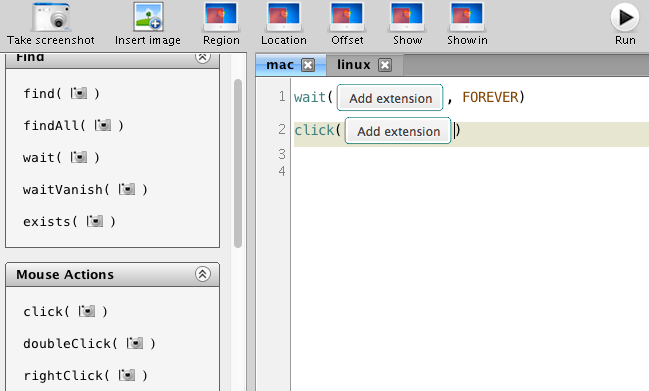
Sikuli uses image-recognition to find the components to interact with.
In this example, we'll take a screenshot of a Chrome dialog asking to install a Chrome extension.
## 3. The Sikuli script
As you can see on the screenshot above, you can use `wait([image], FOREVER)` to have Sikuli wait for something to appear on the screen that looks like the `[image]`.
Once this happens, Sikuli will move on to the next step in the script: clicking the component it detected.
## 4. Integration with TestingBot
At TestingBot, we can run your Sikuli script at the start of your Selenium WebDriver test.
Simply create a zip-file with one or more of your `.sikuli` scripts inside. Then use this URL in your `DesiredCapabilities` when starting a test. This way you can run Sikuli tests in the cloud on all our [platforms](https://testingbot.com/support/web-automate/browsers).
For example:
DesiredCapabilities caps = new DesiredCapabilities();
caps.setCapability("platform", "VISTA");
caps.setCapability("version", "9");
caps.setCapability("browserName", "internet explorer");
caps.setCapability("sikuli", "http://mywebsite.com/sikuli-scripts.zip");
This will make sure TestingBot will download your Sikuli script and run it at the start of your test.
### Looking for more help?
Have questions or need more information? Reach out via email or Slack.
[Email us](https://testingbot.com/contact/new)[Slack Join our Slack](https://join.slack.com/t/testingb0t/shared_invite/zt-3bcw9xch-jk19~6XPs_xBrsAgAedkCw)
---
URL: https://testingbot.com/support/other/errors
# TestingBot Test Errors and How to Fix Them
Reference for the most common errors TestingBot returns when an automated or live test ends unexpectedly. Each section explains what triggered the error, the most common causes, and how to fix it. Errors appear on the test detail page in the dashboard and in the REST API response.
## Minutes depleted
### What it means
The test failed because your account does not have enough test minutes left. New tests cannot be started on TestingBot until minutes are restored.
### How to resolve
See [our pricing plans](https://testingbot.com/pricing) and upgrade your subscription to add minutes immediately, or wait for your monthly plan to reset. Free-tier accounts receive a fresh allowance each month. Enterprise plans can request additional minute pools mid-cycle.
## Test exceeded max duration
### What it means
The test was terminated because it exceeded the maximum duration allowed. The default cap is 1800 seconds (30 minutes).
### Common causes
- The test is genuinely long. Consider splitting it into multiple smaller, atomic tests.
- Tests on the cloud can be slower than local runs because of network round-trips and remote VM startup.
- The test is stuck in an endless loop, repeatedly sending commands.
### How to resolve
- Break the test into smaller pieces.
- Use the [maxDuration capability](https://testingbot.com/support/web-automate/selenium/test-options#maxduration) to raise the cap if you legitimately need a longer session.
- Check for endless loops and add explicit timeouts to waits.
## Test idle timeout
### What it means
TestingBot did not receive a new command from your Selenium or Appium script for more than 90 seconds (the default idle timeout). The session is terminated to prevent it from running forever and consuming all your minutes.
### Common causes
- A missing `driver.quit()` at the end of the test. The runner finishes but the session keeps the browser alive.
- The test script crashed, was interrupted, or lost internet connectivity.
- A legitimately slow step that takes more than 90 seconds between commands.
### How to resolve
- Ensure the test calls `driver.quit()` in a teardown or `finally` block so it always runs.
- Run the test from a stable network. CI runners with unstable egress are a common cause.
- Raise the timeout with the [idleTimeout capability](https://testingbot.com/support/web-automate/selenium/test-options#idletimeout) if you need more than 90 seconds between commands.
## New session cancelled before test start
### What it means
Your test runner requested a new session, but it closed the connection before TestingBot could allocate a slot and return a session id.
### Common causes
- Client connection timeout too short. iOS and Android simulators can take 60 to 120 seconds to boot.
- Running more tests than your plan's concurrency limit. Queued tests still consume the runner's connection time.
- Grid-side capacity issues during peak times. Check the [TestingBot status page](https://status.testingbot.com/).
### How to resolve
- Raise the connection timeout in your test runner. For WebdriverIO use `connectionRetryTimeout: 210000` (3.5 minutes). For Selenium HttpClient set the equivalent socket timeout.
- Confirm you are within the concurrent-session limit on your plan.
- Subscribe to the [status page RSS feed](https://status.testingbot.com/) for incident notifications.
## Manual session ended due to inactivity
### What it means
A Live (interactive) browser or device session was terminated because there was no mouse or keyboard input for an extended period. Live sessions are billed by the minute, so idle sessions are ended automatically to prevent runaway charges.
### How to resolve
Start a new Live session when you are ready to continue. If you need a long-running pinned session for QA workflows, consider switching to an automated test with a deliberate `maxDuration` setting.
## Capability not found or browser unavailable
### What it means
You will see a `CapabilityNotPresentOnTheGridException` (or a similar "browser not found" message) when the browser, version and platform combination you requested is not currently offered on the TestingBot grid.
### How to resolve
- Check the live [supported browser list](https://testingbot.com/support/web-automate/browsers) for available combinations.
- Use the version aliases `latest`, `latest-1`, `latest-2` when you do not need to pin to an exact version. TestingBot resolves them to the current top release.
- Double-check the spelling and case of `platformName` values. Selenium 4 W3C uses `WINDOWS`, `macOS`, `LINUX`, etc.
## Authentication errors (401)
### What it means
Your API key and secret were missing, malformed, or did not match the credentials on file. The grid rejects the session before any browser is allocated.
### How to resolve
- Verify your key and secret in [your account settings](https://testingbot.com/members/user/edit).
- Pass credentials inside `tb:options` (W3C or Selenium 4), not as top-level capabilities.
- If you have rotated keys, update every CI secret store that references the old pair.
## More help
Status incidents are posted at the [TestingBot status page](https://status.testingbot.com/) (RSS feed available). For anything not covered above, [contact our support team](https://testingbot.com/contact/new) with your session ID. The dashboard URL of the failed test is the fastest way for us to investigate.
### Looking for more help?
Have questions or need more information? Reach out via email or Slack.
[Email us](https://testingbot.com/contact/new)[Slack Join our Slack](https://join.slack.com/t/testingb0t/shared_invite/zt-3bcw9xch-jk19~6XPs_xBrsAgAedkCw)
---
URL: https://testingbot.com/support/other/status-badges
# Status Badges
Status Badges help you keep track of the status of your latest test build.
You can simply embed markdown code or HTML code to your project website to show the status of your most recent test build.
## Builds
In order to show a status badge, you need to make sure that you're running your tests in a group, called a **build**.
For example: you have a project that has a bunch of tests. After every commit you want to make sure the tests still pass.
The tests you want to run are grouped in a **build**.
To make sure your tests are grouped in the same build, use Selenium's Desired Capabilities.
Simple pass `"build" : "build-1XXX"` in your Desired Capabilities:
DesiredCapabilities caps = new DesiredCapabilities();
caps.setCapability("platform", "WIN7");
caps.setCapability("browserName", "Chrome");
caps.setCapability("build", "build-1XXX"); // for example
In our [member area](https://testingbot.com/members) you will then see a new build, `build-1XXX`, which will contain all the tests that ran with the same build identifier.
## Marking a build as passed/failed
To mark a build as passed or failed, your test runner should be configured to send the success state of each test to TestingBot via the [TestingBot API](https://testingbot.com/support/api).
- If for every test in the build we know that the test succeeded, then we'll automatically mark the build as **Passing**.
- If a test failed, the build will automatically be marked as **Failed**.
- If you don't send us the success state for every test in the build, then we can not know the success state of the build. In this case we show an **Unknown** state.
## Status Badge
With our Status Badges, you can easily monitor the status of your most recent build.
The `auth` parameter is generated by concatenating your `api key` and `api secret` with md5.
Below are the different states that your badge can have:
Badge | Status || TestingBotTestingBotpassingpassing | **Passing** |
| TestingBotTestingBotfailedfailed | **Failure** |
| TestingBotTestingBotunknownunknown | **Unknown**
We don't know if this build passed or failed.
Please use our [REST-API](https://testingbot.com/support/api) to send the success state of your individual tests to TestingBot.
|
| TestingBotTestingBoterrorerror | **Error**
The link to the badge might be invalid, or you might not have any builds yet.
|
**Markdown:**
[](https://testingbot.com/builds/YOUR_TESTINGBOT_KEY?auth={authentication})
**HTML:**
[Ruby](https://testingbot.com#)[Python](https://testingbot.com#)[PHP](https://testingbot.com#)[Java](https://testingbot.com#)[NodeJS](https://testingbot.com#)[C#](https://testingbot.com#)
Digest::MD5.hexdigest("#{client_key}:#{client_secret}")
MessageDigest m=MessageDigest.getInstance("MD5");
String s = "TESTINGBOT_KEY:TESTINGBOT_SECRET";
m.update(s.getBytes(),0,s.length());
System.out.println("MD5: "+new BigInteger(1,m.digest()).toString(16));
echo md5("TESTINGBOT_KEY:TESTINGBOT_SECRET");
import hashlib
print(hashlib.md5("TESTINGBOT_KEY:TESTINGBOT_SECRET".encode('utf-8')).hexdigest())
var crypto = require('crypto');
crypto.createHash('md5').update("TESTINGBOT_KEY:TESTINGBOT_SECRET").digest("hex");
Convert.ToBase64String(new System.Security.Cryptography.MD5CryptoServiceProvider().ComputeHash(System.Text.Encoding.UTF8.GetBytes("TESTINGBOT_KEY:TESTINGBOT_SECRET")));
## Private Accounts
To display badges, or link to builds, you need to generate an **authentication token**.
To generate the authentication token, you must concatenate your TestingBot key, TestingBot secret and optionally an identifier. Finally, take the MD5 hash of the concatenated string:
[Ruby](https://testingbot.com#)[Python](https://testingbot.com#)[PHP](https://testingbot.com#)[Java](https://testingbot.com#)[NodeJS](https://testingbot.com#)
Digest::MD5.hexdigest("#{client_key}:#{client_secret}")
MessageDigest m=MessageDigest.getInstance("MD5");
String s = "TESTINGBOT_KEY:TESTINGBOT_SECRET";
m.update(s.getBytes(),0,s.length());
System.out.println("MD5: "+new BigInteger(1,m.digest()).toString(16));
echo md5("TESTINGBOT_KEY:TESTINGBOT_SECRET");
import hashlib
print(hashlib.md5("TESTINGBOT_KEY:TESTINGBOT_SECRET".encode('utf-8')).hexdigest())
var crypto = require('crypto');
crypto.createHash('md5').update("TESTINGBOT_KEY:TESTINGBOT_SECRET").digest("hex");
## Open Source Accounts
[Open Source](https://testingbot.com/open-source) accounts automatically have their tests and builds set to public. This means no authentication (auth parameter) is required to display badges or link to tests/builds.
## More
- If you like to show status-badges of **multiple projects** , please consider creating a new user account per project.
- We're also providing [browser-matrix images](https://testingbot.com/support/other/browser-matrix), displaying for which browsers your build passed/failed.
### Looking for more help?
Have questions or need more information? Reach out via email or Slack.
[Email us](https://testingbot.com/contact/new)[Slack Join our Slack](https://join.slack.com/t/testingb0t/shared_invite/zt-3bcw9xch-jk19~6XPs_xBrsAgAedkCw)
---
URL: https://testingbot.com/support/other/browser-matrix
# Browser Matrix
With our Browser Matrix image you can quickly see the status for your latest test build for the various browsers/platforms.
You can simply add markdown code or HTML code to your project website to show the status of your most recent test build.
## Builds
In order to show a browser matrix image, you need to make sure that you're running your tests in a group, called a **build**.
For example: you have a project that has a bunch of tests. After every commit you want to make sure the tests still pass.
The tests you want to run are grouped in a **build**.
To make sure your tests are grouped in the same build, use Selenium's Desired Capabilities.
Simply pass `"build" : "build-1XXX"` in your Desired Capabilities:
DesiredCapabilities caps = new DesiredCapabilities();
caps.setCapability("platformName", "WIN11");
caps.setCapability("browserName", "Chrome");
caps.setCapability("build", "build-1XXX"); // for example
In our [member area](https://testingbot.com/members/builds) you will then see a new build, `build-1XXX`, which will contain all the tests that ran with the same build identifier.
## Marking tests passed/failed
To mark tests as passed or failed, your test runner should be configured to send the success state of each test to TestingBot via the [TestingBot API](https://testingbot.com/support/api#updatetest).
The browser matrix image will then show the success state for every browser/platform in your build.
## Browser Matrix
Below is an example of how the browser matrix image looks like, and information on how to embed this image on your website.
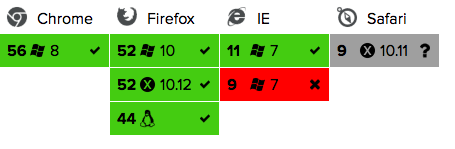
**Markdown:**
[](https://testingbot.com/builds/YOUR_TESTINGBOT_KEY?auth={authentication})
**HTML:**
## Private Accounts
To display the matrix image, or link to builds, you need to generate an **authentication token**.
To generate the authentication token, you must concatenate your TestingBot key, TestingBot secret
and optionally an identifier. Finally, take the MD5 hash of the concatenated string:
[Ruby](https://testingbot.com#)[Python](https://testingbot.com#)[PHP](https://testingbot.com#)[Java](https://testingbot.com#)[NodeJS](https://testingbot.com#)
Digest::MD5.hexdigest("#{client_key}:#{client_secret}")
MessageDigest m=MessageDigest.getInstance("MD5");
String s = "API_KEY:API_SECRET";
m.update(s.getBytes(),0,s.length());
System.out.println("MD5: "+new BigInteger(1,m.digest()).toString(16));
echo md5("API_KEY:API_SECRET");
import hashlib
print(hashlib.md5("API_KEY:API_SECRET".encode('utf-8')).hexdigest())
var crypto = require('crypto');
crypto.createHash('md5').update("API_KEY:API_SECRET").digest("hex");
## Open Source Accounts
[Open Source](https://testingbot.com/open-source) accounts automatically have their tests and builds set to public. This means no authentication (auth parameter) is required to display matrix images or link to tests/builds.
## More
- If you like to show browser matrix images of **multiple projects** , please consider creating a new user account per project.
- We're also providing [status badges](https://testingbot.com/support/other/status-badges), displaying if your build passed/failed.
### Looking for more help?
Have questions or need more information? Reach out via email or Slack.
[Email us](https://testingbot.com/contact/new)[Slack Join our Slack](https://join.slack.com/t/testingb0t/shared_invite/zt-3bcw9xch-jk19~6XPs_xBrsAgAedkCw)
---
URL: https://testingbot.com/support/tunnel
# Secure tunnel for local and staging tests
A free, open-source secure proxy that lets you run Selenium, Cypress, Playwright, Puppeteer and Appium tests against **localhost** , staging servers or any environment behind a firewall or VPN. No IP whitelisting required.
- v4.8
- Open Source
- Free for every plan
- Java 11+
$`java -jar testingbot-tunnel.jar TESTINGBOT_KEY TESTINGBOT_SECRET`bash
[Download v4.8](https://testingbot.com/downloads/testingbot-tunnel.zip)[5-minute quickstart](https://testingbot.com/support/tunnel/quickstart)[View source on GitHub](https://github.com/testingbot/Testingbot-Tunnel)
Released 2026-05-19
License MIT
SHA1`31c2552b42ecc3642d90c398935255bd6abacbf3`
Maven`com.testingbot:TestingBotTunnel:4.8`
Docker`docker pull testingbot/tunnel`
Source[`github.com/testingbot/Testingbot-Tunnel`](https://github.com/testingbot/Testingbot-Tunnel)
## What is TestingBot Tunnel?
A Java application that proxies HTTP, HTTPS and WebSocket traffic between your network and the TestingBot browser and device grid.
STAGING · INTERNALapi.internal:8000staging.db:5432qa.example.dev:443YOUR MACHINESeleniumPlaywrightPuppeteerAppiumXCUITestMaestro$ testingbot-tunnel.jarDEDICATED ENDPOINTSSH/TLSTESTINGBOT GRIDDEVICES/BROWSERS · 6600+TVVMVMVMVMVMVM← REQUESTRESPONSE →123456
When the tunnel is running, every request your test makes to `localhost:4445/wd/hub` is forwarded over an SSH-encrypted channel to a dedicated VM in the TestingBot cloud. That VM then routes browser traffic back through the tunnel to your local server, so the cloud browser can reach pages on your laptop, your CI runner or your private staging environment without any firewall or IP-whitelisting changes.
At a glance
EncryptionSSH
ProtocolsHTTP/1, /2, /3, WS, SSE
Outbound ports443 + 22
ArchitectureJava
## Quickstart
Most teams have the tunnel running in under 5 minutes. The steps below assume Java 11+ is already installed. For Docker, Maven and the NodeJS launcher, see the [installation guide](https://testingbot.com/support/tunnel/installation).
01
Download the tunnel JAR
One file, no daemon, no service to install. The JAR is the canonical distribution and runs everywhere Java 11+ runs.
curl -O https://testingbot.com/downloads/testingbot-tunnel.zip
unzip testingbot-tunnel.zip
02
Start the tunnel with your credentials
Wait for the message `You may start your tests`. The tunnel provisions a dedicated VM in the TestingBot cloud and opens an SSH-encrypted channel.
java -jar testingbot-tunnel.jar TESTINGBOT_KEY TESTINGBOT_SECRET
03
Point your tests at the local tunnel
That is the only change required. All Selenium, Appium, Playwright and Cypress capabilities work the same.
- https://hub.testingbot.com/wd/hub
+ http://localhost:4445/wd/hub
Need more detail? Read the [extended quickstart guide](https://testingbot.com/support/tunnel/quickstart) with language-specific examples.
## Key features
Fast
Static caching and compression keep round-trip latency low. [See monitoring](https://testingbot.com/support/tunnel/monitoring).
Secure
SSH-encrypted channel, dedicated ephemeral VM, automatic teardown. [Security model](https://testingbot.com/support/tunnel/security).
Robust
HTTP/1, /2, /3, WebSockets and SSE. Built for parallel workloads. [Troubleshoot](https://testingbot.com/support/tunnel/troubleshooting).
Simple
Single JAR or Docker image. Ready in under a minute. [Installation](https://testingbot.com/support/tunnel/installation).
## Documentation
Eleven focused guides covering everything from your first test to production monitoring.
[
Quickstart
Run your first test through the tunnel in 5 minutes.
](https://testingbot.com/support/tunnel/quickstart)[
Installation
JAR, Docker, Maven and the NodeJS launcher.
](https://testingbot.com/support/tunnel/installation)[
CLI reference
Every flag, every environment variable.
](https://testingbot.com/support/tunnel/commandline)[
Examples
Headers, identifiers, basic auth, custom DNS.
](https://testingbot.com/support/tunnel/examples)[
Multiple tunnels
Parallel test setups using tunnel identifiers.
](https://testingbot.com/support/tunnel/multiple)[
Upstream proxy
GeoIP, corporate proxies and PAC files.
](https://testingbot.com/support/tunnel/upstream-proxy)[
Security
SSH encryption, dedicated VMs, certificates.
](https://testingbot.com/support/tunnel/security)[
Monitoring
Prometheus metrics, Grafana dashboards.
](https://testingbot.com/support/tunnel/monitoring)[
Troubleshooting
Ports, SSL bumping, slow speeds, disconnects.
](https://testingbot.com/support/tunnel/troubleshooting)[
FAQ
Common questions about ports, devices, WS.
](https://testingbot.com/support/tunnel/faq)[
Changelog
Release notes and version history.
](https://testingbot.com/support/tunnel/changelog)[
Source on GitHub
Open-source project, MIT licensed.
](https://github.com/testingbot/Testingbot-Tunnel)
## System requirements
- Java11+ (17 LTS recommended)
- RAM4 GB minimum
- CPU2 cores
- OSWindows / macOS / Linux / BSD
Outbound only
The tunnel needs outbound port **443** (HTTPS) and **22** (SSH) to `*.testingbot.com`. No inbound ports required.
For heavy parallel testing, scale CPU and RAM with concurrent sessions, or run [multiple tunnels](https://testingbot.com/support/tunnel/multiple).
## Graceful shutdown
Stop the tunnel cleanly so the cloud can deregister your VM and free your tunnel slot.
Option 1
Press `Ctrl+C`
In the terminal that runs the tunnel.
Option 2
Delete the PID file
`~/.testingbot-tunnel.pid`
Option 3
Send a signal
`kill -SIGUSR1 `
## Tunnel clients
Launch and stop the tunnel programmatically from your test runner or CI pipeline.
Two official launchers handle the tunnel lifecycle so you do not have to manage the JAR yourself:
- **NodeJS:** [testingbot-tunnel-launcher](https://github.com/testingbot/testingbot-tunnel-launcher) — start and stop the tunnel from any npm-based test runner.
- **GitHub Actions:** [testingbot-tunnel-action](https://github.com/testingbot/testingbot-tunnel-action) — drop-in workflow step that boots the tunnel before your tests and tears it down after. See the [GitHub Actions guide](https://testingbot.com/support/integrations/ci-cd/github-actions).
The tunnel also ships as a Docker image and as a Maven dependency. See the [installation guide](https://testingbot.com/support/tunnel/installation) for all options.
[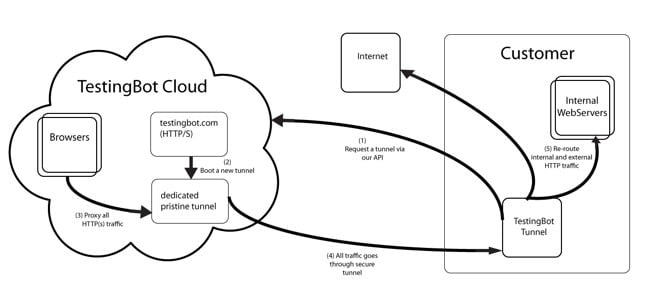](https://testingbot.com/assets/tunnel-diagram.png "How the TestingBot Tunnel works")
### Looking for more help?
Have questions or need more information? Reach out via email or Slack.
[Email us](https://testingbot.com/contact/new)[Slack Join our Slack](https://join.slack.com/t/testingb0t/shared_invite/zt-3bcw9xch-jk19~6XPs_xBrsAgAedkCw)
---
URL: https://testingbot.com/support/tunnel/quickstart
# Your first tunneled test in 5 minutes
This guide gets a Selenium, Cypress, Playwright, Puppeteer or Appium test running against your local development server. If you have not already, [create a free TestingBot account](https://testingbot.com/users/sign_up) before you start.
STAGING · INTERNALapi.internal:8000staging.db:5432qa.example.dev:443YOUR MACHINESeleniumPlaywrightPuppeteerAppiumXCUITestMaestro$ testingbot-tunnel.jarDEDICATED ENDPOINTSSH/TLSTESTINGBOT GRIDDEVICES/BROWSERS · 6600+TVVMVMVMVMVMVM← REQUESTRESPONSE →123456
## Prerequisites
- JAVA11 or higher. Check with `java -version`.
- ACCOUNTA TestingBot account. The free trial is enough.
- CREDENTIALSYour TestingBot key and secret from [account settings](https://testingbot.com/members/user/edit).
- LOCAL SERVERAnything that responds on a local port, e.g. `localhost:3000`.
## Download the tunnel
Download the latest JAR and unzip it. Place `testingbot-tunnel.jar` anywhere on your `PATH`, or run it from the unzipped folder.
curl -O https://testingbot.com/downloads/testingbot-tunnel.zip
unzip testingbot-tunnel.zip
cd testingbot-tunnel
Prefer Docker or Maven? See the [installation guide](https://testingbot.com/support/tunnel/installation) for every install method.
## Start the tunnel
Pass your TestingBot key and secret. You can also export them as environment variables so they never appear in your shell history.
java -jar testingbot-tunnel.jar TESTINGBOT_KEY TESTINGBOT_SECRET
You will see log output as the tunnel provisions a dedicated VM in the TestingBot cloud and opens an SSH-encrypted channel. After 30 to 60 seconds, you will see:
You may start your tests
The tunnel is now listening on `localhost:4445` for your Selenium and Appium clients.
## Run your first test
Change the hub URL in your test runner from the public TestingBot hub to your local tunnel endpoint. That is the only change required.
- https://hub.testingbot.com/wd/hub
+ http://localhost:4445/wd/hub
Run your tests as you normally would, and the cloud browser will reach your `localhost` via the tunnel.
## Language examples
The same first test in five common languages. Each one points the WebDriver at the local tunnel hub.
[Java](https://testingbot.com#)[Python](https://testingbot.com#)[NodeJS](https://testingbot.com#)[Ruby](https://testingbot.com#)[C#](https://testingbot.com#)
DesiredCapabilities caps = new DesiredCapabilities();
caps.setCapability("browserName", "chrome");
caps.setCapability("platformName", "WIN11");
WebDriver driver = new RemoteWebDriver(
new URL("http://KEY:SECRET@localhost:4445/wd/hub"),
caps);
driver.get("http://localhost:3000");
System.out.println(driver.getTitle());
driver.quit();
from selenium import webdriver
options = webdriver.ChromeOptions()
options.set_capability("platformName", "WIN11")
driver = webdriver.Remote(
command_executor="http://KEY:SECRET@localhost:4445/wd/hub",
options=options,
)
driver.get("http://localhost:3000")
print(driver.title)
driver.quit()
const { remote } = require("webdriverio");
const browser = await remote({
hostname: "localhost",
port: 4445,
path: "/wd/hub",
user: "KEY",
key: "SECRET",
capabilities: { browserName: "chrome", platformName: "WIN11" },
});
await browser.url("http://localhost:3000");
console.log(await browser.getTitle());
await browser.deleteSession();
require "selenium-webdriver"
caps = Selenium::WebDriver::Remote::Capabilities.new
caps["browserName"] = "chrome"
caps["platformName"] = "WIN11"
driver = Selenium::WebDriver.for(:remote,
url: "http://KEY:SECRET@localhost:4445/wd/hub",
capabilities: caps)
driver.navigate.to "http://localhost:3000"
puts driver.title
driver.quit
var options = new ChromeOptions();
options.AddAdditionalCapability("platformName", "WIN11", true);
IWebDriver driver = new RemoteWebDriver(
new Uri("http://KEY:SECRET@localhost:4445/wd/hub"),
options);
driver.Navigate().GoToUrl("http://localhost:3000");
Console.WriteLine(driver.Title);
driver.Quit();
## Run with Docker
Prefer not to install Java locally? The official `testingbot/tunnel` image on Docker Hub bundles everything you need. It supports both `amd64` and `arm64` and is the easiest way to run the tunnel from CI or a containerised dev environment.
1. **Pull the image** from Docker Hub.
2. **Start the tunnel** , passing your TestingBot key and secret as environment variables.
3. **Point your tests** at `http://localhost:4445/wd/hub`, exactly the same as the JAR version.
docker pull testingbot/tunnel
docker run --rm -it \
--network host \
-e TESTINGBOT_KEY=YOUR_KEY \
-e TESTINGBOT_SECRET=YOUR_SECRET \
testingbot/tunnel
`--network host` only works fully on Linux. On macOS and Windows, expose the ports explicitly so your tests can reach the tunnel on `localhost:4445`:
docker run --rm -it \
-p 4445:4445 -p 8087:8087 -p 8003:8003 \
-e TESTINGBOT_KEY=$TESTINGBOT_KEY \
-e TESTINGBOT_SECRET=$TESTINGBOT_SECRET \
testingbot/tunnel
Once the container prints `You may start your tests`, the tunnel is ready. Stop it gracefully with `Ctrl+C`. For Compose, Maven and the NodeJS launcher, see the [installation guide](https://testingbot.com/support/tunnel/installation).
## Next steps
[
Multiple tunnels
Add identifiers to run more than one tunnel at a time.
](https://testingbot.com/support/tunnel/multiple)[
Upstream proxy
Forward through a corporate or GeoIP proxy.
](https://testingbot.com/support/tunnel/upstream-proxy)[
Monitoring
Configure Prometheus and Grafana.
](https://testingbot.com/support/tunnel/monitoring)[
Security model
Review SSH encryption and credential handling.
](https://testingbot.com/support/tunnel/security)[
Troubleshooting
If something goes wrong, this is where to look.
](https://testingbot.com/support/tunnel/troubleshooting)[
FAQ
Ports, devices, WebSockets and more.
](https://testingbot.com/support/tunnel/faq)
### Looking for more help?
Have questions or need more information? Reach out via email or Slack.
[Email us](https://testingbot.com/contact/new)[Slack Join our Slack](https://join.slack.com/t/testingb0t/shared_invite/zt-3bcw9xch-jk19~6XPs_xBrsAgAedkCw)
---
URL: https://testingbot.com/support/tunnel/installation
# Install in four flavours
Pick the flavour that fits your environment best. The single-file JAR is the simplest and works everywhere with Java 11+. Docker is the easiest way to run the tunnel in CI. The Maven artifact and NodeJS launcher let you embed the tunnel in your existing build tooling.
## Before you install
- JAVA11 or higher (Java 17 LTS recommended). Verify with `java -version`.
- NETWORKOutbound access to `*.testingbot.com` on ports 443 and 22.
- CREDENTIALSA TestingBot key and secret from [account settings](https://testingbot.com/members/user/edit).
## JAR
The JAR is the canonical distribution. One file, no daemon, no service to install.
curl -O https://testingbot.com/downloads/testingbot-tunnel.zip
unzip testingbot-tunnel.zip
cd testingbot-tunnel
java -jar testingbot-tunnel.jar TESTINGBOT_KEY TESTINGBOT_SECRET
Verify the download checksum before running:
shasum testingbot-tunnel.jar
# expected: 42b7af652d0dc795d8fc3a6aba0c4a430c36166d
## Docker
The official image is published as `testingbot/tunnel` on Docker Hub and supports both amd64 and arm64.
docker pull testingbot/tunnel
docker run --rm -it \
--network host \
-e TESTINGBOT_KEY=your_key \
-e TESTINGBOT_SECRET=your_secret \
testingbot/tunnel
`--network host` only works fully on Linux. On macOS and Windows, expose ports explicitly:
docker run --rm -it \
-p 4445:4445 -p 8087:8087 -p 8003:8003 \
-e TESTINGBOT_KEY=$TESTINGBOT_KEY \
-e TESTINGBOT_SECRET=$TESTINGBOT_SECRET \
testingbot/tunnel
## Maven
Add the tunnel as a dependency to your `pom.xml` and start it from a JUnit or TestNG fixture.
com.testingbotTestingBotTunnel4.7
## NodeJS launcher
For npm-based projects, use the `testingbot-tunnel-launcher` package to start and stop the tunnel programmatically. The launcher handles downloading the right JAR for your platform.
npm install --save-dev testingbot-tunnel-launcher
const testingbotTunnel = require("testingbot-tunnel-launcher");
testingbotTunnel({
apiKey: process.env.TESTINGBOT_KEY,
apiSecret: process.env.TESTINGBOT_SECRET,
}, (err, tunnel) => {
if (err) throw err;
// your tests here
tunnel.close(() => console.log("tunnel closed"));
});
Source on GitHub: [testingbot-tunnel-launcher](https://github.com/testingbot/testingbot-tunnel-launcher).
## GitHub Action
If your tests run in GitHub Actions, the official `testingbot/testingbot-tunnel-action` handles the entire tunnel lifecycle for you. It pulls the latest Docker image, starts the tunnel before your test step, waits for the ready signal, and tears it down when the workflow ends.
Add it as a step in your workflow, before the step that runs your tests:
jobs:
test:
runs-on: ubuntu-latest
steps:
- uses: actions/checkout@v4
- uses: testingbot/testingbot-tunnel-action@v1
with:
key: ${{ secrets.TB_KEY }}
secret: ${{ secrets.TB_SECRET }}
tunnelIdentifier: github-action-tunnel
- name: Run tests
run: npm test
env:
TB_KEY: ${{ secrets.TB_KEY }}
TB_SECRET: ${{ secrets.TB_SECRET }}
The action supports every tunnel flag as a workflow input: `tunnelIdentifier`, `noBump`, `noCache`, `proxy`, `extraHeaders`, `fastFailRegexps` and more. It also uploads the tunnel log as a workflow artifact by default for easy debugging.
Full reference and example workflows: [GitHub Actions integration guide](https://testingbot.com/support/integrations/ci-cd/github-actions). Source: [testingbot-tunnel-action](https://github.com/testingbot/testingbot-tunnel-action).
## Sanity check with --doctor
Once the tunnel is installed, run the built-in health check. It verifies that the required local ports are free, that outbound connectivity to TestingBot works, and that your credentials are valid.
java -jar testingbot-tunnel.jar --doctor
If all checks pass, continue with the [quickstart](https://testingbot.com/support/tunnel/quickstart). If anything fails, the [troubleshooting guide](https://testingbot.com/support/tunnel/troubleshooting) covers the most common causes.
### Looking for more help?
Have questions or need more information? Reach out via email or Slack.
[Email us](https://testingbot.com/contact/new)[Slack Join our Slack](https://join.slack.com/t/testingb0t/shared_invite/zt-3bcw9xch-jk19~6XPs_xBrsAgAedkCw)
---
URL: https://testingbot.com/support/tunnel/examples
# Configuration recipes
Practical recipes for the most common TestingBot Tunnel configurations. Start with the basic setup, then add identifiers, headers, proxies and basic auth as your tests need them.
## Getting started
Download the tunnel and start it from the command line.
java -jar testingbot-tunnel.jar key secret
Then update your test configuration to route traffic through the tunnel by changing the hub URL:
- urlhub = "https://key:secret@hub.testingbot.com/wd/hub"
+ urlhub = "http://key:secret@localhost:4445/wd/hub"
By connecting to `localhost:4445`, all test commands are routed through the tunnel to TestingBot.
## Tunnel identifiers
Run multiple tunnels simultaneously and direct specific tests to a particular tunnel.
java -jar testingbot-tunnel.jar key secret -i myTunnel
Then specify the identifier in your test's desired capabilities:
{
"browserName": "firefox",
"browserVersion": "latest",
"platformName": "WIN11",
"tunnel-identifier": "myTunnel"
}
See [running multiple tunnels](https://testingbot.com/support/tunnel/multiple) for parallel and high-availability setups.
## Custom headers
Inject custom HTTP headers into every request the tunnel makes. Useful for authentication tokens, feature flags, A/B test cookies and debugging headers.
java -jar testingbot-tunnel.jar key secret \
--extra-headers '{"MyOwnHeader": "HeaderValue"}'
## Upstream proxy
Route tunnel traffic through an upstream proxy server. Common use cases:
- Corporate networks that require all outbound traffic to pass through a proxy.
- Geo-location testing using HTTP proxies in different regions.
Use `-Y` for the proxy address and `-z` for credentials:
java -jar testingbot-tunnel.jar key secret -Y myproxy:9000 -z username:password
For PAC files and more advanced setups, see the [upstream proxy guide](https://testingbot.com/support/tunnel/upstream-proxy).
## Shared tunnels
Tunnels are private by default. Enable the `--shared` flag to make a tunnel available to other team members on the same TestingBot account.
java -jar testingbot-tunnel.jar key secret --shared
Team members can then run their tests against the shared tunnel without starting their own. Combine with `--tunnel-identifier` to give the shared tunnel a memorable name.
## Basic authentication
Automatically supply credentials for websites that require HTTP Basic Authentication. The tunnel injects these credentials for matching hosts, so your tests do not have to handle authentication dialogs.
Use the `-a` flag with the format `host:port:username:password`. For standard HTTP sites use port 80:
java -jar testingbot-tunnel.jar key secret -a mywebsite.com:80:myusername:mypassword
### Looking for more help?
Have questions or need more information? Reach out via email or Slack.
[Email us](https://testingbot.com/contact/new)[Slack Join our Slack](https://join.slack.com/t/testingb0t/shared_invite/zt-3bcw9xch-jk19~6XPs_xBrsAgAedkCw)
---
URL: https://testingbot.com/support/tunnel/multiple
# More than one tunnel, in parallel
Your account supports up to **2** simultaneous tunnels. They can be tunnels you start yourself or shared tunnels from team members on the same account.
## Why use multiple tunnels?
Parallel
Higher throughput
Spread test traffic across tunnels for higher throughput.
HA
High availability
Run tunnels on different machines for redundancy.
Isolate
Environment isolation
Dedicate one tunnel per environment (staging, QA, dev).
Team
Team workflows
Let team members run tunnels for their own tests without conflicts.
## Setting up tunnel identifiers
Use the `--tunnel-identifier` flag to give each tunnel a unique name.
java -jar testingbot-tunnel.jar key secret --tunnel-identifier myTunnel
Then specify the identifier in the desired capabilities of each test that should be routed through that tunnel:
{
"browserName": "firefox",
"browserVersion": "latest",
"platformName": "WIN11",
"tunnel-identifier": "myTunnel"
}
## Parallel test isolation
When two test suites both rely on the tunnel (for example a staging suite and a QA suite), give each suite its own tunnel and identifier. This prevents one suite from saturating the other's bandwidth and makes monitoring per-suite traffic straightforward via the [metrics endpoint](https://testingbot.com/support/tunnel/monitoring).
## High availability
Run identically-configured tunnels on two or more machines using the same identifier. The TestingBot grid load-balances test traffic across all available tunnels with that identifier and routes around any tunnel that becomes unhealthy.
### Looking for more help?
Have questions or need more information? Reach out via email or Slack.
[Email us](https://testingbot.com/contact/new)[Slack Join our Slack](https://join.slack.com/t/testingb0t/shared_invite/zt-3bcw9xch-jk19~6XPs_xBrsAgAedkCw)
---
URL: https://testingbot.com/support/tunnel/upstream-proxy
# Route through an upstream proxy
TestingBot Tunnel has built-in support for forwarding its traffic through an upstream proxy. The most common use cases are corporate proxies that require all outbound traffic to be inspected, and GeoIP proxies for region-specific testing.
## Basic configuration
Pass the proxy host and port with `--proxy`, and credentials with `--proxy-userpwd`.
java -jar testingbot-tunnel.jar --proxy --proxy-userpwd :
The tunnel forwards both HTTP and HTTPS URLs to the upstream proxy. SOCKS and SOCKS5 are also supported, prefix the proxy URL with `socks://` or `socks5://`.
## Corporate proxies
Forward both the control channel (to `*.testingbot.com`) and the test traffic through your authenticated proxy.
Export `TESTINGBOT_PROXY_USERPWD` instead of passing `-z` on the command line so the credentials never appear in the process list.
export TESTINGBOT_PROXY_USERPWD=alice:hunter2
java -jar testingbot-tunnel.jar --proxy corp-proxy.example.com:8080
## PAC files
Pass the URL of a Proxy Auto-Config file with `--pac`. The tunnel evaluates the PAC script for every outbound request and routes accordingly.
java -jar testingbot-tunnel.jar --pac https://corp.example.com/proxy.pac
## Things to know
- TestingBot Tunnel proxies both HTTP and HTTPS URLs through the upstream proxy.
- WebSocket and SSE traffic requires `--nobump --nocache` in addition to the proxy flags.
- See the [commandline reference](https://testingbot.com/support/tunnel/commandline) for the full list of proxy-related flags.
### Looking for more help?
Have questions or need more information? Reach out via email or Slack.
[Email us](https://testingbot.com/contact/new)[Slack Join our Slack](https://join.slack.com/t/testingb0t/shared_invite/zt-3bcw9xch-jk19~6XPs_xBrsAgAedkCw)
---
URL: https://testingbot.com/support/tunnel/security
# Built for production traffic
Every tunnel session runs inside its own ephemeral virtual machine, all traffic is encrypted in transit, and credentials never have to appear on the command line.
- SSH encrypted
- Dedicated VM
- Ephemeral
- MIT licensed
## Encrypted channel
The tunnel opens a single outbound SSH connection from your machine to a TestingBot edge endpoint. All test traffic (HTTP, HTTPS, WebSocket, SSE) is multiplexed over that SSH connection.
Inbound ports on your network are not required. The tunnel only initiates outbound connections to ports **443** (HTTPS) and **22** (SSH) on `*.testingbot.com`.
## Dedicated VM lifecycle
Every tunnel session provisions a dedicated virtual machine in the TestingBot cloud. The VM exists only for the lifetime of your tunnel.
01
Provision
A fresh VM is allocated when your tunnel starts.
02
Use
Only your account (or your team if `--shared`) can route traffic.
03
Teardown
The VM is destroyed when the tunnel shuts down. No state persists.
VMs are not reused between accounts. There is no cross-tenant traffic on the tunnel VM.
## Certificates and SSL bumping
By default, the tunnel performs SSL interception (also called SSL bumping) for outbound HTTPS so that the cloud browser can validate certificates seamlessly. The TestingBot CA used for bumping is preinstalled on every cloud VM and device.
For apps that pin certificates, you have two options:
Trust the TB CA
[Download the certificate](https://testingbot.com/downloads/testingbot-ssl-bumping.crt) and add it to your app's trust store.
Disable bumping
Start the tunnel with `--nobump` and HTTPS is forwarded transparently with no decryption.
## Credential handling
Your TestingBot key and secret authenticate the tunnel against the TestingBot grid. Treat them like passwords.
The tunnel accepts credentials from three sources, in order of precedence:
1. Positional arguments on the command line.
2. Environment variables: `TESTINGBOT_KEY` and `TESTINGBOT_SECRET`.
3. A `.testingbot` file in your `$HOME` directory.
For CI pipelines and shared machines, prefer the environment-variable approach so credentials never appear in shell history, process lists or build logs. See the [CLI reference](https://testingbot.com/support/tunnel/commandline#env) for the full list.
## Metrics endpoint
The tunnel exposes a Prometheus-compatible metrics endpoint on port 8003 by default. The endpoint is unauthenticated unless you set `--metrics-auth user:password` (or `TESTINGBOT_METRICS_AUTH`).
If you run the tunnel on a machine reachable from outside your network, enable metrics auth or move the endpoint to a non-routable interface with a firewall rule. See the [monitoring guide](https://testingbot.com/support/tunnel/monitoring).
## Data residency
Test traffic flowing through the tunnel is routed via TestingBot edge endpoints in the EU. No traffic is stored after the tunnel ends. For specific data-residency or compliance information, please see the [TestingBot trust center](https://trust.testingbot.com).
### Looking for more help?
Have questions or need more information? Reach out via email or Slack.
[Email us](https://testingbot.com/contact/new)[Slack Join our Slack](https://join.slack.com/t/testingb0t/shared_invite/zt-3bcw9xch-jk19~6XPs_xBrsAgAedkCw)
---
URL: https://testingbot.com/support/tunnel/monitoring
# Watch your tunnel from Grafana
Production tunnels are easier to operate when you can see their health at a glance. TestingBot Tunnel ships with a built-in Prometheus-compatible metrics endpoint, so you can scrape it from any monitoring stack you already run.
- Prometheus
- Grafana ready
- Port 8003
## Enable the metrics endpoint
The metrics endpoint is enabled by default on `http://localhost:8003`. Override the port with `--metrics-port`.
java -jar testingbot-tunnel.jar --metrics-port 9100
If the tunnel host is reachable from the network (for example a shared CI runner), protect the endpoint with HTTP Basic Auth:
java -jar testingbot-tunnel.jar --metrics-auth ops:s3cret
Export `TESTINGBOT_METRICS_AUTH` instead of passing credentials on the command line. See the [security guide](https://testingbot.com/support/tunnel/security#metrics).
## Available metrics
Tunnel-specific series are prefixed with `testingbot_`. The endpoint also exposes the standard JVM and process metrics from the Prometheus Java client. The full label set is always documented at the `/metrics` endpoint itself.
### Tunnel state
| Metric | Type | Meaning |
| --- | --- | --- |
| testingbot\_tunnel\_up | gauge | `1` when the tunnel is connected, `0` while reconnecting or down. The single most important alerting signal. |
| testingbot\_tunnel\_info | info | Static labels with the tunnel build (`version`, `id`, `name`). Use for dashboard headers and version filters. |
| testingbot\_tunnel\_uptime\_seconds | counter | Seconds since this tunnel process started. Drops on restart, useful for detecting flapping. |
| testingbot\_tunnel\_reconnects\_total | counter | Total tunnel reconnects since startup. Sustained increases indicate an unstable upstream link. |
| testingbot\_active\_connections | gauge | Number of in-flight client connections through the tunnel right now. |
| testingbot\_tunnel\_connect\_duration\_seconds | histogram | Time taken to establish the tunnel itself (cold-start latency). Buckets `_bucket`, `_sum`, `_count`. |
### HTTP traffic
| Metric | Type | Meaning |
| --- | --- | --- |
| testingbot\_http\_requests\_total | counter | HTTP requests proxied since startup. Labels: `method`, `code`. Use `rate()` for throughput, filter on `code=~"5.."` for errors. |
| testingbot\_http\_request\_duration\_seconds | histogram | End-to-end HTTP latency. Compute p50/p95/p99 with `histogram_quantile()`. |
| testingbot\_https\_connect\_total | counter | HTTPS CONNECT sessions established. Labels: `code`. |
| testingbot\_https\_connect\_duration\_seconds | histogram | CONNECT handshake latency, suitable for `histogram_quantile()`. |
| testingbot\_https\_connect\_errors\_total | counter | CONNECT errors. Label: `reason` (TLS, target unreachable, timeout, ...). |
| testingbot\_proxy\_bytes\_transferred\_total | counter | Total bytes proxied (both directions). Use `rate()` for throughput in B/s. |
| testingbot\_errors\_total | counter | Generic proxy errors. Label: `name` (the error class). Useful for alerting on burst increases. |
## JVM and process metrics
The endpoint also exposes the standard `jvm_*` and `process_*` series from the Prometheus Java client. These help you size the tunnel host, detect memory pressure and catch garbage-collection pauses.
| Metric | Type | Meaning |
| --- | --- | --- |
| jvm\_memory\_bytes\_used | gauge | Bytes of heap and non-heap memory in use. Label: `area` (`heap` or `nonheap`). |
| jvm\_memory\_bytes\_max | gauge | Maximum bytes available per memory area. Pair with `_used` to compute headroom. |
| jvm\_memory\_pool\_bytes\_used | gauge | Per-pool memory usage (Eden, Survivor, Old Gen, Metaspace, ...). Label: `pool`. |
| jvm\_gc\_collection\_seconds\_count | counter | Number of GC collections. Label: `gc` (collector name). |
| jvm\_gc\_collection\_seconds\_sum | counter | Total time spent in GC. Use `rate()` to see GC pressure over time. |
| jvm\_threads\_current | gauge | Live thread count. Watch for runaway growth. |
| jvm\_threads\_daemon | gauge | Daemon thread count. |
| jvm\_threads\_peak | gauge | Peak thread count since process start. |
| jvm\_classes\_loaded | gauge | Currently loaded classes. |
| jvm\_buffer\_pool\_used\_bytes | gauge | Direct and mapped NIO buffer usage. Label: `pool`. |
| process\_cpu\_seconds\_total | counter | Total CPU time consumed by the process. Use `rate()` for CPU utilisation. |
| process\_resident\_memory\_bytes | gauge | RSS memory of the tunnel process as reported by the OS. |
| process\_open\_fds | gauge | Open file descriptors. Compare with `process_max_fds` to spot leaks. |
| process\_start\_time\_seconds | gauge | Unix epoch when the process started. Useful for restart detection. |
All names above are the canonical Prometheus Java client names. Open `http://localhost:8003/metrics` to see the full live list and their `# HELP` / `# TYPE` annotations.
## Prometheus scrape config
Add a job to your `prometheus.yml` that targets the tunnel host.
scrape_configs:
- job_name: testingbot_tunnel
static_configs:
- targets: ["tunnel-host.example.com:8003"]
basic_auth:
username: ops
password_file: /etc/prometheus/testingbot_metrics_password
## Grafana dashboard
A ready-made Grafana dashboard ships with the tunnel source. Import it once and you have a full Overview / HTTP / Tunnel-health view in seconds.
Download `testingbot-tunnel.json` from the [grafana-dashboard examples folder](https://github.com/testingbot/Testingbot-Tunnel/tree/master/examples/grafana-dashboard) on GitHub. In Grafana go to **Dashboards → New → Import** , paste the JSON or upload the file, pick your Prometheus data source, and click **Import**.
[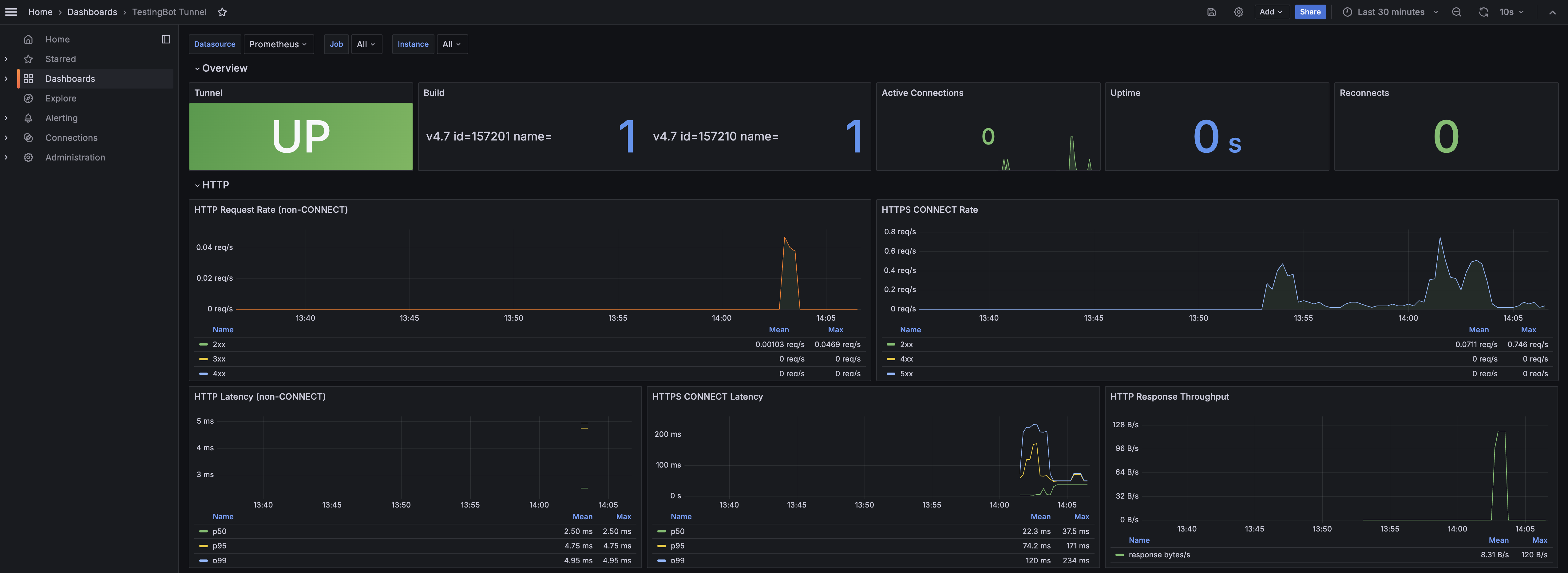 ](https://testingbot.com/assets/support/tunnel/grafana-dashboard-bf173520c136608330e3e59c0444883d41815ea3bd031cf063f3147f3ef65bf2.png)
_The bundled dashboard rendered against a live tunnel_
The bundled dashboard groups panels into two rows:
- **Overview:** Tunnel status (UP/DOWN), build version, active connections, uptime and reconnect counter.
- **HTTP:** request rate by status class, HTTPS CONNECT rate, p50/p95/p99 latency and response throughput.
Want a turnkey setup? The repo also includes a [docker-compose example](https://github.com/testingbot/Testingbot-Tunnel/tree/master/examples/docker-compose-prometheus-grafana) that spins up Prometheus + Grafana already wired to scrape a local tunnel and load the dashboard automatically. Useful for local development or a single-machine CI runner.
git clone https://github.com/testingbot/Testingbot-Tunnel.git
cd Testingbot-Tunnel/examples/docker-compose-prometheus-grafana
docker compose up -d
# Grafana on http://localhost:3000 · Prometheus on http://localhost:9090
If you prefer to build the dashboard yourself, here are the most useful PromQL queries:
Tunnel up
max(testingbot\_tunnel\_up)
Active connections
sum(testingbot\_active\_connections)
2xx request rate
rate(testingbot\_http\_requests\_total{code=~"2.."}[5m])
5xx error rate
rate(testingbot\_http\_requests\_total{code=~"5.."}[5m])
p95 HTTP latency
histogram\_quantile(0.95, sum by (le) (rate(testingbot\_http\_request\_duration\_seconds\_bucket[5m])))
Bytes throughput
rate(testingbot\_proxy\_bytes\_transferred\_total[5m])
Reconnects
sum(testingbot\_tunnel\_reconnects\_total)
JVM heap usage
sum by (area) (jvm\_memory\_bytes\_used)
Process CPU
rate(process\_cpu\_seconds\_total[5m])
Threads
jvm\_threads\_current
## Alert ideas
- **Tunnel restart:** fire when `testingbot_uptime_seconds` drops to under 60 seconds.
- **Error spike:** fire when the 5-minute error rate exceeds your normal baseline.
- **Stalled connections:** fire when `testingbot_connections` stays at zero during normal CI hours.
- **Endpoint unreachable:** fire on Prometheus `up == 0` for the tunnel target.
### Looking for more help?
Have questions or need more information? Reach out via email or Slack.
[Email us](https://testingbot.com/contact/new)[Slack Join our Slack](https://join.slack.com/t/testingb0t/shared_invite/zt-3bcw9xch-jk19~6XPs_xBrsAgAedkCw)
---
URL: https://testingbot.com/support/tunnel/commandline
# Every flag, every variable
The complete commandline reference for TestingBot Tunnel. Pass credentials positionally, via environment variables, or from a `.testingbot` file in your `$HOME`.
## Three ways to authenticate
Method 1
Positional args
`java -jar testingbot-tunnel.jar KEY SECRET`
Method 2
Env vars
`TESTINGBOT_KEY` + `TESTINGBOT_SECRET`
Method 3
.testingbot file
In `$HOME`, key on line 1, secret on line 2.
## Environment variables
Use environment variables to keep sensitive credentials out of your shell history and the system process list.
| Variable | Replaces / purpose |
| --- | --- |
| TESTINGBOT\_KEY | Your TestingBot API key. Replaces the first positional argument. |
| TESTINGBOT\_SECRET | Your TestingBot API secret. Replaces the second positional argument. |
| TESTINGBOT\_AUTH | Basic-auth credentials in the form `host:port:user:password`. Replaces `-a`. |
| TESTINGBOT\_PROXY\_USERPWD | Upstream proxy credentials as `user:password`. Replaces `-z`. |
| TESTINGBOT\_METRICS\_AUTH | HTTP-basic credentials for the metrics endpoint as `user:password`. Replaces `--metrics-auth`. |
## All command-line options
| Option | Description |
| --- | --- |
| -a,--auth \ | Perform HTTP Basic Authentication for specific hosts. HTTP only. |
| -b,--nobump | Do not perform SSL bumping. Required for WebSocket and SSE proxying. |
| -d,--debug | Enable debug messages. Outputs request and response headers. |
| --dns \ | Use a custom DNS server, for example `8.8.8.8`. |
| --doctor | Run sanity and health checks. Detects misconfiguration, port conflicts and missing prerequisites. |
| --extra-headers \ | Inject extra HTTP headers into every request the tunnel makes. |
| -f,--readyfile \ | This file is touched when the tunnel is ready for use. Useful in CI pipelines. |
| -F,--fast-fail-regexps \ | Comma-separated regexes for domains the tunnel should not proxy. Improves test speed by skipping analytics, ads and trackers. |
| -h,--help | Display help text and exit. |
| -i,--tunnel-identifier \ | Tag the tunnel with an identifier. When you have multiple tunnels, set this identifier in your test capabilities to pick which tunnel handles the test. |
| -j,--localproxy \ | Port the local proxy listens on. Default `8087`. |
| -l,--logfile \ | Write logs to a file in addition to stdout. |
| --log-level \ | Set verbosity. One of `error`, `warn`, `info` (default), `debug`, `trace`. |
| --metrics-port \ | Port to serve Prometheus metrics on. Default `8003`. |
| --metrics-auth \ | Protect the metrics endpoint with HTTP Basic Authentication. |
| -P,--se-port \ | Local Selenium port your tests connect to. Default `4445`. |
| -p,--hubport \ | Connect to port 80 on the TestingBot hub instead of the default port 4444. |
| --pac \ | Proxy auto-configuration. Should be a http(s) URL pointing to a PAC file. |
| -q,--nocache | Bypass the caching proxy running on the tunnel VM. Required for WebSocket and SSE proxying. |
| -s,--shared | Share this tunnel with other users on your team. Tunnels are private by default. |
| -v,--version | Display the tunnel version and exit. |
| -w,--web \ | Serve a local directory over a built-in webserver. Handy for static-file testing. |
| -x,--noproxy | Do not start the local proxy. Requires you to run your own proxy on port 8087. |
| -Y,--proxy \ | Forward tunnel traffic through an upstream HTTP, HTTPS or SOCKS proxy. |
| -z,--proxy-userpwd \ | Credentials for the upstream proxy configured with `--proxy`. |
See practical configurations on the [examples](https://testingbot.com/support/tunnel/examples) page, or the full [installation guide](https://testingbot.com/support/tunnel/installation) for Docker, Maven and the NodeJS launcher.
### Looking for more help?
Have questions or need more information? Reach out via email or Slack.
[Email us](https://testingbot.com/contact/new)[Slack Join our Slack](https://join.slack.com/t/testingb0t/shared_invite/zt-3bcw9xch-jk19~6XPs_xBrsAgAedkCw)
---
URL: https://testingbot.com/support/tunnel/troubleshooting
# When something does not look right
Most tunnel problems fall into one of four categories: a missing prerequisite, a network or firewall block, a wrong flag combination or a credential mismatch. This page walks through the common symptoms, what causes them, and how to fix them.
## Run --doctor first
The built-in health check validates ports, outbound connectivity and credentials in one step. Run it before anything else when something looks wrong.
java -jar testingbot-tunnel.jar --doctor
`--doctor` exits with a non-zero status if any check fails, which makes it usable as a CI pre-flight step.
## Issues you may encounter
### Address already in use on port 4445 or 8087
Another process is bound to one of the tunnel's local ports. Identify it with `lsof -i :4445` on macOS or Linux, or `netstat -ano | findstr :4445` on Windows. Stop the offending process or change the tunnel's local ports with `--se-port 4446` and `--localproxy 8088`.
### --doctor reports "Cannot connect to hub.testingbot.com:443"
The tunnel cannot reach TestingBot. Verify outbound port 443 to `*.testingbot.com` is open. If you are behind a corporate proxy, route tunnel traffic through it with `--proxy host:port` and `--proxy-userpwd user:password`. See the [upstream proxy guide](https://testingbot.com/support/tunnel/upstream-proxy).
### Authentication failed: 401 Unauthorized
Your TestingBot key or secret is wrong, swapped, or has been rotated. Copy them again from [your account settings](https://testingbot.com/members/user/edit). If you use environment variables, make sure `TESTINGBOT_KEY` and `TESTINGBOT_SECRET` are exported in the same shell that runs the tunnel.
### SSL handshake fails inside the cloud browser
Your test target uses certificate pinning or a non-standard CA chain. Either [download the TestingBot CA certificate](https://testingbot.com/downloads/testingbot-ssl-bumping.crt) and add it to the trust store on the cloud VM, or disable SSL bumping with the `--nobump` flag.
### WebSocket connection fails or upgrades hang
WebSocket and SSE proxying requires both `--nobump` and `--nocache` to be set. The local caching proxy and the SSL-bumping interceptor cannot forward streaming protocols, so they must be disabled. These flags are prerequisites, not optional fix-it switches.
### Tests are unusually slow through the tunnel
Bypass non-essential domains with `--fast-fail-regexps`. A typical setting like the one below often halves the proxied request count:
java -jar testingbot-tunnel.jar -F ".*google-analytics\.com.*,.*facebook\.com.*,.*doubleclick\.net.*"
If your network has limited bandwidth, run [multiple tunnels in parallel](https://testingbot.com/support/tunnel/multiple) on different machines and let TestingBot load-balance across them.
### Tunnel disconnects every few minutes
A firewall or NAT is killing idle connections. Watch the connection counters at `http://localhost:8003` to see reconnect frequency, as covered in the [monitoring guide](https://testingbot.com/support/tunnel/monitoring). If JVM memory is the cause, increase the heap:
java -Xmx2g -jar testingbot-tunnel.jar key secret
### Java version error: "class file has wrong version"
TestingBot Tunnel 4.x requires Java 11 or higher. Java 8 is no longer supported. Verify with `java -version` and install Java 17 LTS if needed. See the [installation guide](https://testingbot.com/support/tunnel/installation).
### localhost works on desktop VMs but not on mobile devices
Mobile simulators, emulators and physical devices cannot resolve the literal hostname `localhost`. Add a custom hostname to `/etc/hosts` on the tunnel host, such as `127.0.0.1 mywebsite.local`, and reference `http://mywebsite.local` in your tests.
### Tunnel shows as active in dashboard after I stopped it
The tunnel was terminated abruptly (`kill -9` or hard machine shutdown) and could not deregister itself. Wait up to 5 minutes for the TestingBot grid to time it out, or shut down gracefully next time: press `Ctrl+C`, delete `~/.testingbot-tunnel.pid`, or send `kill -SIGUSR1 `.
## Reading the logs
Re-run the tunnel with `--log-level debug` and `--logfile` to capture detailed output to a file.
java -jar testingbot-tunnel.jar --log-level debug --logfile tunnel.log key secret
The log file is the first thing support will ask for. `--debug` additionally prints request and response headers, useful when diagnosing application-level issues.
## Contact support
If none of the steps above resolve your issue, reach out to [TestingBot support](https://testingbot.com/contact/new) with:
- The exact tunnel version (`java -jar testingbot-tunnel.jar --version`).
- Your `--doctor` output.
- The debug log file from a failing run.
- The flags you started the tunnel with.
### Looking for more help?
Have questions or need more information? Reach out via email or Slack.
[Email us](https://testingbot.com/contact/new)[Slack Join our Slack](https://join.slack.com/t/testingb0t/shared_invite/zt-3bcw9xch-jk19~6XPs_xBrsAgAedkCw)
---
URL: https://testingbot.com/support/tunnel/faq
# Common questions, direct answers
The most common questions about installing, configuring and operating TestingBot Tunnel. If your question is not answered here, see the [troubleshooting guide](https://testingbot.com/support/tunnel/troubleshooting) or [contact support](https://testingbot.com/contact/new).
## How do I use the tunnel with manual (live) testing?
When starting a manual test session, select which tunnel to use from the session configuration screen. This works across all platforms: desktop VMs, simulators, emulators and physical devices.
Team members can start shared tunnels (with the `--shared` flag) that everyone on the team can use during manual testing.
## How do I handle SSL certificate pinning in my mobile app?
By default, TestingBot Tunnel performs SSL interception (also called SSL bumping) to handle common certificate issues like self-signed or expired certificates. All TestingBot VMs and devices are configured to trust our CA certificate.
If your app uses certificate pinning, [download the TestingBot CA certificate](https://testingbot.com/downloads/testingbot-ssl-bumping.crt) and add it to your app's trusted certificates. Alternatively, disable SSL interception by starting the tunnel with the `--nobump` flag.
## How many tunnels can I run simultaneously?
The number of simultaneous tunnels depends on your account plan. The default limit is 2 concurrent tunnels. [Upgrade your plan](https://testingbot.com/pricing) if you need more.
## Can I use localhost with the tunnel?
**Desktop VMs:** Yes, `localhost` works on all desktop VMs. The following ports are proxied by default: `80, 443, 3000, 3001, 3030, 3400, 8080`.
For additional ports, use the `localHttpPorts` or `localHttpsPorts` capabilities with an array of port numbers.
**Mobile devices:** Simulators, emulators and physical devices cannot resolve `localhost`. Create a custom hostname in your hosts file on the machine running the tunnel:
# Add to /etc/hosts on your tunnel machine
127.0.0.1 mywebsite.local
Then use `http://mywebsite.local` in your tests. The tunnel will route requests to your local server.
## Can I use WebSockets or SSE with the tunnel?
Yes, TestingBot Tunnel v4 and later supports WebSockets (`ws://` and `wss://`) and Server-Sent Events (SSE).
Prerequisite flags
WebSocket and SSE proxying **requires** the `--nobump` and `--nocache` flags. These are prerequisites, not optional fix-it switches: the local caching proxy and the SSL-bumping interceptor cannot forward streaming protocols.
java -jar testingbot-tunnel.jar --nocache --nobump
Hostname for WebSocket
WebSocket connections cannot use `localhost` directly. Create a custom hostname in your `/etc/hosts` file:
127.0.0.1 testingbot.com
Then connect using `ws://testingbot.com:3000`.
## How can I improve tunnel performance?
Use the `--fast-fail-regexps` (or `-F`) option to bypass the tunnel for domains that do not affect your tests, such as analytics, ads or third-party trackers:
java -jar testingbot-tunnel.jar -F ".*google-analytics\.com.*,.*facebook\.com.*"
This reduces the number of requests proxied through the tunnel, improving overall test speed. For high-traffic test runs, consider [running multiple tunnels in parallel](https://testingbot.com/support/tunnel/multiple).
## Can I use the same tunnel for both virtual and real devices?
Yes, a single tunnel instance works with desktop VMs, simulators, emulators and physical devices. There is no need to start separate tunnels for different device types.
## Does TestingBot Tunnel work behind a corporate firewall or VPN?
Yes. The tunnel only needs outbound access to `*.testingbot.com` on port 443 (HTTPS) and port 22 (SSH). It does not require any inbound ports.
For corporate networks that force all traffic through an HTTP proxy, route tunnel traffic through the proxy with `--proxy` and `--proxy-userpwd`:
java -jar testingbot-tunnel.jar --proxy corp-proxy.example.com:8080 --proxy-userpwd user:password
See the [upstream proxy guide](https://testingbot.com/support/tunnel/upstream-proxy) for PAC and SOCKS variations.
## What ports does TestingBot Tunnel use?
| Direction | Port | Purpose |
| --- | --- | --- |
| Outbound | 443 | HTTPS to `*.testingbot.com` |
| Outbound | 22 | SSH tunnel |
| Local bind | 4445 | Selenium hub (override `--se-port`) |
| Local bind | 8087 | Local proxy (override `--localproxy`) |
| Local bind | 8003 | Metrics endpoint (override `--metrics-port`) |
No inbound ports are required.
## Is TestingBot Tunnel free?
Yes. TestingBot Tunnel is free for all TestingBot accounts including the free trial. It is open source under an MIT license, [source on GitHub](https://github.com/testingbot/Testingbot-Tunnel).
## How do I update TestingBot Tunnel to the latest version?
Download the latest JAR from the [tunnel home page](https://testingbot.com/support/tunnel), unzip and replace your existing `testingbot-tunnel.jar`. If you use Docker, run `docker pull testingbot/tunnel`. If you use Maven, bump the `com.testingbot:TestingBotTunnel` version in your `pom.xml`. See the [changelog](https://testingbot.com/support/tunnel/changelog) for the current release notes.
## Why does my tunnel disconnect or time out?
The most common causes are: an idle network connection being killed by a corporate firewall or NAT timeout, JVM out of memory on the tunnel host, or a transient outbound connectivity issue.
Run the tunnel with `--doctor` to validate ports and credentials, watch the metrics endpoint on port 8003 for connection counters, and check the log file specified by `--logfile` for stack traces. The [troubleshooting guide](https://testingbot.com/support/tunnel/troubleshooting) walks through the most frequent root causes.
### Looking for more help?
Have questions or need more information? Reach out via email or Slack.
[Email us](https://testingbot.com/contact/new)[Slack Join our Slack](https://join.slack.com/t/testingb0t/shared_invite/zt-3bcw9xch-jk19~6XPs_xBrsAgAedkCw)
---
URL: https://testingbot.com/support/tunnel/changelog
# Release history
Every released version of TestingBot Tunnel, newest first. New features, improvements and bug fixes.
1.
## v4.7
March 2026Current
- Improved Websocket proxying issue
- Updated dependencies for improved security and performance
2.
## v4.6
January 2026
- Added `--shared` option to share a tunnel with team members
- Updated dependencies for improved security and performance
3.
## v4.4
October 2025
- Improved `--proxy` and `--proxy-userpwd` reliability
- Updated dependencies
4.
## v4.3
August 2025
- Enhanced `--doctor` diagnostic checks
- Improved connection monitoring and automatic retry mechanisms
- Updated Jetty and SSH libraries
- Dropped support for Java 8 (Java 11+ now required)
5.
## v4.0
December 2024
- Added WebSocket and Server-Sent Events (SSE) support
- Added `--nobump` option to disable SSL bumping
- Upgraded to Jetty 11
6.
## v3.5
May 2023
- Upgraded secure connection ciphers for improved security
- Updated dependencies
7.
## v3.2
February 2021
- Updated dependencies for security and compatibility
8.
## v3.1
February 2020
- Fixed tunnel polling to prevent indefinite connection attempts
- Built with Java 8 for broader compatibility
- Internal code improvements
9.
## v3.0
September 2019
- Updated Jetty dependencies
- Various stability improvements
10.
## v2.9
January 2019
- Prevented duplicate port allocation
- Improved timeout handling and diagnostic checks
11.
## v2.8
June 2018
- Fixed null pointer exception in connection handler
12.
## v2.7
June 2018
- Added upstream HTTPS proxy support via CONNECT method (`--proxy`)
- Renamed `--jettyport` option to `--localport`
- Enabled `--nocache` integration with Manual Testing API
- Removed hardcoded port restrictions
13.
## v2.6
April 2018
- Added option to inject custom HTTP headers into requests
- Added automatic basic authentication for configured hosts
- Clarified `--nocache` behavior: disables all HTTP request caching
- Removed deprecated `--boost` and `--ssl` options
- Fixed incorrect Java version detection
14.
## v2.5
September 2017
- Enhanced `--doctor` to verify required ports are available
- Added `--pac` option to configure a PAC (Proxy Auto-Config) URL for test sessions
15.
## v2.4
August 2017
- Added `--tunnel-identifier` to run multiple tunnels on the same account
- Added local directory serving for static file testing
- Added embedded REST API for tunnel statistics (default port 8003)
- Improved logging with configurable output format, file logging, and debug levels
- Improved connection error handling with automatic reconnection
16.
## v2.3
October 2016
- Added `--doctor` command to troubleshoot configuration issues
- Debug mode now outputs HTTP headers for easier troubleshooting
### Looking for more help?
Have questions or need more information? Reach out via email or Slack.
[Email us](https://testingbot.com/contact/new)[Slack Join our Slack](https://join.slack.com/t/testingb0t/shared_invite/zt-3bcw9xch-jk19~6XPs_xBrsAgAedkCw)
---
URL: https://testingbot.com/support/web-automate/mobile
# Mobile Browser Testing with Selenium
TestingBot lets you run Selenium WebDriver tests against **mobile Safari on iOS** (iPhone and iPad) and **mobile Chrome on Android** , on both [simulators/emulators](https://testingbot.com/support/web-automate/browsers) and [real physical devices](https://testingbot.com/support/app-automate/devices) in our EU data centre. Mobile sessions are routed through Appium automatically; no separate Appium install needed on your side.
Looking for native app testing instead of mobile browsers? See [App Automate](https://testingbot.com/support/app-automate) for Appium, XCUITest, Espresso and Maestro on real devices.
## Configuring capabilities
TestingBot's mobile simulators and emulators can be accessed using Appium. You can use the device picker below to select the capabilities you want to use for your tests.
 iOS 18.6 › iPhone 16
Loading environments...
Please wait while we load the available devices and platforms.
W3C Protocol
W3C is the newest WebDriver protocol, TestingBot recommends using W3C.
JSONWP
JSONWP is the legacy protocol which is no longer actively maintained.
JavaPythonNodeJSC#RubyPHP
MutableCapabilities capabilities = new MutableCapabilities();
capabilities.setCapability(CapabilityType.BROWSER_NAME, "safari");
capabilities.setCapability(CapabilityType.BROWSER_VERSION, "18.6");
capabilities.setCapability("appium:deviceName", "iPhone 16");
capabilities.setCapability(CapabilityType.PLATFORM_NAME, "iOS");
You can configure more options by using the [Appium capabilities generator](https://testingbot.com/support/app-automate/appium/capabilities).
## Portrait/Landscape
It's possible to rotate the device before and during your test. Please see these examples:
**Set orientation before test (capability):**
caps = {
platformName: "iOS",
"appium:deviceName": "iPhone 15",
"appium:orientation": "LANDSCAPE" # or PORTRAIT
}
**Rotate during test:**
((AppiumDriver) driver).rotate(ScreenOrientation.LANDSCAPE);
## Specifying Appium Version
TestingBot will use the most recent, compatible, Appium version according to the device, OS and version you specify.
If you'd like to specify your own Appium version, you can do this with the `appiumVersion` capability.
To learn more about the available Appium versions, please see our [Appium versions documentation](https://testingbot.com/support/app-automate/appium/appium-versions).
[Java](https://testingbot.com#)[NodeJS](https://testingbot.com#)[Python](https://testingbot.com#)[C#](https://testingbot.com#)[Ruby](https://testingbot.com#)[PHP](https://testingbot.com#)
Pass the `appiumVersion` capability inside `tb:options`. The examples below target an iPhone running mobile Safari, for Android Chrome change `platformName` to `"Android"`, `browserName` to `"chrome"`, and pick an Android `deviceName`.
XCUITestOptions options = new XCUITestOptions();
options.setPlatformName("iOS");
options.setDeviceName("iPhone 16");
options.setPlatformVersion("18.6");
options.setBrowserName("safari");
Map tbOptions = new HashMap<>();
tbOptions.put("key", "API_KEY");
tbOptions.put("secret", "API_SECRET");
tbOptions.put("appiumVersion", "2.4.1");
options.setCapability("tb:options", tbOptions);
IOSDriver driver = new IOSDriver(
new URL("https://hub.testingbot.com/wd/hub"), options);
from appium import webdriver
from appium.options.ios import XCUITestOptions
options = XCUITestOptions()
options.platform_name = "iOS"
options.device_name = "iPhone 16"
options.platform_version = "18.6"
options.browser_name = "safari"
options.set_capability("tb:options", {
"key": "API_KEY",
"secret": "API_SECRET",
"appiumVersion": "2.4.1"
})
driver = webdriver.Remote("https://hub.testingbot.com/wd/hub", options=options)
const { remote } = require('webdriverio');
const driver = await remote({
hostname: 'hub.testingbot.com',
port: 443,
protocol: 'https',
path: '/wd/hub',
user: 'API_KEY',
key: 'API_SECRET',
capabilities: {
platformName: 'iOS',
browserName: 'safari',
'appium:deviceName': 'iPhone 16',
'appium:platformVersion': '18.6',
'tb:options': {
appiumVersion: '2.4.1'
}
}
});
using OpenQA.Selenium.Appium;
using OpenQA.Selenium.Appium.iOS;
var options = new AppiumOptions();
options.PlatformName = "iOS";
options.BrowserName = "safari";
options.AddAdditionalAppiumOption("deviceName", "iPhone 16");
options.AddAdditionalAppiumOption("platformVersion", "18.6");
options.AddAdditionalAppiumOption("tb:options", new Dictionary
{
["key"] = "API_KEY",
["secret"] = "API_SECRET",
["appiumVersion"] = "2.4.1"
});
var driver = new IOSDriver(
new Uri("https://hub.testingbot.com/wd/hub"), options);
require 'appium_lib'
caps = {
caps: {
platformName: 'iOS',
browserName: 'safari',
'appium:deviceName': 'iPhone 16',
'appium:platformVersion': '18.6',
'tb:options' => {
'appiumVersion' => '2.4.1'
}
},
appium_lib: {
server_url: 'https://API_KEY:API_SECRET@hub.testingbot.com/wd/hub'
}
}
driver = Appium::Driver.new(caps).start_driver
$capabilities = [
'platformName' => 'iOS',
'browserName' => 'safari',
'appium:deviceName' => 'iPhone 16',
'appium:platformVersion' => '18.6',
'tb:options' => [
'key' => 'API_KEY',
'secret' => 'API_SECRET',
'appiumVersion' => '2.4.1',
],
];
$driver = RemoteWebDriver::create(
'https://hub.testingbot.com/wd/hub',
$capabilities
);
## Testing internal or staging mobile sites
Use the [TestingBot Tunnel](https://testingbot.com/support/tunnel) to run mobile-browser tests against websites that aren't publicly reachable (local dev servers, staging environments behind a VPN, internal QA sites). Start the tunnel with an identifier, then pass `tunnelIdentifier` in your `tb:options` capabilities so the mobile device routes traffic through your tunnel.
See the [TestingBot Tunnel documentation](https://testingbot.com/support/tunnel) for setup details on Java, Docker and command-line installs.
## Next steps
- [Mobile browser & OS list](https://testingbot.com/support/web-automate/browsers) — current iOS/Android browsers available on the grid.
- [Real device list](https://testingbot.com/support/app-automate/devices) — physical iPhones, iPads and Android phones/tablets.
- [Appium capabilities reference](https://testingbot.com/support/app-automate/appium/capabilities) — full list of mobile capabilities supported.
- [Appium versions](https://testingbot.com/support/app-automate/appium/appium-versions) — pin a specific Appium release.
- [App Automate](https://testingbot.com/support/app-automate) — native mobile-app testing with Appium, XCUITest, Espresso and Maestro.
- [Real device testing overview](https://testingbot.com/real-device-testing) — how the real-device cloud works.
### Looking for more help?
Have questions or need more information? Reach out via email or Slack.
[Email us](https://testingbot.com/contact/new)[Slack Join our Slack](https://join.slack.com/t/testingb0t/shared_invite/zt-3bcw9xch-jk19~6XPs_xBrsAgAedkCw)
---
URL: https://testingbot.com/support/web-automate/codeless-automation
# Codeless Web Testing
Codeless Web Automated Testing allows you to run your pre-recorded Selenium tests on the TestingBot cloud grid.
- [Add a test](https://testingbot.com/support/web-automate/codeless-automation/add-test)
- [Test Suites](https://testingbot.com/support/web-automate/codeless-automation/suites)
- [Schedule a test](https://testingbot.com/support/web-automate/codeless-automation/schedule)
- [Test alerts](https://testingbot.com/support/web-automate/codeless-automation/alerts)
- [Supported commands](https://testingbot.com/support/web-automate/codeless-automation/commands)
- [Variables](https://testingbot.com/support/web-automate/codeless-automation/variables)
- [FAQ](https://testingbot.com/support/web-automate/codeless-automation/faq)
### Looking for more help?
Have questions or need more information? Reach out via email or Slack.
[Email us](https://testingbot.com/contact/new)[Slack Join our Slack](https://join.slack.com/t/testingb0t/shared_invite/zt-3bcw9xch-jk19~6XPs_xBrsAgAedkCw)
---
URL: https://testingbot.com/support/web-automate/codeless-automation/add-test
# Add Codeless Automation test
TestingBot can create and run automated web tests against your website on regular intervals and alert you when a test fails.
There are 2 options to create a codeless web automation test:
- You can [record your actions](https://testingbot.com#record) with Selenium IDE, [upload the steps](https://testingbot.com#upload) and replay the steps on TestingBot.
- You can choose to describe tests in natural language and have the [TestingBot AI agent](https://testingbot.com/support/ai/codeless) create and run the test for you.
## Record your actions

### Installing Selenium IDE
To get started, please make sure to [download the Selenium IDE](https://github.com/SeleniumHQ/selenium-ide/releases/). This is an Electron app that will run on Windows and macOS and will allow you to record and playback actions on a website and allow you to save these actions as Selenium scripts (`.side` files).
You can also install the package through NPM: `npm install -g selenium-ide`
### Recording a test
#### Creating a test
Once you have the Selenium IDE program running, you can create a new testcase by clicking the plus icon (+). Enter a name for your test. Next, open the URL you want to test in the right side of the Selenium IDE. Once the page is loaded, interact with the page. You will see new commands are added to the left sidebar, which means the IDE is recording all your actions.
#### Adding verifications
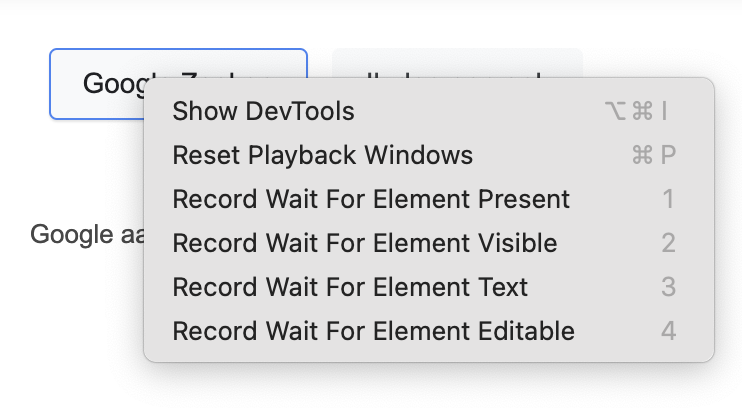
For example, if you tap an element on the webpage, you will see a new `Click` command appear. At any given point, you can right-click an element on the page you are testing and add a verification, for example: `Record Wait For Element Present`.
### Saving test
Once you've finished recording your test, you can choose to save it as a `.side` file, which is basically a JSON file that describes all the actions and verifications you added during the recording.
Choose `Save Project As` and save the file. You can now [upload this file](https://testingbot.com#upload) to TestingBot and instruct TestingBot to run this test on a scheduled interval, running on the browsers & operating systems you want.
## Upload a codeless test
Once you have a `.side` file, you can upload it in the [Codeless Test](https://testingbot.com/members/lab) area of TestingBot.
Click the upload button in the **Import a Selenium Test** section and upload the file.
Once uploaded, you will be redirected to a test configuration page. Here you can configure various options:
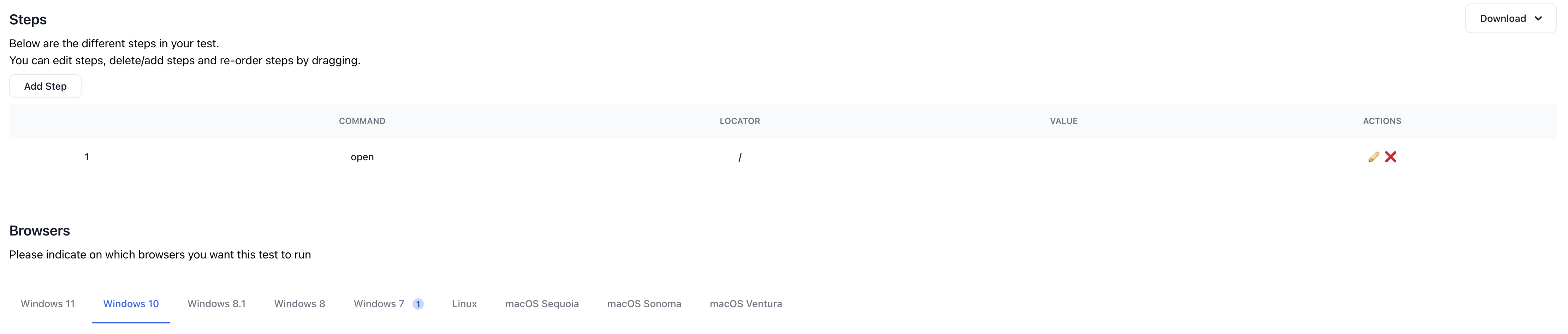
### Steps
We will display the same steps that were recorded before. You have the option to re-order the steps, edit steps or remove steps.
### Browsers
A selection of browsers & operating systems will be available to choose from. Select one or more browsers that you want to run your test on.
### Settings
You can configure various settings for your test:
- Schedule when the test should run; a specific time, interval, day. Or maybe every 15 minutes. You indicate how often the test will run.
- Manage timeouts, screen resolution, screenshots and videos.
- Daily and hourly reporting of your tests via email.
- Automatically retry a failed test and if the retry succeeds, ignore the failed test.
- Receive an alert via email or text message when a test fails.
- Test from various geographical locations
## Run Test
Now that the test has been added to TestingBot, you can choose to run it immediately.
Click the **Run test** button on the top right of the edit test page, or from within the test overview page.
TestingBot will run the test on the browser(s) you specified and alert you when a test failed.
Each test comes with screenshots, a video and generated log files.
## API Reference
You can use the [TestingBot API](https://testingbot.com/support/api) to add, edit, remove and [run Codeless Automation tests](https://testingbot.com/support/api#runlabtest).
Use our [integrations](https://testingbot.com/support/integrations) to improve your workflow. For example, configure a [Slack Bot](https://testingbot.com/support/integrations/slack) to notify you when a codeless automation test failed.
### Looking for more help?
Have questions or need more information? Reach out via email or Slack.
[Email us](https://testingbot.com/contact/new)[Slack Join our Slack](https://join.slack.com/t/testingb0t/shared_invite/zt-3bcw9xch-jk19~6XPs_xBrsAgAedkCw)
---
URL: https://testingbot.com/support/web-automate/codeless-automation/suites
# Add a Test Suite
In our TestLab we offer the possibility to upload test-suites (called **Projects** in Selenium IDE) generated by [Selenium IDE](https://www.selenium.dev/selenium-ide/).
A test suite is a collection of tests, generated by the Selenium IDE extension.
To upload the suite, please upload the exported (`.side`) file:
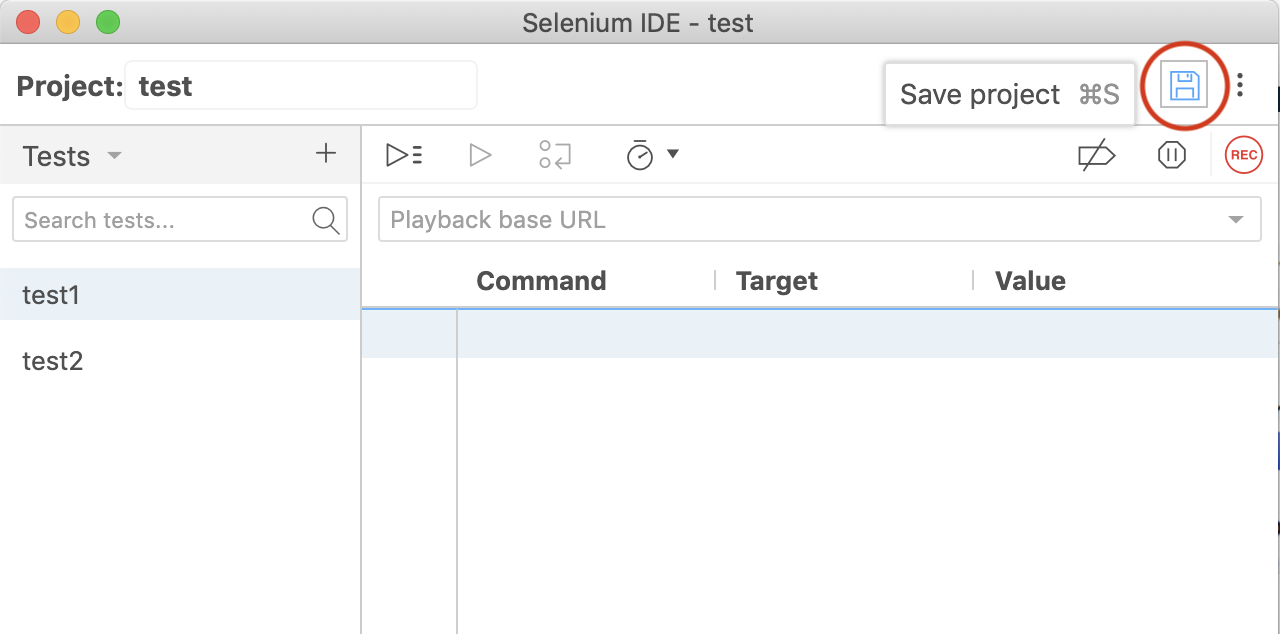
## Managing Test Suites
Once uploaded to our TestLab, you will see page detailing the Project you just uploaded.
It will include a list of the tests that this project contains.
On this page, you can change on which browser(s) the tests should run, change alert/scheduling options and more.
Changing a setting in the project affects all tests for this project.
If you like to only change a single test, click through to the test edit page and make the necessary changes there.
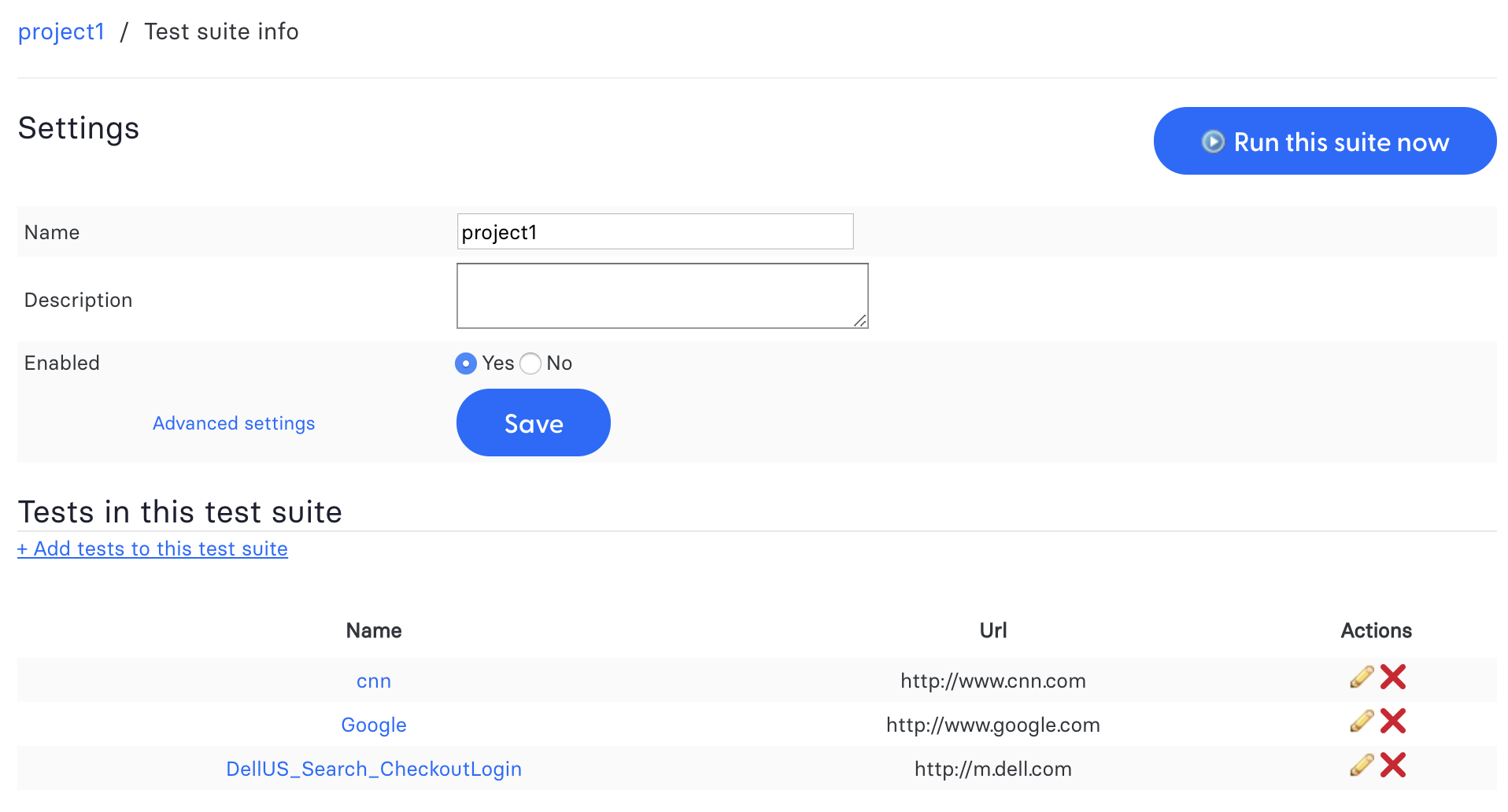
### Looking for more help?
Have questions or need more information? Reach out via email or Slack.
[Email us](https://testingbot.com/contact/new)[Slack Join our Slack](https://join.slack.com/t/testingb0t/shared_invite/zt-3bcw9xch-jk19~6XPs_xBrsAgAedkCw)
---
URL: https://testingbot.com/support/web-automate/codeless-automation/schedule
# Schedule a test
When you have [added a test](https://testingbot.com/support/web-automate/codeless-automation/add-test), you can specify when we should run the test, and how many times we should run it (interval).
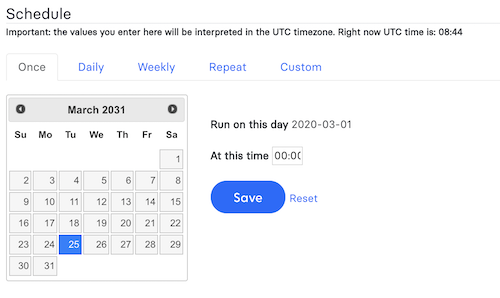
You can have your test either run once, every day, every week, repeat every `..` time or use a custom CRON format.
Once scheduled, you can specify when you want to be [alerted of failed tests](https://testingbot.com/support/web-automate/codeless-automation/alerts).
### Looking for more help?
Have questions or need more information? Reach out via email or Slack.
[Email us](https://testingbot.com/contact/new)[Slack Join our Slack](https://join.slack.com/t/testingb0t/shared_invite/zt-3bcw9xch-jk19~6XPs_xBrsAgAedkCw)
---
URL: https://testingbot.com/support/web-automate/codeless-automation/alerts
# Alerts
When a test in Codeless Automation fails, we can notify you by sending you an email, Webhook, Push Notification or SMS/text message.
You can choose to be alerted immediately, or once a day.
## Alert Types
We offer 3 ways to alert you:
- Email
- SMS/Text message
- Webhook to a URL you specify.
The message you will receive will contain the URL, number of errors and an error message trace.
## Email Alerts
To receive an alert via email, fill in your email address.
We will send an email with the failure of the test.
You can customize the error message by filling in your own text.
We offer these variables to customize your error text: `%test_name%` and `%browser%`.
## SMS Text Message
Fill in your phone number (with country code) to receive an SMS message when a test fails.
You can customize the error message by filling in your own text.
We offer these variables to customize your error text: `%test_name%` and `%browser%`.
There's also the possibility to be alerted when the test recovers.
## Webhook
We will call a URL you specify whenever a test fails.
The URL needs to be publicly available, otherwise TestingBot cannot reach the URL.
The URL will receive a POST request from us with the following fields:
- `success` (boolean)
- `job_id` (int) - internal id
- `test_ids[]` (string[]) webdriver sessionIds
- `errors[]` (string[]) error messages
### Looking for more help?
Have questions or need more information? Reach out via email or Slack.
[Email us](https://testingbot.com/contact/new)[Slack Join our Slack](https://join.slack.com/t/testingb0t/shared_invite/zt-3bcw9xch-jk19~6XPs_xBrsAgAedkCw)
---
URL: https://testingbot.com/support/web-automate/codeless-automation/commands
# Supported Selenium IDE Commands
Below is a list of the commands we currently support in our Codeless Automation.
## Browsing
- **close**
Simulates the user clicking the "close" button in the titlebar of a popup window or tab.
- **closeAndWait**
Simulates the user clicking the "close" button in the titlebar of a popup window or tab.
- **goBack**
Simulates the user clicking the "back" button on their browser.
- **goBackAndWait**
Simulates the user clicking the "back" button on their browser.
- **open**
(url)
Opens an URL in the test frame. This accepts both relative and absolute URLs. The "open" command waits for the page to load before proceeding, ie. the "AndWait" suffix is implicit. Note: The URL must be on the same domain as the runner HTML due to security restrictions in the browser (Same Origin Policy). If you need to open an URL on another domain, use the Selenium Server to start a new browser session on that domain.
- **openAndWait**
(url)
Opens an URL in the test frame. This accepts both relative and absolute URLs. The "open" command waits for the page to load before proceeding, ie. the "AndWait" suffix is implicit. Note: The URL must be on the same domain as the runner HTML due to security restrictions in the browser (Same Origin Policy). If you need to open an URL on another domain, use the Selenium Server to start a new browser session on that domain.
- **openWindow**
(url - windowID)
Opens a popup window (if a window with that ID isn't already open). After opening the window, you'll need to select it using the selectWindow command. This command can also be a useful workaround for bug SEL-339. In some cases, Selenium will be unable to intercept a call to window.open (if the call occurs during or before the "onLoad" event, for example). In those cases, you can force Selenium to notice the open window's name by using the Selenium openWindow command, using an empty (blank) url, like this: openWindow("", "myFunnyWindow").
- **openWindowAndWait**
(url - windowID)
Opens a popup window (if a window with that ID isn't already open). After opening the window, you'll need to select it using the selectWindow command. This command can also be a useful workaround for bug SEL-339. In some cases, Selenium will be unable to intercept a call to window.open (if the call occurs during or before the "onLoad" event, for example). In those cases, you can force Selenium to notice the open window's name by using the Selenium openWindow command, using an empty (blank) url, like this: openWindow("", "myFunnyWindow").
- **refresh**
Simulates the user clicking the "Refresh" button on their browser.
- **refreshAndWait**
Simulates the user clicking the "Refresh" button on their browser.
- **selectFrame**
(locator)
Selects a frame within the current window. (You may invoke this command multiple times to select nested frames.) To select the parent frame, use "relative=parent" as a locator; to select the top frame, use "relative=top". You can also select a frame by its 0-based index number; select the first frame with "index=0", or the third frame with "index=2". You may also use a DOM expression to identify the frame you want directly, like this: dom=frames["main"].frames["subframe"]
- **selectFrameAndWait**
(locator)
Selects a frame within the current window. (You may invoke this command multiple times to select nested frames.) To select the parent frame, use "relative=parent" as a locator; to select the top frame, use "relative=top". You can also select a frame by its 0-based index number; select the first frame with "index=0", or the third frame with "index=2". You may also use a DOM expression to identify the frame you want directly, like this: dom=frames["main"].frames["subframe"]
- **selectWindow**
(windowID)
Selects a popup window using a window locator; once a popup window has been selected, all commands go to that window. To select the main window again, use null as the target. Window locators provide different ways of specifying the window object: by title, by internal JavaScript "name," or by JavaScript variable. title=My Special Window: Finds the window using the text that appears in the title bar. Be careful; two windows can share the same title. If that happens, this locator will just pick one. name=myWindow: Finds the window using its internal JavaScript "name" property. This is the second parameter "windowName" passed to the JavaScript method window.open(url, windowName, windowFeatures, replaceFlag) (which Selenium intercepts). var=variableName: Some pop-up windows are unnamed (anonymous), but are associated with a JavaScript variable name in the current application window, e.g. "window.foo = window.open(url);". In those cases, you can open the window using "var=foo". If no window locator prefix is provided, we'll try to guess what you mean like this: 1.) if windowID is null, (or the string "null") then it is assumed the user is referring to the original window instantiated by the browser). 2.) if the value of the "windowID" parameter is a JavaScript variable name in the current application window, then it is assumed that this variable contains the return value from a call to the JavaScript window.open() method. 3.) Otherwise, selenium looks in a hash it maintains that maps string names to window "names". 4.) If that fails, we'll try looping over all of the known windows to try to find the appropriate "title". Since "title" is not necessarily unique, this may have unexpected behavior. If you're having trouble figuring out the name of a window that you want to manipulate, look at the Selenium log messages which identify the names of windows created via window.open (and therefore intercepted by Selenium). You will see messages like the following for each window as it is opened: debug: window.open call intercepted; window ID (which you can use with selectWindow()) is "myNewWindow" In some cases, Selenium will be unable to intercept a call to window.open (if the call occurs during or before the "onLoad" event, for example). (This is bug SEL-339.) In those cases, you can force Selenium to notice the open window's name by using the Selenium openWindow command, using an empty (blank) url, like this: openWindow("", "myFunnyWindow").
- **selectWindowAndWait**
(windowID)
Selects a popup window using a window locator; once a popup window has been selected, all commands go to that window. To select the main window again, use null as the target. Window locators provide different ways of specifying the window object: by title, by internal JavaScript "name," or by JavaScript variable. title=My Special Window: Finds the window using the text that appears in the title bar. Be careful; two windows can share the same title. If that happens, this locator will just pick one. name=myWindow: Finds the window using its internal JavaScript "name" property. This is the second parameter "windowName" passed to the JavaScript method window.open(url, windowName, windowFeatures, replaceFlag) (which Selenium intercepts). var=variableName: Some pop-up windows are unnamed (anonymous), but are associated with a JavaScript variable name in the current application window, e.g. "window.foo = window.open(url);". In those cases, you can open the window using "var=foo". If no window locator prefix is provided, we'll try to guess what you mean like this: 1.) if windowID is null, (or the string "null") then it is assumed the user is referring to the original window instantiated by the browser). 2.) if the value of the "windowID" parameter is a JavaScript variable name in the current application window, then it is assumed that this variable contains the return value from a call to the JavaScript window.open() method. 3.) Otherwise, selenium looks in a hash it maintains that maps string names to window "names". 4.) If that fails, we'll try looping over all of the known windows to try to find the appropriate "title". Since "title" is not necessarily unique, this may have unexpected behavior. If you're having trouble figuring out the name of a window that you want to manipulate, look at the Selenium log messages which identify the names of windows created via window.open (and therefore intercepted by Selenium). You will see messages like the following for each window as it is opened: debug: window.open call intercepted; window ID (which you can use with selectWindow()) is "myNewWindow" In some cases, Selenium will be unable to intercept a call to window.open (if the call occurs during or before the "onLoad" event, for example). (This is bug SEL-339.) In those cases, you can force Selenium to notice the open window's name by using the Selenium openWindow command, using an empty (blank) url, like this: openWindow("", "myFunnyWindow").
- **windowFocus**
Gives focus to the currently selected window
- **windowFocusAndWait**
Gives focus to the currently selected window
- **windowMaximize**
Resize currently selected window to take up the entire screen
- **windowMaximizeAndWait**
Resize currently selected window to take up the entire screen
## Clicks
- **click**
(locator)
Clicks on a link, button, checkbox or radio button. If the click action causes a new page to load (like a link usually does), call waitForPageToLoad.
- **clickAndWait**
(locator)
Clicks on a link, button, checkbox or radio button. If the click action causes a new page to load (like a link usually does), call waitForPageToLoad.
- **clickAt**
(locator - coordString)
Clicks on a link, button, checkbox or radio button. If the click action causes a new page to load (like a link usually does), call waitForPageToLoad.
- **clickAtAndWait**
(locator - coordString)
Clicks on a link, button, checkbox or radio button. If the click action causes a new page to load (like a link usually does), call waitForPageToLoad.
- **doubleClick**
(locator)
Double clicks on a link, button, checkbox or radio button. If the double click action causes a new page to load (like a link usually does), call waitForPageToLoad.
- **doubleClickAndWait**
(locator)
Double clicks on a link, button, checkbox or radio button. If the double click action causes a new page to load (like a link usually does), call waitForPageToLoad.
- **doubleClickAt**
(locator - coordString)
Doubleclicks on a link, button, checkbox or radio button. If the action causes a new page to load (like a link usually does), call waitForPageToLoad.
- **doubleClickAtAndWait**
(locator - coordString)
Doubleclicks on a link, button, checkbox or radio button. If the action causes a new page to load (like a link usually does), call waitForPageToLoad.
- **dragAndDrop**
(locator - movementsString)
Drags an element a certain distance and then drops it
- **dragAndDropAndWait**
(locator - movementsString)
Drags an element a certain distance and then drops it
- **dragAndDropToObject**
(locatorOfObjectToBeDragged - locatorOfDragDestinationObject)
Drags an element and drops it on another element
- **dragAndDropToObjectAndWait**
(locatorOfObjectToBeDragged - locatorOfDragDestinationObject)
Drags an element and drops it on another element
## Form Fields
- **addSelection**
(locator - optionLocator)
Add a selection to the set of selected options in a multi-select element using an option locator. @see #doSelect for details of option locators
- **addSelectionAndWait**
(locator - optionLocator)
Add a selection to the set of selected options in a multi-select element using an option locator. @see #doSelect for details of option locators
- **check**
(locator)
Check a toggle-button (checkbox/radio)
- **checkAndWait**
(locator)
Check a toggle-button (checkbox/radio)
- **focus**
(locator)
Move the focus to the specified element; for example, if the element is an input field, move the cursor to that field.
- **focusAndWait**
(locator)
Move the focus to the specified element; for example, if the element is an input field, move the cursor to that field.
- **removeAllSelections**
(locator)
Unselects all of the selected options in a multi-select element.
- **removeAllSelectionsAndWait**
(locator)
Unselects all of the selected options in a multi-select element.
- **removeSelection**
(locator - optionLocator)
Remove a selection from the set of selected options in a multi-select element using an option locator. @see #doSelect for details of option locators
- **removeSelectionAndWait**
(locator - optionLocator)
Remove a selection from the set of selected options in a multi-select element using an option locator. @see #doSelect for details of option locators
- **select**
(selectLocator - optionLocator)
Select an option from a drop-down using an option locator. Option locators provide different ways of specifying options of an HTML Select element (e.g. for selecting a specific option, or for asserting that the selected option satisfies a specification). There are several forms of Select Option Locator. label=labelPattern: matches options based on their labels, i.e. the visible text. (This is the default.) label=regexp:^[Oo]ther value=valuePattern: matches options based on their values. value=other id=id: matches options based on their ids. id=option1 index=index: matches an option based on its index (offset from zero). index=2 If no option locator prefix is provided, the default behaviour is to match on label.
- **selectAndWait**
(selectLocator - optionLocator)
Select an option from a drop-down using an option locator. Option locators provide different ways of specifying options of an HTML Select element (e.g. for selecting a specific option, or for asserting that the selected option satisfies a specification). There are several forms of Select Option Locator. label=labelPattern: matches options based on their labels, i.e. the visible text. (This is the default.) label=regexp:^[Oo]ther value=valuePattern: matches options based on their values. value=other id=id: matches options based on their ids. id=option1 index=index: matches an option based on its index (offset from zero). index=2 If no option locator prefix is provided, the default behaviour is to match on label.
- **setCursorPosition**
(locator - position)
Moves the text cursor to the specified position in the given input element or textarea. This method will fail if the specified element isn't an input element or textarea.
- **setCursorPositionAndWait**
(locator - position)
Moves the text cursor to the specified position in the given input element or textarea. This method will fail if the specified element isn't an input element or textarea.
- **submit**
(formLocator)
Submit the specified form. This is particularly useful for forms without submit buttons, e.g. single-input "Search" forms.
- **submitAndWait**
(formLocator)
Submit the specified form. This is particularly useful for forms without submit buttons, e.g. single-input "Search" forms.
- **uncheck**
(locator)
Uncheck a toggle-button (checkbox/radio)
- **uncheckAndWait**
(locator)
Uncheck a toggle-button (checkbox/radio)
- **getSelectedLabels**
(selectLocator)
Gets all option labels (visible text) for selected options in the specified select or multi-select element.
- **getSelectedLabel**
(selectLocator)
Gets option label (visible text) for selected option in the specified select element.
- **getSelectedValues**
(selectLocator)
Gets all option values (value attributes) for selected options in the specified select or multi-select element.
- **getSelectedValue**
(selectLocator)
Gets option value (value attribute) for selected option in the specified select element.
- **getSelectedIndexes**
(selectLocator)
Gets all option indexes (option number, starting at 0) for selected options in the specified select or multi-select element.
- **getSelectedIndex**
(selectLocator)
Gets option index (option number, starting at 0) for selected option in the specified select element.
- **getSelectedIds**
(selectLocator)
Gets all option element IDs for selected options in the specified select or multi-select element.
- **getSelectedId**
(selectLocator)
Gets option element ID for selected option in the specified select element.
- **verifyAllButtons**
(equalTo)
- **verifyAllFields**
(equalTo)
- **verifyChecked**
(locator)
- **isChecked**
(locator)
Gets whether a toggle-button (checkbox/radio) is checked. Fails if the specified element doesn't exist or isn't a toggle-button.
- **verifyCursorPosition**
(locator - equalTo)
- **verifyEditable**
(locator)
- **waitForElementEditable**
(locator)
- **verifyNotAllButtons**
(equalTo)
- **verifyNotAllFields**
(equalTo)
- **verifyNotChecked**
(locator)
- **verifyNotCursorPosition**
(locator - equalTo)
- **verifyNotEditable**
(locator)
- **verifyNotSelectedIds**
(selectLocator - equalTo)
- **verifyNotSelectedIndexes**
(selectLocator - equalTo)
- **verifyNotSelectedLabels**
(selectLocator - equalTo)
- **verifyNotSelectedValues**
(selectLocator - equalTo)
- **verifyNotSelectedOptions**
(selectLocator - equalTo)
- **verifyNotSomethingSelected**
(selectLocator)
- **verifyNotValue**
(locator - equalTo)
- **verifySelectedIds**
(selectLocator - equalTo)
- **verifySelectedIndexes**
(selectLocator - equalTo)
- **verifySelectedLabels**
(selectLocator - equalTo)
- **verifySelectedValues**
(selectLocator - equalTo)
- **verifySelectOptions**
(selectLocator - equalTo)
- **verifySomethingSelected**
(selectLocator)
- **isSomethingSelected**
(selectLocator)
Determines whether some option in a drop-down menu is selected.
- **verifyValue**
(locator - equalTo)
- **assertAllButtons**
(equalTo)
- **assertAllFields**
(equalTo)
- **assertChecked**
(locator)
- **assertCursorPosition**
(locator - equalTo)
- **assertEditable**
(locator)
- **assertNotAllButtons**
- **assertNotAllFields**
- **assertNotChecked**
(locator)
- **assertNotCursorPosition**
(locator - equalTo)
- **assertNotEditable**
(locator)
- **assertNotSelectedIds**
(selectLocator - equalTo)
- **assertNotSelectedIndexes**
(selectLocator - equalTo)
- **assertNotSelectedLabels**
(selectLocator - equalTo)
- **assertNotSelectedValues**
(selectLocator - equalTo)
- **assertNotSelectOptions**
(selectLocator - equalTo)
- **assertNotSomethingSelected**
(selectLocator)
- **assertNotValue**
(locator - equalTo)
- **assertSelectedIds**
(selectLocator - equalTo)
- **assertSelectedIndexes**
(selectLocator - equalTo)
- **assertSelectedLabels**
(selectLocator - equalTo)
- **assertSelectedValues**
(selectLocator - equalTo)
- **assertSelectOptions**
(selectLocator - equalTo)
- **assertSomethingSelected**
(selectLocator)
- **assertValue**
(locator - equalTo)
- **waitForAllWindowIds**
(equalTo)
- **waitForAllWindowNames**
(equalTo)
- **waitForAllWindowTitles**
(equalTo)
- **waitForAttributeFromAllWindows**
(attributeName - equalTo)
- **waitForLocation**
(equalTo)
- **waitForNotAllWindowIds**
(equalTo)
- **waitForNotAllWindowNames**
(equalTo)
- **waitForNotAllWindowTitles**
(equalTo)
- **waitForNotAttributeFromAllWindows**
(attributeName - equalTo)
- **WaitForNotLocation**
(equalTo)
- **waitForNotTitle**
(equalTo)
- **waitForTitle**
(equalTo)
- **storeAllButtons**
- **storeAllFields**
- **storeChecked**
(locator - variable)
- **storeCursorPosition**
(locator - variable)
- **storeEditable**
(locator - variable)
- **storeSelectedIds**
(selectLocator - variable)
- **storeSelectedIndexes**
(selectLocator - variable)
- **storeSelectedLabels**
(selectLocator - variable)
- **storeSelectedValues**
(selectLocator - variable)
- **storeSelectOptions**
(selectLocator - variable)
- **storeSomethingSelected**
(selectLocator - variable)
- **storeValue**
(locator - variable)
## Keyboard Events
- **keyDown**
(locator - keySequence)
Simulates a user pressing a key (without releasing it yet).
- **keyDownAndWait**
(locator - keySequence)
Simulates a user pressing a key (without releasing it yet).
- **keyPress**
(locator - keySequence)
Simulates a user pressing and releasing a key.
- **keyPressAndWait**
(locator - keySequence)
Simulates a user pressing and releasing a key.
- **keyUp**
(locator - keySequence)
Simulates a user releasing a key.
- **keyUpAndWait**
(locator - keySequence)
Simulates a user releasing a key.
- **type**
(locator - value)
Sets the value of an input field, as though you typed it in. Can also be used to set the value of combo boxes, check boxes, etc. In these cases, value should be the value of the option selected, not the visible text.
- **typeAndWait**
(locator - value)
Sets the value of an input field, as though you typed it in. Can also be used to set the value of combo boxes, check boxes, etc. In these cases, value should be the value of the option selected, not the visible text.
- **typeKeys**
(locator - value)
Simulates keystroke events on the specified element, as though you typed the value key-by-key. This is a convenience method for calling keyDown, keyUp, keyPress for every character in the specified string; this is useful for dynamic UI widgets (like auto-completing combo boxes) that require explicit key events. Unlike the simple "type" command, which forces the specified value into the page directly, this command may or may not have any visible effect, even in cases where typing keys would normally have a visible effect. For example, if you use "typeKeys" on a form element, you may or may not see the results of what you typed in the field. In some cases, you may need to use the simple "type" command to set the value of the field and then the "typeKeys" command to send the keystroke events corresponding to what you just typed.
- **sendKeys**
(locator - value)
- **typeKeysAndWait**
(locator - value)
Simulates keystroke events on the specified element, as though you typed the value key-by-key. This is a convenience method for calling keyDown, keyUp, keyPress for every character in the specified string; this is useful for dynamic UI widgets (like auto-completing combo boxes) that require explicit key events. Unlike the simple "type" command, which forces the specified value into the page directly, this command may or may not have any visible effect, even in cases where typing keys would normally have a visible effect. For example, if you use "typeKeys" on a form element, you may or may not see the results of what you typed in the field. In some cases, you may need to use the simple "type" command to set the value of the field and then the "typeKeys" command to send the keystroke events corresponding to what you just typed.
## Keyboard Modifiers
- **altKeyDown**
Press the alt key and hold it down until doAltUp() is called or a new page is loaded.
- **altKeyDownAndWait**
Press the alt key and hold it down until doAltUp() is called or a new page is loaded.
- **altKeyUp**
Release the alt key.
- **altKeyUpAndWait**
Release the alt key.
- **controlKeyDown**
Press the control key and hold it down until doControlUp() is called or a new page is loaded.
- **controlKeyDownAndWait**
Press the control key and hold it down until doControlUp() is called or a new page is loaded.
- **controlKeyUp**
Release the control key.
- **controlKeyUpAndWait**
Release the control key.
- **metaKeyDown**
Press the meta key and hold it down until doMetaUp() is called or a new page is loaded.
- **metaKeyUp**
Release the meta key.
- **metaKeyUpAndWait**
Release the meta key.
- **shiftKeyDown**
Press the shift key and hold it down until doShiftUp() is called or a new page is loaded.
- **shiftKeyDownAndWait**
Press the shift key and hold it down until doShiftUp() is called or a new page is loaded.
- **shiftKeyUp**
Release the shift key.
- **shiftKeyUpAndWait**
Release the shift key.
## Mouse Events
- **mouseDown**
(locator)
Simulates a user pressing the left mouse button (without releasing it yet) on the specified element.
- **mouseDownAndWait**
(locator)
Simulates a user pressing the left mouse button (without releasing it yet) on the specified element.
- **mouseDownAt**
(locator - coordString)
Simulates a user pressing the left mouse button (without releasing it yet) at the specified location.
- **mouseDownAtAndWait**
(locator - coordString)
Simulates a user pressing the left mouse button (without releasing it yet) at the specified location.
- **mouseDownRight**
(locator)
Simulates a user pressing the right mouse button (without releasing it yet) on the specified element.
- **mouseDownRightAndWait**
(locator)
Simulates a user pressing the right mouse button (without releasing it yet) on the specified element.
- **mouseDownRightAt**
(locator - coordString)
Simulates a user pressing the right mouse button (without releasing it yet) at the specified location.
- **mouseDownRightAtAndWait**
(locator - coordString)
Simulates a user pressing the right mouse button (without releasing it yet) at the specified location.
- **mouseMove**
(locator)
Simulates a user pressing the mouse button (without releasing it yet) on the specified element.
- **mouseMoveAndWait**
(locator)
Simulates a user pressing the mouse button (without releasing it yet) on the specified element.
- **mouseMoveAt**
(locator - coordString)
Simulates a user pressing the mouse button (without releasing it yet) on the specified element.
- **mouseMoveAtAndWait**
(locator - coordString)
Simulates a user pressing the mouse button (without releasing it yet) on the specified element.
- **mouseOut**
(locator)
Simulates a user moving the mouse pointer away from the specified element.
- **mouseOutAndWait**
(locator)
Simulates a user moving the mouse pointer away from the specified element.
- **mouseOver**
(locator)
Simulates a user hovering a mouse over the specified element.
- **mouseOverAndWait**
(locator)
Simulates a user hovering a mouse over the specified element.
- **mouseUp**
(locator)
Simulates the event that occurs when the user releases the mouse button (i.e., stops holding the button down) on the specified element.
- **mouseUpAndWait**
(locator)
Simulates the event that occurs when the user releases the mouse button (i.e., stops holding the button down) on the specified element.
- **mouseUpAt**
(locator - coordString)
Simulates the event that occurs when the user releases the mouse button (i.e., stops holding the button down) at the specified location.
- **mouseUpAtAndWait**
(locator - coordString)
Simulates the event that occurs when the user releases the mouse button (i.e., stops holding the button down) at the specified location.
- **mouseUpRight**
(locator)
Simulates the event that occurs when the user releases the right mouse button (i.e., stops holding the button down) on the specified element.
- **mouseUpRightAndWait**
(locator)
Simulates the event that occurs when the user releases the right mouse button (i.e., stops holding the button down) on the specified element.
- **mouseUpRightAt**
(locator - coordString)
Simulates the event that occurs when the user releases the right mouse button (i.e., stops holding the button down) at the specified location.
- **mouseUpRightAtAndWait**
(locator - coordString)
Simulates the event that occurs when the user releases the right mouse button (i.e., stops holding the button down) at the specified location.
## Popups and Menus
- **answerOnNextPrompt**
(answer)
Instructs Selenium to return the specified answer string in response to the next JavaScript prompt [window.prompt()].
- **answerOnNextPromptAndWait**
(answer)
Instructs Selenium to return the specified answer string in response to the next JavaScript prompt [window.prompt()].
- **chooseCancelOnNextConfirmation**
By default, Selenium's overridden window.confirm() function will return true, as if the user had manually clicked OK; after running this command, the next call to confirm() will return false, as if the user had clicked Cancel. Selenium will then resume using the default behavior for future confirmations, automatically returning true (OK) unless/until you explicitly call this command for each confirmation. Take note - every time a confirmation comes up, you must consume it with a corresponding getConfirmation, or else the next selenium operation will fail.
- **chooseCancelOnNextConfirmationAndWait**
By default, Selenium's overridden window.confirm() function will return true, as if the user had manually clicked OK; after running this command, the next call to confirm() will return false, as if the user had clicked Cancel. Selenium will then resume using the default behavior for future confirmations, automatically returning true (OK) unless/until you explicitly call this command for each confirmation. Take note - every time a confirmation comes up, you must consume it with a corresponding getConfirmation, or else the next selenium operation will fail.
- **chooseOkOnNextConfirmation**
Undo the effect of calling chooseCancelOnNextConfirmation. Note that Selenium's overridden window.confirm() function will normally automatically return true, as if the user had manually clicked OK, so you shouldn't need to use this command unless for some reason you need to change your mind prior to the next confirmation. After any confirmation, Selenium will resume using the default behavior for future confirmations, automatically returning true (OK) unless/until you explicitly call chooseCancelOnNextConfirmation for each confirmation. Take note - every time a confirmation comes up, you must consume it with a corresponding getConfirmation, or else the next selenium operation will fail.
- **chooseOkOnNextConfirmationAndWait**
Undo the effect of calling chooseCancelOnNextConfirmation. Note that Selenium's overridden window.confirm() function will normally automatically return true, as if the user had manually clicked OK, so you shouldn't need to use this command unless for some reason you need to change your mind prior to the next confirmation. After any confirmation, Selenium will resume using the default behavior for future confirmations, automatically returning true (OK) unless/until you explicitly call chooseCancelOnNextConfirmation for each confirmation. Take note - every time a confirmation comes up, you must consume it with a corresponding getConfirmation, or else the next selenium operation will fail.
- **contextMenu**
(locator)
Simulates opening the context menu for the specified element (as might happen if the user "right-clicked" on the element).
- **contextMenuAndWait**
(locator)
Simulates opening the context menu for the specified element (as might happen if the user "right-clicked" on the element).
- **contextMenuAt**
(locator - coordString)
Simulates opening the context menu for the specified element (as might happen if the user "right-clicked" on the element).
- **contextMenuAtAndWait**
(locator - coordString)
Simulates opening the context menu for the specified element (as might happen if the user "right-clicked" on the element).
- **selectPopUp**
(windowID)
Simplifies the process of selecting a popup window (and does not offer functionality beyond what selectWindow() already provides). If windowID is either not specified, or specified as "null", the first non-top window is selected. The top window is the one that would be selected by selectWindow() without providing a windowID . This should not be used when more than one popup window is in play. Otherwise, the window will be looked up considering windowID as the following in order: 1) the "name" of the window, as specified to window.open(); 2) a javascript variable which is a reference to a window; and 3) the title of the window. This is the same ordered lookup performed by selectWindow .
- **deselectPopUp**
Selects the main window. Functionally equivalent to using selectWindow() and specifying no value for windowID.
- **getAlert**
Retrieves the message of a JavaScript alert generated during the previous action, or fail if there were no alerts. Getting an alert has the same effect as manually clicking OK. If an alert is generated but you do not consume it with getAlert, the next Selenium action will fail. Under Selenium, JavaScript alerts will NOT pop up a visible alert dialog. Selenium does NOT support JavaScript alerts that are generated in a page's onload() event handler. In this case a visible dialog WILL be generated and Selenium will hang until someone manually clicks OK.
- **getConfirmation**
Retrieves the message of a JavaScript confirmation dialog generated during the previous action. By default, the confirm function will return true, having the same effect as manually clicking OK. This can be changed by prior execution of the chooseCancelOnNextConfirmation command. If an confirmation is generated but you do not consume it with getConfirmation, the next Selenium action will fail. NOTE: under Selenium, JavaScript confirmations will NOT pop up a visible dialog. NOTE: Selenium does NOT support JavaScript confirmations that are generated in a page's onload() event handler. In this case a visible dialog WILL be generated and Selenium will hang until you manually click OK.
- **getPrompt**
Retrieves the message of a JavaScript question prompt dialog generated during the previous action. Successful handling of the prompt requires prior execution of the answerOnNextPrompt command. If a prompt is generated but you do not get/verify it, the next Selenium action will fail. NOTE: under Selenium, JavaScript prompts will NOT pop up a visible dialog. NOTE: Selenium does NOT support JavaScript prompts that are generated in a page's onload() event handler. In this case a visible dialog WILL be generated and Selenium will hang until someone manually clicks OK.
- **getWhetherThisFrameMatchFrameExpression**
(currentFrameString - target)
Determine whether current/locator identify the frame containing this running code. This is useful in proxy injection mode, where this code runs in every browser frame and window, and sometimes the selenium server needs to identify the "current" frame. In this case, when the test calls selectFrame, this routine is called for each frame to figure out which one has been selected. The selected frame will return true, while all others will return false.
- **getWhetherThisWindowMatchWindowExpression**
(currentWindowString - target)
Determine whether currentWindowString plus target identify the window containing this running code. This is useful in proxy injection mode, where this code runs in every browser frame and window, and sometimes the selenium server needs to identify the "current" window. In this case, when the test calls selectWindow, this routine is called for each window to figure out which one has been selected. The selected window will return true, while all others will return false.
## Browser Window
- **verifyAllWindowIds**
(equalTo)
- **verifyAllWindowNames**
(equalTo)
- **verifyAllWindowTitles**
(equalTo)
- **verifyAttributeFromAllWindows**
(attributeName - equalTo)
- **verifyLocation**
(equalTo)
- **verifyNotAllWindowIds**
(equalTo)
- **verifyNotAllWindowNames**
(equalTo)
- **verifyNotAttributeFromAllWindows**
(attributeName - equalTo)
- **verifyNotLocation**
(equalTo)
- **verifyNotTitle**
(equalTo)
- **verifyTitle**
(equalTo)
- **assertAllWindowIds**
(equalTo)
- **assertAllWindowNames**
(equalTo)
- **assertAllWindowTitles**
(equalTo)
- **assertAttributeFromAllWindows**
(attributeName - equalTo)
- **assertLocation**
(equalTo)
- **assertNotAllWindowIds**
(equalTo)
- **assertNotAllWindowNames**
(equalTo)
- **assertNotAllWindowTitles**
(equalTo)
- **assertNotAttributeFromAllWindows**
(attributeName)
- **assertNotLocation**
(equalTo)
- **assertNotTitle**
(equalTo)
- **assertTitle**
(equalTo)
- **assert**
Check that a variable is an expected value. The variable's value will be converted to a string for comparison. The test will stop if the assert fails.
- **validateXml**
Custom command by TestingBot. Validates if the document contents is valid XML.
- **waitForAlert**
(equalTo)
- **waitForAlertNotPresent**
- **waitForAlertPresent**
- **waitForConfirmation**
(equalTo)
- **waitForConfirmationNotPresent**
- **waitForConfirmationPresent**
- **waitForNotAlert**
(equalTo)
- **waitForNotConfirmation**
(equalTo)
- **waitForNotPrompt**
(equalTo)
- **waitForPrompt**
(equalTo)
- **waitForPromptNotPresent**
- **waitForPromptPresent**
- **storeAllWindowIds**
- **storeAllWindowNames**
- **storeAllWindowTitles**
- **storeAttributeFromAllWindows**
(attributeName - variable)
- **storeLocation**
- **storeTitle**
- **storeAllWindowHandles**
- **storeNewWindowHandle**
- **storeWindowHandle**
- **setWindowSize**
(size)
Sets the current window size.
## Cookies
- **verifyCookie**
(equalTo)
- **verifyCookieByName**
(name - equalTo)
- **verifyCookieNotPresent**
(name)
- **verifyCookiePresent**
(name)
- **verifyNotCookie**
(equalTo)
- **verifyNotCookieByName**
(name - equalTo)
- **assertCookie**
(equalTo)
- **assertCookieByName**
(name - equalTo)
- **assertCookieNotPresent**
(name)
- **assertCookiePresent**
(name)
- **assertNotCookie**
(equalTo)
- **assertNotCookieByName**
(name - equalTo)
- **createCookie**
(nameValuePair - optionsString)
Create a new cookie whose path and domain are same with those of current page under test, unless you specified a path for this cookie explicitly.
- **deleteAllVisibleCookies**
Calls deleteCookie with recurse=true on all cookies visible to the current page. As noted on the documentation for deleteCookie, recurse=true can be much slower than simply deleting the cookies using a known domain/path.
- **deleteCookie**
(name - optionsString)
Delete a named cookie with specified path and domain. Be careful; to delete a cookie, you need to delete it using the exact same path and domain that were used to create the cookie. If the path is wrong, or the domain is wrong, the cookie simply won't be deleted. Also note that specifying a domain that isn't a subset of the current domain will usually fail. Since there's no way to discover at runtime the original path and domain of a given cookie, we've added an option called 'recurse' to try all sub-domains of the current domain with all paths that are a subset of the current path. Beware; this option can be slow. In big-O notation, it operates in O(n\*m) time, where n is the number of dots in the domain name and m is the number of slashes in the path.
- **storeCookie**
- **storeCookieByName**
(name - variable)
- **storeCookiePresent**
(name - variable)
## Page Content
- **verifyAllLinks**
(equalTo)
- **verifyAttribute**
(attributeLocator - equalTo)
- **verifyBodyText**
(equalTo)
- **verifyElementNotPresent**
(locator)
- **verifyElementPresent**
(locator)
- **verifyHtmlSource**
(equalTo)
- **verifyNotAllLinks**
(equalTo)
- **verifyNotAttribute**
(attributeLocator)
- **verifyNotBodyText**
(equalTo)
- **verifyNotHtmlSource**
(equalTo)
- **verifyNotOrdered**
(locator1 - locator2)
- **verifyNotTable**
(tableCellAddress - equalTo)
- **verifyNotText**
(locator - equalTo)
- **verifyNotVisible**
(locator)
- **verifyOrdered**
(locator1 - locator2)
- **verifyTable**
(tableCellAddress - equalTo)
- **verifyText**
(locator - equalTo)
- **verifyTextNotPresent**
(pattern)
- **verifyTextPresent**
(pattern)
- **verifyVisible**
(locator)
- **assertAllLinks**
(equalTo)
- **assertAttribute**
(attributeLocator - equalTo)
- **assertBodyText**
(equalTo)
- **assertElementNotPresent**
(locator)
- **assertElementPresent**
(locator)
- **assertHtmlSource**
(equalTo)
- **assertNotAllLinks**
(equalTo)
- **assertNotAttribute**
(attributeLocator - equalTo)
- **assertNotBodyText**
(equalTo)
- **assertNotHtmlSource**
(equalTo)
- **assertNotOrdered**
(locator1 - locator2)
- **assertNotTable**
(tableCellAddress - equalTo)
- **assertNotText**
(locator - equalTo)
- **assertNotVisible**
(locator)
- **assertOrdered**
(locator1 - locator2)
- **assertTable**
(tableCellAddress - equalTo)
- **assertText**
(locator - equalTo)
- **assertTextNotPresent**
(pattern)
- **assertTextPresent**
(pattern)
- **assertVisible**
(locator)
- **waitForAllLinks**
(equalTo)
- **waitForAttribute**
(attributeLocator - equalTo)
- **waitForBodyText**
(equalTo)
- **waitForElementPresent**
(locator)
- **waitForHtmlSource**
(equalTo)
- **waitForNotAllLinks**
(equalTo)
- **waitForNotAttribute**
(attributeLocator - equalTo)
- **waitForNotBodyText**
(equalTo)
- **waitForElementNotPresent**
(locator)
- **waitForElementNotVisible**
(locator)
- **waitForElementVisible**
(locator)
- **waitForNotHtmlSource**
(equalTo)
- **waitForNotOrdered**
(locator1 - locator2)
- **waitForNotTable**
(tableCellAddress - equalTo)
- **waitForNotText**
(locator - equalTo)
- **waitForNotVisible**
(locator)
- **waitForOrdered**
(locator1 - locator2)
- **waitForTable**
(tableCellAddress - equalTo)
- **waitForText**
(locator - equalTo)
- **waitForTextNotPresent**
(pattern)
- **waitForTextPresent**
(pattern)
- **waitForVisible**
(locator)
- **storeAllLinks**
- **storeAttribute**
(attributeLocator - variable)
- **storeBodyText**
- **storeElementPresent**
(locator - variable)
- **storeHtmlSource**
- **storeTable**
(tableCellAddress - variable)
- **storeText**
(locator - variable)
- **storeTextPresent**
(pattern - variable)
- **storeVisible**
(locator - variable)
## Page Positioning
- **verifyElementHeight**
(locator - equalTo)
- **verifyElementIndex**
(locator - equalTo)
- **verifyElementPositionLeft**
(locator - equalTo)
- **verifyElementPositionTop**
(locator - equalTo)
- **verifyElementWidth**
(locator - equalTo)
- **verifyNotElementHeight**
(locator - equalTo)
- **verifyNotElementIndex**
(locator - equalTo)
- **verifyNotElementPositionLeft**
(locator - equalTo)
- **verifyNotElementPositionTop**
(locator - equalTo)
- **verifyNotElementWidth**
(locator - equalTo)
- **assertElementHeight**
(locator - equalTo)
- **assertElementIndex**
(locator - equalTo)
- **assertElementPositionLeft**
(locator - equalTo)
- **assertElementPositionTop**
(locator - equalTo)
- **assertElementWidth**
(locator - equalTo)
- **assertNotElementHeight**
(locator - equalTo)
- **assertNotElementIndex**
(locator - equalTo)
- **assertNotElementPositionLeft**
(locator - equalTo)
- **assertNotElementPositionTop**
(locator - equalTo)
- **assertNotElementWidth**
- **storeElementHeight**
(locator - variable)
- **storeElementIndex**
(locator - variable)
- **storeElementPositionLeft**
(locator - variable)
- **storeElementPositionTop**
(locator - variable)
- **storeElementWidth**
(locator - variable)
## Popups
- **verifyAlert**
(equalTo)
- **verifyAlertNotPresent**
- **verifyAlertPresent**
- **isAlertPresent**
Has an alert occurred? This function never throws an exception
- **verifyConfirmation**
(equalTo)
- **verifyConfirmationNotPresent**
- **verifyConfirmationPresent**
- **isConfirmationPresent**
Has confirm() been called? This function never throws an exception
- **verifyNotAlert**
(equalTo)
- **verifyNotConfirmation**
(equalTo)
- **verifyNotPrompt**
(equalTo)
- **verifyPrompt**
(equalTo)
- **verifyPromptNotPresent**
- **verifyPromptPresent**
- **isPromptPresent**
Has a prompt occurred? This function never throws an exception
- **assertAlert**
(equalTo)
- **assertAlertNotPresent**
- **assertAlertPresent**
- **assertConfirmation**
(equalTo)
- **assertConfirmationNotPresent**
- **assertConfirmationPresent**
- **assertNotAlert**
(equalTo)
- **assertNotConfirmation**
(equalTo)
- **assertNotPrompt**
(equalTo)
- **assertPrompt**
(equalTo)
- **assertPromptNotPresent**
- **assertPromptPresent**
- **waitForElementHeight**
(locator - equalTo)
- **waitForElementIndex**
(locator - equalTo)
- **waitForElementPositionLeft**
(locator - equalTo)
- **waitForElementPositionTop**
(locator - equalTo)
- **waitForElementWidth**
(locator - equalTo)
- **waitForNotElementHeight**
(locator - equalTo)
- **waitForNotElementIndex**
(locator - equalTo)
- **waitForNotElementPositionLeft**
(locator - equalTo)
- **waitForNotElementPositionTop**
(locator - equalTo)
- **waitForNotElementWidth**
(locator - equalTo)
- **waitForPopUp**
(windowID - timeout)
Waits for a popup window to appear and load up.
- **storeAlert**
- **storeAlertPresent**
- **storeConfirmation**
- **storeConfirmationPresent**
- **storePrompt**
- **storePromptPresent**
## Selenium
- **verifyEval**
(script - equalTo)
- **verifyExpression**
(expression - equalTo)
- **verifyMouseSpeed**
- **verifyNotEval**
(script - equalTo)
- **verifyNotExpression**
(expression - equalTo)
- **verifyNotMouseSpeed**
- **verifyNotSpeed**
- **verifyNotXpathCount**
(xpath - equalTo)
- **verifySpeed**
- **verifyXpathCount**
(xpath - equalTo)
- **assertEval**
(script - equalTo)
- **assertExpression**
(expression - equalTo)
- **assertMouseSpeed**
(equalTo)
- **assertNotEval**
(script - equalTo)
- **assertNotExpression**
(expression - equalTo)
- **assertNotMouseSpeed**
(equalTo)
- **assertNotSpeed**
(equalTo)
- **assertNotXpathCount**
(xpath - equalTo)
- **assertSpeed**
(equalTo)
- **assertXpathCount**
(xpath - equalTo)
- **waitForAllButtons**
(equalTo)
- **waitForAllFields**
(equalTo)
- **waitForChecked**
(locator)
- **waitForCursorPosition**
(locator - equalTo)
- **waitForCondition**
(script - timeout)
Runs the specified JavaScript snippet repeatedly until it evaluates to "true". The snippet may have multiple lines, but only the result of the last line will be considered. Note that, by default, the snippet will be run in the runner's test window, not in the window of your application. To get the window of your application, you can use the JavaScript snippet selenium.browserbot.getCurrentWindow(), and then run your JavaScript in there
- **waitForEditable**
(locator)
- **waitForEval**
(script - equalTo)
- **waitForExpression**
(expression - equalTo)
- **waitForMouseSpeed**
(equalTo)
- **waitForNotAllButtons**
(equalTo)
- **waitForNotAllFields**
(equalTo)
- **waitForNotChecked**
(locator)
- **waitForNotCursorPosition**
(locator - equalTo)
- **waitForNotEditable**
(locator)
- **waitForNotEval**
(script - equalTo)
- **waitForNotExpression**
(expression - equalTo)
- **waitForNotMouseSpeed**
(equalTo)
- **waitForNotSelectedIds**
(selectLocator - equalTo)
- **waitForNotSelectedIndexes**
(selectLocator - equalTo)
- **waitForNotSelectedLabels**
(selectLocator - equalTo)
- **waitForNotSelectedValues**
(selectLocator - equalTo)
- **waitForNotSelectOptions**
(selectLocator - equalTo)
- **waitForNotSomethingSelected**
(selectLocator)
- **waitForNotSpeed**
(equalTo)
- **waitForNotValue**
(locator - equalTo)
- **waitForNotXpathCount**
(xpath - equalTo)
- **waitForSelectedIds**
(selectLocator - equalTo)
- **waitForSelectedIndexes**
(selectLocator - equalTo)
- **waitForSelectedLabels**
(selectLocator - equalTo)
- **waitForSelectedValues**
(selectLocator - equalTo)
- **waitForSelectOptions**
(selectLocator - equalTo)
- **waitForSomethingSelected**
(selectLocator)
- **waitForSpeed**
(equalTo)
- **waitForValue**
(locator - equalTo)
- **waitForXpathCount**
(xpath - equalTo)
- **storeEval**
(script - variable)
- **storeExpression**
(expression - variable)
- **store**
(expression - variable)
This command is a synonym for storeExpression.
- **storeMouseSpeed**
- **storeSpeed**
- **storeXpathCount**
(xpath - variable)
## Screenshots
- **captureEntirePageScreenshot**
(filename - kwargs)
Saves the entire contents of the current window canvas to a PNG file. Contrast this with the captureScreenshot command, which captures the contents of the OS viewport (i.e. whatever is currently being displayed on the monitor), and is implemented in the RC only. Currently this only works in Firefox when running in chrome mode, and in IE non-HTA using the EXPERIMENTAL "Snapsie" utility. The Firefox implementation is mostly borrowed from the Screengrab! Firefox extension. Please see http://www.screengrab.org and http://snapsie.sourceforge.net/ for details.
## Selenium Settings
- **waitForCookie**
(equalTo)
- **waitForCookieByName**
(name - equalTo)
- **waitForCookieNotPresent**
(name)
- **waitForCookiePresent**
(name)
- **waitForNotCookie**
(equalTo)
- **waitForNotCookieByName**
(name - equalTo)
- **addLocationStrategy**
(strategyName - functionDefinition)
Defines a new function for Selenium to locate elements on the page. For example, if you define the strategy "foo", and someone runs click("foo=blah"), we'll run your function, passing you the string "blah", and click on the element that your function returns, or throw an "Element not found" error if your function returns null. We'll pass three arguments to your function: locator: the string the user passed in inWindow: the currently selected window inDocument: the currently selected document The function must return null if the element can't be found.
- **allowNativeXpath**
(allow)
Specifies whether Selenium should use the native in-browser implementation of XPath (if any native version is available); if you pass "false" to this function, we will always use our pure-JavaScript xpath library. Using the pure-JS xpath library can improve the consistency of xpath element locators between different browser vendors, but the pure-JS version is much slower than the native implementations.
- **ignoreAttributesWithoutValue**
(ignore)
Specifies whether Selenium will ignore xpath attributes that have no value, i.e. are the empty string, when using the non-native xpath evaluation engine. You'd want to do this for performance reasons in IE. However, this could break certain xpaths, for example an xpath that looks for an attribute whose value is NOT the empty string. The hope is that such xpaths are relatively rare, but the user should have the option of using them. Note that this only influences xpath evaluation when using the ajaxslt engine (i.e. not "javascript-xpath").
- **setBrowserLogLevel**
(logLevel)
Sets the threshold for browser-side logging messages; log messages beneath this threshold will be discarded. Valid logLevel strings are: "debug", "info", "warn", "error" or "off". To see the browser logs, you need to either show the log window in GUI mode, or enable browser-side logging in Selenium RC.
- **setMouseSpeed**
(pixels)
Configure the number of pixels between "mousemove" events during dragAndDrop commands (default=10). Setting this value to 0 means that we'll send a "mousemove" event to every single pixel in between the start location and the end location; that can be very slow, and may cause some browsers to force the JavaScript to timeout. If the mouse speed is greater than the distance between the two dragged objects, we'll just send one "mousemove" at the start location and then one final one at the end location.
- **setSpeed**
(value)
Set execution speed (i.e., set the millisecond length of a delay which will follow each selenium operation). By default, there is no such delay, i.e., the delay is 0 milliseconds.
- **getSpeed**
Get execution speed (i.e., get the millisecond length of the delay following each selenium operation). By default, there is no such delay, i.e., the delay is 0 milliseconds. See also setSpeed.
- **setTimeout**
(timeout)
Specifies the amount of time that Selenium will wait for actions to complete. Actions that require waiting include "open" and the "waitFor\*" actions. The default timeout is 30 seconds.
- **useXpathLibrary**
(libraryName)
Allows choice of one of the available libraries.
## Special
- **addScript**
(scriptContent - scriptTagId)
Loads script content into a new script tag in the Selenium document. This differs from the runScript command in that runScript adds the script tag to the document of the AUT, not the Selenium document. The following entities in the script content are replaced by the characters they represent: \< \> & The corresponding remove command is removeScript.
- **assignId**
(locator - identifier)
Temporarily sets the "id" attribute of the specified element, so you can locate it in the future using its ID rather than a slow/complicated XPath. This ID will disappear once the page is reloaded.
- **echo**
(message)
Prints the specified message into the third table cell in your Selenese tables. Useful for debugging.
- **fireEvent**
(locator - eventName)
Explicitly simulate an event, to trigger the corresponding "onevent" handler.
- **highlight**
(locator)
Briefly changes the backgroundColor of the specified element yellow. Useful for debugging.
- **rollup**
(rollupName - kwargs)
Executes a command rollup, which is a series of commands with a unique name, and optionally arguments that control the generation of the set of commands. If any one of the rolled-up commands fails, the rollup is considered to have failed. Rollups may also contain nested rollups.
- **runScript**
(script)
Creates a new "script" tag in the body of the current test window, and adds the specified text into the body of the command. Scripts run in this way can often be debugged more easily than scripts executed using Selenium's "getEval" command. Beware that JS exceptions thrown in these script tags aren't managed by Selenium, so you should probably wrap your script in try/catch blocks if there is any chance that the script will throw an exception.
- **getEval**
(command)
Gets the result of evaluating the specified JavaScript snippet. The snippet may have multiple lines, but only the result of the last line will be returned. Note that, by default, the snippet will run in the context of the "selenium" object itself, so this will refer to the Selenium object. Use window to refer to the window of your application, e.g. window.document.getElementById('foo') If you need to use a locator to refer to a single element in your application page, you can use this.browserbot.findElement("id=foo") where "id=foo" is your locator.
- **getLocation**
Gets the absolute URL of the current page.
- **getTitle**
Gets the title of the current page.
- **getBodyText**
Gets the entire text of the page.
- **getValue**
(locator)
Gets the (whitespace-trimmed) value of an input field (or anything else with a value parameter). For checkbox/radio elements, the value will be "on" or "off" depending on whether the element is checked or not.
- **getText**
(locator)
Gets the text of an element. This works for any element that contains text. This command uses either the textContent (Mozilla-like browsers) or the innerText (IE-like browsers) of the element, which is the rendered text shown to the user.
- **getTable**
(tableCellAddress)
Gets the text from a cell of a table. The cellAddress syntax tableLocator.row.column, where row and column start at 0.
- **pause**
(time)
Wait for the specified amount of time (in milliseconds)
- **comment**
(text)
Custom command by TestingBot. Add a comment between your test steps. This will show up in the test results.
- **getHtmlSource**
Returns the entire HTML source between the opening and closing "html" tags.
- **stopTest**
(condition)
Custom command by TestingBot. Will stop the test if the supplied condition is met. Other steps, which resulted in an error, after a successful stopTest, will no longer indicate a test as failed.
## Common
- **waitForPageToLoad**
(timeout)
Waits for a new page to load. You can use this command instead of the "AndWait" suffixes, "clickAndWait", "selectAndWait", "typeAndWait" etc. (which are only available in the JS API). Selenium constantly keeps track of new pages loading, and sets a "newPageLoaded" flag when it first notices a page load. Running any other Selenium command after turns the flag to false. Hence, if you want to wait for a page to load, you must wait immediately after a Selenium command that caused a page-load.
### Looking for more help?
Have questions or need more information? Reach out via email or Slack.
[Email us](https://testingbot.com/contact/new)[Slack Join our Slack](https://join.slack.com/t/testingb0t/shared_invite/zt-3bcw9xch-jk19~6XPs_xBrsAgAedkCw)
---
URL: https://testingbot.com/support/web-automate/codeless-automation/faq
# Selenium IDE FAQ
TestingBot supports importing and running Selenium IDE tests on all our browsers and devices.
Please find some questions and answers below.
## FAQ
- **How do I use `selenium-side-runner` with TestingBot?**
You can easily run your tests with `selenium-side-runner`, try this command for example
selenium-side-runner --server http://key:secret@hub.testingbot.com/wd/hub -c "browserName='internet explorer' version='11.0' platform='Windows 8.1'" my-test-file.side
This will run the test on our Grid on IE11 - the test results will appear in the TestingBot dashboard.
- **Do you support the old Selenium IDE format? What about the .SIDE format?**
We support both versions in our TestLab. You can upload the old format (in `HTML` format) or newly generated tests (in `SIDE` format).
- **Do you support control flow?**
We do not yet support control flow, like `if`, `else`, `while`, ...
If you need this feature, please [contact us](https://testingbot.com/contact/new).
- **Do you support mobile testing with Codeless Automation?**
We support running your tests on our iOS and Android simulators/emulators.
Please consider using `css selectors` as much as possible, as Appium (which we use to control iOS/Android) does not support XPath selectors.
### Looking for more help?
Have questions or need more information? Reach out via email or Slack.
[Email us](https://testingbot.com/contact/new)[Slack Join our Slack](https://join.slack.com/t/testingb0t/shared_invite/zt-3bcw9xch-jk19~6XPs_xBrsAgAedkCw)
---
URL: https://testingbot.com/support/web-automate/codeless-automation/variables
# Storing Selenium IDE Variables
With Selenium IDE it is possible to `store` variables.
These variables can then be used in later commands during the same test flow.
## How to store a variable
To store a variable during a test, please use the `store` command:
store - javascript(return "test" + Math.floor(Math.random()*11111) + "@test.com") - emailAddress
This example will store a variable called `emailAddress` and its value will be a random `"test....@test.com"` string.
Storing a variable happens in the context of the page. You can use any kind of javascript and reference DOM elements or other functions available on the page. The return value is stored.
## How to use a variable
Once you have stored a variable, you can use it in subsequent steps like this: `${emailAddress}`
## Examples
Below are some examples on how to [store and use variables](https://www.selenium.dev/selenium-ide/docs/en/api/commands#store).
storeText("css=.container:nth-child(1) > span:nth-child(3)","myVar")
This will store the text from element with CSS selector `.container:nth-child(1) > span:nth-child(3)` in a variable called `myVar`.
type('id=inputField','${myVar}')
This will type the text stored in the `myVar` variable to an element with `ID=inputField`
### Looking for more help?
Have questions or need more information? Reach out via email or Slack.
[Email us](https://testingbot.com/contact/new)[Slack Join our Slack](https://join.slack.com/t/testingb0t/shared_invite/zt-3bcw9xch-jk19~6XPs_xBrsAgAedkCw)
---
URL: https://testingbot.com/support/ai
# AI Testing
TestingBot provides AI solutions for QA and developers to automate their tests and other tasks. Here are some of the AI solutions we are providing:
- [TestingBot AI Chat](https://testingbot.com/support/ai/chat)
Chat with an AI operator and instruct a remote browser. Generate automated tests from your instructions.
- [Codeless Tests](https://testingbot.com/support/ai/codeless)
Instruct our AI agent what to test. The AI agent will run tests against your website on regular intervals and alert if a test fails.
- [TestingBot MCP Server](https://testingbot.com/support/ai/mcp)
Connect TestingBot with AI models, using the TestingBot MCP Server.
- [Other AI integrations such as Browser-Use, Stagehand and Magnitude](https://testingbot.com/support/ai/integrations)
### Looking for more help?
Have questions or need more information? Reach out via email or Slack.
[Email us](https://testingbot.com/contact/new)[Slack Join our Slack](https://join.slack.com/t/testingb0t/shared_invite/zt-3bcw9xch-jk19~6XPs_xBrsAgAedkCw)
---
URL: https://testingbot.com/support/ai/integrations
# TestingBot's Remote Browser Cloud
TestingBot offers a battle-tested remote browser cloud, available to run both automated tests and AI tasks.
When it comes to running AI-driven browser automation tasks, selecting the right remote browser grid is crucial. **TestingBot** offers a scalable, feature-rich alternative to platforms like Browserbase, Steel.dev, Browserless and Lightpanda.
At TestingBot we've been operating a browser grid since 2012, providing unmatched reliability, global coverage and enterprise-grade security.
## Comparison Table
| Feature | TestingBot | Browserbase | Steel.dev | Browserless | Lightpanda |
| --- | --- | --- | --- | --- | --- |
| Real Browsers & Devices | ✅ Yes | ❌ No | ❌ No | ❌ No | ❌ No |
| Headless Browsers | ✅ Yes | ✅ Yes | ✅ Yes | ✅ Yes | ✅ Yes |
| Global Testing Locations | ✅ Yes | ✅ Yes | ❌ No | ❌ No | ❌ No |
| Parallel Sessions | ✅ Unlimited | ❌ Limited | ✅ Yes | ❌ Limited | ❌ Limited |
| Security & Compliance | ✅ Enterprise-Grade | ❌ Basic | ❌ Basic | ❌ Basic | ❌ Basic |
## AI Integrations
TestingBot is capable of connecting remote browsers to various AI frameworks and libraries, including the following popular options:
- [AgentKit](https://testingbot.com/support/ai/integrations/agentkit) - Create AI agents that can run browser automation tasks using TestingBot's remote browser grid and AgentKit.
- [Browser-Use](https://testingbot.com/support/ai/integrations/browser-use) - A Python library for browser automation using AI agents.
- [Braintrust](https://testingbot.com/support/ai/integrations/braintrust) - Create tools to leverage AI for testing and automation.
- [Stagehand](https://testingbot.com/support/ai/integrations/stagehand) - An AI Browser Automation Framework that allows you to create and manage browser automation tasks using AI.
- [Magnitude](https://testingbot.com/support/ai/integrations/magnitude) - An AI framework using Vision to perform automated browser automation with LLMs.
- [Notte](https://testingbot.com/support/ai/integrations/notte) - A reliable and fast AI browser agent.
## Scraping data with real browsers
Looking to obtain data from the world wide web with real browsers? You can connect your [Puppeteer](https://testingbot.com/support/web-automate/puppeteer) and [Playwright](https://testingbot.com/support/web-automate/playwright) scripts to the large TestingBot browser grid, or use functions to perform tasks without writing any code:
- [Take screenshots](https://testingbot.com/support/functions/screenshot)
- [Generate PDFs](https://testingbot.com/support/functions/pdf)
- [Scrape Webpages](https://testingbot.com/support/functions/scrape)
- [Serverless Functions](https://testingbot.com/support/functions/serverless)
### Looking for more help?
Have questions or need more information? Reach out via email or Slack.
[Email us](https://testingbot.com/contact/new)[Slack Join our Slack](https://join.slack.com/t/testingb0t/shared_invite/zt-3bcw9xch-jk19~6XPs_xBrsAgAedkCw)
---
URL: https://testingbot.com/support/ai/integrations/agentkit
# Using AgentKit with TestingBot
Create AI agents that can run browser automation tasks using TestingBot's remote browser grid and AgentKit (by inngest).
## Dependencies
To install all dependencies, please follow these steps:
[npm](https://testingbot.com#)[pnpm](https://testingbot.com#)[yarn](https://testingbot.com#)
npm install @inngest/agent-kit playwright-core
pnpm add @inngest/agent-kit playwright-core
yarn add @inngest/agent-kit playwright-core
## Create a TestingBot service
In the example below, we'll show an example tool that will use Algolia to search Hacker News (HN) posts. The TestingBot remote browser grid will be used to perform the actions and return the results.
The example below uses the `chromium.connect` method to connect to a remote browser in the TestingBot cloud.
There are a lot of [Playwright Options](https://testingbot.com/support/web-automate/playwright/options) you can use to customize the browser session.
Make sure to replace `key` and `secret` with your TestingBot API key and secret.
import "dotenv/config";
import {
anthropic,
createAgent,
createNetwork,
createTool,
} from "@inngest/agent-kit";
import { createServer } from "@inngest/agent-kit/server";
import { z } from "zod";
import { chromium } from "playwright-core";
const testingBotKey = process.env.TESTINGBOT_KEY;
const testingBotSecret = process.env.TESTINGBOT_SECRET;
const searchHN = createTool({
name: "search_hn",
description: "Search HN posts and comments",
parameters: z.object({
query: z.string().describe("The search query for HN"),
}),
handler: async ({ query }, { step }) => {
return await step?.run("search-on-hn", async () => {
const browser = await chromium.connect({
wsEndpoint: `wss://cloud.testingbot.com/playwright?key=${testingBotKey}&secret=${testingBotSecret}&browserName=chrome&browserVersion=latest`,
});
try {
const page = await browser.newPage();
// Construct the search URL
const searchUrl = `https://hn.algolia.com/?dateRange=all&page=0&prefix=false&query=${query}&sort=byPopularity&type=story`;
await page.goto(searchUrl);
// Wait for results to load
await page.waitForSelector(".SearchResults", { timeout: 10000 });
// Extract search results
const results = await page.evaluate(() => {
const posts = document.querySelectorAll(".SearchResults .Story");
return Array.from(posts).map((post) => ({
title: post.querySelector(".Story_title span")?.textContent?.trim(),
}));
});
return results.slice(0, 5); // Return top 5 results
} finally {
await browser.close();
}
});
},
});
// Create the search agent
const searchAgent = createAgent({
name: "hn_searcher",
description: "An agent that searches HN for relevant information",
system:
"You are a helpful assistant that searches HN through algolia for relevant information.",
tools: [searchHN],
});
// Create the network
const hnSearchNetwork = createNetwork({
name: "hn-search-network",
description: "A network that searches HN using TestingBot",
agents: [searchAgent],
maxIter: 2,
defaultModel: anthropic({
model: "claude-sonnet-4-5",
defaultParameters: {
max_tokens: 4096,
},
}),
});
// Create and start the server
const server = createServer({
networks: [hnSearchNetwork],
});
server.listen(3010, () =>
console.log("HN Search Agent server is running on port 3010")
);
### Looking for more help?
Have questions or need more information? Reach out via email or Slack.
[Email us](https://testingbot.com/contact/new)[Slack Join our Slack](https://join.slack.com/t/testingb0t/shared_invite/zt-3bcw9xch-jk19~6XPs_xBrsAgAedkCw)
---
URL: https://testingbot.com/support/ai/integrations/braintrust
# Using BrainTrust with TestingBot
## Braintrust Organization
To get started, make sure you create [a new Braintrust organization](https://www.braintrust.dev/docs/guides/projects). Next, install the necessary dependencies:
## Install dependencies
To use Braintrust with TestingBot, you need to install the following dependencies:
npm install zod braintrust playwright-core
## Variables
To use TestingBot with Braintrust, you need to set the following environment variables: `TESTINGBOT_KEY` and `TESTINGBOT_SECRET`.
You will also need to set up the AI API Key that you are using. Braintrust supports various AI providers, such as OpenAI, Anthropic and others.
## Tools
Braintrust allows you to create [tools](https://www.braintrust.dev/docs/guides/functions/tools) that can be used by agents. In this example, we will create a tool that takes a URL parameter and will use Readability to convert the HTML.
import * as braintrust from "braintrust";
import { z } from "zod";
import { chromium } from "playwright-core";
const testingBotKey = process.env.TESTINGBOT_KEY;
const testingBotSecret = process.env.TESTINGBOT_SECRET;
async function loadPage({ url }: { url: string }) {
const browser = await chromium.connectOverCDP(
`wss://cloud.testingbot.com/?key=${testingBotKey}&secret=${testingBotSecret}&browserName=chrome&browserVersion=latest`
);
const defaultContext = browser.contexts()[0];
const page = await defaultContext.newPage();
await page.goto(url);
const readable = await page.evaluate(async () => {
const readability = await import('https://cdn.skypack.dev/@mozilla/readability');
return new readability.Readability(document).parse();
});
const text = `${readable?.title ?? ''}\n${readable?.textContent ?? ''}`;
await browser.close();
return { page: text };
}
const project = braintrust.projects.create({ name: "TestingBot API Tool" });
project.tools.create({
handler: loadPage,
parameters: z.object({
url: z.string(),
}),
returns: z.object({
page: z.string(),
}),
name: "Load page",
slug: "load-page",
description: "Load a page from the internet",
ifExists: "replace",
});
## Deploy tool
You can now deploy the tool to Braintrust. You can do this by running the following command:
npx braintrust push testingbot.ts
Once the tool is deployed, you will see the tool listed in the Library's Tools section. Now you can specify a URL and use the "Load page" tool to use the TestingBot tool.
### Looking for more help?
Have questions or need more information? Reach out via email or Slack.
[Email us](https://testingbot.com/contact/new)[Slack Join our Slack](https://join.slack.com/t/testingb0t/shared_invite/zt-3bcw9xch-jk19~6XPs_xBrsAgAedkCw)
---
URL: https://testingbot.com/support/ai/integrations/browser-use
# Browser Use Cloud API
Browser-Use is a Python library that allows you to create browser automation scripts using AI. You can use multiple models such as GPT-4o, DeepSeek, Gemini-2.0, Claude and more. Local models such as Qwen 2.5 are also supported. The library essentially uses a Playwright browser instance to execute tasks on a (remote) browser. You can perform tasks such as:
- Navigate to Google and search for TestingBot
- Go to Reddit and open an article
- Open a new tab and go to CNN
By using the TestingBot remote browser grid, you can run multiple AI agents in parallel without worrying about setting up and managing the browsers yourself.
Additionally, TestingBot records each session with a video, logs and generated metadata are saved as well.
You can run browsers from [various geographical locations](https://testingbot.com/support/web-automate/playwright/options#geo) and use different browser versions, on multiple operating systems.
To install browser use, please follow these steps:
- Install the Browser-Use library: `pip install browser-use`
- Install the Playwright library: `pip install playwright`
## Connecting to a remote browser
Please see the example below on how to connect your Browser-Use agent to a remote browser in the TestingBot cloud.
The `wss` URL points to the TestingBot cloud, where you can specify the browser and platform you want to use. You can also specify the name of the session.
Make sure to replace `key` and `secret` with your TestingBot API key and secret.
import json
import httpx
import os
import asyncio
import logging
from browser_use.browser import BrowserSession
from browser_use.agent.service import Agent
from browser_use.llm import ChatOpenAI
capabilities = {
"tb:options": {
"name": "Browser Use Example",
"key": os.environ["TESTINGBOT_KEY"],
"secret": os.environ["TESTINGBOT_SECRET"],
},
"browserName": "chrome",
"browserVersion": "latest",
"platform": "WIN10"
}
async def create_testingbot_session():
try:
async with httpx.AsyncClient(timeout=600.0) as client:
response = await client.post(
"https://cloud.testingbot.com/session",
json={ "capabilities": capabilities },
)
response.raise_for_status()
session_data = response.json()
logging.info(
"TestingBot session created successfully: %s",
json.dumps(session_data, indent=2)
)
return session_data
except Exception as e:
logging.error("Failed to create TestingBot session: %s", e)
async def main():
session_data = await create_testingbot_session()
cdp_url = session_data["cdp_url"]
browser_session = BrowserSession(cdp_url=cdp_url)
agent = Agent(
task="Go to the TestingBot homepage and click the pricing menu item",
llm=ChatOpenAI(model="gpt-4o"),
browser_session=browser_session,
)
try:
await agent.run()
finally:
await browser_session.close()
if __name__ == " __main__":
asyncio.run(main())
When you run this example, the Browser-Use agent will connect to a remote browser in the TestingBot cloud, and execute the task specified in the `task` variable.
### Looking for more help?
Have questions or need more information? Reach out via email or Slack.
[Email us](https://testingbot.com/contact/new)[Slack Join our Slack](https://join.slack.com/t/testingb0t/shared_invite/zt-3bcw9xch-jk19~6XPs_xBrsAgAedkCw)
---
URL: https://testingbot.com/support/ai/integrations/stagehand
# TestingBot & Stagehand
Stagehand is an AI Browser Automation Framework that allows you to create and manage browser automation tasks using AI. It is available in both NodeJS and Python.
By connecting Stagehand to TestingBot's remote browser grid, you can run multiple AI-driven browser automation tasks in parallel, without the need to manage the browsers yourself. Each session is video recorded and available for replay in the TestingBot dashboard. You can run browsers from [various geographical locations](https://testingbot.com/support/web-automate/playwright/options#geo) and use different browser versions, on multiple operating systems.
## Connecting to a remote browser
To get started, please install these packages:
- Install the Stagehand library: `@browserbasehq/stagehand`
- Install the TestingBot library: `npm install testingbot-api`
We can now run a simple example. This will connect Stagehand with a remote TestingBot browser session. Use the AI prompt to test a specific scenario, by describing what you want to test in your own natural language.
const { Stagehand } = require("@browserbasehq/stagehand");
const TestingBot = require("testingbot-api");
(async () => {
const tb = new TestingBot({
api_key: process.env.TESTINGBOT_KEY,
api_secret: process.env.TESTINGBOT_SECRET
});
const options = {
capabilities: {
browserName: 'chrome',
browserVersion: 'latest',
platform: 'WIN11'
}
};
const session = await tb.createSession(options);
const stagehand = new Stagehand({
env: "LOCAL",
localBrowserLaunchOptions: {
cdpUrl: session['cdp_url']
}
});
await stagehand.init();
const page = stagehand.page;
await page.goto("https://testingbot.com/pricing");
const extractResult = await page.extract("Extract the pricing plans from this page");
console.log(`Extract result:\n`, extractResult);
})();
Make sure to replace `TESTINGBOT_KEY` and `TESTINGBOT_SECRET` with your actual TestingBot API key and secret.
In the example above, we create a new TestingBot session with the desired capabilities. We then pass the `cdpUrl` to Stagehand, which allows it to connect to the remote browser session on TestingBot.
You can now use Stagehand's AI capabilities to interact with the page, extract information, or perform other actions as needed.
For more information on using Stagehand, please refer to the [Stagehand documentation](https://docs.stagehand.dev/first-steps/quickstart).
### Looking for more help?
Have questions or need more information? Reach out via email or Slack.
[Email us](https://testingbot.com/contact/new)[Slack Join our Slack](https://join.slack.com/t/testingb0t/shared_invite/zt-3bcw9xch-jk19~6XPs_xBrsAgAedkCw)
---
URL: https://testingbot.com/support/ai/integrations/magnitude
# Magnitude AI
[Magnitude](https://github.com/magnitudedev/magnitude) is an AI browser automation framework that allows you to run browser automation scripts using AI models. It uses Vision AI to understand the webpage and interact with it, making it possible to automate tasks that require visual understanding.
You can use the framework to automate tasks on webpages, test functionality, extract data and verify any specific behavior on the webpage, just like a normal user would do.
## Running Magnitude AI tests on TestingBot
To run Magnitude AI tests on TestingBot, you can use the following steps and example code to get started:
- `npx create-magnitude-app`
- Next, modify the `src/index.tsx` file that was generated, add a `browser` option to the `startBrowserAgent` function.
import { startBrowserAgent } from "magnitude-core";
import z from 'zod';
import dotenv from 'dotenv';
dotenv.config();
const capabilities = {
'tb:options': {
key: process.env.TESTINGBOT_KEY,
secret: process.env.TESTINGBOT_SECRET,
},
browserName: 'chrome',
browserVersion: 'latest'
}
async function main() {
const agent = await startBrowserAgent({
// Starting URL for agent
url: 'https://docs.magnitude.run/getting-started/quickstart',
// Show thoughts and actions
narrate: true,
browser: {
cdp: `wss://cloud.testingbot.com/puppeteer?capabilities=${encodeURIComponent(JSON.stringify(capabilities))}`
}
});
// Intelligently extract data based on the DOM content matching a provided zod schema
const gettingStarted = await agent.extract('Extract how to get started with Magnitude', z.object({
// Agent can extract existing data or new insights
difficulty: z.enum(['easy', 'medium', 'hard']),
steps: z.array(z.string()),
}));
// Navigate to a new URL
await agent.nav('https://magnitasks.com');
// Magnitude can handle high-level tasks
await agent.act('Create a task', {
// Optionally pass data that the agent will use where appropriate
data: {
title: 'Get started with Magnitude',
description: gettingStarted.steps.map(step => `• ${step}`).join('\n')
}
});
// It can also handle low-level actions
await agent.act('Drag "Get started with Magnitude" to the top of the in progress column');
// Stop agent and browser
await agent.stop();
}
main();
When you run this example, the Magnitude AI agent will use a remote TestingBot browser to interact with. Results will appear on your machine.
### Looking for more help?
Have questions or need more information? Reach out via email or Slack.
[Email us](https://testingbot.com/contact/new)[Slack Join our Slack](https://join.slack.com/t/testingb0t/shared_invite/zt-3bcw9xch-jk19~6XPs_xBrsAgAedkCw)
---
URL: https://testingbot.com/support/ai/integrations/notte
# Notte Browser Agent
[Notte](https://github.com/nottelabs/notte) is Browser AI agent that allows you to run browser automation scripts using AI models. It is a web agent framework built for speed, cost-efficiency, scale and reliability.
You can use the framework to automate tasks on webpages, test functionality, extract data and verify any specific behavior on the webpage, just like a normal user would do.
## Running Notte Browser Agent tasks with TestingBot
Notte allows you to specify a `CDP` endpoint, enabling it to connect to remote browser instances.
To run Notte Browser Agent tasks on TestingBot, you can use the following steps and example code to get started:
- `pip install notte 'litellm[proxy]' python-dotenv`
- Add your Gemini API credentials and TestingBot credentials to the `.env` file:
GEMINI_API_KEY="..."
TESTINGBOT_KEY="api_key"
TESTINGBOT_SECRET="api_secret"
import os
import notte
from dotenv import load_dotenv
load_dotenv()
key = os.environ["TESTINGBOT_KEY"]
secret = os.environ["TESTINGBOT_SECRET"]
cdp_url = f"wss://cloud.testingbot.com/?key={key}&secret={secret}&browserName=chrome&browserVersion=latest"
with notte.Session(cdp_url=cdp_url) as session:
agent = notte.Agent(session=session, reasoning_model='gemini/gemini-2.5-flash', max_steps=30)
response = agent.run(task="extract pricing plans from https://testingbot.com")
You can find more CDP options on [this page](https://testingbot.com/support/web-automate/puppeteer/options).
When you run this example, a remote browser session will be started on TestingBot. Notte will use the Gemini LLM to interact with the remote browser and run the task you specified.
By using TestingBot as the CDP endpoint, you can run Notte Browser Agent tasks on any of the available browsers in the TestingBot cloud, with speed, scale and reliability.
### Looking for more help?
Have questions or need more information? Reach out via email or Slack.
[Email us](https://testingbot.com/contact/new)[Slack Join our Slack](https://join.slack.com/t/testingb0t/shared_invite/zt-3bcw9xch-jk19~6XPs_xBrsAgAedkCw)
---
URL: https://testingbot.com/support/ai/chat
# What is TestingBot AI Chat?
TestingBot AI Chat is an innovative, codeless test automation tool that harnesses Generative AI and Large Language Models (LLMs) to let users interact with an AI agent in a chat-based interface. Instead of writing complex scripts or manually locating elements, simply type a prompt and the AI agent will operate a remote browser in real time.
Your prompts can be transformed into automated test cases, allowing you to reuse them for continuous testing of your website or web application. Additionally, the AI agent can generate Selenium WebDriver, Playwright or Puppeteer test scripts based on its recorded interactions with the remote browser.
To get started, upgrade your account and go to the [TestingBot member dashboard](https://testingbot.com/members). Click **AI Chat** in the left-hand menu to launch the AI Chat interface.
https://www.youtube.com/embed/dEu7sKL0pMo?si=vaAP1L51M37z244y&rel=0
## Example Prompts
Below are some example prompts that you can use with TestingBot AI Chat:
-
Navigate to https://cnn.com and click on the first article. Verify that it loads correctly. Generate a Playwright test for this.
-
Go to https://testingbot.com/pricing and click on the Enterprise plan. Verify that the pricing details are correct. Generate a Puppeteer test for this.
-
Open a new tab and go to https://github.com. Search for "TestingBot" and click on the first result. Verify that the page loads correctly. Generate a Selenium WebDriver test for this.
### Looking for more help?
Have questions or need more information? Reach out via email or Slack.
[Email us](https://testingbot.com/contact/new)[Slack Join our Slack](https://join.slack.com/t/testingb0t/shared_invite/zt-3bcw9xch-jk19~6XPs_xBrsAgAedkCw)
---
URL: https://testingbot.com/support/ai/codeless
# AI Codeless Web Testing
TestingBot provides AI solutions for QA and developers to automate their tests and other tasks. Simply instruct our AI agent what to test and the AI agent will create and run tests against your website on regular intervals, alerting you if a test fails.
Enter a URL and a prompt to instruct the AI agent what to test. The AI agent will run the test on a real browser in the TestingBot cloud.
When an error is detected, the AI agent will alert you.
Instead of generating test code from ChatGPT or Claude, you can instruct the AI agent to run tests based on natural language prompts.
Unlike traditional test scripts, which can break as soon as the website's UI changes, AI-driven tests dynamically interpret your instructions each time they run. This ensures your tests remain adaptable and up-to-date, even as the website evolves.
## Getting Started
To get started, please go to the [Codeless Testing](https://testingbot.com/members/lab) section and click the **Create a new AI test** button.
[Create a new AI test](https://testingbot.com/members/lab) 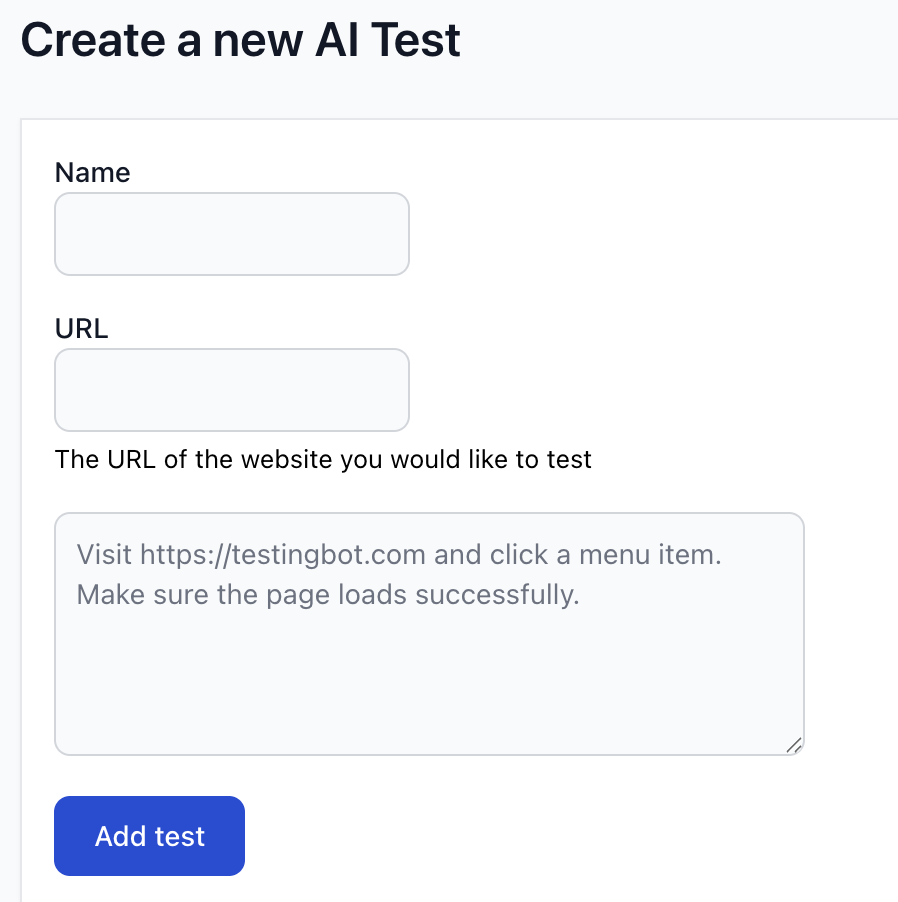
### Create a new test
You will see the form below, where you can add a name for the test and the webpage you want to start the test with.
In the textarea you can write the test prompt in your own language. You can find example prompts in the next [prompts section](https://testingbot.com#prompts).
## Prompts
The AI agent will run tests based on the prompts you provide. A prompt is a set of instructions for the AI agent to follow.
We recommend keeping test prompts as concise as possible. For example, you can instruct the AI agent to:
- Click on a button
- Fill in a form
- Test a checkout flow
- Verify that an element is visible or not visible
- Verify that an element contains specific text
- Verify that an element does not contain specific text
- Verify that an element has or does not have a specific attribute
### Example Prompts
Below are some example prompts you could use to test a website:
#### User Authentication & Account Management
- Click on the "Sign In" button and verify that the login form appears.
- Try logging in with an incorrect password and confirm that an error message appears.
#### Forms & Input Validation
- Fill in the registration form with valid data and submit it.
- Try submitting the registration form without entering required fields and verify that validation errors appear.
- Enter an invalid email format and check that an error message is displayed.
#### Navigation & UI Elements
- Click on the "Home" link in the navigation menu and ensure it redirects correctly.
- Open the mobile menu and confirm that all expected links are visible.
- Scroll down the homepage and check that the footer loads correctly.
- Hover over the dropdown menu and verify that all submenu items appear.
#### E-Commerce & Payment Testing
- Add a product to the cart and verify that the cart updates.
- Enter invalid credit card details and ensure an error message appears.
#### Content & Accessibility
- Check that all images on the homepage load properly.
- Verify that all links on the website are clickable and lead to the correct pages.
- Use keyboard navigation to tab through elements and ensure accessibility compliance.
- Enable dark mode (if available) and confirm that the UI adjusts correctly.
- Resize the browser window and confirm that the website is responsive.
#### Performance & Security
- Try opening the website in an incognito window and verify that session-based content does not persist.
- Attempt to submit a form with script injection and confirm that it is sanitized.
- Check if the website forces HTTPS and does not allow unsecured connections.
#### Multilingual & Localization Testing
- Switch the website language to French and confirm that all text updates correctly.
- Change the currency on the pricing page and verify that the prices are updated.
## Browsers
You can select one or more browsers to run your tests on. The AI agent will run the tests on the selected browsers.
Run your tests on the latest versions of Chrome and Edge, on Windows and Linux.
## Schedule
Indicate when and at which interval, you would like to run the test.
You can choose to run the test once, on a daily basis, weekly, or repeat every xx minutes/hours.
## Alerting
When a test fails, you can choose to be alerted via e-mail, API call (webhook) or SMS text message.
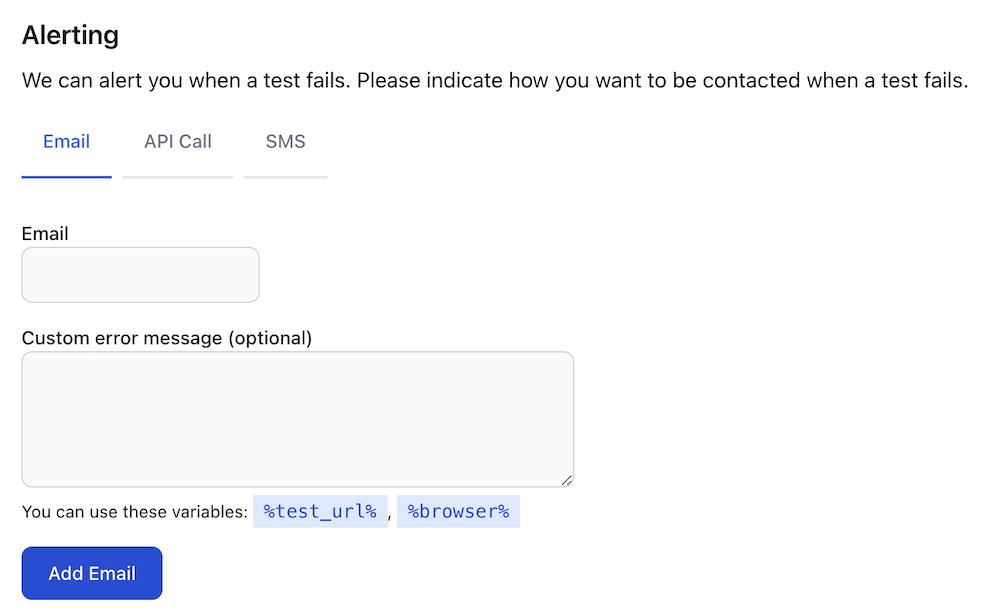
## API
You can use the TestingBot REST-API to [create AI tests from prompts](https://testingbot.com/support/api#createtest). Create one or more tests with your prompt, assign browsers and set a schedule.
Use [webhooks](https://testingbot.com/support/integrations/webhooks) to get notified of the results.
### Looking for more help?
Have questions or need more information? Reach out via email or Slack.
[Email us](https://testingbot.com/contact/new)[Slack Join our Slack](https://join.slack.com/t/testingb0t/shared_invite/zt-3bcw9xch-jk19~6XPs_xBrsAgAedkCw)
---
URL: https://testingbot.com/support/ai/mcp
# What is TestingBot MCP?
The TestingBot MCP server (Model Context Protocol) is a service that allows AI agents and Large Language Models (LLMs) to interact with TestingBot's testing infrastructure and features through natural language prompts.
You can manage your TestingBot tests, view test results, run tests, manage team members and more by simply sending natural language commands to your AI agent connected to the MCP server.
## Features
The TestingBot MCP server offers a range of features to enhance your testing experience with your favorite AI tools such as Claude, Cursor, VS Code and more. You can simply issue commands, request information, and manage your TestingBot account using natural language.
- **Natural Language** : Manage tests, team members, tunnels and more using simple natural language commands.
- **Test Result Analysis** : Retrieve test results and generated assets through conversational queries.
- **Team Collaboration** : Manage team members and permissions using AI-driven commands.
- **Storage** : Manage and upload native mobile apps for testing on physical devices.
- **CDP sessions** : Start and manage CDP sessions for browser automation through natural language.
### How does it work?
The MCP server will run as a local process on your machine. It will receive natural language commands from your AI agent or LLM and translate these into API calls to TestingBot's services. The response is then returned back to the AI client in a conversational format.
## Getting Started
To get started with the TestingBot MCP server, follow the steps below.
### 1-click installers
We provide 1-click installers for Visual Studio Code and Cursor. Click on one of the options below to automatically configure the TestingBot MCP server:
#### Visual Studio Code
Install the TestingBot MCP server for Visual Studio Code with a single click. This will automatically configure the MCP settings in your VS Code environment.
[Install for VS Code](https://testingbot.com/mcp/install?client=vscode)
#### Cursor
Install the TestingBot MCP server for Cursor with a single click. This will automatically configure the MCP settings in your Cursor editor.
[Install for Cursor](https://testingbot.com/mcp/install?client=cursor)
#### Claude
Install the `mcp-server.mcpb` file from the [MCP releases page](https://github.com/testingbot/mcp-server/releases). Claude will automatically set up the TestingBot MCP server.
You will need your TestingBot API key and secret to complete the setup. You can find these in your [account settings](https://testingbot.com/members/user/security).
### Manual Installation
If you prefer to install the MCP server manually, or if you're using a different AI client, you can follow the instructions below:
#### Prerequisites
- Node.js 18 or higher
- TestingBot API key and secret
- An MCP-compatible client (Claude Desktop, VS Code, Cursor, etc.)
[VS Code](https://testingbot.com#)[Cursor](https://testingbot.com#)[Claude](https://testingbot.com#)[GitHub (Manual)](https://testingbot.com#)
Follow these steps to install and set up the TestingBot MCP server for Visual Studio Code:
1. Open Visual Studio Code.
2. Open the command palette by pressing `Ctrl+Shift+P` (or `Cmd+Shift+P` on macOS).
3. Type in "MCP: Add Server"
4. A dropdown will appear with options. Choose the NPM Package method.
5. You can now enter the NPM package: `@testingbot/mcp-server`
6. You will see a confirmation screen requesting to install the TestingBot MCP server.
7. Click "Install". Enter your TestingBot Key and Secret which you can obtain from [the member area](https://testingbot.com/members/user/edit).
Follow these steps to install and set up the TestingBot MCP server for Cursor:
1. Create or open the file `.cursor/mcp.json`.
2. Add the configuration to the `mcp.json` file:
{
"mcpServers": {
"testingbot": {
"command": "npx",
"args": ["-y", "@testingbot/mcp-server@latest"],
"env": {
"TESTINGBOT_KEY": "",
"TESTINGBOT_SECRET": ""
}
}
}
}
3. Restart Cursor - the MCP server will now be available.
Follow these steps to install and set up the TestingBot MCP server for Claude:
1. Create or open the file `claude_desktop_config.json`.
2. Add the configuration to the `claude_desktop_config.json` file:
{
"mcpServers": {
"testingbot": {
"command": "npx",
"args": ["-y", "@testingbot/mcp-server@latest"],
"env": {
"TESTINGBOT_KEY": "",
"TESTINGBOT_SECRET": ""
}
}
}
}
3. Restart Claude (Desktop) - the MCP server will now be available.
You can install the MCP server locally from the [TestingBot MCP GitHub repository](https://github.com/testingbot/mcp-server).
## Example prompts
Here are some example prompts you can use with the TestingBot MCP server:
### Manual Testing
> "Start a live testing session on Chrome latest with Windows 11 for https://example.com"
> "Open https://myapp.com on iPhone 14 with iOS 16 for manual testing"
### Browsers & Devices
> "List all available browsers and versions"
> "Show me all available real devices for mobile testing"
### Test Management
> "Show me my last 20 tests"
> "Mark test abc123 as passed"
### Screenshots
> "Take a screenshot of https://example.com on the latest Chrome and Firefox on Windows 11"
> "Screenshot https://testingbot.com on a iOS 26 mobilesafari simulator"
### TestingBot Storage
> "Upload https://example.com/app.ipa to TestingBot"
### Team Management
> "Show me all team members"
### CDP Session
> "Create a CDP session on Chrome latest with Windows 11"
### TestingBot Tunnel
> "Show me all active tunnels"
## FAQ
### Is this MCP server compatible with various AI models or specific to a particular provider?
MCP servers are LLM-agnostic, which means they work with any LLM model that supports the Model Context Protocol.
### Is the information that I feed through MCP used to train?
No, the MCP server does not send any information to an LLM. It's the LLM that is requesting information from the MCP server. The MCP server will perform API calls to the TestingBot API.
### How does authentication to TestingBot happen?
When configuring the MCP server, you will need to specify the TestingBot Key and Secret which you can obtain from the member area. These credentials are stored on your local machine, it's the credentials that the MCP Server uses to communicate with the TestingBot API.
### Looking for more help?
Have questions or need more information? Reach out via email or Slack.
[Email us](https://testingbot.com/contact/new)[Slack Join our Slack](https://join.slack.com/t/testingb0t/shared_invite/zt-3bcw9xch-jk19~6XPs_xBrsAgAedkCw)
---
URL: https://testingbot.com/support/web-live
# Live Browser and Mobile Testing
Live testing lets you drive a remote browser, simulator or real mobile device in the TestingBot cloud with your own mouse and keyboard, exactly as if it were running locally. Below are answers to the questions we get most often about Live testing. For automated test execution see [Web Automate](https://testingbot.com/support/web-automate) instead.
## Is usage limited in terms of minutes or users?
With an upgraded plan you can use as many Live testing minutes as you like, with as many co-workers as your seat count allows. There are no per-test or per-day limits.
Trial accounts can use up to 60 Live testing minutes in total. See [our pricing plans](https://testingbot.com/pricing) for current seat and concurrency limits.
## What do I get with a free trial?
Trial accounts can use up to 60 free minutes of Live testing.
Once you open a browser in our cloud, you get 5 minutes of unlimited interactive access to that session. With an upgraded plan, Live testing minutes are unlimited within your plan.
## Is Live testing on TestingBot secure?
None of your data is stored on the test VMs. Every Live session runs on a freshly-provisioned virtual machine that is destroyed when the session ends.
VMs use up-to-date security patches and run inside a hardened EU datacenter behind firewalls. See [our security and compliance overview](https://testingbot.com/enterprise/security) for GDPR, CSA STAR and SOC 2 details.
## How can I test my staging site or a website on my own network?
You can use TestingBot to test a staging or internal site that is not publicly reachable. Start the [TestingBot Tunnel](https://testingbot.com/support/tunnel) on your local machine or in CI, pick a browser in the dashboard, and the remote browser will reach your private URLs through the encrypted tunnel as if it were on your network.
## Do I need to download any software?
No. You do not need to install any software, plugin or browser extension.
In the member area, pick the browser, version and platform you want to test on. Once we boot a virtual machine for you, you control the machine from inside your own browser. For example, you can drive a remote Safari on macOS from a local Chrome on Windows.
## Which browsers and platforms do you provide for Live testing?
The current and recent versions of Chrome, Firefox, Safari and Microsoft Edge on Windows, macOS and Linux, plus mobile Safari on real iPhones and iPads and mobile Chrome on real Android devices and emulators.
Legacy browsers including older Internet Explorer versions are still available for compliance and regression work.
See the full [list of supported browsers](https://testingbot.com/support/web-automate/browsers) for the current versions on the grid.
## What developer tools are pre-installed on the browsers?
Every Live browser has its built-in developer tools available: Chrome DevTools, Firefox DevTools, Safari Web Inspector, and Edge DevTools. Open them with F12 or the usual keyboard shortcut. The remote desktop also includes standard system utilities for network inspection. No extension installation is required.
## Is audio enabled during testing?
Audio is enabled on all desktop Live sessions and on iOS simulators and Android emulators.
On real Android devices, audio is available on devices running Android 12 or higher. On real iOS devices, audio is available on a select group of devices running iOS 14 or higher.
## Can I embed Live testing in my own website or product?
Yes, you can embed TestingBot's Live testing interface in your own app or website using an iframe. This is useful for QA dashboards, internal tools and bug-reporting flows that need an interactive remote browser.
1. Start a Live session through an API call.
2. Fetch the `sessionId` of the session and generate an `authentication hash`.
3. Pass the `sessionId` and `authentication hash` to a liveview URL and embed it with an iframe.
const TestingBot = require('testingbot-api');
const tb = new TestingBot({
api_key: process.env.TESTINGBOT_KEY,
api_secret: process.env.TESTINGBOT_SECRET
});
const options = {
capabilities: {
browserName: 'chrome',
browserVersion: 'latest',
platform: 'WIN11',
'tb:manual': true,
}
};
const session = await tb.createSession(options);
const sessionId = session.session_id;
const authHash = tb.getAuthenticationHashForSharing(sessionId);
const liveViewUrl = `https://testingbot.com/tests/${sessionId}/live?auth=${authHash}`;
You can then embed the live view URL in an iframe as follows:
The result is a fully functional Live testing interface embedded in your own application. For enterprise embed deals and dedicated infrastructure, [contact our team](https://testingbot.com/contact/new).
## Next steps
- [Live ChromeOS testing](https://testingbot.com/support/web-live/chromeos). Test on a real Chromebook with mouse and keyboard.
- [Browser extension testing](https://testingbot.com/support/web-live/extension). Install and test Chrome, Firefox and Edge extensions on the live browser.
- [Live app testing](https://testingbot.com/support/app-live). Interactive testing on real iPhones, iPads and Android phones.
- [Web Automate](https://testingbot.com/support/web-automate). Run Selenium, Playwright, Puppeteer and Cypress tests on the same grid.
- [TestingBot Tunnel](https://testingbot.com/support/tunnel). Test internal and staging sites.
- [Pricing](https://testingbot.com/pricing). Live and Automate plans, seat counts and concurrency limits.
### Looking for more help?
Have questions or need more information? Reach out via email or Slack.
[Email us](https://testingbot.com/contact/new)[Slack Join our Slack](https://join.slack.com/t/testingb0t/shared_invite/zt-3bcw9xch-jk19~6XPs_xBrsAgAedkCw)
---
URL: https://testingbot.com/support/web-live/extension
# Browser Extension
- [What is the TestingBot Browser Extension?](https://testingbot.com#usage)
- [Installation](https://testingbot.com#installation)
- [Using the Browser Extension](https://testingbot.com#usage)
## What is the TestingBot Browser Extension?
The TestingBot Browser Extension can be installed on your [Chrome](https://chrome.google.com/webstore/detail/testingbot/nhjmiaiamlfblfagaodhkeabfbnmdmff) or [Firefox](https://addons.mozilla.org/addon/testingbot/) browser, for free.
Once installed, you can visit any website with your own Chrome or Firefox browser, and click the TestingBot extension icon. A window will pop up, allowing you to choose on which remote browser you want to test the current page on.
Upon selecting a browser, the current page will be available for testing on a remote TestingBot browser.
For example, you are using Chrome but want to make sure that the website you are currently seeing looks and functions correctly on a macOS Safari browser. With the extension, you can simply choose the remote browser configuration. You will be redirected to a live view of the remote browser, where you can use your mouse and keyboard to interact and test the webpage.
## Installation
The TestingBot Browser Extension is currently available for [Chrome](https://chrome.google.com/webstore/detail/testingbot/nhjmiaiamlfblfagaodhkeabfbnmdmff) and [Firefox](https://addons.mozilla.org/addon/testingbot/).
Simply click the **Add Extension** button to add the extension to your browser.
A TestingBot icon will now appear in your browser's navigation bar. You can pin the extension to make sure it remains visible at all times.
## Using the Browser Extension
After installation, you can simply navigate to any website you want to test. Click the TestingBot extension icon to open a popup with browser choices.
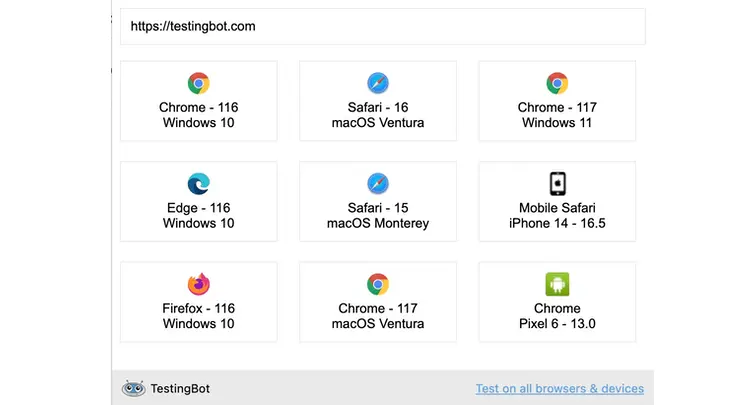
Make sure you are logged in to TestingBot while using the extension.
---
URL: https://testingbot.com/support/web-live/chromeos
# ChromeOS Manual Testing
TestingBot gives you the ability to test your website on a remote ChromeOS device emulator, such as a Chromebook.
Simply enter the URL of the website you want to test and choose between 3 different ChromeOS configurations:
- ChromeOS Small: 1366x768 - 160dpi
- ChromeOS Medium: 3840x2160 - 320dpi
- ChromeOS Large: 1920x1080 - 160dpi
## Starting a live ChromeOS session
Simply [start a new manual session](https://testingbot.com/members/manual/new) by clicking the Android category and choosing one of the three ChromeOS configurations.
A remote session will be started and you will be able to interact with the ChromeOS device emulator with your own mouse and keyboard.
An audio stream will be started, so you can hear the sounds from the ChromeOS device emulator.
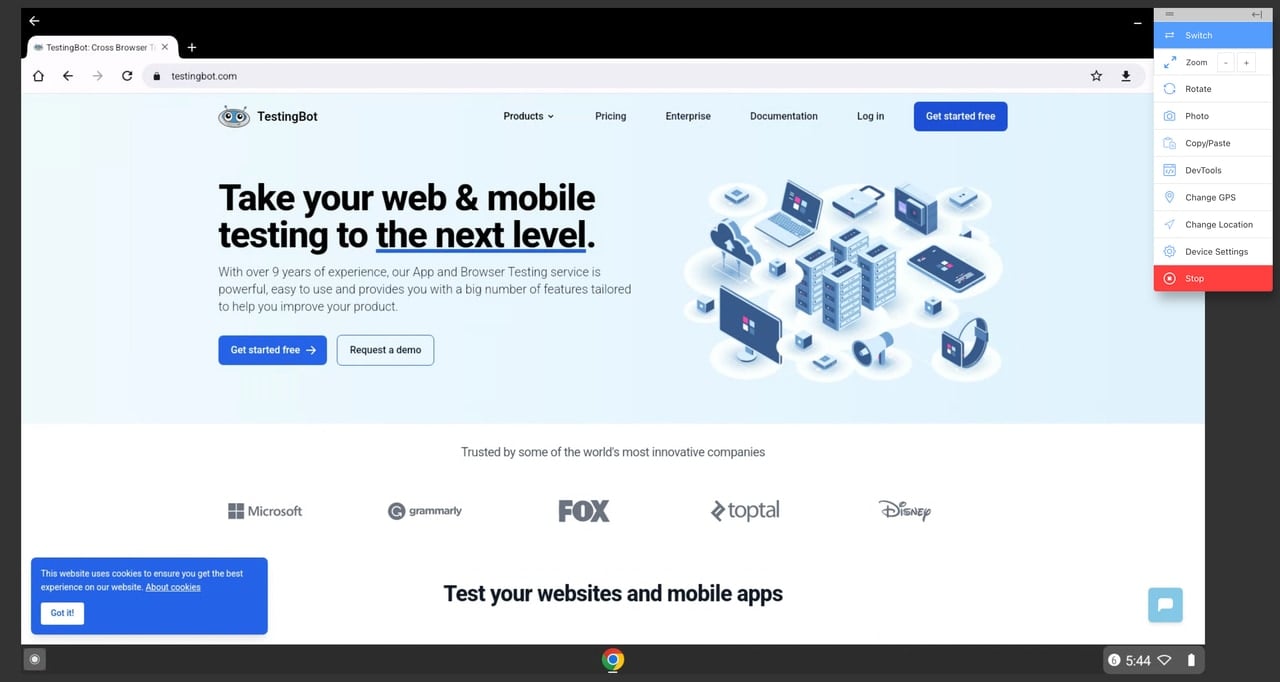
## Enabling/disabling Dark Mode
You can easily enable or disable Dark Mode in the ChromeOS emulator by clicking the "Device Settings" button in taskbar, then toggling the "Enable Dark Mode" switch.
## Taking screenshots
To take a live screenshot of the current ChromeOS session, simply click the "Photo" button in the taskbar. This will capture the current view and open the screenshot in a photo editor, which you can use to annotate or modify the screenshot, before downloading or sharing it.
## Change GPS
You can use the "GPS" button in the taskbar to change the GPS location of the ChromeOS device emulator. This is useful for testing location-based features on your website.
---
URL: https://testingbot.com/support/app-live
# Live Mobile App Testing
Take control over our real devices with your mouse and keyboard, straight from your own browser, without having to install any plugin or program.
Simply upload your iOS or Android app to TestingBot, pick the device you want to test on, and TestingBot will give you a live session with the real device.
[
## Upload App
Upload, manage, and delete your iOS and Android apps via the UI or API.
](https://testingbot.com/support/app-live/upload-app)[
## Select Device
Choose from real devices and virtual devices. Understand time limits and device options.
](https://testingbot.com/support/app-live/select-device)[
## Test Interface
Explore toolbar actions: screenshots, rotation, clipboard, GPS, locale, and more.
](https://testingbot.com/support/app-live/test-interface)[
## Developer Tools
App Inspection, Appium Inspector, and real-time device logs for debugging.
](https://testingbot.com/support/app-live/developer-tools)[
## Local Testing
Test apps that connect to your local network using TestingBot Tunnel.
](https://testingbot.com/support/app-live/local-testing)[
## Platform-Specific
ChromeOS app testing and Apple Pay testing on real devices.
](https://testingbot.com/support/app-live/chromeos)
## Developer Tools
TestingBot provides powerful developer tools built into the live testing interface. Inspect elements, find locators, view real-time logs, and use the full Appium Inspector — all without leaving your session.
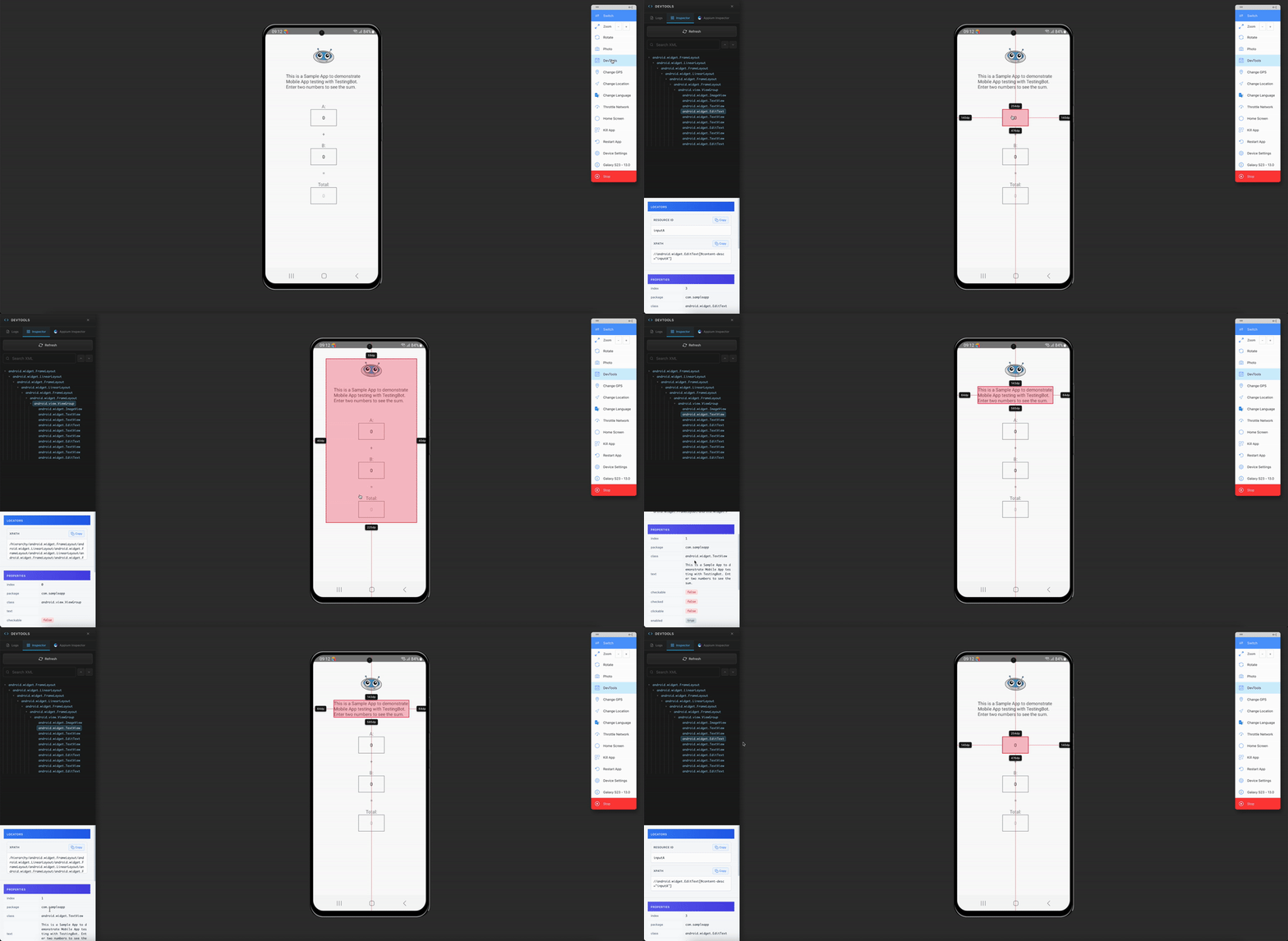
[Explore Developer Tools →](https://testingbot.com/support/app-live/developer-tools)
## Audio
Audio is available during manual mobile app testing, for certain devices.
### Virtual Devices
Audio is available for all Android emulators and iOS Simulators. TestingBot will stream the audio generated by the virtual device to your web browser.
### Physical Devices
Android devices with Android version 12 and higher will stream the audio to your browser, you will hear all the audio generated on the device.
Older physical devices do not have the audio streaming capabilities. These will only stream a live video view of the device.
## Developer Resources
- [
API Reference
](https://testingbot.com/support/api)
- [
Integrations
](https://testingbot.com/integrations)
- [
Devices
](https://testingbot.com/support/app-automate/devices)
- [
TestingBot Tunnel
](https://testingbot.com/support/tunnel)
- [
Features
](https://testingbot.com/features/manual-mobile-testing)
- [
Private Devices
](https://testingbot.com/enterprise/private-device-cloud)
### Looking for more help?
Have questions or need more information? Reach out via email or Slack.
[Email us](https://testingbot.com/contact/new)[Slack Join our Slack](https://join.slack.com/t/testingb0t/shared_invite/zt-3bcw9xch-jk19~6XPs_xBrsAgAedkCw)
---
URL: https://testingbot.com/support/app-live/upload-app
# Uploading a Mobile App
There are several ways to get your app onto a TestingBot device for live testing. You can upload your own app file, install directly from the App Store or Play Store, use TestFlight for beta apps, or upload programmatically via our API.
## Upload via the UI
To upload a mobile app through the TestingBot UI, simply go to the member dashboard and:
- Click **Live App Testing**
- Under **Select Source** click **Uploaded Apps**
- Click **Upload App** to browse for the file ([see supported formats](https://testingbot.com#formats))
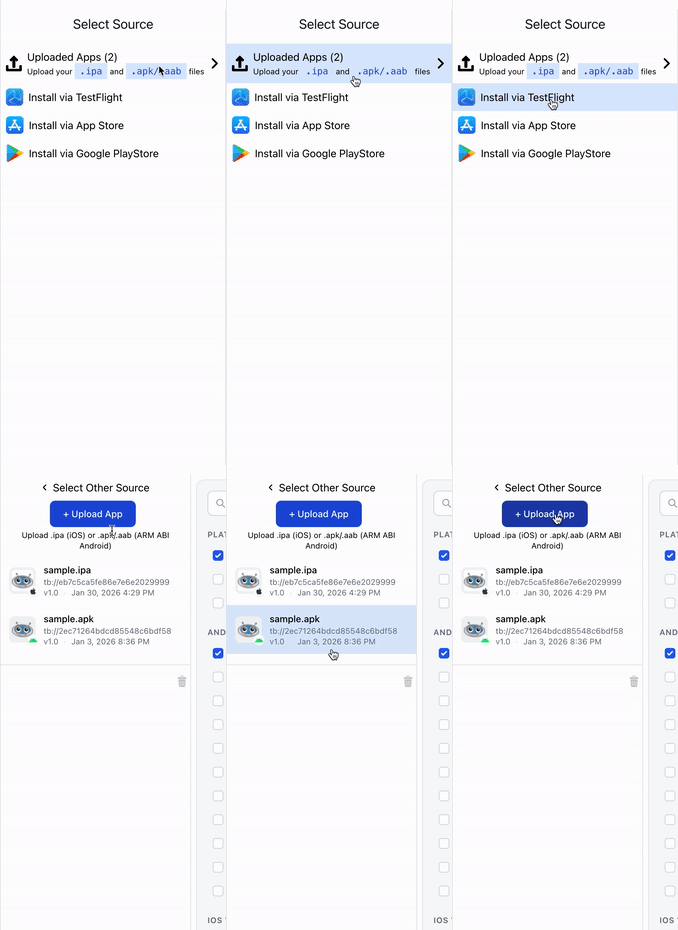
## Other App Sources
Besides uploading your own app file, you can install apps directly from these sources:
[
### App Store
Install iOS apps directly from the Apple App Store on real iOS devices.
](https://testingbot.com/support/app-live/app-store)[
### Play Store
Install Android apps directly from the Google Play Store on real Android devices.
](https://testingbot.com/support/app-live/play-store)[
### TestFlight
Install beta iOS apps via Apple TestFlight on supported real devices.
](https://testingbot.com/support/app-live/testflight)
## Upload via the API
You can programmatically upload apps using the [TestingBot REST API](https://testingbot.com/support/api#upload). This is useful for CI/CD pipelines and automated workflows.
curl -X POST "https://api.testingbot.com/v1/storage" \
-u "YOUR_KEY:YOUR_SECRET" \
-F "file=@/path/to/your/app.apk"
The API returns a unique `app_url` that you can use to start a live testing session or pass to your automated tests.
See the full [API documentation](https://testingbot.com/support/api#upload) for more details, including how to list and delete uploaded apps.
## Supported File Formats
Currently we accept these file formats:
- `.aab`, `.apk` for Android apps
- `.ipa` for physical iOS devices, `.zip` for iOS simulators
## Deleting a Mobile App
To delete a mobile app, you can use the TestingBot UI or use our [REST API](https://testingbot.com/support/api#filedelete).
### Delete via the UI
To delete a mobile app through the TestingBot UI, simply go to the member dashboard and:
- Click **Live App Testing**
- Under **Select Source** click **Uploaded Apps**
- Click the trash icon in the bottom right corner of the list
- Select one or more apps you wish to delete
- Click **Delete Apps**
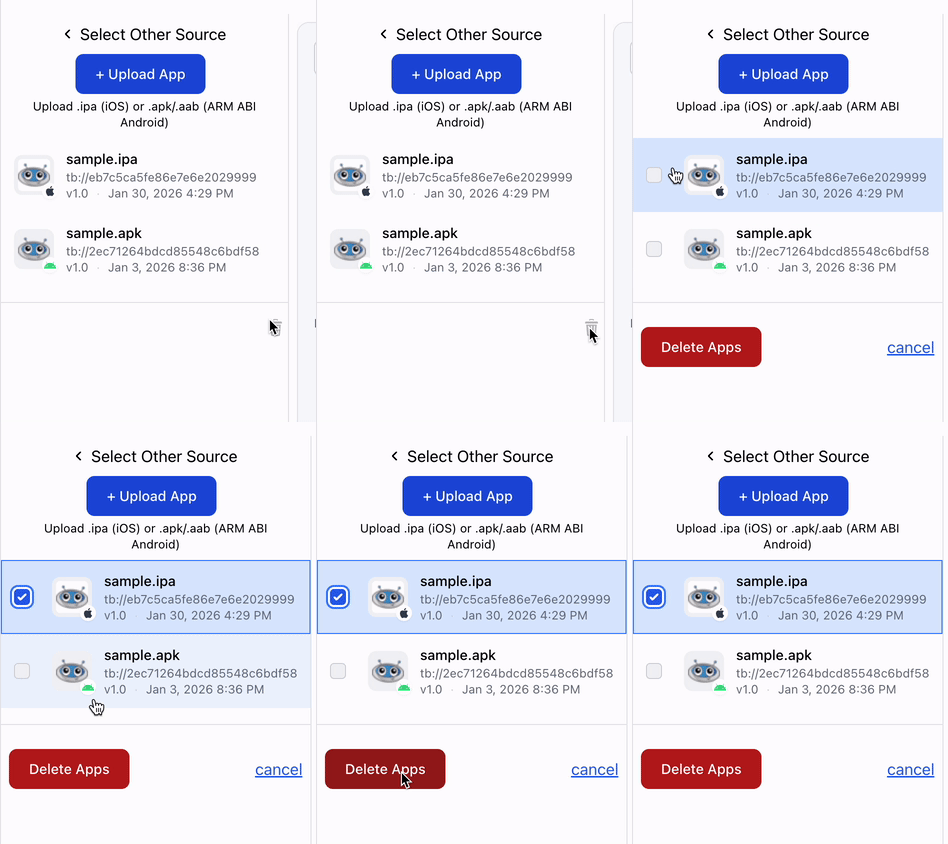
### Looking for more help?
Have questions or need more information? Reach out via email or Slack.
[Email us](https://testingbot.com/contact/new)[Slack Join our Slack](https://join.slack.com/t/testingb0t/shared_invite/zt-3bcw9xch-jk19~6XPs_xBrsAgAedkCw)
---
URL: https://testingbot.com/support/app-live/app-store
# Install Apps from the App Store
TestingBot allows you to install iOS apps directly from the Apple App Store onto real iOS devices during a live testing session. This lets you test production apps without needing the source code or an .ipa file.
## How to Install an App from the App Store
To install an app from the App Store on a TestingBot device:
- Go to the [Live App Testing](https://testingbot.com/members/apps/devices/new) page
- Under **Select Source** , click **App Store**
- Sign in with your Apple ID
- Search for the app you want to install
- Click **Install** and select a device to start your testing session
## Requirements
- A valid **Apple ID** is required to sign in to the App Store
- The app must be available in the App Store (not removed or region-restricted)
- Only available on **real iOS devices** (not simulators)
## Limitations
- Apps that require in-app purchases may have limited functionality during testing
- Some apps may have DRM restrictions that prevent installation on shared devices
- Your Apple ID credentials are only used during the session and are not stored by TestingBot
### Looking for more help?
Have questions or need more information? Reach out via email or Slack.
[Email us](https://testingbot.com/contact/new)[Slack Join our Slack](https://join.slack.com/t/testingb0t/shared_invite/zt-3bcw9xch-jk19~6XPs_xBrsAgAedkCw)
---
URL: https://testingbot.com/support/app-live/play-store
# Install Apps from the Google Play Store
TestingBot allows you to install Android apps directly from the Google Play Store onto real Android devices during a live testing session. This lets you test production apps without needing the source code or an .apk file.
## How to Install an App from the Play Store
To install an app from the Google Play Store on a TestingBot device:
- Go to the [Live App Testing](https://testingbot.com/members/apps/devices/new) page
- Under **Select Source** , click **Play Store**
- Sign in with your Google account
- Search for the app you want to install
- Click **Install** and select a device to start your testing session
## Requirements
- A valid **Google account** is required to sign in to the Play Store
- The app must be available on the Google Play Store
- Only available on **real Android devices** (and some Android emulators)
## Limitations
- Some apps may not be available on all device models due to compatibility restrictions set by the developer
- Apps that require in-app purchases may have limited functionality during testing
- Your Google account credentials are only used during the session and are not stored by TestingBot
### Looking for more help?
Have questions or need more information? Reach out via email or Slack.
[Email us](https://testingbot.com/contact/new)[Slack Join our Slack](https://join.slack.com/t/testingb0t/shared_invite/zt-3bcw9xch-jk19~6XPs_xBrsAgAedkCw)
---
URL: https://testingbot.com/support/app-live/testflight
# Install Beta Apps via TestFlight
TestingBot allows you to install beta iOS apps via Apple TestFlight on real devices. This is useful for testing pre-release versions of your app before they go live on the App Store.
## How to Install an App via TestFlight
To install a beta app via TestFlight on a TestingBot device:
- Go to the [Live App Testing](https://testingbot.com/members/apps/devices/new) page
- Under **Select Source** , click **TestFlight**
- Sign in with your Apple ID
- You will see a list of beta apps you have been invited to test
- Click **Install** on the app you want to test, then select a device
## Requirements
- A valid **Apple ID** is required to sign in to TestFlight
- You must have been **invited as a tester** by the app developer, or have a public TestFlight link
- Only available on **real iOS devices** (not simulators)
- TestFlight is pre-installed on TestingBot's real iOS devices
## Limitations
- TestFlight beta apps have an expiration date set by the developer
- Not all devices may be compatible with every beta build, depending on the developer's configuration
- Your Apple ID credentials are only used during the session and are not stored by TestingBot
### Looking for more help?
Have questions or need more information? Reach out via email or Slack.
[Email us](https://testingbot.com/contact/new)[Slack Join our Slack](https://join.slack.com/t/testingb0t/shared_invite/zt-3bcw9xch-jk19~6XPs_xBrsAgAedkCw)
---
URL: https://testingbot.com/support/app-live/select-device
# Selecting a Mobile Device
Once you've selected a mobile app, you will need to select the device you want to run tests on. You can choose to select a Virtual Device or a Real Device by using the navigation tabs on the page.
## Real Devices
To use a Real Device, click the [Real Device Testing](https://testingbot.com/members/apps/devices/new) tab.
- Click an available device from the devices list
- Make sure to select an iOS device if you've selected an iOS app (`.ipa`), or an Android device if you've selected an Android app (`.apk`)
- Click the **Start** button
## Virtual Devices
To use a Virtual Device, click the [Emulator & Simulator Testing](https://testingbot.com/members/apps/new) tab.
- Select an app you've uploaded, or the sample Android/iOS TestingBot app.
- Click the Android or iOS tab in the virtual device list
- Select an iOS simulator if you've selected an iOS app (`.ipa`), or an Android emulator if you've selected an Android app (`.apk`)
- Click the **Start** button
## Time Limits and Timeouts
- Live tests will last a maximum of 5 minutes at a time for trial users.
- Live tests for paid users will timeout after 15 minutes of inactivity
### Looking for more help?
Have questions or need more information? Reach out via email or Slack.
[Email us](https://testingbot.com/contact/new)[Slack Join our Slack](https://join.slack.com/t/testingb0t/shared_invite/zt-3bcw9xch-jk19~6XPs_xBrsAgAedkCw)
---
URL: https://testingbot.com/support/app-live/test-interface
# Live Test Interface
The Live Test Interface provides a comprehensive set of tools for interacting with your mobile app during live testing sessions. You can take screenshots, rotate the device, copy to clipboard, simulate GPS locations, change locale settings and more.
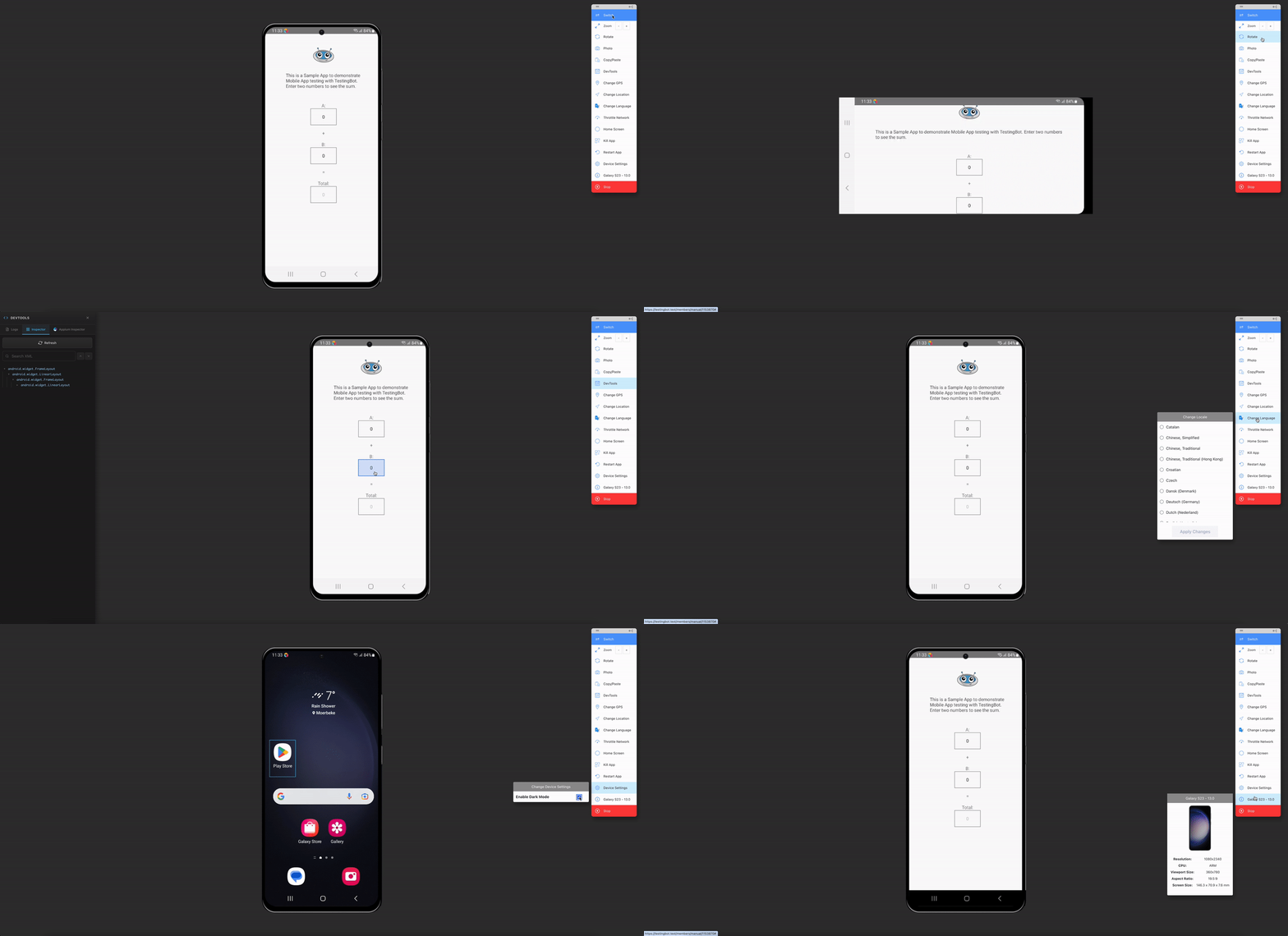
## Toolbar Actions
| Icon | Name | Description |
| --- | --- | --- |
| | Switch Device |
Change to a different device.
This will start a new session, you will lose the session with the current device.
|
| | Zoom |
Zoom in or out. This will make the device's screen appear larger or smaller.
This only affects the view in your browser, it does not change anything on the device itself.
|
| | Rotate |
Rotates the device. Either from PORTRAIT to LANDSCAPE or vice-versa.
|
| | Screenshot |
Takes a screenshot from the device.
A screenshot editor will appear, allowing you to annotate the image. Download the screenshot with the download button.
|
| | Copy/Paste |
Copy or paste from or to the device.
If you've selected the copy/paste permission in your browser, TestingBot will automatically keep your local and remote clipboard in sync.
|
| | DevTools |
This will open the developer tools for the device.
Retrieve realtime logs from the device. Use the **Inspector** functionality to drill down in the view hierarchy to copy element locators (such as XPath).
Learn more: [App Inspection](https://testingbot.com/support/app-live/app-inspection), [Appium Inspector](https://testingbot.com/support/app-live/appium-inspector), [Device Logs](https://testingbot.com/support/app-live/device-logs)
|
| | GPS Location |
Set a (new) mock location for the GPS of the device.
If your app uses GPS functionality, it will receive this mock location
|
| | Locale |
Set a new locale for the entire device.
Useful if your app is multilingual. Test your app in different languages.
|
| | Device Settings |
Change various device settings.
Switch between light and dark mode instantly.
|
| | Stop Session |
Stops the current session.
Logs and a video of the test will be available in the TestingBot member area.
|
## Developer Tools
The DevTools button provides access to powerful debugging features. Learn more about each tool:
- [App Inspection](https://testingbot.com/support/app-live/app-inspection) — Find element locators by clicking on elements or searching the tree
- [Appium Inspector](https://testingbot.com/support/app-live/appium-inspector) — Full Appium Inspector built into TestingBot
- [Device Logs](https://testingbot.com/support/app-live/device-logs) — Real-time log streaming with filtering and download
### Looking for more help?
Have questions or need more information? Reach out via email or Slack.
[Email us](https://testingbot.com/contact/new)[Slack Join our Slack](https://join.slack.com/t/testingb0t/shared_invite/zt-3bcw9xch-jk19~6XPs_xBrsAgAedkCw)
---
URL: https://testingbot.com/support/app-live/developer-tools
# Developer Tools
TestingBot provides powerful developer tools built into the live testing interface. Access them by clicking the **DevTools** icon in the toolbar during any live session.
[
## App Inspection
Click on any element on the device screen to see its locators, or search the element tree by text or attribute.
](https://testingbot.com/support/app-live/app-inspection)[
## Appium Inspector
The full Appium Inspector built directly into TestingBot. Inspect elements, view properties, and perform actions without any setup.
](https://testingbot.com/support/app-live/appium-inspector)[
## Device Logs
Stream real-time device logs, filter by severity level, search through entries, and download logs for offline analysis.
](https://testingbot.com/support/app-live/device-logs)
## Accessing Developer Tools
During any live app testing session, click the **DevTools** icon in the toolbar on the left side of the screen. This will open a panel where you can switch between the available tools.
## Developer Resources
- [
API Reference
](https://testingbot.com/support/api)
- [
Integrations
](https://testingbot.com/support/integrations)
- [
Devices
](https://testingbot.com/support/app-automate/devices)
- [
TestingBot Tunnel
](https://testingbot.com/support/tunnel)
- [
Device Features
](https://testingbot.com/real-device-testing)
- [
Private Devices
](https://testingbot.com/enterprise/private-device-cloud)
### Looking for more help?
Have questions or need more information? Reach out via email or Slack.
[Email us](https://testingbot.com/contact/new)[Slack Join our Slack](https://join.slack.com/t/testingb0t/shared_invite/zt-3bcw9xch-jk19~6XPs_xBrsAgAedkCw)
---
URL: https://testingbot.com/support/app-live/app-inspection
# App Inspection
App Inspection allows you to find element locators directly during a live testing session. This is useful when building automated tests — you can identify the exact locators (XPath, Accessibility ID, etc.) for any element on the screen.
## Accessing App Inspection
To open App Inspection during a live session:
- Click the **DevTools** icon in the toolbar
- Select the **Inspector** tab
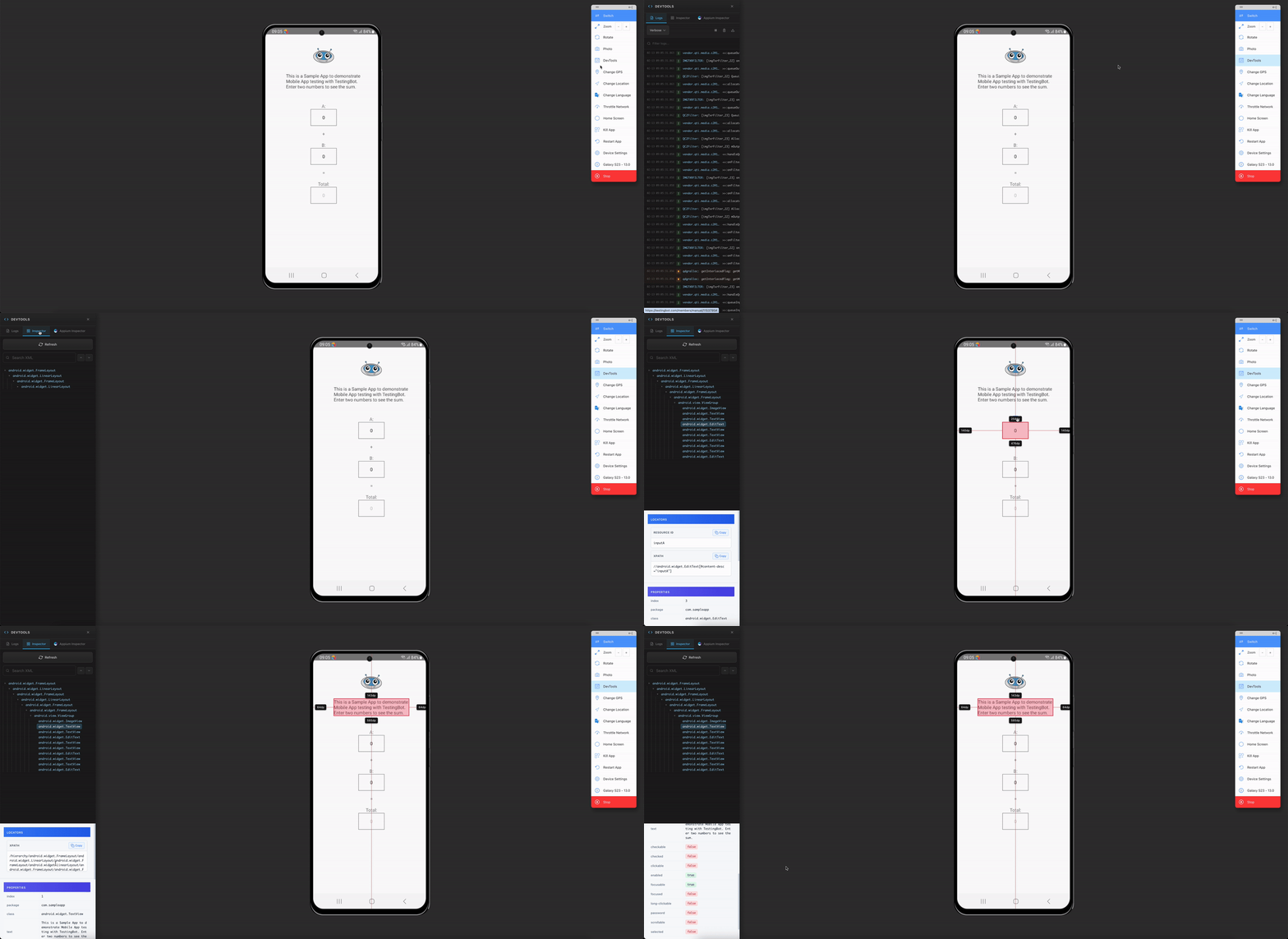
## Click to Inspect
Click on any element on the live device screen to immediately see its locators. The inspection panel will display all available locator strategies for the selected element.

## Search the Element Tree
Use the search bar at the top of the inspection panel to find elements by text content or attribute value. This is helpful when you need to locate elements that are off-screen or deeply nested in the view hierarchy.
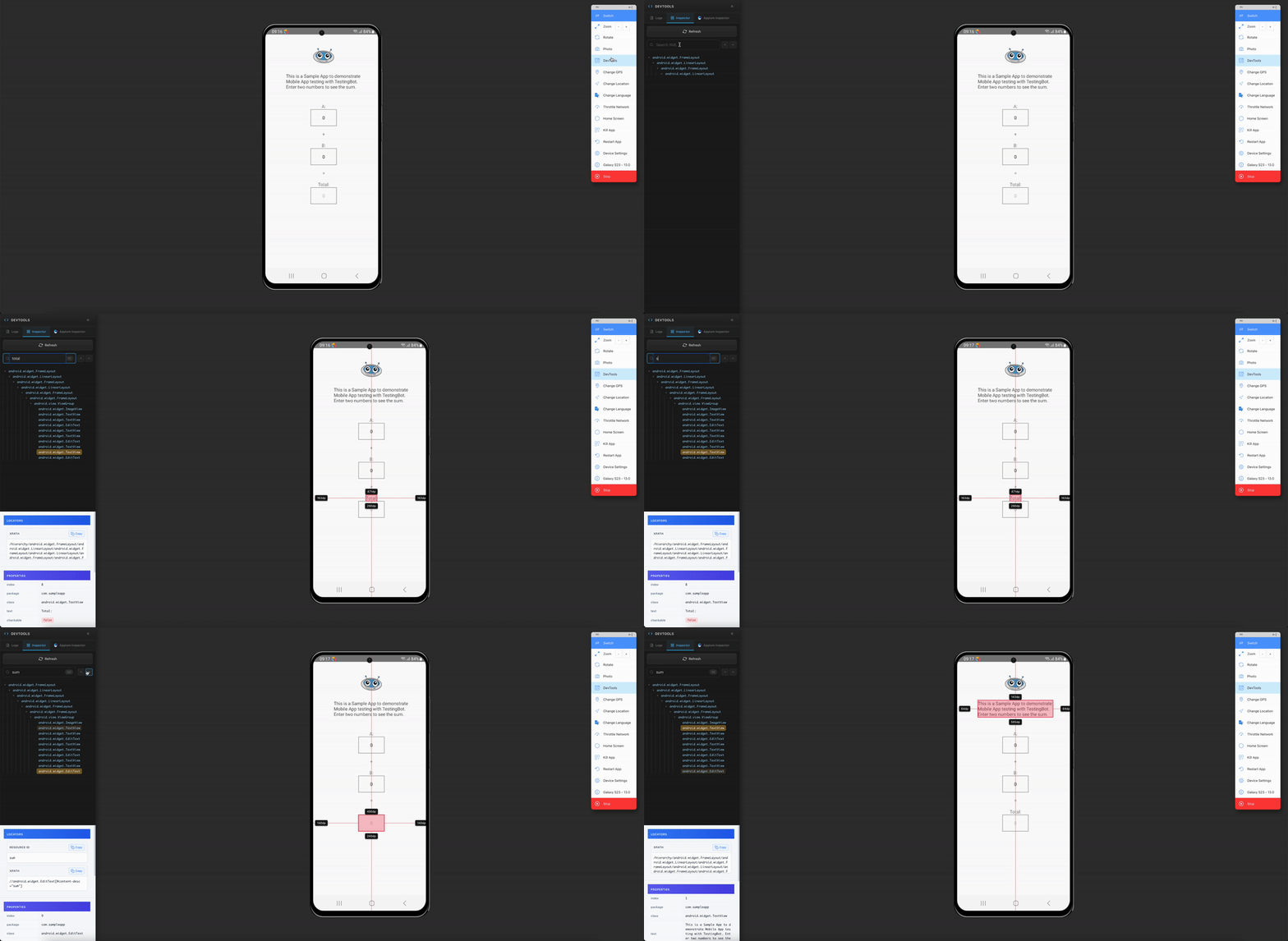
## Available Locators
When you select an element, the following locator strategies are displayed:
| Locator | Description |
| --- | --- |
| XPath | Full XPath expression to uniquely identify the element in the view hierarchy. |
| Accessibility ID | The accessibility identifier set by the app developer. Preferred locator for stable tests. |
| Class Name | The UI element class (e.g., `android.widget.Button`, `XCUIElementTypeButton`). |
| ID | The resource ID of the element (Android) or the element name (iOS). |
## Copy Locators
Click the copy icon next to any locator to copy it to your clipboard. You can then paste it directly into your automated test code.
### Looking for more help?
Have questions or need more information? Reach out via email or Slack.
[Email us](https://testingbot.com/contact/new)[Slack Join our Slack](https://join.slack.com/t/testingb0t/shared_invite/zt-3bcw9xch-jk19~6XPs_xBrsAgAedkCw)
---
URL: https://testingbot.com/support/app-live/appium-inspector
# Appium Inspector
TestingBot includes the full Appium Inspector built directly into the live testing interface. This provides the same functionality as the standalone Appium Inspector desktop application, without requiring any local setup.
## Accessing Appium Inspector
To launch the Appium Inspector during a live session:
- Click the **DevTools** icon in the toolbar
- Select the **Appium Inspector** tab
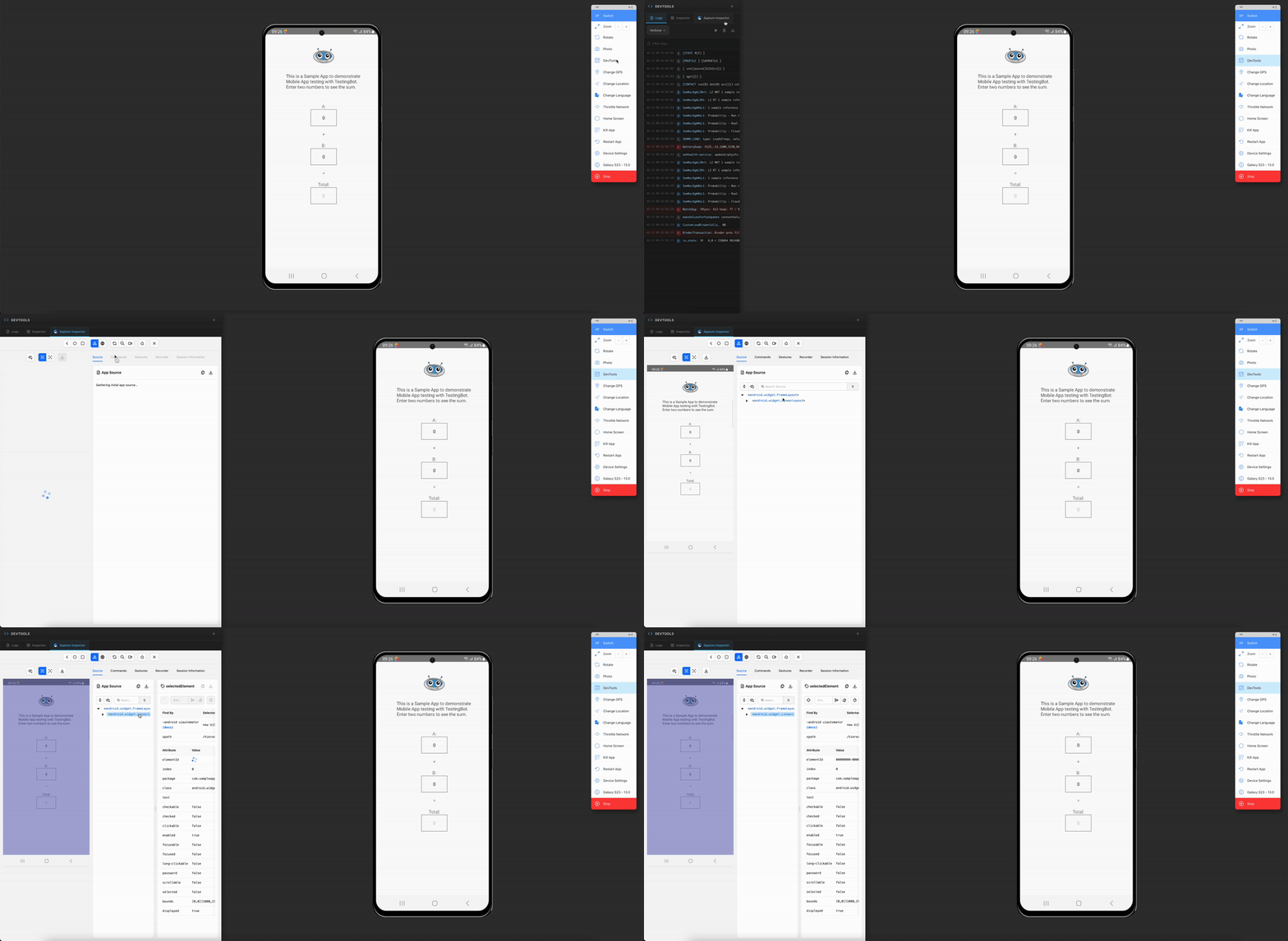
## Interface Overview
The Appium Inspector interface consists of:
- **Device Screenshot** — A snapshot of the current device screen with clickable elements
- **Element Tree** — A hierarchical view of all UI elements on the screen
- **Element Properties** — Detailed attributes and locators for the selected element
- **Actions Panel** — Buttons to perform actions on selected elements
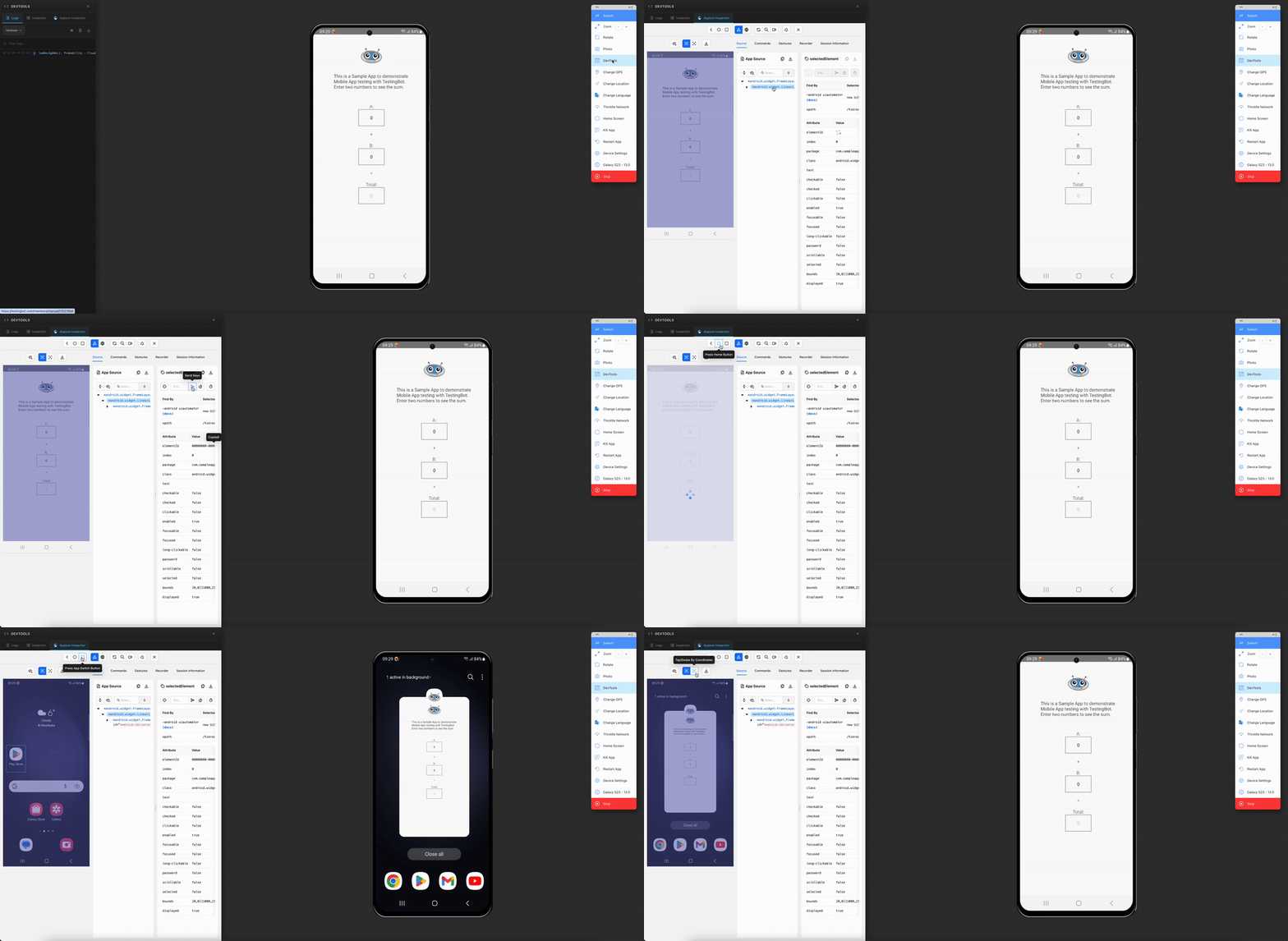
## Inspecting Elements
Click on any element in the device screenshot or in the element tree to select it. The properties panel will show all available attributes and locators for the element.
You can copy any locator value with a single click for use in your automated test scripts.
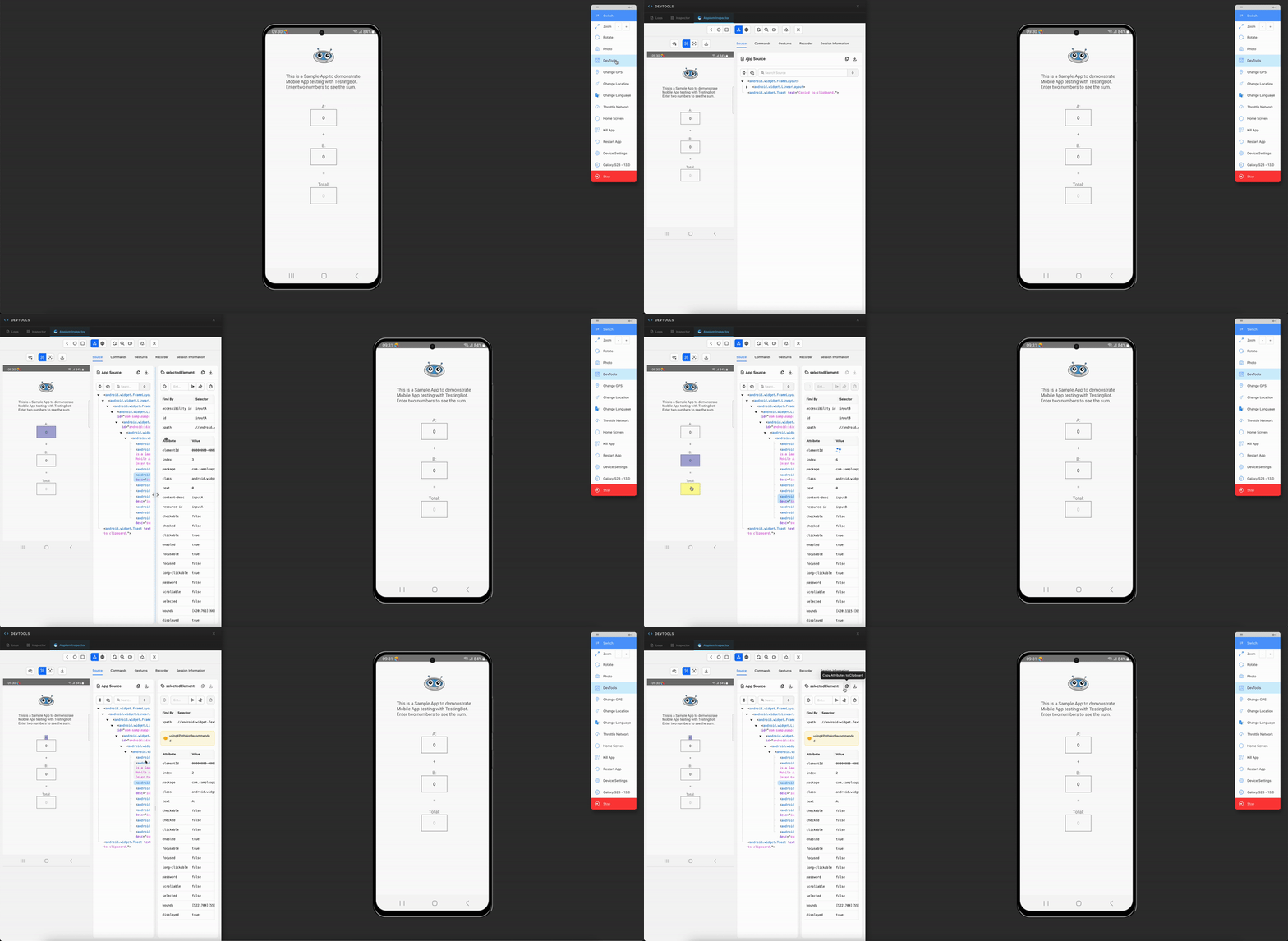
## Element Actions
The Appium Inspector allows you to perform actions directly on selected elements:
- **Tap** — Tap on the selected element
- **Send Keys** — Type text into input fields
- **Swipe** — Perform swipe gestures on the element
These actions are executed on the real device in real-time, so you can see the result immediately on the live device screen.
## Advantages
- **No setup required** — No need to install the standalone Appium Inspector or configure connection settings
- **Works with any device** — Available for all real devices and virtual devices in the TestingBot device cloud
- **Session-aware** — Automatically connected to your current live testing session
- **Real-time** — The element tree updates as you interact with the device
### Looking for more help?
Have questions or need more information? Reach out via email or Slack.
[Email us](https://testingbot.com/contact/new)[Slack Join our Slack](https://join.slack.com/t/testingb0t/shared_invite/zt-3bcw9xch-jk19~6XPs_xBrsAgAedkCw)
---
URL: https://testingbot.com/support/app-live/device-logs
# Device Logs
TestingBot provides a real-time stream of the device logs during the manual live session.
## Log Levels
You can switch between these device log levels:
- `VERBOSE` (default)
- `DEBUG`
- `INFO`
- `WARNING`
- `ERROR`
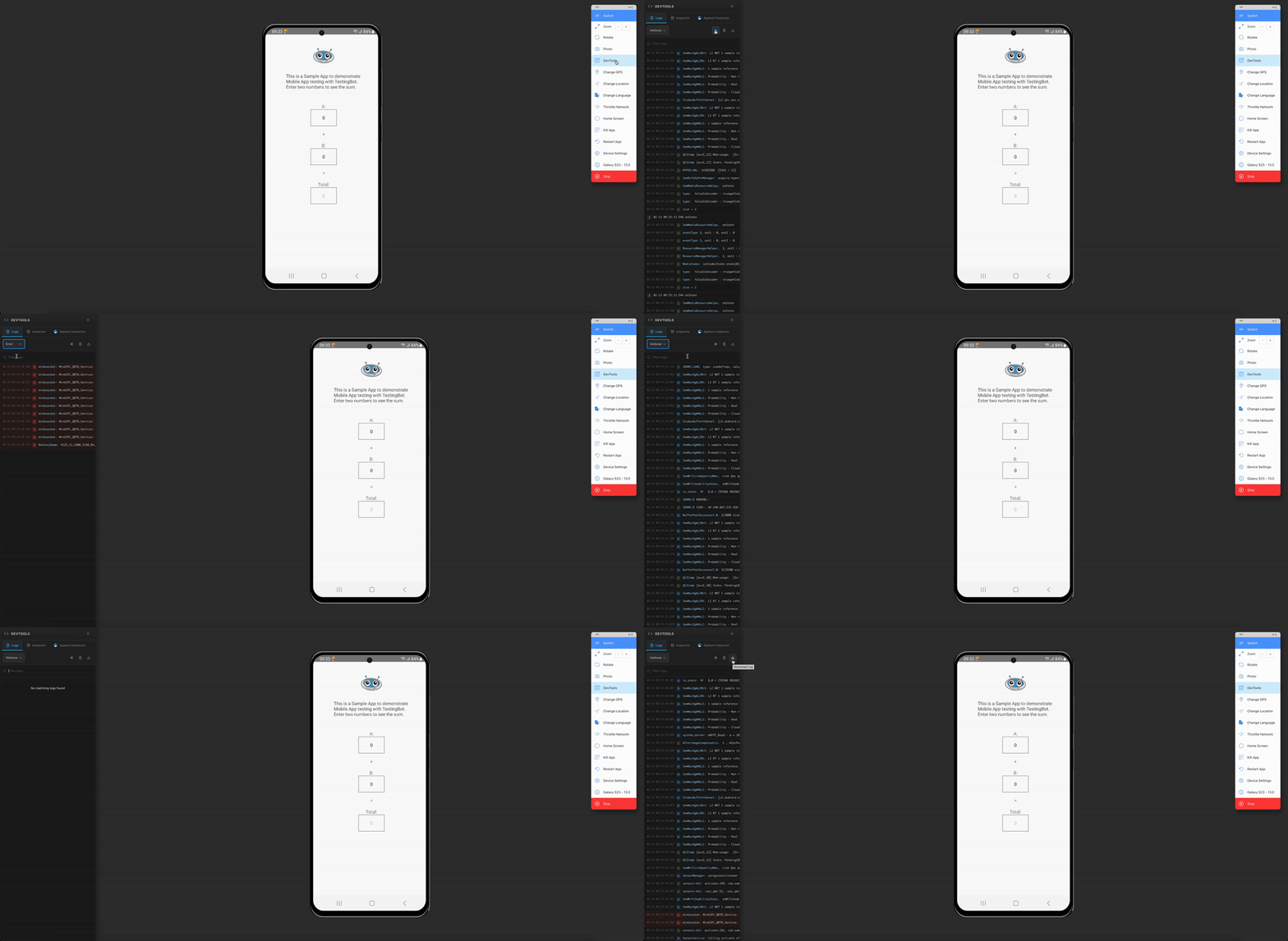
## Search & Filter
You can use the search input bar to search between the generated logs. The search filters the log entries in real-time as you type, making it easy to find specific messages or errors.
## Log Actions
| Icon | Functionality |
| --- | --- |
| | The download icon allows you to download the entire device logs generated thus far, without any filtering. |
| | The trash icon will clear the history of the logs. Only new log entries will be added to the realtime view. |
### Looking for more help?
Have questions or need more information? Reach out via email or Slack.
[Email us](https://testingbot.com/contact/new)[Slack Join our Slack](https://join.slack.com/t/testingb0t/shared_invite/zt-3bcw9xch-jk19~6XPs_xBrsAgAedkCw)
---
URL: https://testingbot.com/support/app-live/local-testing
# Testing Local Websites/Apps
With our [TestingBot Tunnel](https://testingbot.com/support/tunnel) you can easily and securely connect your local computer/network with TestingBot's Real Devices.
## Known Limitations
- **Localhost testing does not work on iOS**.
Due to an iOS Restriction, it is currently not possible to run tests against `http(s)://localhost` with TestingBot Tunnel.
A possible workaround would be to change the hosts file on the machine running TestingBot Tunnel, and add a custom hostname (for example `mylocalwebsite` and the IP address `127.0.0.1`).
Then configure your tests to use `http(s)://mylocalwebsite/...` instead of localhost.
### Looking for more help?
Have questions or need more information? Reach out via email or Slack.
[Email us](https://testingbot.com/contact/new)[Slack Join our Slack](https://join.slack.com/t/testingb0t/shared_invite/zt-3bcw9xch-jk19~6XPs_xBrsAgAedkCw)
---
URL: https://testingbot.com/support/app-live/apple-pay
# Testing Apple Pay
Apple Pay, developed by Apple Inc., serves as a mobile payment and digital wallet service enabling transactions through various Apple devices, such as iPhones and iPads. Testing with Apple Pay comes with challenges. This document aims to clarify some methods that are available for testing with iOS and Apple Pay.
There are important differences between Apple Pay on Real Devices and iOS Simulators. The iOS Simulator has the following limitations:
- The simulator only targets the front-end integration of Apple Pay and does not test the back-end integration.
- You can not add payment cards to the wallet on iOS simulators. So no Apple Pay sandbox testing cards, or any other real credit card.
- It is not possible to test the Apple Pay in-web flow.
- It is possible to test the Apple Pay in-app flow, but the Apple Pay in-app flow will not work the same way as with a real iOS device. It will not return a payment token and will not properly process a payment.
## Apple Pay on Real Private Devices
TestingBot provides [private iOS devices](https://testingbot.com/enterprise/private-device-cloud), which are able to use Apple Pay. To make Apple Pay work on TestingBot's real private devices, please follow the steps below:
1. Follow Apple's documentation to [enable Apple Pay](https://developer.apple.com/documentation/passkit/apple_pay/setting_up_apple_pay)
2. Set up Apple Pay integration in your iOS app, using the Apple documentation.
3. Register your Merchant ID in your Apple developer account.
4. Set up an Apple sandbox tester account. See the [Apple Sandbox documentation](https://developer.apple.com/help/app-store-connect/test-in-app-purchases/create-sandbox-apple-ids/) for more information.
5. Build your ipa file. Apple Pay will not work with enterprise certificates, which means it will not work by default on TestingBot's private devices. You will need to add the `udid` (iPhone/iPad unique id) of each private device assigned to you, to your Apple provisioning profile.
- Log in to [Apple's Developer Account](https://developer.apple.com/account/resources/identifiers/list)
- Click [Add Device](https://developer.apple.com/account/resources/devices/add)
- Type in a device name and the UDID that you received from TestingBot.
- Save the device.
- Now add the new device to your [Provisioning Profile](https://developer.apple.com/account/resources/profiles/list)
### Passcode
One of the requirements to use Apple Pay, is that a passcode needs to be set on the device. Make sure that you set a passcode on your private iOS device.
TestingBot cleans every private device after each test session. You will need to configure your Apple Pay Sandbox Testing account, including a passcode and sandbox cards, every time you want to test Apple Pay on a real iOS device.
If you want to disable this automated cleaning process, please [reach out](https://testingbot.com/contact/new).
## Apple Pay on iOS Simulators
iOS Simulators offer a feature where you can authorize Apple Pay by clicking a button in the Simulator's menu bar.
- Navigate to a point in your app where a payment sheet is visible.
- Click **Features** , then enable **Authorize Apple Pay** , or use the key combination (Command+SHIFT+A).
## Apple Sandbox Test Cards
You can find a list of Test Cards and their details on [Apple Pay's Sandbox Testing documentation page](https://developer.apple.com/apple-pay/sandbox-testing/).
These test cards include Discover, Master Card, American Express, VISA and others. There are cards available for the USA, Europe, China and even Test Cards for Point of Sale Systems.
To use these, simply open the **Wallet** application on your iOS device and add the card number and expiration date.
### Looking for more help?
Have questions or need more information? Reach out via email or Slack.
[Email us](https://testingbot.com/contact/new)[Slack Join our Slack](https://join.slack.com/t/testingb0t/shared_invite/zt-3bcw9xch-jk19~6XPs_xBrsAgAedkCw)
---
URL: https://testingbot.com/support/app-live/chromeos
# ChromeOS Manual App Testing
With TestingBot, you can upload your native Android app and test it on a remote ChromeOS device emulator, such as a Chromebook.
After you upload your app, simply choose one of the three ChromeOS configurations to start testing:
- ChromeOS Small: 1366x768 - 160dpi
- ChromeOS Medium: 3840x2160 - 320dpi
- ChromeOS Large: 1920x1080 - 160dpi
## Starting a live ChromeOS session
To get started, make sure you uploaded a `.apk` file on the [manual app session](https://testingbot.com/members/apps/new) page. Then, click one of the three ChromeOS configurations to start a new manual session.
A remote session will be started and you will be able to interact with the ChromeOS device emulator with your own mouse and keyboard.
An audio stream will be started, so you can hear the sounds from the ChromeOS device emulator.
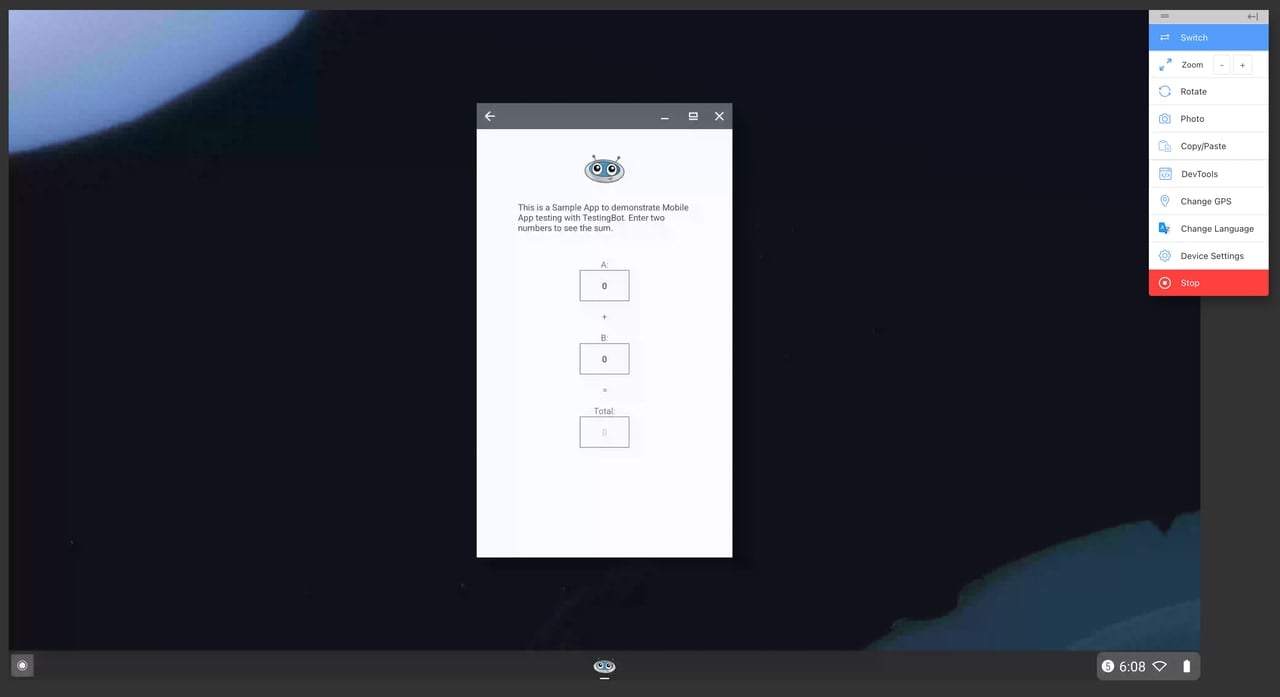
## Enabling/disabling Dark Mode
You can easily enable or disable Dark Mode in the ChromeOS emulator by clicking the "Device Settings" button in taskbar, then toggling the "Enable Dark Mode" switch.
## Taking screenshots
To take a live screenshot of the current ChromeOS session, simply click the "Photo" button in the taskbar. This will capture the current view and open the screenshot in a photo editor, which you can use to annotate or modify the screenshot, before downloading or sharing it.
## Change GPS
You can use the "GPS" button in the taskbar to change the GPS location of the ChromeOS device emulator. This is useful for testing location-based features on your website.
### Looking for more help?
Have questions or need more information? Reach out via email or Slack.
[Email us](https://testingbot.com/contact/new)[Slack Join our Slack](https://join.slack.com/t/testingb0t/shared_invite/zt-3bcw9xch-jk19~6XPs_xBrsAgAedkCw)
---
URL: https://testingbot.com/support/api
# TestingBot API Documentation
Access and modify all your TestingBot data through our comprehensive REST API. Build powerful integrations and automate your testing workflows.
Endpoint api.testingbot.com
Version v1
Format JSON
Auth HTTP Basic
[Download OpenAPI 2.0 spec (JSON)](https://testingbot.com/api/v1/openapi.json)
## API Clients
There are several open source client libraries available to easily interact with the TestingBot API:
- [NodeJS](https://github.com/testingbot/testingbot-api)
- [Python](https://github.com/testingbot/testingbotclient)
- [Java](https://github.com/testingbot/testingbot-java)
- [Ruby](https://github.com/testingbot/testingbot_ruby)
- [PHP](https://github.com/testingbot/testingbot-php)
## Authentication
Every TestingBot API request is authenticated with your **API key** and **API secret** using [HTTP Basic Auth](http://en.wikipedia.org/wiki/Basic_access_authentication) over HTTPS. The only unauthenticated endpoint is [GET /v1/browsers](https://testingbot.com#browsers).
### 1 · Find your credentials
Sign in to TestingBot and open [Account → Account Info](https://testingbot.com/members/user/edit). You'll find:
`key` stringYour public API client key. Safe to share between your CI and the TestingBot grid; not a secret on its own.
`secret` string sensitiveTreat this like a password. Never commit it to git, never paste it into screenshots, never embed it in client-side code. Use environment variables or a secret manager in CI.
### 2 · Send credentials on every request
Pass the credentials as the standard `Authorization` header. Most HTTP clients accept a `user:password` tuple and handle the Base64 encoding for you — examples on the right.
### 3 · Verify it works
Hit [GET /v1/user](https://testingbot.com#user). A JSON response with your name and plan means auth is set up correctly. A `401 Unauthorized` means the key or secret is wrong.
**Best practice.** Store credentials in environment variables — `TESTINGBOT_KEY` and `TESTINGBOT_SECRET` — and inject them into your CI/CD pipeline as secrets. Rotate the secret immediately if it leaks (Account → Reset API credentials).
`Authentication Examples`
[cURL](https://testingbot.com#)[Ruby](https://testingbot.com#)[Python](https://testingbot.com#)[PHP](https://testingbot.com#)[Java](https://testingbot.com#)[NodeJS](https://testingbot.com#)
Authenticated request
$ curl https://api.testingbot.com/v1/user \
-u "$TESTINGBOT_KEY:$TESTINGBOT_SECRET"
require 'testingbot'
api = TestingBot::Api.new(
ENV['TESTINGBOT_KEY'],
ENV['TESTINGBOT_SECRET']
)
api.get_user_info
import os, testingbotclient
tb = testingbotclient.TestingBotClient(
os.environ['TESTINGBOT_KEY'],
os.environ['TESTINGBOT_SECRET']
)
tb.user.get_user_information()
$api = new TestingBot\TestingBotAPI(
getenv('TESTINGBOT_KEY'),
getenv('TESTINGBOT_SECRET')
);
$api->getUserInfo();
TestingbotREST restApi = new TestingbotREST(
System.getenv("TESTINGBOT_KEY"),
System.getenv("TESTINGBOT_SECRET")
);
TestingbotUser user = restApi.getUserInfo();
const TestingBot = require('testingbot-api');
const api = new TestingBot({
api_key: process.env.TESTINGBOT_KEY,
api_secret: process.env.TESTINGBOT_SECRET
});
const userInfo = await api.getUserInfo();
GET`/v1/browsers`
## List supported browsers
Returns every browser environment available on the TestingBot grid: name, version, platform, and the `browser_id` used when attaching browsers to Codeless tests. No authentication required.
### Arguments
`type`string Filter by automation protocol: "webdriver" (default) or "rc" (legacy Selenium RC).
### Response fields
`selenium_name`string Capability value to send as `browserName` in WebDriver.
`name`string Human-readable browser identifier (e.g. "firefox", "iexplore").
`version`integer Major version number.
`long_version`string Full version string (e.g. "121.0.6167.184").
`platform`string Operating system (e.g. "WINDOWS", "MAC", "LINUX").
`browser_id`integer Unique TestingBot browser ID used to attach browsers to Codeless tests.
GET`/v1/browsers`
[cURL](https://testingbot.com#)[Ruby](https://testingbot.com#)[Python](https://testingbot.com#)[PHP](https://testingbot.com#)[Java](https://testingbot.com#)[NodeJS](https://testingbot.com#)
Request
curl "https://api.testingbot.com/v1/browsers"
require 'testingbot'
api = TestingBot::Api.new(key, secret)
api.get_browsers
import testingbotclient
tb = testingbotclient.TestingBotClient(key, secret)
tb.information.get_browsers()
$api = new TestingBot\TestingBotAPI($key, $secret);
$api->getBrowsers();
TestingbotREST restApi = new TestingbotREST(key, secret);
ArrayList browsers = restApi.getBrowsers();
const TestingBot = require('testingbot-api');
const api = new TestingBot({
api_key: "your-tb-key",
api_secret: "your-tb-secret"
});
const browsers = await api.getBrowsers();
Response
[
{"selenium_name": "IE8", "name": "iexplore", "version": 8, "platform": "WINDOWS", "browser_id": 1, "long_version": 8},
{"selenium_name": "FF7", "name": "firefox", "version": 7, "platform": "WINDOWS", "browser_id": 22, "long_version": 7}
]
GET`/v1/user`
## Get your user info
Returns the data associated with the authenticated account: name, plan, billing details, remaining credits, and concurrency caps.
### Response fields
`first_name`string Given name on the account.
`last_name`string Family name on the account.
`email`string Account email address.
`plan`string Subscription plan identifier (e.g. "live", "automated", "automated pro").
`max_concurrent`integer Maximum number of parallel VM-based sessions allowed by the plan.
`max_concurrent_mobile`integer Maximum number of parallel physical device sessions allowed by the plan.
`seconds`integer Remaining test seconds (credit balance) on the account.
`last_login`timestamp ISO-8601 timestamp of the most recent dashboard login.
`company`string Optional company name for billing.
`street`string Billing address line.
`city`string Billing city.
`country`string Billing country.
`vat`string VAT number (EU only).
GET`/v1/user`
[cURL](https://testingbot.com#)[Ruby](https://testingbot.com#)[Python](https://testingbot.com#)[PHP](https://testingbot.com#)[Java](https://testingbot.com#)[NodeJS](https://testingbot.com#)
Request
$ curl "https://api.testingbot.com/v1/user" \
-u key:secret
require 'testingbot'
api = TestingBot::Api.new(key, secret)
api.get_user_info
import testingbotclient
tb = testingbotclient.TestingBotClient(key, secret)
tb.user.get_user_information()
$api = new TestingBot\TestingBotAPI($key, $secret);
$api->getUserInfo();
TestingbotREST restApi = new TestingbotREST(key, secret);
TestingbotUser user = restApi.getUserInfo();
const TestingBot = require('testingbot-api');
const api = new TestingBot({
api_key: "your-tb-key",
api_secret: "your-tb-secret"
});
const userInfo = await api.getUserInfo();
Response
{
"first_name": "Steven",
"last_name": "King",
"seconds": 17745,
"plan": "small",
"max_concurrent": 10,
"max_concurrent_mobile": 2,
"company": "companyName",
"street": "companyStreet",
"city": "companyCity",
"country": "companyCountry",
"vat": "ifInEurope"
}
PUT`/v1/user`
## Update your user info
Updates the authenticated account. Only `first_name` and `last_name` are mutable through this endpoint; other profile fields require the dashboard.
### Arguments
`user[first_name]`string New given name.
`user[last_name]`string New family name.
### Response fields
`success`boolean Whether the update was applied.
`user`object Updated user object.
PUT`/v1/user`
[cURL](https://testingbot.com#)[Ruby](https://testingbot.com#)[Python](https://testingbot.com#)[PHP](https://testingbot.com#)[Java](https://testingbot.com#)[NodeJS](https://testingbot.com#)
Request
$ curl "https://api.testingbot.com/v1/user" \
-X PUT \
-d "user[first_name]=new" \
-u key:secret
require 'testingbot'
api = TestingBot::Api.new(key, secret)
api.update_user_info({ "first_name" => 'new' })
import testingbotclient
tb = testingbotclient.TestingBotClient(key, secret)
tb.user.update_user_information()
$api = new TestingBot\TestingBotAPI($key, $secret);
$api->updateUserInfo(array('first_name' => 'new'));
TestingbotREST restApi = new TestingbotREST(key, secret);
TestingbotUser user = restApi.updateUserInfo(TestingBotUser);
const TestingBot = require('testingbot-api');
const api = new TestingBot({
api_key: "your-tb-key",
api_secret: "your-tb-secret"
});
const newUserData = { first_name: 'new' };
await api.updateUserInfo(newUserData);
Response
{
"success": true,
"user": {
"first_name": "new",
"last_name": "King",
"seconds": 17745,
"last_login": "2011-08-06T16:47:04Z"
}
}
GET`/v1/team-management`
## Get team concurrency info
Returns allowed vs current concurrent session counts for the team across both VMs and physical mobile devices. Useful for dashboards that surface "X of Y slots in use".
### Response fields
`concurrency`object Allowed vs current concurrency caps for the team, split in VM and physical device sessions.
GET`/v1/team-management`
[cURL](https://testingbot.com#)[NodeJS](https://testingbot.com#)
Request
$ curl "https://api.testingbot.com/v1/team-management" \
-u key:secret
const TestingBot = require('testingbot-api');
const api = new TestingBot({
api_key: "your-tb-key",
api_secret: "your-tb-secret"
});
const teamInfo = await api.getTeam();
Response
{
"concurrency": {
"allowed": { "vms": 10, "physical": 2 },
"current": { "vms": 4, "physical": 1 }
}
}
GET`/v1/team-management/users`
## List users in your team
Paginated list of all sub-accounts in the team. Requires admin role on the calling account.
### Arguments
`offset`integer Skip this many users from the start of the result set.
`count`integermax=`500` Number of users to return .
### Response fields
`data`array of team member objects Team member accounts.
`meta`meta object—
GET`/v1/team-management/users`
[cURL](https://testingbot.com#)[NodeJS](https://testingbot.com#)
Request
$ curl "https://api.testingbot.com/v1/team-management/users" \
-u key:secret
const TestingBot = require('testingbot-api');
const api = new TestingBot({
api_key: "your-tb-key",
api_secret: "your-tb-secret"
});
const users = await api.getUsersInTeam();
Response
{
"data": [
{
"id": 337,
"first_name": "test",
"last_name": "user",
"seconds": 12000,
"plan": "Free Trial",
"max_concurrent": 2,
"max_concurrent_mobile": 2
}
],
"meta": { "offset": 0, "count": 1, "total": 1 }
}
GET`/v1/team-management/users/:id`
## Get a specific team user
Returns the user record for a specific team member. Admins can fetch any team member; non-admins can only fetch themselves.
### Arguments
`id`integerrequired Numeric ID of the team user to fetch.
### Response fields
`id`integer Unique numeric user ID.
`first_name`string Given name.
`last_name`string Family name.
`email`string Account email.
`credits`integer Remaining VM credit seconds.
`device_credits`integer Remaining physical-device credit seconds.
`isPaid`boolean Whether the account has an active paid plan.
`verified`boolean Whether the account email has been verified.
`parent_id`integer Parent (team owner) user ID; 0 means this user is the team owner.
GET`/v1/team-management/users/:id`
[cURL](https://testingbot.com#)[NodeJS](https://testingbot.com#)
Request
$ curl "https://api.testingbot.com/v1/team-management/users/:id" \
-u key:secret
const TestingBot = require('testingbot-api');
const api = new TestingBot({
api_key: "your-tb-key",
api_secret: "your-tb-secret"
});
const user = await api.getUserFromTeam(userId);
Response
{
"id": 337,
"first_name": "test",
"last_name": "user",
"seconds": 12000,
"plan": "Free Trial",
"max_concurrent": 2,
"max_concurrent_mobile": 2
}
POST`/v1/team-management/users`
## Create a user in your team
Provisions a new sub-account inside the team, copying the caller's subscription level and assigning a slice of the credit pool. Requires an upgraded plan and admin role.
### Arguments
`email`stringrequired Email address for the new account; must be unique across TestingBot.
`password`stringrequired Initial password for the new user.
`first_name`string New user's given name.
`last_name`string New user's family name.
`concurrency`integer Max parallel VM sessions (≤ team owner's `maxParallel`).
`concurrencyPhysical`integer Max parallel physical-device sessions (≤ team owner's `maxParallelDevice`).
POST`/v1/team-management/users`
[cURL](https://testingbot.com#)[NodeJS](https://testingbot.com#)
Request
$ curl -X POST -u key:secret \
https://api.testingbot.com/v1/team-management/users \
--header 'Content-Type: application/json' \
--data-raw '{
"first_name": "Bruno",
"last_name": "Mars",
"email": "bmars@example.com",
"password": "$bmaRs*RULES"
}'
const TestingBot = require('testingbot-api');
const api = new TestingBot({
api_key: "your-tb-key",
api_secret: "your-tb-secret"
});
const userData = {
first_name: 'John',
last_name: 'Doe',
email: 'john@example.com',
password: 'StrongPassword!'
};
const result = await api.createUserInTeam(userData);
Response
{
"id": 337,
"first_name": "Bruno",
"last_name": "Mars",
"seconds": 12000,
"plan": "Free Trial",
"max_concurrent": 2,
"max_concurrent_mobile": 2
}
PUT`/v1/team-management/users/:id`
## Update a user in your team
Updates a team user's profile and credit allocation. Credit fields cannot exceed the team owner's remaining balance.
### Arguments
`id`integerrequired Numeric ID of the team user to update.
`first_name`string New given name.
`last_name`string New family name.
`email`string New email address.
`password`string New password.
`credits`integer Allocated VM credit seconds (≤ team owner's remaining VM credits).
`device_credits`integer Allocated physical-device credit seconds (≤ team owner's remaining device credits).
`concurrency`integer Max parallel VM sessions for this user.
`concurrencyPhysical`integer Max parallel physical-device sessions for this user.
### Response fields
`id`integer Unique numeric user ID.
`first_name`string Given name.
`last_name`string Family name.
`email`string Account email.
`credits`integer Remaining VM credit seconds.
`device_credits`integer Remaining physical-device credit seconds.
`isPaid`boolean Whether the account has an active paid plan.
`verified`boolean Whether the account email has been verified.
`parent_id`integer Parent (team owner) user ID; 0 means this user is the team owner.
PUT`/v1/team-management/users/:id`
[cURL](https://testingbot.com#)[NodeJS](https://testingbot.com#)
Request
$ curl -X PUT -u key:secret \
https://api.testingbot.com/v1/team-management/users/:id \
--header 'Content-Type: application/json' \
--data-raw '{
"first_name": "Bruno",
"last_name": "Mars"
}'
const TestingBot = require('testingbot-api');
const api = new TestingBot({
api_key: "your-tb-key",
api_secret: "your-tb-secret"
});
const result = await api.updateUserInTeam(userId, { first_name: 'Jane', last_name: 'Smith' });
Response
{
"id": 337,
"first_name": "Bruno",
"last_name": "Mars",
"seconds": 12000,
"plan": "Free Trial"
}
POST`/v1/team-management/users/:id/reset-keys`
## Reset credentials for a team user
Rotates both the API key and secret for a team user. The old credentials stop working immediately, so any deployed automation using them must be updated.
### Arguments
`id`integerrequired Numeric ID of the team user whose credentials to rotate.
POST`/v1/team-management/users/:id/reset-keys`
[cURL](https://testingbot.com#)[NodeJS](https://testingbot.com#)
Request
$ curl -X POST -u key:secret \
https://api.testingbot.com/v1/team-management/users/:id/reset-keys
const TestingBot = require('testingbot-api');
const api = new TestingBot({
api_key: "your-tb-key",
api_secret: "your-tb-secret"
});
const result = await api.resetCredentials(userId);
Response
{
"success": true,
"client_key": "d69e0800xc32ed2f059b7a630ee255b"
}
GET`/v1/tests`
## List your tests
Paginated list of every test session belonging to the authenticated account, newest first. Filter by `browser_id`, `group`, or `build` to narrow the result. Use `since` to fetch only tests updated after a UNIX timestamp (poll-friendly).
### Arguments
`offset`integer Skip this many tests from the start of the result set.
`count`integermax=`500` Number of tests to return .
`since`integer UNIX timestamp; return only tests updated at or after this time.
`browser_id`integer Filter to tests that ran on this browser\_id (from /v1/browsers).
`group`string Filter to tests tagged with this group name.
`build`string Filter to tests in this build (matches `capabilities.build`).
`skip_fields`string Comma-separated fields to omit (logs, thumbs).
### Response fields
`data`array of test case objects Test sessions for this page.
`meta`meta object—
GET`/v1/tests`
[cURL](https://testingbot.com#)[Ruby](https://testingbot.com#)[Python](https://testingbot.com#)[PHP](https://testingbot.com#)[Java](https://testingbot.com#)[NodeJS](https://testingbot.com#)
Request
$ curl "https://api.testingbot.com/v1/tests?offset=0&count=10" \
-u key:secret
require 'testingbot'
api = TestingBot::Api.new(key, secret)
api.get_tests(0, 10)
import testingbotclient
tb = testingbotclient.TestingBotClient(key, secret)
tb.tests.get_tests(offset=0, limit=10)
$api = new TestingBot\TestingBotAPI($key, $secret);
$api->getJobs(0, 10);
TestingbotREST restApi = new TestingbotREST(key, secret);
TestingbotTest test = restApi.getTests(0, 10);
const TestingBot = require('testingbot-api');
const api = new TestingBot({
api_key: "your-tb-key",
api_secret: "your-tb-secret"
});
const tests = await api.getTests({ offset, limit });
Response
{
"data": [
{
"created_at": "2011-07-30T23:21:23Z",
"completed_at": "2011-07-30T23:22:44Z",
"id": 3,
"name": "MyTest::testTitle",
"session_id": "f7903f9e93e74fe1b0e924bf9d2ce9fc",
"status_message": "Failed asserting that 1 equals 0.",
"status_id": 0,
"success": false,
"browser": "iexplore",
"browser_version": 8,
"os": "WINDOWS",
"duration": 13,
"build": "buildid",
"video": "https://s3.amazonaws.com/rectestingbot/sample.mp4",
"groups": ["testingbot.com"]
}
],
"meta": { "offset": 0, "count": 10, "total": 789 }
}
GET`/v1/tests/:id`
## Get a specific test
Returns the full detail record for a single test session: status, environment (browser/OS or device/platform), assets (video, logs, screenshots), groups, build, and duration. Accepts either the numeric test ID or the WebDriver session\_id.
### Arguments
`id`stringrequired Numeric test ID or WebDriver session\_id (UUID).
`skip_fields`string Comma-separated fields to omit from the response (logs, thumbs, visual\_run, groups).
### Response fields
`id`integer Unique numeric test ID.
`session_id`string Selenium / WebDriver session ID (UUID).
`name`string Human-readable test name set via capabilities or `update_test`.
`state`string Lifecycle state (RUNNING, COMPLETE, TIMEOUT, …).
`success`boolean Whether the test passed.
`status_id`integer Numeric status code (0=fail, 1=pass, 2=unknown).
`status_message`string Failure reason or arbitrary status set via `test[status_message]`.
`created_at`timestamp When the test session started.
`completed_at`timestamp When the session ended; null while running.
`duration`integer Total run time in seconds.
`browser`string Browser identifier (e.g. "iexplore", "firefox").
`browser_version`integer Browser major version.
`os`string OS (e.g. "WINDOWS", "MAC").
`device_name`string Mobile device name when the session ran on a physical device; null otherwise.
`platform_name`string Mobile OS name; null on desktop.
`build`string Build identifier (free-form string set via capabilities).
`groups`array of string Tag/group names attached to the test.
`video`string Signed S3 URL to the recorded video, or false if video was disabled.
`thumbs`array of string Signed S3 URLs to screenshot thumbnails.
`logs`object Map of log names → signed S3 URLs (selenium, browser, …).
`assets_available`boolean Whether assets (video, logs, screenshots) have finished processing.
`extra`string Arbitrary metadata string set via `test[extra]`.
`type`string Driver type (WEBDRIVER, APPIUM).
GET`/v1/tests/:id`
[cURL](https://testingbot.com#)[Ruby](https://testingbot.com#)[Python](https://testingbot.com#)[PHP](https://testingbot.com#)[Java](https://testingbot.com#)[NodeJS](https://testingbot.com#)
Request
$ curl "https://api.testingbot.com/v1/tests/:id" -u key:secret
require 'testingbot'
api = TestingBot::Api.new(key, secret)
api.get_test(test_id)
import testingbotclient
tb = testingbotclient.TestingBotClient(key, secret)
tb.tests.get_test(test_id)
$api = new TestingBot\TestingBotAPI($key, $secret);
$api->getJob($test_id);
TestingbotREST restApi = new TestingbotREST(key, secret);
TestingbotTest test = restApi.getTest(test_id);
const TestingBot = require('testingbot-api');
const api = new TestingBot({
api_key: "your-tb-key",
api_secret: "your-tb-secret"
});
const test = await api.getTestDetails(testId);
Response
{
"id": 3,
"name": "MyTest::testTitle",
"session_id": "f7903f9e93e74fe1b0e924bf9d2ce9fc",
"state": "COMPLETE",
"success": false,
"status_id": 0,
"status_message": "Failed asserting that 1 equals 0.",
"created_at": "2011-07-30T23:21:23Z",
"completed_at": "2011-07-30T23:22:23Z",
"duration": 60,
"browser": "iexplore",
"browser_version": 8,
"os": "WINDOWS",
"device_name": null,
"platform_name": null,
"build": null,
"groups": ["testingbot.com"],
"video": "https://s3.amazonaws.com/rectestingbot/sample.mp4",
"thumbs": ["https://s3.amazonaws.com/euthumbtestingbot/3_f93782fji.jpg"],
"logs": { "selenium": "https://s3-eu-west-1.amazonaws.com/eulogtestingbot/session.txt" },
"assets_available": true,
"type": "WEBDRIVER"
}
PUT`/v1/tests/:id`
## Update a test
Updates a test's metadata after it's been recorded. Use this to mark a test as passed/failed from the test runner, attach groups/tags, set a build identifier, or add a status message. Accepts either a numeric test ID or a WebDriver session\_id.
### Arguments
`id`stringrequired Numeric test ID or WebDriver session\_id (UUID).
`test[name]`string Human-readable test name.
`test[success]`boolean true=pass, false=fail.
`test[status_message]`string Failure reason or arbitrary status text.
`test[extra]`string Arbitrary metadata.
`test[build]`string Build identifier to associate this test with.
`test[public]`boolean When true, makes the test publicly viewable via share URL.
`groups`string Comma-separated tag/group names to attach to the test.
`build`string Build identifier (alternative location to `test[build]`).
PUT`/v1/tests/:id`
[cURL](https://testingbot.com#)[Ruby](https://testingbot.com#)[Python](https://testingbot.com#)[PHP](https://testingbot.com#)[Java](https://testingbot.com#)[NodeJS](https://testingbot.com#)
Request
$ curl "https://api.testingbot.com/v1/tests/:id" \
-X PUT \
-d "test[success]=1" \
-u key:secret
require 'testingbot'
api = TestingBot::Api.new(key, secret)
api.update_test(test_id, { name: 'new_name', success: true })
import testingbotclient
tb = testingbotclient.TestingBotClient(key, secret)
tb.tests.update_test(test_id, status_message='..', passed=1, build='..', name='..')
$api = new TestingBot\TestingBotAPI($key, $secret);
$api->updateJob($test_id, ['name' => 'mytest', 'success' => true]);
TestingbotREST restApi = new TestingbotREST(key, secret);
boolean success = restApi.updateTest(testId, details);
const TestingBot = require('testingbot-api');
const api = new TestingBot({
api_key: "your-tb-key",
api_secret: "your-tb-secret"
});
await api.updateTest({ 'test[success]': '1', 'test[status_message]': 'failure reason' }, testId);
Response
{
"success": true
}
DELETE`/v1/tests/:id`
## Delete a test
Permanently deletes a test session and every associated asset (video, logs, screenshots). This action cannot be undone.
### Arguments
`id`stringrequired Numeric test ID or WebDriver session\_id of the test to delete.
DELETE`/v1/tests/:id`
[cURL](https://testingbot.com#)[Ruby](https://testingbot.com#)[Python](https://testingbot.com#)[PHP](https://testingbot.com#)[Java](https://testingbot.com#)[NodeJS](https://testingbot.com#)
Request
$ curl "https://api.testingbot.com/v1/tests/:id" \
-X DELETE \
-u key:secret
require 'testingbot'
api = TestingBot::Api.new(key, secret)
api.delete_test(test_id)
import testingbotclient
tb = testingbotclient.TestingBotClient(key, secret)
tb.tests.delete_test(test_id)
$api = new TestingBot\TestingBotAPI($key, $secret);
$api->deleteJob($test_id);
TestingbotREST restApi = new TestingbotREST(key, secret);
boolean success = restApi.deleteTest(testId);
const TestingBot = require('testingbot-api');
const api = new TestingBot({
api_key: "your-tb-key",
api_secret: "your-tb-secret"
});
await api.deleteTest(testId);
Response
{
"success": true
}
PUT`/v1/tests/:id/stop`
## Stop a running test
Terminates an in-flight test session. The test is marked complete; any assets gathered (video, logs, screenshots) become available for download. Returns 404 if the test has already finished.
### Arguments
`id`stringrequired Numeric test ID or WebDriver session\_id of the test to stop.
PUT`/v1/tests/:id/stop`
[cURL](https://testingbot.com#)[Ruby](https://testingbot.com#)[Python](https://testingbot.com#)[PHP](https://testingbot.com#)[Java](https://testingbot.com#)[NodeJS](https://testingbot.com#)
Request
$ curl "https://api.testingbot.com/v1/tests/:id/stop" \
-X PUT \
-u key:secret
require 'testingbot'
api = TestingBot::Api.new(key, secret)
api.stop_test(test_id)
import testingbotclient
tb = testingbotclient.TestingBotClient(key, secret)
tb.tests.stop_test(test_id)
$api = new TestingBot\TestingBotAPI($key, $secret);
$api->stopJob($test_id);
TestingbotREST restApi = new TestingbotREST(key, secret);
boolean success = restApi.stopTest(testId);
const TestingBot = require('testingbot-api');
const api = new TestingBot({
api_key: "your-tb-key",
api_secret: "your-tb-secret"
});
await api.stopTest(testId);
Response
{
"success": true
}
GET`/v1/builds`
## List your builds
Returns a paginated list of test builds. A build is an aggregation of test cases that share the same `capabilities.build` identifier, useful for grouping CI runs.
### Arguments
`offset`integer Skip this many builds from the start of the result set.
`count`integermax=`500` Number of builds to return .
### Response fields
`data`array of build objects Builds for this page.
`meta`meta object—
GET`/v1/builds`
[cURL](https://testingbot.com#)[Ruby](https://testingbot.com#)[Python](https://testingbot.com#)[PHP](https://testingbot.com#)[Java](https://testingbot.com#)[NodeJS](https://testingbot.com#)
Request
$ curl "https://api.testingbot.com/v1/builds?offset=0&count=10" \
-u key:secret
require 'testingbot'
api = TestingBot::Api.new(key, secret)
api.get_builds(0, 10)
import testingbotclient
tb = testingbotclient.TestingBotClient(key, secret)
tb.build.get_builds(offset=0, limit=10)
$api = new TestingBot\TestingBotAPI($key, $secret);
$api->getBuilds(0, 10);
TestingbotREST restApi = new TestingbotREST(key, secret);
TestingbotBuildCollection builds = restApi.getBuilds(0, 10);
const TestingBot = require('testingbot-api');
const api = new TestingBot({
api_key: "your-tb-key",
api_secret: "your-tb-secret"
});
const builds = await api.getBuilds(offset, limit);
Response
{
"data": [
{
"id": 4331,
"build_identifier": "first-build",
"created_at": "2016-08-01T11:09:02.000Z",
"updated_at": "2016-08-01T11:09:02.000Z"
}
],
"meta": { "offset": 0, "count": 10, "total": 3 }
}
GET`/v1/builds/:id`
## Get tests for a build
Returns all test cases that belong to a single build, with pagination. The build can be referenced by either its numeric internal ID or the string identifier you set via `capabilities.build`.
### Arguments
`id`stringrequired Numeric build ID or string build identifier.
`offset`integer Skip this many tests in the build.
`count`integermax=`500` Number of tests to return .
`skip_fields`string Comma-separated fields to omit from each test (logs, thumbs).
### Response fields
`data`array of test case objects Test sessions for this page.
`meta`meta object—
GET`/v1/builds/:id`
[cURL](https://testingbot.com#)[Ruby](https://testingbot.com#)[Python](https://testingbot.com#)[PHP](https://testingbot.com#)[Java](https://testingbot.com#)[NodeJS](https://testingbot.com#)
Request
$ curl "https://api.testingbot.com/v1/builds/:id" \
-u key:secret
require 'testingbot'
api = TestingBot::Api.new(key, secret)
api.get_build(build_identifier)
import testingbotclient
tb = testingbotclient.TestingBotClient(key, secret)
tb.build.get_tests_for_build(build_id)
$api = new TestingBot\TestingBotAPI($key, $secret);
$api->getBuild($build_id);
TestingbotREST restApi = new TestingbotREST(key, secret);
TestingbotTestBuildCollection tests = restApi.getTestsForBuild(buildId);
const TestingBot = require('testingbot-api');
const api = new TestingBot({
api_key: "your-tb-key",
api_secret: "your-tb-secret"
});
const tests = await api.getTestsForBuild(buildId);
Response
{
"data": [
{
"id": 3,
"name": "MyTest::testTitle",
"session_id": "f7903f9e93e74fe1b0e924bf9d2ce9fc",
"state": "COMPLETE",
"success": false,
"status_id": 0,
"created_at": "2011-07-30T23:21:23Z",
"completed_at": "2011-07-30T23:22:44Z",
"duration": 13,
"browser": "iexplore",
"browser_version": 8,
"os": "WINDOWS",
"build": "buildid",
"video": "https://s3.amazonaws.com/rectestingbot/sample.mp4"
}
],
"meta": { "offset": 0, "count": 10, "total": 1 }
}
DELETE`/v1/builds/:id`
## Delete a build
Permanently deletes a build and every test, asset (video, logs, screenshots) attached to it. This action cannot be undone.
### Arguments
`id`stringrequired Numeric build ID or string build identifier to delete.
DELETE`/v1/builds/:id`
[cURL](https://testingbot.com#)[Ruby](https://testingbot.com#)[Python](https://testingbot.com#)[PHP](https://testingbot.com#)[Java](https://testingbot.com#)[NodeJS](https://testingbot.com#)
Request
$ curl "https://api.testingbot.com/v1/builds/:id" \
-X DELETE \
-u key:secret
require 'testingbot'
api = TestingBot::Api.new(key, secret)
api.delete_build(build_identifier)
import testingbotclient
tb = testingbotclient.TestingBotClient(key, secret)
tb.build.delete_build(build_id)
$api = new TestingBot\TestingBotAPI($key, $secret);
$api->deleteBuild($build_id);
TestingbotREST restApi = new TestingbotREST(key, secret);
boolean success = restApi.deleteBuild(buildId);
const TestingBot = require('testingbot-api');
const api = new TestingBot({
api_key: "your-tb-key",
api_secret: "your-tb-secret"
});
await api.deleteBuild(buildId);
Response
{
"success": true
}
GET`/v1/devices`
## List physical mobile devices
Returns every real Android and iOS device in the TestingBot grid, with an `available` flag indicating whether it can be acquired right now. Filter by `platform` for a single OS family.
### Arguments
`platform`string Filter to a single mobile OS family.
`web`boolean Internal flag used by the dashboard — returns extra UI-only fields.
### Response fields
`id`integer Unique numeric device ID.
`name`string Marketing name (e.g. "iPhone 15 Pro").
`model`string Device model identifier.
`manufacturer`string OEM (e.g. "Apple", "Samsung").
`platform_name`string Mobile OS family (e.g. "iOS", "Android").
`platform_version`string OS version (e.g. "17.4", "14").
`screen_size`string Display size in inches (e.g. "6.1").
`screen_resolution`string Display resolution (e.g. "1170x2532").
GET`/v1/devices`
[cURL](https://testingbot.com#)[Ruby](https://testingbot.com#)[Python](https://testingbot.com#)[PHP](https://testingbot.com#)[Java](https://testingbot.com#)[NodeJS](https://testingbot.com#)
Request
$ curl -u key:secret "https://api.testingbot.com/v1/devices"
require 'testingbot'
api = TestingBot::Api.new(key, secret)
api.get_devices
import testingbotclient
tb = testingbotclient.TestingBotClient(key, secret)
tb.information.get_devices()
$api = new TestingBot\TestingBotAPI($key, $secret);
$api->getDevices();
TestingbotREST restApi = new TestingbotREST(key, secret);
ArrayList devices = restApi.getDevices();
const TestingBot = require('testingbot-api');
const api = new TestingBot({
api_key: "your-tb-key",
api_secret: "your-tb-secret"
});
const devices = await api.getDevices();
Response
[
{
"id": 1,
"available": true,
"name": "Galaxy S8",
"model_number": "SM-G950U1",
"platform_name": "Android",
"version": "9.0",
"resolution": "1080x2220",
"multiple_browsers": [
{ "id": 1727, "name": "chrome", "version": "103" },
{ "id": 2133, "name": "firefox", "version": "98.2" },
{ "id": 2953, "name": "samsung", "version": "13.2.1.70" },
{ "id": 2954, "name": "opera", "version": "67.1" }
]
},
{
"id": 5,
"available": false,
"name": "iPhone XR",
"platform_name": "iOS",
"version": "16.3",
"resolution": "828x1792"
}
]
GET`/v1/devices/available`
## List currently available devices
Subset of /v1/devices filtered to devices the authenticated account can acquire right now (not in use by another customer, not under maintenance).
### Response fields
`id`integer Unique numeric device ID.
`name`string Marketing name (e.g. "iPhone 15 Pro").
`model`string Device model identifier.
`manufacturer`string OEM (e.g. "Apple", "Samsung").
`platform_name`string Mobile OS family (e.g. "iOS", "Android").
`platform_version`string OS version (e.g. "17.4", "14").
`screen_size`string Display size in inches (e.g. "6.1").
`screen_resolution`string Display resolution (e.g. "1170x2532").
GET`/v1/devices/available`
[cURL](https://testingbot.com#)[Ruby](https://testingbot.com#)[Python](https://testingbot.com#)[PHP](https://testingbot.com#)[Java](https://testingbot.com#)[NodeJS](https://testingbot.com#)
Request
$ curl -u key:secret "https://api.testingbot.com/v1/devices/available"
require 'testingbot'
api = TestingBot::Api.new(key, secret)
api.get_available_devices
import testingbotclient
tb = testingbotclient.TestingBotClient(key, secret)
tb.information.get_available_devices()
$api = new TestingBot\TestingBotAPI($key, $secret);
$api->getAvailableDevices();
TestingbotREST restApi = new TestingbotREST(key, secret);
ArrayList devices = restApi.getAvailableDevices();
const TestingBot = require('testingbot-api');
const api = new TestingBot({
api_key: "your-tb-key",
api_secret: "your-tb-secret"
});
const devices = await api.getAvailableDevices();
Response
[
{
"id": 1,
"available": true,
"name": "Galaxy S8",
"platform_name": "Android",
"version": "9.0",
"resolution": "1080x2220"
}
]
GET`/v1/devices/:id`
## Get a specific device
Returns the spec and current availability for a single device by numeric ID.
### Arguments
`id`integerrequired Numeric device ID.
### Response fields
`id`integer Unique numeric device ID.
`name`string Marketing name (e.g. "iPhone 15 Pro").
`model`string Device model identifier.
`manufacturer`string OEM (e.g. "Apple", "Samsung").
`platform_name`string Mobile OS family (e.g. "iOS", "Android").
`platform_version`string OS version (e.g. "17.4", "14").
`screen_size`string Display size in inches (e.g. "6.1").
`screen_resolution`string Display resolution (e.g. "1170x2532").
GET`/v1/devices/:id`
[cURL](https://testingbot.com#)[Ruby](https://testingbot.com#)[Python](https://testingbot.com#)[PHP](https://testingbot.com#)[Java](https://testingbot.com#)[NodeJS](https://testingbot.com#)
Request
$ curl "https://api.testingbot.com/v1/devices/:id" \
-u key:secret
require 'testingbot'
api = TestingBot::Api.new(key, secret)
api.get_device(device_id)
import testingbotclient
tb = testingbotclient.TestingBotClient(key, secret)
tb.information.get_device(device_id)
$api = new TestingBot\TestingBotAPI($key, $secret);
$api->getDevice($deviceId);
TestingbotREST restApi = new TestingbotREST(key, secret);
TestingbotDevice device = restApi.getDevice(deviceId);
const TestingBot = require('testingbot-api');
const api = new TestingBot({
api_key: "your-tb-key",
api_secret: "your-tb-secret"
});
const device = await api.getDevice(deviceId);
Response
{
"id": 12,
"available": true,
"name": "Galaxy S20",
"platform_name": "Android",
"version": "10.0",
"resolution": "1440x3200",
"multiple_browsers": [
{ "id": 2598, "name": "chrome", "version": "101" },
{ "id": 2919, "name": "firefox", "version": "98.2" },
{ "id": 2957, "name": "samsung", "version": "13.2.1.70" }
]
}
POST`/v1/screenshots`
## Capture a new screenshot batch
Queues a cross-browser screenshot of a given URL at a specified resolution. Returns a batch ID you can poll via GET /v1/screenshots/:id.
### Arguments
`url`stringrequired Page URL to screenshot.
`resolution`stringrequired Browser viewport (e.g. "1920x1080").
`browsers`arrayrequired Array of `{ browser, version, os }` triples (or `browser_id`s) to render with.
`wait_time`integer Seconds to wait after page load before snapping.
`fullpage`boolean Capture the entire scrollable page instead of just the viewport.
`callback_url`string POST callback URL invoked when the batch finishes processing.
POST`/v1/screenshots`
[cURL](https://testingbot.com#)[NodeJS](https://testingbot.com#)
Request
$ curl -H 'Content-Type: application/json' -X POST "https://api.testingbot.com/v1/screenshots" \
-u key:secret \
-d '{
"url": "https://www.google.com",
"resolution": "1280x1024",
"browsers": [
{ "browserName": "chrome", "version": 134, "os": "WIN10" },
{ "browserName": "safari", "version": "17.2", "platformName": "iOS", "deviceName": "iPhone 15" }
]
}'
const TestingBot = require('testingbot-api');
const api = new TestingBot({
api_key: "your-tb-key",
api_secret: "your-tb-secret"
});
const screenshots = await api.takeScreenshot(
'https://example.com',
[{ browserName: 'chrome', version: 'latest', os: 'WIN11' }],
'1920x1080'
);
Response
{
"id": 3454,
"wait_time": 0,
"resolution": "1280x1024",
"url": "https://www.google.com"
}
GET`/v1/screenshots/{id}`
## Get screenshot batch detail
Returns per-browser screenshot results for a single batch, including thumbnail/image URLs and processing state.
### Arguments
`id`integerrequired Numeric screenshot batch ID.
`excludeIds`string Comma-separated screenshot IDs to exclude (useful for delta-fetch).
### Response fields
`id`integer Unique screenshot job ID.
`url`string URL the screenshot was taken from.
`state`string Processing state.
`wait_time`integer Seconds the browser waited before snapping.
`resolution`string Browser viewport resolution.
`screenshots`array of object Per-browser screenshot results with download URLs.
`created_at`timestamp—
GET`/v1/screenshots/{id}`
[cURL](https://testingbot.com#)[NodeJS](https://testingbot.com#)
Request
$ curl "https://api.testingbot.com/v1/screenshots/{id}" -u key:secret
const TestingBot = require('testingbot-api');
const api = new TestingBot({
api_key: "your-tb-key",
api_secret: "your-tb-secret"
});
const screenshotResult = await api.retrieveScreenshots(screenshotJobId);
Response
{
"state": "done",
"screenshots": [
{
"image_url": "https://....",
"thumb_url": "https://....",
"state": "done",
"id": "9c7deea4-6f23-4041-842b-39cccee447fa",
"created_at": "2017-10-13T14:47:44.000Z",
"os": "SEQUOIA",
"browser_name": "googlechrome",
"browser_version": "138",
"browser_id": 1146
}
]
}
GET`/v1/screenshots`
## List screenshot batches
Returns batches of cross-browser screenshots the account has queued historically.
### Arguments
`offset`integer Skip this many batches.
`count`integer Number of batches to return.
### Response fields
`data`array of screenshot objects—
`meta`meta object—
GET`/v1/screenshots`
[cURL](https://testingbot.com#)[NodeJS](https://testingbot.com#)
Request
$ curl "https://api.testingbot.com/v1/screenshots" -u key:secret
const TestingBot = require('testingbot-api');
const api = new TestingBot({
api_key: "your-tb-key",
api_secret: "your-tb-secret"
});
const screenshots = await api.getScreenshotList();
Response
{
"data": [
{ "id": 3454, "url": "https://google.com", "resolution": "1280x1024" },
{ "id": 3452, "url": "https://testingbot.com", "resolution": "1280x1024" }
],
"meta": { "offset": 0, "count": 3, "total": 3 }
}
GET`/v1/tunnel/list`
## List active tunnels
Returns every TestingBot Tunnel currently running under the account. Use this to monitor running tunnels in CI dashboards or to find a tunnel ID before tearing it down.
### Response fields
`id`integer Unique numeric tunnel ID.
`state`string Tunnel lifecycle state (READY, STOPPED, …).
`launched`timestamp When the tunnel was launched.
`tunnel_id`string Public tunnel identifier surfaced in the dashboard.
`identifier`string Custom name passed via --tunnel-identifier on the client.
`metadata`object Free-form metadata (client version, OS, region) reported by the tunnel binary.
GET`/v1/tunnel/list`
[cURL](https://testingbot.com#)[Ruby](https://testingbot.com#)[Python](https://testingbot.com#)[PHP](https://testingbot.com#)[Java](https://testingbot.com#)[NodeJS](https://testingbot.com#)
Request
$ curl "https://api.testingbot.com/v1/tunnel/list" \
-u key:secret
require 'testingbot'
api = TestingBot::Api.new(key, secret)
api.get_tunnels
import testingbotclient
tb = testingbotclient.TestingBotClient(key, secret)
tb.tunnel.get_tunnels()
$api = new TestingBot\TestingBotAPI($key, $secret);
$api->getTunnels();
TestingbotREST restApi = new TestingbotREST(key, secret);
ArrayList tunnels = restApi.getTunnels();
const TestingBot = require('testingbot-api');
const api = new TestingBot({
api_key: "your-tb-key",
api_secret: "your-tb-secret"
});
const tunnels = await api.getTunnelList();
Response
[
{
"id": 1,
"state": "READY",
"ip": "xx",
"private_ip": "xx",
"requested_at": "2026-05-13 01:34:23"
}
]
DELETE`/v1/tunnel/{id}`
## Stop a tunnel
Tears down a running tunnel. Use this in CI teardown steps to release the slot for the next run; idle tunnels also self-terminate after the configured timeout.
### Arguments
`id`integerrequired Numeric tunnel ID to stop.
DELETE`/v1/tunnel/{id}`
[cURL](https://testingbot.com#)[Ruby](https://testingbot.com#)[Python](https://testingbot.com#)[PHP](https://testingbot.com#)[Java](https://testingbot.com#)[NodeJS](https://testingbot.com#)
Request
$ curl "https://api.testingbot.com/v1/tunnel/{id}" \
-X DELETE \
-u key:secret
require 'testingbot'
api = TestingBot::Api.new(key, secret)
api.delete_tunnel(tunnel_id)
import testingbotclient
tb = testingbotclient.TestingBotClient(key, secret)
tb.tunnel.delete_tunnel(tunnel_id)
$api = new TestingBot\TestingBotAPI($key, $secret);
$api->deleteTunnel($tunnelID);
TestingbotREST restApi = new TestingbotREST(key, secret);
boolean success = restApi.deleteTunnel(tunnelId);
const TestingBot = require('testingbot-api');
const api = new TestingBot({
api_key: "your-tb-key",
api_secret: "your-tb-secret"
});
await api.deleteTunnel(tunnelId);
Response
{
"success": true
}
GET`/v1/lab`
## List your Codeless tests
Paginated list of every Codeless test (a.k.a. Lab test) on the account. Codeless tests are recorded in TestingBot's in-browser recorder and can be scheduled on a cron, fired via API, or chained into suites.
### Arguments
`offset`integer Skip this many tests from the start of the result set.
`count`integermax=`500` Number of tests to return .
### Response fields
`data`array of lab test objects—
`meta`meta object—
GET`/v1/lab`
[cURL](https://testingbot.com#)[NodeJS](https://testingbot.com#)
Request
$ curl "https://api.testingbot.com/v1/lab" \
-u key:secret
const TestingBot = require('testingbot-api');
const api = new TestingBot({
api_key: "your-tb-key",
api_secret: "your-tb-secret"
});
const codelessTests = await api.getCodelessTests();
Response
{
"data": [
{
"id": 215,
"enabled": false,
"alerts": [],
"url": "https://testingbot.com/",
"name": "testingbot",
"created_at": "2012-03-12T20:03:45Z",
"updated_at": "2012-03-13T20:26:43Z",
"last_run": "2012-03-13T06:50:48Z",
"browsers": [
{ "name": "firefox", "version": 10, "os": "LINUX" }
]
}
],
"meta": { "offset": 0, "count": 10, "total": 25 }
}
GET`/v1/lab/{id}`
## Get a specific Codeless test
Returns a single Codeless test's configuration: schedule, alerts, attached browsers, and timestamps. Use the steps endpoint to retrieve the actual test recording.
### Arguments
`id`integerrequired Numeric Codeless test ID.
### Response fields
`id`integer Unique numeric Codeless test ID.
`name`string Test name.
`url`string Target URL the test runs against.
`enabled`boolean Whether scheduled runs are active.
`cron`string Cron expression for scheduled runs; null if unscheduled.
`created_at`timestamp—
`updated_at`timestamp—
`last_run`timestamp Most recent run timestamp.
`alerts`array of lab alert objects Configured alert destinations.
`browsers`array of browser objects Browsers this test is configured to run on.
GET`/v1/lab/{id}`
[cURL](https://testingbot.com#)[NodeJS](https://testingbot.com#)
Request
$ curl "https://api.testingbot.com/v1/lab/{id}" \
-u key:secret
const TestingBot = require('testingbot-api');
const api = new TestingBot({
api_key: "your-tb-key",
api_secret: "your-tb-secret"
});
const codelessTest = await api.getCodelessTest(labTestId);
Response
{
"id": 215,
"enabled": false,
"alerts": [],
"url": "https://testingbot.com/",
"name": "testingbot",
"created_at": "2012-03-12T20:03:45Z",
"updated_at": "2012-03-13T20:26:43Z",
"last_run": "2012-03-13T06:50:48Z",
"browsers": [
{ "name": "firefox", "version": 10, "os": "LINUX" }
]
}
POST`/v1/lab`
## Create a Codeless test
Creates a new Codeless test. Pass `test[name]` and either `test[url]` (target URL the test visits) or `file` (Selenium IDE export to import). Optional `test[ai_prompt]` lets you describe what the AI test agent should verify in plain English.
### Arguments
`test[name]`string Test name.
`test[url]`string Target URL to test (required if no `file` is uploaded).
`test[cron]`string Cron expression for scheduled runs.
`test[screenshot]`boolean Take screenshots at every step.
`test[video]`boolean Record a video of the test.
`test[idletimeout]`integer Seconds of idle time before the runner aborts the test.
`test[screenresolution]`string Browser viewport (e.g. "1920x1080").
`test[ai_prompt]`string Plain-English instruction for the AI test agent.
`file`file Selenium IDE `.side` export to import as the test's steps.
POST`/v1/lab`
[cURL](https://testingbot.com#)[NodeJS](https://testingbot.com#)
Request
$ curl -X POST "https://api.testingbot.com/v1/lab" \
-u key:secret \
-d "test[name]=test" \
-d "test[cron]=31 * * * *"
const TestingBot = require('testingbot-api');
const api = new TestingBot({
api_key: "your-tb-key",
api_secret: "your-tb-secret"
});
const result = await api.createCodelessTest({
name: 'My Codeless Test',
url: 'https://example.com',
ai_prompt: 'Test the login flow',
cron: '0 0 * * *',
screenshot: true,
video: false,
idletimeout: 60,
screenresolution: '1920x1080'
});
Response
{
"success": true,
"lab_test_id": 59392
}
DELETE`/v1/lab/{id}`
## Delete a Codeless test
Permanently deletes a Codeless test and its steps. Test runs in history remain.
### Arguments
`id`integerrequired Numeric Codeless test ID to delete.
DELETE`/v1/lab/{id}`
[cURL](https://testingbot.com#)[NodeJS](https://testingbot.com#)
Request
$ curl "https://api.testingbot.com/v1/lab/{id}" \
-X DELETE \
-u key:secret
const TestingBot = require('testingbot-api');
const api = new TestingBot({
api_key: "your-tb-key",
api_secret: "your-tb-secret"
});
const result = await api.deleteCodelessTest(testId);
Response
{
"success": true
}
PUT`/v1/lab/{id}`
## Update a Codeless test
Updates a Codeless test's metadata: name, target URL, cron schedule, enabled state. Accepts either a numeric Codeless test ID or a WebDriver session\_id of a test run that originated from this Codeless test.
### Arguments
`id`stringrequired Numeric Codeless test ID or WebDriver session\_id.
`test[name]`string New test name.
`test[url]`string New target URL.
`test[cron]`string New cron expression.
`test[enabled]`boolean Enable or pause scheduled runs.
PUT`/v1/lab/{id}`
[cURL](https://testingbot.com#)[NodeJS](https://testingbot.com#)
Request
$ curl "https://api.testingbot.com/v1/lab/{id}" \
-X PUT \
-d "test[cron]=* * * * *" \
-u key:secret
const TestingBot = require('testingbot-api');
const api = new TestingBot({
api_key: "your-tb-key",
api_secret: "your-tb-secret"
});
const result = await api.updateCodelessTest({
test: { name: 'Updated Test Name', cron: '0 12 * * *' }
}, testId);
Response
{
"success": true
}
POST`/v1/lab/{id}/schedule`
## Set or update a Codeless test schedule
Schedules a Codeless test to run on a recurring interval. Choose between once / daily / weekly presets or a raw cron expression.
### Arguments
`id`integerrequired Numeric Codeless test ID.
`type`string Schedule preset; use "custom" with `cronFormat` for fine control.
`day`string Date (YYYY-MM-DD) for "once" or weekday for "weekly".
`hour`string Time (HH:MM) for "once", "daily", or "weekly".
`cronFormat`string Raw cron expression (5-field) used when `type=custom`.
POST`/v1/lab/{id}/schedule`
[cURL](https://testingbot.com#)
Request
$ curl -X POST "https://api.testingbot.com/v1/lab/{id}/schedule" \
-u key:secret \
-d "type=daily" -d "hour=00:01"
Response
{
"success": true
}
POST`/v1/lab/{id}/alert`
## Add an alert to a Codeless test
Adds a notification channel (email, SMS, or callback URL) that fires when a scheduled run fails. Use PUT to modify an existing alert.
### Arguments
`id`integerrequired Numeric Codeless test ID.
`kind`stringrequired Alert channel.
`level`stringrequired When to send (every failure vs. daily digest).
`content`stringrequired Destination — email address, callback URL, or phone number.
POST`/v1/lab/{id}/alert`
[cURL](https://testingbot.com#)
Request
$ curl -X POST "https://api.testingbot.com/v1/lab/{id}/alert" \
-u key:secret \
-d "kind=EMAIL" -d "level=IMMEDIATELY" -d "content=alerts@example.com"
Response
{
"success": true
}
POST`/v1/lab/{id}/report`
## Add a daily report config to a Codeless test
Configures a recurring email report summarising pass/fail rate for this Codeless test. Use PUT to update.
### Arguments
`id`integerrequired Numeric Codeless test ID.
`email`stringrequired Email address that receives the report.
`cron`string Cron expression for when to send the report (defaults to daily).
POST`/v1/lab/{id}/report`
[cURL](https://testingbot.com#)
Request
$ curl -X POST "https://api.testingbot.com/v1/lab/{id}/report" \
-u key:secret \
-d "email=reports@example.com" -d "cron=0 9 * * *"
Response
{
"success": true
}
POST`/v1/lab/{id}/steps`
## Replace the Codeless test's steps
Deletes the test's existing steps and replaces them with the provided array. Useful for programmatic editing of recorded tests.
### Arguments
`id`integerrequired Numeric Codeless test ID.
`steps`arrayrequired Ordered list of steps; each is `{ order:, cmd:, locator:, value: }`.
POST`/v1/lab/{id}/steps`
[cURL](https://testingbot.com#)
Request
$ curl -X POST "https://api.testingbot.com/v1/lab/{id}/steps" \
-u key:secret \
-H 'Content-Type: application/json' \
-d '{ "steps": [{ "order": 0, "cmd": "open", "locator": "/", "value": "" }] }'
Response
{
"success": true
}
GET`/v1/lab/{id}/steps`
## List Codeless test steps
Returns the recorded Selenium-IDE steps for a Codeless test, with pagination.
### Arguments
`id`integerrequired Numeric Codeless test ID.
`offset`integer Skip this many steps.
`count`integer Number of steps to return.
### Response fields
`data`array of lab test step objects—
`meta`meta object—
GET`/v1/lab/{id}/steps`
[cURL](https://testingbot.com#)
Request
$ curl "https://api.testingbot.com/v1/lab/{id}/steps" \
-u key:secret
Response
{
"data": [
{ "test_order": 0, "cmd": "open", "locator": "/", "value": "", "created_at": "2019-05-02T14:33:48.000Z", "updated_at": "2019-05-02T14:33:48.000Z" },
{ "test_order": 1, "cmd": "type", "locator": "id=username", "value": "test", "created_at": "2019-05-02T14:33:48.000Z", "updated_at": "2019-05-02T14:33:48.000Z" },
{ "test_order": 2, "cmd": "type", "locator": "id=password", "value": "test", "created_at": "2019-05-02T14:33:48.000Z", "updated_at": "2019-05-02T14:33:48.000Z" }
],
"meta": { "offset": 0, "count": 3, "total": 3 }
}
GET`/v1/lab/{id}/browsers`
## Get browsers for a Codeless test
Returns the list of browsers this Codeless test is configured to run on.
### Arguments
`id`integerrequired Numeric Codeless test ID.
### Response fields
`selenium_name`string Capability value to send as `browserName` in WebDriver.
`name`string Human-readable browser identifier (e.g. "firefox", "iexplore").
`version`integer Major version number.
`long_version`string Full version string (e.g. "121.0.6167.184").
`platform`string Operating system (e.g. "WINDOWS", "MAC", "LINUX").
`browser_id`integer Unique TestingBot browser ID used to attach browsers to Codeless tests.
GET`/v1/lab/{id}/browsers`
[cURL](https://testingbot.com#)
Request
$ curl "https://api.testingbot.com/v1/lab/{id}/browsers" \
-u key:secret
Response
[
{ "name": "firefox", "version": "41", "os": "VISTA" }
]
POST`/v1/lab/{id}/browsers`
## Update browsers for a Codeless test
Replaces the entire browser set attached to this Codeless test. Pass `browser_ids` as a comma-separated list of IDs from `/v1/browsers`.
### Arguments
`id`integerrequired Numeric Codeless test ID.
`browser_ids`stringrequired Comma-separated list of browser\_ids the test should run on.
POST`/v1/lab/{id}/browsers`
[cURL](https://testingbot.com#)
Request
$ curl -X POST "https://api.testingbot.com/v1/lab/{id}/browsers" \
-u key:secret \
-d "browser_ids=1,5,12"
Response
{
"success": true
}
POST`/v1/lab/{id}/trigger`
## Run a specific Codeless test
Triggers an immediate run of a Codeless test on the browsers configured for it. Returns a `job_id` you can poll with `GET /v1/jobs/:id`.
### Arguments
`id`integerrequired Numeric Codeless test ID to run.
`url`string Override the test's base URL for this run only.
POST`/v1/lab/{id}/trigger`
[cURL](https://testingbot.com#)
Request
$ curl -X POST "https://api.testingbot.com/v1/lab/{id}/trigger" \
-u key:secret
Response
{
"success": true,
"job_id": 14
}
PUT`/v1/lab/{id}/stop`
## Stop a running Codeless test
Force-stops an in-flight Codeless test run. Optional `browser_id` stops only the run on a specific browser.
### Arguments
`id`integerrequired Numeric Codeless test ID.
`browser_id`integer Only stop the run on this browser\_id (omit to stop all).
PUT`/v1/lab/{id}/stop`
[cURL](https://testingbot.com#)
Request
$ curl -X PUT "https://api.testingbot.com/v1/lab/{id}/stop" \
-u key:secret
Response
{
"success": true
}
POST`/v1/lab/trigger_all`
## Run all Codeless tests
Queues a run of every Codeless test on the account. Returns a job\_id that aggregates the results — poll via `GET /v1/jobs/:id`. Optional `url` overrides each test's base URL for this run.
### Arguments
`url`string Override base URL for every queued test.
POST`/v1/lab/trigger_all`
[cURL](https://testingbot.com#)
Request
$ curl -X POST "https://api.testingbot.com/v1/lab/trigger_all" \
-u key:secret
Response
{
"success": true,
"job_id": 14
}
GET`/v1/jobs/{id}`
## Get a job's status
Returns the live status of an asynchronous job — typically used to poll Codeless test/suite runs started by `POST /v1/lab/:id/trigger`, `POST /v1/lab/trigger_all`, or `POST /v1/labsuites/:id/trigger`. Once `status` is FINISHED, the response includes `success` and per-test results.
### Arguments
`id`integerrequired Numeric job ID returned by a trigger endpoint.
### Response fields
`status`string Job state (QUEUED, RUNNING, FINISHED, FAILED).
`created_at`timestamp—
`updated_at`timestamp—
`success`boolean Aggregate pass/fail across all triggered tests; null until FINISHED.
`test_ids`array of integer Test IDs spawned by this job.
`errors`array of object Per-test failure detail (step, browser, time).
GET`/v1/jobs/{id}`
[cURL](https://testingbot.com#)
Request
$ curl "https://api.testingbot.com/v1/jobs/{id}" \
-u key:secret
Response
{
"status": "FINISHED",
"created_at": "2016-04-15T13:47:39.000Z",
"updated_at": "2016-04-15T13:49:30.000Z",
"success": false,
"test_ids": [6620446],
"errors": [
{
"msg": "Actual value 'Google' did not match 'Goooogle'",
"step": "verifyTitle",
"browser": { "name": "firefox", "version": "43", "os": "VISTA" },
"time": "2016-04-15T13:48:25.839Z",
"test": 6620446
}
]
}
POST`(your callback URL)`
## Webhook callback
If you have configured a webhook URL, we will POST the result to the callback URL you configured in the Codeless alerts section. The body below is the JSON payload we send; respond with 2xx to acknowledge.
POST`(your callback URL)`
Response
{
"success": false,
"errors": [
{
"msg": "word Not found",
"step": "verifyTextPresent",
"browser": {
"name": "iexplore",
"version": "8",
"os": "WINDOWS"
},
"time": "2012-03-13 20:34:59 UTC",
"test_id": "48586",
"job_id": 17,
"lab_id": 133
}
],
"job_id": 3,
"test_ids": [48586]
}
GET`/v1/labsuites`
## List your Codeless suites
Paginated list of every Codeless suite (a.k.a. Lab suite) on the account. A suite groups several Codeless tests so they can be scheduled, triggered, and reported on as a unit.
### Arguments
`offset`integer Skip this many suites from the start of the result set.
`count`integermax=`500` Number of suites to return .
### Response fields
`data`array of lab suite objects—
`meta`meta object—
GET`/v1/labsuites`
[cURL](https://testingbot.com#)
Request
$ curl "https://api.testingbot.com/v1/labsuites" \
-u key:secret
Response
{
"data": [
{
"id": 1051,
"enabled": true,
"name": "Example",
"created_at": "2017-03-07T19:11:41.000Z",
"updated_at": "2017-03-09T12:17:22.000Z",
"last_run": "2017-03-09T12:17:22.000Z",
"cron": null,
"test_count": 5,
"alerts": [
{ "type": "API", "value": "https://mysite.com/callback/", "level": "IMMEDIATELY" }
],
"browsers": [
{ "name": "firefox", "version": "41", "os": "VISTA" }
]
}
],
"meta": { "offset": 0, "count": 10, "total": 1 }
}
GET`/v1/labsuites/{id}`
## Get a specific Codeless suite
Returns a single Codeless suite's configuration: schedule, alerts, attached browsers, and number of tests inside.
### Arguments
`id`integerrequired Numeric suite ID.
### Response fields
`id`integer Unique numeric Codeless suite ID.
`name`string Suite name.
`enabled`boolean Whether scheduled runs are active.
`cron`string Cron expression for scheduled runs.
`test_count`integer Number of Codeless tests attached.
`created_at`timestamp—
`updated_at`timestamp—
`last_run`timestamp—
`alerts`array of lab alert objects—
GET`/v1/labsuites/{id}`
[cURL](https://testingbot.com#)
Request
$ curl "https://api.testingbot.com/v1/labsuites/{id}" \
-u key:secret
Response
{
"enabled": true,
"name": "Example",
"cron": null,
"test_count": 5,
"created_at": "2017-03-07T19:11:41.000Z",
"updated_at": "2017-03-09T12:17:22.000Z",
"last_run": "2017-03-09T12:17:22.000Z",
"alerts": [
{ "type": "API", "value": "https://mysite.com/callback/", "level": "IMMEDIATELY" }
]
}
POST`/v1/labsuites/{id}/trigger`
## Run a Codeless suite
Queues every test in the suite for an immediate run. Returns a job\_id you can poll with `GET /v1/jobs/:id`.
### Arguments
`id`integerrequired Numeric suite ID to trigger.
POST`/v1/labsuites/{id}/trigger`
[cURL](https://testingbot.com#)
Request
$ curl -X POST "https://api.testingbot.com/v1/labsuites/{id}/trigger" \
-u key:secret
Response
{
"success": true,
"job_id": 14
}
POST`/v1/labsuites`
## Create a Codeless suite
Creates a new Codeless suite. Attach Codeless tests with `POST /v1/labsuites/:id/tests` after creation.
### Arguments
`suite[name]`stringrequired Suite name.
`suite[cron]`string Cron expression for scheduled suite runs.
`suite[screenshot]`boolean Take screenshots at every step in every test.
`suite[video]`boolean Record video for tests in this suite.
`suite[idletimeout]`integer Idle timeout in seconds before tests are aborted.
`suite[screenresolution]`string Browser viewport for every test in the suite.
POST`/v1/labsuites`
[cURL](https://testingbot.com#)
Request
$ curl -X POST "https://api.testingbot.com/v1/labsuites" \
-u key:secret \
-d "suite[name]=My Suite"
Response
{
"success": true,
"suite_id": 59391
}
DELETE`/v1/labsuites/{id}`
## Delete a Codeless suite
Deletes the suite. The Codeless tests attached to it are not deleted — only the suite grouping.
### Arguments
`id`integerrequired Numeric suite ID to delete.
DELETE`/v1/labsuites/{id}`
[cURL](https://testingbot.com#)
Request
$ curl -X DELETE "https://api.testingbot.com/v1/labsuites/{id}" \
-u key:secret
Response
{
"success": true
}
GET`/v1/labsuites/{id}/browsers`
## Get browsers for a Codeless suite
Returns the list of browsers the suite is configured to run on.
### Arguments
`id`integerrequired Numeric suite ID.
### Response fields
`selenium_name`string Capability value to send as `browserName` in WebDriver.
`name`string Human-readable browser identifier (e.g. "firefox", "iexplore").
`version`integer Major version number.
`long_version`string Full version string (e.g. "121.0.6167.184").
`platform`string Operating system (e.g. "WINDOWS", "MAC", "LINUX").
`browser_id`integer Unique TestingBot browser ID used to attach browsers to Codeless tests.
GET`/v1/labsuites/{id}/browsers`
[cURL](https://testingbot.com#)
Request
$ curl "https://api.testingbot.com/v1/labsuites/{id}/browsers" \
-u key:secret
Response
[
{ "name": "firefox", "version": "41", "os": "VISTA" }
]
POST`/v1/labsuites/{id}/browsers`
## Update browsers for a Codeless suite
Replaces the browser set attached to a suite. Every test in the suite will run on the new browser list at next trigger.
### Arguments
`id`integerrequired Numeric suite ID.
`browser_ids`stringrequired Comma-separated list of browser\_ids the suite should run on.
POST`/v1/labsuites/{id}/browsers`
[cURL](https://testingbot.com#)
Request
$ curl -X POST "https://api.testingbot.com/v1/labsuites/{id}/browsers" \
-u key:secret \
-d "browser_ids=1,5,12"
Response
{
"success": true
}
GET`/v1/labsuites/{id}/tests`
## List tests in a Codeless suite
Returns the Codeless tests attached to a suite, with pagination.
### Arguments
`id`integerrequired Numeric suite ID.
`offset`integer Skip this many tests.
`count`integer Number of tests to return.
### Response fields
`data`array of lab test objects—
`meta`meta object—
GET`/v1/labsuites/{id}/tests`
[cURL](https://testingbot.com#)
Request
$ curl "https://api.testingbot.com/v1/labsuites/{id}/tests" \
-u key:secret
Response
{
"data": [
{
"id": 18666,
"enabled": true,
"name": "MyTest",
"url": "https://mysite.com/",
"created_at": "2017-03-09T12:14:48.000Z",
"updated_at": "2017-03-09T12:19:30.000Z",
"last_run": "2017-03-09T12:19:30.000Z",
"cron": null,
"browsers": [
{ "name": "firefox", "version": "41", "os": "VISTA" }
]
}
],
"meta": { "offset": 0, "count": 1, "total": 1 }
}
POST`/v1/labsuites/{id}/tests`
## Add tests to a Codeless suite
Attaches one or more existing Codeless tests to a suite. Pass `test_ids` as a comma-separated list.
### Arguments
`id`integerrequired Numeric suite ID.
`test_ids`stringrequired Comma-separated list of Codeless test IDs to attach.
POST`/v1/labsuites/{id}/tests`
[cURL](https://testingbot.com#)
Request
$ curl -X POST "https://api.testingbot.com/v1/labsuites/{id}/tests" \
-u key:secret \
-d "test_ids=215,228"
Response
{
"success": true
}
DELETE`/v1/labsuites/{id}/tests/{testid}`
## Remove a test from a Codeless suite
Detaches a single Codeless test from a suite. The test itself is preserved.
### Arguments
`id`integerrequired Numeric suite ID.
`testid`integerrequired Numeric Codeless test ID to detach.
DELETE`/v1/labsuites/{id}/tests/{testid}`
[cURL](https://testingbot.com#)
Request
$ curl -X DELETE "https://api.testingbot.com/v1/labsuites/{id}/tests/{testid}" \
-u key:secret
Response
{
"success": true
}
POST`/v1/storage`
## Upload an app to storage
Uploads an APK or IPA to TestingBot storage. Either send the binary as multipart `file` or pass a public `url` that TestingBot will fetch. The returned `app_url` (`tb://`) can be set as the `app` capability on subsequent mobile sessions.
### Arguments
`file`file Multipart binary upload of an .apk or .ipa.
`url`string Public HTTPS URL TestingBot will download the binary from.
POST`/v1/storage`
[cURL](https://testingbot.com#)[Ruby](https://testingbot.com#)[Python](https://testingbot.com#)[PHP](https://testingbot.com#)[Java](https://testingbot.com#)[NodeJS](https://testingbot.com#)
Request
$ curl -X POST "https://api.testingbot.com/v1/storage" \
-u key:secret \
-F "file=@/path/to/app/file/Application-debug.apk"
require 'testingbot'
api = TestingBot::Api.new(key, secret)
api.upload_local_file(local_file_path)
import testingbotclient
tb = testingbotclient.TestingBotClient(key, secret)
tb.storage.upload_local_file(local_file_path)
$api = new TestingBot\TestingBotAPI($key, $secret);
$api->uploadLocalFileToStorage($pathToLocalFile);
TestingbotREST restApi = new TestingbotREST(key, secret);
TestingbotStorageUploadResponse uploadResponse = restApi.uploadToStorage(file);
const TestingBot = require('testingbot-api');
const api = new TestingBot({
api_key: "your-tb-key",
api_secret: "your-tb-secret"
});
const { app_url } = await api.uploadFile(localFilePath);
Response
{
"app_url": "tb://398eijf83i"
}
POST`/v1/storage/{path}`
## Update an app binary by appkey
Replaces the binary stored under an existing `appkey`. The `app_url` (`tb://`) stays the same so deployed CI configurations keep working without changes — useful for "always use the latest" CI flows.
### Arguments
`splat`integerrequired—
`file`file Multipart binary replacement.
`url`string Public HTTPS URL to fetch the new binary from.
POST`/v1/storage/{path}`
[cURL](https://testingbot.com#)[NodeJS](https://testingbot.com#)
Request
$ curl -X POST "https://api.testingbot.com/v1/storage/{app_url}" \
-u key:secret \
-F "file=@/path/to/app/file/Application-debug.apk"
const TestingBot = require('testingbot-api');
const api = new TestingBot({
api_key: "your-tb-key",
api_secret: "your-tb-secret"
});
const appUrl = await api.uploadFile(localFilePath);
Response
{
"app_url": "tb://398eijf83i"
}
GET`/v1/storage/{path}`
## Get a stored app by appkey
Returns metadata for a single uploaded app — its filename, type, version, icon, and download URL.
### Arguments
`splat`integerrequired—
### Response fields
`id`integer Unique numeric storage object ID.
`app_url`string TestingBot storage URL (`tb://`) — pass as a capability to reference this app in mobile tests.
`url`string Signed HTTPS URL to download the binary directly.
`filename`string Original uploaded filename.
`type`string Detected app type (apk, ipa, zip).
`version`string CFBundleShortVersionString / versionName extracted from the binary.
`min_device_version`string Minimum OS version required by the app.
`thumb`string App icon (signed PNG URL).
`created_at`timestamp Upload timestamp.
`state`string Processing state (PROCESSING, READY).
`sim_only`boolean True for iOS simulator-only IPAs (no signing).
GET`/v1/storage/{path}`
[cURL](https://testingbot.com#)[Ruby](https://testingbot.com#)[Python](https://testingbot.com#)[PHP](https://testingbot.com#)[Java](https://testingbot.com#)[NodeJS](https://testingbot.com#)
Request
$ curl "https://api.testingbot.com/v1/storage/{app_url}" \
-u key:secret
require 'testingbot'
api = TestingBot::Api.new(key, secret)
api.get_uploaded_file(app_url)
import testingbotclient
tb = testingbotclient.TestingBotClient(key, secret)
tb.storage.get_stored_file(app_url)
$api = new TestingBot\TestingBotAPI($key, $secret);
$api->getStorageFile($appUrl);
TestingbotREST restApi = new TestingbotREST(key, secret);
TestingBotStorageFile storedFile = restApi.getStorageFile(appUrl);
const TestingBot = require('testingbot-api');
const api = new TestingBot({
api_key: "your-tb-key",
api_secret: "your-tb-secret"
});
await api.getStorageFile(appUrl);
Response
{
"app_url": "tb://0ec522702cd81ec1374e9b3c",
"url": "http://...",
"id": 261,
"type": "ANDROID",
"filename": "sample.apk",
"version": "1.0.1",
"min_device_version": "12.0",
"thumb": "https://...image.png",
"created_at": "2019-03-08T08:58:32.000Z"
}
GET`/v1/storage`
## List your storage apps
Paginated list of every app you've uploaded to TestingBot storage, newest first.
### Arguments
`offset`integer Skip this many apps from the start of the result set.
`count`integermax=`500` Number of apps to return .
### Response fields
`data`array of storage file objects Storage objects for this page.
`meta`meta object—
GET`/v1/storage`
[cURL](https://testingbot.com#)[Ruby](https://testingbot.com#)[Python](https://testingbot.com#)[PHP](https://testingbot.com#)[Java](https://testingbot.com#)[NodeJS](https://testingbot.com#)
Request
$ curl "https://api.testingbot.com/v1/storage/" \
-u key:secret
require 'testingbot'
api = TestingBot::Api.new(key, secret)
api.get_uploaded_files(0, 30)
import testingbotclient
tb = testingbotclient.TestingBotClient(key, secret)
tb.storage.get_stored_files(offset=0, limit=30)
$api = new TestingBot\TestingBotAPI($key, $secret);
$api->getStorageFiles();
TestingbotREST restApi = new TestingbotREST(key, secret);
TestingBotStorageFileCollection fileList = restApi.getStorageFiles(0, 30);
const TestingBot = require('testingbot-api');
const api = new TestingBot({
api_key: "your-tb-key",
api_secret: "your-tb-secret"
});
const files = await api.getStorageFiles(offset, count);
Response
[
{
"app_url": "tb://….",
"url": "…",
"id": 44,
"type": "ANDROID",
"filename": "sample.apk",
"version": "1.0.1",
"min_device_version": "23",
"thumb": "https://...image.png",
"created_at": "2019-01-08T13:42:42.000Z"
}
]
DELETE`/v1/storage/{id}`
## Delete a stored app
Permanently removes the binary and its metadata. Sessions referencing the `app_url` after deletion will fail at session-start with "app not found".
### Arguments
`id`stringrequired Numeric storage ID or appkey to delete.
DELETE`/v1/storage/{id}`
[cURL](https://testingbot.com#)[Ruby](https://testingbot.com#)[Python](https://testingbot.com#)[PHP](https://testingbot.com#)[Java](https://testingbot.com#)[NodeJS](https://testingbot.com#)
Request
$ curl -X DELETE "https://api.testingbot.com/v1/storage/{app_url}" \
-u key:secret
require 'testingbot'
api = TestingBot::Api.new(key, secret)
api.delete_uploaded_file(file_identifier)
import testingbotclient
tb = testingbotclient.TestingBotClient(key, secret)
tb.storage.remove_file(app_url)
$api = new TestingBot\TestingBotAPI($key, $secret);
$api->deleteStorageFile($appUrl);
TestingbotREST restApi = new TestingbotREST(key, secret);
boolean success = restApi.deleteStorageFile(appUrl);
const TestingBot = require('testingbot-api');
const api = new TestingBot({
api_key: "your-tb-key",
api_secret: "your-tb-secret"
});
const success = await api.deleteStorageFile(fileId);
Response
{
"success": true
}
GET`/v1/configuration/ip-ranges`
## TestingBot IP ranges for firewall whitelisting
Returns the up-to-date list of public IPv4 addresses used by TestingBot test machines. Allow these in your firewall when running tests against staging or production behind corporate VPN/network rules. The response is a flat JSON array of IPv4 strings (no CIDR ranges, no metadata) — re-fetch periodically since the pool changes as we scale capacity. Unauthenticated; no `key`/`secret` required.
GET`/v1/configuration/ip-ranges`
[cURL](https://testingbot.com#)[Ruby](https://testingbot.com#)[Python](https://testingbot.com#)[NodeJS](https://testingbot.com#)
Request
$ curl "https://api.testingbot.com/v1/configuration/ip-ranges"
require 'net/http'
require 'json'
ips = JSON.parse(Net::HTTP.get(URI('https://api.testingbot.com/v1/configuration/ip-ranges')))
puts ips
import requests
ips = requests.get('https://api.testingbot.com/v1/configuration/ip-ranges').json()
print(ips)
const res = await fetch('https://api.testingbot.com/v1/configuration/ip-ranges');
const ips = await res.json();
console.log(ips);
Response
[
"109.68.162.161",
"109.68.162.165",
"78.20.187.211",
"162.55.135.22",
"95.217.83.184",
"95.216.39.110",
"95.216.229.109",
"142.132.137.7",
"195.201.167.43",
"162.55.24.100",
"185.223.133.13"
]
---
URL: https://testingbot.com/support/k6-browser-testing
# k6 Browser Testing
k6 is an open-source tool designed to do easy load testing against websites. With the [k6 browser module](https://grafana.com/docs/k6/latest/using-k6-browser/), you can connect to a CDP-compatible browser grid such as TestingBot. Simply configure your k6 test to use the TestingBot grid, and instantly get access to a high capacity cloud of browsers.
With this integration, you can run tests in parallel, targeting different browsers, versions and operating systems. Each test comes with logs, screenshots and a video.
## Setup
To get started, please make sure you [install k6](https://k6.io/docs/get-started/installation/).
### macOS
brew install k6
### Windows
winget install k6 --source winget
### Linux
sudo gpg -k
sudo gpg --no-default-keyring --keyring /usr/share/keyrings/k6-archive-keyring.gpg --keyserver hkp://keyserver.ubuntu.com:80 --recv-keys C5AD17C747E3415A3642D57D77C6C491D6AC1D69
echo "deb [signed-by=/usr/share/keyrings/k6-archive-keyring.gpg] https://dl.k6.io/deb stable main" | sudo tee /etc/apt/sources.list.d/k6.list
sudo apt-get update
sudo apt-get install k6
## Example
Next, let's run a sample browser test using k6 on the TestingBot browser grid. Please see the example below.
To connect to the TestingBot CDP grid, you will need to specify a `K6_BROWSER_WS_URL` environment variable. This needs to contain the URL to the TestingBot grid, together with the credentials and (url-encoded) capabilities.
K6_BROWSER_WS_URL="wss://cloud.testingbot.com/?key=API_KEY&secret=API_SECRET&capabilities=%7B%22browserName%22%3A%22chrome%22%2C%22browserVersion%22%3A%22latest%22%7D"
To run the example below, you can use the following command in your terminal:
K6_BROWSER_WS_URL="wss://cloud.testingbot.com/?key=API_KEY&secret=API_SECRET&capabilities=%7B%22browserName%22%3A%22chrome%22%2C%22browserVersion%22%3A%22latest%22%7D" K6_BROWSER_ENABLED=true k6 run k6_sample.js
**k6\_sample.js**
import { browser } from 'k6/browser';
import { check } from 'k6';
export const options = {
scenarios: {
ui: {
executor: 'shared-iterations',
options: {
browser: {
type: 'chromium',
},
},
},
},
thresholds: {
checks: ['rate==1.0'],
},
};
export default async function () {
const context = await browser.newContext();
const page = await context.newPage();
try {
await page.goto('https://test.k6.io/my_messages.php');
await page.locator('input[name="login"]').type('admin');
await page.locator('input[name="password"]').type('123');
const submitButton = page.locator('input[type="submit"]');
await Promise.all([page.waitForNavigation(), submitButton.click()]);
const header = await page.locator('h2').textContent();
check(page, {
header: header == 'Welcome, admin!',
});
} finally {
await page.close();
}
}
### K6\_BROWSER\_WS\_URL
To construct the `K6_BROWSER_WS_URL`, you'll need to urlencode the capabilities:
const capabilities = {
browserName: 'chrome',
browserVersion: 'latest',
platformName: 'VENTURA'
}
const url = `wss://cloud.testingbot.com/?key=API_KEY&secret=API_SECRET&capabilities=${encodeURIComponent(JSON.stringify(capabilities))}`
## Test Results
You can find the results of your k6 browser test in your terminal.
The TestingBot member area will contain a list of all k6 tests, together with logs, screenshots and a video of each test.
### Looking for more help?
Have questions or need more information? Reach out via email or Slack.
[Email us](https://testingbot.com/contact/new)[Slack Join our Slack](https://join.slack.com/t/testingb0t/shared_invite/zt-3bcw9xch-jk19~6XPs_xBrsAgAedkCw)
---
URL: https://testingbot.com/support/app-automate
Documentation
# Mobile App Test Automation
TestingBot runs automated tests for native iOS, Android and cross-platform apps on real iPhones, iPads and Android phones and tablets in our EU datacenter, plus iOS simulators and Android emulators for fast iteration. Bring your existing Appium, XCUITest, Espresso, Maestro or Electron tests and point them at the TestingBot grid.
## Pick a mobile test framework
TestingBot supports the major mobile and cross-platform test frameworks. Each card links to a complete setup guide with code examples in every supported language. Not sure which framework to pick? See the [framework comparison](https://testingbot.com#compare) below.

### [Appium](https://testingbot.com/support/app-automate/appium)
W3C WebDriver framework for cross-platform iOS and Android app automation.
- [Java](https://testingbot.com/support/app-automate/appium/java)
- [Python](https://testingbot.com/support/app-automate/appium/python)
- [Node.js](https://testingbot.com/support/app-automate/appium/nodejs)
- [Ruby](https://testingbot.com/support/app-automate/appium/ruby)
- [C#](https://testingbot.com/support/app-automate/appium/csharp)
- [PHP](https://testingbot.com/support/app-automate/appium/php)
- [Flutter](https://testingbot.com/support/app-automate/appium/flutter)

### [XCUITest](https://testingbot.com/support/app-automate/xcuitest)
Apple's native iOS UI testing framework, written in Swift or Objective-C.
- [XCUITest guide](https://testingbot.com/support/app-automate/xcuitest)

### [Espresso](https://testingbot.com/support/app-automate/espresso)
Google's native Android UI testing framework, written in Java or Kotlin.
- [Espresso guide](https://testingbot.com/support/app-automate/espresso)

### [Maestro](https://testingbot.com/support/app-automate/maestro)
YAML-based declarative test runner for iOS and Android.
- [Maestro guide](https://testingbot.com/support/app-automate/maestro)

### [Electron](https://testingbot.com/support/app-automate/electron)
Test cross-platform Electron desktop apps built with web technologies.
- [Electron guide](https://testingbot.com/support/app-automate/electron)
### [Smart TV](https://testingbot.com/support/app-automate/smart-tv)
Automate Smart TV and OTT applications on real connected TV hardware.
- [Smart TV guide](https://testingbot.com/support/app-automate/smart-tv)
## Quick start: run your first mobile app test
Four steps to point an existing Appium, XCUITest, Espresso or Maestro test at the TestingBot cloud:
1. **Sign up and grab your API key.** [Create a free account](https://testingbot.com/users/sign_up). Your API key and secret are in the dashboard under Account, then Keys and Authentication.
2. **Upload your app binary to TestingBot Storage.** Upload your `.ipa` (iOS), `.apk` (Android) or Maestro flow ZIP to [TestingBot Storage](https://testingbot.com/support/api#upload). The response returns a `tb://` URL you reference in test capabilities.
3. **Point your framework at the TestingBot endpoint.** Connect to `https://hub.testingbot.com/wd/hub`. Pass your key and secret via `tb:options`, set `platformName`, `deviceName`, `platformVersion` and `app` (the `tb://` URL).
4. **Run the test and view results.** TestingBot streams a live video, screenshots, device logs and framework command logs into the dashboard while the test runs and after it finishes.
## Appium vs XCUITest vs Espresso vs Maestro
All four frameworks run on TestingBot. Pick the one that fits your codebase and team:
| | Appium | XCUITest | Espresso | Maestro |
| --- | --- | --- | --- | --- |
| Platforms | iOS and Android | iOS only | Android only | iOS and Android |
| Languages | Java, Python, Ruby, JavaScript, C#, PHP, Flutter | Swift, Objective-C | Java, Kotlin | YAML (declarative) |
| Protocol | W3C WebDriver | Apple XCTest runner | Google AndroidJUnitRunner | Maestro CLI |
| Test speed | Slower (extra protocol layer) | Fast (native runner) | Fast (native runner) | Fast (direct UI driver) |
| Best for | One codebase across iOS and Android, language flexibility | iOS teams already using XCTest in Xcode | Android teams already using AndroidJUnit in Studio | QA teams that want readable, low-code flows |
## Frequently asked questions
What is mobile app test automation?
Mobile app test automation runs UI tests against native iOS and Android applications, exercising the app exactly like a user would. TestingBot runs these tests on real iPhones, iPads, Android phones and tablets in our EU datacenter, plus iOS simulators and Android emulators when you want faster iteration. See the [supported device list](https://testingbot.com/support/app-automate/devices) for current models.
Which mobile test frameworks does TestingBot support?
TestingBot supports Appium for cross-platform iOS and Android, Apple's XCUITest for iOS, Google's Espresso for Android, Maestro for declarative cross-platform flows, and Electron for cross-platform desktop apps. See the dedicated guides for [Appium](https://testingbot.com/support/app-automate/appium), [XCUITest](https://testingbot.com/support/app-automate/xcuitest), [Espresso](https://testingbot.com/support/app-automate/espresso), [Maestro](https://testingbot.com/support/app-automate/maestro) and [Electron](https://testingbot.com/support/app-automate/electron).
Can I run tests on real iPhones and Android devices, not simulators?
Yes. TestingBot runs automated tests on physical iPhones, iPads, and Android phones and tablets housed in our EU datacenter, alongside iOS simulators and Android emulators. Use `realDevice: true` in your capabilities to target real hardware. See [real device testing](https://testingbot.com/real-device-testing) for the full real-hardware overview.
How do I upload my app binary to TestingBot?
Upload your `.ipa`, `.apk` or Maestro flow ZIP to [TestingBot Storage](https://testingbot.com/support/api#upload) with your API key and secret. The response returns a `tb://` URL that you reference in your test capabilities. Apps are retained for the storage retention period defined by your plan and can be deleted via the REST API at any time.
Can I run mobile app tests in parallel?
Yes. Each plan includes a number of concurrent device sessions. Most test runners (Appium, XCUITest, Espresso, Maestro) launch parallel sessions natively, and each session runs on a separate, isolated device. See [our pricing plans](https://testingbot.com/pricing) for the device-concurrency limits.
What is the difference between Appium, XCUITest, Espresso and Maestro?
Appium is a cross-platform W3C WebDriver implementation for iOS and Android, similar to Selenium. XCUITest is Apple's native iOS UI testing framework. Espresso is Google's native Android UI testing framework. Maestro is a YAML-based declarative test runner for both platforms. Appium gives the broadest reuse for teams that need one codebase across iOS and Android. XCUITest and Espresso are tightly coupled to their respective platforms and typically run faster. Maestro is the simplest to write and read. See the [framework comparison](https://testingbot.com#frameworks) on this page for details.
Can I test my app on a real device behind a firewall or staging environment?
Yes. Use the [TestingBot Tunnel](https://testingbot.com/support/tunnel) to expose internal services to the device under test. Start the tunnel with an identifier, then pass tunnelIdentifier in your tb:options capabilities. The tunnel encrypts traffic between your network and the cloud device.
How are mobile app tests billed on TestingBot?
Mobile app tests are billed by the minute (the time the device was allocated to your test) and capped by your plan's concurrency limit. Simulator, emulator and real-device sessions all consume the same minutes at the same rate. See [our pricing plans](https://testingbot.com/pricing) for current rates.
## Next steps
- [ **Supported devices**
Real iPhones, iPads and Android devices on the grid](https://testingbot.com/support/app-automate/devices)
- [ **Appium guide**
Cross-platform iOS and Android automation](https://testingbot.com/support/app-automate/appium)
- [ **XCUITest guide**
Native iOS UI testing](https://testingbot.com/support/app-automate/xcuitest)
- [ **Espresso guide**
Native Android UI testing](https://testingbot.com/support/app-automate/espresso)
- [ **Maestro guide**
YAML-based declarative flows](https://testingbot.com/support/app-automate/maestro)
- [ **Real device testing**
How the real-hardware cloud works](https://testingbot.com/real-device-testing)
- [ **TestingBot Tunnel**
Test against internal or staging APIs](https://testingbot.com/support/tunnel)
- [ **Pricing**
Real-device plans and concurrency](https://testingbot.com/pricing)
### Looking for more help?
Have questions or need more information? Reach out via email or Slack.
[Email us](https://testingbot.com/contact/new)[Slack Join our Slack](https://join.slack.com/t/testingb0t/shared_invite/zt-3bcw9xch-jk19~6XPs_xBrsAgAedkCw)
---
URL: https://testingbot.com/support/app-automate/devices
- [Desktop Browsers & Emulators](https://testingbot.com/support/web-automate/browsers)
- [Physical Mobile Devices](https://testingbot.com#)
# Physical Mobile Devices
These are the DesiredCapabilities necessary to run an Automated Test:
## Platform
- All Platforms
- Apple iOS
- Android
## Android Version
- All Versions
- Android 16.0
- Android 15.0
- Android 14.0
- Android 13.0
- Android 12.0
- Android 11.0
- Android 10.0
- Android 9.0
- Android 7.1
- Android 6.0
## iOS Version
- All Versions
- iOS 26.5
- iOS 26.4
- iOS 26.2
- iOS 26.0
- iOS 18.7
- iOS 18.5
- iOS 18.2
- iOS 18.0
- iOS 17.6
- iOS 17.5
- iOS 16.5
- iOS 15.0
- iOS 14.8
- iOS 14.7
- iOS 14.5
- iOS 14.0
- iOS 13.5
- iOS 13.4
- iOS 12.2
- iOS 12.1
## Resolution
- All Resolutions
- 1440x3440
- 1440x3200
- 1320x2868
- 1260x2736
- 1206x2622
- 1179x2556
- 1170x2532
- 1080x2424
- 1080x2400
- 1080x2340
- 1080x2220
- 1200x1920
- 1080x1920
- 828x1792
- 720x1600
- 750x1334
- 810x1080
- 768x1024
- 758x1011
-

Galaxy S8
Resolution: 1080x2220
CPU: Octa-core (4x2.3 GHz Mongoose M2 & 4x1.7 GHz Cortex-A53)
Model: SM-G950U1
[Desired Capabilities](https://testingbot.com#)
DesiredCapabilities caps = new DesiredCapabilities();
caps.setCapability("version", "9.0");
caps.setCapability("app", "..URL to your app (apk or ipa)..");
caps.setCapability("deviceName", "Galaxy S8");
caps.setCapability("realDevice", true);
caps.setCapability("platformName", "Android");
-

iPhone 6s
Resolution: 750x1334
CPU: Apple A9
Model: MKQN2ZD/A
[Desired Capabilities](https://testingbot.com#)
DesiredCapabilities caps = new DesiredCapabilities();
caps.setCapability("version", "12.1");
caps.setCapability("app", "..URL to your app (apk or ipa)..");
caps.setCapability("deviceName", "iPhone 6s");
caps.setCapability("realDevice", true);
caps.setCapability("platformName", "iOS");
-

iPad (6th generation)
Resolution: 768x1024
CPU: Apple A10
Model: MR7G2NF/A
[Desired Capabilities](https://testingbot.com#)
DesiredCapabilities caps = new DesiredCapabilities();
caps.setCapability("version", "13.5");
caps.setCapability("app", "..URL to your app (apk or ipa)..");
caps.setCapability("deviceName", "iPad (6th generation)");
caps.setCapability("realDevice", true);
caps.setCapability("platformName", "iOS");
-

iPhone XR
Resolution: 828x1792
CPU: Apple A12 Bionic
Model: MRY42B/A
[Desired Capabilities](https://testingbot.com#)
DesiredCapabilities caps = new DesiredCapabilities();
caps.setCapability("version", "18.7");
caps.setCapability("app", "..URL to your app (apk or ipa)..");
caps.setCapability("deviceName", "iPhone XR");
caps.setCapability("realDevice", true);
caps.setCapability("platformName", "iOS");
-
Pixel
Resolution: 1080x1920
CPU: ARM - Quad-core - 1593Mhz
Model: PQ1A.190105.004
[Desired Capabilities](https://testingbot.com#)
DesiredCapabilities caps = new DesiredCapabilities();
caps.setCapability("version", "7.1");
caps.setCapability("app", "..URL to your app (apk or ipa)..");
caps.setCapability("deviceName", "Pixel");
caps.setCapability("realDevice", true);
caps.setCapability("platformName", "Android");
-

Galaxy S10
Resolution: 1440x3440
CPU: Octa-core
Model: SM-G973F
[Desired Capabilities](https://testingbot.com#)
DesiredCapabilities caps = new DesiredCapabilities();
caps.setCapability("version", "10.0");
caps.setCapability("app", "..URL to your app (apk or ipa)..");
caps.setCapability("deviceName", "Galaxy S10");
caps.setCapability("realDevice", true);
caps.setCapability("platformName", "Android");
-
Galaxy Tab A
Resolution: 1200x1920
CPU: ARM - Quad-core - 1200Mhz
Model: SM-T510
[Desired Capabilities](https://testingbot.com#)
DesiredCapabilities caps = new DesiredCapabilities();
caps.setCapability("version", "9.0");
caps.setCapability("app", "..URL to your app (apk or ipa)..");
caps.setCapability("deviceName", "Galaxy Tab A");
caps.setCapability("realDevice", true);
caps.setCapability("platformName", "Android");
-

iPhone 8
Resolution: 750x1334
CPU: ARM - Dual-core - 1840Mhz
Model: MQ6H2
[Desired Capabilities](https://testingbot.com#)
DesiredCapabilities caps = new DesiredCapabilities();
caps.setCapability("version", "13.4");
caps.setCapability("app", "..URL to your app (apk or ipa)..");
caps.setCapability("deviceName", "iPhone 8");
caps.setCapability("realDevice", true);
caps.setCapability("platformName", "iOS");
-

iPhone 11
Resolution: 828x1792
CPU:
Model: MWLT2
[Desired Capabilities](https://testingbot.com#)
DesiredCapabilities caps = new DesiredCapabilities();
caps.setCapability("version", "14.0");
caps.setCapability("app", "..URL to your app (apk or ipa)..");
caps.setCapability("deviceName", "iPhone 11");
caps.setCapability("realDevice", true);
caps.setCapability("platformName", "iOS");
-

Galaxy S20
Resolution: 1440x3200
CPU: ARM - Quad-core - 1593Mhz
Model: E
[Desired Capabilities](https://testingbot.com#)
DesiredCapabilities caps = new DesiredCapabilities();
caps.setCapability("version", "10.0");
caps.setCapability("app", "..URL to your app (apk or ipa)..");
caps.setCapability("deviceName", "Galaxy S20");
caps.setCapability("realDevice", true);
caps.setCapability("platformName", "Android");
-

iPhone 12
Resolution: 1170x2532
CPU: Apple A14 Bionic
Model: MWLT2
[Desired Capabilities](https://testingbot.com#)
DesiredCapabilities caps = new DesiredCapabilities();
caps.setCapability("version", "14.5");
caps.setCapability("app", "..URL to your app (apk or ipa)..");
caps.setCapability("deviceName", "iPhone 12");
caps.setCapability("realDevice", true);
caps.setCapability("platformName", "iOS");
-

Galaxy S21
Resolution: 1080x2400
CPU: ARM - Quad-core - 1593Mhz
Model: E
[Desired Capabilities](https://testingbot.com#)
DesiredCapabilities caps = new DesiredCapabilities();
caps.setCapability("version", "11.0");
caps.setCapability("app", "..URL to your app (apk or ipa)..");
caps.setCapability("deviceName", "Galaxy S21");
caps.setCapability("realDevice", true);
caps.setCapability("platformName", "Android");
-

Mi 10
Resolution: 1080x2400
CPU: ARM - Single-core - 1690Mhz
Model: M2007J3SY
[Desired Capabilities](https://testingbot.com#)
DesiredCapabilities caps = new DesiredCapabilities();
caps.setCapability("version", "12.0");
caps.setCapability("app", "..URL to your app (apk or ipa)..");
caps.setCapability("deviceName", "Mi 10");
caps.setCapability("realDevice", true);
caps.setCapability("platformName", "Android");
-

Galaxy A12
Resolution: 720x1600
CPU:
Model: SM-A125F
[Desired Capabilities](https://testingbot.com#)
DesiredCapabilities caps = new DesiredCapabilities();
caps.setCapability("version", "11.0");
caps.setCapability("app", "..URL to your app (apk or ipa)..");
caps.setCapability("deviceName", "Galaxy A12");
caps.setCapability("realDevice", true);
caps.setCapability("platformName", "Android");
-

iPad (8th generation)
Resolution: 758x1011
CPU: ARM - Quad-core - 2340MHz
Model: MR7G2NF/A
[Desired Capabilities](https://testingbot.com#)
DesiredCapabilities caps = new DesiredCapabilities();
caps.setCapability("version", "15.0");
caps.setCapability("app", "..URL to your app (apk or ipa)..");
caps.setCapability("deviceName", "iPad (8th generation)");
caps.setCapability("realDevice", true);
caps.setCapability("platformName", "iOS");
-

iPhone XR
Resolution: 828x1792
CPU: ARM - Single-core - 2390Mhz
Model: MRY42B/A
[Desired Capabilities](https://testingbot.com#)
DesiredCapabilities caps = new DesiredCapabilities();
caps.setCapability("version", "14.8");
caps.setCapability("app", "..URL to your app (apk or ipa)..");
caps.setCapability("deviceName", "iPhone XR");
caps.setCapability("realDevice", true);
caps.setCapability("platformName", "iOS");
-

Pixel 6
Resolution: 1080x2400
CPU: ARM - Quad-core - 1593Mhz
Model:
[Desired Capabilities](https://testingbot.com#)
DesiredCapabilities caps = new DesiredCapabilities();
caps.setCapability("version", "13.0");
caps.setCapability("app", "..URL to your app (apk or ipa)..");
caps.setCapability("deviceName", "Pixel 6");
caps.setCapability("realDevice", true);
caps.setCapability("platformName", "Android");
-

iPhone 13
Resolution: 1170x2532
CPU: ARM
Model:
[Desired Capabilities](https://testingbot.com#)
DesiredCapabilities caps = new DesiredCapabilities();
caps.setCapability("version", "18.5");
caps.setCapability("app", "..URL to your app (apk or ipa)..");
caps.setCapability("deviceName", "iPhone 13");
caps.setCapability("realDevice", true);
caps.setCapability("platformName", "iOS");
-

Galaxy S23
Resolution: 1080x2340
CPU: ARM
Model:
[Desired Capabilities](https://testingbot.com#)
DesiredCapabilities caps = new DesiredCapabilities();
caps.setCapability("version", "13.0");
caps.setCapability("app", "..URL to your app (apk or ipa)..");
caps.setCapability("deviceName", "Galaxy S23");
caps.setCapability("realDevice", true);
caps.setCapability("platformName", "Android");
-

iPhone 14
Resolution: 1170x2532
CPU: ARM
Model:
[Desired Capabilities](https://testingbot.com#)
DesiredCapabilities caps = new DesiredCapabilities();
caps.setCapability("version", "17.6");
caps.setCapability("app", "..URL to your app (apk or ipa)..");
caps.setCapability("deviceName", "iPhone 14");
caps.setCapability("realDevice", true);
caps.setCapability("platformName", "iOS");
-

iPhone 11
Resolution: 828x1792
CPU:
Model: MWLT2
[Desired Capabilities](https://testingbot.com#)
DesiredCapabilities caps = new DesiredCapabilities();
caps.setCapability("version", "14.8");
caps.setCapability("app", "..URL to your app (apk or ipa)..");
caps.setCapability("deviceName", "iPhone 11");
caps.setCapability("realDevice", true);
caps.setCapability("platformName", "iOS");
-

iPad (8th generation)
Resolution: 810x1080
CPU: ARM - Quad-core - 2340MHz
Model: MR7G2NF/A
[Desired Capabilities](https://testingbot.com#)
DesiredCapabilities caps = new DesiredCapabilities();
caps.setCapability("version", "14.7");
caps.setCapability("app", "..URL to your app (apk or ipa)..");
caps.setCapability("deviceName", "iPad (8th generation)");
caps.setCapability("realDevice", true);
caps.setCapability("platformName", "iOS");
-

iPhone 15
Resolution: 1179x2556
CPU: ARM
Model:
[Desired Capabilities](https://testingbot.com#)
DesiredCapabilities caps = new DesiredCapabilities();
caps.setCapability("version", "18.0");
caps.setCapability("app", "..URL to your app (apk or ipa)..");
caps.setCapability("deviceName", "iPhone 15");
caps.setCapability("realDevice", true);
caps.setCapability("platformName", "iOS");
-

Pixel 8
Resolution: 1080x2400
CPU: Google Tensor G3 (4 nm)
Model: GKWS6
[Desired Capabilities](https://testingbot.com#)
DesiredCapabilities caps = new DesiredCapabilities();
caps.setCapability("version", "14.0");
caps.setCapability("app", "..URL to your app (apk or ipa)..");
caps.setCapability("deviceName", "Pixel 8");
caps.setCapability("realDevice", true);
caps.setCapability("platformName", "Android");
-

Galaxy S24
Resolution: 1080x2340
CPU: ARM
Model:
[Desired Capabilities](https://testingbot.com#)
DesiredCapabilities caps = new DesiredCapabilities();
caps.setCapability("version", "14.0");
caps.setCapability("app", "..URL to your app (apk or ipa)..");
caps.setCapability("deviceName", "Galaxy S24");
caps.setCapability("realDevice", true);
caps.setCapability("platformName", "Android");
-

Galaxy A55
Resolution: 1080x2340
CPU: Exynos 1480
Model: SM-A556ELBHINS
[Desired Capabilities](https://testingbot.com#)
DesiredCapabilities caps = new DesiredCapabilities();
caps.setCapability("version", "14.0");
caps.setCapability("app", "..URL to your app (apk or ipa)..");
caps.setCapability("deviceName", "Galaxy A55");
caps.setCapability("realDevice", true);
caps.setCapability("platformName", "Android");
-

iPhone SE 2022
Resolution: 750x1334
CPU: A15 Bionic Chip
Model: A2783
[Desired Capabilities](https://testingbot.com#)
DesiredCapabilities caps = new DesiredCapabilities();
caps.setCapability("version", "17.5");
caps.setCapability("app", "..URL to your app (apk or ipa)..");
caps.setCapability("deviceName", "iPhone SE 2022");
caps.setCapability("realDevice", true);
caps.setCapability("platformName", "iOS");
-

Redmi Note 13
Resolution: 1080x2400
CPU: Octa-core (2x2.4 GHz Cortex-A76)
Model: 23124RA7EO
[Desired Capabilities](https://testingbot.com#)
DesiredCapabilities caps = new DesiredCapabilities();
caps.setCapability("version", "14.0");
caps.setCapability("app", "..URL to your app (apk or ipa)..");
caps.setCapability("deviceName", "Redmi Note 13");
caps.setCapability("realDevice", true);
caps.setCapability("platformName", "Android");
-

iPhone 16
Resolution: 1179x2556
CPU: Apple A18
Model: A3287
[Desired Capabilities](https://testingbot.com#)
DesiredCapabilities caps = new DesiredCapabilities();
caps.setCapability("version", "18.2");
caps.setCapability("app", "..URL to your app (apk or ipa)..");
caps.setCapability("deviceName", "iPhone 16");
caps.setCapability("realDevice", true);
caps.setCapability("platformName", "iOS");
-

Galaxy S25
Resolution: 1080x2340
CPU: ARM
Model:
[Desired Capabilities](https://testingbot.com#)
DesiredCapabilities caps = new DesiredCapabilities();
caps.setCapability("version", "15.0");
caps.setCapability("app", "..URL to your app (apk or ipa)..");
caps.setCapability("deviceName", "Galaxy S25");
caps.setCapability("realDevice", true);
caps.setCapability("platformName", "Android");
-

Pixel 9
Resolution: 1080x2424
CPU: Google Tensor G4
Model: GUR25
[Desired Capabilities](https://testingbot.com#)
DesiredCapabilities caps = new DesiredCapabilities();
caps.setCapability("version", "16.0");
caps.setCapability("app", "..URL to your app (apk or ipa)..");
caps.setCapability("deviceName", "Pixel 9");
caps.setCapability("realDevice", true);
caps.setCapability("platformName", "Android");
-

iPhone 17
Resolution: 1179x2556
CPU: Apple A19
Model:
[Desired Capabilities](https://testingbot.com#)
DesiredCapabilities caps = new DesiredCapabilities();
caps.setCapability("version", "26.0");
caps.setCapability("app", "..URL to your app (apk or ipa)..");
caps.setCapability("deviceName", "iPhone 17");
caps.setCapability("realDevice", true);
caps.setCapability("platformName", "iOS");
-

Pixel 10
Resolution: 1080x2424
CPU: Google Tensor G5
Model: GUR25
[Desired Capabilities](https://testingbot.com#)
DesiredCapabilities caps = new DesiredCapabilities();
caps.setCapability("version", "16.0");
caps.setCapability("app", "..URL to your app (apk or ipa)..");
caps.setCapability("deviceName", "Pixel 10");
caps.setCapability("realDevice", true);
caps.setCapability("platformName", "Android");
-

iPhone Air
Resolution: 1260x2736
CPU: Apple A19 Pro
Model:
[Desired Capabilities](https://testingbot.com#)
DesiredCapabilities caps = new DesiredCapabilities();
caps.setCapability("version", "26.2");
caps.setCapability("app", "..URL to your app (apk or ipa)..");
caps.setCapability("deviceName", "iPhone Air");
caps.setCapability("realDevice", true);
caps.setCapability("platformName", "iOS");
-

Huawei P40
Resolution: 1080x2340
CPU: Cortex-A76
Model: ANA-AN00
[Desired Capabilities](https://testingbot.com#)
DesiredCapabilities caps = new DesiredCapabilities();
caps.setCapability("version", "12.0");
caps.setCapability("app", "..URL to your app (apk or ipa)..");
caps.setCapability("deviceName", "Huawei P40");
caps.setCapability("realDevice", true);
caps.setCapability("platformName", "Android");
-

Galaxy S26
Resolution: 1080x2340
CPU: ARM
Model:
[Desired Capabilities](https://testingbot.com#)
DesiredCapabilities caps = new DesiredCapabilities();
caps.setCapability("version", "16.0");
caps.setCapability("app", "..URL to your app (apk or ipa)..");
caps.setCapability("deviceName", "Galaxy S26");
caps.setCapability("realDevice", true);
caps.setCapability("platformName", "Android");
-

iPad (9th generation)
Resolution: 810x1080
CPU: ARM - Quad-core - 2340MHz
Model:
[Desired Capabilities](https://testingbot.com#)
DesiredCapabilities caps = new DesiredCapabilities();
caps.setCapability("version", "26.4");
caps.setCapability("app", "..URL to your app (apk or ipa)..");
caps.setCapability("deviceName", "iPad (9th generation)");
caps.setCapability("realDevice", true);
caps.setCapability("platformName", "iOS");
-

iPhone 16 Pro
Resolution: 1206x2622
CPU: Apple A18 Pro
Model: D93AP
[Desired Capabilities](https://testingbot.com#)
DesiredCapabilities caps = new DesiredCapabilities();
caps.setCapability("version", "26.4");
caps.setCapability("app", "..URL to your app (apk or ipa)..");
caps.setCapability("deviceName", "iPhone 16 Pro");
caps.setCapability("realDevice", true);
caps.setCapability("platformName", "iOS");
-

iPhone 17 Pro Max
Resolution: 1320x2868
CPU: Apple A19 Pro
Model:
[Desired Capabilities](https://testingbot.com#)
DesiredCapabilities caps = new DesiredCapabilities();
caps.setCapability("version", "26.4");
caps.setCapability("app", "..URL to your app (apk or ipa)..");
caps.setCapability("deviceName", "iPhone 17 Pro Max");
caps.setCapability("realDevice", true);
caps.setCapability("platformName", "iOS");
-

iPhone 17 Pro
Resolution: 1206x2622
CPU: Apple A19 Pro
Model:
[Desired Capabilities](https://testingbot.com#)
DesiredCapabilities caps = new DesiredCapabilities();
caps.setCapability("version", "26.5");
caps.setCapability("app", "..URL to your app (apk or ipa)..");
caps.setCapability("deviceName", "iPhone 17 Pro");
caps.setCapability("realDevice", true);
caps.setCapability("platformName", "iOS");
---
URL: https://testingbot.com/support/app-automate/electron
# Electron Testing
[Electron](https://electronjs.org/) is a framework that allows you to create cross-platform native applications by using Javascript code. Electron will embed a Chromium engine in a native app format, allowing web developers to create desktop applications by writing HTML and Javascript code.
TestingBot supports running automated WebDriver tests against Electron-based apps on these platforms:
- Windows 11
- Windows 10
- macOS Tahoe
- macOS Sequoia
- macOS Sonoma
- macOS Ventura
- macOS Monterey
All Electron versions from version 16 to the most recent version are supported.
TestingBot has created a [demo Electron app](https://github.com/testingbot/testingbot-electron-demo-app), which acts as a simple calculator, to showcase automated Electron app testing.
## Run your first Electron test
### App management
To test an Electron app, you'll first need to upload a zip file of your Electron application to a URL where TestingBot can download it from. You can choose to upload this yourself, for example to AWS S3 or use [TestingBot Storage](https://testingbot.com/support/api#upload) to upload your `.zip` file.
Note that files uploaded to TestingBot Storage are automatically pruned after 62 days.
[cURL](https://testingbot.com#)[Ruby](https://testingbot.com#)[Python](https://testingbot.com#)[PHP](https://testingbot.com#)[Java](https://testingbot.com#)[NodeJS](https://testingbot.com#)
$ curl -X POST "https://api.testingbot.com/v1/storage" \
-u key:secret -F "file=@/path/to/app/file/electron-app.zip"
require 'testingbot'
api = TestingBot::Api.new("key", "secret")
api.upload_local_file('/path/to/electron-app.zip')
TestingbotREST restApi = new TestingbotREST("key", "secret");
TestingbotStorageUploadResponse uploadResponse = restApi.uploadToStorage(new File("/path/to/electron-app.zip"));
$api = new TestingBot\TestingBotAPI("key", "secret");
$api->uploadLocalFileToStorage("/path/to/electron-app.zip");
import testingbotclient
tb = testingbotclient.TestingBotClient("key", "secret")
tb.storage.upload_local_file("/path/to/electron-app.zip")
const TestingBot = require('testingbot-api');
const api = new TestingBot({
api_key: "your-tb-key",
api_secret: "your-tb-secret"
});
api.uploadFile('/path/to/electron-app.zip', function(error, response) {
// response.app_url
});
TestingBot Storage will return a `app_url` which you can use in the `tb:app` capability of your test.
This is how the capabilities in your test should currently look like:
[Ruby](https://testingbot.com#)[Python](https://testingbot.com#)[Java](https://testingbot.com#)[NodeJS](https://testingbot.com#)[C#](https://testingbot.com#)
caps = {
"browserName" => "electron",
"browserVersion" => "42",
"tb:app" => "tb://the-app-url-you-received" # or https://s3.amazonaws.com/...
}
ChromeOptions options = new ChromeOptions();
options.setCapability("browserName", "electron");
options.setCapability("browserVersion", "42");
options.setCapability("tb:app", "tb://the-app-url-you-received");
Map tbOptions = new HashMap<>();
tbOptions.put("key", "api_key");
tbOptions.put("secret", "api_secret");
options.setCapability("tb:options", tbOptions);
from selenium import webdriver
from selenium.webdriver.chrome.options import Options
options = Options()
options.set_capability("browserName", "electron")
options.set_capability("browserVersion", "42")
options.set_capability("tb:app", "tb://the-app-url-you-received")
options.set_capability("tb:options", {
"name": "Electron Sample"
})
driver = webdriver.Remote("https://hub.testingbot.com/wd/hub", options=options)
driver = await new webdriver.Builder().withCapabilities({
"browserName": 'electron',
"browserVersion": "42",
"tb:options": {
"key": "api_key",
"secret": "api_secret"
},
'tb:app': 'tb://the-app-url-you-received' // or https://s3.amazonaws.com/...
}).usingServer("https://hub.testingbot.com/wd/hub").build();
var chromeOptions = new ChromeOptions();
chromeOptions.BrowserName = "electron";
chromeOptions.BrowserVersion = "42";
chromeOptions.PlatformName = "Windows 10";
var tbOptions = new Dictionary
{
["key"] = "api_key",
["secret"] = "api_secret",
["name"] = TestContext.CurrentContext.Test.Name
};
// Use AddAdditionalOption (Selenium 4) so these vendor caps land at the top level,
// not nested under goog:chromeOptions like AddAdditionalChromeOption would.
chromeOptions.AddAdditionalOption("tb:options", tbOptions);
chromeOptions.AddAdditionalOption("tb:app", "tb://the-app-url-you-received");
driver = new RemoteWebDriver(new Uri("https://hub.testingbot.com/wd/hub"), chromeOptions);
### Binary location
Next to the required `app` capability, you will also need to specify a `tb:binary_location` capability. This is the path to the actual Electron app, so that TestingBot knows which file in the `zip` file is the Electron app.
For example, if your uploaded zip file is structured like this:
TestingBot-Electron-App.zip
[testingbot-electron-demo-app.app]
[Contents]
[MacOS]
-- testingbot-electron-demo-app
The `binary_location` capability in this case would be:
tb:binary_location = "testingbot-electron-demo-app.app/Contents/MacOS/testingbot-electron-demo-app"
Now the capabilities in your test should look like the example below.
[Ruby](https://testingbot.com#)[Python](https://testingbot.com#)[Java](https://testingbot.com#)[NodeJS](https://testingbot.com#)[C#](https://testingbot.com#)
require 'selenium-webdriver'
options = Selenium::WebDriver::Options.chrome
options.browser_name = "electron"
options.platform_name = "TAHOE"
options.browser_version = "42"
options.add_option("tb:binary_location", "testingbot-electron-demo-app.app/Contents/MacOS/testingbot-electron-demo-app")
options.add_option("tb:app", "https://github.com/testingbot/testingbot-electron-demo-app/releases/download/v1.0.0/testingbot-electron-demo-app-darwin-arm64-1.0.0.zip")
http_client = Selenium::WebDriver::Remote::Http::Default.new
http_client.open_timeout = 200
http_client.read_timeout = 200
driver = Selenium::WebDriver.for(
:remote,
url: "https://key:secret@hub.testingbot.com/wd/hub",
options: options,
http_client: http_client)
# Generate two random numbers between 0 and 9
num1 = rand(0..9)
num2 = rand(0..9)
# Find elements on the page
first_number = driver.find_element(id: "btn-#{num1}")
second_number = driver.find_element(id: "btn-#{num2}")
plus = driver.find_element(id: 'btn-plus')
equal = driver.find_element(id: 'btn-equal')
# Perform operations
first_number.click
plus.click
second_number.click
equal.click
# Get the result
result_element = driver.find_element(id: 'calc-display')
result_text = result_element.text
driver.quit
raise "Test failed" unless (num1 + num2) == result_text.to_i
import org.openqa.selenium.By;
import org.openqa.selenium.WebDriver;
import org.openqa.selenium.WebElement;
import org.openqa.selenium.chrome.ChromeOptions;
import org.openqa.selenium.remote.RemoteWebDriver;
import java.net.URL;
import java.util.Random;
public class SeleniumTest {
public static void main(String[] args) {
try {
ChromeOptions options = new ChromeOptions();
options.setCapability("browserName", "electron");
options.setCapability("platformName", "TAHOE");
options.setCapability("browserVersion", "42");
options.setCapability("tb:binary_location", "testingbot-electron-demo-app.app/Contents/MacOS/testingbot-electron-demo-app");
options.setCapability("tb:app", "https://github.com/testingbot/testingbot-electron-demo-app/releases/download/v1.0.0/testingbot-electron-demo-app-darwin-arm64-1.0.0.zip");
WebDriver driver = new RemoteWebDriver(
new URL("https://key:secret@hub.testingbot.com/wd/hub"),
options
);
// Generate two random numbers between 0 and 9
Random random = new Random();
int num1 = random.nextInt(10);
int num2 = random.nextInt(10);
WebElement firstNumber = driver.findElement(By.id("btn-" + num1));
WebElement secondNumber = driver.findElement(By.id("btn-" + num2));
WebElement plus = driver.findElement(By.id("btn-plus"));
WebElement equal = driver.findElement(By.id("btn-equal"));
firstNumber.click();
plus.click();
secondNumber.click();
equal.click();
WebElement resultElement = driver.findElement(By.id("calc-display"));
String resultText = resultElement.getText();
// Verify the result
if ((num1 + num2) != Integer.parseInt(resultText)) {
throw new AssertionError("Test failed");
}
// Quit the driver
driver.quit();
} catch (Exception e) {
e.printStackTrace();
}
}
}
from selenium import webdriver
from selenium.webdriver.common.by import By
from selenium.webdriver.chrome.options import Options
import random
# Set capabilities
options = Options()
options.set_capability("browserName", "electron")
options.set_capability("platformName", "TAHOE")
options.set_capability("browserVersion", "42")
options.set_capability("tb:binary_location", "testingbot-electron-demo-app.app/Contents/MacOS/testingbot-electron-demo-app")
options.set_capability("tb:app", "https://github.com/testingbot/testingbot-electron-demo-app/releases/download/v1.0.0/testingbot-electron-demo-app-darwin-arm64-1.0.0.zip")
# Initialize the WebDriver connection to TestingBot
driver = webdriver.Remote(
command_executor="https://key:secret@hub.testingbot.com/wd/hub",
options=options
)
try:
# Generate two random numbers between 0 and 9
num1 = random.randint(0, 9)
num2 = random.randint(0, 9)
# Find elements on the page
first_number = driver.find_element(By.ID, f"btn-{num1}")
second_number = driver.find_element(By.ID, f"btn-{num2}")
plus = driver.find_element(By.ID, "btn-plus")
equal = driver.find_element(By.ID, "btn-equal")
# Perform operations
first_number.click()
plus.click()
second_number.click()
equal.click()
# Get the result
result_element = driver.find_element(By.ID, "calc-display")
result_text = result_element.text
# Verify the result
assert (num1 + num2) == int(result_text), "Test failed"
finally:
driver.quit()
const { Builder, By } = require('selenium-webdriver');
const { Options } = require('selenium-webdriver/chrome');
(async function example() {
let driver;
try {
// Set capabilities
let caps = {
browserName: 'electron',
platformName: 'TAHOE',
browserVersion: '41',
'tb:binary_location': 'testingbot-electron-demo-app.app/Contents/MacOS/testingbot-electron-demo-app',
'tb:app': 'https://github.com/testingbot/testingbot-electron-demo-app/releases/download/v1.0.0/testingbot-electron-demo-app-darwin-arm64-1.0.0.zip'
};
driver = await new Builder()
.usingServer('https://key:secret@hub.testingbot.com/wd/hub')
.withCapabilities(caps)
.build();
// Generate two random numbers between 0 and 9
const num1 = Math.floor(Math.random() * 10);
const num2 = Math.floor(Math.random() * 10);
const firstNumber = await driver.findElement(By.id(`btn-${num1}`));
const secondNumber = await driver.findElement(By.id(`btn-${num2}`));
const plus = await driver.findElement(By.id('btn-plus'));
const equal = await driver.findElement(By.id('btn-equal'));
// Perform operations
await firstNumber.click();
await plus.click();
await secondNumber.click();
await equal.click();
// Get the result
const resultElement = await driver.findElement(By.id('calc-display'));
const resultText = await resultElement.getText();
// Verify the result
if ((num1 + num2) !== parseInt(resultText)) {
throw new Error('Test failed');
}
} catch (error) {
console.error('Error during test execution:', error);
} finally {
if (driver) {
await driver.quit();
}
}
})();
using OpenQA.Selenium;
using OpenQA.Selenium.Chrome;
using OpenQA.Selenium.Remote;
using System;
class SeleniumTest
{
static void Main(string[] args)
{
try
{
// Set capabilities
var options = new ChromeOptions();
options.BrowserName = "electron";
options.PlatformName = "TAHOE";
options.BrowserVersion = "42";
// Use AddAdditionalOption (Selenium 4) so these vendor caps land at the top level,
// not nested under goog:chromeOptions like AddAdditionalChromeOption would.
options.AddAdditionalOption("tb:binary_location", "testingbot-electron-demo-app.app/Contents/MacOS/testingbot-electron-demo-app");
options.AddAdditionalOption("tb:app", "https://github.com/testingbot/testingbot-electron-demo-app/releases/download/v1.0.0/testingbot-electron-demo-app-darwin-arm64-1.0.0.zip");
IWebDriver driver = new RemoteWebDriver(
new Uri("https://key:secret@hub.testingbot.com/wd/hub"),
options
);
// Generate two random numbers between 0 and 9
Random random = new Random();
int num1 = random.Next(0, 10);
int num2 = random.Next(0, 10);
IWebElement firstNumber = driver.FindElement(By.Id($"btn-{num1}"));
IWebElement secondNumber = driver.FindElement(By.Id($"btn-{num2}"));
IWebElement plus = driver.FindElement(By.Id("btn-plus"));
IWebElement equal = driver.FindElement(By.Id("btn-equal"));
// Perform operations
firstNumber.Click();
plus.Click();
secondNumber.Click();
equal.Click();
// Get the result
IWebElement resultElement = driver.FindElement(By.Id("calc-display"));
string resultText = resultElement.Text;
// Verify the result
if ((num1 + num2) != int.Parse(resultText))
{
throw new Exception("Test failed");
}
// Quit the driver
driver.Quit();
}
catch (Exception ex)
{
Console.WriteLine($"Error during test execution: {ex.Message}");
}
}
}
The example above will run the TestingBot Demo Electron app on a remote macOS machine. You can also choose to run the demo app on a remote Windows machine inside TestingBot's grid, please see the capabilities below.
options = Selenium::WebDriver::Options.chrome
options.browser_name = "electron"
options.platform_name = "WIN10"
options.browser_version = "42"
options.add_option("tb:binary_location", "testingbot-electron-demo-app.exe")
options.add_option("tb:app", "https://github.com/testingbot/testingbot-electron-demo-app/releases/download/v1.0.0/testingbot-electron-demo-app-win32-x64-1.0.0.zip")
## Configuring Electron tests
To configure your Electron test with TestingBot, you need to supply 3 capabilities:
- [app capability](https://testingbot.com#capability-app)
- [binary\_location capability](https://testingbot.com#capability-binary)
- Electron version capability
Please use the `version` or `browserVersion` capability to indicate to TestingBot which version of Electron was used to create the final app that you are testing.
TestingBot needs to know which version was used, so that we can map it to the Chromium version that is being used for that particular Electron version. For example, if you created your Electron app with Electron 42, you would need to provide `browserVersion: 42` as a capability.
## Electron Test Results
Test results for each Electron test will be available in the TestingBot member dashboard. For each Electron test, you will get access to a video recording, generated log files and additional meta-data.
These results are also available through the TestingBot [REST-API](https://testingbot.com/support/api) or by using one of the [TestingBot CI/CD plugins](https://testingbot.com/support/integrations/ci-cd).
### Looking for more help?
Have questions or need more information? Reach out via email or Slack.
[Email us](https://testingbot.com/contact/new)[Slack Join our Slack](https://join.slack.com/t/testingb0t/shared_invite/zt-3bcw9xch-jk19~6XPs_xBrsAgAedkCw)
---
URL: https://testingbot.com/support/app-automate/earlgrey
# EarlGrey Testing
TestingBot will release testing with EarlGrey in Q2 of 2026.
Run your EarlGrey tests on physical Android devices in the cloud, on Samsung Galaxy devices, Pixels, Xiaomi and other Android devices.
If you are interested in participating in our beta program, please contact us.
### Looking for more help?
Have questions or need more information? Reach out via email or Slack.
[Email us](https://testingbot.com/contact/new)[Slack Join our Slack](https://join.slack.com/t/testingb0t/shared_invite/zt-3bcw9xch-jk19~6XPs_xBrsAgAedkCw)
---
URL: https://testingbot.com/support/app-automate/maestro
# Maestro Cloud Testing
TestingBot provides a grid of real iOS and Android devices, plus iOS simulators and Android emulators, ready to run your Maestro flows. Connect your existing Maestro YAML flows to the TestingBot cloud and run them in parallel from your machine or your CI pipeline.
Maestro is a mobile UI testing framework, which supports testing on both iOS and Android. You write flows, which are story-like tests, where you describe a specific flow in your mobile application. For example, you could have a login flow, or a checkout flow.
Maestro is a relatively new test framework and offers several nice features, such as:
- Built-in tolerance to flakiness: various mechanisms are added to try and prevent flaky tests, for example locators that have changed or moved positions.
- Automatic waits: Maestro will automatically wait for certain conditions, which means you do not have to worry about delays, or adding sleep commands to your tests.
- Declarative syntax, which is defined in Flow (`yaml`) files.
## Why TestingBot Cloud?
TestingBot has been offering cloud-based testing since 2012 and has built a robust solution for Maestro cloud testing. Compared to other vendors and Maestro cloud, we offer the following improved features:
- Run on any iOS version, both physical iOS devices and iOS simulators.
- Test on **physical Android devices** , not just emulators (though that's also certainly possible)
- No execution limit: your tests can run as long as they need
- Apply various [options](https://testingbot.com/support/app-automate/maestro/options) such as setting orientation, geolocation options and more
**New to TestingBot?** Maestro users get a 30-day free trial. [Start your trial](https://testingbot.com/users/sign_up?utm_medium=docs_page&utm_source=maestro) or see the [Maestro feature overview](https://testingbot.com/features/automation/maestro).
## TestingBot CLI
The easiest way to run Maestro tests on TestingBot is using our CLI tool. It handles uploading your app, flows and running tests in a single command.
https://www.youtube.com/embed/MMWCkBgXFOU
### Installation
npm install -g @testingbot/cli
### Authentication
Authenticate using this command:
testingbot login
This opens your browser for authentication. After logging in, your credentials are saved to `~/.testingbot` and you can start using the CLI.
#### Other Authentication Methods
- **Command-line options** : `--api-key` and `--api-secret`
- **Environment variables** : `TB_KEY` and `TB_SECRET`
- **Config file** : Create `~/.testingbot` with content `key:secret`
### Quick Start
Run Maestro tests with a single command:
testingbot maestro app.apk flow.yml --device "Pixel 8" --deviceVersion "14"
testingbot maestro app.ipa flow.yml --device "iPhone 16" --real-device
The CLI will:
1. Upload your app to TestingBot
2. Upload and zip your flow files
3. Start the test run
4. Show real-time progress and results
## Upload Mobile App
You will need to upload a mobile app to run tests with Maestro. The format of this file depends on which device type you'd like to test:
- **iOS physical devices/simulators** :
You can upload your `.ipa` or `.zip` file (for simulators, see [here how to prepare this zip file](https://testingbot.com/support/app-automate/help/prepare#simulator)).
- **Android physical devices/emulators** :
Upload the `.apk` file, which TestingBot will automatically install on the Android device.
[CLI](https://testingbot.com#)[cURL](https://testingbot.com#)
When using the CLI, the app upload is handled automatically as part of the `testingbot maestro` command. Simply specify your app file as the first argument:
testingbot maestro /path/to/app/file/sample-debug.apk ./flows
Supported app formats:
- **Android** : `.apk`
- **iOS Physical Device** : `.ipa`
- **iOS Simulator** : `.app`, `.zip` (zipped .app bundle)
curl -u api_key:api_secret \
-X POST "https://api.testingbot.com/v1/app-automate/maestro/app" \
-F "file=@/path/to/app/file/sample-debug.zip"
The API response will include an `id` response, which you can use in the other API calls.
{
"id": 4012
}
## Upload Maestro Flows
To upload the Flows zip file, please follow the example below.
[CLI](https://testingbot.com#)[cURL](https://testingbot.com#)
When using the CLI, flow files are automatically zipped and uploaded. You can specify:
- A directory containing flow files
- Individual `.yaml` or `.yml` files
- A pre-zipped `.zip` file
- Glob patterns (e.g., `./flows/**/*.yaml`)
# Single directory
testingbot maestro app.apk ./flows
# Multiple directories
testingbot maestro app.apk ./flows/smoke ./flows/regression
# Individual flow files
testingbot maestro app.apk login.yaml checkout.yaml
# Pre-zipped flows
testingbot maestro app.apk flows.zip
Maestro Flow files are `.yaml` files which contain the actions that need to be performed. You can zip these together and upload to TestingBot by using the following command:
zip -r flows.zip *.yaml
Make sure all the necessary flows and sub flows are included in the zip file.
curl -u api_key:api_secret \
-X POST "https://api.testingbot.com/v1/app-automate/maestro/:id/tests" \
-F "file=@/path/to/app/file/flows.zip"
Replace the `:id` with the identifier you received during the app upload call. (In this example 4012)
Calling this multiple times with the same `:id` will overwrite the previously uploaded Flows zip file.
### Zip structure
Maestro needs to know which flows it should run. If there are flow files (`.yaml` files) in the top-level directory of the zip file, it will run these flow files.
You can also include a [config.yaml](https://testingbot.com/support/app-automate/maestro/options#config) file in the top-level directory of the zip file, to indicate which flows should be tested. For example, you can use the `**` annotation to indicate you want to run all flows, even if they are in separate sub-directories.
flows:
- "**"
More information is available in the [Maestro Docs](https://docs.maestro.dev/cli/test-suites-and-reports#controlling-what-tests-to-include).
## Run Maestro tests
Once you've uploaded both your app and Flows zip file, you can run the Maestro tests on the TestingBot cloud.
Specify one or more capabilities, to indicate on which iOS simulators or Android devices you want to run your tests on.
[CLI](https://testingbot.com#)[cURL](https://testingbot.com#)
Use the CLI to run tests with device selection options:
# Basic usage with device selection
testingbot maestro app.apk flow.yml --device "Pixel 8" --deviceVersion "14"
# iOS simulator
testingbot maestro app.zip ./flows --platform iOS --device "iPhone 16" --deviceVersion "26.0"
# iOS physical device
testingbot maestro app.ipa flow.yml --device "iPhone 16" --real-device
# Android real device
testingbot maestro app.apk flow.yml --device "Galaxy S24" --real-device
# With additional options
testingbot maestro app.apk ./flows \
--device "Pixel 8" \
--deviceVersion "14" \
--name "Smoke Tests" \
--build "v2.1.0"
# With CI/CD integration (Git metadata)
testingbot maestro app.apk ./flows \
--device "Pixel 8" \
--commit-sha "$COMMIT_SHA" \
--pull-request-id "$PR_NUMBER" \
--repo-owner "myorg" \
--repo-name "myapp"
### Device Options
| Option | Description |
| --- | --- |
| `--device ` | Device name (e.g., "Pixel 9", "iPhone 16") |
| `--platform ` | Platform: Android or iOS |
| `--deviceVersion ` | OS version (e.g., "14", "18.0") |
| `--real-device` | Use a real device instead of emulator/simulator |
See the [Options page](https://testingbot.com/support/app-automate/maestro/options) for more configuration options.
Select a device configuration below, then use the generated cURL command:
 iOS 18.6 › iPhone 16
Loading environments...
Please wait while we load the available browsers and platforms.
Replace the `:id` with the identifier you received during the app upload call. (In this example 4012)
When running Maestro tests on physical devices, a device could be occupied at times. You might want to use regex/wildcard patterns to target a broad range of devices.
We offer special parameters which you can use to allocate a device:
Regex Input | Result || `".*Galaxy.*"` | This will allocate any of the available Galaxy devices (phone or tablet) |
| `"*"` | This will allocate a random available device, you can use this with the `deviceName` or `version`. |
## View Maestro Results
The results of your Maestro tests will be available in the [TestingBot dashboard](https://testingbot.com/members).
Each test result contains a video, test logs and other meta data generated during the test run. Maestro flows will be displayed, together with the steps that were taken during each flow.

You can also use the CLI or an API call to get back the result from the run(s):
[CLI](https://testingbot.com#)[cURL](https://testingbot.com#)
By default, the CLI waits for test completion and displays real-time progress:
testingbot maestro app.apk ./flows --device "Pixel 8"
The CLI will show:
- Upload progress for app and flows
- Device allocation status
- Live output from Maestro flows
- Final pass/fail status
### Async Mode
Use `--async` to start tests without waiting for results:
testingbot maestro app.apk ./flows --device "Pixel 8" --async
### Download Artifacts
Download test artifacts (logs, screenshots, video) after completion:
testingbot maestro app.apk ./flows --device "Pixel 8" \
--download-artifacts \
--artifacts-output-dir ./artifacts
curl -u api_key:api_secret \
"https://api.testingbot.com/v1/app-automate/maestro/:project_id"
Replace the `:project_id` with the identifier you received during the app upload call. (In this example 4012)
The response will contain a `success` boolean, indicating whether the test passed or failed.
**Example response:**
{"runs":[{"id":14019,"status":"DONE","capabilities":{"version":"15","deviceName":"Pixel 9","platformName":"Android"},"success":0,"report":"...","created_at":"2025-08-26T10:30:42.000Z","test":{"sessionId":"0255832ee646e7620dc7d44917293ccf","environment":{"name":"android","os":"Pixel 9 - 15.0","version":"15.0"}}}],"success":false,"version":"1.0","completed":true}
You can poll this request to check if the tests have finished running. The `completed` boolean will be set to true when all tests have finished.
### JUnit Report
All Maestro tests on TestingBot will by default run with a JUnit reporter. This report is accessible programmatically:
[CLI](https://testingbot.com#)[cURL](https://testingbot.com#)
Download the JUnit report automatically after test completion:
# Download JUnit XML report
testingbot maestro app.apk ./flows --device "Pixel 8" \
--report junit \
--report-output-dir ./reports
The report will be saved to the specified directory with a filename based on the test run.
curl -u api_key:api_secret \
"https://api.testingbot.com/v1/app-automate/maestro/:project_id/:run_id/junit_report"
Replace the `:project_id` with the identifier you received during the app upload call. (In this example 4012)
Replace the `:run_id` with the identifier for this run.
The response will contain a `junit_report` string value that contains the XML formatted JUnit report.
### Webhooks
Because the Maestro tests run asynchronously, you might want to get notified when a test run has finished. You can poll the [results API](https://testingbot.com#results) or use the [Webhook integration](https://testingbot.com/support/integrations/webhooks) or [Slack integration](https://testingbot.com/support/integrations/slack) to get notified when a test run has finished.
## Example Maestro Flow
Below is a simple example Flow, where we input two values in the TestingBot example app:
- [Android Sample .apk](https://testingbot.com/appium/sample.apk)
- [iOS Simulator Sample .zip](https://testingbot.com/appium/sample.zip)
- [iOS Physical Sample .ipa](https://testingbot.com/appium/sample.ipa)
appId: org.reactjs.native.example.SampleApp
---
- launchApp
- tapOn:
id: inputA
- longPressOn:
id: inputA
- tapOn:
text: "Select All"
- eraseText
- inputText: "10"
- tapOn:
id: inputB
- longPressOn:
id: inputB
- tapOn:
text: "Select All"
- eraseText
- inputText: "5"
- tapOn:
id: sum
- assertVisible:
text: "15"
## Maestro Parallel Testing
The TestingBot physical and virtual device grid is optimised to run many tests concurrently. You can run multiple Maestro flows simultaneously (in parallel), which will drastically shorten your total test duration.
Depending on your subscription plan, you will be able to run 1 or more Maestro flows at the same time. If you exceed the threshold, additional Maestro flows will be queued until a slot becomes available.
By default, each flow runs in a separate session. Make sure each flow can run isolated. If you don't want this, you can use the [--shard-split 1](https://testingbot.com#shard-split) option to run all flows in the same session.
For example, let's assume you have an Automation Pro plan with 2 concurrent tests. And you want to run 10 Maestro tests, or run the same Maestro test on 10 different device configurations:
- 2 Maestro tests will run simultaneously
- The other 8 are waiting (queued) until one of the first two finishes
- When a slot frees up, the next Maestro test in the queue will start to run
- Finally, when all tests have run, you will see the results in the TestingBot dashboard
Currently there is no limit to the amount of Maestro tests you can add to the queue.
## Grouping Flows
When you have a large number of flows, you might want to split these flows across multiple test runs. This is also known as sharding. By default, each test runs separately in parallel on TestingBot.
You can group flows together that should run in the same session by using the `--shard-split` option.
[CLI](https://testingbot.com#)[cURL](https://testingbot.com#)
# Shard flows across 3 parallel sessions
testingbot maestro app.apk ./flows \
--device "Pixel 8" \
--deviceVersion "14" \
--shard-split 3
You can also decide to run all flows in the same session by using the `--shard-split 1` option.
# Run all flows in a single session
testingbot maestro app.apk ./flows \
--device "Pixel 8" \
--deviceVersion "14" \
--shard-split 1
Use the `shardSplit` parameter in your API request to control how flows are grouped.
# Shard flows across 3 parallel sessions
curl -u api_key:api_secret \
-X POST "https://api.testingbot.com/v1/app-automate/maestro/:id/run" \
-d '{"capabilities":[{"version":"14","deviceName":"Pixel 8","platformName":"Android"}], "shardSplit": 3}' \
-H "Content-Type: application/json"
To run all flows in a single session, set `shardSplit` to `1`:
# Run all flows in a single session
curl -u api_key:api_secret \
-X POST "https://api.testingbot.com/v1/app-automate/maestro/:id/run" \
-d '{"capabilities":[{"version":"14","deviceName":"Pixel 8","platformName":"Android"}], "shardSplit": 1}' \
-H "Content-Type: application/json"
Replace the `:id` with the identifier you received during the app upload call.
## Integrations
TestingBot offers various [integrations](https://testingbot.com/support/integrations) which allow for connecting your Maestro tests with external services. For example; you can receive automated Slack messages each time a Maestro test runs or fails, or you can integrate Maestro testing with any CI/CD system.
- [App Center](https://testingbot.com/support/integrations/appcenter)
- [Bitrise](https://testingbot.com/support/integrations/ci-cd/bitrise)
- [GitHub Actions](https://testingbot.com/support/integrations/ci-cd/github-actions)
- [Jenkins CI](https://testingbot.com/support/integrations/ci-cd/jenkins)
- [Jira](https://testingbot.com/support/integrations/jira)
- [Slack](https://testingbot.com/support/integrations/slack)
- [TeamCity CI](https://testingbot.com/support/integrations/ci-cd/teamcity)
- [Webhooks](https://testingbot.com/support/integrations/webhooks)
## API
TestingBot provides a [REST-API](https://testingbot.com/support/app-automate/maestro/api) to retrieve information about your Maestro projects and runs.
## Frequently asked questions
What is Maestro and how does it differ from Appium?
Maestro is a declarative mobile UI test framework built by mobile.dev. You describe user flows in YAML files (login, checkout, etc.) and Maestro runs them on iOS and Android. Compared to Appium, Maestro has automatic waits, built-in flakiness tolerance and a much simpler syntax, but it does not implement the W3C WebDriver protocol so Appium tooling does not apply.
How do I run Maestro tests on TestingBot?
Install the [TestingBot CLI](https://testingbot.com#cli), upload your app and Maestro flow ZIP to [TestingBot Storage](https://testingbot.com/support/api#upload), then run the flows with a single CLI command or via the [REST API](https://testingbot.com/support/app-automate/maestro/api). Flows run in parallel on real iPhones, iPads, Android phones and tablets, plus iOS simulators and Android emulators.
Can I run Maestro on real iOS and Android devices?
Yes. TestingBot supports Maestro on real physical iPhones, iPads, Android phones and tablets in our EU datacenter, in addition to iOS simulators and Android emulators. Target a specific device name or use wildcards like `".*Galaxy.*"` to allocate any available matching device.
Why are my Maestro tests slow on real devices?
By default Maestro flows run in parallel on TestingBot. When you pin a specific device, each session waits for that device to free up and complete its post-test clean cycle. Two fixes: (1) target a broader device pattern with wildcards or regex; (2) run all flows in one session with `--shard-split 1` (CLI) or `shardSplit: 1` (API). See the [Grouping Flows section](https://testingbot.com#shard-split) for details.
Can I run Maestro tests from CI/CD?
Yes. TestingBot has dedicated [CI/CD integration docs](https://testingbot.com/support/app-automate/maestro/ci-cd) with examples for GitHub Actions, GitLab CI, Jenkins and CircleCI, plus exit codes, environment variables and build metadata.
Can I pin a specific Maestro version?
Yes. Pass the `maestroVersion` option to pin to an exact Maestro release. See the [Maestro version option](https://testingbot.com/support/app-automate/maestro/options#version) for current supported versions.
How do I fetch Maestro results, video and logs programmatically?
Use the [Maestro REST API](https://testingbot.com/support/app-automate/maestro/api) to list runs, fetch per-flow results, download video and screenshot artifacts, and stream Maestro step logs. The dashboard exposes the same data interactively.
### Looking for more help?
Have questions or need more information? Reach out via email or Slack.
[Email us](https://testingbot.com/contact/new)[Slack Join our Slack](https://join.slack.com/t/testingb0t/shared_invite/zt-3bcw9xch-jk19~6XPs_xBrsAgAedkCw)
---
URL: https://testingbot.com/support/app-automate/maestro/api
# Maestro API Overview
TestingBot provides a REST API to upload apps, run Maestro flows, and retrieve information about your [Maestro projects and runs](https://testingbot.com/support/app-automate/maestro).
In the documentation below, a Maestro project using a `:project_id` consists of a mobile application that was uploaded together with a zipped set of Maestro flow files.
A Maestro project can have multiple test runs, depending on how many device configurations (capabilities) you specified when you [started the tests](https://testingbot.com/support/app-automate/maestro/api#run).
All API endpoints require authentication using your TestingBot API key and secret, which you can obtain from the Member area.
| Base URL | Authentication |
| --- | --- |
| `https://api.testingbot.com/v1/app-automate/maestro` | HTTP Basic Auth (API key:secret) |
## CLI Alternative
For most use cases, we recommend using the [TestingBot CLI](https://testingbot.com/support/app-automate/maestro#cli) instead of the REST API directly. The CLI handles uploading your app, flows and running tests in a single command:
# Install the CLI
npm install -g @testingbot/cli
# Authenticate
testingbot login
# Run Maestro tests (handles upload + run automatically)
testingbot maestro app.apk ./flows --device "Pixel 8" --deviceVersion "14"
The CLI provides:
- Automatic app and flow uploads
- Real-time progress and streaming output
- Automatic report downloads
- Simpler authentication
Use the REST API directly when you need programmatic access or custom integration workflows.
## Upload App
Upload your Android (.apk/.aab) or iOS (.ipa/.app) application to TestingBot. This creates a new Maestro project and returns a project ID.
| Method | Endpoint |
| --- | --- |
| `POST` | `/app-automate/maestro/app` |
### Parameters
| Name | Type | Required | Description |
| --- | --- | --- | --- |
| `file` | file | Yes | The app file to upload (.apk, .aab, .ipa, .app or .zip) |
[cURL](https://testingbot.com#)
curl -u api_key:api_secret \
-X POST "https://api.testingbot.com/v1/app-automate/maestro/app" \
-F "file=@/path/to/your/app.apk"
### Response
{
"id": 17876,
"app": {
"app_url": "https://...",
"icon_url": "https://...",
"app_version": "1.0.0",
"bundle_id": "com.example.app"
}
}
Save the returned `id` - you'll need it for uploading flows and running tests.
## Upload Maestro Flows
Upload your Maestro flow files (as a .zip archive) to an existing project. This replaces any previously uploaded flows.
| Method | Endpoint |
| --- | --- |
| `POST` | `/app-automate/maestro/:id/tests` |
### Parameters
| Name | Type | Required | Description |
| --- | --- | --- | --- |
| `id` | integer | Yes | The project ID returned from the app upload |
| `file` | file | Yes | A .zip file containing your Maestro flow YAML files |
[cURL](https://testingbot.com#)
curl -u api_key:api_secret \
-X POST "https://api.testingbot.com/v1/app-automate/maestro/:id/tests" \
-F "file=@/path/to/flows.zip"
### Response
{
"id": 17876,
"flows": [
{
"id": 123,
"name": "login_flow"
}
]
}
## Run Maestro Tests
Start running your Maestro flows on one or more devices. You can specify multiple device configurations to run tests in parallel.
| Method | Endpoint |
| --- | --- |
| `POST` | `/app-automate/maestro/:id/run` |
### Parameters
| Name | Type | Required | Description |
| --- | --- | --- | --- |
| `id` | integer | Yes | The project ID |
| `capabilities` | array | Yes | Array of device configurations to run tests on |
| `maestroOptions` | object | No | Additional Maestro options (version, env, flows, tags). See [Test Options](https://testingbot.com/support/app-automate/maestro/options). |
| `shardSplit` | integer | No | Group flows into N chunks, each chunk running on a separate device.
When omitted, each flow runs in its own session on the same device. |
| `metadata` | object | No | CI/CD metadata stored with the run (e.g. `commitSha`, `pullRequestId`, `repoOwner`, `repoName`, `branch`). Displayed in the TestingBot dashboard. |
[cURL](https://testingbot.com#)
curl -u api_key:api_secret \
-X POST "https://api.testingbot.com/v1/app-automate/maestro/:id/run" \
-d '{"capabilities":[{"platformName":"Android","version":"14","deviceName":"Pixel 8"}]}' \
-H "Content-Type: application/json"
### Response
{
"success": true,
"id": 17876,
"runs": [
{
"id": 18809,
"capabilities": {
"platformName": "Android",
"version": "14",
"deviceName": "Pixel 8"
},
"flows": [
{
"id": 123,
"name": "login_flow",
"report": "...",
"requested_at": "2025-11-28T09:15:00.000Z",
"completed_at": "2025-11-28T09:16:00.000Z",
"status": "DONE",
"test_case_id": 456
}
]
}
]
}
### Error Responses
| Status Code | Description |
| --- | --- |
| `429` | Insufficient minutes available. Please upgrade your account to continue running Maestro tests. |
## List Maestro Projects
Retrieve a paginated list of all your Maestro projects.
| Method | Endpoint |
| --- | --- |
| `GET` | `/app-automate/maestro` |
### Query Parameters
| Name | Type | Default | Description |
| --- | --- | --- | --- |
| `offset` | integer | 0 | Number of records to paginate |
| `count` | integer | 10 | Number of records to return |
[cURL](https://testingbot.com#)
curl -u api_key:api_secret \
"https://api.testingbot.com/v1/app-automate/maestro"
### Response
{
"data": [
{
"id": 17876,
"name": "Maestro Project 17876",
"created_at": "2025-11-28T08:12:31.000Z",
"updated_at": "2025-11-28T08:12:31.000Z",
"completed": false,
"app": {
"app_url": "https://...",
"icon_url": "https://...",
"app_version": "2.7.50420",
"bundle_id": "org.wikipedia"
},
"flows_url": "https://...",
"flows": [
{
"id": 123,
"name": "login_flow",
}
],
"runs": [18809, 18854, 18863, 18866]
}
],
"meta": {
"offset": 0,
"count": 10,
"total": 25
}
}
## Get Maestro Project Info
Retrieve details about a specific Maestro project, including all its runs.
| Method | Endpoint |
| --- | --- |
| `GET` | `/app-automate/maestro/:id` |
[cURL](https://testingbot.com#)
curl -u api_key:api_secret \
"https://api.testingbot.com/v1/app-automate/maestro/:id"
### Response
{
"runs": [
{
"id": 18809,
"status": "DONE",
"capabilities": {
"version": "16",
"deviceName": "Pixel 9",
"platformName": "Android"
},
"success": 1,
"report": "",
"options": {},
"flows": [
{
"id": 123,
"name": "login_flow",
"report": "...",
"requested_at": "2025-11-28T09:15:00.000Z",
"completed_at": "2025-11-28T09:16:00.000Z",
"status": "DONE",
"test_case_id": 456
}
]
}
],
"success": true,
"completed": true
}
### Run Status Values
| Status | Description |
| --- | --- |
| `WAITING` | Run is queued and waiting for a device |
| `READY` | The test is running on the device |
| `DONE` | Run has completed |
| `FAILED` | Run failed to complete |
## Get Run Info
Retrieve detailed information about a specific Maestro run. Use this to poll for completion status.
| Method | Endpoint |
| --- | --- |
| `GET` | `/app-automate/maestro/:project_id/:run_id` |
[cURL](https://testingbot.com#)
curl -u api_key:api_secret \
"https://api.testingbot.com/v1/app-automate/maestro/:project_id/:run_id"
Replace `:project_id` with your project ID and `:run_id` with the run ID.
### Response
{
"id": 18809,
"status": "DONE",
"capabilities": {
"version": "16",
"deviceName": "Pixel 9",
"platformName": "Android"
},
"flows": [
{
"id": 123,
"name": "login_flow",
"report": "...",
"requested_at": "2025-11-28T09:15:00.000Z",
"completed_at": "2025-11-28T09:16:00.000Z",
"status": "DONE",
"test_case_id": 456
}
],
"success": 1,
"report": "",
"options": {},
"completed": true
}
Poll this endpoint to check if the test has finished. The `completed` field will be `true` when the run has completed.
## JUnit Report
Retrieve the JUnit XML report for a completed Maestro run. This is useful for CI/CD integration.
| Method | Endpoint |
| --- | --- |
| `GET` | `/app-automate/maestro/:project_id/:run_id/junit_report` |
[cURL](https://testingbot.com#)
curl -u api_key:api_secret \
"https://api.testingbot.com/v1/app-automate/maestro/:project_id/:run_id/junit_report"
### Response
{
"junit_report": "..."
}
The `junit_report` field contains the XML-formatted JUnit report generated by Maestro.
## Stop Maestro Run
Stop a currently running Maestro test.
| Method | Endpoint |
| --- | --- |
| `POST` | `/app-automate/maestro/:project_id/:run_id/stop` |
[cURL](https://testingbot.com#)
curl -u api_key:api_secret \
-X POST "https://api.testingbot.com/v1/app-automate/maestro/:project_id/:run_id/stop"
### Response
{
"success": true
}
## Frequently asked questions
Do I have to use the REST API or can I just use the TestingBot CLI?
For most workflows the [TestingBot CLI](https://testingbot.com/support/app-automate/maestro) is simpler since it handles upload, run and result polling in one command. The REST API is the right choice when you want fine-grained control, are integrating from a non-Node environment, or need to fetch artifacts asynchronously.
How do I upload my app and Maestro flows via the API?
POST your binary to the `/maestro/app` endpoint and your flow ZIP to `/maestro/:id/tests` with HTTP basic auth (API key and secret). The response returns IDs you use when starting the run. See the [Upload App](https://testingbot.com#uploadApp) and [Upload Maestro Flows](https://testingbot.com#uploadFlows) sections.
How do I start a Maestro test run via the API?
POST to the run endpoint with the app and flow IDs from the upload step, plus your device target and any options. See the [Run Maestro Tests section](https://testingbot.com#run) for the request body and response shape.
How do I fetch JUnit-style reports for CI?
GET the run's JUnit endpoint to receive a JUnit XML file with per-flow pass and fail results. Most CI runners can consume this format directly. See the [JUnit Report section](https://testingbot.com#report).
How do I cancel a running Maestro test?
POST to the stop endpoint with the run ID. See the [Stop Maestro Run section](https://testingbot.com#stop) for details.
### Looking for more help?
Have questions or need more information? Reach out via email or Slack.
[Email us](https://testingbot.com/contact/new)[Slack Join our Slack](https://join.slack.com/t/testingb0t/shared_invite/zt-3bcw9xch-jk19~6XPs_xBrsAgAedkCw)
---
URL: https://testingbot.com/support/app-automate/maestro/options
# Maestro Test Options
When running Maestro tests on TestingBot, you can customize the test execution using various options. These options are passed when [starting a test run](https://testingbot.com/support/app-automate/maestro/api#run) via the API.
Options are organized into two categories:
- **maestroOptions** : Options specific to Maestro execution (version, environment variables, flows, tags)
- **capabilities** : Device and test configuration options (device, orientation, locale, network, etc.)
## Quick Reference
All available options at a glance:
### Maestro Options
| Option | Type | Description |
| --- | --- | --- |
| `version` | string | Maestro CLI version to use (e.g., "2.0.10") |
| `flows` | array | Specific flow files to run (e.g., ["login.yml", "checkout.yml"]) |
| `env` | object | Environment variables to pass to flows |
| `includeTags` | array | Only run flows with these tags |
| `excludeTags` | array | Skip flows with these tags |
| `shardSplit` | number | Split flows across N parallel sessions |
| `showKeyboard` | boolean | Show the soft keyboard on Android (default: false) |
| `commitSha` | string | Git commit SHA for CI/CD tracking |
| `pullRequestId` | string | Pull request ID for CI/CD tracking |
| `repoName` | string | Repository name (e.g., GitHub repo slug) |
| `repoOwner` | string | Repository owner (e.g., GitHub org or username) |
### Capability Options
| Option | Type | Description |
| --- | --- | --- |
| `platformName` | string | Platform: "Android" or "iOS" (required) |
| `version` | string | OS version (required) |
| `deviceName` | string | Device name (required) |
| `name` | string | Test name shown in dashboard |
| `build` | string | Build name for grouping tests |
| `groups` | comma-separated strings | Groups to which the test belongs, visible in the dashboard |
| `orientation` | string | "PORTRAIT" (default) or "LANDSCAPE" |
| `locale` | string | Device locale (e.g., "en\_US", "de\_DE") |
| `timeZone` | string | Device timezone (e.g., "America/New\_York") |
| `googlePlayStore` | boolean | Use Google Play Store Android emulator. |
| `throttle_network` | string | Network preset: "Edge", "3G", "4G", "airplane" |
| `testingbot.geoCountryCode` | string | Route traffic through specific country (ISO code) |
## Set Maestro Version
By default, TestingBot runs your Maestro flows with the latest version of the Maestro CLI.
[CLI](https://testingbot.com#)[cURL](https://testingbot.com#)
testingbot maestro app.apk ./flows \
--device "Pixel 8" \
--deviceVersion "14" \
--maestro-version "2.0.10"
If you need a specific version for compatibility, specify the `version` option in `maestroOptions`.
| Option | Type | Example |
| --- | --- | --- |
| `maestroOptions.version` | string | "2.0.10" |
curl -u api_key:api_secret \
-X POST "https://api.testingbot.com/v1/app-automate/maestro/:id/run" \
-d '{
"maestroOptions": {
"version": "2.0.10"
},
"capabilities": [{
"platformName": "Android",
"version": "14",
"deviceName": "Pixel 8"
}]
}' \
-H "Content-Type: application/json"
Replace `:id` with your project ID from the [app upload](https://testingbot.com/support/app-automate/maestro/api#uploadApp).
## Select Specific Flows
By default, TestingBot runs all flow files in your zip archive. To run only specific flows, use the option below.
### Use Cases
- Run a subset of flows for faster feedback during development
- Execute specific test scenarios without modifying your test suite
- Re-run failed flows without running the entire suite
[CLI](https://testingbot.com#)[cURL](https://testingbot.com#)
With the CLI, you specify flows directly as arguments:
# Run specific flow files
testingbot maestro app.apk login.yml checkout.yml --device "Pixel 8"
# Run flows from a specific directory
testingbot maestro app.apk ./flows/smoke --device "Pixel 8"
# Mix directories and individual files
testingbot maestro app.apk ./flows/smoke login.yml --device "Pixel 8"
| Option | Type | Example |
| --- | --- | --- |
| `maestroOptions.flows` | array of strings | `["login.yml", "checkout.yml"]` |
curl -u api_key:api_secret \
-X POST "https://api.testingbot.com/v1/app-automate/maestro/:id/run" \
-d '{
"maestroOptions": {
"flows": ["login.yml", "checkout.yml"]
},
"capabilities": [{
"platformName": "Android",
"version": "14",
"deviceName": "Pixel 8"
}]
}' \
-H "Content-Type: application/json"
## Environment Variables
Pass environment variables to your Maestro flows using the `env` option. This is useful for configuration that varies between environments (staging, production) or for sensitive data like API keys.
### Use Cases
- **Environment-specific URLs** : Point to staging or production backends
- **Test credentials** : Pass login credentials securely via CI/CD
- **Feature flags** : Enable or disable features during tests
- **App identifiers** : Specify package names or bundle IDs dynamically
[CLI](https://testingbot.com#)[cURL](https://testingbot.com#)
Use the `-e` or `--env` flag (can be repeated):
testingbot maestro app.apk ./flows --device "Pixel 8" \
-e API_URL=https://staging.example.com \
-e TEST_USER=testuser@example.com \
-e TEST_PASSWORD=secret123
| Option | Type | Example |
| --- | --- | --- |
| `maestroOptions.env` | object | `{"API_URL": "https://staging.example.com"}` |
curl -u api_key:api_secret \
-X POST "https://api.testingbot.com/v1/app-automate/maestro/:id/run" \
-d '{
"maestroOptions": {
"env": {
"API_URL": "https://staging.example.com",
"TEST_USER": "testuser@example.com",
"TEST_PASSWORD": "secret123"
}
},
"capabilities": [{
"platformName": "Android",
"version": "14",
"deviceName": "Pixel 8"
}]
}' \
-H "Content-Type: application/json"
### Using Variables in Your Flows
Reference environment variables in your Maestro flow files using the `${VARIABLE_NAME}` syntax:
appId: com.example.app
---
- launchApp
- inputText:
text: "${TEST_USER}"
- tapOn: "Next"
- inputText:
text: "${TEST_PASSWORD}"
- tapOn: "Login"
**Best Practice:** Never commit sensitive values like passwords or API keys to your repository. Pass them as environment variables through your CI/CD pipeline.
## Include Tags
Run only flows that have specific tags. This is equivalent to Maestro's `--include-tags` option.
### Adding Tags to Flows
Add tags to your flow files using the `tags` property:
appId: com.example.app
tags:
- smoke
- login
---
- launchApp
- tapOn: "Login"
[CLI](https://testingbot.com#)[cURL](https://testingbot.com#)
Use the `--include-tags` flag with comma-separated tags:
testingbot maestro app.apk ./flows --device "Pixel 8" \
--include-tags "smoke,critical"
| Option | Type | Example |
| --- | --- | --- |
| `maestroOptions.includeTags` | array of strings | `["smoke", "critical"]` |
curl -u api_key:api_secret \
-X POST "https://api.testingbot.com/v1/app-automate/maestro/:id/run" \
-d '{
"maestroOptions": {
"includeTags": ["smoke", "critical"]
},
"capabilities": [{
"platformName": "Android",
"version": "14",
"deviceName": "Pixel 8"
}]
}' \
-H "Content-Type: application/json"
## Exclude Tags
Skip flows that have specific tags. This is equivalent to Maestro's `--exclude-tags` option.
### Use Cases
- Skip slow tests during development for faster feedback
- Exclude known flaky tests from CI pipelines
- Skip platform-specific tests (e.g., exclude "ios-only" when running on Android)
[CLI](https://testingbot.com#)[cURL](https://testingbot.com#)
Use the `--exclude-tags` flag with comma-separated tags:
testingbot maestro app.apk ./flows --device "Pixel 8" \
--exclude-tags "slow,flaky"
| Option | Type | Example |
| --- | --- | --- |
| `maestroOptions.excludeTags` | array of strings | `["slow", "flaky"]` |
curl -u api_key:api_secret \
-X POST "https://api.testingbot.com/v1/app-automate/maestro/:id/run" \
-d '{
"maestroOptions": {
"excludeTags": ["slow", "flaky"]
},
"capabilities": [{
"platformName": "Android",
"version": "14",
"deviceName": "Pixel 8"
}]
}' \
-H "Content-Type: application/json"
## IP Geolocation
Test your app from different geographic locations using TestingBot's GeoIP feature. Traffic from the device will route through an IP address in the specified country.
### Use Cases
- Test geo-restricted content or features
- Verify location-based pricing or currency display
- Test localized content delivery
[CLI](https://testingbot.com#)[cURL](https://testingbot.com#)
testingbot maestro app.zip ./flows \
--platform iOS \
--device "iPhone 15" \
--deviceVersion "17.2" \
--geo-country-code "DE"
| Option | Type | Example |
| --- | --- | --- |
| `testingbot.geoCountryCode` | string (ISO code) | `"DE", "US", "JP"` |
curl -u api_key:api_secret \
-X POST "https://api.testingbot.com/v1/app-automate/maestro/:id/run" \
-d '{
"capabilities": [{
"platformName": "iOS",
"version": "17.2",
"deviceName": "iPhone 15",
"testingbot.geoCountryCode": "DE"
}]
}' \
-H "Content-Type: application/json"
See the full list of [available country codes](https://testingbot.com/support/web-automate/selenium/test-options#geo).
## Network Throttling
Simulate different network conditions to test how your app performs under various connectivity scenarios.
| Option | Type | Example |
| --- | --- | --- |
| `throttle_network` | string | "4G", "3G", "Edge", "airplane" |
### Network Presets
| Preset | Download | Upload | Latency | Use Case |
| --- | --- | --- | --- | --- |
| `4G` | 18 Mbps | 9 Mbps | 100ms | Standard mobile connection |
| `3G` | 400 Kbps | 100 Kbps | 100ms | Slower mobile network |
| `Edge` | 250 Kbps | 150 Kbps | 300ms | Poor connectivity areas |
| `airplane` | 0 | 0 | - | No connectivity (offline mode) |
| `disable` | - | - | - | Restore full connectivity |
[CLI](https://testingbot.com#)[cURL](https://testingbot.com#)
testingbot maestro app.zip ./flows \
--platform iOS \
--device "iPhone 15" \
--deviceVersion "17.2" \
--throttle-network "3G"
curl -u api_key:api_secret \
-X POST "https://api.testingbot.com/v1/app-automate/maestro/:id/run" \
-d '{
"capabilities": [{
"platformName": "iOS",
"version": "17.2",
"deviceName": "iPhone 15",
"throttle_network": "3G"
}]
}' \
-H "Content-Type: application/json"
## Test Name
Set a custom name for your test that appears in the TestingBot dashboard. This makes it easier to identify specific test runs.
| Option | Type | Example |
| --- | --- | --- |
| `name` | string | "Login Flow - Smoke Test" |
[CLI](https://testingbot.com#)[cURL](https://testingbot.com#)
testingbot maestro app.zip ./flows \
--platform iOS \
--device "iPhone 15" \
--deviceVersion "17.2" \
--name "Login Flow - Smoke Test"
curl -u api_key:api_secret \
-X POST "https://api.testingbot.com/v1/app-automate/maestro/:id/run" \
-d '{
"capabilities": [{
"platformName": "iOS",
"version": "17.2",
"deviceName": "iPhone 15",
"name": "Login Flow - Smoke Test"
}]
}' \
-H "Content-Type: application/json"
## Build Grouping
Group multiple test runs under a single build name. This is useful for organizing tests that belong to the same CI/CD pipeline run or release version.
| Option | Type | Example |
| --- | --- | --- |
| `build` | string | "Release 2.5.0" |
### Benefits
- View aggregated pass/fail statistics for all tests in a build
- Track test results across different device configurations
- Easily identify which builds introduced failures
[CLI](https://testingbot.com#)[cURL](https://testingbot.com#)
testingbot maestro app.ipa ./flows \
--platform iOS \
--device "iPhone 17" \
--real-device \
--build "Release 2.5.0"
curl -u api_key:api_secret \
-X POST "https://api.testingbot.com/v1/app-automate/maestro/:id/run" \
-d '{
"capabilities": [{
"platformName": "iOS",
"version": "26.0",
"deviceName": "iPhone 17",
"realDevice": true,
"build": "Release 2.5.0"
}]
}' \
-H "Content-Type: application/json"
## Shard Split
Group your Maestro flows into chunks, which will run across multiple parallel sessions for faster execution. For example you have 3 parallel slots and 9 tests, but you want to split this test suite into 3 chunks of tests and run them in parallel on connected devices, then you would use `shardSplit` set to 3.
| Option | Type | Example |
| --- | --- | --- |
| `shardSplit` | number | 1 |
[CLI](https://testingbot.com#)[cURL](https://testingbot.com#)
# Split flows across 3 parallel sessions - without this each flow would run in its own session
testingbot maestro app.apk ./flows \
--device "Pixel 8" \
--deviceVersion "14" \
--shard-split 3
curl -u api_key:api_secret \
-X POST "https://api.testingbot.com/v1/app-automate/maestro/:id/run" \
-d '{
"shardSplit": 3,
"capabilities": [{
"platformName": "Android",
"version": "14",
"deviceName": "Pixel 8"
}]
}' \
-H "Content-Type: application/json"
## CI/CD Integration
Pass Git and repository metadata to associate test runs with specific commits and pull requests. This information appears in the TestingBot dashboard and can be used for tracking and debugging.
| Option | Type | Description |
| --- | --- | --- |
| `commitSha` | string | Git commit SHA associated with this test run |
| `pullRequestId` | string | Pull request ID this test run originated from |
| `repoName` | string | Repository name (e.g., GitHub repo slug) |
| `repoOwner` | string | Repository owner (e.g., GitHub organization or username) |
[CLI](https://testingbot.com#)[cURL](https://testingbot.com#)
# Pass Git metadata for CI/CD tracking
testingbot maestro app.apk ./flows \
--device "Pixel 8" \
--deviceVersion "14" \
--commit-sha "abc123def456" \
--pull-request-id "42" \
--repo-owner "myorg" \
--repo-name "myapp"
### GitHub Actions Example
testingbot maestro app.apk ./flows \
--device "Pixel 8" \
--commit-sha "${{ github.sha }}" \
--pull-request-id "${{ github.event.pull_request.number }}" \
--repo-owner "${{ github.repository_owner }}" \
--repo-name "${{ github.event.repository.name }}"
curl -u api_key:api_secret \
-X POST "https://api.testingbot.com/v1/app-automate/maestro/:id/run" \
-d '{
"metadata": {
"commitSha": "abc123def456",
"pullRequestId": "42",
"repoName": "myapp",
"repoOwner": "myorg"
},
"capabilities": [{
"platformName": "Android",
"version": "14",
"deviceName": "Pixel 8"
}]
}' \
-H "Content-Type: application/json"
## Device Orientation
Set the device orientation at the start of your test.
| Option | Type | Values | Default |
| --- | --- | --- | --- |
| `orientation` | string | `"PORTRAIT", "LANDSCAPE"` | PORTRAIT |
[CLI](https://testingbot.com#)[cURL](https://testingbot.com#)
testingbot maestro app.apk ./flows \
--device "Pixel 8" \
--deviceVersion "14" \
--orientation LANDSCAPE
curl -u api_key:api_secret \
-X POST "https://api.testingbot.com/v1/app-automate/maestro/:id/run" \
-d '{
"capabilities": [{
"platformName": "Android",
"version": "14",
"deviceName": "Pixel 8",
"orientation": "LANDSCAPE"
}]
}' \
-H "Content-Type: application/json"
## Soft Keyboard (Android)
By default, the Android soft keyboard is hidden during Maestro tests. Use the `showKeyboard` option to display the soft keyboard on Android devices.
| Option | Type | Default | Platform |
| --- | --- | --- | --- |
| `maestroOptions.showKeyboard` | boolean | false | Android only |
curl -u api_key:api_secret \
-X POST "https://api.testingbot.com/v1/app-automate/maestro/:id/run" \
-d '{
"maestroOptions": {
"showKeyboard": true
},
"capabilities": [{
"platformName": "Android",
"version": "14",
"deviceName": "Pixel 8"
}]
}' \
-H "Content-Type: application/json"
## Platform Configuration
Platform-specific settings allow you to optimize the environment for Android or iOS. These are configured in your [config.yaml](https://testingbot.com#config) file under the `platform` key.
### iOS specifics
| Key | Description |
| --- | --- |
| `disableAnimations` | Enables Reduce Motion on the iOS Simulator to prevent flakiness caused by system-level animations. |
### Android specifics
| Key | Description |
| --- | --- |
| `disableAnimations` | Disables system-level window, transition and animator animations on the Android Emulator. |
### Example config.yaml
platform:
ios:
disableAnimations: true
android:
disableAnimations: true
## Device Timezone
Set the device timezone for your test. Useful for testing time-sensitive features.
| Option | Type | Example |
| --- | --- | --- |
| `timeZone` | string (IANA) | `"America/New_York", "Europe/London", "Asia/Tokyo"` |
[CLI](https://testingbot.com#)[cURL](https://testingbot.com#)
testingbot maestro app.zip ./flows \
--platform iOS \
--device "iPhone 15" \
--deviceVersion "17.2" \
--timezone "America/New_York"
curl -u api_key:api_secret \
-X POST "https://api.testingbot.com/v1/app-automate/maestro/:id/run" \
-d '{
"capabilities": [{
"platformName": "iOS",
"version": "17.2",
"deviceName": "iPhone 15",
"timeZone": "America/New_York"
}]
}' \
-H "Content-Type: application/json"
See the [full list of timezone identifiers](https://en.wikipedia.org/wiki/List_of_tz_database_time_zones).
## Device Locale
Set the device locale to test localized content and formatting. The locale affects language, date formats, number formats, and currency display.
| Option | Type | Format | Example |
| --- | --- | --- | --- |
| `locale` | string | language\_COUNTRY | `"de_DE", "fr_CA", "ja_JP"` |
[CLI](https://testingbot.com#)[cURL](https://testingbot.com#)
testingbot maestro app.zip ./flows \
--platform iOS \
--device "iPhone 15" \
--deviceVersion "17.2" \
--device-locale "de_DE"
curl -u api_key:api_secret \
-X POST "https://api.testingbot.com/v1/app-automate/maestro/:id/run" \
-d '{
"capabilities": [{
"platformName": "iOS",
"version": "17.2",
"deviceName": "iPhone 15",
"locale": "de_DE"
}]
}' \
-H "Content-Type: application/json"
### Common Locale Codes
| Region | Locale Code |
| --- | --- |
| English (US) | `en_US` |
| English (UK) | `en_GB` |
| German (Germany) | `de_DE` |
| French (France) | `fr_FR` |
| French (Canada) | `fr_CA` |
| Spanish (Spain) | `es_ES` |
| Spanish (Mexico) | `es_MX` |
| Japanese | `ja_JP` |
| Chinese (Simplified) | `zh_CN` |
| Chinese (Traditional) | `zh_TW` |
| Korean | `ko_KR` |
| Portuguese (Brazil) | `pt_BR` |
| Italian | `it_IT` |
| Dutch | `nl_NL` |
| Russian | `ru_RU` |
| Arabic | `ar_SA` |
| Hindi | `hi_IN` |
## Maestro config.yaml
You can include a `config.yaml` file in your [Maestro flows zip file](https://testingbot.com/support/app-automate/maestro#uploadSuite). This configuration file lets you define options that apply to all your flows.
### Supported config.yaml Options
| Option | Description |
| --- | --- |
| `includeTags` | Only run flows with these tags |
| `excludeTags` | Skip flows with these tags |
| `env` | Environment variables available in all flows |
| `platform` | Platform-specific settings for iOS and Android (see [Platform Configuration](https://testingbot.com#platform-configuration)) |
### Example config.yaml
env:
API_URL: https://api.example.com
DEBUG: "true"
includeTags:
- smoke
- critical
## TestingBot Tunnel
Use [TestingBot Tunnel](https://testingbot.com/support/tunnel) to allow your app to access private or staging backend servers during tests.
### Use Cases
- Test against staging APIs not accessible from the public internet
- Access localhost services running on your machine
- Test with private databases or internal services
When a TestingBot Tunnel is active on your account, Maestro tests automatically route traffic through it. No additional configuration is needed.
To start a tunnel, download and run the [TestingBot Tunnel](https://testingbot.com/support/tunnel) client before starting your tests.
You can also use the built-in [tunnel](https://testingbot.com#tunnel-options) option to automatically start a tunnel for the duration of your test run.
## CLI Reference
When using the [TestingBot CLI](https://testingbot.com/support/app-automate/maestro#cli), these options are available as command-line flags:
### Device Options
| CLI Option | Description |
| --- | --- |
| `--device ` | Device name (e.g., "Pixel 9", "iPhone 16") |
| `--platform ` | Platform: Android or iOS |
| `--deviceVersion ` | OS version (e.g., "14", "17.2") |
| `--real-device` | Use a real device instead of emulator/simulator |
| `--orientation ` | Screen orientation: PORTRAIT or LANDSCAPE |
| `--device-locale ` | Device locale (e.g., "en\_US", "de\_DE") |
| `--timezone ` | Timezone (e.g., "America/New\_York") |
### Test Configuration
| CLI Option | Description |
| --- | --- |
| `--name ` | Test name for dashboard identification |
| `--build ` | Build identifier for grouping test runs |
| `--include-tags ` | Only run flows with these tags (comma-separated) |
| `--exclude-tags ` | Exclude flows with these tags (comma-separated) |
| `-e, --env ` | Environment variable for flows (can be repeated) |
| `--maestro-version ` | Maestro version to use (e.g., "2.0.10") |
| `--config ` | Path to a custom Maestro config file (default: config.yaml in project root) |
### CI/CD Integration
| CLI Option | Description |
| --- | --- |
| `--commit-sha ` | Git commit SHA associated with this test run |
| `--pull-request-id ` | Pull request ID this test run originated from |
| `--repo-name ` | Repository name (e.g., GitHub repo slug) |
| `--repo-owner ` | Repository owner (e.g., GitHub organization or username) |
### Network & Location
| CLI Option | Description |
| --- | --- |
| `--throttle-network ` | Network throttling: 4G, 3G, Edge, airplane, or disable |
| `--geo-country-code ` | Geographic IP location (ISO country code, e.g., "US", "DE") |
### Output Options
| CLI Option | Description |
| --- | --- |
| `--async` | Start tests and exit without waiting for results |
| `-q, --quiet` | Suppress progress output |
| `--report ` | Download report after completion: html or junit |
| `--report-output-dir ` | Directory to save reports |
| `--download-artifacts` | Download test artifacts (logs, screenshots, video) |
| `--artifacts-output-dir ` | Directory to save artifacts zip |
### Tunnel Options
| CLI Option | Description |
| --- | --- |
| `-t, --tunnel` | Start a [TestingBot Tunnel](https://testingbot.com/support/tunnel) for this test run (cannot be combined with `--async`) |
| `--tunnel-identifier ` | Identifier for the tunnel, allowing multiple tunnels in parallel |
### Advanced Options
| CLI Option | Description |
| --- | --- |
| `--ignore-checksum-check` | Skip checksum verification and always upload the app |
| `--shard-split` | Split flows into N parallel sessions for faster execution. More information in the [Shard Splitting](https://testingbot.com#shard-split) section. |
## Frequently asked questions
How do I pin a specific Maestro version on TestingBot?
Pass the `maestroVersion` option in your run configuration. See the [Set Maestro Version section](https://testingbot.com#version) for the list of supported versions and CLI / API examples.
How do I pass environment variables to Maestro flows?
Use the `env` option to inject environment variables into the Maestro run. The flows can then read them with the `${VARIABLE_NAME}` syntax inside the YAML. See the [Environment Variables section](https://testingbot.com#environment) for examples.
Can I run only a subset of my Maestro flows?
Yes. Use `flows` to whitelist specific files, or `includeTags` and `excludeTags` to filter by Maestro tag. See the [Select Specific Flows](https://testingbot.com#flows), [Include Tags](https://testingbot.com#include-tags) and [Exclude Tags](https://testingbot.com#exclude-tags) sections.
How do I split Maestro flows into parallel shards?
Pass `shardSplit` with the number of parallel sessions you want. Each shard runs a subset of the flows on its own device session. See the [Shard Split section](https://testingbot.com#shard-split) for details.
Can I change the device timezone, locale or geolocation for Maestro tests?
Yes. Use the `timezone`, `locale` and `geolocation` options to control the device environment. See the [Device Timezone](https://testingbot.com#timezone), [Device Locale](https://testingbot.com#locale) and [IP Geolocation](https://testingbot.com#geolocation) sections.
Can I test a private or staging server with Maestro on TestingBot?
Yes. Start the [TestingBot Tunnel](https://testingbot.com/support/tunnel) and pass `tunnelIdentifier` in your Maestro run config. The device will route traffic through your tunnel so it can reach internal APIs. See the [TestingBot Tunnel section](https://testingbot.com#tunnel).
### Looking for more help?
Have questions or need more information? Reach out via email or Slack.
[Email us](https://testingbot.com/contact/new)[Slack Join our Slack](https://join.slack.com/t/testingb0t/shared_invite/zt-3bcw9xch-jk19~6XPs_xBrsAgAedkCw)
---
URL: https://testingbot.com/support/app-automate/maestro/ci-cd
# CI/CD Integration
The [TestingBot CLI](https://testingbot.com/support/app-automate/maestro#cli) integrates seamlessly with any CI/CD environment. It runs all your Maestro flows, streams the output in real-time and exits with the appropriate exit code for pipeline automation.
We recommend using `npx` to run the CLI without installing it globally. This ensures you're always using the latest version.
## Quick Start
Run Maestro tests in any CI/CD service with a single command:
npx --yes @testingbot/cli@latest maestro app.apk ./flows \
--device "Pixel 8" \
--deviceVersion "14" \
--api-key $TB_KEY \
--api-secret $TB_SECRET
This command will:
- Upload your mobile app (`.apk`, `.aab`, `.ipa` or `.app`)
- Upload and run all Maestro flow files from the `./flows` directory
- Stream test progress to your CI logs
- Exit with code `0` on success, non-zero on failure
You can pass credentials as arguments (`--api-key` and `--api-secret`) or set them as environment variables. Environment variables are the recommended approach for CI/CD.
## Environment Variables
Instead of passing credentials as command arguments, you can set them as environment variables. This is the most secure approach for CI/CD pipelines since credentials are never exposed in logs or command history.
| Variable | Description |
| --- | --- |
| `TB_KEY` | Your TestingBot API key |
| `TB_SECRET` | Your TestingBot API secret |
When these environment variables are set, you can omit the credential arguments entirely:
export TB_KEY="your_api_key"
export TB_SECRET="your_api_secret"
npx --yes @testingbot/cli@latest maestro app.apk ./flows \
--device "Pixel 8" \
--deviceVersion "14"
Never hardcode credentials in your CI configuration files. Always use your CI provider's secrets management feature to store `TB_KEY` and `TB_SECRET`.
## Exit Codes
The CLI uses standard exit codes for CI/CD integration. Your pipeline will automatically fail when tests fail:
| Exit Code | Description |
| --- | --- |
| `0` | All tests passed successfully |
| `1` | One or more tests failed, or an error occurred |
## Test Reports
Generate test reports for CI/CD result decoration and test analytics. The CLI supports both JUnit XML and HTML report formats.
### JUnit Report
Generate JUnit XML reports for integration with CI/CD test result visualization:
npx --yes @testingbot/cli@latest maestro app.apk ./flows \
--device "Pixel 8" \
--deviceVersion "14" \
--report junit \
--report-output-dir ./test-results
| Option | Description |
| --- | --- |
| `--report ` | Report format: `junit` |
| `--report-output-dir ` | Directory to save test reports (required when `--report` is used) |
JUnit reports can be used with most CI/CD platforms for:
- Test result visualization in your pipeline
- Tracking test trends over time
- Annotating pull requests with test results
- Integration with test management tools
You can also fetch reports via the [REST API](https://testingbot.com/support/app-automate/maestro/api#report) if you need to retrieve them separately.
## CI/CD Metadata
Pass repository and commit information to link test runs with your source control. This enables better traceability and integration with your development workflow.
| Option | Description |
| --- | --- |
| `--commit-sha ` | The commit SHA of this upload |
| `--pull-request-id ` | The ID of the pull request this upload originated from |
| `--repo-name ` | Repository name (e.g., GitHub repo slug) |
| `--repo-owner ` | Repository owner (e.g., GitHub organization or user) |
Example with metadata:
npx --yes @testingbot/cli@latest maestro app.apk ./flows \
--device "Pixel 8" \
--deviceVersion "14" \
--commit-sha "$COMMIT_SHA" \
--pull-request-id "$PR_NUMBER" \
--repo-owner "your-org" \
--repo-name "your-repo"
## View Result Details
A link to the current test results will be printed to your CI logs during execution.
The test details page provides detailed test result information, including:
- Real-time test execution status
- Video recordings of each test run
- Screenshots captured during tests
- Device logs and Maestro output
- Test artifacts for debugging
## GitHub Actions
Add Maestro testing to your GitHub Actions workflow. Store your credentials in **Settings → Secrets and variables → Actions** as repository secrets.
name: Maestro Tests
on:
push:
branches: [main]
pull_request:
branches: [main]
jobs:
maestro-tests:
runs-on: ubuntu-latest
steps:
- uses: actions/checkout@v4
- name: Setup Node.js
uses: actions/setup-node@v4
with:
node-version: '20'
- name: Build Android App
run: ./gradlew assembleDebug
- name: Run Maestro Tests
run: |
npx --yes @testingbot/cli@latest maestro \
app/build/outputs/apk/debug/app-debug.apk \
./maestro-flows \
--device "Pixel 8" \
--deviceVersion "14" \
--report junit \
--report-output-dir ./test-results \
--commit-sha ${{ github.sha }} \
--pull-request-id ${{ github.event.pull_request.number }} \
--repo-owner ${{ github.repository_owner }} \
--repo-name ${{ github.event.repository.name }}
env:
TB_KEY: ${{ secrets.TB_KEY }}
TB_SECRET: ${{ secrets.TB_SECRET }}
- name: Upload Test Results
uses: actions/upload-artifact@v4
if: always()
with:
name: maestro-results
path: test-results/
- name: Publish Test Results
uses: dorny/test-reporter@v1
if: always()
with:
name: Maestro Test Results
path: test-results/*.xml
reporter: java-junit
Add `TB_KEY` and `TB_SECRET` as repository secrets in your GitHub repository settings. Never commit credentials to your repository.
## GitLab CI
Add Maestro testing to your `.gitlab-ci.yml`. Store your credentials in **Settings → CI/CD → Variables** and mark them as protected and masked.
stages:
- build
- test
build:
stage: build
image: gradle:8-jdk17
script:
- ./gradlew assembleDebug
artifacts:
paths:
- app/build/outputs/apk/debug/
maestro-tests:
stage: test
image: node:20
dependencies:
- build
script:
- npx --yes @testingbot/cli@latest maestro
app/build/outputs/apk/debug/app-debug.apk
./maestro-flows
--device "Pixel 8"
--deviceVersion "14"
--report junit
--report-output-dir ./test-results
--commit-sha $CI_COMMIT_SHA
--pull-request-id $CI_MERGE_REQUEST_IID
--repo-owner $CI_PROJECT_NAMESPACE
--repo-name $CI_PROJECT_NAME
variables:
TB_KEY: $TB_KEY
TB_SECRET: $TB_SECRET
artifacts:
when: always
paths:
- test-results/
reports:
junit: test-results/*.xml
Add `TB_KEY` and `TB_SECRET` as CI/CD variables in your GitLab project settings. Enable "Mask variable" to prevent them from appearing in job logs.
## Jenkins
Add Maestro testing to your Jenkins pipeline (`Jenkinsfile`). Store your credentials using **Manage Jenkins → Manage Credentials** as secret text.
pipeline {
agent any
environment {
TB_KEY = credentials('testingbot-api-key')
TB_SECRET = credentials('testingbot-api-secret')
}
stages {
stage('Build') {
steps {
sh './gradlew assembleDebug'
}
}
stage('Maestro Tests') {
steps {
sh """
npx --yes @testingbot/cli@latest maestro \\
app/build/outputs/apk/debug/app-debug.apk \\
./maestro-flows \\
--device "Pixel 8" \\
--deviceVersion "14" \\
--report junit \\
--report-output-dir test-results \\
--commit-sha ${env.GIT_COMMIT} \\
--pull-request-id ${env.CHANGE_ID ?: ''} \\
--repo-owner "your-org" \\
--repo-name "your-repo"
"""
}
post {
always {
junit 'test-results/*.xml'
archiveArtifacts artifacts: 'test-results/**', allowEmptyArchive: true
}
}
}
}
}
Create credentials of type "Secret text" in Jenkins for `TB_KEY` and `TB_SECRET`. Reference them using the `credentials()` helper in your pipeline.
## CircleCI
Add Maestro testing to your `.circleci/config.yml`. Store your credentials in **Project Settings → Environment Variables**.
version: 2.1
jobs:
maestro-tests:
docker:
- image: cimg/node:20
steps:
- checkout
- run:
name: Run Maestro Tests
command: |
npx --yes @testingbot/cli@latest maestro \
./app.apk \
./maestro-flows \
--device "Pixel 8" \
--deviceVersion "14" \
--report junit \
--report-output-dir test-results \
--commit-sha $CIRCLE_SHA1 \
--pull-request-id $CIRCLE_PR_NUMBER \
--repo-owner $CIRCLE_PROJECT_USERNAME \
--repo-name $CIRCLE_PROJECT_REPONAME
- store_test_results:
path: test-results
- store_artifacts:
path: test-results
destination: maestro-results
workflows:
test:
jobs:
- maestro-tests
Add `TB_KEY` and `TB_SECRET` as environment variables in your CircleCI project settings. CircleCI automatically masks these values in build output.
## Bitbucket Pipelines
Add Maestro testing to your `bitbucket-pipelines.yml`. Store your credentials in **Repository settings → Pipelines → Repository variables** and enable "Secured".
image: node:20
pipelines:
default:
- step:
name: Build and Test
caches:
- node
script:
- ./gradlew assembleDebug
- npx --yes @testingbot/cli@latest maestro
app/build/outputs/apk/debug/app-debug.apk
./maestro-flows
--device "Pixel 8"
--deviceVersion "14"
--report junit
--report-output-dir test-results
--commit-sha $BITBUCKET_COMMIT
--pull-request-id $BITBUCKET_PR_ID
--repo-owner $BITBUCKET_WORKSPACE
--repo-name $BITBUCKET_REPO_SLUG
artifacts:
- test-results/**
Add `TB_KEY` and `TB_SECRET` as secured repository variables in Bitbucket. Secured variables are encrypted and masked in build logs.
## Frequently asked questions
Which CI/CD systems can run Maestro tests on TestingBot?
Any CI runner that can execute a shell command. The page below has copy-paste-ready examples for [GitHub Actions](https://testingbot.com#github), [GitLab CI](https://testingbot.com#gitlab), [Jenkins](https://testingbot.com#jenkins), [CircleCI](https://testingbot.com#circleci) and [Bitbucket Pipelines](https://testingbot.com#bitbucket). The same TestingBot CLI works on any other CI runner with a shell.
How do I store TestingBot credentials in CI securely?
Set TB\_KEY and TB\_SECRET as encrypted CI secrets. GitHub Actions uses repository or environment secrets, GitLab CI uses protected variables, Jenkins uses credentials, CircleCI uses environment variables in contexts, and Bitbucket uses secured repository variables. Never commit the key or secret in plain text.
What exit codes does the TestingBot CLI return?
Exit code 0 for all flows passing, non-zero when one or more flows fail or when an infrastructure error occurs. See the [Exit Codes section](https://testingbot.com#exitcodes) for the full mapping so you can wire conditional follow-up steps in CI.
How do I publish Maestro test reports in CI?
The CLI writes JUnit-style reports that most CI runners can parse to show per-flow results. See the [Test Reports section](https://testingbot.com#reports) for the file path and configuration in each CI system.
How do I link CI metadata (branch, commit, pull request) to TestingBot test runs?
Pass --repo-owner, --repo-name, --branch, --commit-sha and --pull-request-id flags to the CLI. The values appear in the TestingBot dashboard so you can jump from a CI failure to the exact commit. See the [CI/CD Metadata section](https://testingbot.com#metadata).
---
URL: https://testingbot.com/support/app-automate/espresso
# Espresso Testing
TestingBot provides access to Android physical devices and Android emulators, capable of running your Android Espresso tests.
[Espresso](https://developer.android.com/training/testing/espresso) is a mobile automation framework from Google, designed to run UI tests for Android applications.
Using Espresso in combination with TestingBot's Android cloud service is very straightforward:
- Upload your native mobile Android app, together with the Espresso test apk file. These are created with either Java or Kotlin.
- Specify on which devices you want to run the Espresso tests.
- Retrieve the results of the Espresso tests.
## Getting Started
To get started, please follow the steps below:
1. You will need a `key` and `secret` to connect to the TestingBot grid.
These credentials are available in the [TestingBot member area](https://testingbot.com/members).
2. Espresso tests require a separate `apk` file for testing. So you will need to upload both the app (`.apk` or `.aab` file) and the test file (`.apk`).
You can also use the [TestingBot Espresso Demo App](https://github.com/testingbot/android-espresso-demo-app) to give the Espresso Cloud Testing functionality a try.
## TestingBot CLI
The easiest way to run Espresso tests on TestingBot is using our CLI tool. It handles uploading your app, test APK, and running tests in a single command.
### Installation
npm install -g @testingbot/cli
### Authentication
Authenticate using this command:
testingbot login
This opens your browser for authentication. After logging in, your credentials are saved to `~/.testingbot` and you can start using the CLI.
#### Other Authentication Methods
- **Command-line options** : `--api-key` and `--api-secret`
- **Environment variables** : `TB_KEY` and `TB_SECRET`
- **Config file** : Create `~/.testingbot` with content `key:secret`
### Quick Start
Run Espresso tests with a single command:
testingbot espresso app.apk app-test.apk --device "Pixel 8" --platform-version "14"
testingbot espresso app.apk app-test.apk --device "Galaxy S24" --real-device
The CLI will:
1. Upload your app APK to TestingBot
2. Upload your test APK
3. Start the test run
4. Show real-time progress and results
## Upload Android App
To run Android Espresso tests on TestingBot, you will first have to upload your `.apk` or `.aab` file to TestingBot Storage.
[CLI](https://testingbot.com#)[cURL](https://testingbot.com#)
When using the CLI, the app upload is handled automatically as part of the `testingbot espresso` command. Simply specify your app APK file as the first argument:
testingbot espresso /path/to/app/Application-debug.apk /path/to/test/Application-debug-test.apk --device "Pixel 8"
Alternatively, you can use the `--app` option:
testingbot espresso --app /path/to/app/Application-debug.apk --test-app /path/to/test/Application-debug-test.apk --device "Pixel 8"
curl -u api_key:api_secret \
-X POST "https://api.testingbot.com/v1/app-automate/espresso/app" \
-F "file=@/path/to/app/file/Application-debug.apk"
The API response will include an `id` response, which you can use in the other API calls.
{
"id": 4012
}
## Upload Espresso Test Suite
You can now upload the `.apk` file containing the Espresso tests.
The upload process is similar to the [app upload](https://testingbot.com#upload) process.
[CLI](https://testingbot.com#)[cURL](https://testingbot.com#)
When using the CLI, the test APK upload is handled automatically. Specify your test APK as the second argument:
testingbot espresso app.apk app-test.apk --device "Pixel 8"
Or use the `--test-app` option:
testingbot espresso --app app.apk --test-app app-test.apk --device "Pixel 8"
curl -u api_key:api_secret \
-X POST "https://api.testingbot.com/v1/app-automate/espresso/:id/tests" \
-F "file=@/path/to/app/file/Application-debug-test.apk"
Replace the `:id` with the identifier you received during the app upload call.
## Specify devices
You can specify one or more Android device capabilities with your API call.
These capabilities can target either Android emulators, or physical Android devices.
 Android 16.0 › Pixel 9
Loading environments...
Please wait while we load the available browsers and platforms.
We offer special parameters which you can use to allocate a device:
Regex Input | Result || `"Pixel.*"` | This will allocate any available Pixel device (phone) |
| `"*"` | This will allocate a random available Android device |
| `"Pixel [8-9]"` | This will allocate either an Pixel 8 or 9 |
Some Examples:
# find any Samsung Galaxy, except the S23 family
-d '{"capabilities":[{"deviceName":"^Galaxy(?!.*23).*$", "platformName":"Android", "realDevice": true}]}'
# find any device which name starts with Pixel
-d '{"capabilities":[{"deviceName":"Pixel.*", "platformName":"Android", "realDevice": true}]}'
### Tablet Only
You can specify the `tabletOnly` capability when you only want to allocate a tablet device.
### Phone Only
You can specify the `phoneOnly` capability when you only want to allocate a phone device.
-d '{"capabilities":[{"deviceName":"*", "tabletOnly": true, "platformName":"Android", "realDevice": true}]}'
-d '{"capabilities":[{"deviceName":"*", "phoneOnly": true, "platformName":"Android", "realDevice": true}]}'
## Run Espresso Tests
Now that you have uploaded both your Android application and the Espresso test suite, you can run your first Espresso test on the TestingBot cloud.
[CLI](https://testingbot.com#)[cURL](https://testingbot.com#)
Use the CLI to run tests with device selection options:
# Basic usage with device selection
testingbot espresso app.apk app-test.apk --device "Pixel 8" --platform-version "14"
# Real device
testingbot espresso app.apk app-test.apk --device "Galaxy S24" --real-device
# With test name and build identifier
testingbot espresso app.apk app-test.apk \
--device "Pixel 8" \
--platform-version "14" \
--name "Smoke Tests" \
--build "v2.1.0"
### Device Options
| Option | Description |
| --- | --- |
| `--device ` | Device name (e.g., "Pixel 8", "Samsung.\*") |
| `--platform-version ` | Android version (e.g., "12", "13", "14") |
| `--real-device` | Use a real device instead of emulator |
| `--tablet-only` | Only allocate tablet devices |
| `--phone-only` | Only allocate phone devices |
#### Test Filtering
# Run specific test classes
testingbot espresso app.apk app-test.apk \
--device "Pixel 8" \
--class "com.example.LoginTest,com.example.HomeTest"
# Run tests with specific annotations
testingbot espresso app.apk app-test.apk \
--device "Pixel 8" \
--annotation "com.example.SmokeTest" \
--size "small,medium"
# Exclude specific test classes
testingbot espresso app.apk app-test.apk \
--device "Pixel 8" \
--not-class "com.example.SlowTest"
#### Test Filtering Options
| Option | Description |
| --- | --- |
| `--class ` | Run tests in specific classes (comma-separated fully qualified names) |
| `--not-class ` | Exclude tests in specific classes |
| `--package ` | Run tests in specific packages (comma-separated) |
| `--not-package ` | Exclude tests in specific packages |
| `--annotation ` | Run tests with specific annotations (comma-separated) |
| `--not-annotation ` | Exclude tests with specific annotations |
| `--size ` | Run tests by size: small, medium, large (comma-separated) |
#### Network & Location
# With network throttling and geolocation
testingbot espresso app.apk app-test.apk \
--device "Pixel 8" \
--throttle-network "3G" \
--geo-location "DE" \
--language "de"
curl -u api_key:api_secret \
-X POST "https://api.testingbot.com/v1/app-automate/espresso/:id/run" \
-d '{"capabilities":[{"version":"12", "deviceName":"Pixel 6", "platformName":"Android"}]}' \
-H "Content-Type: application/json"
Replace the `:id` with the identifier you received during the app upload call.
The API response will include a `success` response, indicating if the tests will start or if an error occurred.
{
"success": true
}
## View Espresso Test Results
You will now see a test appear in the [TestingBot dashboard](https://testingbot.com/members), together with a video, test logs and other metadata.
You can also use the CLI or an API call to get the results from the run(s):
[CLI](https://testingbot.com#)[cURL](https://testingbot.com#)
By default, the CLI waits for test completion and displays real-time progress:
testingbot espresso app.apk app-test.apk --device "Pixel 8"
The CLI will show:
- Upload progress for app and test APK
- Device allocation status
- Live output from Espresso tests
- Final pass/fail status
### Async Mode
Use `--async` to start tests without waiting for results:
testingbot espresso app.apk app-test.apk --device "Pixel 8" --async
#### Download JUnit Report
Download the JUnit report after test completion:
testingbot espresso app.apk app-test.apk --device "Pixel 8" \
--report junit \
--report-output-dir ./reports
curl -u api_key:api_secret \
"https://api.testingbot.com/v1/app-automate/espresso/:id"
Replace the `:id` with the identifier you received during the app upload call.
The API response will include a response indicating the current state of the Espresso test results.
{
"runs": [
{
"status": "DONE",
"capabilities": {
"version": "12",
"deviceName": "Pixel 6",
"platformName": "Android"
},
"success": false,
"test": {
"sessionId": "30f642d082c3-804f3c0ec2df-a18b2d431ffb-169920992163-48455547",
"environment": {
"name": "chrome",
"os": "Pixel 6 - 12.0",
"version": "12.0"
}
}
}
],
"version": "1.0"
}
### Looking for more help?
Have questions or need more information? Reach out via email or Slack.
[Email us](https://testingbot.com/contact/new)[Slack Join our Slack](https://join.slack.com/t/testingb0t/shared_invite/zt-3bcw9xch-jk19~6XPs_xBrsAgAedkCw)
---
URL: https://testingbot.com/support/app-automate/espresso/instrumentation
# Espresso Instrumentation Logs
Instrumentation logs are logs generated by Android Espresso. These logs list all the steps that were performed during the test, with any errors or meta data available from the Android Espresso test runner (usually `AndroidJUnitRunner`).
These logs are available in the [TestingBot dashboard](https://testingbot.com/members) as well as through the [REST API](https://testingbot.com/support/api).
### Looking for more help?
Have questions or need more information? Reach out via email or Slack.
[Email us](https://testingbot.com/contact/new)[Slack Join our Slack](https://join.slack.com/t/testingb0t/shared_invite/zt-3bcw9xch-jk19~6XPs_xBrsAgAedkCw)
---
URL: https://testingbot.com/support/app-automate/espresso/filter
# Filter Espresso Test Cases
By default, TestingBot will execute all tests present in the Espresso `.apk`.
The Espresso test runner (which is usually **AndroidJUnitRunner** ) provides multiple options to filter test cases for execution.
You might want to use these filter options for specific use cases, such as:
- Run only specific tests for a bugfix.
- Only run a subset of tests, for quick smoke testing. Instead of waiting on all your Espresso tests.
- Run specific tests for specific environments (production, staging, ...)
Below you'll find the different filter options that TestingBot and Espresso provide.
- [class](https://testingbot.com#class): will run all tests in a specific class
- [notClass](https://testingbot.com#notClass): will run all tests except the tests in a particular class
- [size](https://testingbot.com#size): will run a specific test size annotated with `SmallTest`, `MediumTest` or `LargeTest`
- [package](https://testingbot.com#package): will run all tests in a specific Java package
- [notPackage](https://testingbot.com#notPackage): will run all tests except the tests in a specific package
- [annotation](https://testingbot.com#annotation): will run all tests with a specific annotation
- [notAnnotation](https://testingbot.com#notAnnotation): will run all tests except the tests with a specific annotation
- [numShards](https://testingbot.com#shards): filter test run to a shard of all tests, where numShards is an integer greater than 0 and shardIndex is an integer between 0 (inclusive) and numShards (exclusive)
## class Filter
To only run Espresso tests for a specific `class`, you can use the class option.
You can pass a list of fully qualified Java class names. See the example below.
[CLI](https://testingbot.com#)[cURL](https://testingbot.com#)
testingbot espresso app.apk app-test.apk \
--device "Pixel 6" \
--platform-version "12" \
--class "com.android.app.one,com.android.app.two"
This will start an Espresso test session on the specified device and only run tests for the classes specified.
curl -u api_key:api_secret \
-X POST "https://api.testingbot.com/v1/app-automate/espresso/:id/run" \
-d '{ "espressoOptions": { "class": ["com.android.app.one", "com.android.app.two"] }, "capabilities":[{"version":"12", "deviceName":"Pixel 6", "platformName":"Android"}]}' \
-H "Content-Type: application/json"
This call with start an Espresso test Session on the specific device and only run the Espresso tests for the classNames specified.
## notClass Filter
Use the `notClass` option to run all Espresso tests except for the tests in the classes specified with this option.
You can pass a list of fully qualified Java class names. See the example below.
[CLI](https://testingbot.com#)[cURL](https://testingbot.com#)
testingbot espresso app.apk app-test.apk \
--device "Pixel 6" \
--platform-version "12" \
--not-class "com.android.app.one,com.android.app.two"
curl -u api_key:api_secret \
-X POST "https://api.testingbot.com/v1/app-automate/espresso/:id/run" \
-d '{ "espressoOptions": { "notClass": ["com.android.app.one", "com.android.app.two"] }, "capabilities":[{"version":"12", "deviceName":"Pixel 6", "platformName":"Android"}]}' \
-H "Content-Type: application/json"
## size Filter
The `size` option allows you to specify which tests you want to run, depending on the annotated size: `SmallTest`, `MediumTest` or `LargeTest`
You can pass an array of sizes, see below for an example.
[CLI](https://testingbot.com#)[cURL](https://testingbot.com#)
testingbot espresso app.apk app-test.apk \
--device "Pixel 6" \
--platform-version "12" \
--size "small,medium"
curl -u api_key:api_secret \
-X POST "https://api.testingbot.com/v1/app-automate/espresso/:id/run" \
-d '{ "espressoOptions": { "size": ["small", "medium"] }, "capabilities":[{"version":"12", "deviceName":"Pixel 6", "platformName":"Android"}]}' \
-H "Content-Type: application/json"
## package Filter
The `package` filter allows you to specify for which package the Espresso tests should run.
You can pass an array of packages, see below for an example.
[CLI](https://testingbot.com#)[cURL](https://testingbot.com#)
testingbot espresso app.apk app-test.apk \
--device "Pixel 6" \
--platform-version "12" \
--package "com.android.one,com.android.two"
curl -u api_key:api_secret \
-X POST "https://api.testingbot.com/v1/app-automate/espresso/:id/run" \
-d '{ "espressoOptions": { "package": ["com.android.one", "com.android.two"] }, "capabilities":[{"version":"12", "deviceName":"Pixel 6", "platformName":"Android"}]}' \
-H "Content-Type: application/json"
## notPackage Filter
The `notPackage` filter allows you to indicate that Espresso tests should run for everything except for the packages defined.
You can pass an array of packages, see below for an example.
[CLI](https://testingbot.com#)[cURL](https://testingbot.com#)
testingbot espresso app.apk app-test.apk \
--device "Pixel 6" \
--platform-version "12" \
--not-package "com.android.one,com.android.two"
curl -u api_key:api_secret \
-X POST "https://api.testingbot.com/v1/app-automate/espresso/:id/run" \
-d '{ "espressoOptions": { "notPackage": ["com.android.one", "com.android.two"] }, "capabilities":[{"version":"12", "deviceName":"Pixel 6", "platformName":"Android"}]}' \
-H "Content-Type: application/json"
## annotation Filter
The `annotation` filter will run tests annotated with the field (or fields) you specified.
You can pass an array of annotations, see below for an example.
[CLI](https://testingbot.com#)[cURL](https://testingbot.com#)
testingbot espresso app.apk app-test.apk \
--device "Pixel 6" \
--platform-version "12" \
--annotation "com.android.foo.MyAnnotation,com.android.foo.MyAnnotationTwo"
curl -u api_key:api_secret \
-X POST "https://api.testingbot.com/v1/app-automate/espresso/:id/run" \
-d '{ "espressoOptions": { "annotation": ["com.android.foo.MyAnnotation", "com.android.foo.MyAnnotationTwo"] }, "capabilities":[{"version":"12", "deviceName":"Pixel 6", "platformName":"Android"}]}' \
-H "Content-Type: application/json"
## notAnnotation Filter
The `notAnnotation` filter will run all tests except those annotated with the field (or fields) you specified.
You can pass an array of notAnnotations, see below for an example.
[CLI](https://testingbot.com#)[cURL](https://testingbot.com#)
testingbot espresso app.apk app-test.apk \
--device "Pixel 6" \
--platform-version "12" \
--not-annotation "com.android.foo.MyAnnotation,com.android.foo.MyAnnotationTwo"
curl -u api_key:api_secret \
-X POST "https://api.testingbot.com/v1/app-automate/espresso/:id/run" \
-d '{ "espressoOptions": { "notAnnotation": ["com.android.foo.MyAnnotation", "com.android.foo.MyAnnotationTwo"] }, "capabilities":[{"version":"12", "deviceName":"Pixel 6", "platformName":"Android"}]}' \
-H "Content-Type: application/json"
## shards Filter
You can split your Espresso tests across multiple parallel shards to reduce total run time. Pass `numShards` (total number of shards, an integer greater than 0) and `shardIndex` (which shard this run executes, an integer between 0 inclusive and `numShards` exclusive).
For example, to split into 4 shards and run shard 0 (the first), pass `numShards=4` and `shardIndex=0`. Submit one test run per shard index to run all four shards in parallel.
[CLI](https://testingbot.com#)[cURL](https://testingbot.com#)
testingbot espresso app.apk app-test.apk \
--device "Pixel 6" \
--platform-version "12" \
--num-shards 4 \
--shard-index 0
curl -u api_key:api_secret \
-X POST "https://api.testingbot.com/v1/app-automate/espresso/:id/run" \
-d '{ "espressoOptions": { "numShards": 4, "shardIndex": 0 }, "capabilities":[{"version":"12", "deviceName":"Pixel 6", "platformName":"Android"}]}' \
-H "Content-Type: application/json"
### Looking for more help?
Have questions or need more information? Reach out via email or Slack.
[Email us](https://testingbot.com/contact/new)[Slack Join our Slack](https://join.slack.com/t/testingb0t/shared_invite/zt-3bcw9xch-jk19~6XPs_xBrsAgAedkCw)
---
URL: https://testingbot.com/support/app-automate/espresso/options
# Set Espresso Test Runner
By default, TestingBot will run your Espresso tests with `${packageName}/androidx.test.runner.AndroidJUnitRunner` (TestingBot substitutes `${packageName}` with your app's package id automatically).
If you have defined your own `testInstrumentationRunner`, you can pass this custom runner during the start Espresso call:
[CLI](https://testingbot.com#)[cURL](https://testingbot.com#)
testingbot espresso app.apk app-test.apk \
--device "Pixel 6" \
--platform-version "12" \
--test-runner "${packageName}/customTestRunner"
curl -u api_key:api_secret \
-X POST "https://api.testingbot.com/v1/app-automate/espresso/:id/run" \
-d '{ "espressoOptions": { "testRunner": "${packageName}/customTestRunner" }, "capabilities":[{"version":"12", "deviceName":"Pixel 6", "platformName":"Android"}]}' \
-H "Content-Type: application/json"
Replace the `:id` with the identifier you received during the app upload call.
### Looking for more help?
Have questions or need more information? Reach out via email or Slack.
[Email us](https://testingbot.com/contact/new)[Slack Join our Slack](https://join.slack.com/t/testingb0t/shared_invite/zt-3bcw9xch-jk19~6XPs_xBrsAgAedkCw)
---
URL: https://testingbot.com/support/app-automate/espresso/screenshots
# Capturing Espresso Screenshots
Espresso does not have a built-in way to capture screenshots during test automation. You can however achieve this by using two options:
- **Native Screenshot grabbing**
Use native Java or Kotlin code to take a screenshot of the device, and save it on the device.
Once the test is completed, you can fetch the image through `ADB`, or if you run it via TestingBot, the screenshot will appear on the [test result page](https://testingbot.com#view).
- **Using the Spoon library**
The [Square Screenshots feature](https://square.github.io/spoon/#screenshots) is part of the Spoon Library.
It will take screenshots during your Espresso tests, but only for Android devices with a version of Android 10 or lower.
[Using Native Screenshot](https://testingbot.com#)[Using Spoon Library](https://testingbot.com#)
1. **Add the native screenshots file to your project**
You can see the implementation of Native Screenshots in the [TestingBot Espresso Demo App](https://github.com/testingbot/android-espresso-demo-app/blob/main/app/src/androidTest/java/com/testingbot/calculator/NativeScreenshot.java).
package com.testingbot.calculator;
import android.graphics.Bitmap;
import android.os.Build;
import android.os.Environment;
import androidx.test.runner.screenshot.BasicScreenCaptureProcessor;
import androidx.test.runner.screenshot.ScreenCapture;
import androidx.test.runner.screenshot.Screenshot;
import java.io.File;
import java.io.IOException;
import java.util.regex.Pattern;
public final class NativeScreenshot {
private static String methodName;
private static String className;
private static final Pattern SCREENSHOT_NAME_VALIDATION = Pattern.compile("[a-zA-Z0-9_-]+");
private NativeScreenshot() {}
/**
* Captures screenshot using Androidx Screenshot library and stores in the filesystem.
* If there is any runtime exception while capturing screenshot, the method throws
* Exception and the test might fail if exception is not handled properly.
* @param screenshotName a screenshot identifier
* @return path to the screenshot file
*/
public static String capture(String screenshotName) {
StackTraceElement testClass = findTestClassTraceElement(Thread.currentThread().getStackTrace());
className = testClass.getClassName().replaceAll("[^A-Za-z0-9._-]", "_");
methodName = testClass.getMethodName();
EspressoScreenCaptureProcessor screenCaptureProcessor = new EspressoScreenCaptureProcessor();
if (!SCREENSHOT_NAME_VALIDATION.matcher(screenshotName).matches()) {
throw new IllegalArgumentException("ScreenshotName must match " + SCREENSHOT_NAME_VALIDATION.pattern() + ".");
} else {
ScreenCapture capture = Screenshot.capture();
capture.setFormat(Bitmap.CompressFormat.PNG);
capture.setName(screenshotName);
try {
return screenCaptureProcessor.process(capture);
} catch (IOException e) {
throw new RuntimeException("Unable to capture screenshot.", e);
}
}
}
/**
* Extracts the currently executing test's trace element based on the test runner
* or any framework being used.
* @param trace stacktrace of the currently running test
* @return StackTrace Element corresponding to the current test being executed.
*/
private static StackTraceElement findTestClassTraceElement(StackTraceElement[] trace) {
for(int i = trace.length - 1; i >= 0; --i) {
StackTraceElement element = trace[i];
if ("android.test.InstrumentationTestCase".equals(element.getClassName()) && "runMethod".equals(element.getMethodName())) {
return extractStackElement(trace, i);
}
if ("org.junit.runners.model.FrameworkMethod$1".equals(element.getClassName()) && "runReflectiveCall".equals(element.getMethodName())) {
return extractStackElement(trace, i);
}
if ("cucumber.runtime.model.CucumberFeature".equals(element.getClassName()) && "run".equals(element.getMethodName())) {
return extractStackElement(trace, i);
}
}
throw new IllegalArgumentException("Could not find test class!");
}
/**
* Based on the test runner or framework being used, extracts the exact traceElement.
* @param trace stacktrace of the currently running test
* @param i a reference index
* @return trace element based on the index passed
*/
private static StackTraceElement extractStackElement(StackTraceElement[] trace, int i) {
int testClassTraceIndex = Build.VERSION.SDK_INT >= 23 ? i - 2 : i - 3;
return trace[testClassTraceIndex];
}
private static class EspressoScreenCaptureProcessor extends BasicScreenCaptureProcessor {
private static final String SCREENSHOT = "screenshots";
EspressoScreenCaptureProcessor() {
File screenshotDir = new File(String.valueOf(Environment.getExternalStoragePublicDirectory(Environment.DIRECTORY_DOWNLOADS)), SCREENSHOT);
File classDir = new File(screenshotDir, className);
mDefaultScreenshotPath = new File(classDir, methodName);
}
/**
* Converts the filename to a standard path to be stored on device.
* Example: "post_addition" converts to "1648038895211_post_addition"
* which is later suffixed by the file extension i.e. png.
* @param filename a screenshot identifier
* @return custom filename format
*/
@Override
protected String getFilename(String filename) {
return System.currentTimeMillis() + "_" + filename;
}
}
}
2. **Modify your Espresso test scripts to take screenshots**
You can call the `NativeScreenshot.capture("tag")` method to capture screenshots in your Espresso tests.
The `tag` can be used to provide a name to the screenshot (usually you would use the testname for this).
@Test
public void ensureCalculatorWorks() {
onView(withId(R.id.buttonOne)).perform(click());
onView(withId(R.id.buttonAdd)).perform(click());
onView(withId(R.id.buttonTwo)).perform(click());
onView(withId(R.id.editText)).check(matches(withText("3")));
NativeScreenshot.capture("ensureCalculatorWorks");
}
3. **Android 11 and higher**
For Android 11 and higher, make sure to add the following `RuleChain` to your Espresso test:
@Rule
public RuleChain screenshotRule = RuleChain
.outerRule(GrantPermissionRule.grant(Manifest.permission.WRITE_EXTERNAL_STORAGE, Manifest.permission.READ_EXTERNAL_STORAGE))
.around(activityScenarioRule);
1. **Add the required dependencies to your project**
See the [Spoon Documentation](https://github.com/square/spoon#download) on how to add Spoon to your project.
You can either use a `JAR` or use `Maven`.
2. **Change storage permissions**
If you do not yet have the `WRITE_EXTERNAL_STORAGE` permission in your `AndroidManifest.xml`, please add it.
It will allow Spoon to save the screenshots on your device.
...
If the targetSdk for your app is using Android 10 (level 29), please make sure to add `android:requestLegacyExternalStorage="true"` in the Application tag of your `AndroidManifest.xml` file.
3. **Modify your Espresso test scripts to take screenshots**
You can call the `Spoon.screenshot(activityName, tag)` method to capture screenshots in your Espresso tests.
The `tag` can be used to provide a name to the screenshot (usually you would use the testname for this).
@Rule
public ActivityScenarioRule activityRule =
new ActivityScenarioRule<>(MainActivity.class);
@Test
public void ensureCalculatorWorks() {
onView(withId(R.id.buttonOne)).perform(click());
onView(withId(R.id.buttonAdd)).perform(click());
onView(withId(R.id.buttonTwo)).perform(click());
onView(withId(R.id.editText)).check(matches(withText("3")));
activityRule.getScenario().onActivity(activity ->
Spoon.screenshot(activity, "ensureCalculatorWorks"));
}
## Viewing Espresso Screenshots
The Espresso tests that you run on TestingBot will appear automatically in the TestingBot dashboard.
If screenshots were generated during the test, they will be added on the Espresso test result page.
Additionally, these screenshots will also be available for download through our [REST API](https://testingbot.com/support/api).
### Looking for more help?
Have questions or need more information? Reach out via email or Slack.
[Email us](https://testingbot.com/contact/new)[Slack Join our Slack](https://join.slack.com/t/testingb0t/shared_invite/zt-3bcw9xch-jk19~6XPs_xBrsAgAedkCw)
---
URL: https://testingbot.com/support/app-automate/espresso/set-ip-geolocation
# Use IP geolocation
TestingBot's GeoIP feature allows you to test your app from various parts of the world, by using IP addresses in [over 20 different countries](https://testingbot.com/support/web-automate/selenium/test-options#geo).
When you enable GeoIP, all traffic from your mobile Android app will originate from a specific IP address hosted in the country that you choose.
## GeoIP example
To use GeoIP, you can specify the geoIP option when starting an Espresso test.
Please see the example below where we specify that the app should connect via Germany.
[CLI](https://testingbot.com#)[cURL](https://testingbot.com#)
testingbot espresso app.apk app-test.apk \
--device "Pixel 6" \
--platform-version "12" \
--geo-location "DE"
The `DE` abbreviation is the ISO code of Germany. You can find other [GeoIP country codes](https://testingbot.com/support/web-automate/selenium/test-options#geo) to use.
curl -u api_key:api_secret \
-X POST "https://api.testingbot.com/v1/app-automate/espresso/:id/run" \
-d '{ "espressoOptions": { "geoLocation": "DE" }, "capabilities":[{"version":"12", "deviceName":"Pixel 6", "platformName":"Android"}]}' \
-H "Content-Type: application/json"
The `DE` abbreviation is the ISO code of Germany. You can find other [GeoIP country codes](https://testingbot.com/support/web-automate/selenium/test-options#geo) to use.
### Looking for more help?
Have questions or need more information? Reach out via email or Slack.
[Email us](https://testingbot.com/contact/new)[Slack Join our Slack](https://join.slack.com/t/testingb0t/shared_invite/zt-3bcw9xch-jk19~6XPs_xBrsAgAedkCw)
---
URL: https://testingbot.com/support/app-automate/espresso/set-localization-options
# Set localization options
With TestingBot you can run Android Espresso tests on a localized version of your Android app.
You can configure the language, locale and timezone of the remote device before running an Android Espresso test.
## Setting Language for Android Espresso Tests
You can test a localized version of your app with Android Espresso, by changing the language of the application under test.
You will need to specify a `language` option with the ISO code of the language you want to use.
[CLI](https://testingbot.com#)[cURL](https://testingbot.com#)
testingbot espresso app.apk app-test.apk \
--device "Pixel 6" \
--platform-version "12" \
--language "fr"
Use an [ISO 639-1 language code](https://en.wikipedia.org/wiki/List_of_ISO_639-1_codes) to set the language of your app.
Your app needs to be compiled with support for this language to notice a change.
curl -u api_key:api_secret \
-X POST "https://api.testingbot.com/v1/app-automate/espresso/:id/run" \
-d '{ "espressoOptions": { "language": "fr" }, "capabilities":[{"platform":"ANDROID", "version":12, "deviceName":"Pixel 6", "platformName":"Android"}]}' \
-H "Content-Type: application/json"
Use an [ISO 639-1 language code](https://en.wikipedia.org/wiki/List_of_ISO_639-1_codes) to set the language of your app.
Your app needs to be compiled with support for this language to notice a change.
## Set a locale for Android Espresso Testing
It is possible to set a locale, different than the default device's locale, with the `locale` parameter.
Please use the [ISO 3166-1 alpha-2](https://en.wikipedia.org/wiki/ISO_3166-1_alpha-2) country code. For example: `DE` for Germany.
[CLI](https://testingbot.com#)[cURL](https://testingbot.com#)
testingbot espresso app.apk app-test.apk \
--device "Pixel 6" \
--platform-version "12" \
--locale "DE"
curl -u api_key:api_secret \
-X POST "https://api.testingbot.com/v1/app-automate/espresso/:id/run" \
-d '{ "espressoOptions": { "locale": "DE" }, "capabilities":[{"version":"12", "deviceName":"Pixel 6", "platformName":"Android"}]}' \
-H "Content-Type: application/json"
## Change timezone for Android Espresso
It might be necessary during your tests to change the timezone to a different timezone than the default one on the device (UTC).
Please use a timezone format from the [list of timezones](https://en.wikipedia.org/wiki/List_of_tz_database_time_zones).
[CLI](https://testingbot.com#)[cURL](https://testingbot.com#)
testingbot espresso app.apk app-test.apk \
--device "Pixel 6" \
--platform-version "12" \
--timezone "America/New_York"
curl -u api_key:api_secret \
-X POST "https://api.testingbot.com/v1/app-automate/espresso/:id/run" \
-d '{ "espressoOptions": { "timeZone": "America/New_York" }, "capabilities":[{"version":"12", "deviceName":"Pixel 6", "platformName":"Android"}]}' \
-H "Content-Type: application/json"
### Looking for more help?
Have questions or need more information? Reach out via email or Slack.
[Email us](https://testingbot.com/contact/new)[Slack Join our Slack](https://join.slack.com/t/testingb0t/shared_invite/zt-3bcw9xch-jk19~6XPs_xBrsAgAedkCw)
---
URL: https://testingbot.com/support/app-automate/espresso/simulate-network-conditions
# Simulate Network Conditions
TestingBot allows you to test your mobile apps under various network conditions, including download speed, upload speed, packet loss and latency.
## Simulate network conditions using a predefined network profile
TestingBot provides a set of predefined network profiles which you can choose from.
Profile Name | Bandwidth down/up (kbps) | Packet Loss (%) | Latency (ms) || Edge | 250/150 | 0 | 300 |
| 3G | 400/100 | 0 | 100 |
| 4G | 18000/9000 | 0 | 100 |
| airplane | 0 | 100 | 0 |
[CLI](https://testingbot.com#)[cURL](https://testingbot.com#)
testingbot espresso app.apk app-test.apk \
--device "Pixel 6" \
--platform-version "12" \
--throttle-network "3G"
curl -u api_key:api_secret \
-X POST "https://api.testingbot.com/v1/app-automate/espresso/:id/run" \
-d '{ "espressoOptions": { "throttle_network": "3G" }, "capabilities":[{"version":"12", "deviceName":"Pixel 6", "platformName":"Android"}]}' \
-H "Content-Type: application/json"
## Simulate network conditions using a custom network profile
You can specify a custom set of parameters, including:
- Download rate (kbps)
- Upload rate (kbps)
- Packet loss (%)
- Latency (ms)
[CLI](https://testingbot.com#)[cURL](https://testingbot.com#)
The CLI supports predefined network profiles. For custom network profiles, use the cURL API directly.
# Predefined profiles: 4G, 3G, Edge, airplane
testingbot espresso app.apk app-test.apk \
--device "Pixel 6" \
--platform-version "12" \
--throttle-network "Edge"
curl -u api_key:api_secret \
-X POST "https://api.testingbot.com/v1/app-automate/espresso/:id/run" \
-d '{ "espressoOptions": { "throttle_network": { "uploadSpeed": 10240, "downloadSpeed": 10240, "latency": 0, "loss": 0 } }, "capabilities":[{"version":"12", "deviceName":"Pixel 6", "platformName":"Android"}]}' \
-H "Content-Type: application/json"
### Looking for more help?
Have questions or need more information? Reach out via email or Slack.
[Email us](https://testingbot.com/contact/new)[Slack Join our Slack](https://join.slack.com/t/testingb0t/shared_invite/zt-3bcw9xch-jk19~6XPs_xBrsAgAedkCw)
---
URL: https://testingbot.com/support/app-automate/espresso/test-reports
# Espresso Test Reports
TestingBot currently offers both test reports from inside the TestingBot member dashboard, or through REST-API where you can use a [JUnit formatted XML report](https://testingbot.com#junit).
## Dashboard Report
When you run Espresso Tests with TestingBot, you will find the test results, together with a video of the test, in the [TestingBot member dashboard](https://testingbot.com/members).
## API report
You can query the TestingBot API to fetch the result of the Espresso test run(s).
[CLI](https://testingbot.com#)[cURL](https://testingbot.com#)
By default, the CLI waits for test completion and displays results in real-time:
testingbot espresso app.apk app-test.apk --device "Pixel 6"
The CLI will show:
- Upload progress for app and test APK
- Device allocation status
- Live output from Espresso tests
- Final pass/fail status
Use `--async` to start tests without waiting for results:
testingbot espresso app.apk app-test.apk --device "Pixel 6" --async
curl -u api_key:api_secret \
"https://api.testingbot.com/v1/app-automate/espresso/:id/:run_id"
Replace the `:id` and `:run_id` with the identifiers you received during the app upload call and the run call.
You will get back a response similar to this one:
{"id":86,"created_at":"2023-11-05T18:45:51.000Z","status":"DONE","capabilities":{"version":"12","deviceName":"Pixel 6","platformName":"Android"},"success":false,"test":{"sessionId":"30f642d082c3-804f3c0ec2df-a18b2d431ffb-169920992163-48455547","environment":{"name":"chrome","os":"Pixel 6 - 12.0","version":"12.0"}},"version":"1.0"}
## JUnit XML report
You can query our API to fetch a JUnit XML report which you can use a post-build step in your CI/CD environment.
**Report Structure**
In the XML report, each session maps to a `testsuite` tag. Inside that tag, multiple `testcase` items are available, each mapping to a single Espresso test.
If a test failed, a `failure` or `error` tag will be available.
[CLI](https://testingbot.com#)[cURL](https://testingbot.com#)
Download the JUnit XML report after test completion:
testingbot espresso app.apk app-test.apk \
--device "Pixel 6" \
--report junit \
--report-output-dir ./reports
The schema corresponds to the Android Studio's Gradle schema used when running JUnit tests.
curl -u api_key:api_secret \
"https://api.testingbot.com/v1/app-automate/espresso/:id/report"
The schema corresponds to the Android Studio's Gradle schema used when running JUnit tests.
### Looking for more help?
Have questions or need more information? Reach out via email or Slack.
[Email us](https://testingbot.com/contact/new)[Slack Join our Slack](https://join.slack.com/t/testingb0t/shared_invite/zt-3bcw9xch-jk19~6XPs_xBrsAgAedkCw)
---
URL: https://testingbot.com/support/app-automate/help
# Mobile App Help
Please see the topic below for help with Automated App testing:
## Help Topics
- [Prepare your App](https://testingbot.com/support/app-automate/help/prepare)
- [Upload your App](https://testingbot.com/support/app-automate/help/upload)
- [Tunnel + Real Devices](https://testingbot.com/support/app-automate/help/tunnel)
- [FAQ](https://testingbot.com/support/app-automate/help/faq)
### Looking for more help?
Have questions or need more information? Reach out via email or Slack.
[Email us](https://testingbot.com/contact/new)[Slack Join our Slack](https://join.slack.com/t/testingb0t/shared_invite/zt-3bcw9xch-jk19~6XPs_xBrsAgAedkCw)
---
URL: https://testingbot.com/support/app-automate/help/prepare
# Prepare your Mobile App for Automated Testing
TestingBot provides Android Emulators and iOS Simulators as well as [Real Devices](https://testingbot.com/support/app-automate/devices) to run tests against your mobile app.
Below are the steps necessary to prepare your mobile app for Automated Testing.
## Building your app
You do not need to install any code or plugin to run a test.
Below are some things that are necessary to successfully run a mobile test:
### For Android:
- Please supply the URL to your `.apk` or `.aab` file.
**Important:** the .apk file needs to be compiled for the emulator/device you are running your test on (x86 or arm).
- Your app needs to have internet permissions
- The URL to the `.apk` file must be publicly available, or you can use our [TestingBot Storage](https://testingbot.com/support/app-automate/help/upload) to temporarily host your mobile app.
### For iOS (Real Device):
- Please supply the URL to an [.ipa file](https://testingbot.com#ipa). The URL must be publicly available, or you can use our [TestingBot Storage](https://testingbot.com/support/app-automate/help/upload) to temporarily host your mobile app.
- By default, we [automatically resign](https://testingbot.com/support/app-automate/help/app-resigning) your [.ipa file](https://testingbot.com#ipa) so that your development builds can run on our devices.
If you don't want this, specify `resigningEnabled: false` in your `tb:options` capabilities.
- Please make sure your target version matches the version of the simulator you want to test on.
### For iOS (Simulator):
- Please supply the URL to a .zip file that contains your .app
- The .app needs to be an iOS Simulator build:
- Create a Simulator build:
xcodebuild -sdk iphonesimulator -configuration Debug
- Zip the .app bundle:
zip -r MyApp.zip MyApp.app
- Please make sure your target version matches the version of the simulator you want to test on.
## Building IPA file
To build an IPA file, please follow these steps:
- Open your project in XCode.
- Select **Generic iOS Device** as a project device target.
- In the **Product** menu, select **Archive**.
- Once archived, click **Export**.
- You will be asked what kind of export mode you want, you can pick any of these methods: **Ad Hoc** , **Enterprise** or **Development mode**.
- When asked for **Distribution options** , please set these options:
- App Thinning: disabled
- Uncheck **Rebuild from Bitcode**
- Uncheck **Strip Swift Symbols**
- Uncheck **Include manifest for over-the-air installation**
- Select your **Distribution Certificate** and **Provisioning Profile (either Automatic or Manual)**.
- Now your `IPA` file should be generated, export it to a folder on your hard disk.
- You can now upload the `IPA` file to a public URL or use our [TestingBot Storage](https://testingbot.com/support/app-automate/help/upload) to temporarily host your app.
### Looking for more help?
Have questions or need more information? Reach out via email or Slack.
[Email us](https://testingbot.com/contact/new)[Slack Join our Slack](https://join.slack.com/t/testingb0t/shared_invite/zt-3bcw9xch-jk19~6XPs_xBrsAgAedkCw)
---
URL: https://testingbot.com/support/app-automate/help/upload
# Upload your App
In order to run tests against your mobile app, our devices need to be able to download your app.
There are two ways to configure your tests to do this:
- Upload your app to TestingBot Storage: our private upload servers.
- Specify an HTTP or HTTPS url to the app you uploaded on a public internet website.
## TestingBot Storage
With TestingBot Storage, you can upload your app to our servers.
The advantage of this is that your tests will start faster, as the device can download the app from our internal network, instead of the public internet.
To get started, simply submit your app to our API:
$ curl -X POST "https://api.testingbot.com/v1/storage" \
-u "key:secret" -F "file=@/path/to/app/file/Application-debug.apk"
This call will return a unique identifier for your app (`{"app_url": "tb://..."}`), which you can use in the desired capabilities (see example below).
More information regarding this API call and other similar calls (update uploaded file, delete uploaded file, list uploaded files) are available in [our API documentation](https://testingbot.com/support/api#upload).
Note: uploads to TestingBot Storage are automatically deleted after 62 days.
require 'appium_lib'
caps = {
"platformName" => "iOS",
"appium:deviceName" => "iPhone 15",
"appium:platformVersion" => "18.0",
"appium:app" => "tb://...", # specify the link to your app here
"tb:options" => {
"name" => "single_test",
"build" => "Ruby Appium Sample"
}
}
appium_driver = Appium::Driver.new({
caps: caps,
appium_lib: {
server_url: "https://API_KEY:API_SECRET@hub.testingbot.com/wd/hub"
}}, true)
driver = appium_driver.start_driver
driver.find_element(:name, "inputA").send_keys 5
driver.find_element(:name, "inputB").send_keys 10
driver.quit
## Public Internet
If you have your app available on a public website, you can specify this in the desired capabilities:
require 'appium_lib'
caps = {
"platformName" => "iOS",
"appium:deviceName" => "iPhone 15",
"appium:platformVersion" => "18.0",
"appium:app" => "https://...", # specify the link to your app here
"tb:options" => {
"name" => "single_test",
"build" => "Ruby Appium Sample"
}
}
appium_driver = Appium::Driver.new({
caps: caps,
appium_lib: {
server_url: "https://API_KEY:API_SECRET@hub.testingbot.com/wd/hub"
}}, true)
driver = appium_driver.start_driver
driver.find_element(:name, "inputA").send_keys 5
driver.find_element(:name, "inputB").send_keys 10
driver.quit
### Looking for more help?
Have questions or need more information? Reach out via email or Slack.
[Email us](https://testingbot.com/contact/new)[Slack Join our Slack](https://join.slack.com/t/testingb0t/shared_invite/zt-3bcw9xch-jk19~6XPs_xBrsAgAedkCw)
---
URL: https://testingbot.com/support/app-automate/help/tunnel
# Using TestingBot Tunnel with Real Devices
With TestingBot tunnel, we create a secure connection between a real device running in our datacenter, and your computer and internal network.
This way, you can run tests against apps using internal (staging) APIs, from our real mobile devices. Or test websites running on your local network through Safari/Chrome running on a real device.
TestingBot Tunnel in combination with Real Devices is available for both **public devices** and **private devices**.
More information regarding our TestingBot Tunnel is available on our [TestingBot Tunnel documentation page](https://testingbot.com/support/tunnel).
## Known Limitations
- **Localhost testing does not work on iOS**.
Due to an iOS Restriction, it is currently not possible to run tests against `http(s)://localhost` with TestingBot Tunnel.
A possible workaround would be to change the hosts file on the machine running TestingBot Tunnel, and add a custom hostname (for example `mylocalwebsite` and the IP address `127.0.0.1`).
Then configure your tests to use `http(s)://mylocalwebsite/...` instead of localhost.
## Security and Privacy (Advisory)
At TestingBot, we clean each device after every test. We take the utmost care to clean as much from the device as we can, to make sure your test runs without any leftover artifacts from previous tests.
However, due to the complexity of automatically cleaning different mobile device models, we cannot 100% guarantee that all data generated from a previous session is removed from our **public devices**.
Using our TestingBot tunnel in combination with a public device might have potential security risks.
We recommend to [opt for private, dedicated devices](https://testingbot.com/enterprise/private-device-cloud) for maximum security.
With **private devices** , your company will be the only one running tests on the device.
### Looking for more help?
Have questions or need more information? Reach out via email or Slack.
[Email us](https://testingbot.com/contact/new)[Slack Join our Slack](https://join.slack.com/t/testingb0t/shared_invite/zt-3bcw9xch-jk19~6XPs_xBrsAgAedkCw)
---
URL: https://testingbot.com/support/app-automate/help/faq
# Mobile App Testing FAQ
TestingBot provides mobile application testing on both **virtual devices** as well as **physical devices**.
Virtual devices are Android emulators and iOS simulators.
TestingBot provides a large collection of these, available for mobile app testing, both automated and manual testing.
This FAQ document will list questions and answers regarding the mobile native app testing service.
## Can I run Android emulator tests using Espresso instead of Appium?
TestingBot allows you to upload native mobile Android apps and use [Espresso testing](https://testingbot.com/support/app-automate/espresso) on both Android emulators and physical devices.
Of course, you can do [Appium automated app testing](https://testingbot.com/support/app-automate/appium) as well on TestingBot.
## Which apps are available on the devices?
TestingBot uses stock images for Android emulators, which come equipped with the PlayStore and Chrome.
Similarly, we use stock iOS simulators which come with Safari by default.
TestingBot does not use jailbroken or rooted physical devices.
All Android devices come with factory settings, with PlayStore enabled (if available) and Chrome.
The iOS devices come with Safari, the Safari version depends on the iOS version installed on the device.
## How does manual testing work?
We provide access to a realtime view of an Android emulator, iOS simulator, Android physical device and iOS device.
You can interact with the device, from your own mouse and keyboard, without installing any plugins or software.
The screens are streamed either through WebRTC or VNC, depending on your network connectivity settings.
## When are new devices added?
Our public device pool contains a collection of the most popular devices used, backed by public statistics of mobile device usage.
When new devices are released to the public, we aim to procure, setup and make these available to our customers in less than 2 weeks.
The criteria we use for selecting which devices to add depends on the popularity of the device and the demand for testing on such a device.
If you are looking to test on a specific device, please do not hesitate to [reach out to us](https://testingbot.com/contact/new).
## Is it possible to test push notifications?
It is possible to test push notifications in the following scenarios:
- **Android Physical Devices**
It will work automatically. Simply install the app and allow push notifications.
- **iOS Physical Devices**
This is only possible for private devices, which require an [Enterprise plan](https://testingbot.com/enterprise). [Reach out to us](https://testingbot.com/contact/new) for more information.
- **Android Emulators**
Unfortunately this is not supported yet.
If you'd like to be a part of the beta program, please let us know.
- **iOS Simulators**
This is possible since Appium 1.21.0.
## Can I upload or download files from a device or sim/emu?
Yes, you can upload files to devices using Appium's `pushFile` command and download files using the `pullFile` command.
Please see our [Upload Files documentation](https://testingbot.com/support/app-automate/appium/upload-files) for more information.
## How is my app protected during mobile app testing?
Our Real Device Cloud is located in a secure datacenter in Europe. We make sure that every device is fully protected, both physically and digitally.
All traffic happens through SSL and each device is cleaned after usage:
- All user apps are removed
- Generated data, such as browser data, is wiped
- SD card, accounts, and other data that was altered is removed
TestingBot's [automated cleaning process](https://testingbot.com/support/app-automate/help/cleaning) makes sure that no data is available from an earlier test.
If you think this did happen, please reach out to us so we can reset the device and check why this happened.
## Is audio supported, or microphone access?
Audio is available for Android devices running Android 12 and higher.
Older physical devices do not have the capability to stream audio, these will only stream a realtime video of the screen.
## My app needs to make requests to internal services. Can I use a VPN for this?
We suggest using the [TestingBot Tunnel](https://testingbot.com/support/tunnel). It will set up the device or sim/emu to proxy all requests through the tunnel to your internal services.
An alternative solution is to [whitelist our IP addresses](https://testingbot.com/support/other/configuration#ip-range), which would allow our devices to reach your protected services.
## Can I use Bluetooth on the physical devices?
Yes you can, please [reach out](https://testingbot.com/contact/new) to discuss your specific use case.
## Can I trigger a disconnect or reconnect from a charging cable?
This is currently not supported.
## Can I change the orientation of the device?
Yes, both on simulators/emulators as well as on physical devices. You can change the orientation to either `PORTRAIT` or `LANDSCAPE`.
You can do this via our manual testing feature, or [change the screen orientation during an automated test](https://testingbot.com/support/app-automate/appium/screen-orientation).
## Are code coverage reports by JaCoCo supported?
We currently do not support this.
## Can I change the geolocation during my test?
Yes, you can [change the geolocation](https://testingbot.com/support/web-automate/selenium/test-options#geo) either during manual testing or via automated tests.
## Why do I sometimes see a lock/PIN screen?
On trial devices, in our public device pool, we need to make some areas password protected to prevent users from changing certain settings.
The password protection is not in place on non-trial devices.
## Can I test payments on the physical devices?
Payments can be tested on private devices only. Please [reach out to us](https://testingbot.com/contact/new) for more information.
## Can I inspect the mobile app in your manual testing feature?
Yes, you can inspect the mobile app from the manual testing feature. Simply open the **DevTools** option and click the **Inspector** tab.
### Looking for more help?
Have questions or need more information? Reach out via email or Slack.
[Email us](https://testingbot.com/contact/new)[Slack Join our Slack](https://join.slack.com/t/testingb0t/shared_invite/zt-3bcw9xch-jk19~6XPs_xBrsAgAedkCw)
---
URL: https://testingbot.com/support/app-automate/help/cleaning
# Real Device Cleaning Process
TestingBot automatically cleans each physical mobile device after every test session. We do this to ensure each new test starts with a clean state, without any leftover data from previous sessions.
The cleaning process we use is automated for both iOS and Android. For devices in the public device pool, each test session automatically ends with a thorough cleaning process where we delete any apps installed by the user, together with various other files and data that were generated.
If you are using a private device, there's the possibility to alter or completely disable the cleaning process. You would for example use this when you want to make sure that a specific state is kept between various test sessions.
## Cleaning Process
TestingBot uses a proprietary process to clean its devices. Below are the various processes that happen when a device is being cleaned.
- All apps that have been installed by the customer are deleted. Some applications, which are used by TestingBot to operate the device, are kept.
- The browser history, together with any cached website data and cookies are removed.
- AppleID sessions are removed.
- Network settings such as WiFi and DNS configurations are reset to their default state.
- The system locale, language and time zone are reset to their default. (English, UTC+2).
- Any mock GPS location is reset to Brussels, Belgium.
- Media files such as Photos, Videos and other Files are removed from the device.
TestingBot's cleaning process aims to clean as much as possible from the device. If you prefer the guarantee of a pristine device, please consider using a [private mobile device](https://testingbot.com/enterprise/private-device-cloud).
### Looking for more help?
Have questions or need more information? Reach out via email or Slack.
[Email us](https://testingbot.com/contact/new)[Slack Join our Slack](https://join.slack.com/t/testingb0t/shared_invite/zt-3bcw9xch-jk19~6XPs_xBrsAgAedkCw)
---
URL: https://testingbot.com/support/app-automate/help/app-resigning
# iOS App Resigning
When you [upload an iOS app](https://testingbot.com/support/app-automate/help/upload) to TestingBot, we will automatically re-sign the `.ipa` file with our own provisioning profile, to be able to install and run your app on our mobile devices.
Because of this procedure, the [entitlements](https://developer.apple.com/documentation/bundleresources/entitlements) of your iOS app will be removed.
You can choose to disable this re-signing, if your app is signed using the [Apple Developer Enterprise Program](https://developer.apple.com/programs/enterprise/). This way you can test **push notifications** or [universal links](https://developer.apple.com/ios/universal-links/) on our physical devices.
## Disable iOS Resigning
[Ruby](https://testingbot.com#)[Python](https://testingbot.com#)[PHP](https://testingbot.com#)[Java](https://testingbot.com#)[NodeJS](https://testingbot.com#)[C#](https://testingbot.com#)
capabilities = {
"tb:options" => {
"resigningEnabled" => false
}
}
Map tbOptions = new HashMap<>();
tbOptions.put("resigningEnabled", false);
options.setCapability("tb:options", tbOptions);
$capabilities = [
"tb:options" => [
"resigningEnabled" => false
]
];
capabilities = {
"tb:options": {
"resigningEnabled": False
}
}
const capabilities = {
"tb:options": {
"resigningEnabled": false
}
};
var tbOptions = new Dictionary
{
["resigningEnabled"] = false
};
options.AddAdditionalAppiumOption("tb:options", tbOptions);
### Looking for more help?
Have questions or need more information? Reach out via email or Slack.
[Email us](https://testingbot.com/contact/new)[Slack Join our Slack](https://join.slack.com/t/testingb0t/shared_invite/zt-3bcw9xch-jk19~6XPs_xBrsAgAedkCw)
---
URL: https://testingbot.com/support/app-automate/smart-tv
# Smart TV Testing
Run tests on physical Smart TV devices with TestingBot, using the open-source test framework Appium.
Currently TestingBot supports running automated tests on physical AppleTV 4k devices.
To get started with testing your Smart TV app in the cloud, you will need to follow these steps:
- Upload your native Smart TV app, either to a public URL or using TestingBot Storage.
- Create an Appium test script that will connect to TestingBot.
- The results will be available in the TestingBot dashboard, together with a video of the test and logs.
## Upload Smart TV App
To run Smart TV tests on TestingBot, you will first have to upload your `.ipa` file to TestingBot Storage.
[cURL](https://testingbot.com#)
$ curl -X POST "https://api.testingbot.com/v1/storage" \
-u key:secret -F "file=@/path/to/app/file/tvos.ipa"
This call will return a unique identifier for your SmartTV app (`{"app_url": "tb://..."}`), which you can use in the capabilities in your test (see example below).
More information regarding this API call and other similar calls (update uploaded file, delete uploaded file, list uploaded files) are available in [the TestingBot API documentation](https://testingbot.com/support/api#upload).
Note: uploads to TestingBot Storage are automatically deleted after 62 days.
## Run your first SmartTV test
Once you've [uploaded your Smart TV app](https://testingbot.com#upload), you can start with running your first test on the TestingBot SmartTV cloud.
TestingBot currently only supports running tests on physical AppleTV 4k devices. Please see the example tests below, where we use the [TestingBot tvOS example app](https://github.com/testingbot/tvos-example) to input two numbers in the calculator and verify its sum.
[Ruby](https://testingbot.com#)[Python](https://testingbot.com#)[Java](https://testingbot.com#)[NodeJS](https://testingbot.com#)[C#](https://testingbot.com#)
require 'rubygems'
require 'appium_lib'
caps = {}
caps['name'] = 'Ruby tvOS Example'
caps['deviceName'] = 'Apple TV 4K'
caps['platformName'] = 'tvOS'
caps['version'] = '17.4'
caps['app'] = 'https://github.com/testingbot/tvos-example/releases/download/1.0.0/tvos-example.ipa'
caps['realDevice'] = true
appium_driver = Appium::Driver.new({
caps: caps,
appium_lib: {
server_url: "https://key:secret@hub.testingbot.com/wd/hub"
}}, true)
driver = appium_driver.start_driver
wait = Selenium::WebDriver::Wait.new(:timeout => 30)
wait.until { driver.find_element(:accessibility_id, "inputField1").displayed? }
inputField1 = driver.find_element(:accessibility_id, "inputField1")
inputField1.click
inputField1.send_keys 5
driver.execute_script('mobile: pressButton', { name: 'down' })
driver.execute_script('mobile: pressButton', { name: 'select' })
driver.switch_to.active_element.send_keys 10
driver.execute_script('mobile: pressButton', { name: 'down' })
driver.execute_script('mobile: pressButton', { name: 'select' })
result = driver.find_element(:accessibility_id, "resultField")
if (!result.nil?) && (result.text.to_i == 15)
puts "Test Passed"
else
puts "Test Failed"
end
driver.quit
const wdio = require('webdriverio');
const caps = {
name: 'Node.js tvOS Example',
deviceName: 'Apple TV 4K',
platformName: 'tvOS',
platformVersion: '17.4',
app: 'https://github.com/testingbot/tvos-example/releases/download/1.0.0/tvos-example.ipa',
realDevice: true
};
const options = {
protocol: 'https',
hostname: 'hub.testingbot.com',
port: 443,
path: '/wd/hub',
user: 'key', // Replace 'key' with your TestingBot key
key: 'secret', // Replace 'secret' with your TestingBot secret
capabilities: caps
};
(async () => {
// Start the Appium driver
const driver = await wdio.remote(options);
try {
// Wait for the first input field to be displayed
const inputField1 = await driver.$('~inputField1');
await inputField1.waitForDisplayed({ timeout: 30000 });
// Interact with the first input field
await inputField1.click();
await inputField1.setValue(5);
// Navigate down and select
await driver.execute('mobile: pressButton', { name: 'down' });
await driver.execute('mobile: pressButton', { name: 'select' });
// Send keys to the active element
await driver.switchToParentFrame(); // Ensure focus is on the active frame
await driver.activeElement().setValue(10);
// Navigate down and select the result
await driver.execute('mobile: pressButton', { name: 'down' });
await driver.execute('mobile: pressButton', { name: 'select' });
// Verify the result
const result = await driver.$('~resultField');
const resultText = await result.getText();
if (resultText && parseInt(resultText, 10) === 15) {
console.log('Test Passed');
} else {
console.log('Test Failed');
}
} catch (err) {
console.error('Error occurred:', err);
} finally {
// Quit the driver
await driver.deleteSession();
}
})();
from appium import webdriver
from selenium.webdriver.common.by import By
from selenium.webdriver.support.ui import WebDriverWait
from selenium.webdriver.support import expected_conditions as EC
# Define capabilities
caps = {
"name": "Python tvOS Example",
"deviceName": "Apple TV 4K",
"platformName": "tvOS",
"platformVersion": "17.4",
"app": "https://github.com/testingbot/tvos-example/releases/download/1.0.0/tvos-example.ipa",
"realDevice": True
}
# Appium server URL
server_url = "https://key:secret@hub.testingbot.com/wd/hub"
# Initialize the driver
driver = webdriver.Remote(server_url, caps)
try:
# Wait for the first input field to be displayed
wait = WebDriverWait(driver, 30)
input_field1 = wait.until(EC.presence_of_element_located((By.ACCESSIBILITY_ID, "inputField1")))
# Interact with the first input field
input_field1.click()
input_field1.send_keys("5")
# Navigate down and select the second input field
driver.execute_script('mobile: pressButton', {'name': 'down'})
driver.execute_script('mobile: pressButton', {'name': 'select'})
# Send keys to the active element (second input field)
driver.switch_to.active_element.send_keys("10")
# Navigate down and select the result field
driver.execute_script('mobile: pressButton', {'name': 'down'})
driver.execute_script('mobile: pressButton', {'name': 'select'})
# Verify the result
result_field = driver.find_element(By.ACCESSIBILITY_ID, "resultField")
result_text = result_field.text
if result_text and int(result_text) == 15:
print("Test Passed")
else:
print("Test Failed")
except Exception as e:
print(f"An error occurred: {e}")
finally:
# Quit the driver
driver.quit()
import io.appium.java_client.AppiumDriver;
import io.appium.java_client.MobileBy;
import io.appium.java_client.remote.MobileCapabilityType;
import org.openqa.selenium.By;
import org.openqa.selenium.WebElement;
import org.openqa.selenium.remote.DesiredCapabilities;
import java.net.URL;
import java.time.Duration;
import org.openqa.selenium.support.ui.ExpectedConditions;
import org.openqa.selenium.support.ui.WebDriverWait;
public class TvOSTest {
public static void main(String[] args) {
AppiumDriver driver = null;
try {
// Set capabilities
DesiredCapabilities caps = new DesiredCapabilities();
caps.setCapability("name", "Java tvOS Example");
caps.setCapability("deviceName", "Apple TV 4K");
caps.setCapability("platformName", "tvOS");
caps.setCapability("platformVersion", "17.4");
caps.setCapability("app", "https://github.com/testingbot/tvos-example/releases/download/1.0.0/tvos-example.ipa");
caps.setCapability("realDevice", true);
URL serverUrl = new URL("https://key:secret@hub.testingbot.com/wd/hub");
driver = new AppiumDriver<>(serverUrl, caps);
// Wait for the first input field to be displayed
WebDriverWait wait = new WebDriverWait(driver, Duration.ofSeconds(30));
WebElement inputField1 = wait.until(ExpectedConditions.presenceOfElementLocated(MobileBy.AccessibilityId("inputField1")));
inputField1.click();
inputField1.sendKeys("5");
// Navigate down and select the second input field
driver.executeScript("mobile: pressButton", Map.of("name", "down"));
driver.executeScript("mobile: pressButton", Map.of("name", "select"));
// Send keys to the active element (second input field)
WebElement activeElement = driver.switchTo().activeElement();
activeElement.sendKeys("10");
// Navigate down and select the result field
driver.executeScript("mobile: pressButton", Map.of("name", "down"));
driver.executeScript("mobile: pressButton", Map.of("name", "select"));
WebElement resultField = driver.findElement(MobileBy.AccessibilityId("resultField"));
String resultText = resultField.getText();
if (resultText != null && Integer.parseInt(resultText) == 15) {
System.out.println("Test Passed");
} else {
System.out.println("Test Failed");
}
} catch (Exception e) {
e.printStackTrace();
} finally {
// Quit the driver
if (driver != null) {
driver.quit();
}
}
}
}
using OpenQA.Selenium;
using OpenQA.Selenium.Appium;
using OpenQA.Selenium.Appium.Enums;
using OpenQA.Selenium.Appium.iOS;
using OpenQA.Selenium.Support.UI;
using System;
using System.Collections.Generic;
class TvOSTest
{
static void Main(string[] args)
{
AppiumDriver driver = null;
try
{
// Set capabilities
var caps = new AppiumOptions();
caps.AddAdditionalCapability(MobileCapabilityType.PlatformName, "tvOS");
caps.AddAdditionalCapability(MobileCapabilityType.DeviceName, "Apple TV 4K");
caps.AddAdditionalCapability(MobileCapabilityType.PlatformVersion, "17.4");
caps.AddAdditionalCapability(MobileCapabilityType.App, "https://github.com/testingbot/tvos-example/releases/download/1.0.0/tvos-example.ipa");
caps.AddAdditionalCapability("realDevice", true);
caps.AddAdditionalCapability("name", "C# tvOS Example");
// Initialize driver
var serverUri = new Uri("https://key:secret@hub.testingbot.com/wd/hub");
driver = new IOSDriver(serverUri, caps);
// Wait for the first input field to be displayed
var wait = new WebDriverWait(driver, TimeSpan.FromSeconds(30));
var inputField1 = wait.Until(d => d.FindElement(MobileBy.AccessibilityId("inputField1")));
// Interact with the first input field
inputField1.Click();
inputField1.SendKeys("5");
// Navigate down and select the second input field
driver.ExecuteScript("mobile: pressButton", new Dictionary { { "name", "down" } });
driver.ExecuteScript("mobile: pressButton", new Dictionary { { "name", "select" } });
// Send keys to the active element (second input field)
var activeElement = driver.SwitchTo().ActiveElement();
activeElement.SendKeys("10");
// Navigate down and select the result field
driver.ExecuteScript("mobile: pressButton", new Dictionary { { "name", "down" } });
driver.ExecuteScript("mobile: pressButton", new Dictionary { { "name", "select" } });
// Verify the result
var resultField = driver.FindElement(MobileBy.AccessibilityId("resultField"));
var resultText = resultField.Text;
if (!string.IsNullOrEmpty(resultText) && int.Parse(resultText) == 15)
{
Console.WriteLine("Test Passed");
}
else
{
Console.WriteLine("Test Failed");
}
}
catch (Exception ex)
{
Console.WriteLine($"An error occurred: {ex.Message}");
}
finally
{
// Quit the driver
driver?.Quit();
}
}
}
## View SmartTV Test Results
Once your test has finished running, you will see a new test entry in the [TestingBot dashboard.](https://testingbot.com/members). If you click the test, you will see detailed information about the test, including a video recording of the test, logs and screenshots.
You can also use the [TestingBot API](https://testingbot.com/support/api) to programmatically fetch the test results.
### Looking for more help?
Have questions or need more information? Reach out via email or Slack.
[Email us](https://testingbot.com/contact/new)[Slack Join our Slack](https://join.slack.com/t/testingb0t/shared_invite/zt-3bcw9xch-jk19~6XPs_xBrsAgAedkCw)
---
URL: https://testingbot.com/support/app-automate/smart-tv/options
# Smart TV Test Options
Please see the examples below on how to customize your test run on the available Smart TV devices.
## Specifying Appium Version
TestingBot will use the most recent, compatible, Appium version according to the device, OS and version you specify.
If you'd like to specify your own Appium version, you can do this with the `appiumVersion` capability.
[Ruby](https://testingbot.com#)[Python](https://testingbot.com#)[Java](https://testingbot.com#)[NodeJS](https://testingbot.com#)[C#](https://testingbot.com#)
caps = {
platformName: "tvOS",
deviceName: "Apple TV 4K",
browserVersion: "17.4",
app: 'https://github.com/testingbot/tvos-example/releases/download/1.0.0/tvos-example.ipa',
"tb:options" => {
"appiumVersion" : "2.0"
}
}
ChromeOptions chromeOpts = new ChromeOptions();
chromeOpts.setExperimentalOption("w3c", true);
MutableCapabilities tbOptions = new MutableCapabilities();
tbOptions.setCapability("key", "api_key");
tbOptions.setCapability("secret", "api_secret");
tbOptions.setCapability("appiumVersion", "2.0");
DesiredCapabilities caps = new DesiredCapabilities();
caps.setCapability(ChromeOptions.CAPABILITY, chromeOpts);
caps.setCapability("platformName", "tvOS");
caps.setCapability("tb:options", tbOptions);
caps.setCapability("deviceName", "Apple TV 4K");
caps.setCapability("browserVersion", "17.4");
caps.setCapability("app", "https://github.com/testingbot/tvos-example/releases/download/1.0.0/tvos-example.ipa");
tbOptions = {
'name': 'W3C Sample',
'appiumVersion': "2.0"
}
chromeOpts = {
'app': "https://github.com/testingbot/tvos-example/releases/download/1.0.0/tvos-example.ipa",
'platformName': "tvOS",
'browserVersion': "17.4",
'deviceName': "Apple TV 4K",
'goog:chromeOptions': {'w3c': True},
'tb:options': tbOptions
}
self.driver = webdriver.Remote(remote_url, desired_capabilities=chromeOpts)
driver = await new webdriver.Builder().withCapabilities({
"app": 'https://github.com/testingbot/tvos-example/releases/download/1.0.0/tvos-example.ipa',
"platformName": 'tvOS',
"deviceName": 'Apple TV 4K',
"version": '17.4',
/** Google requires "w3c" to be set in "goog:chromeOptions" as true if you're using ChromeDriver version 74 or lower.
* Based on this commit: https://chromium.googlesource.com/chromium/src/+/2b49880e2481658e0702fd6fe494859bca52b39c
* ChromeDriver now uses w3c by default from version 75+ so setting this option will no longer be a requirement **/
"goog:chromeOptions" : { "w3c" : true },
"tb:options": {
"key": "api_key",
"secret": "api_secret",
"appiumVersion": "2.0"
}
}).usingServer("https://hub.testingbot.com/wd/hub").build();
var chromeOptions = new ChromeOptions()
{
BrowserVersion = "17.4",
PlatformName = "tvOS",
DeviceName = "Apple TV 4K",
App = "https://github.com/testingbot/tvos-example/releases/download/1.0.0/tvos-example.ipa",
UseSpecCompliantProtocol = true
};
var tbOptions = new Dictionary
{
["key"] = "api_key",
["secret"] = "api_secret",
["appiumVersion"] = "2.0"
};
chromeOptions.AddAdditionalCapability("tb:options", tbOptions, true);
driver = new RemoteWebDriver(new Uri("https://hub.testingbot.com/wd/hub"),
chromeOptions.ToCapabilities(), TimeSpan.FromSeconds(600));
### Appium 2 Versions
We currently support these Appium 2 versions:
- 2.11.3
- 2.10.3
- 2.9.0
- 2.5.1
- 2.4.1
- 2.3.0
- 2.2.1
If you specify `"appiumVersion": "latest"`, TestingBot will automatically use the latest Appium version. You can also use `latest-1`, `latest-2`, ... to test on the next most recent versions of Appium.
### Geolocation Testing
TestingBot provides an option where you can specify from which country you'd like to run the test from.
We will configure the Smart TV device to use a proxy that will route all traffic through the specified country.
[Ruby](https://testingbot.com#)[Python](https://testingbot.com#)[Java](https://testingbot.com#)[NodeJS](https://testingbot.com#)[C#](https://testingbot.com#)
caps = {
platformName: "tvOS",
app: "https://github.com/testingbot/tvos-example/releases/download/1.0.0/tvos-example.ipa",
deviceName: "Apple TV 4K",
version: "17.4",
"tb:options" => {
"testingbot.geoCountryCode" : "DE"
}
}
ChromeOptions chromeOpts = new ChromeOptions();
chromeOpts.setExperimentalOption("w3c", true);
MutableCapabilities tbOptions = new MutableCapabilities();
tbOptions.setCapability("key", "api_key");
tbOptions.setCapability("secret", "api_secret");
tbOptions.setCapability("testingbot.geoCountryCode", "DE");
DesiredCapabilities caps = new DesiredCapabilities();
caps.setCapability(ChromeOptions.CAPABILITY, chromeOpts);
caps.setCapability("platformName", "tvOS");
caps.setCapability("tb:options", tbOptions);
caps.setCapability("app", "https://github.com/testingbot/tvos-example/releases/download/1.0.0/tvos-example.ipa");
tbOptions = {
'testingbot.geoCountryCode': "DE"
}
chromeOpts = {
'app': "https://github.com/testingbot/tvos-example/releases/download/1.0.0/tvos-example.ipa",
'platformName': "tvOS",
'goog:chromeOptions': {'w3c': True},
'tb:options': tbOptions
}
self.driver = webdriver.Remote(remote_url, desired_capabilities=chromeOpts)
driver = await new webdriver.Builder().withCapabilities({
"app": 'https://github.com/testingbot/tvos-example/releases/download/1.0.0/tvos-example.ipa',
"platformName": 'tvOS',
"goog:chromeOptions" : { "w3c" : true },
"tb:options": {
"key": "api_key",
"secret": "api_secret",
"testingbot.geoCountryCode": "DE"
}
}).usingServer("https://hub.testingbot.com/wd/hub").build();
var chromeOptions = new ChromeOptions()
{
Version = "17.4",
PlatformName = "tvOS",
UseSpecCompliantProtocol = true
};
var tbOptions = new Dictionary
{
["key"] = "api_key",
["secret"] = "api_secret",
["testingbot.geoCountryCode"] = "DE"
};
chromeOptions.AddAdditionalCapability("tb:options", tbOptions, true);
driver = new RemoteWebDriver(new Uri("https://hub.testingbot.com/wd/hub"),
chromeOptions.ToCapabilities(), TimeSpan.FromSeconds(600));
Specify `testingbot.geoCountryCode` with one of the following country codes:
- **'\*'** : this will take a random country from the list below
- **'AU'** : Australia
- **'BE'** : Belgium
- **'BR'** : Brazil
- **'CA'** : Canada
- **'CL'** : Chile
- **'FR'** : France
- **'DE'** : Germany
- **'IN'** : India
- **'IT'** : Italy
- **'JP'** : Japan
- **'NO'** : Norway
- **'SG'** : Singapore
- **'ZA'** : South Africa
- **'SE'** : Sweden
- **'CH'** : Switzerland
- **'AE'** : United Arab Emirates
- **'GB'** : United Kingdom
- **'US'** : United States
**Important:** this does not work on tvOS 4.4
### Change Test Name
Add a name to this test, which will show up in the TestingBot member area and API.
[Ruby](https://testingbot.com#)[Python](https://testingbot.com#)[PHP](https://testingbot.com#)[Java](https://testingbot.com#)[NodeJS](https://testingbot.com#)[C#](https://testingbot.com#)
caps = {
platformName: "tvOS",
app: "https://github.com/testingbot/tvos-example/releases/download/1.0.0/tvos-example.ipa",
version: "17.4",
deviceName: "Apple TV 4K",
"tb:options" => {
"name" : "My Test Name"
}
}
ChromeOptions chromeOpts = new ChromeOptions();
chromeOpts.setExperimentalOption("w3c", true);
MutableCapabilities tbOptions = new MutableCapabilities();
tbOptions.setCapability("key", "api_key");
tbOptions.setCapability("secret", "api_secret");
tbOptions.setCapability("name", "My Test Name");
DesiredCapabilities caps = new DesiredCapabilities();
caps.setCapability(ChromeOptions.CAPABILITY, chromeOpts);
caps.setCapability("platformName", "tvOS");
caps.setCapability("tb:options", tbOptions);
caps.setCapability("app", "https://github.com/testingbot/tvos-example/releases/download/1.0.0/tvos-example.ipa");
$options = new ChromeOptions();
$capabilities = DesiredCapabilities::chrome();
$capabilities->setPlatform('tvOS');
$capabilities->setCapability('tb:options', array(
'name' => "My Test Name"
));
$capabilities->setCapability(ChromeOptions::CAPABILITY, $options);
tbOptions = {
'name': "My Test Name"
}
chromeOpts = {
'app': "https://github.com/testingbot/tvos-example/releases/download/1.0.0/tvos-example.ipa",
'platformName': "tvOS",
'deviceName': "Apple TV 4K",
'goog:chromeOptions': {'w3c': True},
'tb:options': tbOptions
}
self.driver = webdriver.Remote(remote_url, desired_capabilities=chromeOpts)
driver = await new webdriver.Builder().withCapabilities({
"app": 'https://github.com/testingbot/tvos-example/releases/download/1.0.0/tvos-example.ipa',
"platformName": 'tvOS',
"goog:chromeOptions" : { "w3c" : true },
"tb:options": {
"key": "api_key",
"secret": "api_secret",
"name": "My Test Name"
}
}).usingServer("https://hub.testingbot.com/wd/hub").build();
var chromeOptions = new ChromeOptions()
{
Version = "17.4",
PlatformName = "tvOS",
UseSpecCompliantProtocol = true
};
var tbOptions = new Dictionary
{
["key"] = "api_key",
["secret"] = "api_secret",
["name"] = "My Test Name"
};
chromeOptions.AddAdditionalCapability("tb:options", tbOptions, true);
driver = new RemoteWebDriver(new Uri("https://hub.testingbot.com/wd/hub"),
chromeOptions.ToCapabilities(), TimeSpan.FromSeconds(600));
Value Type | Default Value || string | unnamed test |
### Group Tests
A key you can use to group certain tests in the same build (for example in Jenkins).
The builds will appear in our member area.
[Ruby](https://testingbot.com#)[Python](https://testingbot.com#)[PHP](https://testingbot.com#)[Java](https://testingbot.com#)[NodeJS](https://testingbot.com#)[C#](https://testingbot.com#)
caps = {
platformName: "tvOS",
app: "https://github.com/testingbot/tvos-example/releases/download/1.0.0/tvos-example.ipa",
version: "17.4",
deviceName: "Apple TV 4K",
"tb:options" => {
"build" : "My First Build"
}
}
ChromeOptions chromeOpts = new ChromeOptions();
chromeOpts.setExperimentalOption("w3c", true);
MutableCapabilities tbOptions = new MutableCapabilities();
tbOptions.setCapability("key", "api_key");
tbOptions.setCapability("secret", "api_secret");
tbOptions.setCapability("build", "My First Build");
DesiredCapabilities caps = new DesiredCapabilities();
caps.setCapability(ChromeOptions.CAPABILITY, chromeOpts);
caps.setCapability("platformName", "tvOS");
caps.setCapability("tb:options", tbOptions);
caps.setCapability("app", "https://github.com/testingbot/tvos-example/releases/download/1.0.0/tvos-example.ipa");
$options = new ChromeOptions();
$capabilities = DesiredCapabilities::chrome();
$capabilities->setPlatform('tvOS');
$capabilities->setCapability('tb:options', array(
'build' => "My First Build"
));
$capabilities->setCapability(ChromeOptions::CAPABILITY, $options);
tbOptions = {
'build': "My First Build"
}
chromeOpts = {
'app': "https://github.com/testingbot/tvos-example/releases/download/1.0.0/tvos-example.ipa",
'platformName': "tvOS",
'deviceName': "Apple TV 4K",
'version': '17.4',
'goog:chromeOptions': {'w3c': True},
'tb:options': tbOptions
}
self.driver = webdriver.Remote(remote_url, desired_capabilities=chromeOpts)
driver = await new webdriver.Builder().withCapabilities({
"app": 'https://github.com/testingbot/tvos-example/releases/download/1.0.0/tvos-example.ipa',
"platformName": 'tvOS',
"goog:chromeOptions" : { "w3c" : true },
"tb:options": {
"key": "api_key",
"secret": "api_secret",
"build": "My First Build"
}
}).usingServer("https://hub.testingbot.com/wd/hub").build();
var chromeOptions = new ChromeOptions()
{
Version = "17.4",
PlatformName = "tvOS",
UseSpecCompliantProtocol = true
};
var tbOptions = new Dictionary
{
["key"] = "api_key",
["secret"] = "api_secret",
["build"] = "My First Build"
};
chromeOptions.AddAdditionalCapability("tb:options", tbOptions, true);
driver = new RemoteWebDriver(new Uri("https://hub.testingbot.com/wd/hub"),
chromeOptions.ToCapabilities(), TimeSpan.FromSeconds(600));
Value Type || string |
### Idle Timeout
The maximum amount of time a device will wait before proceeding to the next step in your test.
[Ruby](https://testingbot.com#)[Python](https://testingbot.com#)[PHP](https://testingbot.com#)[Java](https://testingbot.com#)[NodeJS](https://testingbot.com#)[C#](https://testingbot.com#)
caps = {
platformName: "tvOS",
app: "https://github.com/testingbot/tvos-example/releases/download/1.0.0/tvos-example.ipa",
version: "17.4",
deviceName: "Apple TV 4K",
"tb:options" => {
"idletimeout" : 130
}
}
ChromeOptions chromeOpts = new ChromeOptions();
chromeOpts.setExperimentalOption("w3c", true);
MutableCapabilities tbOptions = new MutableCapabilities();
tbOptions.setCapability("key", "api_key");
tbOptions.setCapability("secret", "api_secret");
tbOptions.setCapability("idletimeout", 130);
DesiredCapabilities caps = new DesiredCapabilities();
caps.setCapability(ChromeOptions.CAPABILITY, chromeOpts);
caps.setCapability("platformName", "tvOS");
caps.setCapability("tb:options", tbOptions);
caps.setCapability("app", "https://github.com/testingbot/tvos-example/releases/download/1.0.0/tvos-example.ipa");
$options = new ChromeOptions();
$capabilities = DesiredCapabilities::chrome();
$capabilities->setPlatform('tvOS');
$capabilities->setCapability('tb:options', array(
'idletimeout' => 130
));
$capabilities->setCapability(ChromeOptions::CAPABILITY, $options);
tbOptions = {
'idletimeout': 130
}
chromeOpts = {
'app': "https://github.com/testingbot/tvos-example/releases/download/1.0.0/tvos-example.ipa",
'platformName': "tvOS",
'goog:chromeOptions': {'w3c': True},
'tb:options': tbOptions
}
self.driver = webdriver.Remote(remote_url, desired_capabilities=chromeOpts)
driver = await new webdriver.Builder().withCapabilities({
"app": 'https://github.com/testingbot/tvos-example/releases/download/1.0.0/tvos-example.ipa',
"platformName": 'tvOS',
"goog:chromeOptions" : { "w3c" : true },
"tb:options": {
"key": "api_key",
"secret": "api_secret",
"idletimeout": 130
}
}).usingServer("https://hub.testingbot.com/wd/hub").build();
var chromeOptions = new ChromeOptions()
{
Version = "17.4",
PlatformName = "tvOS",
UseSpecCompliantProtocol = true
};
var tbOptions = new Dictionary
{
["key"] = "api_key",
["secret"] = "api_secret",
["idletimeout"] = 130
};
chromeOptions.AddAdditionalCapability("tb:options", tbOptions, true);
driver = new RemoteWebDriver(new Uri("https://hub.testingbot.com/wd/hub"),
chromeOptions.ToCapabilities(), TimeSpan.FromSeconds(600));
Value Type | Default Value || int (specify number of seconds) | 130 seconds |
### Maximum Test Duration
The maximum duration for a single test. This is a safeguard to prevent bad tests from using up your credits.
We generally recommend to keep tests short (less than 10 minutes). It's better to split up large tests in smaller individual tests.
This keeps your tests fast and allows for more parallelization of your tests.
[Ruby](https://testingbot.com#)[Python](https://testingbot.com#)[PHP](https://testingbot.com#)[Java](https://testingbot.com#)[NodeJS](https://testingbot.com#)[C#](https://testingbot.com#)
caps = {
platformName: "tvOS",
app: "https://github.com/testingbot/tvos-example/releases/download/1.0.0/tvos-example.ipa",
version: "17.4",
deviceName: "Apple TV 4K",
"tb:options" => {
"maxduration" : 1800
}
}
ChromeOptions chromeOpts = new ChromeOptions();
chromeOpts.setExperimentalOption("w3c", true);
MutableCapabilities tbOptions = new MutableCapabilities();
tbOptions.setCapability("key", "api_key");
tbOptions.setCapability("secret", "api_secret");
tbOptions.setCapability("maxduration", 1800);
DesiredCapabilities caps = new DesiredCapabilities();
caps.setCapability(ChromeOptions.CAPABILITY, chromeOpts);
caps.setCapability("platformName", "tvOS");
caps.setCapability("tb:options", tbOptions);
caps.setCapability("app", "https://github.com/testingbot/tvos-example/releases/download/1.0.0/tvos-example.ipa");
$options = new ChromeOptions();
$capabilities = DesiredCapabilities::chrome();
$capabilities->setPlatform('tvOS');
$capabilities->setCapability('tb:options', array(
'maxduration' => 1800
));
$capabilities->setCapability(ChromeOptions::CAPABILITY, $options);
tbOptions = {
'maxduration': 1800
}
chromeOpts = {
'app': "https://github.com/testingbot/tvos-example/releases/download/1.0.0/tvos-example.ipa",
'platformName': "tvOS",
'goog:chromeOptions': {'w3c': True},
'tb:options': tbOptions
}
self.driver = webdriver.Remote(remote_url, desired_capabilities=chromeOpts)
driver = await new webdriver.Builder().withCapabilities({
"app": 'https://github.com/testingbot/tvos-example/releases/download/1.0.0/tvos-example.ipa',
"platformName": 'tvOS',
"goog:chromeOptions" : { "w3c" : true },
"tb:options": {
"key": "api_key",
"secret": "api_secret",
"maxduration": 1800
}
}).usingServer("https://hub.testingbot.com/wd/hub").build();
var chromeOptions = new ChromeOptions()
{
Version = "17.4",
PlatformName = "tvOS",
UseSpecCompliantProtocol = true
};
var tbOptions = new Dictionary
{
["key"] = "api_key",
["secret"] = "api_secret",
["maxduration"] = 1800
};
chromeOptions.AddAdditionalCapability("tb:options", tbOptions, true);
driver = new RemoteWebDriver(new Uri("https://hub.testingbot.com/wd/hub"),
chromeOptions.ToCapabilities(), TimeSpan.FromSeconds(600));
Value Type | Default Value || int (specify number of seconds) | 1800 seconds (30 minutes) |
### Custom Metadata
Send along custom data, for example your release, server, commit hash, ...
This will show up on the test detail page in the TestingBot member area.
[Ruby](https://testingbot.com#)[Python](https://testingbot.com#)[PHP](https://testingbot.com#)[Java](https://testingbot.com#)[NodeJS](https://testingbot.com#)[C#](https://testingbot.com#)
caps = {
platformName: "tvOS",
app: "https://github.com/testingbot/tvos-example/releases/download/1.0.0/tvos-example.ipa",
version: "17.4",
deviceName: "Apple TV 4K",
"tb:options" => {
"extra" : "Extra Information"
}
}
ChromeOptions chromeOpts = new ChromeOptions();
chromeOpts.setExperimentalOption("w3c", true);
MutableCapabilities tbOptions = new MutableCapabilities();
tbOptions.setCapability("key", "api_key");
tbOptions.setCapability("secret", "api_secret");
tbOptions.setCapability("extra", "Extra Information");
DesiredCapabilities caps = new DesiredCapabilities();
caps.setCapability(ChromeOptions.CAPABILITY, chromeOpts);
caps.setCapability("platformName", "tvOS");
caps.setCapability("tb:options", tbOptions);
caps.setCapability("browserName", "chrome");
$options = new ChromeOptions();
$capabilities = DesiredCapabilities::chrome();
$capabilities->setPlatform('tvOS');
$capabilities->setCapability('tb:options', array(
'extra' => "Extra Information"
));
$capabilities->setCapability(ChromeOptions::CAPABILITY, $options);
tbOptions = {
'extra': "Extra Information"
}
chromeOpts = {
'app': "https://github.com/testingbot/tvos-example/releases/download/1.0.0/tvos-example.ipa",
'platformName': "tvOS",
'goog:chromeOptions': {'w3c': True},
'tb:options': tbOptions
}
self.driver = webdriver.Remote(remote_url, desired_capabilities=chromeOpts)
driver = await new webdriver.Builder().withCapabilities({
"app": 'https://github.com/testingbot/tvos-example/releases/download/1.0.0/tvos-example.ipa',
"platformName": 'tvOS',
"goog:chromeOptions" : { "w3c" : true },
"tb:options": {
"key": "api_key",
"secret": "api_secret",
"extra": "Extra Information"
}
}).usingServer("https://hub.testingbot.com/wd/hub").build();
var chromeOptions = new ChromeOptions()
{
Version = "17.4",
PlatformName = "tvOS",
UseSpecCompliantProtocol = true
};
var tbOptions = new Dictionary
{
["key"] = "api_key",
["secret"] = "api_secret",
["extra"] = "Extra Information"
};
chromeOptions.AddAdditionalCapability("tb:options", tbOptions, true);
driver = new RemoteWebDriver(new Uri("https://hub.testingbot.com/wd/hub"),
chromeOptions.ToCapabilities(), TimeSpan.FromSeconds(600));
Value Type || string |
### Taking screenshots during your tests
By default, TestingBot does not capture screenshots at every step of your mobile test. If you wish to take a screenshot for every step, please add this capability (set to `true`) to your request.
[Ruby](https://testingbot.com#)[Python](https://testingbot.com#)[PHP](https://testingbot.com#)[Java](https://testingbot.com#)[NodeJS](https://testingbot.com#)[C#](https://testingbot.com#)
caps = {
platformName: "tvOS",
app: "https://github.com/testingbot/tvos-example/releases/download/1.0.0/tvos-example.ipa",
version: "17.4",
deviceName: "Apple TV 4K",
"tb:options" => {
screenshot: true
}
}
ChromeOptions chromeOpts = new ChromeOptions();
chromeOpts.setExperimentalOption("w3c", true);
MutableCapabilities tbOptions = new MutableCapabilities();
tbOptions.setCapability("key", "api_key");
tbOptions.setCapability("secret", "api_secret");
tbOptions.setCapability("screenshot", true);
DesiredCapabilities caps = new DesiredCapabilities();
caps.setCapability(ChromeOptions.CAPABILITY, chromeOpts);
caps.setCapability("platformName", "tvOS");
caps.setCapability("tb:options", tbOptions);
caps.setCapability("app", "https://github.com/testingbot/tvos-example/releases/download/1.0.0/tvos-example.ipa);
$options = new ChromeOptions();
$capabilities = DesiredCapabilities::chrome();
$capabilities->setPlatform('tvOS');
$capabilities->setCapability('tb:options', array(
'screenshot' => true
));
$capabilities->setCapability(ChromeOptions::CAPABILITY, $options);
tbOptions = {
'name': 'W3C Sample',
'screenshot': True
}
chromeOpts = {
'app': "https://github.com/testingbot/tvos-example/releases/download/1.0.0/tvos-example.ipa,
'platformName': "tvOS",
'goog:chromeOptions': {'w3c': True},
'tb:options': tbOptions
}
self.driver = webdriver.Remote(remote_url, desired_capabilities=chromeOpts)
driver = await new webdriver.Builder().withCapabilities({
"app": 'https://github.com/testingbot/tvos-example/releases/download/1.0.0/tvos-example.ipa',
"platformName": 'tvOS',
"goog:chromeOptions" : { "w3c" : true },
"tb:options": {
"key": "api_key",
"secret": "api_secret",
"screenshot": true
}
}).usingServer("https://hub.testingbot.com/wd/hub").build();
var chromeOptions = new ChromeOptions()
{
Version = "23",
PlatformName = "tvOS",
UseSpecCompliantProtocol = true
};
var tbOptions = new Dictionary
{
["key"] = "api_key",
["secret"] = "api_secret",
["screenshot"] = true
};
chromeOptions.AddAdditionalCapability("tb:options", tbOptions, true);
driver = new RemoteWebDriver(new Uri("https://hub.testingbot.com/wd/hub"),
chromeOptions.ToCapabilities(), TimeSpan.FromSeconds(600));
Value Type | Default Value || boolean | false |
### Make a video of your tests
By default we record a video of your test, which is accessible in the member area. If you do not wish to have this, you can disable it with this option.
Video should not slow down your test considerably.
[Ruby](https://testingbot.com#)[Python](https://testingbot.com#)[PHP](https://testingbot.com#)[Java](https://testingbot.com#)[NodeJS](https://testingbot.com#)[C#](https://testingbot.com#)
caps = {
platformName: "tvOS",
app: "https://github.com/testingbot/tvos-example/releases/download/1.0.0/tvos-example.ipa",
version: "17.4",
"tb:options" => {
screenrecorder: true
}
}
ChromeOptions chromeOpts = new ChromeOptions();
chromeOpts.setExperimentalOption("w3c", true);
MutableCapabilities tbOptions = new MutableCapabilities();
tbOptions.setCapability("key", "api_key");
tbOptions.setCapability("secret", "api_secret");
tbOptions.setCapability("screenrecorder", true);
DesiredCapabilities caps = new DesiredCapabilities();
caps.setCapability(ChromeOptions.CAPABILITY, chromeOpts);
caps.setCapability("platformName", "tvOS");
caps.setCapability("tb:options", tbOptions);
caps.setCapability("app", "https://github.com/testingbot/tvos-example/releases/download/1.0.0/tvos-example.ipa");
$options = new ChromeOptions();
$capabilities = DesiredCapabilities::chrome();
$capabilities->setPlatform('tvOS');
$capabilities->setCapability('tb:options', array(
'screenrecorder' => true
));
$capabilities->setCapability(ChromeOptions::CAPABILITY, $options);
tbOptions = {
'name': 'W3C Sample',
'screenrecorder': True
}
chromeOpts = {
'app': "https://github.com/testingbot/tvos-example/releases/download/1.0.0/tvos-example.ipa",
'platformName': "tvOS",
'goog:chromeOptions': {'w3c': True},
'tb:options': tbOptions
}
self.driver = webdriver.Remote(remote_url, desired_capabilities=chromeOpts)
driver = await new webdriver.Builder().withCapabilities({
"app": 'https://github.com/testingbot/tvos-example/releases/download/1.0.0/tvos-example.ipa',
"platformName": 'tvOS',
"goog:chromeOptions" : { "w3c" : true },
"tb:options": {
"key": "api_key",
"secret": "api_secret",
"screenrecorder": true
}
}).usingServer("https://hub.testingbot.com/wd/hub").build();
var chromeOptions = new ChromeOptions()
{
Version = "17.4",
PlatformName = "tvOS",
UseSpecCompliantProtocol = true
};
var tbOptions = new Dictionary
{
["key"] = "api_key",
["secret"] = "api_secret",
["screenrecorder"] = true
};
chromeOptions.AddAdditionalCapability("tb:options", tbOptions, true);
driver = new RemoteWebDriver(new Uri("https://hub.testingbot.com/wd/hub"),
chromeOptions.ToCapabilities(), TimeSpan.FromSeconds(600));
Value Type | Default Value || boolean | true |
### Test Privacy
Make the test results for this test public so that everyone can access the results.
[Ruby](https://testingbot.com#)[Python](https://testingbot.com#)[PHP](https://testingbot.com#)[Java](https://testingbot.com#)[NodeJS](https://testingbot.com#)[C#](https://testingbot.com#)
caps = {
platformName: "tvOS",
app: "https://github.com/testingbot/tvos-example/releases/download/1.0.0/tvos-example.ipa",
version: "17.4",
"tb:options" => {
"public" : false
}
}
ChromeOptions chromeOpts = new ChromeOptions();
chromeOpts.setExperimentalOption("w3c", true);
MutableCapabilities tbOptions = new MutableCapabilities();
tbOptions.setCapability("key", "api_key");
tbOptions.setCapability("secret", "api_secret");
tbOptions.setCapability("public", false);
DesiredCapabilities caps = new DesiredCapabilities();
caps.setCapability(ChromeOptions.CAPABILITY, chromeOpts);
caps.setCapability("platformName", "tvOS");
caps.setCapability("tb:options", tbOptions);
caps.setCapability("app", "https://github.com/testingbot/tvos-example/releases/download/1.0.0/tvos-example.ipa");
$options = new ChromeOptions();
$capabilities = DesiredCapabilities::chrome();
$capabilities->setPlatform('tvOS');
$capabilities->setCapability('tb:options', array(
'public' => 130
));
$capabilities->setCapability(ChromeOptions::CAPABILITY, $options);
tbOptions = {
'public': False
}
chromeOpts = {
'app': "https://github.com/testingbot/tvos-example/releases/download/1.0.0/tvos-example.ipa",
'platformName': "tvOS",
'goog:chromeOptions': {'w3c': True},
'tb:options': tbOptions
}
self.driver = webdriver.Remote(remote_url, desired_capabilities=chromeOpts)
driver = await new webdriver.Builder().withCapabilities({
"app": 'https://github.com/testingbot/tvos-example/releases/download/1.0.0/tvos-example.ipa',
"platformName": 'tvOS',
"goog:chromeOptions" : { "w3c" : true },
"tb:options": {
"key": "api_key",
"secret": "api_secret",
"public": false
}
}).usingServer("https://hub.testingbot.com/wd/hub").build();
var chromeOptions = new ChromeOptions()
{
Version = "17.4",
PlatformName = "tvOS",
UseSpecCompliantProtocol = true
};
var tbOptions = new Dictionary
{
["key"] = "api_key",
["secret"] = "api_secret",
["public"] = false
};
chromeOptions.AddAdditionalCapability("tb:options", tbOptions, true);
driver = new RemoteWebDriver(new Uri("https://hub.testingbot.com/wd/hub"),
chromeOptions.ToCapabilities(), TimeSpan.FromSeconds(600));
Value Type | Default Value || boolean | false |
### Customize Logging
By default, TestingBot records logs of all test actions and its drivers.
Set this option to `false` if you don't want TestingBot to record anything (for example, if you have sensitive data).
You will not see any test logs in our member dashboard.
Set to `strip-parameters` to prevent the POST/GET parameters from being logged on the TestingBot test detail page (does not affect other logs like Appium logs, Chromedriver logs, ...).
[Ruby](https://testingbot.com#)[Python](https://testingbot.com#)[PHP](https://testingbot.com#)[Java](https://testingbot.com#)[NodeJS](https://testingbot.com#)[C#](https://testingbot.com#)
caps = {
platformName: "tvOS",
app: "https://github.com/testingbot/tvos-example/releases/download/1.0.0/tvos-example.ipa",
version: "17.4",
deviceName: "Apple TV 4K",
"tb:options" => {
"recordLogs" : true
}
}
ChromeOptions chromeOpts = new ChromeOptions();
chromeOpts.setExperimentalOption("w3c", true);
MutableCapabilities tbOptions = new MutableCapabilities();
tbOptions.setCapability("key", "api_key");
tbOptions.setCapability("secret", "api_secret");
tbOptions.setCapability("recordLogs", true);
DesiredCapabilities caps = new DesiredCapabilities();
caps.setCapability(ChromeOptions.CAPABILITY, chromeOpts);
caps.setCapability("platformName", "tvOS");
caps.setCapability("tb:options", tbOptions);
caps.setCapability("app", "https://github.com/testingbot/tvos-example/releases/download/1.0.0/tvos-example.ipa");
$options = new ChromeOptions();
$capabilities = DesiredCapabilities::chrome();
$capabilities->setPlatform('tvOS');
$capabilities->setCapability('tb:options', array(
'recordLogs' => true
));
$capabilities->setCapability(ChromeOptions::CAPABILITY, $options);
tbOptions = {
'recordLogs': True
}
chromeOpts = {
'app': "https://github.com/testingbot/tvos-example/releases/download/1.0.0/tvos-example.ipa",
'platformName': "tvOS",
'goog:chromeOptions': {'w3c': True},
'tb:options': tbOptions
}
self.driver = webdriver.Remote(remote_url, desired_capabilities=chromeOpts)
driver = await new webdriver.Builder().withCapabilities({
"app": 'https://github.com/testingbot/tvos-example/releases/download/1.0.0/tvos-example.ipa',
"platformName": 'tvOS',
"goog:chromeOptions" : { "w3c" : true },
"tb:options": {
"key": "api_key",
"secret": "api_secret",
"recordLogs": true
}
}).usingServer("https://hub.testingbot.com/wd/hub").build();
var chromeOptions = new ChromeOptions()
{
Version = "17.4",
PlatformName = "tvOS",
UseSpecCompliantProtocol = true
};
var tbOptions = new Dictionary
{
["key"] = "api_key",
["secret"] = "api_secret",
["recordLogs"] = true
};
chromeOptions.AddAdditionalCapability("tb:options", tbOptions, true);
driver = new RemoteWebDriver(new Uri("https://hub.testingbot.com/wd/hub"),
chromeOptions.ToCapabilities(), TimeSpan.FromSeconds(600));
Value Type | Default Value | Possible Values: || string | "true" | `true`, `false`, or `strip-parameters` |
### Looking for more help?
Have questions or need more information? Reach out via email or Slack.
[Email us](https://testingbot.com/contact/new)[Slack Join our Slack](https://join.slack.com/t/testingb0t/shared_invite/zt-3bcw9xch-jk19~6XPs_xBrsAgAedkCw)
---
URL: https://testingbot.com/support/app-automate/smart-tv/remote-control-navigation
# TvOS (Apple TV 4K)
During an Appium test you can use the buttons actions to simulate remote control navigation on the Apple TV.
[Ruby](https://testingbot.com#)[Python](https://testingbot.com#)[Java](https://testingbot.com#)[NodeJS](https://testingbot.com#)[C#](https://testingbot.com#)
driver.execute_script('mobile: pressButton', { name: 'down' })
driver.execute_script('mobile: pressButton', { name: 'select' })
await driver.execute('mobile: pressButton', { name: 'down' });
await driver.execute('mobile: pressButton', { name: 'select' });
driver.execute_script('mobile: pressButton', {'name': 'down'})
driver.execute_script('mobile: pressButton', {'name': 'select'})
driver.executeScript("mobile: pressButton", Map.of("name", "down"));
driver.executeScript("mobile: pressButton", Map.of("name", "select"));
driver.ExecuteScript("mobile: pressButton", new Dictionary { { "name", "down" } });
driver.ExecuteScript("mobile: pressButton", new Dictionary { { "name", "select" } });
The following buttons are available:
| Button Name | Behaviour |
| --- | --- |
| Home | Return to the home screen. |
| Menu | Return to the previous operation or screen. In the context of tvOS, it works as a traditional back button. |
| Select | Select the item with the current focus. |
| Up | Move the focus upward in the UI. |
| Down | Move the focus downward in the UI. |
| Left | Move the focus left in the UI. |
| Right | Move the focus right in the UI. |
| Play/Pause | Control media playback. Play/Pause is a toggle. |
### Looking for more help?
Have questions or need more information? Reach out via email or Slack.
[Email us](https://testingbot.com/contact/new)[Slack Join our Slack](https://join.slack.com/t/testingb0t/shared_invite/zt-3bcw9xch-jk19~6XPs_xBrsAgAedkCw)
---
URL: https://testingbot.com/support/app-automate/appium
Documentation
# Appium Cloud Testing
Appium is the open-source W3C WebDriver framework for native, hybrid and mobile-web applications. TestingBot runs Appium tests on real iPhones, iPads and Android devices in our EU datacenter, alongside iOS simulators and Android emulators for fast iteration. Bring your existing Appium tests in Java, Python, Node.js, Ruby, C#, PHP or Robot Framework and point them at the TestingBot grid.
## Quick start: run your first Appium test
Four steps to point an existing Appium test at the TestingBot cloud:
1. **Sign up and grab your API key.** [Create a free account](https://testingbot.com/users/sign_up). Your API key and secret are in the dashboard under Account, then Keys and Authentication.
2. **Upload your app binary to TestingBot Storage.** Upload your `.ipa` (iOS) or `.apk` (Android) to [TestingBot Storage](https://testingbot.com/support/api#upload). The response returns a `tb://` URL you reference as the `appium:app` capability.
3. **Point Appium at the TestingBot endpoint.** Connect your Appium client to `https://hub.testingbot.com/wd/hub`. Set `platformName`, `appium:deviceName`, `appium:platformVersion` and `appium:app` (the `tb://` URL). Pass your key and secret via `tb:options`.
4. **Run the test and view results.** TestingBot streams a live video, screenshots, device logs and Appium command logs into the dashboard while the test runs and after it finishes.
## Pick a language or framework
Each card below links to a complete setup guide for that language or framework, including a working example, capability reference and CI integration.
### [Java](https://testingbot.com/support/app-automate/appium/java)
Appium with the Java Appium client. JUnit, TestNG and Cucumber friendly.
- [Java tutorial](https://testingbot.com/support/app-automate/appium/java)
- [TestNG](https://testingbot.com/support/app-automate/appium/java/testng)
### [Node.js](https://testingbot.com/support/app-automate/appium/nodejs)
Appium with the Node.js Appium or WebdriverIO clients.
- [Node.js tutorial](https://testingbot.com/support/app-automate/appium/nodejs)
- [CodeceptJS](https://testingbot.com/support/app-automate/appium/nodejs/codeceptjs)
- [WebdriverIO](https://testingbot.com/support/app-automate/appium/nodejs/webdriverio)
### [C# / .NET](https://testingbot.com/support/app-automate/appium/csharp)
Appium with the C# Appium client. NUnit, Reqnroll and SpecFlow friendly.
- [C# tutorial](https://testingbot.com/support/app-automate/appium/csharp)
- [NUnit](https://testingbot.com/support/app-automate/appium/csharp/nunit)
- [Reqnroll](https://testingbot.com/support/app-automate/appium/csharp/reqnroll)
- [SpecFlow](https://testingbot.com/support/app-automate/appium/csharp/specflow)
### [Python](https://testingbot.com/support/app-automate/appium/python)
Appium with the Python Appium client and pytest.
- [Python tutorial](https://testingbot.com/support/app-automate/appium/python)
- [Robot Framework](https://testingbot.com/support/app-automate/appium/robotframework)
### [Ruby](https://testingbot.com/support/app-automate/appium/ruby)
Appium with the Ruby `appium_lib` gem.
- [Ruby tutorial](https://testingbot.com/support/app-automate/appium/ruby)
### [PHP](https://testingbot.com/support/app-automate/appium/php)
Appium with the PHP WebDriver client.
- [PHP tutorial](https://testingbot.com/support/app-automate/appium/php)

### [Robot Framework](https://testingbot.com/support/app-automate/appium/robotframework)
Keyword-driven testing with AppiumLibrary on top of Robot Framework.
- [Robot Framework tutorial](https://testingbot.com/support/app-automate/appium/robotframework)
## Preparing your app
Before uploading, make sure your `.ipa` or `.apk` is built for testing (not release-signed for the App Store) so it can be installed on TestingBot devices. See [preparing a mobile app for testing](https://testingbot.com/support/app-automate/help/prepare) for the iOS provisioning profile and Android signing requirements.
## Useful Appium capabilities
Appium exposes [a comprehensive list of capabilities](https://appium.io/docs/en/2.0/guides/caps/) for configuring a test. The capabilities below are the ones we see come up most often:
### Android-specific
- `appium:appActivity` and `appium:appPackage`: by default Appium extracts the launch activity from your APK. Set these explicitly if extraction fails or if you want to start in a non-default activity.
- `appium:chromeOptions`: extra ChromeDriver options when testing the in-app Chromium web view.
- `appium:otherApps`: a JSON array of additional app URLs to install alongside the app under test (useful for testing share-targets or deep links to other apps).
### Android and iOS
- `appium:locale`: the language of the simulator or device (for example `fr_CA`).
This sets the locale on the entire device or simulator, except on real iOS devices. For real iOS devices, TestingBot passes `-AppleLocale` as a launch argument to the app instead.
- `appium:newCommandTimeout`: how many seconds Appium waits for a new command from the client before assuming the client quit and ending the session.
- `appium:autoGrantPermissions` (Android) or `appium:autoAcceptAlerts` (iOS): silently grant or accept permission popups so they do not block the test. See [permission popups](https://testingbot.com/support/app-automate/appium/permission-popups).
- `realDevice: true` inside `tb:options`: route the test to a physical iPhone, iPad or Android device instead of a simulator or emulator.
## Frequently asked questions
What is Appium and what is it used for?
Appium is an open-source cross-platform test framework for native, hybrid and mobile-web applications. It implements the W3C WebDriver protocol so you can use the same client library to drive iOS and Android apps from Java, Python, Node.js, Ruby, C#, PHP and other languages. TestingBot runs Appium on a cloud grid of real devices and simulators so you do not have to maintain local Appium servers.
Which languages and frameworks does Appium support on TestingBot?
All Appium client libraries work against the TestingBot grid: [Java](https://testingbot.com/support/app-automate/appium/java), [Python](https://testingbot.com/support/app-automate/appium/python), [Node.js](https://testingbot.com/support/app-automate/appium/nodejs) (including [WebdriverIO](https://testingbot.com/support/app-automate/appium/nodejs/webdriverio) and [CodeceptJS](https://testingbot.com/support/app-automate/appium/nodejs/codeceptjs)), [Ruby](https://testingbot.com/support/app-automate/appium/ruby), [C#](https://testingbot.com/support/app-automate/appium/csharp) (including [NUnit](https://testingbot.com/support/app-automate/appium/csharp/nunit), [Reqnroll](https://testingbot.com/support/app-automate/appium/csharp/reqnroll) and [SpecFlow](https://testingbot.com/support/app-automate/appium/csharp/specflow)), [PHP](https://testingbot.com/support/app-automate/appium/php) and [Robot Framework](https://testingbot.com/support/app-automate/appium/robotframework).
Can I run Appium tests on real iPhones and real Android devices?
Yes. TestingBot runs Appium tests on physical iPhones, iPads and Android phones and tablets housed in our EU datacenter, alongside iOS simulators and Android emulators. Use `realDevice: true` in your capabilities to target real hardware. See [real device testing](https://testingbot.com/real-device-testing) for the full real-hardware overview.
How do I upload my app binary for Appium tests?
Upload your `.ipa` or `.apk` to [TestingBot Storage](https://testingbot.com/support/api#upload) with your API key and secret. The response returns a `tb://` URL that you pass as the `appium:app` capability in your test. See [uploading apps for Appium](https://testingbot.com/support/app-automate/appium/upload-files) for details.
Which Appium version does TestingBot run?
TestingBot automatically selects the latest Appium 2 release compatible with the device, OS and OS version you request. Pin a specific version with the [`appiumVersion` capability](https://testingbot.com/support/app-automate/appium/appium-versions) if you need an exact release. The full list of supported versions is on the [Appium versions page](https://testingbot.com/support/app-automate/appium/appium-versions).
Can I test the mobile web (Safari, Chrome) with Appium on TestingBot?
Yes. Set `browserName` to `safari` (iOS) or `chrome` (Android) and omit the `app` capability. See [mobile browser testing](https://testingbot.com/support/web-automate/mobile) for the full setup.
How do I handle permission popups, push notifications or app upgrades in Appium tests?
TestingBot supports the standard Appium capabilities for these flows: [auto-grant or auto-accept permission popups](https://testingbot.com/support/app-automate/appium/permission-popups), [trigger and interact with push notifications](https://testingbot.com/support/app-automate/appium/push-notifications), and [test app upgrades](https://testingbot.com/support/app-automate/appium/test-app-upgrades) by chaining installs of two binaries.
Can I run Appium tests behind a firewall or against a staging API?
Yes. Start the [TestingBot Tunnel](https://testingbot.com/support/tunnel) and pass `tunnelIdentifier` in your `tb:options` capabilities. The cloud device will route HTTP traffic through your tunnel so it can reach internal staging APIs and local development servers.
## Next steps
- [ **Capabilities builder**
Generate ready-to-paste Appium capabilities](https://testingbot.com/support/app-automate/appium/capabilities)
- [ **tb:options reference**
All TestingBot-specific Appium options](https://testingbot.com/support/app-automate/appium/options)
- [ **Appium versions**
Pin a specific Appium release](https://testingbot.com/support/app-automate/appium/appium-versions)
- [ **Uploading apps**
.ipa and .apk uploads to TestingBot Storage](https://testingbot.com/support/app-automate/appium/upload-files)
- [ **Permission popups**
Auto-grant Android and iOS permission dialogs](https://testingbot.com/support/app-automate/appium/permission-popups)
- [ **Push notifications**
Test FCM and APNs flows in your app](https://testingbot.com/support/app-automate/appium/push-notifications)
- [ **Supported devices**
Real iPhones, iPads and Android devices](https://testingbot.com/support/app-automate/devices)
- [ **TestingBot Tunnel**
Test against internal or staging APIs](https://testingbot.com/support/tunnel)
### Looking for more help?
Have questions or need more information? Reach out via email or Slack.
[Email us](https://testingbot.com/contact/new)[Slack Join our Slack](https://join.slack.com/t/testingb0t/shared_invite/zt-3bcw9xch-jk19~6XPs_xBrsAgAedkCw)
---
URL: https://testingbot.com/support/app-automate/appium/capabilities
# Appium Capabilities Generator
Generate Appium capabilities for your mobile automated tests. Choose your device, OS version and configuration options to get the exact code you need for Java, Python, NodeJS, C#, Ruby or PHP.
[Selenium ](https://testingbot.com/support/web-automate/selenium/capabilities)[Appium ](https://testingbot.com/support/app-automate/appium/capabilities)[Puppeteer ](https://testingbot.com/support/web-automate/puppeteer/capabilities)[Playwright ](https://testingbot.com/support/web-automate/playwright/capabilities)
Mobile Environment
 iOS 18.6 › iPhone 16
Loading environments...
Please wait while we load the available devices and platforms.
App URL or ID
Appium Version3.0.12.11.52.10.32.9.02.8.12.7.02.6.02.5.42.4.12.3.02.2.32.1.32.0.11.22.31.22.21.22.11.22.01.21.01.20.21.19.11.18.31.17.11.16.01.15.1
## Project Capabilities
Test NameAllows you to customize the name of the test, as it will appear in the dashboard.
Build NameGroup tests under the same build identifier for easy retrieval.
## Debugging
Record Video
YesNo
Take Screenshot After Each Step
YesNo
Collect Logs
YesNo
## Customization
Locale
Geolocation TestingRun the test from a different geographical location.NoneRandom CountryAustraliaBelgiumBrazilCanadaChileFranceGermanyIndiaItalyJapanNorwaySingaporeSouth AfricaSwedenSwitzerlandUnited Arab EmiratesUnited KingdomUnited States
Screen OrientationPortraitLandscape
Looking for more options? See [all Appium capabilities](https://testingbot.com/support/app-automate/appium/options).
W3C Protocol
W3C is the newest WebDriver protocol, TestingBot recommends using W3C.
JSONWP
JSONWP is the legacy protocol which is no longer actively maintained.
JavaPythonNodeJSC#RubyPHP
MutableCapabilities capabilities = new MutableCapabilities();
capabilities.setCapability(CapabilityType.BROWSER_NAME, "safari");
capabilities.setCapability(CapabilityType.BROWSER_VERSION, "18.6");
capabilities.setCapability("appium:deviceName", "iPhone 16");
capabilities.setCapability(CapabilityType.PLATFORM_NAME, "iOS");
capabilities.setCapability("appium:automationName", "XCUITest");
---
URL: https://testingbot.com/support/app-automate/appium/appium-versions
# Supported Appium Versions on TestingBot
This page lists the Appium releases currently available on the TestingBot grid, the drivers installed with each, and the differences between Appium 1, 2 and 3. To pin a specific version in your tests, set the `appiumVersion` capability inside `tb:options`.
## Appium 3
TestingBot supports Appium 3. See [supported versions](https://testingbot.com#versions) below to pin Appium 3 for your tests.
Appium 3 introduces a couple of breaking changes compared to Appium 2. The main changes are removal of legacy code and protocols, which were already marked as deprecated in [Appium 2](https://testingbot.com#appium2).
Breaking changes in Appium 3:
- Node.js and NPM minimum version bump (to 20.19 and 10) which is handled by TestingBot.
- Removal of certain deprecated endpoints.
- Security feature flag prefix requirements (for example replacing `adb_shell` with `uiautomator2:adb_shell`).
See the [Appium 3 migration guide](https://appium.io/docs/en/latest/guides/migrating-2-to-3/) for the full list.
## Appium 2
Appium 2 is the new version of Appium, the mobile automation framework to run tests against websites and mobile apps on phones and tablets (both simulators/emulators and physical devices).
The main difference between Appium 2 and Appium 1 is that Appium 2 uses the concept of plugins and drivers.
This makes for a better ecosystem, with cleaner code and improved flexibility and performance.
The drivers will add support for any given platform, for example an xcuitest driver will provide support for iOS XCUITest automation, an espresso driver for Android Espresso.
Plugins allow for adding and customizing existing behavior of Appium. Drivers and plugins can be easily shared, installed or removed from Appium 2.
Appium 2 supports iOS 14 and above and Android 6 and above.
## Appium Versions
TestingBot currently supports these Appium versions:
| Appium version | Status | Installed drivers |
| --- | --- | --- |
| 3.2.2 | active | These drivers are installed:
- `appium-xcuitest-driver`: 10.33.0
- `appium-safari-driver`: 4.1.9
- `appium-uiautomator2-driver`: 7.0.0
- `appium-flutter-driver`: 3.5.0
|
| 3.0.1 | active | These drivers are installed:
- `appium-xcuitest-driver`: 10.0.2
- `appium-safari-driver`: 4.0.1
- `appium-uiautomator2-driver`: 5.0.0
- `appium-flutter-driver`: 2.14.2
|
| 2.17.0 or `latest` | active | These drivers are installed:
- `appium-xcuitest-driver`: 8.4.3
- `appium-safari-driver`: 3.5.23
- `appium-uiautomator2-driver`: 4.1.2
- `appium-flutter-driver`: 2.14.2
- `appium-flutter-integration-driver`: 1.1.3
|
| 2.11.3 | active | These drivers are installed:
- `appium-xcuitest-driver`: 7.24.16
- `appium-safari-driver`: 3.5.17
- `appium-uiautomator2-driver`: 3.7.7
- `appium-flutter-driver`: 2.9.2
- `appium-flutter-integration-driver`: 1.1.3
|
| 2.10.3 or `latest-1` | December 1, 2025 | These drivers are installed:
- `appium-xcuitest-driver`: 7.17.5
- `appium-uiautomator2-driver`: 3.5.4
- `appium-flutter-driver`: 2.6.0
|
| 2.9.0 | November 1, 2025 | These drivers are installed:
- `appium-xcuitest-driver`: 7.17.5
- `appium-uiautomator2-driver`: 3.5.4
- `appium-flutter-driver`: 2.6.0
|
| 2.5.1 | October 1, 2025 | These drivers are installed:
- `appium-xcuitest-driver`: 7.9.1
- `appium-uiautomator2-driver`: 3.0.4
- `appium-flutter-driver`: 2.5.1
|
| 2.4.1 | September 1, 2025 | These drivers are installed:
- `appium-xcuitest-driver`: 5.15.1
- `appium-uiautomator2-driver`: 2.43.4
- `appium-flutter-driver`: 2.4.1
|
If you specify `"appiumVersion": "latest"`, TestingBot will automatically use the latest Appium version. You can also use `latest-1`, `latest-2`, ... to test on the next most recent versions of Appium.
### Appium 1 (legacy)
TestingBot keeps Appium 1 available as a legacy option for older test suites, currently at version `1.22.3`. We recommend migrating new tests to Appium 3.
## Appium 2 example on TestingBot
Appium 1 and 2 are both supported on TestingBot, on all our physical devices and virtual devices: iOS simulators and Android emulators.
These Appium 2 drivers are installed on TestingBot:
- [appium-uiautomator2-driver](https://github.com/appium/appium-uiautomator2-driver)
- [appium-xcuitest-driver](https://github.com/appium/appium-xcuitest-driver)
- [appium-geckodriver](https://github.com/appium/appium-geckodriver)
- [appium-safari-driver](https://github.com/appium/appium-safari-driver)
- [Flutter](https://testingbot.com/support/app-automate/appium/flutter)
These Appium 2 plugins are pre-installed and can be activated by specifying a `tb:appiumPlugins` capability (by default empty):
{
'tb:appiumPlugins': ['images', 'execute-driver', 'universal-xml']
}
- [Images Plugin](https://github.com/appium/appium/tree/master/packages/images-plugin)
- [Execute Driver Plugin](https://github.com/appium/appium/tree/master/packages/execute-driver-plugin)
- [Universal XML Plugin](https://github.com/appium/appium/tree/master/packages/universal-xml-plugin)
TestingBot defaults to the latest stable Appium release compatible with the device and OS version you request. Override it by [specifying the `appiumVersion` capability](https://testingbot.com/support/app-automate/appium/options#appiumVersion) inside `tb:options`.
The example below connects to the TestingBot device grid and pins Appium 2 for a mobile automation test:
[Java](https://testingbot.com#)[NodeJS](https://testingbot.com#)[Python](https://testingbot.com#)[Ruby](https://testingbot.com#)[C#](https://testingbot.com#)
XCUITestOptions options = new XCUITestOptions();
options.setPlatformName("iOS");
options.setCapability("appium:platformVersion", "18.0");
options.setCapability("appium:deviceName", "iPhone 16");
HashMap tbOptions = new HashMap<>();
tbOptions.put("appiumVersion", "3.2.2");
options.setCapability("tb:options", tbOptions);
const capabilities = {
platformName: 'iOS',
'appium:platformVersion': '18.0',
'appium:deviceName': 'iPhone 16',
'appium:automationName': 'XCUITest',
'tb:options': {
appiumVersion: '3.2.2'
}
}
capabilities = {
"platformName" : "iOS",
"appium:platformVersion" : "18.0",
"appium:deviceName" : "iPhone 16",
"appium:automationName": "XCUITest",
"tb:options" : {
"appiumVersion" : "3.2.2"
}
}
capabilities = {
"platformName" => "iOS",
"appium:platformVersion" => "18.0",
"appium:deviceName" => "iPhone 16",
"appium:automationName" => "XCUITest",
"tb:options" => {
"appiumVersion" => "3.2.2"
}
}
AppiumOptions options = new AppiumOptions();
options.PlatformName = "iOS";
options.AddAdditionalAppiumOption("appium:platformVersion", "18.0");
options.AddAdditionalAppiumOption("appium:deviceName", "iPhone 16");
options.AddAdditionalAppiumOption("appium:automationName", "XCUITest");
var tbOptions = new Dictionary();
tbOptions.Add("appiumVersion", "3.2.2");
options.AddAdditionalAppiumOption("tb:options", tbOptions);
## Appium 2 Changes
If you've been using Appium 1 and want to try out Appium 2, then please be aware of the possible breaking changes listed below.
### Protocol Changes
Appium 2 only allows the [W3C WebDriver Protocol](https://www.w3.org/TR/webdriver/). Even though Appium 1 has supported this protocol since recent years, it also supported JSONWP (JSON Wire Protocol) and MJSONWP (Mobile Json Wire Protocol).
This means that if you are using an older Appium client or binding, you might have trouble communicating with Appium 2.
Instead of using `desiredCapabilities`, you now need to use `capabilities` with either `alwaysMatch` or `firstMatch` properties.
### Capabilities
Appium only accepts a couple of [standard W3C capabilities](https://www.w3.org/TR/webdriver/#capabilities), including:
- `browserName`
- `browserVersion`
- `platformName`
All other capabilities, such as `app` or `deviceName` need to be vendor-prefixed. A vendor prefix means you prefix each key with a string followed by a colon. In Appium's case, this would be `appium:`
An example of some of the capabilities you can use with Appium 2:
- `appium:app`
- `appium:deviceName`
- `appium:noReset`
### automationName is required
With Appium 2, you now need to specify an automationName. Before, with Appium 1 this was filled in automatically if you did not specify it.
For iOS testing, you should use `appium:automationName` with `XCUITest`. For Android, you should set the `appium:automationName` capability to `UiAutomator2`.
### TestingBot specific capabilities
You can specify [TestingBot specific capabilities](https://testingbot.com/support/app-automate/appium/options) with the `tb:options` capability.
See below for an example where we will be using both Appium 2 and custom TestingBot capabilities.
XCUITestOptions options = new XCUITestOptions();
options.setPlatformName("iOS");
options.setCapability("appium:platformVersion", "18.0");
options.setCapability("appium:deviceName", "iPhone 16");
HashMap tbOptions = new HashMap<>();
tbOptions.put("appiumVersion", "3.2.2");
options.setCapability("tb:options", tbOptions);
## Frequently asked questions
Which Appium version does TestingBot use by default?
TestingBot selects the latest stable Appium release compatible with the device, OS and OS version you request, biased toward Appium 3 for current iOS and Android versions. To pin a specific version, set the `appiumVersion` capability inside `tb:options`. Use `latest`, `latest-1` or an explicit version number like `3.2.2`.
How do I pin a specific Appium version for my test?
Add `appiumVersion` inside the `tb:options` capability map. For example, in WebdriverIO: `'tb:options': { appiumVersion: '3.2.2' }`. See the [code example below](https://testingbot.com#example) for Java, Node.js, Python, Ruby and C# snippets.
What is new in Appium 3 compared to Appium 2?
Appium 3 removes a number of deprecated endpoints, bumps the minimum Node.js and NPM versions (handled by TestingBot), and introduces a security feature flag prefix (for example `adb_shell` becomes `uiautomator2:adb_shell`). See the [Appium 3 migration guide](https://appium.io/docs/en/latest/guides/migrating-2-to-3/) for the full list.
What is the difference between Appium 1 and Appium 2?
Appium 2 introduced the plugin and driver architecture, allowing platform support to be installed as separate drivers (xcuitest for iOS, uiautomator2 for Android, and so on). It also restricts the protocol to W3C WebDriver only, requires the appium: vendor prefix for non-standard capabilities, and requires automationName to be set explicitly. Appium 1 is kept as a legacy option for older test suites.
Is Appium 1 still supported on TestingBot?
Yes, Appium 1 is supported as a legacy option on the grid, currently at `1.22.3`. We recommend migrating to Appium 3 for new tests because Appium 1 receives no upstream updates. To stay on Appium 1, pin `appiumVersion: "1.22.3"` in your `tb:options`.
Why is automationName required on Appium 2 and 3?
Appium 2 and 3 use a driver architecture where each platform driver registers a name. You must tell Appium which driver to use by setting the `appium:automationName` capability. For iOS use `XCUITest`; for Android use `UiAutomator2`; for Flutter use `Flutter`.
Can I use Appium 2 plugins on TestingBot?
Yes. Activate plugins per-test with the `tb:appiumPlugins` capability. The Images, Execute Driver and Universal XML plugins are pre-installed on the grid. For example: `'tb:appiumPlugins': ['images', 'execute-driver', 'universal-xml']`.
### Looking for more help?
Have questions or need more information? Reach out via email or Slack.
[Email us](https://testingbot.com/contact/new)[Slack Join our Slack](https://join.slack.com/t/testingb0t/shared_invite/zt-3bcw9xch-jk19~6XPs_xBrsAgAedkCw)
---
URL: https://testingbot.com/support/app-automate/appium/csharp
### C# Examples:
- [NUnit](https://testingbot.com/support/app-automate/appium/csharp/nunit)
- [Reqnroll](https://testingbot.com/support/app-automate/appium/csharp/reqnroll)
- [SpecFlow](https://testingbot.com/support/app-automate/appium/csharp/specflow)
# C# Automated App Testing
This guide will help you run mobile automated tests with Appium and C# on the TestingBot device cloud.
[Command Line](https://testingbot.com#)[Visual Studio](https://testingbot.com#)
TestingBot has created a sample Visual Studio project to help you get started with C# and Appium testing.
[Download ZIP](https://github.com/testingbot/csharp-app-example/archive/refs/heads/main.zip)
You can import this project into Visual Studio and run the tests directly.
To run your tests with C# and .NET, you need to have the [.NET SDK](https://dotnet.microsoft.com/download) installed on your machine.
- **On Windows:**
- Download the [.NET SDK](https://dotnet.microsoft.com/en-us/download) installer and run it.
- Or use the `winget` command: `winget install Microsoft.DotNet.SDK.9`
- **On MacOS:** `brew install dotnet`
- **On Linux:** `sudo apt-get install dotnet-sdk-9.0`
After installing the .NET SDK, you can create a new NUnit test project using the command line:
dotnet new nunit -n AppiumTest
cd AppiumTest
Next, add the Appium and Selenium WebDriver packages to your project:
dotnet add package Appium.WebDriver
dotnet add package Selenium.WebDriver
dotnet add package Selenium.Support
Replace the contents of `UnitTest1.cs` with the example code below, then run your tests with:
TB_KEY=... TB_SECRET=... dotnet test
## Installation
See our [C# App example repository](https://github.com/testingbot/csharp-app-example) for a simple example on how to run C# tests on Mobile Devices with TestingBot.
Please download the [appium-dotnet-driver](https://github.com/appium/appium-dotnet-driver) and add it to your project.
You can use NuGet packages as well, in which case you'll need to install these packages:
- Appium.WebDriver
- DotNetSeleniumExtras.WaitHelpers
- Selenium.WebDriver
## Real Device Testing
[Android](https://testingbot.com#)[iOS](https://testingbot.com#)
This will download and install a sample Android app we built. It will add two numbers to a textinput and display the sum of the two numbers.
using NUnit.Framework;
using NUnit.Framework.Interfaces;
using OpenQA.Selenium;
using OpenQA.Selenium.Appium;
using OpenQA.Selenium.Appium.Android;
using OpenQA.Selenium.Support.UI;
using System;
using System.Collections.Generic;
namespace AppiumNunit
{
[TestFixture]
public class AndroidRealDeviceTest
{
private AndroidDriver? Driver;
[Test]
public void SampleTest()
{
var options = new AppiumOptions
{
PlatformName = "Android",
AutomationName = "UiAutomator2",
App = "https://testingbot.com/appium/sample.apk"
};
options.AddAdditionalAppiumOption("appium:deviceName", "Galaxy S24");
options.AddAdditionalAppiumOption("appium:platformVersion", "14.0");
options.AddAdditionalAppiumOption("tb:options", new Dictionary
{
["key"] = Environment.GetEnvironmentVariable("TESTINGBOT_KEY") ?? "",
["secret"] = Environment.GetEnvironmentVariable("TESTINGBOT_SECRET") ?? "",
["name"] = TestContext.CurrentContext.Test.Name,
["realDevice"] = true
});
Driver = new AndroidDriver(new Uri("https://hub.testingbot.com/wd/hub"), options, TimeSpan.FromSeconds(120));
var wait = new WebDriverWait(Driver, TimeSpan.FromSeconds(30));
var inputA = wait.Until(d => d.FindElement(AppiumBy.AccessibilityId("inputA")));
inputA.SendKeys("10");
var inputB = wait.Until(d => d.FindElement(AppiumBy.AccessibilityId("inputB")));
inputB.SendKeys("5");
Assert.Pass();
}
[TearDown]
public void CleanUpAfterEveryTestMethod()
{
if (Driver != null)
{
var passed = TestContext.CurrentContext.Result.Outcome.Status == TestStatus.Passed;
((IJavaScriptExecutor)Driver).ExecuteScript("tb:test-result=" + (passed ? "passed" : "failed"));
Driver.Dispose();
}
}
}
}
This will download and install a sample iOS app we built. It will add two numbers to a textinput and display the sum of the two numbers.
using NUnit.Framework;
using NUnit.Framework.Interfaces;
using OpenQA.Selenium;
using OpenQA.Selenium.Appium;
using OpenQA.Selenium.Appium.iOS;
using OpenQA.Selenium.Support.UI;
using System;
using System.Collections.Generic;
namespace AppiumNunit
{
[TestFixture]
public class iOSRealDeviceTest
{
private IOSDriver? Driver;
[Test]
public void SampleTest()
{
var options = new AppiumOptions
{
PlatformName = "iOS",
AutomationName = "XCUITest",
App = "https://testingbot.com/appium/sample.ipa"
};
options.AddAdditionalAppiumOption("appium:deviceName", "iPhone 15");
options.AddAdditionalAppiumOption("appium:platformVersion", "18.0");
options.AddAdditionalAppiumOption("tb:options", new Dictionary
{
["key"] = Environment.GetEnvironmentVariable("TESTINGBOT_KEY") ?? "",
["secret"] = Environment.GetEnvironmentVariable("TESTINGBOT_SECRET") ?? "",
["name"] = TestContext.CurrentContext.Test.Name,
["realDevice"] = true
});
Driver = new IOSDriver(new Uri("https://hub.testingbot.com/wd/hub"), options, TimeSpan.FromSeconds(300));
var wait = new WebDriverWait(Driver, TimeSpan.FromSeconds(30));
var inputA = wait.Until(d => d.FindElement(AppiumBy.AccessibilityId("inputA")));
inputA.SendKeys("10");
var inputB = wait.Until(d => d.FindElement(AppiumBy.AccessibilityId("inputB")));
inputB.SendKeys("5");
var sum = wait.Until(d => d.FindElement(AppiumBy.AccessibilityId("sum")));
Console.WriteLine(sum.Text);
Assert.Pass();
}
[TearDown]
public void CleanUpAfterEveryTestMethod()
{
if (Driver != null)
{
var passed = TestContext.CurrentContext.Result.Outcome.Status == TestStatus.Passed;
((IJavaScriptExecutor)Driver).ExecuteScript("tb:test-result=" + (passed ? "passed" : "failed"));
Driver.Dispose();
}
}
}
}
## Simulator/Emulator Testing
[Android](https://testingbot.com#)[iOS](https://testingbot.com#)
This will download and install a sample Android app we built. It will add two numbers to a textinput and display the sum of the two numbers.
using NUnit.Framework;
using NUnit.Framework.Interfaces;
using OpenQA.Selenium;
using OpenQA.Selenium.Appium;
using OpenQA.Selenium.Appium.Android;
using OpenQA.Selenium.Support.UI;
using System;
using System.Collections.Generic;
namespace AppiumNunit
{
[TestFixture]
public class AndroidEmulatorTest
{
private AndroidDriver? Driver;
[Test]
public void SampleTest()
{
var options = new AppiumOptions
{
PlatformName = "Android",
AutomationName = "UiAutomator2",
App = "https://testingbot.com/appium/sample.apk"
};
options.AddAdditionalAppiumOption("appium:deviceName", "Pixel 8");
options.AddAdditionalAppiumOption("appium:platformVersion", "14.0");
options.AddAdditionalAppiumOption("tb:options", new Dictionary
{
["key"] = Environment.GetEnvironmentVariable("TESTINGBOT_KEY") ?? "",
["secret"] = Environment.GetEnvironmentVariable("TESTINGBOT_SECRET") ?? "",
["name"] = TestContext.CurrentContext.Test.Name
});
Driver = new AndroidDriver(new Uri("https://hub.testingbot.com/wd/hub"), options, TimeSpan.FromSeconds(240));
var wait = new WebDriverWait(Driver, TimeSpan.FromSeconds(30));
var inputA = wait.Until(d => d.FindElement(AppiumBy.AccessibilityId("inputA")));
inputA.SendKeys("10");
var inputB = wait.Until(d => d.FindElement(AppiumBy.AccessibilityId("inputB")));
inputB.SendKeys("5");
Assert.Pass();
}
[TearDown]
public void CleanUpAfterEveryTestMethod()
{
if (Driver != null)
{
var passed = TestContext.CurrentContext.Result.Outcome.Status == TestStatus.Passed;
((IJavaScriptExecutor)Driver).ExecuteScript("tb:test-result=" + (passed ? "passed" : "failed"));
Driver.Dispose();
}
}
}
}
This will download and install a sample iOS app we built. It will add two numbers to a textinput and display the sum of the two numbers.
using NUnit.Framework;
using NUnit.Framework.Interfaces;
using OpenQA.Selenium;
using OpenQA.Selenium.Appium;
using OpenQA.Selenium.Appium.iOS;
using OpenQA.Selenium.Support.UI;
using System;
using System.Collections.Generic;
namespace AppiumNunit
{
[TestFixture]
public class iOSSimulatorTest
{
private IOSDriver? Driver;
[Test]
public void SampleTest()
{
var options = new AppiumOptions
{
PlatformName = "iOS",
AutomationName = "XCUITest",
App = "https://testingbot.com/appium/sample.zip"
};
options.AddAdditionalAppiumOption("appium:deviceName", "iPhone 15");
options.AddAdditionalAppiumOption("appium:platformVersion", "17.4");
options.AddAdditionalAppiumOption("tb:options", new Dictionary
{
["key"] = Environment.GetEnvironmentVariable("TESTINGBOT_KEY") ?? "",
["secret"] = Environment.GetEnvironmentVariable("TESTINGBOT_SECRET") ?? "",
["name"] = TestContext.CurrentContext.Test.Name
});
Driver = new IOSDriver(new Uri("https://hub.testingbot.com/wd/hub"), options, TimeSpan.FromSeconds(300));
var wait = new WebDriverWait(Driver, TimeSpan.FromSeconds(30));
var inputA = wait.Until(d => d.FindElement(AppiumBy.AccessibilityId("inputA")));
inputA.SendKeys("10");
var inputB = wait.Until(d => d.FindElement(AppiumBy.AccessibilityId("inputB")));
inputB.SendKeys("5");
var sum = wait.Until(d => d.FindElement(AppiumBy.AccessibilityId("sum")));
Console.WriteLine(sum.Text);
Assert.Pass();
}
[TearDown]
public void CleanUpAfterEveryTestMethod()
{
if (Driver != null)
{
var passed = TestContext.CurrentContext.Result.Outcome.Status == TestStatus.Passed;
((IJavaScriptExecutor)Driver).ExecuteScript("tb:test-result=" + (passed ? "passed" : "failed"));
Driver.Dispose();
}
}
}
}
## Uploading Your App
Please see our [Upload Mobile App](https://testingbot.com/support/app-automate/help/upload) documentation to find out how to upload your app to TestingBot for testing.
## Specify Browsers & Devices
To run your existing tests on TestingBot, your tests will need to be configured to use the TestingBot remote machines. If the test was running on your local machine or network, you can simply change your existing test like this:
**Before:**
Driver = new IOSDriver(new Uri("http://localhost:4444/wd/hub"), options, TimeSpan.FromSeconds(300));
**After:**
Driver = new IOSDriver(new Uri("https://hub.testingbot.com/wd/hub"), options, TimeSpan.FromSeconds(300));
To let TestingBot know on which device you want to run your test on, you need to specify the `appium:deviceName`, `appium:platformVersion`, `platformName` and other optional options in the capabilities field.
To see how to do this, please select a combination of device type and device name in the drop-down menus below.
 iOS 18.6 › iPhone 16
Loading environments...
Please wait while we load the available browsers and platforms.
## Testing Internal Websites
We've built [TestingBot Tunnel](https://testingbot.com/support/tunnel), to provide you with a secure way to run tests against your staged/internal webapps.
Please see our [TestingBot Tunnel documentation](https://testingbot.com/support/tunnel) for more information about this easy to use tunneling solution.
The example below shows how to easily run a C# test with our Tunnel:
1. [Download our tunnel](https://testingbot.com/support/tunnel) and start the tunnel:
java -jar testingbot-tunnel.jar key secret
2. Adjust your test: instead of pointing to `'hub.testingbot.com/wd/hub'` like the example above - change it to point to your tunnel's IP address.
Assuming you run the tunnel on the same machine you run your tests, change to `'localhost:4445/wd/hub'`. localhost is the machine running the tunnel, 4445 is the default port of the tunnel.
This way your test will go securely through the tunnel to TestingBot and back:
using NUnit.Framework;
using NUnit.Framework.Interfaces;
using OpenQA.Selenium;
using OpenQA.Selenium.Appium;
using OpenQA.Selenium.Appium.iOS;
using OpenQA.Selenium.Support.UI;
using System;
using System.Collections.Generic;
namespace AppiumNunit
{
[TestFixture]
public class iOSTunnelTest
{
private IOSDriver? Driver;
[Test]
public void SampleTest()
{
var options = new AppiumOptions
{
PlatformName = "iOS",
AutomationName = "XCUITest",
App = "https://testingbot.com/appium/sample.zip"
};
options.AddAdditionalAppiumOption("appium:deviceName", "iPhone 15");
options.AddAdditionalAppiumOption("appium:platformVersion", "17.4");
options.AddAdditionalAppiumOption("tb:options", new Dictionary
{
["name"] = TestContext.CurrentContext.Test.Name
});
Driver = new IOSDriver(new Uri("http://localhost:4445/wd/hub"), options, TimeSpan.FromSeconds(300));
var wait = new WebDriverWait(Driver, TimeSpan.FromSeconds(30));
var inputA = wait.Until(d => d.FindElement(AppiumBy.AccessibilityId("inputA")));
inputA.SendKeys("10");
var inputB = wait.Until(d => d.FindElement(AppiumBy.AccessibilityId("inputB")));
inputB.SendKeys("5");
var sum = wait.Until(d => d.FindElement(AppiumBy.AccessibilityId("sum")));
Console.WriteLine(sum.Text);
Assert.Pass();
}
[TearDown]
public void CleanUpAfterEveryTestMethod()
{
if (Driver != null)
{
var passed = TestContext.CurrentContext.Result.Outcome.Status == TestStatus.Passed;
((IJavaScriptExecutor)Driver).ExecuteScript("tb:test-result=" + (passed ? "passed" : "failed"));
Driver.Dispose();
}
}
}
}
## Run tests in Parallel
Parallel Testing means running the same test, or multiple tests, simultaneously. This greatly reduces your total testing time.
You can run the same tests on all different browser configurations or run different tests all on the same browser configuration.
TestingBot has a large grid of machines and browsers, which means you can use our service to do efficient parallel testing. It is one of the key features we provide to greatly cut down on your total testing time.
### Queuing
Every plan we provide comes with a limit of parallel tests.
If you exceed the number of parallel tests assigned to your account, TestingBot will queue the additional tests (for up to 6 minutes) and run the tests as soon as slots become available.
## Mark tests as passed/failed
To see if a test passed or not in our member area, or to send additional meta-data to TestingBot, you can use our API.
Please see the example below on how to notify TestingBot about the test success state:
[TearDown]
public void CleanUp()
{
if (Driver != null)
{
bool passed = TestContext.CurrentContext.Result.Outcome.Status == TestStatus.Passed;
// Logs the result to TestingBot
((IJavaScriptExecutor)Driver).ExecuteScript("tb:test-result=" + (passed ? "passed" : "failed"));
// Terminates the remote webdriver session
Driver.Dispose();
}
}
## Preparing your App
You do not need to install any code or plugin to run a test.
Below are some things that are necessary to successfully run a mobile test:
**For Android:**
- Please supply the URL to your `.apk` or `.aab` file.
**Important:** the `.apk` file needs to be a x86 build (x86 ABI) for Android emulators.
**For iOS Real Device:**
- Please supply the URL to an `.ipa` file.
**For iOS Simulator:**
- Please supply the URL to a `.zip` file that contains your `.app`
- The `.app` needs to be an iOS Simulator build:
- Create a Simulator build:
xcodebuild -sdk iphonesimulator -configuration Debug
- Zip the `.app` bundle:
zip -r MyApp.zip MyApp.app
## Additional Options
Appium provides [a lot of options](https://appium.io/docs/en/2.0/guides/caps/) to configure your test.
Some important options that might help:
**For Android:**
- **appActivity** and **appPackage** : by default, Appium will try to extract the main Activity from your apk. If this fails, you can supply your own with these options.
- **chromeOptions** : additional chromedriver options you can supply.
- **otherApps** : a JSON array of other apps that need to be installed, in URL format.
**For Android & iOS:**
- **locale** : the language of the simulator/device (ex: `fr_CA`)
This sets the locale on the entire device/simulator, except on physical iOS devices. For real iOS devices, we will pass `-AppleLocale` as argument to the app.
- **newCommandTimeout** : How long (in seconds) Appium will wait for a new command from the client before assuming the client quit and ending the session
### Looking for more help?
Have questions or need more information? Reach out via email or Slack.
[Email us](https://testingbot.com/contact/new)[Slack Join our Slack](https://join.slack.com/t/testingb0t/shared_invite/zt-3bcw9xch-jk19~6XPs_xBrsAgAedkCw)
---
URL: https://testingbot.com/support/app-automate/appium/csharp/specflow
# SpecFlow Automated App Testing
SpecFlow reached end-of-life at the end of 2024 and is succeeded by [Reqnroll](https://reqnroll.net). For new projects we recommend using [Reqnroll](https://testingbot.com/support/app-automate/appium/csharp/reqnroll) instead. The examples below still work with SpecFlow 3.x but new development should target Reqnroll.
See our [SpecFlow App example repository](https://github.com/testingbot/specflow-app-example) for a simple example on how to run SpecFlow tests on Mobile Devices with TestingBot.
This example project can be used with Visual Studio, or via terminal: `dotnet test`.
SpecFlow is an open-source .NET utility which allows you to write tests using Cucumber-compatible Gherkin syntax.
## Installation
We'll assume you are using Visual Studio to run your tests.
Here are the steps to set up the required environment for your SpecFlow tests:
- Add NuGet Packages: `Appium.WebDriver, NUnit, SpecFlow`
- For more information, please see the [SpecFlow documentation](https://specflow.org/getting-started/#InstallSetup).
In the example below, we'll create a calculator test that enters 2 numbers in 2 input fields and validates the sum.
The app used in the example is a demo app we created at TestingBot and runs on both iOS and Android.
## SpecFlow Example
First, we'll create the feature file **feature.feature** :
Feature: Calculator
Scenario Outline: Can do simple math
Given I am using the calculator
When I add inputA for "5"
When I add inputB for "10"
Then I should see the sum "15"
Now we need to define the logic behind these steps:
**SingleStep.cs**
using NUnit.Framework;
using OpenQA.Selenium.Appium;
using OpenQA.Selenium.Appium.Android;
using TechTalk.SpecFlow;
namespace testingbot_specflow
{
[Binding]
public class SingleStep
{
private readonly ScenarioContext _scenarioContext;
private AndroidDriver _driver;
private readonly TestingBotDriver _tbDriver;
public SingleStep(ScenarioContext scenarioContext)
{
_scenarioContext = scenarioContext;
_tbDriver = (TestingBotDriver) _scenarioContext["tbDriver"];
}
[Given(@"I am using the calculator")]
public void GivenIAmOnTheGooglePage()
{
_driver = _tbDriver.Init();
_driver.LaunchApp();
}
[When(@"I add inputA for ""(.*)""")]
public void WhenIAddA(string amount)
{
var inputA = _driver.FindElement(AppiumBy.Id("inputA"));
inputA.SendKeys(amount);
}
[When(@"I add inputB for ""(.*)""")]
public void WhenIAddB(string amount)
{
var inputB = _driver.FindElement(AppiumBy.Id("inputB"));
inputB.SendKeys(amount);
}
[Then(@"I should see the sum ""(.*)""")]
public void ThenIShouldSeeTitle(string sum)
{
Assert.That(_driver.FindElement(AppiumBy.XPath("//android.widget.EditText[@content-desc=\"sum\"]")).Text, Is.EqualTo(sum));
}
}
}
Finally, we'll need to create the `TestingBotDriver`:
using System;
using OpenQA.Selenium;
using OpenQA.Selenium.Appium;
using OpenQA.Selenium.Appium.Android;
using OpenQA.Selenium.Appium.Enums;
using TechTalk.SpecFlow;
namespace testingbot_specflow
{
[Binding]
public sealed class testingbot_specflow
{
private readonly ScenarioContext _scenarioContext;
private TestingBotDriver tbDriver;
public testingbot_specflow(ScenarioContext scenarioContext)
{
_scenarioContext = scenarioContext;
}
[BeforeScenario]
public void BeforeScenario()
{
tbDriver = new TestingBotDriver(_scenarioContext);
_scenarioContext["tbDriver"] = tbDriver;
}
[AfterScenario]
public void AfterScenario()
{
tbDriver.Cleanup();
}
}
public class TestingBotDriver
{
private AndroidDriver driver;
private ScenarioContext current;
public TestingBotDriver(ScenarioContext current)
{
this.current = current;
}
public AndroidDriver Init()
{
AppiumOptions appiumOptions = new AppiumOptions();
appiumOptions.AddAdditionalAppiumOption("appium:deviceName", "Galaxy S9");
appiumOptions.AddAdditionalAppiumOption("platformName", "Android");
appiumOptions.AddAdditionalAppiumOption("appium:platformVersion", "9.0");
appiumOptions.AddAdditionalAppiumOption("appium:app", "tb://...");
string key = "TESTINGBOT_KEY";
string secret = "TESTINGBOT_SECRET";
appiumOptions.AddAdditionalAppiumOption("tb:options", new Dictionary
{
["key"] = key,
["secret"] = secret
});
AndroidDriver driver = new AndroidDriver(
new Uri("https://hub.testingbot.com/wd/hub"),
appiumOptions
);
return driver;
}
public void Cleanup()
{
if (driver != null)
{
driver.Quit();
}
}
}
}
## Real Device Testing
[Android](https://testingbot.com#)[iOS](https://testingbot.com#)
This will download and install a sample Android app we built. It will add two numbers to a textinput and display the sum of the two numbers.
using System;
using OpenQA.Selenium;
using OpenQA.Selenium.Appium;
using OpenQA.Selenium.Appium.Android;
using OpenQA.Selenium.Appium.Enums;
using TechTalk.SpecFlow;
namespace testingbot_specflow
{
[Binding]
public sealed class testingbot_specflow
{
private readonly ScenarioContext _scenarioContext;
private TestingBotDriver tbDriver;
public testingbot_specflow(ScenarioContext scenarioContext)
{
_scenarioContext = scenarioContext;
}
[BeforeScenario]
public void BeforeScenario()
{
tbDriver = new TestingBotDriver(_scenarioContext);
_scenarioContext["tbDriver"] = tbDriver;
}
[AfterScenario]
public void AfterScenario()
{
tbDriver.Cleanup();
}
}
public class TestingBotDriver
{
private AndroidDriver driver;
private ScenarioContext current;
public TestingBotDriver(ScenarioContext current)
{
this.current = current;
}
public AndroidDriver Init()
{
AppiumOptions appiumOptions = new AppiumOptions();
appiumOptions.AddAdditionalAppiumOption("appium:deviceName", "Galaxy S10");
appiumOptions.AddAdditionalAppiumOption("platformName", "Android");
appiumOptions.AddAdditionalAppiumOption("appium:platformVersion", "10.0");
appiumOptions.AddAdditionalAppiumOption("appium:app", "tb://...");
appiumOptions.AddAdditionalAppiumOption("tb:options", new Dictionary
{
["key"] = Environment.GetEnvironmentVariable("TESTINGBOT_KEY"),
["secret"] = Environment.GetEnvironmentVariable("TESTINGBOT_SECRET"),
["realDevice"] = true
});
AndroidDriver driver = new AndroidDriver(
new Uri("https://hub.testingbot.com/wd/hub"),
appiumOptions
);
return driver;
}
public void Cleanup()
{
if (driver != null)
{
driver.Quit();
}
}
}
}
This will download and install a sample iOS app we built. It will add two numbers to a textinput and display the sum of the two numbers.
using System;
using OpenQA.Selenium.Appium;
using OpenQA.Selenium.Appium.Enums;
using OpenQA.Selenium.Appium.iOS;
using TechTalk.SpecFlow;
namespace testingbot_specflow
{
[Binding]
public sealed class testingbot_specflow
{
private readonly ScenarioContext _scenarioContext;
private TestingBotDriver tbDriver;
public testingbot_specflow(ScenarioContext scenarioContext)
{
_scenarioContext = scenarioContext;
}
[BeforeScenario]
public void BeforeScenario()
{
tbDriver = new TestingBotDriver(_scenarioContext);
_scenarioContext["tbDriver"] = tbDriver;
}
[AfterScenario]
public void AfterScenario()
{
tbDriver.Cleanup();
}
}
public class TestingBotDriver
{
private IOSDriver driver;
private ScenarioContext current;
public TestingBotDriver(ScenarioContext current)
{
this.current = current;
}
public IOSDriver Init()
{
AppiumOptions appiumOptions = new AppiumOptions();
appiumOptions.AddAdditionalAppiumOption("appium:deviceName", "iPhone 15");
appiumOptions.AddAdditionalAppiumOption("platformName", "iOS");
appiumOptions.AddAdditionalAppiumOption("appium:platformVersion", "18.0");
appiumOptions.AddAdditionalAppiumOption("appium:app", "tb://...");
appiumOptions.AddAdditionalAppiumOption("tb:options", new Dictionary
{
["key"] = Environment.GetEnvironmentVariable("TESTINGBOT_KEY"),
["secret"] = Environment.GetEnvironmentVariable("TESTINGBOT_SECRET"),
["realDevice"] = true
});
IOSDriver driver = new IOSDriver(
new Uri("https://hub.testingbot.com/wd/hub"),
appiumOptions
);
return driver;
}
public void Cleanup()
{
if (driver != null)
{
driver.Quit();
}
}
}
}
## Simulator/Emulator Testing
[Android](https://testingbot.com#)[iOS](https://testingbot.com#)
This will download and install a sample Android app we built. It will add two numbers to a textinput and display the sum of the two numbers.
using System;
using OpenQA.Selenium;
using OpenQA.Selenium.Appium;
using OpenQA.Selenium.Appium.Android;
using OpenQA.Selenium.Appium.Enums;
using TechTalk.SpecFlow;
namespace testingbot_specflow
{
[Binding]
public sealed class testingbot_specflow
{
private readonly ScenarioContext _scenarioContext;
private TestingBotDriver tbDriver;
public testingbot_specflow(ScenarioContext scenarioContext)
{
_scenarioContext = scenarioContext;
}
[BeforeScenario]
public void BeforeScenario()
{
tbDriver = new TestingBotDriver(_scenarioContext);
_scenarioContext["tbDriver"] = tbDriver;
}
[AfterScenario]
public void AfterScenario()
{
tbDriver.Cleanup();
}
}
public class TestingBotDriver
{
private AndroidDriver driver;
private ScenarioContext current;
public TestingBotDriver(ScenarioContext current)
{
this.current = current;
}
public AndroidDriver Init()
{
AppiumOptions appiumOptions = new AppiumOptions();
appiumOptions.AddAdditionalAppiumOption("appium:deviceName", "Galaxy S9");
appiumOptions.AddAdditionalAppiumOption("platformName", "Android");
appiumOptions.AddAdditionalAppiumOption("appium:platformVersion", "9.0");
appiumOptions.AddAdditionalAppiumOption("appium:app", "tb://...");
appiumOptions.AddAdditionalAppiumOption("tb:options", new Dictionary
{
["key"] = Environment.GetEnvironmentVariable("TESTINGBOT_KEY"),
["secret"] = Environment.GetEnvironmentVariable("TESTINGBOT_SECRET")
});
AndroidDriver driver = new AndroidDriver(
new Uri("https://hub.testingbot.com/wd/hub"),
appiumOptions
);
return driver;
}
public void Cleanup()
{
if (driver != null)
{
driver.Quit();
}
}
}
}
This will download and install a sample iOS app we built. It will add two numbers to a textinput and display the sum of the two numbers.
using System;
using OpenQA.Selenium.Appium;
using OpenQA.Selenium.Appium.Enums;
using OpenQA.Selenium.Appium.iOS;
using TechTalk.SpecFlow;
namespace testingbot_specflow
{
[Binding]
public sealed class testingbot_specflow
{
private readonly ScenarioContext _scenarioContext;
private TestingBotDriver tbDriver;
public testingbot_specflow(ScenarioContext scenarioContext)
{
_scenarioContext = scenarioContext;
}
[BeforeScenario]
public void BeforeScenario()
{
tbDriver = new TestingBotDriver(_scenarioContext);
_scenarioContext["tbDriver"] = tbDriver;
}
[AfterScenario]
public void AfterScenario()
{
tbDriver.Cleanup();
}
}
public class TestingBotDriver
{
private IOSDriver driver;
private ScenarioContext current;
public TestingBotDriver(ScenarioContext current)
{
this.current = current;
}
public IOSDriver Init()
{
AppiumOptions appiumOptions = new AppiumOptions();
appiumOptions.AddAdditionalAppiumOption("appium:deviceName", "iPhone 16");
appiumOptions.AddAdditionalAppiumOption("platformName", "iOS");
appiumOptions.AddAdditionalAppiumOption("appium:platformVersion", "18.0");
appiumOptions.AddAdditionalAppiumOption("appium:app", "tb://...");
appiumOptions.AddAdditionalAppiumOption("tb:options", new Dictionary
{
["key"] = Environment.GetEnvironmentVariable("TESTINGBOT_KEY"),
["secret"] = Environment.GetEnvironmentVariable("TESTINGBOT_SECRET")
});
IOSDriver driver = new IOSDriver(
new Uri("https://hub.testingbot.com/wd/hub"),
appiumOptions
);
return driver;
}
public void Cleanup()
{
if (driver != null)
{
driver.Quit();
}
}
}
}
## Uploading Your App
Please see our [Upload Mobile App](https://testingbot.com/support/app-automate/help/upload) documentation to find out how to upload your app to TestingBot for testing.
## Specify Browsers & Devices
To run your existing tests on TestingBot, your tests will need to be configured to use the TestingBot remote machines. If the test was running on your local machine or network, you can simply change your existing test like this:
**Before:**
IOSDriver driver = new IOSDriver(
new Uri("http://localhost:4723/wd/hub"),
appiumOptions
);
**After:**
IOSDriver driver = new IOSDriver(
new Uri("https://hub.testingbot.com/wd/hub"),
appiumOptions
);
### Configuring Capabilities
Capabilities are key-value pairs that allows you to customize your tests on TestingBot.
Appium provides its [own set of capabilities](https://appium.io/docs/en/2.0/guides/caps/) which you can specify.
TestingBot also provide its own [Custom Capabilities](https://testingbot.com/support/app-automate/appium/options), to customize tests ran on the TestingBot platform.
You can use the drop-down menus below to see how to configure your tests to run on a specific mobile device:
 iOS 18.6 › iPhone 16
Loading environments...
Please wait while we load the available browsers and platforms.
## Testing Internal Websites
We've built [TestingBot Tunnel](https://testingbot.com/support/tunnel), to provide you with a secure way to run tests against your staged/internal webapps.
Please see our [TestingBot Tunnel documentation](https://testingbot.com/support/tunnel) for more information about this easy to use tunneling solution.
The example below shows how to easily run a C# test with our Tunnel:
1. [Download our tunnel](https://testingbot.com/support/tunnel) and start the tunnel:
java -jar testingbot-tunnel.jar key secret
2. Adjust your test: instead of pointing to `'hub.testingbot.com/wd/hub'` like the example above - change it to point to your tunnel's IP address.
Assuming you run the tunnel on the same machine you run your tests, change to `'localhost:4445/wd/hub'`. localhost is the machine running the tunnel, 4445 is the default port of the tunnel.
This way your test will go securely through the tunnel to TestingBot and back:
using System;
using System.Collections.Generic;
using OpenQA.Selenium.Appium;
using OpenQA.Selenium.Appium.Android;
namespace AppiumTunnelTest {
class Program {
static void Main(string[] args) {
var appiumOptions = new AppiumOptions
{
PlatformName = "Android",
AutomationName = "UiAutomator2",
App = "tb://..."
};
appiumOptions.AddAdditionalAppiumOption("appium:deviceName", "Pixel 8");
appiumOptions.AddAdditionalAppiumOption("appium:platformVersion", "14.0");
appiumOptions.AddAdditionalAppiumOption("tb:options", new Dictionary
{
["name"] = "SpecFlow Tunnel Test"
});
// Point to local tunnel instead of hub.testingbot.com
var driver = new AndroidDriver(
new Uri("http://localhost:4445/wd/hub"), appiumOptions
);
// Run your app test against the internal/staged app...
driver.Quit();
}
}
}
## Run tests in Parallel
Parallel Testing means running the same test, or multiple tests, simultaneously. This greatly reduces your total testing time.
You can run the same tests on all different browser configurations or run different tests all on the same browser configuration.
TestingBot has a large grid of machines and browsers, which means you can use our service to do efficient parallel testing. It is one of the key features we provide to greatly cut down on your total testing time.
### Queuing
Every plan we provide comes with a limit of parallel tests.
If you exceed the number of parallel tests assigned to your account, TestingBot will queue the additional tests (for up to 6 minutes) and run the tests as soon as slots become available.
## Mark tests as passed/failed
To see if a test passed or not in our member area, or to send additional meta-data to TestingBot, you can use our API.
Please see the example below on how to notify TestingBot about the test success state:
[TearDown]
public void CleanUp()
{
bool passed = TestContext.CurrentContext.Result.Status == TestStatus.Passed;
try
{
// Logs the result to TestingBot
((IJavaScriptExecutor)driver).ExecuteScript("tb:test-result=" + (passed ? "passed" : "failed"));
}
finally
{
// Terminates the remote webdriver session
driver.Quit();
}
}
## Preparing your App
You do not need to install any code or plugin to run a test.
Below are some things that are necessary to successfully run a mobile test:
**For Android:**
- Please supply the URL to your `.apk` or `.aab` file.
**Important:** the `.apk` file needs to be a x86 build (x86 ABI) for Android emulators.
**For iOS Real Device:**
- Please supply the URL to an `.ipa` file.
**For iOS Simulator:**
- Please supply the URL to a `.zip` file that contains your `.app`
- The `.app` needs to be an iOS Simulator build:
- Create a Simulator build:
xcodebuild -sdk iphonesimulator -configuration Debug
- Zip the `.app` bundle:
zip -r MyApp.zip MyApp.app
## Additional Options
Appium provides [a lot of options](https://appium.io/docs/en/2.0/guides/caps/) to configure your test.
Some important options that might help:
**For Android:**
- **appActivity** and **appPackage** : by default, Appium will try to extract the main Activity from your apk. If this fails, you can supply your own with these options.
- **chromeOptions** : additional chromedriver options you can supply.
- **otherApps** : a JSON array of other apps that need to be installed, in URL format.
**For Android & iOS:**
- **locale** : the language of the simulator/device (ex: `fr_CA`)
This sets the locale on the entire device/simulator, except on physical iOS devices. For real iOS devices, we will pass `-AppleLocale` as argument to the app.
- **newCommandTimeout** : How long (in seconds) Appium will wait for a new command from the client before assuming the client quit and ending the session
### Looking for more help?
Have questions or need more information? Reach out via email or Slack.
[Email us](https://testingbot.com/contact/new)[Slack Join our Slack](https://join.slack.com/t/testingb0t/shared_invite/zt-3bcw9xch-jk19~6XPs_xBrsAgAedkCw)
---
URL: https://testingbot.com/support/app-automate/appium/csharp/reqnroll
# Reqnroll Automated App Testing
[Reqnroll](https://reqnroll.net/) is an open-source .NET test automation framework for Behavior-Driven Development (BDD). It is the community-maintained successor to SpecFlow and is fully compatible with Gherkin syntax.
Reqnroll works with all major .NET versions (.NET 6.0, 7.0, 8.0, 9.0) and integrates with popular test frameworks:
- NUnit
- xUnit
- MSTest
- TUnit
**Migrating from SpecFlow?** Reqnroll is based on the SpecFlow codebase and provides an easy migration path. See the [migration section](https://testingbot.com#migration) below.
In the example below, we run a Gherkin scenario against the TestingBot demo app on both Android and iOS. The app adds two numbers and shows the sum.
## Installation
First, install the **Reqnroll for Visual Studio 2022** extension from the Visual Studio Marketplace to get syntax highlighting, navigation and project templates.
### Create a new project
Create a new test project and add the required packages:
# Create a new NUnit test project
dotnet new nunit -n AppiumReqnrollTests
cd AppiumReqnrollTests
# Add Reqnroll with NUnit integration
dotnet add package Reqnroll.NUnit
# Add the Appium .NET client
dotnet add package Appium.WebDriver
dotnet add package Selenium.WebDriver
dotnet add package Selenium.Support
Or add these packages to your `.csproj` file:
Alternative packages for other test frameworks:
- `Reqnroll.xUnit` - for xUnit 2.x
- `Reqnroll.xUnit.v3` - for xUnit 3.x
- `Reqnroll.MsTest` - for MSTest
- `Reqnroll.TUnit` - for TUnit
## Your first Reqnroll test
Reqnroll tests consist of three parts: a Feature file (Gherkin), Step Definitions (C#), and a Driver helper class.
### 1. Feature File
Create a `Features` folder and add `Calculator.feature`:
Feature: Calculator
Scenario Outline: Can do simple math
Given I am using the calculator
When I add inputA for "5"
When I add inputB for "10"
Then I should see the sum "15"
### 2. Driver Helper Class
Create a helper class to manage the Appium connection to TestingBot:
using OpenQA.Selenium;
using OpenQA.Selenium.Appium;
using OpenQA.Selenium.Appium.Android;
namespace AppiumReqnrollTests.Support;
public class TestingBotDriver : IDisposable
{
public AndroidDriver Driver { get; private set; }
private bool _testPassed = true;
public void Initialize()
{
var options = new AppiumOptions
{
PlatformName = "Android",
AutomationName = "UiAutomator2",
App = "https://testingbot.com/appium/sample.apk"
};
options.AddAdditionalAppiumOption("appium:deviceName", "Galaxy S24");
options.AddAdditionalAppiumOption("appium:platformVersion", "14.0");
options.AddAdditionalAppiumOption("tb:options", new Dictionary
{
["key"] = Environment.GetEnvironmentVariable("TB_KEY") ?? "",
["secret"] = Environment.GetEnvironmentVariable("TB_SECRET") ?? "",
["name"] = "Reqnroll Appium Test",
["realDevice"] = true
});
Driver = new AndroidDriver(
new Uri("https://hub.testingbot.com/wd/hub"),
options,
TimeSpan.FromSeconds(120)
);
}
public void MarkTestFailed() => _testPassed = false;
public void Dispose()
{
if (Driver != null)
{
var status = _testPassed ? "passed" : "failed";
((IJavaScriptExecutor)Driver).ExecuteScript($"tb:test-result={status}");
Driver.Dispose();
}
}
}
### 3. Step Definitions
Create `StepDefinitions/CalculatorSteps.cs`:
using OpenQA.Selenium.Appium;
using Reqnroll;
using AppiumReqnrollTests.Support;
namespace AppiumReqnrollTests.StepDefinitions;
[Binding]
public class CalculatorSteps
{
private readonly TestingBotDriver _tbDriver;
public CalculatorSteps(TestingBotDriver tbDriver)
{
_tbDriver = tbDriver;
}
[Given("I am using the calculator")]
public void GivenIAmUsingTheCalculator()
{
if (_tbDriver.Driver == null)
_tbDriver.Initialize();
}
[When(@"I add inputA for ""(.*)""")]
public void WhenIAddInputA(string amount)
{
var inputA = _tbDriver.Driver.FindElement(AppiumBy.AccessibilityId("inputA"));
inputA.SendKeys(amount);
}
[When(@"I add inputB for ""(.*)""")]
public void WhenIAddInputB(string amount)
{
var inputB = _tbDriver.Driver.FindElement(AppiumBy.AccessibilityId("inputB"));
inputB.SendKeys(amount);
}
[Then(@"I should see the sum ""(.*)""")]
public void ThenIShouldSeeTheSum(string sum)
{
var sumElement = _tbDriver.Driver.FindElement(AppiumBy.AccessibilityId("sum"));
Assert.That(sumElement.Text, Is.EqualTo(sum));
}
}
### 4. Hooks for Setup/Teardown
Create `Hooks/TestHooks.cs` to manage the driver lifecycle:
using Reqnroll;
using AppiumReqnrollTests.Support;
namespace AppiumReqnrollTests.Hooks;
[Binding]
public class TestHooks
{
private readonly TestingBotDriver _tbDriver;
public TestHooks(TestingBotDriver tbDriver)
{
_tbDriver = tbDriver;
}
[AfterScenario]
public void AfterScenario(ScenarioContext scenarioContext)
{
if (scenarioContext.TestError != null)
{
_tbDriver.MarkTestFailed();
}
_tbDriver.Dispose();
}
}
Run your tests with:
TB_KEY=your_key TB_SECRET=your_secret dotnet test
## Real Device Testing
[Android](https://testingbot.com#)[iOS](https://testingbot.com#)
The example below runs the Reqnroll scenario on a real Android device. Set `realDevice: true` inside `tb:options` to target physical hardware.
using OpenQA.Selenium;
using OpenQA.Selenium.Appium;
using OpenQA.Selenium.Appium.Android;
namespace AppiumReqnrollTests.Support;
public class TestingBotDriver : IDisposable
{
public AndroidDriver Driver { get; private set; }
private bool _testPassed = true;
public void Initialize()
{
var options = new AppiumOptions
{
PlatformName = "Android",
AutomationName = "UiAutomator2",
App = "https://testingbot.com/appium/sample.apk"
};
options.AddAdditionalAppiumOption("appium:deviceName", "Galaxy S24");
options.AddAdditionalAppiumOption("appium:platformVersion", "14.0");
options.AddAdditionalAppiumOption("tb:options", new Dictionary
{
["key"] = Environment.GetEnvironmentVariable("TB_KEY") ?? "",
["secret"] = Environment.GetEnvironmentVariable("TB_SECRET") ?? "",
["name"] = "Reqnroll Android Real Device",
["realDevice"] = true
});
Driver = new AndroidDriver(
new Uri("https://hub.testingbot.com/wd/hub"),
options,
TimeSpan.FromSeconds(120)
);
}
public void MarkTestFailed() => _testPassed = false;
public void Dispose()
{
if (Driver != null)
{
var status = _testPassed ? "passed" : "failed";
((IJavaScriptExecutor)Driver).ExecuteScript($"tb:test-result={status}");
Driver.Dispose();
}
}
}
The example below runs the Reqnroll scenario on a real iPhone. Use `IOSDriver` instead of `AndroidDriver`.
using OpenQA.Selenium;
using OpenQA.Selenium.Appium;
using OpenQA.Selenium.Appium.iOS;
namespace AppiumReqnrollTests.Support;
public class TestingBotDriver : IDisposable
{
public IOSDriver Driver { get; private set; }
private bool _testPassed = true;
public void Initialize()
{
var options = new AppiumOptions
{
PlatformName = "iOS",
AutomationName = "XCUITest",
App = "https://testingbot.com/appium/sample.ipa"
};
options.AddAdditionalAppiumOption("appium:deviceName", "iPhone 15");
options.AddAdditionalAppiumOption("appium:platformVersion", "18.0");
options.AddAdditionalAppiumOption("tb:options", new Dictionary
{
["key"] = Environment.GetEnvironmentVariable("TB_KEY") ?? "",
["secret"] = Environment.GetEnvironmentVariable("TB_SECRET") ?? "",
["name"] = "Reqnroll iOS Real Device",
["realDevice"] = true
});
Driver = new IOSDriver(
new Uri("https://hub.testingbot.com/wd/hub"),
options,
TimeSpan.FromSeconds(300)
);
}
public void MarkTestFailed() => _testPassed = false;
public void Dispose()
{
if (Driver != null)
{
var status = _testPassed ? "passed" : "failed";
((IJavaScriptExecutor)Driver).ExecuteScript($"tb:test-result={status}");
Driver.Dispose();
}
}
}
## Simulator/Emulator Testing
[Android](https://testingbot.com#)[iOS](https://testingbot.com#)
Run the same Reqnroll scenario on an Android emulator. Omit `realDevice` from `tb:options` to target an emulator.
var options = new AppiumOptions
{
PlatformName = "Android",
AutomationName = "UiAutomator2",
App = "https://testingbot.com/appium/sample.apk"
};
options.AddAdditionalAppiumOption("appium:deviceName", "Pixel 8");
options.AddAdditionalAppiumOption("appium:platformVersion", "14.0");
options.AddAdditionalAppiumOption("tb:options", new Dictionary
{
["key"] = Environment.GetEnvironmentVariable("TB_KEY") ?? "",
["secret"] = Environment.GetEnvironmentVariable("TB_SECRET") ?? "",
["name"] = "Reqnroll Android Emulator"
});
Driver = new AndroidDriver(
new Uri("https://hub.testingbot.com/wd/hub"),
options,
TimeSpan.FromSeconds(240)
);
Run the same Reqnroll scenario on an iOS simulator.
var options = new AppiumOptions
{
PlatformName = "iOS",
AutomationName = "XCUITest",
App = "https://testingbot.com/appium/sample.zip"
};
options.AddAdditionalAppiumOption("appium:deviceName", "iPhone 15");
options.AddAdditionalAppiumOption("appium:platformVersion", "17.4");
options.AddAdditionalAppiumOption("tb:options", new Dictionary
{
["key"] = Environment.GetEnvironmentVariable("TB_KEY") ?? "",
["secret"] = Environment.GetEnvironmentVariable("TB_SECRET") ?? "",
["name"] = "Reqnroll iOS Simulator"
});
Driver = new IOSDriver(
new Uri("https://hub.testingbot.com/wd/hub"),
options,
TimeSpan.FromSeconds(300)
);
## Uploading Your App
Please see our [Upload Mobile App](https://testingbot.com/support/app-automate/help/upload) documentation to find out how to upload your app to TestingBot for testing.
## Specify Browsers & Devices
To run your existing tests on TestingBot, your tests will need to be configured to use the TestingBot remote machines. If the test was running on your local machine or network, you can simply change your existing test like this:
**Before:**
Driver = new IOSDriver(
new Uri("http://localhost:4723/wd/hub"),
options
);
**After:**
Driver = new IOSDriver(
new Uri("https://hub.testingbot.com/wd/hub"),
options
);
### Configuring Capabilities
Capabilities are key-value pairs that allow you to customize your tests on TestingBot.
Appium provides its [own set of capabilities](https://appium.io/docs/en/2.0/guides/caps/) which you can specify.
TestingBot also provides its own [Custom Capabilities](https://testingbot.com/support/app-automate/appium/options), to customize tests run on the TestingBot platform.
You can use the drop-down menus below to see how to configure your tests to run on a specific mobile device:
 iOS 18.6 › iPhone 16
Loading environments...
Please wait while we load the available browsers and platforms.
## Testing Internal Websites
We've built [TestingBot Tunnel](https://testingbot.com/support/tunnel), to provide you with a secure way to run tests against your staged or internal webapps.
Please see our [TestingBot Tunnel documentation](https://testingbot.com/support/tunnel) for more information about this easy to use tunneling solution.
The example below shows how to easily run a Reqnroll test with our Tunnel:
1. [Download our tunnel](https://testingbot.com/support/tunnel) and start the tunnel:
java -jar testingbot-tunnel.jar key secret
2. Adjust your test: instead of pointing to `'hub.testingbot.com/wd/hub'` like the example above, change it to point to your tunnel's IP address.
Assuming you run the tunnel on the same machine you run your tests, change to `'localhost:4445/wd/hub'`. localhost is the machine running the tunnel, 4445 is the default port of the tunnel.
This way your test will go securely through the tunnel to TestingBot and back:
var options = new AppiumOptions
{
PlatformName = "Android",
AutomationName = "UiAutomator2",
App = "tb://..."
};
options.AddAdditionalAppiumOption("appium:deviceName", "Pixel 8");
options.AddAdditionalAppiumOption("appium:platformVersion", "14.0");
options.AddAdditionalAppiumOption("tb:options", new Dictionary
{
["name"] = "Reqnroll Tunnel Test"
});
// Point to the local tunnel instead of hub.testingbot.com
Driver = new AndroidDriver(
new Uri("http://localhost:4445/wd/hub"),
options
);
## Run tests in Parallel
Parallel Testing means running the same test, or multiple tests, simultaneously. This greatly reduces your total testing time.
Reqnroll supports parallel test execution when using NUnit or xUnit as the test runner.
### NUnit Parallel Execution
Add to your `AssemblyInfo.cs` or any file:
using NUnit.Framework;
[assembly: Parallelizable(ParallelScope.Fixtures)]
[assembly: LevelOfParallelism(5)]
Configure in `reqnroll.json`:
{
"$schema": "https://schemas.reqnroll.net/reqnroll-config-latest.json",
"bindingCulture": {
"name": "en-US"
}
}
### xUnit Parallel Execution
Add `xunit.runner.json`:
{
"parallelizeAssembly": true,
"parallelizeTestCollections": true,
"maxParallelThreads": 5
}
### Queuing
Every TestingBot plan has a limit on parallel tests. If you exceed this limit, additional tests are queued (up to 6 minutes) and run as slots become available.
## Mark tests as passed/failed
Report test results to TestingBot using JavaScript execution in your `[AfterScenario]` hook:
[Binding]
public class TestHooks
{
private readonly TestingBotDriver _tbDriver;
public TestHooks(TestingBotDriver tbDriver)
{
_tbDriver = tbDriver;
}
[AfterScenario]
public void AfterScenario(ScenarioContext scenarioContext)
{
if (_tbDriver.Driver != null)
{
var status = scenarioContext.TestError == null ? "passed" : "failed";
((IJavaScriptExecutor)_tbDriver.Driver).ExecuteScript($"tb:test-result={status}");
_tbDriver.Driver.Dispose();
}
}
}
## Migrating from SpecFlow
Reqnroll is designed as a drop-in replacement for SpecFlow. Most Appium projects can migrate with minimal changes:
### 1. Update NuGet Packages
# Remove SpecFlow packages
dotnet remove package SpecFlow
dotnet remove package SpecFlow.NUnit
# Add Reqnroll packages
dotnet add package Reqnroll.NUnit
### 2. Update Namespaces
Replace `TechTalk.SpecFlow` with `Reqnroll` in your code:
// Before (SpecFlow)
using TechTalk.SpecFlow;
// After (Reqnroll)
using Reqnroll;
### 3. Update Configuration
Rename `specflow.json` to `reqnroll.json` and update the schema reference:
{
"$schema": "https://schemas.reqnroll.net/reqnroll-config-latest.json"
}
### 4. Update Visual Studio Extension
Install the "Reqnroll for Visual Studio 2022" extension and uninstall the SpecFlow extension.
For a complete migration guide, see the [official SpecFlow to Reqnroll migration guide](https://reqnroll.net/news/2024/02/from-specflow-to-reqnroll-why-and-how/).
## Preparing your App
You do not need to install any code or plugin to run a test.
Below are some things that are necessary to successfully run a mobile test:
**For Android:**
- Please supply the URL to your `.apk` or `.aab` file.
**Important:** the `.apk` file needs to be a x86 build (x86 ABI) for Android emulators.
**For iOS Real Device:**
- Please supply the URL to an `.ipa` file.
**For iOS Simulator:**
- Please supply the URL to a `.zip` file that contains your `.app`
- The `.app` needs to be an iOS Simulator build:
- Create a Simulator build:
xcodebuild -sdk iphonesimulator -configuration Debug
- Zip the `.app` bundle:
zip -r MyApp.zip MyApp.app
## Additional Options
Appium provides [a lot of options](https://appium.io/docs/en/2.0/guides/caps/) to configure your test.
Some important options that might help:
**For Android:**
- **appActivity** and **appPackage** : by default, Appium will try to extract the main Activity from your apk. If this fails, you can supply your own with these options.
- **chromeOptions** : additional chromedriver options you can supply.
- **otherApps** : a JSON array of other apps that need to be installed, in URL format.
**For Android & iOS:**
- **locale** : the language of the simulator/device (ex: `fr_CA`)
This sets the locale on the entire device/simulator, except on physical iOS devices. For real iOS devices, we will pass `-AppleLocale` as argument to the app.
- **newCommandTimeout** : How long (in seconds) Appium will wait for a new command from the client before assuming the client quit and ending the session
### Looking for more help?
Have questions or need more information? Reach out via email or Slack.
[Email us](https://testingbot.com/contact/new)[Slack Join our Slack](https://join.slack.com/t/testingb0t/shared_invite/zt-3bcw9xch-jk19~6XPs_xBrsAgAedkCw)
---
URL: https://testingbot.com/support/app-automate/appium/csharp/nunit
# NUnit Automated App Testing
NUnit is a unit-testing framework for all .NET languages. You can use NUnit to run tests on mobile devices, together with Appium.
This documentation page will show you how to set up and run Appium tests with NUnit on TestingBot's remote physical device grid. Once you've finished integrating, you will be able to run tests on iOS and Android devices, in parallel, on the remote TestingBot device grid.
## Installation
We'll assume you are using Visual Studio to run your tests.
Make sure to add these NuGet packages:
- `Appium.WebDriver`
- `NUnit`
## Initialize remote Appium Webdriver
To be able to connect to TestingBot's device grid, we'll need to set up a remote Appium WebDriver. Please see the example file (`TestingBotDriver`) below on how to do this.
[Android](https://testingbot.com#)[iOS](https://testingbot.com#)
using System;
using System.Collections.Generic;
using NUnit.Framework;
using OpenQA.Selenium;
using OpenQA.Selenium.Appium;
using OpenQA.Selenium.Appium.Android;
namespace testingbot
{
[TestFixture]
public class TestingBotAndroidTest
{
private AndroidDriver driver;
[SetUp]
public void SetUp()
{
AppiumOptions appiumOptions = new AppiumOptions();
appiumOptions.PlatformName = "Android";
appiumOptions.AutomationName = "UiAutomator2";
appiumOptions.AddAdditionalAppiumOption("appium:deviceName", "Galaxy S23");
appiumOptions.AddAdditionalAppiumOption("appium:platformVersion", "13.0");
appiumOptions.AddAdditionalAppiumOption("appium:app", "tb://...");
string key = "TESTINGBOT_KEY";
string secret = "TESTINGBOT_SECRET";
var tbOptions = new Dictionary
{
["key"] = key,
["secret"] = secret,
["realDevice"] = true
};
appiumOptions.AddAdditionalAppiumOption("tb:options", tbOptions);
driver = new AndroidDriver(
new Uri("https://hub.testingbot.com/wd/hub"),
appiumOptions
);
}
[Test]
public void SampleTest()
{
driver.FindElement(AppiumBy.AccessibilityId("inputA")).SendKeys("10");
driver.FindElement(AppiumBy.AccessibilityId("inputB")).SendKeys("5");
Assert.Pass();
}
[TearDown]
public void TearDown()
{
if (driver != null)
{
driver.Quit();
}
}
}
}
using System;
using System.Collections.Generic;
using NUnit.Framework;
using OpenQA.Selenium;
using OpenQA.Selenium.Appium;
using OpenQA.Selenium.Appium.iOS;
namespace testingbot
{
[TestFixture]
public class TestingBotIOSTest
{
private IOSDriver driver;
[SetUp]
public void SetUp()
{
AppiumOptions appiumOptions = new AppiumOptions();
appiumOptions.PlatformName = "iOS";
appiumOptions.AutomationName = "XCUITest";
appiumOptions.AddAdditionalAppiumOption("appium:deviceName", "iPhone 15");
appiumOptions.AddAdditionalAppiumOption("appium:platformVersion", "18.0");
appiumOptions.AddAdditionalAppiumOption("appium:app", "tb://...");
string key = "TESTINGBOT_KEY";
string secret = "TESTINGBOT_SECRET";
var tbOptions = new Dictionary
{
["key"] = key,
["secret"] = secret,
["realDevice"] = true
};
appiumOptions.AddAdditionalAppiumOption("tb:options", tbOptions);
driver = new IOSDriver(
new Uri("https://hub.testingbot.com/wd/hub"),
appiumOptions
);
}
[Test]
public void SampleTest()
{
driver.FindElement(AppiumBy.AccessibilityId("inputA")).SendKeys("10");
driver.FindElement(AppiumBy.AccessibilityId("inputB")).SendKeys("5");
Assert.Pass();
}
[TearDown]
public void TearDown()
{
if (driver != null)
{
driver.Quit();
}
}
}
}
## Uploading Your App
Please see our [Upload Mobile App](https://testingbot.com/support/app-automate/help/upload) documentation to find out how to upload your app to TestingBot for testing.
## Specify Devices
To run your existing tests on TestingBot, your tests will need to be configured to use the TestingBot remote machines. If the test was running on your local machine or network, you can simply change your existing test like this:
**Before:**
IOSDriver driver = new IOSDriver(
new Uri("http://localhost:4723/wd/hub"),
appiumOptions
);
**After:**
IOSDriver driver = new IOSDriver(
new Uri("https://hub.testingbot.com/wd/hub"),
appiumOptions
);
### Configuring Capabilities
Capabilities are key-value pairs that allows you to customize your tests on TestingBot.
Appium provides its [own set of capabilities](https://appium.io/docs/en/2.0/guides/caps/) which you can specify.
TestingBot also provide its own [Custom Capabilities](https://testingbot.com/support/app-automate/appium/options), to customize tests ran on the TestingBot platform.
You can use the drop-down menus below to see how to configure your tests to run on a specific mobile device:
 iOS 18.6 › iPhone 16
Loading environments...
Please wait while we load the available browsers and platforms.
## Testing Internal Websites
We've built [TestingBot Tunnel](https://testingbot.com/support/tunnel), to provide you with a secure way to run tests against your staged/internal webapps.
Please see our [TestingBot Tunnel documentation](https://testingbot.com/support/tunnel) for more information about this easy to use tunneling solution.
The example below shows how to easily run a NUnit C# test with our Tunnel:
1. [Download our tunnel](https://testingbot.com/support/tunnel) and start the tunnel:
java -jar testingbot-tunnel.jar key secret
2. Adjust your test: instead of pointing to `'hub.testingbot.com/wd/hub'` like the example above - change it to point to your tunnel's IP address.
Assuming you run the tunnel on the same machine you run your tests, change to `'localhost:4445/wd/hub'`. localhost is the machine running the tunnel, 4445 is the default port of the tunnel.
This way your test will go securely through the tunnel to TestingBot and back:
using System;
using System.Collections.Generic;
using NUnit.Framework;
using OpenQA.Selenium.Appium;
using OpenQA.Selenium.Appium.Android;
namespace AppiumTest
{
[TestFixture]
public class LocalTunnelTests
{
[Test]
public void TestLocal()
{
AppiumOptions appiumOptions = new AppiumOptions();
appiumOptions.PlatformName = "Android";
appiumOptions.AutomationName = "UiAutomator2";
appiumOptions.AddAdditionalAppiumOption("appium:deviceName", "Galaxy S23");
appiumOptions.AddAdditionalAppiumOption("appium:platformVersion", "13.0");
appiumOptions.AddAdditionalAppiumOption("appium:app", "tb://...");
var tbOptions = new Dictionary
{
["name"] = "Tunnel Test"
};
appiumOptions.AddAdditionalAppiumOption("tb:options", tbOptions);
// Point to local tunnel instead of hub.testingbot.com
AndroidDriver driver = new AndroidDriver(
new Uri("http://localhost:4445/wd/hub"),
appiumOptions
);
// Perform your app test actions here
driver.Quit();
}
}
}
## Run tests in Parallel
Parallel Testing means running the same test, or multiple tests, simultaneously. This greatly reduces your total testing time.
You can run the same tests on all different device configurations or run different tests all on the same device configuration.
TestingBot has a large grid of machines and browsers, which means you can use our service to do efficient parallel testing. It is one of the key features we provide to greatly cut down on your total testing time.
### Queuing
Every plan we provide comes with a limit of parallel tests.
If you exceed the number of parallel tests assigned to your account, TestingBot will queue the additional tests (for up to 6 minutes) and run the tests as soon as slots become available.
## Mark tests as passed/failed
To see if a test passed or not in our member area, or to send additional meta-data to TestingBot, you can use our API.
Please see the example below on how to notify TestingBot about the test success state:
[TearDown]
public void CleanUp()
{
bool passed = TestContext.CurrentContext.Result.Status == TestStatus.Passed;
try
{
// Logs the result to TestingBot
((IJavaScriptExecutor)driver).ExecuteScript("tb:test-result=" + (passed ? "passed" : "failed"));
}
finally
{
// Terminates the remote webdriver session
driver.Quit();
}
}
## Preparing your App
You do not need to install any code or plugin to run a test.
Below are some things that are necessary to successfully run a mobile test:
**For Android:**
- Please supply the URL to your `.apk` or `.aab` file.
**Important:** the `.apk` file needs to be a x86 build (x86 ABI) for Android emulators.
**For iOS Real Device:**
- Please supply the URL to an `.ipa` file.
**For iOS Simulator:**
- Please supply the URL to a `.zip` file that contains your `.app`
- The `.app` needs to be an iOS Simulator build:
- Create a Simulator build:
xcodebuild -sdk iphonesimulator -configuration Debug
- Zip the `.app` bundle:
zip -r MyApp.zip MyApp.app
## Additional Options
Appium provides [a lot of options](https://appium.io/docs/en/2.0/guides/caps/) to configure your test.
Some important options that might help:
**For Android:**
- **appActivity** and **appPackage** : by default, Appium will try to extract the main Activity from your apk. If this fails, you can supply your own with these options.
- **chromeOptions** : additional chromedriver options you can supply.
- **otherApps** : a JSON array of other apps that need to be installed, in URL format.
**For Android & iOS:**
- **locale** : the language of the simulator/device (ex: `fr_CA`)
This sets the locale on the entire device/simulator, except on physical iOS devices. For real iOS devices, we will pass `-AppleLocale` as argument to the app.
- **newCommandTimeout** : How long (in seconds) Appium will wait for a new command from the client before assuming the client quit and ending the session
### Looking for more help?
Have questions or need more information? Reach out via email or Slack.
[Email us](https://testingbot.com/contact/new)[Slack Join our Slack](https://join.slack.com/t/testingb0t/shared_invite/zt-3bcw9xch-jk19~6XPs_xBrsAgAedkCw)
---
URL: https://testingbot.com/support/app-automate/appium/flutter
# Automated Flutter App Testing
TestingBot supports automated testing of Flutter apps via [Appium's Flutter Driver](https://github.com/appium-userland/appium-flutter-driver).
To get started, please make sure to follow these steps:
1. Compile your Flutter app in `debug` or `profile` mode.
Appium's Flutter driver does not currently support apps built in `release` mode.
2. Make sure your app's `pubspec.yaml` file contains:
3. Import the new `dev_dependencies` that you have added in the previous step:
4. Next, import the `flutter_driver_extension` library in your `main.dart` file:
5. Your `main.dart` file should contain `enableFlutterDriverExtension()` before `runApp`.
6. The `automationName` in your desired capabilities should be set to `Flutter`.
## Preparing your App
You can build an `.apk` file for Android, `.ipa` file for iOS physical devices or `.app` bundle for iOS Simulator testing.
This file needs to be [uploaded](https://testingbot.com#upload) to TestingBot for automated or manual testing.
Please see the table below on how to build your app:
| OS | Build Mode | Command |
| --- | --- | --- |
| Android | debug |
flutter build apk --debug
|
| | profile |
flutter build apk --profile
|
| iOS | debug |
flutter build ios --debug
|
| | simulator |
flutter build ios --simulator
|
| | profile |
flutter build ios --profile
|
- For iOS 14 and higher, please build the app in `profile` mode only.
- Release mode is not supported by Appium's Flutter Driver.
- For iOS real device testing, please use `flutter build ipa`, then do:
mkdir Payload
mv Runner.app Payload/
zip --symlinks -qr test-app.ipa Payload
## Uploading Your App
Please see our [Upload Mobile App](https://testingbot.com/support/app-automate/help/upload) documentation to find out how to upload your app to TestingBot for testing.
## Example
TestingBot has created a [flutter-demo-app](https://github.com/testingbot/flutter-demo-app) which you can use to run your first Flutter Automated test with TestingBot.
Please see the example below where we run an automated Flutter test on TestingBot.
const { remote } = require('webdriverio');
const assert = require('assert');
const { byValueKey } = require('appium-flutter-finder');
const capabilities = {
'platformName': 'Android',
'appium:deviceName': 'Pixel 8',
'appium:platformVersion': '14.0',
'appium:automationName': 'Flutter',
'appium:app': 'https://github.com/testingbot/flutter-demo-app/releases/download/v1.0.0/demo.apk',
'tb:options': {
'realDevice': true
}
};
(async () => {
const driver = await remote({
hostname: 'hub.testingbot.com',
port: 443,
protocol: 'https',
path: '/wd/hub',
user: 'api_key',
key: 'api_secret',
capabilities
});
const counterTextFinder = byValueKey('counter');
const buttonFinder = byValueKey('incrementButton');
// appium-flutter-driver exposes Flutter actions via execute('flutter:...')
assert.strictEqual(await driver.execute('flutter:getText', counterTextFinder), '0');
await driver.execute('flutter:tap', buttonFinder);
await driver.execute('flutter:tap', buttonFinder);
assert.strictEqual(await driver.execute('flutter:getText', counterTextFinder), '2');
await driver.deleteSession();
})();
This example test will open the [flutter-demo-app](https://github.com/testingbot/flutter-demo-app), find both the counter number and increment button by `valueKey`.
It will then verify the initial number, click the button twice and verify if the number is correct.
You can use the following demo applications to try out automated Flutter testing:
- For iOS simulator testing:
https://github.com/testingbot/flutter-demo-app/releases/download/v1.0.0/demo-ios-simulator.zip
- For iOS physical device testing:
https://github.com/testingbot/flutter-demo-app/releases/download/v1.0.0/demo.ipa
- For Android testing:
https://github.com/testingbot/flutter-demo-app/releases/download/v1.0.0/demo.apk
## Specify Devices
To run your existing tests on TestingBot, your tests will need to be configured to use the TestingBot remote devices. If the test was running on your local machine or network, you can simply change your existing test like this:
To let TestingBot know on which device you want to run your test on, you need to specify the `appium:deviceName`, `appium:platformVersion`, `platformName` and other optional options in the capabilities field.
 iOS 18.6 › iPhone 16
Loading environments...
Please wait while we load the available browsers and platforms.
## Additional Options
Appium provides [multiple Flutter capabilities](https://github.com/appium/appium-flutter-driver#capabilities) to configure your test.
Additionally, you can use [Flutter Finders](https://github.com/appium/appium-flutter-driver#Finders) and [Flutter Commands](https://github.com/appium/appium-flutter-driver#commands).
### Looking for more help?
Have questions or need more information? Reach out via email or Slack.
[Email us](https://testingbot.com/contact/new)[Slack Join our Slack](https://join.slack.com/t/testingb0t/shared_invite/zt-3bcw9xch-jk19~6XPs_xBrsAgAedkCw)
---
URL: https://testingbot.com/support/app-automate/appium/java
### Java Examples:
- [TestNG](https://testingbot.com/support/app-automate/appium/java/testng)
# JUnit Automated App Testing
See our [JUnit example repository](https://github.com/testingbot/java-junit-app-example) for a simple example on how to run JUnit mobile app tests.
## Installation
First, make sure you install the necessary dependencies to run a test. For this example, we'll be using [JUnit 5](https://junit.org/junit5/) and the [Appium Java Client](https://github.com/appium/java-client).
Add the following dependencies to your `pom.xml`:
org.junit.jupiterjunit-jupiter5.10.2testio.appiumjava-client10.0.0test
**Note:** Appium Java Client 10.x requires Java 11 or higher.
## JUnit Example
The example below shows a complete JUnit 5 test that connects to the TestingBot hub and runs a test on a real device. In this test, we'll test a sample calculator app by entering values into two input fields and verifying the sum.
[Android](https://testingbot.com#)[iOS](https://testingbot.com#)
import io.appium.java_client.AppiumBy;
import io.appium.java_client.android.AndroidDriver;
import io.appium.java_client.android.options.UiAutomator2Options;
import org.junit.jupiter.api.*;
import org.openqa.selenium.WebElement;
import org.openqa.selenium.support.ui.ExpectedConditions;
import org.openqa.selenium.support.ui.WebDriverWait;
import java.net.MalformedURLException;
import java.net.URL;
import java.time.Duration;
import static org.junit.jupiter.api.Assertions.assertEquals;
public class AndroidAppTest {
private AndroidDriver driver;
@BeforeEach
public void setUp() throws MalformedURLException {
// Configure capabilities using UiAutomator2Options
UiAutomator2Options options = new UiAutomator2Options()
.setPlatformName("Android")
.setPlatformVersion("16.0")
.setDeviceName("Pixel 9")
.setApp("tb://")
.setAutomationName("UiAutomator2");
// Add TestingBot-specific options
options.setCapability("tb:options", java.util.Map.of(
"key", "YOUR_TB_KEY",
"secret", "YOUR_TB_SECRET",
"name", "Android Calculator Test",
"build", "JUnit Build 1"
));
// Connect to TestingBot hub
driver = new AndroidDriver(
new URL("https://hub.testingbot.com/wd/hub"),
options
);
}
@Test
public void testCalculatorSum() {
WebDriverWait wait = new WebDriverWait(driver, Duration.ofSeconds(30));
// Enter first number
WebElement inputA = wait.until(
ExpectedConditions.elementToBeClickable(AppiumBy.accessibilityId("inputA"))
);
inputA.sendKeys("10");
// Enter second number
WebElement inputB = wait.until(
ExpectedConditions.elementToBeClickable(AppiumBy.accessibilityId("inputB"))
);
inputB.sendKeys("5");
// Verify the sum
WebElement sum = wait.until(
ExpectedConditions.elementToBeClickable(AppiumBy.accessibilityId("sum"))
);
assertEquals("15", sum.getText());
}
@AfterEach
public void tearDown() {
if (driver != null) {
driver.quit();
}
}
}
import io.appium.java_client.AppiumBy;
import io.appium.java_client.ios.IOSDriver;
import io.appium.java_client.ios.options.XCUITestOptions;
import org.junit.jupiter.api.*;
import org.openqa.selenium.WebElement;
import org.openqa.selenium.support.ui.ExpectedConditions;
import org.openqa.selenium.support.ui.WebDriverWait;
import java.net.MalformedURLException;
import java.net.URL;
import java.time.Duration;
import static org.junit.jupiter.api.Assertions.assertEquals;
public class IOSAppTest {
private IOSDriver driver;
@BeforeEach
public void setUp() throws MalformedURLException {
// Configure capabilities using XCUITestOptions
XCUITestOptions options = new XCUITestOptions()
.setPlatformName("iOS")
.setPlatformVersion("26.0")
.setDeviceName("iPhone 17")
.setApp("tb://")
.setAutomationName("XCUITest");
// Add TestingBot-specific options
options.setCapability("tb:options", java.util.Map.of(
"key", "YOUR_TB_KEY",
"secret", "YOUR_TB_SECRET",
"name", "iOS Calculator Test",
"build", "JUnit Build 1"
));
// Connect to TestingBot hub
driver = new IOSDriver(
new URL("https://hub.testingbot.com/wd/hub"),
options
);
}
@Test
public void testCalculatorSum() {
WebDriverWait wait = new WebDriverWait(driver, Duration.ofSeconds(30));
// Enter first number
WebElement inputA = wait.until(
ExpectedConditions.elementToBeClickable(AppiumBy.accessibilityId("inputA"))
);
inputA.sendKeys("10");
// Enter second number
WebElement inputB = wait.until(
ExpectedConditions.elementToBeClickable(AppiumBy.accessibilityId("inputB"))
);
inputB.sendKeys("5");
// Verify the sum
WebElement sum = wait.until(
ExpectedConditions.elementToBeClickable(AppiumBy.accessibilityId("sum"))
);
assertEquals("15", sum.getText());
}
@AfterEach
public void tearDown() {
if (driver != null) {
driver.quit();
}
}
}
Always call `driver.quit()` in your teardown method to properly end the session. Otherwise, the test will continue running until it times out.
## Uploading Your App
Please see our [Upload Mobile App](https://testingbot.com/support/app-automate/help/upload) documentation to find out how to upload your app to TestingBot for testing.
## Specify Browsers & Devices
To run your tests on TestingBot, you need to configure the device and platform you want to test on. The Appium Java client provides type-safe Options classes for this purpose.
### Using Options Classes (Recommended)
For Android testing, use `UiAutomator2Options`. For iOS testing, use `XCUITestOptions`:
[Android](https://testingbot.com#)[iOS](https://testingbot.com#)
UiAutomator2Options options = new UiAutomator2Options()
.setPlatformName("Android")
.setPlatformVersion("16.0")
.setDeviceName("Pixel 9")
.setApp("tb://")
.setAutomationName("UiAutomator2");
// Add TestingBot credentials
options.setCapability("tb:options", Map.of(
"key", "YOUR_TB_KEY",
"secret", "YOUR_TB_SECRET",
"name", "My Test",
"build", "Build 1"
));
AndroidDriver driver = new AndroidDriver(
new URL("https://hub.testingbot.com/wd/hub"),
options
);
XCUITestOptions options = new XCUITestOptions()
.setPlatformName("iOS")
.setPlatformVersion("26.0")
.setDeviceName("iPhone 17")
.setApp("tb://")
.setAutomationName("XCUITest");
// Add TestingBot credentials
options.setCapability("tb:options", Map.of(
"key", "YOUR_TB_KEY",
"secret", "YOUR_TB_SECRET",
"name", "My Test",
"build", "Build 1"
));
IOSDriver driver = new IOSDriver(
new URL("https://hub.testingbot.com/wd/hub"),
options
);
### Using BaseOptions (Generic)
For more flexibility or when working with multiple platforms, you can use `BaseOptions`:
import io.appium.java_client.AppiumDriver;
import io.appium.java_client.remote.options.BaseOptions;
import org.openqa.selenium.MutableCapabilities;
import java.net.URL;
import java.util.Map;
BaseOptions options = new BaseOptions<>()
.setPlatformName("Android")
.amend("appium:automationName", "UiAutomator2")
.amend("appium:deviceName", "Pixel 9")
.amend("appium:platformVersion", "16.0")
.amend("appium:app", "tb://");
options.setCapability("tb:options", Map.of(
"key", "YOUR_TB_KEY",
"secret", "YOUR_TB_SECRET"
));
AppiumDriver driver = new AppiumDriver(
new URL("https://hub.testingbot.com/wd/hub"),
options
);
### Required Capabilities
To specify which device you want to test on, you need to provide:
- `platformName` - The mobile OS (Android or iOS)
- `appium:platformVersion` - The OS version (e.g., "17.0", "26.0")
- `appium:deviceName` - The device name (e.g., "Pixel 9", "iPhone 17")
- `appium:app` - The app to test (URL or tb:// reference)
- `appium:automationName` - The automation driver ("UiAutomator2" for Android, "XCUITest" for iOS)
Use the device picker below to generate the configuration for your target device:
 iOS 18.6 › iPhone 16
Loading environments...
Please wait while we load the available browsers and platforms.
## Testing Internal Websites
We've built [TestingBot Tunnel](https://testingbot.com/support/tunnel), to provide you with a secure way to run tests against your staged/internal webapps.
Please see our [TestingBot Tunnel documentation](https://testingbot.com/support/tunnel) for more information about this easy to use tunneling solution.
The example below shows how to easily run a JUnit test with our Tunnel:
**1.** [Download our tunnel](https://testingbot.com/support/tunnel) and start the tunnel:
java -jar testingbot-tunnel.jar key secret
**2.** Update your test to connect through the tunnel instead of directly to the TestingBot hub. Change the URL from `hub.testingbot.com` to `localhost:4445`:
// Connect through the tunnel instead of directly to TestingBot
AndroidDriver driver = new AndroidDriver(
new URL("http://localhost:4445/wd/hub"),
options
);
Your test traffic will now go securely through the tunnel, allowing you to test apps that access internal resources.
## Run tests in Parallel
Parallel Testing means running the same test, or multiple tests, simultaneously. This greatly reduces your total testing time.
You can run the same tests on all different browser configurations or run different tests all on the same browser configuration.
TestingBot has a large grid of machines and browsers, which means you can use our service to do efficient parallel testing. It is one of the key features we provide to greatly cut down on your total testing time.
Please see our [Parallel JUnit documentation](https://testingbot.com/support/web-automate/selenium/java/parallel-junit) for parallel testing.
### Queuing
Every plan we provide comes with a limit of parallel tests.
If you exceed the number of parallel tests assigned to your account, TestingBot will queue the additional tests (for up to 6 minutes) and run the tests as soon as slots become available.
## Mark tests as passed/failed
TestingBot cannot automatically determine if your test passed or failed - that depends on your test assertions. To report test results to TestingBot, use our [REST API](https://testingbot.com/support/api).
First, add the [TestingBot Java client](https://github.com/testingbot/testingbot-java) to your dependencies:
com.testingbottestingbotrest1.0.10
Then use it in your test to report the result:
import com.testingbot.comingbotrest.TestingbotREST;
import java.util.Map;
@AfterEach
public void tearDown() {
if (driver != null) {
// Report test result to TestingBot
TestingbotREST api = new TestingbotREST(
"YOUR_TB_KEY",
"YOUR_TB_SECRET"
);
api.updateTest(
driver.getSessionId().toString(),
Map.of(
"success", "1", // "1" for passed, "0" for failed
"name", "Calculator Test"
)
);
driver.quit();
}
}
For JUnit 5, you can use a `TestWatcher` extension to automatically report results:
import org.junit.jupiter.api.extension.*;
public class TestingBotWatcher implements TestWatcher {
private final AndroidDriver driver;
private final TestingbotREST api;
public TestingBotWatcher(AndroidDriver driver, String key, String secret) {
this.driver = driver;
this.api = new TestingbotREST(key, secret);
}
@Override
public void testSuccessful(ExtensionContext context) {
updateTest("1", context.getDisplayName());
}
@Override
public void testFailed(ExtensionContext context, Throwable cause) {
updateTest("0", context.getDisplayName());
}
private void updateTest(String success, String name) {
api.updateTest(driver.getSessionId().toString(), Map.of(
"success", success,
"name", name
));
}
}
## Preparing your App
You do not need to install any code or plugin to run a test.
Below are some things that are necessary to successfully run a mobile test:
**For Android:**
- Please supply the URL to your `.apk` or `.aab` file.
**Important:** the `.apk` file needs to be a x86 build (x86 ABI) for Android emulators.
**For iOS Real Device:**
- Please supply the URL to an `.ipa` file.
**For iOS Simulator:**
- Please supply the URL to a `.zip` file that contains your `.app`
- The `.app` needs to be an iOS Simulator build:
- Create a Simulator build:
xcodebuild -sdk iphonesimulator -configuration Debug
- Zip the `.app` bundle:
zip -r MyApp.zip MyApp.app
## Additional Options
Appium provides [a lot of options](https://appium.io/docs/en/2.0/guides/caps/) to configure your test.
Some important options that might help:
**For Android:**
- **appActivity** and **appPackage** : by default, Appium will try to extract the main Activity from your apk. If this fails, you can supply your own with these options.
- **chromeOptions** : additional chromedriver options you can supply.
- **otherApps** : a JSON array of other apps that need to be installed, in URL format.
**For Android & iOS:**
- **locale** : the language of the simulator/device (ex: `fr_CA`)
This sets the locale on the entire device/simulator, except on physical iOS devices. For real iOS devices, we will pass `-AppleLocale` as argument to the app.
- **newCommandTimeout** : How long (in seconds) Appium will wait for a new command from the client before assuming the client quit and ending the session
### Looking for more help?
Have questions or need more information? Reach out via email or Slack.
[Email us](https://testingbot.com/contact/new)[Slack Join our Slack](https://join.slack.com/t/testingb0t/shared_invite/zt-3bcw9xch-jk19~6XPs_xBrsAgAedkCw)
---
URL: https://testingbot.com/support/app-automate/appium/java/testng
# TestNG Automated App Testing
See our [TestNG example repository](https://github.com/testingbot/java-testng-app-example) for a simple example on how to run TestNG mobile app tests.
## Installation
First, make sure you install the necessary dependencies to run a test. For this example, we'll be using [TestNG](https://testng.org/) and the [Appium Java Client](https://github.com/appium/java-client).
Add the following dependencies to your `pom.xml`:
org.testngtestng7.11.0testio.appiumjava-client10.0.0test
**Note:** Appium Java Client 10.x requires Java 11 or higher.
## TestNG Example
The example below shows a complete TestNG test that connects to the TestingBot hub and runs a test on a real device. In this test, we'll test a sample calculator app by entering values into two input fields and verifying the sum.
[Android](https://testingbot.com#)[iOS](https://testingbot.com#)
import io.appium.java_client.AppiumBy;
import io.appium.java_client.android.AndroidDriver;
import io.appium.java_client.android.options.UiAutomator2Options;
import org.openqa.selenium.WebElement;
import org.openqa.selenium.support.ui.ExpectedConditions;
import org.openqa.selenium.support.ui.WebDriverWait;
import org.testng.Assert;
import org.testng.annotations.*;
import java.net.MalformedURLException;
import java.net.URL;
import java.time.Duration;
import java.util.Map;
public class AndroidAppTest {
private AndroidDriver driver;
@BeforeMethod
public void setUp() throws MalformedURLException {
// Configure capabilities using UiAutomator2Options
UiAutomator2Options options = new UiAutomator2Options()
.setPlatformName("Android")
.setPlatformVersion("16.0")
.setDeviceName("Pixel 9")
.setApp("tb://")
.setAutomationName("UiAutomator2");
// Add TestingBot-specific options
options.setCapability("tb:options", Map.of(
"key", "YOUR_TB_KEY",
"secret", "YOUR_TB_SECRET",
"name", "Android Calculator Test",
"build", "TestNG Build 1"
));
// Connect to TestingBot hub
driver = new AndroidDriver(
new URL("https://hub.testingbot.com/wd/hub"),
options
);
}
@Test
public void testCalculatorSum() {
WebDriverWait wait = new WebDriverWait(driver, Duration.ofSeconds(30));
// Enter first number
WebElement inputA = wait.until(
ExpectedConditions.elementToBeClickable(AppiumBy.accessibilityId("inputA"))
);
inputA.sendKeys("10");
// Enter second number
WebElement inputB = wait.until(
ExpectedConditions.elementToBeClickable(AppiumBy.accessibilityId("inputB"))
);
inputB.sendKeys("5");
// Verify the sum
WebElement sum = wait.until(
ExpectedConditions.elementToBeClickable(AppiumBy.accessibilityId("sum"))
);
Assert.assertEquals(sum.getText(), "15");
}
@AfterMethod
public void tearDown() {
if (driver != null) {
driver.quit();
}
}
}
import io.appium.java_client.AppiumBy;
import io.appium.java_client.ios.IOSDriver;
import io.appium.java_client.ios.options.XCUITestOptions;
import org.openqa.selenium.WebElement;
import org.openqa.selenium.support.ui.ExpectedConditions;
import org.openqa.selenium.support.ui.WebDriverWait;
import org.testng.Assert;
import org.testng.annotations.*;
import java.net.MalformedURLException;
import java.net.URL;
import java.time.Duration;
import java.util.Map;
public class IOSAppTest {
private IOSDriver driver;
@BeforeMethod
public void setUp() throws MalformedURLException {
// Configure capabilities using XCUITestOptions
XCUITestOptions options = new XCUITestOptions()
.setPlatformName("iOS")
.setPlatformVersion("26.0")
.setDeviceName("iPhone 17")
.setApp("tb://")
.setAutomationName("XCUITest");
// Add TestingBot-specific options
options.setCapability("tb:options", Map.of(
"key", "YOUR_TB_KEY",
"secret", "YOUR_TB_SECRET",
"name", "iOS Calculator Test",
"build", "TestNG Build 1"
));
// Connect to TestingBot hub
driver = new IOSDriver(
new URL("https://hub.testingbot.com/wd/hub"),
options
);
}
@Test
public void testCalculatorSum() {
WebDriverWait wait = new WebDriverWait(driver, Duration.ofSeconds(30));
// Enter first number
WebElement inputA = wait.until(
ExpectedConditions.elementToBeClickable(AppiumBy.accessibilityId("inputA"))
);
inputA.sendKeys("10");
// Enter second number
WebElement inputB = wait.until(
ExpectedConditions.elementToBeClickable(AppiumBy.accessibilityId("inputB"))
);
inputB.sendKeys("5");
// Verify the sum
WebElement sum = wait.until(
ExpectedConditions.elementToBeClickable(AppiumBy.accessibilityId("sum"))
);
Assert.assertEquals(sum.getText(), "15");
}
@AfterMethod
public void tearDown() {
if (driver != null) {
driver.quit();
}
}
}
Always call `driver.quit()` in your `@AfterMethod` to properly end the session. Otherwise, the test will continue running until it times out.
## Reusable Base Test Class
For cleaner test organization, you can create a reusable base class that handles driver setup and teardown. Tests can then extend this base class and focus only on test logic.
### Base Class
import io.appium.java_client.android.AndroidDriver;
import io.appium.java_client.android.options.UiAutomator2Options;
import org.testng.annotations.*;
import java.net.MalformedURLException;
import java.net.URL;
import java.util.Map;
public class TestingBotBaseTest {
protected AndroidDriver driver;
@BeforeMethod(alwaysRun = true)
@Parameters({"platformVersion", "deviceName", "app"})
public void setUp(
@Optional("16.0") String platformVersion,
@Optional("Pixel 9") String deviceName,
@Optional("tb://") String app
) throws MalformedURLException {
// Get credentials from environment or use defaults
String key = System.getenv("TB_KEY");
String secret = System.getenv("TB_SECRET");
if (key == null || secret == null) {
throw new RuntimeException("TB_KEY and TB_SECRET environment variables must be set");
}
// Configure capabilities
UiAutomator2Options options = new UiAutomator2Options()
.setPlatformName("Android")
.setPlatformVersion(platformVersion)
.setDeviceName(deviceName)
.setApp(app)
.setAutomationName("UiAutomator2");
options.setCapability("tb:options", Map.of(
"key", key,
"secret", secret,
"name", this.getClass().getSimpleName()
));
driver = new AndroidDriver(
new URL("https://hub.testingbot.com/wd/hub"),
options
);
}
@AfterMethod(alwaysRun = true)
public void tearDown() {
if (driver != null) {
driver.quit();
}
}
}
### Test Class Using the Base
import io.appium.java_client.AppiumBy;
import org.openqa.selenium.WebElement;
import org.openqa.selenium.support.ui.ExpectedConditions;
import org.openqa.selenium.support.ui.WebDriverWait;
import org.testng.Assert;
import org.testng.annotations.Test;
import java.time.Duration;
public class CalculatorTest extends TestingBotBaseTest {
@Test
public void testAddition() {
WebDriverWait wait = new WebDriverWait(driver, Duration.ofSeconds(30));
WebElement inputA = wait.until(
ExpectedConditions.elementToBeClickable(AppiumBy.accessibilityId("inputA"))
);
inputA.sendKeys("10");
WebElement inputB = wait.until(
ExpectedConditions.elementToBeClickable(AppiumBy.accessibilityId("inputB"))
);
inputB.sendKeys("5");
WebElement sum = wait.until(
ExpectedConditions.elementToBeClickable(AppiumBy.accessibilityId("sum"))
);
Assert.assertEquals(sum.getText(), "15");
}
}
### TestNG XML Configuration
Use a `testng.xml` file to pass parameters and run tests on multiple devices:
## Uploading Your App
Please see our [Upload Mobile App](https://testingbot.com/support/app-automate/help/upload) documentation to find out how to upload your app to TestingBot for testing.
## Specify Browsers & Devices
To run your tests on TestingBot, you need to configure the device and platform you want to test on. The Appium Java client provides type-safe Options classes for this purpose.
### Using Options Classes (Recommended)
For Android testing, use `UiAutomator2Options`. For iOS testing, use `XCUITestOptions`:
[Android](https://testingbot.com#)[iOS](https://testingbot.com#)
UiAutomator2Options options = new UiAutomator2Options()
.setPlatformName("Android")
.setPlatformVersion("16.0")
.setDeviceName("Pixel 9")
.setApp("tb://")
.setAutomationName("UiAutomator2");
// Add TestingBot credentials
options.setCapability("tb:options", Map.of(
"key", "YOUR_TB_KEY",
"secret", "YOUR_TB_SECRET",
"name", "My Test",
"build", "Build 1"
));
AndroidDriver driver = new AndroidDriver(
new URL("https://hub.testingbot.com/wd/hub"),
options
);
XCUITestOptions options = new XCUITestOptions()
.setPlatformName("iOS")
.setPlatformVersion("26.0")
.setDeviceName("iPhone 17")
.setApp("tb://")
.setAutomationName("XCUITest");
// Add TestingBot credentials
options.setCapability("tb:options", Map.of(
"key", "YOUR_TB_KEY",
"secret", "YOUR_TB_SECRET",
"name", "My Test",
"build", "Build 1"
));
IOSDriver driver = new IOSDriver(
new URL("https://hub.testingbot.com/wd/hub"),
options
);
### Using BaseOptions (Generic)
For more flexibility or when working with multiple platforms, you can use `BaseOptions`:
import io.appium.java_client.remote.options.BaseOptions;
BaseOptions options = new BaseOptions()
.setPlatformName("Android")
.setAutomationName("UiAutomator2")
.amend("appium:deviceName", "Pixel 9")
.amend("appium:platformVersion", "16.0")
.amend("appium:app", "tb://");
options.setCapability("tb:options", Map.of(
"key", "YOUR_TB_KEY",
"secret", "YOUR_TB_SECRET"
));
AppiumDriver driver = new AppiumDriver(
new URL("https://hub.testingbot.com/wd/hub"),
options
);
### Required Capabilities
To specify which device you want to test on, you need to provide:
- `platformName` - The mobile OS (Android or iOS)
- `appium:platformVersion` - The OS version (e.g., "16.0", "26.0")
- `appium:deviceName` - The device name (e.g., "Pixel 9", "iPhone 17")
- `appium:app` - The app to test (URL or tb:// reference)
- `appium:automationName` - The automation driver ("UiAutomator2" for Android, "XCUITest" for iOS)
Use the device picker below to generate the configuration for your target device:
 iOS 18.6 › iPhone 16
Loading environments...
Please wait while we load the available browsers and platforms.
## Testing Internal Websites
We've built [TestingBot Tunnel](https://testingbot.com/support/tunnel), to provide you with a secure way to run tests against your staged/internal webapps.
Please see our [TestingBot Tunnel documentation](https://testingbot.com/support/tunnel) for more information about this easy to use tunneling solution.
The example below shows how to easily run a TestNG test with our Tunnel:
**1.** [Download our tunnel](https://testingbot.com/support/tunnel) and start the tunnel:
java -jar testingbot-tunnel.jar key secret
**2.** Update your test to connect through the tunnel instead of directly to the TestingBot hub. Change the URL from `hub.testingbot.com` to `localhost:4445`:
// Connect through the tunnel instead of directly to TestingBot
AndroidDriver driver = new AndroidDriver(
new URL("http://localhost:4445/wd/hub"),
options
);
Your test traffic will now go securely through the tunnel, allowing you to test apps that access internal resources.
## Mark tests as passed/failed
TestingBot cannot automatically determine if your test passed or failed - that depends on your test assertions. To report test results to TestingBot, use our [REST API](https://testingbot.com/support/api).
First, add the [TestingBot Java client](https://github.com/testingbot/testingbot-java) to your dependencies:
com.testingbottestingbotrest1.0.10
Then use it in your test to report the result:
import com.testingbot.comingbotrest.TestingbotREST;
import java.util.Map;
@AfterMethod
public void tearDown() {
if (driver != null) {
// Report test result to TestingBot
TestingbotREST api = new TestingbotREST(
"YOUR_TB_KEY",
"YOUR_TB_SECRET"
);
api.updateTest(
driver.getSessionId().toString(),
Map.of(
"success", "1", // "1" for passed, "0" for failed
"name", "Calculator Test"
)
);
driver.quit();
}
}
For automatic result reporting, you can use a TestNG listener:
import org.testng.ITestListener;
import org.testng.ITestResult;
import com.testingbot.comingbotrest.TestingbotREST;
import java.util.Map;
public class TestingBotListener implements ITestListener {
private TestingbotREST api;
public TestingBotListener() {
this.api = new TestingbotREST(
System.getenv("TB_KEY"),
System.getenv("TB_SECRET")
);
}
@Override
public void onTestSuccess(ITestResult result) {
updateTestStatus(result, "1");
}
@Override
public void onTestFailure(ITestResult result) {
updateTestStatus(result, "0");
}
private void updateTestStatus(ITestResult result, String success) {
Object testInstance = result.getInstance();
if (testInstance instanceof TestingBotBaseTest) {
AndroidDriver driver = ((TestingBotBaseTest) testInstance).driver;
if (driver != null) {
api.updateTest(
driver.getSessionId().toString(),
Map.of(
"success", success,
"name", result.getMethod().getMethodName()
)
);
}
}
}
}
Register the listener in your `testng.xml`:
## Preparing your App
You do not need to install any code or plugin to run a test.
Below are some things that are necessary to successfully run a mobile test:
**For Android:**
- Please supply the URL to your `.apk` or `.aab` file.
**Important:** the `.apk` file needs to be a x86 build (x86 ABI) for Android emulators.
**For iOS Real Device:**
- Please supply the URL to an `.ipa` file.
**For iOS Simulator:**
- Please supply the URL to a `.zip` file that contains your `.app`
- The `.app` needs to be an iOS Simulator build:
- Create a Simulator build:
xcodebuild -sdk iphonesimulator -configuration Debug
- Zip the `.app` bundle:
zip -r MyApp.zip MyApp.app
## Additional Options
Appium provides [a lot of options](https://appium.io/docs/en/2.0/guides/caps/) to configure your test.
Some important options that might help:
**For Android:**
- **appActivity** and **appPackage** : by default, Appium will try to extract the main Activity from your apk. If this fails, you can supply your own with these options.
- **chromeOptions** : additional chromedriver options you can supply.
- **otherApps** : a JSON array of other apps that need to be installed, in URL format.
**For Android & iOS:**
- **locale** : the language of the simulator/device (ex: `fr_CA`)
This sets the locale on the entire device/simulator, except on physical iOS devices. For real iOS devices, we will pass `-AppleLocale` as argument to the app.
- **newCommandTimeout** : How long (in seconds) Appium will wait for a new command from the client before assuming the client quit and ending the session
### Looking for more help?
Have questions or need more information? Reach out via email or Slack.
[Email us](https://testingbot.com/contact/new)[Slack Join our Slack](https://join.slack.com/t/testingb0t/shared_invite/zt-3bcw9xch-jk19~6XPs_xBrsAgAedkCw)
---
URL: https://testingbot.com/support/app-automate/appium/nodejs
### NodeJS Examples:
- [WebDriverIO](https://testingbot.com/support/app-automate/appium/nodejs/webdriverio)
- [CodeceptJS](https://testingbot.com/support/app-automate/appium/nodejs/codeceptjs)
# NodeJS Automated App Testing
First, make sure you have installed NodeJS. If you haven't, you can easily install it by downloading NodeJS from the [NodeJS website](https://nodejs.org/en/download/)
## Installation
With TestingBot you can easily run your automated tests with any NodeJS test framework, here's a simple example with **WebdriverIO** :
npm install webdriverio
## Real Device Testing
[Android](https://testingbot.com#)[iOS](https://testingbot.com#)
This will download and install a sample Android app we built. It will add two numbers to a textinput and display the sum of the two numbers.
const { remote } = require('webdriverio');
const capabilities = {
hostname: 'hub.testingbot.com',
port: 443,
protocol: 'https',
path: '/wd/hub',
user: "api_key",
key: "api_secret",
capabilities: {
'appium:deviceName': 'Pixel 9',
'platformName': 'Android',
'appium:platformVersion': '16.0',
'appium:automationName': 'UiAutomator2',
'appium:app': 'https://testingbot.com/appium/sample.apk',
'tb:options': {
'name': 'My First App Test',
'realDevice': true
}
}
};
(async () => {
const driver = await remote(capabilities);
const inputA = await driver.$('~inputA');
await inputA.waitForDisplayed({ timeout: 30000 });
await inputA.setValue('10');
const inputB = await driver.$('~inputB');
await inputB.waitForDisplayed({ timeout: 30000 });
await inputB.setValue('5');
const sum = await driver.$('~sum');
await sum.waitForDisplayed({ timeout: 30000 });
const value = await sum.getText();
console.log(value === '15' ? 'Test passed!' : 'Test failed!');
await driver.deleteSession();
})();
Make sure to always end your session (`await driver.deleteSession()`), otherwise it will continue running, leading to a timeout.
This will download and install a sample iOS app we built. It will add two numbers to a textinput and display the sum of the two numbers.
const { remote } = require('webdriverio');
const capabilities = {
hostname: 'hub.testingbot.com',
port: 443,
protocol: 'https',
path: '/wd/hub',
user: "api_key",
key: "api_secret",
capabilities: {
'appium:deviceName': 'iPhone 17',
'platformName': 'iOS',
'appium:platformVersion': '26.0',
'appium:automationName': 'XCUITest',
'appium:app': 'https://testingbot.com/appium/sample.ipa',
'tb:options': {
'name': 'My First App Test',
'realDevice': true
}
}
};
(async () => {
const driver = await remote(capabilities);
const inputA = await driver.$('~inputA');
await inputA.waitForDisplayed({ timeout: 30000 });
await inputA.setValue('10');
const inputB = await driver.$('~inputB');
await inputB.waitForDisplayed({ timeout: 30000 });
await inputB.setValue('5');
await driver.deleteSession();
})();
Make sure to always end your session (`await driver.deleteSession()`), otherwise it will continue running, leading to a timeout.
## Simulator/Emulator Testing
[Android](https://testingbot.com#)[iOS](https://testingbot.com#)
This will download and install a sample Android app we built. It will add two numbers to a textinput and display the sum of the two numbers.
const { remote } = require('webdriverio');
const capabilities = {
hostname: 'hub.testingbot.com',
port: 443,
protocol: 'https',
path: '/wd/hub',
user: "api_key",
key: "api_secret",
capabilities: {
'appium:deviceName': 'Pixel 9',
'platformName': 'Android',
'appium:platformVersion': '16.0',
'appium:automationName': 'UiAutomator2',
'appium:app': 'https://testingbot.com/appium/sample.apk',
'tb:options': { 'name': 'My First App Test' }
}
};
(async () => {
const driver = await remote(capabilities);
const inputA = await driver.$('~inputA');
await inputA.waitForDisplayed({ timeout: 30000 });
await inputA.setValue('10');
const inputB = await driver.$('~inputB');
await inputB.waitForDisplayed({ timeout: 30000 });
await inputB.setValue('5');
const sum = await driver.$('~sum');
await sum.waitForDisplayed({ timeout: 30000 });
const value = await sum.getText();
console.log(value === '15' ? 'Test passed!' : 'Test failed!');
await driver.deleteSession();
})();
Make sure to always end your session (`await driver.deleteSession()`), otherwise it will continue running, leading to a timeout.
This will download and install a sample iOS app we built. It will add two numbers to a textinput and display the sum of the two numbers.
const { remote } = require('webdriverio');
const capabilities = {
hostname: 'hub.testingbot.com',
port: 443,
protocol: 'https',
path: '/wd/hub',
user: "api_key",
key: "api_secret",
capabilities: {
'appium:deviceName': 'iPhone 17',
'platformName': 'iOS',
'appium:platformVersion': '26.0',
'appium:automationName': 'XCUITest',
'appium:app': 'https://testingbot.com/appium/sample.zip',
'tb:options': { 'name': 'My First App Test' }
}
};
(async () => {
const driver = await remote(capabilities);
const inputA = await driver.$('~inputA');
await inputA.waitForDisplayed({ timeout: 30000 });
await inputA.setValue('10');
const inputB = await driver.$('~inputB');
await inputB.waitForDisplayed({ timeout: 30000 });
await inputB.setValue('5');
await driver.deleteSession();
})();
Make sure to always end your session (`await driver.deleteSession()`), otherwise it will continue running, leading to a timeout.
## Uploading Your App
Please see our [Upload Mobile App](https://testingbot.com/support/app-automate/help/upload) documentation to find out how to upload your app to TestingBot for testing.
## Specify Devices
To run your existing tests on TestingBot, your tests will need to be configured to use the TestingBot remote machines. If the test was running on your local machine or network, you can simply change your existing test like this:
**Before:**
const capabilities = {
hostname: 'localhost',
port: 4723,
...
};
**After:**
const capabilities = {
hostname: 'hub.testingbot.com',
port: 443,
protocol: 'https',
path: '/wd/hub',
user: 'api_key',
key: 'api_secret',
capabilities: {
'appium:app': 'tb://...'
}
};
To let TestingBot know on which device you want to run your test on, you need to specify the `appium:deviceName`, `appium:platformVersion`, `platformName` and other optional options in the capabilities field.
To see how to do this, please select a combination of device type and device name in the drop-down menus below.
 iOS 18.6 › iPhone 16
Loading environments...
Please wait while we load the available browsers and platforms.
## Testing Internal Websites
We've built [TestingBot Tunnel](https://testingbot.com/support/tunnel), to provide you with a secure way to run tests against your staged/internal webapps.
Please see our [TestingBot Tunnel documentation](https://testingbot.com/support/tunnel) for more information about this easy to use tunneling solution.
The example below shows how to easily run a NodeJS test with our Tunnel:
1. [Download our tunnel](https://testingbot.com/support/tunnel) and start the tunnel:
java -jar testingbot-tunnel.jar key secret
2. Adjust your test: instead of pointing to `'hub.testingbot.com/wd/hub'` like the example above - change it to point to your tunnel's IP address.
Assuming you run the tunnel on the same machine you run your tests, change to `'localhost:4445/wd/hub'`. localhost is the machine running the tunnel, 4445 is the default port of the tunnel.
This way your test will go securely through the tunnel to TestingBot and back:
const { remote } = require('webdriverio');
const capabilities = {
hostname: 'localhost',
port: 4445,
protocol: 'http',
path: '/wd/hub',
user: "api_key",
key: "api_secret",
capabilities: {
'appium:deviceName': 'iPhone 17',
'platformName': 'iOS',
'appium:platformVersion': '26.0',
'appium:automationName': 'XCUITest',
'appium:app': 'https://testingbot.com/appium/sample.zip',
'tb:options': { 'name': 'My First App Test' }
}
};
(async () => {
const driver = await remote(capabilities);
const inputA = await driver.$('~inputA');
await inputA.waitForDisplayed({ timeout: 30000 });
await inputA.setValue('10');
const inputB = await driver.$('~inputB');
await inputB.waitForDisplayed({ timeout: 30000 });
await inputB.setValue('5');
await driver.deleteSession();
})();
## Run tests in Parallel
Parallel Testing means running the same test, or multiple tests, simultaneously. This greatly reduces your total testing time.
You can run the same tests on all different browser configurations or run different tests all on the same browser configuration.
TestingBot has a large grid of machines and browsers, which means you can use our service to do efficient parallel testing. It is one of the key features we provide to greatly cut down on your total testing time.
To run tests in parallel, we recommend using a test runner like [WebDriverIO](https://testingbot.com/support/app-automate/appium/nodejs/webdriverio) to run your tests simultaneously.
### Queuing
Every plan we provide comes with a limit of parallel tests.
If you exceed the number of parallel tests assigned to your account, TestingBot will queue the additional tests (for up to 6 minutes) and run the tests as soon as slots become available.
## Mark tests as passed/failed
As TestingBot has no way to determine whether your test passed or failed (it is determined by your business logic), we offer a way to send the test status back to TestingBot. This is useful if you want to see if a test succeeded or failed from the TestingBot member area.
Install our NPM package to interact with the TestingBot API:
npm install testingbot-api
After your test completed, you can send back the test success state and other meta-data:
const TestingBot = require('testingbot-api');
const tb = new TestingBot({
api_key: "api_key",
api_secret: "api_secret"
});
// Obtain the session id from your WebDriver session
// const sessionId = driver.sessionId; // (WebdriverIO)
tb.updateTest({
name: 'Example Test',
success: true
}, sessionId, (err) => {
if (err) console.error(err);
});
## Preparing your App
You do not need to install any code or plugin to run a test.
Below are some things that are necessary to successfully run a mobile test:
**For Android:**
- Please supply the URL to your `.apk` or `.aab` file.
**Important:** the `.apk` file needs to be a x86 build (x86 ABI) for Android emulators.
**For iOS Real Device:**
- Please supply the URL to an `.ipa` file.
**For iOS Simulator:**
- Please supply the URL to a `.zip` file that contains your `.app`
- The `.app` needs to be an iOS Simulator build:
- Create a Simulator build:
xcodebuild -sdk iphonesimulator -configuration Debug
- Zip the `.app` bundle:
zip -r MyApp.zip MyApp.app
## Additional Options
Appium provides [a lot of options](https://appium.io/docs/en/2.0/guides/caps/) to configure your test.
Some important options that might help:
**For Android:**
- **appActivity** and **appPackage** : by default, Appium will try to extract the main Activity from your apk. If this fails, you can supply your own with these options.
- **chromeOptions** : additional chromedriver options you can supply.
- **otherApps** : a JSON array of other apps that need to be installed, in URL format.
**For Android & iOS:**
- **locale** : the language of the simulator/device (ex: `fr_CA`)
This sets the locale on the entire device/simulator, except on physical iOS devices. For real iOS devices, we will pass `-AppleLocale` as argument to the app.
- **newCommandTimeout** : How long (in seconds) Appium will wait for a new command from the client before assuming the client quit and ending the session
### Looking for more help?
Have questions or need more information? Reach out via email or Slack.
[Email us](https://testingbot.com/contact/new)[Slack Join our Slack](https://join.slack.com/t/testingb0t/shared_invite/zt-3bcw9xch-jk19~6XPs_xBrsAgAedkCw)
---
URL: https://testingbot.com/support/app-automate/appium/nodejs/codeceptjs
# Getting started with CodeceptJS
[CodeceptJS](https://codecept.io/) is an end-to-end testing framework which supports Appium for automated mobile testing.
It offers scenario driven testing, PageObjects support, beautiful reports and much more.
Let's start with installing everything we need:
npm i --save-dev codeceptjs
Now we need to set up CodeceptJS. Please use the command below to initialize a new project:
npx codeceptjs init
This will ask a bunch of questions, and will create a sample test at the end of the process.
## Example test
Now that you have everything set up, you can create a very simple test:
Feature('My First Mobile App Test');
Scenario('test sample calculator', (I) => {
I.seeAppIsInstalled("com.testingbot.sample");
I.click('~inputA');
I.fillField('~inputA', '10');
I.click('~inputB');
I.fillField('~inputB', '5');
I.see('15', '~sum');
});
This simple test will test a calculator mobile app, it will fill in two numbers in two input fields and check the sum.
Before we can run this test, we need to configure CodeceptJS to connect to TestingBot.
## Configuration
You can configure CodeceptJS with a `codecept.conf.js` file:
exports.config = {
tests: './*_test.js',
output: './output',
helpers: {
Appium: {
host: "hub.testingbot.com",
port: 443,
protocol: "https",
path: "/wd/hub",
user: "api_key",
key: "api_secret",
capabilities: {
platformName: "Android",
"appium:app": "tb://...",
"appium:deviceName": "Pixel 8",
"appium:platformVersion": "14.0",
"appium:automationName": "UiAutomator2"
},
},
},
include: {
I: './steps_file.js'
},
bootstrap: null,
mocha: {},
name: 'codeceptjs-example',
plugins: {
retryFailedStep: {
enabled: true
},
screenshotOnFail: {
enabled: true
},
}
}
To run the test, you can do:
npx codeceptjs run --steps
This will start a Pixel 8 Emulator and run the test on our grid.
You will see a test appear in your member dashboard on TestingBot, together with a video, log files and other assets generated by the test.
## Configuring capabilities
To run your existing tests on TestingBot, your tests will need to be configured to use the TestingBot remote machines. If the test was running on your local machine or network, you can simply change your existing test like this:
**Before**
// codecept.conf.js
exports.config = {
tests: './*_test.js',
output: './output',
helpers: {
Appium : {}
}
};
**After**
// codecept.conf.js
helpers: {
Appium: {
host: "hub.testingbot.com",
port: 443,
protocol: "https",
path: "/wd/hub",
user: "api_key",
key: "api_secret",
capabilities: {
platformName: "Android",
"appium:app": "tb://...",
"appium:deviceName": "Pixel 8",
"appium:platformVersion": "14.0",
"appium:automationName": "UiAutomator2"
},
},
},
### Specifying the device
To let TestingBot know on which device you want to run your test on, you need to specify the deviceName and platformName.
To see how to do this, please select a combination of deviceName and platformName in the drop-down menus below.
 iOS 18.6 › iPhone 16
Loading environments...
Please wait while we load the available browsers and platforms.
## Mark tests as passed/failed
CodeceptJS allows you to mark tests as passed or failed, which is useful for debugging and reporting purposes. You can use the `I.see()` and `I.dontSee()` methods to check for specific elements or text on the page. If the element is not found, the test will fail.
This is useful for checking if a specific element is present on the page, or if a specific text is visible. If the element or text is not found, the test will fail and you will see an error message in the report.
## Parallel Testing
Please see [CodeceptJS parallel testing](https://codecept.io/parallel/#parallel-execution-by-workers) on how to run your tests in parallel.
You can specify the concurrency by specifying a number of workers:
npx codeceptjs run-workers 2
or run multiple different devices with:
npx codeceptjs run-multiple --all
### Queuing
Every plan we provide comes with a limit of parallel tests.
If you exceed the number of parallel tests assigned to your account, TestingBot will queue the additional tests (for up to 6 minutes) and run the tests as soon as slots become available.
## Preparing your App
You do not need to install any code or plugin to run a test.
Below are some things that are necessary to successfully run a mobile test:
**For Android:**
- Please supply the URL to your `.apk` or `.aab` file.
**Important:** the `.apk` file needs to be a x86 build (x86 ABI) for Android emulators.
**For iOS Real Device:**
- Please supply the URL to an `.ipa` file.
**For iOS Simulator:**
- Please supply the URL to a `.zip` file that contains your `.app`
- The `.app` needs to be an iOS Simulator build:
- Create a Simulator build:
xcodebuild -sdk iphonesimulator -configuration Debug
- Zip the `.app` bundle:
zip -r MyApp.zip MyApp.app
## Additional Options
Appium provides [a lot of options](https://appium.io/docs/en/2.0/guides/caps/) to configure your test.
Some important options that might help:
**For Android:**
- **appActivity** and **appPackage** : by default, Appium will try to extract the main Activity from your apk. If this fails, you can supply your own with these options.
- **chromeOptions** : additional chromedriver options you can supply.
- **otherApps** : a JSON array of other apps that need to be installed, in URL format.
**For Android & iOS:**
- **locale** : the language of the simulator/device (ex: `fr_CA`)
This sets the locale on the entire device/simulator, except on physical iOS devices. For real iOS devices, we will pass `-AppleLocale` as argument to the app.
- **newCommandTimeout** : How long (in seconds) Appium will wait for a new command from the client before assuming the client quit and ending the session
### Looking for more help?
Have questions or need more information? Reach out via email or Slack.
[Email us](https://testingbot.com/contact/new)[Slack Join our Slack](https://join.slack.com/t/testingb0t/shared_invite/zt-3bcw9xch-jk19~6XPs_xBrsAgAedkCw)
---
URL: https://testingbot.com/support/app-automate/appium/nodejs/webdriverio
# WebDriverIO Automated App Testing
First, make sure you have installed NodeJS. If you haven't, you can easily install it by [downloading NodeJS](https://nodejs.org/en/download/).
See our [WebdriverIO examples repository](https://github.com/testingbot/webdriverio-examples) for some examples on how to use WebdriverIO with TestingBot.
## Installation
TestingBot has its own [WebDriverIO service](https://webdriver.io/docs/testingbot-service.html) plugin which makes configuring your tests easier and which sends test meta-data back to TestingBot.
Let's start with making sure `webdriverio` is installed:
npm i --save-dev @wdio/cli @wdio/local-runner
You are now ready to run a WebDriver test with NodeJS on our grid.
## WebDriverIO TestingBot Service
WebDriverIO contains a [TestingBot service](https://webdriver.io/docs/testingbot-service.html) which makes it easy to run tests with WebDriverIO on TestingBot. With this service, WebDriverIO will start a [TestingBot Tunnel](https://testingbot.com/support/tunnel) if required, and send back test meta-data (passed state, name, build-id, ...)
In order to use the service you need to download it from NPM:
npm install @wdio/testingbot-service --save-dev
## Mocha Example
To run Mocha tests on TestingBot, please follow these steps:
npm install @wdio/testingbot-service --save-dev
npm install @wdio/dot-reporter --save-dev
npm install @wdio/mocha-framework --save-dev
Now we'll make a simple Mocha test that runs against a calculator app on a real Android device on TestingBot and verifies the sum of two numbers.
Please create the following files:
**wdio.conf.js**
exports.config = {
/**
* specify test files
*/
specs: [
'./runner-specs/mocha.test.js'
],
/**
* capabilities
*/
capabilities: [{
platformName: 'Android',
'appium:deviceName': 'Pixel 8',
'appium:platformVersion': '14.0',
'appium:app': 'https://testingbot.com/appium/sample.apk',
'tb:options': {
name: 'My First App Test'
}
}],
/**
* test configurations
*/
logLevel: 'silent',
waitforTimeout: 10000,
connectionRetryTimeout: 480000,
framework: 'mocha',
services: [
['testingbot']
],
user: 'api_key',
key: 'api_secret',
reporters: ['dot'],
mochaOpts: {
ui: 'bdd'
}
};
**runner-specs/mocha.test.js**
const assert = require('assert')
describe('calculator', function() {
it('should calculate a sum', async () => {
const inputA = await $('~inputA')
await inputA.waitForDisplayed(5000)
await inputA.click()
try {
await inputA.addValue('10')
} catch (e) {}
const inputB = await $('~inputB')
await inputB.waitForDisplayed(5000)
await inputB.click()
try {
await inputB.addValue('5')
} catch (e) {}
const sumElement = await $('~sum')
const sum = await sumElement.getText()
assert.equal(sum, '15') // 10 + 5
})
})
Now we can run this mobile app test on TestingBot. The test will do a simple sum calculation and verify if the calculation was correct.
To start the test, please run this command:
npx wdio run wdio.conf.js
The test will now run on TestingBot. At the end of the test, the testname and success state will be available on TestingBot, together with a video and other meta-data.
## Uploading Your App
Please see our [Upload Mobile App](https://testingbot.com/support/app-automate/help/upload) documentation to find out how to upload your app to TestingBot for testing.
## Specify Devices
To run your existing tests on TestingBot, your tests will need to be configured to use the TestingBot remote machines. If the test was running on your local machine or network, you can simply change your existing test like this:
**Before:**
exports.config = {
// ...
services: ['selenium-standalone'],
// ...
};
**After:**
exports.config = {
// ...
services: [
['testingbot']
],
user: process.env.TB_KEY,
key: process.env.TB_SECRET,
// ...
};
To let TestingBot know on which device you want to run your test on, you need to specify the `appium:deviceName`, `appium:platformVersion`, `platformName` and other optional options in the capabilities field.
To see how to do this, please select a combination of device type and device name in the drop-down menus below.
 iOS 18.6 › iPhone 16
Loading environments...
Please wait while we load the available browsers and platforms.
## Testing Internal Websites
We've built [TestingBot Tunnel](https://testingbot.com/support/tunnel), to provide you with a secure way to run tests against your staged/internal webapps.
Please see our [TestingBot Tunnel documentation](https://testingbot.com/support/tunnel) for more information about this easy to use tunneling solution.
The example below shows how to easily run a WebdriverIO test with our Tunnel:
1. Adjust your `wdio.conf.js` configuration to use `tbTunnel: true`.
The [wdio-testingbot-service](https://webdriver.io/docs/testingbot-service/) will automatically download and use the tunnel for your tests.
**wdio.conf.js**
exports.config = {
services: [
['testingbot', {
tbTunnel: true
}]
],
user: 'api_key',
key: 'api_secret'
};
## Run Tests in Parallel
Parallel testing allows you to run multiple tests at the same time, significantly reducing your total test execution time.
You can run the same test across different device configurations, or run different tests on the same configuration, all simultaneously.
TestingBot provides a large grid of browsers and devices, enabling you to run tests in parallel efficiently. This is one of our core features designed to help you test faster and ship more reliably.
With WebDriverIO, you can enable parallel test execution by setting the `maxInstances` property in your `wdio.conf.js` file and specifying multiple `capabilities`. This defines how many instances of the same browser can run in parallel. We recommend setting this value to match the number of parallel sessions allowed by your TestingBot plan.
exports.config = {
maxInstances: 5, // Adjust this based on your TestingBot plan
capabilities: [{
platformName: 'Android',
'appium:deviceName': 'Pixel 8',
'appium:platformVersion': '14.0',
'appium:app': 'https://testingbot.com/appium/sample.apk',
'tb:options': {
name: 'My First App Test'
}
},
{
platformName: 'Android',
'appium:deviceName': 'Pixel 9',
'appium:platformVersion': '15.0',
'appium:app': 'https://testingbot.com/appium/sample.apk',
'tb:options': {
name: 'My Second App Test'
}
}]
};
### Queuing
Every TestingBot plan includes a fixed number of parallel test slots.
If you exceed this limit, additional tests will be automatically queued and executed as soon as slots become available, no tests will be dropped or skipped.
## Mark tests as passed/failed
As TestingBot has no way to determine whether your test passed or failed (it is determined by your business logic), we offer a way to send the test status back to TestingBot. This is useful if you want to see if a test succeeded or failed from the TestingBot member area.
If you are using the [wdio-testingbot-service](https://webdriver.io/docs/testingbot-service/) then your tests will automatically report back meta-data to TestingBot (like test success, name, stacktrace, ...)
## Common errors
Below are some common errors you might encounter when running WebDriverIO tests on TestingBot:
- `UND_ERR_HEADERS_TIMEOUT`
**Problem:** This error indicates that WebdriverIO did not receive a response in time. This might happen when requesting a device that is currently in use, or in case you are trying to run more tests in parallel than your plan allows and the tests have been [queued](https://testingbot.com#queuing) for a long time.
**Solution:** You can try adding the `connectionRetryTimeout` in your WebDriverIO configuration with a high enough value:
connectionRetryTimeout: 480000
## Preparing your App
You do not need to install any code or plugin to run a test.
Below are some things that are necessary to successfully run a mobile test:
**For Android:**
- Please supply the URL to your `.apk` or `.aab` file.
**Important:** the `.apk` file needs to be a x86 build (x86 ABI) for Android emulators.
**For iOS Real Device:**
- Please supply the URL to an `.ipa` file.
**For iOS Simulator:**
- Please supply the URL to a `.zip` file that contains your `.app`
- The `.app` needs to be an iOS Simulator build:
- Create a Simulator build:
xcodebuild -sdk iphonesimulator -configuration Debug
- Zip the `.app` bundle:
zip -r MyApp.zip MyApp.app
## Additional Options
Appium provides [a lot of options](https://appium.io/docs/en/2.0/guides/caps/) to configure your test.
Some important options that might help:
**For Android:**
- **appActivity** and **appPackage** : by default, Appium will try to extract the main Activity from your apk. If this fails, you can supply your own with these options.
- **chromeOptions** : additional chromedriver options you can supply.
- **otherApps** : a JSON array of other apps that need to be installed, in URL format.
**For Android & iOS:**
- **locale** : the language of the simulator/device (ex: `fr_CA`)
This sets the locale on the entire device/simulator, except on physical iOS devices. For real iOS devices, we will pass `-AppleLocale` as argument to the app.
- **newCommandTimeout** : How long (in seconds) Appium will wait for a new command from the client before assuming the client quit and ending the session
### Looking for more help?
Have questions or need more information? Reach out via email or Slack.
[Email us](https://testingbot.com/contact/new)[Slack Join our Slack](https://join.slack.com/t/testingb0t/shared_invite/zt-3bcw9xch-jk19~6XPs_xBrsAgAedkCw)
---
URL: https://testingbot.com/support/app-automate/appium/php
# PHPUnit Automated App Testing
See our [PHPUnit Mobile example repository](https://github.com/testingbot/php-phpunit-mobile-example) for a simple example on how to run PHPUnit tests for Mobile Apps on TestingBot.
Let's start with making sure PHP is available on your system.
**For Windows:**
- You can download PHP for Windows from [PHP For Windows](https://windows.php.net/download/).
- Run the installer and follow the setup wizard to install PHP.
**For Linux:**
sudo apt-get install curl libcurl3 libcurl3-dev php
**For macOS:**
PHP should already be present on macOS by default.
## Install PHPUnit and php-webdriver
The legacy `appium/php-client` and `phpunit/phpunit-selenium` packages are no longer maintained. The examples on this page use the actively-maintained [php-webdriver/webdriver](https://github.com/php-webdriver/php-webdriver) client, which speaks the W3C / Appium 2 protocol.
- Make sure you have [Composer installed](https://getcomposer.org/).
- Install PHPUnit and php-webdriver in your project:
## PHPUnit Example Real Devices
Please see the example below. We're going to test our sample app on a Real Device.
In this test we'll add values to two input fields and see if the calculator works.
[Android](https://testingbot.com#)[iOS](https://testingbot.com#)
setCapability('platformName', 'Android');
$caps->setCapability('appium:deviceName', 'Galaxy S24');
$caps->setCapability('appium:platformVersion', '14.0');
$caps->setCapability('appium:automationName', 'UiAutomator2');
$caps->setCapability('appium:app', 'https://testingbot.com/appium/sample.apk');
$caps->setCapability('tb:options', [
'key' => 'API_KEY',
'secret' => 'API_SECRET',
'name' => 'PHP Appium Example',
'realDevice' => true
]);
$driver = RemoteWebDriver::create('https://hub.testingbot.com/wd/hub', $caps, 120000);
$driver->findElement(WebDriverBy::accessibilityId('inputA'))->sendKeys('10');
$driver->findElement(WebDriverBy::accessibilityId('inputB'))->sendKeys('5');
echo $driver->findElement(WebDriverBy::accessibilityId('sum'))->getText();
$driver->quit();
setCapability('platformName', 'iOS');
$caps->setCapability('appium:deviceName', 'iPhone 15');
$caps->setCapability('appium:platformVersion', '18.0');
$caps->setCapability('appium:automationName', 'XCUITest');
$caps->setCapability('appium:app', 'https://testingbot.com/appium/sample.ipa');
$caps->setCapability('tb:options', [
'key' => 'API_KEY',
'secret' => 'API_SECRET',
'name' => 'PHP Appium Example',
'realDevice' => true
]);
$driver = RemoteWebDriver::create('https://hub.testingbot.com/wd/hub', $caps, 120000);
$driver->findElement(WebDriverBy::accessibilityId('inputA'))->sendKeys('10');
$driver->findElement(WebDriverBy::accessibilityId('inputB'))->sendKeys('5');
$driver->quit();
## PHPUnit Example Simulator/Emulator
Please see the example below. We're going to test our sample app on an iOS Simulator or Android Emulator.
In this test we'll add values to two input fields and see if the calculator works.
[Android](https://testingbot.com#)[iOS](https://testingbot.com#)
setCapability('platformName', 'Android');
$caps->setCapability('appium:deviceName', 'Pixel 8');
$caps->setCapability('appium:platformVersion', '14.0');
$caps->setCapability('appium:automationName', 'UiAutomator2');
$caps->setCapability('appium:app', 'https://testingbot.com/appium/sample.apk');
$caps->setCapability('tb:options', [
'key' => 'API_KEY',
'secret' => 'API_SECRET',
'name' => 'PHP Appium Example'
]);
$driver = RemoteWebDriver::create('https://hub.testingbot.com/wd/hub', $caps, 120000);
$driver->findElement(WebDriverBy::accessibilityId('inputA'))->sendKeys('10');
$driver->findElement(WebDriverBy::accessibilityId('inputB'))->sendKeys('5');
$driver->quit();
setCapability('platformName', 'iOS');
$caps->setCapability('appium:deviceName', 'iPhone 15');
$caps->setCapability('appium:platformVersion', '17.4');
$caps->setCapability('appium:automationName', 'XCUITest');
$caps->setCapability('appium:app', 'https://testingbot.com/appium/sample.zip');
$caps->setCapability('tb:options', [
'key' => 'API_KEY',
'secret' => 'API_SECRET',
'name' => 'PHP Appium Example'
]);
$driver = RemoteWebDriver::create('https://hub.testingbot.com/wd/hub', $caps, 120000);
$driver->findElement(WebDriverBy::accessibilityId('inputA'))->sendKeys('10');
$driver->findElement(WebDriverBy::accessibilityId('inputB'))->sendKeys('5');
$driver->quit();
## Uploading Your App
Please see our [Upload Mobile App](https://testingbot.com/support/app-automate/help/upload) documentation to find out how to upload your app to TestingBot for testing.
## Specify Browsers & Devices
To run your existing tests on TestingBot, your tests will need to be configured to use the TestingBot remote machines. If the test was running on your local machine or network, you can simply change your existing test like this:
$driver = RemoteWebDriver::create('https://API_KEY:API_SECRET@hub.testingbot.com/wd/hub', $caps, 120000);
To let TestingBot know on which device you want to run your test on, you need to specify the `appium:deviceName`, `appium:platformVersion`, `platformName` and other optional options in the capabilities field.
$caps = new DesiredCapabilities();
$caps->setCapability('platformName', 'iOS');
$caps->setCapability('appium:deviceName', 'iPhone 15');
$caps->setCapability('appium:platformVersion', '17.4');
$caps->setCapability('appium:automationName', 'XCUITest');
$caps->setCapability('appium:app', 'tb://...');
To see how to do this, please select a combination of device type and device name in the drop-down menus below.
 iOS 18.6 › iPhone 16
Loading environments...
Please wait while we load the available browsers and platforms.
## Testing Internal Websites
We've built [TestingBot Tunnel](https://testingbot.com/support/tunnel), to provide you with a secure way to run tests against your staged/internal webapps.
Please see our [TestingBot Tunnel documentation](https://testingbot.com/support/tunnel) for more information about this easy to use tunneling solution.
The example below shows how to easily run a PHP WebDriver test with our Tunnel:
1. [Download our tunnel](https://testingbot.com/support/tunnel) and start the tunnel:
java -jar testingbot-tunnel.jar key secret
2. Adjust your test: instead of pointing to `'hub.testingbot.com/wd/hub'` like the example above - change it to point to your tunnel's IP address.
Assuming you run the tunnel on the same machine you run your tests, change to `'localhost:4445/wd/hub'`. localhost is the machine running the tunnel, 4445 is the default port of the tunnel.
This way your test will go securely through the tunnel to TestingBot and back:
setCapability('platformName', 'iOS');
$caps->setCapability('appium:deviceName', 'iPhone 15');
$caps->setCapability('appium:platformVersion', '17.4');
$caps->setCapability('appium:automationName', 'XCUITest');
$caps->setCapability('appium:app', 'https://testingbot.com/appium/sample.zip');
$caps->setCapability('tb:options', [
'name' => 'PHP Appium Tunnel Example'
]);
// Point to local tunnel instead of hub.testingbot.com
$driver = RemoteWebDriver::create('http://localhost:4445/wd/hub', $caps, 120000);
$driver->findElement(WebDriverBy::accessibilityId('inputA'))->sendKeys('10');
$driver->findElement(WebDriverBy::accessibilityId('inputB'))->sendKeys('5');
$driver->quit();
## Run tests in Parallel
Parallel Testing means running the same test, or multiple tests, simultaneously. This greatly reduces your total testing time.
You can run the same tests on all different browser configurations or run different tests all on the same browser configuration.
TestingBot has a large grid of machines and browsers, which means you can use our service to do efficient parallel testing. It is one of the key features we provide to greatly cut down on your total testing time.
To run tests in parallel, we recommend using [Paratest](https://github.com/brianium/paratest), which makes it very easy to run multiple PHPUnit tests simultaneously.
vendor/bin/paratest -p 8 -f --phpunit=vendor/bin/phpunit WebdriverTest.php
The command above will run your tests in 8 separate processes (8 tests at once).
### Queuing
Every plan we provide comes with a limit of parallel tests.
If you exceed the number of parallel tests assigned to your account, TestingBot will queue the additional tests (for up to 6 minutes) and run the tests as soon as slots become available.
## Mark tests as passed/failed
As TestingBot has no way to determine whether your test passed or failed (it is determined by your business logic), we offer a way to send the test status back to TestingBot. This is useful if you want to see if a test succeeded or failed from the TestingBot member area.
You can use our [PHP API client](https://github.com/testingbot/testingbot-php) to report back test results.
$api = new TestingBot\TestingBotAPI("API_KEY", "API_SECRET");
$api->updateJob($driver->getSessionID(), ['name' => 'mytest', 'success' => true]);
## Preparing your App
You do not need to install any code or plugin to run a test.
Below are some things that are necessary to successfully run a mobile test:
**For Android:**
- Please supply the URL to your `.apk` or `.aab` file.
**Important:** the `.apk` file needs to be a x86 build (x86 ABI) for Android emulators.
**For iOS Real Device:**
- Please supply the URL to an `.ipa` file.
**For iOS Simulator:**
- Please supply the URL to a `.zip` file that contains your `.app`
- The `.app` needs to be an iOS Simulator build:
- Create a Simulator build:
xcodebuild -sdk iphonesimulator -configuration Debug
- Zip the `.app` bundle:
zip -r MyApp.zip MyApp.app
## Additional Options
Appium provides [a lot of options](https://appium.io/docs/en/2.0/guides/caps/) to configure your test.
Some important options that might help:
**For Android:**
- **appActivity** and **appPackage** : by default, Appium will try to extract the main Activity from your apk. If this fails, you can supply your own with these options.
- **chromeOptions** : additional chromedriver options you can supply.
- **otherApps** : a JSON array of other apps that need to be installed, in URL format.
**For Android & iOS:**
- **locale** : the language of the simulator/device (ex: `fr_CA`)
This sets the locale on the entire device/simulator, except on physical iOS devices. For real iOS devices, we will pass `-AppleLocale` as argument to the app.
- **newCommandTimeout** : How long (in seconds) Appium will wait for a new command from the client before assuming the client quit and ending the session
### Looking for more help?
Have questions or need more information? Reach out via email or Slack.
[Email us](https://testingbot.com/contact/new)[Slack Join our Slack](https://join.slack.com/t/testingb0t/shared_invite/zt-3bcw9xch-jk19~6XPs_xBrsAgAedkCw)
---
URL: https://testingbot.com/support/app-automate/appium/proxy
# Configure a device with a proxy
You can use Appium or Selenium WebDriver to configure a proxy on the remote Android or iOS device, at the start of your test.
This makes sure that all traffic on the device will go through the external proxy, which can be useful to do [geolocation testing](https://testingbot.com/support/app-automate/appium/options#geo) or latency testing.
[Ruby](https://testingbot.com#)[Python](https://testingbot.com#)[PHP](https://testingbot.com#)[Java](https://testingbot.com#)[NodeJS](https://testingbot.com#)[C#](https://testingbot.com#)
desired_caps = {
'platformName' => 'Android',
'appium:deviceName' => 'Pixel 9',
'appium:platformVersion' => '16.0',
'appium:app' => 'https://testingbot.com/appium/sample.apk',
'tb:options' => {
'realDevice' => true
}
}
# Set up the proxy settings
proxy = {
'proxyType' => 'manual', # Proxy type (manual or system)
'httpProxy' => 'http://your-proxy-server:8080', # Replace with your HTTP proxy URL
'sslProxy' => 'http://your-proxy-server:8080', # Replace with your SSL proxy URL
'noProxy' => 'localhost,127.0.0.1' # Optional: bypass proxy for specific hosts
}
# Add proxy to desired capabilities
desired_caps['proxy'] = proxy
# Initialize the Appium driver
driver = Appium::Driver.new({
caps: desired_caps,
appium_lib: { server_url: 'https://API_KEY:API_SECRET@hub.testingbot.com/wd/hub' }
}, true)
UiAutomator2Options options = new UiAutomator2Options();
// Set basic capabilities
options.setPlatformName("Android");
options.setCapability("appium:deviceName", "Pixel 9");
options.setCapability("appium:platformVersion", "16.0");
options.setCapability("appium:app", "https://testingbot.com/appium/sample.apk");
// Set TestingBot-specific options
Map tbOptions = new HashMap<>();
tbOptions.put("realDevice", true);
options.setCapability("tb:options", tbOptions);
// Set up proxy settings
Proxy proxy = new Proxy();
proxy.setHttpProxy("http://your-proxy-server:8080"); // Replace with your HTTP proxy URL
proxy.setSslProxy("http://your-proxy-server:8080"); // Replace with your SSL proxy URL
// Apply the proxy settings to the capabilities
options.setProxy(proxy);
// Initialize the driver with TestingBot Appium server URL
URL appiumServerUrl = new URL("https://hub.testingbot.com/wd/hub");
AndroidDriver driver = new AndroidDriver(appiumServerUrl, options);
$capabilities = array(
'platformName' => 'Android',
'appium:app' => 'https://testingbot.com/appium/sample.apk',
'appium:deviceName' => 'Pixel 9',
'appium:platformVersion' => '16.0',
'tb:options' => array(
'realDevice' => true
),
'proxy' => array(
'proxyType' => 'manual', // Proxy type, "manual" for custom proxy settings
'httpProxy' => 'http://your-proxy-server:8080', // Replace with your HTTP proxy
'sslProxy' => 'http://your-proxy-server:8080', // Replace with your SSL proxy (HTTPS traffic)
'noProxy' => 'localhost,127.0.0.1' // Optional: addresses that should bypass the proxy
)
);
// Pass HTTP proxy host/port as the 5th/6th args to RemoteWebDriver::create()
$web_driver = RemoteWebDriver::create('https://hub.testingbot.com/wd/hub', $capabilities, null, null, 'your-proxy-server', 8080);
capabilities = {
"platformName": "Android",
"appium:deviceName": "Pixel 9",
"appium:platformVersion": "16.0",
"appium:app": "https://testingbot.com/appium/sample.apk",
"tb:options": {
"realDevice": True
},
"proxy": {
"proxyType": "manual", # Or "system" if you want to use system proxy
"httpProxy": "http://your-proxy-server:8080", # Replace with your proxy server
"sslProxy": "http://your-proxy-server:8080", # Replace with your proxy server for SSL
"noProxy": "localhost,127.0.0.1" # Optional: specify addresses to bypass the proxy
}
}
from appium.options.android import UiAutomator2Options
options = UiAutomator2Options().load_capabilities(capabilities)
driver = webdriver.Remote(
command_executor="https://hub.testingbot.com/wd/hub",
options=options
)
const { remote } = require('webdriverio');
const capabilities = {
hostname: 'hub.testingbot.com',
port: 443,
protocol: 'https',
path: '/wd/hub',
user: 'api_key',
key: 'api_secret',
capabilities: {
'platformName': 'Android',
'appium:deviceName': 'Pixel 9',
'appium:platformVersion': '16.0',
'appium:app': 'https://testingbot.com/appium/sample.apk',
'tb:options': {
'name': 'My First App Test',
'realDevice': true
},
'proxy': {
proxyType: 'manual',
httpProxy: 'http://proxy-server:8080', // Replace with your proxy server URL
sslProxy: 'http://proxy-server:8080', // If needed for SSL connections
noProxy: '' // You can define URLs to bypass the proxy
}
}
};
const driver = await remote(capabilities);
AppiumOptions options = new AppiumOptions();
options.PlatformName = "Android";
options.AddAdditionalAppiumOption("appium:deviceName", "Pixel 9");
options.AddAdditionalAppiumOption("appium:platformVersion", "16.0");
options.AddAdditionalAppiumOption("appium:app", "https://testingbot.com/appium/sample.apk");
// Set TestingBot-specific options
var tbOptions = new Dictionary
{
["realDevice"] = true
};
options.AddAdditionalAppiumOption("tb:options", tbOptions);
// Set up proxy using the Proxy class
Proxy proxy = new Proxy();
proxy.HttpProxy = "http://your-proxy-server:8080"; // Replace with your proxy URL
proxy.SslProxy = "http://your-proxy-server:8080"; // Replace with your proxy URL
proxy.NoProxy = "localhost,127.0.0.1"; // Optional: bypass proxy for specific addresses
// Apply the proxy to the Appium options
options.Proxy = proxy;
// Initialize the driver
AndroidDriver driver = new AndroidDriver(new Uri("https://hub.testingbot.com/wd/hub"), options);
### Looking for more help?
Have questions or need more information? Reach out via email or Slack.
[Email us](https://testingbot.com/contact/new)[Slack Join our Slack](https://join.slack.com/t/testingb0t/shared_invite/zt-3bcw9xch-jk19~6XPs_xBrsAgAedkCw)
---
URL: https://testingbot.com/support/app-automate/appium/python
# Python Automated App Testing
Before you can start testing apps with Python, let's start with making sure Python is available on your system.
**For Windows:**
- Download the latest python installer for Windows: [Python Releases for Windows](https://www.python.org/downloads/windows/)
- Run the installer and follow the setup wizard to install Python.
**For Linux/macOS:**
- macOS, Ubuntu and most other Linux distros come with Python pre-installed.
## Installation
With TestingBot you can easily run automated tests with Python against your mobile app.
To get started, please install the following libraries:
pip install Appium-Python-Client selenium
### Real Device Example
[Android](https://testingbot.com#)[iOS](https://testingbot.com#)
Below is a Python Example, this will download and install our sample app (a calculator), add numbers to two input fields and show the sum of the two numbers:
from appium import webdriver
from appium.options.common import AppiumOptions
from appium.webdriver.common.appiumby import AppiumBy
from selenium.webdriver.support.ui import WebDriverWait
from selenium.webdriver.support import expected_conditions as EC
capabilities = {
"platformName": "Android",
"appium:deviceName": "Galaxy S24",
"appium:platformVersion": "14.0",
"appium:app": "https://testingbot.com/appium/sample.apk",
"tb:options": {
"key": "api_key",
"secret": "api_secret",
"realDevice": True
}
}
options = AppiumOptions().load_capabilities(capabilities)
driver = webdriver.Remote("https://hub.testingbot.com/wd/hub", options=options)
inputA = WebDriverWait(driver, 30).until(
EC.element_to_be_clickable((AppiumBy.ACCESSIBILITY_ID, "inputA"))
)
inputA.send_keys("10")
inputB = WebDriverWait(driver, 30).until(
EC.element_to_be_clickable((AppiumBy.ACCESSIBILITY_ID, "inputB"))
)
inputB.send_keys("5")
sum_element = WebDriverWait(driver, 30).until(
EC.element_to_be_clickable((AppiumBy.ACCESSIBILITY_ID, "sum"))
)
assert sum_element.text == "15", "Sum should be 15"
driver.quit()
from appium import webdriver
from appium.options.common import AppiumOptions
from appium.webdriver.common.appiumby import AppiumBy
from selenium.webdriver.support.ui import WebDriverWait
from selenium.webdriver.support import expected_conditions as EC
capabilities = {
"platformName": "iOS",
"appium:deviceName": "iPhone 15",
"appium:platformVersion": "18.0",
"appium:app": "https://testingbot.com/appium/sample.ipa",
"tb:options": {
"key": "api_key",
"secret": "api_secret",
"realDevice": True
}
}
options = AppiumOptions().load_capabilities(capabilities)
driver = webdriver.Remote("https://hub.testingbot.com/wd/hub", options=options)
inputA = WebDriverWait(driver, 30).until(
EC.element_to_be_clickable((AppiumBy.ACCESSIBILITY_ID, "inputA"))
)
inputA.send_keys("10")
inputB = WebDriverWait(driver, 30).until(
EC.element_to_be_clickable((AppiumBy.ACCESSIBILITY_ID, "inputB"))
)
inputB.send_keys("5")
driver.quit()
### Simulator/Emulator Example
[Android](https://testingbot.com#)[iOS](https://testingbot.com#)
Below is a Python Example, this will download and install our sample app (a calculator), add numbers to two input fields and show the sum of the two numbers:
from appium import webdriver
from appium.options.common import AppiumOptions
from appium.webdriver.common.appiumby import AppiumBy
from selenium.webdriver.support.ui import WebDriverWait
from selenium.webdriver.support import expected_conditions as EC
capabilities = {
"platformName": "Android",
"appium:deviceName": "Pixel 8",
"appium:platformVersion": "14.0",
"appium:app": "https://testingbot.com/appium/sample.apk",
"tb:options": {
"key": "api_key",
"secret": "api_secret"
}
}
options = AppiumOptions().load_capabilities(capabilities)
driver = webdriver.Remote("https://hub.testingbot.com/wd/hub", options=options)
inputA = WebDriverWait(driver, 30).until(
EC.element_to_be_clickable((AppiumBy.ACCESSIBILITY_ID, "inputA"))
)
inputA.send_keys("10")
inputB = WebDriverWait(driver, 30).until(
EC.element_to_be_clickable((AppiumBy.ACCESSIBILITY_ID, "inputB"))
)
inputB.send_keys("5")
sum_element = WebDriverWait(driver, 30).until(
EC.element_to_be_clickable((AppiumBy.ACCESSIBILITY_ID, "sum"))
)
assert sum_element.text == "15", "Sum should be 15"
driver.quit()
from appium import webdriver
from appium.options.common import AppiumOptions
from appium.webdriver.common.appiumby import AppiumBy
from selenium.webdriver.support.ui import WebDriverWait
from selenium.webdriver.support import expected_conditions as EC
capabilities = {
"platformName": "iOS",
"appium:deviceName": "iPhone 15",
"appium:platformVersion": "17.4",
"appium:app": "https://testingbot.com/appium/sample.zip",
"tb:options": {
"key": "api_key",
"secret": "api_secret"
}
}
options = AppiumOptions().load_capabilities(capabilities)
driver = webdriver.Remote("https://hub.testingbot.com/wd/hub", options=options)
inputA = WebDriverWait(driver, 30).until(
EC.element_to_be_clickable((AppiumBy.ACCESSIBILITY_ID, "inputA"))
)
inputA.send_keys("10")
inputB = WebDriverWait(driver, 30).until(
EC.element_to_be_clickable((AppiumBy.ACCESSIBILITY_ID, "inputB"))
)
inputB.send_keys("5")
driver.quit()
Make sure to always stop your test (`driver.quit()`), otherwise it will continue running, leading to a timeout.
## Uploading Your App
Please see our [Upload Mobile App](https://testingbot.com/support/app-automate/help/upload) documentation to find out how to upload your app to TestingBot for testing.
## Specify Devices
To run your existing tests on TestingBot, your tests will need to be configured to use the TestingBot remote machines. If the test was running on your local machine or network, you can simply change your existing test like this:
**Before:**
driver = webdriver.Remote("http://localhost:4723/wd/hub", options=AppiumOptions().load_capabilities(capabilities))
**After:**
options = AppiumOptions().load_capabilities(capabilities)
driver = webdriver.Remote("https://hub.testingbot.com/wd/hub", options=options)
To let TestingBot know on which device you want to run your test on, you need to specify the `appium:deviceName`, `appium:platformVersion`, `platformName` and other optional options in the capabilities field.
 iOS 18.6 › iPhone 16
Loading environments...
Please wait while we load the available browsers and platforms.
## Testing Internal Websites
We've built [TestingBot Tunnel](https://testingbot.com/support/tunnel), to provide you with a secure way to run tests against your staged/internal webapps.
Please see our [TestingBot Tunnel documentation](https://testingbot.com/support/tunnel) for more information about this easy to use tunneling solution.
The example below shows how to easily run a Python test with our Tunnel:
1. [Download our tunnel](https://testingbot.com/support/tunnel) and start the tunnel:
java -jar testingbot-tunnel.jar key secret
2. Adjust your test: instead of pointing to `'hub.testingbot.com/wd/hub'` like the example above - change it to point to your tunnel's IP address.
Assuming you run the tunnel on the same machine you run your tests, change to `'localhost:4445/wd/hub'`. localhost is the machine running the tunnel, 4445 is the default port of the tunnel.
This way your test will go securely through the tunnel to TestingBot and back:
from appium import webdriver
from appium.options.common import AppiumOptions
from appium.webdriver.common.appiumby import AppiumBy
from selenium.webdriver.support.ui import WebDriverWait
from selenium.webdriver.support import expected_conditions as EC
capabilities = {
"platformName": "iOS",
"appium:deviceName": "iPhone 15",
"appium:platformVersion": "17.4",
"appium:app": "https://testingbot.com/appium/sample.zip",
"tb:options": {
"key": "api_key",
"secret": "api_secret"
}
}
# Point to local tunnel instead of hub.testingbot.com
driver = webdriver.Remote("http://localhost:4445/wd/hub", capabilities)
inputA = WebDriverWait(driver, 30).until(
EC.element_to_be_clickable((AppiumBy.ACCESSIBILITY_ID, "inputA"))
)
inputA.send_keys("10")
inputB = WebDriverWait(driver, 30).until(
EC.element_to_be_clickable((AppiumBy.ACCESSIBILITY_ID, "inputB"))
)
inputB.send_keys("5")
driver.quit()
## Run tests in Parallel
Parallel Testing means running the same test, or multiple tests, simultaneously. This greatly reduces your total testing time.
You can run the same tests on all different device configurations or run different tests all on the same device configuration.
TestingBot has a large grid of devices, which means you can use our service to do efficient parallel testing. It is one of the key features we provide to greatly cut down on your total testing time.
To run tests in parallel, we recommend using pytest with pytest-xdist, which makes it very easy to run multiple Python tests simultaneously:
pip install pytest pytest-xdist
pytest -n
### Queuing
Every plan we provide comes with a limit of parallel tests.
If you exceed the number of parallel tests assigned to your account, TestingBot will queue the additional tests (for up to 6 minutes) and run the tests as soon as slots become available.
## Mark tests as passed/failed
As TestingBot has no way to determine whether your test passed or failed (it is determined by your business logic), we offer a way to send the test status back to TestingBot. This is useful if you want to see if a test succeeded or failed from the TestingBot member area.
You can use our [Python API client](https://github.com/testingbot/testingbotclient) to report back test results.
from testingbotclient import TestingBotClient
tb = TestingBotClient("API_KEY", "API_SECRET")
tb.tests.update_test(self.driver.session_id, name="My Test", passed=True, build="build-123")
## Preparing your App
You do not need to install any code or plugin to run a test.
Below are some things that are necessary to successfully run a mobile test:
**For Android:**
- Please supply the URL to your `.apk` or `.aab` file.
**Important:** the `.apk` file needs to be a x86 build (x86 ABI) for Android emulators.
**For iOS Real Device:**
- Please supply the URL to an `.ipa` file.
**For iOS Simulator:**
- Please supply the URL to a `.zip` file that contains your `.app`
- The `.app` needs to be an iOS Simulator build:
- Create a Simulator build:
xcodebuild -sdk iphonesimulator -configuration Debug
- Zip the `.app` bundle:
zip -r MyApp.zip MyApp.app
## Additional Options
Appium provides [a lot of options](https://appium.io/docs/en/2.0/guides/caps/) to configure your test.
Some important options that might help:
**For Android:**
- **appActivity** and **appPackage** : by default, Appium will try to extract the main Activity from your apk. If this fails, you can supply your own with these options.
- **chromeOptions** : additional chromedriver options you can supply.
- **otherApps** : a JSON array of other apps that need to be installed, in URL format.
**For Android & iOS:**
- **locale** : the language of the simulator/device (ex: `fr_CA`)
This sets the locale on the entire device/simulator, except on physical iOS devices. For real iOS devices, we will pass `-AppleLocale` as argument to the app.
- **newCommandTimeout** : How long (in seconds) Appium will wait for a new command from the client before assuming the client quit and ending the session
### Looking for more help?
Have questions or need more information? Reach out via email or Slack.
[Email us](https://testingbot.com/contact/new)[Slack Join our Slack](https://join.slack.com/t/testingb0t/shared_invite/zt-3bcw9xch-jk19~6XPs_xBrsAgAedkCw)
---
URL: https://testingbot.com/support/app-automate/appium/robotframework
# Robot Framework Automated App Testing
See our [Robot Framework app example repository](https://github.com/testingbot/robotframework-app-example) for a complete example on how to run Robot Framework mobile app tests on TestingBot.
With [AppiumLibrary](https://github.com/serhatbolsu/robotframework-appiumlibrary) you can run [Appium](https://appium.io) tests with [Robot Framework](https://robotframework.org/) against native and hybrid mobile apps on Android and iOS.
Robot Framework is a keyword-driven test automation framework that produces easy to read test cases and HTML reports. Combined with TestingBot's device cloud, you can run your Robot Framework app tests on a large range of real Android and iOS devices, Android emulators and iOS simulators.
## Installation
Make sure you have Python and [pip](https://pip.pypa.io/en/stable/) installed, then install the required libraries:
pip install robotframework robotframework-appiumlibrary Appium-Python-Client requests
To run a test, use the `robot` command. The examples below rely on two small Python helper libraries (`TestingBot.py` and `AppOptions.py`), see the [Helper Libraries](https://testingbot.com#helpers) section for their content, or clone the [example repository](https://github.com/testingbot/robotframework-app-example).
PYTHONPATH=$PYTHONPATH:. robot test_android_emulator.robot
## Android Examples
Below are Robot Framework examples that download and install our sample Android app (a calculator), fill in two input fields and verify the sum. Switch between running on an Android emulator or on a real Android device.
[Emulator](https://testingbot.com#)[Real Device](https://testingbot.com#)
Save the example below in a `test_android_emulator.robot` file:
***Settings***
Library AppiumLibrary
Library TestingBot
Library AppOptions
Test Setup Open test app
Test Teardown Close test app
***Test Cases***
Android Sample App Sum Test
Wait Until Page Contains Element accessibility_id=inputA timeout=30s
Input Text accessibility_id=inputA 10
Wait Until Page Contains Element accessibility_id=inputB timeout=30s
Input Text accessibility_id=inputB 5
Wait Until Page Contains Element accessibility_id=sum timeout=30s
Element Text Should Be accessibility_id=sum 15
***Keywords***
Open test app
${options}= Get App Options Android
# W3C + Appium capabilities for a TestingBot Android emulator
Call Method ${options} set_capability platformName Android
Call Method ${options} set_capability appium:deviceName Pixel.*
Call Method ${options} set_capability appium:platformVersion 16.0
Call Method ${options} set_capability appium:automationName UiAutomator2
Call Method ${options} set_capability appium:app https://testingbot.com/appium/sample.apk
# TestingBot capabilities
${tb_options}= Create Dictionary key=api_key secret=api_secret name=Android Emulator App Test build=MyAppBuild
Call Method ${options} set_capability tb:options ${tb_options}
Open Testingbot App ${options}
Close test app
Report Testingbot Status ${SUITE_NAME} | ${TEST_NAME} ${TEST_STATUS}
Close Application
PYTHONPATH=$PYTHONPATH:. robot test_android_emulator.robot
Save the example below in a `test_android_physical.robot` file:
***Settings***
Library AppiumLibrary
Library TestingBot
Library AppOptions
Test Setup Open test app
Test Teardown Close test app
***Test Cases***
Android Sample App Sum Test
Wait Until Page Contains Element accessibility_id=inputA timeout=30s
Input Text accessibility_id=inputA 10
Wait Until Page Contains Element accessibility_id=inputB timeout=30s
Input Text accessibility_id=inputB 5
Wait Until Page Contains Element accessibility_id=sum timeout=30s
Element Text Should Be accessibility_id=sum 15
***Keywords***
Open test app
${options}= Get App Options Android
# W3C + Appium capabilities for a TestingBot Android real device
Call Method ${options} set_capability platformName Android
Call Method ${options} set_capability appium:deviceName Galaxy S24
Call Method ${options} set_capability appium:platformVersion 14.0
Call Method ${options} set_capability appium:automationName UiAutomator2
Call Method ${options} set_capability appium:app https://testingbot.com/appium/sample.apk
# TestingBot capabilities, realDevice=True routes the test to a physical device
${tb_options}= Create Dictionary key=api_key secret=api_secret name=Android Physical App Test build=MyAppBuild realDevice=True
Call Method ${options} set_capability tb:options ${tb_options}
Open Testingbot App ${options}
Close test app
Report Testingbot Status ${SUITE_NAME} | ${TEST_NAME} ${TEST_STATUS}
Close Application
PYTHONPATH=$PYTHONPATH:. robot test_android_physical.robot
## iOS Examples
Below are Robot Framework examples for our iOS sample app. Switch between running on an iOS simulator or on a real iPhone/iPad.
[Simulator](https://testingbot.com#)[Real Device](https://testingbot.com#)
Save the example below in a `test_ios_simulator.robot` file:
***Settings***
Library AppiumLibrary
Library TestingBot
Library AppOptions
Test Setup Open test app
Test Teardown Close test app
***Test Cases***
iOS Sample App Sum Test
Wait Until Page Contains Element accessibility_id=inputA timeout=30s
Input Text accessibility_id=inputA 10
Wait Until Page Contains Element accessibility_id=inputB timeout=30s
Input Text accessibility_id=inputB 5
***Keywords***
Open test app
${options}= Get App Options iOS
# W3C + Appium capabilities for a TestingBot iOS simulator
Call Method ${options} set_capability platformName iOS
Call Method ${options} set_capability appium:deviceName iPhone.*
Call Method ${options} set_capability appium:platformVersion 26.0
Call Method ${options} set_capability appium:automationName XCUITest
Call Method ${options} set_capability appium:app https://testingbot.com/appium/sample.zip
# TestingBot capabilities
${tb_options}= Create Dictionary key=api_key secret=api_secret name=iOS Simulator App Test build=MyAppBuild
Call Method ${options} set_capability tb:options ${tb_options}
Open Testingbot App ${options}
Close test app
Report Testingbot Status ${SUITE_NAME} | ${TEST_NAME} ${TEST_STATUS}
Close Application
PYTHONPATH=$PYTHONPATH:. robot test_ios_simulator.robot
Save the example below in a `test_ios_physical.robot` file:
***Settings***
Library AppiumLibrary
Library TestingBot
Library AppOptions
Test Setup Open test app
Test Teardown Close test app
***Test Cases***
iOS Sample App Sum Test
Wait Until Page Contains Element accessibility_id=inputA timeout=30s
Input Text accessibility_id=inputA 10
Wait Until Page Contains Element accessibility_id=inputB timeout=30s
Input Text accessibility_id=inputB 5
***Keywords***
Open test app
${options}= Get App Options iOS
# W3C + Appium capabilities for a TestingBot iOS real device
Call Method ${options} set_capability platformName iOS
Call Method ${options} set_capability appium:deviceName iPhone.*
Call Method ${options} set_capability appium:platformVersion 26.*
Call Method ${options} set_capability appium:automationName XCUITest
Call Method ${options} set_capability appium:app https://testingbot.com/appium/sample.ipa
# TestingBot capabilities, realDevice=True routes the test to a physical device
${tb_options}= Create Dictionary key=api_key secret=api_secret name=iOS Physical App Test build=MyAppBuild realDevice=True
Call Method ${options} set_capability tb:options ${tb_options}
Open Testingbot App ${options}
Close test app
Report Testingbot Status ${SUITE_NAME} | ${TEST_NAME} ${TEST_STATUS}
Close Application
PYTHONPATH=$PYTHONPATH:. robot test_ios_physical.robot
Make sure to always close the session in your test teardown (`Close Application`), otherwise the session will keep running until TestingBot's idle timeout.
## Helper Libraries
The examples above import two small Python helper libraries, `AppOptions` and `TestingBot`, that encapsulate driver creation and test status reporting. You can copy the snippets below, or grab them from the [example repository](https://github.com/testingbot/robotframework-app-example).
Save the following in a `AppOptions.py` file:
from appium.options.android import UiAutomator2Options
from appium.options.ios import XCUITestOptions
def get_app_options(platform):
if platform.lower() == 'android':
return UiAutomator2Options()
elif platform.lower() == 'ios':
return XCUITestOptions()
else:
raise ValueError(f"Unsupported platform: {platform}")
Save the following in a `TestingBot.py` file:
import os
import requests
from appium import webdriver
from robot.libraries.BuiltIn import BuiltIn
TB_KEY = os.environ.get('TB_KEY', 'api_key')
TB_SECRET = os.environ.get('TB_SECRET', 'api_secret')
HUB_URL = f'https://{TB_KEY}:{TB_SECRET}@hub.testingbot.com/wd/hub'
def open_testingbot_app(options):
driver = webdriver.Remote(HUB_URL, options=options)
appium = BuiltIn().get_library_instance('AppiumLibrary')
appium._cache.register(driver)
def report_testingbot_status(name, status):
appium = BuiltIn().get_library_instance('AppiumLibrary')
session_id = appium._current_application().session_id
payload = {'test[name]': name, 'test[success]': int(status == 'PASS')}
url = f'https://api.testingbot.com/v1/tests/{session_id}'
response = requests.put(url, data=payload, auth=(TB_KEY, TB_SECRET))
assert response.status_code == 200, response.text
## Uploading Your App
Please see our [Upload Mobile App](https://testingbot.com/support/app-automate/help/upload) documentation to find out how to upload your `.apk`, `.ipa` or `.zip` to TestingBot and reference it from the `appium:app` capability.
## Specify Devices
To let TestingBot know which device to run your test on, set the `platformName`, `appium:deviceName` and `appium:platformVersion` capabilities. Pick a combination below to see the matching snippet:
 iOS 18.6 › iPhone 16
Loading environments...
Please wait while we load the available browsers and platforms.
## Testing Internal Websites
We've built [TestingBot Tunnel](https://testingbot.com/support/tunnel), to provide you with a secure way to run tests against your staged/internal apps or backends.
Please see our [TestingBot Tunnel documentation](https://testingbot.com/support/tunnel) for more information.
1. [Download our tunnel](https://testingbot.com/support/tunnel) and start it:
java -jar testingbot-tunnel.jar key secret
2. In your `TestingBot.py` helper, point `HUB_URL` at the tunnel instead of `hub.testingbot.com`. Assuming the tunnel runs on the same machine as your tests, use `http://localhost:4445/wd/hub` (4445 is the default tunnel port).
HUB_URL = 'http://localhost:4445/wd/hub'
Your test will then route securely through the tunnel to TestingBot and back.
## Run tests in Parallel
You can run multiple Robot Framework tests in parallel using the [Pabot](https://pabot.org/) library.
Install Pabot:
pip install -U robotframework-pabot
Run your tests with `pabot` instead of `robot`:
PYTHONPATH=$PYTHONPATH:. pabot --processes 2 test_android_emulator.robot test_ios_simulator.robot
Some recommendations when running tests in parallel:
- Make sure each test case is independent and does not rely on shared state.
- Set `--processes` to the number of parallel sessions your TestingBot plan allows.
- Consider using `--processtimeout` to set a timeout for each process.
### Queuing
Every plan comes with a limit of parallel tests. If you exceed the number of parallel tests assigned to your account, TestingBot will queue the additional tests (for up to 6 minutes) and start them as soon as slots become available.
## Preparing your App
You do not need to install any code or plugin to run a test.
Below are some things that are necessary to successfully run a mobile test:
**For Android:**
- Please supply the URL to your `.apk` or `.aab` file.
**Important:** the `.apk` file needs to be a x86 build (x86 ABI) for Android emulators.
**For iOS Real Device:**
- Please supply the URL to an `.ipa` file.
**For iOS Simulator:**
- Please supply the URL to a `.zip` file that contains your `.app`
- The `.app` needs to be an iOS Simulator build:
- Create a Simulator build:
xcodebuild -sdk iphonesimulator -configuration Debug
- Zip the `.app` bundle:
zip -r MyApp.zip MyApp.app
## Additional Options
Appium provides [a lot of options](https://appium.io/docs/en/2.0/guides/caps/) to configure your test.
Some important options that might help:
**For Android:**
- **appActivity** and **appPackage** : by default, Appium will try to extract the main Activity from your apk. If this fails, you can supply your own with these options.
- **chromeOptions** : additional chromedriver options you can supply.
- **otherApps** : a JSON array of other apps that need to be installed, in URL format.
**For Android & iOS:**
- **locale** : the language of the simulator/device (ex: `fr_CA`)
This sets the locale on the entire device/simulator, except on physical iOS devices. For real iOS devices, we will pass `-AppleLocale` as argument to the app.
- **newCommandTimeout** : How long (in seconds) Appium will wait for a new command from the client before assuming the client quit and ending the session
### Looking for more help?
Have questions or need more information? Reach out via email or Slack.
[Email us](https://testingbot.com/contact/new)[Slack Join our Slack](https://join.slack.com/t/testingb0t/shared_invite/zt-3bcw9xch-jk19~6XPs_xBrsAgAedkCw)
---
URL: https://testingbot.com/support/app-automate/appium/ruby
# Ruby Automated App Testing
Let's start with making sure Ruby is available on your system.
**For Windows:**
- You can download Ruby for Windows from [RubyInstaller](https://rubyinstaller.org/)
- Run the installer and follow the setup wizard to install Ruby.
**For Linux/macOS:**
Download [RVM](https://rvm.io/) and install Ruby:
curl -L https://get.rvm.io | bash -s stable --ruby
## Installation
With TestingBot you can easily run your automated app tests with Ruby.
Please install the following gems:
gem install appium_lib
gem install selenium-webdriver
Please see the example below. We're going to run a test on our sample app (calculator) where we'll add values to two input fields.
### Real Device Testing
[Android](https://testingbot.com#)[iOS](https://testingbot.com#)
require 'appium_lib'
caps = {
"platformName" => "Android",
"appium:deviceName" => "Galaxy S24",
"appium:platformVersion" => "14.0",
"appium:app" => "https://testingbot.com/appium/sample.apk",
"tb:options" => {
"name" => "Ruby Appium Example",
"realDevice" => true
}
}
appium_driver = Appium::Driver.new({
caps: caps,
appium_lib: {
server_url: "https://API_KEY:API_SECRET@hub.testingbot.com/wd/hub"
}}, true)
driver = appium_driver.start_driver
wait = Selenium::WebDriver::Wait.new(:timeout => 30)
wait.until { driver.find_element(:accessibility_id, "inputA").displayed? }
driver.find_element(:accessibility_id, "inputA").send_keys 5
driver.find_element(:accessibility_id, "inputB").send_keys 10
result = driver.find_element(:accessibility_id, "sum")
if (!result.nil?) && (result.text.eql? "15")
puts "Test Passed"
else
puts "Test Failed"
end
driver.quit
require 'appium_lib'
caps = {
"platformName" => "iOS",
"appium:deviceName" => "iPhone 15",
"appium:platformVersion" => "18.0",
"appium:app" => "https://testingbot.com/appium/sample.ipa",
"tb:options" => {
"name" => "Ruby Appium Example",
"realDevice" => true
}
}
appium_driver = Appium::Driver.new({
caps: caps,
appium_lib: {
server_url: "https://API_KEY:API_SECRET@hub.testingbot.com/wd/hub"
}}, true)
driver = appium_driver.start_driver
wait = Selenium::WebDriver::Wait.new(:timeout => 30)
driver.find_element(:accessibility_id, "inputA").send_keys 5
driver.find_element(:accessibility_id, "inputB").send_keys 10
driver.quit
### Simulator/Emulator Testing
[Android](https://testingbot.com#)[iOS](https://testingbot.com#)
require 'appium_lib'
caps = {
"platformName" => "Android",
"appium:deviceName" => "Pixel 8",
"appium:platformVersion" => "14.0",
"appium:app" => "https://testingbot.com/appium/sample.apk",
"tb:options" => {
"name" => "Ruby Appium Example"
}
}
appium_driver = Appium::Driver.new({
caps: caps,
appium_lib: {
server_url: "https://API_KEY:API_SECRET@hub.testingbot.com/wd/hub"
}}, true)
driver = appium_driver.start_driver
wait = Selenium::WebDriver::Wait.new(:timeout => 30)
wait.until { driver.find_element(:accessibility_id, "inputA").displayed? }
driver.find_element(:accessibility_id, "inputA").send_keys 5
driver.find_element(:accessibility_id, "inputB").send_keys 10
result = driver.find_element(:accessibility_id, "sum")
if (!result.nil?) && (result.text.eql? "15")
puts "Test Passed"
else
puts "Test Failed"
end
driver.quit
require 'appium_lib'
caps = {
"platformName" => "iOS",
"appium:deviceName" => "iPhone 15",
"appium:platformVersion" => "17.4",
"appium:app" => "https://testingbot.com/appium/sample.zip",
"tb:options" => {
"name" => "Ruby Appium Example"
}
}
appium_driver = Appium::Driver.new({
caps: caps,
appium_lib: {
server_url: "https://API_KEY:API_SECRET@hub.testingbot.com/wd/hub"
}}, true)
driver = appium_driver.start_driver
wait = Selenium::WebDriver::Wait.new(:timeout => 30)
driver.find_element(:accessibility_id, "inputA").send_keys 5
driver.find_element(:accessibility_id, "inputB").send_keys 10
driver.quit
Make sure to always stop your test (`driver.quit`), otherwise it will continue running, leading to a timeout.
## Uploading Your App
Please see our [Upload Mobile App](https://testingbot.com/support/app-automate/help/upload) documentation to find out how to upload your app to TestingBot for testing.
## Specify Devices
To run your existing tests on TestingBot, your tests will need to be configured to use the TestingBot remote devices. If the test was running on your local machine or network, you can simply change your existing test like this:
**Before:**
appium_driver = Appium::Driver.new({
caps: caps,
appium_lib: {
server_url: "http://localhost:4723/wd/hub"
}}, true)
**After:**
appium_driver = Appium::Driver.new({
caps: caps,
appium_lib: {
server_url: "https://API_KEY:API_SECRET@hub.testingbot.com/wd/hub"
}}, true)
To let TestingBot know on which device you want to run your test on, you need to specify the `appium:deviceName`, `appium:platformVersion`, `platformName` and other optional options in the capabilities field.
To see how to do this, please select a combination of device type and device name in the drop-down menus below.
 iOS 18.6 › iPhone 16
Loading environments...
Please wait while we load the available browsers and platforms.
## Testing Internal Websites
We've built [TestingBot Tunnel](https://testingbot.com/support/tunnel), to provide you with a secure way to run tests against your staged/internal webapps.
Please see our [TestingBot Tunnel documentation](https://testingbot.com/support/tunnel) for more information about this easy to use tunneling solution.
The example below shows how to easily run a Ruby WebDriver test with our Tunnel:
1. [Download our tunnel](https://testingbot.com/support/tunnel) and start the tunnel:
java -jar testingbot-tunnel.jar key secret
2. Adjust your test: instead of pointing to `'hub.testingbot.com/wd/hub'` like the example above - change it to point to your tunnel's IP address.
Assuming you run the tunnel on the same machine you run your tests, change to `'localhost:4445/wd/hub'`. localhost is the machine running the tunnel, 4445 is the default port of the tunnel.
This way your test will go securely through the tunnel to TestingBot and back:
require 'appium_lib'
caps = {
"platformName" => "iOS",
"appium:deviceName" => "iPhone 15",
"appium:platformVersion" => "17.4",
"appium:app" => "https://testingbot.com/appium/sample.zip",
"tb:options" => {
"name" => "single_test",
"build" => "Ruby Appium Sample"
}
}
appium_driver = Appium::Driver.new({
caps: caps,
appium_lib: {
# Point to local tunnel instead of hub.testingbot.com
server_url: "http://localhost:4445/wd/hub"
}}, true)
driver = appium_driver.start_driver
wait = Selenium::WebDriver::Wait.new(:timeout => 30)
driver.find_element(:accessibility_id, "inputA").send_keys 5
driver.find_element(:accessibility_id, "inputB").send_keys 10
driver.quit
## Run tests in Parallel
Parallel Testing means running the same test, or multiple tests, simultaneously. This greatly reduces your total testing time.
You can run the same tests on all different device configurations or run different tests all on the same device configuration.
TestingBot has a large grid of devices, which means you can use our service to do efficient parallel testing. It is one of the key features we provide to greatly cut down on your total testing time.
To get started, please see the examples on [https://github.com/grosser/parallel\_tests](https://github.com/grosser/parallel_tests)
### Queuing
Every plan we provide comes with a limit of parallel tests.
If you exceed the number of parallel tests assigned to your account, TestingBot will queue the additional tests (for up to 6 minutes) and run the tests as soon as slots become available.
## Mark tests as passed/failed
As TestingBot has no way to determine whether your test passed or failed (it is determined by your business logic), we offer a way to send the test status back to TestingBot. This is useful if you want to see if a test succeeded or failed from the TestingBot member area.
You can use our [Ruby API client](https://github.com/testingbot/testingbot_ruby) to report back test results.
api = TestingBot::Api.new(key, secret)
api.update_test(driver.session_id, { :name => new_name, :success => true })
## Preparing your App
You do not need to install any code or plugin to run a test.
Below are some things that are necessary to successfully run a mobile test:
**For Android:**
- Please supply the URL to your `.apk` or `.aab` file.
**Important:** the `.apk` file needs to be a x86 build (x86 ABI) for Android emulators.
**For iOS Real Device:**
- Please supply the URL to an `.ipa` file.
**For iOS Simulator:**
- Please supply the URL to a `.zip` file that contains your `.app`
- The `.app` needs to be an iOS Simulator build:
- Create a Simulator build:
xcodebuild -sdk iphonesimulator -configuration Debug
- Zip the `.app` bundle:
zip -r MyApp.zip MyApp.app
## Additional Options
Appium provides [a lot of options](https://appium.io/docs/en/2.0/guides/caps/) to configure your test.
Some important options that might help:
**For Android:**
- **appActivity** and **appPackage** : by default, Appium will try to extract the main Activity from your apk. If this fails, you can supply your own with these options.
- **chromeOptions** : additional chromedriver options you can supply.
- **otherApps** : a JSON array of other apps that need to be installed, in URL format.
**For Android & iOS:**
- **locale** : the language of the simulator/device (ex: `fr_CA`)
This sets the locale on the entire device/simulator, except on physical iOS devices. For real iOS devices, we will pass `-AppleLocale` as argument to the app.
- **newCommandTimeout** : How long (in seconds) Appium will wait for a new command from the client before assuming the client quit and ending the session
### Looking for more help?
Have questions or need more information? Reach out via email or Slack.
[Email us](https://testingbot.com/contact/new)[Slack Join our Slack](https://join.slack.com/t/testingb0t/shared_invite/zt-3bcw9xch-jk19~6XPs_xBrsAgAedkCw)
---
URL: https://testingbot.com/support/app-automate/appium/test-app-upgrades
# Test App Upgrades/Mid-Session App Installations
As app developers, we frequently release new versions of our applications. In most cases, users upgrade from an older version rather than installing the app from scratch. This transition often requires migrating existing user data to ensure the app functions correctly, making upgrade testing a crucial step in development. By thoroughly testing upgrades, we can confirm that the app continues to work as expected post-update.
App upgrades aren't the only scenario where installing apps during a running session is necessary. Some applications may depend on other apps to function properly. If your app interacts with another application, such as pulling data or integrating with its features, it's essential to verify that these dependencies remain intact after an upgrade.
Additionally, there are cases where you might need to delete and reinstall an app during a session. For example, if you want to test how the app behaves when a user uninstalls and reinstalls it, the mid-session install feature can facilitate this process.
## (Re-)Installing apps during a test
Before you can install a new app, or a new version of the app, we encourage you to first upload your `.apk/.ipa/.zip` file to [TestingBot Storage](https://testingbot.com/support/app-automate/help/upload).
Alternatively, you can also specify a URL to an `.apk/.ipa/.zip` file that is publicly accessible.
During your test, you can use the `mobile:installApp` command to install the app on the device.
[Java](https://testingbot.com#)[NodeJS](https://testingbot.com#)[Python](https://testingbot.com#)[Ruby](https://testingbot.com#)[C#](https://testingbot.com#)
driver.executeScript("mobile: installApp", ImmutableMap.of("appPath", "tb://.apk|ipa|zip"));
await driver.execute('mobile: installApp', {"appPath": "tb://.apk|ipa|zip"});
driver.execute_script('mobile: installApp', {"appPath": "tb://.apk|ipa|zip"})
driver.execute_script('mobile: installApp', {"appPath" => "tb://.apk|ipa|zip"})
driver.ExecuteScript("mobile: installApp", new Dictionary { { "appPath", "tb://.apk|ipa|zip" } });
The `mobile: installApp` command returns no payload on success, Appium will throw an exception if the install fails. Use `mobile: queryAppState` (Android) or `mobile: isAppInstalled` to verify the install, and read the version from the app itself if needed.
Appium will not automatically launch the app after you installed it during the test. You can launch the app manually using the following commands after installation:
- **Android:** `mobile: startActivity`
- **iOS:** `mobile: activateApp` (`mobile: launchApp` is deprecated)
[Java](https://testingbot.com#)[NodeJS](https://testingbot.com#)[Python](https://testingbot.com#)[Ruby](https://testingbot.com#)[C#](https://testingbot.com#)
// Android
driver.executeScript("mobile: startActivity", ImmutableMap.of("intent", "com.testingbot.demo/.MainActivity"));
// iOS
driver.executeScript("mobile: activateApp", ImmutableMap.of("bundleId", "com.testingbot.demo"));
// Android
await driver.execute('mobile: startActivity', {intent: 'com.testingbot.demo/.MainActivity'});
// iOS
await driver.execute('mobile: activateApp', {bundleId: 'com.testingbot.demo'});
# Android
driver.execute_script("mobile: startActivity", {"intent": "com.testingbot.demo/.MainActivity"})
# iOS
driver.execute_script("mobile: activateApp", {"bundleId": "com.testingbot.demo"})
# Android
@driver.execute_script("mobile: startActivity", {"intent" => "com.testingbot.demo/.MainActivity"})
# iOS
@driver.execute_script("mobile: activateApp", {"bundleId" => "com.testingbot.demo"})
// Android
driver.ExecuteScript("mobile: startActivity", new Dictionary { { "intent", "com.testingbot.demo/.MainActivity" } });
// iOS
driver.ExecuteScript("mobile: activateApp", new Dictionary { { "bundleId", "com.testingbot.demo" } });
## Removing your app during a test
To remove your app during a test, you can use the [`mobile: removeApp`](https://github.com/appium/appium-uiautomator2-driver?tab=readme-ov-file#mobile-removeapp) command.
[Java](https://testingbot.com#)[NodeJS](https://testingbot.com#)[Python](https://testingbot.com#)[Ruby](https://testingbot.com#)[C#](https://testingbot.com#)
// Android
driver.executeScript("mobile: removeApp", ImmutableMap.of("appId", "com.testingbot.demo"));
// iOS
driver.executeScript("mobile: removeApp", ImmutableMap.of("bundleId", "com.testingbot.demo"));
// Android
await driver.execute('mobile: removeApp', {appId: 'com.testingbot.demo'});
// iOS
await driver.execute('mobile: removeApp', {bundleId: 'com.testingbot.demo'});
# Android
driver.execute_script("mobile: removeApp", {"appId": "com.testingbot.demo"})
# iOS
driver.execute_script("mobile: removeApp", {"bundleId": "com.testingbot.demo"})
# Android
@driver.execute_script("mobile: removeApp", {"appId" => "com.testingbot.demo"})
# iOS
@driver.execute_script("mobile: removeApp", {"bundleId" => "com.testingbot.demo"})
// Android
driver.ExecuteScript("mobile: removeApp", new Dictionary { { "appId", "com.testingbot.demo" } });
// iOS
driver.ExecuteScript("mobile: removeApp", new Dictionary { { "bundleId", "com.testingbot.demo" } });
## Other app commands
Appium supports more commands to handle apps during a test, such as:
### mobile: terminateApp
This will forcefully stop the app (specified by bundleId or appId) on the device.
### mobile: isAppInstalled
Verifies if the app (specified by bundleId or appId) is on the device. Returns a boolean true or false.
### Looking for more help?
Have questions or need more information? Reach out via email or Slack.
[Email us](https://testingbot.com/contact/new)[Slack Join our Slack](https://join.slack.com/t/testingb0t/shared_invite/zt-3bcw9xch-jk19~6XPs_xBrsAgAedkCw)
---
URL: https://testingbot.com/support/app-automate/appium/upload-files
# Upload files to physical devices
TestingBot provides a feature that allows you to specify one or more media files that need to be uploaded to a physical iOS or Android device, prior to running your Appium test. This functionality allows you to run tests that require media files (photos and videos) from the iOS or Android photo gallery.
There are two options to use this feature, depending on your usecase. We suggest using the first option, which will use TestingBot's custom `uploadMedia` capability.
- [TestingBot Upload Capability](https://testingbot.com#testingbot)
- [Appium Push and Pull](https://testingbot.com#appium)
## TestingBot Upload Capability
To use this functionality, you can use the `uploadMedia` capability, specifying an array of URLs to image files or video files. You can specify URLs to publicly downloadable media files, or you can use TestingBot Storage to upload the files to TestingBot and use the `tb://` URLs.
### Upload files to TestingBot
[cURL](https://testingbot.com#)
curl -u api_key:api_secret \
-X POST "https://api.testingbot.com/v1/storage" \
-F "file=@/path/to/app/file/media.png"
The API response will include a `tb://` URL, which you can use in the `uploadMedia` capability.
{
"app_url": "tb://edb4f4f3ed95a4f46714f3df"
}
Uploads to our TestingBot Storage are automatically deleted after 62 days.
### Add the capability to your Appium script
[Java](https://testingbot.com#)[NodeJS](https://testingbot.com#)[Python](https://testingbot.com#)[Ruby](https://testingbot.com#)[C#](https://testingbot.com#)
Map tbOptions = new HashMap<>();
tbOptions.put("uploadMedia", new String[]{"tb://edb4f4f3ed95a4f46714f3df"});
options.setCapability("tb:options", tbOptions);
const capabilities = {
'tb:options': {
'uploadMedia': ['tb://edb4f4f3ed95a4f46714f3df']
}
}
capabilities = {
"tb:options" : {
"uploadMedia" : ["tb://edb4f4f3ed95a4f46714f3df"]
}
}
capabilities = {
"tb:options" => {
"uploadMedia" => ["tb://edb4f4f3ed95a4f46714f3df"]
}
}
AppiumOptions options = new AppiumOptions();
var tbOptions = new Dictionary();
tbOptions.Add("uploadMedia", new string[] { "tb://edb4f4f3ed95a4f46714f3df" });
options.AddAdditionalAppiumOption("tb:options", tbOptions);
TestingBot will add these files to the Android or iOS device. The metadata of the gallery on the device will be updated automatically, which means the media file will immediately appear in the device's gallery.
- **Android:** the media files will be added to the Default Gallery app. `/sdcard/Pictures` for images and `/sdcard/Movies` for videos.
- **iOS:** the media files will be added to the iOS Camera Roll: `com.apple.mobileslideshow`
## Appium Push and Pull
Appium provides both [pushFile](https://appium.io/docs/en/2.0/reference/interfaces/appium_types.ExternalDriver/#pushfile) and [pullFile](https://appium.io/docs/en/2.0/reference/interfaces/appium_types.ExternalDriver/#pullfile) functionality. This is supported since [Appium Version](https://testingbot.com/support/app-automate/appium/options#appiumVersion) 1.15.0.
With this approach, the file is pushed when the test has already started. Pushing media files to the iOS or Android device does not guarantee the updating of the metadata in the iOS or Android gallery, which means your media file might not appear (immediately).
### Android Example
Push a file to the SD Card of the Android device:
[Java](https://testingbot.com#)[NodeJS](https://testingbot.com#)[Python](https://testingbot.com#)[Ruby](https://testingbot.com#)[C#](https://testingbot.com#)
// Push a file to the sdcard
driver.pushFile("/sdcard/Download/sample.png", new File(System.getProperty("user.home") + "/sample.png"));
// Pull file from sdcard
byte[] fileBase64 = driver.pullFile("/sdcard/Download/sample.png");
// Push file - WebdriverIO syntax
const data = Buffer.from("TestingBot").toString('base64');
await driver.pushFile('/sdcard/Download/sample.txt', data);
// Pull file WebdriverIO example
const fileData = await driver.pullFile('/sdcard/Download/sample.txt');
# Push a file
dest_path = '/sdcard/Download/sample.txt'
driver.push_file(dest_path, 'TestingBot'.encode("utf-8"))
# Pull file
file_base64 = driver.pull_file(dest_path)
# Push a file
driver.push_file('/sdcard/Download/sample.png', File.read('/Users/testingbot/Desktop/sample.png'))
# Pull file
driver.pull_file('/sdcard/Download/sample.png')
// Push a file
driver.PushFile("/sdcard/Download/sample.png", new FileInfo("/Users/testingbot/Desktop/sample.png"));
// Pull file
byte[] fileBase64 = driver.PullFile("/sdcard/Download/sample.png");
### iOS Example
Before using the pull and push functionality, you'll need to ensure that:
- Your iOS app must have set the `UIFileSharingEnabled` key to `true` in the `Info.plist` file, which enables file sharing.
- Alternatively, you can set the `LSSupportsOpeningDocumentsInPlace` key to `true` in the `Info.plist` to expose your app's folder in the **Files** app on the iOS device.
The destination path to push a file is in the following format: `@:documents/.`
[Java](https://testingbot.com#)[NodeJS](https://testingbot.com#)[Python](https://testingbot.com#)[Ruby](https://testingbot.com#)[C#](https://testingbot.com#)
// Push an image file
driver.pushFile("@com.testingbot.Sample-App:documents/sample.png", new File("/Users/testingbot/Desktop/sample.png"));
// Pull file
byte[] fileBase64 = driver.pullFile("@com.testingbot.Sample-App:documents/sample.png");
// Push file WebdriverIO example
const data = Buffer.from("TestingBot").toString('base64');
await driver.pushFile('@com.testingbot.Sample-App:documents/sample.txt', data);
// Pull file WebdriverIO example
const fileData = await driver.pullFile('@com.testingbot.Sample-App:documents/sample.txt');
# Push an image file
driver.push_file('@com.testingbot.Sample-App:documents/sample.png', source_path='/Users/testingbot/Desktop/sample.png')
# Push a text file
dest_path = '@com.testingbot.Sample-App:documents/sample.txt'
driver.push_file(dest_path, 'TestingBot'.encode("utf-8"))
# Pull file
file_base64 = driver.pull_file(dest_path)
# Push an image file
driver.push_file('@com.testingbot.Sample-App:documents/sample.png', File.read('/Users/testingbot/Desktop/sample.png'))
# Pull file
driver.pull_file('@com.testingbot.Sample-App:documents/image.png')
// Push an image file
driver.PushFile("@com.testingbot.Sample-App:documents/image.png", new FileInfo("/Users/testingbot/Desktop/sample.png"));
// Pull file
byte[] fileBase64 = driver.PullFile("@com.testingbot.Sample-App:documents/sample.png");
### Looking for more help?
Have questions or need more information? Reach out via email or Slack.
[Email us](https://testingbot.com/contact/new)[Slack Join our Slack](https://join.slack.com/t/testingb0t/shared_invite/zt-3bcw9xch-jk19~6XPs_xBrsAgAedkCw)
---
URL: https://testingbot.com/support/app-automate/appium/permission-popups
# Handling permission pop-ups
While testing your mobile app, it may ask for specific permissions during the test. Various system dialogs or popups may appear, asking the user to grant access.
The mobile app might ask the user permission to access the contacts, notifications, media, ... on the device.
Below we'll go over the various techniques to handle these events during your mobile testing:
- [Allow or Deny all permissions](https://testingbot.com#allPermissions)
- [Allow or Deny specific permissions](https://testingbot.com#specificPermissions)
## Allow or Deny all permissions
Appium allows you to automatically accept all permission and alert requests.
### Allow or Deny all permissions on Android
You can use the `autoGrantPermissions` capability.
Appium will inspect the [Android Manifest](https://developer.android.com/guide/topics/manifest/manifest-intro) of the app, extract the required permissions and grant these.
[Ruby](https://testingbot.com#)[Python](https://testingbot.com#)[Java](https://testingbot.com#)[NodeJS](https://testingbot.com#)[C#](https://testingbot.com#)
caps["appium:autoGrantPermissions"] = true
options.setCapability("appium:autoGrantPermissions", true);
capabilities = {
"appium:autoGrantPermissions": True
}
const capabilities = {
"appium:autoGrantPermissions": true
}
options.AddAdditionalAppiumOption("appium:autoGrantPermissions", true);
### Allow or Deny all permissions on iOS
On iOS, Appium offers two capabilities which you can use: `autoAcceptAlerts` and `autoDismissAlerts`.
`autoAcceptAlerts` will automatically accept (grant) any alerts (including permission popups) that might appear during your test.
`autoDismissAlerts` will automatically dismiss (deny) any alerts (including permission popups) that might appear during your test.
[Ruby](https://testingbot.com#)[Python](https://testingbot.com#)[Java](https://testingbot.com#)[NodeJS](https://testingbot.com#)[C#](https://testingbot.com#)
caps["appium:autoAcceptAlerts"] = true # to accept all alerts
caps["appium:autoDismissAlerts"] = true # to dismiss all alerts
options.setCapability("appium:autoAcceptAlerts", true); // to accept all alerts
options.setCapability("appium:autoDismissAlerts", true); // to dismiss all alerts
# Set one of the following capabilities:
capabilities["appium:autoAcceptAlerts"] = True # to accept all alerts
capabilities["appium:autoDismissAlerts"] = True # to dismiss all alerts
// Set one of the following capabilities:
capabilities["appium:autoAcceptAlerts"] = true; // to accept all alerts
capabilities["appium:autoDismissAlerts"] = true; // to dismiss all alerts
options.AddAdditionalAppiumOption("appium:autoAcceptAlerts", true); // to accept all alerts
options.AddAdditionalAppiumOption("appium:autoDismissAlerts", true); // to dismiss all alerts
### Customizing the alert button selector
There may be dialogs that appear during your automated tests which have 3 buttons instead of 2, or there's a specific button you want to press instead of the default (allow) button.
In this case, you might want to consider using the `acceptAlertButtonSelector` Appium setting, which allows you to pass a selector (a [class-chain expression](https://github.com/facebookarchive/WebDriverAgent/wiki/Class-Chain-Queries-Construction-Rules)) to tell Appium which button to click.
For example, you might want to click the 'Allow Once' button in a location permission dialog. To instruct Appium to do this, you can change the `acceptAlertButtonSelector` setting during your test:
driver.updateSettings({
acceptAlertButtonSelector: "**/XCUIElementTypeButton[`label CONTAINS[c] 'Allow Once'`]"
});
Alternatively, you can set this setting at the beginning of your test with a capability:
const capabilities = {
"appium:settings": {
"acceptAlertButtonSelector": "**/XCUIElementTypeButton[`label CONTAINS[c] 'Allow Once'`]"
}
}
## Allow or Deny specific permissions
You can also choose to accept or deny alerts and popups during your test.
Your test will need to find the element of the alert or popup and perform a `click` action on that element.
[Ruby](https://testingbot.com#)[Python](https://testingbot.com#)[Java](https://testingbot.com#)[NodeJS](https://testingbot.com#)[C#](https://testingbot.com#)
# For Android
driver.find_element(:xpath, ".//android.widget.Button[@text='Allow']").click
# For iOS
driver.find_element(:id, "Allow").click
// For Android
driver.findElement(By.xpath(".//android.widget.Button[@text='Allow']")).click();
// For iOS
driver.findElement(By.id("Allow")).click();
from selenium.webdriver.common.by import By
# For Android
driver.find_element(By.XPATH, ".//android.widget.Button[@text='Allow']").click()
# For iOS
driver.find_element(By.ID, "Allow").click()
// For Android
const element = await driver.$(".//android.widget.Button[@text='Allow']");
await element.click();
// For iOS
const allowBtn = await driver.$("#Allow");
await allowBtn.click();
// For Android
IWebElement ll = driver.FindElement(By.XPath(".//android.widget.Button[@text='Allow']"));
ll.Click();
// For iOS
IWebElement ll = driver.FindElement(By.Id("Allow"));
ll.Click();
### Looking for more help?
Have questions or need more information? Reach out via email or Slack.
[Email us](https://testingbot.com/contact/new)[Slack Join our Slack](https://join.slack.com/t/testingb0t/shared_invite/zt-3bcw9xch-jk19~6XPs_xBrsAgAedkCw)
---
URL: https://testingbot.com/support/app-automate/appium/screen-orientation
# Change screen orientation
Appium allows you to change the screen orientation of your iOS and Android devices.
You can choose to either change the orientation [at the start of the test](https://testingbot.com#caps) or [during a test](https://testingbot.com#during).
## Set screen orientation at the start of your test
[Ruby](https://testingbot.com#)[Python](https://testingbot.com#)[PHP](https://testingbot.com#)[Java](https://testingbot.com#)[Node](https://testingbot.com#)[C#](https://testingbot.com#)
capabilities = {
"appium:orientation" => "LANDSCAPE"
}
options.setCapability("appium:orientation", "LANDSCAPE");
$capabilities = [
"appium:orientation" => "LANDSCAPE"
];
capabilities = {
"appium:orientation": "LANDSCAPE"
}
const capabilities = {
"appium:orientation": "LANDSCAPE"
};
options.AddAdditionalAppiumOption("appium:orientation", "LANDSCAPE");
## Set screen orientation during a test
[Ruby](https://testingbot.com#)[Python](https://testingbot.com#)[PHP](https://testingbot.com#)[Java](https://testingbot.com#)[Node](https://testingbot.com#)[C#](https://testingbot.com#)
@driver.rotation = :landscape
((AppiumDriver) driver).rotate(ScreenOrientation.LANDSCAPE);
$driver->rotate("LANDSCAPE");
driver.orientation = "LANDSCAPE"
await driver.setOrientation('landscape');
driver.Orientation = ScreenOrientation.Landscape;
### Looking for more help?
Have questions or need more information? Reach out via email or Slack.
[Email us](https://testingbot.com/contact/new)[Slack Join our Slack](https://join.slack.com/t/testingb0t/shared_invite/zt-3bcw9xch-jk19~6XPs_xBrsAgAedkCw)
---
URL: https://testingbot.com/support/app-automate/appium/localization-options
# Localization testing on iOS and Android
When running tests with Appium, you can choose to set a specific locale for the device or emulator, by using the `appium:locale` capability.
Specifying this capability will make sure the device/emulator and app will display or format data such as dates, time, decimal separators and calendars according to the specified country's regional conventions.
**The expected value format depends on the platform:**
- **Android:** two-letter region code, e.g. `ES` for Spain (see the Android table below). The example below uses `"ES"`.
- **iOS:** language\_region locale identifier, e.g. `es_ES`, `fr_CA` (see the iOS table below). On iOS, the example below would be `"es_ES"` instead of `"ES"`.
You can also change the Simulator UI locale at runtime using the script command `mobile: configureLocalization`.
[Ruby](https://testingbot.com#)[Python](https://testingbot.com#)[PHP](https://testingbot.com#)[Java](https://testingbot.com#)[NodeJS](https://testingbot.com#)[C#](https://testingbot.com#)
capabilities = {
"appium:locale" => "ES"
}
options.setCapability("appium:locale", "ES");
$capabilities = [
"appium:locale" => "ES"
];
capabilities = {
"appium:locale": "ES"
}
const capabilities = {
"appium:locale": "ES"
};
options.AddAdditionalAppiumOption("appium:locale", "ES");
## Android locale codes
| Locale | Locale Code |
| --- | --- |
| Australia | AU |
| Austria | AT |
| Belgium | BE |
| Brazil | BR |
| Britain | GB |
| Bulgaria | BG |
| Canada | CA |
| Croatia | HR |
| Czech Republic | CZ |
| Denmark | DK |
| Egypt | EG |
| Finland | FI |
| France | FR |
| Germany | DE |
| Greece | GR |
| Hong-Kong | HK |
| Hungary | HU |
| India | IN |
| Indonesia | ID |
| Ireland | IE |
| Israel | IL |
| Italy | IT |
| Japan | JP |
| Korea | KR |
| Latvia | LV |
| Liechtenstein | LI |
| Lithuania | LT |
| Mexico | MX |
| Netherlands | NL |
| New Zealand | NZ |
| Norway | NO |
| Philippines | PH |
| Poland | PL |
| Portugal | PT |
| PRC | CN |
| Romania | RO |
| Russia | RU |
| Serbia | RS |
| Singapore | SG |
| Slovakia | SK |
| Slovenia | SI |
| Spain | ES |
| Sweden | SE |
| Switzerland | CH |
| Taiwan | TW |
| Thailand | TH |
| Turkey | TR |
| Ukraine | UA |
| US | US |
| USA | US |
| Vietnam | VN |
| Zimbabwe | ZW |
## iOS locale codes
| Locale | Locale Code |
| --- | --- |
| Australia | en\_AU |
| Belgium | nl\_BE |
| Belgium | fr\_BE |
| Brunei Darussalam | ms\_BN |
| Canada | en\_CA |
| Canada | fr\_CA |
| Czech Republic | cs\_CZ |
| Finland | fi\_FI |
| Germany | de\_DE |
| Greece | el\_GR |
| Hungary | hu\_HU |
| India | hi\_IN |
| Indonesia | id\_ID |
| Israel | he\_IL |
| Italy | it\_IT |
| Japan | ja\_JP |
| Malaysia | ms\_MY |
| Netherlands | nl\_NL |
| New Zealand | en\_NZ |
| Norway | nb\_NO |
| Philippines | tl\_PH |
| Poland | pl\_PL |
| PRC | zh\_CN |
| Romania | ro\_RO |
| Russia | ru\_RU |
| Singapore | en\_SG |
| Slovakia | sk\_SK |
| Korea | ko\_KR |
| Sweden | sv\_SE |
| Taiwan | zh\_TW |
| Thailand | th\_TH |
| Turkey | tr\_TR |
| UK | en\_GB |
| Ukraine | uk\_UA |
| US | es\_US |
| USA | en\_US |
| Vietnam | vi\_VN |
| Brazil | pt-BR |
| China (Simplified) | zh-Hans |
| China (Traditional) | zh-Hant |
| Hong Kong | zh-HK |
| India | en-IN |
| Ireland | en-IE |
| Latin America | es-419 |
| Mexico | es-MX |
| South Africa | en-ZA |
## Change Language
Specify the `appium:language` capability to set the language of the app under test, and the device/emulator.
On iOS, you can set the language to for example French: `fr`. More information is available in the [Language IDs documentation](https://developer.apple.com/library/archive/documentation/MacOSX/Conceptual/BPInternational/LanguageandLocaleIDs/LanguageandLocaleIDs.html).
You can also change the Simulator UI language at runtime using the following script command: `mobile: configureLocalization`.
[Ruby](https://testingbot.com#)[Python](https://testingbot.com#)[PHP](https://testingbot.com#)[Java](https://testingbot.com#)[NodeJS](https://testingbot.com#)[C#](https://testingbot.com#)
capabilities = {
"appium:language" => "es"
}
options.setCapability("appium:language", "es");
$capabilities = [
"appium:language" => "es"
];
capabilities = {
"appium:language": "es"
}
const capabilities = {
"appium:language": "es"
};
options.AddAdditionalAppiumOption("appium:language", "es");
### Android language codes
| Language | Language Code |
| --- | --- |
| Arabic | ar |
| Bulgarian | bg |
| Catalan | ca |
| Chinese | zh |
| Croatian | hr |
| Czech | cs |
| Danish | da |
| Dutch | nl |
| English | en |
| Finnish | fi |
| French | fr |
| German | de |
| Greek | el |
| Hebrew | he |
| Hindi | hi |
| Hungarian | hu |
| Indonesian | id |
| Italian | it |
| Japanese | ja |
| Korean | ko |
| Latvian | lv |
| Lithuanian | lt |
| Norwegian-Bokmol | nb |
| Polish | pl |
| Portuguese | pt |
| Romanian | ro |
| Russian | ru |
| Serbian | sr |
| Slovak | sk |
| Slovenian | sl |
| Spanish | es |
| Swedish | sv |
| Tagalog | tl |
| Thai | th |
| Turkish | tr |
| Ukrainian | uk |
| Vietnamese | vi |
### iOS language codes
| Language | Language Code |
| --- | --- |
| Chinese | zh |
| Czech | cs |
| Dutch | nl |
| English | en |
| Finnish | fi |
| French | fr |
| German | de |
| Greek | el |
| Hebrew | he |
| Hindi | hi |
| Hungarian | hu |
| Indonesian | id |
| Italian | it |
| Japanese | ja |
| Korean | ko |
| Malay | ms |
| Norwegian (Bokmal) | nb |
| Polish | pl |
| Portuguese (Brazil) | pt |
| Romanian | ro |
| Russian | ru |
| Slovak | sk |
| Spanish | es |
| Swedish | sv |
| Tagalog | tl |
| Thai | th |
| Turkish | tr |
| Ukrainian | uk |
| Vietnamese | vi |
### Looking for more help?
Have questions or need more information? Reach out via email or Slack.
[Email us](https://testingbot.com/contact/new)[Slack Join our Slack](https://join.slack.com/t/testingb0t/shared_invite/zt-3bcw9xch-jk19~6XPs_xBrsAgAedkCw)
---
URL: https://testingbot.com/support/app-automate/appium/dark-mode
# Dark Mode testing with Appium
Dark mode is a setting, available on both Android and iOS, which toggles the interface appearance of the phone to use either the standard light mode setting or a dark mode.
When dark mode is enabled, the phone will switch to a dark background with lighter foreground colors, which enables better viewing in low-light conditions.
## Changing Dark Mode
This example will use `mobile: setAppearance` to set the appearance to dark (dark mode).
[Android](https://testingbot.com#)[iOS](https://testingbot.com#)
const { remote } = require('webdriverio');
const capabilities = {
'platformName': 'Android',
'appium:app': 'https://testingbot.com/appium/sample.apk',
'appium:deviceName': 'Pixel 8',
'appium:platformVersion': '14.0',
'appium:automationName': 'UiAutomator2',
'tb:options': {
'name': 'Dark Mode Test',
'realDevice': true
}
};
const driver = await remote({
hostname: 'hub.testingbot.com',
port: 443,
protocol: 'https',
path: '/wd/hub',
user: 'api_key',
key: 'api_secret',
capabilities
});
// Enable dark mode
await driver.execute('mobile: setAppearance', { style: 'dark' });
const inputA = await driver.$('~inputA');
await inputA.setValue('10');
const inputB = await driver.$('~inputB');
await inputB.setValue('5');
const sum = await driver.$('~sum');
const value = await sum.getText();
console.assert(value === '15', 'Sum should be 15');
await driver.deleteSession();
Make sure to always stop your test (`driver.deleteSession()`), otherwise it will continue running, leading to a timeout.
const { remote } = require('webdriverio');
const capabilities = {
'platformName': 'iOS',
'appium:app': 'https://testingbot.com/appium/sample.ipa',
'appium:deviceName': 'iPhone 15',
'appium:platformVersion': '17.0',
'appium:automationName': 'XCUITest',
'tb:options': {
'name': 'Dark Mode Test',
'realDevice': true
}
};
const driver = await remote({
hostname: 'hub.testingbot.com',
port: 443,
protocol: 'https',
path: '/wd/hub',
user: 'api_key',
key: 'api_secret',
capabilities
});
// Enable dark mode
await driver.execute('mobile: setAppearance', { style: 'dark' });
const inputA = await driver.$('~inputA');
await inputA.setValue('10');
const inputB = await driver.$('~inputB');
await inputB.setValue('5');
await driver.deleteSession();
Make sure to always stop your test (`driver.deleteSession()`), otherwise it will continue running, leading to a timeout.
### Looking for more help?
Have questions or need more information? Reach out via email or Slack.
[Email us](https://testingbot.com/contact/new)[Slack Join our Slack](https://join.slack.com/t/testingb0t/shared_invite/zt-3bcw9xch-jk19~6XPs_xBrsAgAedkCw)
---
URL: https://testingbot.com/support/app-automate/appium/push-notifications
# Testing Push Notifications with Appium
Push notifications are a critical part of many mobile applications. With TestingBot, you can simulate and interact with push notifications on both Android and iOS devices during your Appium tests.
**Prerequisite:** Your app must request push notification permission and the user must allow it before notifications can be displayed. To handle this automatically during tests, set the `autoGrantPermissions` capability (Android) or `autoAcceptAlerts` capability (iOS). If your app has not registered for notifications, none of the approaches below will show a visible notification.
// Android: auto-grant all permissions including notifications
options.setCapability("appium:autoGrantPermissions", true);
// iOS: auto-accept permission dialogs (e.g. "Allow Notifications")
options.setCapability("appium:autoAcceptAlerts", true);
## Which method should I use?
- **[Android](https://testingbot.com#android)**, Trigger real push notifications via FCM or use ADB shell commands via Appium's `mobile: shell` on emulators and real devices.
- **[iOS Simulators](https://testingbot.com#ios-simulator)**, Use Appium's `mobile: pushNotification` command to send simulated notifications with a JSON payload.
- **[iOS Real Devices](https://testingbot.com#ios-real)**, Trigger push notifications via your backend server or a third-party service (APNs, Firebase) to the device under test.
- **[Interact with Notifications](https://testingbot.com#interact)**, Open the notification shade or banner and tap on notifications during your test.
## Android Push Notifications
There are two approaches to test push notifications on Android with TestingBot:
Trigger via your backend (recommended)Send a real push notification through FCM (Firebase Cloud Messaging) to the app running on the device. The notification appears with the correct app icon and package attribution, exactly as your end users would see it.Simulate via ADB shellUse Appium's `mobile: shell` command to post a system notification. This is a quick way to test notification interaction (tapping, swiping), but the notification appears as a generic system notification without your app's icon.
### Option 1: Trigger a real notification via FCM (recommended)
If your app uses Firebase Cloud Messaging, you can send a test push notification by calling the FCM HTTP v1 API during your test. The notification will be delivered to your app on the TestingBot device, showing the correct app icon and notification channel.
You'll need a **Firebase service account key** (JSON file) for your project and the **FCM registration token** from the device. Most apps log the registration token on startup, you can retrieve it from logcat or have your app expose it via a test endpoint.
Your app must already be set up to receive FCM notifications. This approach sends a real notification through your existing push infrastructure.
[Java](https://testingbot.com#)[Python](https://testingbot.com#)[NodeJS](https://testingbot.com#)[Ruby](https://testingbot.com#)[C#](https://testingbot.com#)
import io.appium.java_client.android.AndroidDriver;
import io.appium.java_client.android.options.UiAutomator2Options;
import java.net.URL;
import java.net.URI;
import java.net.http.HttpClient;
import java.net.http.HttpRequest;
import java.net.http.HttpResponse;
import java.util.HashMap;
import java.util.Map;
public class PushNotificationTest {
public static void main(String[] args) throws Exception {
UiAutomator2Options options = new UiAutomator2Options();
options.setDeviceName("Pixel 8");
options.setPlatformVersion("14.0");
options.setApp("tb://your_app_id");
Map tbOptions = new HashMap<>();
tbOptions.put("key", "api_key");
tbOptions.put("secret", "api_secret");
tbOptions.put("name", "Push Notification Test");
tbOptions.put("realDevice", true);
options.setCapability("tb:options", tbOptions);
AndroidDriver driver = new AndroidDriver(
new URL("https://hub.testingbot.com/wd/hub"), options);
// Retrieve the FCM registration token from your app
// (e.g. via a test endpoint or logcat)
String fcmToken = "DEVICE_FCM_REGISTRATION_TOKEN";
// Send a real push notification via FCM HTTP v1 API
String projectId = "your-firebase-project-id";
String accessToken = "YOUR_OAUTH2_ACCESS_TOKEN";
String json = "{"
+ "\"message\": {"
+ " \"token\": \"" + fcmToken + "\","
+ " \"notification\": {"
+ " \"title\": \"Order Update\","
+ " \"body\": \"Your order has been shipped!\""
+ " }"
+ "}"
+ "}";
HttpRequest request = HttpRequest.newBuilder()
.uri(URI.create("https://fcm.googleapis.com/v1/projects/"
+ projectId + "/messages:send"))
.header("Authorization", "Bearer " + accessToken)
.header("Content-Type", "application/json")
.POST(HttpRequest.BodyPublishers.ofString(json))
.build();
HttpClient.newHttpClient().send(request,
HttpResponse.BodyHandlers.ofString());
Thread.sleep(3000);
driver.quit();
}
}
from appium import webdriver
from appium.options.android import UiAutomator2Options
import requests
import time
options = UiAutomator2Options()
options.device_name = 'Pixel 8'
options.platform_version = '14.0'
options.app = 'tb://your_app_id'
options.set_capability('tb:options', {
'key': 'api_key',
'secret': 'api_secret',
'name': 'Push Notification Test',
'realDevice': True
})
driver = webdriver.Remote(
command_executor='https://hub.testingbot.com/wd/hub',
options=options)
# Retrieve the FCM registration token from your app
fcm_token = 'DEVICE_FCM_REGISTRATION_TOKEN'
# Send a real push notification via FCM HTTP v1 API
project_id = 'your-firebase-project-id'
access_token = 'YOUR_OAUTH2_ACCESS_TOKEN'
response = requests.post(
f'https://fcm.googleapis.com/v1/projects/{project_id}/messages:send',
headers={
'Authorization': f'Bearer {access_token}',
'Content-Type': 'application/json'
},
json={
'message': {
'token': fcm_token,
'notification': {
'title': 'Order Update',
'body': 'Your order has been shipped!'
}
}
}
)
time.sleep(3)
driver.quit()
const { remote } = require('webdriverio');
const capabilities = {
'platformName': 'Android',
'appium:app': 'tb://your_app_id',
'appium:deviceName': 'Pixel 8',
'appium:platformVersion': '14.0',
'appium:automationName': 'UiAutomator2',
'tb:options': {
'name': 'Push Notification Test',
'realDevice': true
}
};
const driver = await remote({
hostname: 'hub.testingbot.com',
port: 443,
protocol: 'https',
path: '/wd/hub',
user: 'api_key',
key: 'api_secret',
capabilities
});
// Retrieve the FCM registration token from your app
const fcmToken = 'DEVICE_FCM_REGISTRATION_TOKEN';
// Send a real push notification via FCM HTTP v1 API
const projectId = 'your-firebase-project-id';
const accessToken = 'YOUR_OAUTH2_ACCESS_TOKEN';
await fetch(
`https://fcm.googleapis.com/v1/projects/${projectId}/messages:send`,
{
method: 'POST',
headers: {
'Authorization': `Bearer ${accessToken}`,
'Content-Type': 'application/json'
},
body: JSON.stringify({
message: {
token: fcmToken,
notification: {
title: 'Order Update',
body: 'Your order has been shipped!'
}
}
})
}
);
await driver.pause(3000);
await driver.deleteSession();
require 'appium_lib'
require 'net/http'
require 'json'
caps = {
'platformName' => 'Android',
'appium:app' => 'tb://your_app_id',
'appium:deviceName' => 'Pixel 8',
'appium:platformVersion' => '14.0',
'appium:automationName' => 'UiAutomator2',
'tb:options' => {
'key' => 'api_key',
'secret' => 'api_secret',
'name' => 'Push Notification Test',
'realDevice' => true
}
}
driver = Appium::Driver.new({
caps: caps,
appium_lib: {
server_url: 'https://hub.testingbot.com/wd/hub'
}
}).start_driver
# Retrieve the FCM registration token from your app
fcm_token = 'DEVICE_FCM_REGISTRATION_TOKEN'
# Send a real push notification via FCM HTTP v1 API
project_id = 'your-firebase-project-id'
access_token = 'YOUR_OAUTH2_ACCESS_TOKEN'
uri = URI("https://fcm.googleapis.com/v1/projects/#{project_id}/messages:send")
http = Net::HTTP.new(uri.host, uri.port)
http.use_ssl = true
request = Net::HTTP::Post.new(uri)
request['Authorization'] = "Bearer #{access_token}"
request['Content-Type'] = 'application/json'
request.body = {
message: {
token: fcm_token,
notification: {
title: 'Order Update',
body: 'Your order has been shipped!'
}
}
}.to_json
http.request(request)
sleep 3
driver.quit
using OpenQA.Selenium.Appium;
using OpenQA.Selenium.Appium.Android;
using System.Text;
using System.Text.Json;
var options = new AppiumOptions();
options.PlatformName = "Android";
options.AddAdditionalAppiumOption("appium:app", "tb://your_app_id");
options.AddAdditionalAppiumOption("appium:deviceName", "Pixel 8");
options.AddAdditionalAppiumOption("appium:platformVersion", "14.0");
options.AddAdditionalAppiumOption("appium:automationName", "UiAutomator2");
var tbOptions = new Dictionary
{
["key"] = "api_key",
["secret"] = "api_secret",
["name"] = "Push Notification Test",
["realDevice"] = true
};
options.AddAdditionalAppiumOption("tb:options", tbOptions);
var driver = new AndroidDriver(
new Uri("https://hub.testingbot.com/wd/hub"), options);
// Retrieve the FCM registration token from your app
var fcmToken = "DEVICE_FCM_REGISTRATION_TOKEN";
// Send a real push notification via FCM HTTP v1 API
var projectId = "your-firebase-project-id";
var accessToken = "YOUR_OAUTH2_ACCESS_TOKEN";
var payload = JsonSerializer.Serialize(new {
message = new {
token = fcmToken,
notification = new {
title = "Order Update",
body = "Your order has been shipped!"
}
}
});
using var client = new HttpClient();
client.DefaultRequestHeaders.Add("Authorization", $"Bearer {accessToken}");
var content = new StringContent(payload, Encoding.UTF8, "application/json");
await client.PostAsync(
$"https://fcm.googleapis.com/v1/projects/{projectId}/messages:send",
content);
Thread.Sleep(3000);
driver.Quit();
### Option 2: Quick test with ADB shell
For quick testing of notification _interaction_ (tapping, swiping away), you can post a system notification via ADB. This uses Appium's `mobile: shell` command.
Notifications created with `cmd notification post` are generic system notifications. They will **not** display your app's icon or appear as coming from your app. Use the [FCM approach](https://testingbot.com#android-fcm) above if you need app-branded notifications.
// Post a generic system notification
Map shellArgs = new HashMap<>();
shellArgs.put("command", "cmd");
shellArgs.put("args", new String[]{
"notification", "post", "-S", "messaging",
"-t", "Test Title", "Test Message"});
driver.executeScript("mobile: shell", shellArgs);
// Post a notification targeting a specific package (shows app icon on some Android versions)
Map packageArgs = new HashMap<>();
packageArgs.put("command", "cmd");
packageArgs.put("args", new String[]{
"notification", "post", "-S", "messaging",
"--package", "com.example.myapp",
"-t", "Order Update", "Your order has been shipped!"});
driver.executeScript("mobile: shell", packageArgs);
To use `mobile: shell` on TestingBot, set the `adbExecTimeout` capability if your command takes longer than the default timeout.
## iOS Simulator Notifications
On iOS simulators, Appium provides the `mobile: pushNotification` command that accepts a JSON payload matching the Apple Push Notification format. This allows you to test how your app handles push notifications without needing a real APNs connection.
The `mobile: pushNotification` command only works on **iOS simulators** , not on real iOS devices. For real device testing, see the [iOS Real Devices](https://testingbot.com#ios-real) section.
[Java](https://testingbot.com#)[Python](https://testingbot.com#)[NodeJS](https://testingbot.com#)[Ruby](https://testingbot.com#)[C#](https://testingbot.com#)
import io.appium.java_client.ios.IOSDriver;
import io.appium.java_client.ios.options.XCUITestOptions;
import java.net.URL;
import java.util.HashMap;
import java.util.Map;
public class IOSPushNotificationTest {
public static void main(String[] args) throws Exception {
XCUITestOptions options = new XCUITestOptions();
options.setDeviceName("iPhone 16");
options.setPlatformVersion("18.0");
options.setApp("tb://your_app_id");
Map tbOptions = new HashMap<>();
tbOptions.put("key", "api_key");
tbOptions.put("secret", "api_secret");
tbOptions.put("name", "iOS Push Notification Test");
options.setCapability("tb:options", tbOptions);
IOSDriver driver = new IOSDriver(
new URL("https://hub.testingbot.com/wd/hub"), options);
// Simulate a push notification
Map payload = new HashMap<>();
payload.put("bundleId", "com.example.myapp");
Map alert = new HashMap<>();
alert.put("title", "New Message");
alert.put("body", "You have a new message from TestingBot");
alert.put("subtitle", "Testing");
Map aps = new HashMap<>();
aps.put("alert", alert);
aps.put("badge", 1);
aps.put("sound", "default");
Map payloadData = new HashMap<>();
payloadData.put("aps", aps);
payload.put("payload", payloadData);
driver.executeScript("mobile: pushNotification", payload);
Thread.sleep(2000);
driver.quit();
}
}
from appium import webdriver
from appium.options.ios import XCUITestOptions
import time
options = XCUITestOptions()
options.device_name = 'iPhone 16'
options.platform_version = '18.0'
options.app = 'tb://your_app_id'
options.set_capability('tb:options', {
'key': 'api_key',
'secret': 'api_secret',
'name': 'iOS Push Notification Test'
})
driver = webdriver.Remote(
command_executor='https://hub.testingbot.com/wd/hub',
options=options)
# Simulate a push notification
driver.execute_script('mobile: pushNotification', {
'bundleId': 'com.example.myapp',
'payload': {
'aps': {
'alert': {
'title': 'New Message',
'body': 'You have a new message from TestingBot',
'subtitle': 'Testing'
},
'badge': 1,
'sound': 'default'
}
}
})
time.sleep(2)
driver.quit()
const { remote } = require('webdriverio');
const capabilities = {
'platformName': 'iOS',
'appium:app': 'tb://your_app_id',
'appium:deviceName': 'iPhone 16',
'appium:platformVersion': '18.0',
'appium:automationName': 'XCUITest',
'tb:options': {
'name': 'iOS Push Notification Test'
}
};
const driver = await remote({
hostname: 'hub.testingbot.com',
port: 443,
protocol: 'https',
path: '/wd/hub',
user: 'api_key',
key: 'api_secret',
capabilities
});
// Simulate a push notification
await driver.execute('mobile: pushNotification', {
bundleId: 'com.example.myapp',
payload: {
aps: {
alert: {
title: 'New Message',
body: 'You have a new message from TestingBot',
subtitle: 'Testing'
},
badge: 1,
sound: 'default'
}
}
});
await driver.pause(2000);
await driver.deleteSession();
require 'appium_lib'
caps = {
'platformName' => 'iOS',
'appium:app' => 'tb://your_app_id',
'appium:deviceName' => 'iPhone 16',
'appium:platformVersion' => '18.0',
'appium:automationName' => 'XCUITest',
'tb:options' => {
'key' => 'api_key',
'secret' => 'api_secret',
'name' => 'iOS Push Notification Test'
}
}
driver = Appium::Driver.new({
caps: caps,
appium_lib: {
server_url: 'https://hub.testingbot.com/wd/hub'
}
}).start_driver
# Simulate a push notification
driver.execute_script('mobile: pushNotification', {
bundleId: 'com.example.myapp',
payload: {
aps: {
alert: {
title: 'New Message',
body: 'You have a new message from TestingBot',
subtitle: 'Testing'
},
badge: 1,
sound: 'default'
}
}
})
sleep 2
driver.quit
using OpenQA.Selenium.Appium;
using OpenQA.Selenium.Appium.iOS;
var options = new AppiumOptions();
options.PlatformName = "iOS";
options.AddAdditionalAppiumOption("appium:app", "tb://your_app_id");
options.AddAdditionalAppiumOption("appium:deviceName", "iPhone 16");
options.AddAdditionalAppiumOption("appium:platformVersion", "18.0");
options.AddAdditionalAppiumOption("appium:automationName", "XCUITest");
var tbOptions = new Dictionary
{
["key"] = "api_key",
["secret"] = "api_secret",
["name"] = "iOS Push Notification Test"
};
options.AddAdditionalAppiumOption("tb:options", tbOptions);
var driver = new IOSDriver(
new Uri("https://hub.testingbot.com/wd/hub"), options);
// Simulate a push notification
var payload = new Dictionary
{
["bundleId"] = "com.example.myapp",
["payload"] = new Dictionary
{
["aps"] = new Dictionary
{
["alert"] = new Dictionary
{
["title"] = "New Message",
["body"] = "You have a new message from TestingBot",
["subtitle"] = "Testing"
},
["badge"] = 1,
["sound"] = "default"
}
}
};
driver.ExecuteScript("mobile: pushNotification", payload);
Thread.Sleep(2000);
driver.Quit();
### Payload format
The `mobile: pushNotification` command accepts a payload that follows the [Apple Push Notification format](https://developer.apple.com/documentation/usernotifications/generating-a-remote-notification). The key fields are:
`bundleId`The bundle identifier of the target app (e.g. `com.example.myapp`).`payload.aps.alert.title`The title text shown in the notification banner.`payload.aps.alert.body`The main message text of the notification.`payload.aps.badge`The badge number to display on the app icon.`payload.aps.sound`The notification sound. Use `"default"` for the standard notification sound.
You can also include custom key-value pairs in the payload for your app to process:
Map alert = new HashMap<>();
alert.put("title", "Order Update");
alert.put("body", "Your order #1234 has been shipped");
Map aps = new HashMap<>();
aps.put("alert", alert);
Map payload = new HashMap<>();
payload.put("aps", aps);
payload.put("orderId", "1234");
payload.put("deepLink", "/orders/1234");
Map pushArgs = new HashMap<>();
pushArgs.put("bundleId", "com.example.myapp");
pushArgs.put("payload", payload);
driver.executeScript("mobile: pushNotification", pushArgs);
### Wait for a notification with `mobile: expectNotification`
The XCUITest driver also provides [`mobile: expectNotification`](https://appium.github.io/appium-xcuitest-driver/latest/execute-methods/#mobile-expectnotification), which blocks test execution until a specific notification is delivered. This is useful when you want to verify that your app posts a particular notification in response to an action, without polling for UI elements.
`name` (required)The notification name to wait for (e.g. `com.example.orderComplete`).`type``"plain"` (default) for standard NSNotificationCenter notifications, or `"darwin"` for system-level Darwin notifications.`timeoutSeconds`Maximum time to wait in seconds. Defaults to 60. Throws a timeout error if the notification is not received.
// Wait up to 10 seconds for a specific notification
Map expectArgs = new HashMap<>();
expectArgs.put("name", "com.example.myapp.orderComplete");
expectArgs.put("timeoutSeconds", 10);
driver.executeScript("mobile: expectNotification", expectArgs);
`mobile: expectNotification` listens for _internal_ notifications (NSNotificationCenter / Darwin), not push notification banners. Use it to verify that your app's code reacts correctly to events, alongside `mobile: pushNotification` which triggers the visible notification.
## iOS Real Device Notifications
Appium's `mobile: pushNotification` command does not work on real iOS devices because Apple only allows push notifications through APNs (Apple Push Notification service). To test push notifications on real iOS devices, you need to trigger them from your backend or via FCM/APNs.
### Disable app re-signing
When you upload an iOS app to TestingBot, it is automatically [re-signed with a TestingBot provisioning profile](https://testingbot.com/support/app-automate/help/app-resigning) so it can be installed on our devices. This re-signing **removes your app's push notification entitlements** , which means APNs will reject push tokens from the re-signed app and notifications will not be delivered.
To test push notifications on real iOS devices, you must **disable re-signing** by setting `resigningEnabled` to `false`. This requires your app to be signed with an [Apple Developer Enterprise certificate](https://developer.apple.com/programs/enterprise/), which allows installation on any device without TestingBot's provisioning profile.
// Disable re-signing so push notification entitlements are preserved
Map tbOptions = new HashMap<>();
tbOptions.put("key", "api_key");
tbOptions.put("secret", "api_secret");
tbOptions.put("resigningEnabled", false);
options.setCapability("tb:options", tbOptions);
Without `"resigningEnabled": false`, your app's push entitlements will be stripped during re-signing and push notifications will silently fail on real iOS devices.
### Trigger the notification
Once re-signing is disabled and your app retains its push entitlements, trigger notifications from your backend:
1. **Use your app's backend API** , If your app has an endpoint that triggers push notifications, call it from your test to send a real notification to the device under test.
2. **Use Firebase Cloud Messaging (FCM)**, Send a push notification via the FCM API. Your app must be configured to receive FCM messages.
3. **Use APNs directly** , Send a notification via the Apple Push Notification service using a valid APNs certificate or key.
### Example: Trigger via your backend API
[Java](https://testingbot.com#)[Python](https://testingbot.com#)[NodeJS](https://testingbot.com#)[Ruby](https://testingbot.com#)
import java.net.URI;
import java.net.http.HttpClient;
import java.net.http.HttpRequest;
import java.net.http.HttpResponse;
// After your app is running and the device token is registered,
// trigger a notification from your backend
String json = "{\"device_token\": \"DEVICE_TOKEN_FROM_APP\","
+ "\"title\": \"New Message\","
+ "\"body\": \"You have a new message\"}";
HttpRequest request = HttpRequest.newBuilder()
.uri(URI.create("https://your-api.example.com/send-notification"))
.header("Content-Type", "application/json")
.POST(HttpRequest.BodyPublishers.ofString(json))
.build();
HttpClient.newHttpClient().send(request,
HttpResponse.BodyHandlers.ofString());
// Wait for the notification to arrive
Thread.sleep(3000);
// Now interact with the notification in your Appium test
// (see the "Interact with Notifications" section below)
import requests
import time
# After your app is running and the device token is registered,
# trigger a notification from your backend
requests.post('https://your-api.example.com/send-notification', json={
'device_token': 'DEVICE_TOKEN_FROM_APP',
'title': 'New Message',
'body': 'You have a new message'
})
# Wait for the notification to arrive
time.sleep(3)
# Now interact with the notification in your Appium test
# (see the "Interact with Notifications" section below)
// After your app is running and the device token is registered,
// trigger a notification from your backend
await fetch('https://your-api.example.com/send-notification', {
method: 'POST',
headers: { 'Content-Type': 'application/json' },
body: JSON.stringify({
device_token: 'DEVICE_TOKEN_FROM_APP',
title: 'New Message',
body: 'You have a new message'
})
});
// Wait for the notification to arrive
await driver.pause(3000);
// Now interact with the notification in your Appium test
require 'net/http'
require 'json'
# After your app is running and the device token is registered,
# trigger a notification from your backend
uri = URI('https://your-api.example.com/send-notification')
Net::HTTP.post(uri, {
device_token: 'DEVICE_TOKEN_FROM_APP',
title: 'New Message',
body: 'You have a new message'
}.to_json, 'Content-Type' => 'application/json')
# Wait for the notification to arrive
sleep 3
# Now interact with the notification in your Appium test
## Interact with Notifications
After a notification is displayed, you can interact with it in your Appium test. The approach differs between Android and iOS.
### Android: Open the notification shade
On Android, use `openNotifications()` to pull down the notification shade, then find and tap the notification element.
[Java](https://testingbot.com#)[Python](https://testingbot.com#)[NodeJS](https://testingbot.com#)[Ruby](https://testingbot.com#)[C#](https://testingbot.com#)
// Open the notification shade
driver.openNotifications();
// Wait for the notification to appear
WebDriverWait wait = new WebDriverWait(driver, Duration.ofSeconds(10));
WebElement notification = wait.until(ExpectedConditions
.presenceOfElementLocated(By.xpath(
"//*[contains(@text, 'Test Title')]")));
// Tap the notification
notification.click();
from appium.webdriver.common.appiumby import AppiumBy
from selenium.webdriver.support.ui import WebDriverWait
from selenium.webdriver.support import expected_conditions as EC
# Open the notification shade
driver.open_notifications()
# Wait for the notification to appear
wait = WebDriverWait(driver, 10)
notification = wait.until(EC.presence_of_element_located((
AppiumBy.XPATH, "//*[contains(@text, 'Test Title')]"
)))
# Tap the notification
notification.click()
// Open the notification shade (WebdriverIO)
await driver.execute('mobile: openNotifications');
// Wait for the notification to appear
const notification = await driver.$('//*[contains(@text, "Test Title")]');
await notification.waitForExist({ timeout: 10000 });
// Tap the notification
await notification.click();
# Open the notification shade
driver.open_notifications
# Wait for the notification to appear
wait = Selenium::WebDriver::Wait.new(timeout: 10)
notification = wait.until {
driver.find_element(:xpath, "//*[contains(@text, 'Test Title')]")
}
# Tap the notification
notification.click
// Open the notification shade
driver.OpenNotifications();
// Wait for the notification to appear
var wait = new WebDriverWait(driver, TimeSpan.FromSeconds(10));
var notification = wait.Until(d =>
d.FindElement(By.XPath("//*[contains(@text, 'Test Title')]")));
// Tap the notification
notification.Click();
### iOS: Tap the notification banner
On iOS, notifications appear as banners at the top of the screen. You can interact with them using the Notification Center or by tapping the banner directly.
[Java](https://testingbot.com#)[Python](https://testingbot.com#)[NodeJS](https://testingbot.com#)[Ruby](https://testingbot.com#)
// Wait for the notification banner to appear
WebDriverWait wait = new WebDriverWait(driver, Duration.ofSeconds(10));
WebElement banner = wait.until(ExpectedConditions
.presenceOfElementLocated(By.name("NotificationShortLookView")));
// Tap the banner to open the notification
banner.click();
from appium.webdriver.common.appiumby import AppiumBy
from selenium.webdriver.support.ui import WebDriverWait
from selenium.webdriver.support import expected_conditions as EC
# Wait for the notification banner to appear
wait = WebDriverWait(driver, 10)
banner = wait.until(EC.presence_of_element_located((
AppiumBy.ACCESSIBILITY_ID, 'NotificationShortLookView'
)))
# Tap the banner to open the notification
banner.click()
// Wait for the notification banner to appear
const banner = await driver.$('~NotificationShortLookView');
await banner.waitForExist({ timeout: 10000 });
// Tap the banner to open the notification
await banner.click();
# Wait for the notification banner to appear
wait = Selenium::WebDriver::Wait.new(timeout: 10)
banner = wait.until {
driver.find_element(:accessibility_id, 'NotificationShortLookView')
}
# Tap the banner to open the notification
banner.click
## Tips & Best Practices
### Grant notification permissions
Your app needs notification permissions before it can display push notifications. Use the `autoGrantPermissions` capability (Android) or `autoAcceptAlerts` capability (iOS) to automatically handle permission dialogs. See the [Permission Popups](https://testingbot.com/support/app-automate/appium/permission-popups) documentation for more details.
// Android: auto-grant all permissions
options.setCapability("appium:autoGrantPermissions", true);
// iOS: auto-accept permission dialogs
options.setCapability("appium:autoAcceptAlerts", true);
### Wait for notifications to arrive
Push notifications are asynchronous. Always use explicit waits instead of fixed delays when checking for notifications. Use `WebDriverWait` to poll for the notification element rather than `sleep()`. On iOS simulators, you can also use [`mobile: expectNotification`](https://testingbot.com#ios-expect) to block until an internal notification is delivered.
### Use unique notification content
When searching for a notification in the notification shade, use unique text content (such as a timestamp or test ID) to avoid matching stale or system notifications.
### Dismiss notifications after testing
After interacting with a notification, dismiss the notification shade (Android) or return to the app to continue your test flow.
// Android: press Back to close the notification shade
((AndroidDriver) driver).pressKey(new KeyEvent(AndroidKey.BACK));
// iOS: swipe up on the notification banner to dismiss
Map swipeArgs = new HashMap<>();
swipeArgs.put("direction", "up");
driver.executeScript("mobile: swipe", swipeArgs);
## Frequently Asked Questions
### Can I test push notifications on real iOS devices?
Yes, but you cannot simulate them using Appium's `mobile: pushNotification` command, that only works on iOS simulators. For real iOS devices, you need to trigger actual push notifications through your backend, Firebase Cloud Messaging (FCM), or APNs (Apple Push Notification service). Your test can then interact with the notification banner or Notification Center using Appium's standard element interaction commands. See the [iOS Real Devices](https://testingbot.com#ios-real) section for examples.
### How do I simulate a push notification on Android with Appium?
On Android, use Appium's `mobile: shell` command with the ADB `cmd notification post` command. This sends a notification to the Android notification shade. Example: `driver.execute_script('mobile: shell', {'command': 'cmd', 'args': ['notification', 'post', '-S', 'messaging', '-t', 'Title', 'Message']})`. This works on both emulators and real Android devices on TestingBot.
### How do I open the notification shade in an Appium test?
On Android, use `driver.openNotifications()` (Java/Python/Ruby/C#) or `driver.execute('mobile: openNotifications')` (WebdriverIO). This pulls down the system notification shade. On iOS, notifications appear as banners at the top of the screen, wait for the banner element and tap it directly using its accessibility identifier.
### Why is my push notification not appearing during the test?
Common causes:
1. The app has not been granted notification permissions, use `autoGrantPermissions` (Android) or `autoAcceptAlerts` (iOS) to handle permission dialogs.
2. On iOS real devices, `mobile: pushNotification` only works on simulators, use your backend or FCM/APNs instead.
3. The notification may take a few seconds to appear, use explicit waits instead of fixed sleeps.
See the [Tips](https://testingbot.com#tips) section for more details.
### Looking for more help?
Have questions or need more information? Reach out via email or Slack.
[Email us](https://testingbot.com/contact/new)[Slack Join our Slack](https://join.slack.com/t/testingb0t/shared_invite/zt-3bcw9xch-jk19~6XPs_xBrsAgAedkCw)
---
URL: https://testingbot.com/support/app-automate/appium/options
# Appium tb:options Reference
Reference for the capabilities you can pass to Appium tests on TestingBot: pick a device, pin an Appium version, change timezone or geolocation, throttle the network, record video, group tests under a build, attach custom metadata, and more. Each section includes code examples in Java, Node.js, Python, Ruby and C#.
The [Appium Capabilities generator](https://testingbot.com/support/app-automate/appium/capabilities) allows you to easily generate the necessary capabilities for your mobile tests.
## Appium Options
Appium provides [a lot of options](https://appium.io/docs/en/2.0/guides/caps/) to configure your test.
Some important options that might help:
**For Android:**
- **appActivity** and **appPackage** : by default, Appium will try to extract the main Activity from your apk. If this fails, you can supply your own with these options.
- **chromeOptions** : additional chromedriver options you can supply.
- **otherApps** : a JSON array of other apps that need to be installed, in URL format.
**For Android & iOS:**
- **locale** : the language of the simulator/device (ex: fr\_CA)
- **newCommandTimeout** : How long (in seconds) Appium will wait for a new command from the client before assuming the client quit and ending the session
## Specifying Appium Version
TestingBot will use the most recent, compatible, Appium version according to the device, OS and version you specify.
If you'd like to specify your own Appium version, you can do this with the `appiumVersion` capability.
[Ruby](https://testingbot.com#)[Python](https://testingbot.com#)[PHP](https://testingbot.com#)[Java](https://testingbot.com#)[NodeJS](https://testingbot.com#)[C#](https://testingbot.com#)
caps = Selenium::WebDriver::Remote::Capabilities.new
caps["appiumVersion"] = "2.0"
DesiredCapabilities caps = new DesiredCapabilities();
caps.setCapability("appiumVersion", "2.0");
$caps = array(
"appiumVersion" => "2.0"
);
capabilities = {
"appiumVersion" : "2.0"
}
const capabilities = {
"appiumVersion" : "2.0"
}
DesiredCapabilities caps = new DesiredCapabilities();
caps.SetCapability("appiumVersion", "2.0");
**Selenium W3C Example:**
[Ruby](https://testingbot.com#)[Python](https://testingbot.com#)[PHP](https://testingbot.com#)[Java](https://testingbot.com#)[NodeJS](https://testingbot.com#)[C#](https://testingbot.com#)
caps = {
platformName: "iOS",
deviceName: "iPhone 13",
browserVersion: "16.0",
app: 'https://testingbot.com/appium/sample.ipa',
"tb:options" => {
"appiumVersion" : "2.0"
}
}
ChromeOptions chromeOpts = new ChromeOptions();
chromeOpts.setExperimentalOption("w3c", true);
MutableCapabilities tbOptions = new MutableCapabilities();
tbOptions.setCapability("key", "api_key");
tbOptions.setCapability("secret", "api_secret");
tbOptions.setCapability("appiumVersion", "2.0");
DesiredCapabilities caps = new DesiredCapabilities();
caps.setCapability(ChromeOptions.CAPABILITY, chromeOpts);
caps.setCapability("platformName", "iOS");
caps.setCapability("tb:options", tbOptions);
caps.setCapability("deviceName", "iPhone 13");
caps.setCapability("browserVersion", "16.0");
caps.setCapability("app", "https://testingbot.com/appium/sample.ipa");
$options = new ChromeOptions();
$capabilities = DesiredCapabilities::safari();
$capabilities->setPlatform('iOS');
$capabilities->setCapability('tb:options', array(
'appiumVersion' => "2.0"
));
$capabilities->setCapability(ChromeOptions::CAPABILITY, $options);
tbOptions = {
'name': 'W3C Sample',
'appiumVersion': "2.0"
}
chromeOpts = {
'app': "https://testingbot.com/appium/sample.ipa",
'platformName': "iOS",
'browserVersion': "16.0",
'deviceName': "iPhone 13",
'goog:chromeOptions': {'w3c': True},
'tb:options': tbOptions
}
self.driver = webdriver.Remote(remote_url, desired_capabilities=chromeOpts)
driver = await new webdriver.Builder().withCapabilities({
"app": 'https://testingbot.com/appium/sample.ipa',
"platformName": 'iOS',
"deviceName": 'iPhone 13',
"version": '16.0',
/** Google requires "w3c" to be set in "goog:chromeOptions" as true if you're using ChromeDriver version 74 or lower.
* Based on this commit: https://chromium.googlesource.com/chromium/src/+/2b49880e2481658e0702fd6fe494859bca52b39c
* ChromeDriver now uses w3c by default from version 75+ so setting this option will no longer be a requirement **/
"goog:chromeOptions" : { "w3c" : true },
"tb:options": {
"key": "api_key",
"secret": "api_secret",
"appiumVersion": "2.0"
}
}).usingServer("https://hub.testingbot.com/wd/hub").build();
var chromeOptions = new ChromeOptions()
{
BrowserVersion = "16.0",
PlatformName = "iOS",
DeviceName = "iPhone 13",
App = "https://testingbot.com/appium/sample.ipa",
UseSpecCompliantProtocol = true
};
var tbOptions = new Dictionary
{
["key"] = "api_key",
["secret"] = "api_secret",
["appiumVersion"] = "2.0"
};
chromeOptions.AddAdditionalCapability("tb:options", tbOptions, true);
driver = new RemoteWebDriver(new Uri("https://hub.testingbot.com/wd/hub"),
chromeOptions.ToCapabilities(), TimeSpan.FromSeconds(600));
### Appium 2 Versions
We currently support these Appium 2 versions:
- 2.11.3
- 2.10.3
- 2.9.0
- 2.5.1
- 2.4.1
- 2.3.0
- 2.2.1
If you specify `"appiumVersion": "latest"`, TestingBot will automatically use the latest Appium version. You can also use `latest-1`, `latest-2`, ... to test on the next most recent versions of Appium.
## Change Device Timezone
TestingBot allows you to change the timezone of the mobile device (physical or emu/sim) to a timezone that you specify. Simply pass in a `timeZone` capability specifying a timezone from the list. You can find a [list of timezones on Wikipedia](https://en.wikipedia.org/wiki/List_of_tz_database_time_zones).
[Ruby](https://testingbot.com#)[Python](https://testingbot.com#)[PHP](https://testingbot.com#)[Java](https://testingbot.com#)[NodeJS](https://testingbot.com#)[C#](https://testingbot.com#)
caps = Selenium::WebDriver::Remote::Capabilities.new
caps["timeZone"] = "Etc/UTC"
DesiredCapabilities caps = new DesiredCapabilities();
caps.setCapability("timeZone", "Etc/UTC");
$caps = array(
"timeZone" => "Etc/UTC"
);
capabilities = {
"timeZone" : "Etc/UTC"
}
const capabilities = {
"timeZone" : "Etc/UTC"
}
DesiredCapabilities caps = new DesiredCapabilities();
caps.SetCapability("timeZone", "Etc/UTC");
**Selenium W3C Example:**
[Ruby](https://testingbot.com#)[Python](https://testingbot.com#)[PHP](https://testingbot.com#)[Java](https://testingbot.com#)[NodeJS](https://testingbot.com#)[C#](https://testingbot.com#)
caps = {
platformName: "Android",
app: "https://testingbot.com/appium/sample.apk",
version: "13.0",
deviceName: 'Galaxy S23',
"tb:options" => {
"timeZone" : "Etc/UTC"
}
}
ChromeOptions chromeOpts = new ChromeOptions();
chromeOpts.setExperimentalOption("w3c", true);
MutableCapabilities tbOptions = new MutableCapabilities();
tbOptions.setCapability("key", "api_key");
tbOptions.setCapability("secret", "api_secret");
tbOptions.setCapability("timeZone", "Etc/UTC");
DesiredCapabilities caps = new DesiredCapabilities();
caps.setCapability(ChromeOptions.CAPABILITY, chromeOpts);
caps.setCapability("platformName", "Android");
caps.setCapability("tb:options", tbOptions);
caps.setCapability("app", "https://testingbot.com/appium/sample.apk");
$options = new ChromeOptions();
$capabilities = DesiredCapabilities::chrome();
$capabilities->setPlatform('Android');
$capabilities->setCapability('tb:options', array(
'timeZone' => "Etc/UTC"
));
$capabilities->setCapability(ChromeOptions::CAPABILITY, $options);
tbOptions = {
'timeZone': "Etc/UTC"
}
chromeOpts = {
'app': "https://testingbot.com/appium/sample.apk",
'platformName': "Android",
'goog:chromeOptions': {'w3c': True},
'tb:options': tbOptions
}
self.driver = webdriver.Remote(remote_url, desired_capabilities=chromeOpts)
driver = await new webdriver.Builder().withCapabilities({
"app": 'https://testingbot.com/appium/sample.apk',
"platformName": 'Android',
"goog:chromeOptions" : { "w3c" : true },
"tb:options": {
"key": "api_key",
"secret": "api_secret",
"timeZone": "Etc/UTC"
}
}).usingServer("https://hub.testingbot.com/wd/hub").build();
var appiumOptions = new AppiumOptions();
appiumOptions.PlatformName = "Android";
appiumOptions.AddAdditionalAppiumOption("appium:app", "https://testingbot.com/appium/sample.apk");
var tbOptions = new Dictionary
{
["key"] = "api_key",
["secret"] = "api_secret",
["timeZone"] = "Etc/UTC"
};
appiumOptions.AddAdditionalAppiumOption("tb:options", tbOptions);
chromeOptions.AddAdditionalCapability("tb:options", tbOptions, true);
driver = new RemoteWebDriver(new Uri("https://hub.testingbot.com/wd/hub"),
chromeOptions.ToCapabilities(), TimeSpan.FromSeconds(600));
Value Type | Default Value | Possible Values: || string | "Etc/UTC" | [List of timezones](https://en.wikipedia.org/wiki/List_of_tz_database_time_zones) |
### Localization Options
Please see the [Localization Options documentation](https://testingbot.com/support/app-automate/appium/localization-options) to learn how to set the locale and language of the device during your automated tests.
### Geolocation Testing
TestingBot provides an option where you can specify from which country you'd like to run the test from.
Once you specify this option, the device we provision for your test will be configured to use a proxy in the country you specified.
[Ruby](https://testingbot.com#)[Python](https://testingbot.com#)[PHP](https://testingbot.com#)[Java](https://testingbot.com#)[NodeJS](https://testingbot.com#)[C#](https://testingbot.com#)
caps = Selenium::WebDriver::Remote::Capabilities.new
caps["testingbot.geoCountryCode"] = "DE"
DesiredCapabilities caps = new DesiredCapabilities();
caps.setCapability("testingbot.geoCountryCode", "DE");
$caps = array(
"testingbot.geoCountryCode" => "DE"
);
capabilities = {
"testingbot.geoCountryCode" : "DE"
}
const capabilities = {
"testingbot.geoCountryCode" : "DE"
}
DesiredCapabilities caps = new DesiredCapabilities();
caps.SetCapability("testingbot.geoCountryCode", "DE");
**Selenium W3C Example:**
[Ruby](https://testingbot.com#)[Python](https://testingbot.com#)[PHP](https://testingbot.com#)[Java](https://testingbot.com#)[NodeJS](https://testingbot.com#)[C#](https://testingbot.com#)
caps = {
platformName: "Android",
app: "https://testingbot.com/appium/sample.apk",
deviceName: "Galaxy S23",
version: "13.0",
"tb:options" => {
"testingbot.geoCountryCode" : "DE"
}
}
ChromeOptions chromeOpts = new ChromeOptions();
chromeOpts.setExperimentalOption("w3c", true);
MutableCapabilities tbOptions = new MutableCapabilities();
tbOptions.setCapability("key", "api_key");
tbOptions.setCapability("secret", "api_secret");
tbOptions.setCapability("testingbot.geoCountryCode", "DE");
DesiredCapabilities caps = new DesiredCapabilities();
caps.setCapability(ChromeOptions.CAPABILITY, chromeOpts);
caps.setCapability("platformName", "Android");
caps.setCapability("tb:options", tbOptions);
caps.setCapability("app", "https://testingbot.com/appium/sample.apk");
$options = new ChromeOptions();
$capabilities = DesiredCapabilities::chrome();
$capabilities->setPlatform('Android');
$capabilities->setCapability('tb:options', array(
'testingbot.geoCountryCode' => "DE"
));
$capabilities->setCapability(ChromeOptions::CAPABILITY, $options);
tbOptions = {
'testingbot.geoCountryCode': "DE"
}
chromeOpts = {
'app': "https://testingbot.com/appium/sample.apk",
'platformName': "Android",
'goog:chromeOptions': {'w3c': True},
'tb:options': tbOptions
}
self.driver = webdriver.Remote(remote_url, desired_capabilities=chromeOpts)
driver = await new webdriver.Builder().withCapabilities({
"app": 'https://testingbot.com/appium/sample.apk',
"platformName": 'Android',
"goog:chromeOptions" : { "w3c" : true },
"tb:options": {
"key": "api_key",
"secret": "api_secret",
"testingbot.geoCountryCode": "DE"
}
}).usingServer("https://hub.testingbot.com/wd/hub").build();
var chromeOptions = new ChromeOptions()
{
Version = "13.0",
PlatformName = "Android",
UseSpecCompliantProtocol = true
};
var tbOptions = new Dictionary
{
["key"] = "api_key",
["secret"] = "api_secret",
["testingbot.geoCountryCode"] = "DE"
};
chromeOptions.AddAdditionalCapability("tb:options", tbOptions, true);
driver = new RemoteWebDriver(new Uri("https://hub.testingbot.com/wd/hub"),
chromeOptions.ToCapabilities(), TimeSpan.FromSeconds(600));
Specify `testingbot.geoCountryCode` with one of the following country codes:
- **'\*'** : this will take a random country from the list below
- **'AU'** : Australia
- **'BE'** : Belgium
- **'BR'** : Brazil
- **'CA'** : Canada
- **'CL'** : Chile
- **'FR'** : France
- **'DE'** : Germany
- **'IN'** : India
- **'IT'** : Italy
- **'JP'** : Japan
- **'NO'** : Norway
- **'SG'** : Singapore
- **'ZA'** : South Africa
- **'SE'** : Sweden
- **'CH'** : Switzerland
- **'AE'** : United Arab Emirates
- **'GB'** : United Kingdom
- **'US'** : United States
**Important:** this does not work on Android 4.4
## Upload files to device
You can upload files to the remote iOS or Android device, prior to starting a test. More information is available on this page: [upload files to device](https://testingbot.com/support/app-automate/appium/upload-files).
## Throttle Network
TestingBot provides a throttle network feature, which will simulate specific network conditions during a test.
We offer various presets:
- **Edge** :
- 250kbps download
- 150kbps upload
- 0% Loss
- 300ms Latency
- **3G** :
- 400kbps download
- 100kbps upload
- 0% Loss
- 100ms Latency
- **4G** :
- 18000kbps download
- 9000kbps upload
- 0% Loss
- 100ms Latency
- **airplane** :
Simulates Airplane Mode (no network connectivity)
- **disable** :
Revert the throttling to no throttling.
We also offer the possibility to specify your own `download`, `upload`, `loss` and `latency` values.
You can pass a preset or specific options at the start of your test (through the `capabilities`), or during the test (with `execute_script`).
**At the start of a test:**
[Ruby](https://testingbot.com#)[Python](https://testingbot.com#)[PHP](https://testingbot.com#)[Java](https://testingbot.com#)[NodeJS](https://testingbot.com#)[C#](https://testingbot.com#)
caps = {
throttle_network: "3G",
throttle_network: {
uploadSpeed: 10 * 1024,
downloadSpeed: 10 * 1024,
latency: 0,
loss: 0
}
}
ChromeOptions chromeOpts = new ChromeOptions();
chromeOpts.setExperimentalOption("w3c", true);
MutableCapabilities tbOptions = new MutableCapabilities();
tbOptions.setCapability("key", "api_key");
tbOptions.setCapability("secret", "api_secret");
tbOptions.setCapability("throttle_network", "3G");
MutableCapabilities throttleOptions = new MutableCapabilities();
throttleOptions.setCapability("uploadSpeed", 10 * 1024);
throttleOptions.setCapability("downloadSpeed", 10 * 1024);
throttleOptions.setCapability("latency", 0);
throttleOptions.setCapability("loss", 0);
tbOptions.setCapability("throttle_network", throttleOptions);
DesiredCapabilities caps = new DesiredCapabilities();
caps.setCapability(ChromeOptions.CAPABILITY, chromeOpts);
caps.setCapability("tb:options", tbOptions);
caps.setCapability("browserName", "chrome");
$options = new ChromeOptions();
$capabilities = DesiredCapabilities::chrome();
$capabilities->setPlatform('Android');
$capabilities->setCapability('tb:options', array(
'throttle_network' => '3G',
'throttle_network' => array(
'uploadSpeed' => 10 * 1024,
'downloadSpeed' => 10 * 1024,
'latency' => 0,
'loss' => 0
)
));
$capabilities->setCapability(ChromeOptions::CAPABILITY, $options);
tbOptions = {
'name': 'W3C Sample',
'throttle_network': '3G',
'throttle_network': {
'uploadSpeed': 10 * 1024,
'downloadSpeed': 10 * 1024,
'latency': 0,
'loss': 0
}
}
chromeOpts = {
'browserName': "chrome",
'goog:chromeOptions': {'w3c': True},
'tb:options': tbOptions
}
self.driver = webdriver.Remote(remote_url, desired_capabilities=chromeOpts)
driver = await new webdriver.Builder().withCapabilities({
"app": 'https://testingbot.com/appium/sample.apk',
"goog:chromeOptions" : { "w3c" : true },
"tb:options": {
"key": "api_key",
"secret": "api_secret",
"throttle_network": "3G",
"throttle_network": {
"uploadSpeed": 10 * 1024,
"downloadSpeed": 10 * 1024,
"latency": 0,
"loss": 0
}
}
}).usingServer("https://hub.testingbot.com/wd/hub").build();
var appiumOptions = new AppiumOptions();
appiumOptions.PlatformName = "Android";
appiumOptions.AddAdditionalAppiumOption("appium:app", "https://testingbot.com/appium/sample.apk");
var tbOptions = new Dictionary
{
["key"] = "api_key",
["secret"] = "api_secret",
["name"] = TestContext.CurrentContext.Test.Name,
["throttle_network"] = "3G"
};
appiumOptions.AddAdditionalAppiumOption("tb:options", tbOptions);
var driver = new AndroidDriver(new Uri("https://hub.testingbot.com/wd/hub"),
appiumOptions, TimeSpan.FromSeconds(600));
**During a test:**
[Ruby](https://testingbot.com#)[Python](https://testingbot.com#)[PHP](https://testingbot.com#)[Java](https://testingbot.com#)[NodeJS](https://testingbot.com#)[C#](https://testingbot.com#)
driver.execute_script("tb:throttle", "3G")
# or
driver.execute_script("tb:throttle", {
"downloadSpeed": 10 * 1024,
"uploadSpeed": 10 * 1024,
"latency": 0,
"loss": 0
})
((JavascriptExecutor) driver).executeScript("tb:throttle", "3G");
// or
Map throttleMap = new HashMap<>();
throttleMap.put("downloadSpeed", 10 * 1024);
throttleMap.put("uploadSpeed", 10 * 1024);
throttleMap.put("latency", 0);
throttleMap.put("loss", 0);
((JavascriptExecutor) driver).executeScript("tb:throttle", throttleMap);
$driver->executeScript("tb:throttle", ["3G"]);
// or
$driver->executeScript("tb:throttle", [
"downloadSpeed" => 10 * 1024,
"uploadSpeed" => 10 * 1024,
"latency" => 0,
"loss" => 0
]);
driver.execute_script("tb:throttle", "3G")
# or
driver.execute_script("tb:throttle", {
"downloadSpeed": 10 * 1024,
"uploadSpeed": 10 * 1024,
"latency": 0,
"loss": 0
})
browser.execute('tb:throttle', '3G')
// or
browser.execute('tb:throttle', {
"downloadSpeed": 10 * 1024,
"uploadSpeed": 10 * 1024,
"latency": 0,
"loss": 0
})
((IJavaScriptExecutor)driver).ExecuteScript("tb:throttle", "3G");
// or
((IJavaScriptExecutor)driver).ExecuteScript("tb:throttle", "{\"downloadSpeed\":10*1024, \"uploadSpeed\": 10*1024, \"latency\": 0, \"loss\": 0}");
To stop network throttling during your test, pass `disable: true` in the `tb:throttle` options via the `execute_script`.
## mobile: shell
You can execute ADB shell commands during your automated test, with Appium's `mobile: shell` functionality.
This allows you to fetch or set various settings for the device or emulator, during your automated test. For example, send a custom `input` event, or use `dumpsys`, `pm clear` or others.
When running a test on an emulator, all ADB shell commands are allowed.
For tests running on physical devices, we maintain a whitelist of allowed commands
**Whitelisted ADB commands for physical devices** :
- am start
- am force-stop
- pm clear
- input
- (ls|cp|mkdir|echo|grep|cut|pwd|dumpsys)
- getprop
- am compat enable
- cmd connectivity airplane-mode (enable|disable)
- settings put global (animator\_duration\_scale|transition\_animation\_scale|window\_animation\_scale) \
- setprop debug.firebase.analytics.app \
- setprop (log.tag.FA|log.tag.FA-SVC) (ERROR|WARN|INFO|DEBUG|VERBOSE)
- setprop (log.tag.FA|log.tag.FA-SVC|log.tag.GAv4|log.tag.GAv4-SVC) (ERROR|WARN|INFO|DEBUG|VERBOSE)
- appops set \ REQUEST\_INSTALL\_PACKAGES allow
[Ruby](https://testingbot.com#)[Python](https://testingbot.com#)[PHP](https://testingbot.com#)[Java](https://testingbot.com#)[NodeJS](https://testingbot.com#)[C#](https://testingbot.com#)
driver.execute_script('mobile: shell', { command: 'input', args: ['keyevent', 3] })
driver.executeScript("mobile: shell", ImmutableMap.of(
"command", "input",
"args", ImmutableList.of("keyevent", "3")
));
$args = [
"command" => "input",
"args" => ["keyevent", "3"]
];
$driver->executeScript("mobile: shell", $args);
args = {
"command": "input",
"args": ["keyevent", "3"]
}
driver.execute_script("mobile: shell", args)
await driver.executeScript("mobile: shell", {
command: "input",
args: ["keyevent", "3"]
});
var args = new Dictionary
{
{ "command", "input" },
{ "args", new List { "keyevent", "3" } }
};
((IJavaScriptExecutor)driver).ExecuteScript("mobile: shell", args);
## Selecting the device
Capabilities for picking the device, OS version and form factor your Appium test runs on.
### Device Name
When running a mobile automated test, you'll need to specify on which [mobile device](https://testingbot.com/support/app-automate/devices) (or [simulator/emulator](https://testingbot.com/support/web-automate/browsers)) you want to test.
[Ruby](https://testingbot.com#)[Python](https://testingbot.com#)[Java](https://testingbot.com#)[NodeJS](https://testingbot.com#)[C#](https://testingbot.com#)
caps = {
deviceName: "Pixel 9"
}
ChromeOptions chromeOpts = new ChromeOptions();
chromeOpts.setExperimentalOption("w3c", true);
MutableCapabilities tbOptions = new MutableCapabilities();
tbOptions.setCapability("key", "api_key");
tbOptions.setCapability("secret", "api_secret");
DesiredCapabilities caps = new DesiredCapabilities();
caps.setCapability(ChromeOptions.CAPABILITY, chromeOpts);
caps.setCapability("platformName", "Android");
caps.setCapability("tb:options", tbOptions);
caps.setCapability("deviceName", "Pixel 9");
tbOptions = {
'name': 'W3C Sample'
}
chromeOpts = {
'deviceName': "Pixel 9",
'platformName': "Android",
'goog:chromeOptions': {'w3c': True},
'tb:options': tbOptions
}
self.driver = webdriver.Remote(remote_url, desired_capabilities=chromeOpts)
driver = await new webdriver.Builder().withCapabilities({
"browserName": 'chrome',
"deviceName": 'Pixel 9',
"platformName": 'Android',
"goog:chromeOptions" : { "w3c" : true },
"tb:options": {
"key": "api_key",
"secret": "api_secret"
}
}).usingServer("https://hub.testingbot.com/wd/hub").build();
var chromeOptions = new ChromeOptions()
{
PlatformName = "Android",
UseSpecCompliantProtocol = true
};
var tbOptions = new Dictionary
{
["key"] = "api_key",
["secret"] = "api_secret",
["name"] = TestContext.CurrentContext.Test.Name,
["deviceName"] = "Pixel 9"
};
chromeOptions.AddAdditionalCapability("tb:options", tbOptions, true);
driver = new RemoteWebDriver(new Uri("https://hub.testingbot.com/wd/hub"),
chromeOptions.ToCapabilities(), TimeSpan.FromSeconds(600));
Physical Devices Only
We offer special parameters which you can use to allocate a device:
Regex Input | Result || `"iPhone.*"` | This will allocate any available iPhone device (phone) |
| `".*Galaxy.*"` | This will allocate any of the available Galaxy devices (phone or tablet) |
| `"*"` | This will allocate a random available device, either iOS or Android device |
| `"iPhone [8-11]"` | This will allocate either an iPhone 8 or 11 |
| `"iPhone 6.*"` | This will allocate either an iPhone 6 or 6S |
Some Examples:
// find any iPhone, except 6 or 6s
capabilities.setCapability("deviceName", "^(iPhone.*)(?!6|6S)$");
// find any device which name starts with Pixel
capabilities.setCapability("deviceName", "Pixel.*");
### Device Version
You can specify the version of the device you want to target. In case of physical devices, you might want to use regex/wildcard patterns to target a broad range of devices. This way your chance of hitting an occupied device during your automated test decreases significantly.
Instead of only targetting a specific iOS or Android device, you can target a wider range of devices.
[Ruby](https://testingbot.com#)[Python](https://testingbot.com#)[Java](https://testingbot.com#)[NodeJS](https://testingbot.com#)[C#](https://testingbot.com#)
caps = {
version: "(16|17).*"
}
ChromeOptions chromeOpts = new ChromeOptions();
chromeOpts.setExperimentalOption("w3c", true);
MutableCapabilities tbOptions = new MutableCapabilities();
tbOptions.setCapability("key", "api_key");
tbOptions.setCapability("secret", "api_secret");
DesiredCapabilities caps = new DesiredCapabilities();
caps.setCapability(ChromeOptions.CAPABILITY, chromeOpts);
caps.setCapability("appium:platformName", "Android");
caps.setCapability("appium:deviceName", "*");
caps.setCapability("tb:options", tbOptions);
caps.setCapability("appium:platformVersion", "(13|14).*");
tbOptions = {
'name': 'W3C Sample'
}
chromeOpts = {
'appium:deviceName': "*",
'appium:platformVersion': '(13|14).*',
'platformName': "Android",
'goog:chromeOptions': {'w3c': True}
}
self.driver = webdriver.Remote(remote_url, desired_capabilities=chromeOpts)
driver = await new webdriver.Builder().withCapabilities({
"browserName": 'chrome',
"appium:deviceName": '*',
"appium:platformVersion": '(13|14).*',
"platformName": 'Android',
"goog:chromeOptions" : { "w3c" : true },
"tb:options": {
"key": "api_key",
"secret": "api_secret"
}
}).usingServer("https://hub.testingbot.com/wd/hub").build();
var chromeOptions = new ChromeOptions()
{
PlatformName = "Android"
};
var tbOptions = new Dictionary
{
["key"] = "api_key",
["secret"] = "api_secret",
["name"] = TestContext.CurrentContext.Test.Name,
["deviceName"] = "*",
["version"] = "(13|14).*"
};
chromeOptions.AddAdditionalCapability("tb:options", tbOptions, true);
driver = new RemoteWebDriver(new Uri("https://hub.testingbot.com/wd/hub"),
chromeOptions.ToCapabilities(), TimeSpan.FromSeconds(600));
Some Examples:
// target multiple specific versions of an iPhone device
capabilities.setCapability("appium:deviceName", "iPhone.*");
capabilities.setCapability("appium:platformVersion", "18.0|15.0|14.2|14");
// find any Pixel device with Android version 15 or 16
capabilities.setCapability("appium:deviceName", "Pixel.*");
capabilities.setCapability("appium:platformVersion", "(15|16).*");
### Tablet Only
You can specify this capability when you only want to allocate a tablet device.
[Ruby](https://testingbot.com#)[Python](https://testingbot.com#)[Java](https://testingbot.com#)[NodeJS](https://testingbot.com#)[C#](https://testingbot.com#)
caps = {
deviceName: "*",
tabletOnly: true
}
ChromeOptions chromeOpts = new ChromeOptions();
chromeOpts.setExperimentalOption("w3c", true);
MutableCapabilities tbOptions = new MutableCapabilities();
tbOptions.setCapability("key", "api_key");
tbOptions.setCapability("secret", "api_secret");
tbOptions.setCapability("tabletOnly", true);
tbOptions.setCapability("deviceName", "*");
DesiredCapabilities caps = new DesiredCapabilities();
caps.setCapability(ChromeOptions.CAPABILITY, chromeOpts);
caps.setCapability("platformName", "Android");
caps.setCapability("tb:options", tbOptions);
tbOptions = {
'name': 'W3C Sample'
}
chromeOpts = {
'deviceName': "*",
'tabletOnly': true,
'platformName': "Android",
'goog:chromeOptions': {'w3c': True},
'tb:options': tbOptions
}
self.driver = webdriver.Remote(remote_url, desired_capabilities=chromeOpts)
driver = await new webdriver.Builder().withCapabilities({
"browserName": 'chrome',
"deviceName": '*',
"platformName": 'Android',
"goog:chromeOptions" : { "w3c" : true },
"tb:options": {
"key": "api_key",
"secret": "api_secret",
"tabletOnly": true
}
}).usingServer("https://hub.testingbot.com/wd/hub").build();
var chromeOptions = new ChromeOptions()
{
PlatformName = "Android",
UseSpecCompliantProtocol = true
};
var tbOptions = new Dictionary
{
["key"] = "api_key",
["secret"] = "api_secret",
["name"] = TestContext.CurrentContext.Test.Name,
["deviceName"] = "*",
["tabletOnly"] = true
};
chromeOptions.AddAdditionalCapability("tb:options", tbOptions, true);
driver = new RemoteWebDriver(new Uri("https://hub.testingbot.com/wd/hub"),
chromeOptions.ToCapabilities(), TimeSpan.FromSeconds(600));
### Phone Only
You can specify this capability when you only want to allocate a phone device.
[Ruby](https://testingbot.com#)[Python](https://testingbot.com#)[Java](https://testingbot.com#)[NodeJS](https://testingbot.com#)[C#](https://testingbot.com#)
caps = {
deviceName: "*",
phoneOnly: true
}
ChromeOptions chromeOpts = new ChromeOptions();
chromeOpts.setExperimentalOption("w3c", true);
MutableCapabilities tbOptions = new MutableCapabilities();
tbOptions.setCapability("key", "api_key");
tbOptions.setCapability("secret", "api_secret");
tbOptions.setCapability("phoneOnly", true);
tbOptions.setCapability("deviceName", "*");
DesiredCapabilities caps = new DesiredCapabilities();
caps.setCapability(ChromeOptions.CAPABILITY, chromeOpts);
caps.setCapability("platformName", "Android");
caps.setCapability("tb:options", tbOptions);
tbOptions = {
'name': 'W3C Sample'
}
chromeOpts = {
'deviceName': "*",
'phoneOnly': true,
'platformName': "Android",
'goog:chromeOptions': {'w3c': True},
'tb:options': tbOptions
}
self.driver = webdriver.Remote(remote_url, desired_capabilities=chromeOpts)
driver = await new webdriver.Builder().withCapabilities({
"browserName": 'chrome',
"deviceName": '*',
"platformName": 'Android',
"goog:chromeOptions" : { "w3c" : true },
"tb:options": {
"key": "api_key",
"secret": "api_secret",
"phoneOnly": true
}
}).usingServer("https://hub.testingbot.com/wd/hub").build();
var chromeOptions = new ChromeOptions()
{
PlatformName = "Android",
UseSpecCompliantProtocol = true
};
var tbOptions = new Dictionary
{
["key"] = "api_key",
["secret"] = "api_secret",
["name"] = TestContext.CurrentContext.Test.Name,
["deviceName"] = "*",
["phoneOnly"] = true
};
chromeOptions.AddAdditionalCapability("tb:options", tbOptions, true);
driver = new RemoteWebDriver(new Uri("https://hub.testingbot.com/wd/hub"),
chromeOptions.ToCapabilities(), TimeSpan.FromSeconds(600));
## Customizing the test
Capabilities for naming, grouping, timing out and attaching metadata to your Appium test sessions.
### Change Test Name
Add a name to this test, which will show up in the TestingBot member area and API.
[Ruby](https://testingbot.com#)[Python](https://testingbot.com#)[PHP](https://testingbot.com#)[Java](https://testingbot.com#)[NodeJS](https://testingbot.com#)[C#](https://testingbot.com#)
caps = Selenium::WebDriver::Remote::Capabilities.new
caps["name"] = "My Test Name"
DesiredCapabilities caps = new DesiredCapabilities();
caps.setCapability("name", "My Test Name");
$caps = array(
"name" => "My Test Name"
);
capabilities = {
"name" : "My Test Name"
}
const capabilities = {
"name" : "My Test Name"
}
DesiredCapabilities caps = new DesiredCapabilities();
caps.SetCapability("name", "My Test Name");
**Selenium W3C Example:**
[Ruby](https://testingbot.com#)[Python](https://testingbot.com#)[PHP](https://testingbot.com#)[Java](https://testingbot.com#)[NodeJS](https://testingbot.com#)[C#](https://testingbot.com#)
caps = {
platformName: "Android",
app: "https://testingbot.com/appium/sample.apk",
version: "13.0",
deviceName: "Galaxy S23",
"tb:options" => {
"name" : "My Test Name"
}
}
ChromeOptions chromeOpts = new ChromeOptions();
chromeOpts.setExperimentalOption("w3c", true);
MutableCapabilities tbOptions = new MutableCapabilities();
tbOptions.setCapability("key", "api_key");
tbOptions.setCapability("secret", "api_secret");
tbOptions.setCapability("name", "My Test Name");
DesiredCapabilities caps = new DesiredCapabilities();
caps.setCapability(ChromeOptions.CAPABILITY, chromeOpts);
caps.setCapability("platformName", "Android");
caps.setCapability("tb:options", tbOptions);
caps.setCapability("app", "https://testingbot.com/appium/sample.apk");
$options = new ChromeOptions();
$capabilities = DesiredCapabilities::chrome();
$capabilities->setPlatform('Android');
$capabilities->setCapability('tb:options', array(
'name' => "My Test Name"
));
$capabilities->setCapability(ChromeOptions::CAPABILITY, $options);
tbOptions = {
'name': "My Test Name"
}
chromeOpts = {
'app': "https://testingbot.com/appium/sample.apk",
'platformName': "Android",
'deviceName': "Galaxy S23",
'goog:chromeOptions': {'w3c': True},
'tb:options': tbOptions
}
self.driver = webdriver.Remote(remote_url, desired_capabilities=chromeOpts)
driver = await new webdriver.Builder().withCapabilities({
"app": 'https://testingbot.com/appium/sample.apk',
"platformName": 'Android',
"goog:chromeOptions" : { "w3c" : true },
"tb:options": {
"key": "api_key",
"secret": "api_secret",
"name": "My Test Name"
}
}).usingServer("https://hub.testingbot.com/wd/hub").build();
var chromeOptions = new ChromeOptions()
{
Version = "13.0",
PlatformName = "Android",
UseSpecCompliantProtocol = true
};
var tbOptions = new Dictionary
{
["key"] = "api_key",
["secret"] = "api_secret",
["name"] = "My Test Name"
};
chromeOptions.AddAdditionalCapability("tb:options", tbOptions, true);
driver = new RemoteWebDriver(new Uri("https://hub.testingbot.com/wd/hub"),
chromeOptions.ToCapabilities(), TimeSpan.FromSeconds(600));
Value Type | Default Value || string | unnamed test |
### Group Tests
A key you can use to group certain tests in the same build (for example in Jenkins).
The builds will appear in our member area.
[Ruby](https://testingbot.com#)[Python](https://testingbot.com#)[PHP](https://testingbot.com#)[Java](https://testingbot.com#)[NodeJS](https://testingbot.com#)[C#](https://testingbot.com#)
caps = Selenium::WebDriver::Remote::Capabilities.new
caps["build"] = "My First Build"
DesiredCapabilities caps = new DesiredCapabilities();
caps.setCapability("build", "My First Build");
$caps = array(
"build" => "My First Build"
);
capabilities = {
"build" : "My First Build"
}
const capabilities = {
"build" : "My First Build"
}
DesiredCapabilities caps = new DesiredCapabilities();
caps.SetCapability("build", "My First Build");
**Selenium W3C Example:**
[Ruby](https://testingbot.com#)[Python](https://testingbot.com#)[PHP](https://testingbot.com#)[Java](https://testingbot.com#)[NodeJS](https://testingbot.com#)[C#](https://testingbot.com#)
caps = {
platformName: "Android",
app: "https://testingbot.com/appium/sample.apk",
version: "13.0",
deviceName: "Galaxy S23",
"tb:options" => {
"build" : "My First Build"
}
}
ChromeOptions chromeOpts = new ChromeOptions();
chromeOpts.setExperimentalOption("w3c", true);
MutableCapabilities tbOptions = new MutableCapabilities();
tbOptions.setCapability("key", "api_key");
tbOptions.setCapability("secret", "api_secret");
tbOptions.setCapability("build", "My First Build");
DesiredCapabilities caps = new DesiredCapabilities();
caps.setCapability(ChromeOptions.CAPABILITY, chromeOpts);
caps.setCapability("platformName", "Android");
caps.setCapability("tb:options", tbOptions);
caps.setCapability("app", "https://testingbot.com/appium/sample.apk");
$options = new ChromeOptions();
$capabilities = DesiredCapabilities::chrome();
$capabilities->setPlatform('Android');
$capabilities->setCapability('tb:options', array(
'build' => "My First Build"
));
$capabilities->setCapability(ChromeOptions::CAPABILITY, $options);
tbOptions = {
'build': "My First Build"
}
chromeOpts = {
'app': "https://testingbot.com/appium/sample.apk",
'platformName': "Android",
'deviceName': "Galaxy S23",
'version': '13.0',
'goog:chromeOptions': {'w3c': True},
'tb:options': tbOptions
}
self.driver = webdriver.Remote(remote_url, desired_capabilities=chromeOpts)
driver = await new webdriver.Builder().withCapabilities({
"app": 'https://testingbot.com/appium/sample.apk',
"platformName": 'Android',
"goog:chromeOptions" : { "w3c" : true },
"tb:options": {
"key": "api_key",
"secret": "api_secret",
"build": "My First Build"
}
}).usingServer("https://hub.testingbot.com/wd/hub").build();
var chromeOptions = new ChromeOptions()
{
Version = "13.0",
PlatformName = "Android",
UseSpecCompliantProtocol = true
};
var tbOptions = new Dictionary
{
["key"] = "api_key",
["secret"] = "api_secret",
["build"] = "My First Build"
};
chromeOptions.AddAdditionalCapability("tb:options", tbOptions, true);
driver = new RemoteWebDriver(new Uri("https://hub.testingbot.com/wd/hub"),
chromeOptions.ToCapabilities(), TimeSpan.FromSeconds(600));
Value Type || string |
### Idle Timeout
The maximum amount of time a device will wait before proceeding to the next step in your test.
[Ruby](https://testingbot.com#)[Python](https://testingbot.com#)[PHP](https://testingbot.com#)[Java](https://testingbot.com#)[NodeJS](https://testingbot.com#)[C#](https://testingbot.com#)
caps = Selenium::WebDriver::Remote::Capabilities.new
caps["idletimeout"] = 130
DesiredCapabilities caps = new DesiredCapabilities();
caps.setCapability("idletimeout", 130);
$caps = array(
"idletimeout" => 130
);
capabilities = {
"idletimeout" : 130
}
const capabilities = {
"idletimeout" : 130
}
DesiredCapabilities caps = new DesiredCapabilities();
caps.SetCapability("idletimeout", 130);
**Selenium W3C Example:**
[Ruby](https://testingbot.com#)[Python](https://testingbot.com#)[PHP](https://testingbot.com#)[Java](https://testingbot.com#)[NodeJS](https://testingbot.com#)[C#](https://testingbot.com#)
caps = {
platformName: "Android",
app: "https://testingbot.com/appium/sample.apk",
version: "13.0",
deviceName: "Galaxy S23",
"tb:options" => {
"idletimeout" : 130
}
}
ChromeOptions chromeOpts = new ChromeOptions();
chromeOpts.setExperimentalOption("w3c", true);
MutableCapabilities tbOptions = new MutableCapabilities();
tbOptions.setCapability("key", "api_key");
tbOptions.setCapability("secret", "api_secret");
tbOptions.setCapability("idletimeout", 130);
DesiredCapabilities caps = new DesiredCapabilities();
caps.setCapability(ChromeOptions.CAPABILITY, chromeOpts);
caps.setCapability("platformName", "Android");
caps.setCapability("tb:options", tbOptions);
caps.setCapability("app", "https://testingbot.com/appium/sample.apk");
$options = new ChromeOptions();
$capabilities = DesiredCapabilities::chrome();
$capabilities->setPlatform('Android');
$capabilities->setCapability('tb:options', array(
'idletimeout' => 130
));
$capabilities->setCapability(ChromeOptions::CAPABILITY, $options);
tbOptions = {
'idletimeout': 130
}
chromeOpts = {
'app': "https://testingbot.com/appium/sample.apk",
'platformName': "Android",
'goog:chromeOptions': {'w3c': True},
'tb:options': tbOptions
}
self.driver = webdriver.Remote(remote_url, desired_capabilities=chromeOpts)
driver = await new webdriver.Builder().withCapabilities({
"app": 'https://testingbot.com/appium/sample.apk',
"platformName": 'Android',
"goog:chromeOptions" : { "w3c" : true },
"tb:options": {
"key": "api_key",
"secret": "api_secret",
"idletimeout": 130
}
}).usingServer("https://hub.testingbot.com/wd/hub").build();
var chromeOptions = new ChromeOptions()
{
Version = "13.0",
PlatformName = "Android",
UseSpecCompliantProtocol = true
};
var tbOptions = new Dictionary
{
["key"] = "api_key",
["secret"] = "api_secret",
["idletimeout"] = 130
};
chromeOptions.AddAdditionalCapability("tb:options", tbOptions, true);
driver = new RemoteWebDriver(new Uri("https://hub.testingbot.com/wd/hub"),
chromeOptions.ToCapabilities(), TimeSpan.FromSeconds(600));
Value Type | Default Value || int (specify number of seconds) | 130 seconds |
### Maximum Test Duration
The maximum duration for a single test. This is a safeguard to prevent bad tests from using up your credits.
We generally recommend to keep tests short (less than 10 minutes). It's better to split up large tests in smaller individual tests.
This keeps your tests fast and allows for more parallelization of your tests.
[Ruby](https://testingbot.com#)[Python](https://testingbot.com#)[PHP](https://testingbot.com#)[Java](https://testingbot.com#)[NodeJS](https://testingbot.com#)[C#](https://testingbot.com#)
caps = Selenium::WebDriver::Remote::Capabilities.new
caps["maxduration"] = 1800
DesiredCapabilities caps = new DesiredCapabilities();
caps.setCapability("maxduration", 1800);
$caps = array(
"maxduration" => 1800
);
capabilities = {
"maxduration" : 1800
}
const capabilities = {
"maxduration" : 1800
}
DesiredCapabilities caps = new DesiredCapabilities();
caps.SetCapability("maxduration", 1800);
**Selenium W3C Example:**
[Ruby](https://testingbot.com#)[Python](https://testingbot.com#)[PHP](https://testingbot.com#)[Java](https://testingbot.com#)[NodeJS](https://testingbot.com#)[C#](https://testingbot.com#)
caps = {
platformName: "Android",
app: "https://testingbot.com/appium/sample.apk",
version: "13.0",
deviceName: "Galaxy S23",
"tb:options" => {
"maxduration" : 1800
}
}
ChromeOptions chromeOpts = new ChromeOptions();
chromeOpts.setExperimentalOption("w3c", true);
MutableCapabilities tbOptions = new MutableCapabilities();
tbOptions.setCapability("key", "api_key");
tbOptions.setCapability("secret", "api_secret");
tbOptions.setCapability("maxduration", 1800);
DesiredCapabilities caps = new DesiredCapabilities();
caps.setCapability(ChromeOptions.CAPABILITY, chromeOpts);
caps.setCapability("platformName", "Android");
caps.setCapability("tb:options", tbOptions);
caps.setCapability("app", "https://testingbot.com/appium/sample.apk");
$options = new ChromeOptions();
$capabilities = DesiredCapabilities::chrome();
$capabilities->setPlatform('Android');
$capabilities->setCapability('tb:options', array(
'maxduration' => 1800
));
$capabilities->setCapability(ChromeOptions::CAPABILITY, $options);
tbOptions = {
'maxduration': 1800
}
chromeOpts = {
'app': "https://testingbot.com/appium/sample.apk",
'platformName': "Android",
'goog:chromeOptions': {'w3c': True},
'tb:options': tbOptions
}
self.driver = webdriver.Remote(remote_url, desired_capabilities=chromeOpts)
driver = await new webdriver.Builder().withCapabilities({
"app": 'https://testingbot.com/appium/sample.apk',
"platformName": 'Android',
"goog:chromeOptions" : { "w3c" : true },
"tb:options": {
"key": "api_key",
"secret": "api_secret",
"maxduration": 1800
}
}).usingServer("https://hub.testingbot.com/wd/hub").build();
var chromeOptions = new ChromeOptions()
{
Version = "13.0",
PlatformName = "Android",
UseSpecCompliantProtocol = true
};
var tbOptions = new Dictionary
{
["key"] = "api_key",
["secret"] = "api_secret",
["maxduration"] = 1800
};
chromeOptions.AddAdditionalCapability("tb:options", tbOptions, true);
driver = new RemoteWebDriver(new Uri("https://hub.testingbot.com/wd/hub"),
chromeOptions.ToCapabilities(), TimeSpan.FromSeconds(600));
Value Type | Default Value || int (specify number of seconds) | 1800 seconds (30 minutes) |
### Custom Metadata
Send along custom data, for example your release, server, commit hash, ...
This will show up on the test detail page in the TestingBot member area.
[Ruby](https://testingbot.com#)[Python](https://testingbot.com#)[PHP](https://testingbot.com#)[Java](https://testingbot.com#)[NodeJS](https://testingbot.com#)[C#](https://testingbot.com#)
caps = Selenium::WebDriver::Remote::Capabilities.new
caps["extra"] = "Extra Information"
DesiredCapabilities caps = new DesiredCapabilities();
caps.setCapability("extra", "Extra Information");
$caps = array(
"extra" => "Extra Information"
);
capabilities = {
"extra" : "Extra Information"
}
const capabilities = {
"extra" : "Extra Information"
}
DesiredCapabilities caps = new DesiredCapabilities();
caps.SetCapability("extra", "Extra Information");
**Selenium W3C Example:**
[Ruby](https://testingbot.com#)[Python](https://testingbot.com#)[PHP](https://testingbot.com#)[Java](https://testingbot.com#)[NodeJS](https://testingbot.com#)[C#](https://testingbot.com#)
caps = {
platformName: "Android",
app: "https://testingbot.com/appium/sample.apk",
version: "13.0",
deviceName: "Galaxy S23",
"tb:options" => {
"extra" : "Extra Information"
}
}
ChromeOptions chromeOpts = new ChromeOptions();
chromeOpts.setExperimentalOption("w3c", true);
MutableCapabilities tbOptions = new MutableCapabilities();
tbOptions.setCapability("key", "api_key");
tbOptions.setCapability("secret", "api_secret");
tbOptions.setCapability("extra", "Extra Information");
DesiredCapabilities caps = new DesiredCapabilities();
caps.setCapability(ChromeOptions.CAPABILITY, chromeOpts);
caps.setCapability("platformName", "Android");
caps.setCapability("tb:options", tbOptions);
caps.setCapability("browserName", "chrome");
$options = new ChromeOptions();
$capabilities = DesiredCapabilities::chrome();
$capabilities->setPlatform('Android');
$capabilities->setCapability('tb:options', array(
'extra' => "Extra Information"
));
$capabilities->setCapability(ChromeOptions::CAPABILITY, $options);
tbOptions = {
'extra': "Extra Information"
}
chromeOpts = {
'app': "https://testingbot.com/appium/sample.apk",
'platformName': "Android",
'goog:chromeOptions': {'w3c': True},
'tb:options': tbOptions
}
self.driver = webdriver.Remote(remote_url, desired_capabilities=chromeOpts)
driver = await new webdriver.Builder().withCapabilities({
"app": 'https://testingbot.com/appium/sample.apk',
"platformName": 'Android',
"goog:chromeOptions" : { "w3c" : true },
"tb:options": {
"key": "api_key",
"secret": "api_secret",
"extra": "Extra Information"
}
}).usingServer("https://hub.testingbot.com/wd/hub").build();
var chromeOptions = new ChromeOptions()
{
Version = "13.0",
PlatformName = "Android",
UseSpecCompliantProtocol = true
};
var tbOptions = new Dictionary
{
["key"] = "api_key",
["secret"] = "api_secret",
["extra"] = "Extra Information"
};
chromeOptions.AddAdditionalCapability("tb:options", tbOptions, true);
driver = new RemoteWebDriver(new Uri("https://hub.testingbot.com/wd/hub"),
chromeOptions.ToCapabilities(), TimeSpan.FromSeconds(600));
Value Type || string |
## Privacy and session recording
Capabilities for controlling screenshots, video recording, log capture and dashboard privacy.
### Taking screenshots during your tests
By default, TestingBot does not capture screenshots at every step of your mobile test. If you wish to take a screenshot for every step, please add this capability (set to `true`) to your request.
[Ruby](https://testingbot.com#)[Python](https://testingbot.com#)[PHP](https://testingbot.com#)[Java](https://testingbot.com#)[NodeJS](https://testingbot.com#)[C#](https://testingbot.com#)
caps = Selenium::WebDriver::Remote::Capabilities.new
caps["screenshot"] = true
DesiredCapabilities caps = new DesiredCapabilities();
caps.setCapability("screenshot", true);
$caps = array(
"screenshot" => true
);
capabilities = {
"screenshot" : True
}
const capabilities = {
"screenshot" : true
}
DesiredCapabilities caps = new DesiredCapabilities();
caps.SetCapability("screenshot", true);
**Selenium W3C Example:**
[Ruby](https://testingbot.com#)[Python](https://testingbot.com#)[PHP](https://testingbot.com#)[Java](https://testingbot.com#)[NodeJS](https://testingbot.com#)[C#](https://testingbot.com#)
caps = {
platformName: "Android",
app: "https://testingbot.com/appium/sample.apk",
version: "13.0",
deviceName: "Galaxy S23",
"tb:options" => {
screenshot: true
}
}
ChromeOptions chromeOpts = new ChromeOptions();
chromeOpts.setExperimentalOption("w3c", true);
MutableCapabilities tbOptions = new MutableCapabilities();
tbOptions.setCapability("key", "api_key");
tbOptions.setCapability("secret", "api_secret");
tbOptions.setCapability("screenshot", true);
DesiredCapabilities caps = new DesiredCapabilities();
caps.setCapability(ChromeOptions.CAPABILITY, chromeOpts);
caps.setCapability("platformName", "Android");
caps.setCapability("tb:options", tbOptions);
caps.setCapability("appium:app", "https://testingbot.com/appium/sample.apk");
$options = new ChromeOptions();
$capabilities = DesiredCapabilities::chrome();
$capabilities->setPlatform('Android');
$capabilities->setCapability('tb:options', array(
'screenshot' => true
));
$capabilities->setCapability(ChromeOptions::CAPABILITY, $options);
tbOptions = {
'name': 'W3C Sample',
'screenshot': True
}
chromeOpts = {
'appium:app': "https://testingbot.com/appium/sample.apk",
'platformName': "Android",
'tb:options': tbOptions
}
self.driver = webdriver.Remote(remote_url, desired_capabilities=chromeOpts)
driver = await new webdriver.Builder().withCapabilities({
"app": 'https://testingbot.com/appium/sample.apk',
"platformName": 'Android',
"goog:chromeOptions" : { "w3c" : true },
"tb:options": {
"key": "api_key",
"secret": "api_secret",
"screenshot": true
}
}).usingServer("https://hub.testingbot.com/wd/hub").build();
var chromeOptions = new ChromeOptions()
{
Version = "23",
PlatformName = "Android",
UseSpecCompliantProtocol = true
};
var tbOptions = new Dictionary
{
["key"] = "api_key",
["secret"] = "api_secret",
["screenshot"] = true
};
chromeOptions.AddAdditionalCapability("tb:options", tbOptions, true);
driver = new RemoteWebDriver(new Uri("https://hub.testingbot.com/wd/hub"),
chromeOptions.ToCapabilities(), TimeSpan.FromSeconds(600));
Value Type | Default Value || boolean | false |
### Make a video of your tests
By default we record a video of your test, which is accessible in the member area. If you do not wish to have this, you can disable it with this option.
Video should not slow down your test considerably.
[Ruby](https://testingbot.com#)[Python](https://testingbot.com#)[PHP](https://testingbot.com#)[Java](https://testingbot.com#)[NodeJS](https://testingbot.com#)[C#](https://testingbot.com#)
caps = Selenium::WebDriver::Remote::Capabilities.new
caps["screenrecorder"] = true
DesiredCapabilities caps = new DesiredCapabilities();
caps.setCapability("screenrecorder", true);
$caps = array(
"screenrecorder" => true
);
capabilities = {
"screenrecorder" : True
}
const capabilities = {
"screenrecorder" : true
}
DesiredCapabilities caps = new DesiredCapabilities();
caps.SetCapability("screenrecorder", true);
**Selenium W3C Example:**
[Ruby](https://testingbot.com#)[Python](https://testingbot.com#)[PHP](https://testingbot.com#)[Java](https://testingbot.com#)[NodeJS](https://testingbot.com#)[C#](https://testingbot.com#)
caps = {
platformName: "Android",
app: "https://testingbot.com/appium/sample.apk",
version: "13.0",
"tb:options" => {
screenrecorder: true
}
}
ChromeOptions chromeOpts = new ChromeOptions();
chromeOpts.setExperimentalOption("w3c", true);
MutableCapabilities tbOptions = new MutableCapabilities();
tbOptions.setCapability("key", "api_key");
tbOptions.setCapability("secret", "api_secret");
tbOptions.setCapability("screenrecorder", true);
DesiredCapabilities caps = new DesiredCapabilities();
caps.setCapability(ChromeOptions.CAPABILITY, chromeOpts);
caps.setCapability("platformName", "Android");
caps.setCapability("tb:options", tbOptions);
caps.setCapability("app", "https://testingbot.com/appium/sample.apk");
$options = new ChromeOptions();
$capabilities = DesiredCapabilities::chrome();
$capabilities->setPlatform('Android');
$capabilities->setCapability('tb:options', array(
'screenrecorder' => true
));
$capabilities->setCapability(ChromeOptions::CAPABILITY, $options);
tbOptions = {
'name': 'W3C Sample',
'screenrecorder': True
}
chromeOpts = {
'app': "https://testingbot.com/appium/sample.apk",
'platformName': "Android",
'goog:chromeOptions': {'w3c': True},
'tb:options': tbOptions
}
self.driver = webdriver.Remote(remote_url, desired_capabilities=chromeOpts)
driver = await new webdriver.Builder().withCapabilities({
"app": 'https://testingbot.com/appium/sample.apk',
"platformName": 'Android',
"goog:chromeOptions" : { "w3c" : true },
"tb:options": {
"key": "api_key",
"secret": "api_secret",
"screenrecorder": true
}
}).usingServer("https://hub.testingbot.com/wd/hub").build();
var chromeOptions = new ChromeOptions()
{
Version = "13.0",
PlatformName = "Android",
UseSpecCompliantProtocol = true
};
var tbOptions = new Dictionary
{
["key"] = "api_key",
["secret"] = "api_secret",
["screenrecorder"] = true
};
chromeOptions.AddAdditionalCapability("tb:options", tbOptions, true);
driver = new RemoteWebDriver(new Uri("https://hub.testingbot.com/wd/hub"),
chromeOptions.ToCapabilities(), TimeSpan.FromSeconds(600));
Value Type | Default Value || boolean | true |
### Test Privacy
Make the test results for this test public so that everyone can access the results.
[Ruby](https://testingbot.com#)[Python](https://testingbot.com#)[PHP](https://testingbot.com#)[Java](https://testingbot.com#)[NodeJS](https://testingbot.com#)[C#](https://testingbot.com#)
caps = Selenium::WebDriver::Remote::Capabilities.new
caps["public"] = false
DesiredCapabilities caps = new DesiredCapabilities();
caps.setCapability("public", false);
$caps = array(
"public" => false
);
capabilities = {
"public" : False
}
const capabilities = {
"public" : false
}
DesiredCapabilities caps = new DesiredCapabilities();
caps.SetCapability("public", false);
**Selenium W3C Example:**
[Ruby](https://testingbot.com#)[Python](https://testingbot.com#)[PHP](https://testingbot.com#)[Java](https://testingbot.com#)[NodeJS](https://testingbot.com#)[C#](https://testingbot.com#)
caps = {
platformName: "Android",
app: "https://testingbot.com/appium/sample.apk",
version: "13.0",
"tb:options" => {
"public" : false
}
}
ChromeOptions chromeOpts = new ChromeOptions();
chromeOpts.setExperimentalOption("w3c", true);
MutableCapabilities tbOptions = new MutableCapabilities();
tbOptions.setCapability("key", "api_key");
tbOptions.setCapability("secret", "api_secret");
tbOptions.setCapability("public", false);
DesiredCapabilities caps = new DesiredCapabilities();
caps.setCapability(ChromeOptions.CAPABILITY, chromeOpts);
caps.setCapability("platformName", "Android");
caps.setCapability("tb:options", tbOptions);
caps.setCapability("app", "https://testingbot.com/appium/sample.apk");
$options = new ChromeOptions();
$capabilities = DesiredCapabilities::chrome();
$capabilities->setPlatform('Android');
$capabilities->setCapability('tb:options', array(
'public' => false
));
$capabilities->setCapability(ChromeOptions::CAPABILITY, $options);
tbOptions = {
'public': False
}
chromeOpts = {
'app': "https://testingbot.com/appium/sample.apk",
'platformName': "Android",
'goog:chromeOptions': {'w3c': True},
'tb:options': tbOptions
}
self.driver = webdriver.Remote(remote_url, desired_capabilities=chromeOpts)
driver = await new webdriver.Builder().withCapabilities({
"app": 'https://testingbot.com/appium/sample.apk',
"platformName": 'Android',
"goog:chromeOptions" : { "w3c" : true },
"tb:options": {
"key": "api_key",
"secret": "api_secret",
"public": false
}
}).usingServer("https://hub.testingbot.com/wd/hub").build();
var chromeOptions = new ChromeOptions()
{
Version = "13.0",
PlatformName = "Android",
UseSpecCompliantProtocol = true
};
var tbOptions = new Dictionary
{
["key"] = "api_key",
["secret"] = "api_secret",
["public"] = false
};
chromeOptions.AddAdditionalCapability("tb:options", tbOptions, true);
driver = new RemoteWebDriver(new Uri("https://hub.testingbot.com/wd/hub"),
chromeOptions.ToCapabilities(), TimeSpan.FromSeconds(600));
Value Type | Default Value || boolean | false |
### Customize Logging
By default, TestingBot records logs of all test actions and its drivers.
Set this option to `false` if you don't want TestingBot to record anything (for example, if you have sensitive data).
You will not see any test logs in our member dashboard.
Set to `strip-parameters` to prevent the POST/GET parameters from being logged on the TestingBot test detail page (does not affect other logs like Appium logs, Chromedriver logs, ...).
[Ruby](https://testingbot.com#)[Python](https://testingbot.com#)[PHP](https://testingbot.com#)[Java](https://testingbot.com#)[NodeJS](https://testingbot.com#)[C#](https://testingbot.com#)
caps = Selenium::WebDriver::Remote::Capabilities.new
caps["recordLogs"] = true
DesiredCapabilities caps = new DesiredCapabilities();
caps.setCapability("recordLogs", true);
$caps = array(
"recordLogs" => true
);
capabilities = {
"recordLogs" : True
}
const capabilities = {
"recordLogs" : true
}
DesiredCapabilities caps = new DesiredCapabilities();
caps.SetCapability("recordLogs", true);
**Selenium W3C Example:**
[Ruby](https://testingbot.com#)[Python](https://testingbot.com#)[PHP](https://testingbot.com#)[Java](https://testingbot.com#)[NodeJS](https://testingbot.com#)[C#](https://testingbot.com#)
caps = {
platformName: "Android",
app: "https://testingbot.com/appium/sample.apk",
version: "13.0",
deviceName: "Galaxy S23",
"tb:options" => {
"recordLogs" : true
}
}
ChromeOptions chromeOpts = new ChromeOptions();
chromeOpts.setExperimentalOption("w3c", true);
MutableCapabilities tbOptions = new MutableCapabilities();
tbOptions.setCapability("key", "api_key");
tbOptions.setCapability("secret", "api_secret");
tbOptions.setCapability("recordLogs", true);
DesiredCapabilities caps = new DesiredCapabilities();
caps.setCapability(ChromeOptions.CAPABILITY, chromeOpts);
caps.setCapability("platformName", "Android");
caps.setCapability("tb:options", tbOptions);
caps.setCapability("app", "https://testingbot.com/appium/sample.apk");
$options = new ChromeOptions();
$capabilities = DesiredCapabilities::chrome();
$capabilities->setPlatform('Android');
$capabilities->setCapability('tb:options', array(
'recordLogs' => true
));
$capabilities->setCapability(ChromeOptions::CAPABILITY, $options);
tbOptions = {
'recordLogs': True
}
chromeOpts = {
'app': "https://testingbot.com/appium/sample.apk",
'platformName': "Android",
'goog:chromeOptions': {'w3c': True},
'tb:options': tbOptions
}
self.driver = webdriver.Remote(remote_url, desired_capabilities=chromeOpts)
driver = await new webdriver.Builder().withCapabilities({
"app": 'https://testingbot.com/appium/sample.apk',
"platformName": 'Android',
"goog:chromeOptions" : { "w3c" : true },
"tb:options": {
"key": "api_key",
"secret": "api_secret",
"recordLogs": true
}
}).usingServer("https://hub.testingbot.com/wd/hub").build();
var chromeOptions = new ChromeOptions()
{
Version = "13.0",
PlatformName = "Android",
UseSpecCompliantProtocol = true
};
var tbOptions = new Dictionary
{
["key"] = "api_key",
["secret"] = "api_secret",
["recordLogs"] = true
};
chromeOptions.AddAdditionalCapability("tb:options", tbOptions, true);
driver = new RemoteWebDriver(new Uri("https://hub.testingbot.com/wd/hub"),
chromeOptions.ToCapabilities(), TimeSpan.FromSeconds(600));
Value Type | Default Value | Possible Values: || string | "true" | `true`, `false`, or `strip-parameters` |
## Frequently asked questions
How do I select a specific device for my Appium test?
Set the `appium:deviceName` capability (for example `"Pixel 9"`) plus `platformName` and `appium:platformVersion`. See the [Device Name section](https://testingbot.com#devicename) for code snippets in Java, Python, Node.js, Ruby and C#.
How do I change the test name shown in the TestingBot dashboard?
Set `name` inside `tb:options`. See the [Change Test Name section](https://testingbot.com#name) for examples per language.
How do I group multiple Appium tests under one build?
Set `build` inside `tb:options` with the same identifier across all tests. See the [Group Tests section](https://testingbot.com#build) for examples.
What is the default Appium idle timeout on TestingBot?
130 seconds. The session ends if no Appium command is received within that window. Override with the `idleTimeout` capability inside `tb:options`, see the [Idle Timeout section](https://testingbot.com#idletimeout).
What is the default maximum Appium test duration?
1800 seconds (30 minutes). After that the session is terminated. Override with `maxDuration` inside `tb:options`, see the [Maximum Test Duration section](https://testingbot.com#maxduration).
How do I attach custom metadata to my Appium test?
Pass a `custom-data` object inside `tb:options`. The dashboard and the REST API expose it back unchanged. See the [Custom Metadata section](https://testingbot.com#customdata).
Can I disable screenshots or screen recording for privacy?
Yes. Set `screenshot: false` and/or `screenrecorder: false` inside `tb:options`. For sensitive tests use the `private` capability to redact session metadata. See the [Privacy section](https://testingbot.com#privacy).
Can I change the timezone, locale or geolocation of the device?
Yes. Pass `timeZone`, `appium:locale`, `appium:language` or `geoCountryCode` inside the capability map. See the [timezone section](https://testingbot.com#timezone) and [geolocation section](https://testingbot.com#geo).
### Looking for more help?
Have questions or need more information? Reach out via email or Slack.
[Email us](https://testingbot.com/contact/new)[Slack Join our Slack](https://join.slack.com/t/testingb0t/shared_invite/zt-3bcw9xch-jk19~6XPs_xBrsAgAedkCw)
---
URL: https://testingbot.com/support/app-automate/appium/instrumentation
# App Instrumentation with Appium
App instrumentation means adding extra hooks to your app while it runs on TestingBot's devices. It lets your automated tests interact with things that normally require human interaction, such as authentication, taking a specific photo or making a call.
With app instrumentation, you can perform the following tasks in an automated Appium test script:
- [Inject images into the camera](https://testingbot.com#image-injection): feed a test image to the virtual camera instead of using a real one.
- [Biometric authentication](https://testingbot.com#biometric): simulate fingerprint or Touch ID prompts in your tests.
- [Receive calls and SMS messages](https://testingbot.com#calls-sms): emulate incoming phone calls or text messages to see how your app responds.
## Injecting images into camera
Android Emulators Only
Image injection allows you to specify a base64 encoded image to the virtual camera of the Android emulator.
The test script will fetch the content of the image, convert it to base64 and send it to the TestingBot grid. The image will be used by the remote device to inject into the camera.
Make sure to include the `images` Appium plugin, as it is required for this to function correctly.
[Java](https://testingbot.com#)[NodeJS](https://testingbot.com#)[Python](https://testingbot.com#)[Ruby](https://testingbot.com#)[C#](https://testingbot.com#)
import io.appium.java_client.AppiumDriver;
import org.openqa.selenium.remote.DesiredCapabilities;
import java.net.URL;
import java.util.Base64;
import java.nio.file.Files;
import java.nio.file.Paths;
import java.util.HashMap;
public class ImageInjectionExample {
public static String imageToBase64(String url) throws Exception {
byte[] data = java.net.URI.create(url).toURL().openStream().readAllBytes();
return Base64.getEncoder().encodeToString(data);
}
public static void main(String[] args) throws Exception {
DesiredCapabilities caps = new DesiredCapabilities();
caps.setCapability("platformName", "Android");
caps.setCapability("browserName", "chrome");
caps.setCapability("browserVersion", "15");
caps.setCapability("appium:deviceName", "Pixel 9");
caps.setCapability("tb:appiumPlugins", new String[]{"images"});
caps.setCapability("tb:appiumVersion", "2.11.3");
caps.setCapability("appium:injectedImageProperties", new HashMap<>());
AppiumDriver driver = new AppiumDriver(new URL("https://key:secret@hub.testingbot.com/wd/hub"), caps);
String base64Image = imageToBase64("https://upload.wikimedia.org/wikipedia/commons/5/5e/QR_Code_example.png");
driver.executeScript("mobile: injectEmulatorCameraImage", new HashMap() {{
put("payload", base64Image);
}});
Thread.sleep(30000);
base64Image = imageToBase64("https://testingbot.com/assets/about.png");
driver.executeScript("mobile: injectEmulatorCameraImage", new HashMap() {{
put("payload", base64Image);
}});
Thread.sleep(30000);
driver.quit();
}
}
const { remote } = require('webdriverio');
const fs = require('fs');
const fetch = require('node-fetch');
async function imageToBase64(url) {
const res = await fetch(url);
const buffer = await res.buffer();
return buffer.toString('base64');
}
(async () => {
const caps = {
platformName: 'Android',
'appium:deviceName': 'Pixel 9',
browserName: 'chrome',
browserVersion: '15',
'tb:options': { 'appiumVersion': '2.11.3', 'appiumPlugins': ['images'] },
'appium:injectedImageProperties': {}
};
const driver = await remote({
protocol: 'https',
hostname: 'hub.testingbot.com',
port: 443,
path: '/wd/hub',
user: 'key',
key: 'secret',
capabilities: caps
});
let base64Image = await imageToBase64('https://upload.wikimedia.org/wikipedia/commons/5/5e/QR_Code_example.png');
await driver.executeScript('mobile: injectEmulatorCameraImage', [{ payload: base64Image }]);
console.log("Injected first image");
await driver.pause(30000);
base64Image = await imageToBase64('https://testingbot.com/assets/about.png');
await driver.executeScript('mobile: injectEmulatorCameraImage', [{ payload: base64Image }]);
console.log("Injected second image");
await driver.pause(30000);
await driver.deleteSession();
})();
from appium import webdriver
import base64
import requests
import time
def image_to_base64(url):
response = requests.get(url)
return base64.b64encode(response.content).decode('utf-8')
caps = {
"platformName": "Android",
"browserName": "chrome",
"browserVersion": "15",
"appium:deviceName": "Pixel 9",
"tb:appiumPlugins": ["images"],
"tb:appiumVersion": "2.11.3",
"appium:injectedImageProperties": {}
}
driver = webdriver.Remote("https://key:secret@hub.testingbot.com/wd/hub", caps)
base64_image = image_to_base64("https://upload.wikimedia.org/wikipedia/commons/5/5e/QR_Code_example.png")
driver.execute_script("mobile: injectEmulatorCameraImage", { "payload": base64_image })
time.sleep(30)
print("Changing image")
base64_image = image_to_base64("https://testingbot.com/assets/about.png")
driver.execute_script("mobile: injectEmulatorCameraImage", { "payload": base64_image })
time.sleep(30)
driver.quit()
#!/usr/bin/env ruby
require 'rubygems'
require 'appium_lib'
require 'base64'
require 'open-uri'
def image_to_base64(image_url)
image_data = URI.parse(image_url).open.read
Base64.strict_encode64(image_data)
end
caps = {
"browserName" => "chrome",
"browserVersion" => "15",
"appium:deviceName" => "Pixel 9",
"platformName" => "Android",
"tb:appiumPlugins" => ["images"],
"tb:appiumVersion" => "2.11.3",
"appium:injectedImageProperties" => {}
}
appium_driver = Appium::Driver.new({
caps: caps,
appium_lib: {
server_url: "https://key:secret@hub.testingbot.com/wd/hub"
}
}, true)
driver = appium_driver.start_driver
base64_image = image_to_base64("https://upload.wikimedia.org/wikipedia/commons/5/5e/QR_Code_example.png")
driver.execute_script('mobile: injectEmulatorCameraImage', { payload: base64_image })
sleep 30
puts "Changing image"
base64_image = image_to_base64("https://testingbot.com/assets/about.png")
driver.execute_script('mobile: injectEmulatorCameraImage', { payload: base64_image })
sleep 30
driver.quit
using OpenQA.Selenium;
using OpenQA.Selenium.Appium;
using OpenQA.Selenium.Remote;
using System;
using System.Net.Http;
using System.Threading.Tasks;
class ImageInjectionExample
{
static async Task ImageToBase64(string url)
{
using (HttpClient client = new HttpClient())
{
var data = await client.GetByteArrayAsync(url);
return Convert.ToBase64String(data);
}
}
static async Task Main(string[] args)
{
var options = new AppiumOptions();
options.PlatformName = "Android";
options.AddAdditionalAppiumOption("browserName", "chrome");
options.AddAdditionalAppiumOption("browserVersion", "15");
options.AddAdditionalAppiumOption("appium:deviceName", "Pixel 9");
options.AddAdditionalAppiumOption("tb:appiumPlugins", new string[] { "images" });
options.AddAdditionalAppiumOption("tb:appiumVersion", "2.11.3");
options.AddAdditionalAppiumOption("appium:injectedImageProperties", new { });
var driver = new RemoteWebDriver(
new Uri("https://key:secret@hub.testingbot.com/wd/hub"),
options
);
var base64Image = await ImageToBase64("https://upload.wikimedia.org/wikipedia/commons/5/5e/QR_Code_example.png");
driver.ExecuteScript("mobile: injectEmulatorCameraImage", new Dictionary { { "payload", base64Image } });
Console.WriteLine("Injected first image");
System.Threading.Thread.Sleep(30000);
base64Image = await ImageToBase64("https://testingbot.com/assets/about.png");
driver.ExecuteScript("mobile: injectEmulatorCameraImage", new Dictionary { { "payload", base64Image } });
Console.WriteLine("Injected second image");
System.Threading.Thread.Sleep(30000);
driver.Quit();
}
}
## Biometric authentication (Finger Print, Touch Id)
### Android fingerprint authentication
Emulate fingerprints on Android Emulator, with the [mobile:fingerprint](https://github.com/appium/appium-uiautomator2-driver?tab=readme-ov-file#mobile-fingerprint) command. Only works on API 23+ with [Appium version 2 or higher](https://testingbot.com/support/app-automate/appium/appium-versions).
[Java](https://testingbot.com#)[NodeJS](https://testingbot.com#)[Python](https://testingbot.com#)[Ruby](https://testingbot.com#)[C#](https://testingbot.com#)
import io.appium.java_client.AppiumDriver;
import org.openqa.selenium.remote.DesiredCapabilities;
import java.net.URL;
import java.util.HashMap;
public class FingerprintExample {
public static void main(String[] args) throws Exception {
DesiredCapabilities caps = new DesiredCapabilities();
caps.setCapability("platformName", "Android");
caps.setCapability("appium:deviceName", "Pixel 9");
caps.setCapability("browserName", "chrome");
caps.setCapability("browserVersion", "15");
caps.setCapability("tb:appiumVersion", "2.11.3");
AppiumDriver driver = new AppiumDriver(new URL("https://key:secret@hub.testingbot.com/wd/hub"), caps);
HashMap args1 = new HashMap<>();
args1.put("fingerprintId", 1);
driver.executeScript("mobile: fingerprint", args1);
Thread.sleep(5000);
driver.quit();
}
}
const { remote } = require('webdriverio');
(async () => {
const caps = {
platformName: 'Android',
'appium:deviceName': 'Pixel 9',
browserName: 'chrome',
browserVersion: '15',
'tb:appiumVersion': '2.11.3'
};
const driver = await remote({
protocol: 'https',
hostname: 'hub.testingbot.com',
port: 443,
path: '/wd/hub',
user: 'key',
key: 'secret',
capabilities: caps
});
await driver.executeScript('mobile: fingerprint', [{ fingerprintId: 1 }]);
await driver.pause(5000);
await driver.deleteSession();
})();
from appium import webdriver
import time
caps = {
"platformName": "Android",
"appium:deviceName": "Pixel 9",
"browserName": "chrome",
"browserVersion": "15",
"tb:appiumVersion": "2.11.3"
}
driver = webdriver.Remote("https://key:secret@hub.testingbot.com/wd/hub", caps)
# Simulate fingerprint auth with ID 1
driver.execute_script("mobile: fingerprint", { "fingerprintId": 1 })
time.sleep(5)
driver.quit()
require 'appium_lib'
caps = {
"platformName" => "Android",
"appium:deviceName" => "Pixel 9",
"browserName" => "chrome",
"browserVersion" => "15",
"tb:appiumVersion" => "2.11.3"
}
driver = Appium::Driver.new({
caps: caps,
appium_lib: {
server_url: "https://key:secret@hub.testingbot.com/wd/hub"
}
}, true).start_driver
driver.execute_script("mobile: fingerprint", { fingerprintId: 1 })
sleep 5
driver.quit
using OpenQA.Selenium.Remote;
using System;
using System.Collections.Generic;
using OpenQA.Selenium.Appium;
class FingerprintExample {
static void Main(string[] args) {
var options = new AppiumOptions();
options.PlatformName = "Android";
options.AddAdditionalAppiumOption("appium:deviceName", "Pixel 9");
options.AddAdditionalAppiumOption("browserName", "chrome");
options.AddAdditionalAppiumOption("browserVersion", "15");
options.AddAdditionalAppiumOption("tb:appiumVersion", "2.11.3");
var driver = new RemoteWebDriver(
new Uri("https://key:secret@hub.testingbot.com/wd/hub"), options);
driver.ExecuteScript("mobile: fingerprint", new Dictionary {
{ "fingerprintId", 1 }
});
System.Threading.Thread.Sleep(5000);
driver.Quit();
}
}
### iOS TouchID/FaceID authentication
You can simulate a biometric match/non-match event with TouchID and FaceID, with the [mobile: sendBiometricMatch](https://appium.github.io/appium-xcuitest-driver/latest/reference/execute-methods/#mobile-sendbiometricmatch) command.
[Java](https://testingbot.com#)[NodeJS](https://testingbot.com#)[Python](https://testingbot.com#)[Ruby](https://testingbot.com#)[C#](https://testingbot.com#)
import io.appium.java_client.AppiumDriver;
import org.openqa.selenium.remote.DesiredCapabilities;
import java.net.URL;
import java.util.HashMap;
public class TouchIDExample {
public static void main(String[] args) throws Exception {
DesiredCapabilities caps = new DesiredCapabilities();
caps.setCapability("platformName", "iOS");
caps.setCapability("appium:deviceName", "iPhone 15");
caps.setCapability("appium:platformVersion", "18.0");
caps.setCapability("browserName", "safari");
caps.setCapability("tb:appiumVersion", "2.11.3");
AppiumDriver driver = new AppiumDriver(new URL("https://key:secret@hub.testingbot.com/wd/hub"), caps);
HashMap args1 = new HashMap<>();
args1.put("type", "touchId");
args1.put("match", true);
driver.executeScript("mobile: sendBiometricMatch", args1);
Thread.sleep(5000);
HashMap args2 = new HashMap<>();
args2.put("type", "touchId");
args2.put("match", false);
driver.executeScript("mobile: sendBiometricMatch", args2);
Thread.sleep(5000);
driver.quit();
}
}
const { remote } = require('webdriverio');
(async () => {
const caps = {
platformName: 'iOS',
'appium:deviceName': 'iPhone 15',
'appium:platformVersion': '18.0',
browserName: 'safari',
'tb:appiumVersion': '2.11.3'
};
const driver = await remote({
protocol: 'https',
hostname: 'hub.testingbot.com',
port: 443,
path: '/wd/hub',
user: 'key',
key: 'secret',
capabilities: caps
});
// Successful Touch ID
await driver.executeScript('mobile: sendBiometricMatch', [{ type: 'touchId', match: true }]);
await driver.pause(5000);
// Failed Touch ID
await driver.executeScript('mobile: sendBiometricMatch', [{ type: 'touchId', match: false }]);
await driver.pause(5000);
await driver.deleteSession();
})();
from appium import webdriver
import time
caps = {
"platformName": "iOS",
"appium:deviceName": "iPhone 15",
"appium:platformVersion": "18.0",
"browserName": "safari",
"tb:appiumVersion": "2.11.3"
}
driver = webdriver.Remote("https://key:secret@hub.testingbot.com/wd/hub", caps)
# Successful Touch ID
driver.execute_script("mobile: sendBiometricMatch", { "type": "touchId", "match": True })
time.sleep(5)
# Failed Touch ID
driver.execute_script("mobile: sendBiometricMatch", { "type": "touchId", "match": False })
time.sleep(5)
driver.quit()
require 'appium_lib'
caps = {
"platformName" => "iOS",
"appium:deviceName" => "iPhone 15",
"appium:platformVersion" => "18.0",
"browserName" => "safari",
"tb:appiumVersion" => "2.11.3"
}
driver = Appium::Driver.new({
caps: caps,
appium_lib: {
server_url: "https://key:secret@hub.testingbot.com/wd/hub"
}
}, true).start_driver
# Success
driver.execute_script("mobile: sendBiometricMatch", { type: "touchId", match: true })
sleep 5
# Failure
driver.execute_script("mobile: sendBiometricMatch", { type: "touchId", match: false })
sleep 5
driver.quit
using OpenQA.Selenium.Remote;
using System;
using System.Collections.Generic;
using OpenQA.Selenium.Appium;
class TouchIDExample {
static void Main(string[] args) {
var options = new AppiumOptions();
options.PlatformName = "iOS";
options.AddAdditionalAppiumOption("appium:deviceName", "iPhone 15");
options.AddAdditionalAppiumOption("appium:platformVersion", "18.0");
options.AddAdditionalAppiumOption("browserName", "safari");
options.AddAdditionalAppiumOption("tb:appiumVersion", "2.11.3");
var driver = new RemoteWebDriver(
new Uri("https://key:secret@hub.testingbot.com/wd/hub"), options);
driver.ExecuteScript("mobile: sendBiometricMatch", new Dictionary {
{ "type", "touchId" },
{ "match", true }
});
System.Threading.Thread.Sleep(5000);
driver.ExecuteScript("mobile: sendBiometricMatch", new Dictionary {
{ "type", "touchId" },
{ "match", false }
});
System.Threading.Thread.Sleep(5000);
driver.Quit();
}
}
## Receiving calls and text messages (SMS)
You can simulate an incoming call or text message with Appium. Please see the examples below.
[Java](https://testingbot.com#)[NodeJS](https://testingbot.com#)[Python](https://testingbot.com#)[Ruby](https://testingbot.com#)[C#](https://testingbot.com#)
import io.appium.java_client.AppiumDriver;
import io.appium.java_client.android.AndroidDriver;
import io.appium.java_client.android.connection.GsmCallActions;
import org.openqa.selenium.remote.DesiredCapabilities;
import java.net.URL;
public class AndroidGsmExample {
public static void main(String[] args) throws Exception {
DesiredCapabilities caps = new DesiredCapabilities();
caps.setCapability("platformName", "Android");
caps.setCapability("appium:deviceName", "Pixel 9");
caps.setCapability("browserName", "chrome");
caps.setCapability("browserVersion", "15");
caps.setCapability("tb:appiumVersion", "2.11.3");
AndroidDriver driver = new AndroidDriver(new URL("https://key:secret@hub.testingbot.com/wd/hub"), caps);
// Send SMS
driver.sendSMS("5555555555", "Your message here!");
// Make and handle a phone call
driver.makeGsmCall("5555555555", GsmCallActions.CALL);
Thread.sleep(2000);
driver.makeGsmCall("5555555555", GsmCallActions.ACCEPT);
Thread.sleep(2000);
driver.makeGsmCall("5555555555", GsmCallActions.CANCEL);
driver.quit();
}
}
const { remote } = require('webdriverio');
(async () => {
const caps = {
platformName: 'Android',
'appium:deviceName': 'Pixel 9',
browserName: 'chrome',
browserVersion: '15',
'tb:appiumVersion': '2.11.3'
};
const driver = await remote({
protocol: 'https',
hostname: 'hub.testingbot.com',
port: 443,
path: '/wd/hub',
user: 'key',
key: 'secret',
capabilities: caps
});
// Send SMS
await driver.sendSms('5555555555', 'Your message here!');
// Phone call
await driver.makeGsmCall('5555555555', 'call');
await driver.pause(2000);
await driver.makeGsmCall('5555555555', 'accept');
await driver.pause(2000);
await driver.makeGsmCall('5555555555', 'cancel');
await driver.deleteSession();
})();
from appium import webdriver
import time
caps = {
"platformName": "Android",
"appium:deviceName": "Pixel 9",
"browserName": "chrome",
"browserVersion": "15",
"tb:appiumVersion": "2.11.3"
}
driver = webdriver.Remote("https://key:secret@hub.testingbot.com/wd/hub", caps)
# Send SMS
driver.send_sms("5555555555", "Your message here!")
# Phone call
driver.make_gsm_call("5555555555", "call")
time.sleep(2)
driver.make_gsm_call("5555555555", "accept")
time.sleep(2)
driver.make_gsm_call("5555555555", "cancel")
driver.quit()
require 'appium_lib'
caps = {
"platformName" => "Android",
"appium:deviceName" => "Pixel 9",
"browserName" => "chrome",
"browserVersion" => "15",
"tb:appiumVersion" => "2.11.3"
}
driver = Appium::Driver.new({
caps: caps,
appium_lib: {
server_url: "https://key:secret@hub.testingbot.com/wd/hub"
}
}, true).start_driver
# Send SMS
driver.send_sms("5555555555", "Your message here!")
# Phone call
driver.make_gsm_call("5555555555", "call")
sleep 2
driver.make_gsm_call("5555555555", "accept")
sleep 2
driver.make_gsm_call("5555555555", "cancel")
driver.quit
using OpenQA.Selenium.Remote;
using OpenQA.Selenium.Appium;
using OpenQA.Selenium.Appium.Android;
using System;
class AndroidGsmExample {
static void Main(string[] args) {
var options = new AppiumOptions();
options.PlatformName = "Android";
options.AddAdditionalAppiumOption("appium:deviceName", "Pixel 9");
options.AddAdditionalAppiumOption("browserName", "chrome");
options.AddAdditionalAppiumOption("browserVersion", "15");
options.AddAdditionalAppiumOption("tb:appiumVersion", "2.11.3");
var driver = new AndroidDriver(new Uri("https://key:secret@hub.testingbot.com/wd/hub"), options);
// Send SMS
driver.SendSMS("5555555555", "Your message here!");
// Phone call
driver.MakeGsmCall("5555555555", "call");
System.Threading.Thread.Sleep(2000);
driver.MakeGsmCall("5555555555", "accept");
System.Threading.Thread.Sleep(2000);
driver.MakeGsmCall("5555555555", "cancel");
driver.Quit();
}
}
### Looking for more help?
Have questions or need more information? Reach out via email or Slack.
[Email us](https://testingbot.com/contact/new)[Slack Join our Slack](https://join.slack.com/t/testingb0t/shared_invite/zt-3bcw9xch-jk19~6XPs_xBrsAgAedkCw)
---
URL: https://testingbot.com/support/app-automate/xcuitest
# XCUITest Intro
TestingBot provides a grid of physical iOS devices in the cloud, ready to run your XCUITests.
XCUITest (a framework within the larger XCTest Testing framework) is Apple's automation framework, which comes with Apple's XCode IDE, capable of running automated UI tests on iPhone and iPad devices.
## Setup
XCUITest is packaged in a `zip` file. You will need two files to perform XCUITesting on our cloud:
- An `.ipa` file of the actual mobile application that you want to test.
- Another `.zip` file of the XCUITests.
If you just want to give this a try, we have a [TestingBot XCUITest Demo App](https://github.com/testingbot/xcuitest-example-app) which you can use with the following steps.
## TestingBot CLI
The easiest way to run XCUITests on TestingBot is using our CLI tool. It handles uploading your app, test ZIP, and running tests in a single command.
### Installation
npm install -g @testingbot/cli
### Authentication
Authenticate using this command:
testingbot login
This opens your browser for authentication. After logging in, your credentials are saved to `~/.testingbot` and you can start using the CLI.
#### Other Authentication Methods
- **Command-line options** : `--api-key` and `--api-secret`
- **Environment variables** : `TB_KEY` and `TB_SECRET`
- **Config file** : Create `~/.testingbot` with content `key:secret`
### Quick Start
Run XCUITests with a single command:
testingbot xcuitest app.ipa app-test.zip --device "iPhone 16" --real-device
The CLI will:
1. Upload your app IPA to TestingBot
2. Upload your test ZIP
3. Start the test run
4. Show real-time progress and results
## Upload iOS App
You can upload your `.ipa` file to TestingBot storage with our [REST-API](https://testingbot.com/support/api).
[CLI](https://testingbot.com#)[cURL](https://testingbot.com#)
When using the CLI, the app upload is handled automatically as part of the `testingbot xcuitest` command. Simply specify your app IPA file as the first argument:
testingbot xcuitest /path/to/app/sample-debug.ipa /path/to/test/app-test.zip --device "iPhone 16" --real-device
Alternatively, you can use the `--app` option:
testingbot xcuitest --app /path/to/app/sample-debug.ipa --test-app /path/to/test/app-test.zip --device "iPhone 16" --real-device
curl -u api_key:api_secret \
-X POST "https://api.testingbot.com/v1/app-automate/xcuitest/app" \
-F "file=@/path/to/app/file/sample-debug.ipa"
The API response will include an `id` response, which you can use in the other API calls.
{
"id": 4012
}
## Upload XCUITest Suite
If you do not have a `.zip` file yet, please see our [Build Testsuite](https://testingbot.com/support/app-automate/xcuitest/build-testsuite) documentation.
[CLI](https://testingbot.com#)[cURL](https://testingbot.com#)
When using the CLI, the test ZIP upload is handled automatically. Specify your test ZIP as the second argument:
testingbot xcuitest app.ipa app-test.zip --device "iPhone 16" --real-device
Or use the `--test-app` option:
testingbot xcuitest --app app.ipa --test-app app-test.zip --device "iPhone 16" --real-device
To upload the XCUITest suite, in `.zip` file, please use our [REST-API](https://testingbot.com/support/api).
curl -u api_key:api_secret \
-X POST "https://api.testingbot.com/v1/app-automate/xcuitest/:id/tests" \
-F "file=@/path/to/app/file/application-debug-test.zip"
Replace the `:id` with the identifier you received during the app upload call. (In this example 4012)
## Run XCUI tests
Once you've uploaded both your app and test suite, you can start a XCUITest on the TestingBot cloud.
[CLI](https://testingbot.com#)[cURL](https://testingbot.com#)
Use the CLI to run tests with device selection options:
# Basic usage with device selection
testingbot xcuitest app.ipa app-test.zip --device "iPhone 16" --real-device
# With test name and build identifier
testingbot xcuitest app.ipa app-test.zip \
--device "iPhone 16" \
--real-device \
--name "Smoke Tests" \
--build "v2.1.0"
### Device Options
| Option | Description |
| --- | --- |
| `--device ` | Device name (e.g., "iPhone 16", "iPad.\*") |
| `--platform-version ` | iOS version (e.g., "17.0", "18.2") |
| `--real-device` | Use a real device instead of simulator |
| `--tablet-only` | Only allocate tablet devices (iPads) |
| `--phone-only` | Only allocate phone devices (iPhones) |
| `--orientation ` | Screen orientation: PORTRAIT or LANDSCAPE |
#### Localization & Network
# With localization settings
testingbot xcuitest app.ipa app-test.zip \
--device "iPhone 16" \
--real-device \
--locale "DE" \
--language "de" \
--timezone "Europe/Berlin"
# With network throttling and geolocation
testingbot xcuitest app.ipa app-test.zip \
--device "iPhone 16" \
--real-device \
--throttle-network "3G" \
--geo-location "DE"
Specify one or more capabilities, to indicate on which iOS devices you want to run your tests on.
 iOS 18.2 › iPhone 16
Loading environments...
Please wait while we load the available browsers and platforms.
Replace the `:id` with the identifier you received during the app upload call. (In this example 4012)
We offer special parameters which you can use to allocate a device:
| Regex Input | Result |
| --- | --- |
| `"iPhone.*"` | This will allocate any available iPhone device (phone) |
| `"*"` | This will allocate a random available device |
| `"iPhone (8|11)"` | This will allocate either an iPhone 8 or 11 |
| `"iPhone 6S?$"` | This will allocate either an iPhone 6 or 6S |
Some Examples:
# find any iPhone, except 6 or 6S
-d '{"capabilities":[{"deviceName":"^iPhone(?! 6S?$).*", "platformName":"iOS", "realDevice": true}]}'
# find any device which name starts with iPad
-d '{"capabilities":[{"deviceName":"iPad.*", "platformName":"iOS", "realDevice": true}]}'
### Tablet Only
You can specify the `tabletOnly` capability when you only want to allocate a tablet device.
### Phone Only
You can specify the `phoneOnly` capability when you only want to allocate a phone device.
-d '{"capabilities":[{"deviceName":"*", "tabletOnly": true, "platformName":"iOS", "realDevice": true}]}'
-d '{"capabilities":[{"deviceName":"*", "phoneOnly": true, "platformName":"iOS", "realDevice": true}]}'
## View XCUITest Results
The XCUITest results will be available in the [TestingBot dashboard](https://testingbot.com/members).
Each test result contains a video, test logs and other meta data generated during the test run.
[CLI](https://testingbot.com#)[cURL](https://testingbot.com#)
By default, the CLI waits for test completion and displays real-time progress:
testingbot xcuitest app.ipa app-test.zip --device "iPhone 16" --real-device
The CLI will show:
- Upload progress for app and test ZIP
- Device allocation status
- Live output from XCUITests
- Final pass/fail status
### Async Mode
Use `--async` to start tests without waiting for results:
testingbot xcuitest app.ipa app-test.zip --device "iPhone 16" --real-device --async
#### Download Reports
Download a JUnit or HTML report after test completion:
testingbot xcuitest app.ipa app-test.zip --device "iPhone 16" --real-device \
--report junit \
--report-output-dir ./reports
You can also use an API call to get the results from the run(s):
curl -u api_key:api_secret \
"https://api.testingbot.com/v1/app-automate/xcuitest/:id"
Replace the `:id` with the identifier you received during the app upload call.
### Looking for more help?
Have questions or need more information? Reach out via email or Slack.
[Email us](https://testingbot.com/contact/new)[Slack Join our Slack](https://join.slack.com/t/testingb0t/shared_invite/zt-3bcw9xch-jk19~6XPs_xBrsAgAedkCw)
---
URL: https://testingbot.com/support/app-automate/xcuitest/build-testsuite
# Building XCUITest
To test with XCUITest on TestingBot, you will need to build and export the XCUITests you have created.
If you do not have a `zip` file of the XCUITest suite, you can follow the examples below.
The `zip` file should contain a folder similar to this:
xcuitest-sampleUITests-Runner.app
## Using XCode (13 and higher)
1. From the XCode schemes dropdown menu, select your app scheme and **Any iOS Device** as device
2. Click **Product -\> Clean** (`Cmd+Shift+K`)
3. Click **Product -\> Build For -\> Testing** (`Cmd+Shift+U`)
4. Go to **Product -\> Show Build Folder in Finder**
5. In Finder, navigate to **Products -\> Debug-iphoneos**. The directory should contain a file that ends with `-Runner.app`.
Right click and choose the compress option to generate a `zip` file.
## Using XCode (Lower than 13.0)
1. From the XCode schemes dropdown menu, select your app scheme and **Generic iOS device** as device
2. Click **Product -\> Clean** (`Cmd+Shift+K`)
3. Click **Product -\> Build For -\> Testing** (`Cmd+Shift+U`)
4. Right click the `.app` file using the Project Navigator, and select **Show in Finder**
5. In Finder, the directory should contain a file called `-Runner.app`.
Right click and choose the compress option to generate a `zip` file.
## Using Command Line
To build the `.zip` file from the command line, please follow these steps:
1. Change to the project directory and build for testing:
xcodebuild -scheme build-for-testing
2. Go to the **DerivedData** directory. To know the location of this directory, open Xcode and go to **Preferences -\> Locations**.
3. Now you can create the zip file. In the **DerivedData** directory, go to the directory containing the name of your app and some random characters.
cd appname-random_characters
cd Build/Products
cd Debug-iphoneos
zip --symlinks -r .zip -Runner.app
### Looking for more help?
Have questions or need more information? Reach out via email or Slack.
[Email us](https://testingbot.com/contact/new)[Slack Join our Slack](https://join.slack.com/t/testingb0t/shared_invite/zt-3bcw9xch-jk19~6XPs_xBrsAgAedkCw)
---
URL: https://testingbot.com/support/app-automate/xcuitest/change-screen-orientation
# Change Device Orientation
You can change the iOS device's screen orientation before an XCUITest session starts by passing in a `orientation` option.
## Device Orientation Example
See the example below on how to change the orientation. You can choose between `PORTRAIT` (default) and `LANDSCAPE`.
[CLI](https://testingbot.com#)[cURL](https://testingbot.com#)
testingbot xcuitest app.ipa app-test.zip \
--device "iPhone 13" \
--real-device \
--orientation LANDSCAPE
The default orientation is set to `PORTRAIT` for all XCUITests.
curl -u api_key:api_secret \
-X POST "https://api.testingbot.com/v1/app-automate/xcuitest/:id/run" \
-d '{ "options": { "orientation": "LANDSCAPE" }, "capabilities":[{"version":"15.5", "deviceName":"iPhone 13", "platformName":"iOS"}]}' \
-H "Content-Type: application/json"
The default orientation is set to `PORTRAIT` for all XCUITests.
### Looking for more help?
Have questions or need more information? Reach out via email or Slack.
[Email us](https://testingbot.com/contact/new)[Slack Join our Slack](https://join.slack.com/t/testingb0t/shared_invite/zt-3bcw9xch-jk19~6XPs_xBrsAgAedkCw)
---
URL: https://testingbot.com/support/app-automate/xcuitest/instrumentation
# XCUITest Instrumentation Logs
Instrumentation logs are logs generated by XCUITest. These logs list all the steps that were performed during the test, with any errors or meta data available from the XCUITest runner.
These logs are available in the [TestingBot dashboard](https://testingbot.com/members) as well as through the [REST API](https://testingbot.com/support/api).
### Looking for more help?
Have questions or need more information? Reach out via email or Slack.
[Email us](https://testingbot.com/contact/new)[Slack Join our Slack](https://join.slack.com/t/testingb0t/shared_invite/zt-3bcw9xch-jk19~6XPs_xBrsAgAedkCw)
---
URL: https://testingbot.com/support/app-automate/xcuitest/simulate-network-conditions
# Simulate Network Conditions
TestingBot allows you to test your mobile apps under various network conditions, including download speed, upload speed, packet loss and latency.
## Simulate network conditions using a predefined network profile
TestingBot provides a set of predefined network profiles which you can choose from.
| Profile Name | Bandwidth down/up (kbps) | Packet Loss (%) | Latency (ms) |
| --- | --- | --- | --- |
| Edge | 250/150 | 0 | 300 |
| 3G | 400/100 | 0 | 100 |
| 4G | 18000/9000 | 0 | 100 |
| airplane | 0 | 100 | 0 |
[CLI](https://testingbot.com#)[cURL](https://testingbot.com#)
testingbot xcuitest app.ipa app-test.zip \
--device "iPhone 13" \
--real-device \
--throttle-network "3G"
curl -u api_key:api_secret \
-X POST "https://api.testingbot.com/v1/app-automate/xcuitest/:id/run" \
-d '{ "options": { "throttle_network": "3G" }, "capabilities":[{"version":"15.5", "deviceName":"iPhone 13", "platformName":"iOS"}]}' \
-H "Content-Type: application/json"
## Simulate network conditions using a custom network profile
You can specify a custom set of parameters, including:
- Download rate (kbps)
- Upload rate (kbps)
- Packet loss (%)
- Latency (ms)
[CLI](https://testingbot.com#)[cURL](https://testingbot.com#)
The CLI supports predefined network profiles. For custom network profiles, use the cURL API directly.
# Predefined profiles: 4G, 3G, Edge, airplane
testingbot xcuitest app.ipa app-test.zip \
--device "iPhone 13" \
--real-device \
--throttle-network "Edge"
curl -u api_key:api_secret \
-X POST "https://api.testingbot.com/v1/app-automate/xcuitest/:id/run" \
-d '{ "options": { "throttle_network": { "uploadSpeed": 10240, "downloadSpeed": 10240, "latency": 0, "loss": 0 } }, "capabilities":[{"version":"15.5", "deviceName":"iPhone 13", "platformName":"iOS"}]}' \
-H "Content-Type: application/json"
### Looking for more help?
Have questions or need more information? Reach out via email or Slack.
[Email us](https://testingbot.com/contact/new)[Slack Join our Slack](https://join.slack.com/t/testingb0t/shared_invite/zt-3bcw9xch-jk19~6XPs_xBrsAgAedkCw)
---
URL: https://testingbot.com/support/app-automate/xcuitest/set-localization-options
# Set localization options
TestingBot provides an option to run XCUITests on a localized version of your iOS mobile application.
Configure the language, locale and timezone of the remote iOS device before running your XCUITest suite.
## Setting Language for iOS XCUI Tests
Test a localized version of your mobile app with iOS XCUITest, by changing the language of the application under test.
You will need to specify a `language` option with the ISO code of the language you want to use.
[CLI](https://testingbot.com#)[cURL](https://testingbot.com#)
testingbot xcuitest app.ipa app-test.zip \
--device "iPhone 13" \
--real-device \
--language "fr"
Use an [ISO 639-1 language code](https://en.wikipedia.org/wiki/List_of_ISO_639-1_codes) to set the language of your app.
Your app needs to be compiled with support for this language to notice a change.
curl -u api_key:api_secret \
-X POST "https://api.testingbot.com/v1/app-automate/xcuitest/:id/run" \
-d '{ "options": { "language": "fr" }, "capabilities":[{"version":"15.5", "deviceName":"iPhone 13", "platformName":"iOS"}]}' \
-H "Content-Type: application/json"
Use an [ISO 639-1 language code](https://en.wikipedia.org/wiki/List_of_ISO_639-1_codes) to set the language of your app.
Your app needs to be compiled with support for this language to notice a change.
## Set a locale for XCUI Testing
You can change the locale before running your XCUITest with the `locale` parameter.
Please use the CA format (country name abbreviation). For example: `DE` for Germany.
[CLI](https://testingbot.com#)[cURL](https://testingbot.com#)
testingbot xcuitest app.ipa app-test.zip \
--device "iPhone 13" \
--real-device \
--locale "DE"
curl -u api_key:api_secret \
-X POST "https://api.testingbot.com/v1/app-automate/xcuitest/:id/run" \
-d '{ "options": { "locale": "DE" }, "capabilities":[{"version":"15.5", "deviceName":"iPhone 13", "platformName":"iOS"}]}' \
-H "Content-Type: application/json"
## Change timezone for XCUITests
If you'd like to change the timezone before starting your XCUITests, you can use the `timeZone` option.
Please use a timezone format from the [list of timezones](https://en.wikipedia.org/wiki/List_of_tz_database_time_zones).
[CLI](https://testingbot.com#)[cURL](https://testingbot.com#)
testingbot xcuitest app.ipa app-test.zip \
--device "iPhone 13" \
--real-device \
--timezone "America/New_York"
curl -u api_key:api_secret \
-X POST "https://api.testingbot.com/v1/app-automate/xcuitest/:id/run" \
-d '{ "options": { "timeZone": "America/New_York" }, "capabilities":[{"version":"15.5", "deviceName":"iPhone 13", "platformName":"iOS"}]}' \
-H "Content-Type: application/json"
### Looking for more help?
Have questions or need more information? Reach out via email or Slack.
[Email us](https://testingbot.com/contact/new)[Slack Join our Slack](https://join.slack.com/t/testingb0t/shared_invite/zt-3bcw9xch-jk19~6XPs_xBrsAgAedkCw)
---
URL: https://testingbot.com/support/app-automate/xcuitest/set-ip-geolocation
# Use IP geolocation
TestingBot's GeoIP feature allows you to test your app from various parts of the world, by using IP addresses in [over 20 different countries](https://testingbot.com/support/web-automate/selenium/test-options#geo).
When you enable GeoIP, traffic originating from the iOS device which is running your XCUITest will come from an IP address in the country you specified.
## GeoIP example
To get started with location testing, you can specify the geoLocation option when starting a XCUITest.
Please see the example below where we specify that the app should connect through Germany.
[CLI](https://testingbot.com#)[cURL](https://testingbot.com#)
testingbot xcuitest app.ipa app-test.zip \
--device "iPhone 13" \
--real-device \
--geo-location "DE"
The `DE` abbreviation is the ISO code of Germany. You can find other [GeoIP country codes](https://testingbot.com/support/web-automate/selenium/test-options#geo) to use.
curl -u api_key:api_secret \
-X POST "https://api.testingbot.com/v1/app-automate/xcuitest/:id/run" \
-d '{ "options": { "geoLocation": "DE" }, "capabilities":[{"version":"15.5", "deviceName":"iPhone 13", "platformName":"iOS"}]}' \
-H "Content-Type: application/json"
The `DE` abbreviation is the ISO code of Germany. You can find other [GeoIP country codes](https://testingbot.com/support/web-automate/selenium/test-options#geo) to use.
### Looking for more help?
Have questions or need more information? Reach out via email or Slack.
[Email us](https://testingbot.com/contact/new)[Slack Join our Slack](https://join.slack.com/t/testingb0t/shared_invite/zt-3bcw9xch-jk19~6XPs_xBrsAgAedkCw)
---
URL: https://testingbot.com/support/app-automate/xcuitest/test-reports
# XCUITest Reports
TestingBot currently offers both test reports from inside the TestingBot member dashboard, or through REST-API where you can use a [JUnit formatted XML report](https://testingbot.com#junit).
## Dashboard Report
When you run XCUITests with TestingBot, you will find the test results, together with a video of the test and various other logs, in the [TestingBot member dashboard](https://testingbot.com/members).
## API report
You can query the TestingBot API to fetch the result of the XCUITest run(s).
[CLI](https://testingbot.com#)[cURL](https://testingbot.com#)
By default, the CLI waits for test completion and displays results in real-time:
testingbot xcuitest app.ipa app-test.zip --device "iPhone 16" --real-device
The CLI will show:
- Upload progress for app and test ZIP
- Device allocation status
- Live output from XCUITests
- Final pass/fail status
Use `--async` to start tests without waiting for results:
testingbot xcuitest app.ipa app-test.zip --device "iPhone 16" --real-device --async
curl -u api_key:api_secret \
"https://api.testingbot.com/v1/app-automate/xcuitest/:id/:run_id"
Replace the `:id` and `:run_id` with the identifiers you received during the app upload call and the run call.
You will get back a response similar to this one:
{"id":216,"created_at":"2024-04-04T15:49:47.000Z","status":"DONE","capabilities":{"deviceName":"iPhone .*","platformName":"iOS"},"success":false,"test":{"sessionId":"ffe-4b453ea45667-61a0a28dbf36-171224576223-3e","environment":{"name":"XCUITest","os":"iPhone 15 - 17.0","version":"17.0"}},"version":"1.0"}
## JUnit XML report
You can query our API to fetch a JUnit XML report which you can use a post-build step in your CI/CD environment.
**Report Structure**
In the XML report, each session maps to a `testsuite` tag. Inside that tag, multiple `testcase` items are available, each mapping to a single XCUITest.
If a test failed, a `failure` or `error` tag will be available.
[CLI](https://testingbot.com#)[cURL](https://testingbot.com#)
Download the JUnit XML report after test completion:
testingbot xcuitest app.ipa app-test.zip \
--device "iPhone 16" \
--real-device \
--report junit \
--report-output-dir ./reports
You can also download an HTML report:
testingbot xcuitest app.ipa app-test.zip \
--device "iPhone 16" \
--real-device \
--report html \
--report-output-dir ./reports
curl -u api_key:api_secret \
"https://api.testingbot.com/v1/app-automate/xcuitest/:id/report"
### Looking for more help?
Have questions or need more information? Reach out via email or Slack.
[Email us](https://testingbot.com/contact/new)[Slack Join our Slack](https://join.slack.com/t/testingb0t/shared_invite/zt-3bcw9xch-jk19~6XPs_xBrsAgAedkCw)
---
URL: https://testingbot.com/support/web-automate
# Web Automation with TestingBot
TestingBot provides a cloud-based platform for running automated tests on web applications, using various popular testing frameworks and tools.

## [Selenium](https://testingbot.com/support/web-automate/selenium)
Selenium is a popular test-framework, designed to automate website testing.
- [Java](https://testingbot.com/support/web-automate/selenium/java)
- [C#/.NET](https://testingbot.com/support/web-automate/selenium/csharp)
- [NodeJS](https://testingbot.com/support/web-automate/selenium/nodejs)
- [Python](https://testingbot.com/support/web-automate/selenium/python)
- [PHP](https://testingbot.com/support/web-automate/selenium/php)
- [Ruby](https://testingbot.com/support/web-automate/selenium/ruby)

## [Playwright](https://testingbot.com/support/web-automate/playwright)
Playwright is a NodeJS library to automate Chromium, Firefox and WebKit.
- [Java](https://testingbot.com/support/web-automate/playwright/java)
- [C#/.NET](https://testingbot.com/support/web-automate/playwright/dotnet)
- [Python](https://testingbot.com/support/web-automate/playwright/pytest)
- [Jest](https://testingbot.com/support/web-automate/playwright/jest)

## [Puppeteer](https://testingbot.com/support/web-automate/puppeteer)
Puppeteer is a NodeJS library to automate Chrome and Firefox browsers.
- [Jest](https://testingbot.com/support/web-automate/puppeteer/jest)
- [WebdriverIO](https://testingbot.com/support/web-automate/puppeteer/webdriverio)
- [CodeceptJS](https://testingbot.com/support/web-automate/puppeteer/codeceptjs)
- [Scraping](https://testingbot.com/support/web-automate/puppeteer/scraping)

## [Cypress](https://testingbot.com/support/web-automate/cypress)
Cypress is a JavaScript-based end-to-end testing framework.
- [Tutorial](https://testingbot.com/support/web-automate/cypress/tutorial)
---
URL: https://testingbot.com/support/web-automate/headless
# Headless Testing Documentation
Headless testing **significantly minimizes the time it takes to run a test**. Because the browser runs in headless mode, it is not necessary to render the graphical user interface.
This means the browser starts faster and uses less resources, resulting in quicker test execution.
You can still take screenshots during headless mode. Video recording of the test however is not available in headless mode.
## Chrome Headless Testing
To run headless tests on Chrome, simply set `headless: true` in `tb:options`. This tells TestingBot to launch the browser in headless mode and automatically disables video recording.
We recommend using the `LINUX` platform for the fastest headless testing experience.
[Java](https://testingbot.com#)[Python](https://testingbot.com#)[NodeJS](https://testingbot.com#)[WebdriverIO](https://testingbot.com#)[Ruby](https://testingbot.com#)[C#](https://testingbot.com#)[PHP](https://testingbot.com#)[Robot Framework](https://testingbot.com#)
import org.openqa.selenium.WebDriver;
import org.openqa.selenium.chrome.ChromeOptions;
import org.openqa.selenium.remote.RemoteWebDriver;
import java.net.URL;
import java.util.HashMap;
import java.util.Map;
public class HeadlessChromeTest {
public static void main(String[] args) throws Exception {
ChromeOptions chromeOptions = new ChromeOptions();
chromeOptions.setPlatformName("LINUX");
chromeOptions.setBrowserVersion("latest");
Map tbOptions = new HashMap<>();
tbOptions.put("key", "API_KEY");
tbOptions.put("secret", "API_SECRET");
tbOptions.put("name", "Chrome Headless Test");
tbOptions.put("headless", true);
chromeOptions.setCapability("tb:options", tbOptions);
WebDriver driver = new RemoteWebDriver(
new URL("https://hub.testingbot.com/wd/hub"),
chromeOptions
);
driver.get("https://www.google.com");
System.out.println("Title: " + driver.getTitle());
driver.quit();
}
}
from selenium import webdriver
from selenium.webdriver.chrome.options import Options
chrome_options = Options()
chrome_options.set_capability("platformName", "LINUX")
chrome_options.set_capability("browserVersion", "latest")
chrome_options.set_capability("tb:options", {
"key": "API_KEY",
"secret": "API_SECRET",
"name": "Chrome Headless Test",
"headless": True
})
driver = webdriver.Remote(
command_executor="https://hub.testingbot.com/wd/hub",
options=chrome_options
)
driver.get("https://www.google.com")
print("Title:", driver.title)
driver.quit()
const { Builder } = require('selenium-webdriver');
async function runHeadlessTest() {
const driver = await new Builder()
.forBrowser('chrome')
.withCapabilities({
'browserName': 'chrome',
'browserVersion': 'latest',
'platformName': 'LINUX',
'tb:options': {
'key': 'API_KEY',
'secret': 'API_SECRET',
'name': 'Chrome Headless Test',
'headless': true
}
})
.usingServer('https://hub.testingbot.com/wd/hub')
.build();
try {
await driver.get('https://www.google.com');
const title = await driver.getTitle();
console.log('Title:', title);
} finally {
await driver.quit();
}
}
runHeadlessTest();
// wdio.conf.js
exports.config = {
user: 'API_KEY',
key: 'API_SECRET',
capabilities: [{
browserName: 'chrome',
browserVersion: 'latest',
platformName: 'LINUX',
'tb:options': {
name: 'Chrome Headless Test',
headless: true
}
}],
services: [['testingbot']],
// Your test configuration
specs: ['./test/specs/**/*.js'],
framework: 'mocha',
reporters: ['spec']
};
// test/specs/example.js
describe('Headless Chrome Test', () => {
it('should load Google', async () => {
await browser.url('https://www.google.com');
const title = await browser.getTitle();
console.log('Title:', title);
});
});
require 'selenium-webdriver'
options = Selenium::WebDriver::Chrome::Options.new
options.platform_name = 'LINUX'
options.browser_version = 'latest'
caps = Selenium::WebDriver::Remote::Capabilities.new(
'tb:options': {
key: 'API_KEY',
secret: 'API_SECRET',
name: 'Chrome Headless Test',
headless: true
}
)
driver = Selenium::WebDriver.for(
:remote,
url: 'https://hub.testingbot.com/wd/hub',
capabilities: [options, caps]
)
driver.get('https://www.google.com')
puts "Title: #{driver.title}"
driver.quit
using OpenQA.Selenium;
using OpenQA.Selenium.Chrome;
using OpenQA.Selenium.Remote;
var chromeOptions = new ChromeOptions();
chromeOptions.PlatformName = "LINUX";
chromeOptions.BrowserVersion = "latest";
var tbOptions = new Dictionary
{
["key"] = "API_KEY",
["secret"] = "API_SECRET",
["name"] = "Chrome Headless Test",
["headless"] = true
};
chromeOptions.AddAdditionalOption("tb:options", tbOptions);
IWebDriver driver = new RemoteWebDriver(
new Uri("https://hub.testingbot.com/wd/hub"),
chromeOptions.ToCapabilities(),
TimeSpan.FromSeconds(600)
);
driver.Navigate().GoToUrl("https://www.google.com");
Console.WriteLine("Title: " + driver.Title);
driver.Quit();
setCapability('browserVersion', 'latest');
$capabilities->setCapability('platformName', 'LINUX');
$capabilities->setCapability('tb:options', [
'key' => 'API_KEY',
'secret' => 'API_SECRET',
'name' => 'Chrome Headless Test',
'headless' => true
]);
$driver = RemoteWebDriver::create(
'https://hub.testingbot.com/wd/hub',
$capabilities,
60000,
60000
);
$driver->get('https://www.google.com');
echo "Title: " . $driver->getTitle() . "\n";
$driver->quit();
?>
Save the example below in a `headless_chrome.robot` file:
***Settings***
Library SeleniumLibrary
Library TestingBot
Library Collections
Test Setup Open Headless Chrome Browser
Test Teardown Close Test Browser
***Variables***
${TB_KEY} API_KEY
${TB_SECRET} API_SECRET
***Test Cases***
Chrome Headless Test
Go To https://www.google.com
Title Should Be Google
***Keywords***
Open Headless Chrome Browser
${chrome_options}= Evaluate selenium.webdriver.ChromeOptions() modules=selenium.webdriver
# Set W3C capabilities
Call Method ${chrome_options} set_capability platformName LINUX
Call Method ${chrome_options} set_capability browserVersion latest
# Set TestingBot options with headless enabled
${tb_options}= Create Dictionary name=Chrome Headless Test headless=${True}
Call Method ${chrome_options} set_capability tb:options ${tb_options}
Open Browser about:blank
... remote_url=https://${TB_KEY}:${TB_SECRET}@hub.testingbot.com/wd/hub
... options=${chrome_options}
Close Test Browser
Report TestingBot Status
... ${SUITE_NAME} | ${TEST_NAME}
... ${TEST_STATUS}
... ${TB_KEY}:${TB_SECRET}
Close All Browsers
Save the code below in a `TestingBot.py` file:
import requests
from robot.libraries.BuiltIn import BuiltIn
def report_testingbot_status(name, status, credentials):
selenium = BuiltIn().get_library_instance('SeleniumLibrary')
session_id = selenium.driver.session_id
payload = {'test[name]': name, 'test[success]': int(status == 'PASS')}
key, secret = credentials.split(':')
url = 'https://api.testingbot.com/v1/tests/{0}'.format(session_id)
response = requests.put(url, data=payload, auth=(key, secret))
assert response.status_code == 200, response.text
To run the test:
pip install robotframework-seleniumlibrary requests
PYTHONPATH=$PYTHONPATH:. robot headless_chrome.robot
## Firefox Headless Testing
To run headless tests on Firefox, simply set `headless: true` in `tb:options`. This tells TestingBot to launch the browser in headless mode and automatically disables video recording.
[Java](https://testingbot.com#)[Python](https://testingbot.com#)[NodeJS](https://testingbot.com#)[WebdriverIO](https://testingbot.com#)[Ruby](https://testingbot.com#)[C#](https://testingbot.com#)[PHP](https://testingbot.com#)[Robot Framework](https://testingbot.com#)
import org.openqa.selenium.WebDriver;
import org.openqa.selenium.firefox.FirefoxOptions;
import org.openqa.selenium.remote.RemoteWebDriver;
import java.net.URL;
import java.util.HashMap;
import java.util.Map;
public class HeadlessFirefoxTest {
public static void main(String[] args) throws Exception {
FirefoxOptions firefoxOptions = new FirefoxOptions();
firefoxOptions.setPlatformName("LINUX");
firefoxOptions.setBrowserVersion("latest");
Map tbOptions = new HashMap<>();
tbOptions.put("key", "API_KEY");
tbOptions.put("secret", "API_SECRET");
tbOptions.put("name", "Firefox Headless Test");
tbOptions.put("headless", true);
firefoxOptions.setCapability("tb:options", tbOptions);
WebDriver driver = new RemoteWebDriver(
new URL("https://hub.testingbot.com/wd/hub"),
firefoxOptions
);
driver.get("https://www.google.com");
System.out.println("Title: " + driver.getTitle());
driver.quit();
}
}
from selenium import webdriver
from selenium.webdriver.firefox.options import Options
firefox_options = Options()
firefox_options.set_capability("platformName", "LINUX")
firefox_options.set_capability("browserVersion", "latest")
firefox_options.set_capability("tb:options", {
"key": "API_KEY",
"secret": "API_SECRET",
"name": "Firefox Headless Test",
"headless": True
})
driver = webdriver.Remote(
command_executor="https://hub.testingbot.com/wd/hub",
options=firefox_options
)
driver.get("https://www.google.com")
print("Title:", driver.title)
driver.quit()
const { Builder } = require('selenium-webdriver');
async function runHeadlessTest() {
const driver = await new Builder()
.forBrowser('firefox')
.withCapabilities({
'browserName': 'firefox',
'browserVersion': 'latest',
'platformName': 'LINUX',
'tb:options': {
'key': 'API_KEY',
'secret': 'API_SECRET',
'name': 'Firefox Headless Test',
'headless': true
}
})
.usingServer('https://hub.testingbot.com/wd/hub')
.build();
try {
await driver.get('https://www.google.com');
const title = await driver.getTitle();
console.log('Title:', title);
} finally {
await driver.quit();
}
}
runHeadlessTest();
// wdio.conf.js
exports.config = {
user: 'API_KEY',
key: 'API_SECRET',
capabilities: [{
browserName: 'firefox',
browserVersion: 'latest',
platformName: 'LINUX',
'tb:options': {
name: 'Firefox Headless Test',
headless: true
}
}],
services: [['testingbot']],
// Your test configuration
specs: ['./test/specs/**/*.js'],
framework: 'mocha',
reporters: ['spec']
};
// test/specs/example.js
describe('Headless Firefox Test', () => {
it('should load Google', async () => {
await browser.url('https://www.google.com');
const title = await browser.getTitle();
console.log('Title:', title);
});
});
require 'selenium-webdriver'
options = Selenium::WebDriver::Firefox::Options.new
options.platform_name = 'LINUX'
options.browser_version = 'latest'
caps = Selenium::WebDriver::Remote::Capabilities.new(
'tb:options': {
key: 'API_KEY',
secret: 'API_SECRET',
name: 'Firefox Headless Test',
headless: true
}
)
driver = Selenium::WebDriver.for(
:remote,
url: 'https://hub.testingbot.com/wd/hub',
capabilities: [options, caps]
)
driver.get('https://www.google.com')
puts "Title: #{driver.title}"
driver.quit
using OpenQA.Selenium;
using OpenQA.Selenium.Firefox;
using OpenQA.Selenium.Remote;
var firefoxOptions = new FirefoxOptions();
firefoxOptions.PlatformName = "LINUX";
firefoxOptions.BrowserVersion = "latest";
var tbOptions = new Dictionary
{
["key"] = "API_KEY",
["secret"] = "API_SECRET",
["name"] = "Firefox Headless Test",
["headless"] = true
};
firefoxOptions.AddAdditionalOption("tb:options", tbOptions);
IWebDriver driver = new RemoteWebDriver(
new Uri("https://hub.testingbot.com/wd/hub"),
firefoxOptions.ToCapabilities(),
TimeSpan.FromSeconds(600)
);
driver.Navigate().GoToUrl("https://www.google.com");
Console.WriteLine("Title: " + driver.Title);
driver.Quit();
setCapability('browserVersion', 'latest');
$capabilities->setCapability('platformName', 'LINUX');
$capabilities->setCapability('tb:options', [
'key' => 'API_KEY',
'secret' => 'API_SECRET',
'name' => 'Firefox Headless Test',
'headless' => true
]);
$driver = RemoteWebDriver::create(
'https://hub.testingbot.com/wd/hub',
$capabilities,
60000,
60000
);
$driver->get('https://www.google.com');
echo "Title: " . $driver->getTitle() . "\n";
$driver->quit();
?>
Save the example below in a `headless_firefox.robot` file:
***Settings***
Library SeleniumLibrary
Library TestingBot
Library Collections
Test Setup Open Headless Firefox Browser
Test Teardown Close Test Browser
***Variables***
${TB_KEY} API_KEY
${TB_SECRET} API_SECRET
***Test Cases***
Firefox Headless Test
Go To https://www.google.com
Title Should Be Google
***Keywords***
Open Headless Firefox Browser
${firefox_options}= Evaluate selenium.webdriver.FirefoxOptions() modules=selenium.webdriver
# Set W3C capabilities
Call Method ${firefox_options} set_capability platformName LINUX
Call Method ${firefox_options} set_capability browserVersion latest
# Set TestingBot options with headless enabled
${tb_options}= Create Dictionary name=Firefox Headless Test headless=${True}
Call Method ${firefox_options} set_capability tb:options ${tb_options}
Open Browser about:blank
... remote_url=https://${TB_KEY}:${TB_SECRET}@hub.testingbot.com/wd/hub
... options=${firefox_options}
Close Test Browser
Report TestingBot Status
... ${SUITE_NAME} | ${TEST_NAME}
... ${TEST_STATUS}
... ${TB_KEY}:${TB_SECRET}
Close All Browsers
Save the code below in a `TestingBot.py` file:
import requests
from robot.libraries.BuiltIn import BuiltIn
def report_testingbot_status(name, status, credentials):
selenium = BuiltIn().get_library_instance('SeleniumLibrary')
session_id = selenium.driver.session_id
payload = {'test[name]': name, 'test[success]': int(status == 'PASS')}
key, secret = credentials.split(':')
url = 'https://api.testingbot.com/v1/tests/{0}'.format(session_id)
response = requests.put(url, data=payload, auth=(key, secret))
assert response.status_code == 200, response.text
To run the test:
pip install robotframework-seleniumlibrary requests
PYTHONPATH=$PYTHONPATH:. robot headless_firefox.robot
## Microsoft Edge Headless Testing
To run headless tests on Microsoft Edge, simply set `headless: true` in `tb:options`. This tells TestingBot to launch the browser in headless mode and automatically disables video recording.
We recommend using the `WIN11` platform for Edge headless testing.
[Java](https://testingbot.com#)[Python](https://testingbot.com#)[NodeJS](https://testingbot.com#)[WebdriverIO](https://testingbot.com#)[Ruby](https://testingbot.com#)[C#](https://testingbot.com#)[PHP](https://testingbot.com#)[Robot Framework](https://testingbot.com#)
import org.openqa.selenium.WebDriver;
import org.openqa.selenium.edge.EdgeOptions;
import org.openqa.selenium.remote.RemoteWebDriver;
import java.net.URL;
import java.util.HashMap;
import java.util.Map;
public class HeadlessEdgeTest {
public static void main(String[] args) throws Exception {
EdgeOptions edgeOptions = new EdgeOptions();
edgeOptions.setPlatformName("WIN11");
edgeOptions.setBrowserVersion("latest");
Map tbOptions = new HashMap<>();
tbOptions.put("key", "API_KEY");
tbOptions.put("secret", "API_SECRET");
tbOptions.put("name", "Edge Headless Test");
tbOptions.put("headless", true);
edgeOptions.setCapability("tb:options", tbOptions);
WebDriver driver = new RemoteWebDriver(
new URL("https://hub.testingbot.com/wd/hub"),
edgeOptions
);
driver.get("https://www.google.com");
System.out.println("Title: " + driver.getTitle());
driver.quit();
}
}
from selenium import webdriver
from selenium.webdriver.edge.options import Options
edge_options = Options()
edge_options.set_capability("platformName", "WIN11")
edge_options.set_capability("browserVersion", "latest")
edge_options.set_capability("tb:options", {
"key": "API_KEY",
"secret": "API_SECRET",
"name": "Edge Headless Test",
"headless": True
})
driver = webdriver.Remote(
command_executor="https://hub.testingbot.com/wd/hub",
options=edge_options
)
driver.get("https://www.google.com")
print("Title:", driver.title)
driver.quit()
const { Builder } = require('selenium-webdriver');
async function runHeadlessTest() {
const driver = await new Builder()
.forBrowser('MicrosoftEdge')
.withCapabilities({
'browserName': 'MicrosoftEdge',
'browserVersion': 'latest',
'platformName': 'WIN11',
'tb:options': {
'key': 'API_KEY',
'secret': 'API_SECRET',
'name': 'Edge Headless Test',
'headless': true
}
})
.usingServer('https://hub.testingbot.com/wd/hub')
.build();
try {
await driver.get('https://www.google.com');
const title = await driver.getTitle();
console.log('Title:', title);
} finally {
await driver.quit();
}
}
runHeadlessTest();
// wdio.conf.js
exports.config = {
user: 'API_KEY',
key: 'API_SECRET',
capabilities: [{
browserName: 'MicrosoftEdge',
browserVersion: 'latest',
platformName: 'WIN11',
'tb:options': {
name: 'Edge Headless Test',
headless: true
}
}],
services: [['testingbot']],
// Your test configuration
specs: ['./test/specs/**/*.js'],
framework: 'mocha',
reporters: ['spec']
};
// test/specs/example.js
describe('Headless Edge Test', () => {
it('should load Google', async () => {
await browser.url('https://www.google.com');
const title = await browser.getTitle();
console.log('Title:', title);
});
});
require 'selenium-webdriver'
options = Selenium::WebDriver::Edge::Options.new
options.platform_name = 'WIN11'
options.browser_version = 'latest'
caps = Selenium::WebDriver::Remote::Capabilities.new(
'tb:options': {
key: 'API_KEY',
secret: 'API_SECRET',
name: 'Edge Headless Test',
headless: true
}
)
driver = Selenium::WebDriver.for(
:remote,
url: 'https://hub.testingbot.com/wd/hub',
capabilities: [options, caps]
)
driver.get('https://www.google.com')
puts "Title: #{driver.title}"
driver.quit
using OpenQA.Selenium;
using OpenQA.Selenium.Edge;
using OpenQA.Selenium.Remote;
var edgeOptions = new EdgeOptions();
edgeOptions.PlatformName = "WIN11";
edgeOptions.BrowserVersion = "latest";
var tbOptions = new Dictionary
{
["key"] = "API_KEY",
["secret"] = "API_SECRET",
["name"] = "Edge Headless Test",
["headless"] = true
};
edgeOptions.AddAdditionalOption("tb:options", tbOptions);
IWebDriver driver = new RemoteWebDriver(
new Uri("https://hub.testingbot.com/wd/hub"),
edgeOptions.ToCapabilities(),
TimeSpan.FromSeconds(600)
);
driver.Navigate().GoToUrl("https://www.google.com");
Console.WriteLine("Title: " + driver.Title);
driver.Quit();
setCapability('browserVersion', 'latest');
$capabilities->setCapability('platformName', 'WIN11');
$capabilities->setCapability('tb:options', [
'key' => 'API_KEY',
'secret' => 'API_SECRET',
'name' => 'Edge Headless Test',
'headless' => true
]);
$driver = RemoteWebDriver::create(
'https://hub.testingbot.com/wd/hub',
$capabilities,
60000,
60000
);
$driver->get('https://www.google.com');
echo "Title: " . $driver->getTitle() . "\n";
$driver->quit();
?>
Save the example below in a `headless_edge.robot` file:
***Settings***
Library SeleniumLibrary
Library TestingBot
Library Collections
Test Setup Open Headless Edge Browser
Test Teardown Close Test Browser
***Variables***
${TB_KEY} API_KEY
${TB_SECRET} API_SECRET
***Test Cases***
Edge Headless Test
Go To https://www.google.com
Title Should Be Google
***Keywords***
Open Headless Edge Browser
${edge_options}= Evaluate selenium.webdriver.EdgeOptions() modules=selenium.webdriver
# Set W3C capabilities
Call Method ${edge_options} set_capability platformName WIN11
Call Method ${edge_options} set_capability browserVersion latest
# Set TestingBot options with headless enabled
${tb_options}= Create Dictionary name=Edge Headless Test headless=${True}
Call Method ${edge_options} set_capability tb:options ${tb_options}
Open Browser about:blank
... remote_url=https://${TB_KEY}:${TB_SECRET}@hub.testingbot.com/wd/hub
... options=${edge_options}
Close Test Browser
Report TestingBot Status
... ${SUITE_NAME} | ${TEST_NAME}
... ${TEST_STATUS}
... ${TB_KEY}:${TB_SECRET}
Close All Browsers
Save the code below in a `TestingBot.py` file:
import requests
from robot.libraries.BuiltIn import BuiltIn
def report_testingbot_status(name, status, credentials):
selenium = BuiltIn().get_library_instance('SeleniumLibrary')
session_id = selenium.driver.session_id
payload = {'test[name]': name, 'test[success]': int(status == 'PASS')}
key, secret = credentials.split(':')
url = 'https://api.testingbot.com/v1/tests/{0}'.format(session_id)
response = requests.put(url, data=payload, auth=(key, secret))
assert response.status_code == 200, response.text
To run the test:
pip install robotframework-seleniumlibrary requests
PYTHONPATH=$PYTHONPATH:. robot headless_edge.robot
## Safari Headless Testing
**Safari does not support headless mode.** Apple has not implemented headless functionality in Safari or the SafariDriver.
If you need to run Safari tests, they will always run in headed (visible) mode. For headless testing requirements, consider using Chrome, Firefox or Edge as alternatives.
At TestingBot we run all Safari 17 and higher versions on Apple Silicon for maximum performance.
## Mobile Headless Testing
TestingBot uses Appium to run mobile tests. Appium supports running your iOS and Android tests in headless mode (no screen rendering).
To enable headless mode for mobile testing, specify the `isHeadless` capability in your test configuration.
### iOS Headless Testing
[Java](https://testingbot.com#)[Python](https://testingbot.com#)[NodeJS](https://testingbot.com#)[Ruby](https://testingbot.com#)[C#](https://testingbot.com#)
import io.appium.java_client.ios.IOSDriver;
import io.appium.java_client.ios.options.XCUITestOptions;
import java.net.URL;
import java.util.HashMap;
import java.util.Map;
public class HeadlessIOSTest {
public static void main(String[] args) throws Exception {
XCUITestOptions options = new XCUITestOptions();
options.setPlatformName("iOS");
options.setPlatformVersion("18.0");
options.setDeviceName("iPhone 16");
options.setBrowserName("safari");
options.setCapability("appium:isHeadless", true);
Map tbOptions = new HashMap<>();
tbOptions.put("key", "API_KEY");
tbOptions.put("secret", "API_SECRET");
tbOptions.put("name", "iOS Headless Test");
options.setCapability("tb:options", tbOptions);
IOSDriver driver = new IOSDriver(
new URL("https://hub.testingbot.com/wd/hub"),
options
);
driver.get("https://www.google.com");
System.out.println("Title: " + driver.getTitle());
driver.quit();
}
}
from appium import webdriver
from appium.options.ios import XCUITestOptions
options = XCUITestOptions()
options.platform_name = "iOS"
options.platform_version = "18.0"
options.device_name = "iPhone 16"
options.browser_name = "safari"
options.set_capability("appium:isHeadless", True)
options.set_capability("tb:options", {
"key": "API_KEY",
"secret": "API_SECRET",
"name": "iOS Headless Test"
})
driver = webdriver.Remote(
command_executor="https://hub.testingbot.com/wd/hub",
options=options
)
driver.get("https://www.google.com")
print("Title:", driver.title)
driver.quit()
const { remote } = require('webdriverio');
async function runHeadlessIOSTest() {
const driver = await remote({
hostname: 'hub.testingbot.com',
port: 443,
path: '/wd/hub',
protocol: 'https',
capabilities: {
'platformName': 'iOS',
'appium:platformVersion': '18.0',
'appium:deviceName': 'iPhone 16',
'browserName': 'safari',
'appium:isHeadless': true,
'tb:options': {
'key': 'API_KEY',
'secret': 'API_SECRET',
'name': 'iOS Headless Test'
}
}
});
await driver.url('https://www.google.com');
const title = await driver.getTitle();
console.log('Title:', title);
await driver.deleteSession();
}
runHeadlessIOSTest();
require 'appium_lib'
caps = {
platformName: 'iOS',
'appium:platformVersion': '18.0',
'appium:deviceName': 'iPhone 16',
browserName: 'safari',
'appium:isHeadless': true,
'tb:options': {
key: 'API_KEY',
secret: 'API_SECRET',
name: 'iOS Headless Test'
}
}
opts = {
caps: caps,
appium_lib: {
server_url: 'https://hub.testingbot.com/wd/hub'
}
}
driver = Appium::Driver.new(opts, true)
driver.start_driver
driver.get('https://www.google.com')
puts "Title: #{driver.title}"
driver.quit
using OpenQA.Selenium.Appium;
using OpenQA.Selenium.Appium.iOS;
var options = new AppiumOptions();
options.PlatformName = "iOS";
options.AddAdditionalAppiumOption("appium:platformVersion", "18.0");
options.AddAdditionalAppiumOption("appium:deviceName", "iPhone 16");
options.AddAdditionalAppiumOption("browserName", "safari");
options.AddAdditionalAppiumOption("appium:isHeadless", true);
var tbOptions = new Dictionary
{
["key"] = "API_KEY",
["secret"] = "API_SECRET",
["name"] = "iOS Headless Test"
};
options.AddAdditionalAppiumOption("tb:options", tbOptions);
var driver = new IOSDriver(
new Uri("https://hub.testingbot.com/wd/hub"),
options,
TimeSpan.FromSeconds(600)
);
driver.Navigate().GoToUrl("https://www.google.com");
Console.WriteLine("Title: " + driver.Title);
driver.Quit();
### Android Headless Testing
[Java](https://testingbot.com#)[Python](https://testingbot.com#)[NodeJS](https://testingbot.com#)[Ruby](https://testingbot.com#)[C#](https://testingbot.com#)
import io.appium.java_client.android.AndroidDriver;
import io.appium.java_client.android.options.UiAutomator2Options;
import java.net.URL;
import java.util.HashMap;
import java.util.Map;
public class HeadlessAndroidTest {
public static void main(String[] args) throws Exception {
UiAutomator2Options options = new UiAutomator2Options();
options.setPlatformName("Android");
options.setPlatformVersion("14.0");
options.setDeviceName("Pixel 8");
options.setBrowserName("chrome");
options.setCapability("appium:isHeadless", true);
Map tbOptions = new HashMap<>();
tbOptions.put("key", "API_KEY");
tbOptions.put("secret", "API_SECRET");
tbOptions.put("name", "Android Headless Test");
options.setCapability("tb:options", tbOptions);
AndroidDriver driver = new AndroidDriver(
new URL("https://hub.testingbot.com/wd/hub"),
options
);
driver.get("https://www.google.com");
System.out.println("Title: " + driver.getTitle());
driver.quit();
}
}
from appium import webdriver
from appium.options.android import UiAutomator2Options
options = UiAutomator2Options()
options.platform_name = "Android"
options.platform_version = "14.0"
options.device_name = "Pixel 8"
options.browser_name = "chrome"
options.set_capability("appium:isHeadless", True)
options.set_capability("tb:options", {
"key": "API_KEY",
"secret": "API_SECRET",
"name": "Android Headless Test"
})
driver = webdriver.Remote(
command_executor="https://hub.testingbot.com/wd/hub",
options=options
)
driver.get("https://www.google.com")
print("Title:", driver.title)
driver.quit()
const { remote } = require('webdriverio');
async function runHeadlessAndroidTest() {
const driver = await remote({
hostname: 'hub.testingbot.com',
port: 443,
path: '/wd/hub',
protocol: 'https',
capabilities: {
'platformName': 'Android',
'appium:platformVersion': '14.0',
'appium:deviceName': 'Pixel 8',
'browserName': 'chrome',
'appium:isHeadless': true,
'tb:options': {
'key': 'API_KEY',
'secret': 'API_SECRET',
'name': 'Android Headless Test'
}
}
});
await driver.url('https://www.google.com');
const title = await driver.getTitle();
console.log('Title:', title);
await driver.deleteSession();
}
runHeadlessAndroidTest();
require 'appium_lib'
caps = {
platformName: 'Android',
'appium:platformVersion': '14.0',
'appium:deviceName': 'Pixel 8',
browserName: 'chrome',
'appium:isHeadless': true,
'tb:options': {
key: 'API_KEY',
secret: 'API_SECRET',
name: 'Android Headless Test'
}
}
opts = {
caps: caps,
appium_lib: {
server_url: 'https://hub.testingbot.com/wd/hub'
}
}
driver = Appium::Driver.new(opts, true)
driver.start_driver
driver.get('https://www.google.com')
puts "Title: #{driver.title}"
driver.quit
using OpenQA.Selenium.Appium;
using OpenQA.Selenium.Appium.Android;
var options = new AppiumOptions();
options.PlatformName = "Android";
options.AddAdditionalAppiumOption("appium:platformVersion", "14.0");
options.AddAdditionalAppiumOption("appium:deviceName", "Pixel 8");
options.AddAdditionalAppiumOption("browserName", "chrome");
options.AddAdditionalAppiumOption("appium:isHeadless", true);
var tbOptions = new Dictionary
{
["key"] = "API_KEY",
["secret"] = "API_SECRET",
["name"] = "Android Headless Test"
};
options.AddAdditionalAppiumOption("tb:options", tbOptions);
var driver = new AndroidDriver(
new Uri("https://hub.testingbot.com/wd/hub"),
options,
TimeSpan.FromSeconds(600)
);
driver.Navigate().GoToUrl("https://www.google.com");
Console.WriteLine("Title: " + driver.Title);
driver.Quit();
## Benefits of Headless Testing
- **Faster Test Execution:** Without rendering the UI, tests start and complete more quickly.
- **Lower Resource Usage:** Headless browsers consume less memory and CPU.
- **Ideal for CI/CD:** Perfect for automated pipelines where visual output is not needed.
- **Screenshots Supported:** You can still capture screenshots during headless tests.
## Limitations
- **No Video Recording:** Video recording is not available during headless tests.
- **Debugging:** Debugging can be more challenging without seeing the browser UI.
For debugging purposes, we recommend switching to headed mode temporarily to visually inspect the browser during test execution.
### Looking for more help?
Have questions or need more information? Reach out via email or Slack.
[Email us](https://testingbot.com/contact/new)[Slack Join our Slack](https://join.slack.com/t/testingb0t/shared_invite/zt-3bcw9xch-jk19~6XPs_xBrsAgAedkCw)
---
URL: https://testingbot.com/support/web-automate/browsers
- [Desktop Browsers & Emulators](https://testingbot.com#)
- [Physical Mobile Devices](https://testingbot.com/support/app-automate/devices)
# List of available browsers
Below is a list of **6187 combinations** available for testing. Click a combination to see how to run an automated or manual test.
## Test Configuration
[Run Manual Test](https://testingbot.com/members/manual/new)
JavaPythonRubyNodeJSC#
Jump to:|[Win 11](https://testingbot.com#os-win11)[Win 10](https://testingbot.com#os-win10)[Win 8.1](https://testingbot.com#os-win81)[Win 8](https://testingbot.com#os-win8)[Win 7](https://testingbot.com#os-win7)|[Tahoe](https://testingbot.com#os-tahoe)[Sequoia](https://testingbot.com#os-sequoia)[Sonoma](https://testingbot.com#os-sonoma)[Ventura](https://testingbot.com#os-ventura)[Monterey](https://testingbot.com#os-monterey)[Big Sur](https://testingbot.com#os-bigsur)[Catalina](https://testingbot.com#os-catalina)[Mojave](https://testingbot.com#os-mojave)[High Sierra](https://testingbot.com#os-highsierra)|[Linux](https://testingbot.com#os-linux)|[iOS](https://testingbot.com#os-ios)[Android](https://testingbot.com#os-android)

## Windows 11
(64-bit)

### Chrome
[beta](https://testingbot.com# "Chrome")[dev](https://testingbot.com# "Chrome")[147](https://testingbot.com# "Chrome 147")[146](https://testingbot.com# "Chrome 146")[145](https://testingbot.com# "Chrome 145")[144](https://testingbot.com# "Chrome 144")[143](https://testingbot.com# "Chrome 143")[142](https://testingbot.com# "Chrome 142")[141](https://testingbot.com# "Chrome 141")[140](https://testingbot.com# "Chrome 140")[139](https://testingbot.com# "Chrome 139")[138](https://testingbot.com# "Chrome 138")[137](https://testingbot.com# "Chrome 137")[136](https://testingbot.com# "Chrome 136")[135](https://testingbot.com# "Chrome 135")[134](https://testingbot.com# "Chrome 134")[133](https://testingbot.com# "Chrome 133")[132](https://testingbot.com# "Chrome 132")[131](https://testingbot.com# "Chrome 131")[130](https://testingbot.com# "Chrome 130")[129](https://testingbot.com# "Chrome 129")[128](https://testingbot.com# "Chrome 128")[127](https://testingbot.com# "Chrome 127")[126](https://testingbot.com# "Chrome 126")[125](https://testingbot.com# "Chrome 125")[124](https://testingbot.com# "Chrome 124")[123](https://testingbot.com# "Chrome 123")[122](https://testingbot.com# "Chrome 122")[121](https://testingbot.com# "Chrome 121")[120](https://testingbot.com# "Chrome 120")[119](https://testingbot.com# "Chrome 119")[118](https://testingbot.com# "Chrome 118")[117](https://testingbot.com# "Chrome 117")[116](https://testingbot.com# "Chrome 116")[115](https://testingbot.com# "Chrome 115")[114](https://testingbot.com# "Chrome 114")[113](https://testingbot.com# "Chrome 113")[112](https://testingbot.com# "Chrome 112")[111](https://testingbot.com# "Chrome 111")[110](https://testingbot.com# "Chrome 110")[109](https://testingbot.com# "Chrome 109")[108](https://testingbot.com# "Chrome 108")[107](https://testingbot.com# "Chrome 107")[106](https://testingbot.com# "Chrome 106")[105](https://testingbot.com# "Chrome 105")[104](https://testingbot.com# "Chrome 104")[103](https://testingbot.com# "Chrome 103")[102](https://testingbot.com# "Chrome 102")[101](https://testingbot.com# "Chrome 101")[100](https://testingbot.com# "Chrome 100")[99](https://testingbot.com# "Chrome 99")[98](https://testingbot.com# "Chrome 98")[97](https://testingbot.com# "Chrome 97")[96](https://testingbot.com# "Chrome 96")[95](https://testingbot.com# "Chrome 95")[94](https://testingbot.com# "Chrome 94")[93](https://testingbot.com# "Chrome 93")[92](https://testingbot.com# "Chrome 92")[91](https://testingbot.com# "Chrome 91")[90](https://testingbot.com# "Chrome 90")[89](https://testingbot.com# "Chrome 89")[88](https://testingbot.com# "Chrome 88")[87](https://testingbot.com# "Chrome 87")[86](https://testingbot.com# "Chrome 86")[85](https://testingbot.com# "Chrome 85")[84](https://testingbot.com# "Chrome 84")[83](https://testingbot.com# "Chrome 83")[81](https://testingbot.com# "Chrome 81")[80](https://testingbot.com# "Chrome 80")[79](https://testingbot.com# "Chrome 79")[78](https://testingbot.com# "Chrome 78")[77](https://testingbot.com# "Chrome 77")[76](https://testingbot.com# "Chrome 76")[75](https://testingbot.com# "Chrome 75")[74](https://testingbot.com# "Chrome 74")[73](https://testingbot.com# "Chrome 73")[72](https://testingbot.com# "Chrome 72")[71](https://testingbot.com# "Chrome 71")[70](https://testingbot.com# "Chrome 70")[69](https://testingbot.com# "Chrome 69")[68](https://testingbot.com# "Chrome 68")[67](https://testingbot.com# "Chrome 67")[66](https://testingbot.com# "Chrome 66")[65](https://testingbot.com# "Chrome 65")[64](https://testingbot.com# "Chrome 64")[63](https://testingbot.com# "Chrome 63")[62](https://testingbot.com# "Chrome 62")[61](https://testingbot.com# "Chrome 61")[60](https://testingbot.com# "Chrome 60")[59](https://testingbot.com# "Chrome 59")[58](https://testingbot.com# "Chrome 58")[57](https://testingbot.com# "Chrome 57")[56](https://testingbot.com# "Chrome 56")[55](https://testingbot.com# "Chrome 55")[54](https://testingbot.com# "Chrome 54")[53](https://testingbot.com# "Chrome 53")[52](https://testingbot.com# "Chrome 52")[51](https://testingbot.com# "Chrome 51")[50](https://testingbot.com# "Chrome 50")[49](https://testingbot.com# "Chrome 49")[48](https://testingbot.com# "Chrome 48")[47](https://testingbot.com# "Chrome 47")[46](https://testingbot.com# "Chrome 46")[45](https://testingbot.com# "Chrome 45")[44](https://testingbot.com# "Chrome 44")[43](https://testingbot.com# "Chrome 43")[42](https://testingbot.com# "Chrome 42")[41](https://testingbot.com# "Chrome 41")[40](https://testingbot.com# "Chrome 40")[39](https://testingbot.com# "Chrome 39")[38](https://testingbot.com# "Chrome 38")[37](https://testingbot.com# "Chrome 37")[36](https://testingbot.com# "Chrome 36")

### Firefox
[dev](https://testingbot.com# "FF dev")[beta](https://testingbot.com# "FF beta")[150](https://testingbot.com# "FF 150")[149](https://testingbot.com# "FF 149")[148](https://testingbot.com# "FF 148")[147](https://testingbot.com# "FF 147")[146](https://testingbot.com# "FF 146")[145](https://testingbot.com# "FF 145")[144](https://testingbot.com# "FF 144")[143](https://testingbot.com# "FF 143")[142](https://testingbot.com# "FF 142")[141](https://testingbot.com# "FF 141")[140](https://testingbot.com# "FF 140")[139](https://testingbot.com# "FF 139")[138](https://testingbot.com# "FF 138")[137](https://testingbot.com# "FF 137")[136](https://testingbot.com# "FF 136")[135](https://testingbot.com# "FF 135")[134](https://testingbot.com# "FF 134")[133](https://testingbot.com# "FF 133")[132](https://testingbot.com# "FF 132")[131](https://testingbot.com# "FF 131")[130](https://testingbot.com# "FF 130")[129](https://testingbot.com# "FF 129")[128](https://testingbot.com# "FF 128")[127](https://testingbot.com# "FF 127")[126](https://testingbot.com# "FF 126")[125](https://testingbot.com# "FF 125")[124](https://testingbot.com# "FF 124")[123](https://testingbot.com# "FF 123")[122](https://testingbot.com# "FF 122")[121](https://testingbot.com# "FF 121")[120](https://testingbot.com# "FF 120")[119](https://testingbot.com# "FF 119")[118](https://testingbot.com# "FF 118")[117](https://testingbot.com# "FF 117")[116](https://testingbot.com# "FF 116")[115](https://testingbot.com# "FF 115")[114](https://testingbot.com# "FF 114")[113](https://testingbot.com# "FF 113")[112](https://testingbot.com# "FF 112")[111](https://testingbot.com# "FF 111")[110](https://testingbot.com# "FF 110")[109](https://testingbot.com# "FF 109")[108](https://testingbot.com# "FF 108")[107](https://testingbot.com# "FF 107")[106](https://testingbot.com# "FF 106")[105](https://testingbot.com# "FF 105")[104](https://testingbot.com# "FF 104")[103](https://testingbot.com# "FF 103")[102](https://testingbot.com# "FF 102")[101](https://testingbot.com# "FF 101")[100](https://testingbot.com# "FF 100")[99](https://testingbot.com# "FF 99")[98](https://testingbot.com# "FF 98")[97](https://testingbot.com# "FF 97")[96](https://testingbot.com# "FF 96")[95](https://testingbot.com# "FF 95")[94](https://testingbot.com# "FF 94")[93](https://testingbot.com# "FF 93")[92](https://testingbot.com# "FF 92")[91](https://testingbot.com# "FF 91")[90](https://testingbot.com# "FF 90")[89](https://testingbot.com# "FF 89")[88](https://testingbot.com# "FF 88")[87](https://testingbot.com# "FF 87")[86](https://testingbot.com# "FF 86")[85](https://testingbot.com# "FF 85")[84](https://testingbot.com# "FF 84")[83](https://testingbot.com# "FF 83")[82](https://testingbot.com# "FF 82")[81](https://testingbot.com# "FF 81")[80](https://testingbot.com# "FF 80")[79](https://testingbot.com# "FF 79")[78](https://testingbot.com# "FF 78")[77](https://testingbot.com# "FF 77")[76](https://testingbot.com# "FF 76")[75](https://testingbot.com# "FF 75")[74](https://testingbot.com# "FF 74")[73](https://testingbot.com# "FF 73")[72](https://testingbot.com# "FF 72")[71](https://testingbot.com# "FF 71")[70](https://testingbot.com# "FF 70")[69](https://testingbot.com# "FF 69")[68](https://testingbot.com# "FF 68")[67](https://testingbot.com# "FF 67")[66](https://testingbot.com# "FF 66")[65](https://testingbot.com# "FF 65")[64](https://testingbot.com# "FF 64")[63](https://testingbot.com# "FF 63")[62](https://testingbot.com# "FF 62")[61](https://testingbot.com# "FF 61")[60](https://testingbot.com# "FF 60")[59](https://testingbot.com# "FF 59")[58](https://testingbot.com# "FF 58")[57](https://testingbot.com# "FF 57")[56](https://testingbot.com# "FF 56")[55](https://testingbot.com# "FF 55")[54](https://testingbot.com# "FF 54")[53](https://testingbot.com# "FF 53")[52](https://testingbot.com# "FF 52")[51](https://testingbot.com# "FF 51")[50](https://testingbot.com# "FF 50")[49](https://testingbot.com# "FF 49")[48](https://testingbot.com# "FF 48")[47](https://testingbot.com# "FF 47")[46](https://testingbot.com# "FF 46")[45](https://testingbot.com# "FF 45")[44](https://testingbot.com# "FF 44")[43](https://testingbot.com# "FF 43")[42](https://testingbot.com# "FF 42")[41](https://testingbot.com# "FF 41")[40](https://testingbot.com# "FF 40")[39](https://testingbot.com# "FF 39")[38](https://testingbot.com# "FF 38")[37](https://testingbot.com# "FF 37")[36](https://testingbot.com# "FF 36")[35](https://testingbot.com# "FF 35")[34](https://testingbot.com# "FF 34")[33](https://testingbot.com# "FF 33")[32](https://testingbot.com# "FF 32")[31](https://testingbot.com# "FF 31")[30](https://testingbot.com# "FF 30")[29](https://testingbot.com# "FF 29")[28](https://testingbot.com# "FF 28")[27](https://testingbot.com# "FF 27")[26](https://testingbot.com# "FF 26")[25](https://testingbot.com# "FF 25")[24](https://testingbot.com# "FF 24")[23](https://testingbot.com# "FF 23")[22](https://testingbot.com# "FF 22")[21](https://testingbot.com# "FF 21")[20](https://testingbot.com# "FF 20")[19](https://testingbot.com# "FF 19")[18](https://testingbot.com# "FF 18")[17](https://testingbot.com# "FF 17")[16](https://testingbot.com# "FF 16")[15](https://testingbot.com# "FF 15")[14](https://testingbot.com# "FF 14")[13](https://testingbot.com# "FF 13")[12](https://testingbot.com# "FF 12")[11](https://testingbot.com# "FF 11")[10](https://testingbot.com# "FF 10")[9](https://testingbot.com# "FF 9")[8](https://testingbot.com# "FF 8")[7](https://testingbot.com# "FF 7")[6](https://testingbot.com# "FF 6")[5](https://testingbot.com# "FF 5")[4](https://testingbot.com# "FF 4")

### Edge
[dev](https://testingbot.com# "Edge")[beta](https://testingbot.com# "Edge")[147](https://testingbot.com# "Edge 147")[146](https://testingbot.com# "Edge 146")[145](https://testingbot.com# "Edge 145")[144](https://testingbot.com# "Edge 144")[143](https://testingbot.com# "Edge 143")[142](https://testingbot.com# "Edge 142")[141](https://testingbot.com# "Edge 141")[140](https://testingbot.com# "Edge 140")[139](https://testingbot.com# "Edge 139")[138](https://testingbot.com# "Edge 138")[137](https://testingbot.com# "Edge 137")[136](https://testingbot.com# "Edge 136")[135](https://testingbot.com# "Edge 135")[134](https://testingbot.com# "Edge 134")[133](https://testingbot.com# "Edge 133")[132](https://testingbot.com# "Edge 132")[131](https://testingbot.com# "Edge 131")[130](https://testingbot.com# "Edge 130")[129](https://testingbot.com# "Edge 129")[128](https://testingbot.com# "Edge 128")[127](https://testingbot.com# "Edge 127")[126](https://testingbot.com# "Edge 126")[125](https://testingbot.com# "Edge 125")[124](https://testingbot.com# "Edge 124")[123](https://testingbot.com# "Edge 123")[122](https://testingbot.com# "Edge 122")[121](https://testingbot.com# "Edge 121")[120](https://testingbot.com# "Edge 120")[119](https://testingbot.com# "Edge 119")[118](https://testingbot.com# "Edge 118")[117](https://testingbot.com# "Edge 117")[116](https://testingbot.com# "Edge 116")[115](https://testingbot.com# "Edge 115")[114](https://testingbot.com# "Edge 114")[113](https://testingbot.com# "Edge 113")[112](https://testingbot.com# "Edge 112")[111](https://testingbot.com# "Edge 111")[110](https://testingbot.com# "Edge 110")[109](https://testingbot.com# "Edge 109")[108](https://testingbot.com# "Edge 108")[107](https://testingbot.com# "Edge 107")[106](https://testingbot.com# "Edge 106")[105](https://testingbot.com# "Edge 105")[104](https://testingbot.com# "Edge 104")[103](https://testingbot.com# "Edge 103")[102](https://testingbot.com# "Edge 102")[101](https://testingbot.com# "Edge 101")[100](https://testingbot.com# "Edge 100")[99](https://testingbot.com# "Edge 99")[98](https://testingbot.com# "Edge 98")[97](https://testingbot.com# "Edge 97")[96](https://testingbot.com# "Edge 96")[95](https://testingbot.com# "Edge 95")[94](https://testingbot.com# "Edge 94")[93](https://testingbot.com# "Edge 93")[92](https://testingbot.com# "Edge 92")[91](https://testingbot.com# "Edge 91")[90](https://testingbot.com# "Edge 90")[89](https://testingbot.com# "Edge 89")[88](https://testingbot.com# "Edge 88")[87](https://testingbot.com# "Edge 87")[86](https://testingbot.com# "Edge 86")[85](https://testingbot.com# "Edge 85")[84](https://testingbot.com# "Edge 84")[83](https://testingbot.com# "Edge 83")[81](https://testingbot.com# "Edge 81")[80](https://testingbot.com# "Edge 80")[79](https://testingbot.com# "Edge 79")

### Opera
[130](https://testingbot.com# "Opera 130")[129](https://testingbot.com# "Opera 129")[128](https://testingbot.com# "Opera 128")[127](https://testingbot.com# "Opera 127")[126](https://testingbot.com# "Opera 126")[125](https://testingbot.com# "Opera 125")[124](https://testingbot.com# "Opera 124")[123](https://testingbot.com# "Opera 123")[122](https://testingbot.com# "Opera 122")[121](https://testingbot.com# "Opera 121")[120](https://testingbot.com# "Opera 120")[119](https://testingbot.com# "Opera 119")[118](https://testingbot.com# "Opera 118")[117](https://testingbot.com# "Opera 117")[116](https://testingbot.com# "Opera 116")[115](https://testingbot.com# "Opera 115")[114](https://testingbot.com# "Opera 114")[113](https://testingbot.com# "Opera 113")[112](https://testingbot.com# "Opera 112")[111](https://testingbot.com# "Opera 111")[110](https://testingbot.com# "Opera 110")[109](https://testingbot.com# "Opera 109")[108](https://testingbot.com# "Opera 108")[107](https://testingbot.com# "Opera 107")[106](https://testingbot.com# "Opera 106")[105](https://testingbot.com# "Opera 105")[104](https://testingbot.com# "Opera 104")[103](https://testingbot.com# "Opera 103")[102](https://testingbot.com# "Opera 102")[101](https://testingbot.com# "Opera 101")[100](https://testingbot.com# "Opera 100")[99](https://testingbot.com# "Opera 99")[98](https://testingbot.com# "Opera 98")[97](https://testingbot.com# "Opera 97")[96](https://testingbot.com# "Opera 96")[95](https://testingbot.com# "Opera 95")[94](https://testingbot.com# "Opera 94")[93](https://testingbot.com# "Opera 93")[92](https://testingbot.com# "Opera 92")[91](https://testingbot.com# "Opera 91")[90](https://testingbot.com# "Opera 90")[89](https://testingbot.com# "Opera 89")[88](https://testingbot.com# "Opera 88")[87](https://testingbot.com# "Opera 87")[86](https://testingbot.com# "Opera 86")[85](https://testingbot.com# "Opera 85")[84](https://testingbot.com# "Opera 84")[83](https://testingbot.com# "Opera 83")[82](https://testingbot.com# "Opera 82")[81](https://testingbot.com# "Opera 81")[80](https://testingbot.com# "Opera 80")[79](https://testingbot.com# "Opera 79")[78](https://testingbot.com# "Opera 78")[77](https://testingbot.com# "Opera 77")[76](https://testingbot.com# "Opera 76")[75](https://testingbot.com# "Opera 75")[74](https://testingbot.com# "Opera 74")[73](https://testingbot.com# "Opera 73")[72](https://testingbot.com# "Opera 72")[71](https://testingbot.com# "Opera 71")[70](https://testingbot.com# "Opera 70")[69](https://testingbot.com# "Opera 69")[68](https://testingbot.com# "Opera 68")[67](https://testingbot.com# "Opera 67")[66](https://testingbot.com# "Opera 66")[65](https://testingbot.com# "Opera 65")[64](https://testingbot.com# "Opera 64")[63](https://testingbot.com# "Opera 63")[62](https://testingbot.com# "Opera 62")[60](https://testingbot.com# "Opera 60")[59](https://testingbot.com# "Opera 59")[58](https://testingbot.com# "Opera 58")[57](https://testingbot.com# "Opera 57")[56](https://testingbot.com# "Opera 56")[55](https://testingbot.com# "Opera 55")[54](https://testingbot.com# "Opera 54")[53](https://testingbot.com# "Opera 53")[52](https://testingbot.com# "Opera 52")[51](https://testingbot.com# "Opera 51")[50](https://testingbot.com# "Opera 50")

## Windows 10
(64-bit)

### Chrome
[beta](https://testingbot.com# "Chrome")[dev](https://testingbot.com# "Chrome")[147](https://testingbot.com# "Chrome 147")[146](https://testingbot.com# "Chrome 146")[145](https://testingbot.com# "Chrome 145")[144](https://testingbot.com# "Chrome 144")[143](https://testingbot.com# "Chrome 143")[142](https://testingbot.com# "Chrome 142")[141](https://testingbot.com# "Chrome 141")[140](https://testingbot.com# "Chrome 140")[139](https://testingbot.com# "Chrome 139")[138](https://testingbot.com# "Chrome 138")[137](https://testingbot.com# "Chrome 137")[136](https://testingbot.com# "Chrome 136")[135](https://testingbot.com# "Chrome 135")[134](https://testingbot.com# "Chrome 134")[133](https://testingbot.com# "Chrome 133")[132](https://testingbot.com# "Chrome 132")[131](https://testingbot.com# "Chrome 131")[130](https://testingbot.com# "Chrome 130")[129](https://testingbot.com# "Chrome 129")[128](https://testingbot.com# "Chrome 128")[127](https://testingbot.com# "Chrome 127")[126](https://testingbot.com# "Chrome 126")[125](https://testingbot.com# "Chrome 125")[124](https://testingbot.com# "Chrome 124")[123](https://testingbot.com# "Chrome 123")[122](https://testingbot.com# "Chrome 122")[121](https://testingbot.com# "Chrome 121")[120](https://testingbot.com# "Chrome 120")[119](https://testingbot.com# "Chrome 119")[118](https://testingbot.com# "Chrome 118")[117](https://testingbot.com# "Chrome 117")[116](https://testingbot.com# "Chrome 116")[115](https://testingbot.com# "Chrome 115")[114](https://testingbot.com# "Chrome 114")[113](https://testingbot.com# "Chrome 113")[112](https://testingbot.com# "Chrome 112")[111](https://testingbot.com# "Chrome 111")[110](https://testingbot.com# "Chrome 110")[109](https://testingbot.com# "Chrome 109")[108](https://testingbot.com# "Chrome 108")[107](https://testingbot.com# "Chrome 107")[106](https://testingbot.com# "Chrome 106")[105](https://testingbot.com# "Chrome 105")[104](https://testingbot.com# "Chrome 104")[103](https://testingbot.com# "Chrome 103")[102](https://testingbot.com# "Chrome 102")[101](https://testingbot.com# "Chrome 101")[100](https://testingbot.com# "Chrome 100")[99](https://testingbot.com# "Chrome 99")[98](https://testingbot.com# "Chrome 98")[97](https://testingbot.com# "Chrome 97")[96](https://testingbot.com# "Chrome 96")[95](https://testingbot.com# "Chrome 95")[94](https://testingbot.com# "Chrome 94")[93](https://testingbot.com# "Chrome 93")[92](https://testingbot.com# "Chrome 92")[91](https://testingbot.com# "Chrome 91")[90](https://testingbot.com# "Chrome 90")[89](https://testingbot.com# "Chrome 89")[88](https://testingbot.com# "Chrome 88")[87](https://testingbot.com# "Chrome 87")[86](https://testingbot.com# "Chrome 86")[85](https://testingbot.com# "Chrome 85")[84](https://testingbot.com# "Chrome 84")[83](https://testingbot.com# "Chrome 83")[81](https://testingbot.com# "Chrome 81")[80](https://testingbot.com# "Chrome 80")[79](https://testingbot.com# "Chrome 79")[78](https://testingbot.com# "Chrome 78")[77](https://testingbot.com# "Chrome 77")[76](https://testingbot.com# "Chrome 76")[75](https://testingbot.com# "Chrome 75")[74](https://testingbot.com# "Chrome 74")[73](https://testingbot.com# "Chrome 73")[72](https://testingbot.com# "Chrome 72")[71](https://testingbot.com# "Chrome 71")[70](https://testingbot.com# "Chrome 70")[69](https://testingbot.com# "Chrome 69")[68](https://testingbot.com# "Chrome 68")[67](https://testingbot.com# "Chrome 67")[66](https://testingbot.com# "Chrome 66")[65](https://testingbot.com# "Chrome 65")[64](https://testingbot.com# "Chrome 64")[63](https://testingbot.com# "Chrome 63")[62](https://testingbot.com# "Chrome 62")[61](https://testingbot.com# "Chrome 61")[60](https://testingbot.com# "Chrome 60")[59](https://testingbot.com# "Chrome 59")[58](https://testingbot.com# "Chrome 58")[57](https://testingbot.com# "Chrome 57")[56](https://testingbot.com# "Chrome 56")[55](https://testingbot.com# "Chrome 55")[54](https://testingbot.com# "Chrome 54")[53](https://testingbot.com# "Chrome 53")[52](https://testingbot.com# "Chrome 52")[51](https://testingbot.com# "Chrome 51")[50](https://testingbot.com# "Chrome 50")[49](https://testingbot.com# "Chrome 49")[48](https://testingbot.com# "Chrome 48")[47](https://testingbot.com# "Chrome 47")[46](https://testingbot.com# "Chrome 46")[45](https://testingbot.com# "Chrome 45")[44](https://testingbot.com# "Chrome 44")[43](https://testingbot.com# "Chrome 43")[42](https://testingbot.com# "Chrome 42")[41](https://testingbot.com# "Chrome 41")[40](https://testingbot.com# "Chrome 40")[39](https://testingbot.com# "Chrome 39")[38](https://testingbot.com# "Chrome 38")[37](https://testingbot.com# "Chrome 37")[36](https://testingbot.com# "Chrome 36")

### Firefox
[dev](https://testingbot.com# "FF dev")[beta](https://testingbot.com# "FF beta")[150](https://testingbot.com# "FF 150")[149](https://testingbot.com# "FF 149")[148](https://testingbot.com# "FF 148")[147](https://testingbot.com# "FF 147")[146](https://testingbot.com# "FF 146")[145](https://testingbot.com# "FF 145")[144](https://testingbot.com# "FF 144")[143](https://testingbot.com# "FF 143")[142](https://testingbot.com# "FF 142")[141](https://testingbot.com# "FF 141")[140](https://testingbot.com# "FF 140")[139](https://testingbot.com# "FF 139")[138](https://testingbot.com# "FF 138")[137](https://testingbot.com# "FF 137")[136](https://testingbot.com# "FF 136")[135](https://testingbot.com# "FF 135")[134](https://testingbot.com# "FF 134")[133](https://testingbot.com# "FF 133")[132](https://testingbot.com# "FF 132")[131](https://testingbot.com# "FF 131")[130](https://testingbot.com# "FF 130")[129](https://testingbot.com# "FF 129")[128](https://testingbot.com# "FF 128")[127](https://testingbot.com# "FF 127")[126](https://testingbot.com# "FF 126")[125](https://testingbot.com# "FF 125")[124](https://testingbot.com# "FF 124")[123](https://testingbot.com# "FF 123")[122](https://testingbot.com# "FF 122")[121](https://testingbot.com# "FF 121")[120](https://testingbot.com# "FF 120")[119](https://testingbot.com# "FF 119")[118](https://testingbot.com# "FF 118")[117](https://testingbot.com# "FF 117")[116](https://testingbot.com# "FF 116")[115](https://testingbot.com# "FF 115")[114](https://testingbot.com# "FF 114")[113](https://testingbot.com# "FF 113")[112](https://testingbot.com# "FF 112")[111](https://testingbot.com# "FF 111")[110](https://testingbot.com# "FF 110")[109](https://testingbot.com# "FF 109")[108](https://testingbot.com# "FF 108")[107](https://testingbot.com# "FF 107")[106](https://testingbot.com# "FF 106")[105](https://testingbot.com# "FF 105")[104](https://testingbot.com# "FF 104")[103](https://testingbot.com# "FF 103")[102](https://testingbot.com# "FF 102")[101](https://testingbot.com# "FF 101")[100](https://testingbot.com# "FF 100")[99](https://testingbot.com# "FF 99")[98](https://testingbot.com# "FF 98")[97](https://testingbot.com# "FF 97")[96](https://testingbot.com# "FF 96")[95](https://testingbot.com# "FF 95")[94](https://testingbot.com# "FF 94")[93](https://testingbot.com# "FF 93")[92](https://testingbot.com# "FF 92")[91](https://testingbot.com# "FF 91")[90](https://testingbot.com# "FF 90")[89](https://testingbot.com# "FF 89")[88](https://testingbot.com# "FF 88")[87](https://testingbot.com# "FF 87")[86](https://testingbot.com# "FF 86")[85](https://testingbot.com# "FF 85")[84](https://testingbot.com# "FF 84")[83](https://testingbot.com# "FF 83")[82](https://testingbot.com# "FF 82")[81](https://testingbot.com# "FF 81")[80](https://testingbot.com# "FF 80")[79](https://testingbot.com# "FF 79")[78](https://testingbot.com# "FF 78")[77](https://testingbot.com# "FF 77")[76](https://testingbot.com# "FF 76")[75](https://testingbot.com# "FF 75")[74](https://testingbot.com# "FF 74")[73](https://testingbot.com# "FF 73")[72](https://testingbot.com# "FF 72")[71](https://testingbot.com# "FF 71")[70](https://testingbot.com# "FF 70")[69](https://testingbot.com# "FF 69")[68](https://testingbot.com# "FF 68")[67](https://testingbot.com# "FF 67")[66](https://testingbot.com# "FF 66")[65](https://testingbot.com# "FF 65")[64](https://testingbot.com# "FF 64")[63](https://testingbot.com# "FF 63")[62](https://testingbot.com# "FF 62")[61](https://testingbot.com# "FF 61")[60](https://testingbot.com# "FF 60")[59](https://testingbot.com# "FF 59")[58](https://testingbot.com# "FF 58")[57](https://testingbot.com# "FF 57")[56](https://testingbot.com# "FF 56")[55](https://testingbot.com# "FF 55")[54](https://testingbot.com# "FF 54")[53](https://testingbot.com# "FF 53")[52](https://testingbot.com# "FF 52")[51](https://testingbot.com# "FF 51")[50](https://testingbot.com# "FF 50")[49](https://testingbot.com# "FF 49")[48](https://testingbot.com# "FF 48")[47](https://testingbot.com# "FF 47")[46](https://testingbot.com# "FF 46")[45](https://testingbot.com# "FF 45")[44](https://testingbot.com# "FF 44")[43](https://testingbot.com# "FF 43")[42](https://testingbot.com# "FF 42")[41](https://testingbot.com# "FF 41")[40](https://testingbot.com# "FF 40")[39](https://testingbot.com# "FF 39")[38](https://testingbot.com# "FF 38")[37](https://testingbot.com# "FF 37")[36](https://testingbot.com# "FF 36")[35](https://testingbot.com# "FF 35")[34](https://testingbot.com# "FF 34")[33](https://testingbot.com# "FF 33")[32](https://testingbot.com# "FF 32")[31](https://testingbot.com# "FF 31")[30](https://testingbot.com# "FF 30")[29](https://testingbot.com# "FF 29")[28](https://testingbot.com# "FF 28")[27](https://testingbot.com# "FF 27")[26](https://testingbot.com# "FF 26")[25](https://testingbot.com# "FF 25")[24](https://testingbot.com# "FF 24")[23](https://testingbot.com# "FF 23")[22](https://testingbot.com# "FF 22")[21](https://testingbot.com# "FF 21")[20](https://testingbot.com# "FF 20")[19](https://testingbot.com# "FF 19")[18](https://testingbot.com# "FF 18")[17](https://testingbot.com# "FF 17")[16](https://testingbot.com# "FF 16")[15](https://testingbot.com# "FF 15")[14](https://testingbot.com# "FF 14")[13](https://testingbot.com# "FF 13")[12](https://testingbot.com# "FF 12")[11](https://testingbot.com# "FF 11")[10](https://testingbot.com# "FF 10")[9](https://testingbot.com# "FF 9")[8](https://testingbot.com# "FF 8")[7](https://testingbot.com# "FF 7")[6](https://testingbot.com# "FF 6")[5](https://testingbot.com# "FF 5")[4](https://testingbot.com# "FF 4")

### IE
[11](https://testingbot.com# "IE11")

### Edge
[dev](https://testingbot.com# "Edge")[beta](https://testingbot.com# "Edge")[147](https://testingbot.com# "Edge 147")[146](https://testingbot.com# "Edge 146")[145](https://testingbot.com# "Edge 145")[144](https://testingbot.com# "Edge 144")[143](https://testingbot.com# "Edge 143")[142](https://testingbot.com# "Edge 142")[141](https://testingbot.com# "Edge 141")[140](https://testingbot.com# "Edge 140")[139](https://testingbot.com# "Edge 139")[138](https://testingbot.com# "Edge 138")[137](https://testingbot.com# "Edge 137")[136](https://testingbot.com# "Edge 136")[135](https://testingbot.com# "Edge 135")[134](https://testingbot.com# "Edge 134")[133](https://testingbot.com# "Edge 133")[132](https://testingbot.com# "Edge 132")[131](https://testingbot.com# "Edge 131")[130](https://testingbot.com# "Edge 130")[129](https://testingbot.com# "Edge 129")[128](https://testingbot.com# "Edge 128")[127](https://testingbot.com# "Edge 127")[126](https://testingbot.com# "Edge 126")[125](https://testingbot.com# "Edge 125")[124](https://testingbot.com# "Edge 124")[123](https://testingbot.com# "Edge 123")[122](https://testingbot.com# "Edge 122")[121](https://testingbot.com# "Edge 121")[120](https://testingbot.com# "Edge 120")[119](https://testingbot.com# "Edge 119")[118](https://testingbot.com# "Edge 118")[117](https://testingbot.com# "Edge 117")[116](https://testingbot.com# "Edge 116")[115](https://testingbot.com# "Edge 115")[114](https://testingbot.com# "Edge 114")[113](https://testingbot.com# "Edge 113")[112](https://testingbot.com# "Edge 112")[111](https://testingbot.com# "Edge 111")[110](https://testingbot.com# "Edge 110")[109](https://testingbot.com# "Edge 109")[108](https://testingbot.com# "Edge 108")[107](https://testingbot.com# "Edge 107")[106](https://testingbot.com# "Edge 106")[105](https://testingbot.com# "Edge 105")[104](https://testingbot.com# "Edge 104")[103](https://testingbot.com# "Edge 103")[102](https://testingbot.com# "Edge 102")[101](https://testingbot.com# "Edge 101")[100](https://testingbot.com# "Edge 100")[99](https://testingbot.com# "Edge 99")[98](https://testingbot.com# "Edge 98")[97](https://testingbot.com# "Edge 97")[96](https://testingbot.com# "Edge 96")[95](https://testingbot.com# "Edge 95")[94](https://testingbot.com# "Edge 94")[93](https://testingbot.com# "Edge 93")[92](https://testingbot.com# "Edge 92")[91](https://testingbot.com# "Edge 91")[90](https://testingbot.com# "Edge 90")[89](https://testingbot.com# "Edge 89")[88](https://testingbot.com# "Edge 88")[87](https://testingbot.com# "Edge 87")[86](https://testingbot.com# "Edge 86")[85](https://testingbot.com# "Edge 85")[84](https://testingbot.com# "Edge 84")[83](https://testingbot.com# "Edge 83")[81](https://testingbot.com# "Edge 81")[80](https://testingbot.com# "Edge 80")[79](https://testingbot.com# "Edge 79")

### Opera
[130](https://testingbot.com# "Opera 130")[129](https://testingbot.com# "Opera 129")[128](https://testingbot.com# "Opera 128")[127](https://testingbot.com# "Opera 127")[126](https://testingbot.com# "Opera 126")[125](https://testingbot.com# "Opera 125")[124](https://testingbot.com# "Opera 124")[123](https://testingbot.com# "Opera 123")[122](https://testingbot.com# "Opera 122")[121](https://testingbot.com# "Opera 121")[120](https://testingbot.com# "Opera 120")[119](https://testingbot.com# "Opera 119")[118](https://testingbot.com# "Opera 118")[117](https://testingbot.com# "Opera 117")[116](https://testingbot.com# "Opera 116")[115](https://testingbot.com# "Opera 115")[114](https://testingbot.com# "Opera 114")[113](https://testingbot.com# "Opera 113")[112](https://testingbot.com# "Opera 112")[111](https://testingbot.com# "Opera 111")[110](https://testingbot.com# "Opera 110")[109](https://testingbot.com# "Opera 109")[108](https://testingbot.com# "Opera 108")[107](https://testingbot.com# "Opera 107")[106](https://testingbot.com# "Opera 106")[105](https://testingbot.com# "Opera 105")[104](https://testingbot.com# "Opera 104")[103](https://testingbot.com# "Opera 103")[102](https://testingbot.com# "Opera 102")[101](https://testingbot.com# "Opera 101")[100](https://testingbot.com# "Opera 100")[99](https://testingbot.com# "Opera 99")[98](https://testingbot.com# "Opera 98")[97](https://testingbot.com# "Opera 97")[96](https://testingbot.com# "Opera 96")[95](https://testingbot.com# "Opera 95")[94](https://testingbot.com# "Opera 94")[93](https://testingbot.com# "Opera 93")[92](https://testingbot.com# "Opera 92")[91](https://testingbot.com# "Opera 91")[90](https://testingbot.com# "Opera 90")[89](https://testingbot.com# "Opera 89")[88](https://testingbot.com# "Opera 88")[87](https://testingbot.com# "Opera 87")[86](https://testingbot.com# "Opera 86")[85](https://testingbot.com# "Opera 85")[84](https://testingbot.com# "Opera 84")[83](https://testingbot.com# "Opera 83")[82](https://testingbot.com# "Opera 82")[81](https://testingbot.com# "Opera 81")[80](https://testingbot.com# "Opera 80")[79](https://testingbot.com# "Opera 79")[78](https://testingbot.com# "Opera 78")[77](https://testingbot.com# "Opera 77")[76](https://testingbot.com# "Opera 76")[75](https://testingbot.com# "Opera 75")[74](https://testingbot.com# "Opera 74")[73](https://testingbot.com# "Opera 73")[72](https://testingbot.com# "Opera 72")[71](https://testingbot.com# "Opera 71")[70](https://testingbot.com# "Opera 70")[69](https://testingbot.com# "Opera 69")[68](https://testingbot.com# "Opera 68")[67](https://testingbot.com# "Opera 67")[66](https://testingbot.com# "Opera 66")[65](https://testingbot.com# "Opera 65")[64](https://testingbot.com# "Opera 64")[63](https://testingbot.com# "Opera 63")[62](https://testingbot.com# "Opera 62")[60](https://testingbot.com# "Opera 60")[59](https://testingbot.com# "Opera 59")[58](https://testingbot.com# "Opera 58")[57](https://testingbot.com# "Opera 57")[56](https://testingbot.com# "Opera 56")[55](https://testingbot.com# "Opera 55")[54](https://testingbot.com# "Opera 54")[53](https://testingbot.com# "Opera 53")[52](https://testingbot.com# "Opera 52")[51](https://testingbot.com# "Opera 51")[50](https://testingbot.com# "Opera 50")

## Windows 8.1
(64-bit)

### Chrome
[109](https://testingbot.com# "Chrome 109")[108](https://testingbot.com# "Chrome 108")[107](https://testingbot.com# "Chrome 107")[106](https://testingbot.com# "Chrome 106")[105](https://testingbot.com# "Chrome 105")[104](https://testingbot.com# "Chrome 104")[103](https://testingbot.com# "Chrome 103")[102](https://testingbot.com# "Chrome 102")[101](https://testingbot.com# "Chrome 101")[100](https://testingbot.com# "Chrome 100")[99](https://testingbot.com# "Chrome 99")[98](https://testingbot.com# "Chrome 98")[97](https://testingbot.com# "Chrome 97")[96](https://testingbot.com# "Chrome 96")[95](https://testingbot.com# "Chrome 95")[94](https://testingbot.com# "Chrome 94")[93](https://testingbot.com# "Chrome 93")[92](https://testingbot.com# "Chrome 92")[91](https://testingbot.com# "Chrome 91")[90](https://testingbot.com# "Chrome 90")[89](https://testingbot.com# "Chrome 89")[88](https://testingbot.com# "Chrome 88")[87](https://testingbot.com# "Chrome 87")[86](https://testingbot.com# "Chrome 86")[85](https://testingbot.com# "Chrome 85")[84](https://testingbot.com# "Chrome 84")[83](https://testingbot.com# "Chrome 83")[81](https://testingbot.com# "Chrome 81")[80](https://testingbot.com# "Chrome 80")[79](https://testingbot.com# "Chrome 79")[78](https://testingbot.com# "Chrome 78")[77](https://testingbot.com# "Chrome 77")[76](https://testingbot.com# "Chrome 76")[75](https://testingbot.com# "Chrome 75")[74](https://testingbot.com# "Chrome 74")[73](https://testingbot.com# "Chrome 73")[72](https://testingbot.com# "Chrome 72")[71](https://testingbot.com# "Chrome 71")[70](https://testingbot.com# "Chrome 70")[69](https://testingbot.com# "Chrome 69")[68](https://testingbot.com# "Chrome 68")[67](https://testingbot.com# "Chrome 67")[66](https://testingbot.com# "Chrome 66")[65](https://testingbot.com# "Chrome 65")[64](https://testingbot.com# "Chrome 64")[63](https://testingbot.com# "Chrome 63")[62](https://testingbot.com# "Chrome 62")[61](https://testingbot.com# "Chrome 61")[60](https://testingbot.com# "Chrome 60")[59](https://testingbot.com# "Chrome 59")[58](https://testingbot.com# "Chrome 58")[57](https://testingbot.com# "Chrome 57")[56](https://testingbot.com# "Chrome 56")[55](https://testingbot.com# "Chrome 55")[54](https://testingbot.com# "Chrome 54")[53](https://testingbot.com# "Chrome 53")[52](https://testingbot.com# "Chrome 52")[51](https://testingbot.com# "Chrome 51")[50](https://testingbot.com# "Chrome 50")[49](https://testingbot.com# "Chrome 49")[48](https://testingbot.com# "Chrome 48")[47](https://testingbot.com# "Chrome 47")[46](https://testingbot.com# "Chrome 46")[45](https://testingbot.com# "Chrome 45")[44](https://testingbot.com# "Chrome 44")[43](https://testingbot.com# "Chrome 43")[42](https://testingbot.com# "Chrome 42")[41](https://testingbot.com# "Chrome 41")[40](https://testingbot.com# "Chrome 40")[39](https://testingbot.com# "Chrome 39")[38](https://testingbot.com# "Chrome 38")[37](https://testingbot.com# "Chrome 37")[36](https://testingbot.com# "Chrome 36")

### Firefox
[115](https://testingbot.com# "FF 115")[114](https://testingbot.com# "FF 114")[113](https://testingbot.com# "FF 113")[112](https://testingbot.com# "FF 112")[111](https://testingbot.com# "FF 111")[110](https://testingbot.com# "FF 110")[109](https://testingbot.com# "FF 109")[108](https://testingbot.com# "FF 108")[107](https://testingbot.com# "FF 107")[106](https://testingbot.com# "FF 106")[105](https://testingbot.com# "FF 105")[104](https://testingbot.com# "FF 104")[103](https://testingbot.com# "FF 103")[102](https://testingbot.com# "FF 102")[101](https://testingbot.com# "FF 101")[100](https://testingbot.com# "FF 100")[99](https://testingbot.com# "FF 99")[98](https://testingbot.com# "FF 98")[97](https://testingbot.com# "FF 97")[96](https://testingbot.com# "FF 96")[95](https://testingbot.com# "FF 95")[94](https://testingbot.com# "FF 94")[93](https://testingbot.com# "FF 93")[92](https://testingbot.com# "FF 92")[91](https://testingbot.com# "FF 91")[90](https://testingbot.com# "FF 90")[89](https://testingbot.com# "FF 89")[88](https://testingbot.com# "FF 88")[87](https://testingbot.com# "FF 87")[86](https://testingbot.com# "FF 86")[85](https://testingbot.com# "FF 85")[84](https://testingbot.com# "FF 84")[83](https://testingbot.com# "FF 83")[82](https://testingbot.com# "FF 82")[81](https://testingbot.com# "FF 81")[80](https://testingbot.com# "FF 80")[79](https://testingbot.com# "FF 79")[78](https://testingbot.com# "FF 78")[77](https://testingbot.com# "FF 77")[76](https://testingbot.com# "FF 76")[75](https://testingbot.com# "FF 75")[74](https://testingbot.com# "FF 74")[73](https://testingbot.com# "FF 73")[72](https://testingbot.com# "FF 72")[71](https://testingbot.com# "FF 71")[70](https://testingbot.com# "FF 70")[69](https://testingbot.com# "FF 69")[68](https://testingbot.com# "FF 68")[67](https://testingbot.com# "FF 67")[66](https://testingbot.com# "FF 66")[65](https://testingbot.com# "FF 65")[64](https://testingbot.com# "FF 64")[63](https://testingbot.com# "FF 63")[62](https://testingbot.com# "FF 62")[61](https://testingbot.com# "FF 61")[60](https://testingbot.com# "FF 60")[59](https://testingbot.com# "FF 59")[58](https://testingbot.com# "FF 58")[57](https://testingbot.com# "FF 57")[56](https://testingbot.com# "FF 56")[55](https://testingbot.com# "FF 55")[54](https://testingbot.com# "FF 54")[53](https://testingbot.com# "FF 53")[52](https://testingbot.com# "FF 52")[51](https://testingbot.com# "FF 51")[50](https://testingbot.com# "FF 50")[49](https://testingbot.com# "FF 49")[48](https://testingbot.com# "FF 48")[47](https://testingbot.com# "FF 47")[46](https://testingbot.com# "FF 46")[45](https://testingbot.com# "FF 45")[44](https://testingbot.com# "FF 44")[43](https://testingbot.com# "FF 43")[42](https://testingbot.com# "FF 42")[41](https://testingbot.com# "FF 41")[40](https://testingbot.com# "FF 40")[39](https://testingbot.com# "FF 39")[38](https://testingbot.com# "FF 38")[37](https://testingbot.com# "FF 37")[36](https://testingbot.com# "FF 36")[35](https://testingbot.com# "FF 35")[34](https://testingbot.com# "FF 34")[33](https://testingbot.com# "FF 33")[32](https://testingbot.com# "FF 32")[31](https://testingbot.com# "FF 31")[30](https://testingbot.com# "FF 30")[29](https://testingbot.com# "FF 29")[28](https://testingbot.com# "FF 28")[27](https://testingbot.com# "FF 27")[26](https://testingbot.com# "FF 26")[25](https://testingbot.com# "FF 25")[24](https://testingbot.com# "FF 24")[23](https://testingbot.com# "FF 23")[22](https://testingbot.com# "FF 22")[21](https://testingbot.com# "FF 21")[20](https://testingbot.com# "FF 20")[19](https://testingbot.com# "FF 19")[18](https://testingbot.com# "FF 18")[17](https://testingbot.com# "FF 17")[16](https://testingbot.com# "FF 16")[15](https://testingbot.com# "FF 15")[14](https://testingbot.com# "FF 14")[13](https://testingbot.com# "FF 13")[12](https://testingbot.com# "FF 12")[11](https://testingbot.com# "FF 11")[10](https://testingbot.com# "FF 10")[9](https://testingbot.com# "FF 9")[8](https://testingbot.com# "FF 8")[7](https://testingbot.com# "FF 7")[6](https://testingbot.com# "FF 6")[5](https://testingbot.com# "FF 5")[4](https://testingbot.com# "FF 4")

### IE
[11](https://testingbot.com# "IE11")

## Windows 8
(64-bit)

### Chrome
[109](https://testingbot.com# "Chrome 109")[108](https://testingbot.com# "Chrome 108")[107](https://testingbot.com# "Chrome 107")[106](https://testingbot.com# "Chrome 106")[105](https://testingbot.com# "Chrome 105")[104](https://testingbot.com# "Chrome 104")[103](https://testingbot.com# "Chrome 103")[102](https://testingbot.com# "Chrome 102")[101](https://testingbot.com# "Chrome 101")[100](https://testingbot.com# "Chrome 100")[99](https://testingbot.com# "Chrome 99")[98](https://testingbot.com# "Chrome 98")[97](https://testingbot.com# "Chrome 97")[96](https://testingbot.com# "Chrome 96")[95](https://testingbot.com# "Chrome 95")[94](https://testingbot.com# "Chrome 94")[93](https://testingbot.com# "Chrome 93")[92](https://testingbot.com# "Chrome 92")[91](https://testingbot.com# "Chrome 91")[90](https://testingbot.com# "Chrome 90")[89](https://testingbot.com# "Chrome 89")[88](https://testingbot.com# "Chrome 88")[87](https://testingbot.com# "Chrome 87")[86](https://testingbot.com# "Chrome 86")[85](https://testingbot.com# "Chrome 85")[84](https://testingbot.com# "Chrome 84")[83](https://testingbot.com# "Chrome 83")[81](https://testingbot.com# "Chrome 81")[80](https://testingbot.com# "Chrome 80")[79](https://testingbot.com# "Chrome 79")[78](https://testingbot.com# "Chrome 78")[77](https://testingbot.com# "Chrome 77")[76](https://testingbot.com# "Chrome 76")[75](https://testingbot.com# "Chrome 75")[74](https://testingbot.com# "Chrome 74")[73](https://testingbot.com# "Chrome 73")[72](https://testingbot.com# "Chrome 72")[71](https://testingbot.com# "Chrome 71")[70](https://testingbot.com# "Chrome 70")[69](https://testingbot.com# "Chrome 69")[68](https://testingbot.com# "Chrome 68")[67](https://testingbot.com# "Chrome 67")[66](https://testingbot.com# "Chrome 66")[65](https://testingbot.com# "Chrome 65")[64](https://testingbot.com# "Chrome 64")[63](https://testingbot.com# "Chrome 63")[62](https://testingbot.com# "Chrome 62")[61](https://testingbot.com# "Chrome 61")[60](https://testingbot.com# "Chrome 60")[59](https://testingbot.com# "Chrome 59")[58](https://testingbot.com# "Chrome 58")[57](https://testingbot.com# "Chrome 57")[56](https://testingbot.com# "Chrome 56")[55](https://testingbot.com# "Chrome 55")[54](https://testingbot.com# "Chrome 54")[53](https://testingbot.com# "Chrome 53")[52](https://testingbot.com# "Chrome 52")[51](https://testingbot.com# "Chrome 51")[50](https://testingbot.com# "Chrome 50")[49](https://testingbot.com# "Chrome 49")[48](https://testingbot.com# "Chrome 48")[47](https://testingbot.com# "Chrome 47")[46](https://testingbot.com# "Chrome 46")[45](https://testingbot.com# "Chrome 45")[44](https://testingbot.com# "Chrome 44")[43](https://testingbot.com# "Chrome 43")[42](https://testingbot.com# "Chrome 42")[41](https://testingbot.com# "Chrome 41")[40](https://testingbot.com# "Chrome 40")[39](https://testingbot.com# "Chrome 39")[38](https://testingbot.com# "Chrome 38")[37](https://testingbot.com# "Chrome 37")[36](https://testingbot.com# "Chrome 36")

### Firefox
[115](https://testingbot.com# "FF 115")[114](https://testingbot.com# "FF 114")[113](https://testingbot.com# "FF 113")[112](https://testingbot.com# "FF 112")[111](https://testingbot.com# "FF 111")[110](https://testingbot.com# "FF 110")[109](https://testingbot.com# "FF 109")[108](https://testingbot.com# "FF 108")[107](https://testingbot.com# "FF 107")[106](https://testingbot.com# "FF 106")[105](https://testingbot.com# "FF 105")[104](https://testingbot.com# "FF 104")[103](https://testingbot.com# "FF 103")[102](https://testingbot.com# "FF 102")[101](https://testingbot.com# "FF 101")[100](https://testingbot.com# "FF 100")[99](https://testingbot.com# "FF 99")[98](https://testingbot.com# "FF 98")[97](https://testingbot.com# "FF 97")[96](https://testingbot.com# "FF 96")[95](https://testingbot.com# "FF 95")[94](https://testingbot.com# "FF 94")[93](https://testingbot.com# "FF 93")[92](https://testingbot.com# "FF 92")[91](https://testingbot.com# "FF 91")[90](https://testingbot.com# "FF 90")[89](https://testingbot.com# "FF 89")[88](https://testingbot.com# "FF 88")[87](https://testingbot.com# "FF 87")[86](https://testingbot.com# "FF 86")[85](https://testingbot.com# "FF 85")[84](https://testingbot.com# "FF 84")[83](https://testingbot.com# "FF 83")[82](https://testingbot.com# "FF 82")[81](https://testingbot.com# "FF 81")[80](https://testingbot.com# "FF 80")[79](https://testingbot.com# "FF 79")[78](https://testingbot.com# "FF 78")[77](https://testingbot.com# "FF 77")[76](https://testingbot.com# "FF 76")[75](https://testingbot.com# "FF 75")[74](https://testingbot.com# "FF 74")[73](https://testingbot.com# "FF 73")[72](https://testingbot.com# "FF 72")[71](https://testingbot.com# "FF 71")[70](https://testingbot.com# "FF 70")[69](https://testingbot.com# "FF 69")[68](https://testingbot.com# "FF 68")[67](https://testingbot.com# "FF 67")[66](https://testingbot.com# "FF 66")[65](https://testingbot.com# "FF 65")[64](https://testingbot.com# "FF 64")[63](https://testingbot.com# "FF 63")[62](https://testingbot.com# "FF 62")[61](https://testingbot.com# "FF 61")[60](https://testingbot.com# "FF 60")[59](https://testingbot.com# "FF 59")[58](https://testingbot.com# "FF 58")[57](https://testingbot.com# "FF 57")[56](https://testingbot.com# "FF 56")[55](https://testingbot.com# "FF 55")[54](https://testingbot.com# "FF 54")[53](https://testingbot.com# "FF 53")[52](https://testingbot.com# "FF 52")[51](https://testingbot.com# "FF 51")[50](https://testingbot.com# "FF 50")[49](https://testingbot.com# "FF 49")[48](https://testingbot.com# "FF 48")[47](https://testingbot.com# "FF 47")[46](https://testingbot.com# "FF 46")[45](https://testingbot.com# "FF 45")[44](https://testingbot.com# "FF 44")[43](https://testingbot.com# "FF 43")[42](https://testingbot.com# "FF 42")[41](https://testingbot.com# "FF 41")[40](https://testingbot.com# "FF 40")[39](https://testingbot.com# "FF 39")[38](https://testingbot.com# "FF 38")[37](https://testingbot.com# "FF 37")[36](https://testingbot.com# "FF 36")[35](https://testingbot.com# "FF 35")[34](https://testingbot.com# "FF 34")[33](https://testingbot.com# "FF 33")[32](https://testingbot.com# "FF 32")[31](https://testingbot.com# "FF 31")[30](https://testingbot.com# "FF 30")[29](https://testingbot.com# "FF 29")[28](https://testingbot.com# "FF 28")[27](https://testingbot.com# "FF 27")[26](https://testingbot.com# "FF 26")[25](https://testingbot.com# "FF 25")[24](https://testingbot.com# "FF 24")[23](https://testingbot.com# "FF 23")[22](https://testingbot.com# "FF 22")[21](https://testingbot.com# "FF 21")[20](https://testingbot.com# "FF 20")[19](https://testingbot.com# "FF 19")[18](https://testingbot.com# "FF 18")[17](https://testingbot.com# "FF 17")[16](https://testingbot.com# "FF 16")[15](https://testingbot.com# "FF 15")[14](https://testingbot.com# "FF 14")[13](https://testingbot.com# "FF 13")[12](https://testingbot.com# "FF 12")[11](https://testingbot.com# "FF 11")[10](https://testingbot.com# "FF 10")[9](https://testingbot.com# "FF 9")[8](https://testingbot.com# "FF 8")[7](https://testingbot.com# "FF 7")[6](https://testingbot.com# "FF 6")[5](https://testingbot.com# "FF 5")[4](https://testingbot.com# "FF 4")

### IE
[10](https://testingbot.com# "IE10")

## Windows 7
(64-bit)

### Chrome
[109](https://testingbot.com# "Chrome 109")[108](https://testingbot.com# "Chrome 108")[107](https://testingbot.com# "Chrome 107")[106](https://testingbot.com# "Chrome 106")[105](https://testingbot.com# "Chrome 105")[104](https://testingbot.com# "Chrome 104")[103](https://testingbot.com# "Chrome 103")[102](https://testingbot.com# "Chrome 102")[101](https://testingbot.com# "Chrome 101")[100](https://testingbot.com# "Chrome 100")[99](https://testingbot.com# "Chrome 99")[98](https://testingbot.com# "Chrome 98")[97](https://testingbot.com# "Chrome 97")[96](https://testingbot.com# "Chrome 96")[95](https://testingbot.com# "Chrome 95")[94](https://testingbot.com# "Chrome 94")[93](https://testingbot.com# "Chrome 93")[92](https://testingbot.com# "Chrome 92")[91](https://testingbot.com# "Chrome 91")[90](https://testingbot.com# "Chrome 90")[89](https://testingbot.com# "Chrome 89")[88](https://testingbot.com# "Chrome 88")[87](https://testingbot.com# "Chrome 87")[86](https://testingbot.com# "Chrome 86")[85](https://testingbot.com# "Chrome 85")[84](https://testingbot.com# "Chrome 84")[83](https://testingbot.com# "Chrome 83")[81](https://testingbot.com# "Chrome 81")[80](https://testingbot.com# "Chrome 80")[79](https://testingbot.com# "Chrome 79")[78](https://testingbot.com# "Chrome 78")[77](https://testingbot.com# "Chrome 77")[76](https://testingbot.com# "Chrome 76")[75](https://testingbot.com# "Chrome 75")[74](https://testingbot.com# "Chrome 74")[73](https://testingbot.com# "Chrome 73")[72](https://testingbot.com# "Chrome 72")[71](https://testingbot.com# "Chrome 71")[70](https://testingbot.com# "Chrome 70")[69](https://testingbot.com# "Chrome 69")[68](https://testingbot.com# "Chrome 68")[67](https://testingbot.com# "Chrome 67")[66](https://testingbot.com# "Chrome 66")[65](https://testingbot.com# "Chrome 65")[64](https://testingbot.com# "Chrome 64")[63](https://testingbot.com# "Chrome 63")[62](https://testingbot.com# "Chrome 62")[61](https://testingbot.com# "Chrome 61")[60](https://testingbot.com# "Chrome 60")[59](https://testingbot.com# "Chrome 59")[58](https://testingbot.com# "Chrome 58")[57](https://testingbot.com# "Chrome 57")[56](https://testingbot.com# "Chrome 56")[55](https://testingbot.com# "Chrome 55")[54](https://testingbot.com# "Chrome 54")[53](https://testingbot.com# "Chrome 53")[52](https://testingbot.com# "Chrome 52")[51](https://testingbot.com# "Chrome 51")[50](https://testingbot.com# "Chrome 50")[49](https://testingbot.com# "Chrome 49")[48](https://testingbot.com# "Chrome 48")[47](https://testingbot.com# "Chrome 47")[46](https://testingbot.com# "Chrome 46")[45](https://testingbot.com# "Chrome 45")[44](https://testingbot.com# "Chrome 44")[43](https://testingbot.com# "Chrome 43")[42](https://testingbot.com# "Chrome 42")[41](https://testingbot.com# "Chrome 41")[40](https://testingbot.com# "Chrome 40")[39](https://testingbot.com# "Chrome 39")[38](https://testingbot.com# "Chrome 38")[37](https://testingbot.com# "Chrome 37")[36](https://testingbot.com# "Chrome 36")

### Firefox
[115](https://testingbot.com# "FF 115")[114](https://testingbot.com# "FF 114")[113](https://testingbot.com# "FF 113")[112](https://testingbot.com# "FF 112")[111](https://testingbot.com# "FF 111")[110](https://testingbot.com# "FF 110")[109](https://testingbot.com# "FF 109")[108](https://testingbot.com# "FF 108")[107](https://testingbot.com# "FF 107")[106](https://testingbot.com# "FF 106")[105](https://testingbot.com# "FF 105")[104](https://testingbot.com# "FF 104")[103](https://testingbot.com# "FF 103")[102](https://testingbot.com# "FF 102")[101](https://testingbot.com# "FF 101")[100](https://testingbot.com# "FF 100")[99](https://testingbot.com# "FF 99")[98](https://testingbot.com# "FF 98")[97](https://testingbot.com# "FF 97")[96](https://testingbot.com# "FF 96")[95](https://testingbot.com# "FF 95")[94](https://testingbot.com# "FF 94")[93](https://testingbot.com# "FF 93")[92](https://testingbot.com# "FF 92")[91](https://testingbot.com# "FF 91")[90](https://testingbot.com# "FF 90")[89](https://testingbot.com# "FF 89")[88](https://testingbot.com# "FF 88")[87](https://testingbot.com# "FF 87")[86](https://testingbot.com# "FF 86")[85](https://testingbot.com# "FF 85")[84](https://testingbot.com# "FF 84")[83](https://testingbot.com# "FF 83")[82](https://testingbot.com# "FF 82")[81](https://testingbot.com# "FF 81")[80](https://testingbot.com# "FF 80")[79](https://testingbot.com# "FF 79")[78](https://testingbot.com# "FF 78")[77](https://testingbot.com# "FF 77")[76](https://testingbot.com# "FF 76")[75](https://testingbot.com# "FF 75")[74](https://testingbot.com# "FF 74")[73](https://testingbot.com# "FF 73")[72](https://testingbot.com# "FF 72")[71](https://testingbot.com# "FF 71")[70](https://testingbot.com# "FF 70")[69](https://testingbot.com# "FF 69")[68](https://testingbot.com# "FF 68")[67](https://testingbot.com# "FF 67")[66](https://testingbot.com# "FF 66")[65](https://testingbot.com# "FF 65")[64](https://testingbot.com# "FF 64")[63](https://testingbot.com# "FF 63")[62](https://testingbot.com# "FF 62")[61](https://testingbot.com# "FF 61")[60](https://testingbot.com# "FF 60")[59](https://testingbot.com# "FF 59")[58](https://testingbot.com# "FF 58")[57](https://testingbot.com# "FF 57")[56](https://testingbot.com# "FF 56")[55](https://testingbot.com# "FF 55")[54](https://testingbot.com# "FF 54")[53](https://testingbot.com# "FF 53")[52](https://testingbot.com# "FF 52")[51](https://testingbot.com# "FF 51")[50](https://testingbot.com# "FF 50")[49](https://testingbot.com# "FF 49")[48](https://testingbot.com# "FF 48")[47](https://testingbot.com# "FF 47")[46](https://testingbot.com# "FF 46")[45](https://testingbot.com# "FF 45")[44](https://testingbot.com# "FF 44")[43](https://testingbot.com# "FF 43")[42](https://testingbot.com# "FF 42")[41](https://testingbot.com# "FF 41")[40](https://testingbot.com# "FF 40")[39](https://testingbot.com# "FF 39")[38](https://testingbot.com# "FF 38")[37](https://testingbot.com# "FF 37")[36](https://testingbot.com# "FF 36")[35](https://testingbot.com# "FF 35")[34](https://testingbot.com# "FF 34")[33](https://testingbot.com# "FF 33")[32](https://testingbot.com# "FF 32")[31](https://testingbot.com# "FF 31")[30](https://testingbot.com# "FF 30")[29](https://testingbot.com# "FF 29")[28](https://testingbot.com# "FF 28")[27](https://testingbot.com# "FF 27")[26](https://testingbot.com# "FF 26")[25](https://testingbot.com# "FF 25")[24](https://testingbot.com# "FF 24")[23](https://testingbot.com# "FF 23")[22](https://testingbot.com# "FF 22")[21](https://testingbot.com# "FF 21")[20](https://testingbot.com# "FF 20")[19](https://testingbot.com# "FF 19")[18](https://testingbot.com# "FF 18")[17](https://testingbot.com# "FF 17")[16](https://testingbot.com# "FF 16")[15](https://testingbot.com# "FF 15")[14](https://testingbot.com# "FF 14")[13](https://testingbot.com# "FF 13")[12](https://testingbot.com# "FF 12")[11](https://testingbot.com# "FF 11")[10](https://testingbot.com# "FF 10")[9](https://testingbot.com# "FF 9")[8](https://testingbot.com# "FF 8")[7](https://testingbot.com# "FF 7")[6](https://testingbot.com# "FF 6")[5](https://testingbot.com# "FF 5")[4](https://testingbot.com# "FF 4")

### IE
[11](https://testingbot.com# "IE11")[10](https://testingbot.com# "IE10")[9](https://testingbot.com# "IE9")[8](https://testingbot.com# "IE8")

### Opera
[95](https://testingbot.com# "Opera 95")[94](https://testingbot.com# "Opera 94")[93](https://testingbot.com# "Opera 93")[92](https://testingbot.com# "Opera 92")[91](https://testingbot.com# "Opera 91")[90](https://testingbot.com# "Opera 90")[89](https://testingbot.com# "Opera 89")[88](https://testingbot.com# "Opera 88")[87](https://testingbot.com# "Opera 87")[86](https://testingbot.com# "Opera 86")[85](https://testingbot.com# "Opera 85")[84](https://testingbot.com# "Opera 84")[83](https://testingbot.com# "Opera 83")[82](https://testingbot.com# "Opera 82")[81](https://testingbot.com# "Opera 81")[80](https://testingbot.com# "Opera 80")[79](https://testingbot.com# "Opera 79")[78](https://testingbot.com# "Opera 78")[77](https://testingbot.com# "Opera 77")[76](https://testingbot.com# "Opera 76")[75](https://testingbot.com# "Opera 75")[74](https://testingbot.com# "Opera 74")[73](https://testingbot.com# "Opera 73")[72](https://testingbot.com# "Opera 72")[71](https://testingbot.com# "Opera 71")[70](https://testingbot.com# "Opera 70")[69](https://testingbot.com# "Opera 69")[68](https://testingbot.com# "Opera 68")[67](https://testingbot.com# "Opera 67")[66](https://testingbot.com# "Opera 66")[65](https://testingbot.com# "Opera 65")[64](https://testingbot.com# "Opera 64")[63](https://testingbot.com# "Opera 63")[62](https://testingbot.com# "Opera 62")[60](https://testingbot.com# "Opera 60")[59](https://testingbot.com# "Opera 59")[58](https://testingbot.com# "Opera 58")[57](https://testingbot.com# "Opera 57")[56](https://testingbot.com# "Opera 56")[55](https://testingbot.com# "Opera 55")[54](https://testingbot.com# "Opera 54")[53](https://testingbot.com# "Opera 53")[52](https://testingbot.com# "Opera 52")[51](https://testingbot.com# "Opera 51")[50](https://testingbot.com# "Opera 50")

## macOS Tahoe
(26.0) (ARM64)

### Chrome
[147](https://testingbot.com# "Chrome 147")[146](https://testingbot.com# "Chrome 146")[145](https://testingbot.com# "Chrome 145")[144](https://testingbot.com# "Chrome 144")[143](https://testingbot.com# "Chrome 143")[142](https://testingbot.com# "Chrome 142")[141](https://testingbot.com# "Chrome 141")[140](https://testingbot.com# "Chrome 140")[139](https://testingbot.com# "Chrome 139")[138](https://testingbot.com# "Chrome 138")[137](https://testingbot.com# "Chrome 137")[136](https://testingbot.com# "Chrome 136")[135](https://testingbot.com# "Chrome 135")[134](https://testingbot.com# "Chrome 134")[133](https://testingbot.com# "Chrome 133")[132](https://testingbot.com# "Chrome 132")[131](https://testingbot.com# "Chrome 131")[130](https://testingbot.com# "Chrome 130")[129](https://testingbot.com# "Chrome 129")[128](https://testingbot.com# "Chrome 128")[127](https://testingbot.com# "Chrome 127")[126](https://testingbot.com# "Chrome 126")[125](https://testingbot.com# "Chrome 125")[124](https://testingbot.com# "Chrome 124")[123](https://testingbot.com# "Chrome 123")[122](https://testingbot.com# "Chrome 122")[121](https://testingbot.com# "Chrome 121")[120](https://testingbot.com# "Chrome 120")[119](https://testingbot.com# "Chrome 119")[118](https://testingbot.com# "Chrome 118")[117](https://testingbot.com# "Chrome 117")[116](https://testingbot.com# "Chrome 116")[115](https://testingbot.com# "Chrome 115")[114](https://testingbot.com# "Chrome 114")[113](https://testingbot.com# "Chrome 113")[112](https://testingbot.com# "Chrome 112")[111](https://testingbot.com# "Chrome 111")[110](https://testingbot.com# "Chrome 110")[109](https://testingbot.com# "Chrome 109")[108](https://testingbot.com# "Chrome 108")[107](https://testingbot.com# "Chrome 107")[106](https://testingbot.com# "Chrome 106")[105](https://testingbot.com# "Chrome 105")[104](https://testingbot.com# "Chrome 104")[103](https://testingbot.com# "Chrome 103")[102](https://testingbot.com# "Chrome 102")[101](https://testingbot.com# "Chrome 101")[100](https://testingbot.com# "Chrome 100")

### Firefox
[dev](https://testingbot.com# "FF dev")[beta](https://testingbot.com# "FF beta")[150](https://testingbot.com# "FF 150")[149](https://testingbot.com# "FF 149")[148](https://testingbot.com# "FF 148")[147](https://testingbot.com# "FF 147")[146](https://testingbot.com# "FF 146")[145](https://testingbot.com# "FF 145")[144](https://testingbot.com# "FF 144")[143](https://testingbot.com# "FF 143")[142](https://testingbot.com# "FF 142")[141](https://testingbot.com# "FF 141")[140](https://testingbot.com# "FF 140")[139](https://testingbot.com# "FF 139")[138](https://testingbot.com# "FF 138")[137](https://testingbot.com# "FF 137")[136](https://testingbot.com# "FF 136")[135](https://testingbot.com# "FF 135")[134](https://testingbot.com# "FF 134")[133](https://testingbot.com# "FF 133")[132](https://testingbot.com# "FF 132")[131](https://testingbot.com# "FF 131")[130](https://testingbot.com# "FF 130")[129](https://testingbot.com# "FF 129")[128](https://testingbot.com# "FF 128")[127](https://testingbot.com# "FF 127")[126](https://testingbot.com# "FF 126")[125](https://testingbot.com# "FF 125")[124](https://testingbot.com# "FF 124")[123](https://testingbot.com# "FF 123")[122](https://testingbot.com# "FF 122")[121](https://testingbot.com# "FF 121")[120](https://testingbot.com# "FF 120")[119](https://testingbot.com# "FF 119")[118](https://testingbot.com# "FF 118")[117](https://testingbot.com# "FF 117")[116](https://testingbot.com# "FF 116")[115](https://testingbot.com# "FF 115")[114](https://testingbot.com# "FF 114")[113](https://testingbot.com# "FF 113")[112](https://testingbot.com# "FF 112")[111](https://testingbot.com# "FF 111")[110](https://testingbot.com# "FF 110")[109](https://testingbot.com# "FF 109")[108](https://testingbot.com# "FF 108")[107](https://testingbot.com# "FF 107")[106](https://testingbot.com# "FF 106")[105](https://testingbot.com# "FF 105")[104](https://testingbot.com# "FF 104")[103](https://testingbot.com# "FF 103")[102](https://testingbot.com# "FF 102")[101](https://testingbot.com# "FF 101")[100](https://testingbot.com# "FF 100")[99](https://testingbot.com# "FF 99")[98](https://testingbot.com# "FF 98")[97](https://testingbot.com# "FF 97")[96](https://testingbot.com# "FF 96")[95](https://testingbot.com# "FF 95")[94](https://testingbot.com# "FF 94")[93](https://testingbot.com# "FF 93")[92](https://testingbot.com# "FF 92")[91](https://testingbot.com# "FF 91")[90](https://testingbot.com# "FF 90")[89](https://testingbot.com# "FF 89")[88](https://testingbot.com# "FF 88")[87](https://testingbot.com# "FF 87")[86](https://testingbot.com# "FF 86")[85](https://testingbot.com# "FF 85")[84](https://testingbot.com# "FF 84")[83](https://testingbot.com# "FF 83")[82](https://testingbot.com# "FF 82")[81](https://testingbot.com# "FF 81")[80](https://testingbot.com# "FF 80")[79](https://testingbot.com# "FF 79")[78](https://testingbot.com# "FF 78")[77](https://testingbot.com# "FF 77")[76](https://testingbot.com# "FF 76")[75](https://testingbot.com# "FF 75")[74](https://testingbot.com# "FF 74")[73](https://testingbot.com# "FF 73")[72](https://testingbot.com# "FF 72")[71](https://testingbot.com# "FF 71")[70](https://testingbot.com# "FF 70")

### Edge
[dev](https://testingbot.com# "Edge")[beta](https://testingbot.com# "Edge")[147](https://testingbot.com# "Edge 147")[146](https://testingbot.com# "Edge 146")[145](https://testingbot.com# "Edge 145")[144](https://testingbot.com# "Edge 144")[143](https://testingbot.com# "Edge 143")[142](https://testingbot.com# "Edge 142")[141](https://testingbot.com# "Edge 141")[140](https://testingbot.com# "Edge 140")[139](https://testingbot.com# "Edge 139")[138](https://testingbot.com# "Edge 138")[137](https://testingbot.com# "Edge 137")[136](https://testingbot.com# "Edge 136")[135](https://testingbot.com# "Edge 135")[134](https://testingbot.com# "Edge 134")[133](https://testingbot.com# "Edge 133")[132](https://testingbot.com# "Edge 132")[131](https://testingbot.com# "Edge 131")[130](https://testingbot.com# "Edge 130")[129](https://testingbot.com# "Edge 129")[128](https://testingbot.com# "Edge 128")[127](https://testingbot.com# "Edge 127")[126](https://testingbot.com# "Edge 126")[125](https://testingbot.com# "Edge 125")[124](https://testingbot.com# "Edge 124")[123](https://testingbot.com# "Edge 123")[122](https://testingbot.com# "Edge 122")[121](https://testingbot.com# "Edge 121")[120](https://testingbot.com# "Edge 120")[119](https://testingbot.com# "Edge 119")[118](https://testingbot.com# "Edge 118")[117](https://testingbot.com# "Edge 117")[116](https://testingbot.com# "Edge 116")[115](https://testingbot.com# "Edge 115")[114](https://testingbot.com# "Edge 114")[113](https://testingbot.com# "Edge 113")[112](https://testingbot.com# "Edge 112")[111](https://testingbot.com# "Edge 111")[110](https://testingbot.com# "Edge 110")[109](https://testingbot.com# "Edge 109")[108](https://testingbot.com# "Edge 108")[107](https://testingbot.com# "Edge 107")[106](https://testingbot.com# "Edge 106")[105](https://testingbot.com# "Edge 105")[104](https://testingbot.com# "Edge 104")[103](https://testingbot.com# "Edge 103")[102](https://testingbot.com# "Edge 102")[101](https://testingbot.com# "Edge 101")[100](https://testingbot.com# "Edge 100")[99](https://testingbot.com# "Edge 99")[98](https://testingbot.com# "Edge 98")[97](https://testingbot.com# "Edge 97")[96](https://testingbot.com# "Edge 96")[95](https://testingbot.com# "Edge 95")[94](https://testingbot.com# "Edge 94")[93](https://testingbot.com# "Edge 93")[92](https://testingbot.com# "Edge 92")[91](https://testingbot.com# "Edge 91")[90](https://testingbot.com# "Edge 90")[89](https://testingbot.com# "Edge 89")[88](https://testingbot.com# "Edge 88")[87](https://testingbot.com# "Edge 87")[86](https://testingbot.com# "Edge 86")[85](https://testingbot.com# "Edge 85")[84](https://testingbot.com# "Edge 84")[83](https://testingbot.com# "Edge 83")[81](https://testingbot.com# "Edge 81")[80](https://testingbot.com# "Edge 80")

### Safari
[26](https://testingbot.com# "Safari 26")

## macOS Sequoia
(15.0) (ARM64)

### Chrome
[147](https://testingbot.com# "Chrome 147")[146](https://testingbot.com# "Chrome 146")[145](https://testingbot.com# "Chrome 145")[144](https://testingbot.com# "Chrome 144")[143](https://testingbot.com# "Chrome 143")[142](https://testingbot.com# "Chrome 142")[141](https://testingbot.com# "Chrome 141")[140](https://testingbot.com# "Chrome 140")[139](https://testingbot.com# "Chrome 139")[138](https://testingbot.com# "Chrome 138")[137](https://testingbot.com# "Chrome 137")[136](https://testingbot.com# "Chrome 136")[135](https://testingbot.com# "Chrome 135")[134](https://testingbot.com# "Chrome 134")[133](https://testingbot.com# "Chrome 133")[132](https://testingbot.com# "Chrome 132")[131](https://testingbot.com# "Chrome 131")[130](https://testingbot.com# "Chrome 130")[129](https://testingbot.com# "Chrome 129")[128](https://testingbot.com# "Chrome 128")[127](https://testingbot.com# "Chrome 127")[126](https://testingbot.com# "Chrome 126")[125](https://testingbot.com# "Chrome 125")[124](https://testingbot.com# "Chrome 124")[123](https://testingbot.com# "Chrome 123")[122](https://testingbot.com# "Chrome 122")[121](https://testingbot.com# "Chrome 121")[120](https://testingbot.com# "Chrome 120")[119](https://testingbot.com# "Chrome 119")[118](https://testingbot.com# "Chrome 118")[117](https://testingbot.com# "Chrome 117")[116](https://testingbot.com# "Chrome 116")[115](https://testingbot.com# "Chrome 115")[114](https://testingbot.com# "Chrome 114")[113](https://testingbot.com# "Chrome 113")[112](https://testingbot.com# "Chrome 112")[111](https://testingbot.com# "Chrome 111")[110](https://testingbot.com# "Chrome 110")[109](https://testingbot.com# "Chrome 109")[108](https://testingbot.com# "Chrome 108")[107](https://testingbot.com# "Chrome 107")[106](https://testingbot.com# "Chrome 106")[105](https://testingbot.com# "Chrome 105")[104](https://testingbot.com# "Chrome 104")[103](https://testingbot.com# "Chrome 103")[102](https://testingbot.com# "Chrome 102")[101](https://testingbot.com# "Chrome 101")[100](https://testingbot.com# "Chrome 100")

### Firefox
[dev](https://testingbot.com# "FF dev")[beta](https://testingbot.com# "FF beta")[150](https://testingbot.com# "FF 150")[149](https://testingbot.com# "FF 149")[148](https://testingbot.com# "FF 148")[147](https://testingbot.com# "FF 147")[146](https://testingbot.com# "FF 146")[145](https://testingbot.com# "FF 145")[144](https://testingbot.com# "FF 144")[143](https://testingbot.com# "FF 143")[142](https://testingbot.com# "FF 142")[141](https://testingbot.com# "FF 141")[140](https://testingbot.com# "FF 140")[139](https://testingbot.com# "FF 139")[138](https://testingbot.com# "FF 138")[137](https://testingbot.com# "FF 137")[136](https://testingbot.com# "FF 136")[135](https://testingbot.com# "FF 135")[134](https://testingbot.com# "FF 134")[133](https://testingbot.com# "FF 133")[132](https://testingbot.com# "FF 132")[131](https://testingbot.com# "FF 131")[130](https://testingbot.com# "FF 130")[129](https://testingbot.com# "FF 129")[128](https://testingbot.com# "FF 128")[127](https://testingbot.com# "FF 127")[126](https://testingbot.com# "FF 126")[125](https://testingbot.com# "FF 125")[124](https://testingbot.com# "FF 124")[123](https://testingbot.com# "FF 123")[122](https://testingbot.com# "FF 122")[121](https://testingbot.com# "FF 121")[120](https://testingbot.com# "FF 120")[119](https://testingbot.com# "FF 119")[118](https://testingbot.com# "FF 118")[117](https://testingbot.com# "FF 117")[116](https://testingbot.com# "FF 116")[115](https://testingbot.com# "FF 115")[114](https://testingbot.com# "FF 114")[113](https://testingbot.com# "FF 113")[112](https://testingbot.com# "FF 112")[111](https://testingbot.com# "FF 111")[110](https://testingbot.com# "FF 110")[109](https://testingbot.com# "FF 109")[108](https://testingbot.com# "FF 108")[107](https://testingbot.com# "FF 107")[106](https://testingbot.com# "FF 106")[105](https://testingbot.com# "FF 105")[104](https://testingbot.com# "FF 104")[103](https://testingbot.com# "FF 103")[102](https://testingbot.com# "FF 102")[101](https://testingbot.com# "FF 101")[100](https://testingbot.com# "FF 100")[99](https://testingbot.com# "FF 99")[98](https://testingbot.com# "FF 98")[97](https://testingbot.com# "FF 97")[96](https://testingbot.com# "FF 96")[95](https://testingbot.com# "FF 95")[94](https://testingbot.com# "FF 94")[93](https://testingbot.com# "FF 93")[92](https://testingbot.com# "FF 92")[91](https://testingbot.com# "FF 91")[90](https://testingbot.com# "FF 90")[89](https://testingbot.com# "FF 89")[88](https://testingbot.com# "FF 88")[87](https://testingbot.com# "FF 87")[86](https://testingbot.com# "FF 86")[85](https://testingbot.com# "FF 85")[84](https://testingbot.com# "FF 84")[83](https://testingbot.com# "FF 83")[82](https://testingbot.com# "FF 82")[81](https://testingbot.com# "FF 81")[80](https://testingbot.com# "FF 80")[79](https://testingbot.com# "FF 79")[78](https://testingbot.com# "FF 78")[77](https://testingbot.com# "FF 77")[76](https://testingbot.com# "FF 76")[75](https://testingbot.com# "FF 75")[74](https://testingbot.com# "FF 74")[73](https://testingbot.com# "FF 73")[72](https://testingbot.com# "FF 72")[71](https://testingbot.com# "FF 71")[70](https://testingbot.com# "FF 70")

### Edge
[beta](https://testingbot.com# "Edge")[dev](https://testingbot.com# "Edge")[147](https://testingbot.com# "Edge 147")[146](https://testingbot.com# "Edge 146")[145](https://testingbot.com# "Edge 145")[144](https://testingbot.com# "Edge 144")[143](https://testingbot.com# "Edge 143")[142](https://testingbot.com# "Edge 142")[141](https://testingbot.com# "Edge 141")[140](https://testingbot.com# "Edge 140")[139](https://testingbot.com# "Edge 139")[138](https://testingbot.com# "Edge 138")[137](https://testingbot.com# "Edge 137")[136](https://testingbot.com# "Edge 136")[135](https://testingbot.com# "Edge 135")[134](https://testingbot.com# "Edge 134")[133](https://testingbot.com# "Edge 133")[132](https://testingbot.com# "Edge 132")[131](https://testingbot.com# "Edge 131")[130](https://testingbot.com# "Edge 130")[129](https://testingbot.com# "Edge 129")[128](https://testingbot.com# "Edge 128")[127](https://testingbot.com# "Edge 127")[126](https://testingbot.com# "Edge 126")[125](https://testingbot.com# "Edge 125")[124](https://testingbot.com# "Edge 124")[123](https://testingbot.com# "Edge 123")[122](https://testingbot.com# "Edge 122")[121](https://testingbot.com# "Edge 121")[120](https://testingbot.com# "Edge 120")[119](https://testingbot.com# "Edge 119")[118](https://testingbot.com# "Edge 118")[117](https://testingbot.com# "Edge 117")[116](https://testingbot.com# "Edge 116")[115](https://testingbot.com# "Edge 115")[114](https://testingbot.com# "Edge 114")[113](https://testingbot.com# "Edge 113")[112](https://testingbot.com# "Edge 112")[111](https://testingbot.com# "Edge 111")[110](https://testingbot.com# "Edge 110")[109](https://testingbot.com# "Edge 109")[108](https://testingbot.com# "Edge 108")[107](https://testingbot.com# "Edge 107")[106](https://testingbot.com# "Edge 106")[105](https://testingbot.com# "Edge 105")[104](https://testingbot.com# "Edge 104")[103](https://testingbot.com# "Edge 103")[102](https://testingbot.com# "Edge 102")[101](https://testingbot.com# "Edge 101")[100](https://testingbot.com# "Edge 100")[99](https://testingbot.com# "Edge 99")[98](https://testingbot.com# "Edge 98")[97](https://testingbot.com# "Edge 97")[96](https://testingbot.com# "Edge 96")[95](https://testingbot.com# "Edge 95")[94](https://testingbot.com# "Edge 94")[93](https://testingbot.com# "Edge 93")[92](https://testingbot.com# "Edge 92")[91](https://testingbot.com# "Edge 91")[90](https://testingbot.com# "Edge 90")[89](https://testingbot.com# "Edge 89")[88](https://testingbot.com# "Edge 88")[87](https://testingbot.com# "Edge 87")[86](https://testingbot.com# "Edge 86")[85](https://testingbot.com# "Edge 85")[84](https://testingbot.com# "Edge 84")[83](https://testingbot.com# "Edge 83")[81](https://testingbot.com# "Edge 81")[80](https://testingbot.com# "Edge 80")

### Safari
[dev](https://testingbot.com# "Safari dev")[18](https://testingbot.com# "Safari 18")

## macOS Sonoma
(14.0) (ARM64)

### Chrome
[147](https://testingbot.com# "Chrome 147")[146](https://testingbot.com# "Chrome 146")[145](https://testingbot.com# "Chrome 145")[144](https://testingbot.com# "Chrome 144")[143](https://testingbot.com# "Chrome 143")[142](https://testingbot.com# "Chrome 142")[141](https://testingbot.com# "Chrome 141")[140](https://testingbot.com# "Chrome 140")[139](https://testingbot.com# "Chrome 139")[138](https://testingbot.com# "Chrome 138")[137](https://testingbot.com# "Chrome 137")[136](https://testingbot.com# "Chrome 136")[135](https://testingbot.com# "Chrome 135")[134](https://testingbot.com# "Chrome 134")[133](https://testingbot.com# "Chrome 133")[132](https://testingbot.com# "Chrome 132")[131](https://testingbot.com# "Chrome 131")[130](https://testingbot.com# "Chrome 130")[129](https://testingbot.com# "Chrome 129")[128](https://testingbot.com# "Chrome 128")[127](https://testingbot.com# "Chrome 127")[126](https://testingbot.com# "Chrome 126")[125](https://testingbot.com# "Chrome 125")[124](https://testingbot.com# "Chrome 124")[123](https://testingbot.com# "Chrome 123")[122](https://testingbot.com# "Chrome 122")[121](https://testingbot.com# "Chrome 121")[120](https://testingbot.com# "Chrome 120")[119](https://testingbot.com# "Chrome 119")[118](https://testingbot.com# "Chrome 118")[117](https://testingbot.com# "Chrome 117")[116](https://testingbot.com# "Chrome 116")[115](https://testingbot.com# "Chrome 115")[114](https://testingbot.com# "Chrome 114")[113](https://testingbot.com# "Chrome 113")[112](https://testingbot.com# "Chrome 112")[111](https://testingbot.com# "Chrome 111")[110](https://testingbot.com# "Chrome 110")[109](https://testingbot.com# "Chrome 109")[108](https://testingbot.com# "Chrome 108")[107](https://testingbot.com# "Chrome 107")[106](https://testingbot.com# "Chrome 106")[105](https://testingbot.com# "Chrome 105")[104](https://testingbot.com# "Chrome 104")[103](https://testingbot.com# "Chrome 103")[102](https://testingbot.com# "Chrome 102")[101](https://testingbot.com# "Chrome 101")[100](https://testingbot.com# "Chrome 100")

### Firefox
[dev](https://testingbot.com# "FF dev")[beta](https://testingbot.com# "FF beta")[150](https://testingbot.com# "FF 150")[149](https://testingbot.com# "FF 149")[148](https://testingbot.com# "FF 148")[147](https://testingbot.com# "FF 147")[146](https://testingbot.com# "FF 146")[145](https://testingbot.com# "FF 145")[144](https://testingbot.com# "FF 144")[143](https://testingbot.com# "FF 143")[142](https://testingbot.com# "FF 142")[141](https://testingbot.com# "FF 141")[140](https://testingbot.com# "FF 140")[139](https://testingbot.com# "FF 139")[138](https://testingbot.com# "FF 138")[137](https://testingbot.com# "FF 137")[136](https://testingbot.com# "FF 136")[135](https://testingbot.com# "FF 135")[134](https://testingbot.com# "FF 134")[133](https://testingbot.com# "FF 133")[132](https://testingbot.com# "FF 132")[131](https://testingbot.com# "FF 131")[130](https://testingbot.com# "FF 130")[129](https://testingbot.com# "FF 129")[128](https://testingbot.com# "FF 128")[127](https://testingbot.com# "FF 127")[126](https://testingbot.com# "FF 126")[125](https://testingbot.com# "FF 125")[124](https://testingbot.com# "FF 124")[123](https://testingbot.com# "FF 123")[122](https://testingbot.com# "FF 122")[121](https://testingbot.com# "FF 121")[120](https://testingbot.com# "FF 120")[119](https://testingbot.com# "FF 119")[118](https://testingbot.com# "FF 118")[117](https://testingbot.com# "FF 117")[116](https://testingbot.com# "FF 116")[115](https://testingbot.com# "FF 115")[114](https://testingbot.com# "FF 114")[113](https://testingbot.com# "FF 113")[112](https://testingbot.com# "FF 112")[111](https://testingbot.com# "FF 111")[110](https://testingbot.com# "FF 110")[109](https://testingbot.com# "FF 109")[108](https://testingbot.com# "FF 108")[107](https://testingbot.com# "FF 107")[106](https://testingbot.com# "FF 106")[105](https://testingbot.com# "FF 105")[104](https://testingbot.com# "FF 104")[103](https://testingbot.com# "FF 103")[102](https://testingbot.com# "FF 102")[101](https://testingbot.com# "FF 101")[100](https://testingbot.com# "FF 100")[99](https://testingbot.com# "FF 99")[98](https://testingbot.com# "FF 98")[97](https://testingbot.com# "FF 97")[96](https://testingbot.com# "FF 96")[95](https://testingbot.com# "FF 95")[94](https://testingbot.com# "FF 94")[93](https://testingbot.com# "FF 93")[92](https://testingbot.com# "FF 92")[91](https://testingbot.com# "FF 91")[90](https://testingbot.com# "FF 90")[89](https://testingbot.com# "FF 89")[88](https://testingbot.com# "FF 88")[87](https://testingbot.com# "FF 87")[86](https://testingbot.com# "FF 86")[85](https://testingbot.com# "FF 85")[84](https://testingbot.com# "FF 84")[83](https://testingbot.com# "FF 83")[82](https://testingbot.com# "FF 82")[81](https://testingbot.com# "FF 81")[80](https://testingbot.com# "FF 80")[79](https://testingbot.com# "FF 79")[78](https://testingbot.com# "FF 78")[77](https://testingbot.com# "FF 77")[76](https://testingbot.com# "FF 76")[75](https://testingbot.com# "FF 75")[74](https://testingbot.com# "FF 74")[73](https://testingbot.com# "FF 73")[72](https://testingbot.com# "FF 72")[71](https://testingbot.com# "FF 71")[70](https://testingbot.com# "FF 70")

### Edge
[beta](https://testingbot.com# "Edge")[dev](https://testingbot.com# "Edge")[147](https://testingbot.com# "Edge 147")[146](https://testingbot.com# "Edge 146")[145](https://testingbot.com# "Edge 145")[144](https://testingbot.com# "Edge 144")[143](https://testingbot.com# "Edge 143")[142](https://testingbot.com# "Edge 142")[141](https://testingbot.com# "Edge 141")[140](https://testingbot.com# "Edge 140")[139](https://testingbot.com# "Edge 139")[138](https://testingbot.com# "Edge 138")[137](https://testingbot.com# "Edge 137")[136](https://testingbot.com# "Edge 136")[135](https://testingbot.com# "Edge 135")[134](https://testingbot.com# "Edge 134")[133](https://testingbot.com# "Edge 133")[132](https://testingbot.com# "Edge 132")[131](https://testingbot.com# "Edge 131")[130](https://testingbot.com# "Edge 130")[129](https://testingbot.com# "Edge 129")[128](https://testingbot.com# "Edge 128")[127](https://testingbot.com# "Edge 127")[126](https://testingbot.com# "Edge 126")[125](https://testingbot.com# "Edge 125")[124](https://testingbot.com# "Edge 124")[123](https://testingbot.com# "Edge 123")[122](https://testingbot.com# "Edge 122")[121](https://testingbot.com# "Edge 121")[120](https://testingbot.com# "Edge 120")[119](https://testingbot.com# "Edge 119")[118](https://testingbot.com# "Edge 118")[117](https://testingbot.com# "Edge 117")[116](https://testingbot.com# "Edge 116")[115](https://testingbot.com# "Edge 115")[114](https://testingbot.com# "Edge 114")[113](https://testingbot.com# "Edge 113")[112](https://testingbot.com# "Edge 112")[111](https://testingbot.com# "Edge 111")[110](https://testingbot.com# "Edge 110")[109](https://testingbot.com# "Edge 109")[108](https://testingbot.com# "Edge 108")[107](https://testingbot.com# "Edge 107")[106](https://testingbot.com# "Edge 106")[105](https://testingbot.com# "Edge 105")[104](https://testingbot.com# "Edge 104")[103](https://testingbot.com# "Edge 103")[102](https://testingbot.com# "Edge 102")[101](https://testingbot.com# "Edge 101")[100](https://testingbot.com# "Edge 100")[99](https://testingbot.com# "Edge 99")[98](https://testingbot.com# "Edge 98")[97](https://testingbot.com# "Edge 97")[96](https://testingbot.com# "Edge 96")[95](https://testingbot.com# "Edge 95")[94](https://testingbot.com# "Edge 94")[93](https://testingbot.com# "Edge 93")[92](https://testingbot.com# "Edge 92")[91](https://testingbot.com# "Edge 91")[90](https://testingbot.com# "Edge 90")[89](https://testingbot.com# "Edge 89")[88](https://testingbot.com# "Edge 88")[87](https://testingbot.com# "Edge 87")[86](https://testingbot.com# "Edge 86")[85](https://testingbot.com# "Edge 85")[84](https://testingbot.com# "Edge 84")[83](https://testingbot.com# "Edge 83")[81](https://testingbot.com# "Edge 81")[80](https://testingbot.com# "Edge 80")

### Safari
[beta](https://testingbot.com# "Safari beta")[dev](https://testingbot.com# "Safari dev")[18](https://testingbot.com# "Safari 18")[17](https://testingbot.com# "Safari 17")

## macOS Ventura
(13.2) (ARM64)

### Chrome
[beta](https://testingbot.com# "Chrome")[147](https://testingbot.com# "Chrome 147")[146](https://testingbot.com# "Chrome 146")[145](https://testingbot.com# "Chrome 145")[144](https://testingbot.com# "Chrome 144")[143](https://testingbot.com# "Chrome 143")[142](https://testingbot.com# "Chrome 142")[141](https://testingbot.com# "Chrome 141")[140](https://testingbot.com# "Chrome 140")[139](https://testingbot.com# "Chrome 139")[138](https://testingbot.com# "Chrome 138")[137](https://testingbot.com# "Chrome 137")[136](https://testingbot.com# "Chrome 136")[135](https://testingbot.com# "Chrome 135")[134](https://testingbot.com# "Chrome 134")[133](https://testingbot.com# "Chrome 133")[132](https://testingbot.com# "Chrome 132")[131](https://testingbot.com# "Chrome 131")[130](https://testingbot.com# "Chrome 130")[129](https://testingbot.com# "Chrome 129")[128](https://testingbot.com# "Chrome 128")[127](https://testingbot.com# "Chrome 127")[126](https://testingbot.com# "Chrome 126")[125](https://testingbot.com# "Chrome 125")[124](https://testingbot.com# "Chrome 124")[123](https://testingbot.com# "Chrome 123")[122](https://testingbot.com# "Chrome 122")[121](https://testingbot.com# "Chrome 121")[120](https://testingbot.com# "Chrome 120")[119](https://testingbot.com# "Chrome 119")[118](https://testingbot.com# "Chrome 118")[117](https://testingbot.com# "Chrome 117")[116](https://testingbot.com# "Chrome 116")[115](https://testingbot.com# "Chrome 115")[114](https://testingbot.com# "Chrome 114")[113](https://testingbot.com# "Chrome 113")[112](https://testingbot.com# "Chrome 112")[111](https://testingbot.com# "Chrome 111")[110](https://testingbot.com# "Chrome 110")[109](https://testingbot.com# "Chrome 109")[108](https://testingbot.com# "Chrome 108")[107](https://testingbot.com# "Chrome 107")[106](https://testingbot.com# "Chrome 106")[105](https://testingbot.com# "Chrome 105")[104](https://testingbot.com# "Chrome 104")[103](https://testingbot.com# "Chrome 103")[102](https://testingbot.com# "Chrome 102")[101](https://testingbot.com# "Chrome 101")[100](https://testingbot.com# "Chrome 100")

### Firefox
[dev](https://testingbot.com# "FF dev")[beta](https://testingbot.com# "FF beta")[150](https://testingbot.com# "FF 150")[149](https://testingbot.com# "FF 149")[148](https://testingbot.com# "FF 148")[147](https://testingbot.com# "FF 147")[146](https://testingbot.com# "FF 146")[145](https://testingbot.com# "FF 145")[144](https://testingbot.com# "FF 144")[143](https://testingbot.com# "FF 143")[142](https://testingbot.com# "FF 142")[141](https://testingbot.com# "FF 141")[140](https://testingbot.com# "FF 140")[139](https://testingbot.com# "FF 139")[138](https://testingbot.com# "FF 138")[137](https://testingbot.com# "FF 137")[136](https://testingbot.com# "FF 136")[135](https://testingbot.com# "FF 135")[134](https://testingbot.com# "FF 134")[133](https://testingbot.com# "FF 133")[132](https://testingbot.com# "FF 132")[131](https://testingbot.com# "FF 131")[130](https://testingbot.com# "FF 130")[129](https://testingbot.com# "FF 129")[128](https://testingbot.com# "FF 128")[127](https://testingbot.com# "FF 127")[126](https://testingbot.com# "FF 126")[125](https://testingbot.com# "FF 125")[124](https://testingbot.com# "FF 124")[123](https://testingbot.com# "FF 123")[122](https://testingbot.com# "FF 122")[121](https://testingbot.com# "FF 121")[120](https://testingbot.com# "FF 120")[119](https://testingbot.com# "FF 119")[118](https://testingbot.com# "FF 118")[117](https://testingbot.com# "FF 117")[116](https://testingbot.com# "FF 116")[115](https://testingbot.com# "FF 115")[114](https://testingbot.com# "FF 114")[113](https://testingbot.com# "FF 113")[112](https://testingbot.com# "FF 112")[111](https://testingbot.com# "FF 111")[110](https://testingbot.com# "FF 110")[109](https://testingbot.com# "FF 109")[108](https://testingbot.com# "FF 108")[107](https://testingbot.com# "FF 107")[106](https://testingbot.com# "FF 106")[105](https://testingbot.com# "FF 105")[104](https://testingbot.com# "FF 104")[103](https://testingbot.com# "FF 103")[102](https://testingbot.com# "FF 102")[101](https://testingbot.com# "FF 101")[100](https://testingbot.com# "FF 100")[99](https://testingbot.com# "FF 99")[98](https://testingbot.com# "FF 98")[97](https://testingbot.com# "FF 97")[96](https://testingbot.com# "FF 96")[95](https://testingbot.com# "FF 95")[94](https://testingbot.com# "FF 94")[93](https://testingbot.com# "FF 93")[92](https://testingbot.com# "FF 92")[91](https://testingbot.com# "FF 91")[90](https://testingbot.com# "FF 90")[89](https://testingbot.com# "FF 89")[88](https://testingbot.com# "FF 88")[87](https://testingbot.com# "FF 87")[86](https://testingbot.com# "FF 86")[85](https://testingbot.com# "FF 85")[84](https://testingbot.com# "FF 84")[83](https://testingbot.com# "FF 83")[82](https://testingbot.com# "FF 82")[81](https://testingbot.com# "FF 81")[80](https://testingbot.com# "FF 80")[79](https://testingbot.com# "FF 79")[78](https://testingbot.com# "FF 78")[77](https://testingbot.com# "FF 77")[76](https://testingbot.com# "FF 76")[75](https://testingbot.com# "FF 75")[74](https://testingbot.com# "FF 74")[73](https://testingbot.com# "FF 73")[72](https://testingbot.com# "FF 72")[71](https://testingbot.com# "FF 71")[70](https://testingbot.com# "FF 70")

### Edge
[dev](https://testingbot.com# "Edge")[beta](https://testingbot.com# "Edge")[147](https://testingbot.com# "Edge 147")[146](https://testingbot.com# "Edge 146")[145](https://testingbot.com# "Edge 145")[144](https://testingbot.com# "Edge 144")[143](https://testingbot.com# "Edge 143")[142](https://testingbot.com# "Edge 142")[141](https://testingbot.com# "Edge 141")[140](https://testingbot.com# "Edge 140")[139](https://testingbot.com# "Edge 139")[138](https://testingbot.com# "Edge 138")[137](https://testingbot.com# "Edge 137")[136](https://testingbot.com# "Edge 136")[135](https://testingbot.com# "Edge 135")[134](https://testingbot.com# "Edge 134")[133](https://testingbot.com# "Edge 133")[132](https://testingbot.com# "Edge 132")[131](https://testingbot.com# "Edge 131")[130](https://testingbot.com# "Edge 130")[129](https://testingbot.com# "Edge 129")[128](https://testingbot.com# "Edge 128")[127](https://testingbot.com# "Edge 127")[126](https://testingbot.com# "Edge 126")[125](https://testingbot.com# "Edge 125")[124](https://testingbot.com# "Edge 124")[123](https://testingbot.com# "Edge 123")[122](https://testingbot.com# "Edge 122")[121](https://testingbot.com# "Edge 121")[120](https://testingbot.com# "Edge 120")[119](https://testingbot.com# "Edge 119")[118](https://testingbot.com# "Edge 118")[117](https://testingbot.com# "Edge 117")[116](https://testingbot.com# "Edge 116")[115](https://testingbot.com# "Edge 115")[114](https://testingbot.com# "Edge 114")[113](https://testingbot.com# "Edge 113")[112](https://testingbot.com# "Edge 112")[111](https://testingbot.com# "Edge 111")[110](https://testingbot.com# "Edge 110")[109](https://testingbot.com# "Edge 109")[108](https://testingbot.com# "Edge 108")[107](https://testingbot.com# "Edge 107")[106](https://testingbot.com# "Edge 106")[105](https://testingbot.com# "Edge 105")[104](https://testingbot.com# "Edge 104")[103](https://testingbot.com# "Edge 103")[102](https://testingbot.com# "Edge 102")[101](https://testingbot.com# "Edge 101")[100](https://testingbot.com# "Edge 100")[99](https://testingbot.com# "Edge 99")[98](https://testingbot.com# "Edge 98")[97](https://testingbot.com# "Edge 97")[96](https://testingbot.com# "Edge 96")[95](https://testingbot.com# "Edge 95")[94](https://testingbot.com# "Edge 94")[93](https://testingbot.com# "Edge 93")[92](https://testingbot.com# "Edge 92")[91](https://testingbot.com# "Edge 91")[90](https://testingbot.com# "Edge 90")[89](https://testingbot.com# "Edge 89")[88](https://testingbot.com# "Edge 88")[87](https://testingbot.com# "Edge 87")[86](https://testingbot.com# "Edge 86")[85](https://testingbot.com# "Edge 85")[84](https://testingbot.com# "Edge 84")[83](https://testingbot.com# "Edge 83")[81](https://testingbot.com# "Edge 81")[80](https://testingbot.com# "Edge 80")

### Safari
[beta](https://testingbot.com# "Safari beta")[dev](https://testingbot.com# "Safari dev")[16](https://testingbot.com# "Safari 16")

## macOS Monterey
(12.6)

### Chrome
[beta](https://testingbot.com# "Chrome")[dev](https://testingbot.com# "Chrome")[147](https://testingbot.com# "Chrome 147")[146](https://testingbot.com# "Chrome 146")[145](https://testingbot.com# "Chrome 145")[144](https://testingbot.com# "Chrome 144")[143](https://testingbot.com# "Chrome 143")[142](https://testingbot.com# "Chrome 142")[141](https://testingbot.com# "Chrome 141")[140](https://testingbot.com# "Chrome 140")[139](https://testingbot.com# "Chrome 139")[138](https://testingbot.com# "Chrome 138")[137](https://testingbot.com# "Chrome 137")[136](https://testingbot.com# "Chrome 136")[135](https://testingbot.com# "Chrome 135")[134](https://testingbot.com# "Chrome 134")[133](https://testingbot.com# "Chrome 133")[132](https://testingbot.com# "Chrome 132")[131](https://testingbot.com# "Chrome 131")[130](https://testingbot.com# "Chrome 130")[129](https://testingbot.com# "Chrome 129")[128](https://testingbot.com# "Chrome 128")[127](https://testingbot.com# "Chrome 127")[126](https://testingbot.com# "Chrome 126")[125](https://testingbot.com# "Chrome 125")[124](https://testingbot.com# "Chrome 124")[123](https://testingbot.com# "Chrome 123")[122](https://testingbot.com# "Chrome 122")[121](https://testingbot.com# "Chrome 121")[120](https://testingbot.com# "Chrome 120")[119](https://testingbot.com# "Chrome 119")[118](https://testingbot.com# "Chrome 118")[117](https://testingbot.com# "Chrome 117")[116](https://testingbot.com# "Chrome 116")[115](https://testingbot.com# "Chrome 115")[114](https://testingbot.com# "Chrome 114")[113](https://testingbot.com# "Chrome 113")[112](https://testingbot.com# "Chrome 112")[111](https://testingbot.com# "Chrome 111")[110](https://testingbot.com# "Chrome 110")[109](https://testingbot.com# "Chrome 109")[108](https://testingbot.com# "Chrome 108")[107](https://testingbot.com# "Chrome 107")[106](https://testingbot.com# "Chrome 106")[105](https://testingbot.com# "Chrome 105")[104](https://testingbot.com# "Chrome 104")[103](https://testingbot.com# "Chrome 103")[102](https://testingbot.com# "Chrome 102")[101](https://testingbot.com# "Chrome 101")[100](https://testingbot.com# "Chrome 100")[99](https://testingbot.com# "Chrome 99")[98](https://testingbot.com# "Chrome 98")[97](https://testingbot.com# "Chrome 97")[96](https://testingbot.com# "Chrome 96")[95](https://testingbot.com# "Chrome 95")[94](https://testingbot.com# "Chrome 94")[93](https://testingbot.com# "Chrome 93")[92](https://testingbot.com# "Chrome 92")[91](https://testingbot.com# "Chrome 91")[90](https://testingbot.com# "Chrome 90")[89](https://testingbot.com# "Chrome 89")[88](https://testingbot.com# "Chrome 88")[87](https://testingbot.com# "Chrome 87")[86](https://testingbot.com# "Chrome 86")[85](https://testingbot.com# "Chrome 85")[84](https://testingbot.com# "Chrome 84")[83](https://testingbot.com# "Chrome 83")[81](https://testingbot.com# "Chrome 81")[80](https://testingbot.com# "Chrome 80")[79](https://testingbot.com# "Chrome 79")[78](https://testingbot.com# "Chrome 78")[77](https://testingbot.com# "Chrome 77")[76](https://testingbot.com# "Chrome 76")[75](https://testingbot.com# "Chrome 75")[74](https://testingbot.com# "Chrome 74")[73](https://testingbot.com# "Chrome 73")[72](https://testingbot.com# "Chrome 72")[71](https://testingbot.com# "Chrome 71")[70](https://testingbot.com# "Chrome 70")[69](https://testingbot.com# "Chrome 69")[68](https://testingbot.com# "Chrome 68")[67](https://testingbot.com# "Chrome 67")[66](https://testingbot.com# "Chrome 66")[65](https://testingbot.com# "Chrome 65")[64](https://testingbot.com# "Chrome 64")[63](https://testingbot.com# "Chrome 63")[62](https://testingbot.com# "Chrome 62")[61](https://testingbot.com# "Chrome 61")[60](https://testingbot.com# "Chrome 60")[59](https://testingbot.com# "Chrome 59")[58](https://testingbot.com# "Chrome 58")[57](https://testingbot.com# "Chrome 57")[56](https://testingbot.com# "Chrome 56")[55](https://testingbot.com# "Chrome 55")[54](https://testingbot.com# "Chrome 54")[53](https://testingbot.com# "Chrome 53")[52](https://testingbot.com# "Chrome 52")[51](https://testingbot.com# "Chrome 51")[50](https://testingbot.com# "Chrome 50")[49](https://testingbot.com# "Chrome 49")[48](https://testingbot.com# "Chrome 48")[47](https://testingbot.com# "Chrome 47")[46](https://testingbot.com# "Chrome 46")[45](https://testingbot.com# "Chrome 45")[44](https://testingbot.com# "Chrome 44")[43](https://testingbot.com# "Chrome 43")[42](https://testingbot.com# "Chrome 42")[41](https://testingbot.com# "Chrome 41")[40](https://testingbot.com# "Chrome 40")[39](https://testingbot.com# "Chrome 39")[38](https://testingbot.com# "Chrome 38")[36](https://testingbot.com# "Chrome 36")

### Firefox
[dev](https://testingbot.com# "FF dev")[beta](https://testingbot.com# "FF beta")[150](https://testingbot.com# "FF 150")[149](https://testingbot.com# "FF 149")[148](https://testingbot.com# "FF 148")[147](https://testingbot.com# "FF 147")[146](https://testingbot.com# "FF 146")[145](https://testingbot.com# "FF 145")[144](https://testingbot.com# "FF 144")[143](https://testingbot.com# "FF 143")[142](https://testingbot.com# "FF 142")[141](https://testingbot.com# "FF 141")[140](https://testingbot.com# "FF 140")[139](https://testingbot.com# "FF 139")[138](https://testingbot.com# "FF 138")[137](https://testingbot.com# "FF 137")[136](https://testingbot.com# "FF 136")[135](https://testingbot.com# "FF 135")[134](https://testingbot.com# "FF 134")[133](https://testingbot.com# "FF 133")[132](https://testingbot.com# "FF 132")[131](https://testingbot.com# "FF 131")[130](https://testingbot.com# "FF 130")[129](https://testingbot.com# "FF 129")[128](https://testingbot.com# "FF 128")[127](https://testingbot.com# "FF 127")[126](https://testingbot.com# "FF 126")[125](https://testingbot.com# "FF 125")[124](https://testingbot.com# "FF 124")[123](https://testingbot.com# "FF 123")[122](https://testingbot.com# "FF 122")[121](https://testingbot.com# "FF 121")[120](https://testingbot.com# "FF 120")[119](https://testingbot.com# "FF 119")[118](https://testingbot.com# "FF 118")[117](https://testingbot.com# "FF 117")[116](https://testingbot.com# "FF 116")[115](https://testingbot.com# "FF 115")[114](https://testingbot.com# "FF 114")[113](https://testingbot.com# "FF 113")[112](https://testingbot.com# "FF 112")[111](https://testingbot.com# "FF 111")[110](https://testingbot.com# "FF 110")[109](https://testingbot.com# "FF 109")[108](https://testingbot.com# "FF 108")[107](https://testingbot.com# "FF 107")[106](https://testingbot.com# "FF 106")[105](https://testingbot.com# "FF 105")[104](https://testingbot.com# "FF 104")[103](https://testingbot.com# "FF 103")[102](https://testingbot.com# "FF 102")[101](https://testingbot.com# "FF 101")[100](https://testingbot.com# "FF 100")[99](https://testingbot.com# "FF 99")[98](https://testingbot.com# "FF 98")[97](https://testingbot.com# "FF 97")[96](https://testingbot.com# "FF 96")[95](https://testingbot.com# "FF 95")[94](https://testingbot.com# "FF 94")[93](https://testingbot.com# "FF 93")[92](https://testingbot.com# "FF 92")[91](https://testingbot.com# "FF 91")[90](https://testingbot.com# "FF 90")[89](https://testingbot.com# "FF 89")[88](https://testingbot.com# "FF 88")[87](https://testingbot.com# "FF 87")[86](https://testingbot.com# "FF 86")[85](https://testingbot.com# "FF 85")[84](https://testingbot.com# "FF 84")[83](https://testingbot.com# "FF 83")[82](https://testingbot.com# "FF 82")[81](https://testingbot.com# "FF 81")[80](https://testingbot.com# "FF 80")[79](https://testingbot.com# "FF 79")[78](https://testingbot.com# "FF 78")[77](https://testingbot.com# "FF 77")[76](https://testingbot.com# "FF 76")[75](https://testingbot.com# "FF 75")[74](https://testingbot.com# "FF 74")[73](https://testingbot.com# "FF 73")[72](https://testingbot.com# "FF 72")[71](https://testingbot.com# "FF 71")[70](https://testingbot.com# "FF 70")[69](https://testingbot.com# "FF 69")[68](https://testingbot.com# "FF 68")[67](https://testingbot.com# "FF 67")[66](https://testingbot.com# "FF 66")[65](https://testingbot.com# "FF 65")[64](https://testingbot.com# "FF 64")[63](https://testingbot.com# "FF 63")[62](https://testingbot.com# "FF 62")[61](https://testingbot.com# "FF 61")[60](https://testingbot.com# "FF 60")[59](https://testingbot.com# "FF 59")[58](https://testingbot.com# "FF 58")[57](https://testingbot.com# "FF 57")[56](https://testingbot.com# "FF 56")[55](https://testingbot.com# "FF 55")[54](https://testingbot.com# "FF 54")[53](https://testingbot.com# "FF 53")[52](https://testingbot.com# "FF 52")[51](https://testingbot.com# "FF 51")[50](https://testingbot.com# "FF 50")[49](https://testingbot.com# "FF 49")[48](https://testingbot.com# "FF 48")[47](https://testingbot.com# "FF 47")[46](https://testingbot.com# "FF 46")[45](https://testingbot.com# "FF 45")[44](https://testingbot.com# "FF 44")[43](https://testingbot.com# "FF 43")[42](https://testingbot.com# "FF 42")[41](https://testingbot.com# "FF 41")[40](https://testingbot.com# "FF 40")[39](https://testingbot.com# "FF 39")[38](https://testingbot.com# "FF 38")[37](https://testingbot.com# "FF 37")[36](https://testingbot.com# "FF 36")[35](https://testingbot.com# "FF 35")[34](https://testingbot.com# "FF 34")[33](https://testingbot.com# "FF 33")[32](https://testingbot.com# "FF 32")[31](https://testingbot.com# "FF 31")[30](https://testingbot.com# "FF 30")[29](https://testingbot.com# "FF 29")[28](https://testingbot.com# "FF 28")[27](https://testingbot.com# "FF 27")[26](https://testingbot.com# "FF 26")[25](https://testingbot.com# "FF 25")[24](https://testingbot.com# "FF 24")[23](https://testingbot.com# "FF 23")[22](https://testingbot.com# "FF 22")[21](https://testingbot.com# "FF 21")[20](https://testingbot.com# "FF 20")[19](https://testingbot.com# "FF 19")[18](https://testingbot.com# "FF 18")[17](https://testingbot.com# "FF 17")[16](https://testingbot.com# "FF 16")[15](https://testingbot.com# "FF 15")[14](https://testingbot.com# "FF 14")[13](https://testingbot.com# "FF 13")[12](https://testingbot.com# "FF 12")[11](https://testingbot.com# "FF 11")[10](https://testingbot.com# "FF 10")[9](https://testingbot.com# "FF 9")[8](https://testingbot.com# "FF 8")[7](https://testingbot.com# "FF 7")[6](https://testingbot.com# "FF 6")[5](https://testingbot.com# "FF 5")[4](https://testingbot.com# "FF 4")

### Edge
[dev](https://testingbot.com# "Edge")[147](https://testingbot.com# "Edge 147")[146](https://testingbot.com# "Edge 146")[145](https://testingbot.com# "Edge 145")[144](https://testingbot.com# "Edge 144")[143](https://testingbot.com# "Edge 143")[142](https://testingbot.com# "Edge 142")[141](https://testingbot.com# "Edge 141")[140](https://testingbot.com# "Edge 140")[139](https://testingbot.com# "Edge 139")[138](https://testingbot.com# "Edge 138")[137](https://testingbot.com# "Edge 137")[136](https://testingbot.com# "Edge 136")[135](https://testingbot.com# "Edge 135")[134](https://testingbot.com# "Edge 134")[133](https://testingbot.com# "Edge 133")[132](https://testingbot.com# "Edge 132")[131](https://testingbot.com# "Edge 131")[130](https://testingbot.com# "Edge 130")[129](https://testingbot.com# "Edge 129")[128](https://testingbot.com# "Edge 128")[127](https://testingbot.com# "Edge 127")[126](https://testingbot.com# "Edge 126")[125](https://testingbot.com# "Edge 125")[124](https://testingbot.com# "Edge 124")[123](https://testingbot.com# "Edge 123")[122](https://testingbot.com# "Edge 122")[121](https://testingbot.com# "Edge 121")[120](https://testingbot.com# "Edge 120")[119](https://testingbot.com# "Edge 119")[118](https://testingbot.com# "Edge 118")[117](https://testingbot.com# "Edge 117")[116](https://testingbot.com# "Edge 116")[115](https://testingbot.com# "Edge 115")[114](https://testingbot.com# "Edge 114")[113](https://testingbot.com# "Edge 113")[112](https://testingbot.com# "Edge 112")[111](https://testingbot.com# "Edge 111")[110](https://testingbot.com# "Edge 110")[109](https://testingbot.com# "Edge 109")[108](https://testingbot.com# "Edge 108")[107](https://testingbot.com# "Edge 107")[106](https://testingbot.com# "Edge 106")[105](https://testingbot.com# "Edge 105")[104](https://testingbot.com# "Edge 104")[103](https://testingbot.com# "Edge 103")[102](https://testingbot.com# "Edge 102")[101](https://testingbot.com# "Edge 101")[100](https://testingbot.com# "Edge 100")[99](https://testingbot.com# "Edge 99")[98](https://testingbot.com# "Edge 98")[97](https://testingbot.com# "Edge 97")[96](https://testingbot.com# "Edge 96")[95](https://testingbot.com# "Edge 95")[94](https://testingbot.com# "Edge 94")[93](https://testingbot.com# "Edge 93")[92](https://testingbot.com# "Edge 92")[91](https://testingbot.com# "Edge 91")[90](https://testingbot.com# "Edge 90")[89](https://testingbot.com# "Edge 89")[88](https://testingbot.com# "Edge 88")[87](https://testingbot.com# "Edge 87")[86](https://testingbot.com# "Edge 86")[85](https://testingbot.com# "Edge 85")[84](https://testingbot.com# "Edge 84")[83](https://testingbot.com# "Edge 83")[81](https://testingbot.com# "Edge 81")[80](https://testingbot.com# "Edge 80")

### Opera
[130](https://testingbot.com# "Opera 130")[129](https://testingbot.com# "Opera 129")[128](https://testingbot.com# "Opera 128")[127](https://testingbot.com# "Opera 127")[126](https://testingbot.com# "Opera 126")[125](https://testingbot.com# "Opera 125")[124](https://testingbot.com# "Opera 124")[123](https://testingbot.com# "Opera 123")[122](https://testingbot.com# "Opera 122")[121](https://testingbot.com# "Opera 121")[120](https://testingbot.com# "Opera 120")[119](https://testingbot.com# "Opera 119")[118](https://testingbot.com# "Opera 118")[117](https://testingbot.com# "Opera 117")[116](https://testingbot.com# "Opera 116")[115](https://testingbot.com# "Opera 115")[114](https://testingbot.com# "Opera 114")[113](https://testingbot.com# "Opera 113")[112](https://testingbot.com# "Opera 112")[111](https://testingbot.com# "Opera 111")[110](https://testingbot.com# "Opera 110")[109](https://testingbot.com# "Opera 109")[108](https://testingbot.com# "Opera 108")[107](https://testingbot.com# "Opera 107")[106](https://testingbot.com# "Opera 106")[105](https://testingbot.com# "Opera 105")[104](https://testingbot.com# "Opera 104")[103](https://testingbot.com# "Opera 103")[102](https://testingbot.com# "Opera 102")[101](https://testingbot.com# "Opera 101")[100](https://testingbot.com# "Opera 100")[99](https://testingbot.com# "Opera 99")[98](https://testingbot.com# "Opera 98")[97](https://testingbot.com# "Opera 97")[96](https://testingbot.com# "Opera 96")[95](https://testingbot.com# "Opera 95")[94](https://testingbot.com# "Opera 94")[93](https://testingbot.com# "Opera 93")[92](https://testingbot.com# "Opera 92")[91](https://testingbot.com# "Opera 91")[90](https://testingbot.com# "Opera 90")[89](https://testingbot.com# "Opera 89")[88](https://testingbot.com# "Opera 88")[87](https://testingbot.com# "Opera 87")[86](https://testingbot.com# "Opera 86")[85](https://testingbot.com# "Opera 85")[84](https://testingbot.com# "Opera 84")[83](https://testingbot.com# "Opera 83")[82](https://testingbot.com# "Opera 82")[81](https://testingbot.com# "Opera 81")[80](https://testingbot.com# "Opera 80")[79](https://testingbot.com# "Opera 79")[78](https://testingbot.com# "Opera 78")[77](https://testingbot.com# "Opera 77")[76](https://testingbot.com# "Opera 76")[75](https://testingbot.com# "Opera 75")[74](https://testingbot.com# "Opera 74")[73](https://testingbot.com# "Opera 73")[72](https://testingbot.com# "Opera 72")[71](https://testingbot.com# "Opera 71")[70](https://testingbot.com# "Opera 70")[69](https://testingbot.com# "Opera 69")[68](https://testingbot.com# "Opera 68")[67](https://testingbot.com# "Opera 67")[66](https://testingbot.com# "Opera 66")[65](https://testingbot.com# "Opera 65")[64](https://testingbot.com# "Opera 64")[63](https://testingbot.com# "Opera 63")[62](https://testingbot.com# "Opera 62")[60](https://testingbot.com# "Opera 60")[59](https://testingbot.com# "Opera 59")[58](https://testingbot.com# "Opera 58")[57](https://testingbot.com# "Opera 57")[56](https://testingbot.com# "Opera 56")[55](https://testingbot.com# "Opera 55")[54](https://testingbot.com# "Opera 54")[53](https://testingbot.com# "Opera 53")[52](https://testingbot.com# "Opera 52")[51](https://testingbot.com# "Opera 51")[50](https://testingbot.com# "Opera 50")

### Safari
[beta](https://testingbot.com# "Safari beta")[dev](https://testingbot.com# "Safari dev")[15](https://testingbot.com# "Safari 15")

## macOS Big Sur
(11.6)

### Chrome
[beta](https://testingbot.com# "Chrome")[dev](https://testingbot.com# "Chrome")[138](https://testingbot.com# "Chrome 138")[137](https://testingbot.com# "Chrome 137")[136](https://testingbot.com# "Chrome 136")[135](https://testingbot.com# "Chrome 135")[134](https://testingbot.com# "Chrome 134")[133](https://testingbot.com# "Chrome 133")[132](https://testingbot.com# "Chrome 132")[131](https://testingbot.com# "Chrome 131")[130](https://testingbot.com# "Chrome 130")[129](https://testingbot.com# "Chrome 129")[128](https://testingbot.com# "Chrome 128")[127](https://testingbot.com# "Chrome 127")[126](https://testingbot.com# "Chrome 126")[125](https://testingbot.com# "Chrome 125")[124](https://testingbot.com# "Chrome 124")[123](https://testingbot.com# "Chrome 123")[122](https://testingbot.com# "Chrome 122")[121](https://testingbot.com# "Chrome 121")[120](https://testingbot.com# "Chrome 120")[119](https://testingbot.com# "Chrome 119")[118](https://testingbot.com# "Chrome 118")[117](https://testingbot.com# "Chrome 117")[116](https://testingbot.com# "Chrome 116")[115](https://testingbot.com# "Chrome 115")[114](https://testingbot.com# "Chrome 114")[113](https://testingbot.com# "Chrome 113")[112](https://testingbot.com# "Chrome 112")[111](https://testingbot.com# "Chrome 111")[110](https://testingbot.com# "Chrome 110")[109](https://testingbot.com# "Chrome 109")[108](https://testingbot.com# "Chrome 108")[107](https://testingbot.com# "Chrome 107")[106](https://testingbot.com# "Chrome 106")[105](https://testingbot.com# "Chrome 105")[104](https://testingbot.com# "Chrome 104")[103](https://testingbot.com# "Chrome 103")[102](https://testingbot.com# "Chrome 102")[101](https://testingbot.com# "Chrome 101")[100](https://testingbot.com# "Chrome 100")[99](https://testingbot.com# "Chrome 99")[98](https://testingbot.com# "Chrome 98")[97](https://testingbot.com# "Chrome 97")[96](https://testingbot.com# "Chrome 96")[95](https://testingbot.com# "Chrome 95")[94](https://testingbot.com# "Chrome 94")[93](https://testingbot.com# "Chrome 93")[92](https://testingbot.com# "Chrome 92")[91](https://testingbot.com# "Chrome 91")[90](https://testingbot.com# "Chrome 90")[89](https://testingbot.com# "Chrome 89")[88](https://testingbot.com# "Chrome 88")[87](https://testingbot.com# "Chrome 87")[86](https://testingbot.com# "Chrome 86")[85](https://testingbot.com# "Chrome 85")[84](https://testingbot.com# "Chrome 84")[83](https://testingbot.com# "Chrome 83")[81](https://testingbot.com# "Chrome 81")[80](https://testingbot.com# "Chrome 80")[79](https://testingbot.com# "Chrome 79")[78](https://testingbot.com# "Chrome 78")[77](https://testingbot.com# "Chrome 77")[76](https://testingbot.com# "Chrome 76")[75](https://testingbot.com# "Chrome 75")[74](https://testingbot.com# "Chrome 74")[73](https://testingbot.com# "Chrome 73")[72](https://testingbot.com# "Chrome 72")[71](https://testingbot.com# "Chrome 71")[70](https://testingbot.com# "Chrome 70")[69](https://testingbot.com# "Chrome 69")[68](https://testingbot.com# "Chrome 68")[67](https://testingbot.com# "Chrome 67")[66](https://testingbot.com# "Chrome 66")[65](https://testingbot.com# "Chrome 65")[64](https://testingbot.com# "Chrome 64")[63](https://testingbot.com# "Chrome 63")[62](https://testingbot.com# "Chrome 62")[61](https://testingbot.com# "Chrome 61")[60](https://testingbot.com# "Chrome 60")[59](https://testingbot.com# "Chrome 59")[58](https://testingbot.com# "Chrome 58")[57](https://testingbot.com# "Chrome 57")[56](https://testingbot.com# "Chrome 56")[55](https://testingbot.com# "Chrome 55")[54](https://testingbot.com# "Chrome 54")[53](https://testingbot.com# "Chrome 53")[52](https://testingbot.com# "Chrome 52")[51](https://testingbot.com# "Chrome 51")[50](https://testingbot.com# "Chrome 50")[49](https://testingbot.com# "Chrome 49")[48](https://testingbot.com# "Chrome 48")[47](https://testingbot.com# "Chrome 47")[46](https://testingbot.com# "Chrome 46")[45](https://testingbot.com# "Chrome 45")[44](https://testingbot.com# "Chrome 44")[43](https://testingbot.com# "Chrome 43")[42](https://testingbot.com# "Chrome 42")[41](https://testingbot.com# "Chrome 41")[40](https://testingbot.com# "Chrome 40")[39](https://testingbot.com# "Chrome 39")[38](https://testingbot.com# "Chrome 38")[36](https://testingbot.com# "Chrome 36")

### Firefox
[dev](https://testingbot.com# "FF dev")[beta](https://testingbot.com# "FF beta")[150](https://testingbot.com# "FF 150")[149](https://testingbot.com# "FF 149")[148](https://testingbot.com# "FF 148")[147](https://testingbot.com# "FF 147")[146](https://testingbot.com# "FF 146")[145](https://testingbot.com# "FF 145")[144](https://testingbot.com# "FF 144")[143](https://testingbot.com# "FF 143")[142](https://testingbot.com# "FF 142")[141](https://testingbot.com# "FF 141")[140](https://testingbot.com# "FF 140")[139](https://testingbot.com# "FF 139")[138](https://testingbot.com# "FF 138")[137](https://testingbot.com# "FF 137")[136](https://testingbot.com# "FF 136")[135](https://testingbot.com# "FF 135")[134](https://testingbot.com# "FF 134")[133](https://testingbot.com# "FF 133")[132](https://testingbot.com# "FF 132")[131](https://testingbot.com# "FF 131")[130](https://testingbot.com# "FF 130")[129](https://testingbot.com# "FF 129")[128](https://testingbot.com# "FF 128")[127](https://testingbot.com# "FF 127")[126](https://testingbot.com# "FF 126")[125](https://testingbot.com# "FF 125")[124](https://testingbot.com# "FF 124")[123](https://testingbot.com# "FF 123")[122](https://testingbot.com# "FF 122")[121](https://testingbot.com# "FF 121")[120](https://testingbot.com# "FF 120")[119](https://testingbot.com# "FF 119")[118](https://testingbot.com# "FF 118")[117](https://testingbot.com# "FF 117")[116](https://testingbot.com# "FF 116")[115](https://testingbot.com# "FF 115")[114](https://testingbot.com# "FF 114")[113](https://testingbot.com# "FF 113")[112](https://testingbot.com# "FF 112")[111](https://testingbot.com# "FF 111")[110](https://testingbot.com# "FF 110")[109](https://testingbot.com# "FF 109")[108](https://testingbot.com# "FF 108")[107](https://testingbot.com# "FF 107")[106](https://testingbot.com# "FF 106")[105](https://testingbot.com# "FF 105")[104](https://testingbot.com# "FF 104")[103](https://testingbot.com# "FF 103")[102](https://testingbot.com# "FF 102")[101](https://testingbot.com# "FF 101")[100](https://testingbot.com# "FF 100")[99](https://testingbot.com# "FF 99")[98](https://testingbot.com# "FF 98")[97](https://testingbot.com# "FF 97")[96](https://testingbot.com# "FF 96")[95](https://testingbot.com# "FF 95")[94](https://testingbot.com# "FF 94")[93](https://testingbot.com# "FF 93")[92](https://testingbot.com# "FF 92")[91](https://testingbot.com# "FF 91")[90](https://testingbot.com# "FF 90")[89](https://testingbot.com# "FF 89")[88](https://testingbot.com# "FF 88")[87](https://testingbot.com# "FF 87")[86](https://testingbot.com# "FF 86")[85](https://testingbot.com# "FF 85")[84](https://testingbot.com# "FF 84")[83](https://testingbot.com# "FF 83")[82](https://testingbot.com# "FF 82")[81](https://testingbot.com# "FF 81")[80](https://testingbot.com# "FF 80")[79](https://testingbot.com# "FF 79")[78](https://testingbot.com# "FF 78")[77](https://testingbot.com# "FF 77")[76](https://testingbot.com# "FF 76")[75](https://testingbot.com# "FF 75")[74](https://testingbot.com# "FF 74")[73](https://testingbot.com# "FF 73")[72](https://testingbot.com# "FF 72")[71](https://testingbot.com# "FF 71")[70](https://testingbot.com# "FF 70")[69](https://testingbot.com# "FF 69")[68](https://testingbot.com# "FF 68")[67](https://testingbot.com# "FF 67")[66](https://testingbot.com# "FF 66")[65](https://testingbot.com# "FF 65")[64](https://testingbot.com# "FF 64")[63](https://testingbot.com# "FF 63")[62](https://testingbot.com# "FF 62")[61](https://testingbot.com# "FF 61")[60](https://testingbot.com# "FF 60")[59](https://testingbot.com# "FF 59")[58](https://testingbot.com# "FF 58")[57](https://testingbot.com# "FF 57")[56](https://testingbot.com# "FF 56")[55](https://testingbot.com# "FF 55")[54](https://testingbot.com# "FF 54")[53](https://testingbot.com# "FF 53")[52](https://testingbot.com# "FF 52")[51](https://testingbot.com# "FF 51")[50](https://testingbot.com# "FF 50")[49](https://testingbot.com# "FF 49")[48](https://testingbot.com# "FF 48")[47](https://testingbot.com# "FF 47")[46](https://testingbot.com# "FF 46")[45](https://testingbot.com# "FF 45")[44](https://testingbot.com# "FF 44")[43](https://testingbot.com# "FF 43")[42](https://testingbot.com# "FF 42")[41](https://testingbot.com# "FF 41")[40](https://testingbot.com# "FF 40")[39](https://testingbot.com# "FF 39")[38](https://testingbot.com# "FF 38")[37](https://testingbot.com# "FF 37")[36](https://testingbot.com# "FF 36")[35](https://testingbot.com# "FF 35")[34](https://testingbot.com# "FF 34")[33](https://testingbot.com# "FF 33")[32](https://testingbot.com# "FF 32")[31](https://testingbot.com# "FF 31")[30](https://testingbot.com# "FF 30")[29](https://testingbot.com# "FF 29")[28](https://testingbot.com# "FF 28")[27](https://testingbot.com# "FF 27")[26](https://testingbot.com# "FF 26")[25](https://testingbot.com# "FF 25")[24](https://testingbot.com# "FF 24")[23](https://testingbot.com# "FF 23")[22](https://testingbot.com# "FF 22")[21](https://testingbot.com# "FF 21")[20](https://testingbot.com# "FF 20")[19](https://testingbot.com# "FF 19")[18](https://testingbot.com# "FF 18")[17](https://testingbot.com# "FF 17")[16](https://testingbot.com# "FF 16")[15](https://testingbot.com# "FF 15")[14](https://testingbot.com# "FF 14")[13](https://testingbot.com# "FF 13")[12](https://testingbot.com# "FF 12")[11](https://testingbot.com# "FF 11")[10](https://testingbot.com# "FF 10")[9](https://testingbot.com# "FF 9")[8](https://testingbot.com# "FF 8")[7](https://testingbot.com# "FF 7")[6](https://testingbot.com# "FF 6")[5](https://testingbot.com# "FF 5")[4](https://testingbot.com# "FF 4")

### Edge
[138](https://testingbot.com# "Edge 138")[137](https://testingbot.com# "Edge 137")[136](https://testingbot.com# "Edge 136")[135](https://testingbot.com# "Edge 135")[134](https://testingbot.com# "Edge 134")[133](https://testingbot.com# "Edge 133")[132](https://testingbot.com# "Edge 132")[131](https://testingbot.com# "Edge 131")[130](https://testingbot.com# "Edge 130")[129](https://testingbot.com# "Edge 129")[128](https://testingbot.com# "Edge 128")[127](https://testingbot.com# "Edge 127")[126](https://testingbot.com# "Edge 126")[125](https://testingbot.com# "Edge 125")[124](https://testingbot.com# "Edge 124")[123](https://testingbot.com# "Edge 123")[122](https://testingbot.com# "Edge 122")[121](https://testingbot.com# "Edge 121")[120](https://testingbot.com# "Edge 120")[119](https://testingbot.com# "Edge 119")[118](https://testingbot.com# "Edge 118")[117](https://testingbot.com# "Edge 117")[116](https://testingbot.com# "Edge 116")[115](https://testingbot.com# "Edge 115")[114](https://testingbot.com# "Edge 114")[113](https://testingbot.com# "Edge 113")[112](https://testingbot.com# "Edge 112")[111](https://testingbot.com# "Edge 111")[110](https://testingbot.com# "Edge 110")[109](https://testingbot.com# "Edge 109")[108](https://testingbot.com# "Edge 108")[107](https://testingbot.com# "Edge 107")[106](https://testingbot.com# "Edge 106")[105](https://testingbot.com# "Edge 105")[104](https://testingbot.com# "Edge 104")[103](https://testingbot.com# "Edge 103")[102](https://testingbot.com# "Edge 102")[101](https://testingbot.com# "Edge 101")[100](https://testingbot.com# "Edge 100")[99](https://testingbot.com# "Edge 99")[98](https://testingbot.com# "Edge 98")[97](https://testingbot.com# "Edge 97")[96](https://testingbot.com# "Edge 96")[95](https://testingbot.com# "Edge 95")[94](https://testingbot.com# "Edge 94")[93](https://testingbot.com# "Edge 93")[92](https://testingbot.com# "Edge 92")[91](https://testingbot.com# "Edge 91")[90](https://testingbot.com# "Edge 90")[89](https://testingbot.com# "Edge 89")[88](https://testingbot.com# "Edge 88")[87](https://testingbot.com# "Edge 87")[86](https://testingbot.com# "Edge 86")[85](https://testingbot.com# "Edge 85")[84](https://testingbot.com# "Edge 84")[83](https://testingbot.com# "Edge 83")[81](https://testingbot.com# "Edge 81")[80](https://testingbot.com# "Edge 80")

### Opera
[122](https://testingbot.com# "Opera 122")[121](https://testingbot.com# "Opera 121")[120](https://testingbot.com# "Opera 120")[119](https://testingbot.com# "Opera 119")[118](https://testingbot.com# "Opera 118")[117](https://testingbot.com# "Opera 117")[116](https://testingbot.com# "Opera 116")[115](https://testingbot.com# "Opera 115")[114](https://testingbot.com# "Opera 114")[113](https://testingbot.com# "Opera 113")[112](https://testingbot.com# "Opera 112")[111](https://testingbot.com# "Opera 111")[110](https://testingbot.com# "Opera 110")[109](https://testingbot.com# "Opera 109")[108](https://testingbot.com# "Opera 108")[107](https://testingbot.com# "Opera 107")[106](https://testingbot.com# "Opera 106")[105](https://testingbot.com# "Opera 105")[104](https://testingbot.com# "Opera 104")[103](https://testingbot.com# "Opera 103")[102](https://testingbot.com# "Opera 102")[101](https://testingbot.com# "Opera 101")[100](https://testingbot.com# "Opera 100")[99](https://testingbot.com# "Opera 99")[98](https://testingbot.com# "Opera 98")[97](https://testingbot.com# "Opera 97")[96](https://testingbot.com# "Opera 96")[95](https://testingbot.com# "Opera 95")[94](https://testingbot.com# "Opera 94")[93](https://testingbot.com# "Opera 93")[92](https://testingbot.com# "Opera 92")[91](https://testingbot.com# "Opera 91")[90](https://testingbot.com# "Opera 90")[89](https://testingbot.com# "Opera 89")[88](https://testingbot.com# "Opera 88")[87](https://testingbot.com# "Opera 87")[86](https://testingbot.com# "Opera 86")[85](https://testingbot.com# "Opera 85")[84](https://testingbot.com# "Opera 84")[83](https://testingbot.com# "Opera 83")[82](https://testingbot.com# "Opera 82")[81](https://testingbot.com# "Opera 81")[80](https://testingbot.com# "Opera 80")[79](https://testingbot.com# "Opera 79")[78](https://testingbot.com# "Opera 78")[77](https://testingbot.com# "Opera 77")[76](https://testingbot.com# "Opera 76")[75](https://testingbot.com# "Opera 75")[74](https://testingbot.com# "Opera 74")[73](https://testingbot.com# "Opera 73")[72](https://testingbot.com# "Opera 72")[71](https://testingbot.com# "Opera 71")[70](https://testingbot.com# "Opera 70")[69](https://testingbot.com# "Opera 69")[68](https://testingbot.com# "Opera 68")[67](https://testingbot.com# "Opera 67")[66](https://testingbot.com# "Opera 66")[65](https://testingbot.com# "Opera 65")[64](https://testingbot.com# "Opera 64")[63](https://testingbot.com# "Opera 63")[62](https://testingbot.com# "Opera 62")[60](https://testingbot.com# "Opera 60")[59](https://testingbot.com# "Opera 59")[58](https://testingbot.com# "Opera 58")[57](https://testingbot.com# "Opera 57")[56](https://testingbot.com# "Opera 56")[55](https://testingbot.com# "Opera 55")[54](https://testingbot.com# "Opera 54")[53](https://testingbot.com# "Opera 53")[52](https://testingbot.com# "Opera 52")[51](https://testingbot.com# "Opera 51")[50](https://testingbot.com# "Opera 50")

### Safari
[14](https://testingbot.com# "Safari 14")

## macOS Catalina
(10.15)

### Chrome
[beta](https://testingbot.com# "Chrome")[dev](https://testingbot.com# "Chrome")[128](https://testingbot.com# "Chrome 128")[127](https://testingbot.com# "Chrome 127")[126](https://testingbot.com# "Chrome 126")[125](https://testingbot.com# "Chrome 125")[124](https://testingbot.com# "Chrome 124")[123](https://testingbot.com# "Chrome 123")[122](https://testingbot.com# "Chrome 122")[121](https://testingbot.com# "Chrome 121")[120](https://testingbot.com# "Chrome 120")[119](https://testingbot.com# "Chrome 119")[118](https://testingbot.com# "Chrome 118")[117](https://testingbot.com# "Chrome 117")[116](https://testingbot.com# "Chrome 116")[115](https://testingbot.com# "Chrome 115")[114](https://testingbot.com# "Chrome 114")[113](https://testingbot.com# "Chrome 113")[112](https://testingbot.com# "Chrome 112")[111](https://testingbot.com# "Chrome 111")[110](https://testingbot.com# "Chrome 110")[109](https://testingbot.com# "Chrome 109")[108](https://testingbot.com# "Chrome 108")[107](https://testingbot.com# "Chrome 107")[106](https://testingbot.com# "Chrome 106")[105](https://testingbot.com# "Chrome 105")[104](https://testingbot.com# "Chrome 104")[103](https://testingbot.com# "Chrome 103")[102](https://testingbot.com# "Chrome 102")[101](https://testingbot.com# "Chrome 101")[100](https://testingbot.com# "Chrome 100")[99](https://testingbot.com# "Chrome 99")[98](https://testingbot.com# "Chrome 98")[97](https://testingbot.com# "Chrome 97")[96](https://testingbot.com# "Chrome 96")[95](https://testingbot.com# "Chrome 95")[94](https://testingbot.com# "Chrome 94")[93](https://testingbot.com# "Chrome 93")[92](https://testingbot.com# "Chrome 92")[91](https://testingbot.com# "Chrome 91")[90](https://testingbot.com# "Chrome 90")[89](https://testingbot.com# "Chrome 89")[88](https://testingbot.com# "Chrome 88")[87](https://testingbot.com# "Chrome 87")[86](https://testingbot.com# "Chrome 86")[85](https://testingbot.com# "Chrome 85")[84](https://testingbot.com# "Chrome 84")[83](https://testingbot.com# "Chrome 83")[81](https://testingbot.com# "Chrome 81")[80](https://testingbot.com# "Chrome 80")[79](https://testingbot.com# "Chrome 79")[78](https://testingbot.com# "Chrome 78")[77](https://testingbot.com# "Chrome 77")[76](https://testingbot.com# "Chrome 76")[75](https://testingbot.com# "Chrome 75")[74](https://testingbot.com# "Chrome 74")[73](https://testingbot.com# "Chrome 73")[72](https://testingbot.com# "Chrome 72")[71](https://testingbot.com# "Chrome 71")[70](https://testingbot.com# "Chrome 70")[69](https://testingbot.com# "Chrome 69")[68](https://testingbot.com# "Chrome 68")[67](https://testingbot.com# "Chrome 67")[66](https://testingbot.com# "Chrome 66")[65](https://testingbot.com# "Chrome 65")[64](https://testingbot.com# "Chrome 64")[63](https://testingbot.com# "Chrome 63")[62](https://testingbot.com# "Chrome 62")[61](https://testingbot.com# "Chrome 61")[60](https://testingbot.com# "Chrome 60")[59](https://testingbot.com# "Chrome 59")[58](https://testingbot.com# "Chrome 58")[57](https://testingbot.com# "Chrome 57")[56](https://testingbot.com# "Chrome 56")[55](https://testingbot.com# "Chrome 55")[54](https://testingbot.com# "Chrome 54")[53](https://testingbot.com# "Chrome 53")[52](https://testingbot.com# "Chrome 52")[51](https://testingbot.com# "Chrome 51")[50](https://testingbot.com# "Chrome 50")[49](https://testingbot.com# "Chrome 49")[48](https://testingbot.com# "Chrome 48")[47](https://testingbot.com# "Chrome 47")[46](https://testingbot.com# "Chrome 46")[45](https://testingbot.com# "Chrome 45")[44](https://testingbot.com# "Chrome 44")[43](https://testingbot.com# "Chrome 43")[42](https://testingbot.com# "Chrome 42")[41](https://testingbot.com# "Chrome 41")[40](https://testingbot.com# "Chrome 40")[39](https://testingbot.com# "Chrome 39")[38](https://testingbot.com# "Chrome 38")[36](https://testingbot.com# "Chrome 36")

### Firefox
[dev](https://testingbot.com# "FF dev")[beta](https://testingbot.com# "FF beta")[150](https://testingbot.com# "FF 150")[149](https://testingbot.com# "FF 149")[148](https://testingbot.com# "FF 148")[147](https://testingbot.com# "FF 147")[146](https://testingbot.com# "FF 146")[145](https://testingbot.com# "FF 145")[144](https://testingbot.com# "FF 144")[143](https://testingbot.com# "FF 143")[142](https://testingbot.com# "FF 142")[141](https://testingbot.com# "FF 141")[140](https://testingbot.com# "FF 140")[139](https://testingbot.com# "FF 139")[138](https://testingbot.com# "FF 138")[137](https://testingbot.com# "FF 137")[136](https://testingbot.com# "FF 136")[135](https://testingbot.com# "FF 135")[134](https://testingbot.com# "FF 134")[133](https://testingbot.com# "FF 133")[132](https://testingbot.com# "FF 132")[131](https://testingbot.com# "FF 131")[130](https://testingbot.com# "FF 130")[129](https://testingbot.com# "FF 129")[128](https://testingbot.com# "FF 128")[127](https://testingbot.com# "FF 127")[126](https://testingbot.com# "FF 126")[125](https://testingbot.com# "FF 125")[124](https://testingbot.com# "FF 124")[123](https://testingbot.com# "FF 123")[122](https://testingbot.com# "FF 122")[121](https://testingbot.com# "FF 121")[120](https://testingbot.com# "FF 120")[119](https://testingbot.com# "FF 119")[118](https://testingbot.com# "FF 118")[117](https://testingbot.com# "FF 117")[116](https://testingbot.com# "FF 116")[115](https://testingbot.com# "FF 115")[114](https://testingbot.com# "FF 114")[113](https://testingbot.com# "FF 113")[112](https://testingbot.com# "FF 112")[111](https://testingbot.com# "FF 111")[110](https://testingbot.com# "FF 110")[109](https://testingbot.com# "FF 109")[108](https://testingbot.com# "FF 108")[107](https://testingbot.com# "FF 107")[106](https://testingbot.com# "FF 106")[105](https://testingbot.com# "FF 105")[104](https://testingbot.com# "FF 104")[103](https://testingbot.com# "FF 103")[102](https://testingbot.com# "FF 102")[101](https://testingbot.com# "FF 101")[100](https://testingbot.com# "FF 100")[99](https://testingbot.com# "FF 99")[98](https://testingbot.com# "FF 98")[97](https://testingbot.com# "FF 97")[96](https://testingbot.com# "FF 96")[95](https://testingbot.com# "FF 95")[94](https://testingbot.com# "FF 94")[93](https://testingbot.com# "FF 93")[92](https://testingbot.com# "FF 92")[91](https://testingbot.com# "FF 91")[90](https://testingbot.com# "FF 90")[89](https://testingbot.com# "FF 89")[88](https://testingbot.com# "FF 88")[87](https://testingbot.com# "FF 87")[86](https://testingbot.com# "FF 86")[85](https://testingbot.com# "FF 85")[84](https://testingbot.com# "FF 84")[83](https://testingbot.com# "FF 83")[82](https://testingbot.com# "FF 82")[81](https://testingbot.com# "FF 81")[80](https://testingbot.com# "FF 80")[79](https://testingbot.com# "FF 79")[78](https://testingbot.com# "FF 78")[77](https://testingbot.com# "FF 77")[76](https://testingbot.com# "FF 76")[75](https://testingbot.com# "FF 75")[74](https://testingbot.com# "FF 74")[73](https://testingbot.com# "FF 73")[72](https://testingbot.com# "FF 72")[71](https://testingbot.com# "FF 71")[70](https://testingbot.com# "FF 70")[69](https://testingbot.com# "FF 69")[68](https://testingbot.com# "FF 68")[67](https://testingbot.com# "FF 67")[66](https://testingbot.com# "FF 66")[65](https://testingbot.com# "FF 65")[64](https://testingbot.com# "FF 64")[63](https://testingbot.com# "FF 63")[62](https://testingbot.com# "FF 62")[61](https://testingbot.com# "FF 61")[60](https://testingbot.com# "FF 60")[59](https://testingbot.com# "FF 59")[58](https://testingbot.com# "FF 58")[57](https://testingbot.com# "FF 57")[56](https://testingbot.com# "FF 56")[55](https://testingbot.com# "FF 55")[54](https://testingbot.com# "FF 54")[53](https://testingbot.com# "FF 53")[52](https://testingbot.com# "FF 52")[51](https://testingbot.com# "FF 51")[50](https://testingbot.com# "FF 50")[49](https://testingbot.com# "FF 49")[48](https://testingbot.com# "FF 48")[47](https://testingbot.com# "FF 47")[46](https://testingbot.com# "FF 46")[45](https://testingbot.com# "FF 45")[44](https://testingbot.com# "FF 44")[43](https://testingbot.com# "FF 43")[42](https://testingbot.com# "FF 42")[41](https://testingbot.com# "FF 41")[40](https://testingbot.com# "FF 40")[39](https://testingbot.com# "FF 39")[38](https://testingbot.com# "FF 38")[37](https://testingbot.com# "FF 37")[36](https://testingbot.com# "FF 36")[35](https://testingbot.com# "FF 35")[34](https://testingbot.com# "FF 34")[33](https://testingbot.com# "FF 33")[32](https://testingbot.com# "FF 32")[31](https://testingbot.com# "FF 31")[30](https://testingbot.com# "FF 30")[29](https://testingbot.com# "FF 29")[28](https://testingbot.com# "FF 28")[27](https://testingbot.com# "FF 27")[26](https://testingbot.com# "FF 26")[25](https://testingbot.com# "FF 25")[24](https://testingbot.com# "FF 24")[23](https://testingbot.com# "FF 23")[22](https://testingbot.com# "FF 22")[21](https://testingbot.com# "FF 21")[20](https://testingbot.com# "FF 20")[19](https://testingbot.com# "FF 19")[18](https://testingbot.com# "FF 18")[17](https://testingbot.com# "FF 17")[16](https://testingbot.com# "FF 16")[15](https://testingbot.com# "FF 15")[14](https://testingbot.com# "FF 14")[13](https://testingbot.com# "FF 13")[12](https://testingbot.com# "FF 12")[11](https://testingbot.com# "FF 11")[10](https://testingbot.com# "FF 10")[9](https://testingbot.com# "FF 9")[8](https://testingbot.com# "FF 8")[7](https://testingbot.com# "FF 7")[6](https://testingbot.com# "FF 6")[5](https://testingbot.com# "FF 5")[4](https://testingbot.com# "FF 4")

### Edge
[122](https://testingbot.com# "Edge 122")[121](https://testingbot.com# "Edge 121")[120](https://testingbot.com# "Edge 120")[119](https://testingbot.com# "Edge 119")[118](https://testingbot.com# "Edge 118")[117](https://testingbot.com# "Edge 117")[116](https://testingbot.com# "Edge 116")[115](https://testingbot.com# "Edge 115")[114](https://testingbot.com# "Edge 114")[113](https://testingbot.com# "Edge 113")[112](https://testingbot.com# "Edge 112")[111](https://testingbot.com# "Edge 111")[110](https://testingbot.com# "Edge 110")[109](https://testingbot.com# "Edge 109")[108](https://testingbot.com# "Edge 108")[107](https://testingbot.com# "Edge 107")[106](https://testingbot.com# "Edge 106")[105](https://testingbot.com# "Edge 105")[104](https://testingbot.com# "Edge 104")[103](https://testingbot.com# "Edge 103")[102](https://testingbot.com# "Edge 102")[101](https://testingbot.com# "Edge 101")[100](https://testingbot.com# "Edge 100")[99](https://testingbot.com# "Edge 99")[98](https://testingbot.com# "Edge 98")[97](https://testingbot.com# "Edge 97")[96](https://testingbot.com# "Edge 96")[95](https://testingbot.com# "Edge 95")[94](https://testingbot.com# "Edge 94")[93](https://testingbot.com# "Edge 93")[92](https://testingbot.com# "Edge 92")[91](https://testingbot.com# "Edge 91")[90](https://testingbot.com# "Edge 90")[89](https://testingbot.com# "Edge 89")[88](https://testingbot.com# "Edge 88")[87](https://testingbot.com# "Edge 87")[86](https://testingbot.com# "Edge 86")[85](https://testingbot.com# "Edge 85")[84](https://testingbot.com# "Edge 84")[83](https://testingbot.com# "Edge 83")[81](https://testingbot.com# "Edge 81")[80](https://testingbot.com# "Edge 80")

### Opera
[129](https://testingbot.com# "Opera 129")[128](https://testingbot.com# "Opera 128")[127](https://testingbot.com# "Opera 127")[126](https://testingbot.com# "Opera 126")[125](https://testingbot.com# "Opera 125")[124](https://testingbot.com# "Opera 124")[123](https://testingbot.com# "Opera 123")[122](https://testingbot.com# "Opera 122")[121](https://testingbot.com# "Opera 121")[120](https://testingbot.com# "Opera 120")[119](https://testingbot.com# "Opera 119")[118](https://testingbot.com# "Opera 118")[117](https://testingbot.com# "Opera 117")[116](https://testingbot.com# "Opera 116")[115](https://testingbot.com# "Opera 115")[114](https://testingbot.com# "Opera 114")[113](https://testingbot.com# "Opera 113")[112](https://testingbot.com# "Opera 112")[111](https://testingbot.com# "Opera 111")[110](https://testingbot.com# "Opera 110")[109](https://testingbot.com# "Opera 109")[108](https://testingbot.com# "Opera 108")[107](https://testingbot.com# "Opera 107")[106](https://testingbot.com# "Opera 106")[105](https://testingbot.com# "Opera 105")[104](https://testingbot.com# "Opera 104")[103](https://testingbot.com# "Opera 103")[102](https://testingbot.com# "Opera 102")[101](https://testingbot.com# "Opera 101")[100](https://testingbot.com# "Opera 100")[99](https://testingbot.com# "Opera 99")[98](https://testingbot.com# "Opera 98")[97](https://testingbot.com# "Opera 97")[96](https://testingbot.com# "Opera 96")[95](https://testingbot.com# "Opera 95")[94](https://testingbot.com# "Opera 94")[93](https://testingbot.com# "Opera 93")[92](https://testingbot.com# "Opera 92")[91](https://testingbot.com# "Opera 91")[90](https://testingbot.com# "Opera 90")[89](https://testingbot.com# "Opera 89")[88](https://testingbot.com# "Opera 88")[87](https://testingbot.com# "Opera 87")[86](https://testingbot.com# "Opera 86")[85](https://testingbot.com# "Opera 85")[84](https://testingbot.com# "Opera 84")[83](https://testingbot.com# "Opera 83")[82](https://testingbot.com# "Opera 82")[81](https://testingbot.com# "Opera 81")[80](https://testingbot.com# "Opera 80")[79](https://testingbot.com# "Opera 79")[78](https://testingbot.com# "Opera 78")[77](https://testingbot.com# "Opera 77")[76](https://testingbot.com# "Opera 76")[75](https://testingbot.com# "Opera 75")[74](https://testingbot.com# "Opera 74")[73](https://testingbot.com# "Opera 73")[72](https://testingbot.com# "Opera 72")[71](https://testingbot.com# "Opera 71")[70](https://testingbot.com# "Opera 70")[69](https://testingbot.com# "Opera 69")[68](https://testingbot.com# "Opera 68")[67](https://testingbot.com# "Opera 67")[66](https://testingbot.com# "Opera 66")[65](https://testingbot.com# "Opera 65")[64](https://testingbot.com# "Opera 64")[63](https://testingbot.com# "Opera 63")[62](https://testingbot.com# "Opera 62")[60](https://testingbot.com# "Opera 60")[59](https://testingbot.com# "Opera 59")[58](https://testingbot.com# "Opera 58")[57](https://testingbot.com# "Opera 57")[56](https://testingbot.com# "Opera 56")[55](https://testingbot.com# "Opera 55")[54](https://testingbot.com# "Opera 54")[53](https://testingbot.com# "Opera 53")[52](https://testingbot.com# "Opera 52")[51](https://testingbot.com# "Opera 51")[50](https://testingbot.com# "Opera 50")

### Safari
[13](https://testingbot.com# "Safari 13")

## macOS Mojave
(10.14)

### Chrome
[116](https://testingbot.com# "Chrome 116")[115](https://testingbot.com# "Chrome 115")[114](https://testingbot.com# "Chrome 114")[113](https://testingbot.com# "Chrome 113")[112](https://testingbot.com# "Chrome 112")[111](https://testingbot.com# "Chrome 111")[110](https://testingbot.com# "Chrome 110")[109](https://testingbot.com# "Chrome 109")[108](https://testingbot.com# "Chrome 108")[107](https://testingbot.com# "Chrome 107")[106](https://testingbot.com# "Chrome 106")[105](https://testingbot.com# "Chrome 105")[104](https://testingbot.com# "Chrome 104")[103](https://testingbot.com# "Chrome 103")[102](https://testingbot.com# "Chrome 102")[101](https://testingbot.com# "Chrome 101")[100](https://testingbot.com# "Chrome 100")[99](https://testingbot.com# "Chrome 99")[98](https://testingbot.com# "Chrome 98")[97](https://testingbot.com# "Chrome 97")[96](https://testingbot.com# "Chrome 96")[95](https://testingbot.com# "Chrome 95")[94](https://testingbot.com# "Chrome 94")[93](https://testingbot.com# "Chrome 93")[92](https://testingbot.com# "Chrome 92")[91](https://testingbot.com# "Chrome 91")[90](https://testingbot.com# "Chrome 90")[89](https://testingbot.com# "Chrome 89")[88](https://testingbot.com# "Chrome 88")[87](https://testingbot.com# "Chrome 87")[86](https://testingbot.com# "Chrome 86")[85](https://testingbot.com# "Chrome 85")[84](https://testingbot.com# "Chrome 84")[83](https://testingbot.com# "Chrome 83")[81](https://testingbot.com# "Chrome 81")[80](https://testingbot.com# "Chrome 80")[79](https://testingbot.com# "Chrome 79")[78](https://testingbot.com# "Chrome 78")[77](https://testingbot.com# "Chrome 77")[76](https://testingbot.com# "Chrome 76")[75](https://testingbot.com# "Chrome 75")[74](https://testingbot.com# "Chrome 74")[73](https://testingbot.com# "Chrome 73")[72](https://testingbot.com# "Chrome 72")[71](https://testingbot.com# "Chrome 71")[70](https://testingbot.com# "Chrome 70")[69](https://testingbot.com# "Chrome 69")[68](https://testingbot.com# "Chrome 68")[67](https://testingbot.com# "Chrome 67")[66](https://testingbot.com# "Chrome 66")[65](https://testingbot.com# "Chrome 65")[64](https://testingbot.com# "Chrome 64")[63](https://testingbot.com# "Chrome 63")[62](https://testingbot.com# "Chrome 62")[61](https://testingbot.com# "Chrome 61")[60](https://testingbot.com# "Chrome 60")[59](https://testingbot.com# "Chrome 59")[58](https://testingbot.com# "Chrome 58")[57](https://testingbot.com# "Chrome 57")[56](https://testingbot.com# "Chrome 56")[55](https://testingbot.com# "Chrome 55")[54](https://testingbot.com# "Chrome 54")[53](https://testingbot.com# "Chrome 53")[52](https://testingbot.com# "Chrome 52")[51](https://testingbot.com# "Chrome 51")[50](https://testingbot.com# "Chrome 50")[49](https://testingbot.com# "Chrome 49")[48](https://testingbot.com# "Chrome 48")[47](https://testingbot.com# "Chrome 47")[46](https://testingbot.com# "Chrome 46")[45](https://testingbot.com# "Chrome 45")[44](https://testingbot.com# "Chrome 44")[43](https://testingbot.com# "Chrome 43")[42](https://testingbot.com# "Chrome 42")[41](https://testingbot.com# "Chrome 41")[40](https://testingbot.com# "Chrome 40")[39](https://testingbot.com# "Chrome 39")[38](https://testingbot.com# "Chrome 38")[36](https://testingbot.com# "Chrome 36")

### Firefox
[115](https://testingbot.com# "FF 115")[114](https://testingbot.com# "FF 114")[113](https://testingbot.com# "FF 113")[112](https://testingbot.com# "FF 112")[111](https://testingbot.com# "FF 111")[110](https://testingbot.com# "FF 110")[109](https://testingbot.com# "FF 109")[108](https://testingbot.com# "FF 108")[107](https://testingbot.com# "FF 107")[106](https://testingbot.com# "FF 106")[105](https://testingbot.com# "FF 105")[104](https://testingbot.com# "FF 104")[103](https://testingbot.com# "FF 103")[102](https://testingbot.com# "FF 102")[101](https://testingbot.com# "FF 101")[100](https://testingbot.com# "FF 100")[99](https://testingbot.com# "FF 99")[98](https://testingbot.com# "FF 98")[97](https://testingbot.com# "FF 97")[96](https://testingbot.com# "FF 96")[95](https://testingbot.com# "FF 95")[94](https://testingbot.com# "FF 94")[93](https://testingbot.com# "FF 93")[92](https://testingbot.com# "FF 92")[91](https://testingbot.com# "FF 91")[90](https://testingbot.com# "FF 90")[89](https://testingbot.com# "FF 89")[88](https://testingbot.com# "FF 88")[87](https://testingbot.com# "FF 87")[86](https://testingbot.com# "FF 86")[85](https://testingbot.com# "FF 85")[84](https://testingbot.com# "FF 84")[83](https://testingbot.com# "FF 83")[82](https://testingbot.com# "FF 82")[81](https://testingbot.com# "FF 81")[80](https://testingbot.com# "FF 80")[79](https://testingbot.com# "FF 79")[78](https://testingbot.com# "FF 78")[77](https://testingbot.com# "FF 77")[76](https://testingbot.com# "FF 76")[75](https://testingbot.com# "FF 75")[74](https://testingbot.com# "FF 74")[73](https://testingbot.com# "FF 73")[72](https://testingbot.com# "FF 72")[71](https://testingbot.com# "FF 71")[70](https://testingbot.com# "FF 70")[69](https://testingbot.com# "FF 69")[68](https://testingbot.com# "FF 68")[67](https://testingbot.com# "FF 67")[66](https://testingbot.com# "FF 66")[65](https://testingbot.com# "FF 65")[64](https://testingbot.com# "FF 64")[63](https://testingbot.com# "FF 63")[62](https://testingbot.com# "FF 62")[61](https://testingbot.com# "FF 61")[60](https://testingbot.com# "FF 60")[59](https://testingbot.com# "FF 59")[58](https://testingbot.com# "FF 58")[57](https://testingbot.com# "FF 57")[56](https://testingbot.com# "FF 56")[55](https://testingbot.com# "FF 55")[54](https://testingbot.com# "FF 54")[53](https://testingbot.com# "FF 53")[52](https://testingbot.com# "FF 52")[51](https://testingbot.com# "FF 51")[50](https://testingbot.com# "FF 50")[49](https://testingbot.com# "FF 49")[48](https://testingbot.com# "FF 48")[47](https://testingbot.com# "FF 47")[46](https://testingbot.com# "FF 46")[45](https://testingbot.com# "FF 45")[44](https://testingbot.com# "FF 44")[43](https://testingbot.com# "FF 43")[42](https://testingbot.com# "FF 42")[41](https://testingbot.com# "FF 41")[40](https://testingbot.com# "FF 40")[39](https://testingbot.com# "FF 39")[38](https://testingbot.com# "FF 38")[37](https://testingbot.com# "FF 37")[36](https://testingbot.com# "FF 36")[35](https://testingbot.com# "FF 35")[34](https://testingbot.com# "FF 34")[33](https://testingbot.com# "FF 33")[32](https://testingbot.com# "FF 32")[31](https://testingbot.com# "FF 31")[30](https://testingbot.com# "FF 30")[29](https://testingbot.com# "FF 29")[28](https://testingbot.com# "FF 28")[27](https://testingbot.com# "FF 27")[26](https://testingbot.com# "FF 26")[25](https://testingbot.com# "FF 25")[24](https://testingbot.com# "FF 24")[23](https://testingbot.com# "FF 23")[22](https://testingbot.com# "FF 22")[21](https://testingbot.com# "FF 21")[20](https://testingbot.com# "FF 20")[19](https://testingbot.com# "FF 19")[18](https://testingbot.com# "FF 18")[17](https://testingbot.com# "FF 17")[16](https://testingbot.com# "FF 16")[15](https://testingbot.com# "FF 15")[14](https://testingbot.com# "FF 14")[13](https://testingbot.com# "FF 13")[12](https://testingbot.com# "FF 12")[11](https://testingbot.com# "FF 11")[10](https://testingbot.com# "FF 10")[9](https://testingbot.com# "FF 9")[8](https://testingbot.com# "FF 8")[7](https://testingbot.com# "FF 7")[6](https://testingbot.com# "FF 6")[5](https://testingbot.com# "FF 5")[4](https://testingbot.com# "FF 4")

### Edge
[116](https://testingbot.com# "Edge 116")[115](https://testingbot.com# "Edge 115")[114](https://testingbot.com# "Edge 114")[113](https://testingbot.com# "Edge 113")[112](https://testingbot.com# "Edge 112")[111](https://testingbot.com# "Edge 111")[110](https://testingbot.com# "Edge 110")[109](https://testingbot.com# "Edge 109")[108](https://testingbot.com# "Edge 108")[107](https://testingbot.com# "Edge 107")[106](https://testingbot.com# "Edge 106")[105](https://testingbot.com# "Edge 105")[104](https://testingbot.com# "Edge 104")[103](https://testingbot.com# "Edge 103")[102](https://testingbot.com# "Edge 102")[101](https://testingbot.com# "Edge 101")[100](https://testingbot.com# "Edge 100")[99](https://testingbot.com# "Edge 99")[98](https://testingbot.com# "Edge 98")[97](https://testingbot.com# "Edge 97")[96](https://testingbot.com# "Edge 96")[95](https://testingbot.com# "Edge 95")[94](https://testingbot.com# "Edge 94")[93](https://testingbot.com# "Edge 93")[92](https://testingbot.com# "Edge 92")[91](https://testingbot.com# "Edge 91")[90](https://testingbot.com# "Edge 90")[89](https://testingbot.com# "Edge 89")[88](https://testingbot.com# "Edge 88")[87](https://testingbot.com# "Edge 87")[86](https://testingbot.com# "Edge 86")[85](https://testingbot.com# "Edge 85")[84](https://testingbot.com# "Edge 84")[83](https://testingbot.com# "Edge 83")[81](https://testingbot.com# "Edge 81")[80](https://testingbot.com# "Edge 80")[79](https://testingbot.com# "Edge 79")

### Opera
[102](https://testingbot.com# "Opera 102")[101](https://testingbot.com# "Opera 101")[100](https://testingbot.com# "Opera 100")[99](https://testingbot.com# "Opera 99")[98](https://testingbot.com# "Opera 98")[97](https://testingbot.com# "Opera 97")[96](https://testingbot.com# "Opera 96")[95](https://testingbot.com# "Opera 95")[94](https://testingbot.com# "Opera 94")[93](https://testingbot.com# "Opera 93")[92](https://testingbot.com# "Opera 92")[91](https://testingbot.com# "Opera 91")[90](https://testingbot.com# "Opera 90")[89](https://testingbot.com# "Opera 89")[88](https://testingbot.com# "Opera 88")[87](https://testingbot.com# "Opera 87")[86](https://testingbot.com# "Opera 86")[85](https://testingbot.com# "Opera 85")[84](https://testingbot.com# "Opera 84")[83](https://testingbot.com# "Opera 83")[82](https://testingbot.com# "Opera 82")[81](https://testingbot.com# "Opera 81")[80](https://testingbot.com# "Opera 80")[79](https://testingbot.com# "Opera 79")[78](https://testingbot.com# "Opera 78")[77](https://testingbot.com# "Opera 77")[76](https://testingbot.com# "Opera 76")[75](https://testingbot.com# "Opera 75")[74](https://testingbot.com# "Opera 74")[73](https://testingbot.com# "Opera 73")[72](https://testingbot.com# "Opera 72")[71](https://testingbot.com# "Opera 71")[70](https://testingbot.com# "Opera 70")[69](https://testingbot.com# "Opera 69")[68](https://testingbot.com# "Opera 68")[67](https://testingbot.com# "Opera 67")[66](https://testingbot.com# "Opera 66")[65](https://testingbot.com# "Opera 65")[64](https://testingbot.com# "Opera 64")[63](https://testingbot.com# "Opera 63")[62](https://testingbot.com# "Opera 62")[60](https://testingbot.com# "Opera 60")[59](https://testingbot.com# "Opera 59")[58](https://testingbot.com# "Opera 58")[57](https://testingbot.com# "Opera 57")[56](https://testingbot.com# "Opera 56")[55](https://testingbot.com# "Opera 55")[54](https://testingbot.com# "Opera 54")[53](https://testingbot.com# "Opera 53")[52](https://testingbot.com# "Opera 52")[51](https://testingbot.com# "Opera 51")[50](https://testingbot.com# "Opera 50")

### Safari
[12](https://testingbot.com# "Safari 12")

## macOS High Sierra
(10.13)

### Chrome
[116](https://testingbot.com# "Chrome 116")[115](https://testingbot.com# "Chrome 115")[114](https://testingbot.com# "Chrome 114")[113](https://testingbot.com# "Chrome 113")[112](https://testingbot.com# "Chrome 112")[111](https://testingbot.com# "Chrome 111")[110](https://testingbot.com# "Chrome 110")[109](https://testingbot.com# "Chrome 109")[108](https://testingbot.com# "Chrome 108")[107](https://testingbot.com# "Chrome 107")[106](https://testingbot.com# "Chrome 106")[105](https://testingbot.com# "Chrome 105")[104](https://testingbot.com# "Chrome 104")[103](https://testingbot.com# "Chrome 103")[102](https://testingbot.com# "Chrome 102")[101](https://testingbot.com# "Chrome 101")[100](https://testingbot.com# "Chrome 100")[99](https://testingbot.com# "Chrome 99")[98](https://testingbot.com# "Chrome 98")[97](https://testingbot.com# "Chrome 97")[96](https://testingbot.com# "Chrome 96")[95](https://testingbot.com# "Chrome 95")[94](https://testingbot.com# "Chrome 94")[93](https://testingbot.com# "Chrome 93")[92](https://testingbot.com# "Chrome 92")[91](https://testingbot.com# "Chrome 91")[90](https://testingbot.com# "Chrome 90")[89](https://testingbot.com# "Chrome 89")[88](https://testingbot.com# "Chrome 88")[87](https://testingbot.com# "Chrome 87")[86](https://testingbot.com# "Chrome 86")[85](https://testingbot.com# "Chrome 85")[84](https://testingbot.com# "Chrome 84")[83](https://testingbot.com# "Chrome 83")[81](https://testingbot.com# "Chrome 81")[80](https://testingbot.com# "Chrome 80")[79](https://testingbot.com# "Chrome 79")[78](https://testingbot.com# "Chrome 78")[77](https://testingbot.com# "Chrome 77")[76](https://testingbot.com# "Chrome 76")[75](https://testingbot.com# "Chrome 75")[74](https://testingbot.com# "Chrome 74")[73](https://testingbot.com# "Chrome 73")[72](https://testingbot.com# "Chrome 72")[71](https://testingbot.com# "Chrome 71")[70](https://testingbot.com# "Chrome 70")[69](https://testingbot.com# "Chrome 69")[68](https://testingbot.com# "Chrome 68")[67](https://testingbot.com# "Chrome 67")[66](https://testingbot.com# "Chrome 66")[65](https://testingbot.com# "Chrome 65")[64](https://testingbot.com# "Chrome 64")[63](https://testingbot.com# "Chrome 63")[62](https://testingbot.com# "Chrome 62")[61](https://testingbot.com# "Chrome 61")[60](https://testingbot.com# "Chrome 60")[59](https://testingbot.com# "Chrome 59")[58](https://testingbot.com# "Chrome 58")[57](https://testingbot.com# "Chrome 57")[56](https://testingbot.com# "Chrome 56")[55](https://testingbot.com# "Chrome 55")[54](https://testingbot.com# "Chrome 54")[53](https://testingbot.com# "Chrome 53")[52](https://testingbot.com# "Chrome 52")[51](https://testingbot.com# "Chrome 51")[50](https://testingbot.com# "Chrome 50")[49](https://testingbot.com# "Chrome 49")[48](https://testingbot.com# "Chrome 48")[47](https://testingbot.com# "Chrome 47")[46](https://testingbot.com# "Chrome 46")[45](https://testingbot.com# "Chrome 45")[44](https://testingbot.com# "Chrome 44")[43](https://testingbot.com# "Chrome 43")[42](https://testingbot.com# "Chrome 42")[41](https://testingbot.com# "Chrome 41")[40](https://testingbot.com# "Chrome 40")[39](https://testingbot.com# "Chrome 39")[38](https://testingbot.com# "Chrome 38")[36](https://testingbot.com# "Chrome 36")

### Firefox
[115](https://testingbot.com# "FF 115")[114](https://testingbot.com# "FF 114")[113](https://testingbot.com# "FF 113")[112](https://testingbot.com# "FF 112")[111](https://testingbot.com# "FF 111")[110](https://testingbot.com# "FF 110")[109](https://testingbot.com# "FF 109")[108](https://testingbot.com# "FF 108")[107](https://testingbot.com# "FF 107")[106](https://testingbot.com# "FF 106")[105](https://testingbot.com# "FF 105")[104](https://testingbot.com# "FF 104")[103](https://testingbot.com# "FF 103")[102](https://testingbot.com# "FF 102")[101](https://testingbot.com# "FF 101")[100](https://testingbot.com# "FF 100")[99](https://testingbot.com# "FF 99")[98](https://testingbot.com# "FF 98")[97](https://testingbot.com# "FF 97")[96](https://testingbot.com# "FF 96")[95](https://testingbot.com# "FF 95")[94](https://testingbot.com# "FF 94")[93](https://testingbot.com# "FF 93")[92](https://testingbot.com# "FF 92")[91](https://testingbot.com# "FF 91")[90](https://testingbot.com# "FF 90")[89](https://testingbot.com# "FF 89")[88](https://testingbot.com# "FF 88")[87](https://testingbot.com# "FF 87")[86](https://testingbot.com# "FF 86")[85](https://testingbot.com# "FF 85")[84](https://testingbot.com# "FF 84")[83](https://testingbot.com# "FF 83")[82](https://testingbot.com# "FF 82")[81](https://testingbot.com# "FF 81")[80](https://testingbot.com# "FF 80")[79](https://testingbot.com# "FF 79")[78](https://testingbot.com# "FF 78")[77](https://testingbot.com# "FF 77")[76](https://testingbot.com# "FF 76")[75](https://testingbot.com# "FF 75")[74](https://testingbot.com# "FF 74")[73](https://testingbot.com# "FF 73")[72](https://testingbot.com# "FF 72")[71](https://testingbot.com# "FF 71")[70](https://testingbot.com# "FF 70")[69](https://testingbot.com# "FF 69")[68](https://testingbot.com# "FF 68")[67](https://testingbot.com# "FF 67")[66](https://testingbot.com# "FF 66")[65](https://testingbot.com# "FF 65")[64](https://testingbot.com# "FF 64")[63](https://testingbot.com# "FF 63")[62](https://testingbot.com# "FF 62")[61](https://testingbot.com# "FF 61")[60](https://testingbot.com# "FF 60")[59](https://testingbot.com# "FF 59")[58](https://testingbot.com# "FF 58")[57](https://testingbot.com# "FF 57")[56](https://testingbot.com# "FF 56")[55](https://testingbot.com# "FF 55")[54](https://testingbot.com# "FF 54")[53](https://testingbot.com# "FF 53")[52](https://testingbot.com# "FF 52")[51](https://testingbot.com# "FF 51")[50](https://testingbot.com# "FF 50")[49](https://testingbot.com# "FF 49")[48](https://testingbot.com# "FF 48")[47](https://testingbot.com# "FF 47")[46](https://testingbot.com# "FF 46")[45](https://testingbot.com# "FF 45")[44](https://testingbot.com# "FF 44")[43](https://testingbot.com# "FF 43")[42](https://testingbot.com# "FF 42")[41](https://testingbot.com# "FF 41")[40](https://testingbot.com# "FF 40")[39](https://testingbot.com# "FF 39")[38](https://testingbot.com# "FF 38")[37](https://testingbot.com# "FF 37")[36](https://testingbot.com# "FF 36")[35](https://testingbot.com# "FF 35")[34](https://testingbot.com# "FF 34")[33](https://testingbot.com# "FF 33")[32](https://testingbot.com# "FF 32")[31](https://testingbot.com# "FF 31")[30](https://testingbot.com# "FF 30")[29](https://testingbot.com# "FF 29")[28](https://testingbot.com# "FF 28")[27](https://testingbot.com# "FF 27")[26](https://testingbot.com# "FF 26")[25](https://testingbot.com# "FF 25")[24](https://testingbot.com# "FF 24")[23](https://testingbot.com# "FF 23")[22](https://testingbot.com# "FF 22")[21](https://testingbot.com# "FF 21")[20](https://testingbot.com# "FF 20")[19](https://testingbot.com# "FF 19")[18](https://testingbot.com# "FF 18")[17](https://testingbot.com# "FF 17")[16](https://testingbot.com# "FF 16")[15](https://testingbot.com# "FF 15")[14](https://testingbot.com# "FF 14")[13](https://testingbot.com# "FF 13")[12](https://testingbot.com# "FF 12")[11](https://testingbot.com# "FF 11")[10](https://testingbot.com# "FF 10")[9](https://testingbot.com# "FF 9")[8](https://testingbot.com# "FF 8")[7](https://testingbot.com# "FF 7")[6](https://testingbot.com# "FF 6")[5](https://testingbot.com# "FF 5")[4](https://testingbot.com# "FF 4")

### Opera
[102](https://testingbot.com# "Opera 102")[101](https://testingbot.com# "Opera 101")[100](https://testingbot.com# "Opera 100")[99](https://testingbot.com# "Opera 99")[98](https://testingbot.com# "Opera 98")[97](https://testingbot.com# "Opera 97")[96](https://testingbot.com# "Opera 96")[95](https://testingbot.com# "Opera 95")[94](https://testingbot.com# "Opera 94")[93](https://testingbot.com# "Opera 93")[92](https://testingbot.com# "Opera 92")[91](https://testingbot.com# "Opera 91")[90](https://testingbot.com# "Opera 90")[89](https://testingbot.com# "Opera 89")[88](https://testingbot.com# "Opera 88")[87](https://testingbot.com# "Opera 87")[86](https://testingbot.com# "Opera 86")[85](https://testingbot.com# "Opera 85")[84](https://testingbot.com# "Opera 84")[83](https://testingbot.com# "Opera 83")[82](https://testingbot.com# "Opera 82")[81](https://testingbot.com# "Opera 81")[80](https://testingbot.com# "Opera 80")[79](https://testingbot.com# "Opera 79")[78](https://testingbot.com# "Opera 78")[77](https://testingbot.com# "Opera 77")[76](https://testingbot.com# "Opera 76")[75](https://testingbot.com# "Opera 75")[74](https://testingbot.com# "Opera 74")[73](https://testingbot.com# "Opera 73")[72](https://testingbot.com# "Opera 72")[71](https://testingbot.com# "Opera 71")[70](https://testingbot.com# "Opera 70")[69](https://testingbot.com# "Opera 69")[68](https://testingbot.com# "Opera 68")[67](https://testingbot.com# "Opera 67")[66](https://testingbot.com# "Opera 66")[65](https://testingbot.com# "Opera 65")[64](https://testingbot.com# "Opera 64")[63](https://testingbot.com# "Opera 63")[62](https://testingbot.com# "Opera 62")[60](https://testingbot.com# "Opera 60")[59](https://testingbot.com# "Opera 59")[58](https://testingbot.com# "Opera 58")[57](https://testingbot.com# "Opera 57")[56](https://testingbot.com# "Opera 56")[55](https://testingbot.com# "Opera 55")[54](https://testingbot.com# "Opera 54")[53](https://testingbot.com# "Opera 53")[52](https://testingbot.com# "Opera 52")[51](https://testingbot.com# "Opera 51")[50](https://testingbot.com# "Opera 50")

### Safari
[11](https://testingbot.com# "Safari 11")

## Linux
(Ubuntu 22.04)

### Chrome
[beta](https://testingbot.com# "Chrome")[dev](https://testingbot.com# "Chrome")[147](https://testingbot.com# "Chrome 147")[146](https://testingbot.com# "Chrome 146")[145](https://testingbot.com# "Chrome 145")[144](https://testingbot.com# "Chrome 144")[143](https://testingbot.com# "Chrome 143")[142](https://testingbot.com# "Chrome 142")[141](https://testingbot.com# "Chrome 141")[140](https://testingbot.com# "Chrome 140")[139](https://testingbot.com# "Chrome 139")[138](https://testingbot.com# "Chrome 138")[137](https://testingbot.com# "Chrome 137")[136](https://testingbot.com# "Chrome 136")[135](https://testingbot.com# "Chrome 135")[134](https://testingbot.com# "Chrome 134")[133](https://testingbot.com# "Chrome 133")[132](https://testingbot.com# "Chrome 132")[131](https://testingbot.com# "Chrome 131")[130](https://testingbot.com# "Chrome 130")[129](https://testingbot.com# "Chrome 129")[128](https://testingbot.com# "Chrome 128")[127](https://testingbot.com# "Chrome 127")[126](https://testingbot.com# "Chrome 126")[125](https://testingbot.com# "Chrome 125")[124](https://testingbot.com# "Chrome 124")[123](https://testingbot.com# "Chrome 123")[122](https://testingbot.com# "Chrome 122")[121](https://testingbot.com# "Chrome 121")[120](https://testingbot.com# "Chrome 120")[119](https://testingbot.com# "Chrome 119")[118](https://testingbot.com# "Chrome 118")[117](https://testingbot.com# "Chrome 117")[116](https://testingbot.com# "Chrome 116")[115](https://testingbot.com# "Chrome 115")[114](https://testingbot.com# "Chrome 114")[113](https://testingbot.com# "Chrome 113")[112](https://testingbot.com# "Chrome 112")[111](https://testingbot.com# "Chrome 111")[110](https://testingbot.com# "Chrome 110")[109](https://testingbot.com# "Chrome 109")[108](https://testingbot.com# "Chrome 108")[107](https://testingbot.com# "Chrome 107")[106](https://testingbot.com# "Chrome 106")[105](https://testingbot.com# "Chrome 105")[104](https://testingbot.com# "Chrome 104")[103](https://testingbot.com# "Chrome 103")[102](https://testingbot.com# "Chrome 102")[101](https://testingbot.com# "Chrome 101")[100](https://testingbot.com# "Chrome 100")[99](https://testingbot.com# "Chrome 99")[98](https://testingbot.com# "Chrome 98")[97](https://testingbot.com# "Chrome 97")[96](https://testingbot.com# "Chrome 96")[95](https://testingbot.com# "Chrome 95")[94](https://testingbot.com# "Chrome 94")[93](https://testingbot.com# "Chrome 93")[92](https://testingbot.com# "Chrome 92")[91](https://testingbot.com# "Chrome 91")[90](https://testingbot.com# "Chrome 90")[89](https://testingbot.com# "Chrome 89")[88](https://testingbot.com# "Chrome 88")[87](https://testingbot.com# "Chrome 87")[86](https://testingbot.com# "Chrome 86")[85](https://testingbot.com# "Chrome 85")[84](https://testingbot.com# "Chrome 84")[83](https://testingbot.com# "Chrome 83")[81](https://testingbot.com# "Chrome 81")[80](https://testingbot.com# "Chrome 80")[79](https://testingbot.com# "Chrome 79")[78](https://testingbot.com# "Chrome 78")[77](https://testingbot.com# "Chrome 77")[76](https://testingbot.com# "Chrome 76")[75](https://testingbot.com# "Chrome 75")[74](https://testingbot.com# "Chrome 74")[73](https://testingbot.com# "Chrome 73")[72](https://testingbot.com# "Chrome 72")[71](https://testingbot.com# "Chrome 71")[70](https://testingbot.com# "Chrome 70")[69](https://testingbot.com# "Chrome 69")[68](https://testingbot.com# "Chrome 68")[67](https://testingbot.com# "Chrome 67")[66](https://testingbot.com# "Chrome 66")[65](https://testingbot.com# "Chrome 65")[64](https://testingbot.com# "Chrome 64")[63](https://testingbot.com# "Chrome 63")[62](https://testingbot.com# "Chrome 62")[61](https://testingbot.com# "Chrome 61")[60](https://testingbot.com# "Chrome 60")[59](https://testingbot.com# "Chrome 59")[58](https://testingbot.com# "Chrome 58")[57](https://testingbot.com# "Chrome 57")[56](https://testingbot.com# "Chrome 56")[55](https://testingbot.com# "Chrome 55")[54](https://testingbot.com# "Chrome 54")[53](https://testingbot.com# "Chrome 53")[52](https://testingbot.com# "Chrome 52")[51](https://testingbot.com# "Chrome 51")[50](https://testingbot.com# "Chrome 50")[49](https://testingbot.com# "Chrome 49")[48](https://testingbot.com# "Chrome 48")[47](https://testingbot.com# "Chrome 47")[46](https://testingbot.com# "Chrome 46")[45](https://testingbot.com# "Chrome 45")[44](https://testingbot.com# "Chrome 44")[43](https://testingbot.com# "Chrome 43")[42](https://testingbot.com# "Chrome 42")[41](https://testingbot.com# "Chrome 41")[40](https://testingbot.com# "Chrome 40")[39](https://testingbot.com# "Chrome 39")[38](https://testingbot.com# "Chrome 38")[37](https://testingbot.com# "Chrome 37")

### Edge
[147](https://testingbot.com# "edge147")[146](https://testingbot.com# "edge146")[145](https://testingbot.com# "edge145")[144](https://testingbot.com# "edge144")[143](https://testingbot.com# "edge143")

### Firefox
[150](https://testingbot.com# "FF 150")[149](https://testingbot.com# "FF 149")[148](https://testingbot.com# "FF 148")[147](https://testingbot.com# "FF 147")[146](https://testingbot.com# "FF 146")[145](https://testingbot.com# "FF 145")[144](https://testingbot.com# "FF 144")[143](https://testingbot.com# "FF 143")[142](https://testingbot.com# "FF 142")[141](https://testingbot.com# "FF 141")[140](https://testingbot.com# "FF 140")[139](https://testingbot.com# "FF 139")[138](https://testingbot.com# "FF 138")[137](https://testingbot.com# "FF 137")[136](https://testingbot.com# "FF 136")[135](https://testingbot.com# "FF 135")[134](https://testingbot.com# "FF 134")[133](https://testingbot.com# "FF 133")[132](https://testingbot.com# "FF 132")[131](https://testingbot.com# "FF 131")[130](https://testingbot.com# "FF 130")[129](https://testingbot.com# "FF 129")[128](https://testingbot.com# "FF 128")[127](https://testingbot.com# "FF 127")[126](https://testingbot.com# "FF 126")[125](https://testingbot.com# "FF 125")[124](https://testingbot.com# "FF 124")[123](https://testingbot.com# "FF 123")[122](https://testingbot.com# "FF 122")[121](https://testingbot.com# "FF 121")[120](https://testingbot.com# "FF 120")[119](https://testingbot.com# "FF 119")[118](https://testingbot.com# "FF 118")[117](https://testingbot.com# "FF 117")[116](https://testingbot.com# "FF 116")[115](https://testingbot.com# "FF 115")[114](https://testingbot.com# "FF 114")[113](https://testingbot.com# "FF 113")[112](https://testingbot.com# "FF 112")[111](https://testingbot.com# "FF 111")[110](https://testingbot.com# "FF 110")[109](https://testingbot.com# "FF 109")[108](https://testingbot.com# "FF 108")[107](https://testingbot.com# "FF 107")[106](https://testingbot.com# "FF 106")[105](https://testingbot.com# "FF 105")[104](https://testingbot.com# "FF 104")[103](https://testingbot.com# "FF 103")[102](https://testingbot.com# "FF 102")[101](https://testingbot.com# "FF 101")[100](https://testingbot.com# "FF 100")[99](https://testingbot.com# "FF 99")[98](https://testingbot.com# "FF 98")[97](https://testingbot.com# "FF 97")[96](https://testingbot.com# "FF 96")[95](https://testingbot.com# "FF 95")[94](https://testingbot.com# "FF 94")[93](https://testingbot.com# "FF 93")[92](https://testingbot.com# "FF 92")[91](https://testingbot.com# "FF 91")

### Opera
[130](https://testingbot.com# "Opera 130")[129](https://testingbot.com# "Opera 129")[128](https://testingbot.com# "Opera 128")[127](https://testingbot.com# "Opera 127")[126](https://testingbot.com# "Opera 126")[125](https://testingbot.com# "Opera 125")[124](https://testingbot.com# "Opera 124")[123](https://testingbot.com# "Opera 123")[122](https://testingbot.com# "Opera 122")[121](https://testingbot.com# "Opera 121")[120](https://testingbot.com# "Opera 120")[119](https://testingbot.com# "Opera 119")[118](https://testingbot.com# "Opera 118")[117](https://testingbot.com# "Opera 117")[116](https://testingbot.com# "Opera 116")[115](https://testingbot.com# "Opera 115")[114](https://testingbot.com# "Opera 114")[113](https://testingbot.com# "Opera 113")[112](https://testingbot.com# "Opera 112")[111](https://testingbot.com# "Opera 111")[110](https://testingbot.com# "Opera 110")[109](https://testingbot.com# "Opera 109")[108](https://testingbot.com# "Opera 108")[107](https://testingbot.com# "Opera 107")[106](https://testingbot.com# "Opera 106")[105](https://testingbot.com# "Opera 105")[104](https://testingbot.com# "Opera 104")[103](https://testingbot.com# "Opera 103")[102](https://testingbot.com# "Opera 102")[101](https://testingbot.com# "Opera 101")[100](https://testingbot.com# "Opera 100")[99](https://testingbot.com# "Opera 99")[98](https://testingbot.com# "Opera 98")[97](https://testingbot.com# "Opera 97")[96](https://testingbot.com# "Opera 96")[95](https://testingbot.com# "Opera 95")[94](https://testingbot.com# "Opera 94")[93](https://testingbot.com# "Opera 93")[92](https://testingbot.com# "Opera 92")[91](https://testingbot.com# "Opera 91")[90](https://testingbot.com# "Opera 90")[89](https://testingbot.com# "Opera 89")[88](https://testingbot.com# "Opera 88")[87](https://testingbot.com# "Opera 87")[86](https://testingbot.com# "Opera 86")[85](https://testingbot.com# "Opera 85")[84](https://testingbot.com# "Opera 84")[83](https://testingbot.com# "Opera 83")[82](https://testingbot.com# "Opera 82")[81](https://testingbot.com# "Opera 81")[80](https://testingbot.com# "Opera 80")[79](https://testingbot.com# "Opera 79")

## iOS Simulators
### Phones
#### 26.3
[iPhone 17 Pro Max (26.3)](https://testingbot.com# "iPhone 17 Pro Max - 26.3")[iPhone 17 Pro (26.3)](https://testingbot.com# "iPhone 17 Pro - 26.3")[iPhone 17 (26.3)](https://testingbot.com# "iPhone 17 - 26.3")[iPhone 16e (26.3)](https://testingbot.com# "iPhone 16e - 26.3")[iPhone Air (26.3)](https://testingbot.com# "iPhone Air - 26.3")
#### 26.0
[iPhone 17 Pro Max (26.0)](https://testingbot.com# "iPhone 17 Pro Max - 26.0")[iPhone 17 Pro (26.0)](https://testingbot.com# "iPhone 17 Pro - 26.0")[iPhone 17 (26.0)](https://testingbot.com# "iPhone 17 - 26.0")[iPhone 16e (26.0)](https://testingbot.com# "iPhone 16e - 26.0")[iPhone Air (26.0)](https://testingbot.com# "iPhone Air - 26.0")
#### 18.6
[iPhone 16 Pro Max (18.6)](https://testingbot.com# "iPhone 16 Pro Max - 18.6")[iPhone 16 Pro (18.6)](https://testingbot.com# "iPhone 16 Pro - 18.6")[iPhone 16 Plus (18.6)](https://testingbot.com# "iPhone 16 Plus - 18.6")[iPhone 16 (18.6)](https://testingbot.com# "iPhone 16 - 18.6")[iPhone 16e (18.6)](https://testingbot.com# "iPhone 16e - 18.6")
#### 18.3
[iPhone 16 (18.3)](https://testingbot.com# "iPhone 16 - 18.3")[iPhone 16e (18.3)](https://testingbot.com# "iPhone 16e - 18.3")[iPhone 16 Plus (18.3)](https://testingbot.com# "iPhone 16 Plus - 18.3")[iPhone 16 Pro (18.3)](https://testingbot.com# "iPhone 16 Pro - 18.3")[iPhone 16 Pro Max (18.3)](https://testingbot.com# "iPhone 16 Pro Max - 18.3")
#### 18.0
[iPhone 16 (18.0)](https://testingbot.com# "iPhone 16 - 18.0")[iPhone 16 Plus (18.0)](https://testingbot.com# "iPhone 16 Plus - 18.0")[iPhone 16 Pro (18.0)](https://testingbot.com# "iPhone 16 Pro - 18.0")[iPhone 16 Pro Max (18.0)](https://testingbot.com# "iPhone 16 Pro Max - 18.0")[iPhone 15 (18.0)](https://testingbot.com# "iPhone 15 - 18.0")[iPhone SE (3rd generation) (18.0)](https://testingbot.com# "iPhone SE (3rd generation) - 18.0")
#### 17.5
[iPhone 15 (17.5)](https://testingbot.com# "iPhone 15 - 17.5")[iPhone 15 Plus (17.5)](https://testingbot.com# "iPhone 15 Plus - 17.5")[iPhone 15 Pro (17.5)](https://testingbot.com# "iPhone 15 Pro - 17.5")[iPhone 15 Pro Max (17.5)](https://testingbot.com# "iPhone 15 Pro Max - 17.5")[iPhone SE (3rd generation) (17.5)](https://testingbot.com# "iPhone SE (3rd generation) - 17.5")
#### 17.4
[iPhone 15 (17.4)](https://testingbot.com# "iPhone 15 - 17.4")[iPhone 15 Plus (17.4)](https://testingbot.com# "iPhone 15 Plus - 17.4")[iPhone 15 Pro (17.4)](https://testingbot.com# "iPhone 15 Pro - 17.4")[iPhone 15 Pro Max (17.4)](https://testingbot.com# "iPhone 15 Pro Max - 17.4")[iPhone SE (3rd generation) (17.4)](https://testingbot.com# "iPhone SE (3rd generation) - 17.4")
#### 17.2
[iPhone 15 (17.2)](https://testingbot.com# "iPhone 15 - 17.2")[iPhone 15 Plus (17.2)](https://testingbot.com# "iPhone 15 Plus - 17.2")[iPhone 15 Pro (17.2)](https://testingbot.com# "iPhone 15 Pro - 17.2")[iPhone 15 Pro Max (17.2)](https://testingbot.com# "iPhone 15 Pro Max - 17.2")[iPhone SE (3rd generation) (17.2)](https://testingbot.com# "iPhone SE (3rd generation) - 17.2")
#### 17.0
[iPhone 15 (17.0)](https://testingbot.com# "iPhone 15 - 17.0")[iPhone 15 Plus (17.0)](https://testingbot.com# "iPhone 15 Plus - 17.0")[iPhone 15 Pro (17.0)](https://testingbot.com# "iPhone 15 Pro - 17.0")[iPhone 15 Pro Max (17.0)](https://testingbot.com# "iPhone 15 Pro Max - 17.0")[iPhone SE (3rd generation) (17.0)](https://testingbot.com# "iPhone SE (3rd generation) - 17.0")
#### 16.2
[iPhone 14 (16.2)](https://testingbot.com# "iPhone 14 - 16.2")[iPhone 14 Plus (16.2)](https://testingbot.com# "iPhone 14 Plus - 16.2")[iPhone 14 Pro (16.2)](https://testingbot.com# "iPhone 14 Pro - 16.2")[iPhone 14 Pro Max (16.2)](https://testingbot.com# "iPhone 14 Pro Max - 16.2")
#### 16.0
[iPhone 14 (16.0)](https://testingbot.com# "iPhone 14 - 16.0")[iPhone 14 Pro (16.0)](https://testingbot.com# "iPhone 14 Pro - 16.0")[iPhone 14 Pro Max (16.0)](https://testingbot.com# "iPhone 14 Pro Max - 16.0")[iPhone 14 Plus (16.0)](https://testingbot.com# "iPhone 14 Plus - 16.0")[iPhone SE (3rd generation) (16.0)](https://testingbot.com# "iPhone SE (3rd generation) - 16.0")
#### Tablets
#### 26.3
[iPad mini (A17 Pro) (26.3)](https://testingbot.com# "iPad mini (A17 Pro) - 26.3")[iPad (A16) (26.3)](https://testingbot.com# "iPad (A16) - 26.3")[iPad Air 13-inch (M3) (26.3)](https://testingbot.com# "iPad Air 13-inch (M3) - 26.3")[iPad Pro (13-inch) (M5) (26.3)](https://testingbot.com# "iPad Pro (13-inch) (M5) - 26.3")[iPad Air 11-inch (M3) (26.3)](https://testingbot.com# "iPad Air 11-inch (M3) - 26.3")[iPad Pro (11-inch) (M5) (26.3)](https://testingbot.com# "iPad Pro (11-inch) (M5) - 26.3")
#### 26.0
[iPad (A16) (26.0)](https://testingbot.com# "iPad (A16) - 26.0")[iPad Pro (13-inch) (M5) (26.0)](https://testingbot.com# "iPad Pro (13-inch) (M5) - 26.0")[iPad Air 13-inch (M3) (26.0)](https://testingbot.com# "iPad Air 13-inch (M3) - 26.0")[iPad Pro (11-inch) (M5) (26.0)](https://testingbot.com# "iPad Pro (11-inch) (M5) - 26.0")[iPad Air 11-inch (M3) (26.0)](https://testingbot.com# "iPad Air 11-inch (M3) - 26.0")
#### 18.6
[iPad Mini (A17 Pro) (18.6)](https://testingbot.com# "iPad Mini (A17 Pro) - 18.6")[iPad (A16) (18.6)](https://testingbot.com# "iPad (A16) - 18.6")[iPad Pro (13-inch) (M4) (18.6)](https://testingbot.com# "iPad Pro (13-inch) (M4) - 18.6")[iPad Air 13-inch (M3) (18.6)](https://testingbot.com# "iPad Air 13-inch (M3) - 18.6")[iPad Pro (11-inch) (M4) (18.6)](https://testingbot.com# "iPad Pro (11-inch) (M4) - 18.6")[iPad Air 11-inch (M3) (18.6)](https://testingbot.com# "iPad Air 11-inch (M3) - 18.6")
#### 18.3
[iPad (A16) (18.3)](https://testingbot.com# "iPad (A16) - 18.3")[iPad Pro (13-inch) (M4) (18.3)](https://testingbot.com# "iPad Pro (13-inch) (M4) - 18.3")[iPad Air 13-inch (M3) (18.3)](https://testingbot.com# "iPad Air 13-inch (M3) - 18.3")[iPad Pro (11-inch) (M4) (18.3)](https://testingbot.com# "iPad Pro (11-inch) (M4) - 18.3")[iPad Air 11-inch (M3) (18.3)](https://testingbot.com# "iPad Air 11-inch (M3) - 18.3")
#### 18.0
[iPad Pro (13-inch) (M4) (18.0)](https://testingbot.com# "iPad Pro (13-inch) (M4) - 18.0")[iPad Air 13-inch (M2) (18.0)](https://testingbot.com# "iPad Air 13-inch (M2) - 18.0")[iPad Air 11-inch (M2) (18.0)](https://testingbot.com# "iPad Air 11-inch (M2) - 18.0")[iPad Pro (11-inch) (M4) (18.0)](https://testingbot.com# "iPad Pro (11-inch) (M4) - 18.0")
#### 17.5
[iPad Pro (13-inch) (M4) (17.5)](https://testingbot.com# "iPad Pro (13-inch) (M4) - 17.5")[iPad Air 13-inch (M2) (17.5)](https://testingbot.com# "iPad Air 13-inch (M2) - 17.5")[iPad Pro (11-inch) (M4) (17.5)](https://testingbot.com# "iPad Pro (11-inch) (M4) - 17.5")[iPad Air 11-inch (M2) (17.5)](https://testingbot.com# "iPad Air 11-inch (M2) - 17.5")
#### 17.4
[iPad Pro (13-inch) (M4) (17.4)](https://testingbot.com# "iPad Pro (13-inch) (M4) - 17.4")[iPad Air 13-inch (M2) (17.4)](https://testingbot.com# "iPad Air 13-inch (M2) - 17.4")[iPad Pro (11-inch) (M4) (17.4)](https://testingbot.com# "iPad Pro (11-inch) (M4) - 17.4")[iPad Air 11-inch (M2) (17.4)](https://testingbot.com# "iPad Air 11-inch (M2) - 17.4")
#### 17.2
[iPad Pro (12.9-inch) (6th generation) (17.2)](https://testingbot.com# "iPad Pro (12.9-inch) (6th generation) - 17.2")[iPad Pro (11-inch) (4th generation) (17.2)](https://testingbot.com# "iPad Pro (11-inch) (4th generation) - 17.2")[iPad (10th generation) (17.2)](https://testingbot.com# "iPad (10th generation) - 17.2")[iPad mini (6th generation) (17.2)](https://testingbot.com# "iPad mini (6th generation) - 17.2")[iPad Air (5th generation) (17.2)](https://testingbot.com# "iPad Air (5th generation) - 17.2")
#### 17.0
[iPad Pro (12.9-inch) (6th generation) (17.0)](https://testingbot.com# "iPad Pro (12.9-inch) (6th generation) - 17.0")[iPad Pro (11-inch) (4th generation) (17.0)](https://testingbot.com# "iPad Pro (11-inch) (4th generation) - 17.0")[iPad (10th generation) (17.0)](https://testingbot.com# "iPad (10th generation) - 17.0")[iPad mini (6th generation) (17.0)](https://testingbot.com# "iPad mini (6th generation) - 17.0")[iPad Air (5th generation) (17.0)](https://testingbot.com# "iPad Air (5th generation) - 17.0")
#### 16.2
[iPad Pro (12.9-inch) (6th generation) (16.2)](https://testingbot.com# "iPad Pro (12.9-inch) (6th generation) - 16.2")[iPad Pro (11-inch) (4th generation) (16.2)](https://testingbot.com# "iPad Pro (11-inch) (4th generation) - 16.2")[iPad (10th generation) (16.2)](https://testingbot.com# "iPad (10th generation) - 16.2")[iPad Air (5th generation) (16.2)](https://testingbot.com# "iPad Air (5th generation) - 16.2")
#### 16.0
[iPad Pro (12.9-inch) (5th generation) (16.0)](https://testingbot.com# "iPad Pro (12.9-inch) (5th generation) - 16.0")[iPad Pro (11-inch) (3rd generation) (16.0)](https://testingbot.com# "iPad Pro (11-inch) (3rd generation) - 16.0")[iPad (9th generation) (16.0)](https://testingbot.com# "iPad (9th generation) - 16.0")[iPad Air (5th generation) (16.0)](https://testingbot.com# "iPad Air (5th generation) - 16.0")

## Android Emulators
### Phones
#### 16.0
[Pixel 9 (16.0)](https://testingbot.com# "Pixel 9 - 16.0")
#### 15.0
[Pixel 9 (15.0)](https://testingbot.com# "Pixel 9 - 15.0")
#### 14.0
[Pixel 8 (14.0)](https://testingbot.com# "Pixel 8 - 14.0")
#### 13.0
[Pixel 6a (13.0)](https://testingbot.com# "Pixel 6a - 13.0")
#### 12.0
[Pixel 6 (12.0)](https://testingbot.com# "Pixel 6 - 12.0")
#### 11.0
[Galaxy S21 (11.0)](https://testingbot.com# "Galaxy S21 - 11.0")
#### 10.0
[Pixel 3 (10.0)](https://testingbot.com# "Pixel 3 - 10.0")[Galaxy S10 (10.0)](https://testingbot.com# "Galaxy S10 - 10.0")
#### 9.0
[Galaxy S9 (9.0)](https://testingbot.com# "Galaxy S9 - 9.0")
#### 8.0
[Pixel 2 XL (8.0)](https://testingbot.com# "Pixel 2 XL - 8.0")
#### 7.1
[Pixel 2 (7.1)](https://testingbot.com# "Pixel 2 - 7.1")[Nexus 7 (7.1)](https://testingbot.com# "Nexus 7 - 7.1")
#### 6.0
[Nexus S (6.0)](https://testingbot.com# "Nexus S - 6.0")[Nexus 6 (6.0)](https://testingbot.com# "Nexus 6 - 6.0")[Galaxy S6 (6.0)](https://testingbot.com# "Galaxy S6 - 6.0")[Nexus 4 (6.0)](https://testingbot.com# "Nexus 4 - 6.0")
#### 5.0
[Galaxy S5 (5.0)](https://testingbot.com# "Galaxy S5 - 5.0")[Nexus 1 (5.0)](https://testingbot.com# "Nexus 1 - 5.0")
#### 4.4
[Galaxy S4 (4.4)](https://testingbot.com# "Galaxy S4 - 4.4")[Galaxy Nexus (4.4)](https://testingbot.com# "Galaxy Nexus - 4.4")
### Tablets
#### 15.0
[Galaxy Tab S9 (15.0)](https://testingbot.com# "Galaxy Tab S9 - 15.0")
#### 12.0
[Galaxy Tab S7 (12.0)](https://testingbot.com# "Galaxy Tab S7 - 12.0")
#### 11.0
[Galaxy Tab S6 (11.0)](https://testingbot.com# "Galaxy Tab S6 - 11.0")
#### 10.0
[Galaxy Tab S5 (10.0)](https://testingbot.com# "Galaxy Tab S5 - 10.0")
#### 9.0
[Galaxy Tab S4 (9.0)](https://testingbot.com# "Galaxy Tab S4 - 9.0")
#### 8.0
[Pixel C (8.0)](https://testingbot.com# "Pixel C - 8.0")
### Chromeos
#### 14.0
[ChromeOS Medium (14.0)](https://testingbot.com# "ChromeOS Medium - 14.0")[ChromeOS Large (14.0)](https://testingbot.com# "ChromeOS Large - 14.0")[ChromeOS Small (14.0)](https://testingbot.com# "ChromeOS Small - 14.0")
---
URL: https://testingbot.com/support/web-automate/selenium
Documentation
# Selenium Testing in the Cloud
TestingBot is a Selenium testing cloud that runs your WebDriver tests on 6100+ real desktop browsers and physical iOS and Android devices without managing local infrastructure. Point your existing Selenium scripts at our remote grid endpoint and run tests in parallel across Chrome, Firefox, Safari, Edge and Internet Explorer. Test across Windows, macOS, Linux, iOS and Android.
## Quick start: run your first Selenium test
Four steps to point an existing Selenium WebDriver test at the TestingBot cloud:
1. **Sign up and grab your API key.** [Create a free account](https://testingbot.com/users/sign_up). Your API key and secret are in the dashboard under _Account → Keys & Authentication_.
2. **Point Selenium at the TestingBot grid.** Change your WebDriver endpoint to `https://hub.testingbot.com/wd/hub`. Pass your key and secret via the `tb:options` capability.
3. **Set desired capabilities.** Pick a browser, version and platform, for example `browserName: "chrome"`, `browserVersion: "latest"`, `platformName: "WIN11"`. Add an optional `name` and `build` for grouping in the dashboard.
4. **Run your test and view results.** TestingBot streams a live video, screenshots, browser logs and Selenium command logs into the dashboard while the test runs and after it finishes.
## Pick your language or framework
Each card below links to a complete, runnable example for that language or framework, including [desired capabilities](https://testingbot.com/support/web-automate/selenium/test-options), common patterns and CI examples.
### [NodeJS](https://testingbot.com/support/web-automate/selenium/nodejs)
Get started with NodeJS testing frameworks and tools.
- [NodeJS](https://testingbot.com/support/web-automate/selenium/nodejs)
- [WebdriverIO](https://testingbot.com/support/web-automate/selenium/nodejs/webdriverio)
- [CodeceptJS](https://testingbot.com/support/web-automate/selenium/nodejs/codeceptjs)
- [Nightwatch](https://testingbot.com/support/web-automate/selenium/nodejs/nightwatch)
- [Protractor](https://testingbot.com/support/web-automate/selenium/nodejs/protractor)
- [Soda](https://testingbot.com/support/web-automate/selenium/nodejs/soda)
- [TestCafe](https://testingbot.com/support/web-automate/selenium/nodejs/testcafe)
- [Hermione](https://testingbot.com/support/web-automate/selenium/nodejs/hermione)
- [Jest](https://testingbot.com/support/web-automate/selenium/nodejs/jest)
### [Java](https://testingbot.com/support/web-automate/selenium/java)
Get started with Java testing frameworks and tools.
- [Java](https://testingbot.com/support/web-automate/selenium/java)
- [JUnit](https://testingbot.com/support/web-automate/selenium/java/junit)
- [Parallel JUnit](https://testingbot.com/support/web-automate/selenium/java/parallel-junit)
- [Selenide](https://testingbot.com/support/web-automate/selenium/java/selenide)
- [TestNG](https://testingbot.com/support/web-automate/selenium/java/testng)
- [TestNG + Cucumber](https://testingbot.com/support/web-automate/selenium/java/testng-cucumber)
### [Python](https://testingbot.com/support/web-automate/selenium/python)
Get started with Python testing frameworks and tools.
- [Python](https://testingbot.com/support/web-automate/selenium/python)
- [PyTest](https://testingbot.com/support/web-automate/selenium/python/pytest)
- [PyUnit](https://testingbot.com/support/web-automate/selenium/python/pyunit)
- [Behave](https://testingbot.com/support/web-automate/selenium/python/behave)
- [Lettuce](https://testingbot.com/support/web-automate/selenium/python/lettuce)
- [Helium](https://testingbot.com/support/web-automate/selenium/python/helium)
- [SeleniumBase](https://testingbot.com/support/web-automate/selenium/python/seleniumbase)
### [.NET](https://testingbot.com/support/web-automate/selenium/csharp)
Get started with .NET testing frameworks and tools.
- [C#](https://testingbot.com/support/web-automate/selenium/csharp)
- [NUnit](https://testingbot.com/support/web-automate/selenium/csharp/nunit)
- [Reqnroll](https://testingbot.com/support/web-automate/selenium/csharp/reqnroll)
- [xUnit](https://testingbot.com/support/web-automate/selenium/csharp/xunit)
- [PNunit](https://testingbot.com/support/web-automate/selenium/csharp/pnunit)
- [SpecFlow](https://testingbot.com/support/web-automate/selenium/csharp/specflow)
- [MSTest](https://testingbot.com/support/web-automate/selenium/csharp/mstest)
- [MbUnit](https://testingbot.com/support/web-automate/selenium/csharp/mbunit)
### [PHP](https://testingbot.com/support/web-automate/selenium/php)
Get started with PHP testing frameworks and tools.
- [PHP](https://testingbot.com/support/web-automate/selenium/php)
- [Behat](https://testingbot.com/support/web-automate/selenium/php/behat-mink)
- [Codeception](https://testingbot.com/support/web-automate/selenium/php/codeception)
- [Laravel-Dusk](https://testingbot.com/support/web-automate/selenium/php/laravel-dusk)
- [PHPUnit](https://testingbot.com/support/web-automate/selenium/php/phpunit)
- [SimpleTest](https://testingbot.com/support/web-automate/selenium/php/simpletest)
### [Ruby](https://testingbot.com/support/web-automate/selenium/ruby)
Get started with Ruby testing frameworks and tools.
- [Ruby](https://testingbot.com/support/web-automate/selenium/ruby)
- [Capybara](https://testingbot.com/support/web-automate/selenium/ruby/capybara)
- [Cucumber](https://testingbot.com/support/web-automate/selenium/ruby/cucumber)
- [Minitest](https://testingbot.com/support/web-automate/selenium/ruby/minitest)
- [RSpec](https://testingbot.com/support/web-automate/selenium/ruby/rspec)
- [Test::Unit](https://testingbot.com/support/web-automate/selenium/ruby/testunit)
- [Watir](https://testingbot.com/support/web-automate/selenium/ruby/watir)
### [JavaScript](https://testingbot.com/support/web-automate/selenium/javascript)
Get started with JavaScript testing frameworks and tools.
- [JavaScript](https://testingbot.com/support/web-automate/selenium/javascript)
- [Intern](https://testingbot.com/support/web-automate/selenium/javascript/intern)
- [Karma](https://testingbot.com/support/web-automate/selenium/javascript/karma)
### [Appium](https://testingbot.com/support/web-automate/mobile)
Get started with mobile web testing using Appium.
- [Appium Examples](https://testingbot.com/support/web-automate/mobile)

### [Robot Framework](https://testingbot.com/support/web-automate/selenium/robotframework)
Get started with Robot Framework test automation.
- [RobotFramework Examples](https://testingbot.com/support/web-automate/selenium/robotframework)
### Other
Get started with other testing tools and IDEs.
- [Selenium IDE](https://testingbot.com/support/web-automate/selenium/ide)
- [Katalon Studio](https://testingbot.com/support/web-automate/selenium/katalon-studio)
- [Oxygen](https://testingbot.com/support/web-automate/selenium/oxygen)
## Selenium vs Playwright vs Cypress for cloud testing
Selenium is the open-source standard for browser automation across the widest range of browsers and languages. Playwright and Cypress are newer frameworks with different trade-offs. All three run on TestingBot, pick the one that fits your stack:
| | Selenium | Playwright | Cypress |
| --- | --- | --- | --- |
| Browsers | Chrome, Firefox, Safari, Edge, Internet Explorer | Chromium, Firefox, WebKit | Chrome, Firefox, Edge, Electron |
| Real mobile devices | Yes (Chrome on Android, Safari on iOS) | Emulated viewport only | Emulated viewport only |
| Languages | Java, Python, C#, Ruby, JavaScript, PHP, Kotlin | JavaScript, Python, Java, .NET | JavaScript, TypeScript |
| Parallel execution | Native via the grid; concurrency by plan | Native worker-based parallelism | Parallel via cloud or Cypress Cloud |
| Protocol | W3C WebDriver (standard) | Direct CDP / WebKit protocols | Runs inside the browser as a Node process |
| Best for | Broad browser coverage, multi-language teams, real-device testing | Modern web apps, fast Chromium-first feedback | JS / TS teams wanting an integrated runner |
See dedicated guides for [Playwright on TestingBot](https://testingbot.com/support/web-automate/playwright) and [Cypress on TestingBot](https://testingbot.com/support/web-automate/cypress), or compare in depth on [Playwright vs Selenium](https://testingbot.com/playwright-vs-selenium).
## Frequently asked questions
What is a Selenium testing cloud?
A Selenium testing cloud is a hosted grid of remote browsers and devices that your Selenium WebDriver scripts connect to instead of running locally. TestingBot maintains 6100+ browser, operating system and version combinations including real iOS and Android devices, so you do not have to install drivers, browsers, or maintain a Selenium Grid yourself.
How do I run Selenium tests in the cloud with TestingBot?
Sign up for a free account, copy your API key and secret from the dashboard, and change your Selenium WebDriver endpoint to `https://hub.testingbot.com/wd/hub`. Add desired capabilities (browserName, browserVersion, platformName) and run your existing tests. No code changes are required beyond the URL and credentials.
Which browsers and versions does TestingBot support?
TestingBot supports Chrome, Firefox, Safari, Microsoft Edge and Internet Explorer on Windows, macOS and Linux, plus Chrome and Safari on real iOS and Android phones and tablets. See the [full browser list](https://testingbot.com/support/web-automate/browsers) for current versions.
Can I run Selenium tests in parallel?
Yes. TestingBot supports parallel test execution across multiple browsers and devices simultaneously. The number of concurrent tests is determined by your plan. Tests run on isolated, freshly-provisioned VMs so they never interfere with each other.
Do I need to change my Selenium tests to run on TestingBot?
No. Any test written against the standard Selenium WebDriver protocol works as-is on TestingBot. The only required changes are the remote URL (https://hub.testingbot.com/wd/hub) and your API key and secret. Your assertions, page objects and frameworks (JUnit, pytest, RSpec, Mocha, Cucumber and others) stay the same.
How is TestingBot different from running my own Selenium Grid?
With TestingBot you skip the infrastructure: no nodes to provision, no browsers or drivers to install, no version mismatches when a browser auto-updates, no flaky cleanup between tests. Every test runs on a fresh VM that is destroyed afterwards. Screenshots, video recording, network logs and a dashboard are included out of the box.
Does TestingBot support real mobile devices for Selenium testing?
Yes. In addition to desktop browsers, TestingBot runs Selenium tests against Chrome on real Android devices and Safari on real iOS devices housed in our EU data centre. See [real device testing](https://testingbot.com/real-device-testing) for details.
How much does Selenium cloud testing cost?
TestingBot offers a free trial with included minutes, plus paid plans starting from $30 per month. Pricing is based on test concurrency and total minutes. See [pricing](https://testingbot.com/pricing). Approved open-source projects can apply for a free plan.
## Next steps
- [ **Java tutorial**
Selenium WebDriver examples in Java](https://testingbot.com/support/web-automate/selenium/java)
- [ **Python tutorial**
Selenium WebDriver examples in Python](https://testingbot.com/support/web-automate/selenium/python)
- [ **Node.js tutorial**
Selenium WebDriver examples in Node.js](https://testingbot.com/support/web-automate/selenium/nodejs)
- [ **Capabilities reference**
All tb:options capabilities](https://testingbot.com/support/web-automate/selenium/test-options)
- [ **Browser list**
All 6100+ supported browser combinations](https://testingbot.com/support/web-automate/browsers)
- [ **Real device testing**
Selenium on real iOS and Android](https://testingbot.com/real-device-testing)
---
URL: https://testingbot.com/support/web-automate/selenium/annotating-tests
# Updating Tests with Selenium
You can use the TestingBot API to send various test information back to TestingBot: test-name, passed/failed state, build identifier and more.
We've added custom [JavaScript Executor](https://www.selenium.dev/selenium/docs/api/java/org/openqa/selenium/JavascriptExecutor.html) commands which allow you to send back test meta-data to TestingBot, while your test is running.
Below are some examples on how to do this in various programming languages:
[Java](https://testingbot.com#)[Python](https://testingbot.com#)[NodeJS](https://testingbot.com#)[Ruby](https://testingbot.com#)[PHP](https://testingbot.com#)[C#](https://testingbot.com#)
((JavascriptExecutor)driver).executeScript("tb:test-name=My test");
((JavascriptExecutor)driver).executeScript("tb:test-result=passed");
driver.execute_script('tb:test-name=My test')
driver.execute_script('tb:test-result=passed')
await driver.executeScript('tb:test-name=My test');
await driver.executeScript('tb:test-result=passed');
driver.execute_script('tb:test-name=My test')
driver.execute_script('tb:test-result=passed')
$web_driver->executeScript('tb:test-name=My test');
$web_driver->executeScript('tb:test-result=passed');
((IJavaScriptExecutor)driver).ExecuteScript("tb:test-name=My test");
((IJavaScriptExecutor)driver).ExecuteScript("tb:test-result=passed");
## Set a test name
tb:test-name=My Test Name
Sets the test-name for the currently running test. This name will be visible on TestingBot.
## Break test
tb:break
This will add a breakpoint to the test and pause it, so that you can investigate it manually.
When you go to the test result page on TestingBot, a live session will appear so that you can debug with mouse and keyboard.
## Test Result
tb:test-result=true
Possible values: passed, true, failed, false
This will set the test as passed (`"passed"` or `true`) or failed (`"failed"` or `false`) on TestingBot.
## Test Build
tb:test-build=my build
Sets the test's build name.
## Test Tags
tb:test-tags=tag1,tag2
Comma-separated list of tags.
Sets the test's tags.
## Test Context
tb:test-context=my context
Logs the given context and prints it on the TestingBot test result page, in the Selenium command list.
## Test Info
tb:test-info={'build':'my first build', 'name':'my new test', 'public':true}
JSON-formatted dictionary with optional keys: `'build'`, `'name'`, `'public'`, `'status_message'`, `'extra'`
Pass in a JSON dictionary with various fields to update the test's meta-data on TestingBot.
### Looking for more help?
Have questions or need more information? Reach out via email or Slack.
[Email us](https://testingbot.com/contact/new)[Slack Join our Slack](https://join.slack.com/t/testingb0t/shared_invite/zt-3bcw9xch-jk19~6XPs_xBrsAgAedkCw)
---
URL: https://testingbot.com/support/web-automate/selenium/capabilities
# Selenium Capabilities Generator
Generate Selenium capabilities for your automated tests. Choose your browser, OS and configuration options to get the exact code you need for Java, Python, NodeJS, C#, Ruby or PHP.
[Selenium ](https://testingbot.com/support/web-automate/selenium/capabilities)[Appium ](https://testingbot.com/support/app-automate/appium/capabilities)[Puppeteer ](https://testingbot.com/support/web-automate/puppeteer/capabilities)[Playwright ](https://testingbot.com/support/web-automate/playwright/capabilities)
Browser Environment
 Windows 11 ›  Chrome 139
Loading environments...
Please wait while we load the available browsers and platforms.
Resolution800x6001024x7681280x8001280x9601280x10241440x9001680x10501600x12001920x12001920x10802560x1440
Selenium Version4.41.04.40.04.39.04.38.04.37.04.36.04.35.04.34.04.33.04.32.04.31.04.30.04.29.04.28.14.28.04.27.04.26.04.25.04.24.04.23.14.23.04.22.04.21.04.20.04.19.04.18.14.18.04.17.04.16.14.16.04.15.04.14.14.14.04.13.04.12.14.12.04.11.04.10.04.9.04.8.34.8.24.8.14.8.04.7.04.6.04.5.34.5.24.5.14.5.04.4.04.3.04.2.24.2.14.2.04.1.34.1.24.1.14.1.04.0.04.0.0-beta-44.0.0-beta-34.0.0-beta-24.0.0-beta-14.0.0-alpha-74.0.0-alpha-63.141.593.141.53.141.03.14.03.13.03.12.03.11.03.10.03.9.03.8.13.8.03.7.13.7.03.6.03.5.33.5.23.5.13.5.03.4.03.3.13.3.03.2.03.1.03.0.12.53.12.53.02.52.02.51.02.50.02.49.02.48.22.48.12.48.0
## Project Capabilities
Test NameAllows you to customize the name of the test, as it will appear in the dashboard.
Build NameGroup tests under the same build identifier for easy retrieval.
## Debugging
Record Video
YesNo
Take Screenshot After Each Step
YesNo
Collect Logs
YesNo
## Customization
Headless ModeRun the browser without rendering UI for faster test execution.
YesNo
Geolocation TestingRun the test from a different geographical location.NoneRandom CountryAustraliaBelgiumBrazilCanadaChileFranceGermanyIndiaItalyJapanNorwaySingaporeSouth AfricaSwedenSwitzerlandUnited Arab EmiratesUnited KingdomUnited States
Timezone ([list of timezones](https://en.wikipedia.org/wiki/List_of_tz_database_time_zones))
Prerun Script ([documentation](https://testingbot.com/support/web-automate/selenium/test-options#prerun))
Upload URLs
Looking for more options? See [all Selenium capabilities](https://testingbot.com/support/web-automate/selenium/test-options).
W3C Protocol
W3C is the newest WebDriver protocol, TestingBot recommends using W3C.
JSONWP
JSONWP is the legacy protocol which is no longer actively maintained.
JavaPythonNodeJSC#RubyPHP
MutableCapabilities capabilities = new MutableCapabilities();
capabilities.setCapability(CapabilityType.BROWSER_NAME, "chrome");
capabilities.setCapability(CapabilityType.BROWSER_VERSION, "latest");
capabilities.setCapability(CapabilityType.PLATFORM_NAME, "Windows 11");
---
URL: https://testingbot.com/support/web-automate/selenium/performance
# Performance Testing Documentation
With this call, you can fetch various performance metrics from the browser, during your test.
With this functionality, you can create tests where you monitor specific pageload time, or any other metric.
If the metric is below a specific threshold that you define, you can make the test fail.
[Java](https://testingbot.com#)[Python](https://testingbot.com#)[NodeJS](https://testingbot.com#)[Ruby](https://testingbot.com#)[PHP](https://testingbot.com#)[C#](https://testingbot.com#)
((JavascriptExecutor) driver).executeScript("tb:performance");
driver.execute_script("tb:performance")
await driver.executeScript('tb:performance');
driver.execute_script("tb:performance")
$driver->executeScript("tb:performance");
((IJavaScriptExecutor)driver).ExecuteScript("tb:performance");
## Response Metrics
| `pageSize (bytes)` | The size (in bytes) of the page (HTML source). |
| `nrRequests` | How many requests the page made (AJAX/images/...) |
| `load (ms)` | The pageload time of the webpage.
The time it takes for a page to download and display the entire web page.
|
| `domContentLoaded (ms)` | The domContentLoaded duration of the page.
The DOMContentLoaded event fires when the initial HTML document has been completely loaded and parsed, without waiting for stylesheets, images, and subframes to finish loading.
[DOMContentLoaded Info](https://developer.mozilla.org/en-US/docs/Web/Events/DOMContentLoaded) |
| `firstMeaningfulPaint (ms)` |
Indicates how fast your page displays its primary content.
[firstMeaningfulPaint Info](https://developers.google.com/web/tools/lighthouse/audits/first-meaningful-paint) |
| `firstPaint (ms)` | First Paint is triggered when a render (any render) is detected in the browser. |
| `firstContentfulPaint (ms)` |
First Contentful Paint measures the time from navigation to the time when the browser renders the first bit of content from the DOM.
[firstContentfulPaint Info](https://developers.google.com/web/tools/lighthouse/audits/first-contentful-paint) |
### Example Response:
{
"pageSize": 396800,
"nrRequests": 20,
"load": 1378,
"domContentLoaded": 585,
"firstMeaningfulPaint": 0,
"firstPaint": 348,
"firstContentfulPaint": 348
}
## Sample Use Case
This example demonstrates a test that visits a page, checks the performance and fails the test if the performance is not sufficient.
require "selenium-webdriver"
options = Selenium::WebDriver::Chrome::Options.new
options.add_option("platformName", "WIN11")
options.add_option("browserVersion", "latest")
options.add_option("tb:options", {
key: "API_KEY",
secret: "API_SECRET",
name: "Performance Test"
})
driver = Selenium::WebDriver.for :remote,
url: "https://hub.testingbot.com/wd/hub",
options: options
driver.navigate.to "https://testingbot.com/"
performance = driver.execute_script("tb:performance")
if performance["load"] > 900
puts "Performance test failed: load time #{performance["load"]}ms exceeds 900ms threshold"
end
driver.quit
### Looking for more help?
Have questions or need more information? Reach out via email or Slack.
[Email us](https://testingbot.com/contact/new)[Slack Join our Slack](https://join.slack.com/t/testingb0t/shared_invite/zt-3bcw9xch-jk19~6XPs_xBrsAgAedkCw)
---
URL: https://testingbot.com/support/web-automate/selenium/uploads
# Uploading with Selenium
With Selenium WebDriver it's possible to test file uploads on remote browsers and devices. There are several ways to handle file uploads depending on your use case:
- [Upload a file before your test starts](https://testingbot.com#before), pre-load a file onto the test VM via a URL
- [Upload a file during your test](https://testingbot.com#during), send a local file to the remote VM with `LocalFileDetector`
- [Upload with WebdriverIO](https://testingbot.com#webdriverio), file upload examples for the WebdriverIO framework
- [TestingBot Storage](https://testingbot.com#storage), use TestingBot's internal storage for faster file transfers
- [Tips & Best Practices](https://testingbot.com#tips), common pitfalls and recommendations
## Which method should I use?
- **Use [Upload Before Test](https://testingbot.com#before)** if you have a fixed test file at a public URL and want it ready on the VM before your test runs.
- **Use [Upload During Test](https://testingbot.com#during)** if your test needs to interact with a file upload UI and send a file from your local machine to the remote browser.
- **Use [TestingBot Storage](https://testingbot.com#storage)** if you have large files, private files, or need fast and consistent transfers across multiple test runs.
## 1. Upload a file before your test starts
With TestingBot you can specify a URL in your capabilities which links to the file you want to be present on our test VMs. TestingBot will download the file and save it on the test VM before your test begins, so it's ready to use immediately.
Use the following `tb:options` capabilities:
`upload`The URL of the file to download onto the test VM. This can be a public URL or a `tb://` URL from [TestingBot Storage](https://testingbot.com#storage).`uploadFilepath`The absolute file path on the test VM where TestingBot should save the downloaded file (e.g. `C:\test\logo.png` on Windows).[Java](https://testingbot.com#)[Python](https://testingbot.com#)[NodeJS](https://testingbot.com#)[Ruby](https://testingbot.com#)[PHP](https://testingbot.com#)[C#](https://testingbot.com#)
import org.openqa.selenium.By;
import org.openqa.selenium.chrome.ChromeOptions;
import org.openqa.selenium.remote.RemoteWebDriver;
import java.net.URL;
import java.util.HashMap;
import java.util.Map;
public class JavaSample {
public static void main(String[] args) throws Exception {
ChromeOptions options = new ChromeOptions();
options.setPlatformName("WIN11");
options.setBrowserVersion("latest");
Map tbOptions = new HashMap<>();
tbOptions.put("key", "API_KEY");
tbOptions.put("secret", "API_SECRET");
tbOptions.put("name", "Test File Upload");
tbOptions.put("upload", "https://testingbot.com/assets/logo-head.png");
tbOptions.put("uploadFilepath", "C:\\test\\logo.png");
options.setCapability("tb:options", tbOptions);
RemoteWebDriver driver = new RemoteWebDriver(new URL("https://hub.testingbot.com/wd/hub"), options);
// No LocalFileDetector needed, file is already on the VM
driver.get("http://the-internet.herokuapp.com/upload");
driver.findElement(By.id("file-upload")).sendKeys("C:\\test\\logo.png");
driver.findElement(By.id("file-submit")).click();
driver.quit();
}
}
from selenium import webdriver
from selenium.webdriver.common.by import By
from selenium.webdriver.chrome.options import Options
options = Options()
options.set_capability('platformName', 'WIN11')
options.set_capability('browserVersion', 'latest')
options.set_capability('tb:options', {
'key': 'API_KEY',
'secret': 'API_SECRET',
'name': 'Test File Upload',
'upload': 'https://testingbot.com/assets/logo-head.png',
'uploadFilepath': 'C:\\test\\logo.png'
})
driver = webdriver.Remote(
command_executor='https://hub.testingbot.com/wd/hub',
options=options)
driver.get('http://the-internet.herokuapp.com/upload')
driver.find_element(By.ID, 'file-upload').send_keys('C:\\test\\logo.png')
driver.find_element(By.ID, 'file-submit').click()
driver.quit()
const { Builder, By } = require('selenium-webdriver');
const chrome = require('selenium-webdriver/chrome');
async function runTest() {
const options = new chrome.Options();
options.set('platformName', 'WIN11');
options.set('browserVersion', 'latest');
options.set('tb:options', {
'key': 'API_KEY',
'secret': 'API_SECRET',
'name': 'Test File Upload',
'upload': 'https://testingbot.com/assets/logo-head.png',
'uploadFilepath': 'C:\\test\\logo.png'
});
const driver = await new Builder()
.usingServer('https://hub.testingbot.com/wd/hub')
.setChromeOptions(options)
.build();
// No FileDetector needed, file is already on the VM
try {
await driver.get('http://the-internet.herokuapp.com/upload');
await driver.findElement(By.id('file-upload')).sendKeys('C:\\test\\logo.png');
await driver.findElement(By.id('file-submit')).click();
console.log(await driver.getTitle());
} finally {
await driver.quit();
}
}
runTest();
require 'rubygems'
require 'test/unit'
require 'selenium-webdriver'
class UploadTest < Test::Unit::TestCase
def setup
options = Selenium::WebDriver::Chrome::Options.new
options.add_option('platformName', 'WIN11')
options.add_option('browserVersion', 'latest')
options.add_option('tb:options', {
'key' => 'API_KEY',
'secret' => 'API_SECRET',
'name' => 'Test File Upload',
'upload' => 'https://testingbot.com/assets/logo-head.png',
'uploadFilepath' => 'C:\\test\\logo.png'
})
@driver = Selenium::WebDriver.for(
:remote,
url: 'https://hub.testingbot.com/wd/hub',
options: options
)
end
def test_upload
@driver.navigate.to 'http://the-internet.herokuapp.com/upload'
element = @driver.find_element(:id, 'file-upload')
element.send_keys 'C:\\test\\logo.png'
@driver.find_element(:id, 'file-submit').click
assert_equal 'logo.png', @driver.find_element(:id, 'uploaded-files').text
end
def teardown
@driver.quit
end
end
setCapability('platformName', 'WIN11');
$capabilities->setCapability('browserVersion', 'latest');
$capabilities->setCapability('tb:options', [
'key' => 'API_KEY',
'secret' => 'API_SECRET',
'name' => 'Test File Upload',
'upload' => 'https://testingbot.com/assets/logo-head.png',
'uploadFilepath' => 'C:\\test\\logo.png'
]);
$capabilities->setCapability(ChromeOptions::CAPABILITY, $options);
$driver = RemoteWebDriver::create(
'https://hub.testingbot.com/wd/hub',
$capabilities
);
$driver->get('http://the-internet.herokuapp.com/upload');
// No LocalFileDetector needed, file is already on the VM
$file_input = $driver->findElement(WebDriverBy::id('file-upload'));
$file_input->sendKeys('C:\\test\\logo.png');
$driver->findElement(WebDriverBy::id('file-submit'))->click();
$driver->quit();
?>
using System;
using System.Collections.Generic;
using OpenQA.Selenium;
using OpenQA.Selenium.Chrome;
using OpenQA.Selenium.Remote;
namespace SeleniumTest
{
class Program
{
static void Main(string[] args)
{
ChromeOptions options = new ChromeOptions();
options.PlatformName = "WIN11";
options.BrowserVersion = "latest";
var tbOptions = new Dictionary
{
["key"] = "API_KEY",
["secret"] = "API_SECRET",
["name"] = "Test File Upload",
["upload"] = "https://testingbot.com/assets/logo-head.png",
["uploadFilepath"] = "C:\\test\\logo.png"
};
options.AddAdditionalOption("tb:options", tbOptions);
// No LocalFileDetector needed, file is already on the VM
IWebDriver driver = new RemoteWebDriver(
new Uri("https://hub.testingbot.com/wd/hub"), options);
driver.Navigate().GoToUrl("http://the-internet.herokuapp.com/upload");
IWebElement upload = driver.FindElement(By.Id("file-upload"));
upload.SendKeys("C:\\test\\logo.png");
driver.FindElement(By.Id("file-submit")).Click();
driver.Quit();
}
}
}
## 2. Upload a file during your test
You can use `LocalFileDetector` to upload a file from your local computer to the remote VM/device during your test. The file is automatically transferred over the WebDriver protocol before being sent to the file input element.
**Important:** You must set `LocalFileDetector` on the driver **before** calling `sendKeys` on the file input. Without it, Selenium will try to find the file path on the remote machine instead of your local machine.
In the example below, we upload an image residing on your own computer (`/Users/test/logo.png`) via the remote VM/device in the TestingBot cloud to a website.
[Java](https://testingbot.com#)[Python](https://testingbot.com#)[NodeJS](https://testingbot.com#)[Ruby](https://testingbot.com#)[PHP](https://testingbot.com#)[C#](https://testingbot.com#)
import org.openqa.selenium.By;
import org.openqa.selenium.WebDriver;
import org.openqa.selenium.WebElement;
import org.openqa.selenium.chrome.ChromeOptions;
import org.openqa.selenium.remote.LocalFileDetector;
import org.openqa.selenium.remote.RemoteWebDriver;
import java.net.URL;
import java.util.HashMap;
import java.util.Map;
public class JavaSample {
public static void main(String[] args) throws Exception {
ChromeOptions options = new ChromeOptions();
options.setPlatformName("WIN11");
options.setBrowserVersion("latest");
Map tbOptions = new HashMap<>();
tbOptions.put("key", "API_KEY");
tbOptions.put("secret", "API_SECRET");
tbOptions.put("name", "Test File Upload");
options.setCapability("tb:options", tbOptions);
RemoteWebDriver driver = new RemoteWebDriver(new URL("https://hub.testingbot.com/wd/hub"), options);
// Must set LocalFileDetector before uploading
driver.setFileDetector(new LocalFileDetector());
driver.get("http://the-internet.herokuapp.com/upload");
driver.findElement(By.id("file-upload")).sendKeys("/Users/test/logo.png");
driver.findElement(By.id("file-submit")).click();
driver.quit();
}
}
from selenium import webdriver
from selenium.webdriver.common.by import By
from selenium.webdriver.chrome.options import Options
options = Options()
options.set_capability('platformName', 'WIN11')
options.set_capability('browserVersion', 'latest')
options.set_capability('tb:options', {
'key': 'API_KEY',
'secret': 'API_SECRET',
'name': 'Test File Upload'
})
driver = webdriver.Remote(
command_executor='https://hub.testingbot.com/wd/hub',
options=options)
# Python's Remote WebDriver uses LocalFileDetector by default
driver.get('http://the-internet.herokuapp.com/upload')
driver.find_element(By.ID, 'file-upload').send_keys('/Users/test/logo.png')
driver.find_element(By.ID, 'file-submit').click()
driver.quit()
const { Builder, By } = require('selenium-webdriver');
const chrome = require('selenium-webdriver/chrome');
const remote = require('selenium-webdriver/remote');
async function runTest() {
const options = new chrome.Options();
options.set('platformName', 'WIN11');
options.set('browserVersion', 'latest');
options.set('tb:options', {
'key': 'API_KEY',
'secret': 'API_SECRET',
'name': 'Test File Upload'
});
const driver = await new Builder()
.usingServer('https://hub.testingbot.com/wd/hub')
.setChromeOptions(options)
.build();
// Must set FileDetector for remote file uploads
driver.setFileDetector(new remote.FileDetector());
try {
await driver.get('http://the-internet.herokuapp.com/upload');
await driver.findElement(By.id('file-upload')).sendKeys('/Users/test/logo.png');
await driver.findElement(By.id('file-submit')).click();
console.log(await driver.getTitle());
} finally {
await driver.quit();
}
}
runTest();
require 'rubygems'
require 'test/unit'
require 'selenium-webdriver'
class UploadTest < Test::Unit::TestCase
def setup
options = Selenium::WebDriver::Chrome::Options.new
options.add_option('platformName', 'WIN11')
options.add_option('browserVersion', 'latest')
options.add_option('tb:options', {
'key' => 'API_KEY',
'secret' => 'API_SECRET',
'name' => 'Test File Upload'
})
@driver = Selenium::WebDriver.for(
:remote,
url: 'https://hub.testingbot.com/wd/hub',
options: options
)
# Ruby's Remote WebDriver uses LocalFileDetector by default
end
def test_upload
@driver.navigate.to 'http://the-internet.herokuapp.com/upload'
element = @driver.find_element(:id, 'file-upload')
element.send_keys '/Users/test/logo.png'
@driver.find_element(:id, 'file-submit').click
assert_equal 'logo.png', @driver.find_element(:id, 'uploaded-files').text
end
def teardown
@driver.quit
end
end
setCapability('platformName', 'WIN11');
$capabilities->setCapability('browserVersion', 'latest');
$capabilities->setCapability('tb:options', [
'key' => 'API_KEY',
'secret' => 'API_SECRET',
'name' => 'Test File Upload'
]);
$capabilities->setCapability(ChromeOptions::CAPABILITY, $options);
$driver = RemoteWebDriver::create(
'https://hub.testingbot.com/wd/hub',
$capabilities
);
// Must set LocalFileDetector on the driver before uploading
$driver->setFileDetector(new LocalFileDetector());
$driver->get('http://the-internet.herokuapp.com/upload');
$file_input = $driver->findElement(WebDriverBy::id('file-upload'));
$file_input->sendKeys('/Users/test/logo.png');
$driver->findElement(WebDriverBy::id('file-submit'))->click();
$driver->quit();
?>
using System;
using System.Collections.Generic;
using OpenQA.Selenium;
using OpenQA.Selenium.Chrome;
using OpenQA.Selenium.Remote;
namespace SeleniumTest
{
class Program
{
static void Main(string[] args)
{
ChromeOptions options = new ChromeOptions();
options.PlatformName = "WIN11";
options.BrowserVersion = "latest";
var tbOptions = new Dictionary
{
["key"] = "API_KEY",
["secret"] = "API_SECRET",
["name"] = "Test File Upload"
};
options.AddAdditionalOption("tb:options", tbOptions);
IWebDriver driver = new RemoteWebDriver(
new Uri("https://hub.testingbot.com/wd/hub"), options);
// Must set LocalFileDetector before uploading
var allowsDetection = driver as IAllowsFileDetection;
allowsDetection.FileDetector = new LocalFileDetector();
driver.Navigate().GoToUrl("http://the-internet.herokuapp.com/upload");
IWebElement upload = driver.FindElement(By.Id("file-upload"));
upload.SendKeys("/Users/test/logo.png");
driver.FindElement(By.Id("file-submit")).Click();
driver.Quit();
}
}
}
## 3. Upload with WebdriverIO
WebdriverIO handles file uploads differently from raw Selenium. It provides a built-in `uploadFile` command on the browser object that transfers a local file to the remote machine and returns the remote path.
### Upload a file before your test starts
You can use the `upload` and `uploadFilepath` capabilities with WebdriverIO, just like with Selenium.
// wdio.conf.js
exports.config = {
user: 'API_KEY',
key: 'API_SECRET',
capabilities: [{
browserName: 'chrome',
browserVersion: 'latest',
platformName: 'WIN11',
'tb:options': {
name: 'WebdriverIO File Upload',
upload: 'https://testingbot.com/assets/logo-head.png',
uploadFilepath: 'C:\\test\\logo.png'
}
}],
hostname: 'hub.testingbot.com',
port: 443,
path: '/wd/hub',
protocol: 'https'
};
Then in your test, use the pre-loaded file path:
describe('File Upload', () => {
it('should upload a pre-loaded file', async () => {
await browser.url('http://the-internet.herokuapp.com/upload');
const fileInput = await $('#file-upload');
await fileInput.setValue('C:\\test\\logo.png');
await $('#file-submit').click();
const uploadedFile = await $('#uploaded-files');
await expect(uploadedFile).toHaveText('logo.png');
});
});
### Upload a local file during your test
WebdriverIO's `browser.uploadFile()` method transfers a file from your local machine to the remote VM and returns the remote file path. Use this path with `setValue()` on the file input.
describe('File Upload', () => {
it('should upload a local file during the test', async () => {
// Transfer file to remote machine, returns remote path
const remotePath = await browser.uploadFile('/Users/test/logo.png');
await browser.url('http://the-internet.herokuapp.com/upload');
const fileInput = await $('#file-upload');
await fileInput.setValue(remotePath);
await $('#file-submit').click();
const uploadedFile = await $('#uploaded-files');
await expect(uploadedFile).toHaveText('logo.png');
});
});
The `browser.uploadFile()` command is only available when running tests on a remote Selenium grid (like TestingBot). It will not work when running tests locally.
## 4. TestingBot Storage
With [TestingBot Storage](https://testingbot.com/support/api#upload), you can upload your files to our servers ahead of time. The advantage is that our test VMs can immediately download your file from our own network, which is much faster than downloading from the public internet.
TestingBot Storage is recommended for large files or when you need consistent upload speeds across test runs. Files are stored securely and available for 60 days.
### Step 1: Upload your file to TestingBot Storage
First, upload your file to TestingBot Storage using the [REST API](https://testingbot.com/support/api#upload). The API returns a `tb://` URL that you'll use in your test capabilities.
#### Upload with curl
curl -X POST "https://api.testingbot.com/v1/storage" \
-u API_KEY:API_SECRET \
-F "file=@/path/to/your/file.png"
The API responds with a JSON object containing the `tb://` URL:
{"app_url": "tb://398eijf83i"}
You can also upload a file from a remote URL instead of a local file:
curl -X POST "https://api.testingbot.com/v1/storage" \
-u API_KEY:API_SECRET \
-d "url=https://example.com/myfile.png"
#### Upload with an API client
[Java](https://testingbot.com#)[Python](https://testingbot.com#)[NodeJS](https://testingbot.com#)[Ruby](https://testingbot.com#)[PHP](https://testingbot.com#)
import com.testingbot.TestingbotREST;
import com.testingbot.models.TestingbotStorageUploadResponse;
import java.io.File;
TestingbotREST restApi = new TestingbotREST(
"API_KEY",
"API_SECRET");
// Upload a local file
TestingbotStorageUploadResponse response = restApi.uploadToStorage(
new File("/path/to/your/file.png"));
// response.getAppUrl() returns "tb://398eijf83i"
String tbUrl = response.getAppUrl();
import testingbotclient
tb = testingbotclient.TestingBotClient(
'API_KEY',
'API_SECRET')
# Upload a local file
response = tb.storage.upload_local_file('/path/to/your/file.png')
# response['app_url'] returns "tb://398eijf83i"
tb_url = response['app_url']
const TestingBot = require('testingbot-api');
const api = new TestingBot({
api_key: 'API_KEY',
api_secret: 'API_SECRET'
});
// Upload a local file
api.uploadFile('/path/to/your/file.png', function(error, response) {
// response.app_url returns "tb://398eijf83i"
console.log(response.app_url);
});
require 'testingbot'
api = TestingBot::Api.new(
'API_KEY',
'API_SECRET')
# Upload a local file
response = api.upload_local_file('/path/to/your/file.png')
# response['app_url'] returns "tb://398eijf83i"
tb_url = response['app_url']
$api = new TestingBot\TestingBotAPI(
'API_KEY',
'API_SECRET');
// Upload a local file
$response = $api->uploadLocalFileToStorage('/path/to/your/file.png');
// $response['app_url'] returns "tb://398eijf83i"
$tbUrl = $response['app_url'];
### Step 2: Use the `tb://` URL in your test
Once you have the `tb://` URL, use it as the `upload` value in your `tb:options` capabilities. TestingBot will fetch the file from internal storage and place it at the `uploadFilepath` location on the test VM.
[Java](https://testingbot.com#)[Python](https://testingbot.com#)[NodeJS](https://testingbot.com#)[Ruby](https://testingbot.com#)[PHP](https://testingbot.com#)[C#](https://testingbot.com#)[WebdriverIO](https://testingbot.com#)
import org.openqa.selenium.By;
import org.openqa.selenium.chrome.ChromeOptions;
import org.openqa.selenium.remote.RemoteWebDriver;
import java.net.URL;
import java.util.HashMap;
import java.util.Map;
public class StorageUploadTest {
public static void main(String[] args) throws Exception {
ChromeOptions options = new ChromeOptions();
options.setPlatformName("WIN11");
options.setBrowserVersion("latest");
Map tbOptions = new HashMap<>();
tbOptions.put("key", "API_KEY");
tbOptions.put("secret", "API_SECRET");
tbOptions.put("name", "Test File Upload via Storage");
// Use the tb:// URL from Step 1
tbOptions.put("upload", "tb://398eijf83i");
tbOptions.put("uploadFilepath", "C:\\test\\file.png");
options.setCapability("tb:options", tbOptions);
RemoteWebDriver driver = new RemoteWebDriver(
new URL("https://hub.testingbot.com/wd/hub"), options);
driver.get("http://the-internet.herokuapp.com/upload");
driver.findElement(By.id("file-upload")).sendKeys("C:\\test\\file.png");
driver.findElement(By.id("file-submit")).click();
driver.quit();
}
}
from selenium import webdriver
from selenium.webdriver.common.by import By
from selenium.webdriver.chrome.options import Options
options = Options()
options.set_capability('platformName', 'WIN11')
options.set_capability('browserVersion', 'latest')
options.set_capability('tb:options', {
'key': 'API_KEY',
'secret': 'API_SECRET',
'name': 'Test File Upload via Storage',
# Use the tb:// URL from Step 1
'upload': 'tb://398eijf83i',
'uploadFilepath': 'C:\\test\\file.png'
})
driver = webdriver.Remote(
command_executor='https://hub.testingbot.com/wd/hub',
options=options)
driver.get('http://the-internet.herokuapp.com/upload')
driver.find_element(By.ID, 'file-upload').send_keys('C:\\test\\file.png')
driver.find_element(By.ID, 'file-submit').click()
driver.quit()
const { Builder, By } = require('selenium-webdriver');
const chrome = require('selenium-webdriver/chrome');
async function runTest() {
const options = new chrome.Options();
options.set('platformName', 'WIN11');
options.set('browserVersion', 'latest');
options.set('tb:options', {
'key': 'API_KEY',
'secret': 'API_SECRET',
'name': 'Test File Upload via Storage',
// Use the tb:// URL from Step 1
'upload': 'tb://398eijf83i',
'uploadFilepath': 'C:\\test\\file.png'
});
const driver = await new Builder()
.usingServer('https://hub.testingbot.com/wd/hub')
.setChromeOptions(options)
.build();
try {
await driver.get('http://the-internet.herokuapp.com/upload');
await driver.findElement(By.id('file-upload')).sendKeys('C:\\test\\file.png');
await driver.findElement(By.id('file-submit')).click();
} finally {
await driver.quit();
}
}
runTest();
require 'rubygems'
require 'test/unit'
require 'selenium-webdriver'
class UploadTest < Test::Unit::TestCase
def setup
options = Selenium::WebDriver::Chrome::Options.new
options.add_option('platformName', 'WIN11')
options.add_option('browserVersion', 'latest')
options.add_option('tb:options', {
'key' => 'API_KEY',
'secret' => 'API_SECRET',
'name' => 'Test File Upload via Storage',
# Use the tb:// URL from Step 1
'upload' => 'tb://398eijf83i',
'uploadFilepath' => 'C:\\test\\file.png'
})
@driver = Selenium::WebDriver.for(
:remote,
url: 'https://hub.testingbot.com/wd/hub',
options: options
)
end
def test_upload
@driver.navigate.to 'http://the-internet.herokuapp.com/upload'
element = @driver.find_element(:id, 'file-upload')
element.send_keys 'C:\\test\\file.png'
@driver.find_element(:id, 'file-submit').click
assert_equal 'file.png', @driver.find_element(:id, 'uploaded-files').text
end
def teardown
@driver.quit
end
end
setCapability('platformName', 'WIN11');
$capabilities->setCapability('browserVersion', 'latest');
// Use the tb:// URL from Step 1
$capabilities->setCapability('tb:options', [
'key' => 'API_KEY',
'secret' => 'API_SECRET',
'name' => 'Test File Upload via Storage',
'upload' => 'tb://398eijf83i',
'uploadFilepath' => 'C:\\test\\file.png'
]);
$capabilities->setCapability(ChromeOptions::CAPABILITY, $options);
$driver = RemoteWebDriver::create(
'https://hub.testingbot.com/wd/hub',
$capabilities
);
$driver->get('http://the-internet.herokuapp.com/upload');
$driver->findElement(WebDriverBy::id('file-upload'))->sendKeys('C:\\test\\file.png');
$driver->findElement(WebDriverBy::id('file-submit'))->click();
$driver->quit();
?>
using System;
using System.Collections.Generic;
using OpenQA.Selenium;
using OpenQA.Selenium.Chrome;
using OpenQA.Selenium.Remote;
namespace SeleniumTest
{
class Program
{
static void Main(string[] args)
{
ChromeOptions options = new ChromeOptions();
options.PlatformName = "WIN11";
options.BrowserVersion = "latest";
var tbOptions = new Dictionary
{
["key"] = "API_KEY",
["secret"] = "API_SECRET",
["name"] = "Test File Upload via Storage",
// Use the tb:// URL from Step 1
["upload"] = "tb://398eijf83i",
["uploadFilepath"] = "C:\\test\\file.png"
};
options.AddAdditionalOption("tb:options", tbOptions);
IWebDriver driver = new RemoteWebDriver(
new Uri("https://hub.testingbot.com/wd/hub"), options);
driver.Navigate().GoToUrl("http://the-internet.herokuapp.com/upload");
driver.FindElement(By.Id("file-upload")).SendKeys("C:\\test\\file.png");
driver.FindElement(By.Id("file-submit")).Click();
driver.Quit();
}
}
}
// wdio.conf.js
exports.config = {
user: 'API_KEY',
key: 'API_SECRET',
capabilities: [{
browserName: 'chrome',
browserVersion: 'latest',
platformName: 'WIN11',
'tb:options': {
name: 'Test File Upload via Storage',
// Use the tb:// URL from Step 1
upload: 'tb://398eijf83i',
uploadFilepath: 'C:\\test\\file.png'
}
}],
hostname: 'hub.testingbot.com',
port: 443,
path: '/wd/hub',
protocol: 'https'
};
## Tips & Best Practices
### Always set LocalFileDetector for remote uploads
When running tests on a remote grid, `sendKeys` on a file input will look for the file on the **remote** machine by default. Setting `LocalFileDetector` tells Selenium to transfer the file from your local machine first.
Forgetting to set `LocalFileDetector` is the most common cause of file upload failures on remote grids. The error message may not clearly indicate this, you'll typically see a "file not found" error on the remote machine.
### Handle hidden file inputs
Many modern web applications hide the native `` element and use a styled button or drag-and-drop zone instead. You can still use `sendKeys` on hidden file inputs, Selenium allows interaction with hidden file input elements.
// The file input may be hidden, but sendKeys still works
WebElement fileInput = driver.findElement(By.cssSelector("input[type='file']"));
fileInput.sendKeys("/path/to/file.png");
### Wait for the upload to complete
After triggering a file upload, always wait for a confirmation element or success message before proceeding. File transfers take time, especially for larger files.
// Wait for a success indicator after uploading
WebDriverWait wait = new WebDriverWait(driver, Duration.ofSeconds(30));
wait.until(ExpectedConditions.visibilityOfElementLocated(
By.id("uploaded-files")));
### Use absolute file paths
Always use absolute file paths (e.g. `/Users/test/logo.png` or `C:\test\logo.png`) instead of relative paths. Relative paths may resolve differently on the remote machine and your local machine.
### Upload multiple files
If the file input accepts multiple files (has the `multiple` attribute), you can upload several files by sending all paths separated by a newline character (`\n`).
# Upload multiple files at once
file_input = driver.find_element(By.CSS_SELECTOR, 'input[type="file"]')
file_input.send_keys('/Users/test/file1.png\n/Users/test/file2.png')
## Frequently Asked Questions
### Why does my file upload fail with "file not found" on the remote machine?
This happens when `LocalFileDetector` is not set. Without it, Selenium sends the local file path as a string to the remote machine, which then tries to find the file at that path locally. Set `LocalFileDetector` on the driver before calling `sendKeys`. Python and Ruby remote drivers use `LocalFileDetector` by default.
### Can I upload a file to a drag-and-drop upload zone?
Drag-and-drop upload zones typically have a hidden `` element underneath. Locate this hidden input using `By.cssSelector("input[type='file']")` and call `sendKeys` on it directly. This bypasses the drag-and-drop interface and triggers the same upload behavior.
### What is the difference between uploading before and during a test?
Uploading **before** the test (via the `upload` capability) downloads the file from a URL and places it on the VM before your test starts. This is useful for test fixtures and large files. Uploading **during** the test (via `LocalFileDetector`) transfers a file from your local machine through the WebDriver protocol as part of the test flow. Use this when you need to test the actual upload UI interaction.
### How do I upload files with WebdriverIO on TestingBot?
WebdriverIO provides a built-in `browser.uploadFile()` command that transfers a local file to the remote machine and returns the remote path. Use this path with `setValue()` on the file input element. Alternatively, use the `upload` and `uploadFilepath` capabilities in your `wdio.conf.js` to pre-load files before the test. See the [WebdriverIO section](https://testingbot.com#webdriverio) for full examples.
### Looking for more help?
Have questions or need more information? Reach out via email or Slack.
[Email us](https://testingbot.com/contact/new)[Slack Join our Slack](https://join.slack.com/t/testingb0t/shared_invite/zt-3bcw9xch-jk19~6XPs_xBrsAgAedkCw)
---
URL: https://testingbot.com/support/web-automate/selenium/test-options
# Selenium Test Options
This page offers an overview of all the various options you can specify when starting an automated Selenium test.
The **Selenium-Specific Settings** are required to run automated Selenium tests: `browserName`, `browserVersion` and `platformName`.
The other options are **TestingBot Options** , these allow you to customize your test in terms of specific driver versions, privacy options, platform options and more.
The [Selenium Capabilities generator](https://testingbot.com/support/web-automate/selenium/capabilities) allows you to easily generate the necessary capabilities for your tests.
## Required Selenium Settings
### Browser Name
The name of the browser to run your automated test on. Please see our [list of browsers](https://testingbot.com/support/web-automate/browsers) that we support.
The `browserName` is a required field that needs to be passed to us via Selenium's [Desired Capabilities](https://github.com/SeleniumHQ/selenium/wiki/DesiredCapabilities).
[Ruby](https://testingbot.com#)[Python](https://testingbot.com#)[PHP](https://testingbot.com#)[Java](https://testingbot.com#)[NodeJS](https://testingbot.com#)[C#](https://testingbot.com#)
caps = Selenium::WebDriver::Remote::Capabilities.new
caps["browserName"] = "chrome"
DesiredCapabilities caps = new DesiredCapabilities();
caps.setCapability("browserName", "chrome");
$caps = array(
"browserName" => "chrome"
);
capabilities = {
"browserName" : "chrome"
}
const capabilities = {
"browserName" : "chrome"
}
DesiredCapabilities caps = new DesiredCapabilities();
caps.SetCapability("browserName", "chrome");
**Selenium W3C Example:**
[Ruby](https://testingbot.com#)[Python](https://testingbot.com#)[PHP](https://testingbot.com#)[Java](https://testingbot.com#)[NodeJS](https://testingbot.com#)[C#](https://testingbot.com#)
caps = {
browserName: "chrome"
}
ChromeOptions chromeOpts = new ChromeOptions();
chromeOpts.setExperimentalOption("w3c", true);
MutableCapabilities tbOptions = new MutableCapabilities();
tbOptions.setCapability("key", "api_key");
tbOptions.setCapability("secret", "api_secret");
DesiredCapabilities caps = new DesiredCapabilities();
caps.setCapability(ChromeOptions.CAPABILITY, chromeOpts);
caps.setCapability("tb:options", tbOptions);
caps.setCapability("browserName", "chrome");
$options = new ChromeOptions();
$capabilities = DesiredCapabilities::chrome();
$capabilities->setCapability(ChromeOptions::CAPABILITY, $options);
tbOptions = {
'name': 'W3C Sample'
}
chromeOpts = {
'browserName': "chrome",
'goog:chromeOptions': {'w3c': True},
'tb:options': tbOptions
}
self.driver = webdriver.Remote(remote_url, desired_capabilities=chromeOpts)
driver = await new webdriver.Builder().withCapabilities({
"browserName": 'chrome',
/** Google requires "w3c" to be set in "goog:chromeOptions" as true if you're using ChromeDriver version 74 or lower.
* Based on this commit: https://chromium.googlesource.com/chromium/src/+/2b49880e2481658e0702fd6fe494859bca52b39c
* ChromeDriver now uses w3c by default from version 75+ so setting this option will no longer be a requirement **/
"goog:chromeOptions" : { "w3c" : true },
"tb:options": {
"key": "api_key",
"secret": "api_secret"
}
}).usingServer("https://hub.testingbot.com/wd/hub").build();
var chromeOptions = new ChromeOptions()
{
BrowserVersion = "latest",
PlatformName = "WIN11",
UseSpecCompliantProtocol = true
};
var tbOptions = new Dictionary
{
["key"] = "api_key",
["secret"] = "api_secret",
["name"] = TestContext.CurrentContext.Test.Name
};
chromeOptions.AddAdditionalCapability("tb:options", tbOptions, true);
driver = new RemoteWebDriver(new Uri("https://hub.testingbot.com/wd/hub"),
chromeOptions.ToCapabilities(), TimeSpan.FromSeconds(600));
### Browser Version
The version of the browser to run your automated test on. Please see our [list of browsers + versions](https://testingbot.com/support/web-automate/browsers) that we support.
The `version` is a required field that needs to be passed to us via Selenium's [Desired Capabilities](https://github.com/SeleniumHQ/selenium/wiki/DesiredCapabilities).
[Ruby](https://testingbot.com#)[Python](https://testingbot.com#)[PHP](https://testingbot.com#)[Java](https://testingbot.com#)[NodeJS](https://testingbot.com#)[C#](https://testingbot.com#)
caps = Selenium::WebDriver::Remote::Capabilities.new
caps["version"] = "81"
DesiredCapabilities caps = new DesiredCapabilities();
caps.setCapability("version", "81");
$caps = array(
"version" => "81"
);
capabilities = {
"version" : "81"
}
const capabilities = {
"version" : "81"
}
DesiredCapabilities caps = new DesiredCapabilities();
caps.SetCapability("version", "81");
**Selenium W3C Example:**
[Ruby](https://testingbot.com#)[Python](https://testingbot.com#)[PHP](https://testingbot.com#)[Java](https://testingbot.com#)[NodeJS](https://testingbot.com#)[C#](https://testingbot.com#)
caps = {
browserName: "chrome",
browserVersion: "latest"
}
ChromeOptions chromeOpts = new ChromeOptions();
chromeOpts.setExperimentalOption("w3c", true);
MutableCapabilities tbOptions = new MutableCapabilities();
tbOptions.setCapability("key", "api_key");
tbOptions.setCapability("secret", "api_secret");
DesiredCapabilities caps = new DesiredCapabilities();
caps.setCapability(ChromeOptions.CAPABILITY, chromeOpts);
caps.setCapability("browserVersion", "latest");
caps.setCapability("tb:options", tbOptions);
caps.setCapability("browserName", "chrome");
$options = new ChromeOptions();
$capabilities = DesiredCapabilities::chrome();
$capabilities->setVersion(81);
$capabilities->setCapability(ChromeOptions::CAPABILITY, $options);
tbOptions = {
'name': 'W3C Sample'
}
chromeOpts = {
'browserName': "chrome",
'browserVersion': 'latest',
'goog:chromeOptions': {'w3c': True},
'tb:options': tbOptions
}
self.driver = webdriver.Remote(remote_url, desired_capabilities=chromeOpts)
driver = await new webdriver.Builder().withCapabilities({
"browserName": 'chrome',
"browserVersion": "latest",
/** Google requires "w3c" to be set in "goog:chromeOptions" as true if you're using ChromeDriver version 74 or lower.
* Based on this commit: https://chromium.googlesource.com/chromium/src/+/2b49880e2481658e0702fd6fe494859bca52b39c
* ChromeDriver now uses w3c by default from version 75+ so setting this option will no longer be a requirement **/
"goog:chromeOptions" : { "w3c" : true },
"tb:options": {
"key": "api_key",
"secret": "api_secret"
}
}).usingServer("https://hub.testingbot.com/wd/hub").build();
var chromeOptions = new ChromeOptions()
{
BrowserVersion = "latest",
PlatformName = "WIN11",
UseSpecCompliantProtocol = true
};
var tbOptions = new Dictionary
{
["key"] = "api_key",
["secret"] = "api_secret",
["name"] = TestContext.CurrentContext.Test.Name
};
chromeOptions.AddAdditionalCapability("tb:options", tbOptions, true);
driver = new RemoteWebDriver(new Uri("https://hub.testingbot.com/wd/hub"),
chromeOptions.ToCapabilities(), TimeSpan.FromSeconds(600));
Other Options:
- `"version": "*"` : If you use `*` as version, TestingBot will pick a random version.
- `"version": "latest"` : TestingBot will automatically take the latest version. You can also use `latest-1`, `latest-2`, ... to test on the next most recent versions. For example, if the current latest Firefox version is 81 and you use `latest-2`, then the test will run on Firefox 79.
- `"version": "<=16"` : TestingBot will pick a version smaller than or equal to the version you specify with `<=`.
`"version": "16>="` : TestingBot will pick a version higher than or equal to the version you specify with `>=`.
### Platform
Indicates on which operating system the test should run. Please see a [list of platforms](https://testingbot.com/support/web-automate/browsers) that we currently support.
The `platform` is a required field that needs to be passed to us via Selenium's [Desired Capabilities](https://github.com/SeleniumHQ/selenium/wiki/DesiredCapabilities).
[Ruby](https://testingbot.com#)[Python](https://testingbot.com#)[PHP](https://testingbot.com#)[Java](https://testingbot.com#)[NodeJS](https://testingbot.com#)[C#](https://testingbot.com#)
caps = Selenium::WebDriver::Remote::Capabilities.new
caps["platform"] = "WIN11"
DesiredCapabilities caps = new DesiredCapabilities();
caps.setCapability("platform", "WIN11");
$caps = array(
"platform" => "WIN11"
);
capabilities = {
"platform" : "WIN11"
}
const capabilities = {
"platform" : "WIN11"
}
DesiredCapabilities caps = new DesiredCapabilities();
caps.SetCapability("platform", "WIN11");
**Selenium W3C Example:**
[Ruby](https://testingbot.com#)[Python](https://testingbot.com#)[PHP](https://testingbot.com#)[Java](https://testingbot.com#)[NodeJS](https://testingbot.com#)[C#](https://testingbot.com#)
caps = {
platform_name: "WIN11"
}
ChromeOptions chromeOpts = new ChromeOptions();
chromeOpts.setExperimentalOption("w3c", true);
MutableCapabilities tbOptions = new MutableCapabilities();
tbOptions.setCapability("key", "api_key");
tbOptions.setCapability("secret", "api_secret");
DesiredCapabilities caps = new DesiredCapabilities();
caps.setCapability(ChromeOptions.CAPABILITY, chromeOpts);
caps.setCapability("platformName", "WIN11");
caps.setCapability("tb:options", tbOptions);
caps.setCapability("browserName", "chrome");
$options = new ChromeOptions();
$capabilities = DesiredCapabilities::chrome();
$capabilities->setPlatform('WIN11');
$capabilities->setCapability(ChromeOptions::CAPABILITY, $options);
tbOptions = {
'name': 'W3C Sample'
}
chromeOpts = {
'browserName': "chrome",
'platformName': "WIN11",
'goog:chromeOptions': {'w3c': True},
'tb:options': tbOptions
}
self.driver = webdriver.Remote(remote_url, desired_capabilities=chromeOpts)
driver = await new webdriver.Builder().withCapabilities({
"browserName": 'chrome',
"platformName": 'WIN11',
/** Google requires "w3c" to be set in "goog:chromeOptions" as true if you're using ChromeDriver version 74 or lower.
* Based on this commit: https://chromium.googlesource.com/chromium/src/+/2b49880e2481658e0702fd6fe494859bca52b39c
* ChromeDriver now uses w3c by default from version 75+ so setting this option will no longer be a requirement **/
"goog:chromeOptions" : { "w3c" : true },
"tb:options": {
"key": "api_key",
"secret": "api_secret"
}
}).usingServer("https://hub.testingbot.com/wd/hub").build();
var chromeOptions = new ChromeOptions()
{
BrowserVersion = "latest",
PlatformName = "WIN11",
UseSpecCompliantProtocol = true
};
var tbOptions = new Dictionary
{
["key"] = "api_key",
["secret"] = "api_secret",
["name"] = TestContext.CurrentContext.Test.Name
};
chromeOptions.AddAdditionalCapability("tb:options", tbOptions, true);
driver = new RemoteWebDriver(new Uri("https://hub.testingbot.com/wd/hub"),
chromeOptions.ToCapabilities(), TimeSpan.FromSeconds(600));
### Device Name
When running a mobile automated test, you'll need to specify on which [mobile device](https://testingbot.com/support/app-automate/devices) (or [simulator/emulator](https://testingbot.com/support/web-automate/browsers)) you want to test.
[Ruby](https://testingbot.com#)[Python](https://testingbot.com#)[Java](https://testingbot.com#)[NodeJS](https://testingbot.com#)[C#](https://testingbot.com#)
caps = {
deviceName: "Pixel 9"
}
ChromeOptions chromeOpts = new ChromeOptions();
chromeOpts.setExperimentalOption("w3c", true);
MutableCapabilities tbOptions = new MutableCapabilities();
tbOptions.setCapability("key", "api_key");
tbOptions.setCapability("secret", "api_secret");
DesiredCapabilities caps = new DesiredCapabilities();
caps.setCapability(ChromeOptions.CAPABILITY, chromeOpts);
caps.setCapability("platformName", "Android");
caps.setCapability("tb:options", tbOptions);
caps.setCapability("appium:deviceName", "Pixel 9");
tbOptions = {
'name': 'W3C Sample'
}
chromeOpts = {
'deviceName': "Pixel 9",
'platformName': "Android",
'goog:chromeOptions': {'w3c': True},
'tb:options': tbOptions
}
self.driver = webdriver.Remote(remote_url, desired_capabilities=chromeOpts)
driver = await new webdriver.Builder().withCapabilities({
"browserName": 'chrome',
"appium:deviceName": 'Pixel 9',
"platformName": 'Android',
"goog:chromeOptions" : { "w3c" : true },
"tb:options": {
"key": "api_key",
"secret": "api_secret"
}
}).usingServer("https://hub.testingbot.com/wd/hub").build();
var chromeOptions = new ChromeOptions()
{
PlatformName = "Android",
UseSpecCompliantProtocol = true
};
var tbOptions = new Dictionary
{
["key"] = "api_key",
["secret"] = "api_secret",
["name"] = TestContext.CurrentContext.Test.Name,
["appium:deviceName"] = "Pixel 9"
};
chromeOptions.AddAdditionalCapability("tb:options", tbOptions, true);
driver = new RemoteWebDriver(new Uri("https://hub.testingbot.com/wd/hub"),
chromeOptions.ToCapabilities(), TimeSpan.FromSeconds(600));
We offer regex/wildcard parameters which you can use to allocate a device:
| Regex Input | Result |
| --- | --- |
| `"iPhone.*"` | This will allocate any available iPhone device (phone) |
| `".*Galaxy.*"` | This will allocate any of the available Galaxy devices (phone or tablet) |
| `"*"` | This will allocate a random available device, either iOS or Android device |
| `"iPhone [8-11]"` | This will allocate either an iPhone 8 or 11 |
| `"iPhone 6.*"` | This will allocate either an iPhone 6 or 6S |
Some Examples:
// find any iPhone, except 6 or 6s
capabilities.setCapability("appium:deviceName", "^(iPhone.*)(?!6|6S)$");
// find any device which name starts with Galaxy
capabilities.setCapability("appium:deviceName", "Galaxy.*");
### Device Version
You can specify the version of the device you want to target. In case of physical devices, you might want to use regex/wildcard patterns to target a broad range of devices. This way your chance of hitting an occupied device during your automated test decreases significantly.
Instead of only targeting a specific iOS or Android device, you can target a wider range of devices.
[Ruby](https://testingbot.com#)[Python](https://testingbot.com#)[Java](https://testingbot.com#)[NodeJS](https://testingbot.com#)[C#](https://testingbot.com#)
caps = {
version: "(16|17).*"
}
ChromeOptions chromeOpts = new ChromeOptions();
chromeOpts.setExperimentalOption("w3c", true);
MutableCapabilities tbOptions = new MutableCapabilities();
tbOptions.setCapability("key", "api_key");
tbOptions.setCapability("secret", "api_secret");
DesiredCapabilities caps = new DesiredCapabilities();
caps.setCapability(ChromeOptions.CAPABILITY, chromeOpts);
caps.setCapability("appium:platformName", "Android");
caps.setCapability("appium:deviceName", "*");
caps.setCapability("tb:options", tbOptions);
caps.setCapability("appium:version", "(13|14).*");
tbOptions = {
'name': 'W3C Sample'
}
chromeOpts = {
'appium:deviceName': "*",
'appium:version': '(13|14).*',
'platformName': "Android",
'goog:chromeOptions': {'w3c': True}
}
self.driver = webdriver.Remote(remote_url, desired_capabilities=chromeOpts)
driver = await new webdriver.Builder().withCapabilities({
"browserName": 'chrome',
"appium:deviceName": '*',
"appium:version": '(13|14).*',
"platformName": 'Android',
"goog:chromeOptions" : { "w3c" : true },
"tb:options": {
"key": "api_key",
"secret": "api_secret"
}
}).usingServer("https://hub.testingbot.com/wd/hub").build();
var chromeOptions = new ChromeOptions()
{
PlatformName = "Android"
};
var tbOptions = new Dictionary
{
["key"] = "api_key",
["secret"] = "api_secret",
["name"] = TestContext.CurrentContext.Test.Name,
["deviceName"] = "*",
["version"] = "(13|14).*"
};
chromeOptions.AddAdditionalCapability("tb:options", tbOptions, true);
driver = new RemoteWebDriver(new Uri("https://hub.testingbot.com/wd/hub"),
chromeOptions.ToCapabilities(), TimeSpan.FromSeconds(600));
Some Examples:
// target multiple specific versions of an iPhone device
capabilities.setCapability("appium:deviceName", "iPhone.*");
capabilities.setCapability("appium:version", "15.0|14.2|14|13.4|13.3");
// find any Galaxy device with Android version 13 or 14
capabilities.setCapability("appium:deviceName", "Galaxy.*");
capabilities.setCapability("appium:version", "(13|14).*");
### Tablet Only
You can specify this capability when you only want to allocate a tablet device.
[Ruby](https://testingbot.com#)[Python](https://testingbot.com#)[Java](https://testingbot.com#)[NodeJS](https://testingbot.com#)[C#](https://testingbot.com#)
caps = {
deviceName: "*",
tabletOnly: true
}
ChromeOptions chromeOpts = new ChromeOptions();
chromeOpts.setExperimentalOption("w3c", true);
MutableCapabilities tbOptions = new MutableCapabilities();
tbOptions.setCapability("key", "api_key");
tbOptions.setCapability("secret", "api_secret");
tbOptions.setCapability("tabletOnly", true);
tbOptions.setCapability("deviceName", "*");
DesiredCapabilities caps = new DesiredCapabilities();
caps.setCapability(ChromeOptions.CAPABILITY, chromeOpts);
caps.setCapability("platformName", "Android");
caps.setCapability("tb:options", tbOptions);
tbOptions = {
'name': 'W3C Sample'
}
chromeOpts = {
'deviceName': "*",
'tabletOnly': true,
'platformName': "Android",
'goog:chromeOptions': {'w3c': True},
'tb:options': tbOptions
}
self.driver = webdriver.Remote(remote_url, desired_capabilities=chromeOpts)
driver = await new webdriver.Builder().withCapabilities({
"browserName": 'chrome',
"deviceName": '*',
"platformName": 'Android',
"goog:chromeOptions" : { "w3c" : true },
"tb:options": {
"key": "api_key",
"secret": "api_secret",
"tabletOnly": true
}
}).usingServer("https://hub.testingbot.com/wd/hub").build();
var chromeOptions = new ChromeOptions()
{
PlatformName = "Android",
UseSpecCompliantProtocol = true
};
var tbOptions = new Dictionary
{
["key"] = "api_key",
["secret"] = "api_secret",
["name"] = TestContext.CurrentContext.Test.Name,
["deviceName"] = "*",
["tabletOnly"] = true
};
chromeOptions.AddAdditionalCapability("tb:options", tbOptions, true);
driver = new RemoteWebDriver(new Uri("https://hub.testingbot.com/wd/hub"),
chromeOptions.ToCapabilities(), TimeSpan.FromSeconds(600));
### Phone Only
You can specify this capability when you only want to allocate a phone device.
[Ruby](https://testingbot.com#)[Python](https://testingbot.com#)[Java](https://testingbot.com#)[NodeJS](https://testingbot.com#)[C#](https://testingbot.com#)
caps = {
deviceName: "*",
phoneOnly: true
}
ChromeOptions chromeOpts = new ChromeOptions();
chromeOpts.setExperimentalOption("w3c", true);
MutableCapabilities tbOptions = new MutableCapabilities();
tbOptions.setCapability("key", "api_key");
tbOptions.setCapability("secret", "api_secret");
tbOptions.setCapability("phoneOnly", true);
tbOptions.setCapability("deviceName", "*");
DesiredCapabilities caps = new DesiredCapabilities();
caps.setCapability(ChromeOptions.CAPABILITY, chromeOpts);
caps.setCapability("platformName", "Android");
caps.setCapability("tb:options", tbOptions);
tbOptions = {
'name': 'W3C Sample'
}
chromeOpts = {
'deviceName': "*",
'phoneOnly': true,
'platformName': "Android",
'goog:chromeOptions': {'w3c': True},
'tb:options': tbOptions
}
self.driver = webdriver.Remote(remote_url, desired_capabilities=chromeOpts)
driver = await new webdriver.Builder().withCapabilities({
"browserName": 'chrome',
"deviceName": '*',
"platformName": 'Android',
"goog:chromeOptions" : { "w3c" : true },
"tb:options": {
"key": "api_key",
"secret": "api_secret",
"phoneOnly": true
}
}).usingServer("https://hub.testingbot.com/wd/hub").build();
var chromeOptions = new ChromeOptions()
{
PlatformName = "Android",
UseSpecCompliantProtocol = true
};
var tbOptions = new Dictionary
{
["key"] = "api_key",
["secret"] = "api_secret",
["name"] = TestContext.CurrentContext.Test.Name,
["deviceName"] = "*",
["phoneOnly"] = true
};
chromeOptions.AddAdditionalCapability("tb:options", tbOptions, true);
driver = new RemoteWebDriver(new Uri("https://hub.testingbot.com/wd/hub"),
chromeOptions.ToCapabilities(), TimeSpan.FromSeconds(600));
### Use a specific version of Selenium
By default we use Selenium version `2.53.1` to run your test.
If you wish to use another Selenium version for your test, please specify one of the following available versions:
[Ruby](https://testingbot.com#)[Python](https://testingbot.com#)[PHP](https://testingbot.com#)[Java](https://testingbot.com#)[NodeJS](https://testingbot.com#)[C#](https://testingbot.com#)
caps = Selenium::WebDriver::Remote::Capabilities.new
caps["selenium-version"] = '2.53.1'
DesiredCapabilities caps = new DesiredCapabilities();
caps.setCapability("selenium-version", "2.53.1");
$caps = array(
"selenium-version" => "2.53.1"
);
capabilities = {
"selenium-version" : '2.53.1'
}
const capabilities = {
"selenium-version" : '2.53.1'
}
DesiredCapabilities caps = new DesiredCapabilities();
caps.SetCapability("selenium-version", "2.53.1");
**Selenium W3C Example:**
[Ruby](https://testingbot.com#)[Python](https://testingbot.com#)[PHP](https://testingbot.com#)[Java](https://testingbot.com#)[NodeJS](https://testingbot.com#)[C#](https://testingbot.com#)
caps = {
platformName: "WIN11",
browserName: "chrome",
browserVersion: "latest",
"tb:options" => {
"selenium-version" : '2.53.1'
}
}
ChromeOptions chromeOpts = new ChromeOptions();
chromeOpts.setExperimentalOption("w3c", true);
MutableCapabilities tbOptions = new MutableCapabilities();
tbOptions.setCapability("key", "api_key");
tbOptions.setCapability("secret", "api_secret");
tbOptions.setCapability("selenium-version", "2.53.1");
DesiredCapabilities caps = new DesiredCapabilities();
caps.setCapability(ChromeOptions.CAPABILITY, chromeOpts);
caps.setCapability("platformName", "WIN11");
caps.setCapability("tb:options", tbOptions);
caps.setCapability("browserName", "chrome");
$options = new ChromeOptions();
$capabilities = DesiredCapabilities::chrome();
$capabilities->setPlatform('WIN11');
$capabilities->setCapability('tb:options', array(
'selenium-version' => '2.53.1'
));
$capabilities->setCapability(ChromeOptions::CAPABILITY, $options);
tbOptions = {
'name': 'W3C Sample',
'selenium-version': '2.53.1'
}
chromeOpts = {
'browserName': "chrome",
'platformName': "WIN11",
'goog:chromeOptions': {'w3c': True},
'tb:options': tbOptions
}
self.driver = webdriver.Remote(remote_url, desired_capabilities=chromeOpts)
driver = await new webdriver.Builder().withCapabilities({
"browserName": 'chrome',
"platformName": 'WIN11',
/** Google requires "w3c" to be set in "goog:chromeOptions" as true if you're using ChromeDriver version 74 or lower.
* Based on this commit: https://chromium.googlesource.com/chromium/src/+/2b49880e2481658e0702fd6fe494859bca52b39c
* ChromeDriver now uses w3c by default from version 75+ so setting this option will no longer be a requirement **/
"goog:chromeOptions" : { "w3c" : true },
"tb:options": {
"key": "api_key",
"secret": "api_secret",
"selenium-version": '2.53.1'
}
}).usingServer("https://hub.testingbot.com/wd/hub").build();
var chromeOptions = new ChromeOptions()
{
BrowserVersion = "latest",
PlatformName = "WIN11",
UseSpecCompliantProtocol = true
};
var tbOptions = new Dictionary
{
["key"] = "api_key",
["secret"] = "api_secret",
["selenium-version"] = "2.53.1"
};
chromeOptions.AddAdditionalCapability("tb:options", tbOptions, true);
driver = new RemoteWebDriver(new Uri("https://hub.testingbot.com/wd/hub"),
chromeOptions.ToCapabilities(), TimeSpan.FromSeconds(600));
| Value Type | Default Value | Possible Values: |
| --- | --- | --- |
| string | "2.53.1" |
4.41.0
4.40.0
4.39.0
4.38.0
4.37.0
4.36.0
4.35.0
4.34.0
4.33.0
4.32.0
4.31.0
4.30.0
4.29.0
4.28.1
4.28.0
4.27.0
4.26.0
4.25.0
4.24.0
4.23.1
4.23.0
4.22.0
4.21.0
4.20.0
4.19.0
4.18.1
4.18.0
4.17.0
4.16.1
4.16.0
4.15.0
4.14.1
4.14.0
4.13.0
4.12.1
4.12.0
4.11.0
4.10.0
4.9.0
4.8.3
4.8.2
4.8.1
4.8.0
4.7.0
4.6.0
4.5.3
4.5.2
4.5.1
4.5.0
4.4.0
4.3.0
4.2.2
4.2.1
4.2.0
4.1.3
4.1.2
4.1.1
4.1.0
4.0.0
4.0.0-beta-4
4.0.0-beta-3
4.0.0-beta-2
4.0.0-beta-1
4.0.0-alpha-7
4.0.0-alpha-6
3.141.59
3.141.5
3.141.0
3.14.0
3.13.0
3.12.0
3.11.0
3.10.0
3.9.0
3.8.1
3.8.0
3.7.1
3.7.0
3.6.0
3.5.3
3.5.2
3.5.1
3.5.0
3.4.0
3.3.1
3.3.0
3.2.0
3.1.0
3.0.1
2.53.1
2.53.0
2.52.0
2.51.0
2.50.0
2.49.0
2.48.2
2.48.1
2.48.0
|
### Chromedriver
We support using custom ChromeDriver versions during your tests. By default the most recent Chromedriver is used according to the version of Chrome you're testing on.
[Ruby](https://testingbot.com#)[Python](https://testingbot.com#)[PHP](https://testingbot.com#)[Java](https://testingbot.com#)[NodeJS](https://testingbot.com#)[C#](https://testingbot.com#)
caps = Selenium::WebDriver::Remote::Capabilities.new
caps["chromedriverVersion"] = "76.0.3809.25"
DesiredCapabilities caps = new DesiredCapabilities();
caps.setCapability("chromedriverVersion", "76.0.3809.25");
$caps = array(
"chromedriverVersion" => "76.0.3809.25"
);
capabilities = {
"chromedriverVersion" : "76.0.3809.25"
}
const capabilities = {
"chromedriverVersion" : "76.0.3809.25"
}
DesiredCapabilities caps = new DesiredCapabilities();
caps.SetCapability("chromedriverVersion", "76.0.3809.25");
**Selenium W3C Example:**
[Ruby](https://testingbot.com#)[Python](https://testingbot.com#)[PHP](https://testingbot.com#)[Java](https://testingbot.com#)[NodeJS](https://testingbot.com#)[C#](https://testingbot.com#)
caps = {
platformName: "WIN11",
browserName: "chrome",
browserVersion: "latest",
"tb:options" => {
"chromedriverVersion" : "76.0.3809.25"
}
}
ChromeOptions chromeOpts = new ChromeOptions();
chromeOpts.setExperimentalOption("w3c", true);
MutableCapabilities tbOptions = new MutableCapabilities();
tbOptions.setCapability("key", "api_key");
tbOptions.setCapability("secret", "api_secret");
tbOptions.setCapability("chromedriverVersion", "76.0.3809.25");
DesiredCapabilities caps = new DesiredCapabilities();
caps.setCapability(ChromeOptions.CAPABILITY, chromeOpts);
caps.setCapability("platformName", "WIN11");
caps.setCapability("tb:options", tbOptions);
caps.setCapability("browserName", "chrome");
$options = new ChromeOptions();
$capabilities = DesiredCapabilities::chrome();
$capabilities->setPlatform('WIN11');
$capabilities->setCapability('tb:options', array(
'chromedriverVersion' => "76.0.3809.25"
));
$capabilities->setCapability(ChromeOptions::CAPABILITY, $options);
tbOptions = {
'name': 'W3C Sample',
'chromedriverVersion': "76.0.3809.25"
}
chromeOpts = {
'browserName': "chrome",
'platformName': "WIN11",
'goog:chromeOptions': {'w3c': True},
'tb:options': tbOptions
}
self.driver = webdriver.Remote(remote_url, desired_capabilities=chromeOpts)
driver = await new webdriver.Builder().withCapabilities({
"browserName": 'chrome',
"platformName": 'WIN11',
/** Google requires "w3c" to be set in "goog:chromeOptions" as true if you're using ChromeDriver version 74 or lower.
* Based on this commit: https://chromium.googlesource.com/chromium/src/+/2b49880e2481658e0702fd6fe494859bca52b39c
* ChromeDriver now uses w3c by default from version 75+ so setting this option will no longer be a requirement **/
"goog:chromeOptions" : { "w3c" : true },
"tb:options": {
"key": "api_key",
"secret": "api_secret",
"chromedriverVersion": "76.0.3809.25"
}
}).usingServer("https://hub.testingbot.com/wd/hub").build();
var chromeOptions = new ChromeOptions()
{
BrowserVersion = "latest",
PlatformName = "WIN11"
};
var tbOptions = new Dictionary
{
["key"] = "api_key",
["secret"] = "api_secret",
["chromedriverVersion"] = "76.0.3809.25"
};
chromeOptions.AddAdditionalCapability("tb:options", tbOptions, true);
driver = new RemoteWebDriver(new Uri("https://hub.testingbot.com/wd/hub"),
chromeOptions.ToCapabilities(), TimeSpan.FromSeconds(600));
| Value Type | Default Value | Possible Values: |
| --- | --- | --- |
| string | "2.46" |
dev
149.0.7795.2
148.0.7778.40
147.0.7727.3
146.0.7680.0
145.0.7632.76
145.0.7561.2
144.0.7559.3
143.0.7499.40
142.0.7444.59
141.0.7390.54
140.0.7339.80
139.0.7207.2
138.0.7153.0
137.0.7117.2
136.0.7064.0
135.0.6999.2
134.0.6958.2
133.0.6943.16
132.0.6811.2
131.0.6778.3
130.0.6669.2
129.0.6614.3
128.0.6613.18
127.0.6533.88
127.0.6485.0
126.0.6423.2
125.0.6422.4
124.0.6367.60
124.0.6356.2
123.0.6262.5
122.0.6253.3
121.0.6154.0
121.0.6129.0
120.0.6099.5
119.0.6045.9
118.0.5979.0
117.0.5938.0
116.0.5845.82
115.0.5790.170
115.0.5790.90
114.0.5735.90
114.0.5735.16
113.0.5672.63
113.0.5672.24
112.0.5615.49
112.0.5615.28
111.0.5563.64
111.0.5563.41
111.0.5563.19
110.0.5481.77
110.0.5481.30
109.0.5414.74
109.0.5414.25
108.0.5359.71
108.0.5359.22
107.0.5304.62
107.0.5304.18
106.0.5249.61
106.0.5249.21
105.0.5195.52
105.0.5195.19
104.0.5112.79
104.0.5112.29
104.0.5112.20
103.0.5060.134
103.0.5060.24
102.0.5005.61
102.0.5005.27
101.0.4951.41
101.0.4951.15
100.0.4896.60
100.0.4896.20
99.0.4844.51
99.0.4844.35
99.0.4844.17
98.0.4758.80
98.0.4758.48
97.0.4692.71
97.0.4692.36
97.0.4692.20
96.0.4664.45
95.0.4638.10
94.0.4606.41
93.0.4577.15
92.0.4515.43
91.0.4472.101
91.0.4472.19
90.0.4430.24
89.0.4389.23
88.0.4324.96
88.0.4324.27
87.0.4280.88
87.0.4280.20
86.0.4240.22
85.0.4183.87
85.0.4183.83
85.0.4183.38
84.0.4147.30
83.0.4103.39
83.0.4103.14
81.0.4044.69
81.0.4044.20
80.0.3987.16
79.0.3945.36
79.0.3945.16
78.0.3904.70
78.0.3904.11
77.0.3865.40
77.0.3865.10
76.0.3809.68
76.0.3809.25
76.0.3809.12
75.0.3770.140
75.0.3770.90
75.0.3770.8
74.0.3729.6
73.0.3683.68
73.0.3683.20
72.0.3626.7
72.0.3626.69
71.0.3578.80
71.0.3578.33
71.0.3578.30
71.0.3578.137
70.0.3538.97
70.0.3538.67
70.0.3538.16
2.46
2.45
2.44
2.43
2.42
2.41
2.40
2.39
2.38
2.37
2.36
2.35
2.34
2.33
2.32
2.31
2.30
2.29
2.28
2.27
2.26
2.25
2.24
2.23
2.22
2.21
2.20
2.19
2.16
2.15
2.14
2.13
2.12
2.10
|
### Internet Explorer Driver (IEDriver)
We provide both 32-bit and 64-bit versions of the Internet Explorer driver. By default we use the 2.53.1 (32-bit) IEDriver for your tests.
We use 32-bit because of a [slow text entry bug](https://github.com/seleniumhq/selenium-google-code-issue-archive/issues/5116) with the 64-bit version.
For our screenshots, we use the 64-bit version, because of a [screenshot problem](https://github.com/seleniumhq/selenium-google-code-issue-archive/issues/5876) with the 32-bit version.
[Ruby](https://testingbot.com#)[Python](https://testingbot.com#)[PHP](https://testingbot.com#)[Java](https://testingbot.com#)[NodeJS](https://testingbot.com#)[C#](https://testingbot.com#)
caps = Selenium::WebDriver::Remote::Capabilities.new
caps["iedriverVersion"] = "2.53.1"
DesiredCapabilities caps = new DesiredCapabilities();
caps.setCapability("iedriverVersion", "2.53.1");
$caps = array(
"iedriverVersion" => "2.53.1"
);
capabilities = {
"iedriverVersion" : "2.53.1"
}
const capabilities = {
"iedriverVersion" : "2.53.1"
}
DesiredCapabilities caps = new DesiredCapabilities();
caps.SetCapability("iedriverVersion", "2.53.1");
**Selenium W3C Example:**
[Ruby](https://testingbot.com#)[Python](https://testingbot.com#)[PHP](https://testingbot.com#)[Java](https://testingbot.com#)[NodeJS](https://testingbot.com#)[C#](https://testingbot.com#)
caps = {
platformName: "WIN11",
browserName: "internet explorer",
browserVersion: "latest",
"se:ieOptions": {},
"tb:options": {
"iedriverVersion" : "4.8.0",
"selenium-version": "4.8.0"
}
}
InternetExplorerOptions ieOpts = new InternetExplorerOptions();
MutableCapabilities tbOptions = new MutableCapabilities();
tbOptions.setCapability("key", "api_key");
tbOptions.setCapability("secret", "api_secret");
tbOptions.setCapability("iedriverVersion", "4.8.0");
tbOptions.setCapability("selenium-version", "4.8.0");
DesiredCapabilities caps = new DesiredCapabilities();
caps.setCapability("se:ieOptions", ieOpts);
caps.setCapability("platformName", "WIN11");
caps.setCapability("tb:options", tbOptions);
caps.setCapability("browserName", "internet explorer");
$capabilities = DesiredCapabilities::internetExplorer();
$capabilities->setPlatform('WIN11');
$capabilities->setCapability('tb:options', array(
'iedriverVersion' => "4.8.0",
'selenium-version' => "4.8.0"
));
$capabilities->setCapability('se:ieOptions', []);
tbOptions = {
'name': 'W3C Sample',
'iedriverVersion': '4.8.0',
'selenium-version': '4.8.0'
}
ieOpts = {
'browserName': "internet explorer",
'platformName': "WIN11",
'se:ieOptions': {},
'tb:options': tbOptions
}
self.driver = webdriver.Remote(remote_url, desired_capabilities=ieOpts)
driver = await new webdriver.Builder().withCapabilities({
"browserName": 'internet explorer',
"platformName": 'WIN11',
"se:ieOptions" : {},
"tb:options": {
"key": "api_key",
"secret": "api_secret",
"iedriverVersion": "4.8.0",
"selenium-version": "4.8.0"
}
}).usingServer("https://hub.testingbot.com/wd/hub").build();
var ieOptions = new InternetExplorerOptions()
{
BrowserVersion = "11",
PlatformName = "WIN11",
UseSpecCompliantProtocol = true
};
var tbOptions = new Dictionary
{
["key"] = "api_key",
["secret"] = "api_secret",
["iedriverVersion"] = "4.8.0",
["selenium-version"] = "4.8.0"
};
ieOptions.AddAdditionalCapability("tb:options", tbOptions, true);
driver = new RemoteWebDriver(new Uri("https://hub.testingbot.com/wd/hub"),
ieOptions.ToCapabilities(), TimeSpan.FromSeconds(600));
| Value Type | Default Value | Possible Values: |
| --- | --- | --- |
| string | 2.53.1 |
x64\_4.14.0
4.14.0
x64\_4.11.0
4.11.0
x64\_4.10.0
4.10.0
x64\_4.8.1
4.8.1
x64\_4.8.0
4.8.0
x64\_4.7.0
4.7.0
x64\_4.6.0
4.6.0
x64\_4.3.0
4.3.0
x64\_4.2.0
4.2.0
x64\_4.0.0
4.0.0
x64\_3.141.59
3.141.59
x64\_3.141.5
3.141.5
x64\_3.141.0
3.141.0
x64\_3.14.0
3.14.0
x64\_3.13.0
3.13.0
x64\_3.12.0
3.12.0
x64\_3.11.1
3.11.1
x64\_3.11.0
3.11.0
x64\_3.10.0
3.10.0
x64\_3.9.0
3.9.0
x64\_3.8.0
3.8.0
x64\_3.7.0
3.7.0
x64\_3.6.0
3.6.0
x64\_3.5.0
3.5.0
x64\_3.4.0
3.4.0
x64\_3.3.0
3.3.0
x64\_3.2.0
3.2.0
x64\_3.1.0
3.1.0
x64\_2.53.1
2.53.1
x64\_2.53.0
2.53.0
x64\_2.52.2
2.52.2
x64\_2.51.0
2.51.0
x64\_2.50.0
2.50.0
x64\_2.49.0
2.49.0
x64\_2.48.0
2.48.0
x64\_2.47.0
2.47.0
x64\_2.46.0
2.46.0
x64\_2.45.0
2.45.0
x64\_2.42.0
2.42.0
|
### Edge Driver (MicrosoftWebDriver)
EdgeDriver is built by Microsoft to automate the Microsoft Edge Browser.
By default, we make sure that the most recent fully-compatible EdgeDriver is used for every test running on the Microsoft Edge Browser.
[Ruby](https://testingbot.com#)[Python](https://testingbot.com#)[PHP](https://testingbot.com#)[Java](https://testingbot.com#)[NodeJS](https://testingbot.com#)[C#](https://testingbot.com#)
caps = {
"browserName" : "MicrosoftEdge",
"platform": "WINDOWS"
}
caps["edgedriverVersion"] = "110"
DesiredCapabilities caps = new DesiredCapabilities();
caps.setCapability("edgedriverVersion", "110");
$caps = array(
"edgedriverVersion" => "110"
);
capabilities = {
"edgedriverVersion" : "110"
}
const capabilities = {
"edgedriverVersion" : "110",
"ms:edgeOptions": {}
}
var edgeOptions = new EdgeOptions()
{
BrowserVersion = "11",
PlatformName = "WIN11",
UseSpecCompliantProtocol = true
};
var tbOptions = new Dictionary
{
["key"] = "api_key",
["secret"] = "api_secret",
["edgeDriverVersion"] = "110",
["selenium-version"] = "4.8.0"
};
edgeOptions.AddAdditionalCapability("tb:options", tbOptions, true);
driver = new RemoteWebDriver(new Uri("https://hub.testingbot.com/wd/hub"),
edgeOptions.ToCapabilities(), TimeSpan.FromSeconds(600));
**Selenium W3C Example:**
[Ruby](https://testingbot.com#)[Python](https://testingbot.com#)[PHP](https://testingbot.com#)[Java](https://testingbot.com#)[NodeJS](https://testingbot.com#)[C#](https://testingbot.com#)
caps = {
platformName: "WIN11",
browserName: "microsoftedge",
browserVersion: "latest",
"tb:options" => {
"edgedriverVersion" : "110"
},
"ms:edgeOptions": {}
}
EdgeOptions edgeOpts = new EdgeOptions();
edgeOpts.setPlatformName("WIN11");
edgeOpts.setBrowserVersion("latest");
MutableCapabilities tbOptions = new MutableCapabilities();
tbOptions.setCapability("key", "api_key");
tbOptions.setCapability("secret", "api_secret");
tbOptions.setCapability("edgedriverVersion", "110");
edgeOpts.setCapability("tb:options", tbOptions);
$capabilities = DesiredCapabilities::microsoftEdge();
$capabilities->setCapability('platformName', 'WIN11');
$capabilities->setCapability('tb:options', array(
'edgedriverVersion' => "110"
));
$capabilities->setCapability('ms:edgeOptions', new \stdClass());
tbOptions = {
'name': 'W3C Sample',
'edgedriverVersion': '110'
}
edgeOpts = {
'browserName': "MicrosoftEdge",
'platformName': "WIN11",
'tb:options': tbOptions,
'ms:edgeOptions': {}
}
self.driver = webdriver.Remote(remote_url, desired_capabilities=edgeOpts)
let driver = await new webdriver.Builder().withCapabilities({
"browserName": 'microsoftedge',
"platformName": 'WIN11',
"ms:edgeOptions" : {},
"tb:options": {
"key": "api_key",
"secret": "api_secret",
"edgedriverVersion": "110"
}
}).usingServer("https://hub.testingbot.com/wd/hub").build();
var edgeOptions = new EdgeOptions()
{
BrowserVersion = "latest",
PlatformName = "WIN11",
UseSpecCompliantProtocol = true
};
var tbOptions = new Dictionary
{
["key"] = "api_key",
["secret"] = "api_secret",
["edgedriverVersion"] = "110"
};
edgeOptions.AddAdditionalCapability("tb:options", tbOptions, true);
driver = new RemoteWebDriver(new Uri("https://hub.testingbot.com/wd/hub"),
edgeOptions.ToCapabilities(), TimeSpan.FromSeconds(600));
| Value Type | Default Value | Possible Values: |
| --- | --- | --- |
| string | 15063 |
141
140
139
138
137
136
135
134
133
132
131
130
129
128
127
126
125
124
123
122
121
120
119
118
117
116
115
114
113
112
111
110
109
108
107
106
105
104
103
102
101
100
99
98
97
96
95
94
93
92
91
90
89
88
87
86
85
84
83
81
dev
insiders
16299
15063
14393
|
### Firefox Driver (Geckodriver)
For Firefox 47 and up, webdriver tests on Firefox need to use [Mozilla's GeckoDriver](https://github.com/mozilla/geckodriver).
Specify this option to choose which Geckodriver we should use. By default, we use the version that is most compatible with the Firefox version you request.
[Ruby](https://testingbot.com#)[Python](https://testingbot.com#)[PHP](https://testingbot.com#)[Java](https://testingbot.com#)[NodeJS](https://testingbot.com#)[C#](https://testingbot.com#)
caps = Selenium::WebDriver::Remote::Capabilities.new
caps["geckodriverVersion"] = "0.28.0"
DesiredCapabilities caps = new DesiredCapabilities();
caps.setCapability("geckodriverVersion", "0.28.0");
$caps = array(
"geckodriverVersion" => "0.28.0"
);
capabilities = {
"geckodriverVersion" : "0.28.0"
}
const capabilities = {
"geckodriverVersion" : "0.28.0"
}
DesiredCapabilities caps = new DesiredCapabilities();
caps.SetCapability("geckodriverVersion", "0.28.0");
**Selenium W3C Example:**
[Ruby](https://testingbot.com#)[Python](https://testingbot.com#)[PHP](https://testingbot.com#)[Java](https://testingbot.com#)[NodeJS](https://testingbot.com#)[C#](https://testingbot.com#)
caps = {
platformName: "WIN11",
browserName: "firefox",
browserVersion: "latest",
"tb:options": {
"geckodriverVersion" : "0.28.0"
},
"moz:firefoxOptions": {}
}
FirefoxOptions ffOptions = new FirefoxOptions();
ffOptions.setExperimentalOption("w3c", true);
MutableCapabilities tbOptions = new MutableCapabilities();
tbOptions.setCapability("key", "api_key");
tbOptions.setCapability("secret", "api_secret");
tbOptions.setCapability("geckodriverVersion", "0.28.0");
DesiredCapabilities caps = new DesiredCapabilities();
caps.setCapability(FirefoxOptions.CAPABILITY, ffOptions);
caps.setCapability("platformName", "WIN11");
caps.setCapability("tb:options", tbOptions);
caps.setCapability("browserName", "firefox");
$options = new FirefoxOptions();
$capabilities = DesiredCapabilities::firefox();
$capabilities->setPlatform('WIN11');
$capabilities->setCapability('tb:options', array(
'geckodriverVersion' => "0.28.0"
));
$capabilities->setCapability('moz:firefoxOptions', array());
$capabilities->setCapability(FirefoxOptions::CAPABILITY, $options);
tbOptions = {
'name': 'W3C Sample',
'geckodriverVersion': "0.28.0"
}
chromeOpts = {
'browserName': "firefox",
'platformName': "WIN11",
'tb:options': tbOptions,
'moz:firefoxOptions': {}
}
self.driver = webdriver.Remote(remote_url, desired_capabilities=chromeOpts)
driver = await new webdriver.Builder().withCapabilities({
"browserName": 'firefox',
"platformName": 'WIN11',
"tb:options": {
"key": "api_key",
"secret": "api_secret",
"geckodriverVersion": "0.28.0"
},
'moz:firefoxOptions': {}
}).usingServer("https://hub.testingbot.com/wd/hub").build();
var ffOptions = new FirefoxOptions()
{
BrowserVersion = "latest",
PlatformName = "WIN11",
UseSpecCompliantProtocol = true
};
var tbOptions = new Dictionary
{
["key"] = "api_key",
["secret"] = "api_secret",
["geckodriverVersion"] = "0.28.0"
};
ffOptions.AddAdditionalCapability("tb:options", tbOptions, true);
driver = new RemoteWebDriver(new Uri("https://hub.testingbot.com/wd/hub"),
ffOptions.ToCapabilities(), TimeSpan.FromSeconds(600));
| Value Type | Default Value | Possible Values: |
| --- | --- | --- |
| string | 0.28.0 |
0.36.0
0.35.0
0.34.0
0.33.0
0.32.2
0.32.1
0.32.0
0.31.0
0.30.0
0.29.1
0.29.0
0.28.0
0.27.0
0.26.0
0.25.0
0.24.0
0.23.0
0.22.0
0.21.0
0.20.1
0.19.1
0.19.0
0.18.0
0.17.0
0.16.1
0.16.0
0.15.0
0.14.0
0.13.0
0.12.0
0.11.0
0.10.0
0.9.0
0.8.0
0.7.1
0.6.2
|
### Opera Driver
Opera uses the [Chromium OperaDriver](https://github.com/operasoftware/operachromiumdriver/releases) to automate Opera Desktop Browsers.
Specify this option to choose which OperaDriver we should use. By default, we use the version that is most compatible with the Opera version you request.
[Ruby](https://testingbot.com#)[Python](https://testingbot.com#)[PHP](https://testingbot.com#)[Java](https://testingbot.com#)[NodeJS](https://testingbot.com#)[C#](https://testingbot.com#)
caps = Selenium::WebDriver::Remote::Capabilities.new
caps["operaDriverVersion"] = "90.0.4430.85"
DesiredCapabilities caps = new DesiredCapabilities();
caps.setCapability("operaDriverVersion", "90.0.4430.85");
$caps = array(
"operaDriverVersion" => "90.0.4430.85"
);
capabilities = {
"operaDriverVersion" : "90.0.4430.85"
}
const capabilities = {
"operaDriverVersion" : "90.0.4430.85"
}
DesiredCapabilities caps = new DesiredCapabilities();
caps.SetCapability("operaDriverVersion", "90.0.4430.85");
**Selenium W3C Example:**
[Ruby](https://testingbot.com#)[Python](https://testingbot.com#)[PHP](https://testingbot.com#)[Java](https://testingbot.com#)[NodeJS](https://testingbot.com#)[C#](https://testingbot.com#)
caps = {
platformName: "WIN11",
browserName: "opera",
browserVersion: "latest",
"tb:options" => {
"operaDriverVersion" : "90.0.4430.85"
}
}
MutableCapabilities caps = new MutableCapabilities();
caps.setCapability("browserName", "opera");
caps.setCapability("platformName", "WIN11");
caps.setCapability("browserVersion", "latest");
MutableCapabilities tbOptions = new MutableCapabilities();
tbOptions.setCapability("key", "api_key");
tbOptions.setCapability("secret", "api_secret");
tbOptions.setCapability("operaDriverVersion", "90.0.4430.85");
caps.setCapability("tb:options", tbOptions);
$options = new ChromeOptions();
$capabilities = DesiredCapabilities::chrome();
$capabilities->setPlatform('WIN11');
$capabilities->setBrowserName('opera');
$capabilities->setCapability('tb:options', array(
'operaDriverVersion' => "90.0.4430.85"
));
$capabilities->setCapability(ChromeOptions::CAPABILITY, $options);
tbOptions = {
'name': 'W3C Sample',
'operaDriverVersion': "90.0.4430.85"
}
chromeOpts = {
'browserName': "opera",
'platformName': "WIN11",
'tb:options': tbOptions
}
self.driver = webdriver.Remote(remote_url, desired_capabilities=chromeOpts)
driver = await new webdriver.Builder().withCapabilities({
"browserName": 'opera',
"platformName": 'WIN11',
"tb:options": {
"key": "api_key",
"secret": "api_secret",
"operaDriverVersion": "90.0.4430.85"
}
}).usingServer("https://hub.testingbot.com/wd/hub").build();
var operaOptions = new OperaOptions()
{
BrowserVersion = "latest",
PlatformName = "WIN11",
UseSpecCompliantProtocol = true
};
var tbOptions = new Dictionary
{
["key"] = "api_key",
["secret"] = "api_secret",
["operaDriverVersion"] = "90.0.4430.85"
};
chromeOptions.AddAdditionalCapability("tb:options", tbOptions, true);
driver = new RemoteWebDriver(new Uri("https://hub.testingbot.com/wd/hub"),
operaOptions.ToCapabilities(), TimeSpan.FromSeconds(600));
| Value Type | Default Value | Possible Values: |
| --- | --- | --- |
| string | 145.0.7632.117 |
146.0.7680.178
145.0.7632.117
144.0.7559.173
143.0.7499.194
142.0.7444.243
141.0.7390.125
140.0.7339.249
139.0.7258.156
138.0.7204.251
137.0.7151.122
135.0.7049.115
134.0.6998.205
133.0.6943.143
132.0.6834.209
131.0.6778.86
130.0.6723.137
128.0.6613.162
127.0.6533.120
126.0.6478.127
125.0.6422.143
124.0.6367.62
123.0.6312.59
122.0.6261.95
121.0.6167.140
120.0.6099.200
119.0.6045.124
118.0.5993.89
117.0.5938.132
116.0.5845.97
115.0.5790.171
114.0.5735.110
113.0.5672.127
112.0.5615.87
111.0.5563.65
110.0.5481.100
109.0.5414.120
108.0.5359.99
107.0.5304.88
106.0.5249.119
105.0.5195.102
104.0.5112.81
103.0.5060.66
102.0.5005.61
101.0.4951.64
100.0.4896.127
99.0.4844.51
98.0.4758.82
97.0.4692.71
96.0.4664.45
95.0.4638.54
94.0.4606.61
93.0.4577.63
92.0.4515.107
91.0.4472.77
90.0.4430.85
89.0.4389.82
88.0.4324.104
87.0.4280.67
86.0.4240.80
85.0.4183.102
84.0.4147.89
83.0.4103.97
81.0.4044.113
80.0.3987.100
79.0.3945.79
78.0.3904.87
77.0.3865.120
76.0.3809.132
75.0.3770.100
2.45
2.42
2.41
2.40
2.38
2.37
2.36
2.35
2.33
2.32
2.30
2.229
2.27
2.26
2.25
2.24
2.23
2.22
|
### Taking screenshots during your tests
By default we do not capture screenshots at every step of your test. If you wish to take a screenshot for every step, please add this capability (set to `true`) to your request.
[Ruby](https://testingbot.com#)[Python](https://testingbot.com#)[PHP](https://testingbot.com#)[Java](https://testingbot.com#)[NodeJS](https://testingbot.com#)[C#](https://testingbot.com#)
caps = Selenium::WebDriver::Remote::Capabilities.new
caps["screenshot"] = true
DesiredCapabilities caps = new DesiredCapabilities();
caps.setCapability("screenshot", true);
$caps = array(
"screenshot" => true
);
capabilities = {
"screenshot" : True
}
const capabilities = {
"screenshot" : true
}
DesiredCapabilities caps = new DesiredCapabilities();
caps.SetCapability("screenshot", true);
**Selenium W3C Example:**
[Ruby](https://testingbot.com#)[Python](https://testingbot.com#)[PHP](https://testingbot.com#)[Java](https://testingbot.com#)[NodeJS](https://testingbot.com#)[C#](https://testingbot.com#)
caps = {
platformName: "WIN11",
browserName: "chrome",
browserVersion: "latest",
"tb:options" => {
screenshot: true
}
}
ChromeOptions chromeOpts = new ChromeOptions();
chromeOpts.setExperimentalOption("w3c", true);
MutableCapabilities tbOptions = new MutableCapabilities();
tbOptions.setCapability("key", "api_key");
tbOptions.setCapability("secret", "api_secret");
tbOptions.setCapability("screenshot", true);
DesiredCapabilities caps = new DesiredCapabilities();
caps.setCapability(ChromeOptions.CAPABILITY, chromeOpts);
caps.setCapability("platformName", "WIN11");
caps.setCapability("tb:options", tbOptions);
caps.setCapability("browserName", "chrome");
$options = new ChromeOptions();
$capabilities = DesiredCapabilities::chrome();
$capabilities->setPlatform('WIN11');
$capabilities->setCapability('tb:options', array(
'screenshot' => true
));
$capabilities->setCapability(ChromeOptions::CAPABILITY, $options);
tbOptions = {
'name': 'W3C Sample',
'screenshot': True
}
chromeOpts = {
'browserName': "chrome",
'platformName': "WIN11",
'goog:chromeOptions': {'w3c': True},
'tb:options': tbOptions
}
self.driver = webdriver.Remote(remote_url, desired_capabilities=chromeOpts)
driver = await new webdriver.Builder().withCapabilities({
"browserName": 'chrome',
"platformName": 'WIN11',
/** Google requires "w3c" to be set in "goog:chromeOptions" as true if you're using ChromeDriver version 74 or lower.
* Based on this commit: https://chromium.googlesource.com/chromium/src/+/2b49880e2481658e0702fd6fe494859bca52b39c
* ChromeDriver now uses w3c by default from version 75+ so setting this option will no longer be a requirement **/
"goog:chromeOptions" : { "w3c" : true },
"tb:options": {
"key": "api_key",
"secret": "api_secret",
"screenshot": true
}
}).usingServer("https://hub.testingbot.com/wd/hub").build();
var chromeOptions = new ChromeOptions()
{
BrowserVersion = "latest",
PlatformName = "WIN11",
UseSpecCompliantProtocol = true
};
var tbOptions = new Dictionary
{
["key"] = "api_key",
["secret"] = "api_secret",
["screenshot"] = true
};
chromeOptions.AddAdditionalCapability("tb:options", tbOptions, true);
driver = new RemoteWebDriver(new Uri("https://hub.testingbot.com/wd/hub"),
chromeOptions.ToCapabilities(), TimeSpan.FromSeconds(600));
| Value Type | Default Value |
| --- | --- |
| boolean | false |
### Make a video of your tests
By default we record a video of your test, which is accessible in the member area. If you do not wish to have this, you can disable it with this option.
Video should not slow down your test considerably.
[Ruby](https://testingbot.com#)[Python](https://testingbot.com#)[PHP](https://testingbot.com#)[Java](https://testingbot.com#)[NodeJS](https://testingbot.com#)[C#](https://testingbot.com#)
caps = Selenium::WebDriver::Remote::Capabilities.new
caps["screenrecorder"] = true
DesiredCapabilities caps = new DesiredCapabilities();
caps.setCapability("screenrecorder", true);
$caps = array(
"screenrecorder" => true
);
capabilities = {
"screenrecorder" : True
}
const capabilities = {
"screenrecorder" : true
}
DesiredCapabilities caps = new DesiredCapabilities();
caps.SetCapability("screenrecorder", true);
**Selenium W3C Example:**
[Ruby](https://testingbot.com#)[Python](https://testingbot.com#)[PHP](https://testingbot.com#)[Java](https://testingbot.com#)[NodeJS](https://testingbot.com#)[C#](https://testingbot.com#)
caps = {
platformName: "WIN11",
browserName: "chrome",
browserVersion: "latest",
"tb:options" => {
screenrecorder: true
}
}
ChromeOptions chromeOpts = new ChromeOptions();
chromeOpts.setExperimentalOption("w3c", true);
MutableCapabilities tbOptions = new MutableCapabilities();
tbOptions.setCapability("key", "api_key");
tbOptions.setCapability("secret", "api_secret");
tbOptions.setCapability("screenrecorder", true);
DesiredCapabilities caps = new DesiredCapabilities();
caps.setCapability(ChromeOptions.CAPABILITY, chromeOpts);
caps.setCapability("platformName", "WIN11");
caps.setCapability("tb:options", tbOptions);
caps.setCapability("browserName", "chrome");
$options = new ChromeOptions();
$capabilities = DesiredCapabilities::chrome();
$capabilities->setPlatform('WIN11');
$capabilities->setCapability('tb:options', array(
'screenrecorder' => true
));
$capabilities->setCapability(ChromeOptions::CAPABILITY, $options);
tbOptions = {
'name': 'W3C Sample',
'screenrecorder': True
}
chromeOpts = {
'browserName': "chrome",
'platformName': "WIN11",
'goog:chromeOptions': {'w3c': True},
'tb:options': tbOptions
}
self.driver = webdriver.Remote(remote_url, desired_capabilities=chromeOpts)
driver = await new webdriver.Builder().withCapabilities({
"browserName": 'chrome',
"platformName": 'WIN11',
/** Google requires "w3c" to be set in "goog:chromeOptions" as true if you're using ChromeDriver version 74 or lower.
* Based on this commit: https://chromium.googlesource.com/chromium/src/+/2b49880e2481658e0702fd6fe494859bca52b39c
* ChromeDriver now uses w3c by default from version 75+ so setting this option will no longer be a requirement **/
"goog:chromeOptions" : { "w3c" : true },
"tb:options": {
"key": "api_key",
"secret": "api_secret",
"screenrecorder": true
}
}).usingServer("https://hub.testingbot.com/wd/hub").build();
var chromeOptions = new ChromeOptions()
{
BrowserVersion = "latest",
PlatformName = "WIN11",
UseSpecCompliantProtocol = true
};
var tbOptions = new Dictionary
{
["key"] = "api_key",
["secret"] = "api_secret",
["screenrecorder"] = true
};
chromeOptions.AddAdditionalCapability("tb:options", tbOptions, true);
driver = new RemoteWebDriver(new Uri("https://hub.testingbot.com/wd/hub"),
chromeOptions.ToCapabilities(), TimeSpan.FromSeconds(600));
| Value Type | Default Value |
| --- | --- |
| boolean | true |
### Test Privacy
Make the test results for this test public so that everyone can access the results.
[Ruby](https://testingbot.com#)[Python](https://testingbot.com#)[PHP](https://testingbot.com#)[Java](https://testingbot.com#)[NodeJS](https://testingbot.com#)[C#](https://testingbot.com#)
caps = Selenium::WebDriver::Remote::Capabilities.new
caps["public"] = false
DesiredCapabilities caps = new DesiredCapabilities();
caps.setCapability("public", false);
$caps = array(
"public" => false
);
capabilities = {
"public" : False
}
const capabilities = {
"public" : false
}
DesiredCapabilities caps = new DesiredCapabilities();
caps.SetCapability("public", false);
**Selenium W3C Example:**
[Ruby](https://testingbot.com#)[Python](https://testingbot.com#)[PHP](https://testingbot.com#)[Java](https://testingbot.com#)[NodeJS](https://testingbot.com#)[C#](https://testingbot.com#)
caps = {
platformName: "WIN11",
browserName: "chrome",
browserVersion: "latest",
"tb:options" => {
"public" : false
}
}
ChromeOptions chromeOpts = new ChromeOptions();
chromeOpts.setExperimentalOption("w3c", true);
MutableCapabilities tbOptions = new MutableCapabilities();
tbOptions.setCapability("key", "api_key");
tbOptions.setCapability("secret", "api_secret");
tbOptions.setCapability("public", false);
DesiredCapabilities caps = new DesiredCapabilities();
caps.setCapability(ChromeOptions.CAPABILITY, chromeOpts);
caps.setCapability("platformName", "WIN11");
caps.setCapability("tb:options", tbOptions);
caps.setCapability("browserName", "chrome");
$options = new ChromeOptions();
$capabilities = DesiredCapabilities::chrome();
$capabilities->setPlatform('WIN11');
$capabilities->setCapability('tb:options', array(
'public' => 130
));
$capabilities->setCapability(ChromeOptions::CAPABILITY, $options);
tbOptions = {
'public': False
}
chromeOpts = {
'browserName': "chrome",
'platformName': "WIN11",
'goog:chromeOptions': {'w3c': True},
'tb:options': tbOptions
}
self.driver = webdriver.Remote(remote_url, desired_capabilities=chromeOpts)
driver = await new webdriver.Builder().withCapabilities({
"browserName": 'chrome',
"platformName": 'WIN11',
/** Google requires "w3c" to be set in "goog:chromeOptions" as true if you're using ChromeDriver version 74 or lower.
* Based on this commit: https://chromium.googlesource.com/chromium/src/+/2b49880e2481658e0702fd6fe494859bca52b39c
* ChromeDriver now uses w3c by default from version 75+ so setting this option will no longer be a requirement **/
"goog:chromeOptions" : { "w3c" : true },
"tb:options": {
"key": "api_key",
"secret": "api_secret",
"public": false
}
}).usingServer("https://hub.testingbot.com/wd/hub").build();
var chromeOptions = new ChromeOptions()
{
BrowserVersion = "latest",
PlatformName = "WIN11",
UseSpecCompliantProtocol = true
};
var tbOptions = new Dictionary
{
["key"] = "api_key",
["secret"] = "api_secret",
["public"] = false
};
chromeOptions.AddAdditionalCapability("tb:options", tbOptions, true);
driver = new RemoteWebDriver(new Uri("https://hub.testingbot.com/wd/hub"),
chromeOptions.ToCapabilities(), TimeSpan.FromSeconds(600));
| Value Type | Default Value |
| --- | --- |
| boolean | false |
### Blacklist hostnames
The hostnames you specify will be pointed to localhost instead of their real destination. This means you can speed up tests by blocking third party content which you don't need and slows down your test.
[Ruby](https://testingbot.com#)[Python](https://testingbot.com#)[PHP](https://testingbot.com#)[Java](https://testingbot.com#)[NodeJS](https://testingbot.com#)[C#](https://testingbot.com#)
caps = Selenium::WebDriver::Remote::Capabilities.new
caps["blacklist"] = "site1.com,site2.com"
DesiredCapabilities caps = new DesiredCapabilities();
caps.setCapability("blacklist", "site1.com,site2.com");
$caps = array(
"blacklist" => "site1.com,site2.com"
);
capabilities = {
"blacklist" : "site1.com,site2.com"
}
const capabilities = {
"blacklist" : "site1.com,site2.com"
}
DesiredCapabilities caps = new DesiredCapabilities();
caps.SetCapability("blacklist", "site1.com,site2.com");
**Selenium W3C Example:**
[Ruby](https://testingbot.com#)[Python](https://testingbot.com#)[PHP](https://testingbot.com#)[Java](https://testingbot.com#)[NodeJS](https://testingbot.com#)[C#](https://testingbot.com#)
caps = {
platformName: "WIN11",
browserName: "chrome",
browserVersion: "latest",
"tb:options" => {
"blacklist" : "site1.com,site2.com"
}
}
ChromeOptions chromeOpts = new ChromeOptions();
chromeOpts.setExperimentalOption("w3c", true);
MutableCapabilities tbOptions = new MutableCapabilities();
tbOptions.setCapability("key", "api_key");
tbOptions.setCapability("secret", "api_secret");
tbOptions.setCapability("blacklist", "site1.com,site2.com");
DesiredCapabilities caps = new DesiredCapabilities();
caps.setCapability(ChromeOptions.CAPABILITY, chromeOpts);
caps.setCapability("platformName", "WIN11");
caps.setCapability("tb:options", tbOptions);
caps.setCapability("browserName", "chrome");
$options = new ChromeOptions();
$capabilities = DesiredCapabilities::chrome();
$capabilities->setPlatform('WIN11');
$capabilities->setCapability('tb:options', array(
'blacklist' => "site1.com,site2.com"
));
$capabilities->setCapability(ChromeOptions::CAPABILITY, $options);
tbOptions = {
'blacklist': "site1.com,site2.com"
}
chromeOpts = {
'browserName': "chrome",
'platformName': "WIN11",
'goog:chromeOptions': {'w3c': True},
'tb:options': tbOptions
}
self.driver = webdriver.Remote(remote_url, desired_capabilities=chromeOpts)
driver = await new webdriver.Builder().withCapabilities({
"browserName": 'chrome',
"platformName": 'WIN11',
/** Google requires "w3c" to be set in "goog:chromeOptions" as true if you're using ChromeDriver version 74 or lower.
* Based on this commit: https://chromium.googlesource.com/chromium/src/+/2b49880e2481658e0702fd6fe494859bca52b39c
* ChromeDriver now uses w3c by default from version 75+ so setting this option will no longer be a requirement **/
"goog:chromeOptions" : { "w3c" : true },
"tb:options": {
"key": "api_key",
"secret": "api_secret",
"blacklist": "site1.com,site2.com"
}
}).usingServer("https://hub.testingbot.com/wd/hub").build();
var chromeOptions = new ChromeOptions()
{
BrowserVersion = "latest",
PlatformName = "WIN11",
UseSpecCompliantProtocol = true
};
var tbOptions = new Dictionary
{
["key"] = "api_key",
["secret"] = "api_secret",
["blacklist"] = "site1.com,site2.com"
};
chromeOptions.AddAdditionalCapability("tb:options", tbOptions, true);
driver = new RemoteWebDriver(new Uri("https://hub.testingbot.com/wd/hub"),
chromeOptions.ToCapabilities(), TimeSpan.FromSeconds(600));
| Value Type |
| --- |
| string (comma-separated) |
### Customize Logging
By default, TestingBot records logs of all Selenium actions and its drivers.
Set this option to `false` if you don't want TestingBot to record anything (for example, if you have sensitive data).
You will not see any test logs in our member dashboard.
Set to `strip-parameters` to prevent the POST/GET parameters from being logged on the TestingBot test detail page (does not affect other logs like Selenium logs, Chromedriver logs, ...).
[Ruby](https://testingbot.com#)[Python](https://testingbot.com#)[PHP](https://testingbot.com#)[Java](https://testingbot.com#)[NodeJS](https://testingbot.com#)[C#](https://testingbot.com#)
caps = Selenium::WebDriver::Remote::Capabilities.new
caps["recordLogs"] = true
DesiredCapabilities caps = new DesiredCapabilities();
caps.setCapability("recordLogs", true);
$caps = array(
"recordLogs" => true
);
capabilities = {
"recordLogs" : True
}
const capabilities = {
"recordLogs" : true
}
DesiredCapabilities caps = new DesiredCapabilities();
caps.SetCapability("recordLogs", true);
**Selenium W3C Example:**
[Ruby](https://testingbot.com#)[Python](https://testingbot.com#)[PHP](https://testingbot.com#)[Java](https://testingbot.com#)[NodeJS](https://testingbot.com#)[C#](https://testingbot.com#)
caps = {
platformName: "WIN11",
browserName: "chrome",
browserVersion: "latest",
"tb:options" => {
"recordLogs" : true
}
}
ChromeOptions chromeOpts = new ChromeOptions();
chromeOpts.setExperimentalOption("w3c", true);
MutableCapabilities tbOptions = new MutableCapabilities();
tbOptions.setCapability("key", "api_key");
tbOptions.setCapability("secret", "api_secret");
tbOptions.setCapability("recordLogs", true);
DesiredCapabilities caps = new DesiredCapabilities();
caps.setCapability(ChromeOptions.CAPABILITY, chromeOpts);
caps.setCapability("platformName", "WIN11");
caps.setCapability("tb:options", tbOptions);
caps.setCapability("browserName", "chrome");
$options = new ChromeOptions();
$capabilities = DesiredCapabilities::chrome();
$capabilities->setPlatform('WIN11');
$capabilities->setCapability('tb:options', array(
'recordLogs' => true
));
$capabilities->setCapability(ChromeOptions::CAPABILITY, $options);
tbOptions = {
'recordLogs': True
}
chromeOpts = {
'browserName': "chrome",
'platformName': "WIN11",
'goog:chromeOptions': {'w3c': True},
'tb:options': tbOptions
}
self.driver = webdriver.Remote(remote_url, desired_capabilities=chromeOpts)
driver = await new webdriver.Builder().withCapabilities({
"browserName": 'chrome',
"platformName": 'WIN11',
/** Google requires "w3c" to be set in "goog:chromeOptions" as true if you're using ChromeDriver version 74 or lower.
* Based on this commit: https://chromium.googlesource.com/chromium/src/+/2b49880e2481658e0702fd6fe494859bca52b39c
* ChromeDriver now uses w3c by default from version 75+ so setting this option will no longer be a requirement **/
"goog:chromeOptions" : { "w3c" : true },
"tb:options": {
"key": "api_key",
"secret": "api_secret",
"recordLogs": true
}
}).usingServer("https://hub.testingbot.com/wd/hub").build();
var chromeOptions = new ChromeOptions()
{
BrowserVersion = "latest",
PlatformName = "WIN11",
UseSpecCompliantProtocol = true
};
var tbOptions = new Dictionary
{
["key"] = "api_key",
["secret"] = "api_secret",
["recordLogs"] = true
};
chromeOptions.AddAdditionalCapability("tb:options", tbOptions, true);
driver = new RemoteWebDriver(new Uri("https://hub.testingbot.com/wd/hub"),
chromeOptions.ToCapabilities(), TimeSpan.FromSeconds(600));
| Value Type | Default Value | Possible Values: |
| --- | --- | --- |
| string | "true" | `true`, `false`, or `strip-parameters` |
### Custom Time Zones
Change the Time Zone of the Virtual Machine to the Time Zone you specify. You can find a [list of timezones on Wikipedia](https://en.wikipedia.org/wiki/List_of_tz_database_time_zones). Only location names are supported (not their paths). See some examples below:
[Ruby](https://testingbot.com#)[Python](https://testingbot.com#)[PHP](https://testingbot.com#)[Java](https://testingbot.com#)[NodeJS](https://testingbot.com#)[C#](https://testingbot.com#)
caps = Selenium::WebDriver::Remote::Capabilities.new
caps["timeZone"] = "Etc/UTC"
DesiredCapabilities caps = new DesiredCapabilities();
caps.setCapability("timeZone", "Etc/UTC");
$caps = array(
"timeZone" => "Etc/UTC"
);
capabilities = {
"timeZone" : "Etc/UTC"
}
const capabilities = {
"timeZone" : "Etc/UTC"
}
DesiredCapabilities caps = new DesiredCapabilities();
caps.SetCapability("timeZone", "Etc/UTC");
**Selenium W3C Example:**
[Ruby](https://testingbot.com#)[Python](https://testingbot.com#)[PHP](https://testingbot.com#)[Java](https://testingbot.com#)[NodeJS](https://testingbot.com#)[C#](https://testingbot.com#)
caps = {
platformName: "WIN11",
browserName: "chrome",
browserVersion: "latest",
"tb:options" => {
"timeZone" : "Etc/UTC"
}
}
ChromeOptions chromeOpts = new ChromeOptions();
chromeOpts.setExperimentalOption("w3c", true);
MutableCapabilities tbOptions = new MutableCapabilities();
tbOptions.setCapability("key", "api_key");
tbOptions.setCapability("secret", "api_secret");
tbOptions.setCapability("timeZone", "Etc/UTC");
DesiredCapabilities caps = new DesiredCapabilities();
caps.setCapability(ChromeOptions.CAPABILITY, chromeOpts);
caps.setCapability("platformName", "WIN11");
caps.setCapability("tb:options", tbOptions);
caps.setCapability("browserName", "chrome");
$options = new ChromeOptions();
$capabilities = DesiredCapabilities::chrome();
$capabilities->setPlatform('WIN11');
$capabilities->setCapability('tb:options', array(
'timeZone' => "Etc/UTC"
));
$capabilities->setCapability(ChromeOptions::CAPABILITY, $options);
tbOptions = {
'timeZone': "Etc/UTC"
}
chromeOpts = {
'browserName': "chrome",
'platformName': "WIN11",
'goog:chromeOptions': {'w3c': True},
'tb:options': tbOptions
}
self.driver = webdriver.Remote(remote_url, desired_capabilities=chromeOpts)
driver = await new webdriver.Builder().withCapabilities({
"browserName": 'chrome',
"platformName": 'WIN11',
/** Google requires "w3c" to be set in "goog:chromeOptions" as true if you're using ChromeDriver version 74 or lower.
* Based on this commit: https://chromium.googlesource.com/chromium/src/+/2b49880e2481658e0702fd6fe494859bca52b39c
* ChromeDriver now uses w3c by default from version 75+ so setting this option will no longer be a requirement **/
"goog:chromeOptions" : { "w3c" : true },
"tb:options": {
"key": "api_key",
"secret": "api_secret",
"timeZone": "Etc/UTC"
}
}).usingServer("https://hub.testingbot.com/wd/hub").build();
var chromeOptions = new ChromeOptions()
{
BrowserVersion = "latest",
PlatformName = "WIN11",
UseSpecCompliantProtocol = true
};
var tbOptions = new Dictionary
{
["key"] = "api_key",
["secret"] = "api_secret",
["timeZone"] = "Etc/UTC"
};
chromeOptions.AddAdditionalCapability("tb:options", tbOptions, true);
driver = new RemoteWebDriver(new Uri("https://hub.testingbot.com/wd/hub"),
chromeOptions.ToCapabilities(), TimeSpan.FromSeconds(600));
| Value Type | Default Value | Possible Values: |
| --- | --- | --- |
| string | "Etc/UTC" | [List of timezones](https://en.wikipedia.org/wiki/List_of_tz_database_time_zones) |
### Change Screen Resolution
Will adjust the screen resolution during your test.
[Ruby](https://testingbot.com#)[Python](https://testingbot.com#)[PHP](https://testingbot.com#)[Java](https://testingbot.com#)[NodeJS](https://testingbot.com#)[C#](https://testingbot.com#)
caps = Selenium::WebDriver::Remote::Capabilities.new
caps["screen-resolution"] = "1280x1024"
DesiredCapabilities caps = new DesiredCapabilities();
caps.setCapability("screen-resolution", "1280x1024");
$caps = array(
"screen-resolution" => "1280x1024"
);
capabilities = {
"screen-resolution" : "1280x1024"
}
const capabilities = {
"screen-resolution" : "1280x1024"
}
DesiredCapabilities caps = new DesiredCapabilities();
caps.SetCapability("screen-resolution", "1280x1024");
**Selenium W3C Example:**
[Ruby](https://testingbot.com#)[Python](https://testingbot.com#)[PHP](https://testingbot.com#)[Java](https://testingbot.com#)[NodeJS](https://testingbot.com#)[C#](https://testingbot.com#)
caps = {
platformName: "WIN11",
browserName: "chrome",
browserVersion: "latest",
"tb:options" => {
"screen-resolution" : "1280x1024"
}
}
ChromeOptions chromeOpts = new ChromeOptions();
chromeOpts.setExperimentalOption("w3c", true);
MutableCapabilities tbOptions = new MutableCapabilities();
tbOptions.setCapability("key", "api_key");
tbOptions.setCapability("secret", "api_secret");
tbOptions.setCapability("screen-resolution", "1280x1024");
DesiredCapabilities caps = new DesiredCapabilities();
caps.setCapability(ChromeOptions.CAPABILITY, chromeOpts);
caps.setCapability("platformName", "WIN11");
caps.setCapability("tb:options", tbOptions);
caps.setCapability("browserName", "chrome");
$options = new ChromeOptions();
$capabilities = DesiredCapabilities::chrome();
$capabilities->setPlatform('WIN11');
$capabilities->setCapability('tb:options', array(
'screen-resolution' => "1280x1024"
));
$capabilities->setCapability(ChromeOptions::CAPABILITY, $options);
tbOptions = {
'screen-resolution': "My Test Name"
}
chromeOpts = {
'browserName': "chrome",
'platformName': "WIN11",
'goog:chromeOptions': {'w3c': True},
'tb:options': tbOptions
}
self.driver = webdriver.Remote(remote_url, desired_capabilities=chromeOpts)
driver = await new webdriver.Builder().withCapabilities({
"browserName": 'chrome',
"platformName": 'WIN11',
/** Google requires "w3c" to be set in "goog:chromeOptions" as true if you're using ChromeDriver version 74 or lower.
* Based on this commit: https://chromium.googlesource.com/chromium/src/+/2b49880e2481658e0702fd6fe494859bca52b39c
* ChromeDriver now uses w3c by default from version 75+ so setting this option will no longer be a requirement **/
"goog:chromeOptions" : { "w3c" : true },
"tb:options": {
"key": "api_key",
"secret": "api_secret",
"screen-resolution": "1280x1024"
}
}).usingServer("https://hub.testingbot.com/wd/hub").build();
var chromeOptions = new ChromeOptions()
{
BrowserVersion = "latest",
PlatformName = "WIN11",
UseSpecCompliantProtocol = true
};
var tbOptions = new Dictionary
{
["key"] = "api_key",
["secret"] = "api_secret",
["screen-resolution"] = "1280x1024"
};
chromeOptions.AddAdditionalCapability("tb:options", tbOptions, true);
driver = new RemoteWebDriver(new Uri("https://hub.testingbot.com/wd/hub"),
chromeOptions.ToCapabilities(), TimeSpan.FromSeconds(600));
| Value Type | Default Value | |
| --- | --- | --- |
| string | "1280x1024" |
| Platform | Resolutions |
| --- | --- |
| Windows/Linux |
800x600
1024x768
1152x864
1280x768
1280x800
1280x960
1280x1024
1400x1050
1600x1200
1680x1050
1920x1080
1920x1200
2560x1440
|
| macOS |
800x600
1024x768
1280x768
1280x800
1280x960
1280x1024
1366x768
1440x900
1600x900
1600x1200
1680x1050
1920x1080
1920x1200
2048x1536
|
|
### Customize OS
When you specify a prerun file, we will first download the file and execute it (with optional prerun-arguments).
This is useful when you want to customize/add software before your test starts.
[Ruby](https://testingbot.com#)[Python](https://testingbot.com#)[PHP](https://testingbot.com#)[Java](https://testingbot.com#)[NodeJS](https://testingbot.com#)[C#](https://testingbot.com#)
caps = Selenium::WebDriver::Remote::Capabilities.new
caps["prerun"] = "https://..."
DesiredCapabilities caps = new DesiredCapabilities();
caps.setCapability("prerun", "https://...");
$caps = array(
"prerun" => "https://..."
);
capabilities = {
"prerun" : "https://..."
}
const capabilities = {
"prerun" : "https://..."
}
DesiredCapabilities caps = new DesiredCapabilities();
caps.SetCapability("prerun", "https://...");
**Selenium W3C Example:**
[Ruby](https://testingbot.com#)[Python](https://testingbot.com#)[PHP](https://testingbot.com#)[Java](https://testingbot.com#)[NodeJS](https://testingbot.com#)[C#](https://testingbot.com#)
caps = {
platformName: "WIN11",
browserName: "chrome",
browserVersion: "latest",
"tb:options" => {
"prerun" : "https://..."
}
}
ChromeOptions chromeOpts = new ChromeOptions();
chromeOpts.setExperimentalOption("w3c", true);
MutableCapabilities tbOptions = new MutableCapabilities();
tbOptions.setCapability("key", "api_key");
tbOptions.setCapability("secret", "api_secret");
tbOptions.setCapability("prerun", "https://...");
DesiredCapabilities caps = new DesiredCapabilities();
caps.setCapability(ChromeOptions.CAPABILITY, chromeOpts);
caps.setCapability("platformName", "WIN11");
caps.setCapability("tb:options", tbOptions);
caps.setCapability("browserName", "chrome");
$options = new ChromeOptions();
$capabilities = DesiredCapabilities::chrome();
$capabilities->setPlatform('WIN11');
$capabilities->setCapability('tb:options', array(
'prerun' => "https://..."
));
$capabilities->setCapability(ChromeOptions::CAPABILITY, $options);
tbOptions = {
'prerun': "https://..."
}
chromeOpts = {
'browserName': "chrome",
'platformName': "WIN11",
'goog:chromeOptions': {'w3c': True},
'tb:options': tbOptions
}
self.driver = webdriver.Remote(remote_url, desired_capabilities=chromeOpts)
driver = await new webdriver.Builder().withCapabilities({
"browserName": 'chrome',
"platformName": 'WIN11',
/** Google requires "w3c" to be set in "goog:chromeOptions" as true if you're using ChromeDriver version 74 or lower.
* Based on this commit: https://chromium.googlesource.com/chromium/src/+/2b49880e2481658e0702fd6fe494859bca52b39c
* ChromeDriver now uses w3c by default from version 75+ so setting this option will no longer be a requirement **/
"goog:chromeOptions" : { "w3c" : true },
"tb:options": {
"key": "api_key",
"secret": "api_secret",
"prerun": "https://..."
}
}).usingServer("https://hub.testingbot.com/wd/hub").build();
var chromeOptions = new ChromeOptions()
{
BrowserVersion = "latest",
PlatformName = "WIN11",
UseSpecCompliantProtocol = true
};
var tbOptions = new Dictionary
{
["key"] = "api_key",
["secret"] = "api_secret",
["prerun"] = "https://..."
};
chromeOptions.AddAdditionalCapability("tb:options", tbOptions, true);
driver = new RemoteWebDriver(new Uri("https://hub.testingbot.com/wd/hub"),
chromeOptions.ToCapabilities(), TimeSpan.FromSeconds(600));
| Value Type |
| --- |
| string (URL) |
"prerun-args" : "-a -b -c ..."
| Value Type |
| --- |
| string |
With [TestingBot Storage](https://testingbot.com/support/api#upload), you can upload your executable on our servers.
The advantage of this is that our test VMs can immediately download your executable from our own network, which is much faster than downloading from the public internet.
Once the file is uploaded via TestingBot Storage, you can use `"prerun" : "tb://..."`
### Edit hostnames
You can specify an array of objects containing the keys `ip` and `domain`. We will write these values to the hosts file of the VM.
[Ruby](https://testingbot.com#)[Python](https://testingbot.com#)[PHP](https://testingbot.com#)[Java](https://testingbot.com#)[NodeJS](https://testingbot.com#)[C#](https://testingbot.com#)
caps = Selenium::WebDriver::Remote::Capabilities.new
caps["hosts"] = [{ ip: '127.0.0.1', domain: 'mydomain' }]
List> hosts = new ArrayList<>();
Map entry = new HashMap<>();
entry.put("ip", "127.0.0.1");
entry.put("domain", "mydomain");
hosts.add(entry);
DesiredCapabilities caps = new DesiredCapabilities();
caps.setCapability("hosts", hosts);
$caps = array(
"hosts" => array(array("ip" => "127.0.0.1", "domain" => "mydomain"))
);
capabilities = {
"hosts": [{"ip": "127.0.0.1", "domain": "mydomain"}]
}
const capabilities = {
"hosts": [{ ip: "127.0.0.1", domain: "mydomain" }]
}
var hosts = new List>
{
new Dictionary